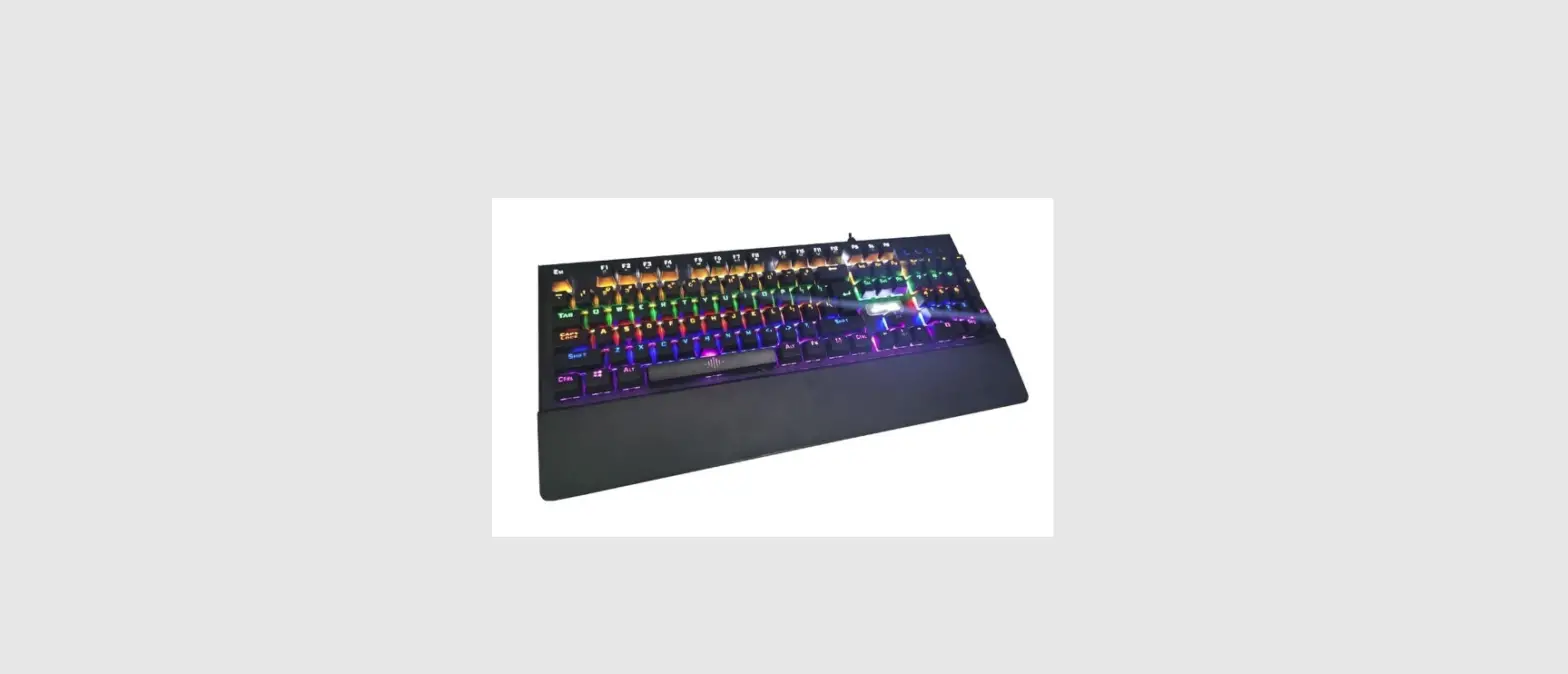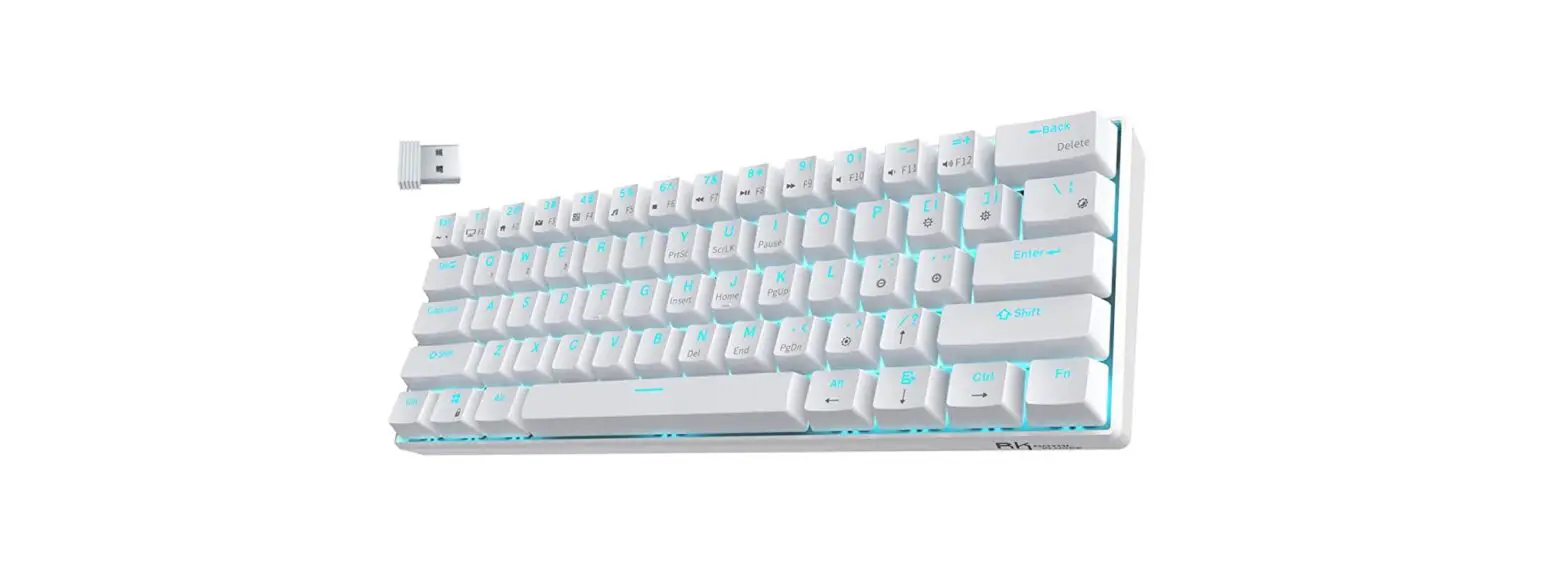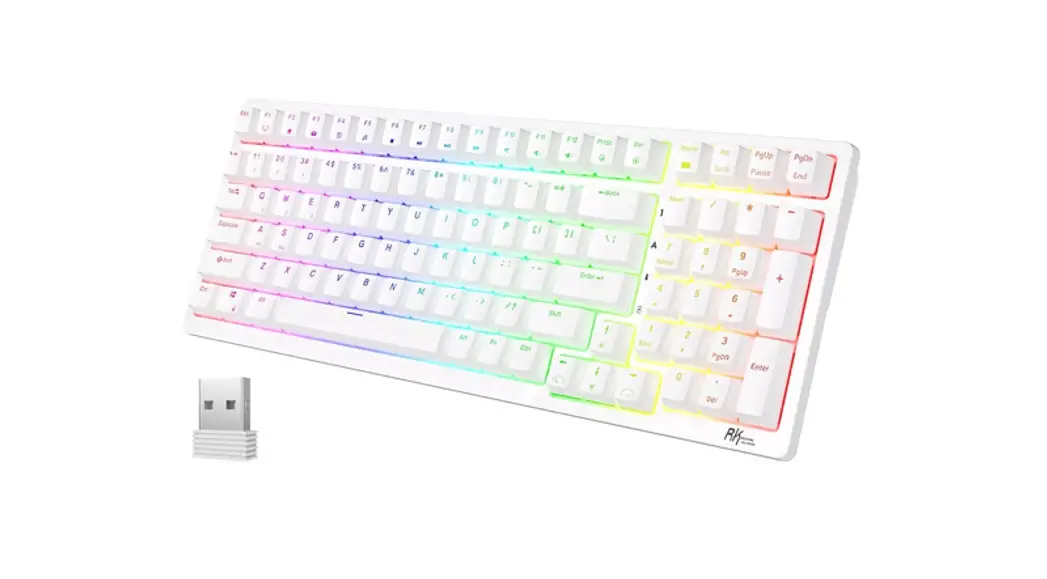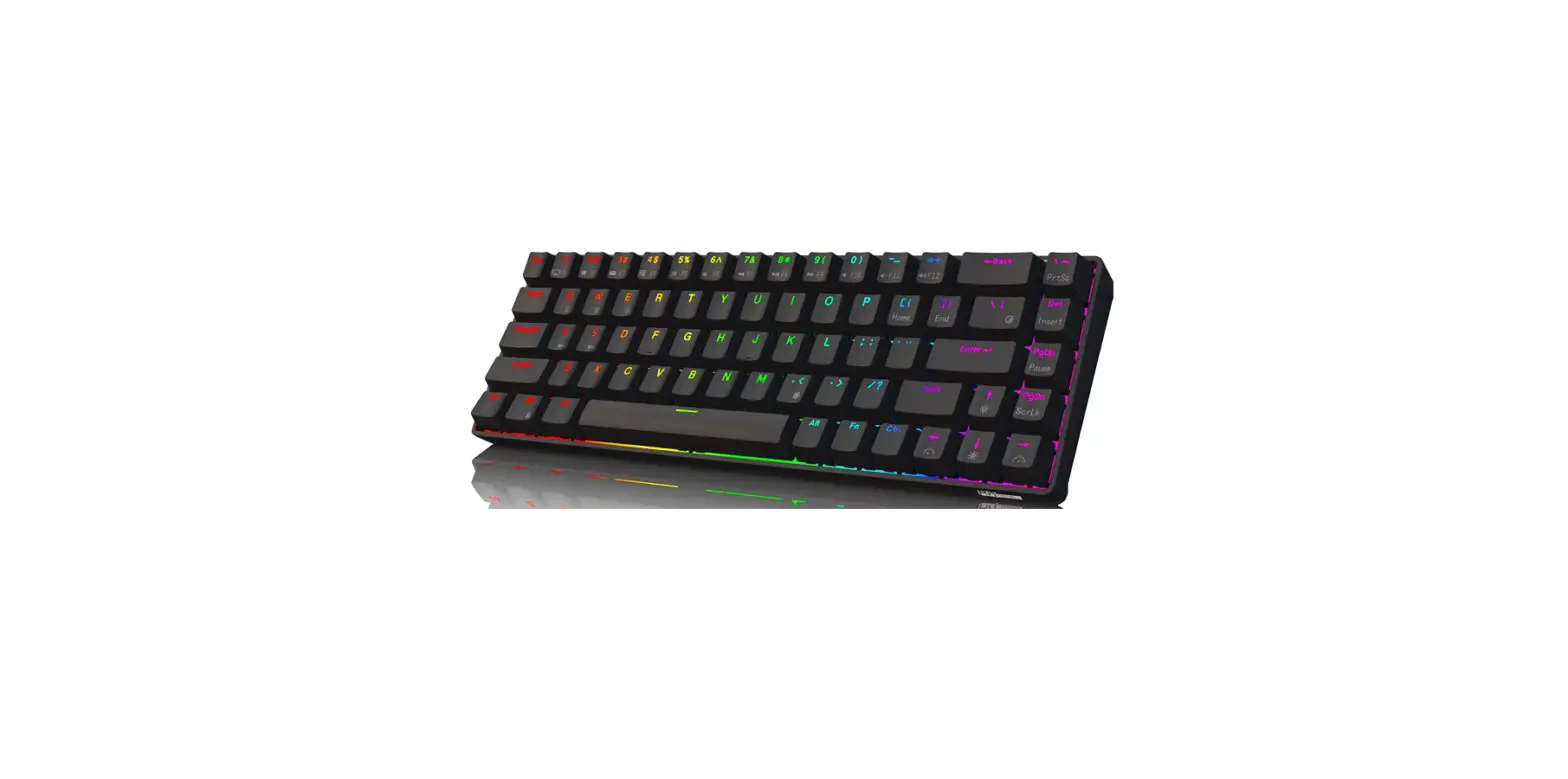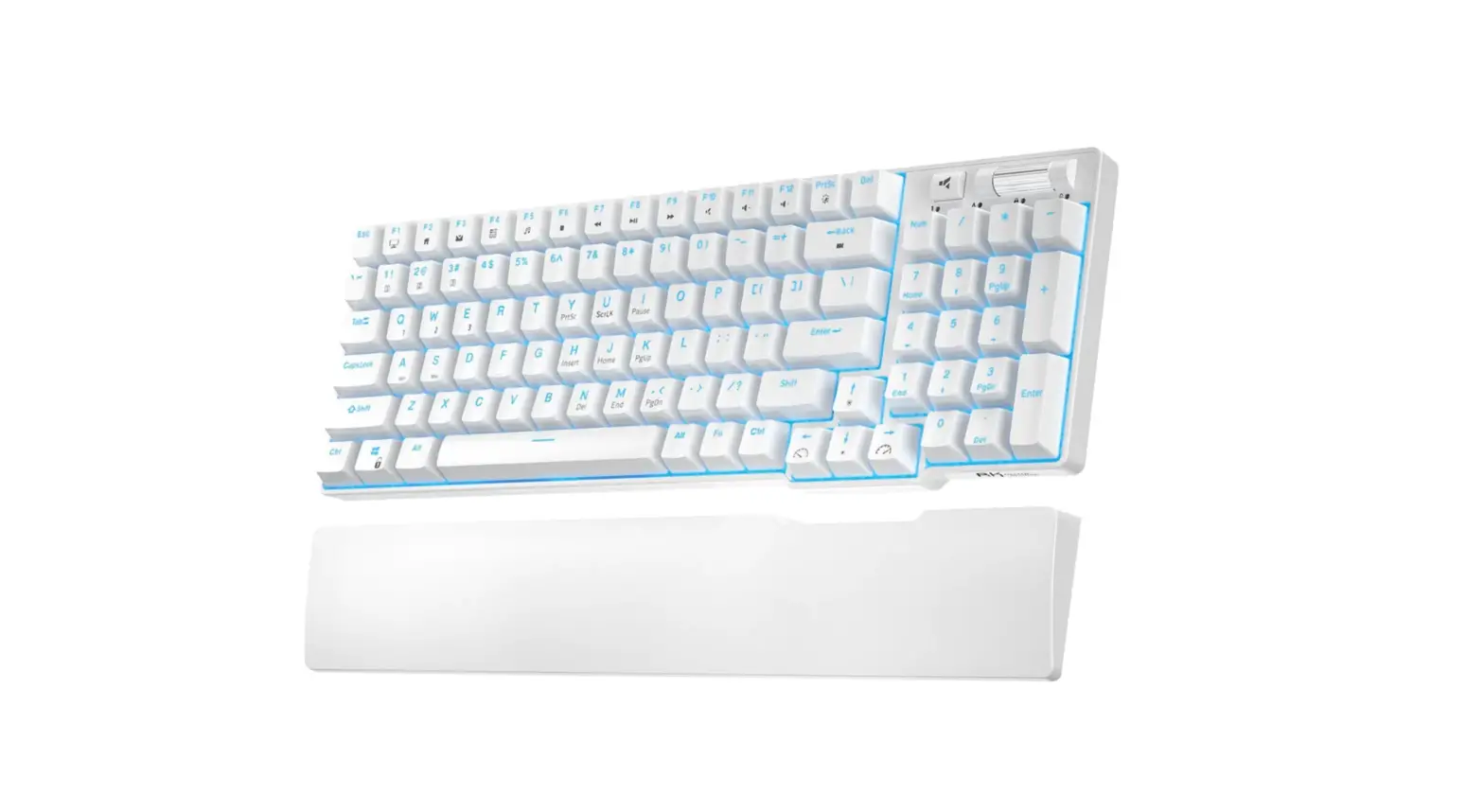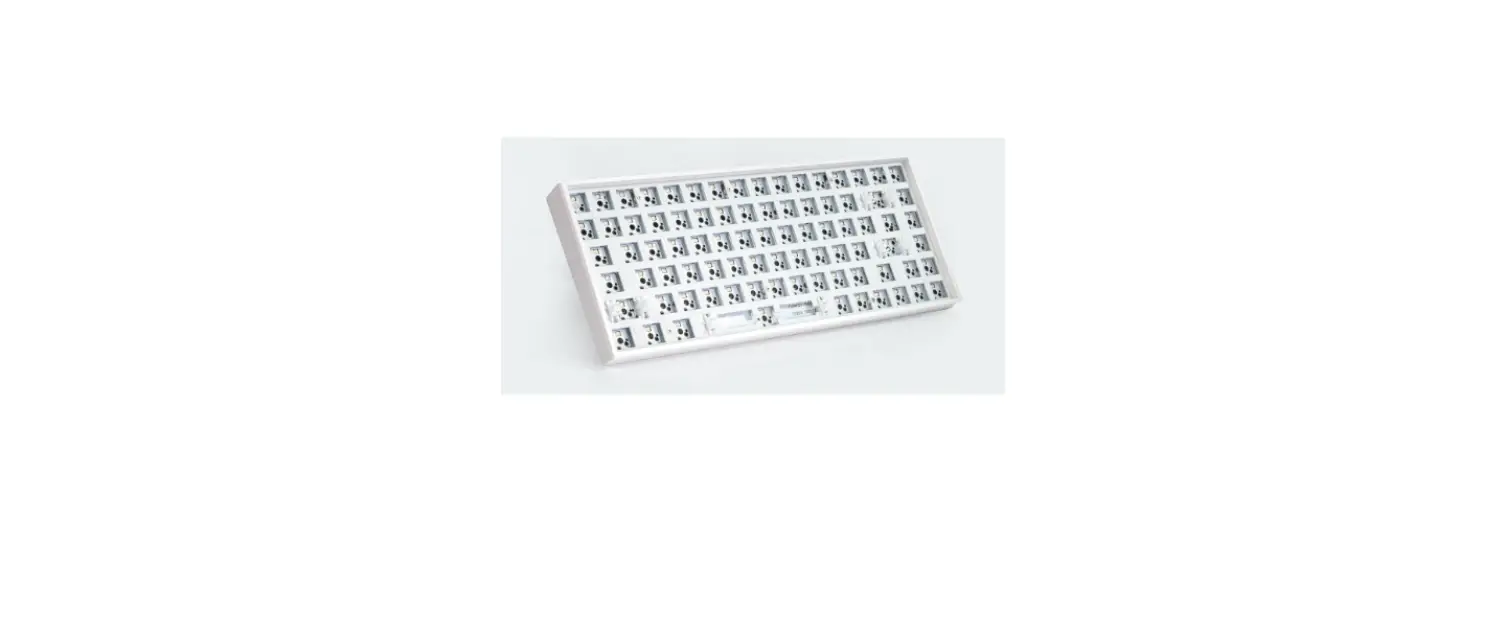
 KONO JK96 Mechanical Keyboard Instruction
 KONO JK96 Mechanical Keyboard Instruction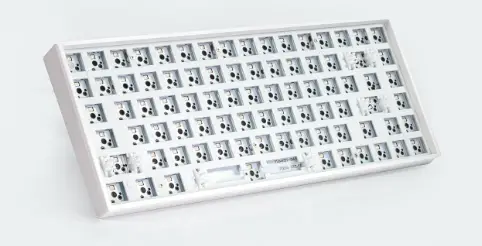
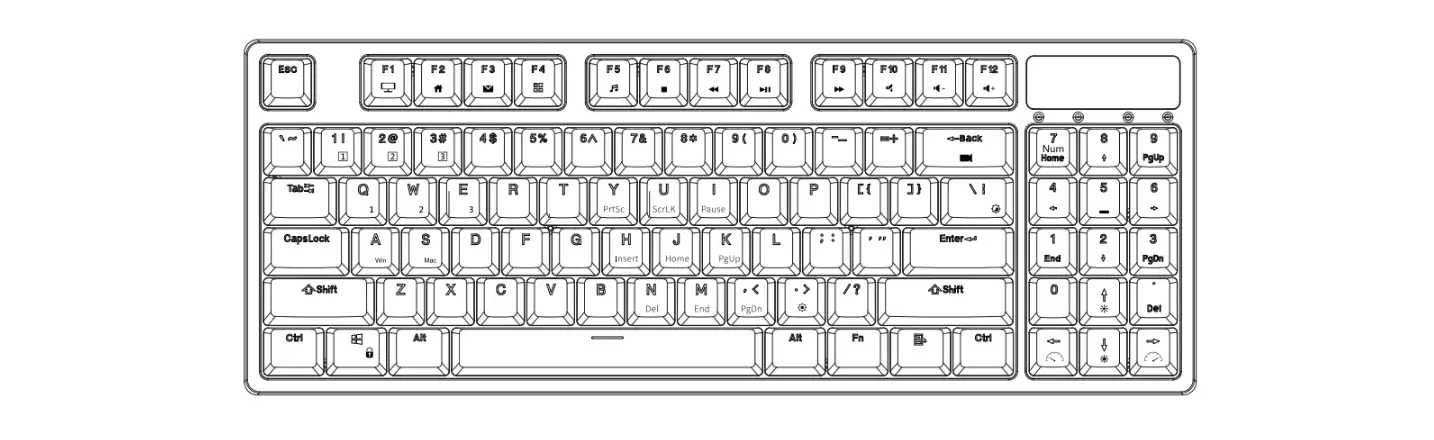
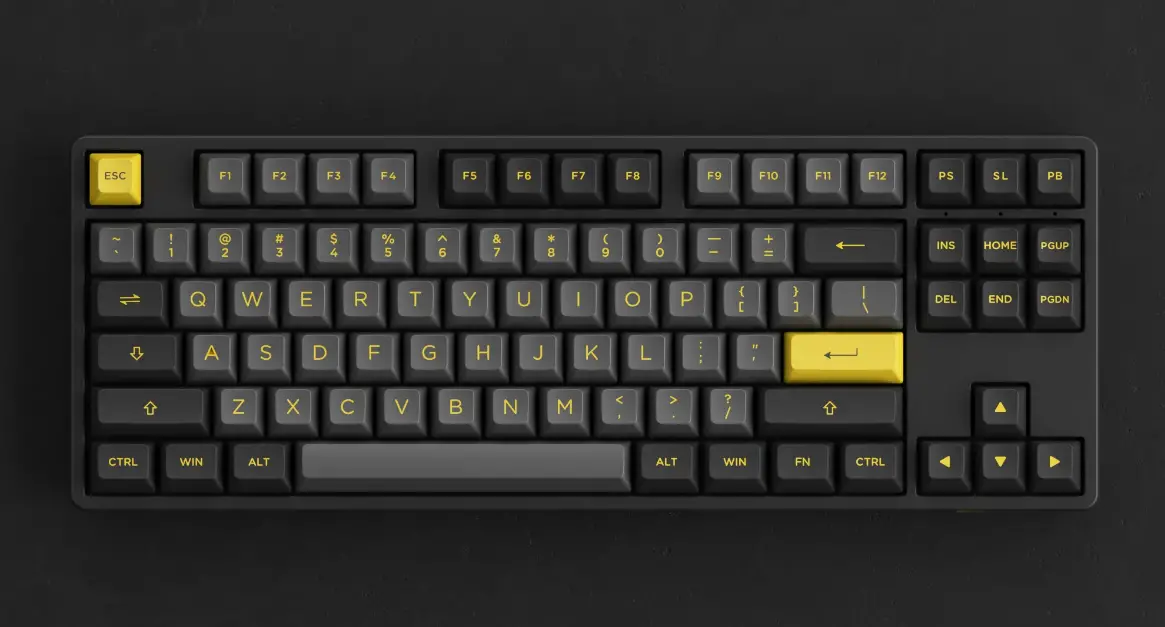
KONO Keyboard Operation Instructions
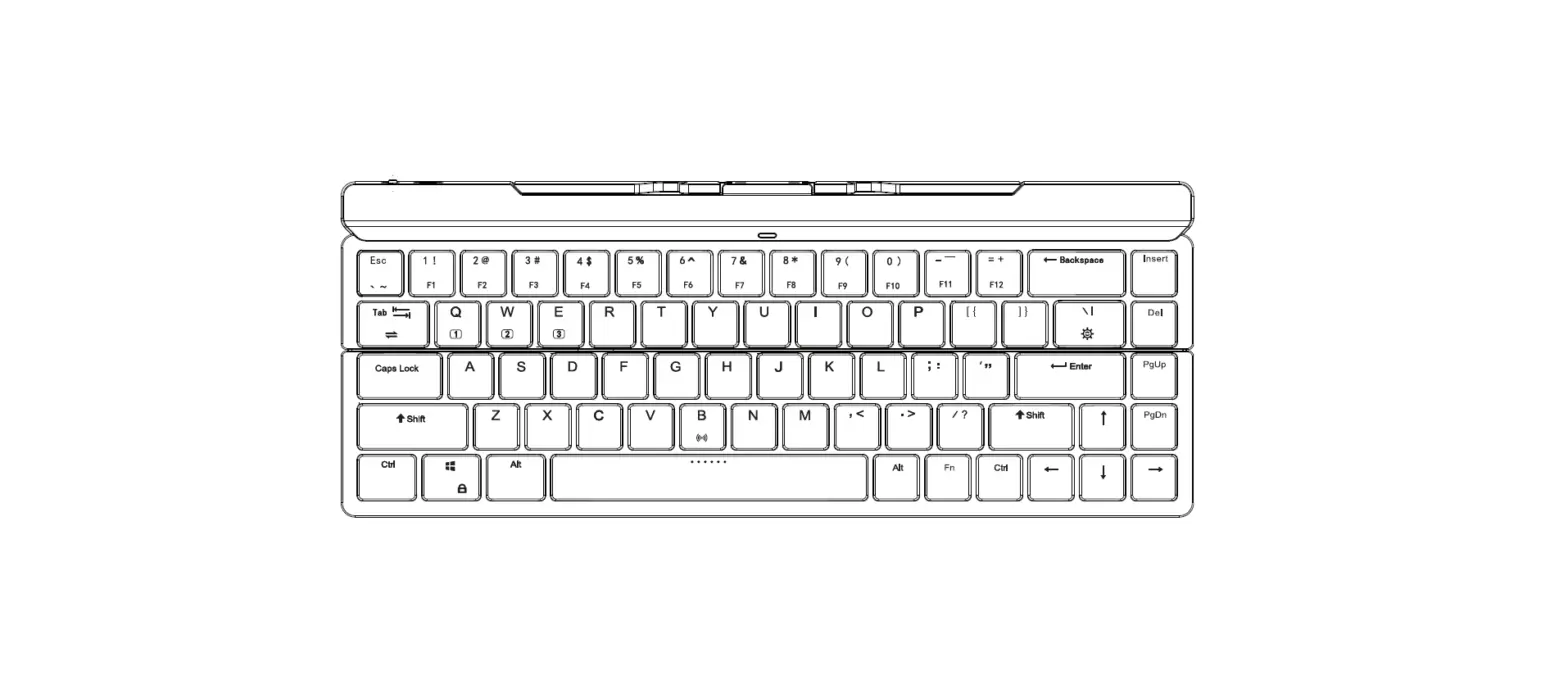
| Combination keys | Features |
| FN+ESC | restore default settings |
| FN+F1 | Screen Brightness- |
| FN+F2 | Screen Brightness+ |
| FN+F3 | WIN+TAB (switch desktop) |
| FN+F4 | WIN+E (Explorer) |
| FN+F5 | |
| FN+F6 | Home |
| FN+F7 | previous piece |
| FN+F8 | play / Pause |
| FN+F9 | next track |
| FN+F10 | mute |
| FN+F11 | volume- |
| FN+F12 | Volume+ |
| FN+9 | Enter/Exit Custom Backlight Mode |
| FN+[ | Backlight Brightness- |
| FN+] | Backlight Brightness+ |
| FN+; | Backlight Speed – |
| FN+’ | Backlight Speed + |
| FN+\ | toggle lights |
| FN+Backspace | turn off the backlight |
| FN+Enter | Switch the backlight color |
| FN+space | Switch to wired mode |
| FN+Z | Short press to switch Bluetooth device 1, long press 3S to enter pairing mode |
| FN+X | Short press to switch Bluetooth device 2, long press 3S to enter pairing mode |
| FN+C | Short press to switch Bluetooth device 3, long press 3S to enter pairing mode |
| FN+Win | Lock Windows key |
- Battery indicator
Lithium battery (3.7V): battery voltage is lower than 3.3V keyboard Ctrl_L white indicator flashing indication。 - Bluetooth pairing
Press and hold the FN+Z/X/C key combination for 3S, the keyboard enters the code matching state, the indicator light flashes quickly, and the indicator light of the connected device is always on for 10 seconds.。 - link back instruction
After the keyboard is powered on or wakes up from sleep, it will only reconnect to the current device; if the reconnection fails, it will go to sleep, and after the keypress wakes up, it will continue to reconnect. The white indicator light flashes slowly during the Bluetooth reconnection process, and the indicator light is always on for 10S after the connection is made. During the reconnection process, pressing the button can extend the reconnection time, and within 10S from releasing the button, the reconnection fails, the indicator light is off, and the keyboard enters Sleep, if the pairing is successful and then enter the pairing mode again, after the pairing fails, the keyboard will go to sleep but the last successful pairing data will be retained;
Backlight mode
PresstheFN+\keycombinationtoswitchthelightmodesequence:lightwave(default), always on, breathing, ripple, raindrop, snake, follow, converge, neon, custom, laser, sine wave, blooming flowers, colorful spring Movement, twists and turns, colorful vertical and horizontal。 - Game custom mode
FN+\keyboard switches to game mode. After the first mode is LOL mode, FN+9 enters custom backlight mode. Press the button and the button will light up. Press it again to change a color to light up. - The color order is
Red, green, blue, orange, purple, yellow, after recording, press FN+9 again to exit the custom recording mode; the Delete key will flash during recording to indicate that the backlight is being recorded, and stop flashing after exiting。
The backlight speed cannot be adjusted in the always-on and custom backlight modes; the speed, brightness and color can be adjusted in other backlight modes, with a total of 7 levels of brightness, and the default maximum brightness; a total of 5 levels of speed, and the default speed of the third level; the color order is: colorful, Ice blue, red, green, blue, orange, purple, yellow。 - device name:
Displayed after wired connection: Gaming Keyboard KONO3.0 display after connection: KONO 3.0 KB KONO5.0 display after connection: KONO 5.0 KB - use distance:>10m 360°(Straight line without obstruction)
- Bluetooth connection time: less than or equal to 5S compatibility
- Bluetooth: Compatible with all Bluetooth Dongles on the market, the notebook has a built-in Bluetooth module, and Bluetooth 5.0 needs to support WIN8 or above systems, tablets and mobile phones, etc.
FCC Caution
Any changes or modifications not expressly approved by the party responsible for compliance could void the user’s authority to operate this equipment.
This device complies with Part 15 of the FCC Rules. Operation is subject to the following two conditions:
(1) This device may not cause harmful interference, and
(2) this device must accept any interference received, including interference that may
cause undesired operation.
The equipment complies with FCC Radiation exposure limit set forth for uncontrolled environment. The device shall be operated and installed without restrcition.
NOTE:
This equipment has been tested and found to comply with the limits for a Class B digital device, pursuant to Part 15 of the FCC Rules.
These limits are designed to provide reasonable protection against harmful interference in a residential installation. This equipment generates, uses and can radiate radio frequency energy and, if not installed and used in accordance with the instructions,may cause harmful interference to radio communications.
However,there is no guarantee that interference will not occur in a parti cular installation. If this equipment does cause harmful interference to radio or television reception, which can be determined by turning the equipment off and on, the user is encouraged to try to correct the interference by one or more of the following measures:
- Reorient or relocate the receiving antenna.
- Increase the separation between the equipment and receiver.
- Connect the equipment into an outlet on a circuit different from that to which the receiver is connected.
- Consult the dealer or an experienced radio/TV technician for help.