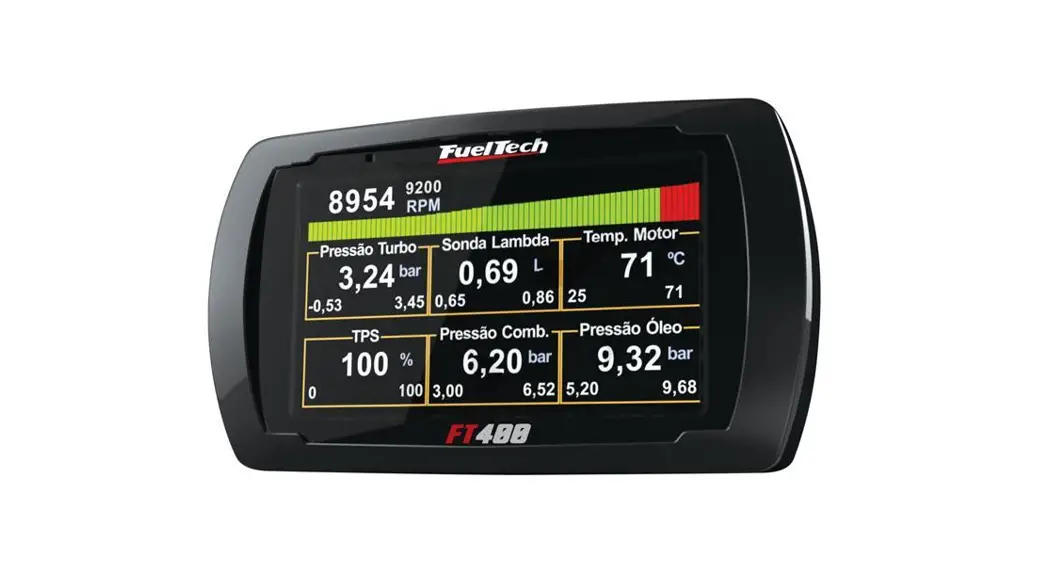
 FT400 ECU and Screen Combo with Harness
User Manual
FT400 ECU and Screen Combo with Harness
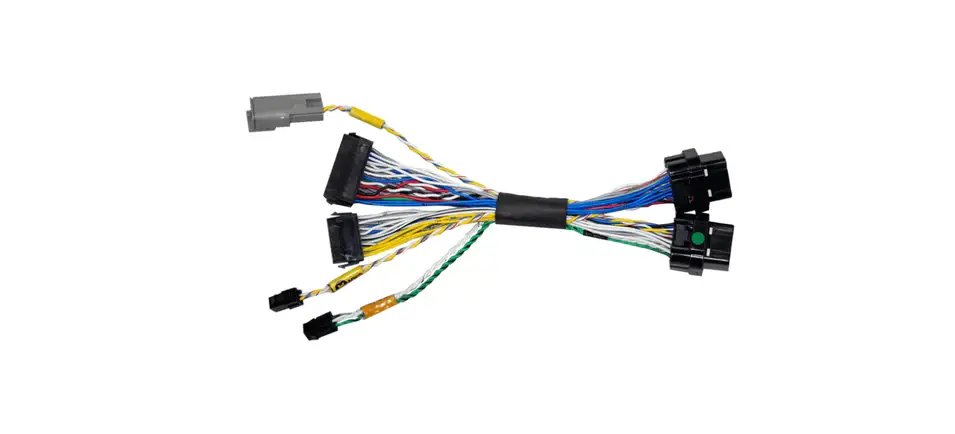
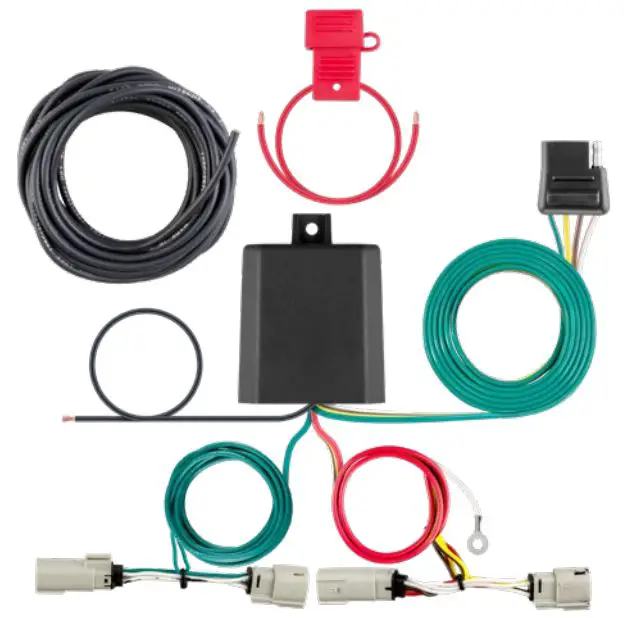
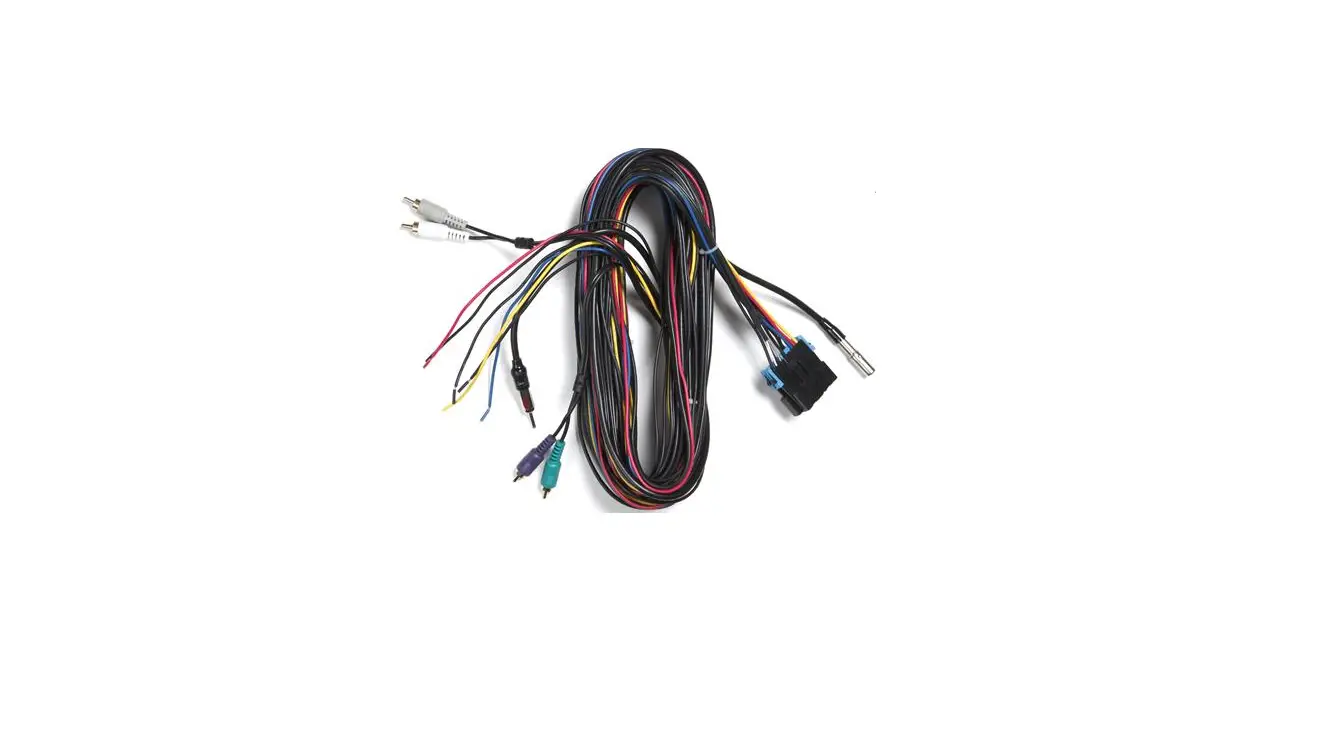
This guide provides basic orientations on migrating the FT400 ECU to the FT550 ECU. Read the instructions contained in this document carefully to use the full potential of the Power FT platform.
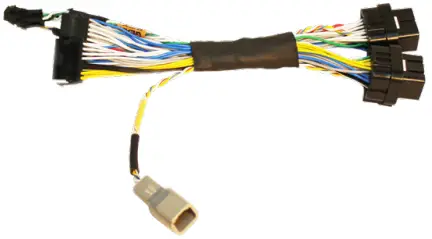
RPM Signal Connection
Hall effect distributor or Crank Trigger
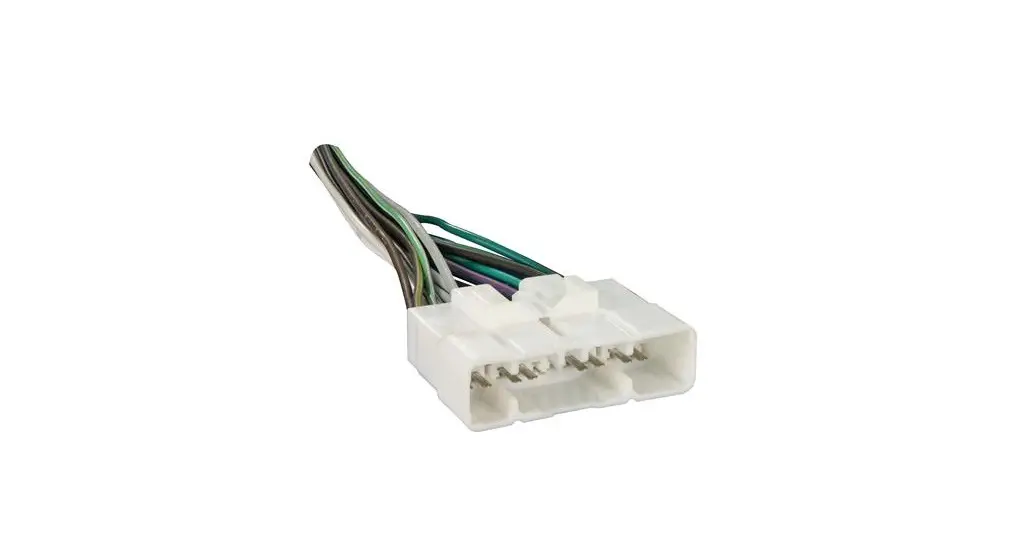
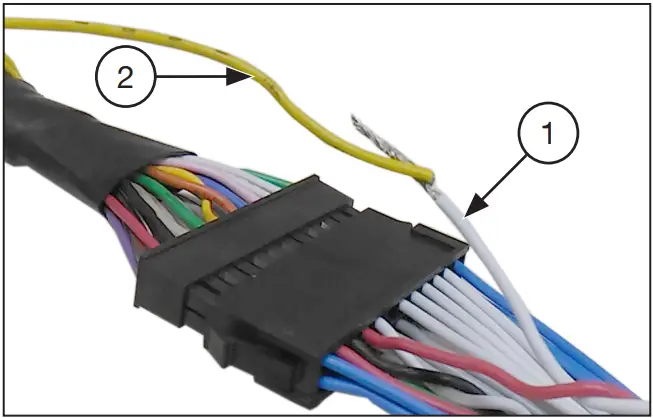
Connect the adapter harness and insulate the white wire (1).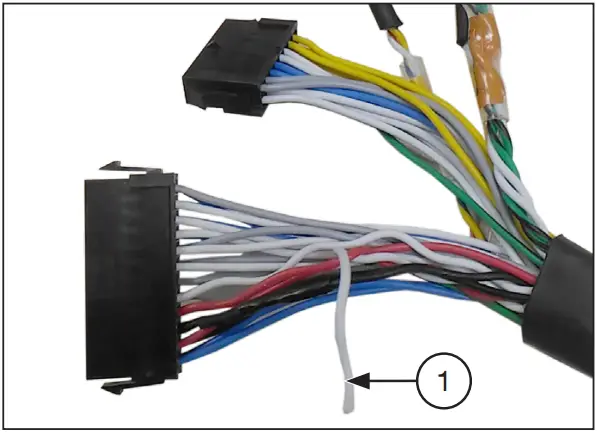
VR crank sensor
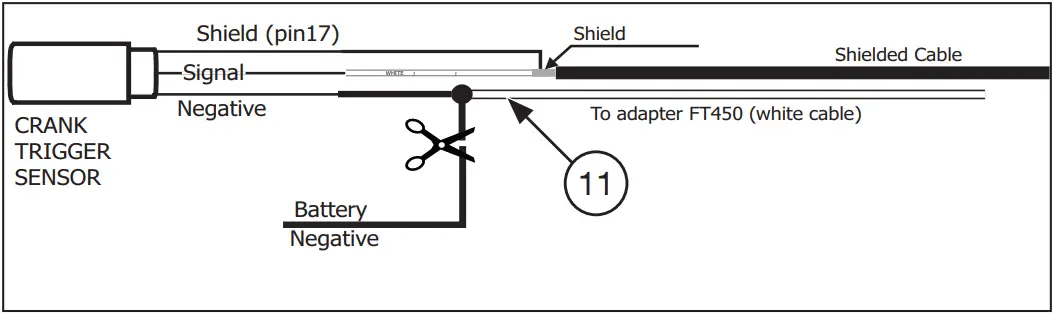
When using VR crank sensors and the engine cuts at high RPM, the white wire must be connected to the negative pin in the VR sensor. When using this wire, the RPM signal must be configured as a VR differential.
Map conversion
After installation of the FT550, it is necessary to migrate the map, for this follow the steps in the procedure described below.
Connect FT400 ECU to the computer through the FuelTech USB-CAN converter.
Open the software ECU Manager, and select an open file from ECU.
Select the tune you want to open in the software (4). In the following image, there are 4 different tunes that must be opened and saved on your computer.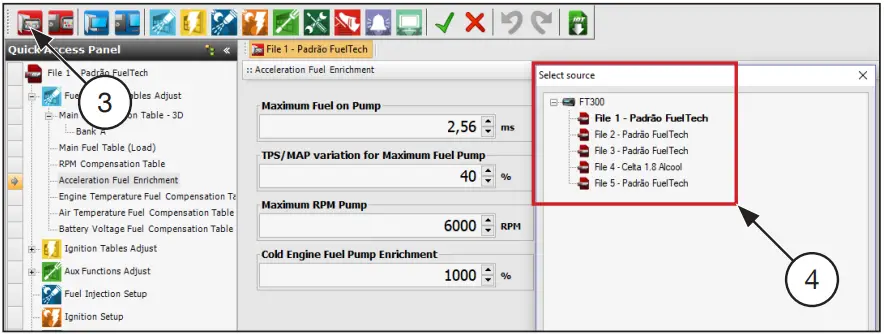
After the tune is opened in the ECU Manager, select Save File on PC (5). Choose the folder where the tune will be saved, and select “save”.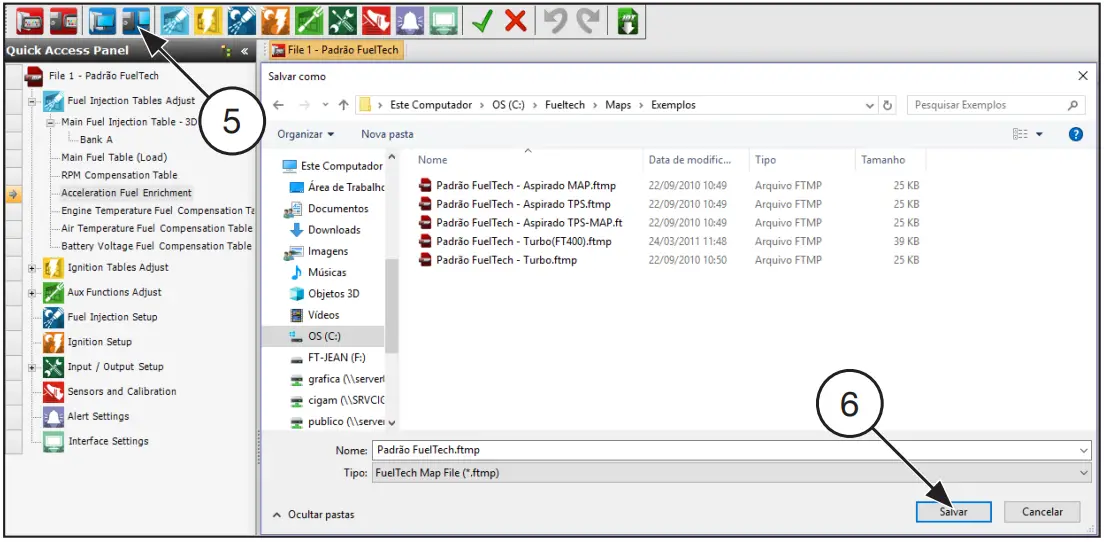
Now all the tunes are saved in the computer, the software FT-Manager must be opened to work with the Power FT platform (FT550).
Connect the FT550 using the USB cable included in the package.
With FTManager opened select “Map” (7) and then “Import from ECU Manager” (8).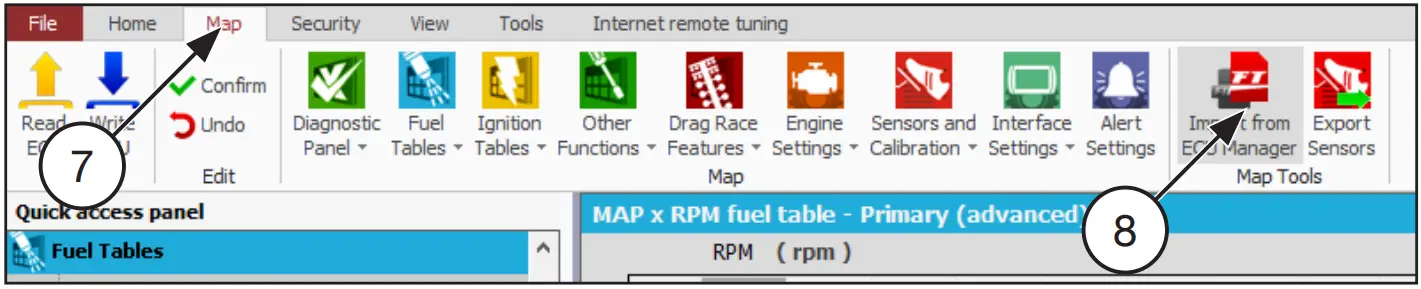
Search the folder where the old tune was saved before and select open.
It will show a screen with settings that must be configured according to the engine, such as compression rate, camshaft profile, fuel type, and injectors flow.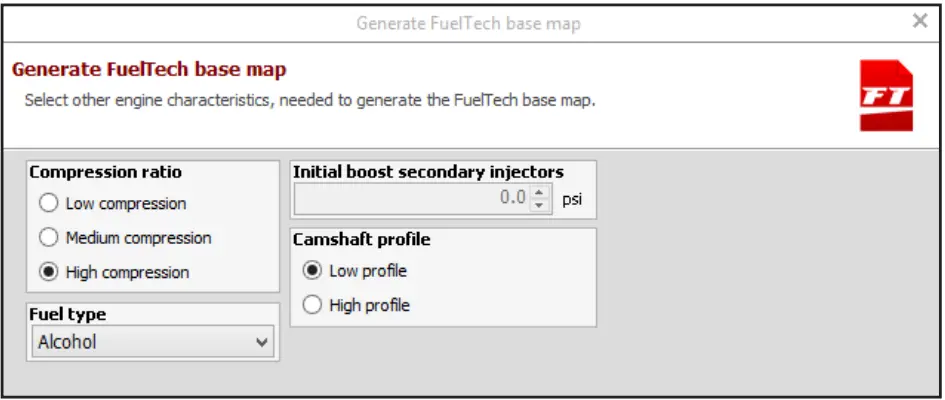
With the map open in FTManager check whether the inputs and outputs are correct. To do this, go to the menu “Sensors and Calibration“ and “Inputs Outputs”.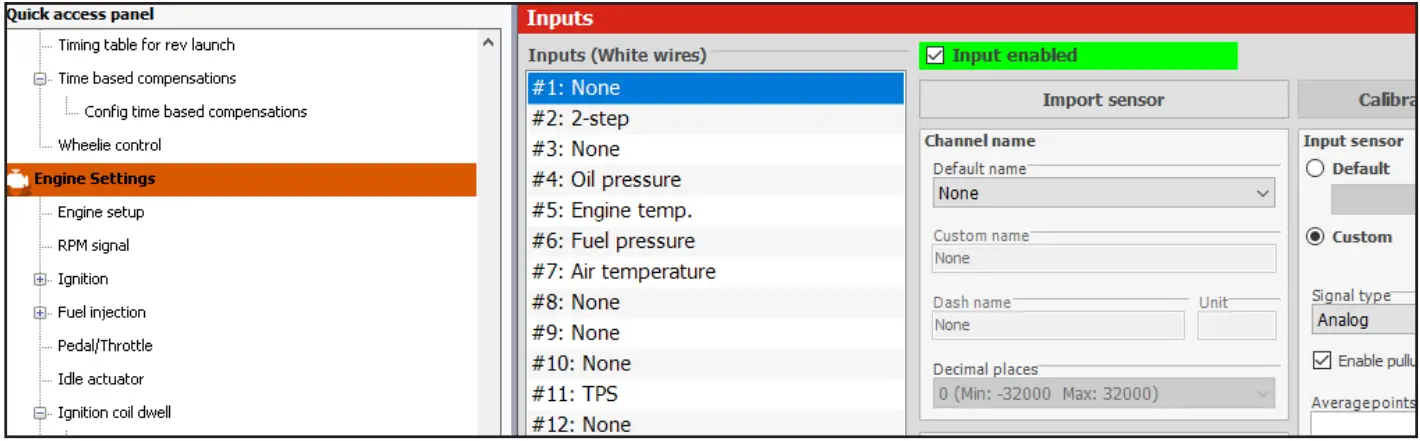
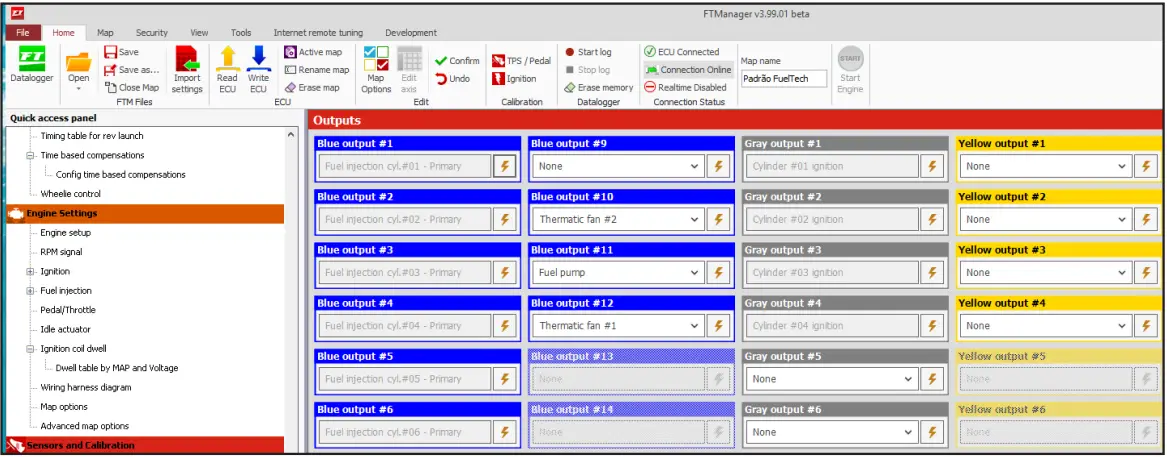
Electronic throttle
In the FT400, the electronic throttle control was done through four wires (Brown/White 1 and 2 and Lilac/White 1 and 2), already in the FT550, only two.
Brown / White 2 (Pin 13) = Yellow 1;
Purple / White 2 (Pin 14) = Yellow 2;
The Brown / White 1 (Pin 15) and Purple / White 1 (Pin 16) wires should be cut and insulated from the original FT400 harness.
Stepper Motor
In some cases, where the engine uses a stepper motor, and after using the adapter doesn’t open or close, a pair of yellow wires must be inverted on the adapter, Yellow 1(pin 22) inverted with Yellow 2(pin 23) OR Yellow 3(pin 24) inverted with Yellow 4(pin 25).
Push the lock (9) inside the connector(10)
Pull the wires out of the connector
Invert the position of the wires by inserting the Yellow number 1 here Yellow number 2 and vice-versa
Push the lock (9) on the other side of the connector to lock the terminals in the correct position.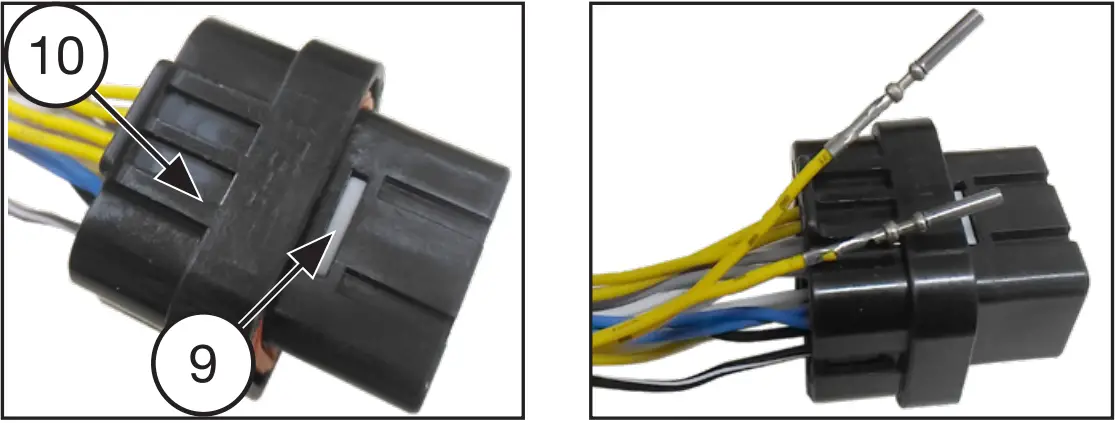
Adapter harness Table
| FT400 | FT550 | ||
| Wire Color | Function | Wire Color | Function |
| Purple | Primary inj A | Blue #1 | Primary inj A |
| Brown | Primary inj B | Blue #2 | Primary inj B |
| Yellow #4 | AUX output #4 | Blue #3 | FREE |
| Yellow #1 | AUX output #1 | Blue #4 | FREE |
| Yellow #2 | AUX output #2 | Blue #5 | FREE |
| Yellow #3 | AUX output #3 | Blue #6 | FREE |
| Yellow #6 | AUX output #6 | Blue #7 | FREE |
| Yellow #5 | AUX output #5 | Blue #8 | FREE |
| Gray A | Ignition output A | Gray #1 | Ignition output #1 |
| Gray B | Ignition output B | Gray #2 | Ignition output #2 |
| Gray C | Ignition output C | Gray #3 | Ignition output #3 |
| Gray D | Ignition output D | Gray #4 | Ignition output #4 |
| Gray E | Ignition output E | Gray #5 | Ignition output #5 |
| Gray F | Ignition output F | Gray #6 | Ignition output #6 |
| Yellow #7 | AUX output #7 | Gray #7 | FREE |
| Green | TACH Output | Gray 8 | TACH Output |
| – | – | Yellow #1 | FREE |
| – | – | Yellow #2 | FREE |
| Brown/white | Stepper #1 | Yellow #3 | Stepper #1 |
| Purple/white | Stepper #2 | Yellow #4 | Stepper #2 |
| White | 02-Sensor | White #1 | 02-Sensor |
| White | 2-STEP | White #2 | 2-STEP |
| Orange | TPS | White #3 | TPS |
| White | Fuel Pressure | White #4 | Fuel Pressure |
| Pink | Engine Temp | White #5 | Engine Temp |
| Blue | Oil Pressure | White #6 | Oil Pressure |
| Blue/White | Air temp | White #7 | Air temp |
| Orange/Blue | Throttle #2 | White #8 | Throttle #2 |
| Orange/Blue | Throttle #1 | White #9 | Throttle #1 |
| Orange | TPS 2 | White #10 | TPS 2 |
| White | A/C | White #11 | A/C |
| – | – | White #12 | FREE |
| – | – | White #13 | FREE |
| – | – | White #14 | FREE |
First start with your FT550:
When starting the engine for the first time it’s important to check some basics:
TPS: go to the TPS calibration screen under “sensors and calibration” and make sure the TPS is calibrated and working perfectly.
Fuel Pump: Check if the fuel pump comes on when the ignition is ON or when the engine cranks.
Signal RPM: when cranking the engine, check if the ECU receives an RPM signal.
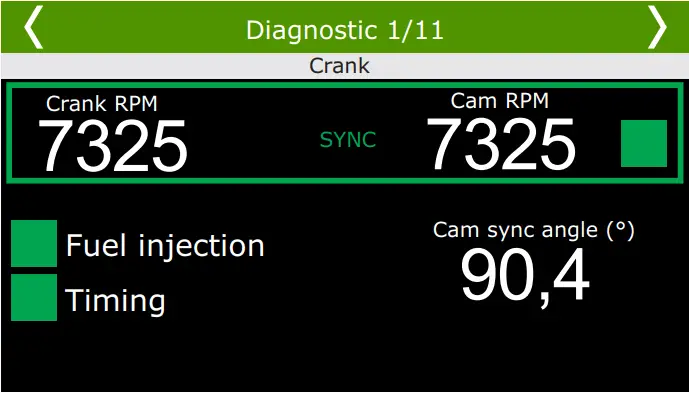
Sensors: check if temperature and pressure sensors show logical values (engine temperature, oil and fuel pressure, and so on).
Ignition: After the engine starts and runs, use a timing light to check the ignition calibration, refer to the FT550 manual for instructions on that.
IMPORTANT: If you notice unwanted ignition cuts at high RPMs, and use an inductive crank wheel sensor, you need to change your connection (and module configuration) to sensor inductive differential (VR differential).
In this case, it is necessary to pass a new wire to the rotation sensor, remove the battery negative connected to it and connect the white wire (11) that is loose on the adapter harness.
Finally, navigate to the “Engine Settings” menu, “RPM signal” and select the “VR Differential” option.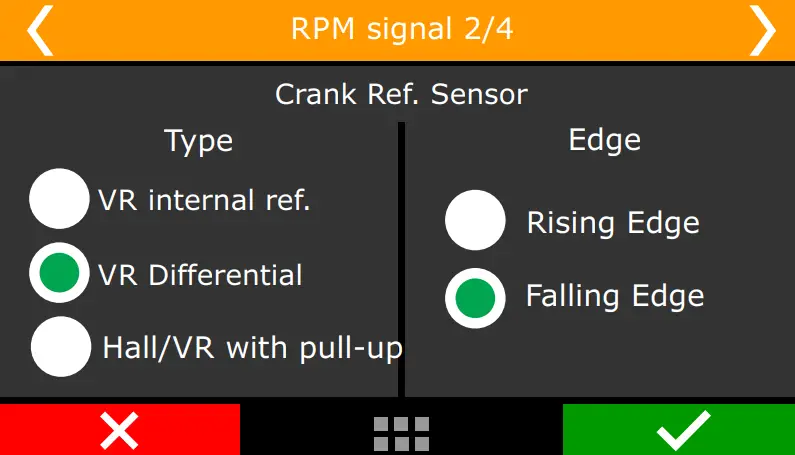
Distributed:
FuelTech Ltda.
Av. Bahia, 1248, São Geraldo
Porto Alegre, RS, Brasil
CEP 90240-552
CNPJ 05.704.744/0001-00
Fone: +55 (51) 3019-0500
[email protected] / [email protected]
www.fueltech.com.br / www.fueltech.net
For more information, consult your FT550 user manual.
Copyright © 2018 FuelTech Ltda.