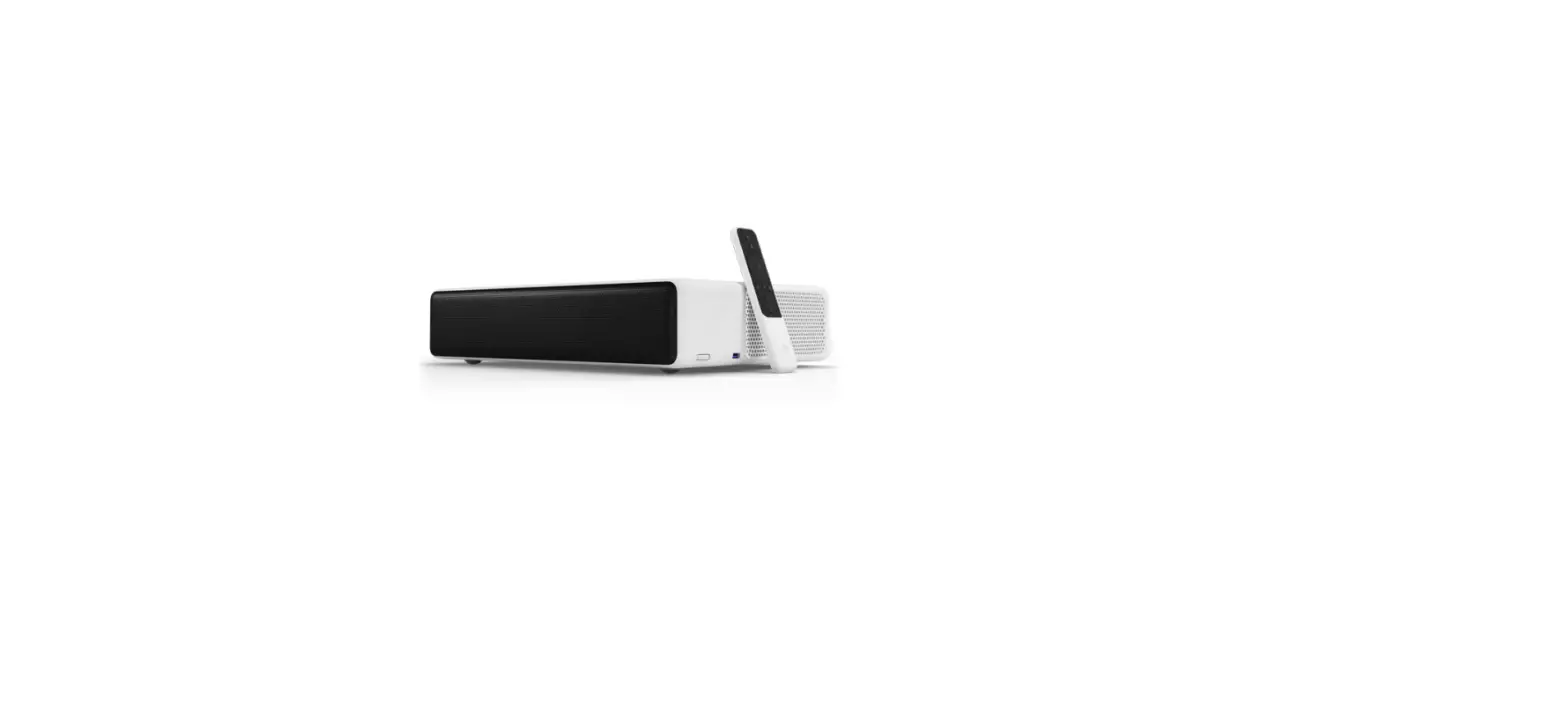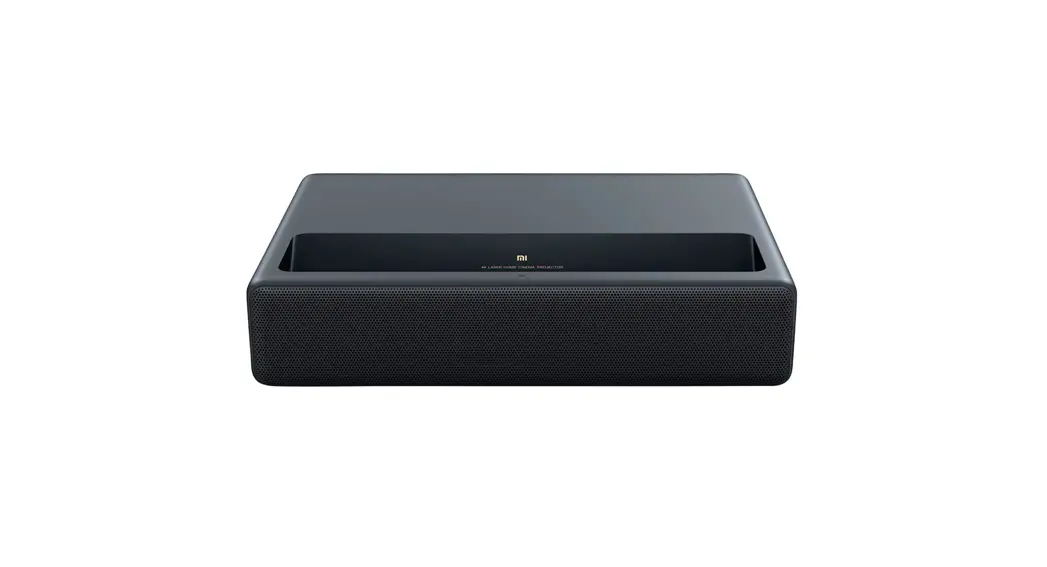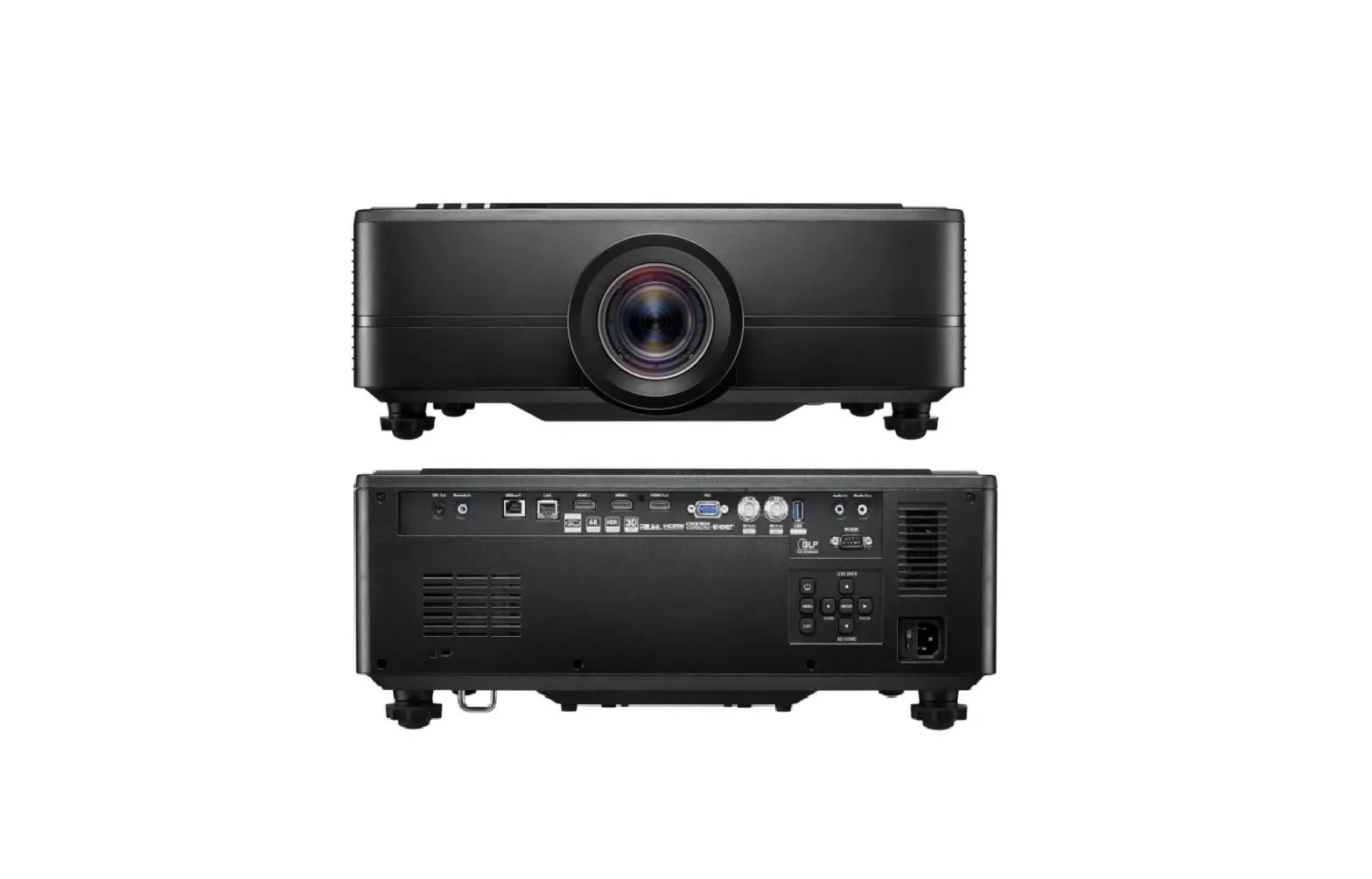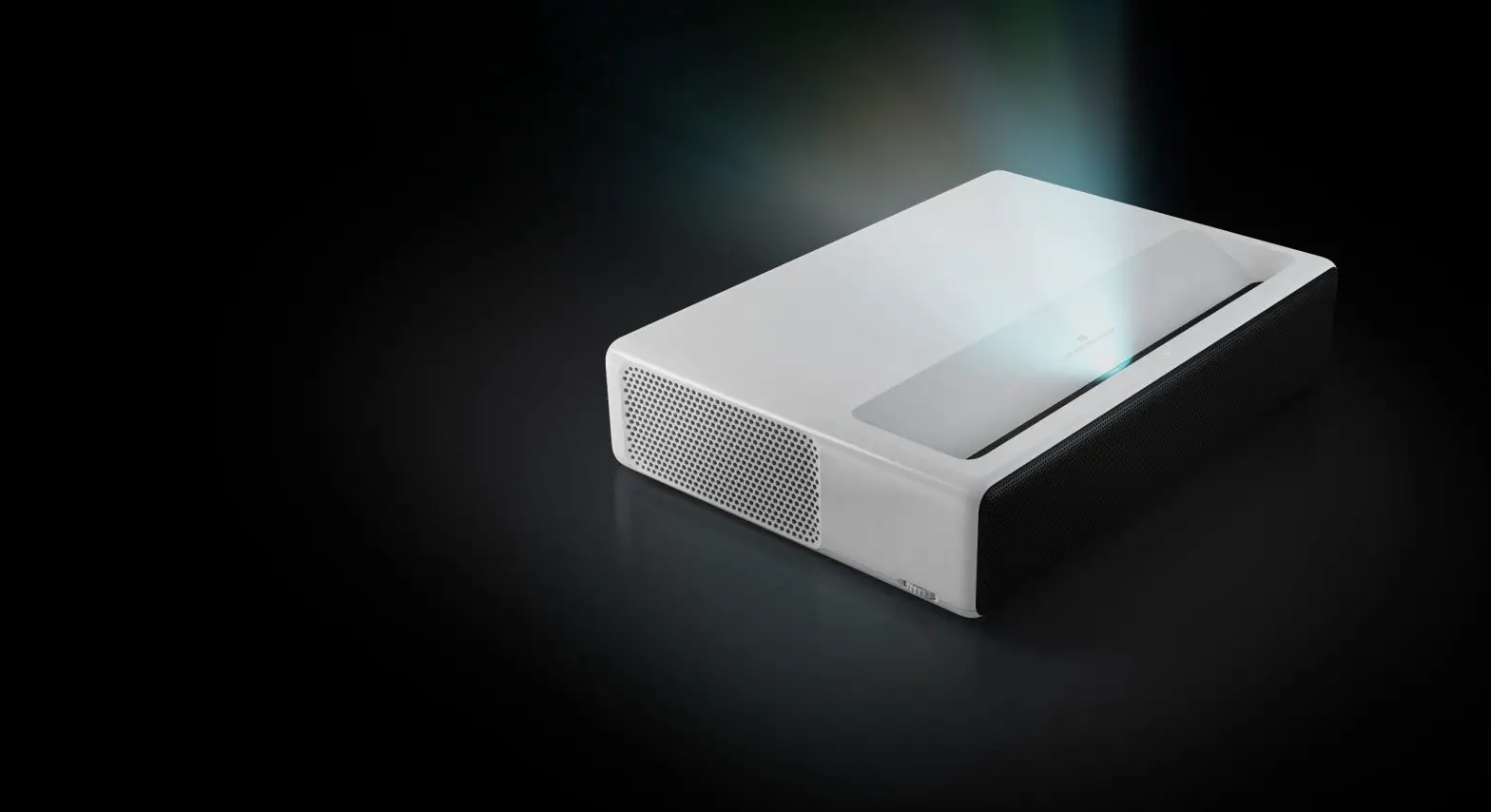
Mi Laser Projector User Manual

To users:
Thanks for choosing the Mi Laser Projector 150″. Read this manual carefully before use, and retain it for future reference
FCC Statement
This device complies with part 15 of the FCC Rules. Operation is subject to the following two conditions:
(1) This device may not cause harmful interference, and (2) this device must accept any interference received, including interference that may cause undesired operation.
Any changes or modifications not expressly approved by the party responsible for compliance could void the user’s authority to operate the equipment.
NOTE: This equipment has been tested and found to comply with the limits for a Class B digital device, pursuant to Part 15 of the FCC Rules. These limits are designed to provide reasonable protection against harmful interference in a residential installation. This equipment generates, uses and can radiate radio frequency energy and, if not installed and used in accordance with the instructions, may cause harmful interference to radio communications. However, there is no guarantee that interference will not occur in a particular installation.
If this equipment does cause harmful interference to radio or television reception, which can be determined by turning the equipment off and on, the user is encouraged to try to correct the interference by one or more of the following measures:
– Reorient or relocate the receiving antenna.
– Increase the separation between the equipment and receiver.
– Connect the equipment into an outlet on a circuit different from that to which the receiver is connected.
– Consult the dealer or an experienced radio/TV technician for help.
The device has been evaluated to meet general RF exposure requirement.The device can be used in portable exposure condition without restriction.
FCC ID:
WEEE
WEEE Disposal and Recycling Information Correct Disposal of this product. This marking indicates that this product should not be disposal with other household wastes through out the EU. To prevent possible harm to the environment or human health from uncontrolled waste disposal, recycle it responsible to promote the sustainable reuse of materials resources. To return your used device, please use the return and collection systems or contact the retailer where the product was purchased. They can take this product for environmental safe recycling
FDA
Complies with 21 CFR1040.10 and 1040.11 except for deviations pursuant to Laser Notice No. 50, dated June 24, 2007.
IC
This device complies with Industry Canada license-exempt RSS standard(s).
Operation is subject to the following two conditions: (1) this device may not cause interference, and (2) this device must accept any interference, including interference that may cause undesired operation of the device.
CE
We Xiaomi Communications Co.,Ltd, Hereby, declares that this equipment is in compliance with the applicable Directives and European Norms, and amendments.
For MJJGYY02FM
Bluetooth Frequency range: 2400MHz-2483.5 MHz
Maximum Output Power:
Wi-Fi 2.4G Frequency range: 2400MHz-2483.5 MHz
Maximum Output Power:
Wi-Fi 5G Frequency range: 5150MHz-5350MHz
Maximum Output Power:
Frequency range: 5470MHz-5725MHz
Maximum Output Power:
The WLAN function for this device is restricted to indoor use only when operating in the 5150 to 5350 MHz frequency range.
 Note:
Note:
– The distance required between a person and the projector must be ≥20cm.
Laser Safety Information
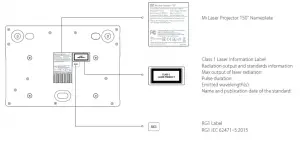
Warning
– A failure to follow the following safety advice may result in damage to the eyes and skin.
– You must never directly look at the laser projector lens or output. Its extreme level of brightness can cause irreversible eye damage. Ensure that the laser
projector’s casing remains intact while the projector is in use to avoid ultraviolet radiation. We recommend the use of protective safety equipment and
safety goggles whenever undertaking repairs or maintenance.
– You must not, under any circumstances, open the laser’s protective casing when it is operating.
– You cannot allow any reflective objects to go near the path of the laser beam.
Important Safety Information
Ensure that you carefully read the following important safety information and all product labels before using this product.
Safety Label Description
 This label warns users that this product contains non-insulated voltage sources which can cause electric shock. Hence, there is a danger of electric shock should you come into any kind of contact with any component within.
 This label alerts users to critical handling and maintenance related information. Please ensure that you read this information carefully to avoid any errors.
 This alerts users to be aware of high temperatures.
 This label alerts users to keep their hands or other body parts away
.Grounding Warning This product must be grounded when used.
Transport Instructions You are advised to transport this product in its original packaging or equivalent, identical packaging.
 Guarding Against Electric Shocks and Fire Hazards
– Use of improper electric cables may result in decreased product performance and even electric shock or fire, and so forth. Ensure that you use the product’s original electric cabling or an identical equivalent when using this product to preserve performance and safety.
– Should you use a cable extension cord, then you must ensure that it does not have a lower current rating than the product’s original cable. If you do
not, then the cable may overheat and cause an accident such as an electric shock, fire, and so on.
– Ensure that you disconnect the cable from the power socket during a lightning storm or if you have not used this product for an extended length of time to avoid damage from a lightning or power line surge.
– Ensure that you do not place any flammable items near this product to guard against fire hazards.
– Do not allow any object to come into contact with the lens while the device is operating or it may result in the object becoming very hot or deformed, which may result in a fire.
– Do not allow any items to be placed near vents or the heat dissipation vent to avoid a buildup of heat within the product, which may result in a fire
Safe Operating Instructions
– Do not allow this product to be used while on an unstable platform, frame, or table to protect against serious damage to the device or injury to those nearby should the product fall.
– Never look directly at the lens or heat dissipation vent while the device is operating to avoid eye damage.
– Do not attempt to take this product apart as there are dangerous high voltage components inside that can cause injury. This product must be maintained and repaired by highly experienced or authorized repair personnel should repairs be necessary.
– Do not place this product upright or it may easily fall over and cause injury or suffer damage.
– Do not allow this product to come into contact with water droplets or moisture (this product must operate in an environment with 20-80% humidity).
– Do not immerse this product in, nor expose it to, water or any other liquid. Immediately unplug this device should any liquids or hard objects enter
into its casing, and immediately request for a professional technician to conduct an inspection before continuing to use the device.
– Do not allow the device to be placed in the following kinds of environments:
- In an area with poor ventilation or a narrow space.
- Near any device with a strong magnetic field.
- Where it is directly exposed to the sun.
- Near a fire alarm.
- In a very hot, cold, or moist environment.
List of Items
Check the items in the product’s packaging against the following list when opening this package. Please get in touch with your distributor immediately should any items be missing.
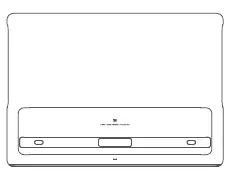
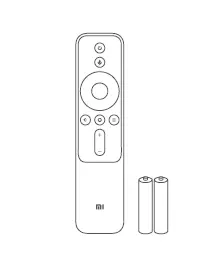
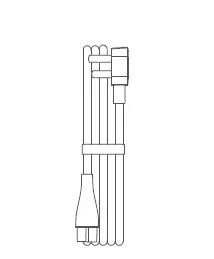
Mi Laser Projector 150″ Remote and Battery AC Power Cord

Cleaning Cloth Manual Cover User Manual
Note
– There may be slight variations in the list of items that come with this product based on the specific country (or region) of sale. Please refer to your actual manual and package.
– Ensure that you retain the product’s original packaging for future use and transportation.
Introduction to the Product’s Exterior
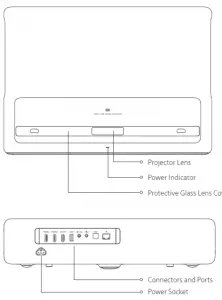
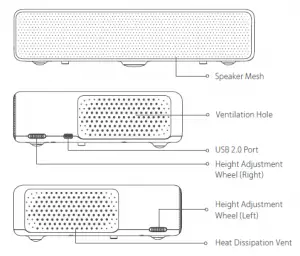
Note:
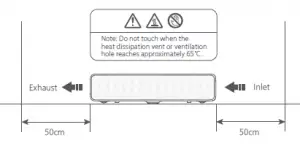
-The heat dissipation vent discharges heat from the device. Do not allow any flammable items near this vent.
-Do not allow any item to be placed near the ventilation hole to avoid a potential buildup of heat within the projector.
-The project will emit a powerful light while operating. Do not look at the projector lens directly to avoid damage to your eyes
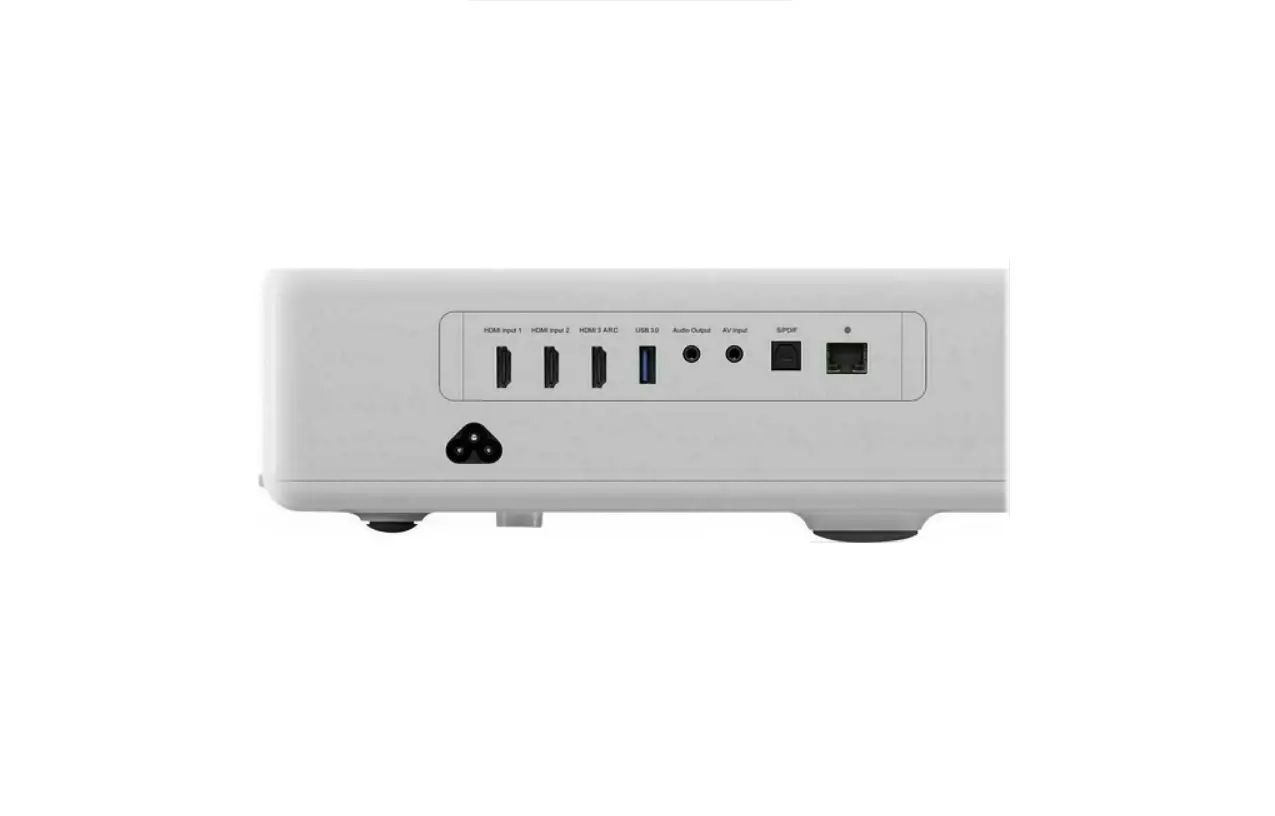
Connectors and Ports
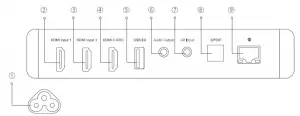
- Power Socket
- HDMI input 1 – HDMI signal input port 1
- HDMI input 2 – HDMI signal input port 2
- HDMI 3 ARC – HDMI signal input port 3 – Audio Return Connector
- USB2.0 – Supports the USB 2.0 Communication Protocol
- Audio Output – Audio output connector. Supports coaxial S/PDIF, subwoofers
- AV Input – Video input connector (triple 3.5mm connector)
- S/PDIF – Optical digital audio signal output connector
- Ethernet – Port for establishing an Internet connection through an Ethernet cable
Power Indicator
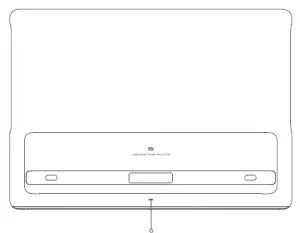
Power Indicator
Power Indicator:
Power switch to turn the power on or off.
System status prompts from the device’s indicator light (a white light source):
– The system will automatically turn itself off after you insert the power cord.
– The indicator will flash during the shutdown process.
– The indicator light will remain on after accessing the system.
– The indicator light will disappear after the system is turned off.
Projection Range and Projection Screen Dimensions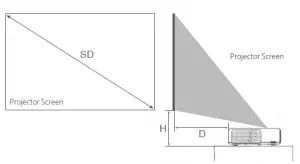
Determines the distance required between the projector and the screen based on the size desired.
| Projector Screen Dimensions (SD) | Projector Distance (D) | Relative Height (H) |
80″ | 14cm | 29cm |
90″ | 19cm | 32cm |
100″ | 24cm | 35cm |
120 | 34cm | 41cm |
150″ | 49cm | 50cm |
Screen Dimensions (SD): Diagonal projection screen size (inches).
Projector Distance (D): Distance between the back of the projector and the screen (cm).
Relative Height (H): Distance between the base of the projector and the very bottom of the image (cm).
Note:
– The dimensions in the above table are approximate values and may vary slightly with the actual values. Please use only as a reference.
Remote
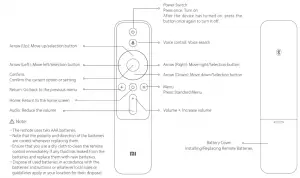
Quick Action Introduction
- Installing Remote Batteries and Pairing the Remote

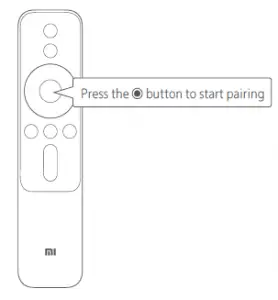
Ensure that the batteries are installed properly If the battery compartment has insulating film, then please remove it.
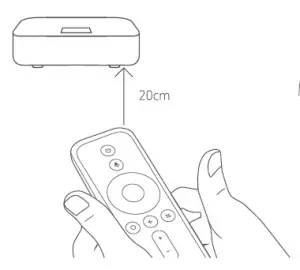
Pairing the Bluetooth Remote
Press and hold and the button near the bottom right corner of Laser Theater.
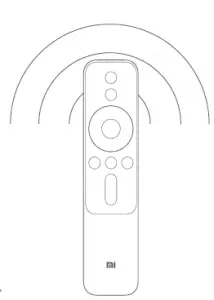
Release after you hear a ‘beep’ . It is now pairing. Wait nearby until the process is completed.
Remote paired You can now use the remote from anywhere nearby. - Motor Focus
Go to the Image Adjustment Menu in the system settings to adjust the focus.
- Keystone Correction

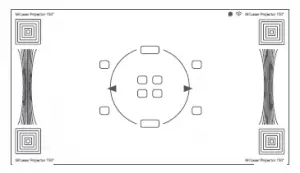
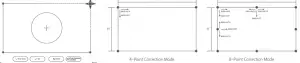
Note:
The correction range for the 4-point and 8-point correction modes is shown above. The W and H for the different projection screen sizes are also different. For example, the dimensions for a 100″ 16:9 image will be approximately W=2214mm, H=1245mm (the actual dimensions may differ. Please refer to the actual dimensions).
Safety and Protection
Human Infrared Sensor and
Fresnel Optical Lens
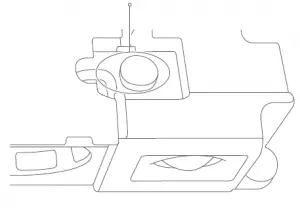
Front sensor range: approximately 55° degrees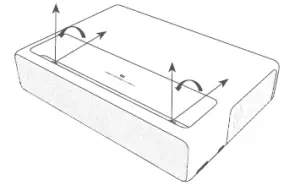
Left and right side sensor range: approximately 70° degrees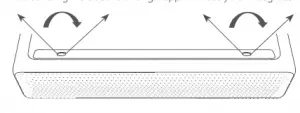
This device comes with an infrared sensor which is able to intelligently detect and protect the human eye from strong light damage within the area of the projection.
The device will reduce its luminescence to the lowest possible value when the sensor is triggered with a warning, ‘Do not look at the light source directly.’ Press any button on the remote to exit.
Audio
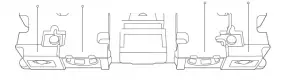
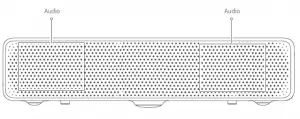
The projector has four built-in, high-quality speakers with approximately 30w total output. It can be used as a stand-alone Bluetooth stereo.
High Frequency Speaker Full Range Speaker Full Range Speaker High Frequency Speaker
Mainboard Upgrades
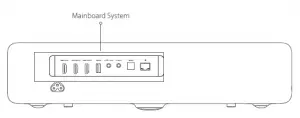
The mainboard can be upgraded in accordance with the processor’s performance. The mainboard must be upgraded at an after sales service location or by being returned to the manufacturer. Users should not attempt to dismantle the mainboard themselves
Smart Temperature Control
The system monitors ‘NTC’ (the laser, ambient temperature, and color wheel temperature) and will automatically adjust the fan speed. The ambient temperature range is 0~40℃. The system monitors the laser and color wheel temperature. Temperature Mode:
– There are three brightness settings available while the projector is within its normal temperature range.
– An overheating warning will be displayed automatically when the projector reaches a temperature in its warning range. It will automatically
switch to power saving mode. Temperature warning and error warnings will be displayed automatically whenever the temperature exceeds
its maximum range to inform you that the machine will be automatically turning off. Temperature switch: The laser comes equipped with a physical high temperature sensor which will automatically shut down its power source when its maximum acceptable temperature is exceeded.
Daily Maintenance
Heat Dissipation Maintenance
Cleaning and Maintenance
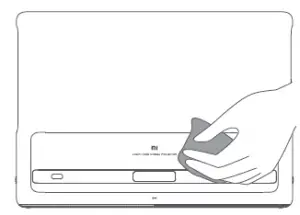
Ensure that the projector casing and lens is given a regular, light clean using the cleaning cloth that comes with the device or a professional grade cleaning cloth. Do not use any abrasive cleaners, solvents or other rough chemicals to avoid scratches to the surface of the chassis or glass cover.
– This projector is not water resistant. Do not allow liquids to penetrate the projector, particularly the power indicator, glass cover, heat dissipation vent, ports and
microphone holes, and such other locations.
– Ensure that the cleaning cloth that comes with the machine or a professional grade cleaning cloth is used to clean the glass.
– Ensure that the projector is turned off and the power cord is removed before cleaning the device
Technical Specifications
| Basic Information | Model | Mi Laser Projector 150″ |
| Dimensions | 410mm×291mm×88mm | |
| Weight | 6.9kg | |
| Basic Functions | Lens focus | Motor focus |
| Dust cover | Glass Dust Cover | |
| Optical Parameters | Display technology | 0.47″DMD |
| Light technology | ALPD | |
| Standard resolution | Full HD (1920×1080) | |
| Projection Parameters | Frame refresh rate | 60/120Hz (1920×1080@60Hz is recommended for best results) |
| Lens focal length | 18.08mm | |
| Projection ratio (TR) | 0.233 | |
| Picture size | 80″-150″ | |
| Keystone correction | 8-Point Keystone Correction, 4-Point Keystone Correction | |
| System Parameters | CPU | T962X Cortex-A53 |
| Four 1.8gHz cores/64 bit | ||
| RAM | 2G DDR4 | |
| Built-in storage | 16GB eMMC high speed flash memory | |
| System Software | Operating system | Google Android TV |
| Compatibility | Google Android Player | |
| APP Store | Google Play Store | |
| AV wireless transmission | Chrome Cast | |
| Brightness mode | Dynamic, movie, standard | |
| Dynamic image | Supports HDR | |
| Audio | Speaker stereo | Full range×2 + high-frequency×2 (Total ≈30w) |
| Remote | Bluetooth remote | Mi Bluetooth Remote |
| Safe Eye Protection | Laser TV eye protection | Body sensor (can close) |
| Power Supply | Built-in power supply | Built-in AC-DC, DC-DC |
| Case Power Supply | Indicator | Breathing white light |
| Electrical Specifications | Noise level | <32dB@ standard mode/ambient temperature 25℃ /distance 1m |
| Power consumption | <250W(max)@ dynamic mode | |
| Power input | 100-240V 50/60Hz | |
| Standby power consumption | <0.5W | |
| Safety and Protection | Smart temperature control | Automatic brightness adjustment, smart fan speed adjustment |
| Temperature switch | Overheating auto-shutdown | |
| Hardware Upgrades | Replaceable master processor design | Upgrade hardware via customer service |
| Others | Storage temperature | -20oC~55oC |
| Operating temperature | 0oC~40oC | |
| Operating humidity | 20%~80% |
FAQs
| Questions | Solutions |
| The screen is not displayed | Turn off the power source and remove the power cable; reinsert the power cable and restart the machine. |
| The Android system crashes | Turn off the power source and remove the power cable; reinsert the power cable and restart the machine |
| There is a screen display error | Turn off the power source and remove the power cable; reinsert the power cable and restart the machine |
| The remote is missing or not paired | Turn off the power source and disconnect the power cord. Reinsert the power cord after waiting for five minutes, and the system will restart automatically. Re-pair the remote control after the system has restarted. |
| The system will automatically turn itself off after an overheating warning | Check that there are no obstacles impeding the system’s ventilation holes to ensure that the cooling flow can proceed normally. Restart the machine according to the method above |
| How do I restore factory settings? | Go to the Setup screen and select Restore from General settings. Confirm whether you want to keep installed applications and then perform the reset. |
| How do I adjust the focus? | Enter Settings > Image Settings, and then find Electric Focusing. Press on the left and right buttons on the remote control to adjust the focus. Release when the image is being clearly displayed on the screen or wall |
| How can I avoid distortions at the top of the image? | The lens’ widest angle projects onto the top of the screen and so any unevenness in this area may have an outsized bending effect on the projection. It can be estimated that around 1mm of unevenness in the receiving screen or wall will cause a 3mm bending effect. A projection curtain would be recommended. |
| How do I use the Keystone Correction system? |
|
| How can I improve the Bluetooth Remote’s voice input’s ability to understand me? |
|
| How do I change the DNS? |
|
| How can I resolve system stuck? |
|
| In the event the preceding steps do not resolve the issue or if you encounter other internal system faults | Please contact Xiaomi Customer Service to arrange a professional technician. |
Manufactured by: Fengmi (Beijing) Technology Co., Ltd.(a Mi Ecosystem company)
Address: 301, Level 3, Building 3, No. 301 Ren He Zhen Jun Ying Nan Street, Shun Yi District, Beijing