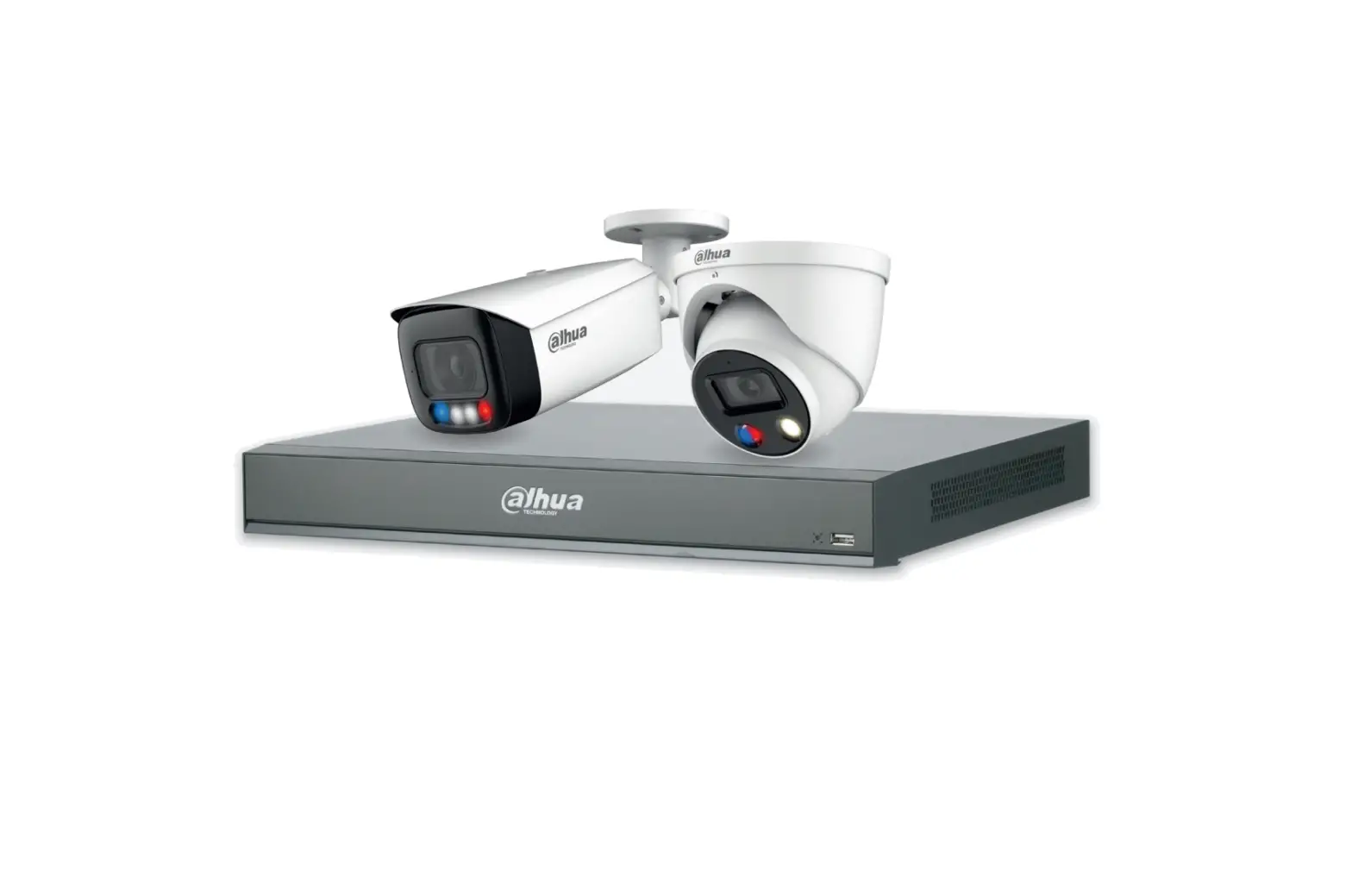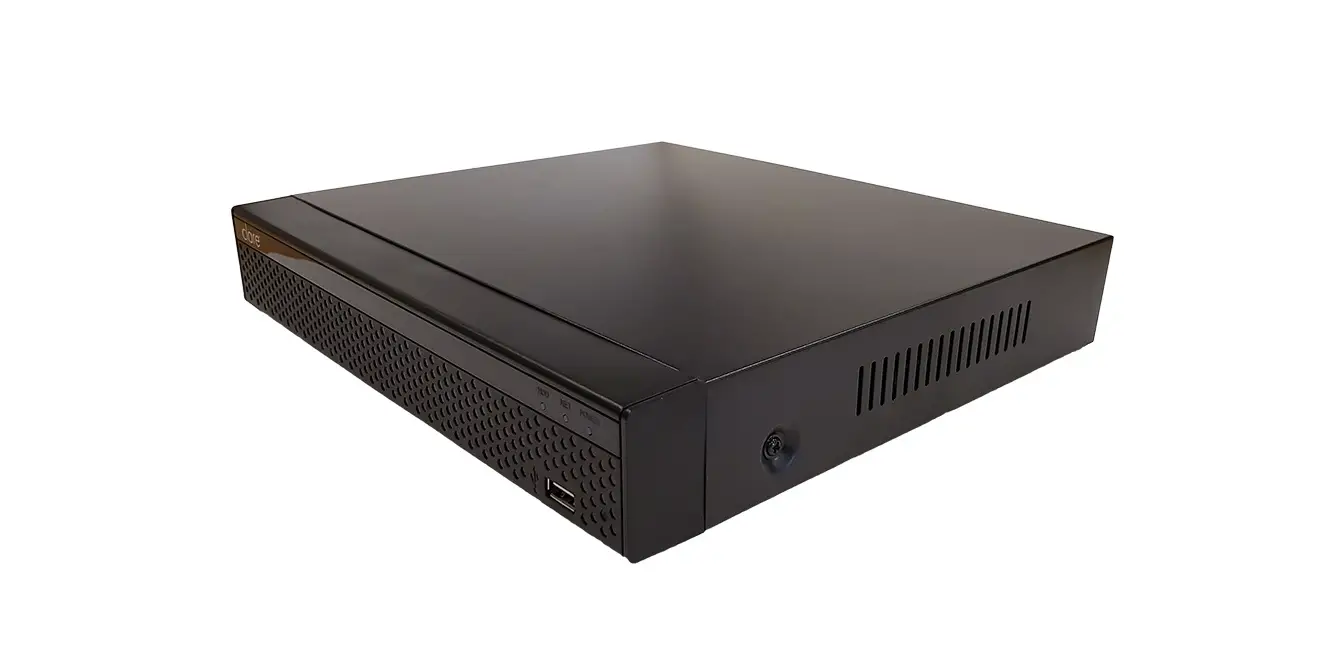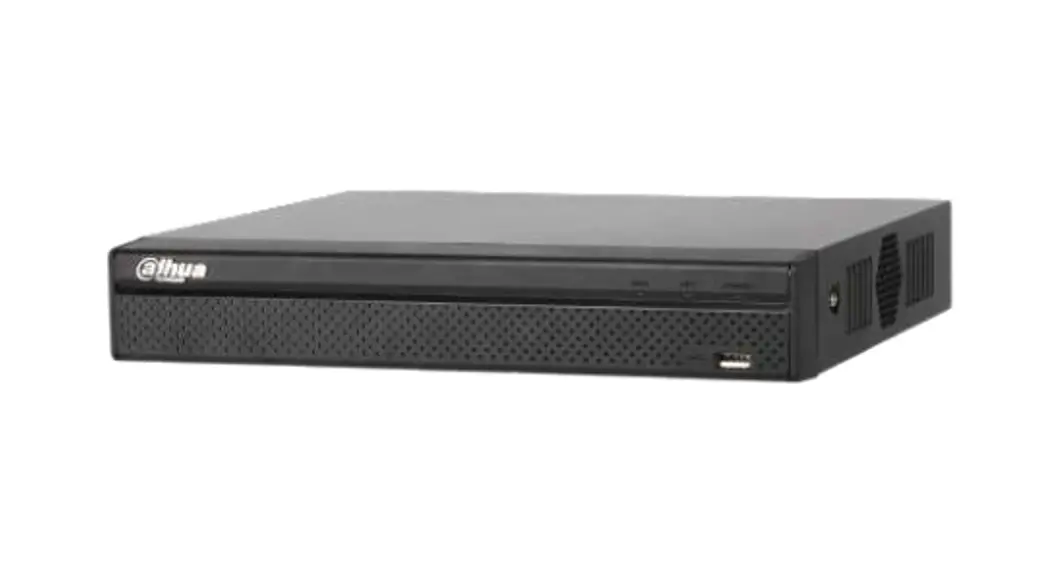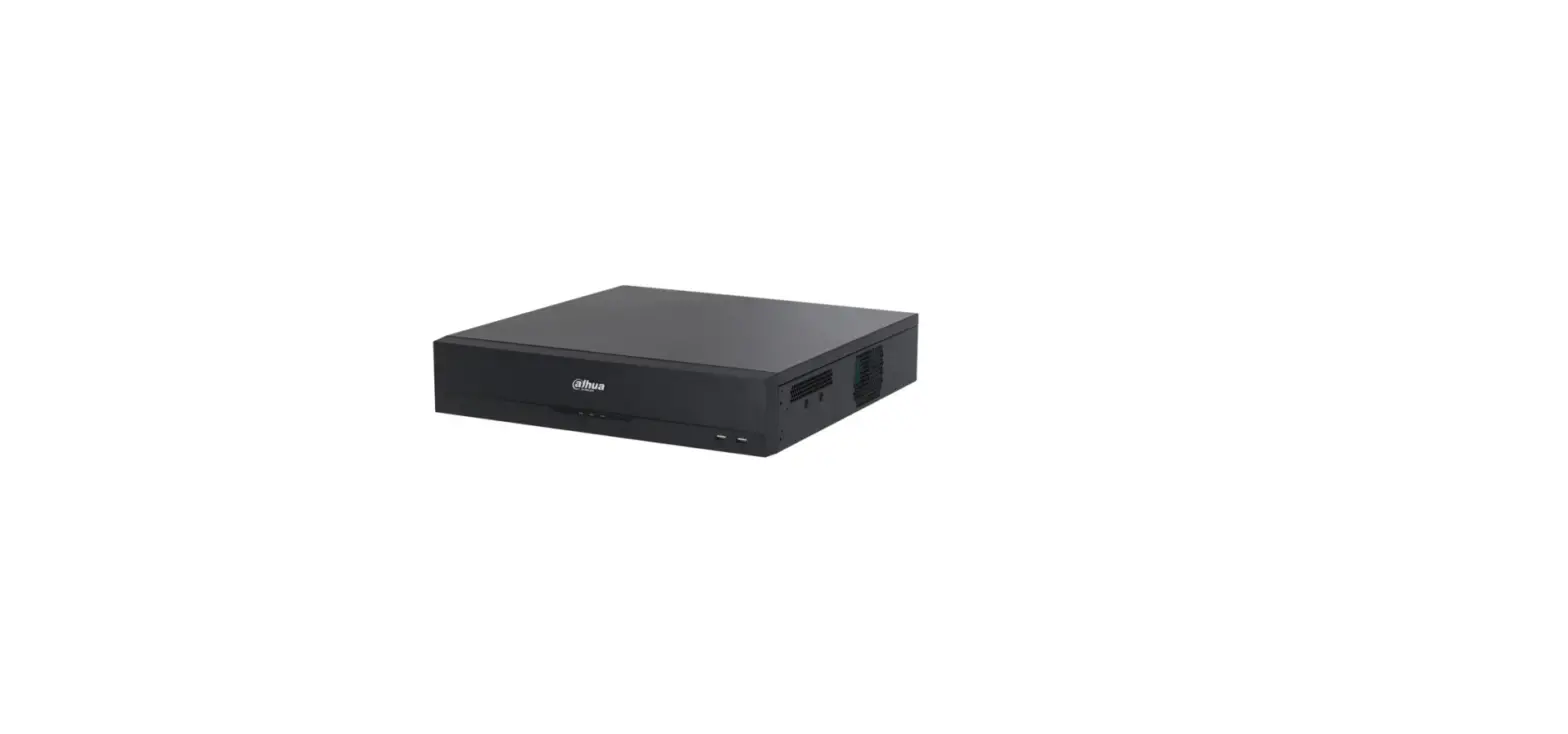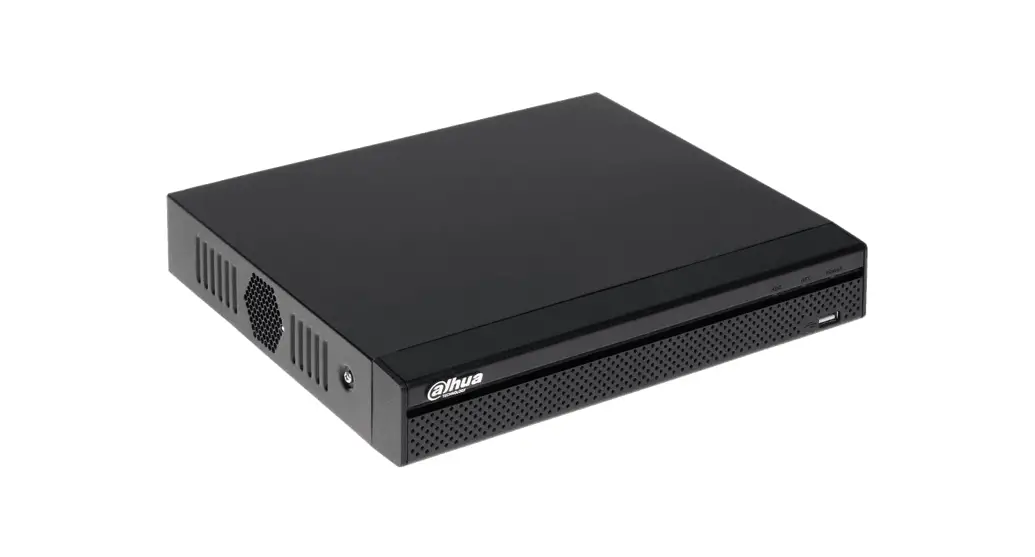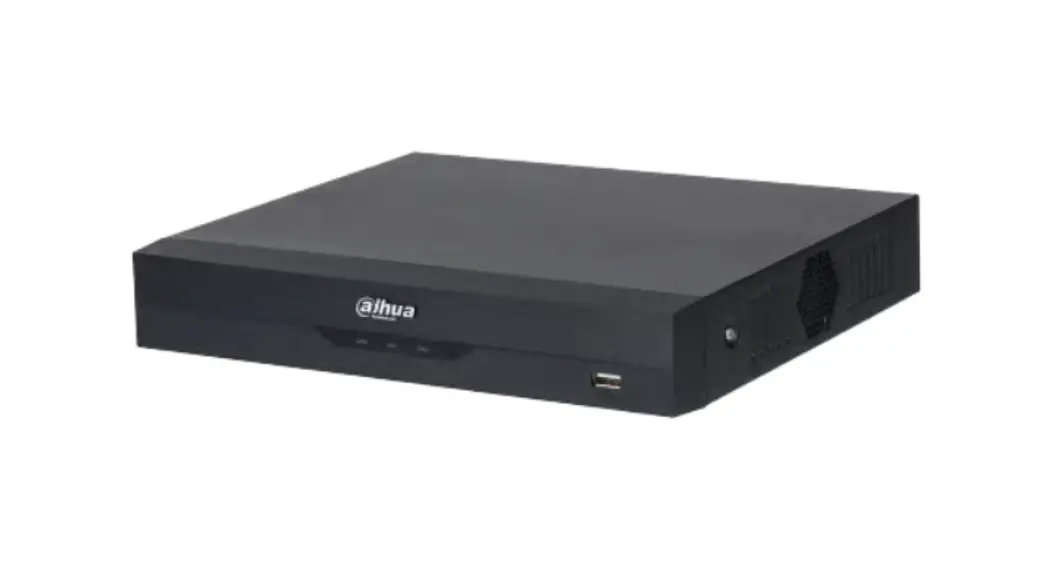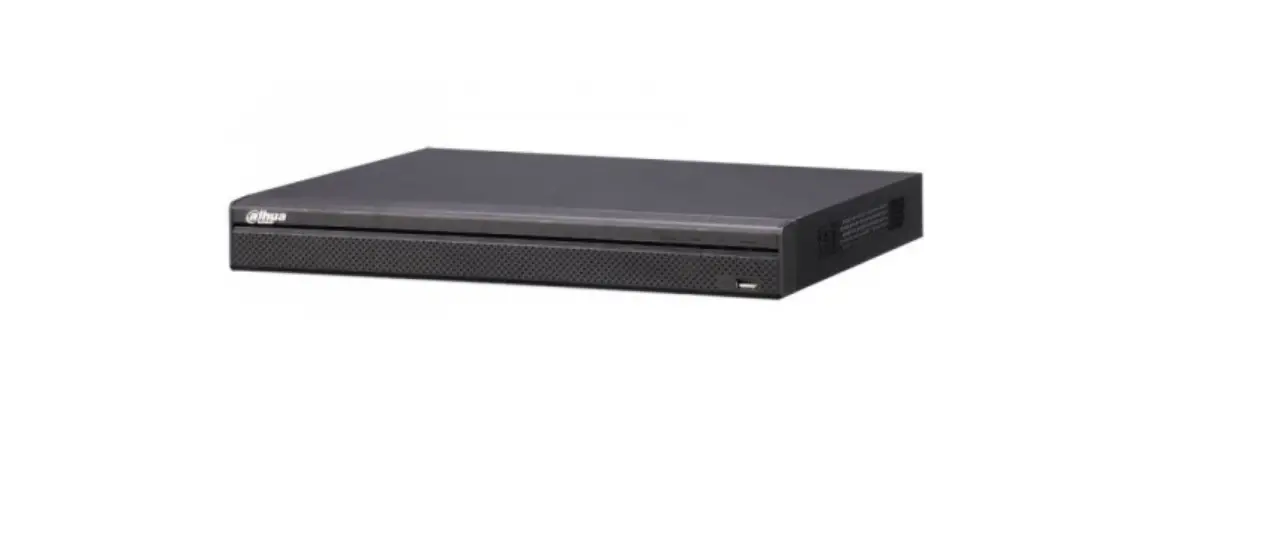

Dahua Nvr5000-1 Series Nvr5216-16p-1 16-channel 4k Uhd Epoe Nvr User Guide

Dahua Nvr5000-1 Series Nvr5216-16p-1 16-channel 4k Uhd Epoe Nvr User Guide

dahua-NVR5000-1-Series-NVR5216-16P-1-16-Channel-4K-UHD-ePoE-NVR-LOGO

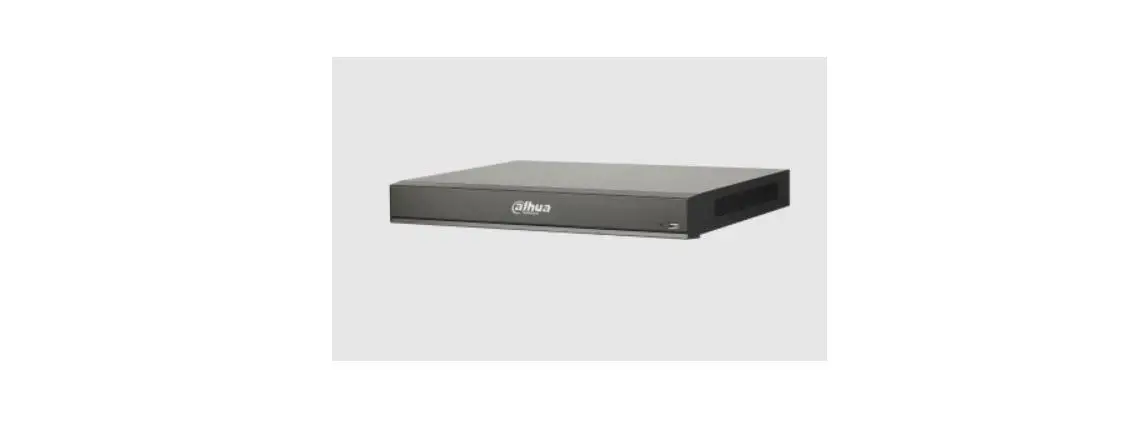
dahua NVR5000-1 Series NVR5216-16P-1 16-Channel 4K UHD ePoE NVR
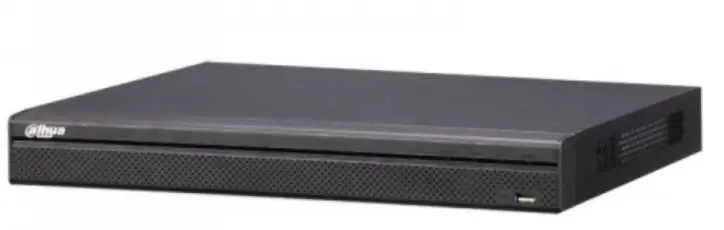
dahua-NVR5000-1-Series-NVR5216-16P-1-16-Channel-4K-UHD-ePoE-NVR-PRODUCT

How to set up IVS rules

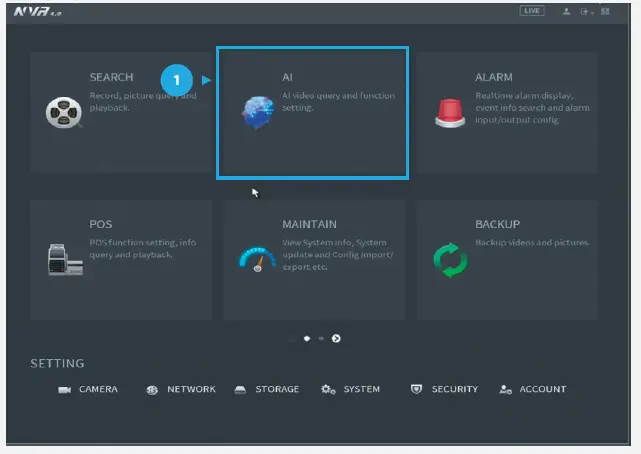
Step 1: Go to AI dahua-NVR5000-1-Series-NVR5216-16P-1-16-Channel-4K-UHD-ePoE-NVR-FIG-1PARAMETERS” > ”IVS”, choose what you want to set up to receive email alerts, keep dahua-NVR5000-1-Series-NVR5216-16P-1-16-Channel-4K-UHD-ePoE-NVR-FIG-2Enabled, and click dahua-NVR5000-1-Series-NVR5216-16P-1-16-Channel-4K-UHD-ePoE-NVR-FIG-3the Trigger icon.dahua-NVR5000-1-Series-NVR5216-16P-1-16-Channel-4K-UHD-ePoE-NVR-FIG-4

Figure 1: Start from the setup page of the NVR

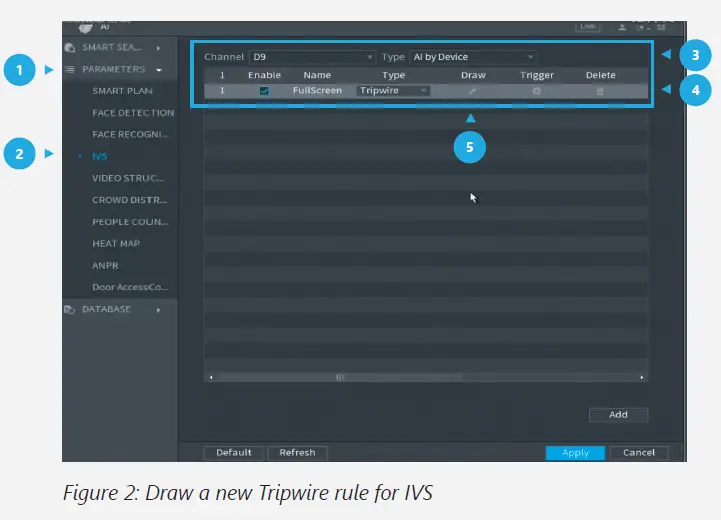
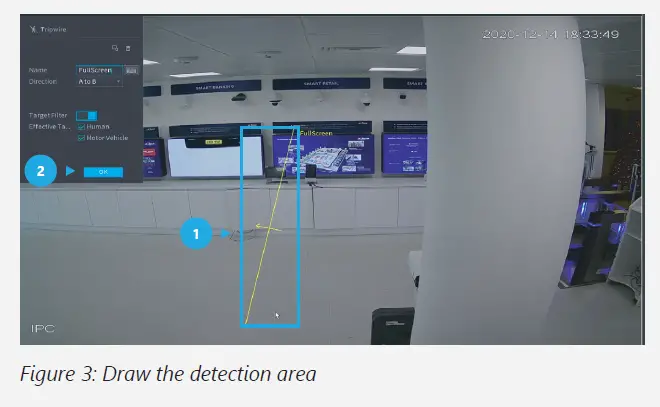
Step 2: For Tripwire Go to AI dahua-NVR5000-1-Series-NVR5216-16P-1-16-Channel-4K-UHD-ePoE-NVR-FIG-1PARAMETERS” > ”IVS”, check dahua-NVR5000-1-Series-NVR5216-16P-1-16-Channel-4K-UHD-ePoE-NVR-FIG-2so at least one “Tripwire” rule is enabled, and click dahua-NVR5000-1-Series-NVR5216-16P-1-16-Channel-4K-UHD-ePoE-NVR-FIG-5Draw.dahua-NVR5000-1-Series-NVR5216-16P-1-16-Channel-4K-UHD-ePoE-NVR-FIG-6

Step 3: Draw the target line for detection using a mouse. Then, click OK after you have finished.dahua-NVR5000-1-Series-NVR5216-16P-1-16-Channel-4K-UHD-ePoE-NVR-FIG-7
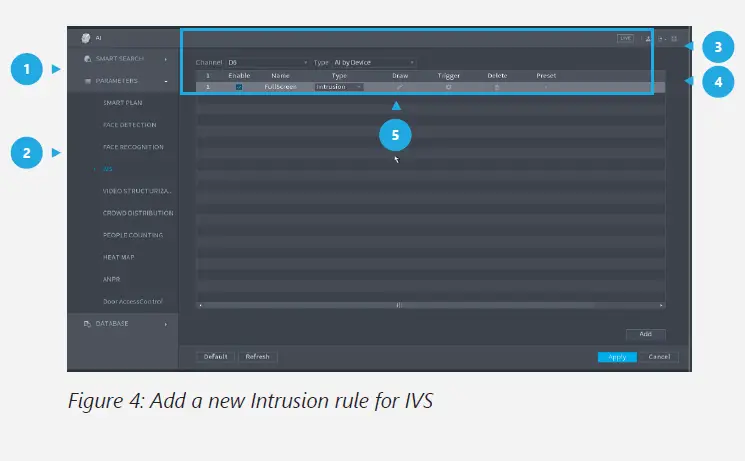
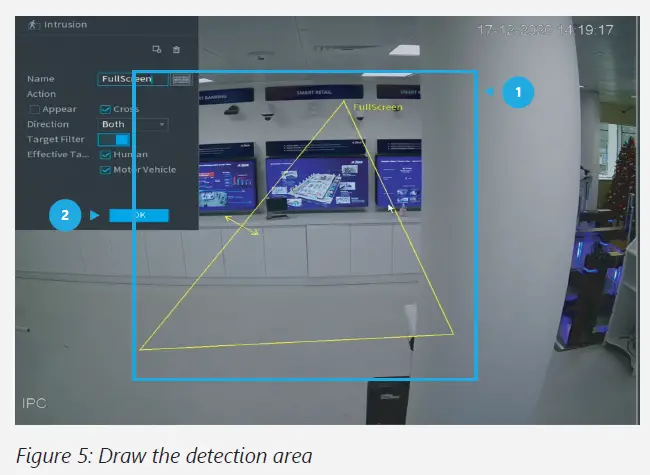
Step 2: For Tripwire Go todahua-NVR5000-1-Series-NVR5216-16P-1-16-Channel-4K-UHD-ePoE-NVR-FIG-1 AI > ”PARAMETERS” > ”IVS”, check dahua-NVR5000-1-Series-NVR5216-16P-1-16-Channel-4K-UHD-ePoE-NVR-FIG-2at least one “Intrusion” rule is enabled, and click dahua-NVR5000-1-Series-NVR5216-16P-1-16-Channel-4K-UHD-ePoE-NVR-FIG-5Draw.dahua-NVR5000-1-Series-NVR5216-16P-1-16-Channel-4K-UHD-ePoE-NVR-FIG-8

Step 3: Draw the target line for detection using a mouse. Then, click OK after you have finished.dahua-NVR5000-1-Series-NVR5216-16P-1-16-Channel-4K-UHD-ePoE-NVR-FIG-9
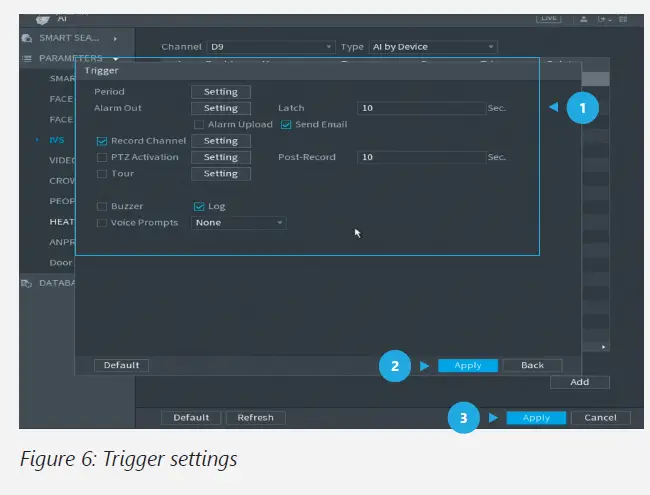
Step 4: Click dahua-NVR5000-1-Series-NVR5216-16P-1-16-Channel-4K-UHD-ePoE-NVR-FIG-3Trigger to decide the detailed settings of the rule. Then, click Apply within the trigger screen to save the trigger, and click Apply at the bottom right of the screen to save the IVS function.dahua-NVR5000-1-Series-NVR5216-16P-1-16-Channel-4K-UHD-ePoE-NVR-FIG-10
  • Design and specifications are subject to change without notice.
  • DAHUA UK & IRELAND
  • Quantum, 60 Norden Road, Maidenhead, Berkshire SL6 4AY
  • Tel: +44 (0) 1628 613 500
  • sales.[email protected]
  • [email protected]
  • If you still encounter problems
  • operating your Dahua device,
  • please call +44 (0)1628 613 500
Documents / Resouces

Download manual
Here you can download full pdf version of manual, it may contain additional safety instructions, warranty information, FCC rules, etc.


Related Manuals