 NVR5000-1 Series CCTV TV Audio and Networking Distributor Cork
User Guide
NVR5000-1 Series CCTV TV Audio and Networking Distributor Cork
How to trigger an e-mail when an event has occurred
TiOC HOW TO GUIDE
For an NVR-system
The following guide enables you to trigger an e-mail when an event has occurred on (Series 3) and (Series 5 & 7) NVR systems.
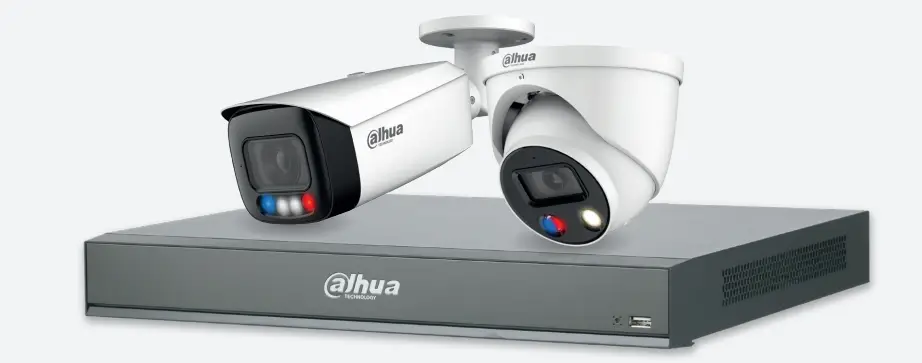
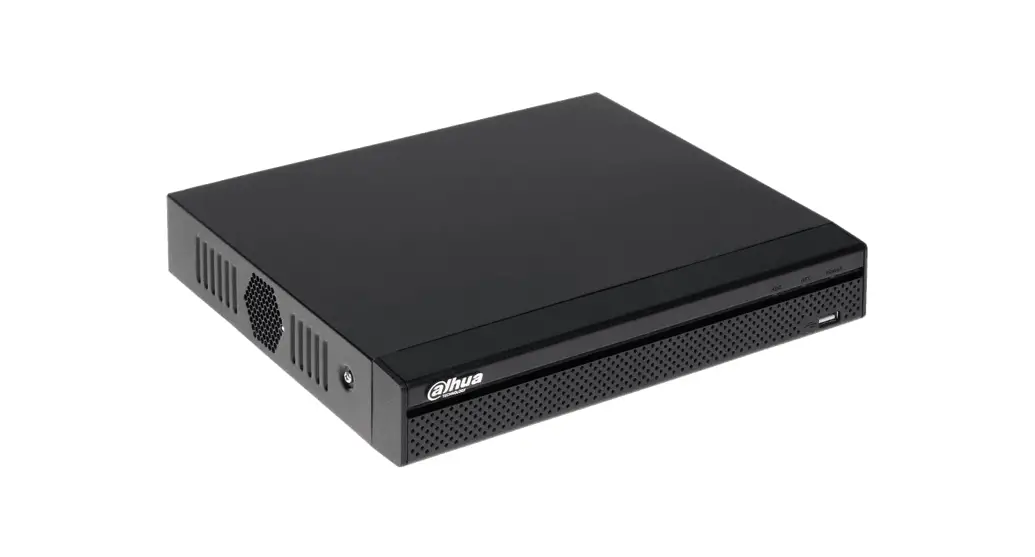
| Series NVR5000-1 Series | Example NVR5216-16P-1 |
NB: The firmware version is based on the latest version when this document was created and may slightly differ from future versions, however, this will not affect any of the functionality.
TiOC HOW TO GUIDE | How to trigger an e-mail when an event has occurred
Step 1: Setting up email notifications
Go to “NETWORK” > ”Email” and click Enable to activate the function. Then, finish the detailed settings based on your email service, and click Test until it shows that it has successfully connected.
Click Apply to save your settings.
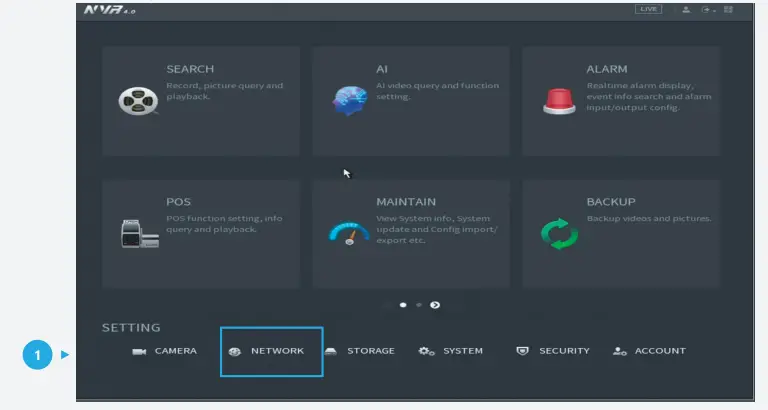 Figure 1: Start from the setup page of the NVR
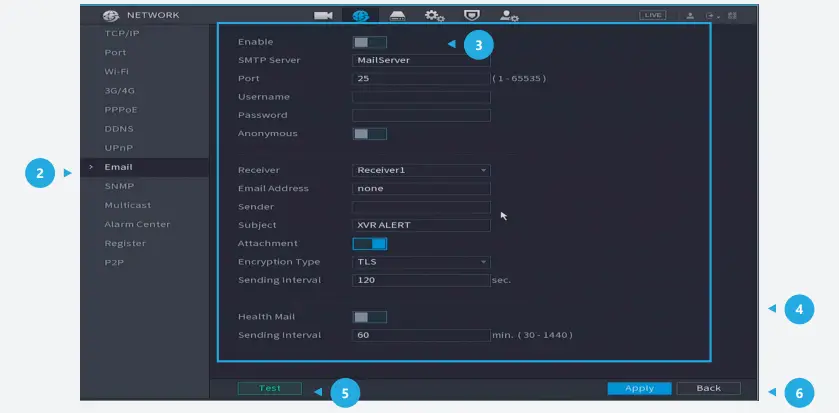
Figure 2: Email settings
TiOC HOW TO GUIDE | How to trigger an e-mail when an event has occurred
Note: Details for email settings.
Firstly, you need to prepare two email addresses – one for sending alarms and one for receiving alarms.
Secondly, you need to search and find the name and port of the email address for sending email.
| Examples | |
| [email protected] | [email protected] |
| Gmail SMTP server: | smtp.gmail.com |
| Gmail Port: | Port for SSL: 465 Port for TLS: 587 |
Details and Reference: https://support.google.com/mail/answer/7126229?hl=en-GB Here is a summary:
| Settings Descr | Description | Example |
| SMTP Server | SMTP server address (Sender) | smtp.gmail.com |
| Port | The port number of the SMTP server (Sender) | 465 |
| Username | The account of the SMTP server (Sender) | [email protected] |
| Password | The password of the SMTP server (Sender) | send password |
| Sender | The server email address (Sender and normally same as Username) | [email protected] |
| Authentication | Method of authentication: SSL or TLS | SSL |
| Title | The subject of the email | IPC Message |
| Mail Receiver | The email address you want to receive information | [email protected] |
TiOC HOW TO GUIDE | How to trigger an e-mail when an event has occurred
Step 2: If you need the alarm email to have an attachment with a Snapshot, you need to activate the attachment function from the last page and adjust the settings as follows.
Go to “STORAGE” > “SCHEDULE”, ensure the tab is set to Snapshot,  check the channel is the one you want to set, and click
 Settings.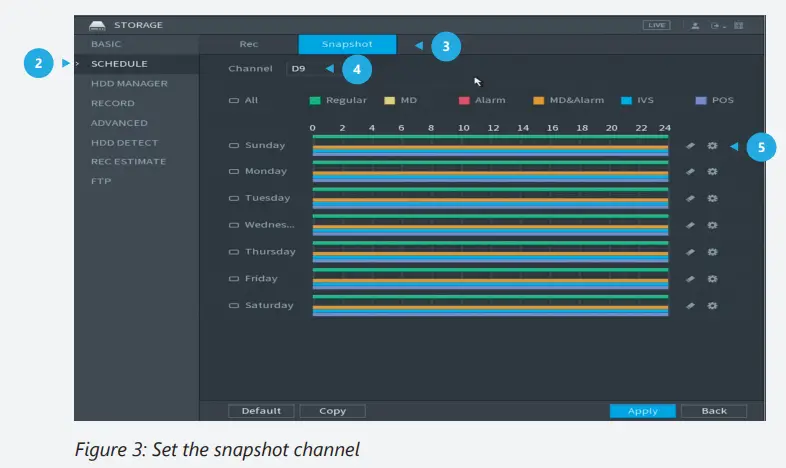
On this page, you can choose what kind of record can be stored. Choose the day of the event you want to record motion detection.
Click OK to save your settings. 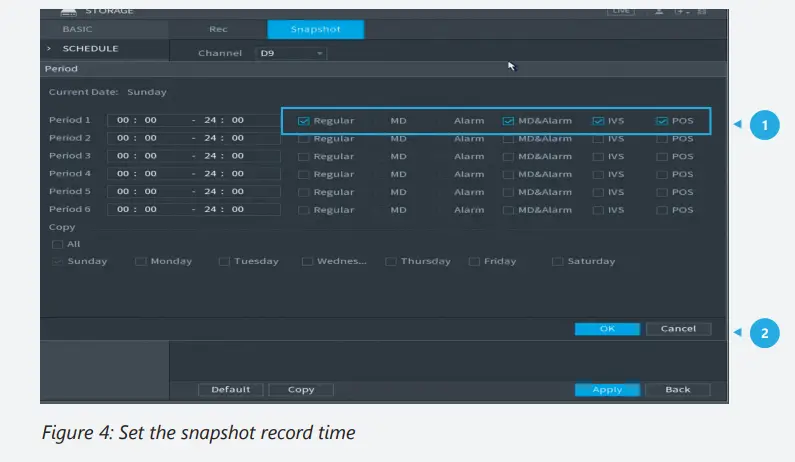
Step 3: Check the email.
If an alarm has been activated you will receive an email with the event snapshot attached when it started and when it ended. The following logs are an example.
| Alarm Event: Tripwire | Alarm Event: Tripwire Clear |
| Alarm Input Channel: 9 | Alarm Input Channel: 9 |
| Alarm Input Channel Name: IPC | Alarm Input Channel Name: IPC |
| Alarm Start Time (D/M/Y H:M:S): 17/12/2020 15:08:26 | Alarm StopTime (D/M/Y H:M:S): 17/12/2020 15:08:29 |
| Alarm Device Name: NVR | Alarm Device Name: NVR |
| Alarm Name: FullScreen | Alarm Name: FullScreen |
| IP Address: 192.168.5.59 | IP Address: 192.168.5.59 |
| Effective Target: Person |
Figure 5: One example of the email
*Design and specifications are subject to change without notice.
DAHUA UK & IRELAND
Quantum, 60 Norden Road, Maidenhead, Berkshire SL6 4AY
Tel: +44 (0) 1628 613 500
[email protected]
[email protected]
If you still encounter problems operating your Dahua device, please call +44 (0)1628 613 500