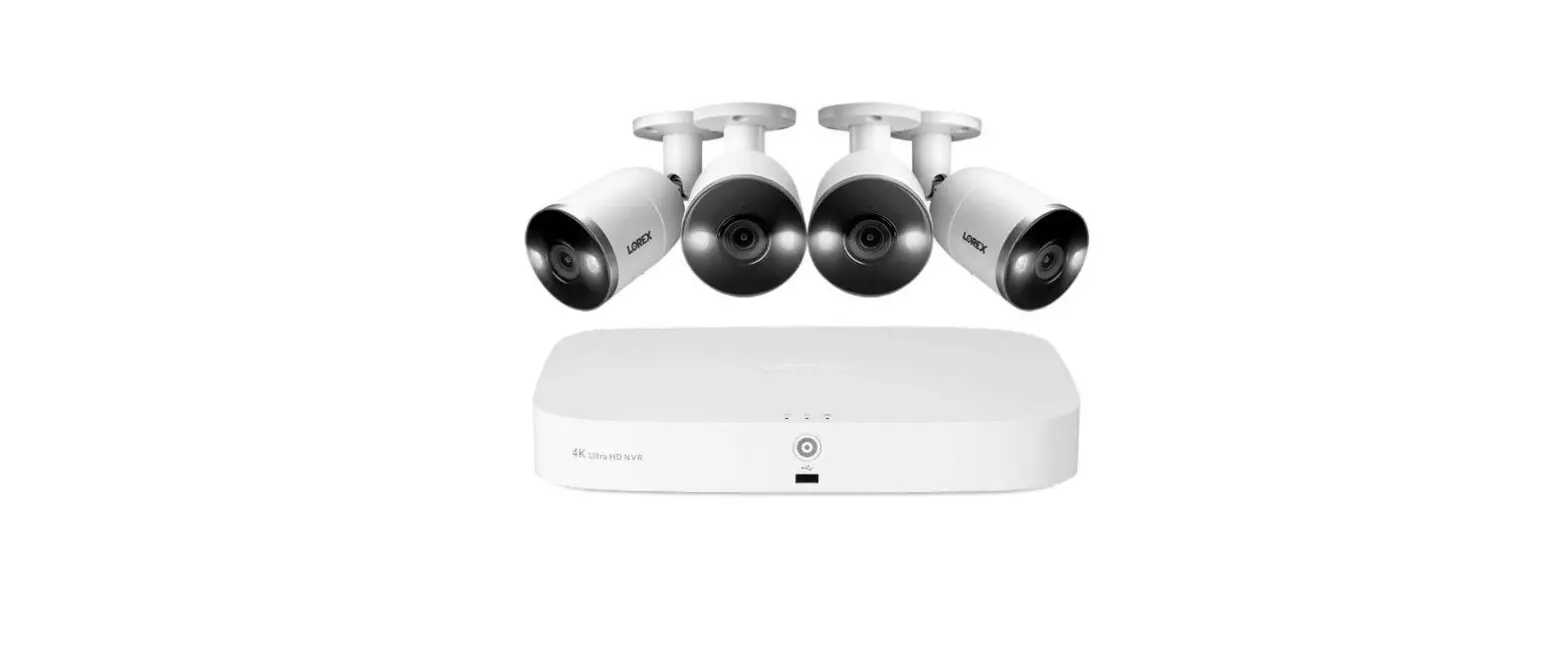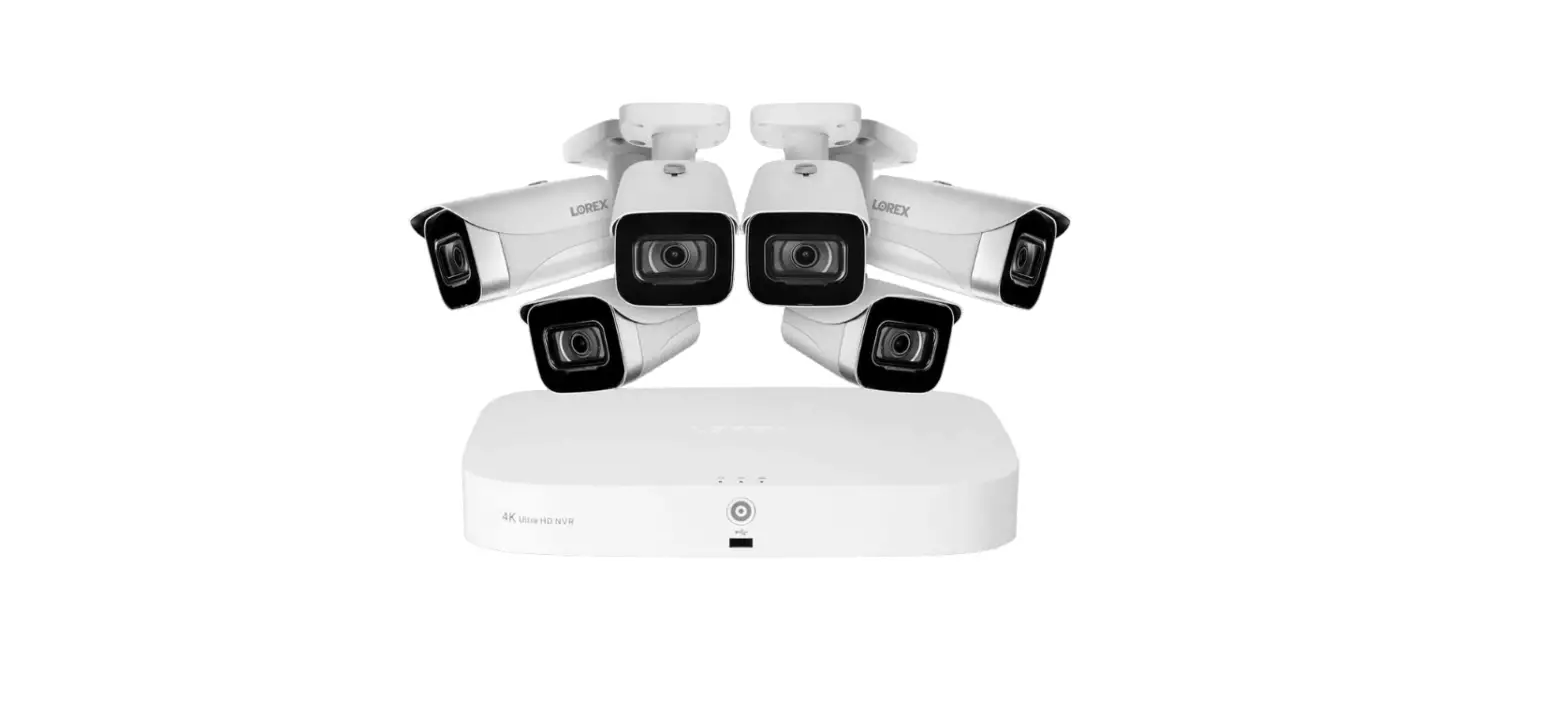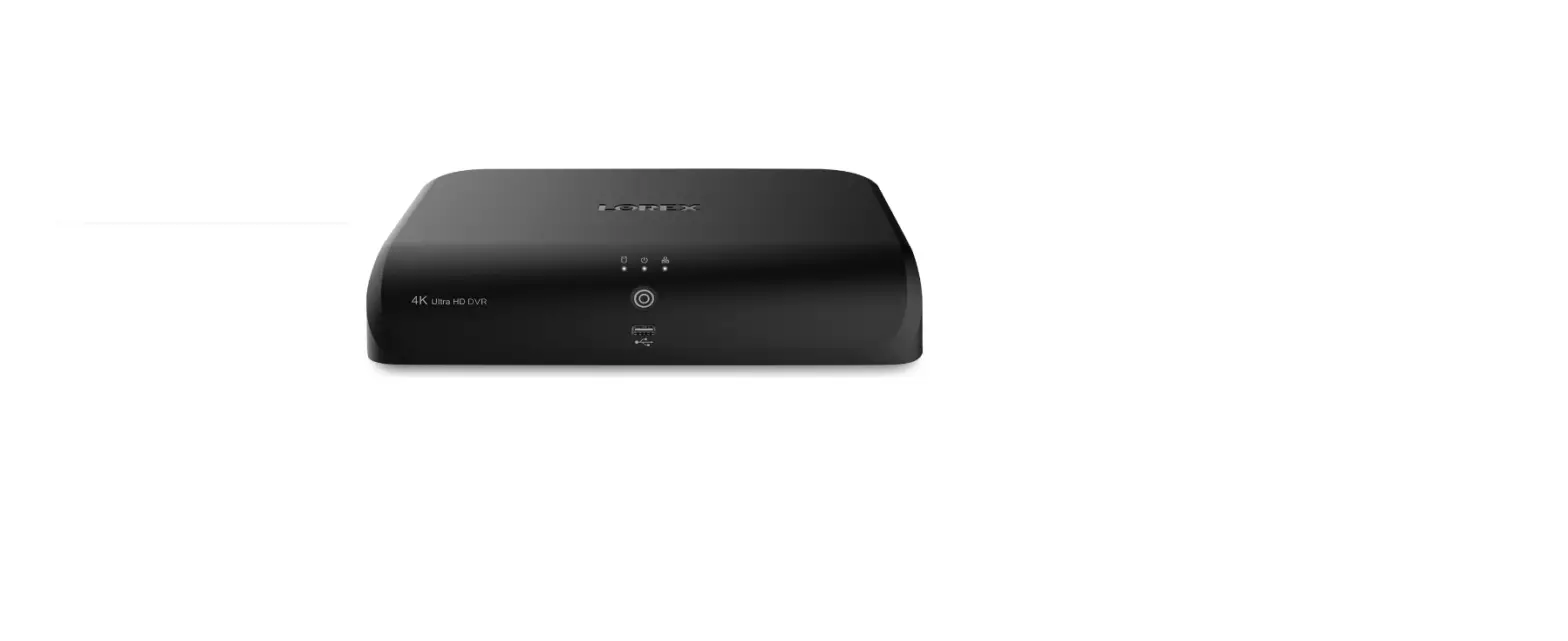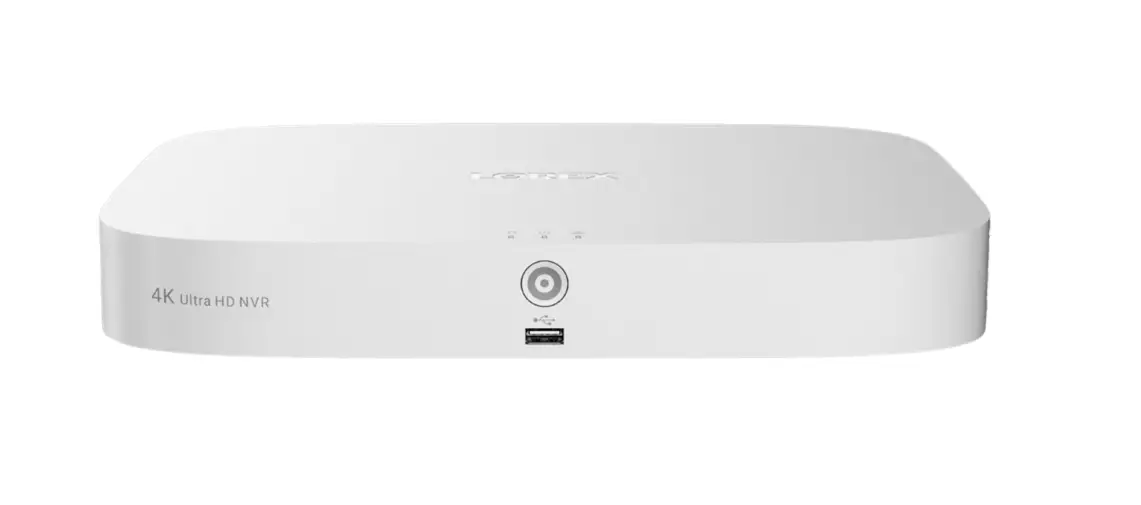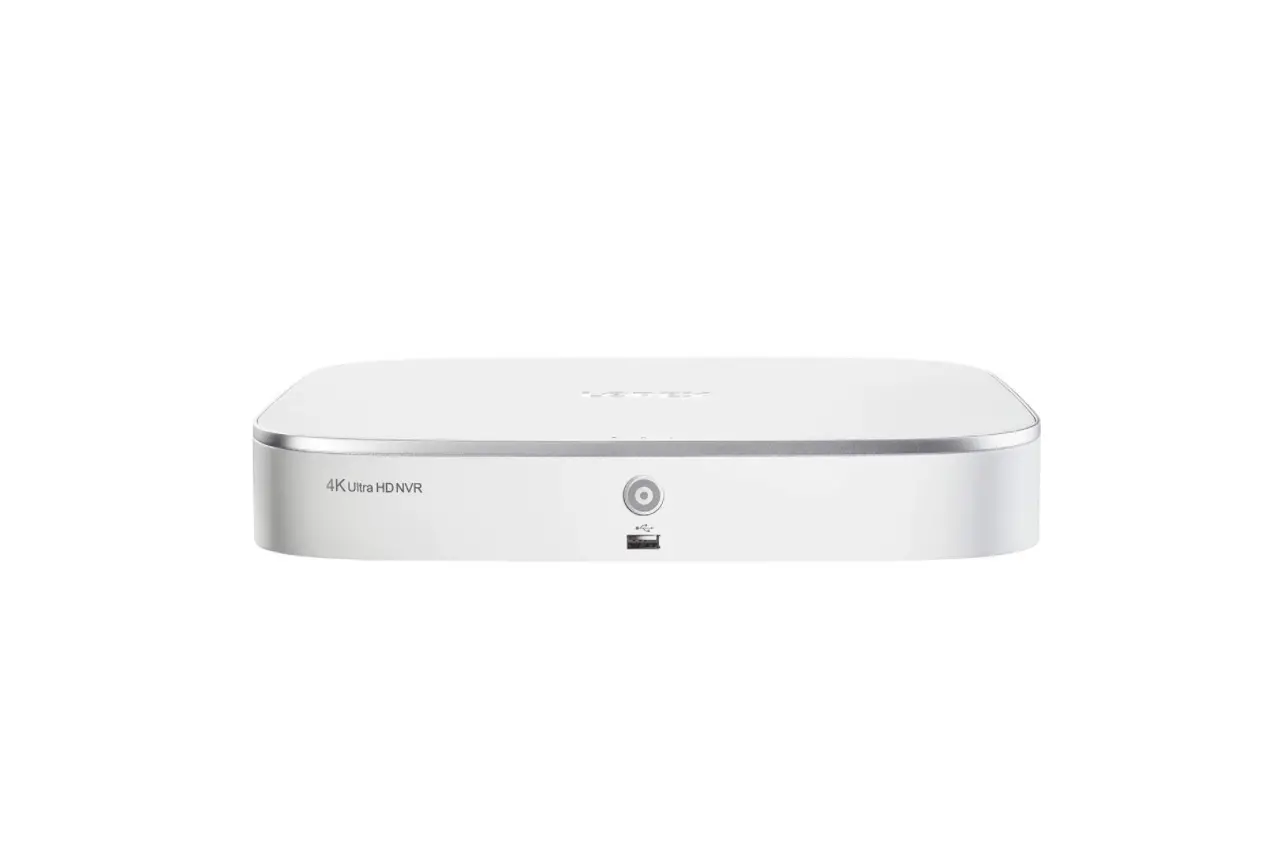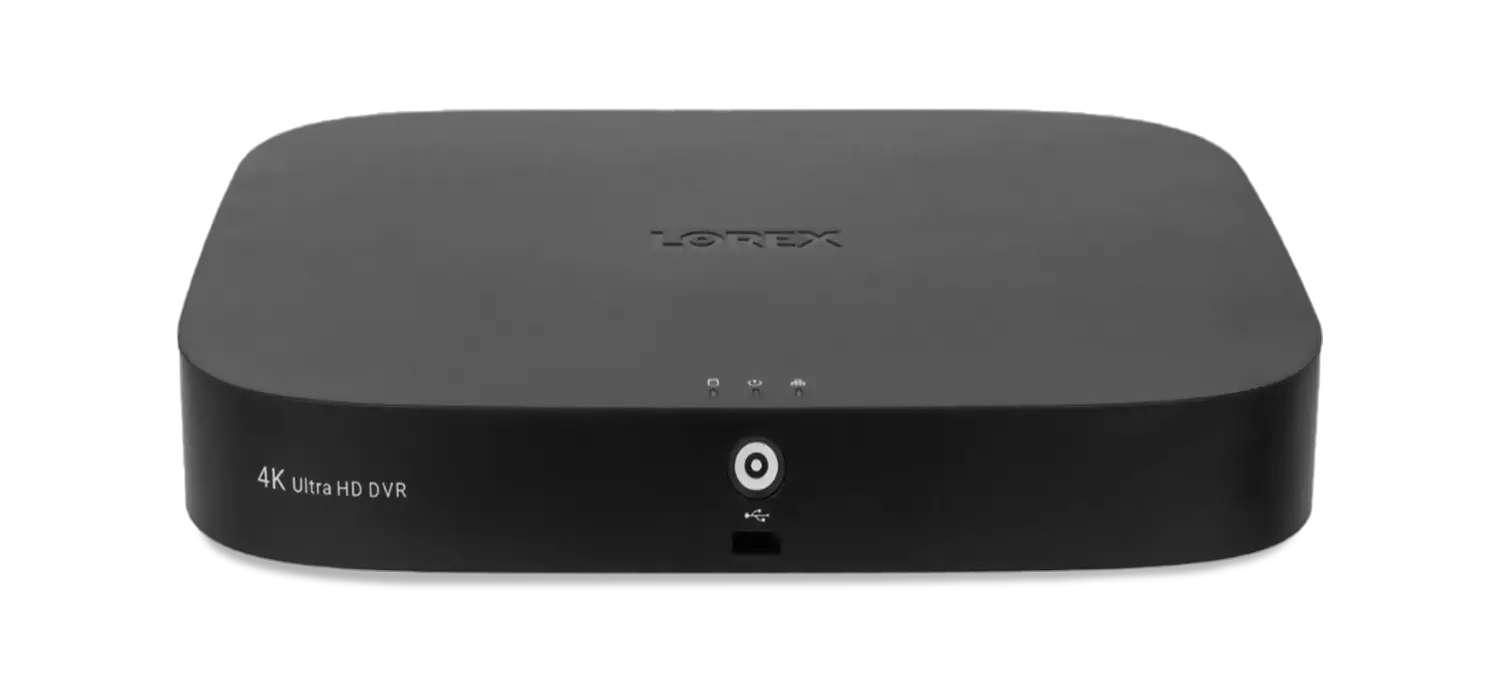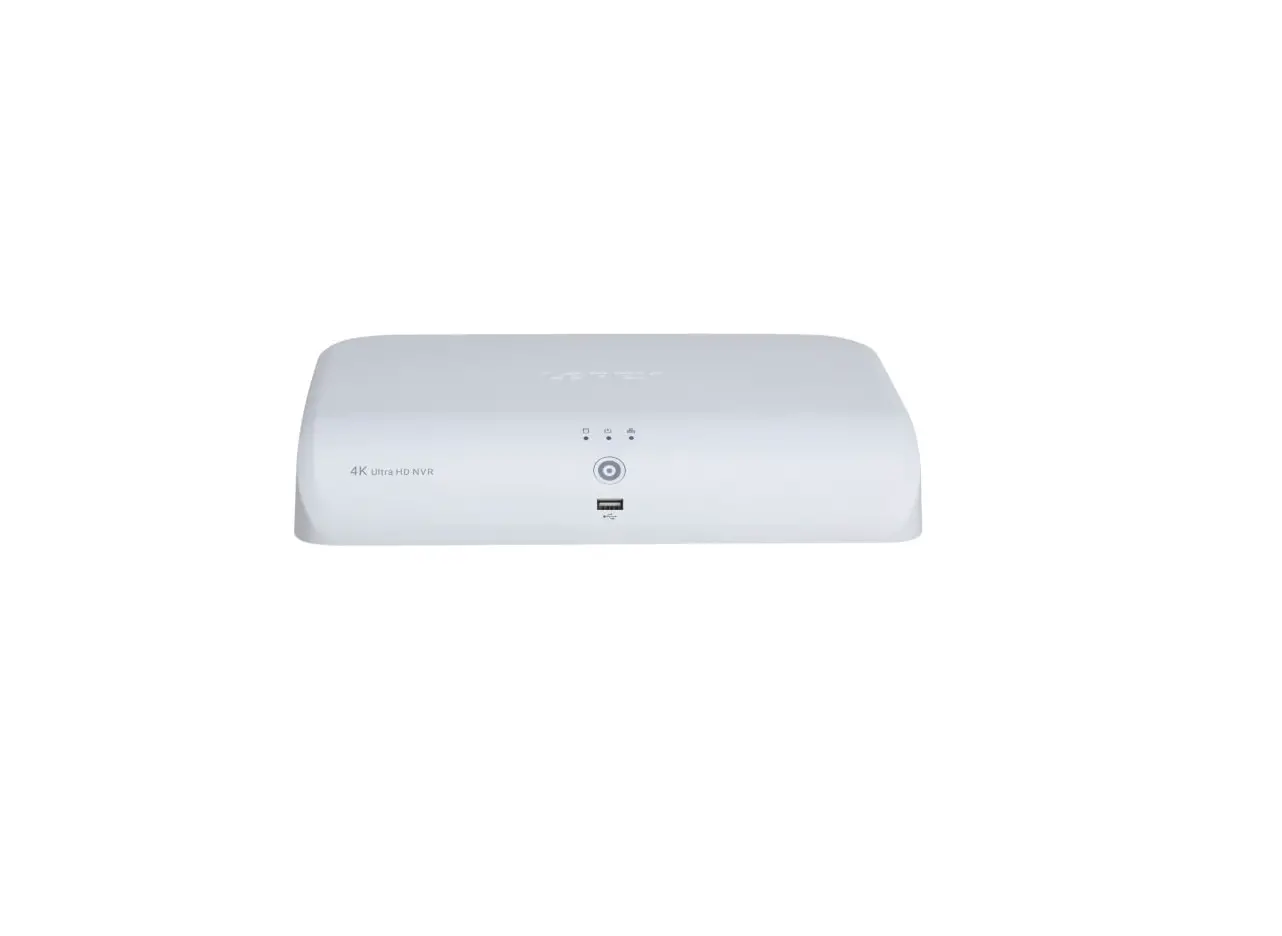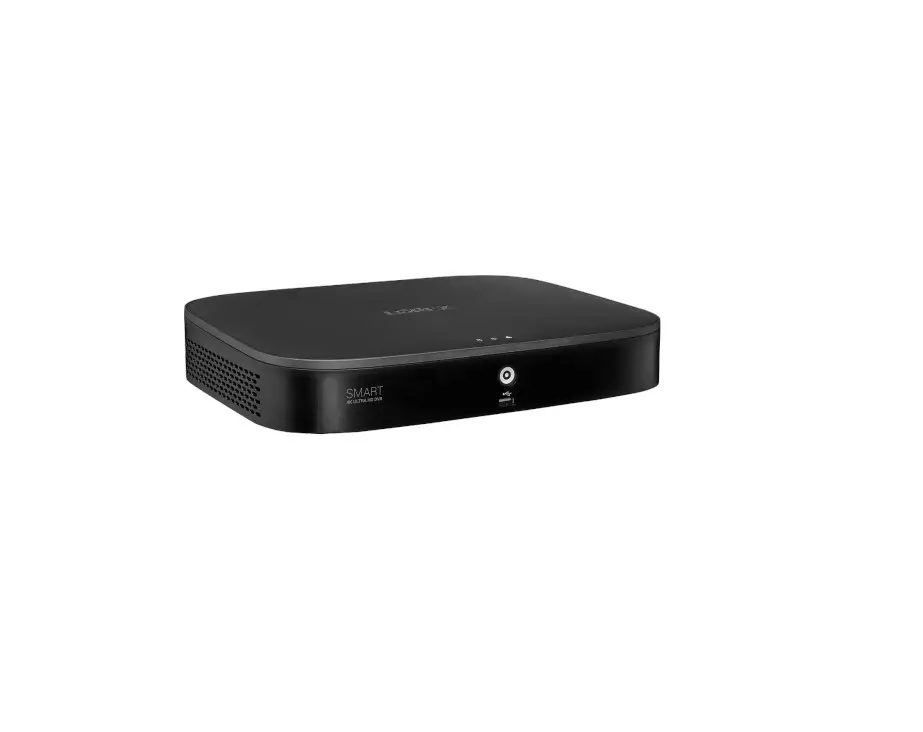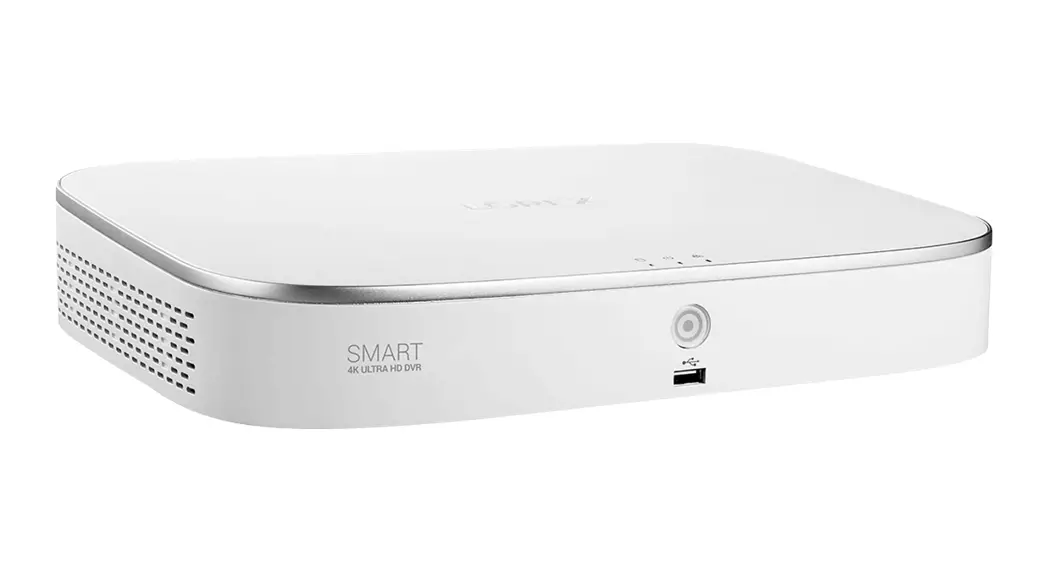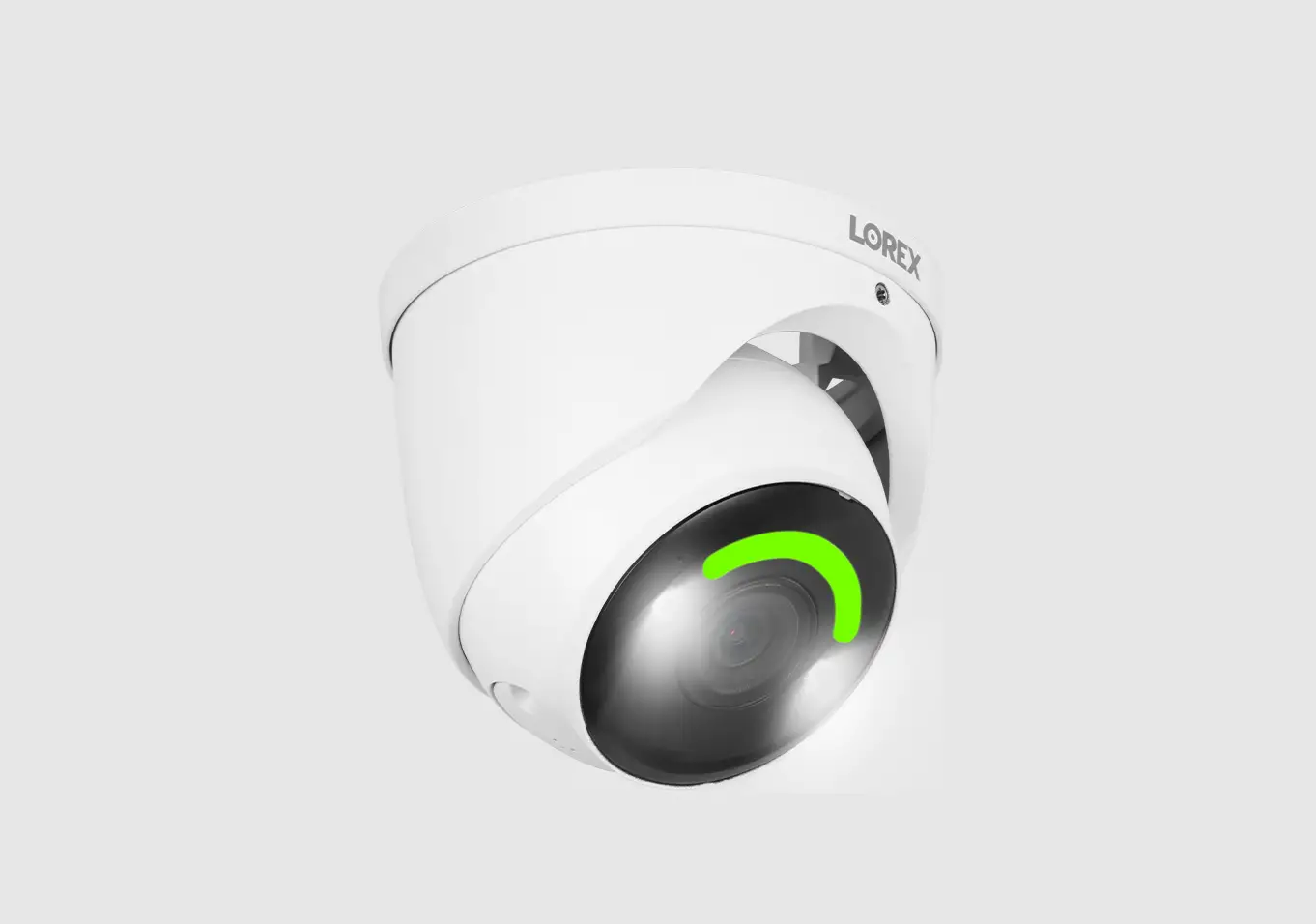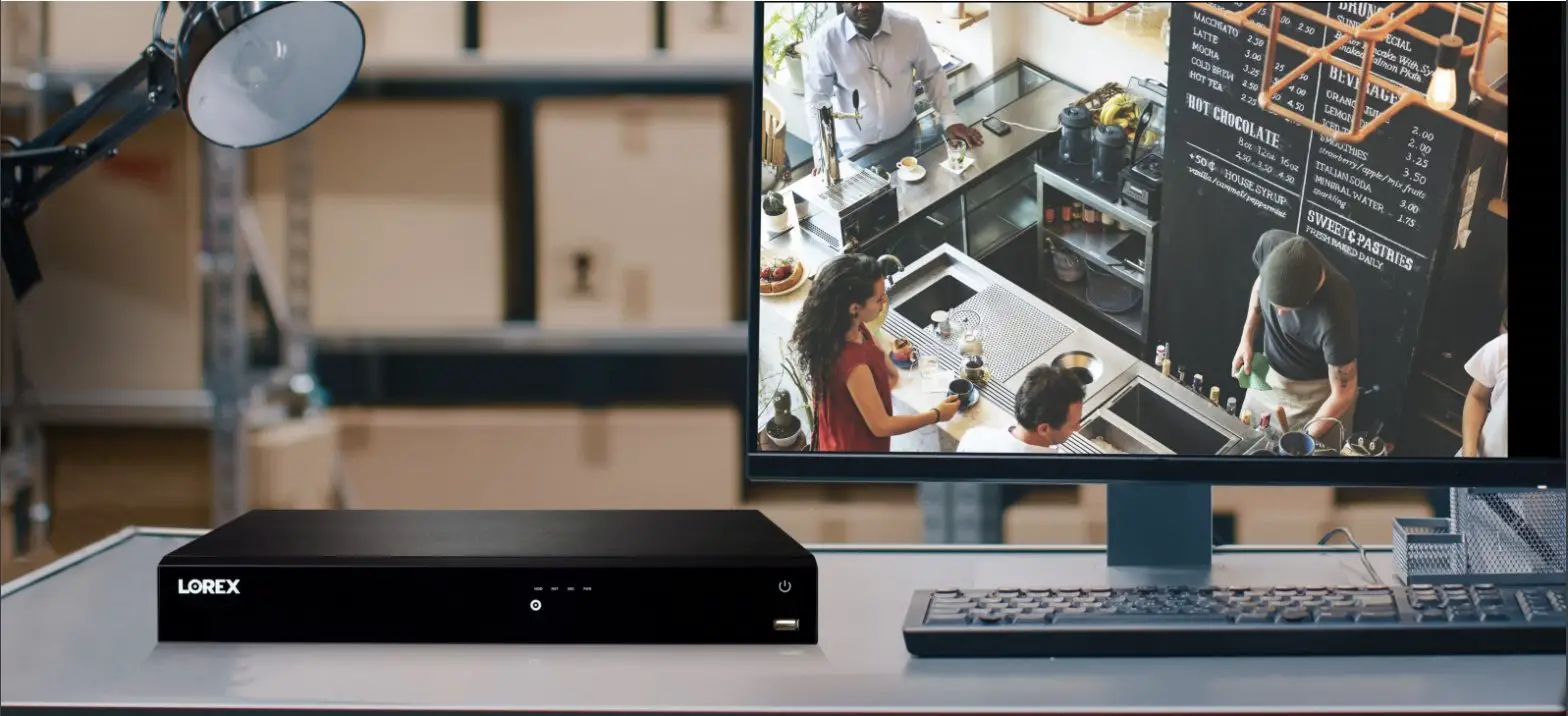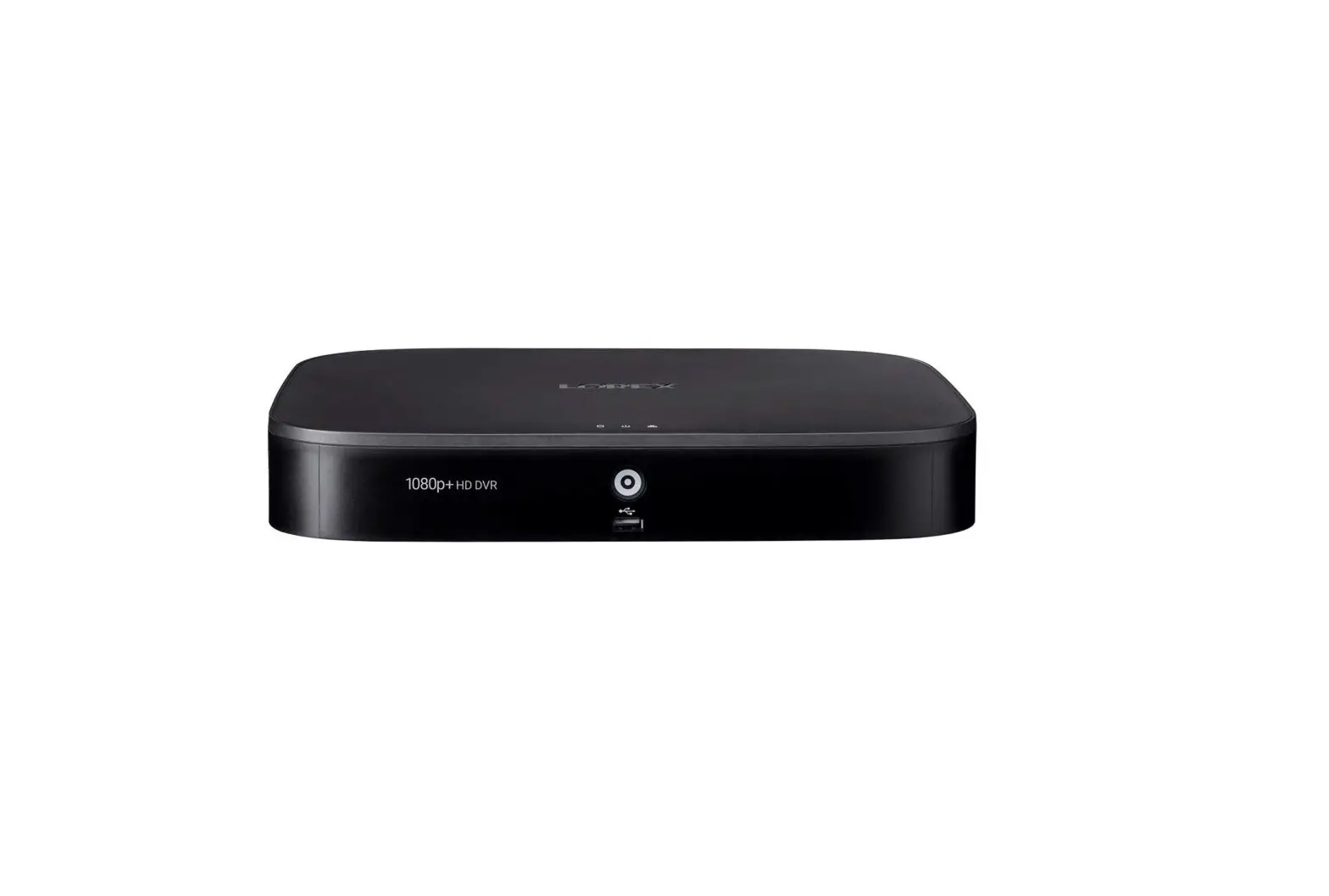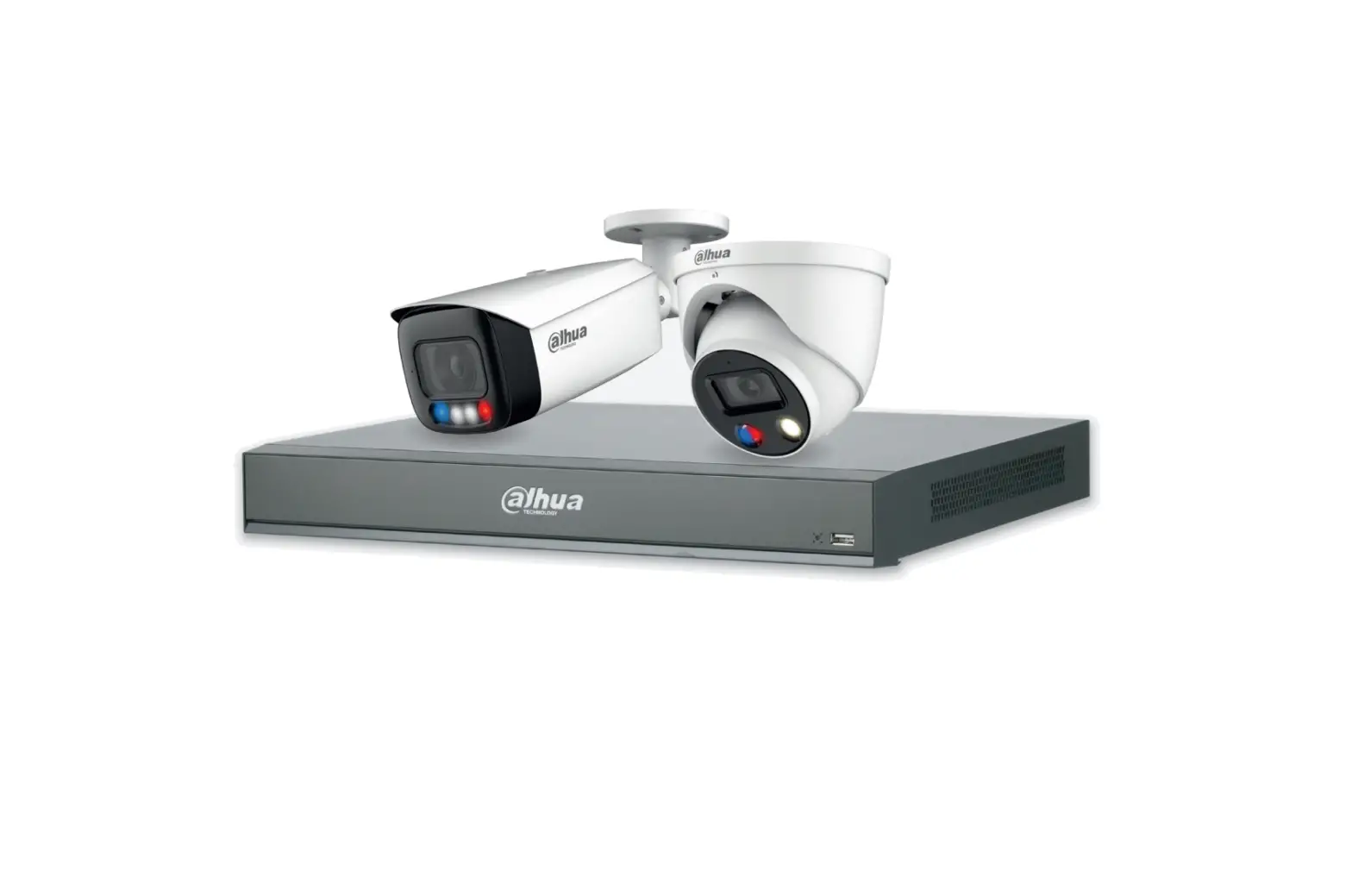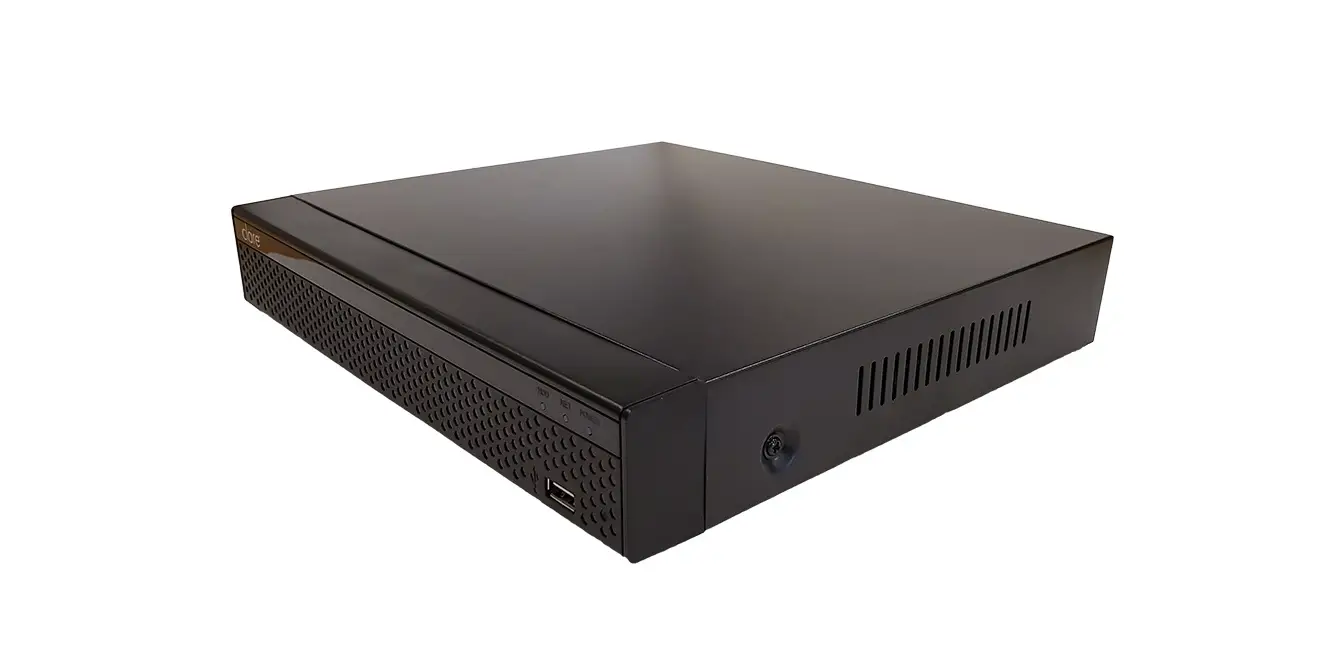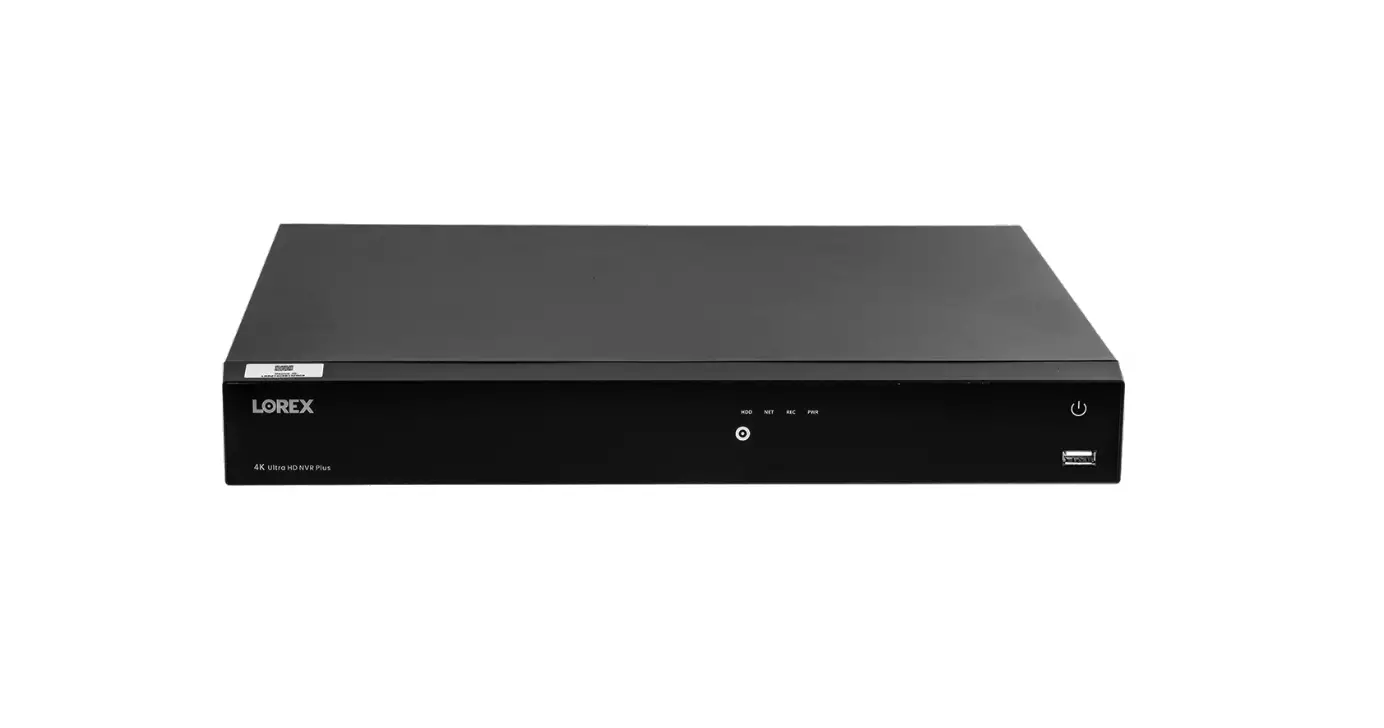
LOREX N864 Series Fusion 4K 16ch Wired NVR System
Package Contents
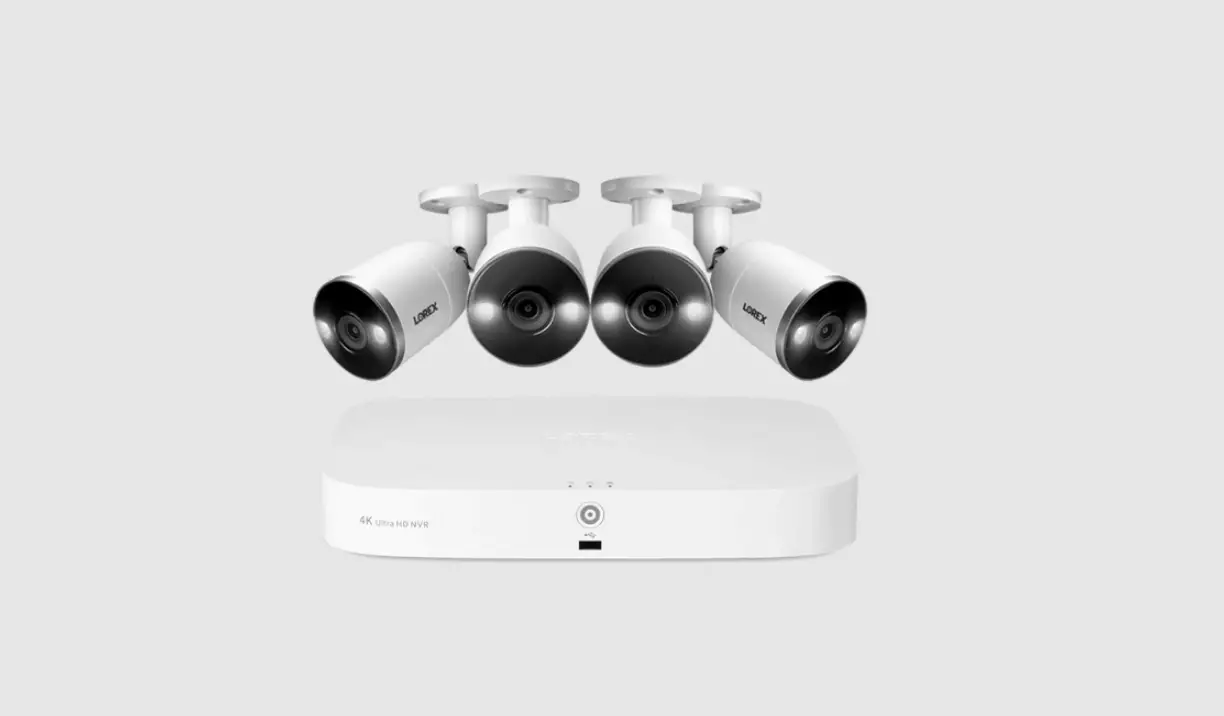
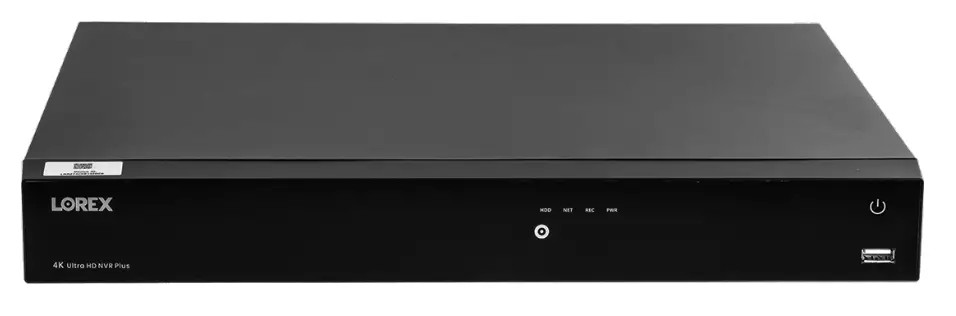
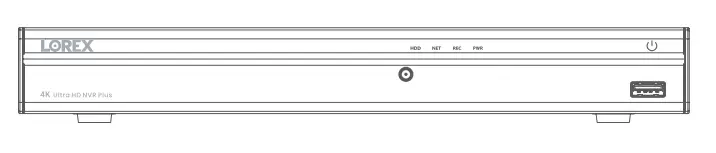
- 4K Fusion NVR

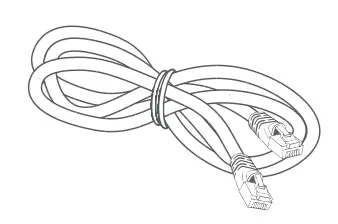
- Ethernet Cable

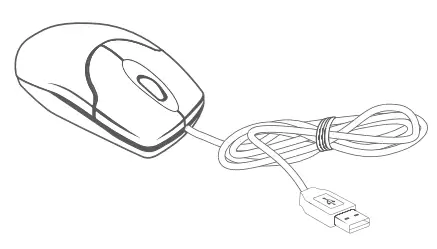
- USB Mouse

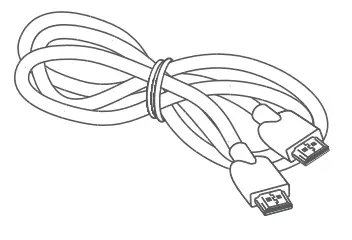
- HDMI Cable

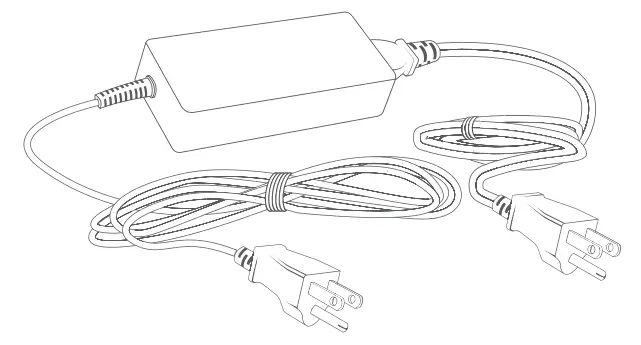
- Power Adapter

Overview
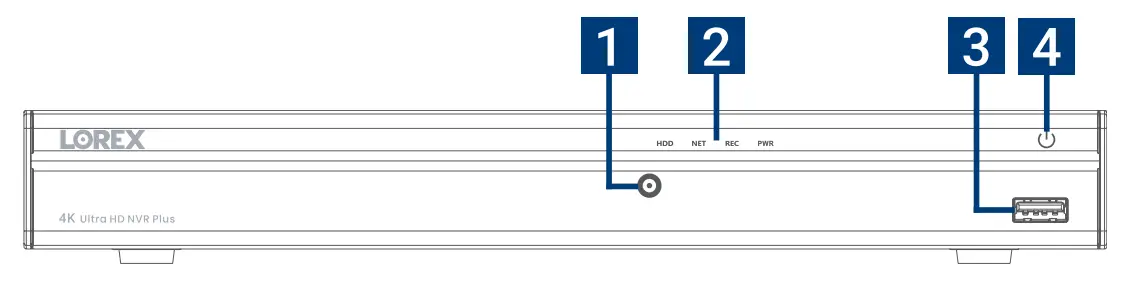
Front
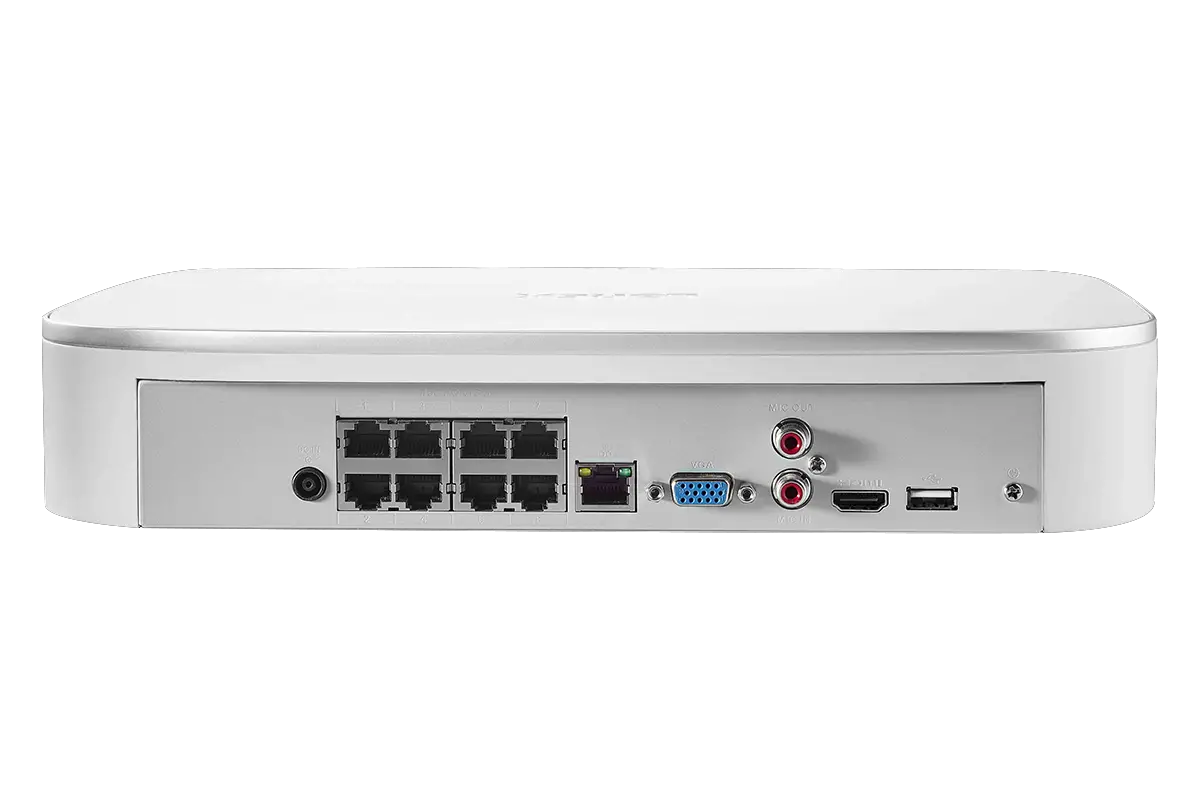
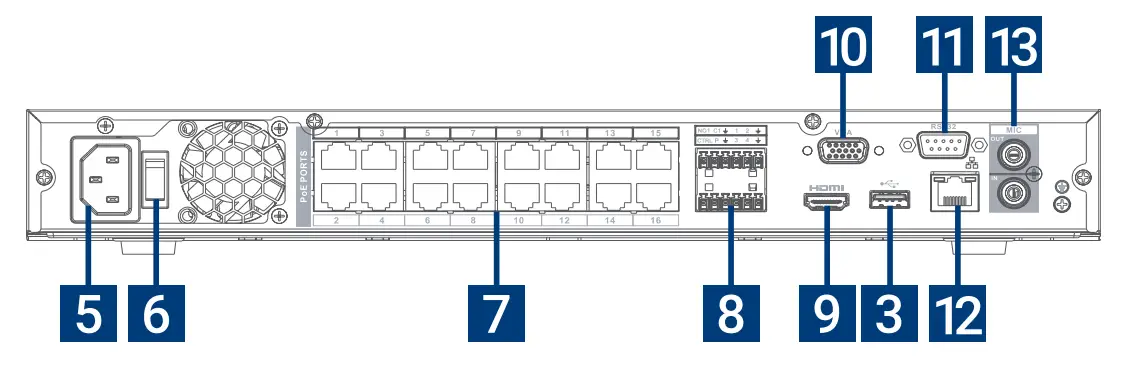
Back
- Info/Panic Button
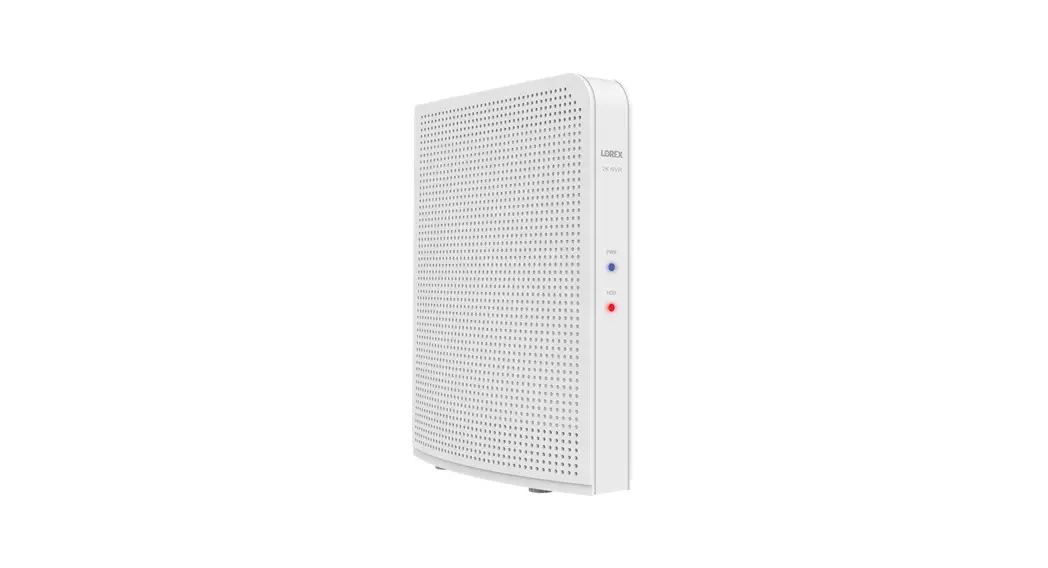
- Hard Drive, Network, Recorder & Power LEDs
- USB
- Power Button
- Power Input
- Power Switch
- PoE Ports
- Alarm
- HDMI
- VGA
- RS232
- LAN
- Audio In/Out
Step 1
 Test your cameras prior to selecting a permanent mounting location.
Wired Option 1
Connect your wired camera: Connect your camera directly to your recorder’s PoE port using the Ethernet extension cable.

Connect your wired camera: Connect your camera to a PoE switch on your network using the Ethernet extension cable. Ensure your switch is connected to the same network as your recorder.

Step 2
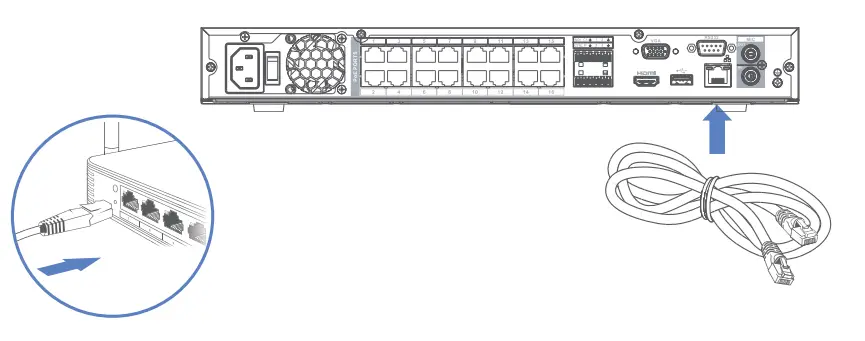
Connect to your network: Connect your recorder to your Wi-Fi router using the included Ethernetcable.
Step 3
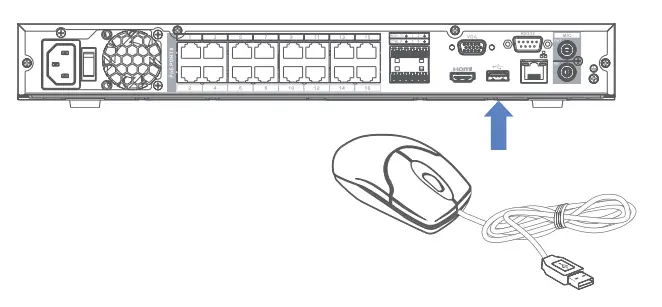
Connect your mouse: Connect the included USB mouse to the USB port on your recorder. To copy events or to perform a firmware update, connect a USB flash drive.
Step 4
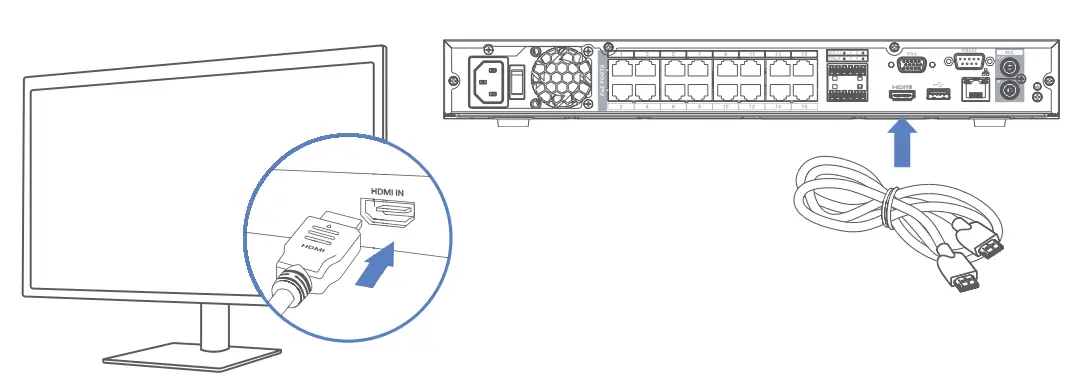
Connect to your TV: Connect your recorder to your TV using the included HDMI cable. The HDMI supports up to 4K resolution and VGA supports up to 1080p.
Step 5
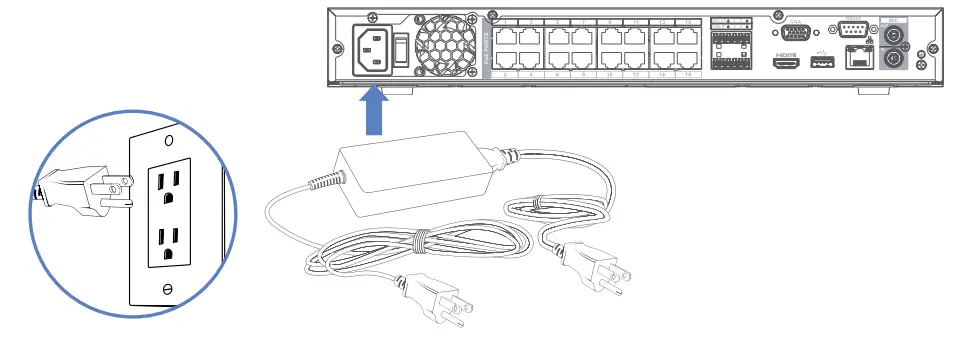
Connect your power adapter: Connect the included power adapter to your recorder and a power outlet. Then flip the power switch ON, press the power button and complete the Lorex Setup Wizard.
Download the Lorex Home App
To enable remote viewing with mobile apps, you will need to:
- Have high-speed Internet
- Have an upload speed of 6Mbps for one 4K channel and at least 20Mbps for the whole system
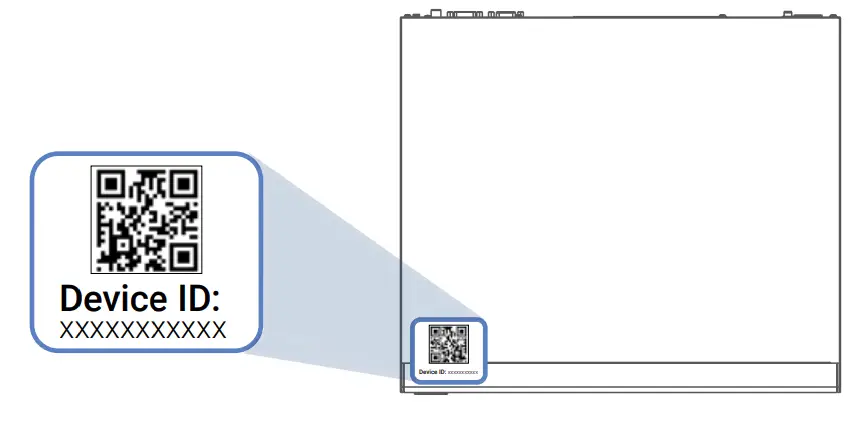
- Find your recorder’s Device ID

To connect your recorder to the app:
- Download


- In the app tap + to add your recorder
- Follow the in-app steps to complete the setup.
Fusion Setup
Connect your Wi-Fi device to your recorder: Set up your recorder and wired cameras. Next, download the Lorex Home app and add your recorder and Wi-Fi device. From your recorder, navigate to the camera’s setup page and scan your network to connect your Wi-Fi device. To learn more or get support, scan the QR code or visit:
Need Help?
For up-to-date information and resources, scan the QR code or visit:
- Download your recorder’s manual
- Watch how-to-videos
- Find related troubleshooting tips & FAQs
Register Your Product
Please see our full Terms of Service and Limited Hardware Warranty Policy at:
Copyright © 2022 Lorex Technology Inc
As our products are subject to continuous improvement, Lorex reserves the right to modify product design,
specifications and prices, without notice and without incurring any obligation. E&OE. All rights reserved.
CUSTOMER SUPPOER
Fusion 4K 16ch Wired NVR System

 Lorex Technical Support | LOREX Support
 Security Cameras - Home Security Camera Systems | Lorex