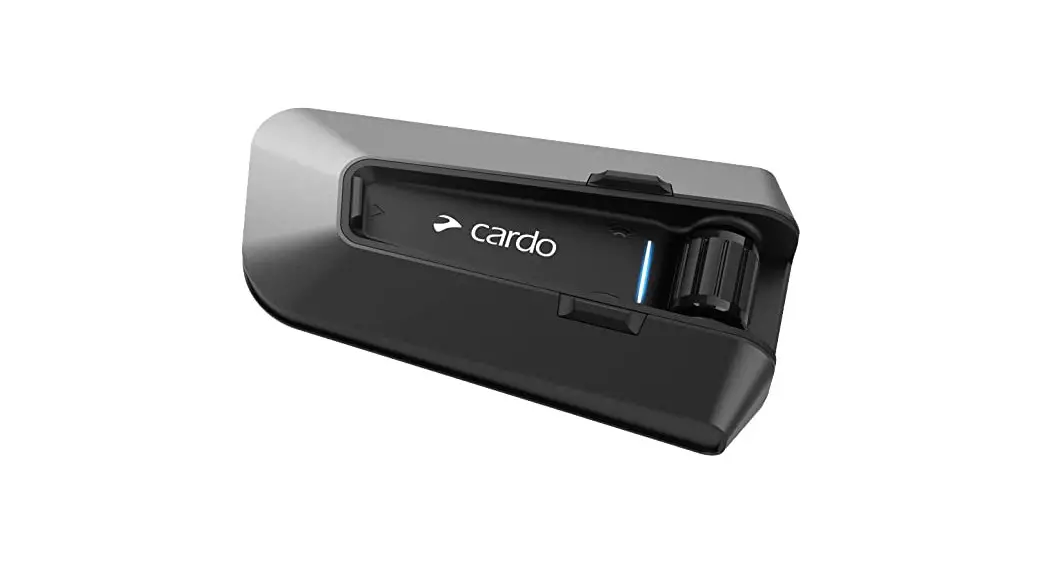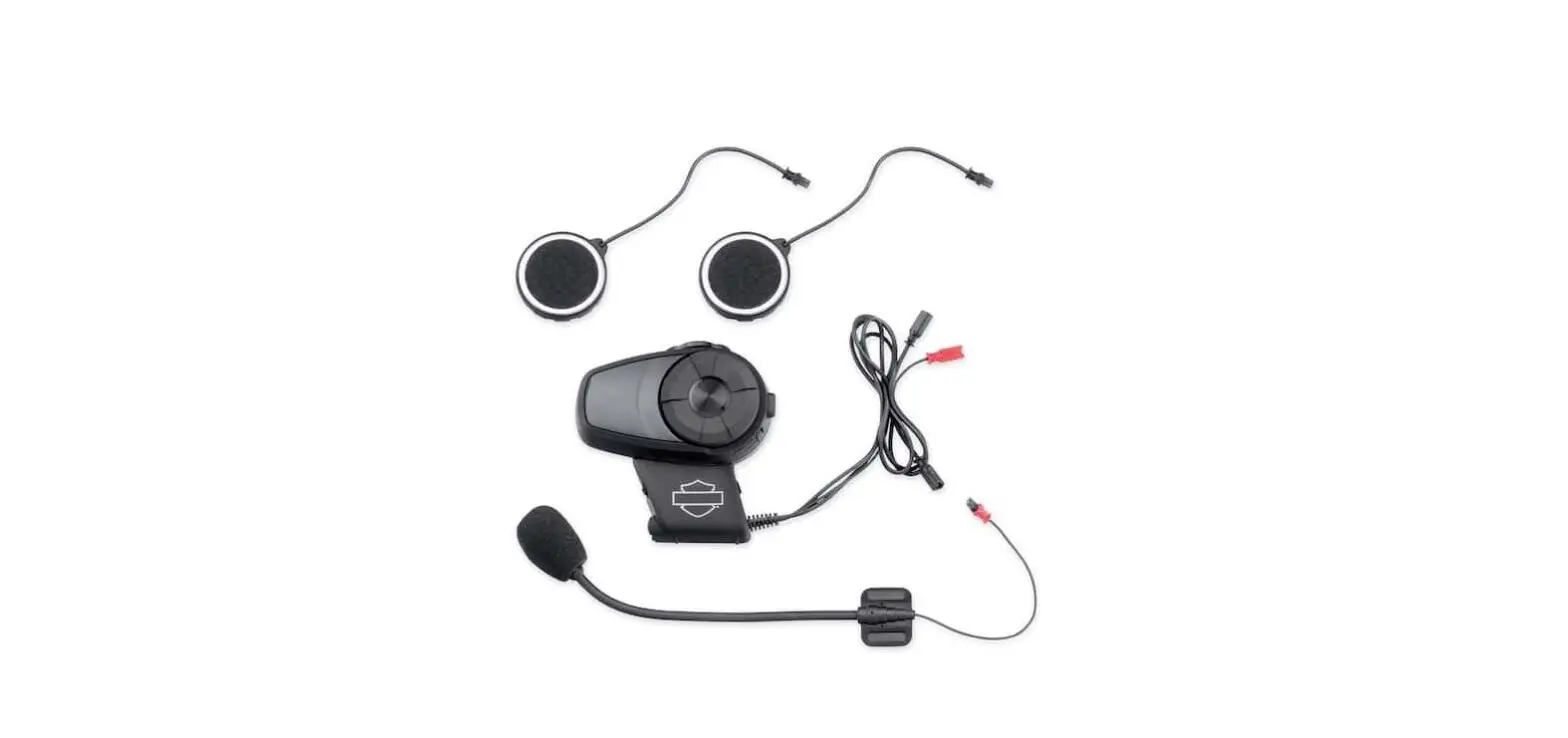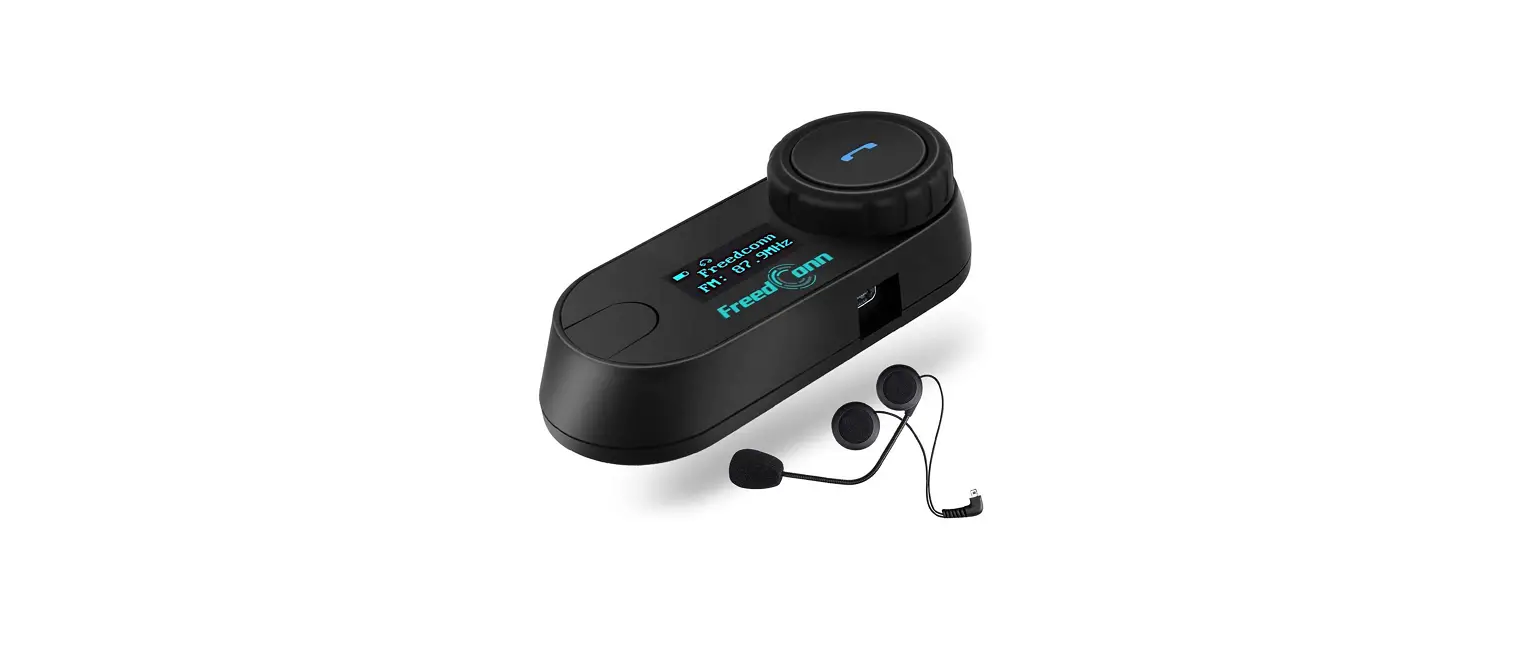
 Fodsports M1-S Pro 1pcs 8 Riders Motorcycle Bluetooth
 Fodsports M1-S Pro 1pcs 8 Riders Motorcycle Bluetooth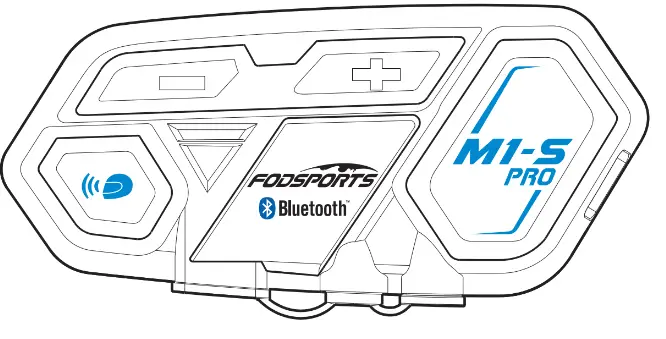
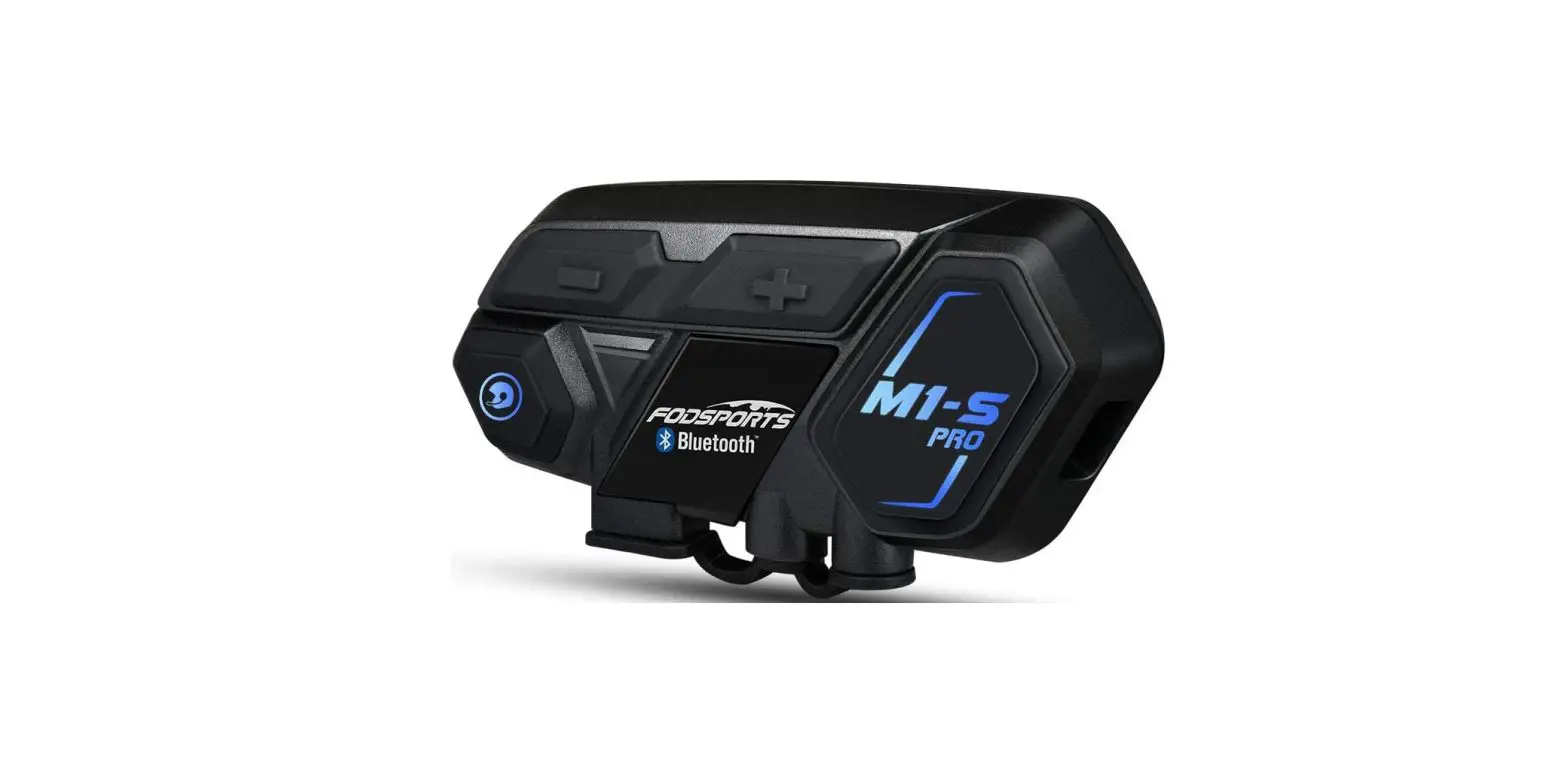
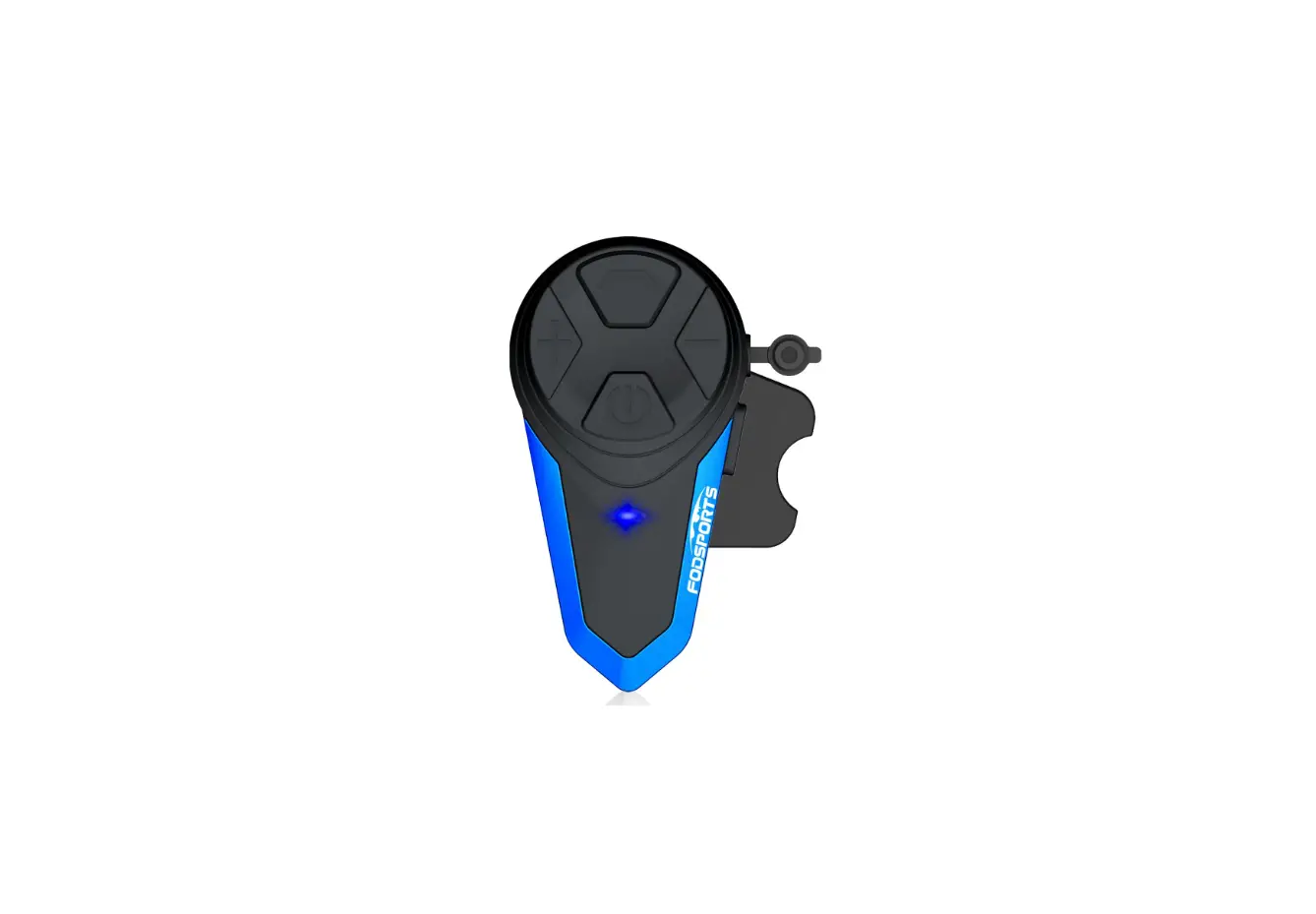
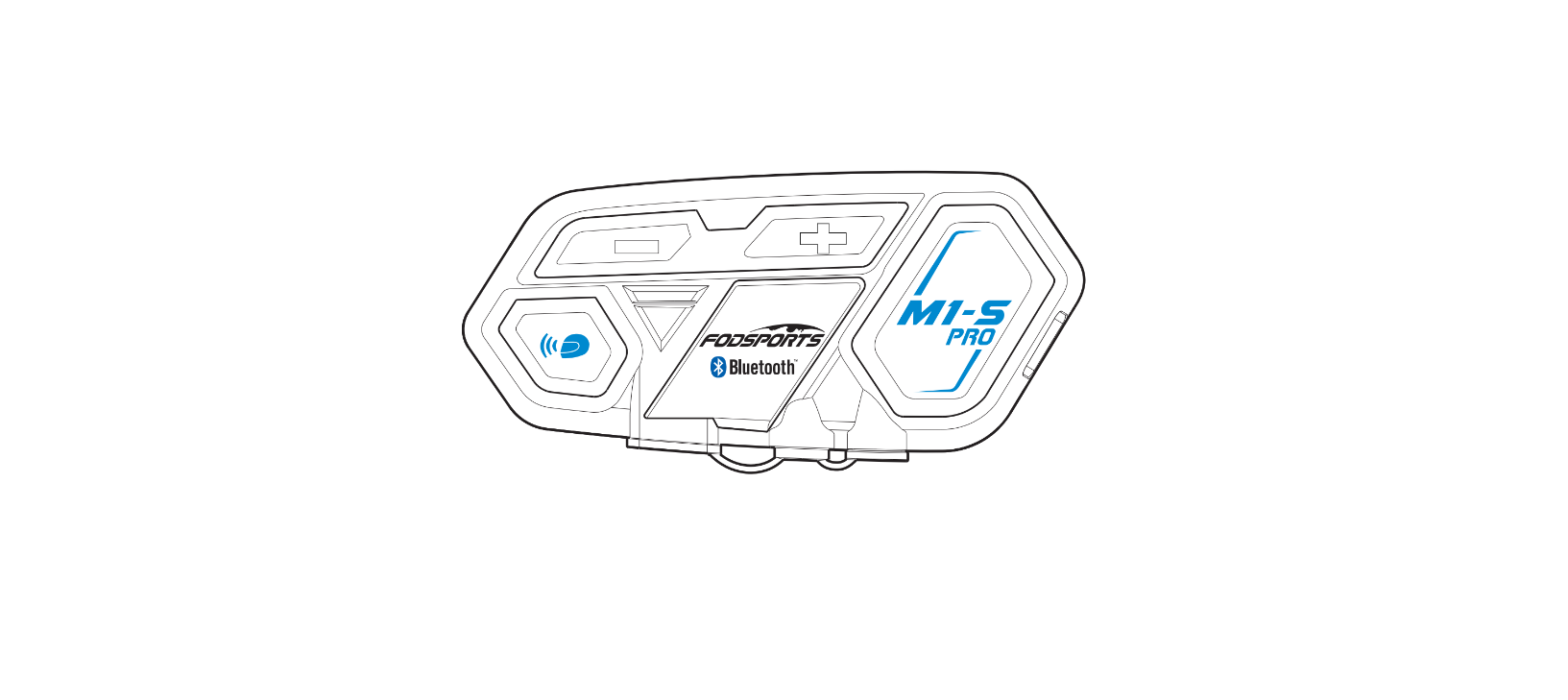
0utlook (e.g. M1-S PRO)
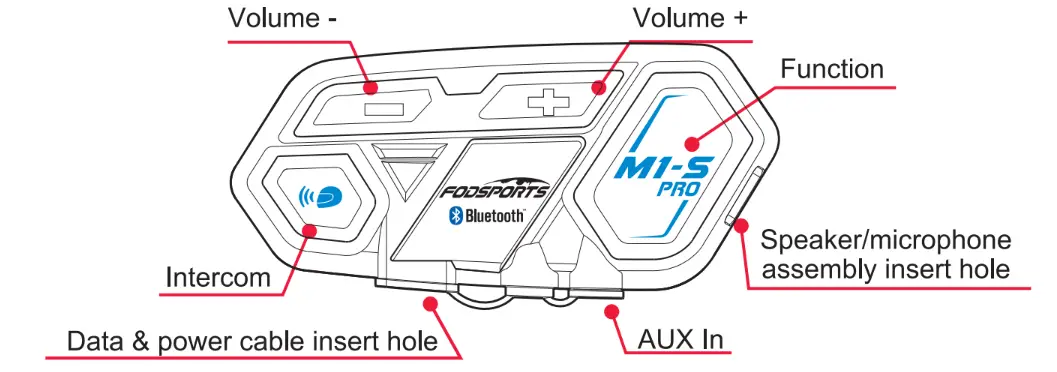
Functions
- switch: When the device is off, press the intercom button and function button at samelimefor3 seconds.
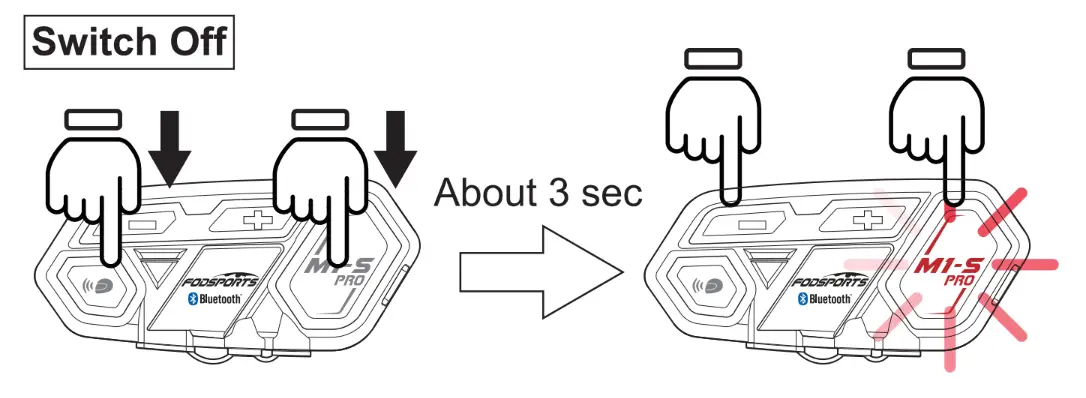
- SwltchOff: When the device is on, press intercom button and function button at samelimefor3
- Power Detect: When the device is on, short press the volume”-‘ button and volume”+’ button at the same time.
- Voice control function {Only If your cellphone is equipped) : Short press the function button once.
- Switch on an external wired device such as a speed detector … : when the device IS on, long press the volume•-• button and volume”+’ button at the same
Cellphone Function
- Answering call: Short press the function button once.
- Hangup call: After can, short press function once.
- Refuncall:Afler caD,shortpressfunctionbutton
- Redial: Short press the function button twice.
- Volume up: Press volume’+’ button while talking.
- Volume down: Press the volume”-‘ button while talking.
- Switch manual/automatic answering calls: While on standby, press and hold the intercom button and volume·+··-·button at the same time for seconds.
Device Pair Up
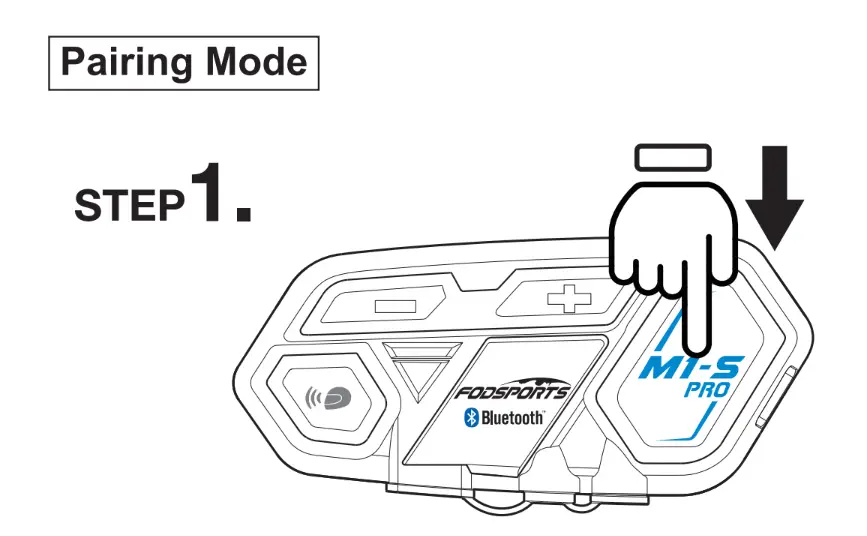
- Pairing mode: When the device is on, long press the function button for 5 seconds.
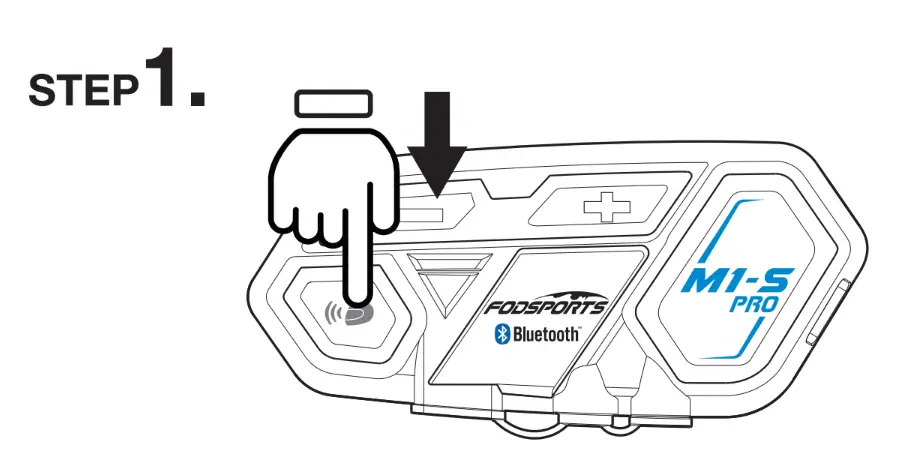
- Search mode When the device is on, long press the intercom button for 5 seconds. Remark, pairing mode is for pairing up to other devices like cellphones, GPS… Search mode is for pairing up with other M1-S PRO.
Music Function
- Play: When the device is on, short press the volume”+” button twice.
- Pause: When music is playing, short press the volume”+” button twice
- Play previous: When playing music, long press the volume”+” buttonfor2seoonds.
Intercom Function
- Switch the intercom on when a device is on: short press the intercom button once.
- Switch off: when talking, short press the intercom button once.
- Volume up: when talking, short press the volume”+” button once.
- Volume down: when talking, short press the volume•-• button once.
Special Function
- Update mode: Plug in the Data & power cable, press the volume “-” button and function button at the same time for 5 seconds.
- Memory cleBI”: When a device is on, press the volume”+” button and function button at the same time for 5 seconds.
Recharge
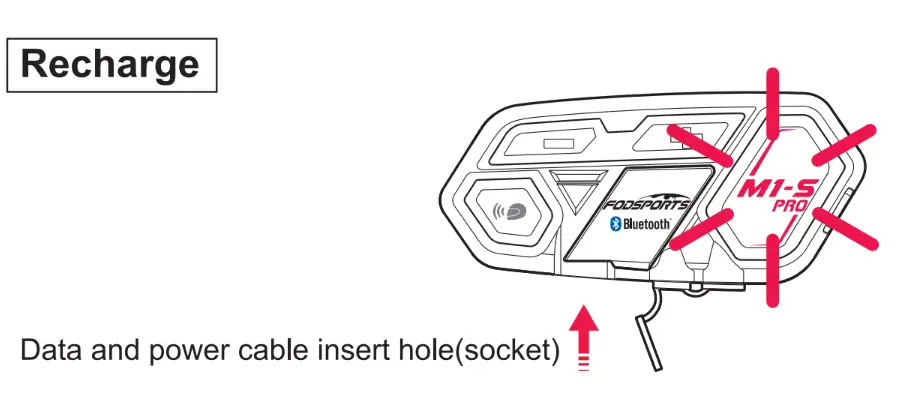
For first-time use, please recharge the device until the red light is off.
- Use data and power cable plug to the socket, and connect to a power source.
Bike USB chargers are not recommended, the unstabilized circuit may damage the device. - When connecting to a power source, a red light appears on the function button. When recharging is complete, the red light is off. Complete recharge is about 2 hours.
Low power notification! 
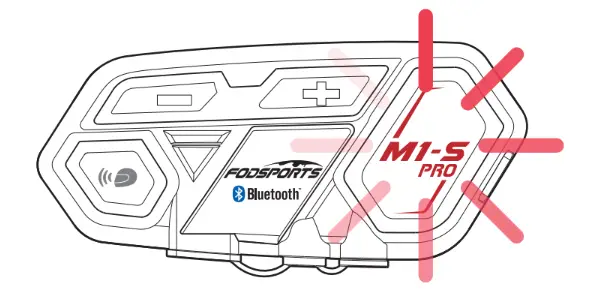
When power is lower than 10%, Red light flashes in the function button, and a voice message will remind power is lower than 10%, please recharge immediately.
Power Detect Function 
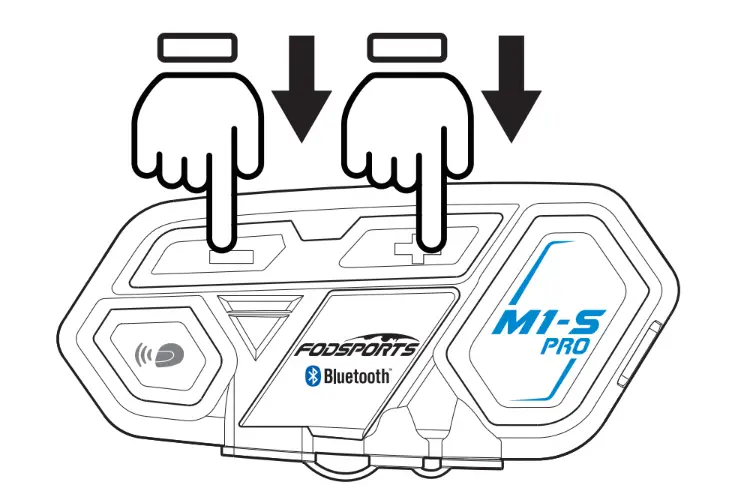
M1-S PRO has a power detection function, when the device is on, short press the volume”-” button and the volume”+” button at the same time. A recorded voice message will remind
Power over 90%
Power over 50%
Power lower 50%
Power lower than 10% please recharge immediately
Voice control function( only if your cellphone is equipped): short press the function button once
Switch on external wired devices such as speed detector …: when the device is on, long press the volume”-” button and volume”+” button at the same time for 3 seconds.
0n /Off
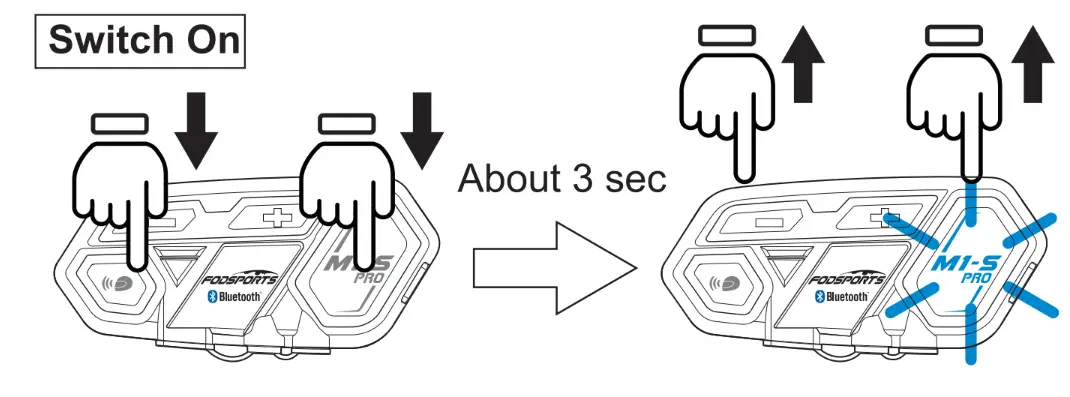
- Switch on: long press function and intercom button at the same time for 3 seconds. until blue light flashes on the function button. The voice message says “welcome to the Fodsports Bluetooth communication system”.

- Switch off: When the device is on, long press the function and intercom button at the same time for 3 seconds, until the red light flashes in the function button. The device will detect power and a voice message will say “power off.
Pair Up To Different Devices
M1-S PRO can pair to different Bluetooth devices.
Pairing Mode
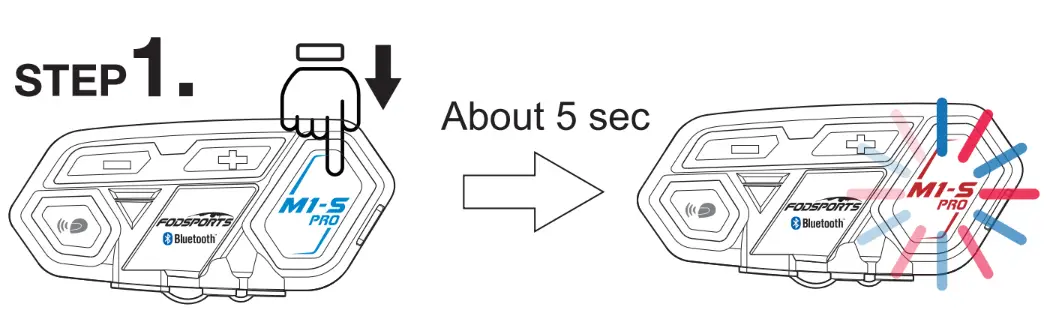
- When the device is on, long press the Function Button.

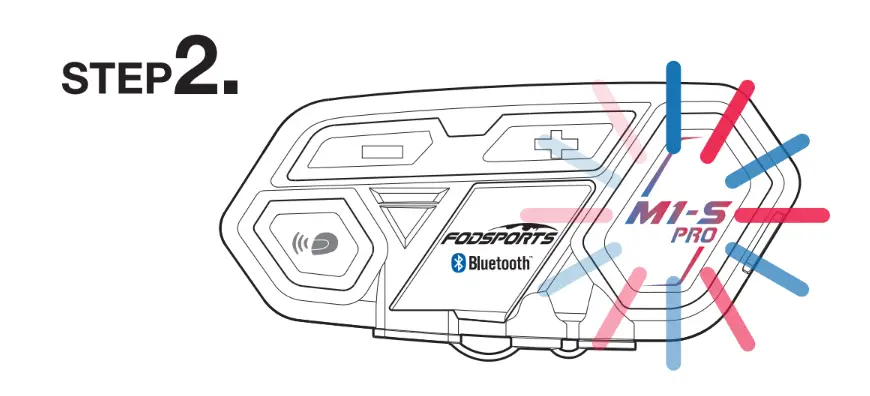
- Pairing mode, red and blue light flash Voice message says pairing.

Search Mode
- When the device is on, long press the intercom button.

- Search mode, red and blue light flash 0.5 seconds between each flash, one second between each flash.
 It’s in search mode, voice message shows a “Searching” sound.
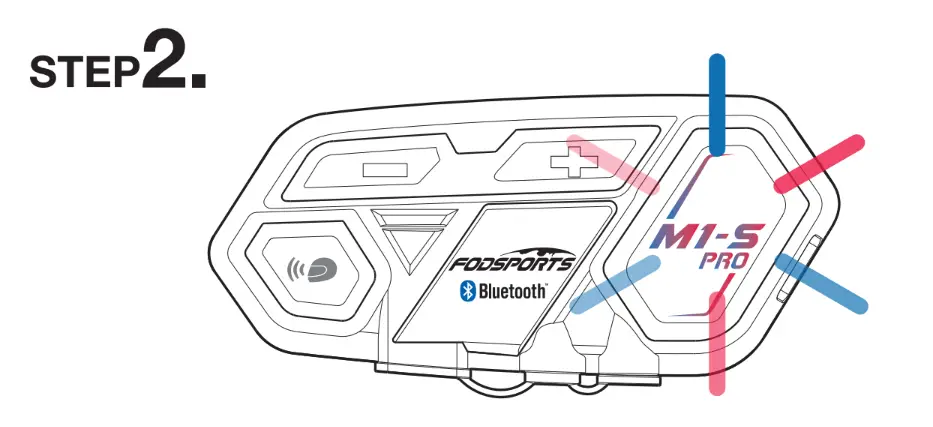 It’s in search mode, voice message shows a “Searching” sound.
Pairing With Cellphone
- When device is on, long press function button

Red and blue light flash on the function button, entering pairing mode - Switch on cellphone Bluetooth chose FODSPORTS M1-S PRO, and the pairing is complete.
A voice message will also say pairing complete. Remark, when pairing is complete, please check both cellphone audio and media audio are all chosen, otherwise call or music can’t be processed.
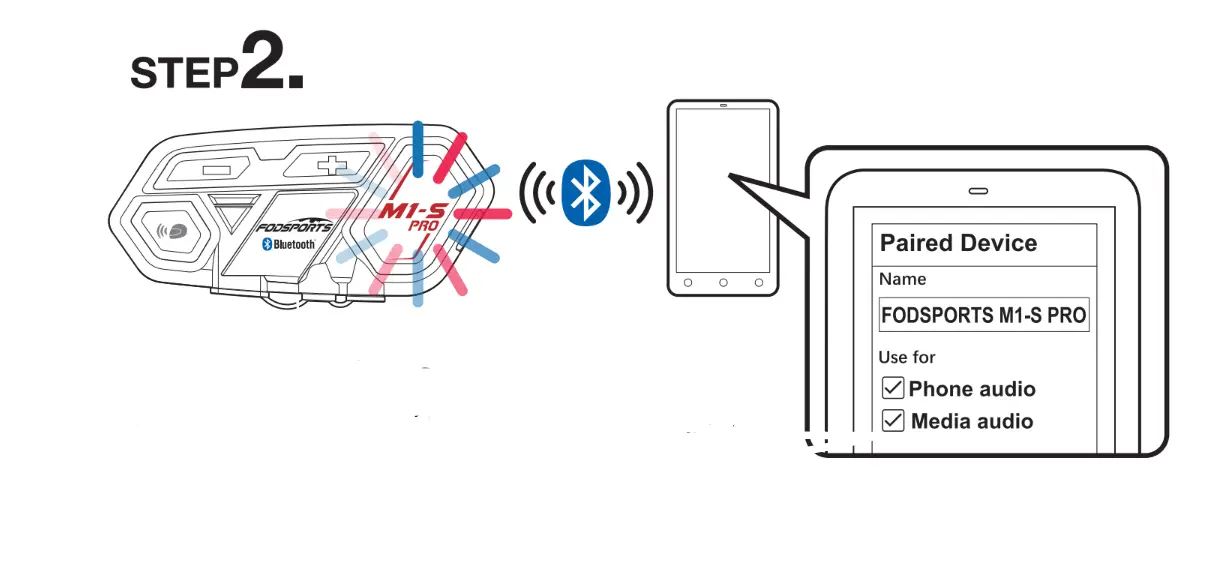 Remark, when pairing is complete, please check both cellphone audio and media audio are all chosen, otherwise call or music can’t be processed.
Telephone Function
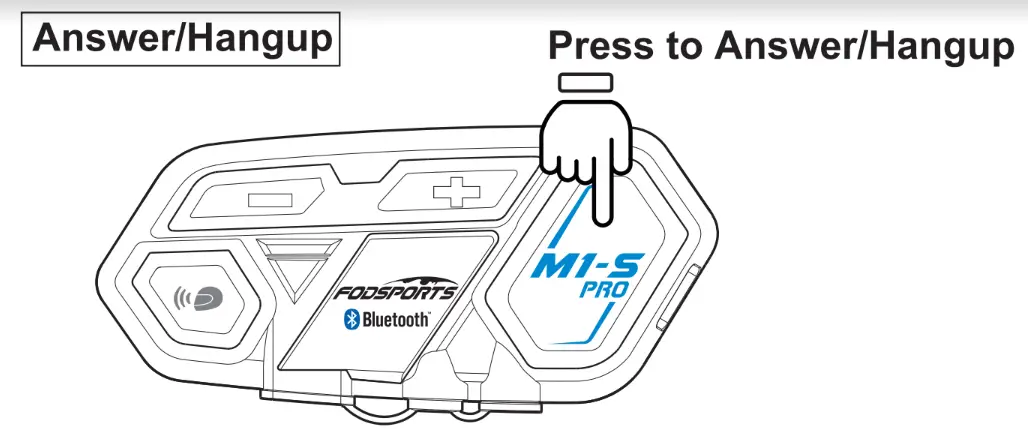
Answer/Hangup
M1-S PRO is set to automatically answer incoming calls, when incoming calls, ring, blue light flashes. Push the function button to answer and push the function button to hang up.
When talking, press volume”+” button and the volume”-” button to adjust the volume.
Short press the function button twice 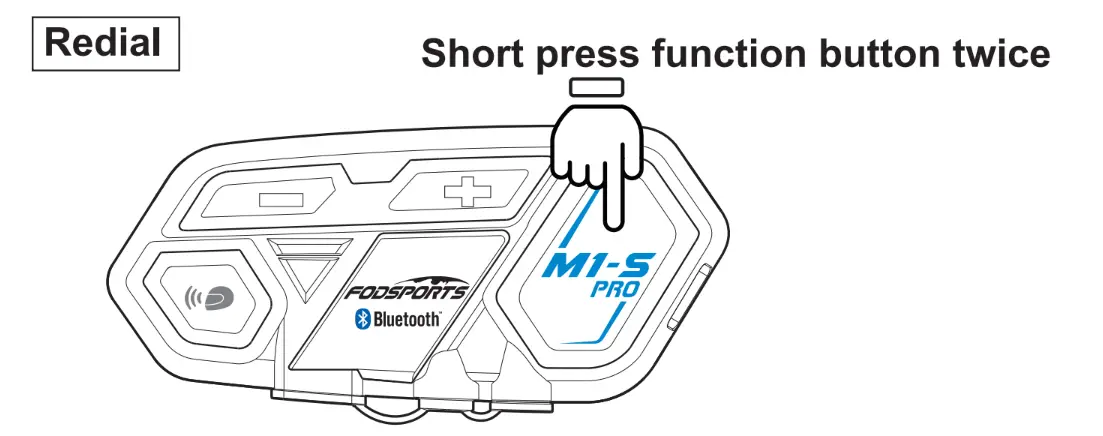
When the device is on, short pressing the function button twice will retail, and blue light flashes.
*Only redial last call out a number
Voice Command
Short press8nction button once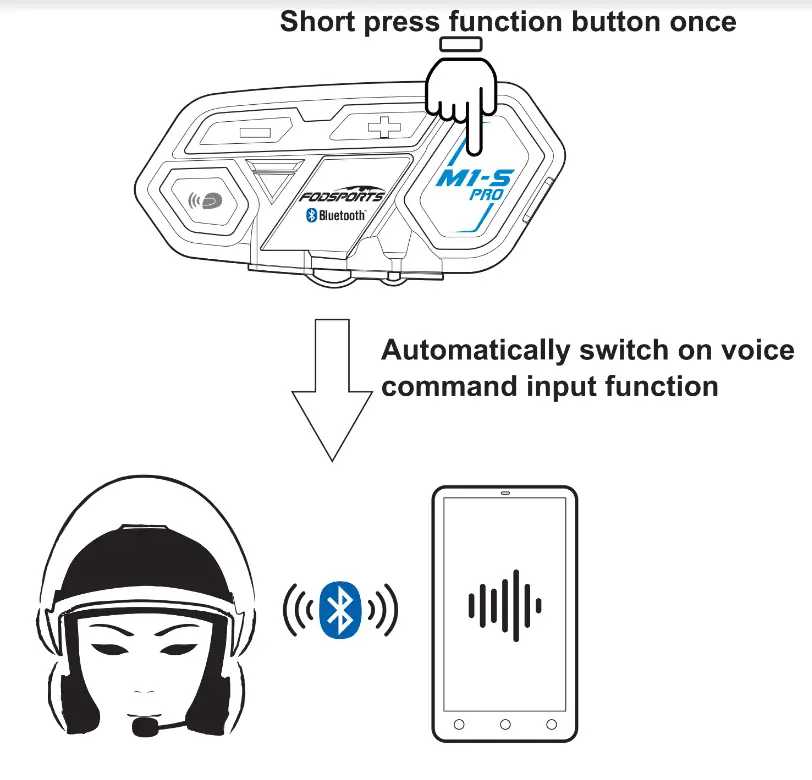
When your M1-S PRO is paired up with your cellphone, when both devices are on, short press the function button once, will automatically switch on the voice command function
*Cellphone must be equipped with this function
Music Selections Functions
Play/Pause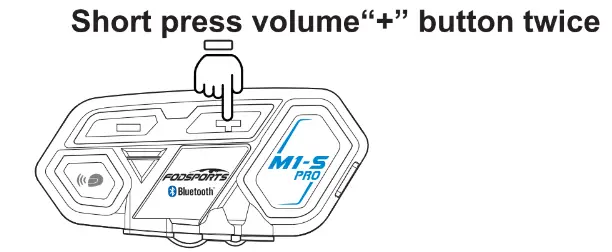
Play Music
When the cellphone and M1 -S are paired up, when both devices are on, short press the volume”+” button twice, will play music.
Pause
When playing music, short press the volume”+” button twice, will pause.
Previous 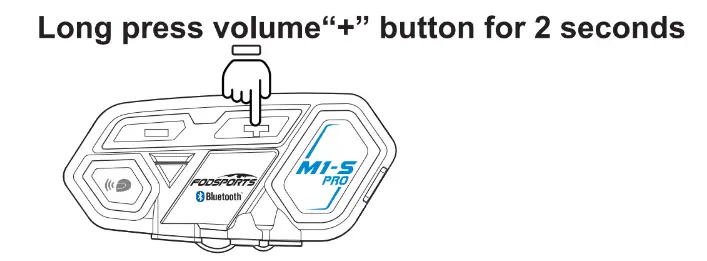
Long press the volume”+” button for 2 seconds, will play previous music in your cellphone music list.
Next 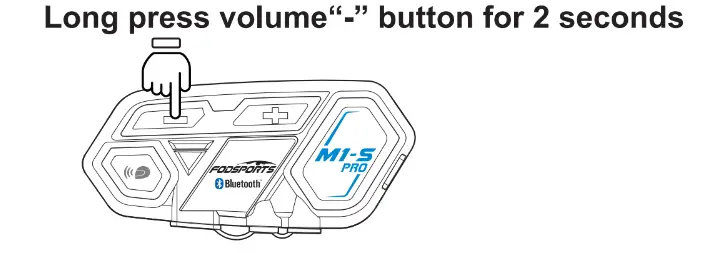 Long press the volume”-” button for 2 seconds, will play next music stored in your cellphone music list.
Wire Connecting
Long press volume”+” button and volume”-” button for 3 seconds. 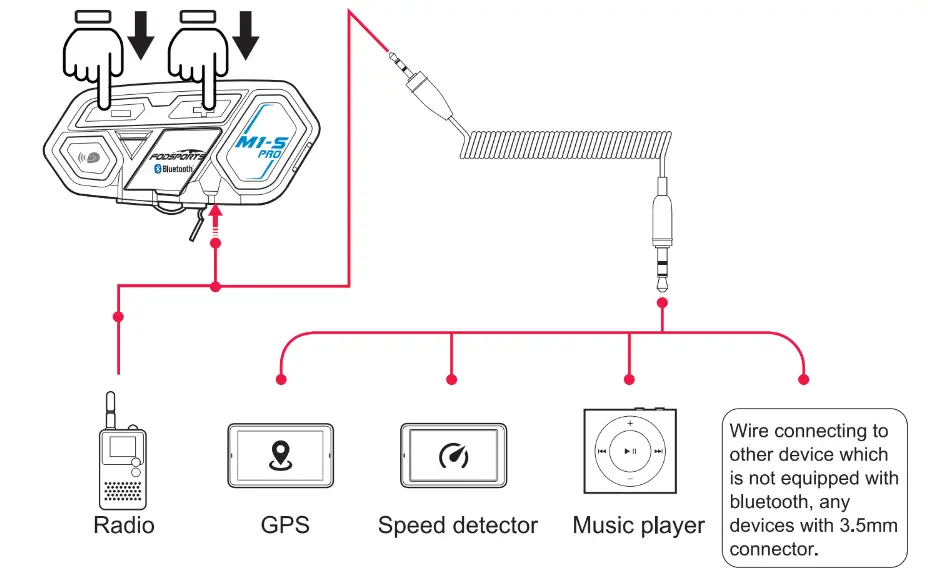
M1-S PRO is equipped with a wire connection function in order to connect to devices without Bluetooth. As long as the device is connected by a 3.5mm aux out, all can transmit voice signals to M1 -S PRO.
When the device wire is connected by a 2.5mm to 3.5mm cable to M1-S PRO, long press the volume”+” button and volume”-” button for 3 seconds to switch on the connection.
* When the wired mode is switched on, it will keep it on until switches off the M1-S PRO.
Operating Scenario 1
One person use, pair to cellphone + Bluetooth GPS device + Bluetooth speed detector
- First of all, pair up GPS and cellphone.

- Pair up M1-S PRO with GPS, after pairing, please switch off the Bluetooth function in the GPS.

- Lastly, pair up M1-S PRO with a Bluetooth speed detector, after being paired, switch on GPS Bluetooth function.

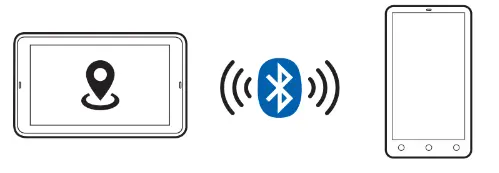

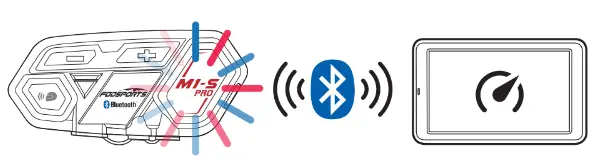
*After M1-S PRO is paired with GPS, if don’t switch off GPS’s Bluetooth, it will interfere with the pairing when pairing to the speed detector. Recommended to switch GPS Bluetooth off, after pairing up to the detector, switch the Bluetooth back on.
0perating scenario 2
Two-person intercom, and pairing to cellphone + Bluetooth GPS + speed detector or radio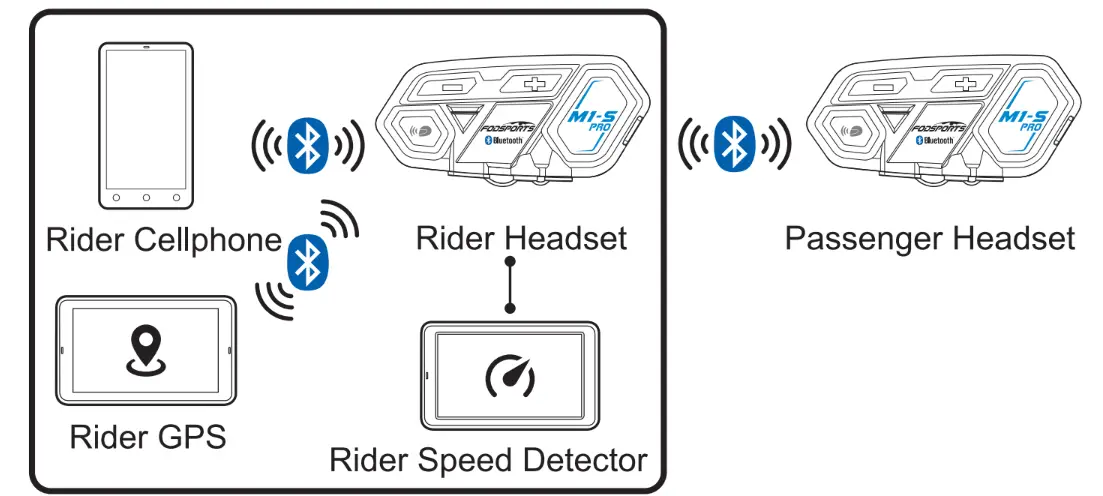
Passenger Procedure:
- Step 1: switch rider headset to search mode, and passenger headset to pairing mode. When both headsets stop red+blue light flashes, and they are paired.
- Step 2: switch rider headset to pairing mode, cellphone search this M1-S PRO, and pair it up.
- Step 3: keep rider’s headset in pairing mode, use Bluetooth GPS to search rider’s headset, and pair it up.
- Step 4: use 2.5mm to 3.5mm aux in to connect the speed detector or radio to M1 -S PRO, and switch M1-S PRO to Wire Connecting, all audio integration complete.
Please read STEP 9. For Wire Connecting.
Operating Scenario 3
Two-person intercom, rider using cellphone + Bluetooth GPS, a passenger using Bluetooth Speed detector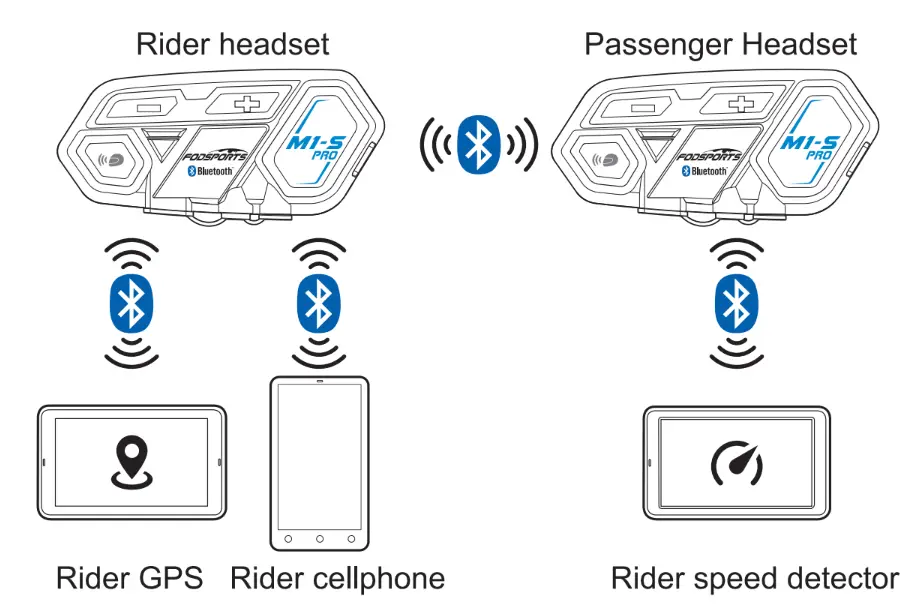
Pairing Procedure
- Step 1: switch rider headset to search mode, passenger’s headset switch to pairing mode, when red and blue light stop flash, intercom pairing complete. At the same time instantly switch on the intercom.
- Step 2: Set rider headset to pairing mode, use cellphone to search rider’s headset to complete pair up.
- Step 3: set rider’s headset to pairing mode, use Bluetooth GPS to search rider’s headset, and complete.
- Step 4: set the passenger’s headset to pairing mode, use a Bluetooth speed detector to search the passenger headset and complete pair up.
Multiple Intercom
Multiple intercom pairing procedure 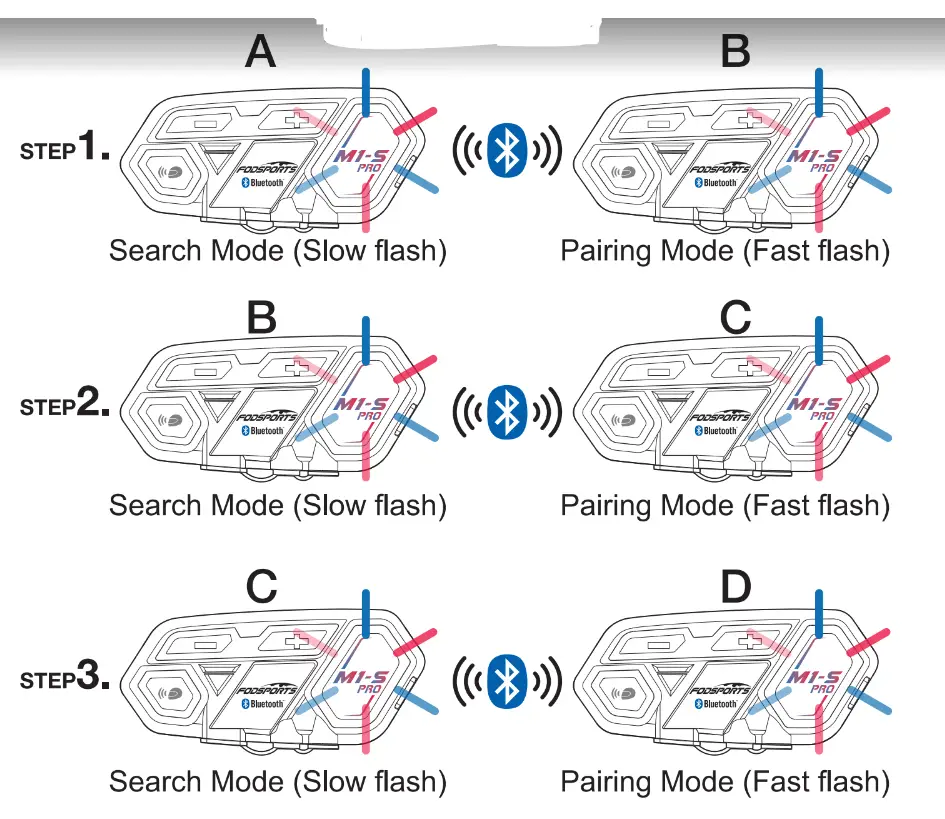
*Numbers of devices with which the headset can be paired
8 x M1-S PRO (A, B, C D}, multiple intercom connections, the connection will occupy channels, thus only unit A can connect to the other two Bluetooth devices, the others B, C, and D can only connect to one Bluetooth device.
M1-S PRO equipped with multiple intercom functions, support 8 units talk same time, but recommended 4-6 units, pairing procedure as follows.
- Step 1: switch on both A and B units, long press the A unit intercom button to search mode, Then long press the unit B function button to pairing mode. When blue light on both intercoms, pairing is complete. (You should press the intercom button on the B unit to end the talking if you need to pair with more than 2 units.in order to new pairing later)
Now A and B unit pairing is complete. - Step 2: When BC units are on power on status. long press unit B intercom button to search mode, Then long press unit C function button to pairing mode. When the blue light on both units, pairing is complete. (You should press the intercom button on B units if you need 3 units to talk same time, then 3 units will light on the blue same lime. Or you should press the intercom button on the C unit to end the talking if you need to pair with more than 3 units)
Three units pairing complete. - Step 3: When C D units are on power on status, Long press unit C intercom button, then long press unit D function button. When the blue light on both units, pairing is complete.(You should press the intercom button on B C units if you need 4 units to talk at the same time, then 4 units will light on the blue same time. Or you need to press the intercom on the D unit to end the talking if you need to pair with more than 4 units) Pis repeat the above steps if you need to pair with 5 or 6 or 7 or 8 units.
Four units pairing complete.
*Interruption
In multiple intercom mode, if there is an incoming call caused one of the units away from the connection. After all, will reconnect automatically. If the interruption is caused by distance or bad signal. Please press the intercom button to reconnect.
Multiple intercoms reconnect the procedure 
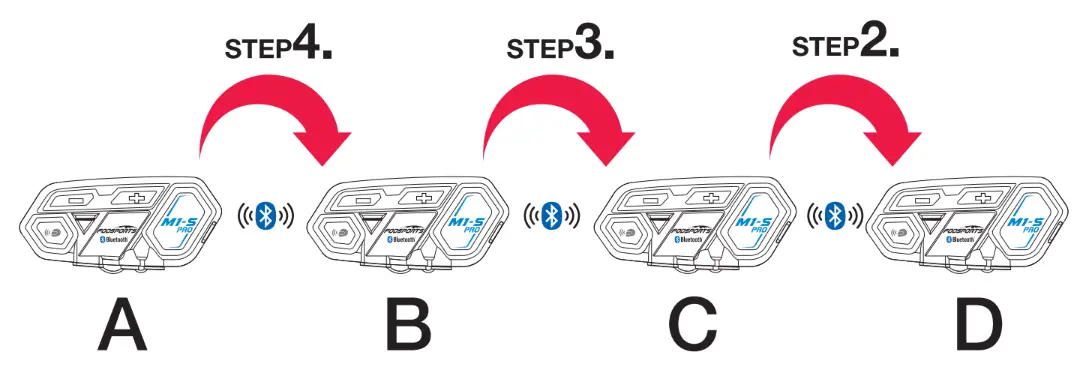
M1-S PRO will remember paired units. But after switching off and wanting to reconnect again, please follow the procedure.
- Step 1: Switch off all four units and all Bluetooth devices connected to the headset.
- Step 2: switch on C and D units, and press the C unit intercom button to connect to the D unit.
- Step 3: switch on the B unit, and press the B unit intercom button to connect to C and D units.
- Step 4: switch on the A unit, and press the A unit intercom button to connect to B, C, and D units. After all four units are reconnected, switch on originally connected Bluetooth devices.
FAQS
No sounds from one or two side speakers.
Check the device plug, needs to firmly connect.
Can it be recharged from bike USB charger while riding?
Not recommended, unstablized power source will cause damage on the internal circuit, may cause unable to recharge/can’t fully charged/can’t switch on. A22 : Power bank is a good choice.
When using radio, not transmission or continuous transmission.
Pis check whether plug the 2.5mm pin deeply enough.this pin built in waterproof parts,lt is easily misunderstood it have been pluged well because of a little resistance.
New device can’t switch on.
Recharged at least 30mins before use.
Yes. My phone is a Motorola and runs on Android. The pairing was very quick
You can listen to your own music, M1-S Pro doesn’t have music sharing function, so you can only listen to your phone music via Bluetooth, if you need to intercom and listen to the music at the same time, you need to use the 3.5mm audio cable which in the box, otherwise, you need to exit intercom to listen to music.
While riding in a group, a Bluetooth headset for a motorcycle allows you to connect with 7 other riders. You can hear and speak with each other meanwhile, sounds like a conference call. Once the rider drops out of range, he only needs to press the intercom button to reconnect and back to the conversation.
Because all Bluetooth devices operate on the same principle and the same network, all the devices should be able to talk to each other. Unfortunately, different devices communicate via different frequencies and that keeps them from being compatible.
A motorcycle intercom can help reduce the amount of wind noise that a rider and their passenger are exposed to by allowing them to communicate without having to shout. In addition to protecting their hearing, this can also make riding more enjoyable by reducing the need to constantly remove their helmets to talk.
You should buy a motorcycle helmet with Bluetooth if you need the ability to communicate with others when you’re riding, take and make phone calls, listen to music as you ride, and get GPS directions on your ride. It’s best to buy a Bluetooth motorcycle helmet if you need a new helmet anyway.
The Winner. Until we’re able to road-test the new Harman Kardon Sena speakers, Cardo wins on the audio quality front. Sena’s speakers work, but you’re not going to really enjoy your music.
Not only can you make phone calls with a Bluetooth helmet, but you can also use it to communicate with others you may be riding with. If other riders or passengers also have Bluetooth-enabled helmets, you will be able to talk to them with ease.
Earlier this year, Sena released a firmware update for the SMH10, SMH10R, and SMH5. The major addition in this update is the new Universal Intercom feature, allowing cross-brand interoperability. Then, just last week, UClear followed with a firmware update also allowing cross-brand communications.