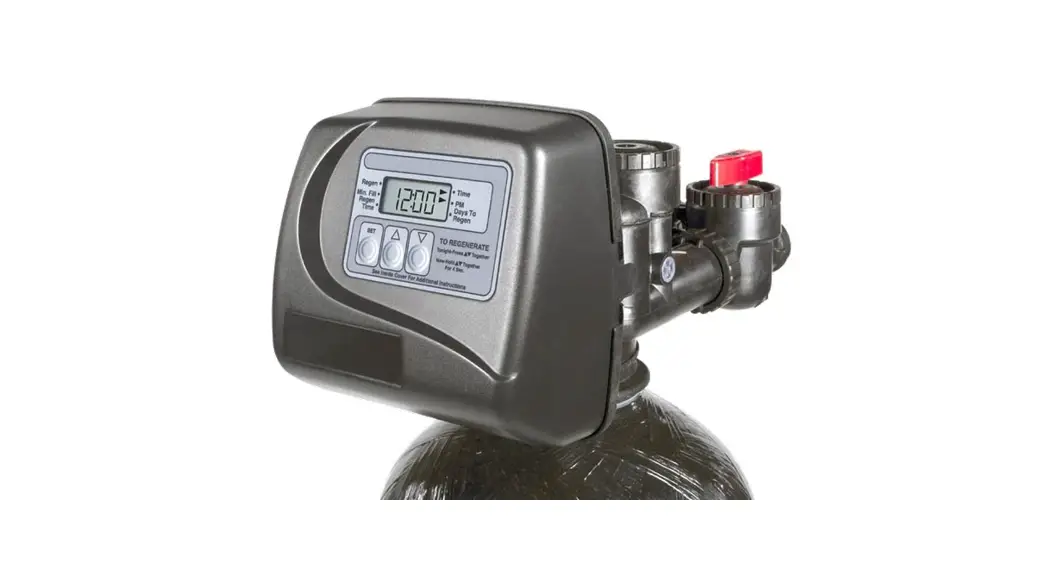
V3175SP-01 SP Solar Powered Control Valve
Product Information: The
Water Specialist SP Solar Powered Control Valve is a component used
in water treatment systems. It consists of various parts, as listed
below: – WS1SP FRONT COVER ASSEMBLY (Order No. V3175SP-01) – WS1
MOTOR (Order No. V3107-01) – WS1 DRIVE BRACKET SOLAR & SPRING
CLIP (Order No. V3814-01) – WS1THRU SPPCB AC/DC REPL BOARD (Order
No. V4072SP-03) – WS1 DRIVE GEAR 12X36 (Order No. V3110) – WS1
DRIVE GEAR COVER (Order No. V3109) – WS1SP BATTERY PACK CHARGED
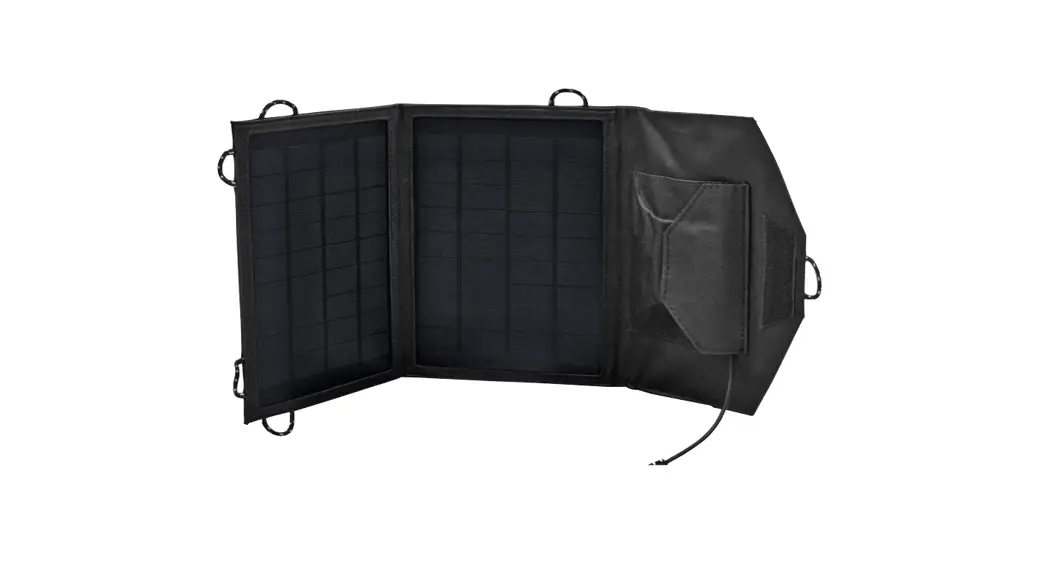
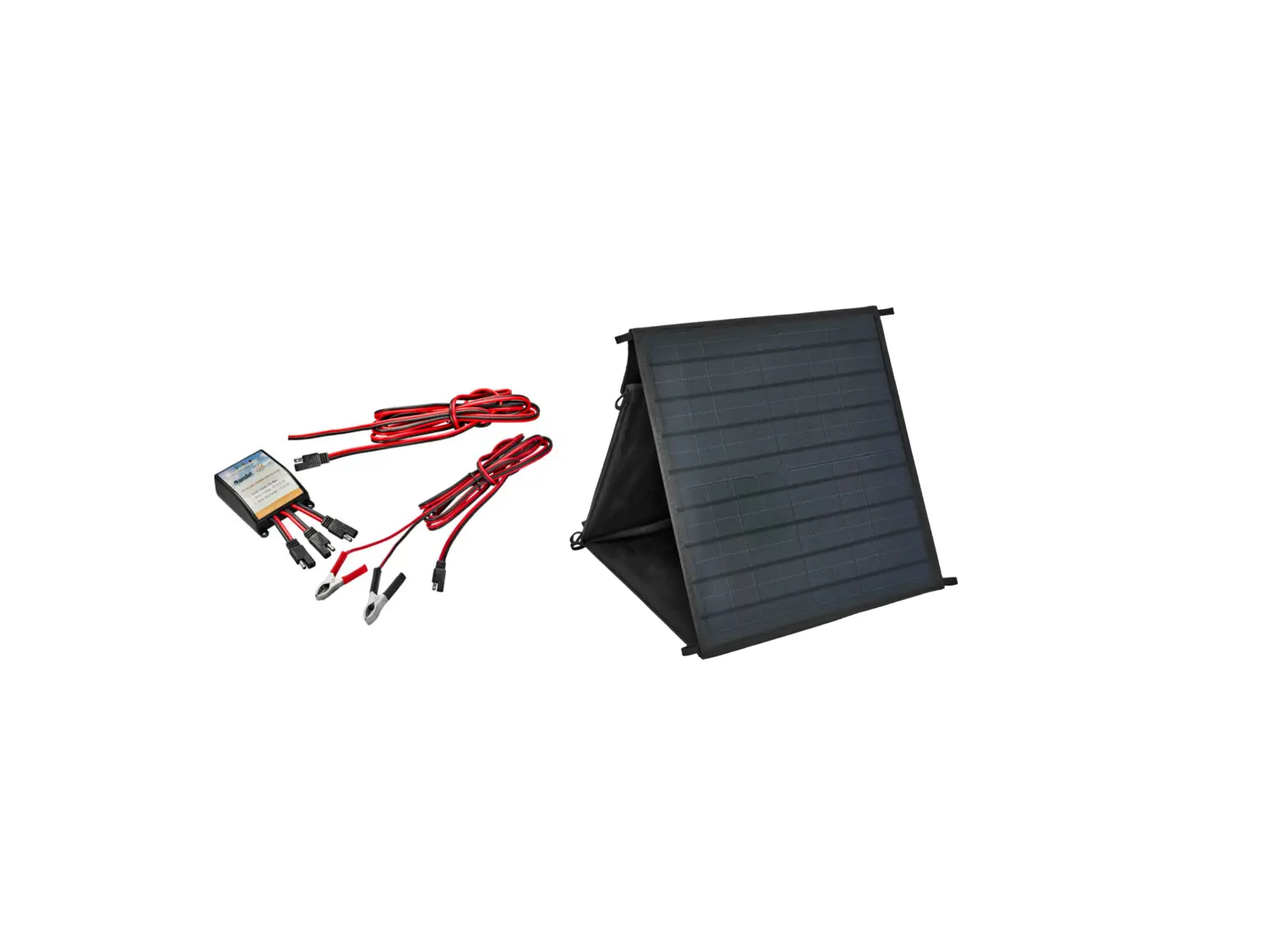
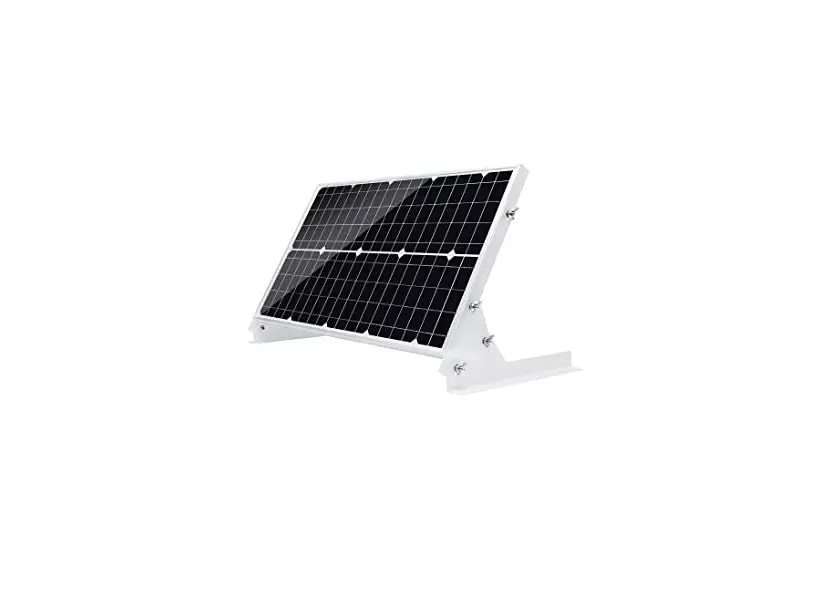
W/TIE (Order No. V3835-02) – WS1SP SOLAR PANEL W/BRKT ASY (Order
No. V3842) – WS1 POWER SUPPLY US 15VDC HOCP (Order No. V3186-06) –
WS1 DRIVE BACK PLATE (Order No. V3178) The product comes with a
power supply that has the following specifications: – U.S. Supply:
100-120 VAC, 50/60 Hz, 15 VDC, 500 mA – International Supply:
100-240 VAC, 50/60 Hz, 15 VDC, 500 mA The battery used in the
product is a 3 volt lithium coin cell type 2032. Product Usage Instructions: 1. When
replacing the battery, ensure that the positives are aligned and
push down to fully seat it. 2. Connect the red wire from the solar
panel to the “+” terminal and the black wire to the “-” terminal.
3. Use a cable tie to secure the battery pack to the drive bracket
when replacing the WS1SP BATTERY PACK CHARGED W/TIE (Order No.
V3835-02). 4. Valves are shipped with the battery not connected to
the circuit board. Connect the battery end to the circuit board. 5.
Refer to the Control Valve Service Manual for other drawings and
part numbers. Wiring
Diagram: For information on wiring the Water Specialist SP
Solar Powered Control Valve, please refer to Page 5 of the SP
Manual. Regeneration and Error
Screens: – Regen Screen: Displays the time remaining in the
current cycle. Pressing REGEN advances to the next cycle. – Error
Screen: Alternately flashes “Err” and an error code every 3
seconds. Clear by disconnecting the power supply at the PC board
and reconnecting, or press NEXT and REGEN simultaneously for 3
seconds. In Alternator Systems, when a unit is waiting to initiate
the first cycle step of regeneration, “REGEN Pndg” is displayed.
“STbY” is displayed in Alternator Systems when a valve is in
Standby state. Button Operation and
Function: – Scroll Button: Scrolls to the next display. –
REGEN Button: Pressing once and releasing will schedule a
regeneration at the preset delayed regeneration time. Pressing
again and releasing will cancel the regeneration. Pressing and
holding for 3 seconds will initiate an immediate regeneration.
Pressing while in regeneration will advance to the next cycle.
Pressing in the program levels will go backwards to the previous
screen. – NEXT Button: Changes the variable being displayed. –
UNLOCK Button: Key sequence to lock and unlock program settings.
Holding for 3 seconds initiates a control reset. The software
version is displayed, and the piston returns to the home/service
position, resynchronizing the valve. – SET Button: Used with valve
type 1.0. Holding for at least 3 seconds causes a switch in the
tank in Service without cycling the regeneration valve. After tank
switch, days remaining and capacity remaining status is retained
for each tank until the next regeneration. Regeneration Cycles and Times: The
regeneration cycles and times for different functions are as
follows: – Softening: 1-120 minutes – Filtering Regen: 1-120
minutes – Filtering Backwash: 1-120 minutes – Regenerant Draw/Slow
Rinse (UP or DN): 1-180 minutes – Fast Rinse: 1-120 minutes –
Regenerant Refill: 0.1-200.0 lbs. or 0.05-20.0 Gal. – Regenerant
Refill (set to MIN, softening only): 0.1-99.0 minutes
Water Specialist SP Solar Powered Control Valve
Programming Manual
Page 2
SP Manual
SP Manual
Page 3
Table of Contents
Front Cover and Drive Assembly ………………………………………………………………………………………………… 4 Wiring Diagram ………………………………………………………………………………………………………………………… 5 Regeneration and Error Screens, Button Operation and Function, Regeneration Cycles and Times……… 6 User Displays……………………………………………………………………………………………………………………………. 7 Configuration Settings ……………………………………………………………………………………………………………….. 8 OEM Softener System Setup …………………………………………………………………………………………………….. 10 Setting Options Table ………………………………………………………………………………………………………………. 12 OEM Filter System Setup…………………………………………………………………………………………………………. 13 Installer Display Settings ………………………………………………………………………………………………………….. 14 Diagnostics …………………………………………………………………………………………………………………………….. 15 Battery Diagnostics ………………………………………………………………………………………………………………….. 17
Page 4
SP Manual
Front Cover and Drive Assembly
Drawing No.
Order No.
Description
1
V3175SP-01
WS1SP FRONT COVER ASSEMBLY
2
V3107-01
WS1 MOTOR
3
V3814-01
WS1 DRIVE BRACKET SOLAR & SPRING CLIP
4
V4072SP-03BOARD WS1THRU SPPCB AC/DC REPL
5
V3110
WS1 DRIVE GEAR 12X36
6
V3109
WS1 DRIVE GEAR COVER
7
V3835-02
WS1SP BATTERY PACK CHARGED W/TIE
8
V3842
WS1SP SOLAR PANEL W/BRKT ASY
Not Shown
V3186-06
WS1 POWER SUPPLY US 15VDC HOCP
Not Shown
V3178
WS1 DRIVE BACK PLATE
Refer to Control Valve Service Manual for other drawings and part numbers.
Quantity 1 1 1 1 3 1 1 1 1 1
Power Supply Supply Voltage Supply Frequency Output Voltage Output Current
U.S. 100-120 VAC
50/60 Hz 15 VDC 500 mA
International 100-240 VAC
50/60 Hz 15 VDC 500 mA
When replacing the battery, align positives and push down to fully seat.
Correct Battery
Orientation
Battery replacement is 3 volt lithium coin
cell type 2032.
8
Battery Fully Seated
4
Connect red wire from
1
solar panel to “+”
terminal, and black
Power
wire to “-” terminal.
Supply
Battery
Connections
5
6
2
3
7 Use Cable Tie to secure battery pack to drive bracket when replacing V3835-02.
Valves shipped with battery not connected to circuit board. Connect this end to circuit board.
SP Manual
Wiring Diagram
Page 5
Page 6
SP Manual
Regeneration and Error Screens
Regen Screen Displays the time remaining in the current cycle. Pressing REGEN advances to the next cycle.
Error Screen Alternated flashing Err and error code every 3 seconds. Clear by disconnecting the power supply at the PC board and reconnecting, or press NEXT and REGEN simultaneously for 3 seconds. In Alternator Systems when a unit is waiting to initiate the first cycle step of regeneration, “REGEN Pndg” is displayed.
“STbY” is displayed in Alternator Systems when a valve is in Standby state.
Button Operation and Function
Scrolls to the next display.
Pressing once and releasing will schedule a regeneration at the preset delayed regeneration time. Pressing again and releasing will cancel the regeneration. Pressing and holding for 3 seconds will initiate an immediate regeneration Pressing while in regeneration will advance to the next cycle. Pressing in the program levels will go backwards to the previous screen
Changes variable being displayed.
Key sequence to lock and unlock program settings. Holding for 3 seconds initiates a control reset. The software version is displayed and the piston returns to the home/service position, resynchronizing the valve.
Used with valve type 1.0 , holding for at least 3 seconds causes a switch in the tank in Service without cycling theregenerationvalve. Aftertankswitch,daysremainingandcapacityremainingstatusisretainedforeach tank until the next regeneration.
Regeneration Cycles and Times
Range
Cycle
Softening
Filtering Regen
Filtering Backwash
Backwash
1-120 minutes 1-120 minutes 1-120 min.
Regenerant Draw/Slow Rinse (UP or DN)
1-180 minutes 1-180 minutes NA
Fast Rinse
1-120 minutes 1-120 minutes 1-120 min.
Regenerant Refill
0.1-200.0 lbs. .05-20.0 Gal. NA
RegenerantRefill2.0or1.5settoMIN(softeningonly) 0.1-99.0minutes 0.1-99.0minutes NA
Service
1-480 minutes NA
NA
If 1.5 or 2.0 is selected in Step 2CS, cycles can be set to “oFF”.
The user can initiate manual regeneration. The user has the option to request the manual regeneration at the delayed regeneration time or to have the regeneration occur immediately: 1. Pressing and releasing the REGEN button. ” REGEN TODAY” will flash on the display and the regeneration will occur at the
delayed regeneration time. The user can cancel the request by pressing and releasing the REGEN button. 2. Pressing and holding the REGEN button for approximately 3 seconds will immediately start the regeneration. The user cannot
cancel this request, except by resetting the control by pressing NEXT and REGEN simultaneously for 3 seconds.
SP Manual General Operation
Page 7
User Displays
When the system is operating, one of five displays may be shown. Pressing NEXT will alternate between the displays shown below.
User 1
Typical user display. Shows volume remaining to regeneration. This screen will not be viewed if the control is set for time-clock operation.
User 2
Displays number of days to next regeneration. Only displayed if control is set for time-clock operation.
User 3
Flow Rate. Displays present flow rate. Not viewed (along with SOFTENING or FILTERING Icon) if ALT A or ALT b is set in CONFIGURATION 4 and the valve is currently in Standby. When 1.0T is set in CONFIGURATION 1, the display will indicate the tank currently in Service (“A” or “b”) in the leftmost digit.
User 4
Displays total volume in gallons since last reset. If a meter is not used this display will be shown but 0 will be displayed. PRESS FOR 3 SECONDS TO RESET TO 0.
User 5
Shows current time. When FILL is displayed, the battery pack is being charged.
Setting Time of Day Push NEXT until time of day screen is displayed. Press and hold until SET TIME is displayed and the hour flashes once. Press or until the correct hour is displayed.
Then press NEXT. The minutes will flash. Press or until the correct minute is displayed.
Press NEXT to return to the User Displays. Time of day should only need to be set after power outages lasting more than 8 hours, if the battery has been depleted and a power outage occurs, or when daylight saving time begins or ends. If a power outage lasting more than 8 hours occurs, the time of day will flash on and off which indicates the time of day should be reset. If a power outage lasts less than 8 hours and the time of day flashes on and off, the time of day should be reset and the battery replaced.
Page 8
SP Manual
Step 1CS
Configuration Settings
Step 1CS Press NEXT and simultaneously for 5 seconds and release. Press NEXT and simultaneously for 5 seconds and release. If the screen in Step 2CS does not appear, the lock on the valve is activated. To unlock, press , NEXT, and REGEN in sequence, then press NEXT and simultaneously for 5 seconds and release. Press NEXT and simultaneously for 5 seconds and release.
Step 2CS
Step 2CS Use or to select 1.0 for 1″ valve, 1.25 for 1.25″ valve, 1.5 for 1.5″ valve, 2.0 for 2″ valve or 1.0T for twin valve. Press NEXT to go to Step 3CS. Press REGEN to exit Configuration Settings.
Step 3CS
Step 3CS If 1.5 or 2.0 is selected in Step 2CS, an additional screen will appear. It is used to select which size flow meter is to be used with the valve, 1.0r, 1.5, 2.0 or 3.0. Variable meter pulses of 0.1-150.0 PPG can also be selected. Press NEXT to go to Step 4CS. Press REGEN to return to the previous step.
Step 4CS
Step 4CS Selecting the use of an outside signal to initiate a regeneration: Selection only matters if a connection is made to the two pin connector labeled DP SWITCH located on the printed circuit board. Following is an explanation of the options: oFF – feature not used NOTE: In a twin alternating system each control must have a separate dP signal or dP switch. One dP signal or one dP switch cannot be used for both controls. on0 If the dP switch is closed for an accumulative time of 2 minutes a regeneration will be signaled to the unit. In a twin alternating system the MAV will transition first to switch units so that the signaled unit can start regeneration. After the MAV has fully transitioned, the regeneration begins immediately. Note: For WS1 WS1.5 control valves programmed for twin alternating: if the dP function “on0” is set, the Delayed Rinse and Fill feature is not available. dEL If the dP switch is closed for an accumulative time of 2 minutes a regeneration will occur at the scheduled delayed regeneration time. In a twin alternating system once the dP switch is triggered the PC Board will display “REGEN TODAY” and when the delayed regen time comes the control will switch tanks and the triggered unit will then go into regeneration. Note: For WS1 WS1.5 control valves programmed for twin alternating: if the dP function “dEL” is set, the Delayed Rinse and Fill feature is not available. HoLd If the dP switch is closed a regeneration will be prevented from occurring while there is switch closure.Inatwin alternatingsystemtheregenerationofaunitcanbepreventeduponswitchclosure.Ifthe unit depletes the capacity down to zero, it will not be allowed to switch tanks to regenerate until the switch is open. Note: For WS1 WS1.5 control valves programmed for twin alternating the Delayed Rinse and Fill feature can be set. Press NEXT to go to Step 5CS. Press REGEN to return to previous step.
SP Manual
Page 9
Step 5CS
Step 5CS This display will not appear if 1.0T was selected in Step
2CS. Allows selection of one of the following using or : · the Control Valve to have no hard water bypass; or · the Control Valve to have a separate source during the regeneration cycle.
Select OFF when none of these features are used.
Only use Clack No Hard Water Bypass Valves or Clack Motorized Alternating Valves (MAV) with these selections. Clack No Hard Water Bypass Valves (1″ or 1.25″ V3070FF or V3070FM) are not designed to be used with the alternator or separate source functions.
Configuring the Control Valve for No Hard Water Bypass Operation:
Select nHbP for control operation. For no hard water bypass operation the three wire communication cable is not used.
Selection requires that a connection to MAV or a Clack No Hard Water Bypass Valve is made to the two pin connector labeled MAV located on the printed circuit board. If using a MAV, the A port of the MAV must be plugged and the valve outlet connected to the B port. When set to nHbP the MAV will be driven closed before the first regeneration cycle that is not FILL or SOFTENING or FILTERING, and be driven open after the last regeneration cycle that is not FILL.
NOTE: If the control valve enters into an error state during regeneration mode, the no hard water bypass valve will return to the open Position, if not already there.
Configuring the Control Valve for Separate Source Operation:
Select SEPS for control operation. For separate source operation the three wire communication cable is not used.
Selection requires that a connection to a Clack Motorized Alternator Valve (MAV) is made to the two pin connector labeled MAV located on the printed circuit board. The C port of the MAV must be connected to the valve inlet and the A port connected to the separate source used during regeneration. The B port must be connected to the feed water supply.
When set to SEPS the MAV will be driven closed before the first regeneration cycle, and be driven open after the last regeneration cycle.
NOTE: If the control valve enters into an error state during regeneration mode, the MAV will return to the open position, if not already there.
1.0T Valve With 1.0T set, a display will allow the user to set the amount of pre-service rinse time for the stand by
tank just prior to returning to service. Set to oFF to deactivate this feature.
Step 6CS
Step 6CS Fill Units: If set as a softener, if Step 2CS is set to 1.5, and FILL is part of the Regeneration Cycle Sequence, FILL UNITS of MIN or LBS can be selected. Press NEXT to exit OEM Configuration Setup. Press REGEN to return to previous step.
EXIT TO DISPLAY SCREENS
Page 10
Step 1S
SP Manual
OEM Softener System Setup
Step 1S – Press NEXT and simultaneously for 5 seconds and release. If screen in Step 2S does not appear, the lock on valve programming has been activated. To unlock press , NEXT, , REGEN in sequence, then press NEXT and simultaneously for 5 seconds and release.
Step 2S
Step 2S Choose SOFTENING using or . Press NEXT to go to Step 3S. Press REGEN to exit OEM Softener System Setup.
Step 3S
Step 3S Choose Brining Direction using or . This screen is not viewed when Step 2S is set to Filtering. Press NEXT to go to Step 4S. Press REGEN to return to previous step.
Step 4S
Step 4S Set Refill location using or : · “PoST” to refill the brine tank after the final rinse; or · “PrE” to refill the brine tank four hours before the regeneration time set. This screen is not viewed when Step 2S is set to Filtering. Press NEXT to go to Step 5S. Press REGEN to return to previous step.
Step 5S
Step 5S Select the time for the first cycle using or . For valve types 1.5 and 2.0, “oFF” is also available. Press NEXT to go to Step 6S. Press REGEN to return to previous step.
Step 6S
Step 6S Select the time for the second cycle using or . For valve types 1.5 and 2.0, “oFF” is also available. NOTE: The display will alternate between the time and brine direction (UP or dn). Press NEXT to go to Step 7S. Press REGEN to return to previous step.
Step 7S
Step 7S Select the time for the third cycle using or . For valve types 1.5 and 2.0, “oFF” is also available. Press NEXT to go to Step 8S. Press REGEN to return to previous step.
Step 8S
Step 8S Select the time for the fourth cycle using or . For valve types 1.5 and 2.0, “oFF” is also available. Press NEXT to go to Step 9S. Press REGEN to return to previous step.
SP Manual
Step 9S
Page 11
Step 9S Select the pounds for the fifth cycle using or . For valve types 1.5 and 2.0, “oFF” is also available. NOTE: if Step 2CS is set to 2.0 or Step 6CS is set to MIN, Fill will be in minutes. Press NEXT to go to Step 10S. Press REGEN to return to previous step.
Step 10S
Step 10S Set System Capacity using or . The System Capacity setting should be based on the volume of resin and LBS of salt fill set in Step 9S. Press NEXT to go to Step 11S. Press REGEN to return to previous step.
Step 11S
Step 11S Set Volume Capacity using or . If value is set to: · “AUTO” capacity will be automatically calculated and reserve capacity will be automatically estimated; · “oFF” regeneration will be triggered by the day override setting, or can be set to regenerate on specific days of the week. · a number, regeneration will be triggered by the value specified (in Gallons). If “oFF” or a volume is used, the hardness display will not be allowed to be set in Installer Display Settings Step 2I. See Setting Options Table for more detail. Press NEXT to go to Step 12S. Press REGEN to return to previous step.
Step 12S
EXIT OEM SOFTENER SYSTEM SETUP
Step 12S Set Regeneration Time Options using or . NOTE: This step will not appear if Step 11S is set to oFF or Step 5CS is set to “SYS”. If value is set to: · “NORMAL” means regeneration will occur at the preset time; · “on 0” means regeneration will occur immediately when the volume capacity reaches 0 (zero); or · “NORMAL + on 0” means regeneration will occur at one of the following: — the preset time when the volume capacity falls below the reserve or the specified number of days between regenerations is reached whichever comes first; or — immediately after 10 minutes of no water usage when the volume capacity reaches 0 (zero). “on 0” is the default if Step 2CS is set to 1.0T , and “NORMAL + on 0″ is not available. See Setting Options Table for more detail. Press NEXT to exit Softener System Setup. Press REGEN to return to previous step.
Page 12
SP Manual
Setting Options Table1
System Type
Regeneration Option
Regeneration Type
Day Override
Softening
Auto
Delayed
1-28 days
Regeneration occurs at the next regeneration time when volume capacity falls below the reserve capacity, or the specified number of days is reached, whichever comes first.
Softening
Auto
Delayed
OFF
Regeneration occurs at the next regeneration time when volume capacity falls below the reserve capacity.
Softening or Filtering
20 1,500,000 Gallons
Delayed
1-28 days
Regeneration occurs at the next regeneration time when volume capacity reaches 0, or the specified number of days is
reached, whichever comes first.
Softening or Filtering
20 1,500,000 Gallons
Delayed
OFF
Regeneration occurs at the next regeneration time when volume capacity reaches 0.
Softening or Filtering
OFF
Delayed
1-28 days
Time Clock operation. Regeneration occurs at the next regeneration time the
specified number of days is reached.
Softening
Auto or 20 1,500,000
Gallons
Immediate
1-28 days
Regeneration occurs immediately when volume capacity reaches 0, or the specified number of days is reached, whichever comes first.
Softening or Filtering
20-1,500,000 Gallons
Immediate
OFF
Regeneration occurs immediately when volume capacity reaches 0.
Softening
Auto
Delay + Immediate 1-28 days
Regeneration occurs at the next regeneration time when volume capacity falls below the reserve capacity, or the specified number of days is reached, or regeneration occurs after 10 minutes of no water usage when volume capacity
reaches 0.
Softening or Filtering
20 1,500,000 Gallons
Delay + Immediate
1-28 days
Regeneration occurs at the next regeneration time the specified number of days is reached or regeneration occurs after 10 minutes of no water usage when volume capacity
reaches 0.
Softening
Auto
Regeneration occurs at the next regeneration time when
Delay + Immediate
OFF
volume capacity falls below the reserve capacity, or regeneration occurs after 10 minutes of no water usage when
volume capacity reaches 0.
1 Reserve Capacity estimate is based on history of water usage. Reserve Capacity estimate is not available with Twin Tank Valve.
SP Manual
Page 13
OEM Filter System Setup
Type
Cycle Sequence, Adjustable Default Times (minutes) Backwash Draw Backwash Rinse Backwash* Fill
Filtering Backwash
8
4
Filtering Regen
8
60
8
8
Filtering Regen (2.0”)
8
60
8
8
*Cycle is non-adjustable, not shown in cycle sequence programming.
0:30
.95 GAL
0:30
6
Step 1F
Step 1F – Press NEXT and simultaneously for 5 seconds and release. If screen in Step 2CS does not appear, the lock on the valve is activated. To unlock press , NEXT, , REGEN in sequence, then press NEXT and simultaneously for 5 seconds and release.
Step 2F
Step2F Choose FILTERING BACKWASH or FILTERING REGEN (see table) using or . Press NEXT to go to Step 3F. Press REGEN to exit OEM Filter System Setup.
Step 3F
Step 3F Select the time for the first cycle using or . Press NEXT to go to Step 4F. Press REGEN to return to previous step.
Step 4F
Step 4F Select the time for the second cycle using or . If Step 2F is set to FILTERING REGEN, press NEXT to program the rest of the cycle times. If Step 2F is set to FILTERING BACKWASH, press NEXT to go to Step 5F. Press REGEN to return to previous step.
Step 5F
Step 5F Set Regeneration trigger using or . If value is set to: · “oFF” regeneration will be triggered by the day override setting or can be set to regenerate on specific days of the week. · a number, regeneration will be triggered by the value specified (in gallons). See Setting Options Table for more detail. Press NEXT to go to Step 6F. Press REGEN to return to previous step.
Step 6F
EXIT OEM FILTER SYSTEM SETUP
Step 6F Set Regeneration Time Options using or . NOTE: This step will not appear if Step 5F is set to oFF. If value is set to: · “NORMAL” means regeneration will occur at the preset time; · “on 0” means regeneration will occur immediately when the volume capacity reaches 0 (zero); or · “NORMAL + on 0” means regeneration will occur at one of the following: — the preset time when the volume capacity falls below the reserve or the specified number of days between regenerations is reached whichever comes first; or — immediately after 10 minutes of no water usage when the volume capacity reaches 0 (zero). “on 0” is the default if Step 2CS is set to 1.0T , and “NORMAL + on 0” is not available. See Setting Options Table for more detail. Press NEXT to exit Filter System Setup. Press REGEN to return to previous step.
Page 14
Step 1I
SP Manual
Installer Display Settings
Step 1I – To enter Installer Display press NEXT and simultaneously for about 5 seconds and release.
Step 2I
Step 2I Hardness: Set the amount of influent hardness using or . This display will not be viewed if FILTERING BACKWASH or FILTERING REGEN is selected in Step 2F or if “oFF” or a number was selected in Step 11S. Press NEXT to go to step 3I. Press REGEN to exit Installer Display Settings.
Step 3I
Step 3I Day Override: When volume capacity is set to “oFF”, sets the number of days between regenerations. When volume capacity is set to AUTO or to a volume, sets the maximum number of days between regenerations. If value set to “oFF”, regeneration initiation is triggered solely by volume used. If value is set in days (allowable range from 1 to 28) regeneration initiation will be called for on that day regardless of actual water usage. Set Day Override using or : · number of days between regeneration (1 to 28); or · “oFF”. See Setting Options Table for more detail on setup. Press NEXT to go to step 4I. Press REGEN to return to previous step.
Step 4I
Step 4I Next Regeneration Time (hour): Set the hour of day for regeneration using or . The default time is 2:00. This display will show “REGEN on 0 GAL” if “on 0” is selected in Set Regeneration Time Option in OEM Softener System Setup or OEM Filter System Setup. Press NEXT to go to step 5I. Press REGEN to return to previous step.
Step 5I
Step 5I Next Regeneration Time (minutes): Set the minutes of day for regeneration using or . This display will not be shown if “on 0” is selected in Set Regeneration Time Option in OEM Softener System Setup or OEM Filter System Setup. Press NEXT to exit Installer Display Settings. Press REGEN to return to previous step.
EXIT INSTALLER DISPLAY SETTINGS
SP Manual
Step 1D
Page 15
Diagnostics
Step 1D – Press and simultaneously for 5 seconds and release. If screen in Step 2D does not appear the lock on the valve is activated. To unlock press , NEXT, , REGEN in sequence, then press and simultaneously for 5 seconds and release.
Step 2D
Step 2D Software Version. Press NEXT to go to Step 3D. Press REGEN to exit Diagnostics.
Step 3D
Step 3D Volume, total used since start-up: This display shows the total gallons treated since startup. This display will equal zero if a water meter is not installed. Press the NEXT button to go to Step 4D. Press REGEN to return to previous step.
Step 4D
Step 4D Days, total since start-up: This display shows the total days since startup. Press the NEXT button to go to Step 5D. Press REGEN to return to previous step.
Step 5D
Step5DRegenerations,totalnumbersincestart-up:Thisdisplayshowsthetotalnumberof regenerations that have occurred since startup. Press the NEXT button to go to Step 6D. Press REGEN to return to previous step.
Step 6D
Step 6D Error Log: This display shows a history of the last 10 errors generated by the control during operation. Press or to view each recorded error. Press NEXT to go to Step 7D. Press REGEN to return to previous step.
Step 7D
Step 7D Days, since last regeneration: This display shows the days since the last regeneration occurred. Press NEXT to go to Step 8D. Press REGEN to return to previous step.
Step 8D
Step 8D Volume, since last regeneration: This display shows the volume of water that has been treated since the last regeneration. This display will equal zero when a water meter is not installed. Press NEXT to go to Step 9D. Press REGEN to return to previous step.
Page 16
Step 9D
SP Manual
Step 9D Volume, reserve capacity used for last 7 days: If the valve is set up as a softener, a meter is installed, and Set Volume Capacity is set to “Auto,” this display shows day 0 (for today) and flashes the reserve capacity. Pressing will show day 1 (which would be yesterday) and flashes the reserve capacity used. Pressing again will show day 2 (the day before yesterday) and the reserve capacity. Keep pressing to show the capacity for days 3, 4, 5 and 6. can be pressed to move backwards in the day series. This display does not appear if 1.0 is set in Step 2CS, if ALT A or ALT B are selected in Step 5CS, or anytime the reserve capacity is not determined by the control. Press NEXT at any time to go to Step 10D. Press REGEN to return to previous step.
Step 10D
Step 10D Volume, 63-day usage history: This display shows day 0 (for today) and flashes the volume of water treated today. Pressing will show day 1 (which would be yesterday) and flashes the volume of water treated on that day. Continue to press to show the maximum volume of water treated for the last 63 days. If a regeneration occurred on the day the word “REGEN” will also be displayed. This display will show dashes if a water meter is not installed. Press NEXT at any time to go to Step 11D. Press REGEN to return to previous step.
Step 11D
Step 11D Twin Tank Valve transfer history: only displays when 1.0 was selected in Step 2CS. Use or to scroll through the last 10 tank transfers. The first position in the display ranges from 0 to 9 with the lowest number being the most recent transfer. The second position in the display will be either “A” or “b”. If “A” then the tank with the valve on it was in service, if “b” the tank with the in/out head on it was in service. The next three digits represent the number of hours ago that the transfer occurred. The display alternates with the volume that was treated before the tank transferred. Press NEXT at any time to go to Step 12D. Press REGEN to return to previous step.
Step 12D
Step 12D MAV Drive History in the direction of retracted piston rod position. Display will only be shown if 1.0 is selected in Step 2CS, or OFF is not selected in Step 5CS. Up to a four digit number will appear after the “L” which stands for latest and “A” which stands for average. Drive time is measured in 1/100 of a second; i.e., a 17.10 second move is displayed as “1710”. Press NEXT at any time to go to Step 13D. Press REGEN to return to previous step.
Press and hold and buttons for 3 seconds while in Step 12D to reset the MAV drive history in both the retracted and extended piston rod position. To view the old MAV drive history data for retracted and extended rod position press and hold REGEN and while in Step 12D. Press NEXT to advance display to the old MAV drive history.
Step 13D EXIT DIAGNOSTICS
Step 13D MAV Drive History in the direction of extended piston rod position. Display will only be shown if 1.0 is selected in Step 2CS, or OFF is not selected in Step 4CS. Up to a four digit number will appear after the “L” which stands for latest and “A” which stands for average. Drive time is measured in 1/100 of a second; i.e., a 17.15 second move is displayed as “1715”. Press and hold and for 3 seconds while in Step 13D to reset the MAV drive history in both the extended and retracted piston rod position. To view the old MAV drive history data see Step 12D. Press NEXT at any time exit Diagnostics. Press REGEN to return to previous step.
SP Manual
Step 1BD
Page 17
Battery Diagnostics
Step 1BD – Press and simultaneously for 5 seconds and release. Press and simultaneously for 5 seconds and release. If screen in Step 2BD does not appear the lock on the valve is activated. To unlock press , NEXT, , REGEN in sequence, then press and simultaneously for 5 seconds (twice) and release.
Step 2BD Step 3BD Step 4BD EXIT DIAGNOSTICS
Step 2BD Battery Pack Status Pack Voltage. Displays the daily measured voltage of the battery pack under load. Press and hold and to initiate an immediate test of the battery pack . Press NEXT to go to Step 2BD. Press REGEN to exit Battery Diagnostics.
Step 3BD Battery Pack Status Charge Current. Displays the current measured charge current (in mA) of the control solar panel or AC wall adapter. A flashing SET indicates that the control is currently determining whether to activate the charging circuit. A flashing FILL indicates that the charging circuit is currently activated. Pressing will temporarily turn on the charging circuit. Pressing will temporarily turn off the charging circuit. Press NEXT to go to Step 4BD. Press REGEN to return to previous step.
Step 4BD Battery Pack Charge History. Displays the measure mAhr charge of the battery pack over the past 63 days. REGEN in the second display indicates that a regeneration occurred on that day. PressNEXTtoexitBatteryDiagnostics. PressREGENtoreturnto previous step.
Page 18
Revision History:
4/3/2020 MAJOR UPDATE – NEW DISPLAYS AND OPERATION
5/8/2020 COVER Added – Solar Powered
10/27/2020 PAGE 4: Modified labels on #4 drawing
SP Manual
SP Manual
Page 19
Page 20
SP Manual
Charger Water Treatment Products 8150 N. Lehigh Ave, Morton Grove, IL 60053
www.chargerwater.com/FAQ
Form No. V3435SP 10/27/2020
U.S. Patent: 6,776,901
 FAQ - Wholesale Water Treatment Products