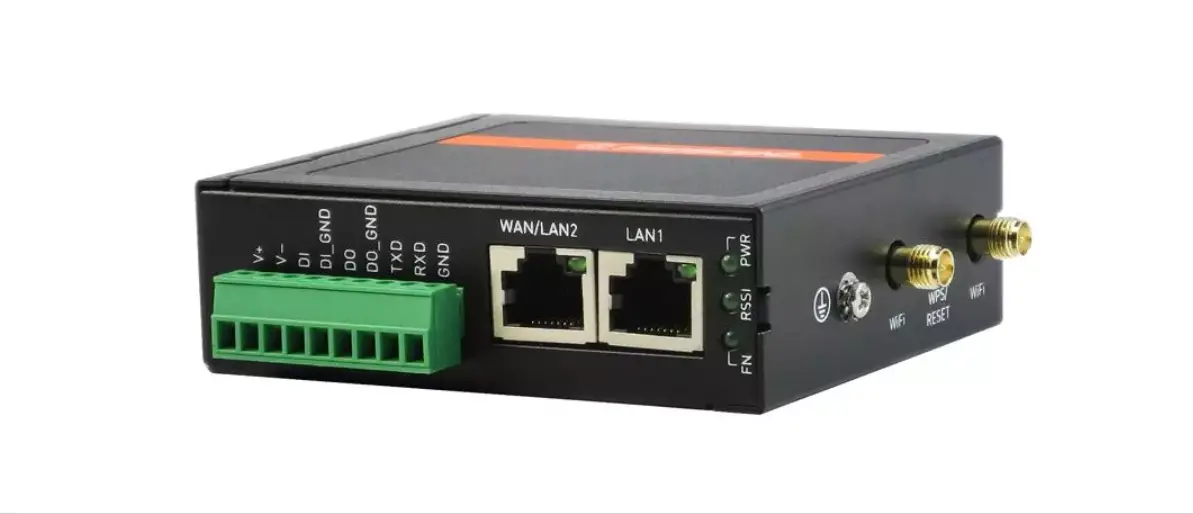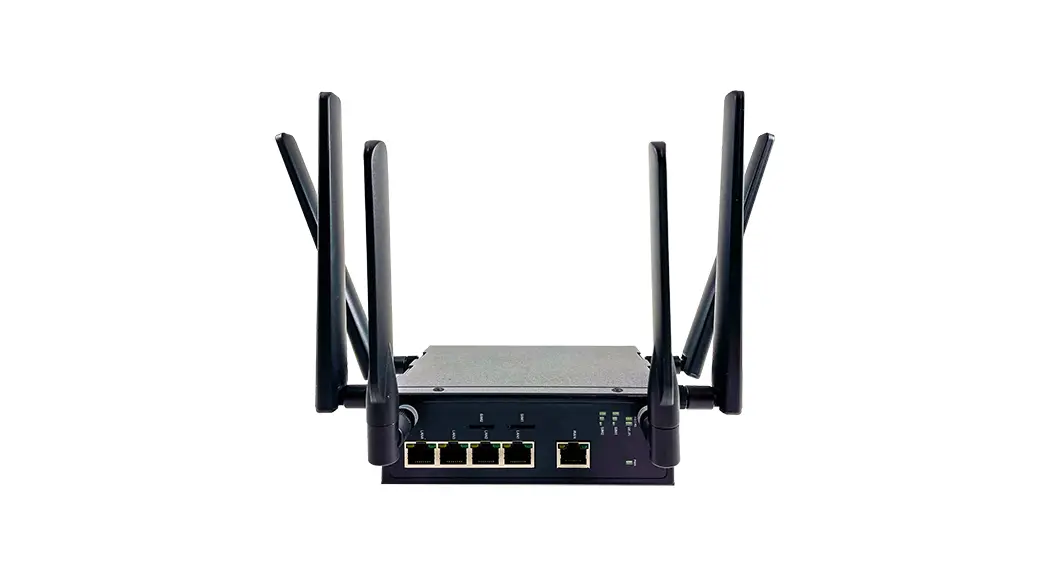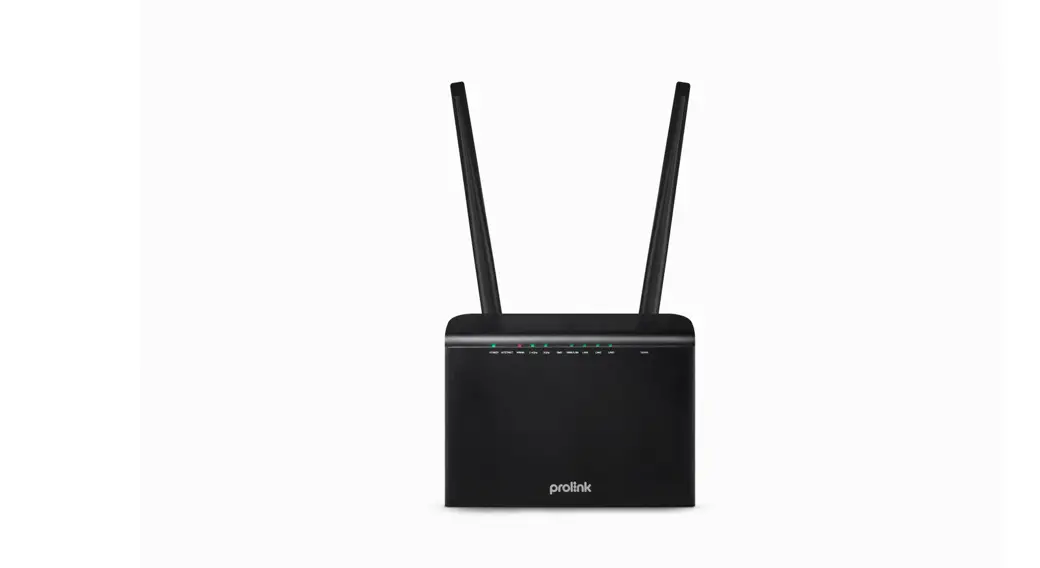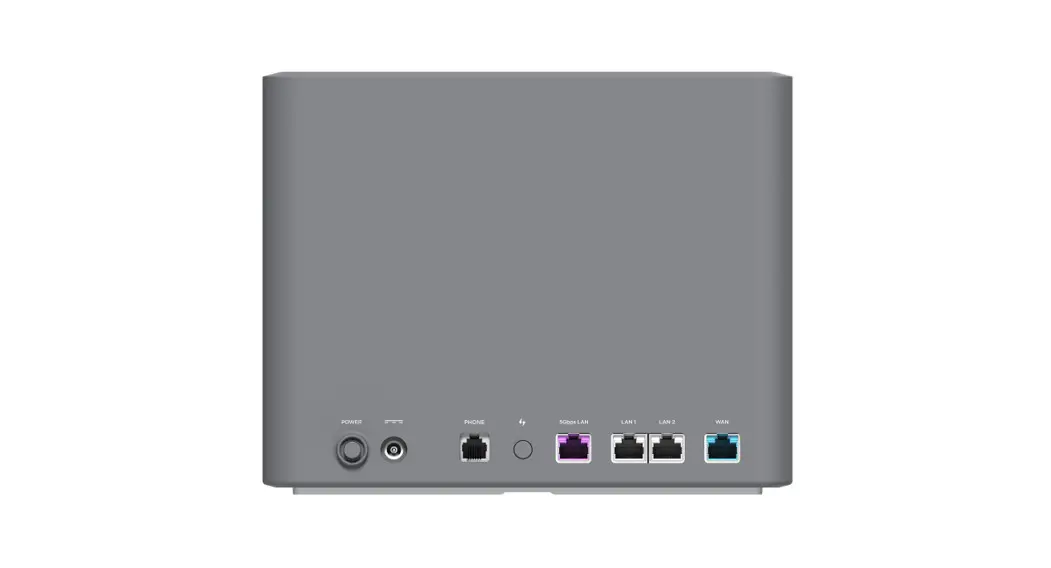

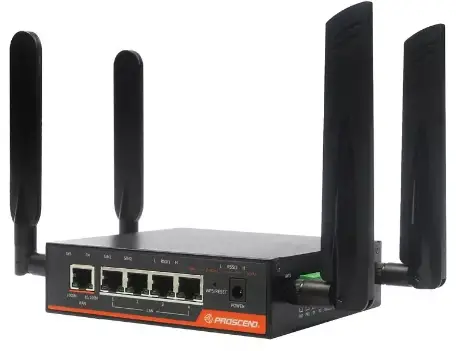
PROSCEND M350 Series M350-5G Industrial Cellular Router
Insert and Remove SIM/SD Card
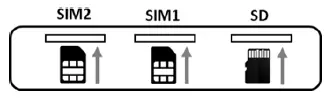
STEP 1: Before inserting or removing the SIM/SD card, ensure that the
power has been turned off, or the power connector has been removed from the M350 Series Cellular Router.
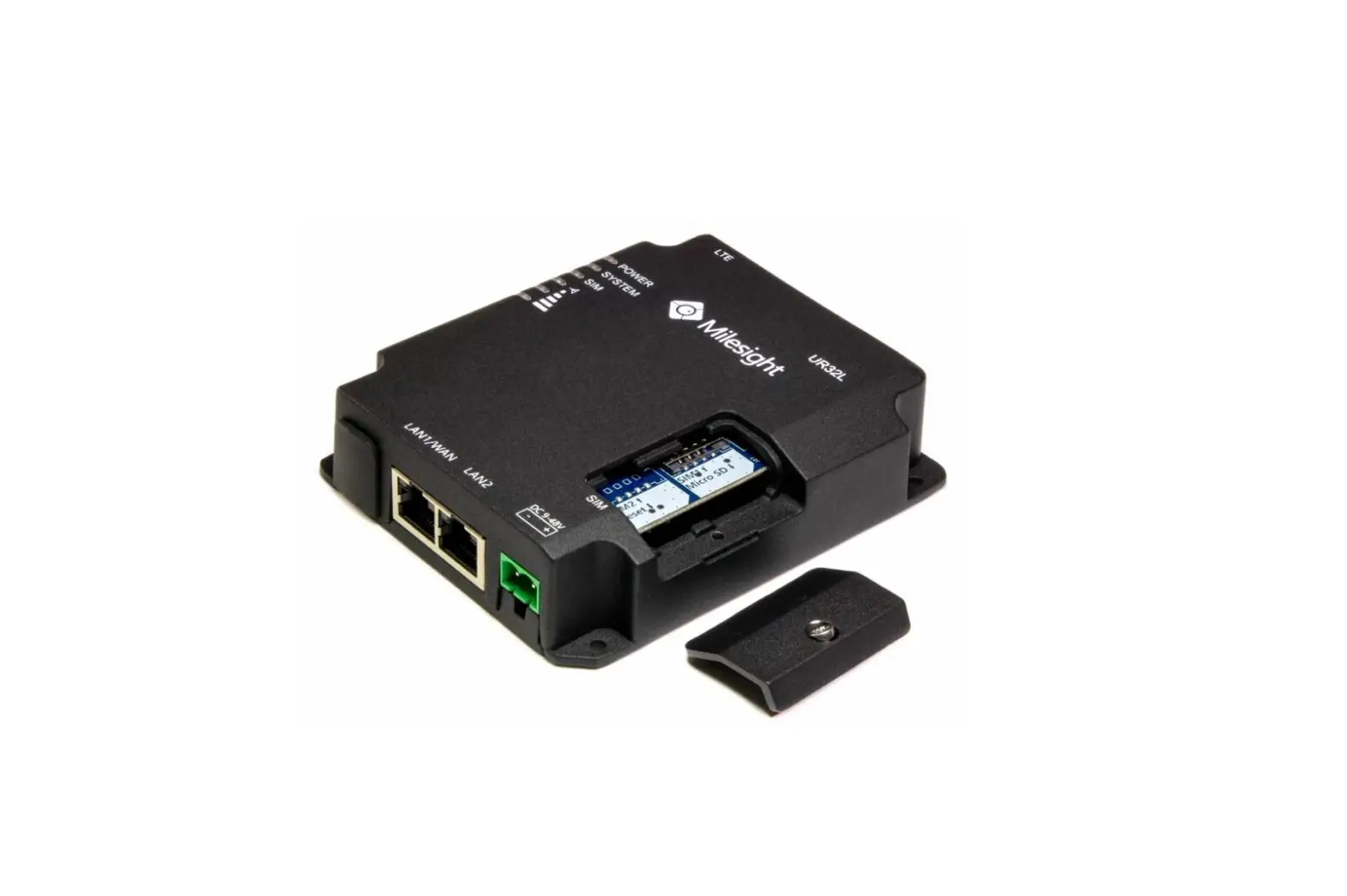
STEP 2: Using a screwdriver to remove the metal protective cover first, insert the SIM/SD card into the card slot. For SIM1 and SIM2, the cut-off edge of SIM cards are to the right. For the SD card, the cut-off edge of SD card is to the left.
STEP 3: Push the SIM/SD card and lightly press it to lock into the slot.
STEP 4: Remove the SIM/SD card, lightly press it and it will pop out the slot.
LED Indicators
The following table explains the LED indicators on the front panel.
| LED | Off | On | Slow | Fast | Heartbeat |
| SYS | Power down | System up | Booting | N/A | N/A |
| FN | User defined | User defined | User defined | User defined | User defined |
| SIM1 | Not working | Connected | Connecting | Error | Reading |
| SIM2 | Not working | Connected | Connecting | Error | Reading |
| RSSI1 L | N/A | Low signal | N/A | N/A | N/A |
| RSSI1 H | N/A | High signal | N/A | N/A | N/A |
| WiFi | Wi-Fi off or unavailable | Wi-Fi on | N/A | N/A | N/A |
| RSSI2 L 2.4GHz | N/A | •RSSI2 L: Low signal •Wi-Fi 2.4GHz on | N/A | N/A | N/A |
| RSSI2 H 5GHz | N/A | •RSSI2 H: High signal •Wi-Fi 5GHz on | N/A | N/A | N/A |
Reset Button
WPS and Reset functions are merged into one button.
- WPS/RESET
| Function | Operation |
| WPS Processing | Press the button less than 5 seconds. |
| Reset | Press the button for 5-10 seconds. |
| Reset to default setting | Press the button for more than 10 seconds. |
Connecting I/O Ports
There are four terminals on the terminal block with two terminals used for each digital input and two terminals used for each digital output.
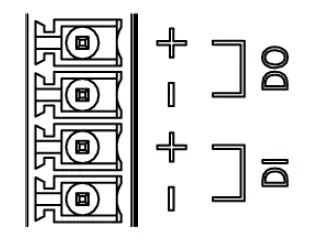
| Pin | Description |
| DI + | Digital Input |
| DI − | |
| DO + | Digital Output |
| DO − |
- DI: Low (+0 to +3V) / High (+10 to +30V)
- DO: Photo relay (maximum 50V/500mA)
LED Indicators of Ethernet Port
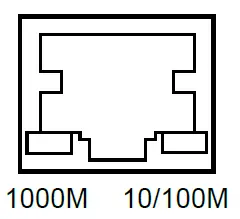 Four LAN ports and one WAN port are used for 8-pin RJ45 connectors. Each Ethernet port has two LED indicators.
| LED | Blinking | On | Off |
| 1000M | Data Transmitting | 1000Mbps LINK UP | LINK DOWN |
| 10/100M | Data Transmitting | 10/100Mbps LINK UP | LINK DOWN |
COM (RS-232)
RS-232 interface on the right panel is the terminal block type.
| Pin | Signal | Direction |
| TX | Transmit Data | Output |
| RX | Receive Data | Input |
| G | Signal Ground | – |
COM (RS-485)
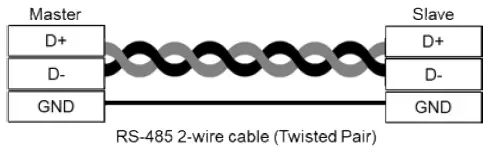
RS-485 supports 2-wire half duplex operation.
| Pin | Description |
| D + | Serial Port, Data+ (A) wire |
| D − | Serial Port, Data− (B) wire |
| G | Signal Ground |
DIP Switch
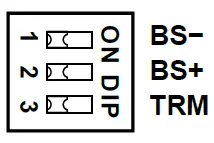
| DIP Switch | Mode | ON | OFF |
| 1 | BS− | Enabled (D−) 1K ohm Pull Low | Disabled (D−) Pull Low |
| 2 | BS+ | Enabled (D+) 1K ohm Pull High | Disabled (D+) Pull High |
| 3 | TRM | Enabled 120 ohm Termination between (D+) and (D−) | Disabled Termination |
NOTE:
- (D+), (D−) stands for RS-485 pinouts.
- BS−, BS+ must be at the same ON/OFF position.
Connecting the Power Supply
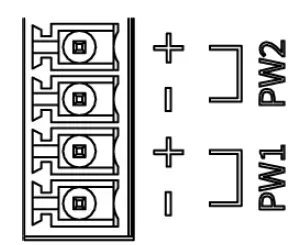
Two terminal blocks (PW1, PW2) are on the right panel.
The power input voltage is 8 ~ 48 VDC.
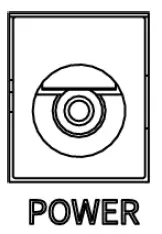
The other one is a DC Jack type on the front panel.
The power input voltage is 12 VDC, 2A.
Antenna Installation
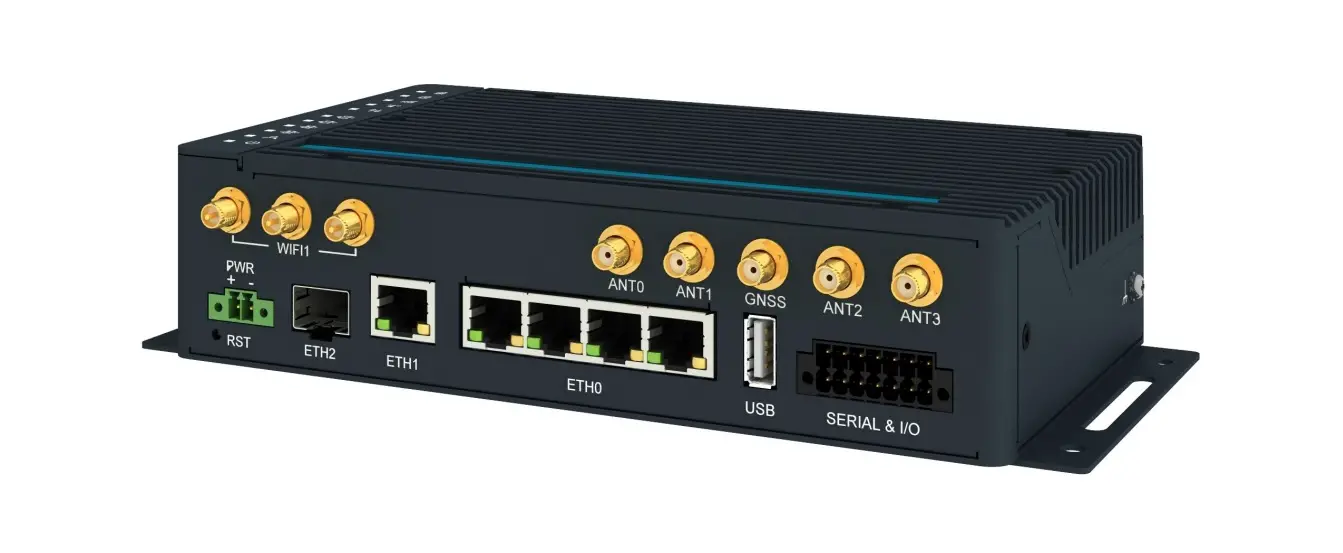
There are four models for the M350 Series, and each model has its own antenna type to install on the assigned connector, as shown in the following table.
| Connector
Model | ANT1 | ANT2 | ANT3/WiFi | ANT4/WiFi | ANT5/GPS | ANT6 |
| M350-5G | 5G Antenna | 5G Antenna | 5G Antenna | 5G Antenna | ||
| M350-W5G | 5G Antenna | 5G Antenna | Wi-Fi Antenna | Wi-Fi Antenna | 5G Antenna | 5G Antenna |
| M350-6 | LTE Antenna | LTE Antenna | GPS Antenna | |||
| M350-W6 | LTE Antenna | LTE Antenna | Wi-Fi Antenna | Wi-Fi Antenna | GPS Antenna |
- ANT1, ANT2, and ANT5/GPS are on the right panel of the device.
 ANT3/WiFi, ANT4/WiFi, and ANT6 are on the left panel of the device.
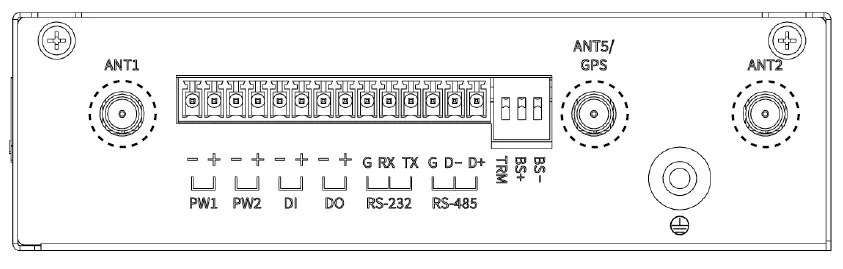 ANT3/WiFi, ANT4/WiFi, and ANT6 are on the left panel of the device.
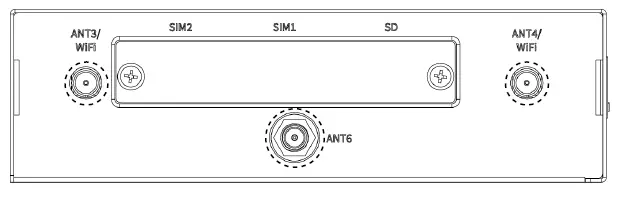 NOTE:
NOTE:
- ANT1, ANT2, ANT5, and ANT6 are the SMA connectors.
- ANT3 and ANT4 are the RP-SMA connectors.
- For the 5G models (M350-5G, M350-W5G), all 5G antennas must be installed on the assigned ANT1, ANT2, ANT5, and ANT6 connectors. The 5G antenna is integrated with GPS.
- For the LTE models (M350-6, M350-W6), all LTE antennas must be installed on the assigned ANT1 and ANT2 connectors.
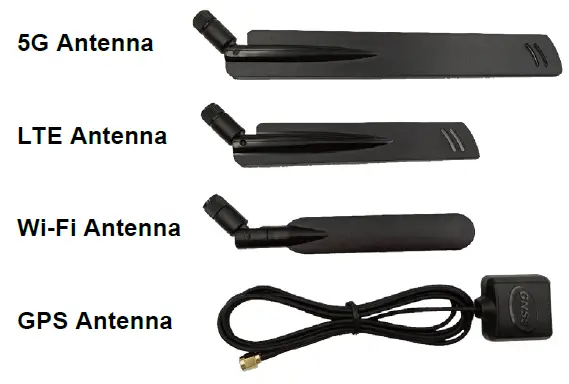
- Each different antenna type is shown in the following picture.
DIN-rail Mounting
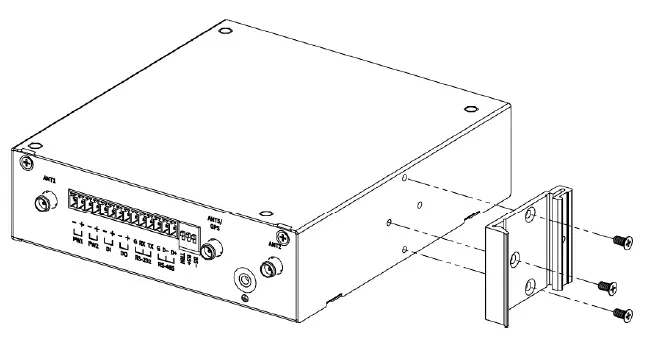
STEP 1: Use the screws to install the DIN-rail kit to attach at the rear side of the device.
NOTE: Three screw types are flat head M3 x 4 mm.
 STEP 2: Hook the unit onto the DIN-rail.
STEP 3: Push the bottom of the unit towards the DIN-rail until it locks in 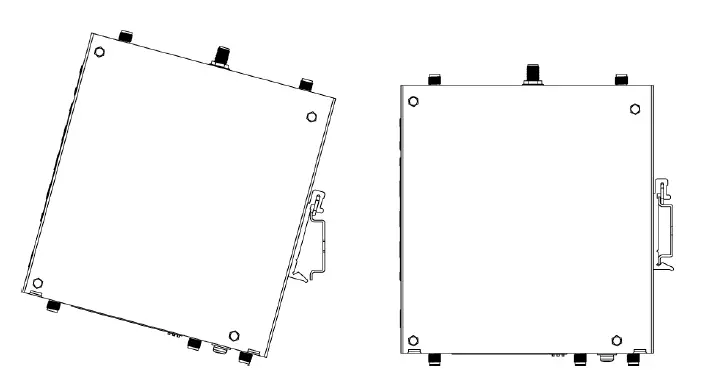
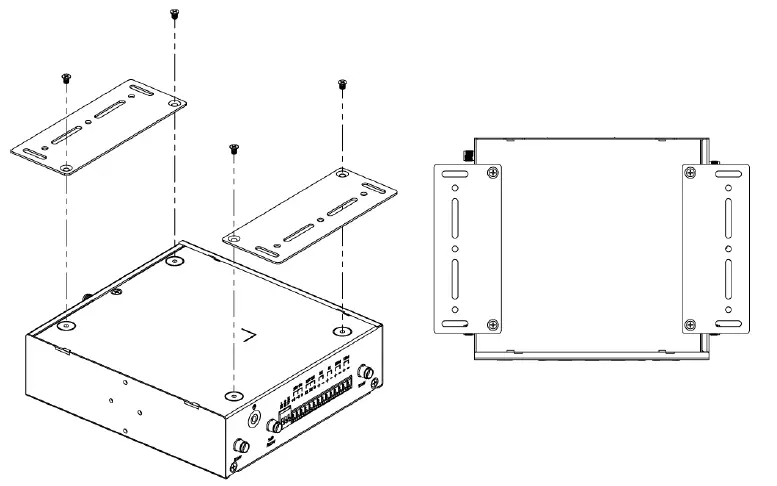
Wall Mounting
STEP 1: At the bottom side of the device, use two screws to install each bracket.
NOTE: Each screw type is flat head M3 x 4 mm.
STEP 2: Use the screws to attach the bracket of the device for wall mounting.
NOTE: These screws are not included in the package. The head of each screw is less than 7 mm in diameter, the shaft is less than 3 mm in diameter, and the length is less than 10 mm in diameter.
Setup
- Access the Web Configurator
a. Type the default URL http://192.168.1.1 in your web browser.
b. In the login page, enter the default username root and the default password 2wsx#EDC and then click the Login button. - Change Password
Go to the Management → Administration and enter the desired New Password and then scroll down the page and click the Apply button.
Wi-Fi Connection
- Each of M350-W5G or M350-W6 supports selectable 2.4GHz and 5GHz radio bands. The default setting is 2.4GHz, and the default password is 12345678.
- The default SSID is led by the model name (M350-W5G or M350-W6), followed by a string of characters (the MAC address of the device), and ended by the radio band (either 24G for 2.4GHz, or 5G for 5GHz). For example, the SSID of M350-W5G is M350-W5G-xxxxxxxxxxxx-24G. NOTE: Go to Wi-Fi setting to change the default wireless network name and password.
NOTE
- This device complies with Part 15 of the FCC Rules. Operation is subject to the following two conditions:
(1) This device may not cause harmful interference, and
(2) This device must accept any interference received, including interference that may cause undesired operation. - Please scan below QR Code to download online resources.
Download link: https://www.proscend.com/en/product/M350.html
 Proscend Communications Inc. All rights reserved.