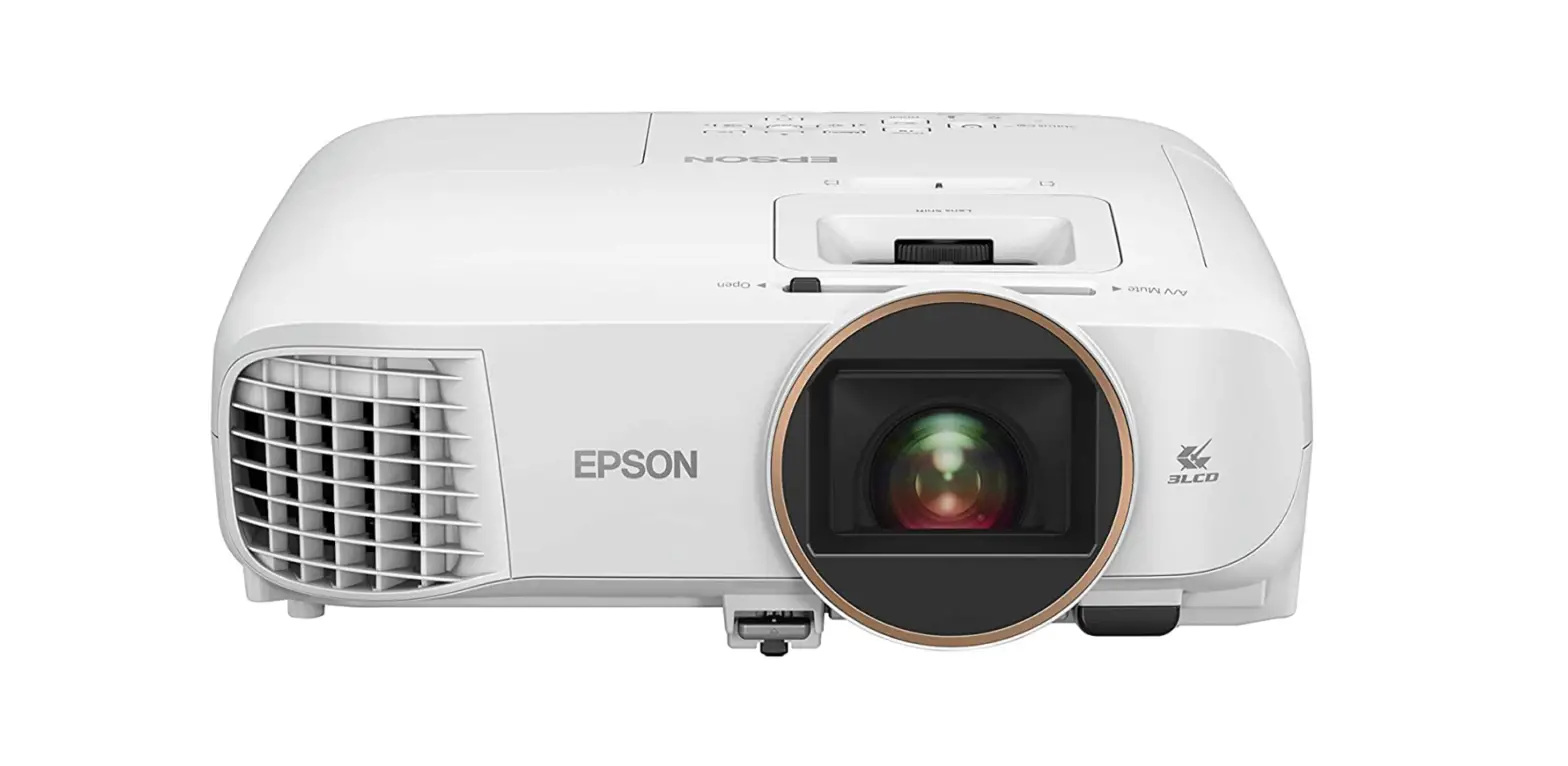
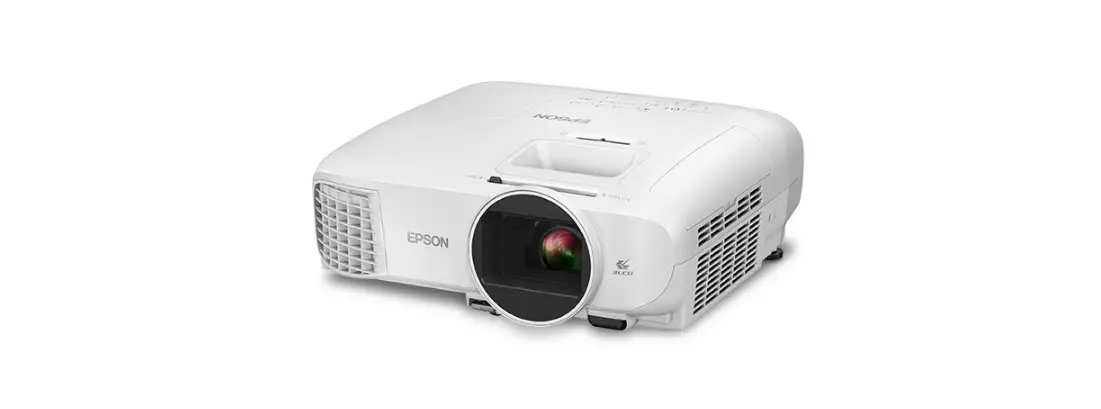
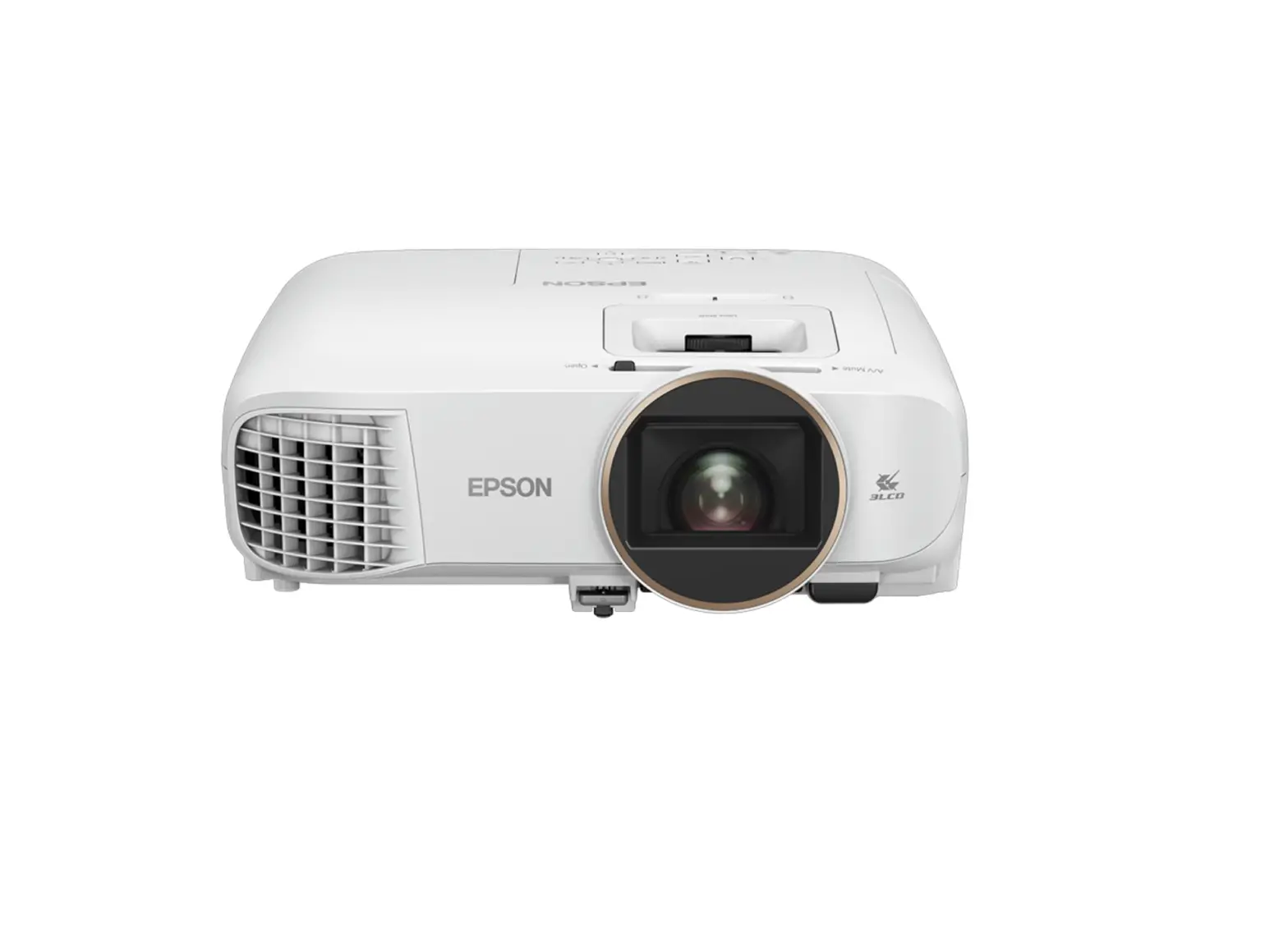
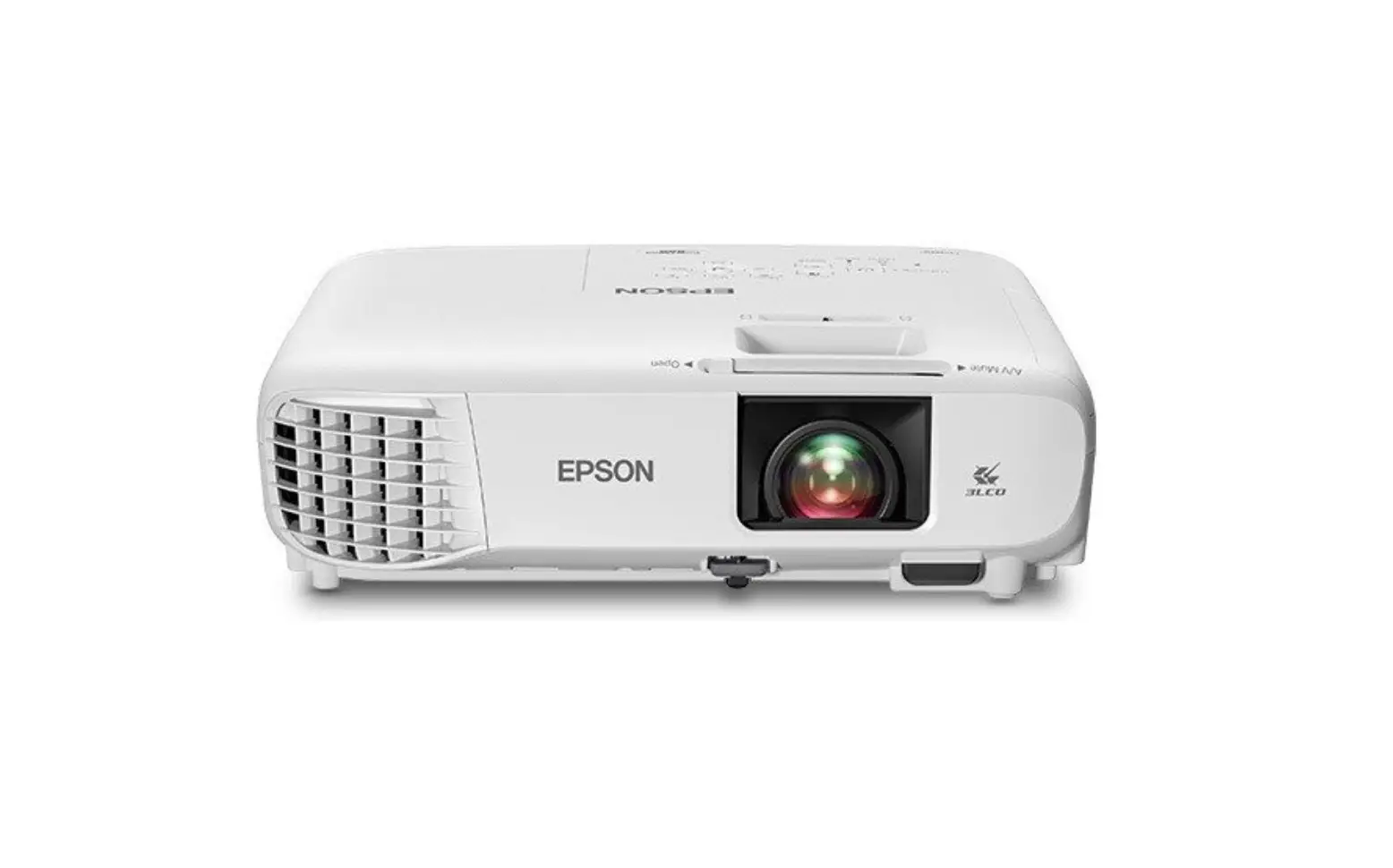
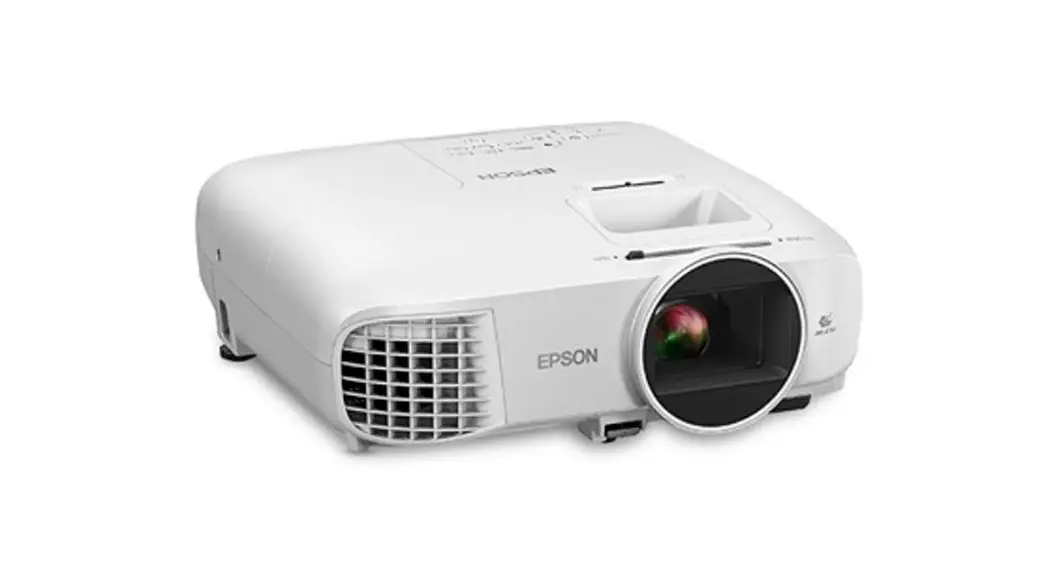
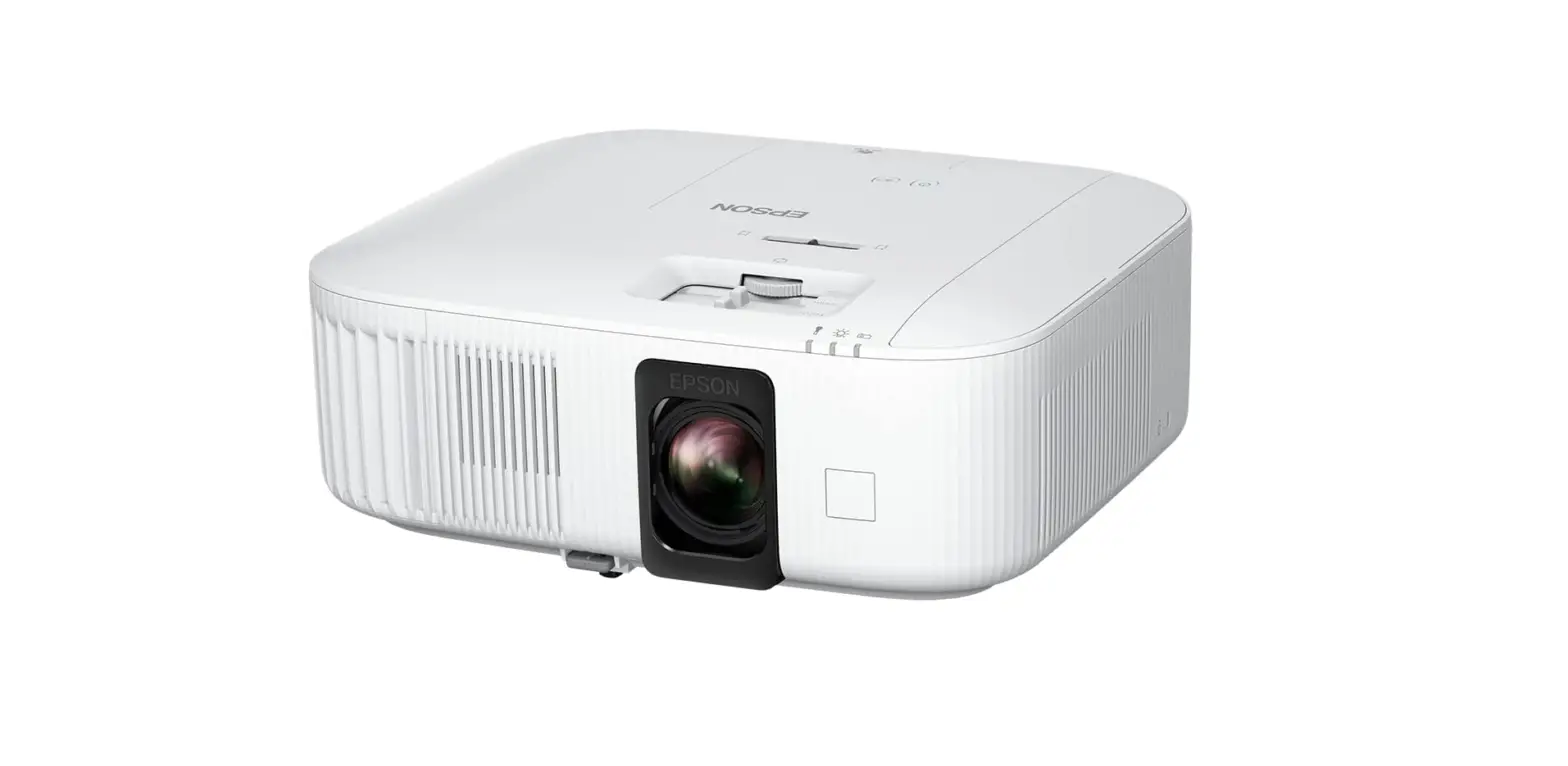
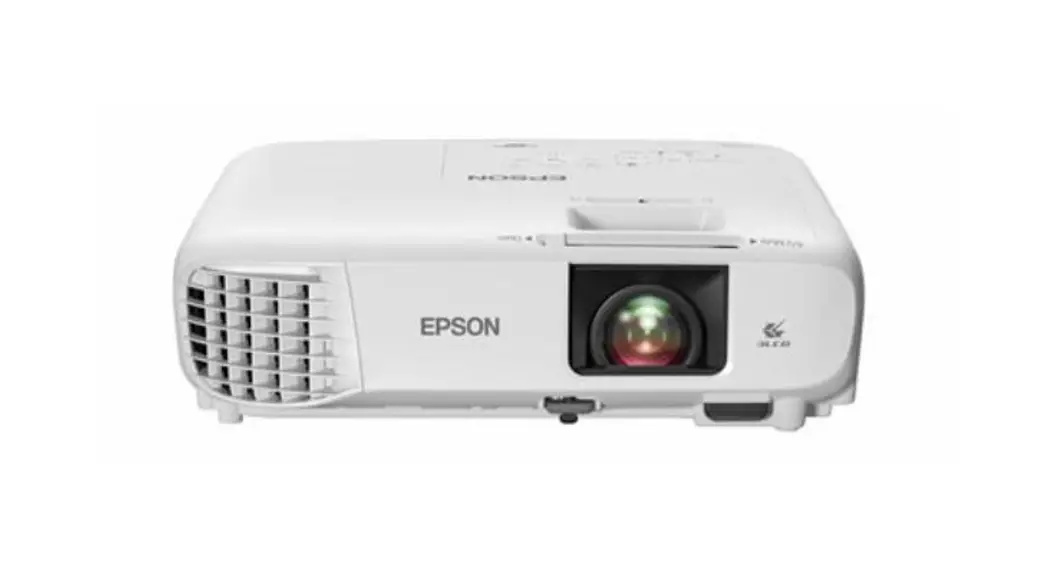
HC2200 Full HD 1080p Projector
Product Information:
This product is a projector that allows you to update its
firmware using a USB cable connected to a computer. By updating the
firmware, you can ensure that your projector is running on the
latest software version, which may include bug fixes and
performance improvements.
Product Usage Instructions:
- Save the firmware file to your computer. Make sure not to
change the file name, as it will prevent the firmware update from
working. - Disconnect the power cord from the projector and ensure that
all indicators on the projector are turned off. - Connect your computer to the projector using a USB-type B Mini
cable. Plug the USB type-A connector into your computer and the USB
type-B connector into the projector’s USB-B port or USB mini-B
port. - While holding down the projector’s power button, connect the
projector’s power cord. This will activate the projector’s update
mode, indicated by all the indicators turning on. - Your computer will recognize the projector as a removable disk.
Copy the .bin firmware file to the root of the Epson_PJ removable
disk. Make sure not to copy any other files or folders to this
disk. - Safely remove the USB device from your computer. If you are
using a Mac OS X, perform ‘Remove EPSON PJ. - Disconnect the USB cable from both the projector and the
computer. After approximately 20 seconds, all the projector’s
indicators will start flashing, indicating that the firmware update
is in progress. - Warning: Do not unplug the projector while the firmware is
updating. Once the update is successfully completed, the projector
will turn off and go into standby mode. - If the projector is not in standby mode, the firmware update
has not finished. Wait for some more time and check again. - If the Direct Power On function is enabled, the projector will
turn back on after the update (only for models with this
function).
Verifying the Firmware Version:
- Turn on the projector.
- Press the menu button and navigate to the Info tab.
- If the version number displayed in the Info menu has changed,
it indicates that the firmware update has been completed
successfully. - For more details on displaying the Info menu, refer to your
projector’s online User’s Guide.
Procedure to update projector firmware with a USB cable from a computer 1. Save the firmware file to the computer
a. Note: Do not change the file name of the firmware. If the file name changes, the firmware update will not work.
2. Disconnect the power cord from the projector and check that all the indicators on the projector are off. 3. Connect the computer to the projector with a USB-type B Mini cable.
a. Connect the USB type-A connector to the computer. Connect the USB type-B connector to the Projector’s USB-B port or USB mini-B port.
4. Connect the projector’s power cord while holding down the projector’s power button.
a. All the projector’s indicators will turn on (Update mode). b. When all the indicators turn on release the [ ] power button.
5. The computer will recognize the projector as a removable disk. a. From the computer, copy the .bin firmware file to the root of the Epson_PJ removable disk.
b. Do not copy any other files or folders to the removable EPSON_PJ disk. c. Perform the steps to safely remove a USB device from the computer. If you are using a Mac OS
X, perform ‘Remove EPSON PJ”. 6. Disconnect the USB cable from the projector and the computer. Once you disconnect the USB cable,
after about 20 seconds all the projector’s indicators will start flashing, and the firmware update will begin writing to the projector.
i. Warning- Do not unplug the projector while the firmware is updating b. After the update finishes successfully, the projector will turn off and go into standby status. c. If the projector is not in standby status, the firmware update has not finished. Continue waiting,
then check again. d. If the Direct Power On function is set to On. the protector turns back on again (only for models
with the Direct Power On function enabled).
Verifying the firmware version
1. Turn the projector on
2. Press the menu button and go to the Info tab a. If the version number displayed in the Info menu has changed, the firmware update has been completed normally. See your projector’s on-line User’s Guide for details on displaying the Info menu.