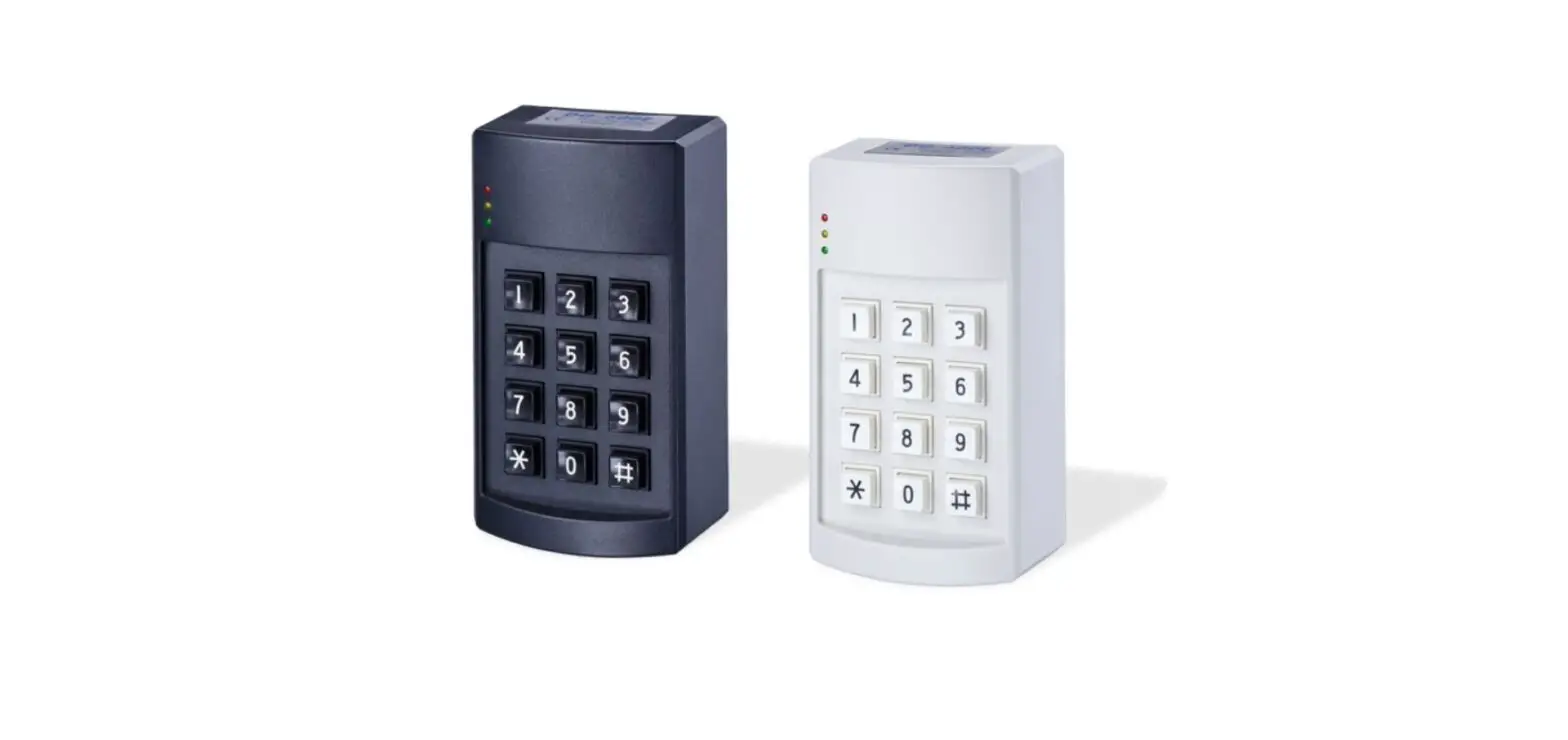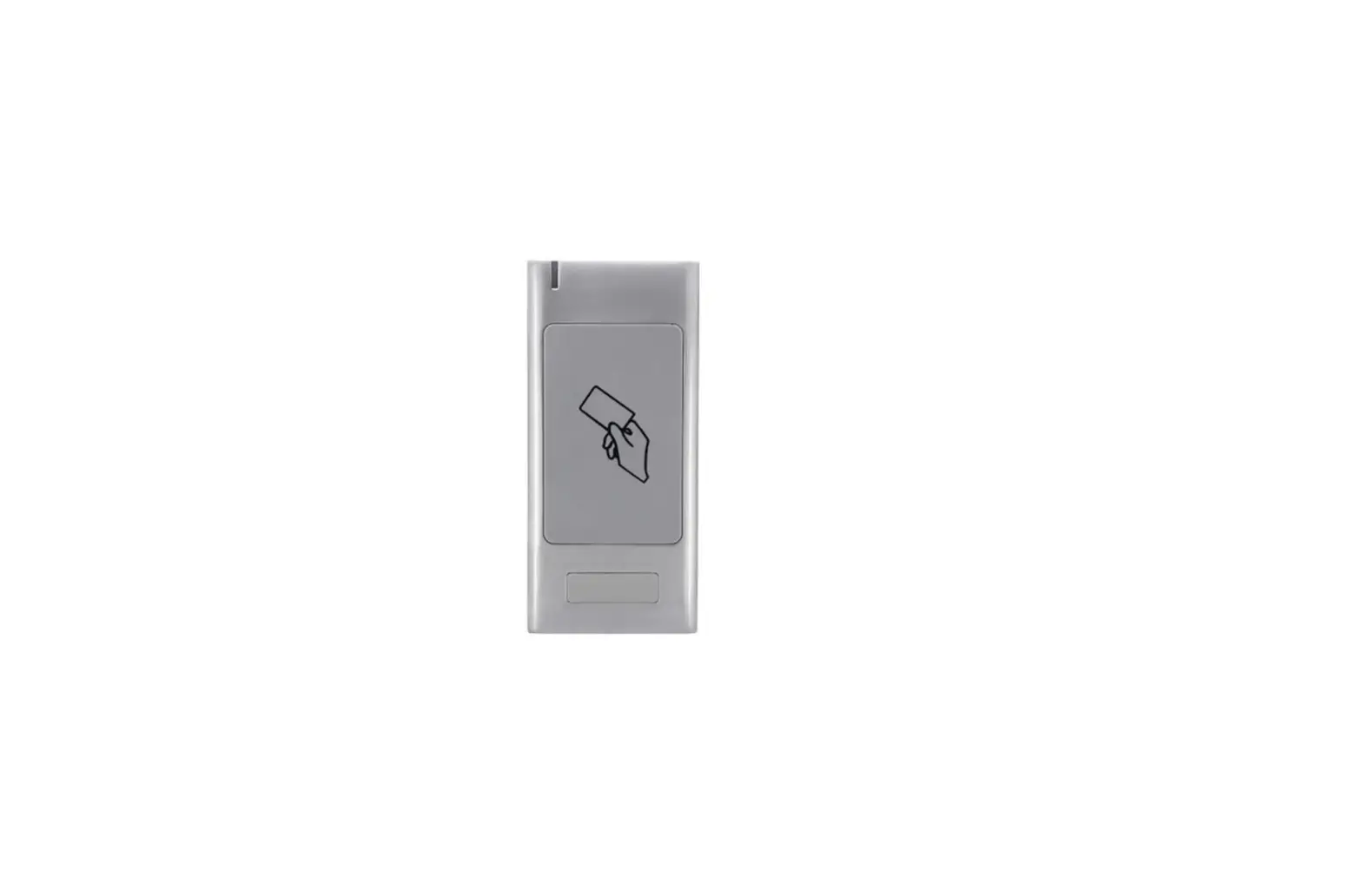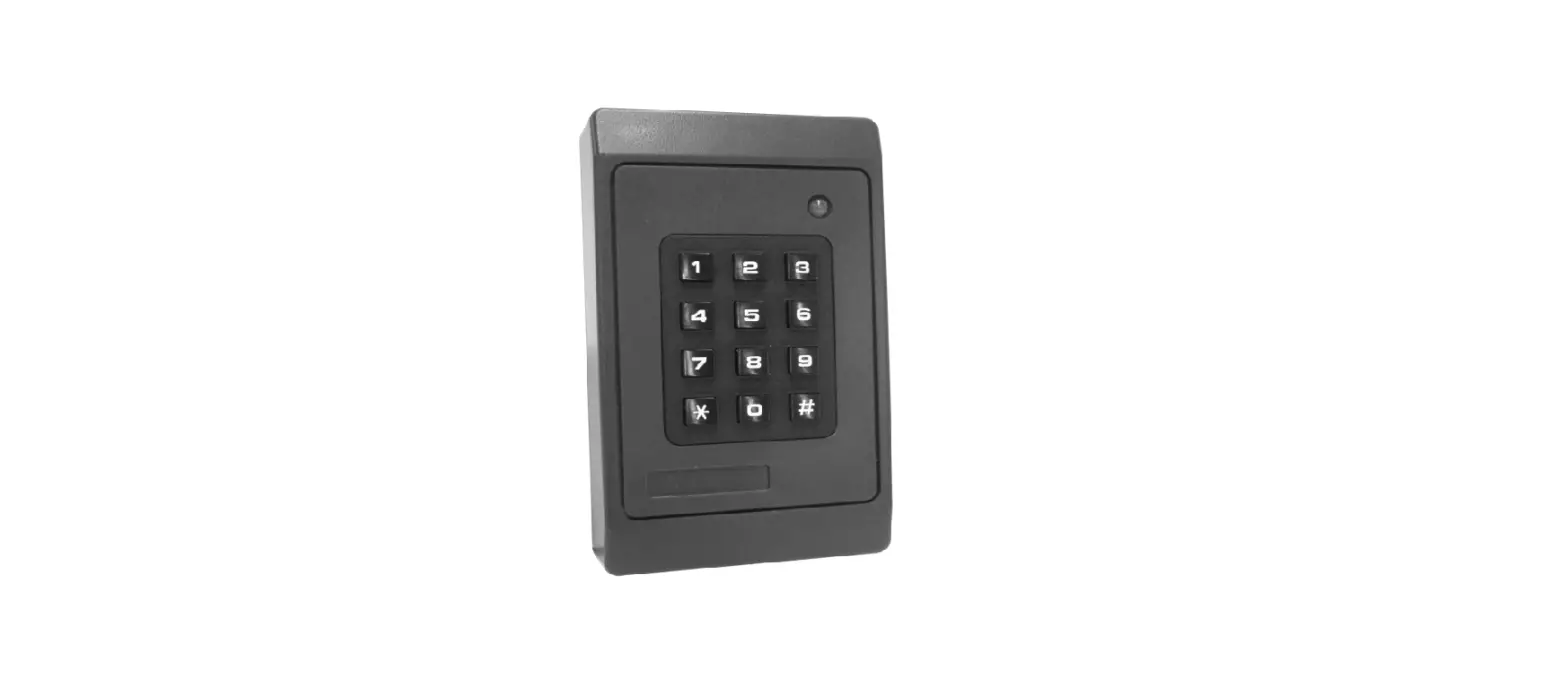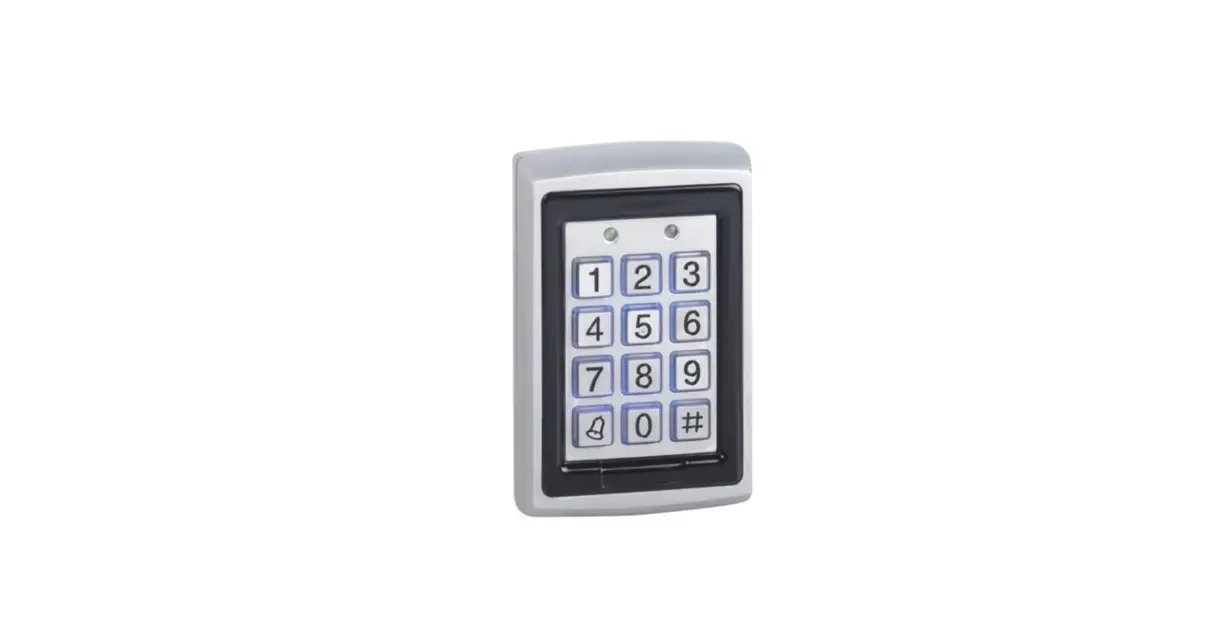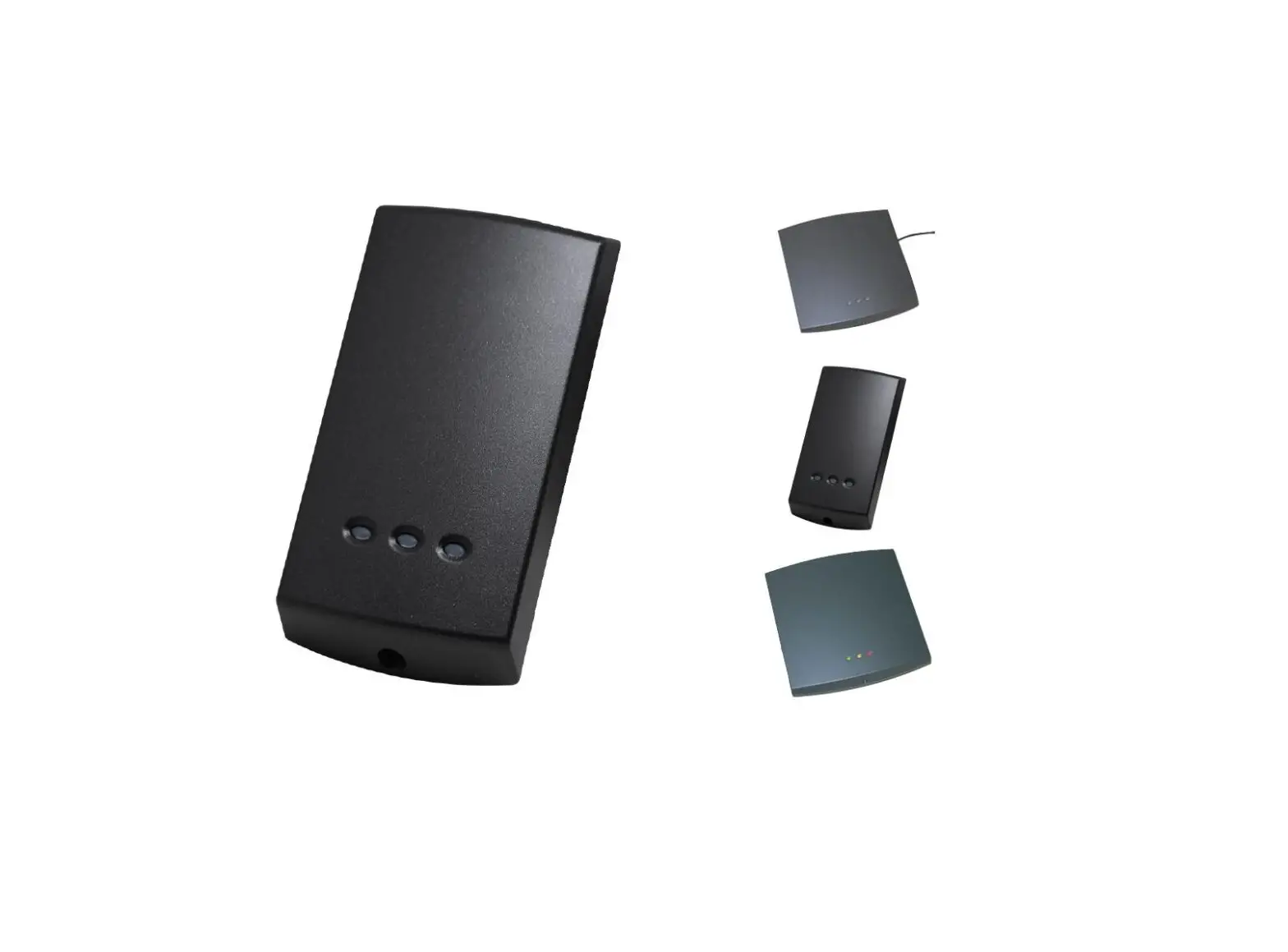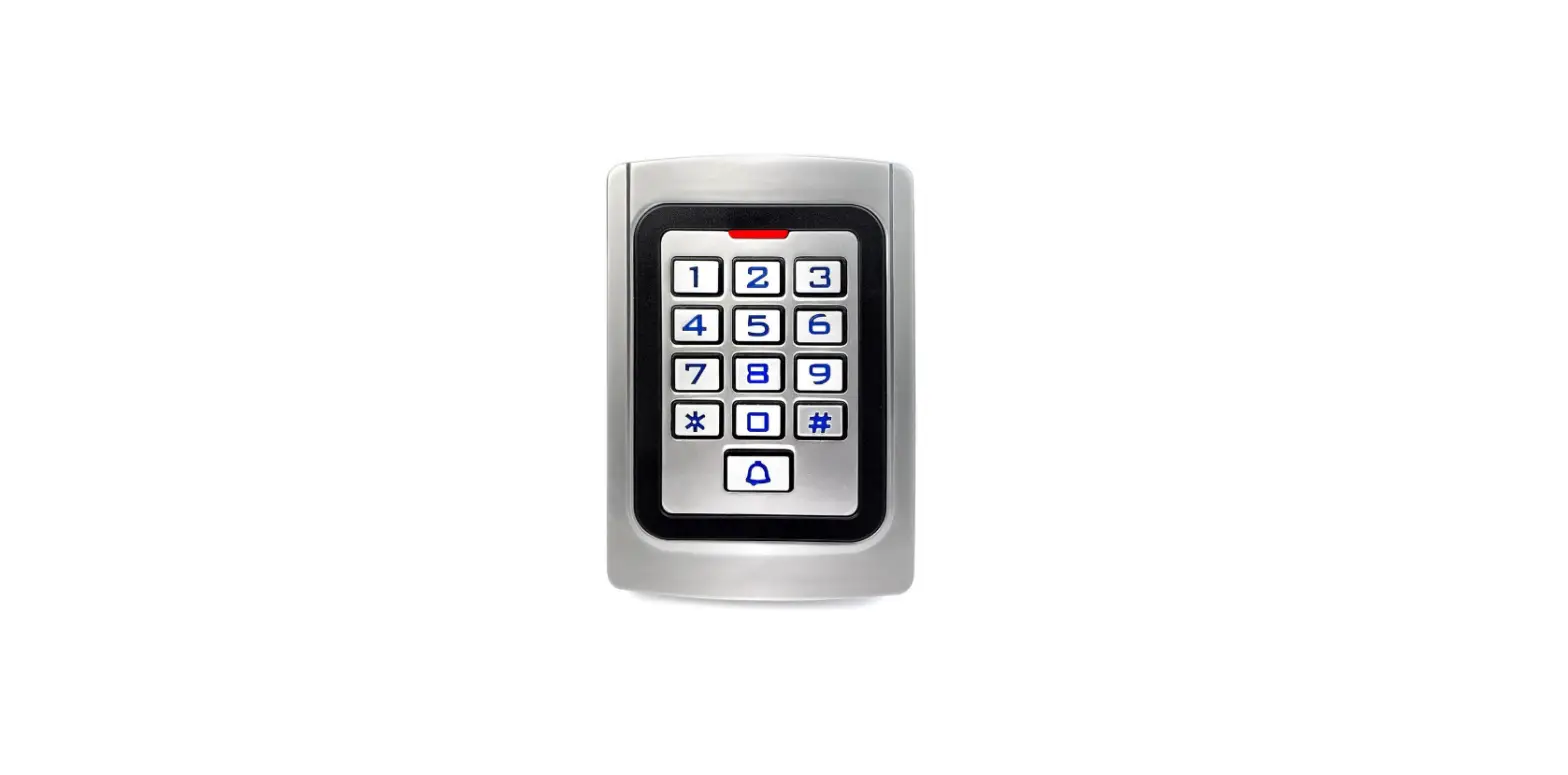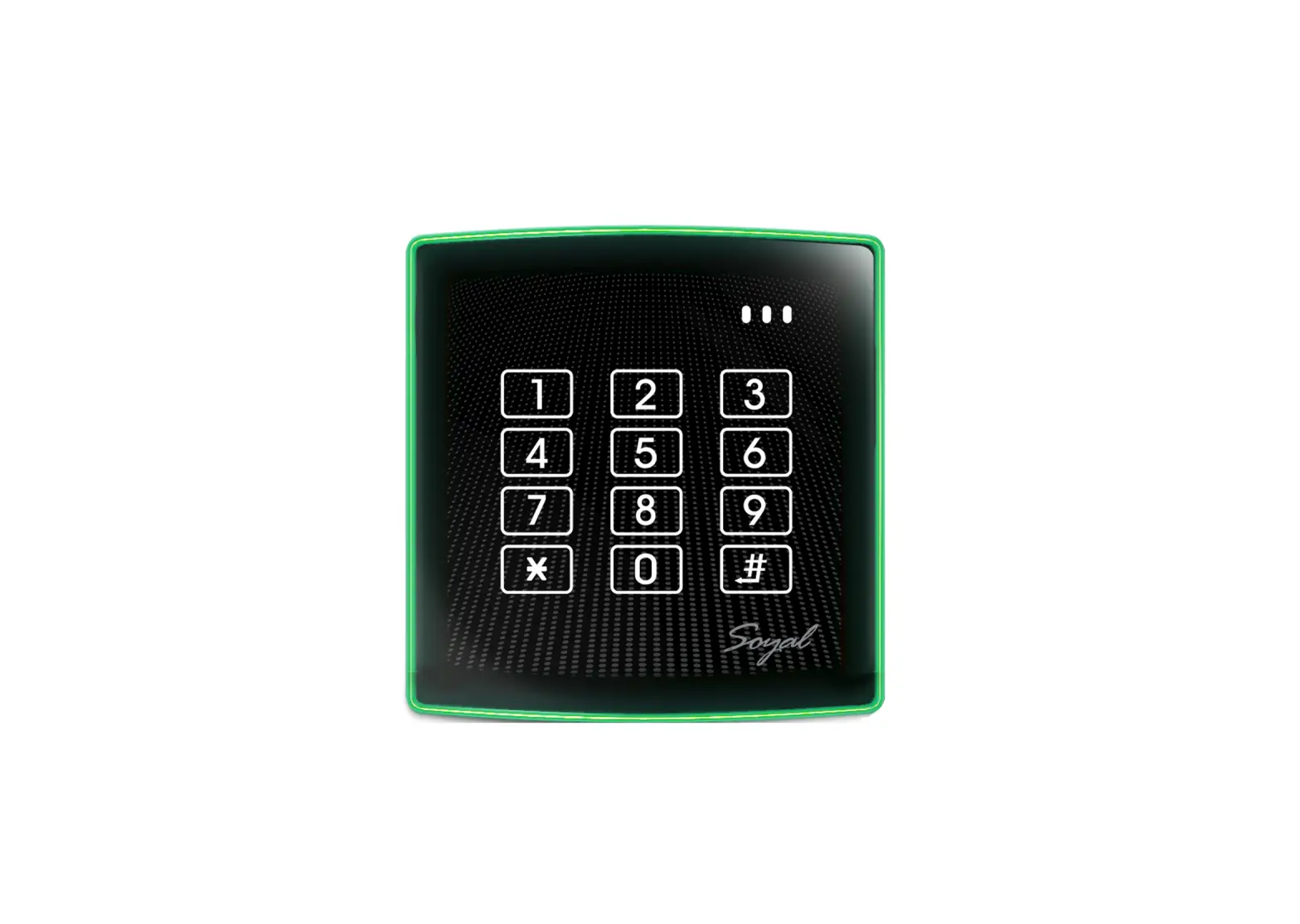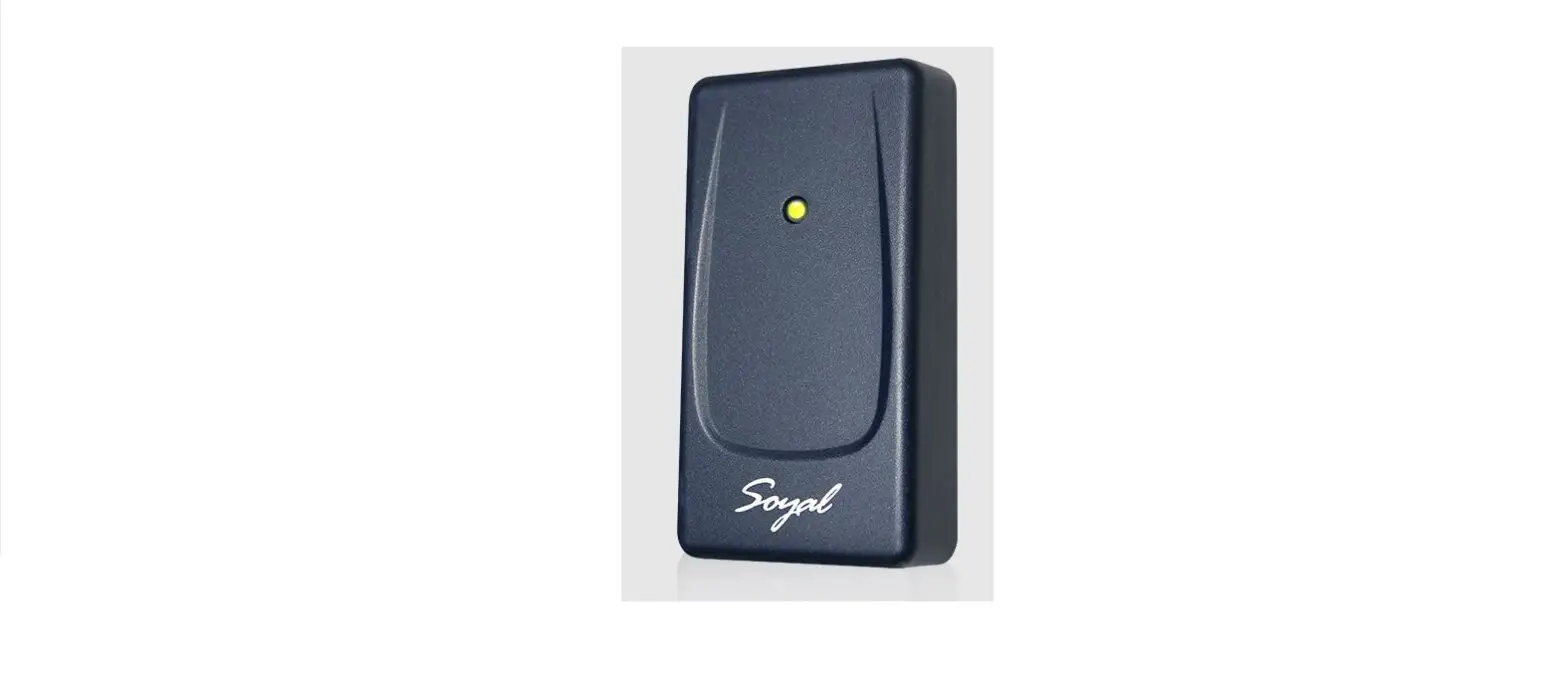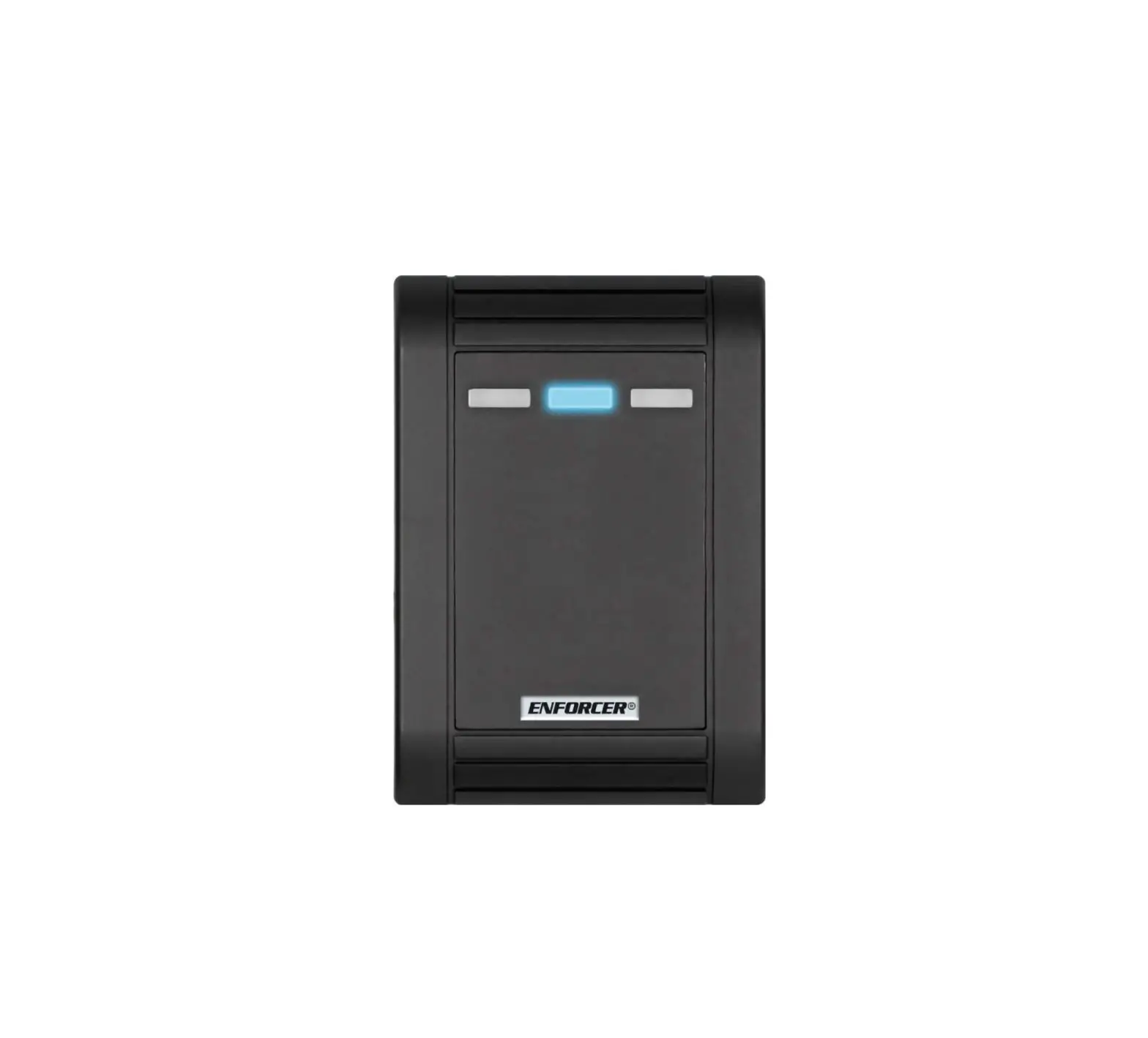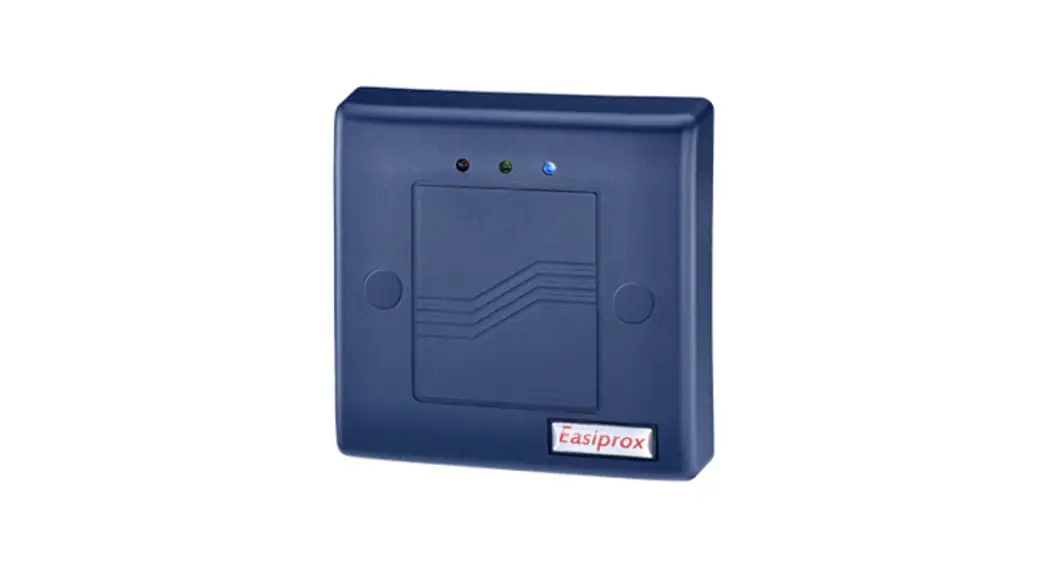
 DG-360Plus Access Control Proximity Reader
User Manual
DG-360+
Access Control Proximity Reader
Operation Instructions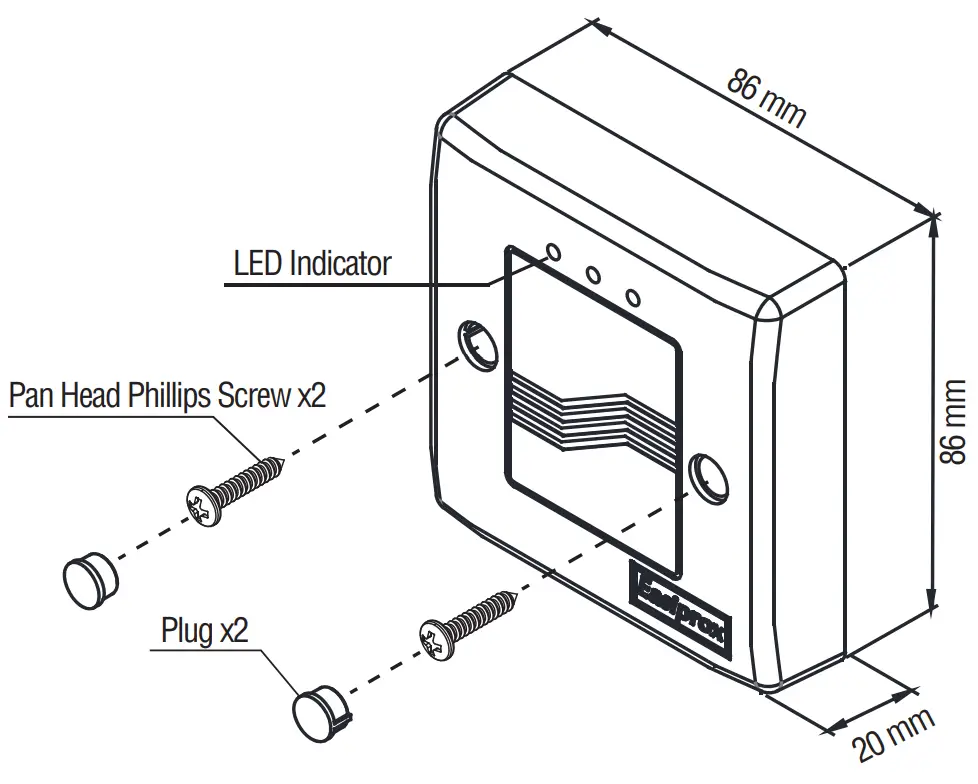
Features
- 1 Administrator & 200 Users
- Access Modes : Use Bluetooth smartphone or RFID Card (EM 125 KHz) to access
- Anti-tailgate: Door sensor input for anti-tailgating operation
- LED & Audible indicators
- User Management
1. Add/Delete/View user data
2. Grant user access for specific dates or time periods
3. Change user passcode
4. Audit Trail logs for last 1000 events - 3 Locking options: Door Relock Time, Door Always Unlocked, Door Always Locked
Specifications
| Operating Voltage | 12 VDC/24 VDC | ||||
| Current Draw | Status | 12VDC | 24VDC | ||
| Standby | 90 mA | 46 mA | |||
| Active | 101mA | 51mA | |||
| Frequency and Storage Format | 125 KHz, internal decimal number (ABA format, decimal conversion) | ||||
| Read Range | 3 cm | ||||
| Inputs | 1 RTE (Request-to-exit) 1 Door sensor (DS) | ||||
| Outputs | 1 SSR (Dry contacts N.O./N.C./COM.) 1 Tamper Alarm (ALM) | ||||
| Indicator Light | 3 LEDs (Red, Green, Blue) | ||||
| Memory Volume | 1 Administrator & 200 Users | ||||
| Card Format | EM-400x 64-bit Standard R/O or Compatible | ||||
| SSR Contact Rating | 2A/12VDC | ||||
| SSR Output Time | 1~1800 seconds (adjustable on APP) | ||||
| Humidity | 5%~95% (Non-condensing) | ||||
| Temperature | -20°C~70°C | ||||
| Bluetooth Module | BLE 4.2 | ||||
| Auto Proximity Range | 0~20 meters (adjustable) | ||||
| LED & Audible Indicators | |||||
| Solid Blue LED | Power on, Standby | 1 Short beep | Key press | ||
| Red LED | Invalid access, Door always locked | 1 Long beep | Buzzer sound Valid access Reset completed | ||
| Green LED | Unlocked, Door always unlocked | 2 Short beeps | Buzzer sound Login completed | ||
| Flashing Blue LED | Bluetooth connecting | 3 Short rapid beeps | Continuous buzzer sound Device vandalized Alarm activated | ||
Operation Note
The GDG360BT includes one pair of NO/NC/COM output contacts, which can directly connect to a locking device or connect in parallel or series with access control systems.
* Reed Switch:
Door closed status: NO contact
Door open status: NC contact
* Using Reset Jumper
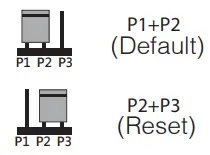
Note:
- Make sure that the power input and SSR rating output (2A/12VDC) are correct.
- Make sure that the “+” and “-” wires are connected correctly.
- The door strike or relay must have a varactor or a diode across the door strike terminals to suppress the back EMF of the strike.
Failure to do so will damage the relay contacts and electronic components, or even burn the controller.
Wiring Diagram
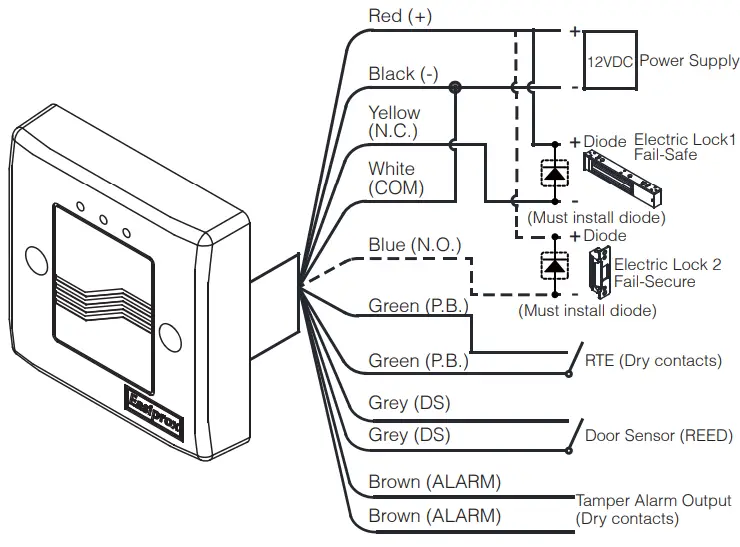
| Item | Wire Color | Terminal | Description |
| 1 | Red | + | Positive |
| 2 | Black | – | Negative |
| 3 | Blue | N.O. | SSR contact |
| 4 | White | COM | |
| 5 | Yellow | N.C. | |
| 6 | Green | PB | RTE contact |
| 7 | Green | PB | |
| 8 | Grey | DS | Door sensor (REED) |
| 9 | Grey | DS | |
| 10 | Brown | ALM | Tamper alarm output contact |
| 11 | Brown | ALM |
* The door strike or SSR must have a diode or varactor across the door strike terminals to suppress the back EMF of the strike – failure to do so will damage the SSR contacts and electronic components, or even burns the controller.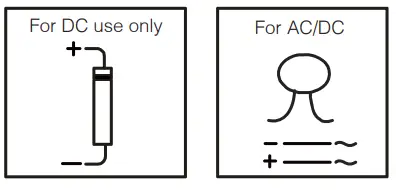
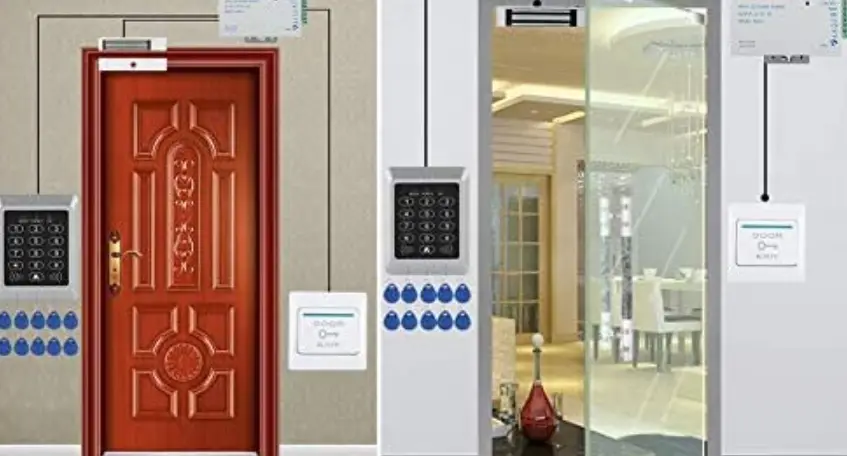
Application
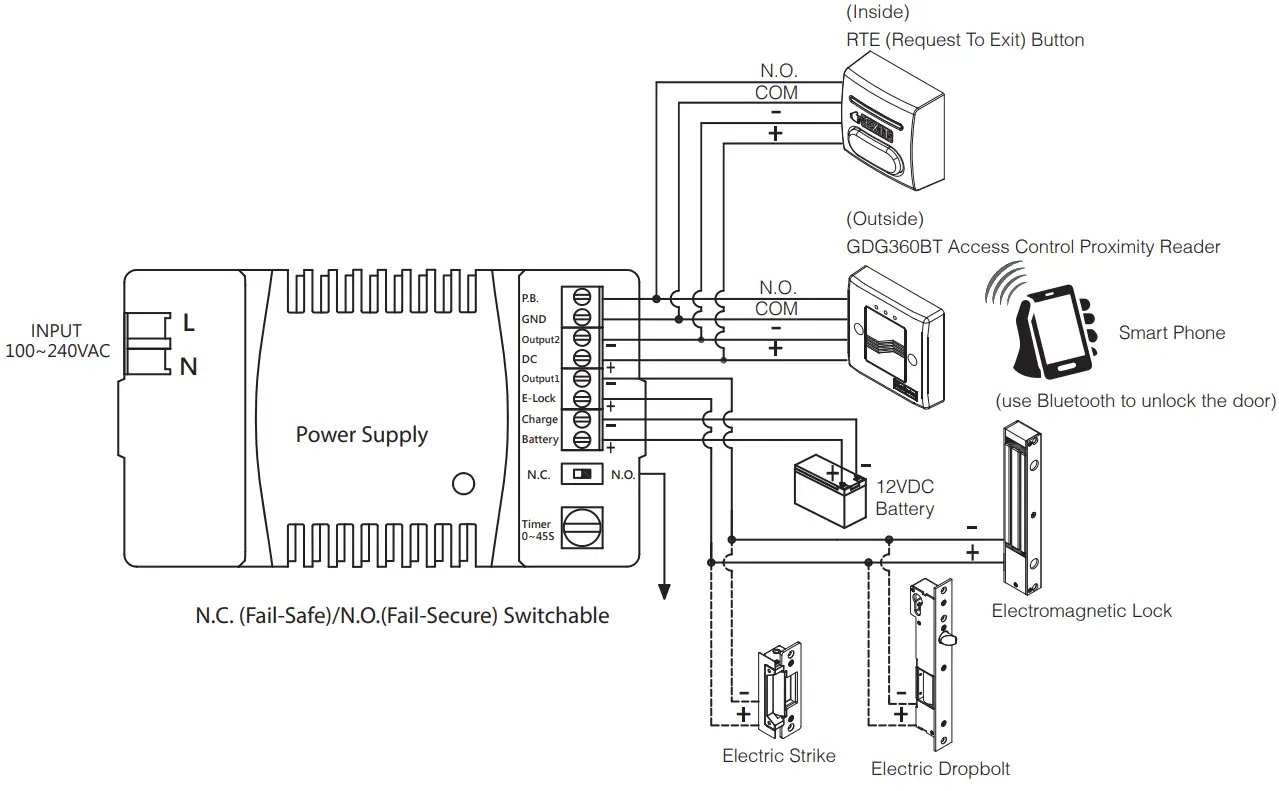
* When connecting GDG360BT to the access control system as shown above, set the timer to 0 second and adjust time settings on the GDG360BT App.
APP Guide
- Download App to Open Your Doors with Your Smartphone
 http://onelink.to/vae3yt
Download Proximate App to set up. Scan QR Code on the left or download the App from Apple Store or Google Play depending on what kind of smartphone you use. Smartphone compatibility : Android 5.0 and up, iOS 9.0 and up
App Main Page Introduction
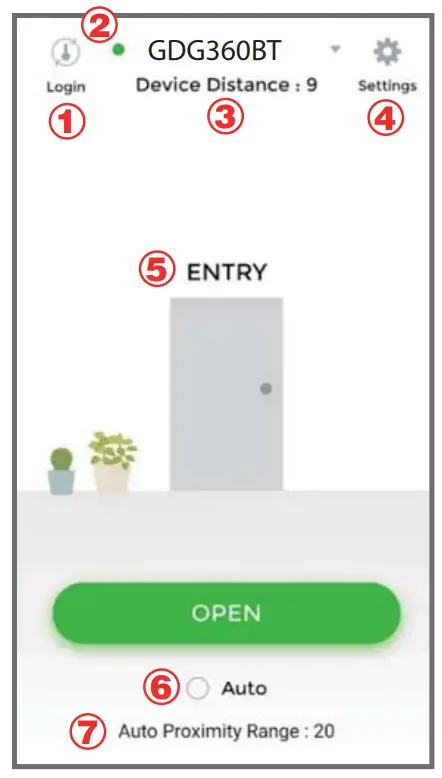
- Login 1 Administrator : Enter Admin ID and Passcode to login.
Admin ID : ADMIN Default Admin Passcode : 12345 (Passcode: 4~8 digits)
User :Enter User ID and User Passcode to login.
User ID and User Passcode are given by the Administrator. [Note]
1.) Administrator ID “ADMIN” can not be changed. Please change Admin’s default passcode “12345” right after you login as the Admin. Go to setting page, press Admin Passcode to Edit Admin Passcode.
2.) Login Success / Login Failure indications will be shown as following: Login Success : You Have Successfully Logged In. You May Now Unlock A Door.
Login Failure : Login Failed. Please Verify Your Login Information Or Contact Your Administrator. - Device name
Tap and choose which device you want to unlock by pulling down the Device name listing. - Device distance
The distance between you and the Bluetooth device.The distance range is between 0 to 20 upon Bluetooth signal strength and different circumstances. - Settings
Tap “Settings” to view or change setting functions. - ENTRY
Press button or the door icon
 to unlock the door.
 - Auto
Press “Auto” to enable Auto unlock function to access.
Make sure to disable “Auto” before pressing to enter Settings page.
 - Auto Proximity Range
Adjust Auto Proximity Range in Settings page. The range is between 0 to maximum 20 and it may have different results under different circumstances upon Bluetooth signal strength.
 [Note]
 button or the door icon
 to unlock the door.
 to enter Settings page.
App Guide
3. Administrator “Settings” Page Introduction
Tap “Settings” to view or change setting functions.
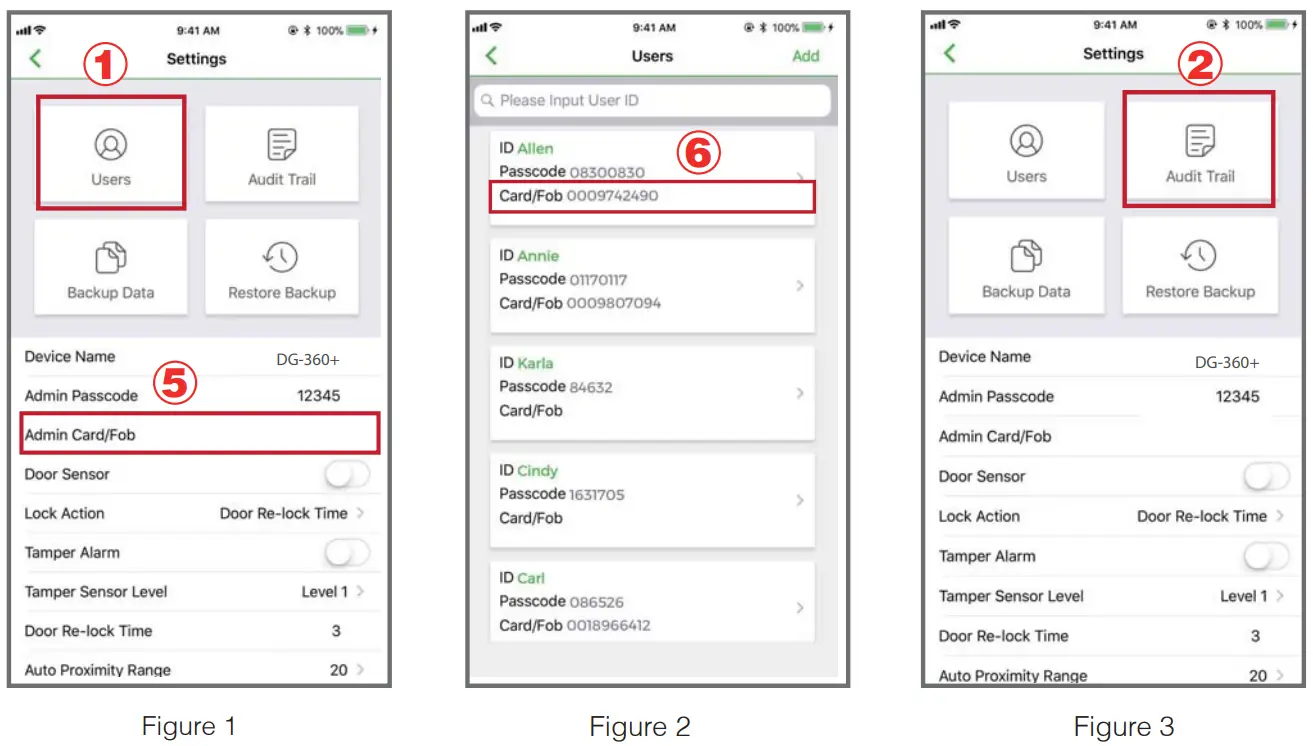
- Users :(See Figure 1 below)
a. Add / Delete / Edit user information.
b. ID (Up to 16 characters)
c. Passcode (4~8 digits)
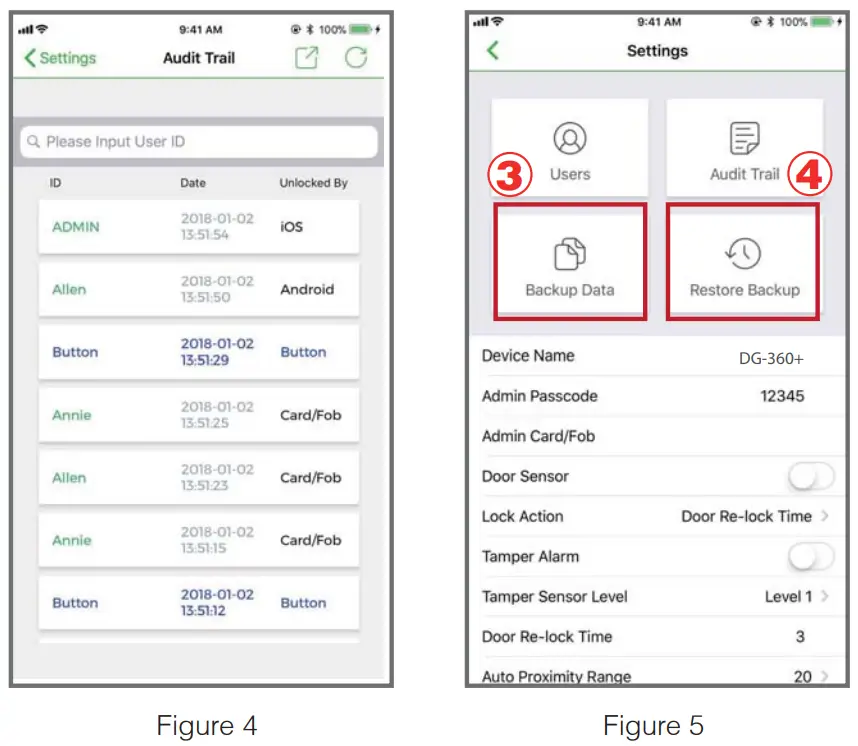
d. Card/Fob - Audit Trail:(See Figure 3 and 4)
a. Audit Trail is tracking last 1000 event logs.
b. Enter an user ID to search events for an user.
c. Tap to port all events to excel file.
d. Tap to refresh all events.
 - Backup Data :(See Figure5)
Backup Data is to backup Users, Admin Passcode, Lock Action, and Door Re-lock Time to Administrator’s phone and can be restored except Device Name, Auto Proximity Range, and Audit Trail logs.
Step 1: Press “Backup Data”, the App will show:Backup all data now?
Step 2:Press Confirm, the App will show:Backup Status Backup Completed! - Restore Backup :(See Figure 5)
Restore the last backup data by Admin’s phone to another Bluetooth device.
Step 1:Press “Restore Backup”, the App will show:Backup all data now?
Step 2:Press Confirm, the App will show:Restore Status Restore Completed! - Admin Card/Fob (See Figure 1 )
Enter or edit 10 numbers from Admin’s card/fob.
Step 1: Tap “Admin Card/Fob.” The App will show Edit Admin Card/Fob.
Step 2:Enter 10 numbers and press Confirm, the App will show Admin’s card/fob number. - User Card/Fob (See Figure 2 )
Enter or edit 10 numbers from user’s card/fob.
Step 1:Tap “Users.” The App will show User Info and Edit User Card/Fob.
Step 2:Enter 10 numbers and press Confirm, the App will show User’s card/fob number.
 to port all events to excel file.
 to refresh all events.
App Guide
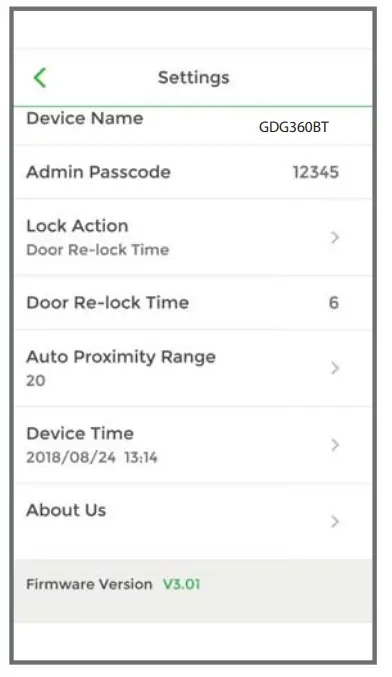
Administrator “Settings” Page Introduction Continued: (See the Figure)
- Device Name:Edit Device Name (Up to 16 characters)
- Admin Passcode Edit Admin Passcode (4~8 digits)
- Lock Action:(3 options)Choose Door Re-lock Time, Door Always Unlocked, and Door Always Locked.
- Door Re-lock Time:6 seconds by default. You can modify Door Re-lock Time from 1 to 1800 seconds.

- Auto Proximity Range:Adjust Auto Proximity Range here. The range is between0 to maximum 20 and it may have different results under different circumstances.
- Device Time:Make sure the Device Time is precisely synced with your current time zone to have correct and precise access data and information.
- About us:View Device Model, App version, Website and E-Mail information.
- Firmware version:See Firmware version of your Bluetooth device.
User’s “Settings”page Introduction
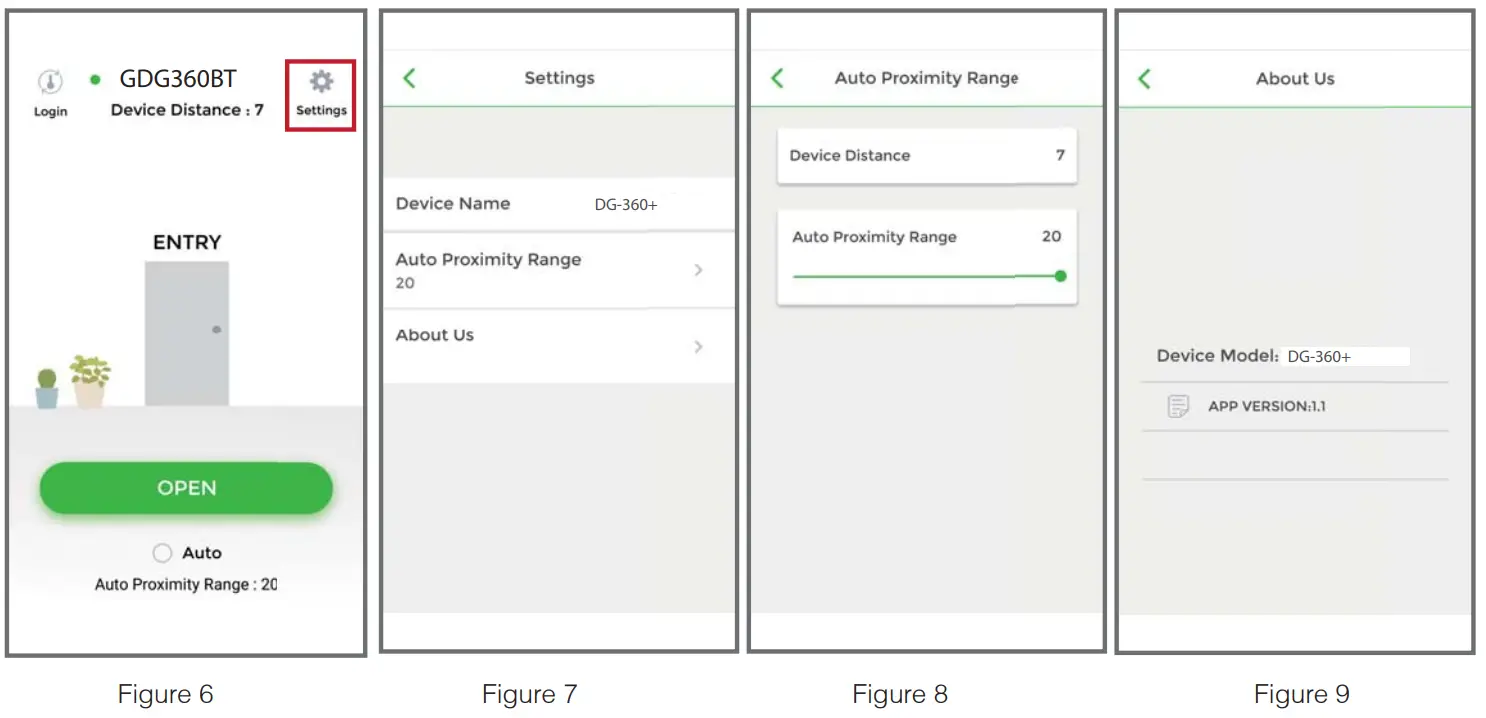
Tap “Settings” to view or change setting functions. (See Figure 6 below)
- Device Name: User can only view the Device Name. (See Figure 7 below)
- Auto Proximity Range:User can adjust Auto proximity range between 0 to maximum 20 to access. May have different results under different circumstances. (See Figure 8 below)
- About Us: View Device Model, App version, Website and E-mail information. (See Figure 9 below)
Copyright © All rights reserved.
P-MU-DG-360+ Published 2022.10.21