MANUAL GUIDE
USB Dongle with Nordic
nRFconnect for Desktop
for BLE
Version 1.0
Revision history
| Version | Date | Note | Contributor(s) | Approver |
| 1.0 | 12 May 2021 | Initial version | Nguyen Hoang Hoan | Nguyen Hoang Hoan |
Copyright © 2019 I-SYST, all rights reserved.
3514, 1re Rue, Saint-Hubert, QC., Canada J3Y 8Y5
This document may not be reproduced in any form without, express written consent from I-SYST.
Introduction
This document shows step-by-step how to use a USB Dongle with Nordic nRF Connect for desktop as a sniffer for Bluetooth Low Energy (BLE).
USB Dongle with Nordic nRFConnect
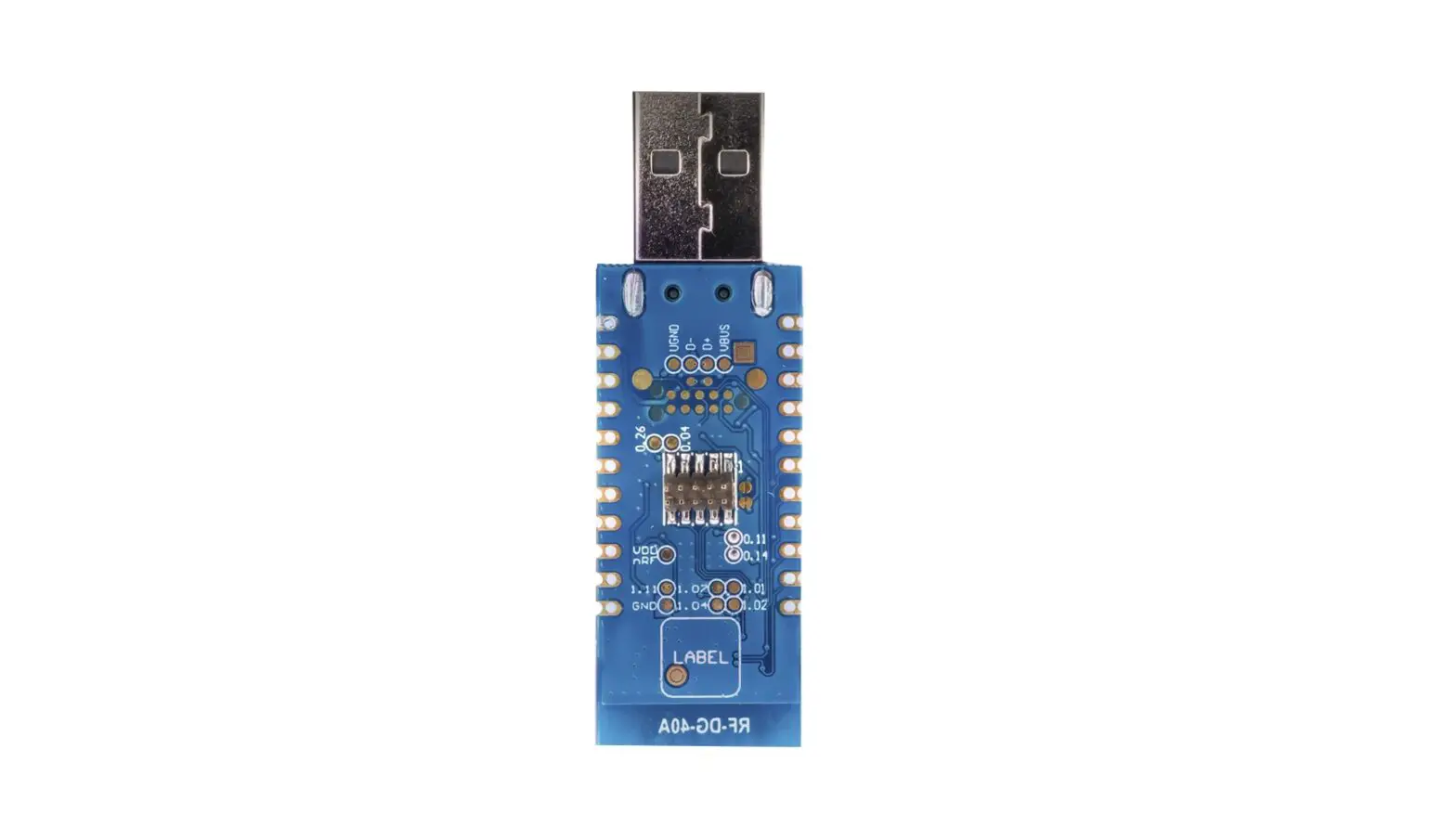
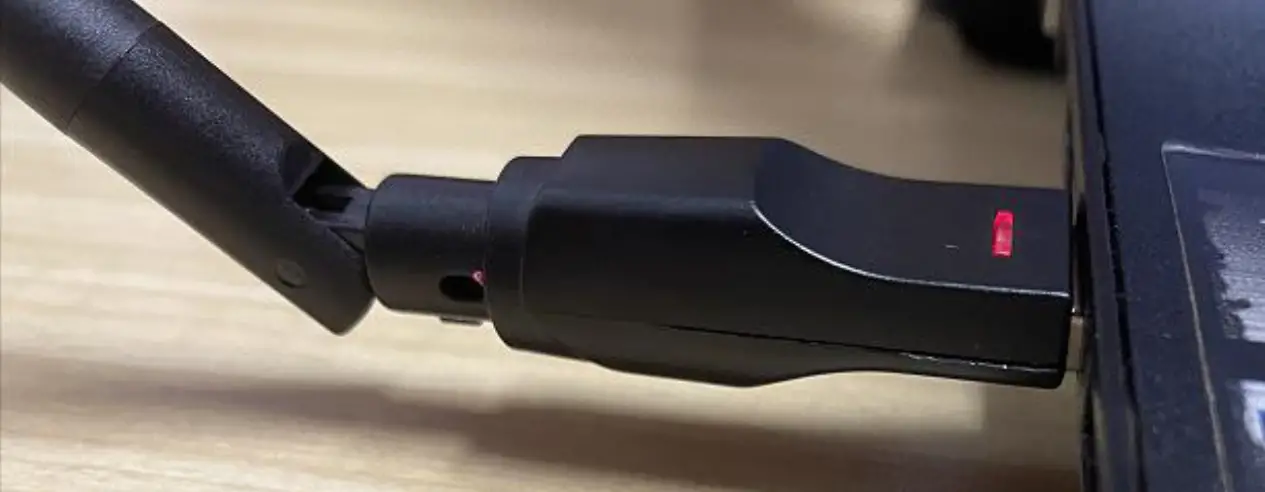
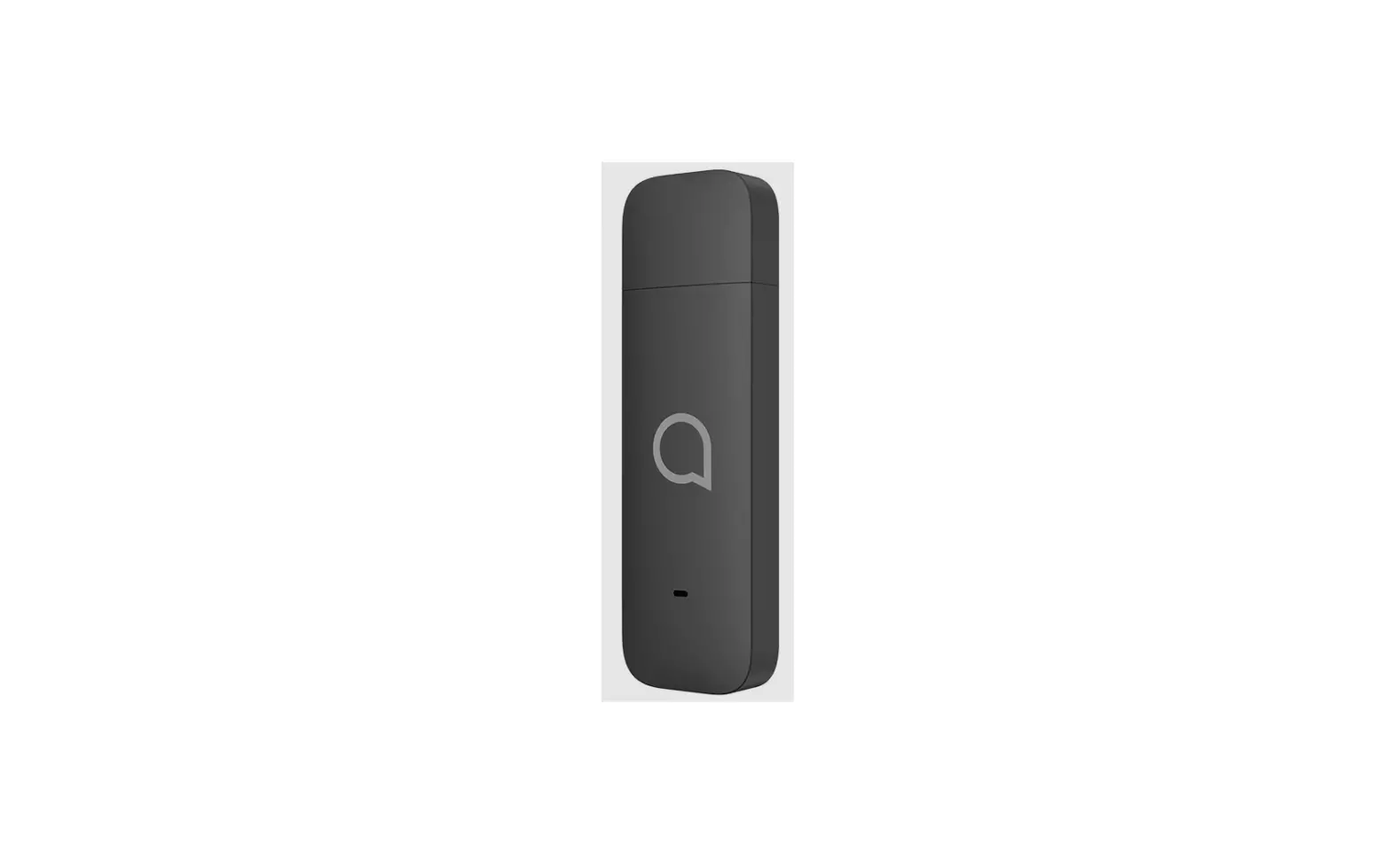
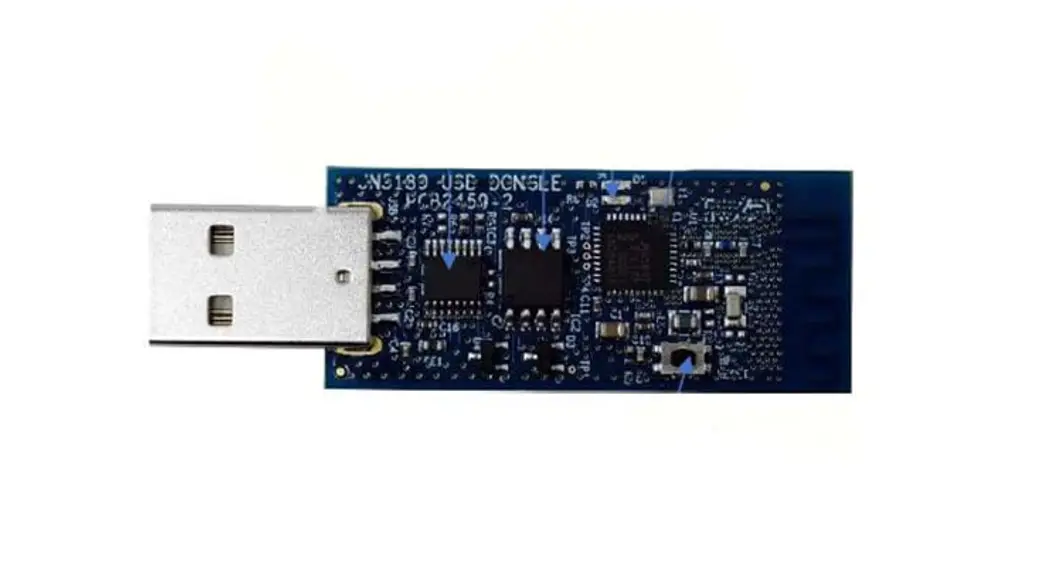
Plug in UDG-NRF52840 to your computer
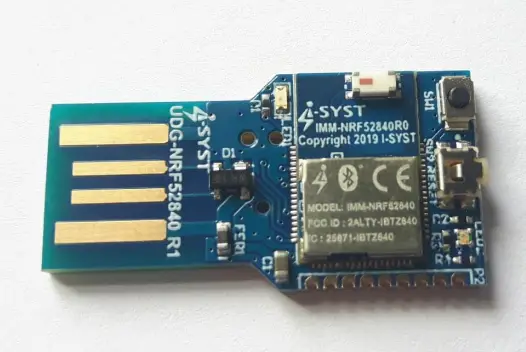
Download Nordic nRF Connect for the desktop at
https://www.nordicsemi.com/Software-and-Tools/Development-Tools/nRF-Connect-for-desktop
Install Nordic nRF Connect for desktop
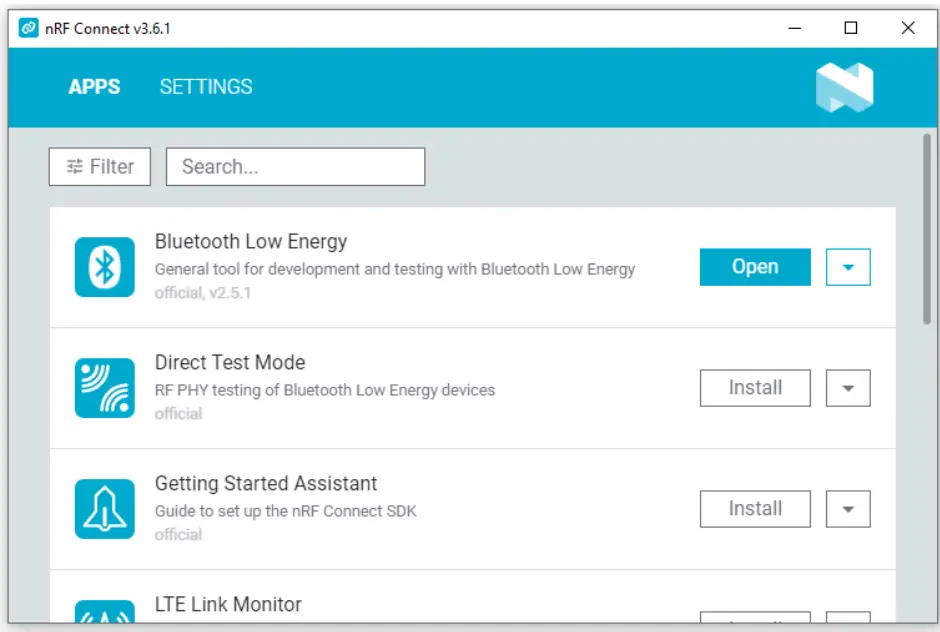
Install Bluetooth Low Energy in nRF Connect. Click Open Bluetooth Low Energy.
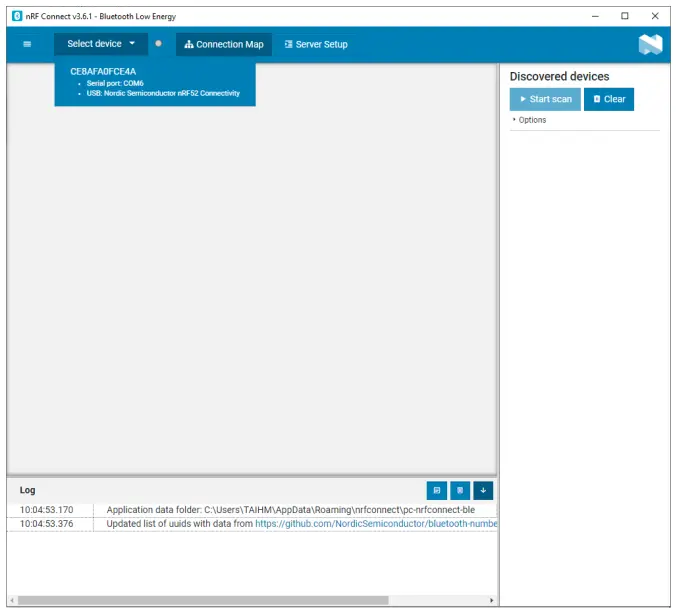
Click Select device: select your USB Dongle
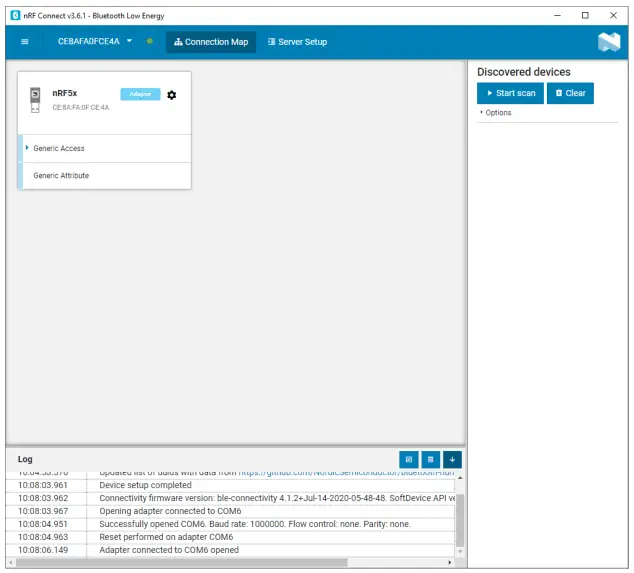
Start scan BLE devices
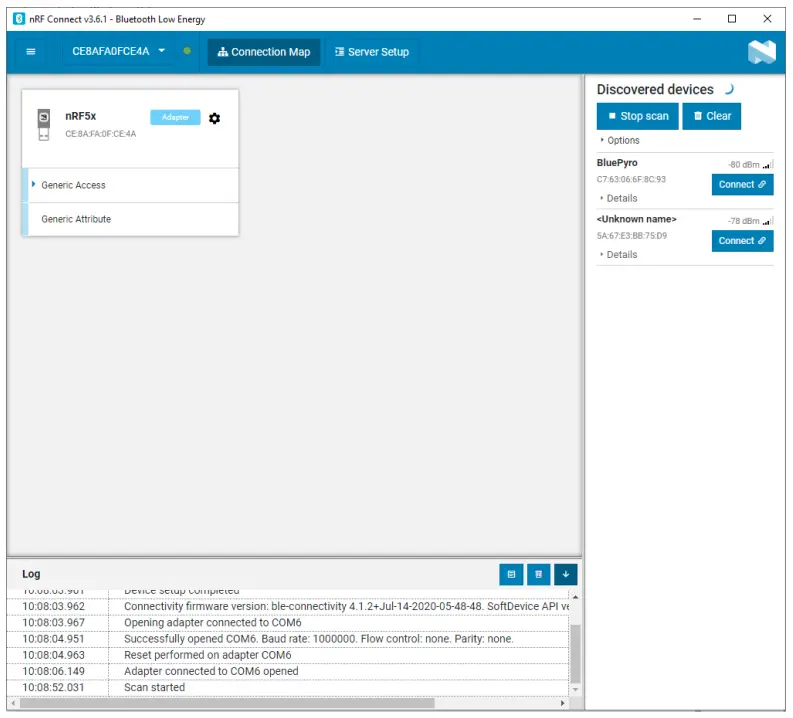
You can see BLE device in the list on the right-hand side.
https://www.i-syst.com
© Copyright 2019 I-SYST inc. All Rights Reserved
 Home | I-SYST's Site
 nRF Connect for Desktop - nordicsemi.com