 Communications Yealink USB Connect
User Guide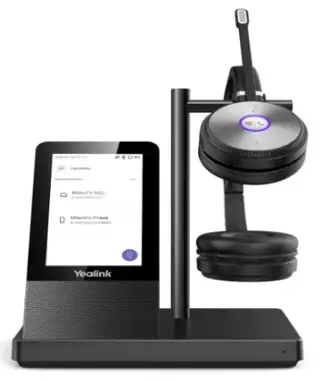 Yealink USB Connect
QUICK REFERENCE GUIDE
For Compatible Yealink Headsets
Yealink USB Connect
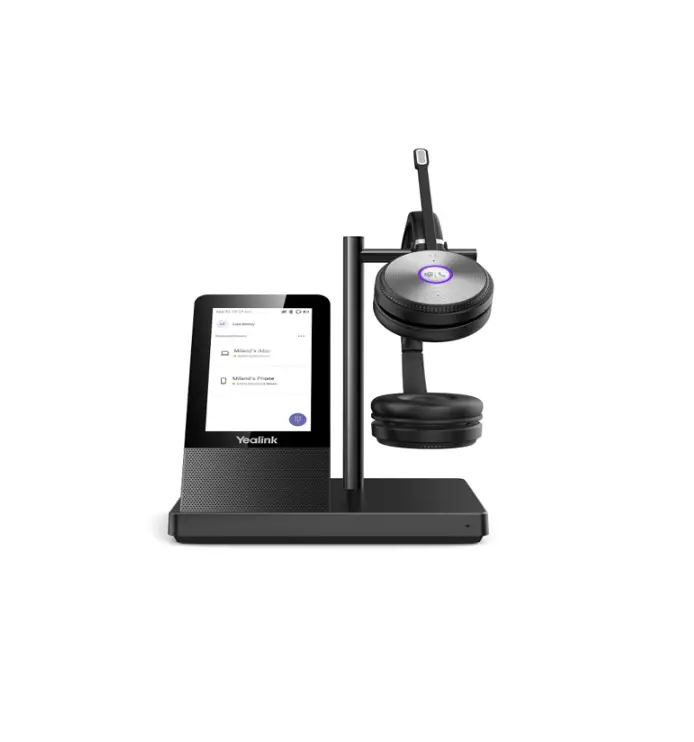
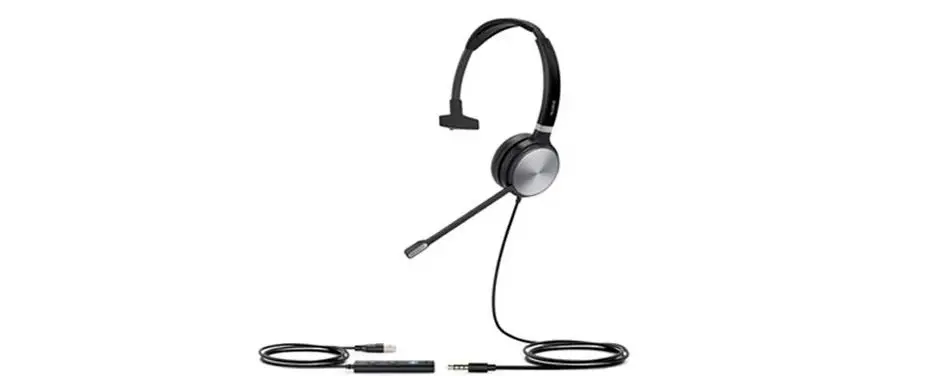
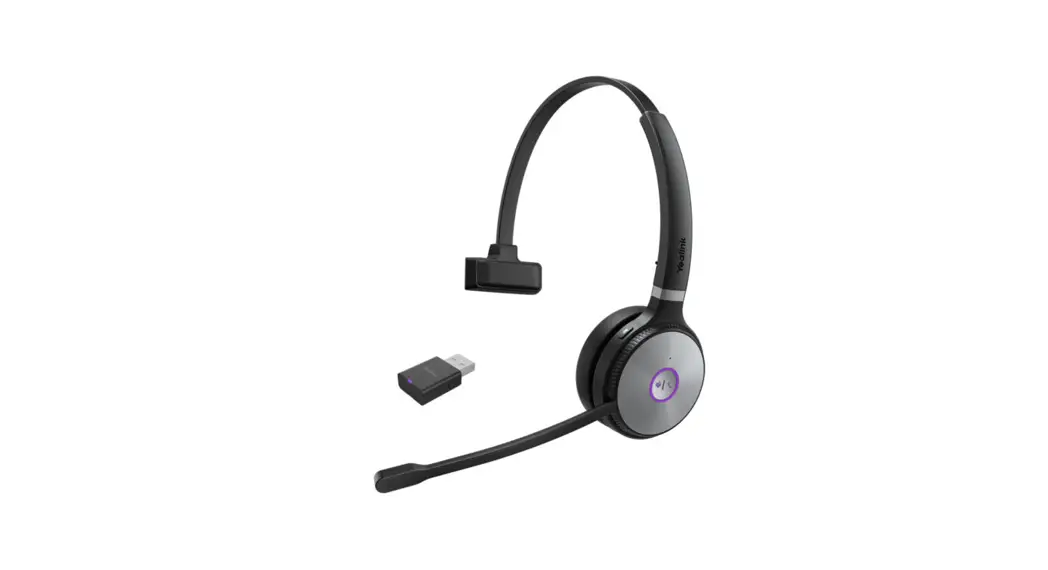
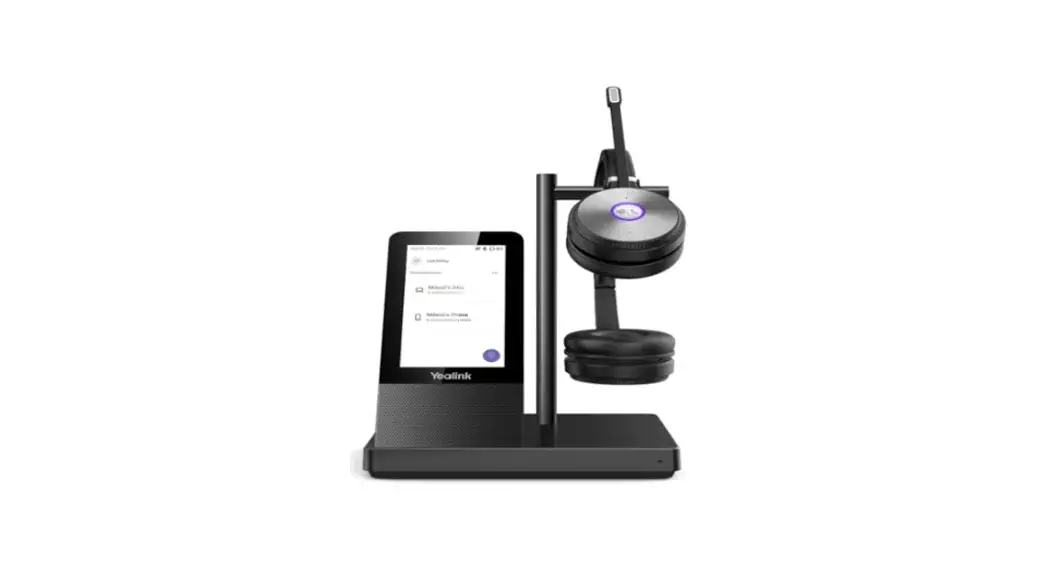
The Yealink USB Connect device manager client manages Yealink USB devices such as a WH62/WH63 and WH66/WH67 USB headsest.
The USB device manager is compatible with the Window 8 and above and macOS. Yealink USB Connect does not currently support running on a PC with the Apple M1 chip.
GETTING STARTED
To get started, you will need to download the USB device manager client from the Yealink website. Click on the following link to begin the download process: www.yealink.com/product/yuc.
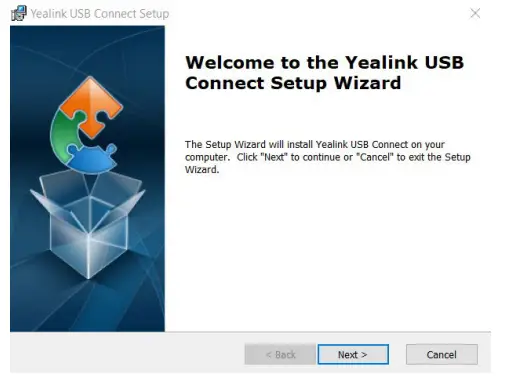
+ Select your operating system and the USB Connect start up wizard will display.
+ Follow the wizard to complete the download.
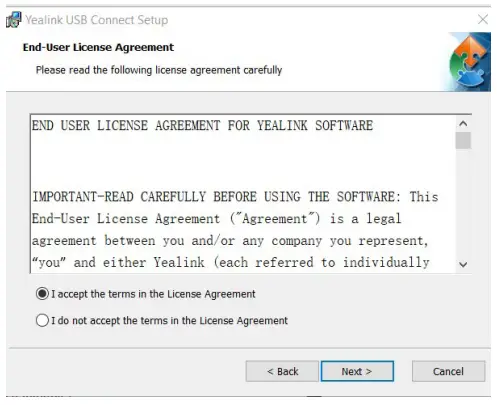
- Read and Accept the End User agreement and click NEXT.

- On the Welcome to the Wizard screen, click NEXT.

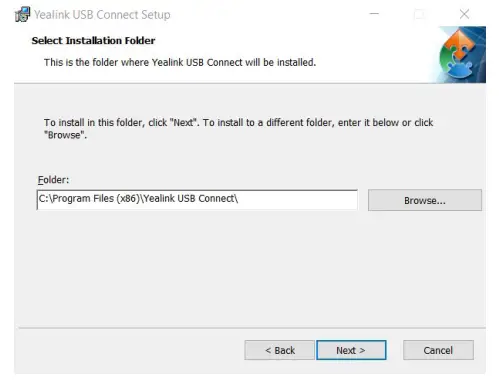
- Select the installer folder and click NEXT.

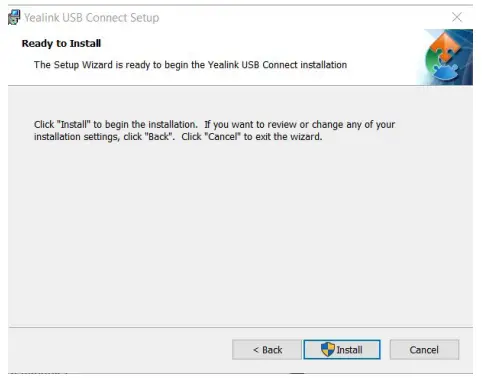
- On the Ready to Install screen, click INSTALL.

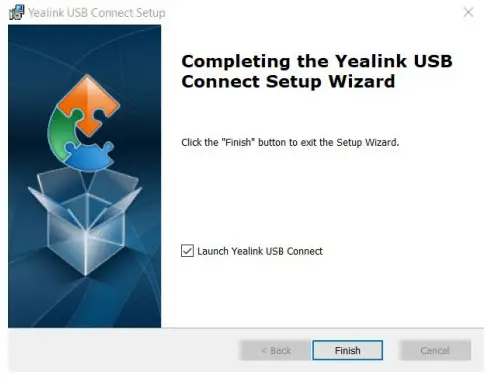
- On the Complete the Setup Wizard screen, click FINISH.

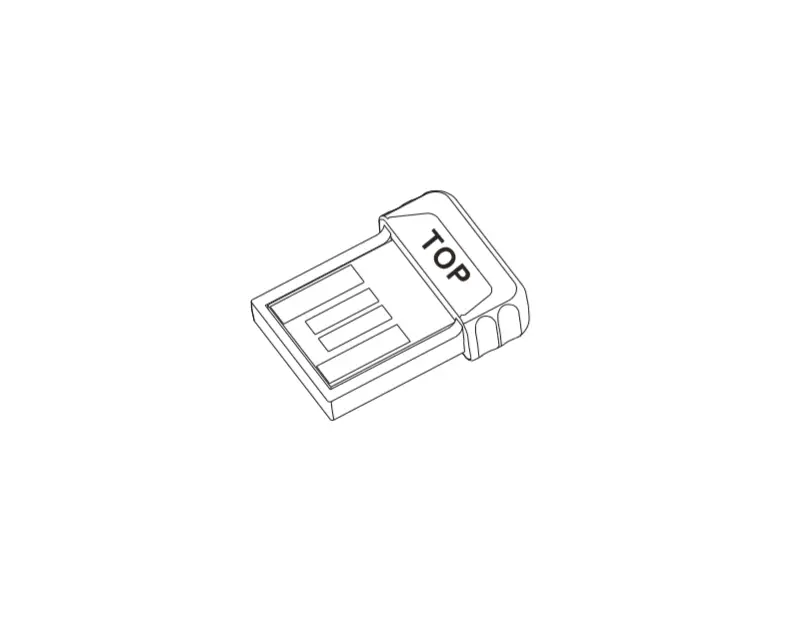
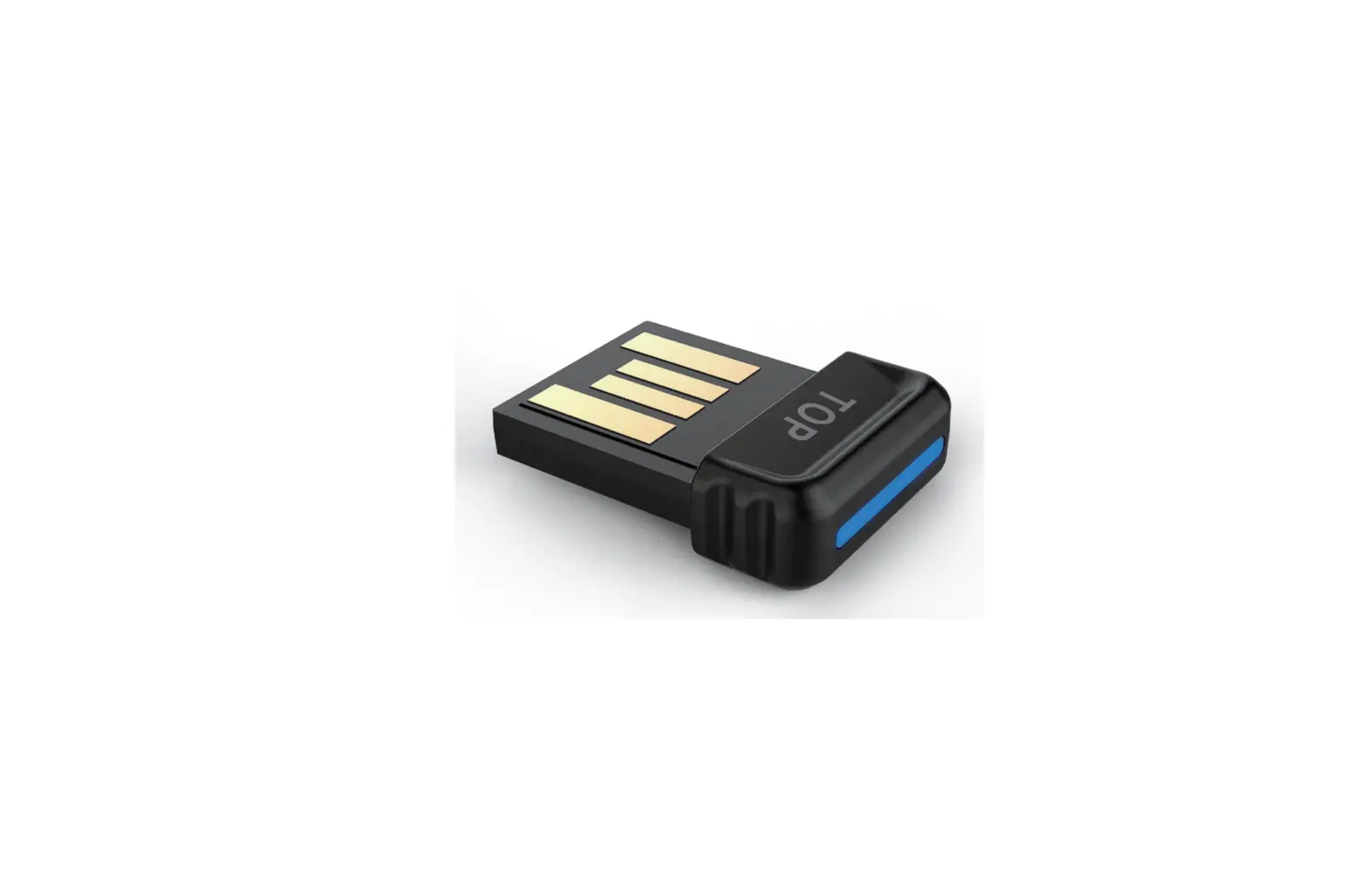
- Plug your USB device into your PC. The Yealink USB Connect App appears with settings for your connected device.
WHAT YOU SEE
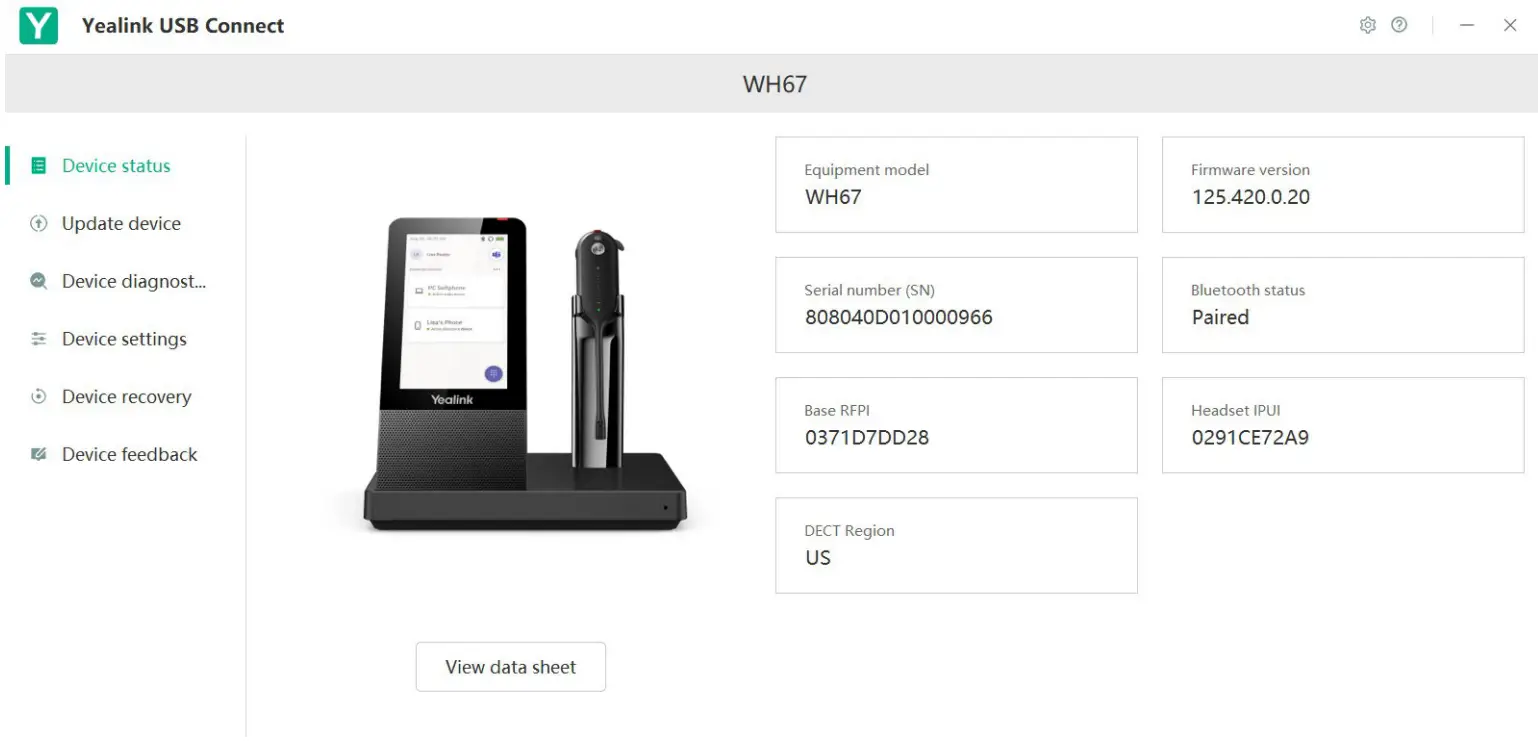
- Device Status displays information for the connected devices.
- Update devices displays the current status and if there is an update available, will give you the ability to run the update.
- Device Diagnostics displays logs that record events or errors that may occur in your device. A system administrator may ask you for information from this tab.
- Device settings will display the Basic and Advanced settings for the connected device. See page 3.
- Device recovery provides options for rebooting the device or returning it to factory settings.
- Device feedback will send a rating of the connected device to Yealink. Northland Communications will not see this.
SETTINGS
The device settings are divided into basic setting and advanced settings will vary depending on the connected device.
Basic Settings
| SETTING | DESCRIPTION |
| WH62/WH63 | |
| Keypad Tones | Enable/disable the paired headset to produce a sound when the keypad keys are pressed. |
| Local Ringtone | Enable/disable the base to play a built-in tone when receiving a call. |
| Speaker Volume | Adjusts the playback volume. |
| WH66/WH67 | |
| Bluetooth Switch | Toggles Bluetooth on/off. |
| Backlight Active Level | Sets the backlight brightness when it is active. |
| Backlight Time | Sets the amount of time the backlight is active. |
| Teams User Name | Only available for the Teams version. |
| Dial Tone | Enable/disable the paired headset to play a dial tone when entering the dialing screen. |
| Keypad Tones | Enable/disable the paired headset to produce a sound when the keypad keys are pressed. |
| Local Ringtone | Enable/disable the base to play a built-in tone when receiving a call. |
| Speaker Volume | Adjusts the playback volume. |
| PC Ring Type | Changes the ringtone for the connected USB device. |
| Screen Saver | Change the waiting time and background for the screen saver. + Wait Time + Background: Select Custom to upload customer pictures (up to 3) from your local system. |
Advanced Settings
| SETTING | DESCRIPTION |
| Mute Reminder | Enable/disable the paired headset to play a periodic audio reminder when the microphone is |
| Mute Reminder Interval | Configures the interval time when Mute reminder is enabled. |
| Platform | Change the platform between UC and Teams. Only available on the WH66/WH67. |
| Call Priority | Select which call takes priority when a second call is accepted. + New call: The first call is placed on hold and the new call is active. + Current call: The first call is active and the new call is placed on hold. |
| Call Device | Select which device to use for outgoing calls. Only available on the WH66/WH67 UC Version. |
| Auto Dial | Enable/disable the base to automatically dial the entered number within 5 seconds. Only avail- able on the WH66/WH67. |
| Auto-Answer When Undocked | Enable/disable incoming calls to be answered when undocking the headset. |
| Open Line When Undocked | Enable/disable the ability to enter the dial screen when undocking the headset. |
| Wireless Range | Select the wireless range between the headset and base. When the headset exceeds the preset wireless range, it will prompt you that it is out of range. |
| Voice Announcement | Enable/disable the paired headset to play voice announcements. |
| Anti-Startle Protection | Configure which hearing technology to be used. |
| Daily Noise Exposure | Configures the daily noise exposure levels. |
Need support? Connect with us at www.northland.net/support
orDial 4357 (HELP) or 315-671-6262 to speak to a
Northland Representative
 Training Support | Northland Communications
 Yealink USB Connect