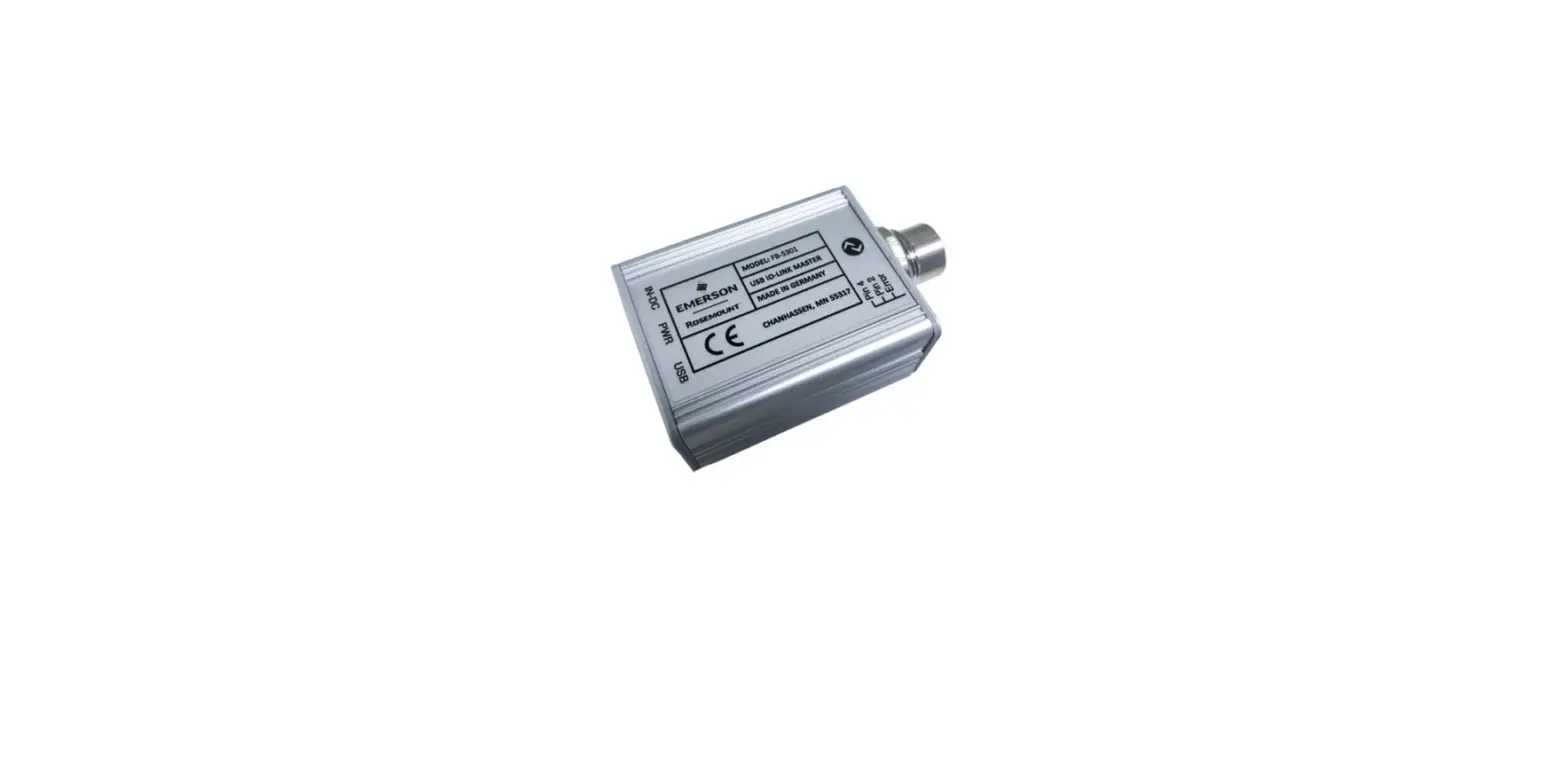

EMERSON Rosemount IO-Link USB Communicator
About this guide
This guide provides basic guidelines for the Rosemount IO-Link USB Communicator. It does not provide instructions for diagnostics, maintenance, service, or troubleshooting. This guide is available electronically on Emerson.com/Rosemount.
Safety messages
WARNING
Installation considerations
- Read this guide before working with the product. For personal and system safety, and for optimum product performance, ensure you thoroughly understand the contents before installing, using, or maintaining this product.
- Failure to follow these installation guidelines could result in death or serious injury.
- Use the equipment only as specified in this manual. Failure to do so may impair the protection provided by the equipment.
Use the equipment only as specified. Failure to do so may impair the protection provided by the equipment. - Ensure the device is installed by qualified personnel and in accordance with applicable code of practice.
- All operation described in this document must be carried out by authorized, trained personnel only.
Equipment modifications
- Do not make changes to the source code or individual components. Changes such as this which are not explicitly stated in this document may forfeit any rights to technical support by the manufacturer.
Physical access
- Unauthorized personnel may potentially cause significant damage to and/or misconfiguration of end users’ equipment. This could be intentional or unintentional and needs to be protected against.
- Physical security is an important part of any security program and fundamental to protecting your system. Restrict physical access by unauthorized personnel to protect end users’ assets. This is true for all systems used within the facility.
About this product
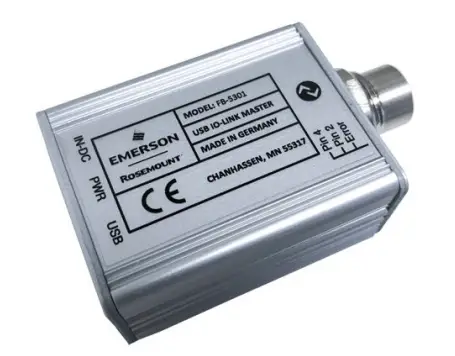
- The Rosemount IO-Link USB Communicator connects IO-Link devices to a PC for quick and easy parameter setup via for example Rosemount IO-Link Assistant,
- PACTware, or other FDT containers. The IO-Link USB communicator is not intended for operations in manufacturing plants.
- Related information
- Rosemount IO-Link Assistant Reference Manual
Install hardware
Procedure
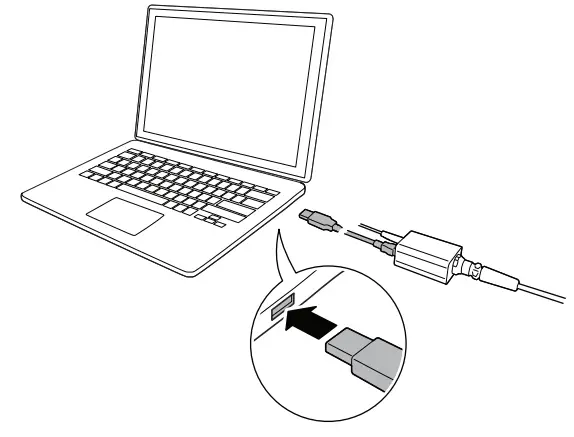
- Connect the USB IO-Link Communicator to the PC.

- Connect the M12 cable and screw tight.
- If required, connect the external power supply.
Note
The external power supply is required only for IO-link devices with a higher current consumption (> 80 mA).
Install software
Download the device software
- The installation package contain the driver software and DTM file.
Prerequisites
- The driver is also included in the Rosemount IO-Link Assistant installation package.
Procedure
- Go to the Rosemount IO-Link USB Communicator product page at Emerson.com/Rosemount.
- Click Documents & Drawings → Software Download & Drivers.
- Download the “Gateway DTM for IO-link USB Communicator” package.
Install the device software
Procedure
- Unzip the “Rosemount IO-Link Gateway DTM” package.
- Run the “Setup.exe” file.
- Follow the instructions in the installation wizard.
Download and install IODD files
Rosemount IO-Link Assistant
Get the latest IODD files
- The Rosemount IO-Link Assistant software checks and lets you download the latest IODDs for your device catalog.
Prerequisites
- For an online update, an internet connection is required.
Procedure
- Click the icon.
- In the Vendor list, select Rosemount Inc., and then select the check box for the devices to be installed/updated.
- Alternatively, browse to an already downloaded IODD zip file, and select Open.
- Select OK.
Related information
- Rosemount IO-Link Assistant Reference Manual
FDT®/DTM framework
Download the IODD file Procedure
- Download the IODD from the IODDFinder portal at Ioddfinder.io-link.com.
- Unzip the IODD package.
Integrate IODDs into an FDT®/DTM framework
- An IODD DTM Interpreter is required to integrate IODDs into an FDT/DTM environment (e.g PACTware).
Prerequisites
- The IODD DTM Interpreter is usually included in the FDT/DTM software installation package. It can also be downloaded from
- Emerson.com/Rosemount.
Procedure
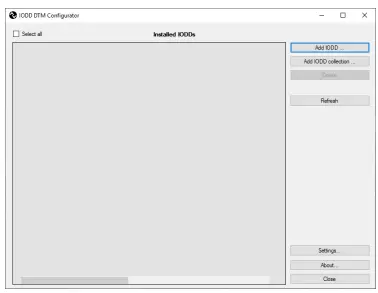
- Start the IODD DTM Interpreter software.
- Select Add IODD.

- Browse to the IODD file (.xml) and select Open.
- Start the configuration tool and update the device catalog.
Need help?
If the new DTM is not added automatically at start-up, then select View → Device Catalog → Update Device Catalog.
Reference information
Connections
Table 6-1: IO-Link connection
M12 (a-Coded connector) interface to the sensor with IO-Link
| Pin | Signal | Function |
| 1 | +24 V | +24V 1 A / 80 mA |
| 2 | IO-Link | IO-Link |
| 3 | GND | 0 V |
| 4 | IO-Link | IO-Link |
| 5 | –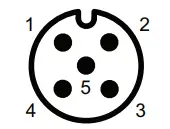 | NC |
Table 6-2: USB connection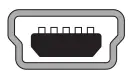
| Pin | Signal | Function |
| 1 | +5 V | VBUS +5VDC/500 mA |
| 2 | D- | Data – |
| 3 | D+ | Data + |
| 4 | ID | Not connected |
| 5 | GND | Ground |
Table 6-3: Wall power supply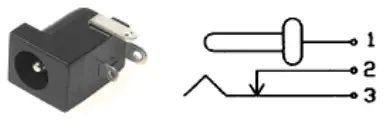
| Pin | Signal |
| 1 | +24 V |
| 2 | GND |
| 3 | GND |
Light emitting diodes
| Inscription | Color | Definition |
| PWR | Yellow | Indicates power supply at the USB port |
| CH1(C/Q) | Green/yellow | Green: IO-Link mode • LED blinks slowly if no IO-Link connection • LED blinks quickly in the pre-operate state • LED constantly lit if IO-Link connection is active (operate state) Yellow: SIO mode (indicates digital state at port C/Q) |
| CH2(DI/DO) | Yellow | Indicates the digital state at port DIO |
| Error | Red | Flashes in case of errors (e.g. short circuits, errors in data transmission) |
Dimensions
Figure 6-1: Rosemount IO-Link USB Communicator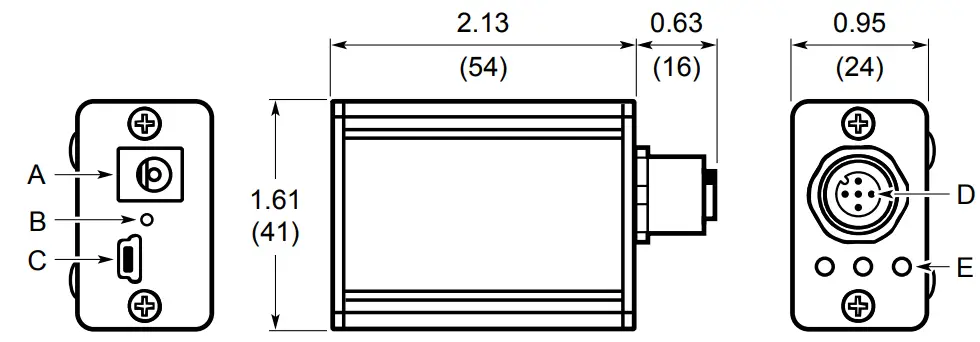
- A. DC 24V
- B. PWR LED
- C. Mini USB B
- D. M12-A
- E. CH1(C/Q) CH2(DI/DO) Error
- Dimensions are in inches (millimeters).
- For more information: www.emerson.com
- ©2021 Emerson. All rights reserved.
- Emerson Terms and Conditions of Sale are available upon request. The Emerson logo is a trademark and service mark of Emerson Electric Co. Rosemount is a mark of one of the Emerson family of companies. All other marks are the property of their respective owners.
- Quick Start Guide 00825-0100-4115, Rev. AC December 2021
 Rosemount | Emerson US
 Emerson Global | Emerson
 IODDfinder