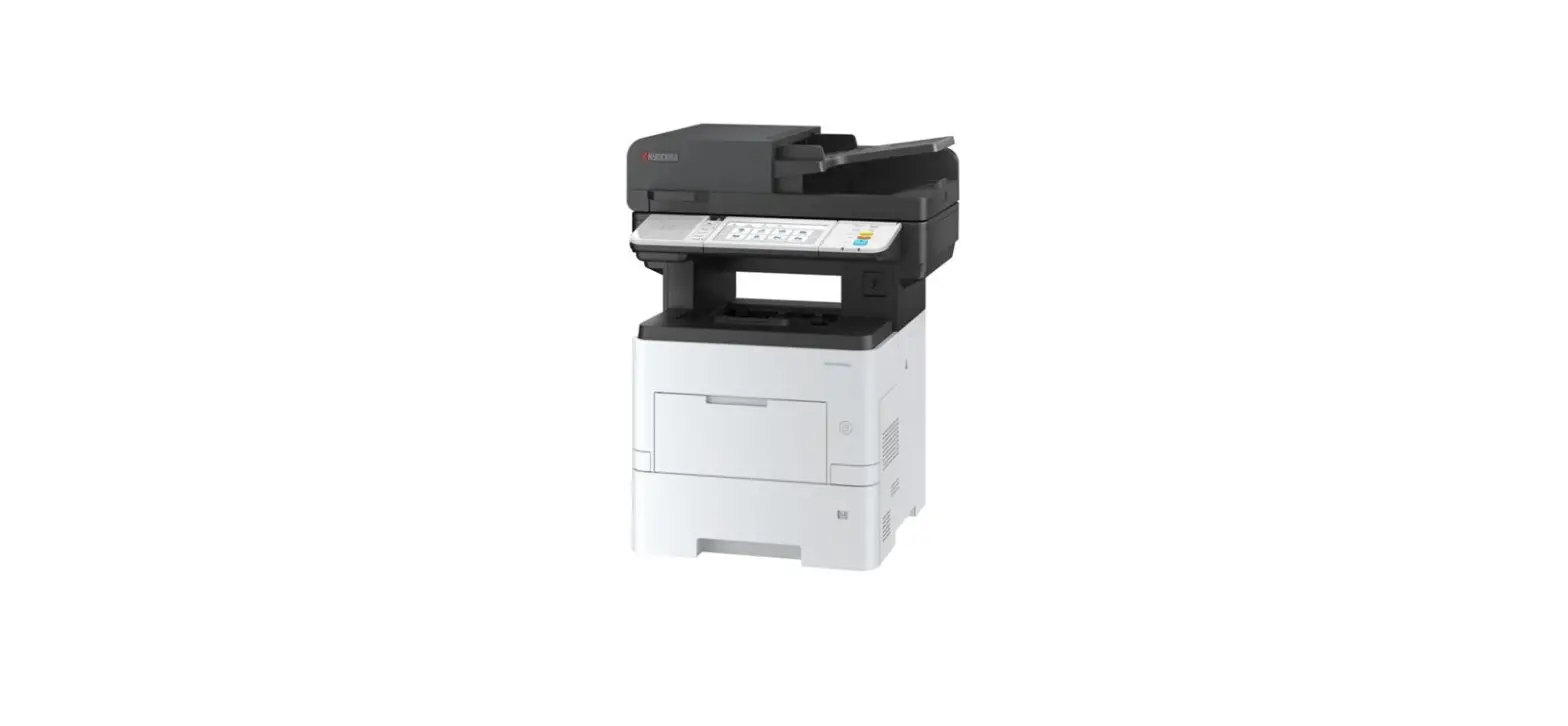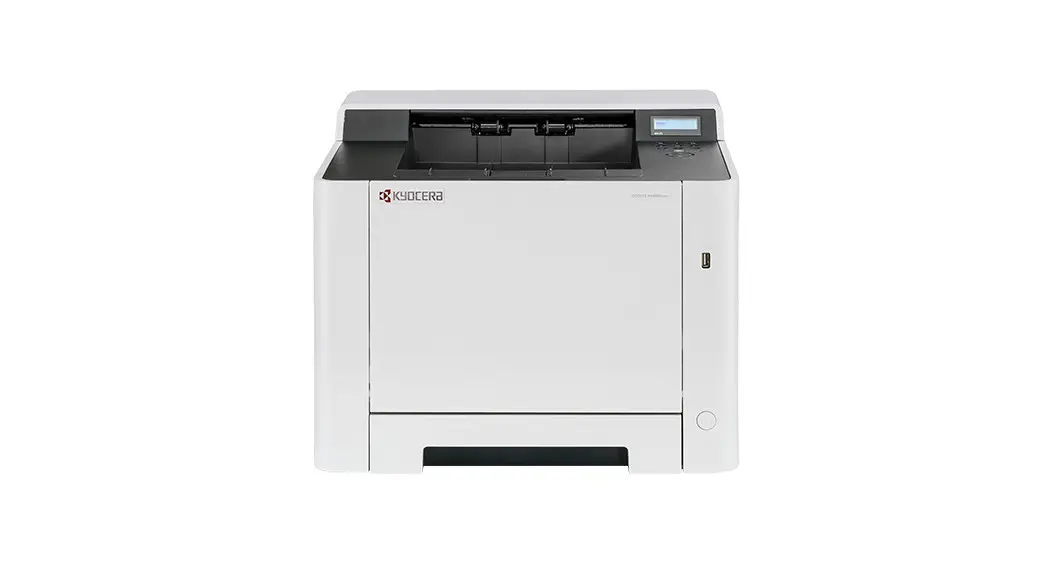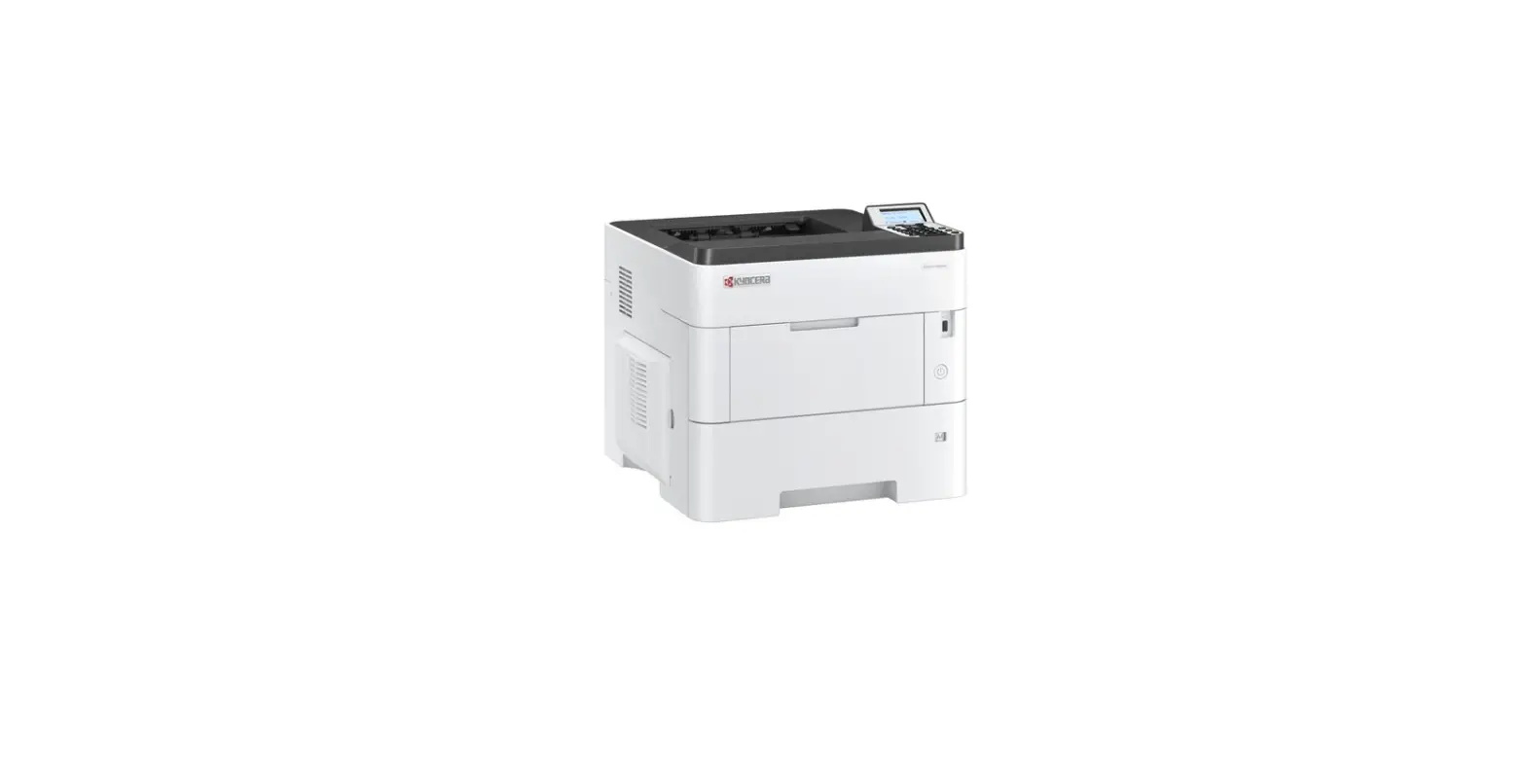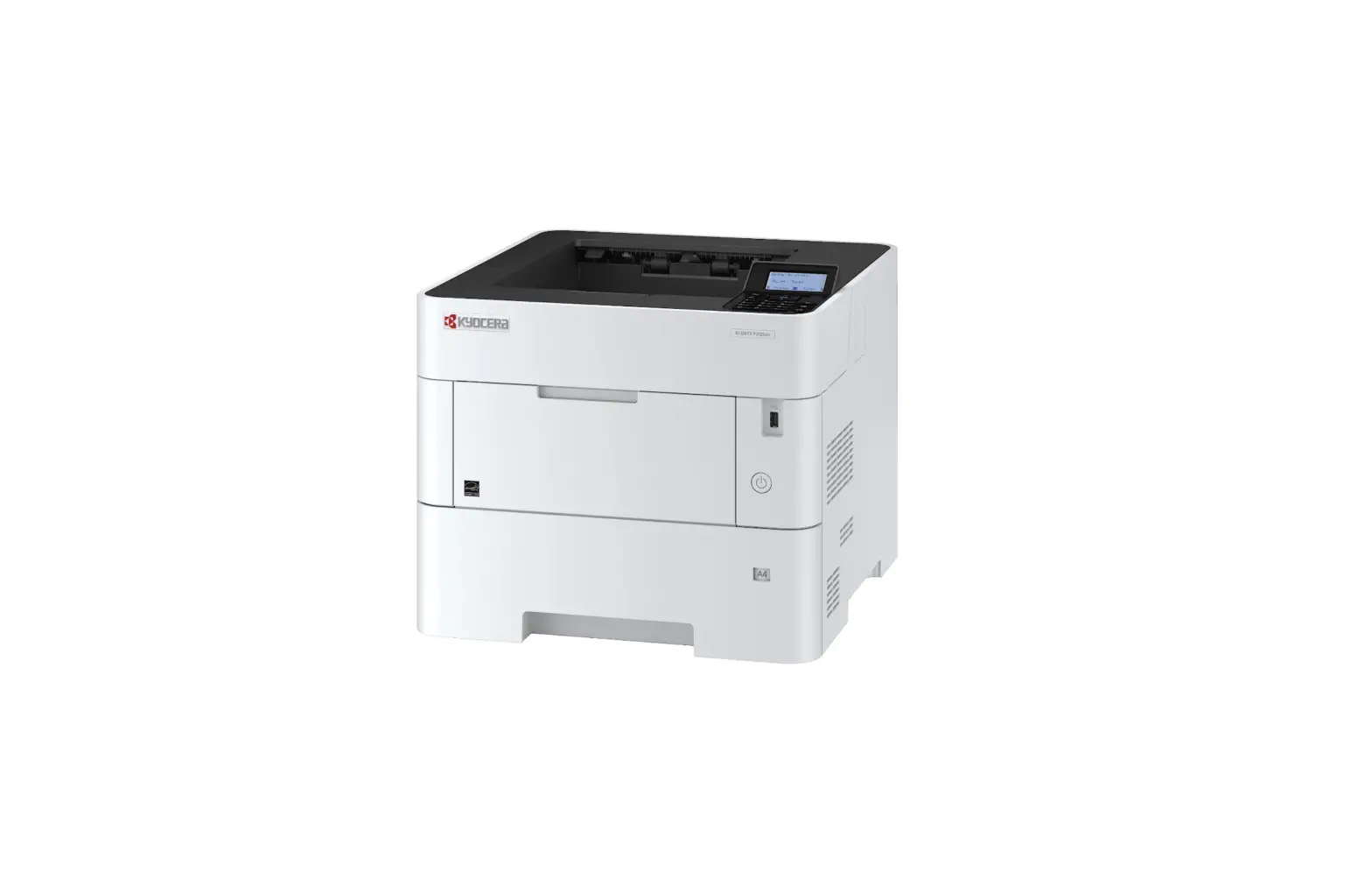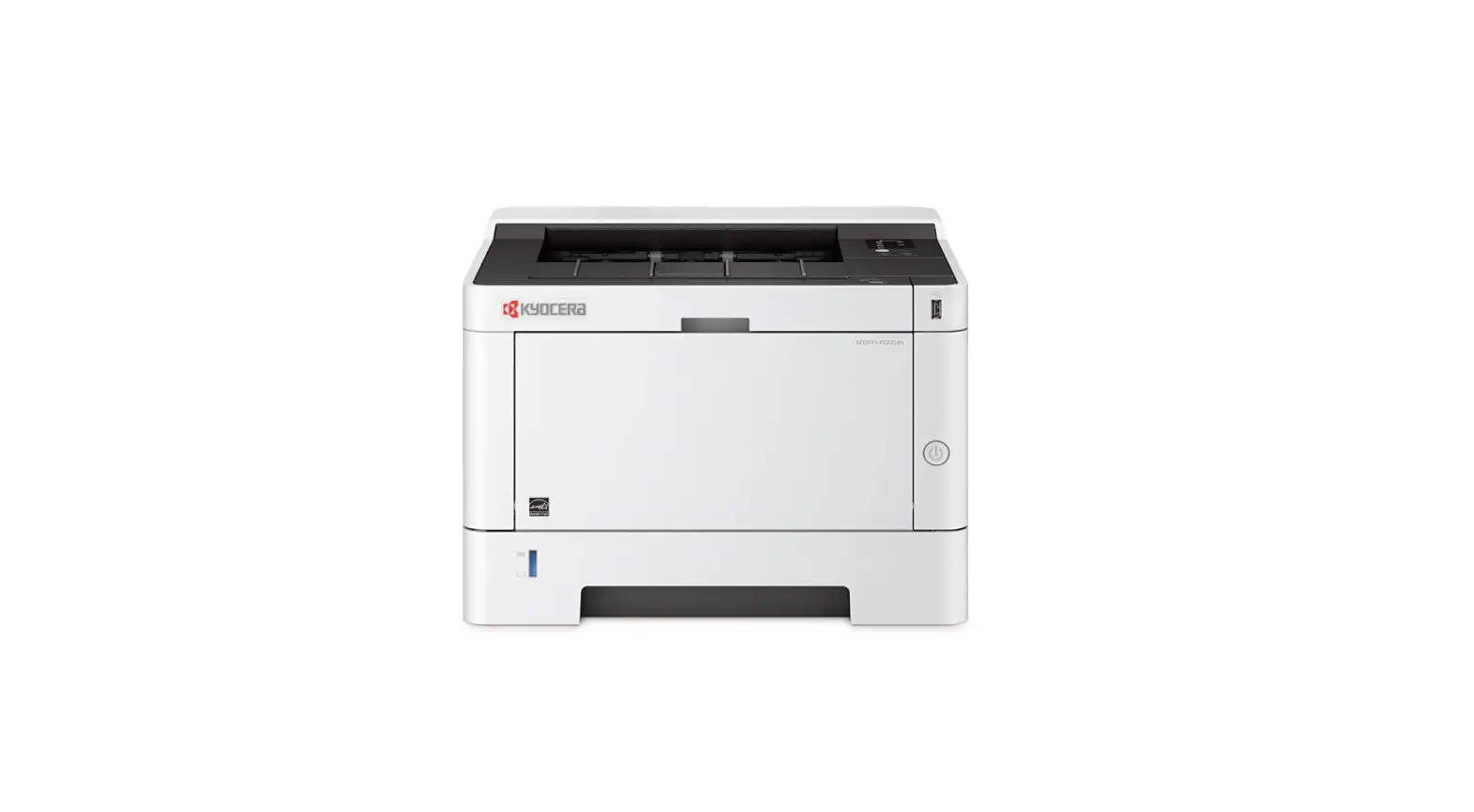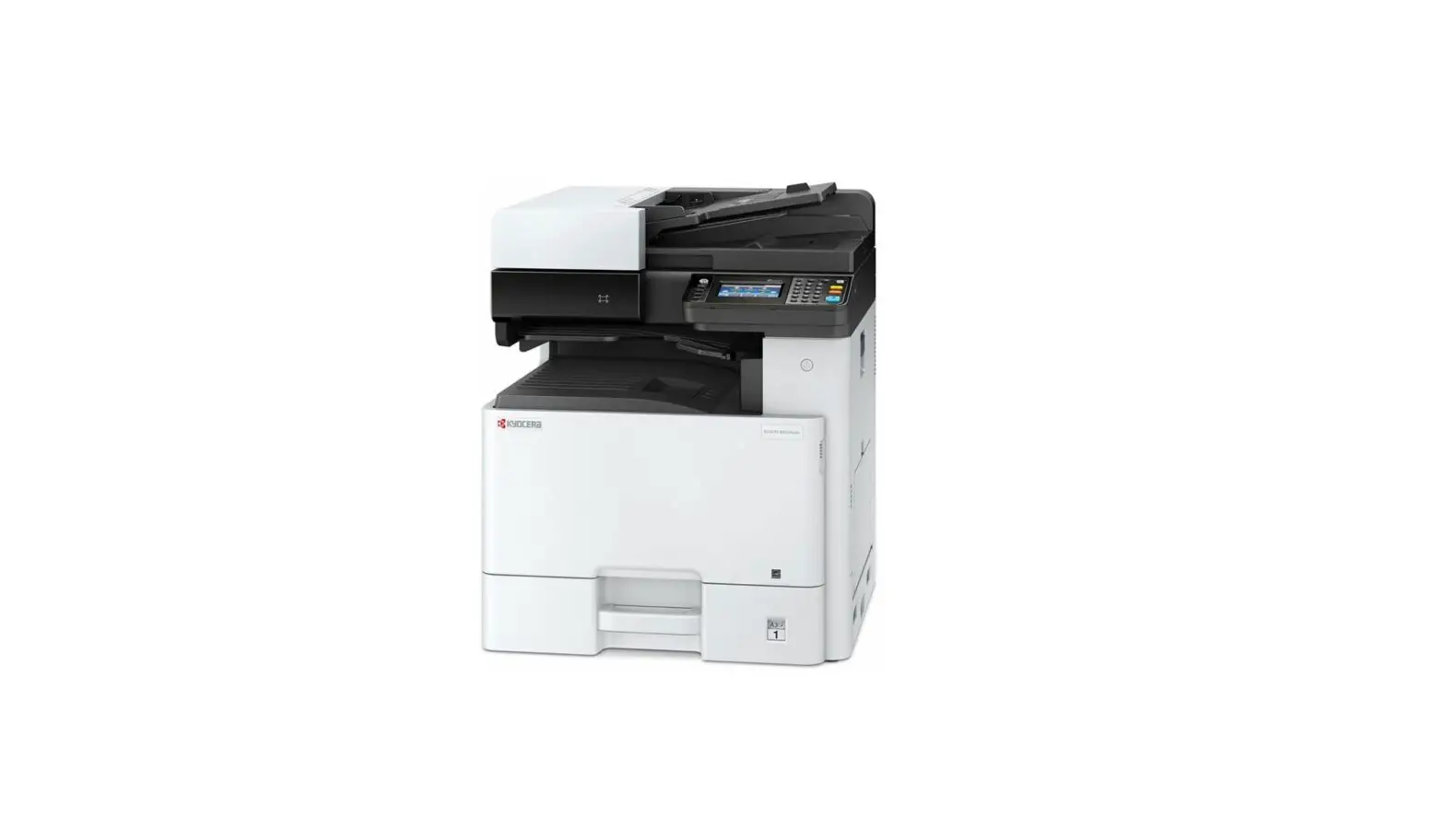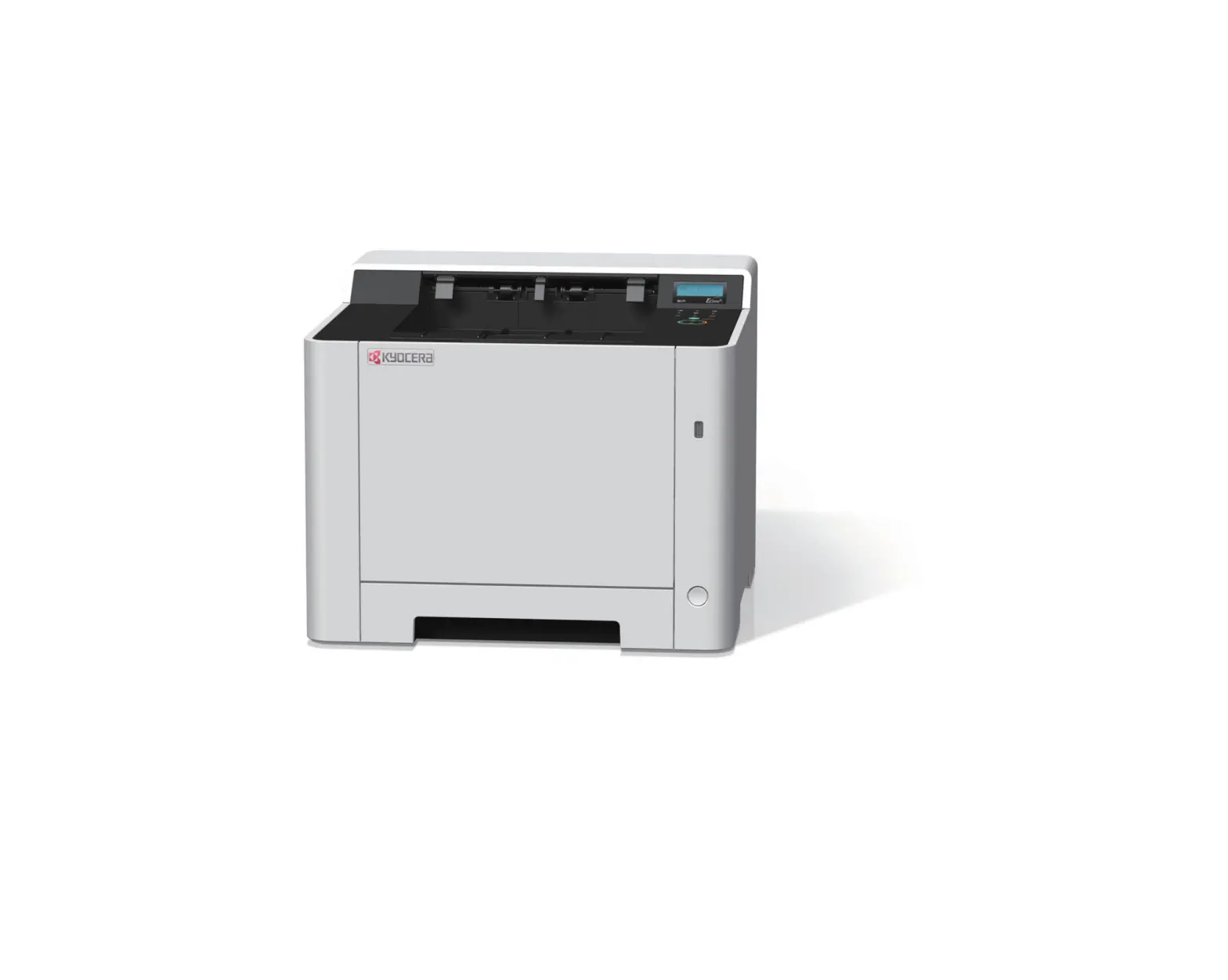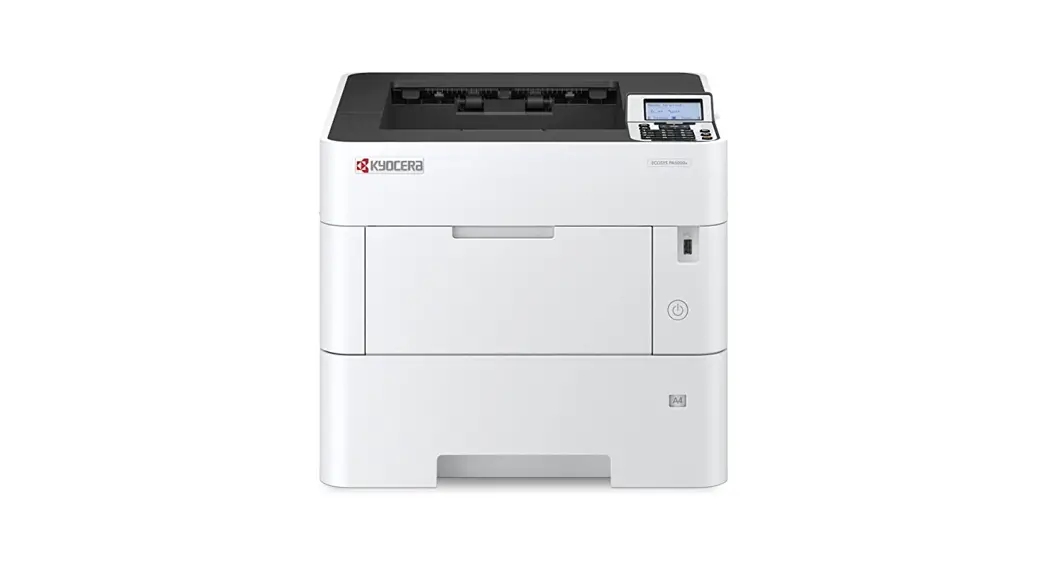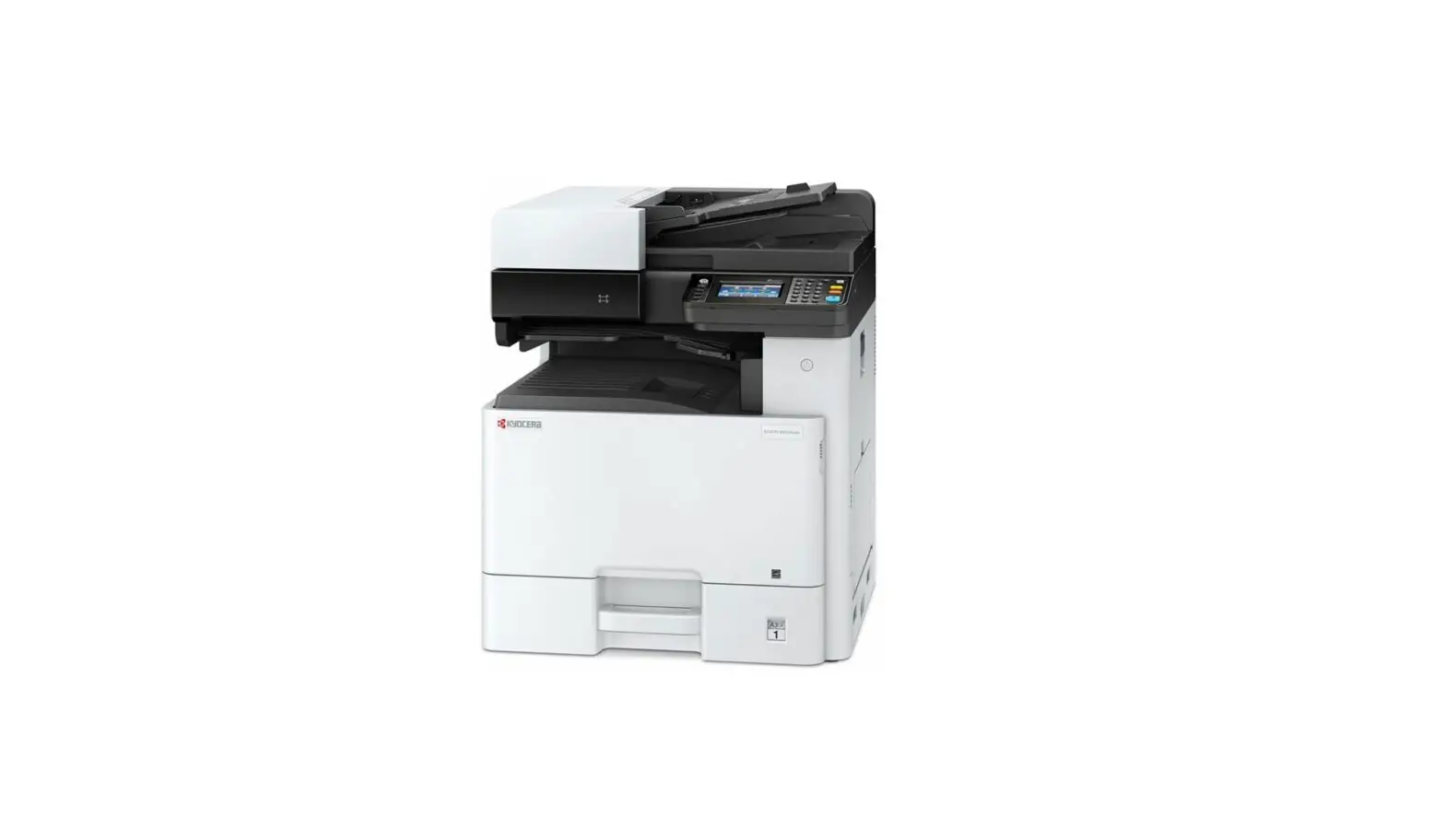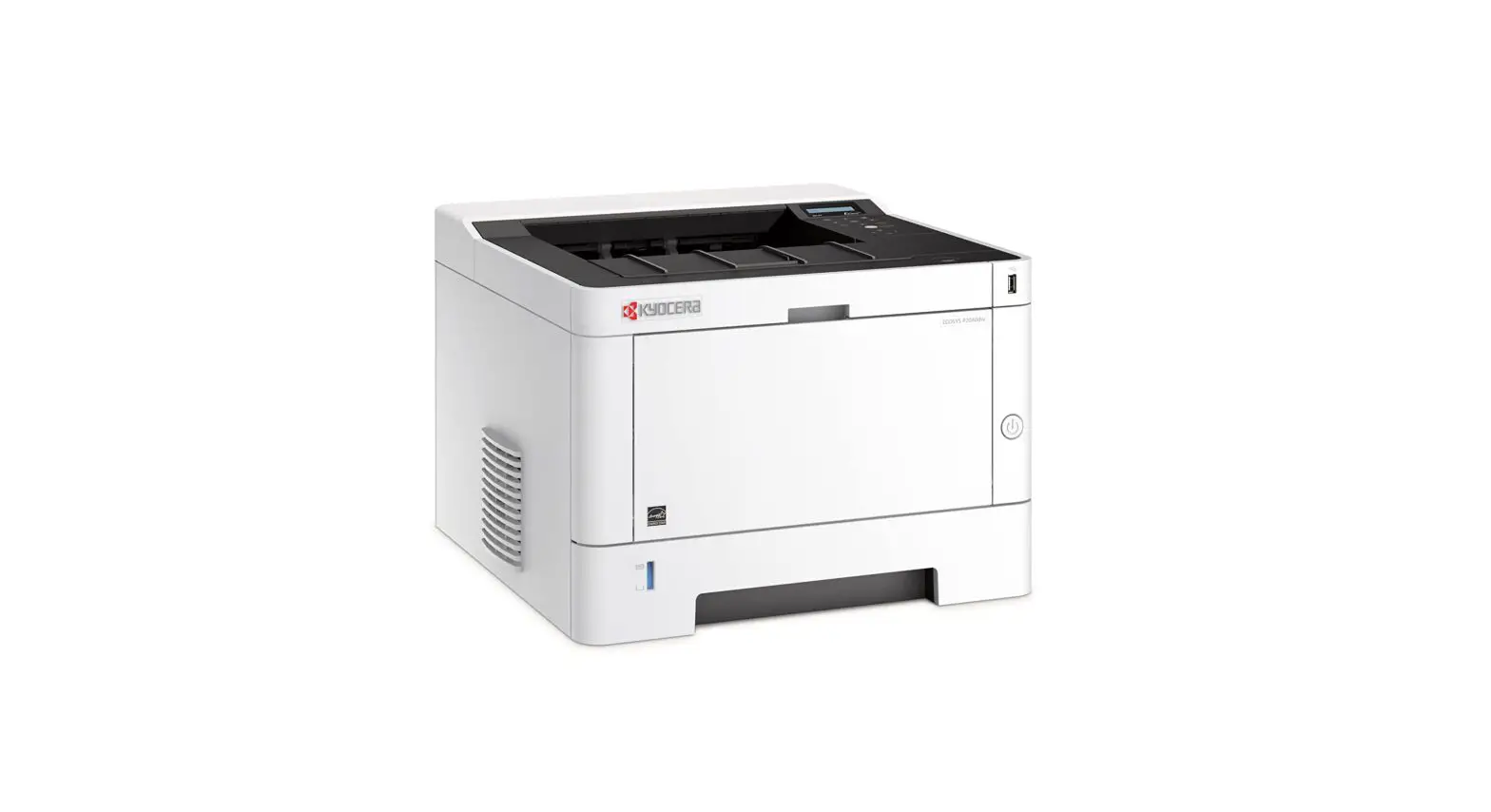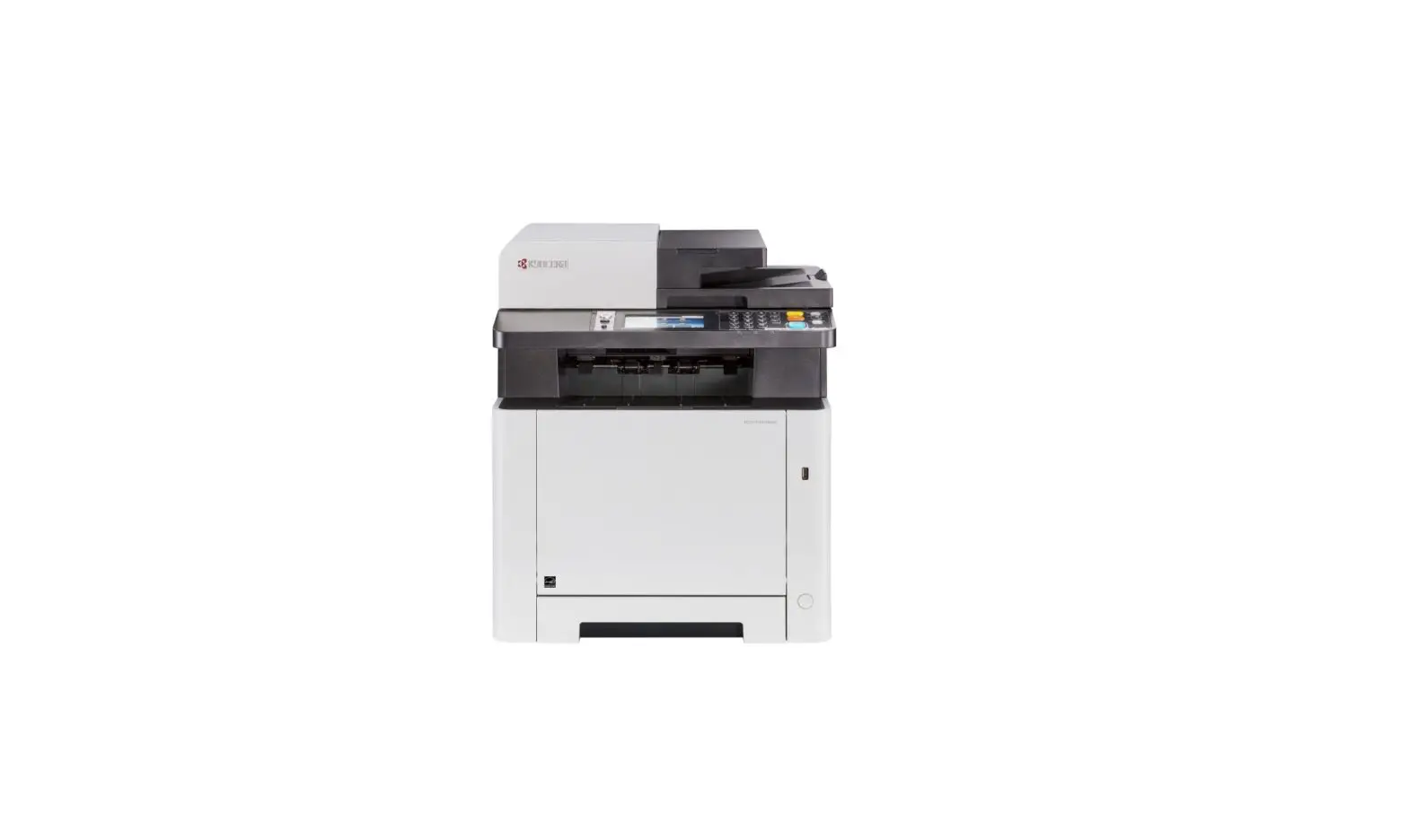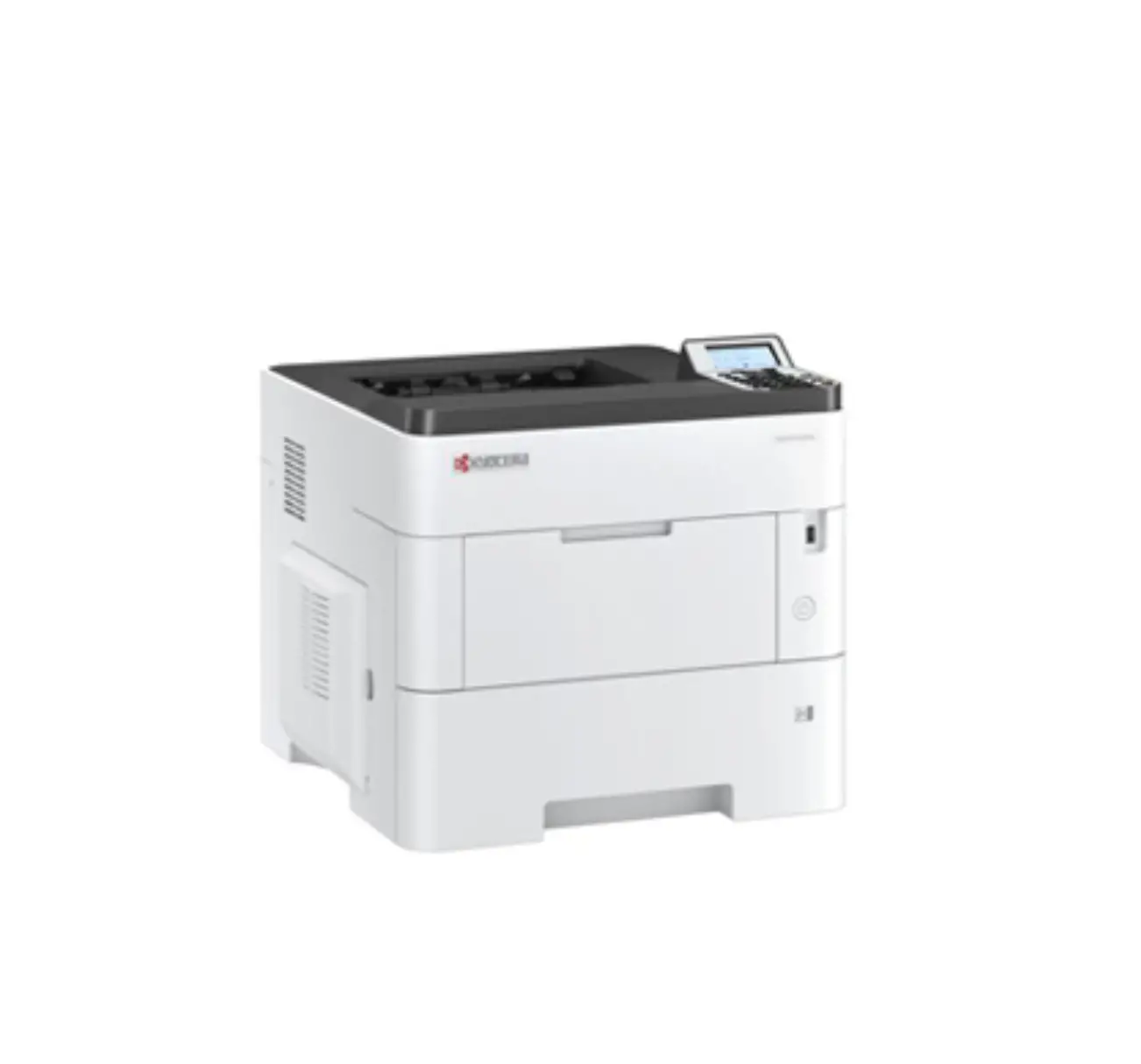
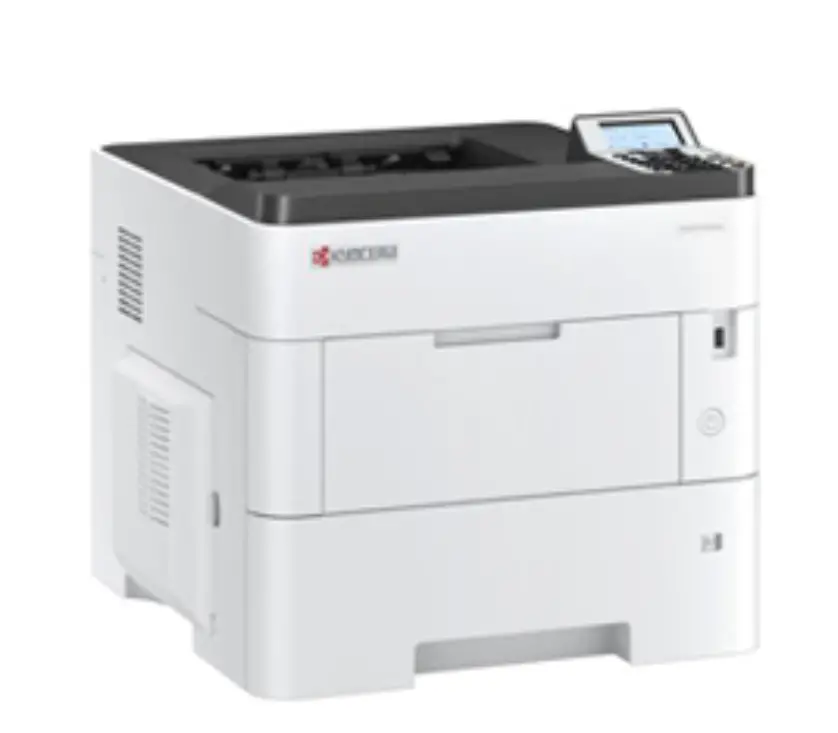
KYOCERA ECOSYS PA6000x Fairbanks Printers
Contents hide
Installation Environment
Kyocera Recommends selecting the Location for the printer as follows:
- Room Temperature range: 50 to 90.5°F
- Humidity Level: 10 to 80%
- Power: Avoid the following locations when selecting a site for the machine. Adverse environmental conditions may affect the image quality.
+ Avoid locations near a window or with exposure to direct sunlight.
+ Avoid locations with vibrations.
+ Avoid locations with rapid temperature fluctuations.
+ Avoid locations with direct exposure to hot or cold air.
+ Avoid poorly ventilated locations.
Recommended Installation Space
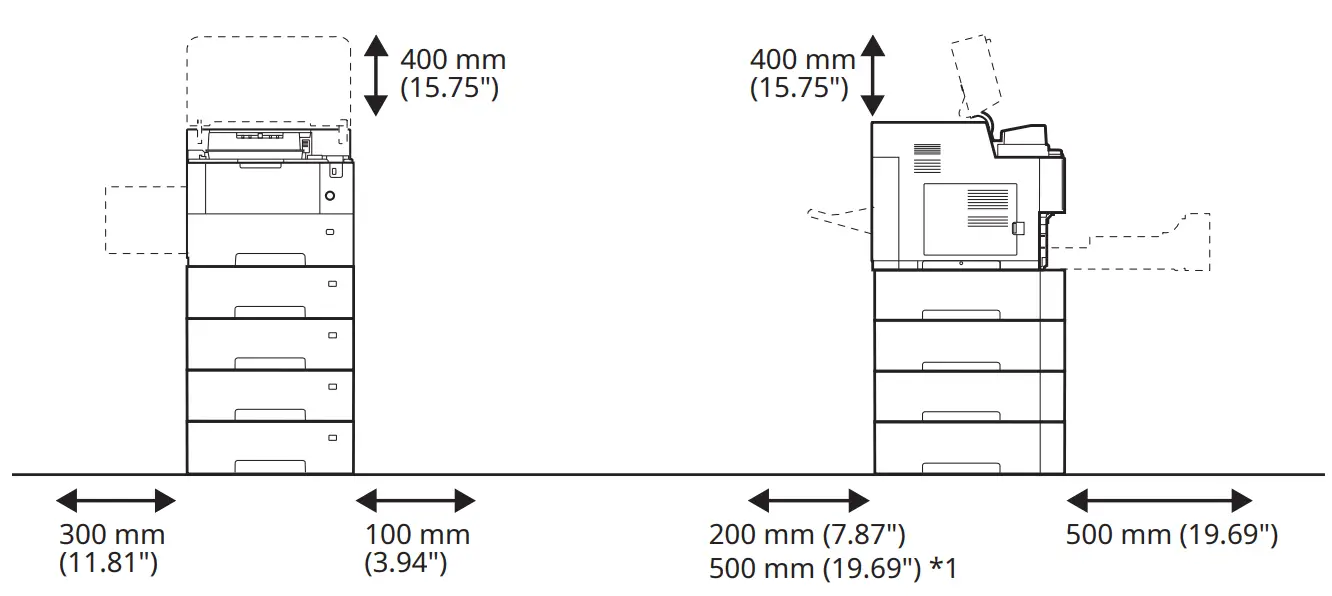
*1: The value when an optional rear tray (PT-320) is installed to the the ECOSYS PA5000x, ECOSYS PA5500x and ECOSYS PA6000.
Step 1 Setting up the Printer
- Open the Box. Remove the machine carefully from the box grasping both sides.
- Lift the main unit from the handles by cardboard handles.

- Open the top cover. After Removing the packing material, shake and install the toner container. Close the top cover.


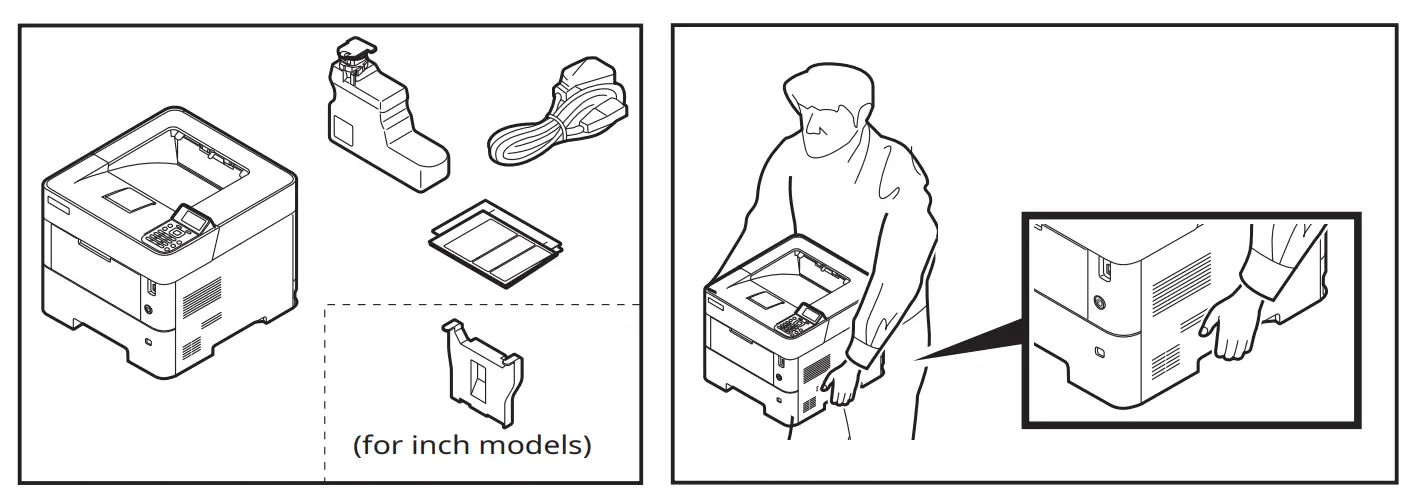
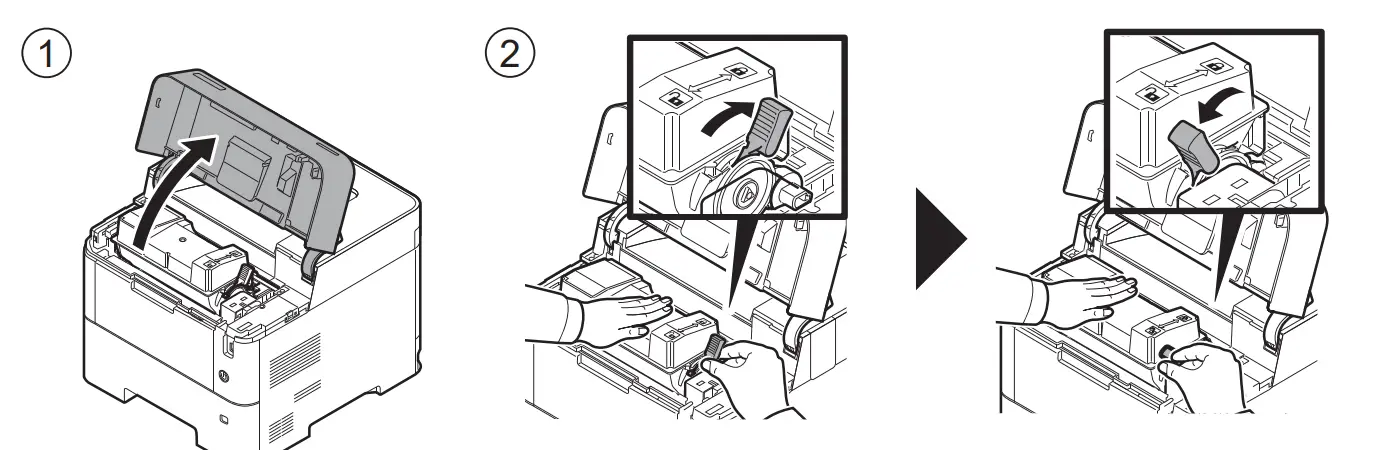
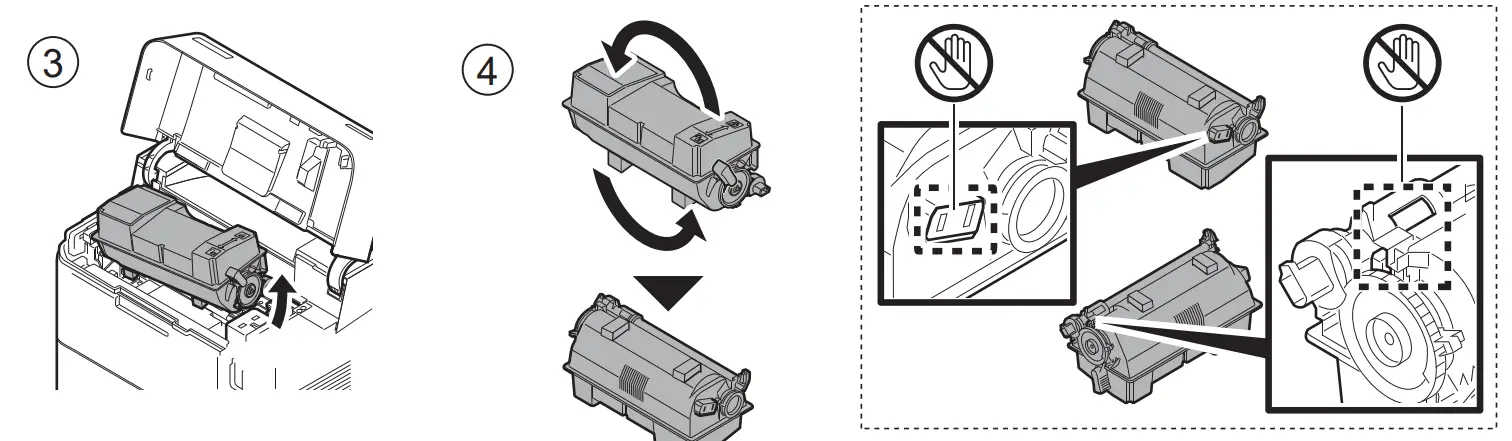
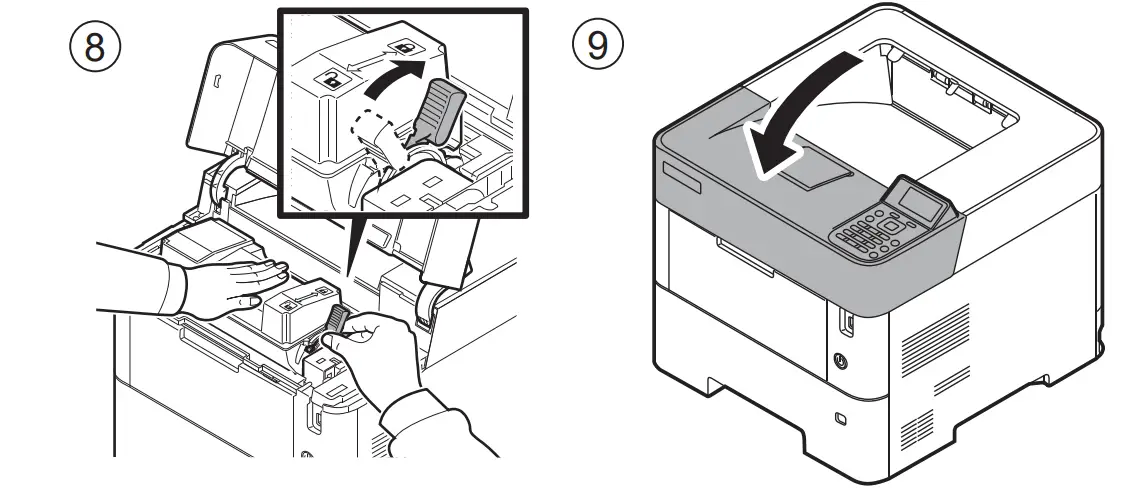
Step 2 Install Waste toner box

Step 3 Loading Paper
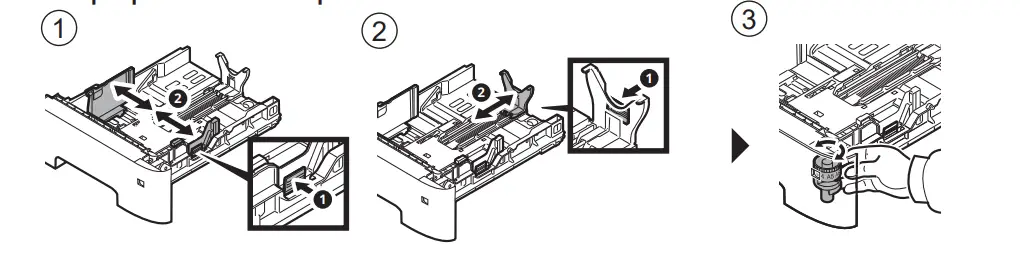
- Pull the Cassette 1 completely out of the machine.

- Adjust the paper length and width guide to the paper size required.

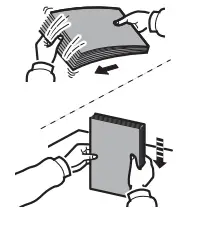
- Fan the paper, then tap it on a level surface.

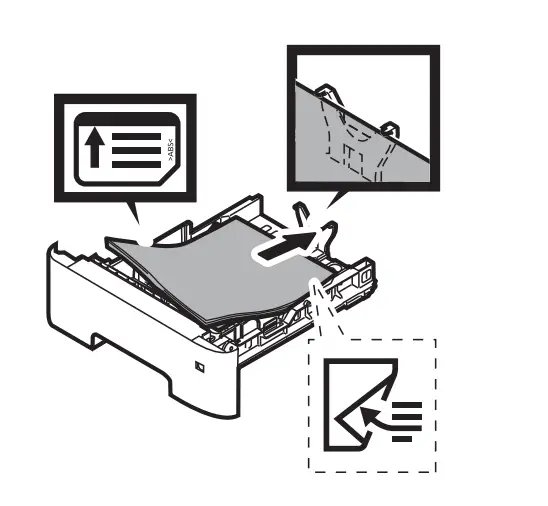
- Load paper.

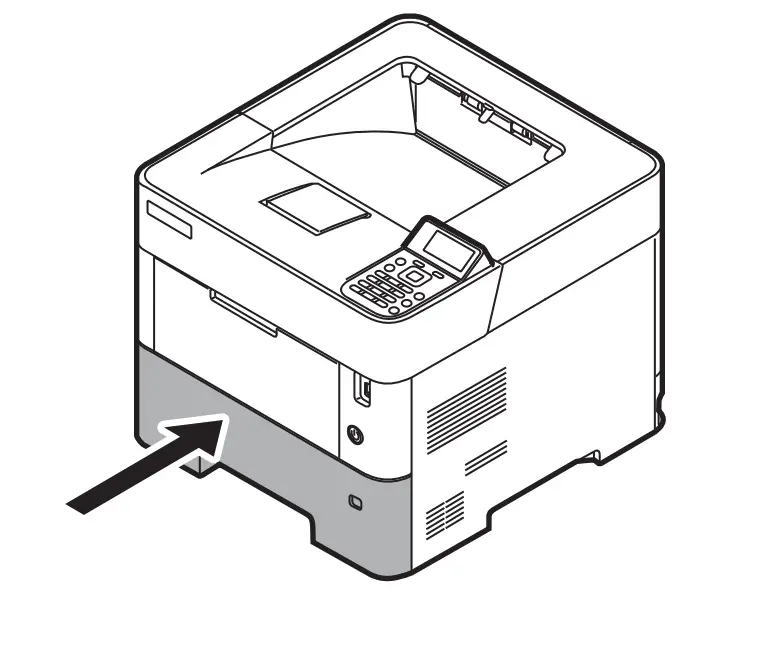
- Gently push the Cassette 1 back in.

+ Set print side face-up.
+ No bent or folder edges in the paper. Such paper may cause paper jams.
+ Set the quantity of the paper less than the maximum paper indication on the side or the cassette.
+ If the paper is loaded without adjusting the paper length guide and the pa per width guides, skewed paper feeding, and a paper jam will occur.
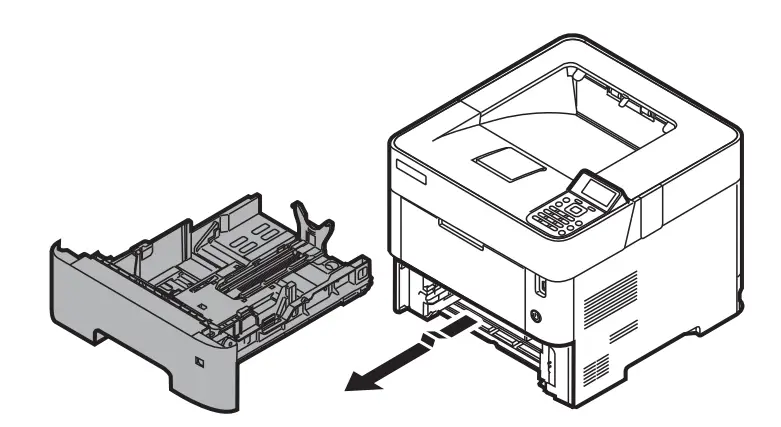
Step 4 Powering on the Printer
- Connect the power cord to the rear of the machine and the

- Turn the power switch ON at the front of the printer. other end to the power outlet.

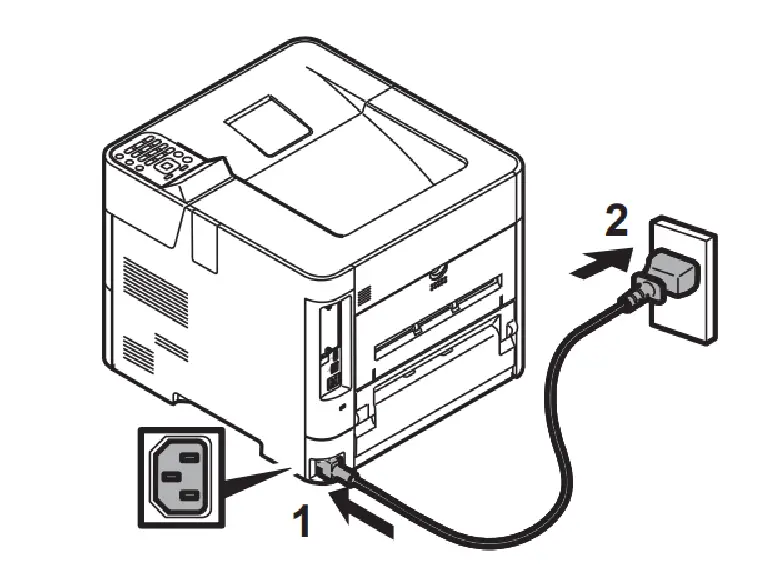
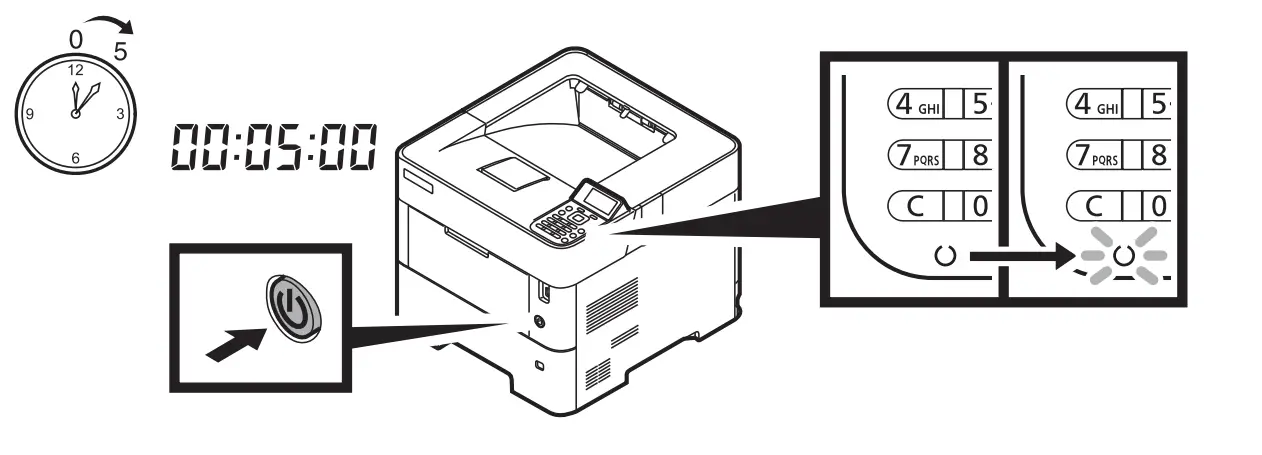
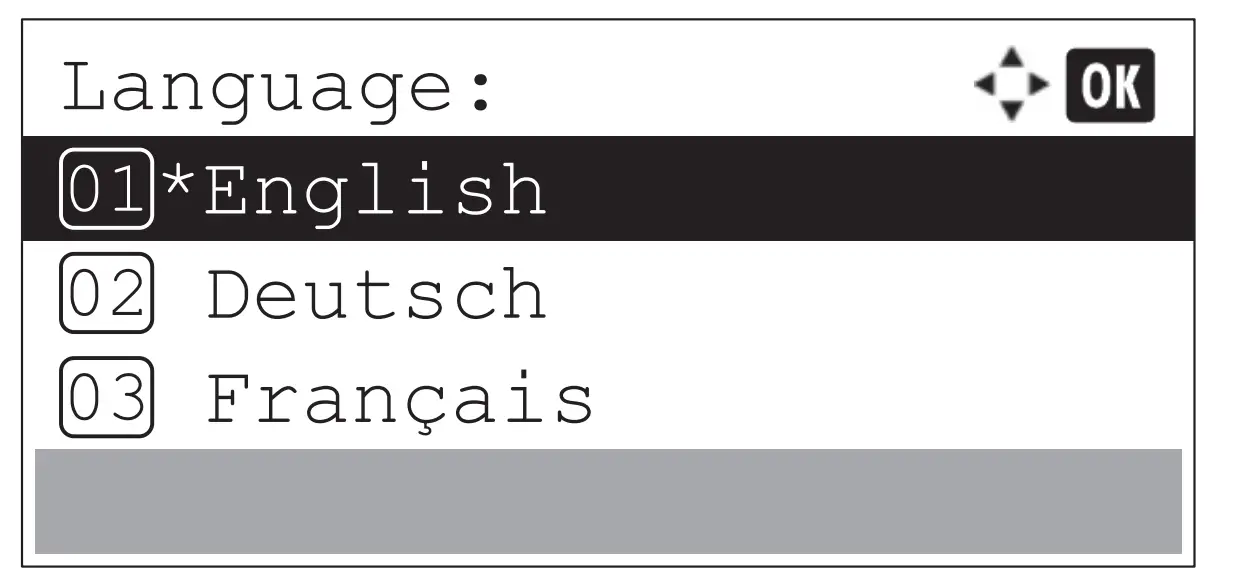
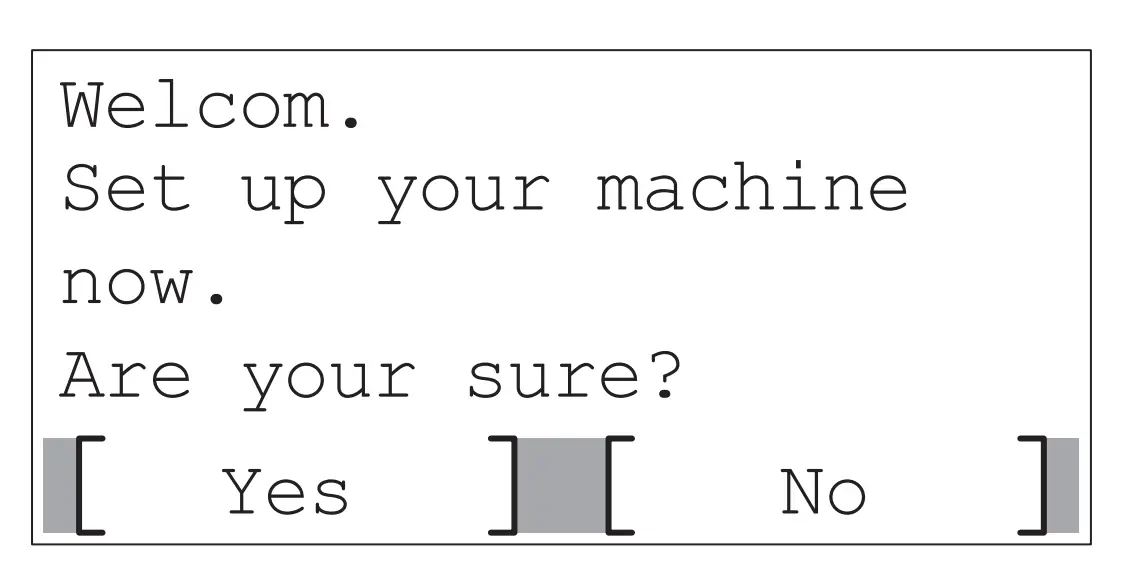
Step 5 Default Settings of the Machine
- Press [◀] [▶] key to select default language > [OK] key.

- Select [Yes].

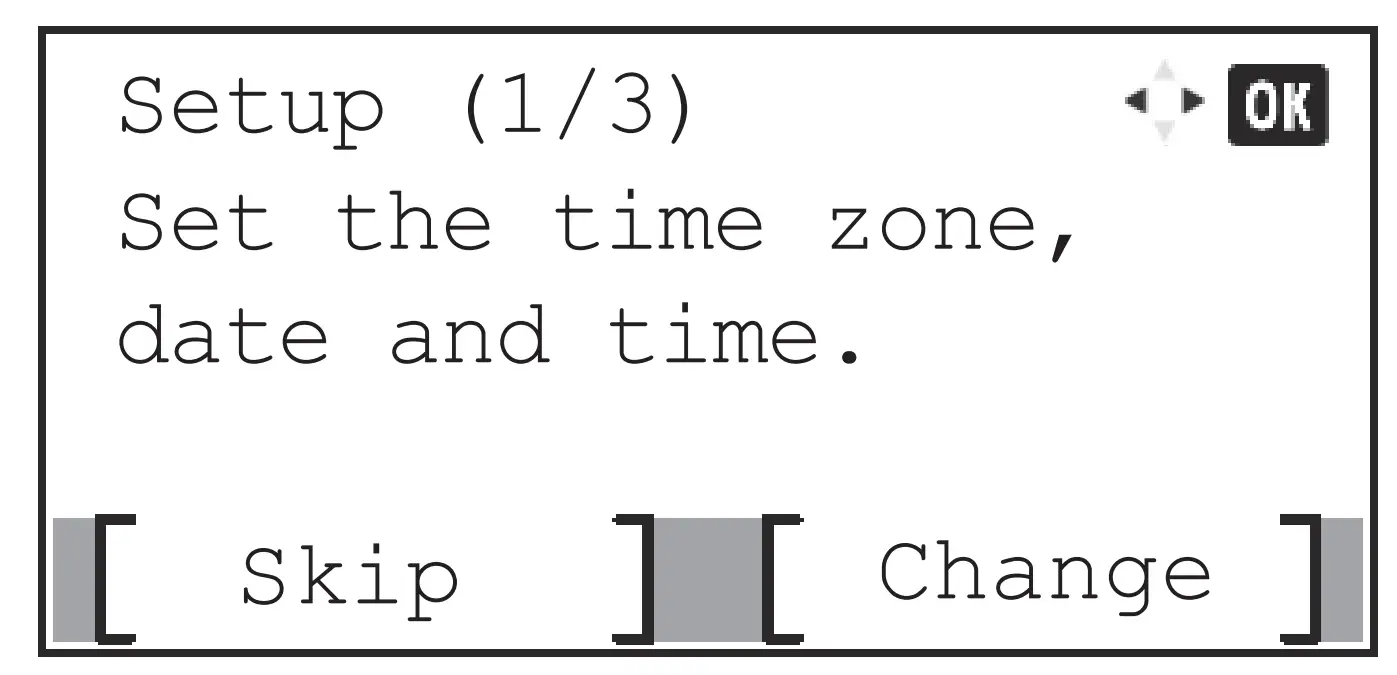
The setup screen appears. - Select [Change] when you change the time zone, date and time. Follow the instructions on the screen. If not, select [Skip].

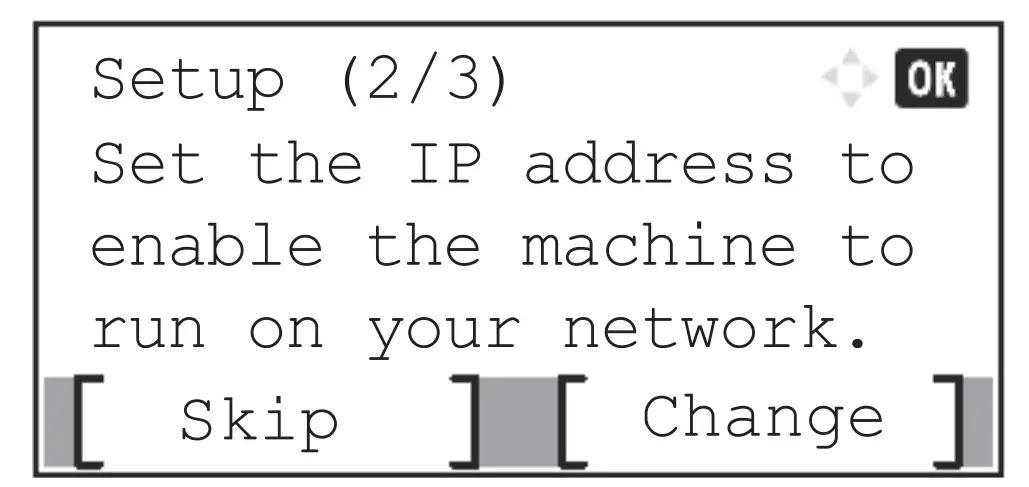
The screen moves to the next step. - Select [Change] when you set the IP address to use the machine on the network. Follow the instructions on the screen. If you set it later, select [Skip].

The screen moves to the next setp.
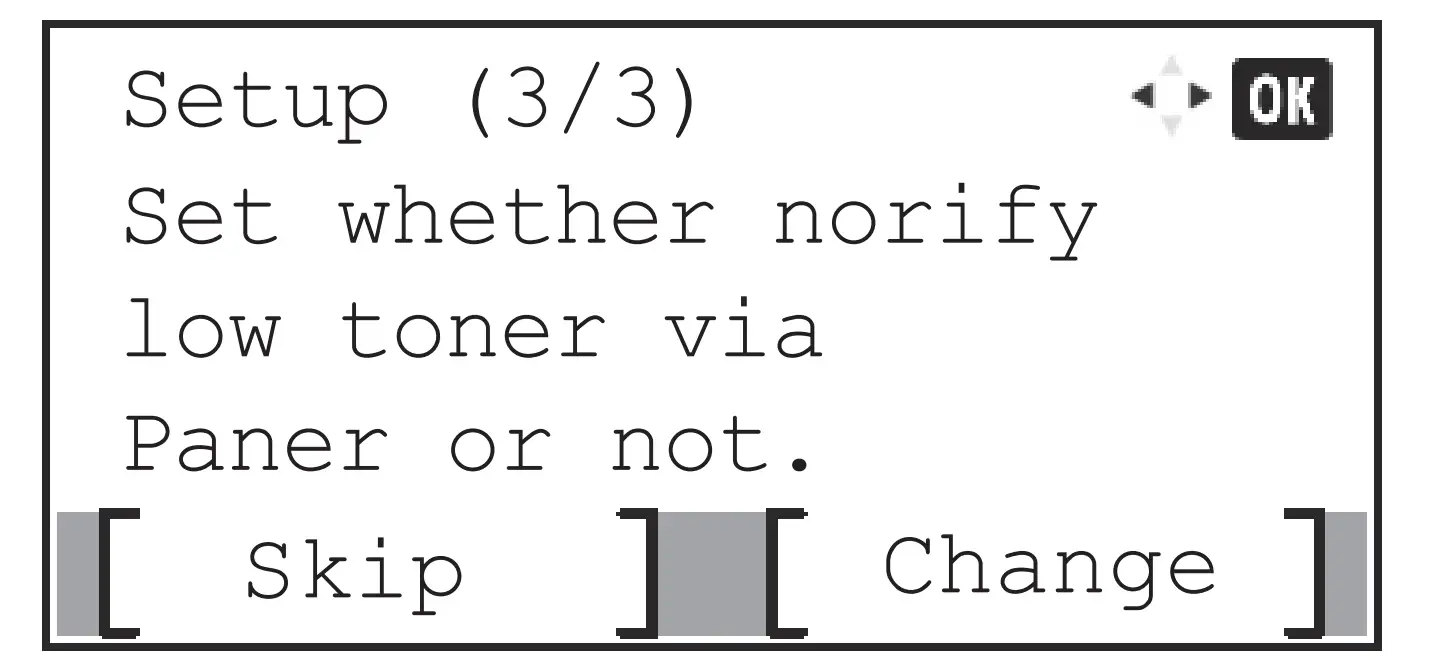
NOTE Prepare the device and information according to the your environment. For details of the network settings, refer to the Operation Guide. - Select [Change] when you set whether notify low toner via panel or not.If you set it later, select [Skip].

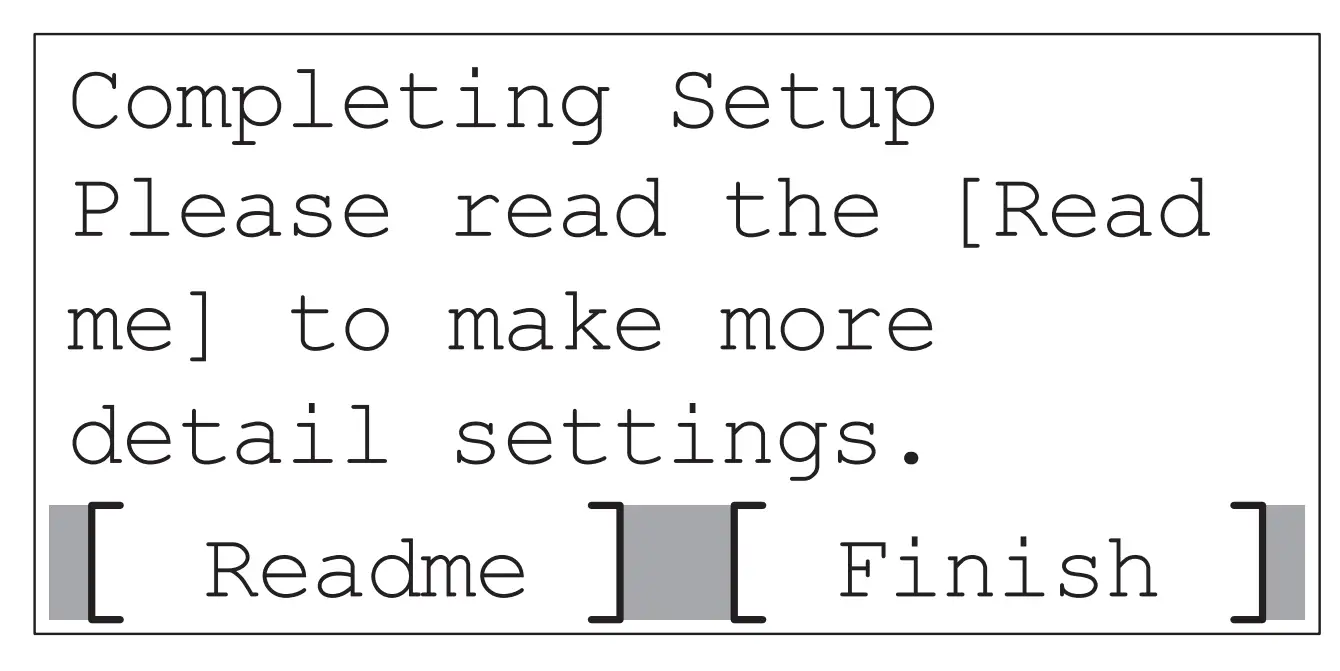
- When the following screen appears, select [Finish].

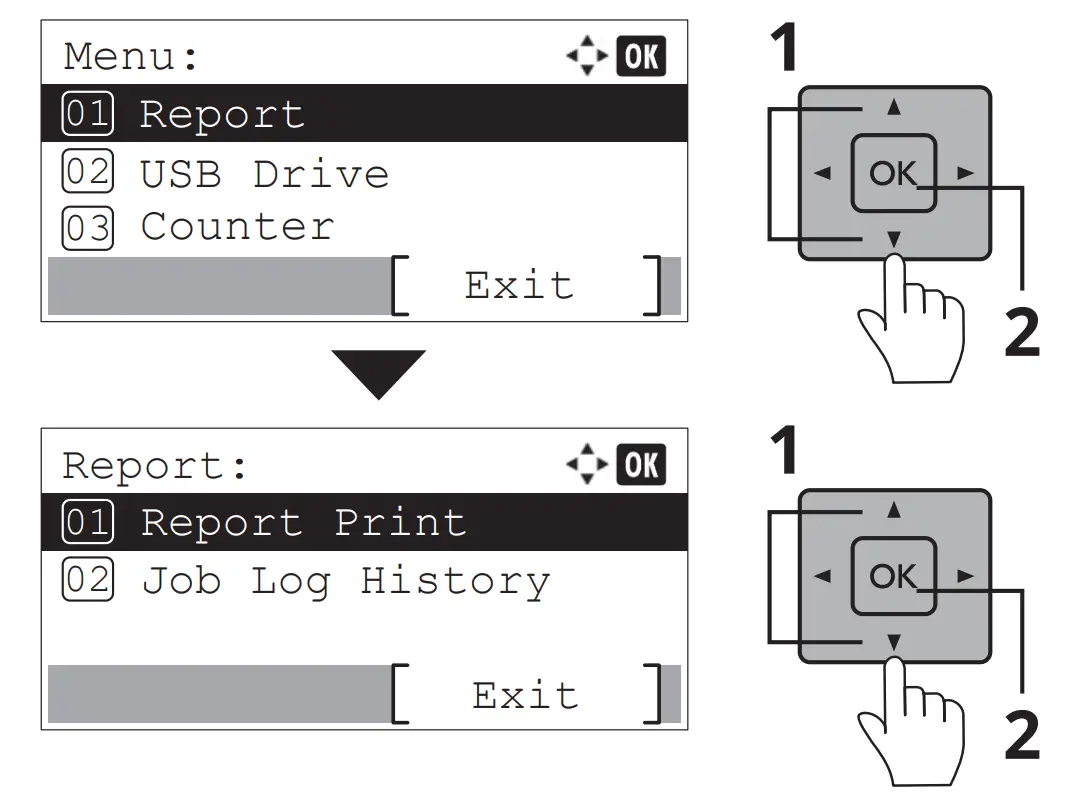
Step 6 Printing a Status Page
- [Menu] key > [▲] [▼] key > [Report] > [OK] key > [▲] [▼] key > [Report Print] > [OK] key

- [▲] [▼] key > [Status Page] > [OK] key > [Yes]
Step 7 Installing Software
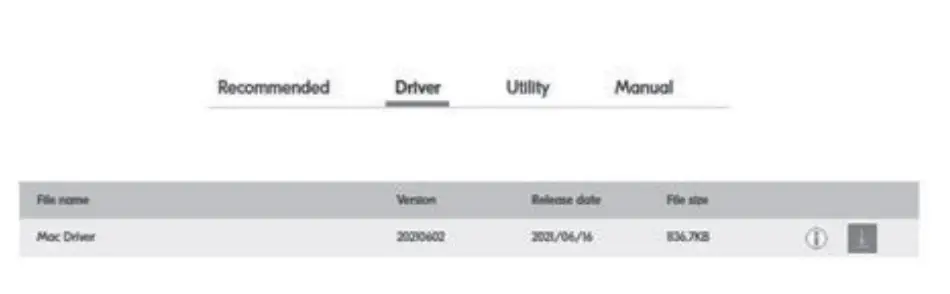
Access the following URL and select your model and OS. Download Center: https://kyocera.inf
For Windows Download and run the Web Installer and follow the on-screen instructions to install the driver and software.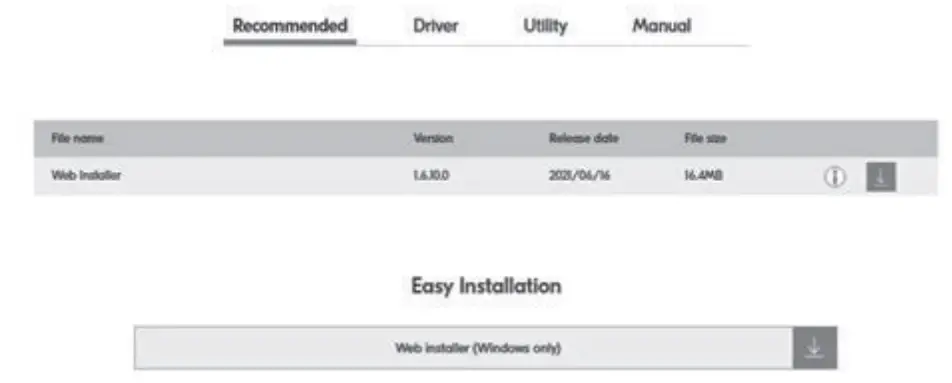
For Mac Download and run the driver and follow the on-screen instructions to install.