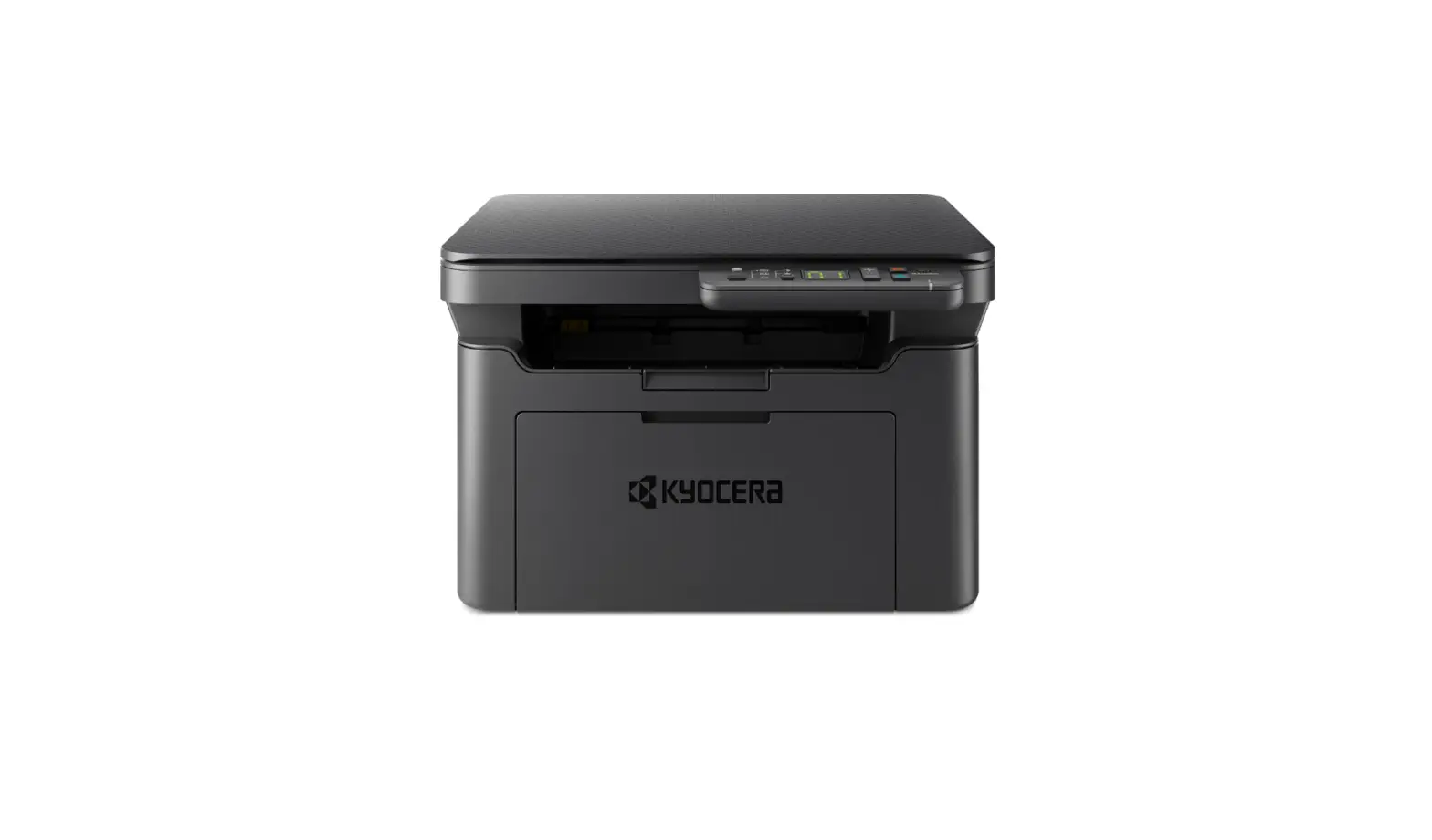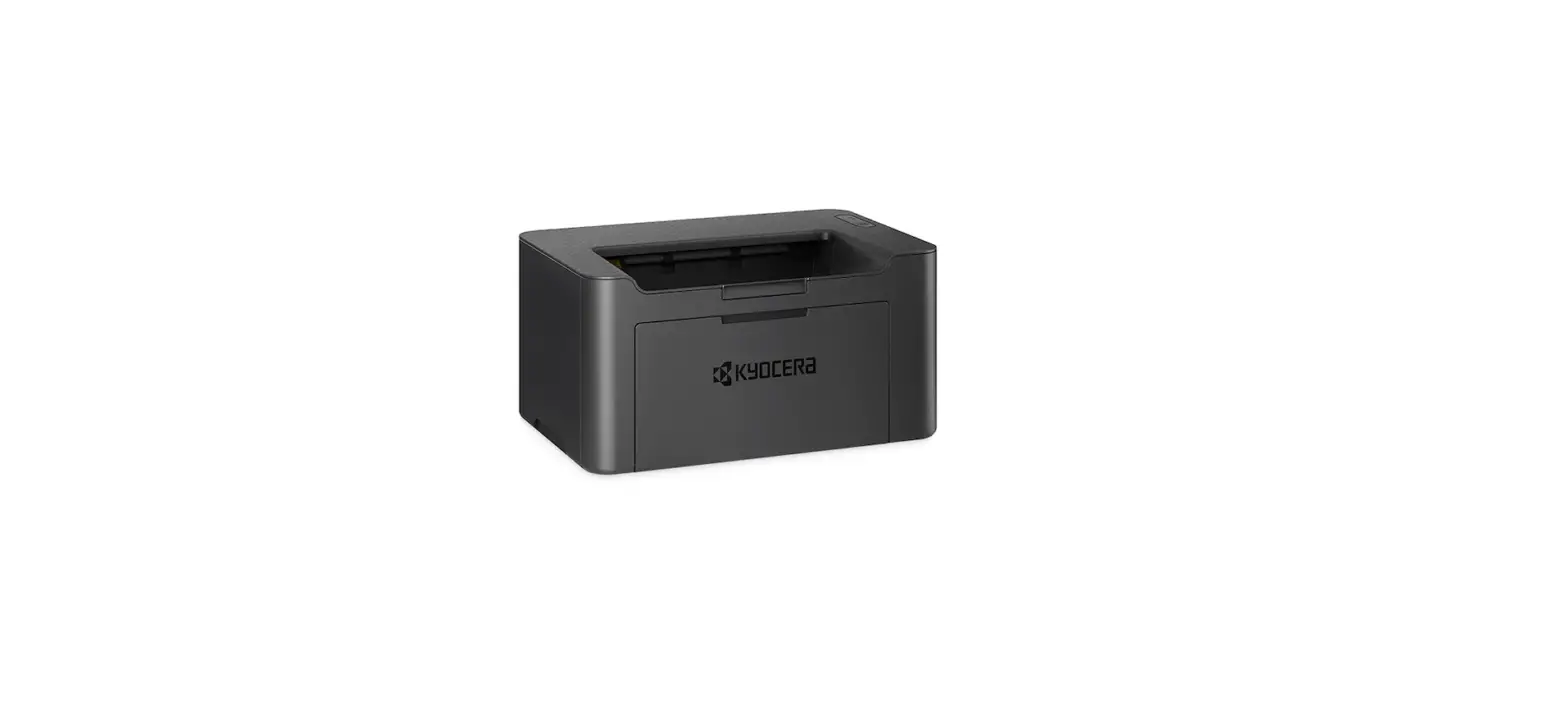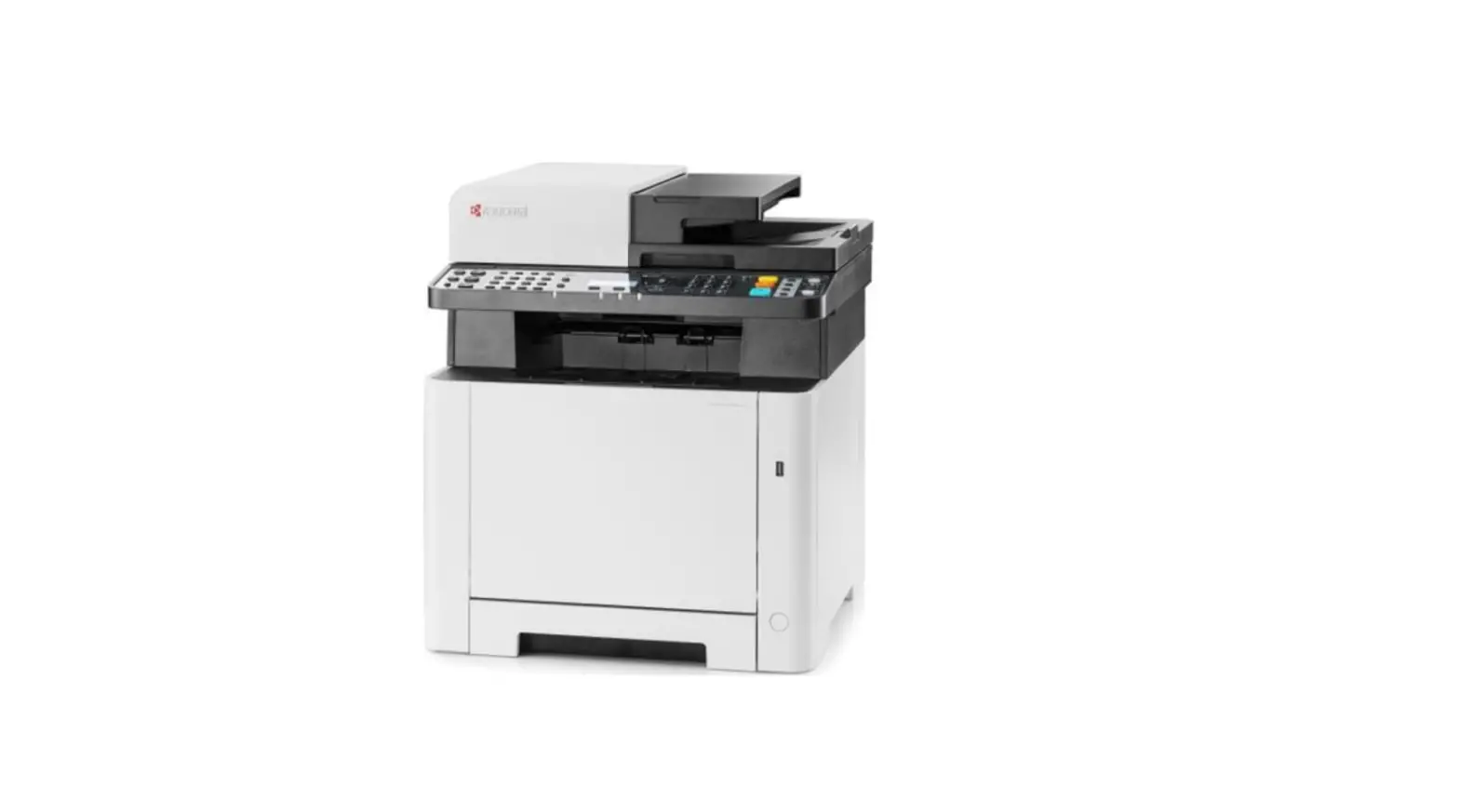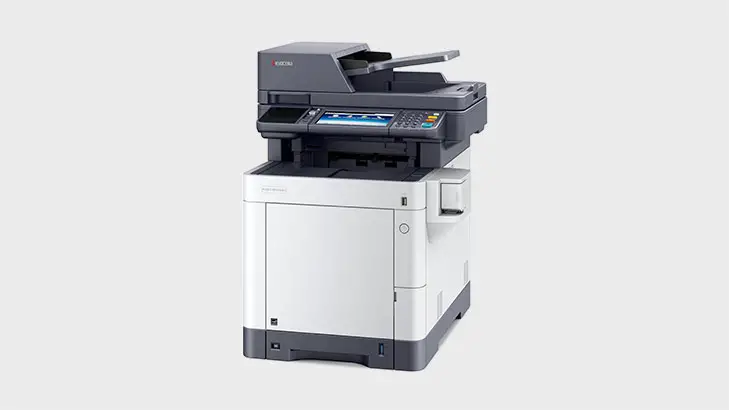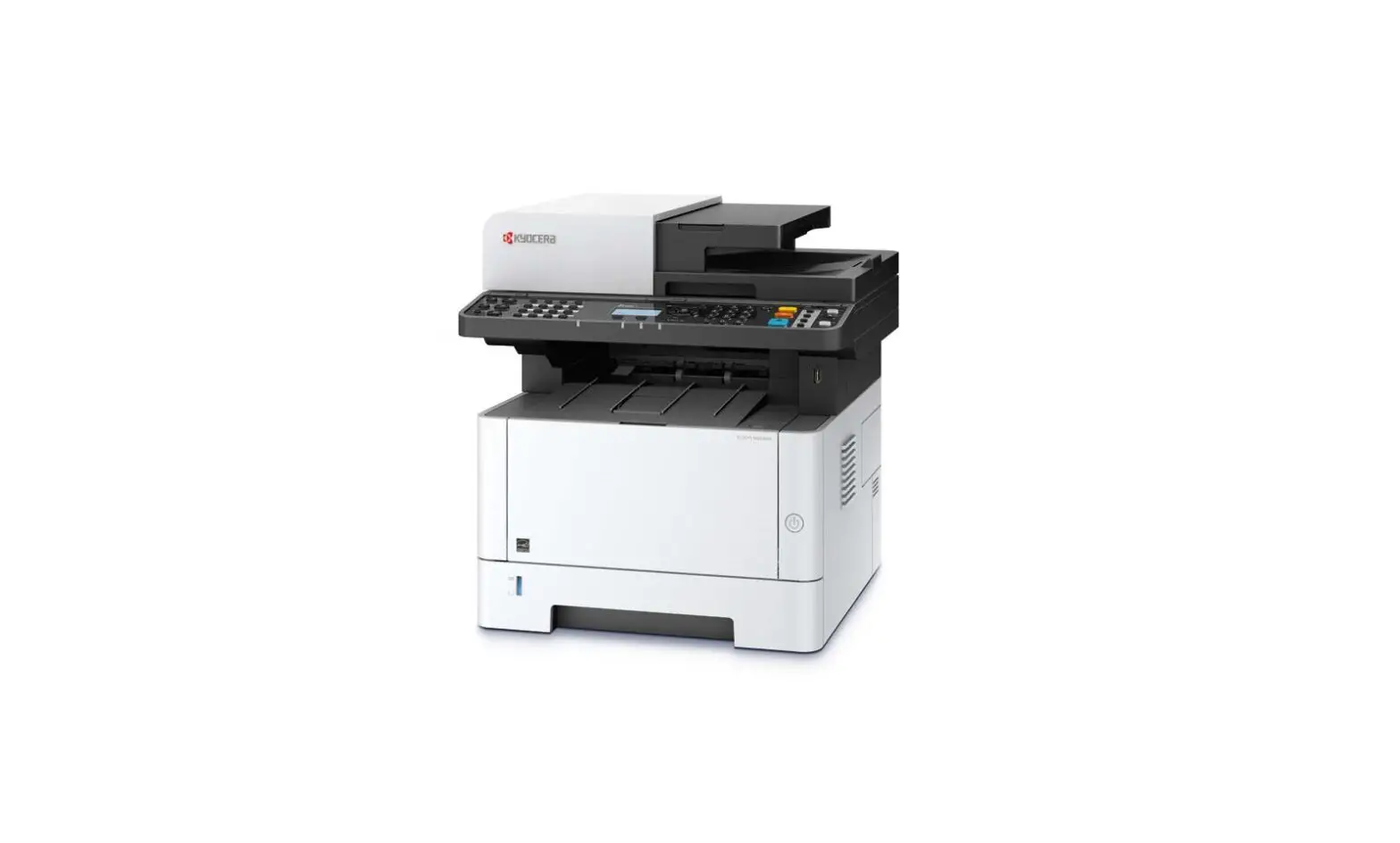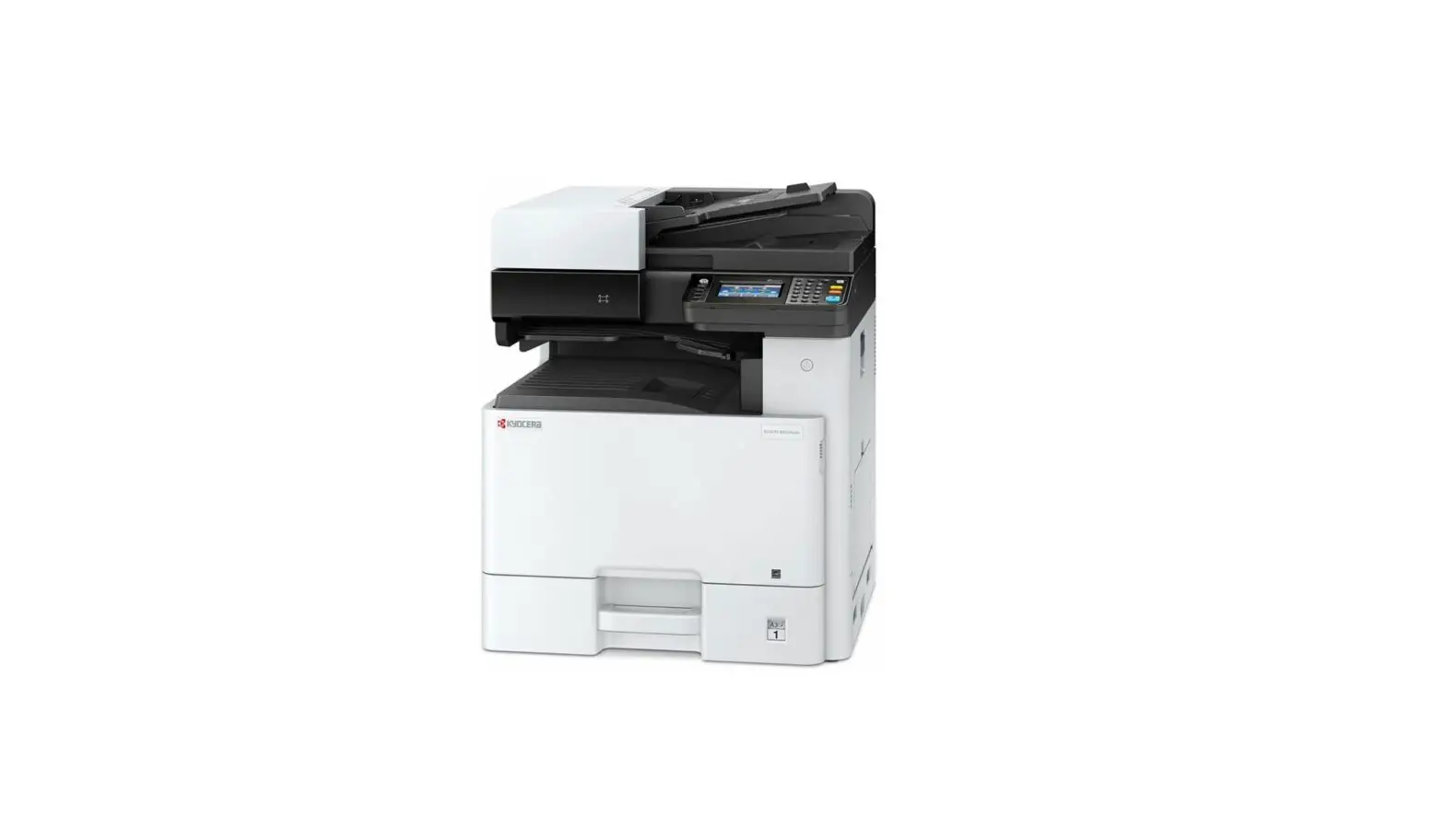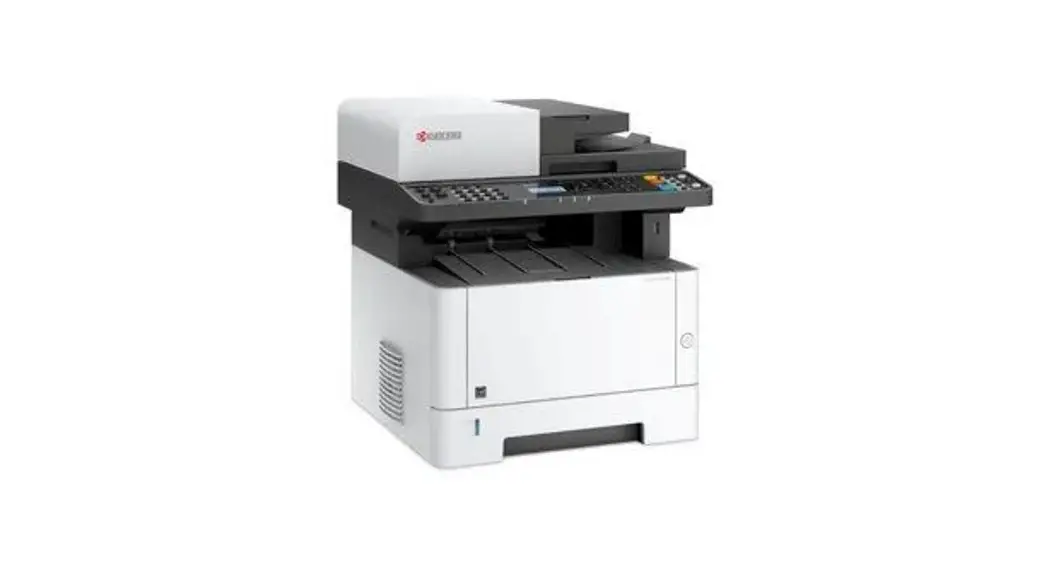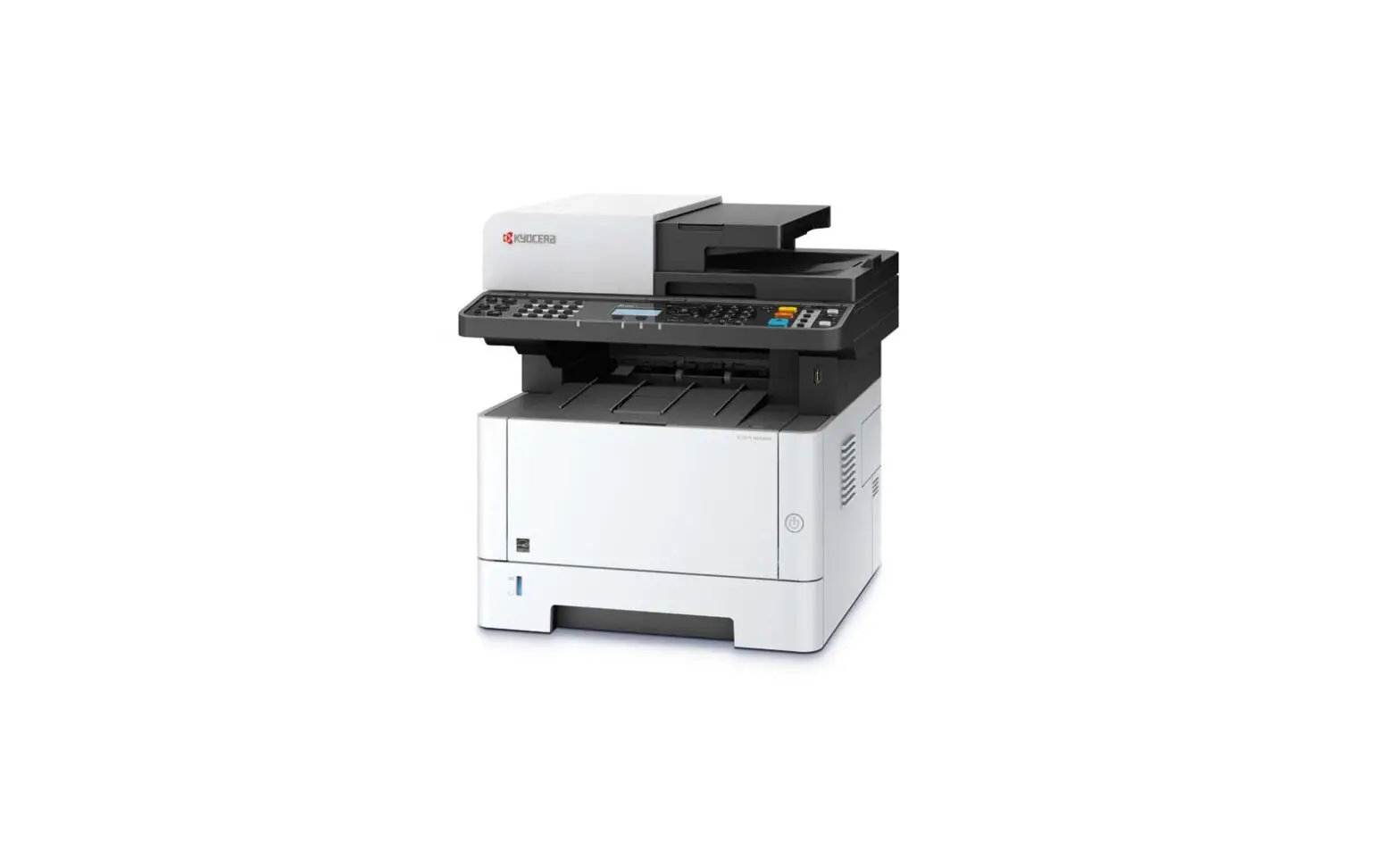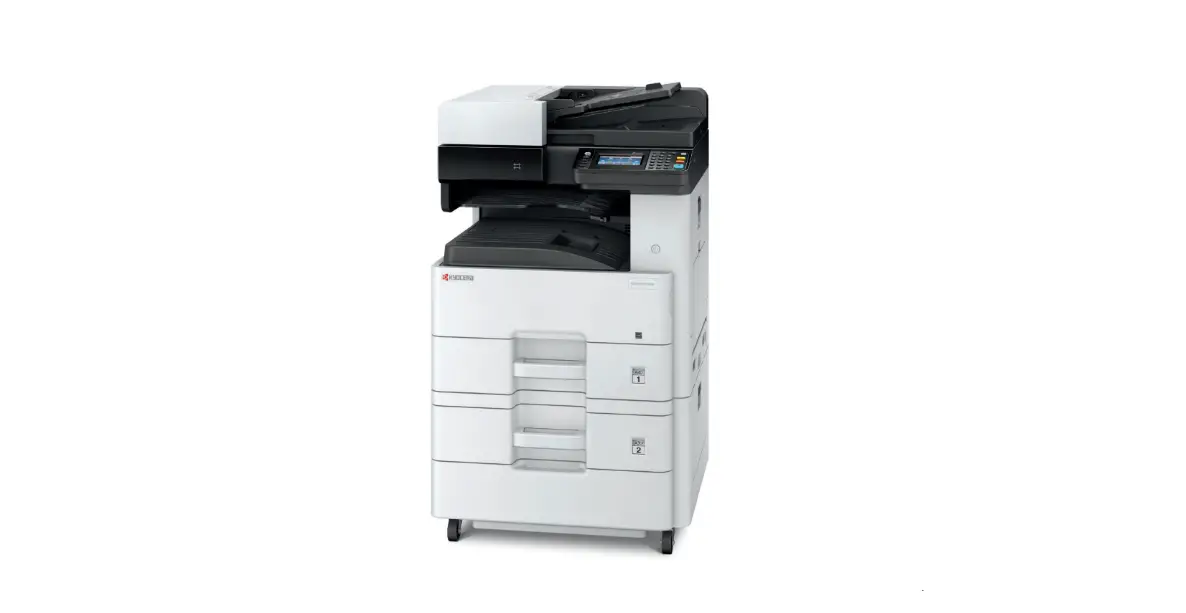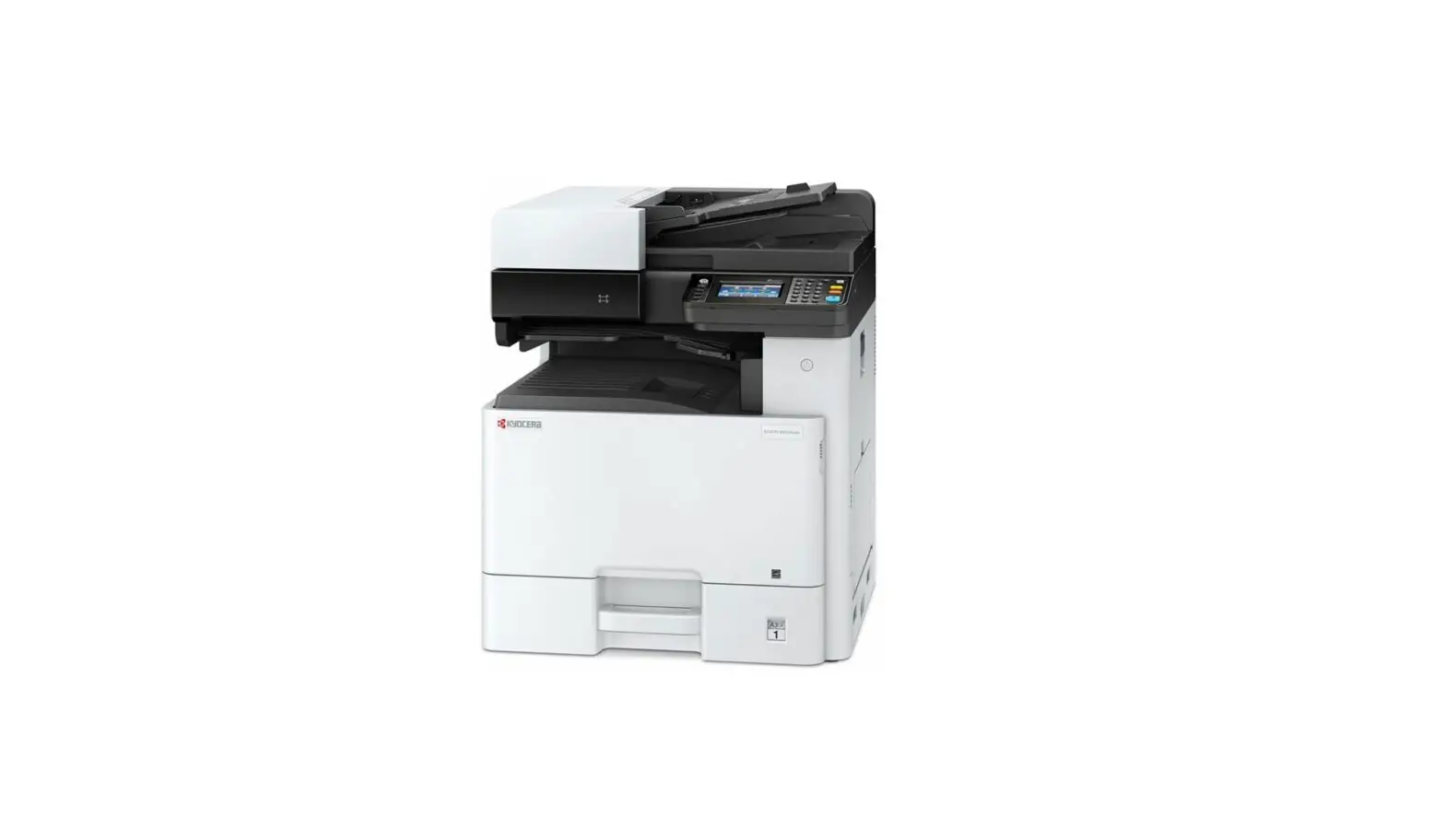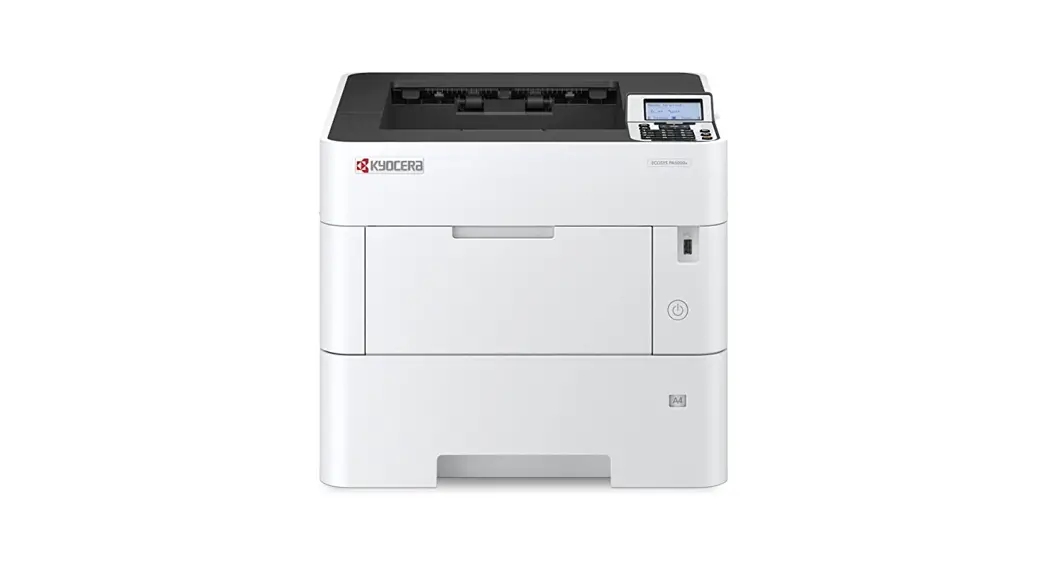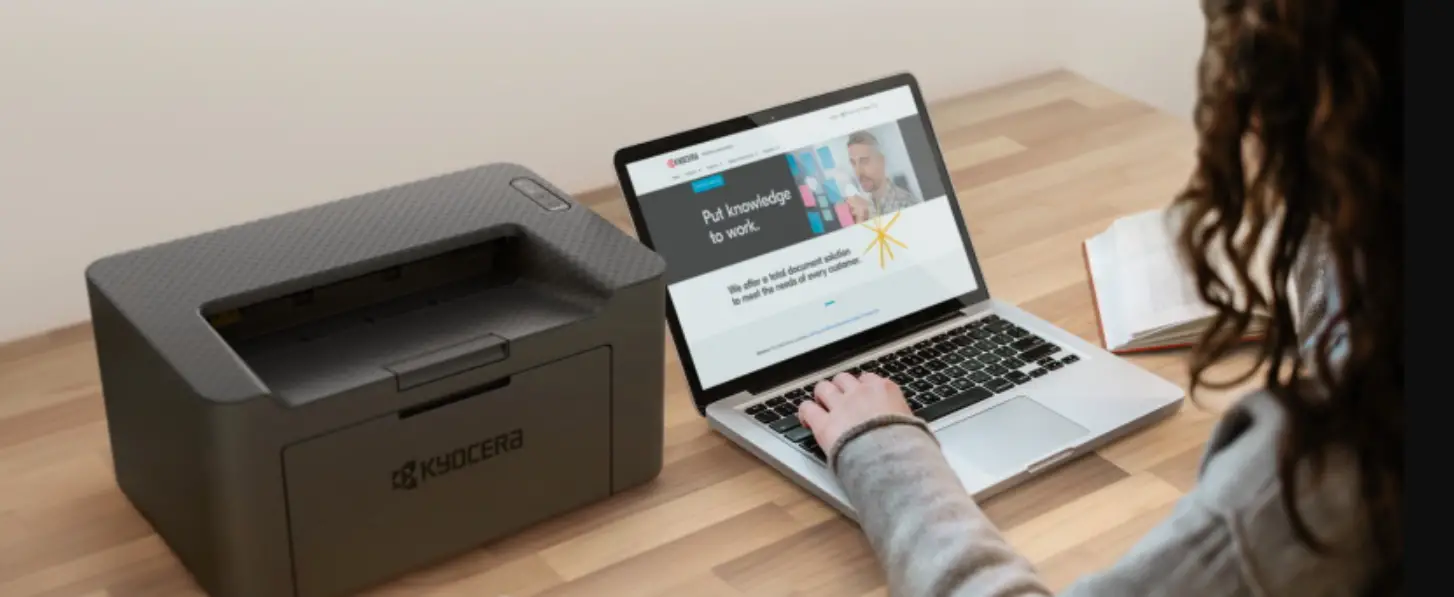

KYOCERA MA2000W Compact Multifunctional Printer
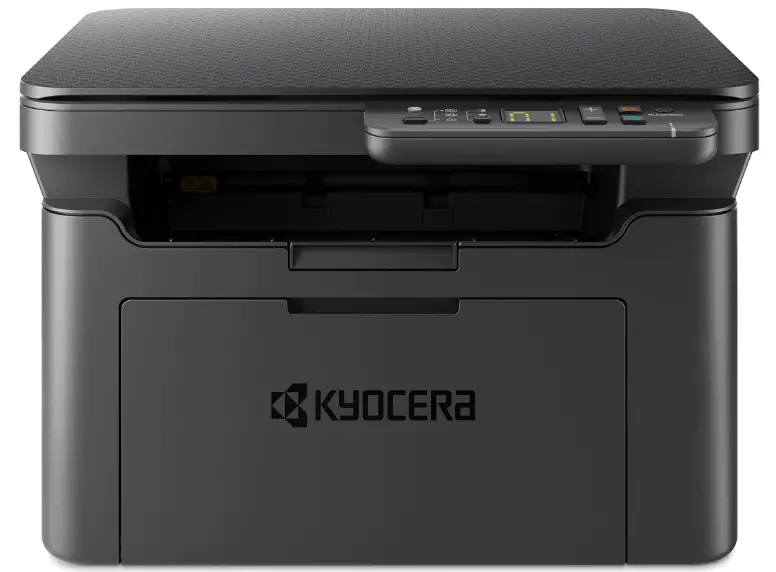
Wireless Setup (Non-WPS)
- Step 1
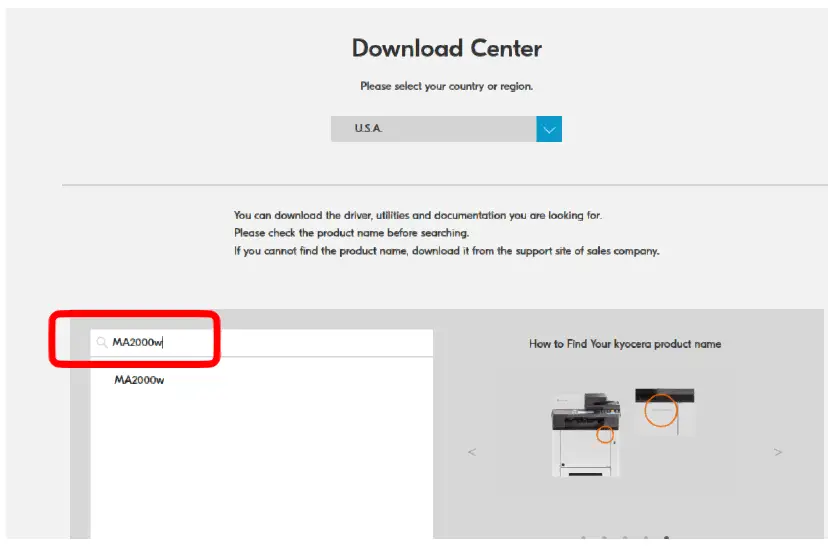
Before setting up wireless you first must, download the Web installer from Kyocera.info and run the installer. This will install all software required.- Open a browser on your computer and type in Kyocera.info.
- Enter your model # and click the model when it shows.

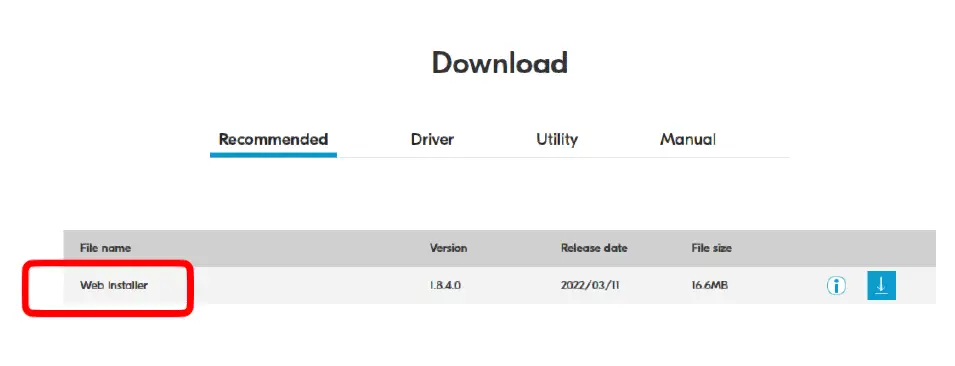
- Scroll down the page and download the Web Installer and install it on your computer.

- Press and hold [Main Power] (●) for 2 seconds or more to turn the power ON.
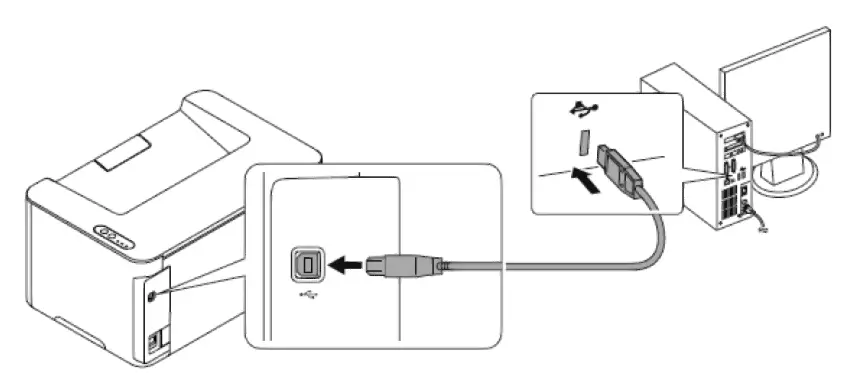
- Connect the USB cable to the printer’s USB interface connector.
Note Use a USB cable with a rectangular Type A plug and a square Type B plug. The USB cable should be shielded and no longer than 5 meters (16 feet) long.
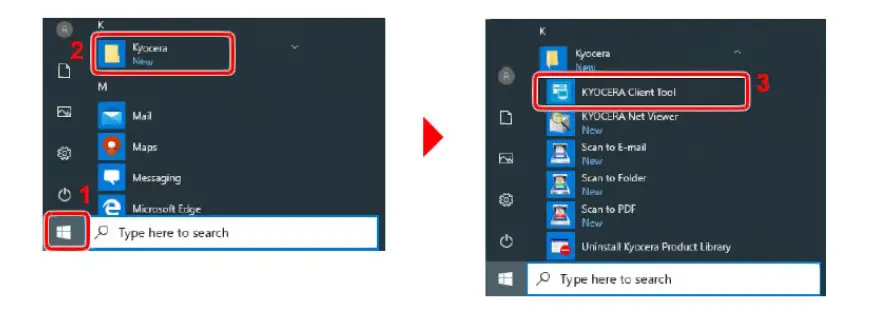
- Click the Start button on Windows > click Kyocera > KYOCERA Client Tool.
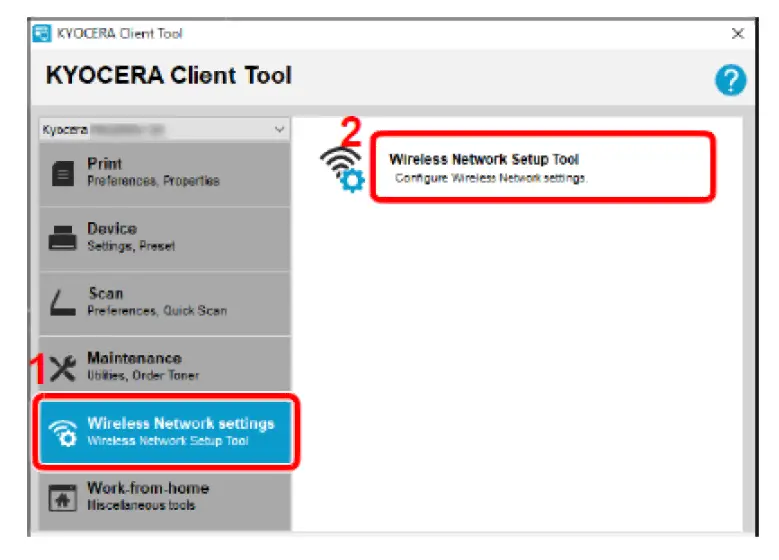
- Open the KYOCERA Client Tool.

- Step 2
- Click the Wireless Network settings tab > Wireless Network Setup Tool.

- Click the Wireless Network settings tab > Wireless Network Setup Tool.
- Step 3
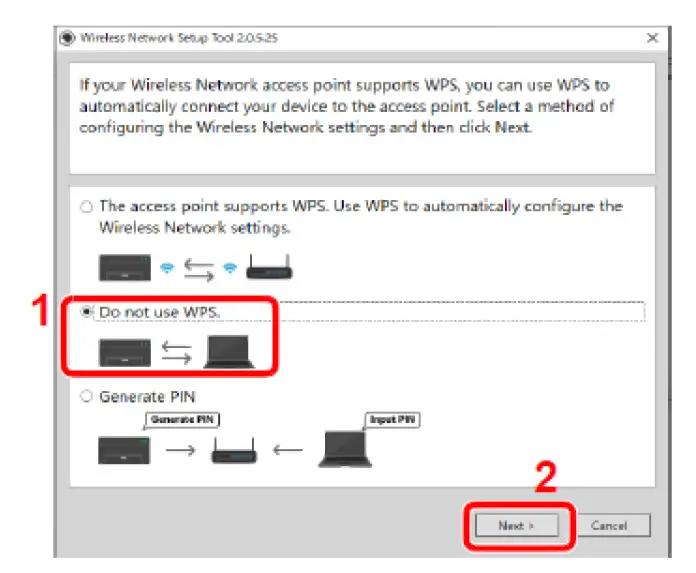
- Select “Do not use WPS”
- Press next.

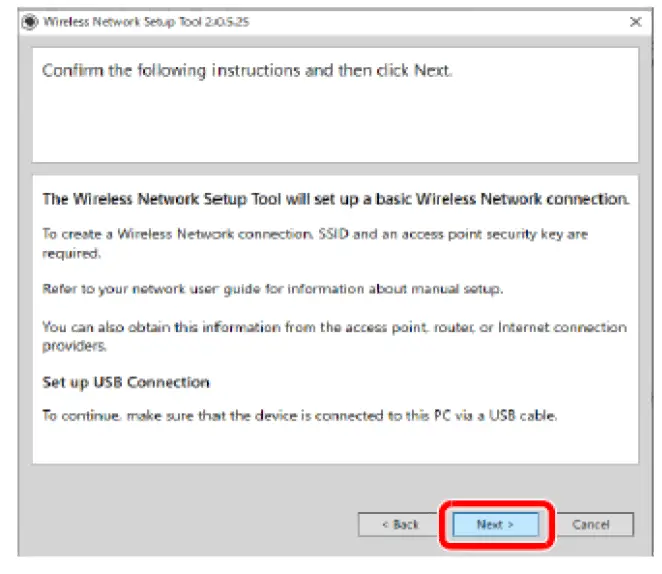
- Press next again.

- Select your access point (Name of your wireless network) you want to connect the device, and then click Next >.

 Note To manually enter the access point settings, select Manual Setup.
 - Enter the pre-shared key (Your wireless password), and then click Next >.

- Select the check boxes of functions you want to use with Wireless Network connection, and click Finish.
- The network between this machine and the computer is now configured.
- The USB cable can now be removed and your device can be placed in your preferred location.
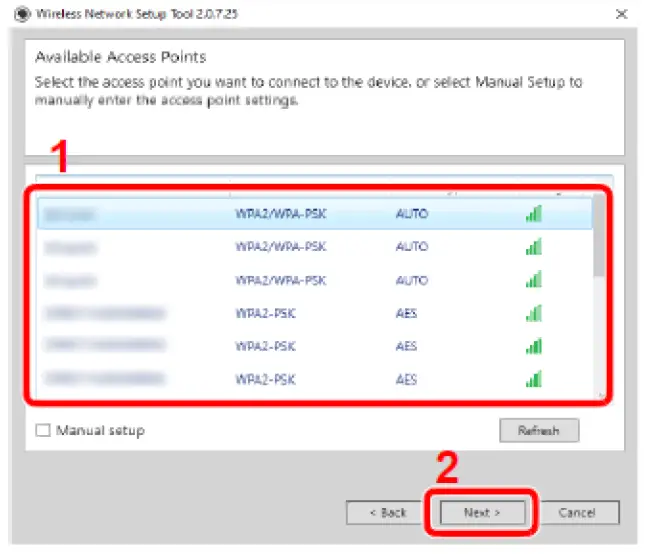
 Note To manually enter the access point settings, select Manual Setup.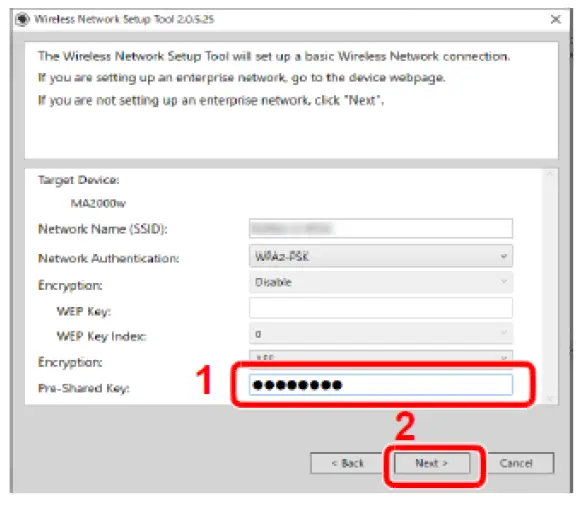
Wireless Setup (Using WPS)
If your router supports WPS, you can configure network connection using the WPS push button on your router.
- Turn on the computer.
- Press Wireless Network
 on the operation panel of the machine. The wireless network indicator flashes.
 - Press the WPS button on the router.

- The network between this machine and the router is being configured. If the network connection between this machine and the router completes, Wireless Network will light up.
 on the operation panel of the machine. The wireless network indicator flashes.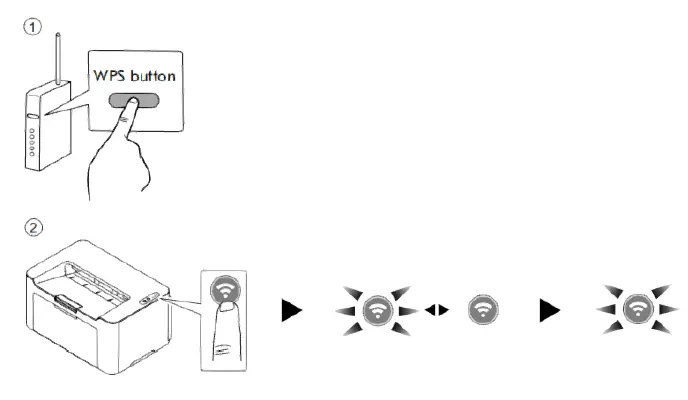
Support
- To Register your Product, go to:
- For additional Information, please go to the URL for the Product Support Page.
- Speak to a Technical Representative
- Call 1-800-255-6482
References
 Download | KYOCERA Document Solutions
-
Printing Solutions and Digital Business Services | Kyocera Document Solutions America
-
Kyocera MA2000w - Compact multifunctional printer | Kyocera Document Solutions America
-
Kyocera PA2000w - Compact Printer | Kyocera Document Solutions America
-
Kyocera Portal - Consumer Service
 Download | KYOCERA Document Solutions
 Printing Solutions and Digital Business Services | Kyocera Document Solutions America
 Kyocera MA2000w - Compact multifunctional printer | Kyocera Document Solutions America