VMAT3474AT HDMI Matrix
User Manual
Preface
Thank you for purchasing the Nedis VMAT3474AT.
This document is the user manual and contains all the information for correct, efficient and safe use of the product.
This user manual is addressed to the end user. Read this information carefully before installing or using the product.
Always store this information with the product for use in the future.
Product description
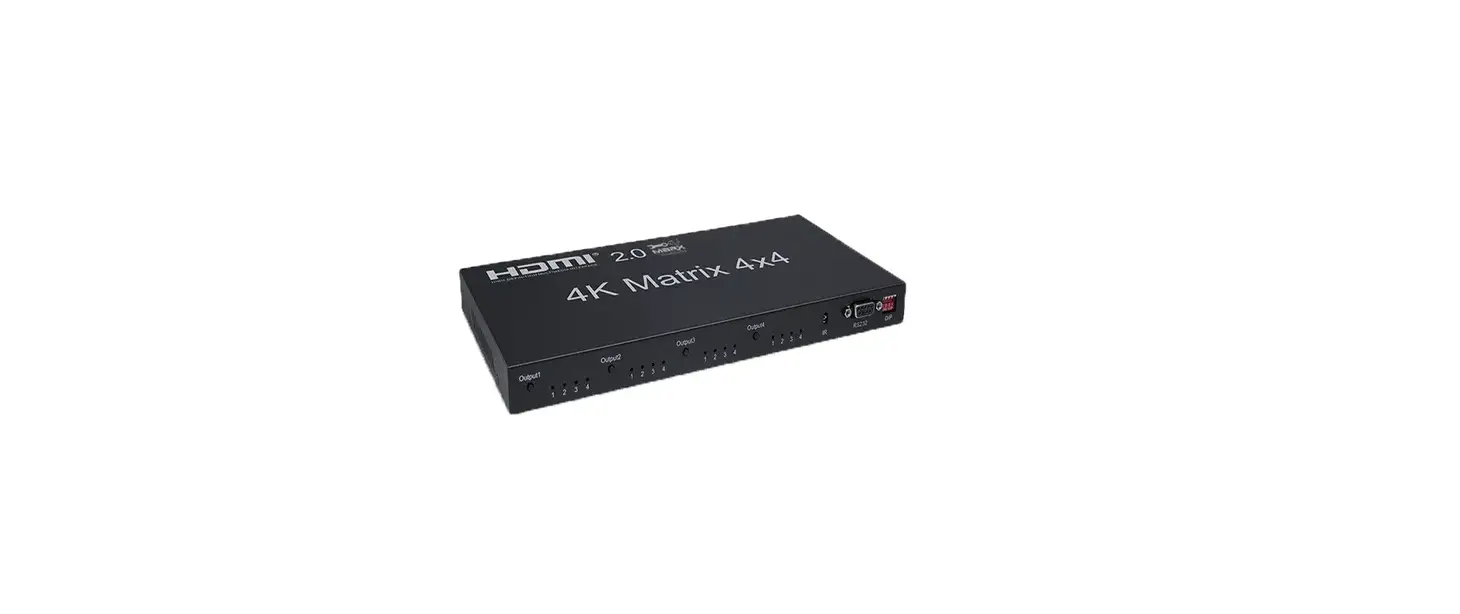
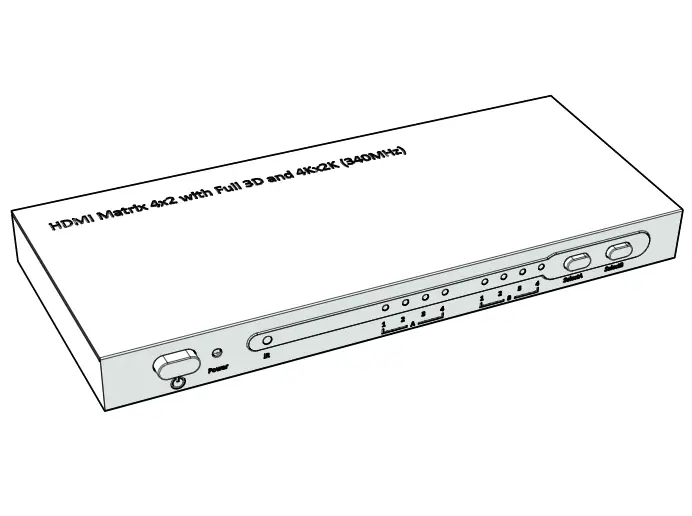
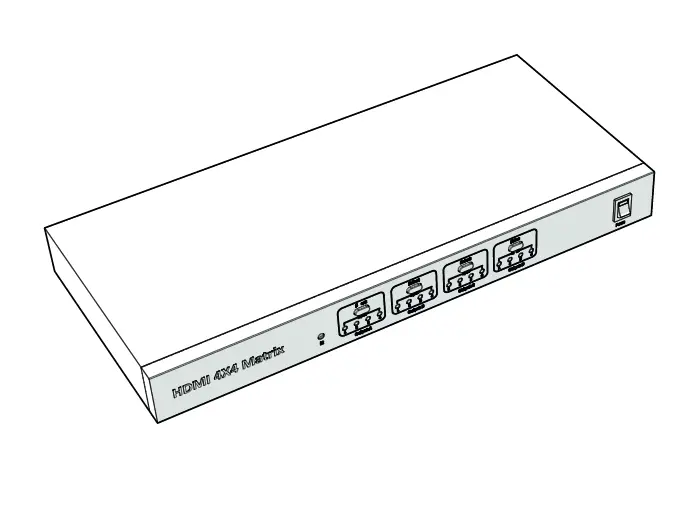
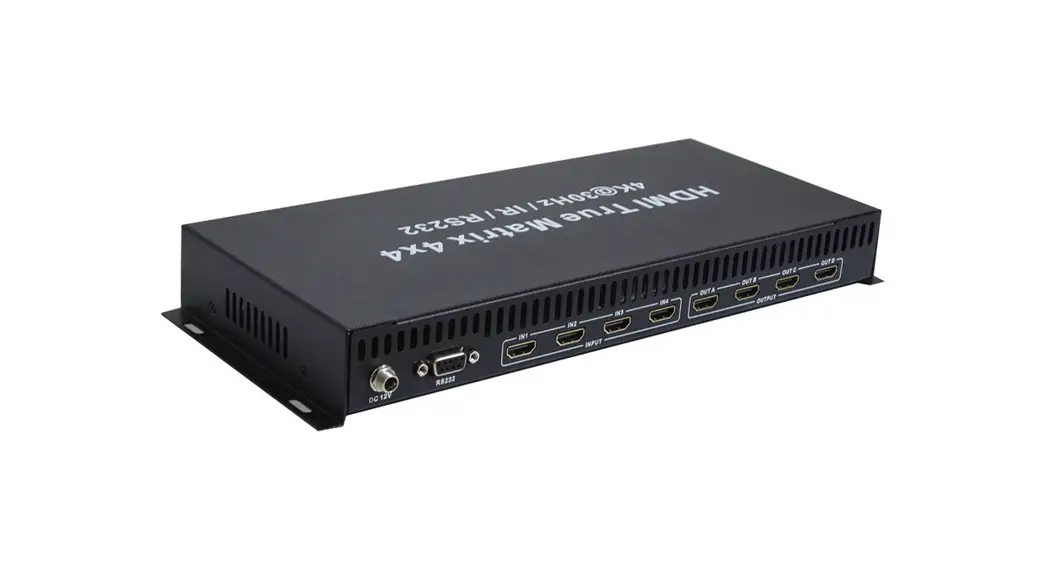
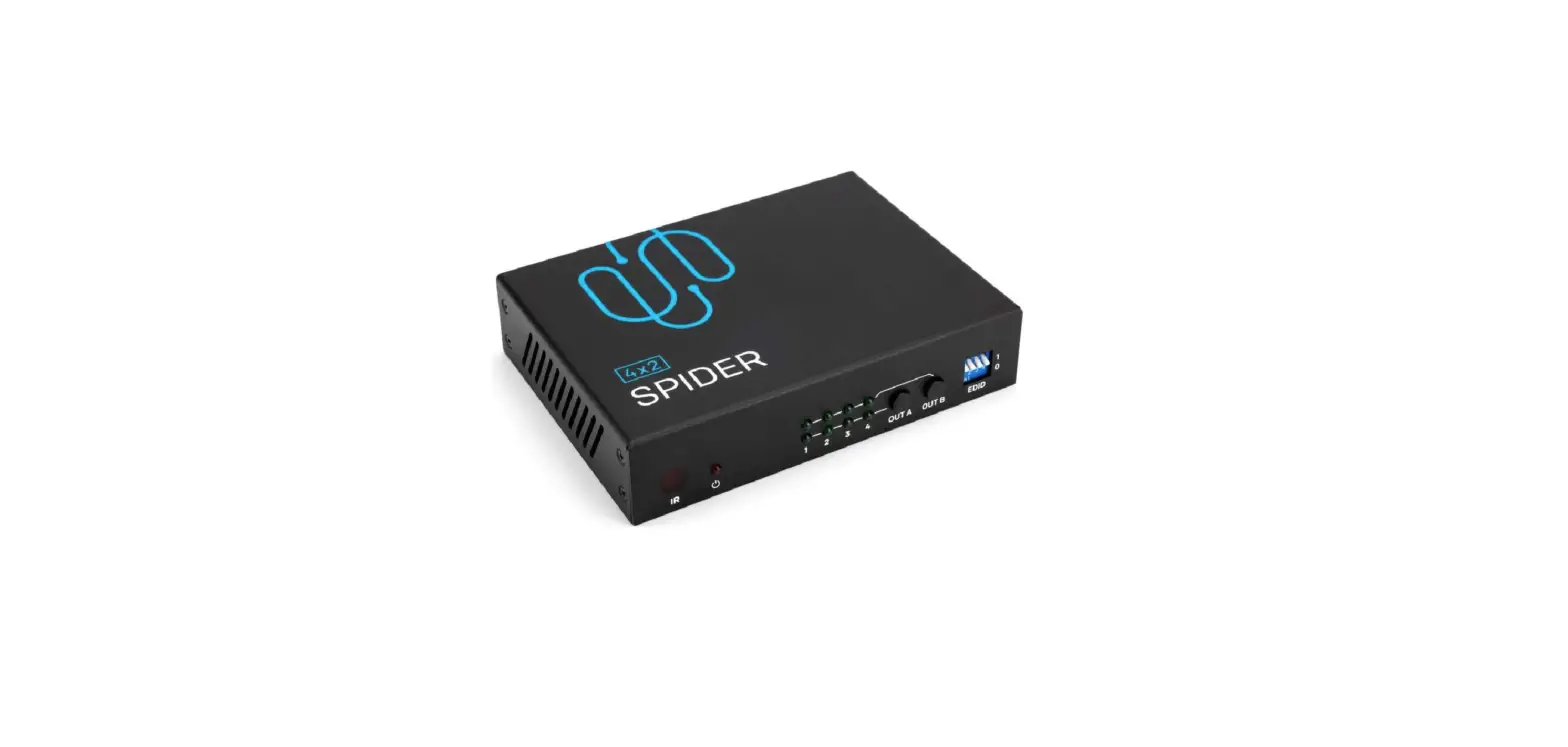
The Nedis VMAT3474AT is a 4 x 4 4K UHD Matrix.
The 4 HDMI inputs and 4 HDMI outputs support fully matrixed switching.
The PC software can be downloaded from the Nedis website: www.nedis.com.
The product is provided with PC software and a Web GUI interface that supports storing and recalling up to four routing presets.
Intended use
This product is intended to connect up to 4 HDMI inputs with up to 4 HDMI outputs and switch between them.
Any modification of the product may have consequences for safety, warranty and proper functioning.
Specifications
Product | HDMI Matrix |
Article number | VMAT3474AT |
Dimensions (l x w x h) | 270 x 112 x 25 mm |
HDMI version | HDMI 2.0 |
HDCP version | HDCP 2.2 |
Video Bandwidth | 18G |
Supported HDMI resolution | 1920 x 1080 @ 60 Hz 1920 x 1080 3D @ 24 Hz 1080p @ 120 Hz 4K2K @ 30 Hz 4K2K @ 60 Hz (4:2:0) 4K2K @ 50/60 Hz (4:4:4) |
HDMI connector | Type A ,19 pin, Female |
Operating temperature | °C – °C |
Relative humidity | 0 – 95% (no condensation) |
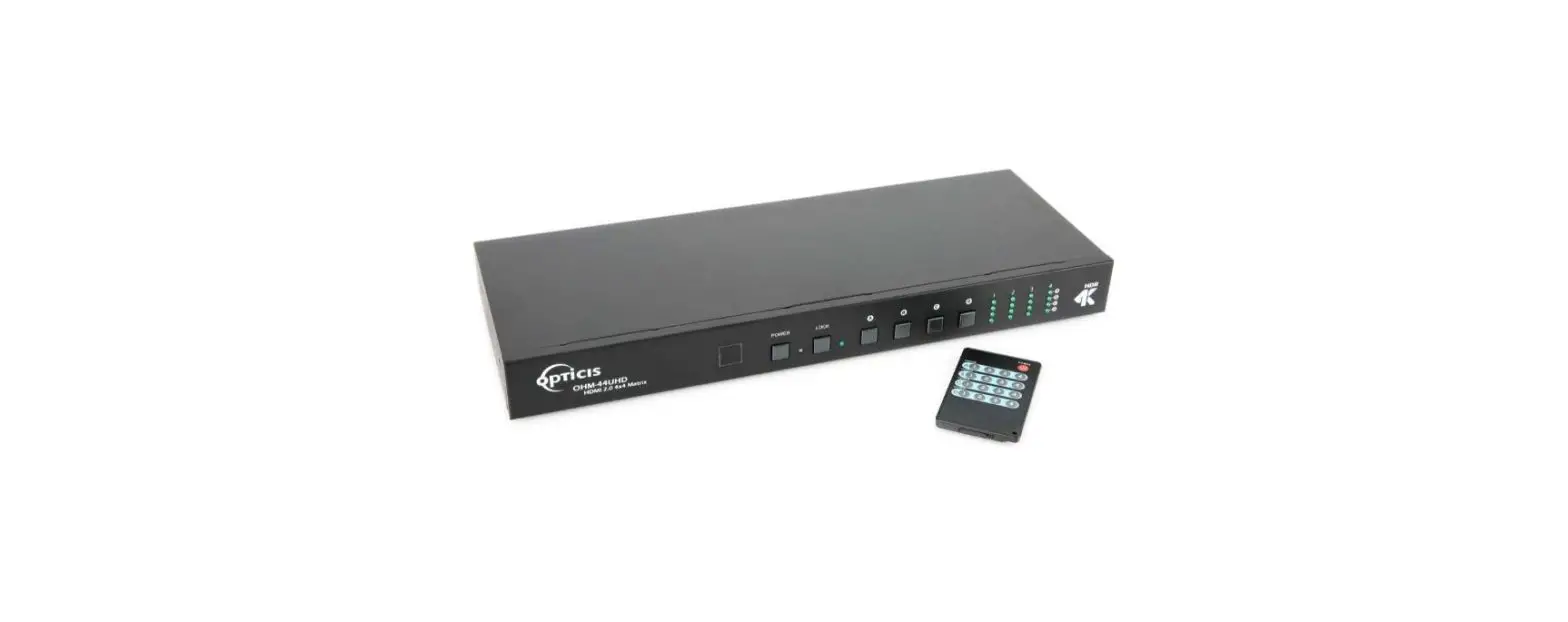
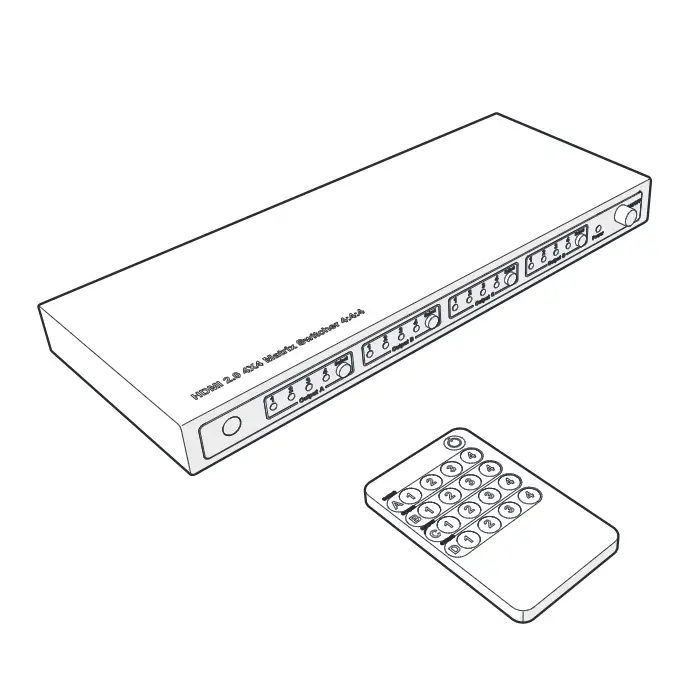
Main parts (image A)
 |
A |
1. HDMI Matrix |
2. Remote control |
3. RS-232 connector |
4. DC 12 V, 2 A Power adapter |
Front panel (image B)
 |
B |
1. Remote control sensor |
2. HDMI input indicator LEDs for HDMI output A |
3. HDMI input indicator LEDs for HDMI output B |
4. HDMI input indicator LEDs for HDMI output C 5. HDMI input indicator LEDs for HDMI output D |
6. Power indicator LED |
7. Power switch |
8. Select button, to switch HDMI input (1-4) to HDMI output A |
9. Select button, to switch HDMI input (1-4) to HDMI output B |
10. Select button, to switch HDMI input (1-4) to HDMI output C |
11. Select button, to switch HDMI input (1-4) to HDMI output D |
Rear panel (image C)
 |
C |
1. Power supply port |
2. HDMI inputs (1-4) |
3. HDMI outputs (A-D) |
4. RS-232 communication port |
5. Ethernet port |
Remote control (image D)
 |
D |
1. Power button |
2. Select HDMI input buttons for HDMI output A |
3. Select HDMI input buttons for HDMI output B |
4. Select HDMI input buttons for HDMI output C |
5. Select HDMI input buttons for HDMI output D |
Safety instructions
WARNING
- Only use the product as described in this manual.
- Do not use a damaged product.
- Do not expose the product to direct sunlight, naked flames or heat.
- Do not expose the product to water or moisture.
- Place the product on a stable and flat surface.
- Do not drop the product and avoid bumping.
- Do not open the product.
- Keep the product out of reach from children.
Installation
- Check the contents of the package
- Check that all parts are present and that no damage is visible on the parts. If parts are missing or damaged, contact the Nedis B.V. service desk via the website: www.nedis.com.
Connection diagram (image E)
 |
E |
- Connect HDMI input devices E1 to the HDMI inputs C2 using a HDMI cable. A HDMI input device can be for example a DVD player, a set top box or a game console.
- Connect a router E2 to the ethernet port C5 using an ethernet cable. This connection enables storing and recalling routing pre-sets using the PC Software or the Web GUI Interface.
- Connect the HDMI output devices E3 to the HDMI outputs C3 using a HDMI cable.
- Connect a RS-232 Equipped PC or Notebook E4 to the RS-232 port C4. To make this connection use a RS-232 to USB cable and a RS-232 female to 3 Pin Phoenix Connector. This connection enables storing and recalling routing pre-sets using the PC Software.
- Connect the power supply port C1 to a power outlet using the supplied DC 12 V, 2 A power adapter A4.
Use
- Switch HDMI inputs to a HDMI output
- Using the panel B8, 9, 10, 11
1. Choose an HDMI output (A, B, C or D).
2. Press the corresponding select button repeatedly to switch between the inputs. The input indicator LED illuminates to indicate the selected input.
Using the remote control B2, 3, 4, 5
1. Choose to which HDMI output (A, B, C or D) you want to switch the input.
2. Press the corresponding select button to select the desired input. The input indicator LED illuminates to indicate the selected input.
PC Software Control
- You can use the PC software for storing and recalling up to 4 routing presets.
- How to start the software depends on how you connect your PC to the HDMI switch.
Start the PC software (RS-232 connection)
1. Connect the PC to C4. To make this connection use a RS-232 to USB cable and a RS-232 female to 3 Pin Phoenix Connector.
2. Download “HDMI2.0 Matrix.exe” from the Nedis website.
3. Run the software.
4. Select Comm F1.
5. Click F2
 |
F |
How to start the PC software (LAN connection)
1. Connect a router to C5.
2. Connect the PC to a free active port on the router.
3. Download “HDMI2.0 Matrix.exe” from the Nedis website (www.nedis.com)
4. Run the software.
5. Select Host IP G1 and enter the IP address of the HDMI switch in G2.
6. Click G3
 |
G |
Using the interface
The software has 4 main tabs (image H):
Route Settings H1
Connect any input to any output one by one or connect one input to all outputs.
EDID Management H2
Load default EDID to any input.
Learn EDID from any output.
IP Setting H3
Set IP settings.
System Information H4
Upgrade the firmware.
The firmware file needs to be supplied by the manufacturer.
Click on H5 to close the software.
 |
H |
Web GUI Control
How to start Web GUI Control
1. Connect a router to C5.
2. Connect the PC to a free active port on the router.
3. Open a web browser.
4. Enter the IP address of the HDMI switch in J1. The login pages opens.
5. Enter user name in J2 and password in J3 to login.
- Default user name: admin
- Default password: 123456
6. Click Login J4
7. After login you can change the user name and password.
 |
J |
Using the interface
The software has 3 main tabs (image H):
Route Settings K1
Connect any input to any output one by one or connect one input to all outputs.
EDID Management K2
Load default EDID to any input.
Learn EDID from any output.
IP Setting K3
Set IP settings.
 |
K |
Maintenance
- Clean the product regularly with a soft, clean, dry cloth. Avoid abrasives that can damage the surface.
- Do not use aggressive chemical cleaning agents such as ammonia, acid or acetone when cleaning the product.
Warranty
Any changes and/or modifications to the product will void the warranty. We accept no liability for damage caused by improper use of the product.
Disclaimer
Designs and specifications are subject to change without notice. All logos, brands and product names are trademarks or registered trademarks of their respective owners and are hereby recognized as such.
Disposal
 | This symbol indicates that this product should not be thrown away with other household waste throughout the EU. To prevent possible harm to the environment or human health by uncontrolled waste disposal, you are responsible for recycling it so that it can promote the sustainable reuse of raw materials. To return your used product, you can use the regular return and collection systems or contact the store where the product was purchased. They can recycle this product for the environment. |
Declaration of Conformity
We, Nedis B.V. declare as manufacturer that the product VMAT3474AT from our brand Nedis®, produced in China, has been tested according to all relevant CE standards and regulations and that all tests have been passed successfully. This includes, but is not limited to the RED 2014/53/EU regulation.
The complete Declaration of Conformity (and the safety datasheet if applicable) can be found and downloaded via webshop.nedis.com/VMAT3474AT#support
For additional information regarding the compliance, contact the customer service:
Web: www.nedis.com
E-mail: [email protected]
Phone: +31 (0)73-5991055 (during office hours)
Nedis B.V., de Tweeling 28
5215 MC ’s-Hertogenbosch, the Netherlands