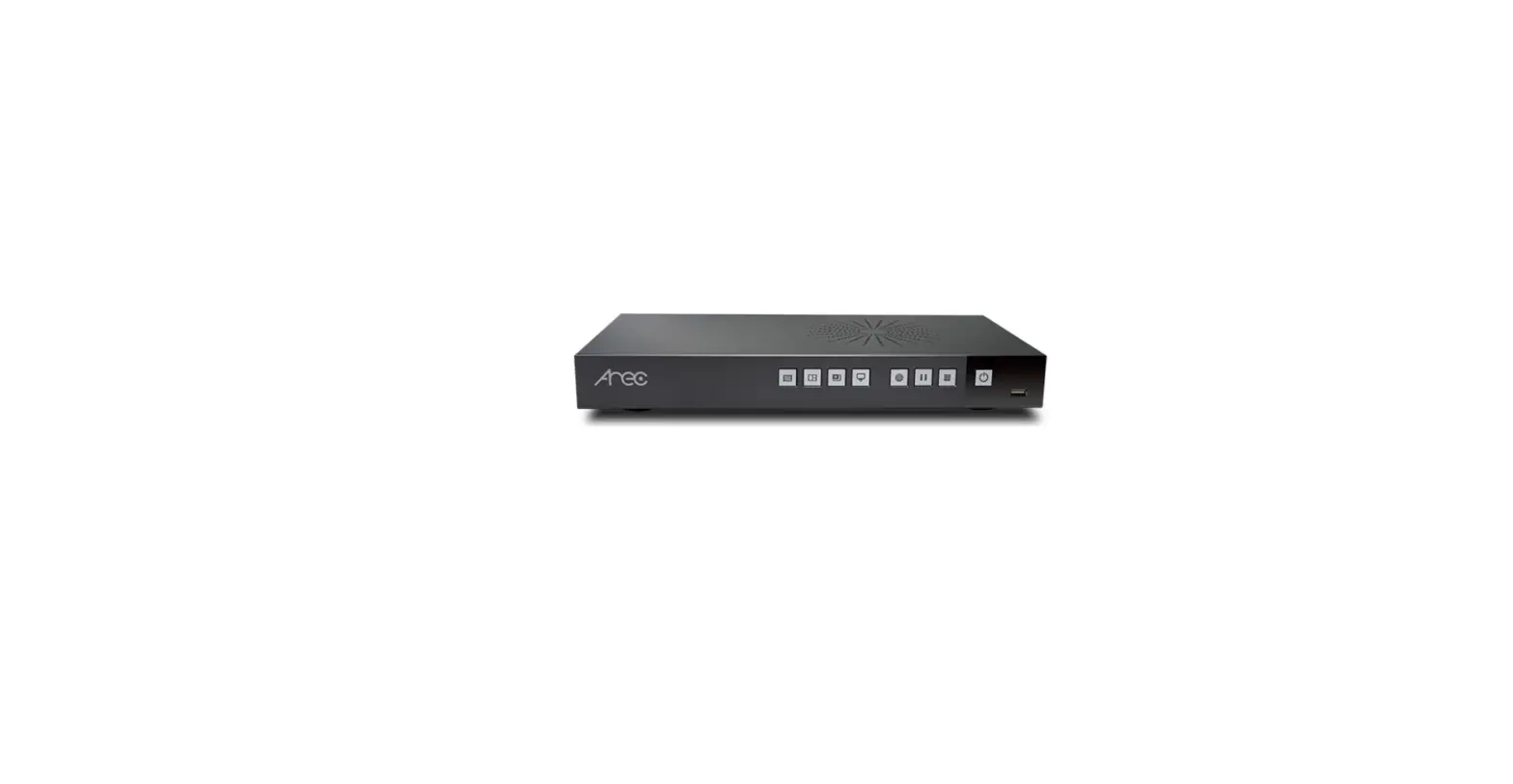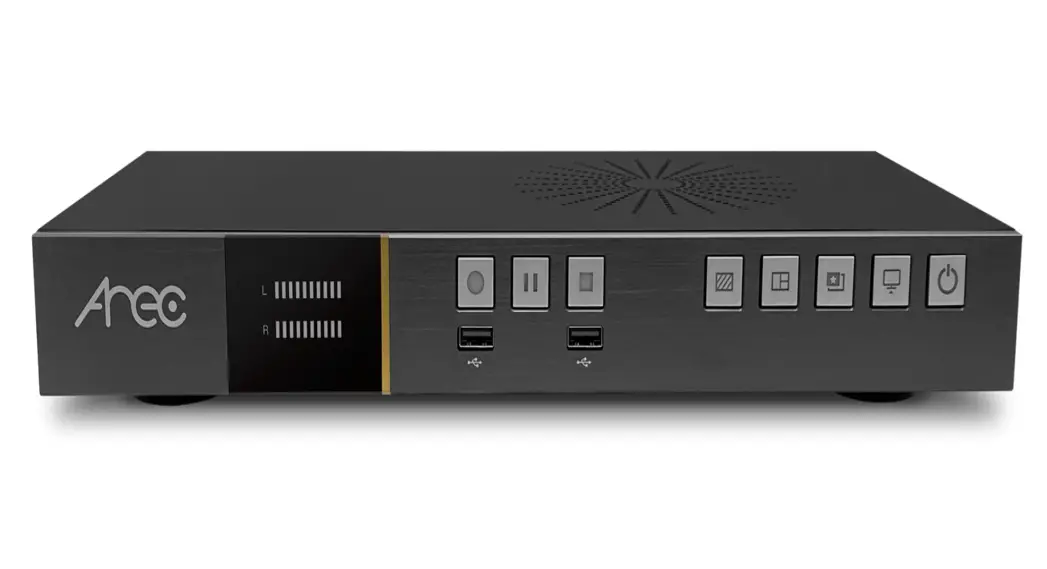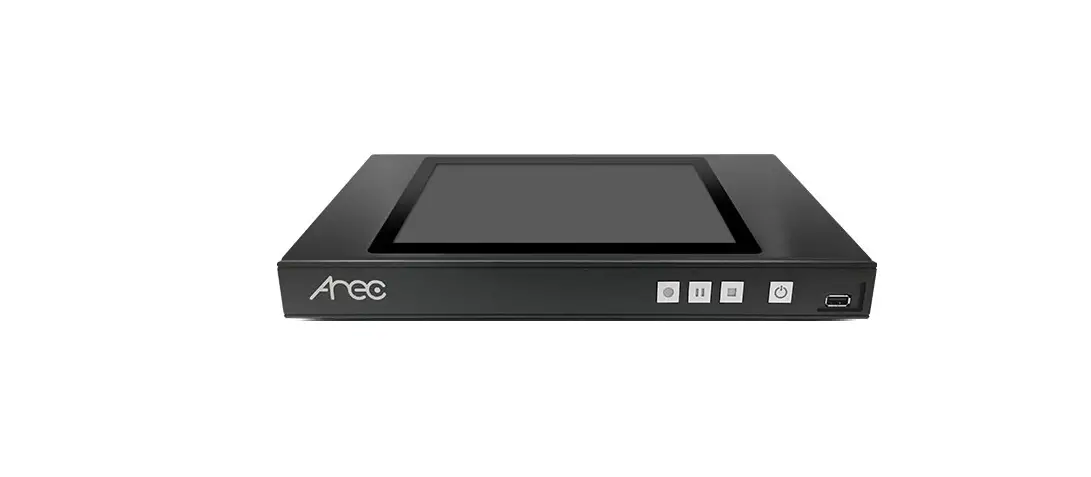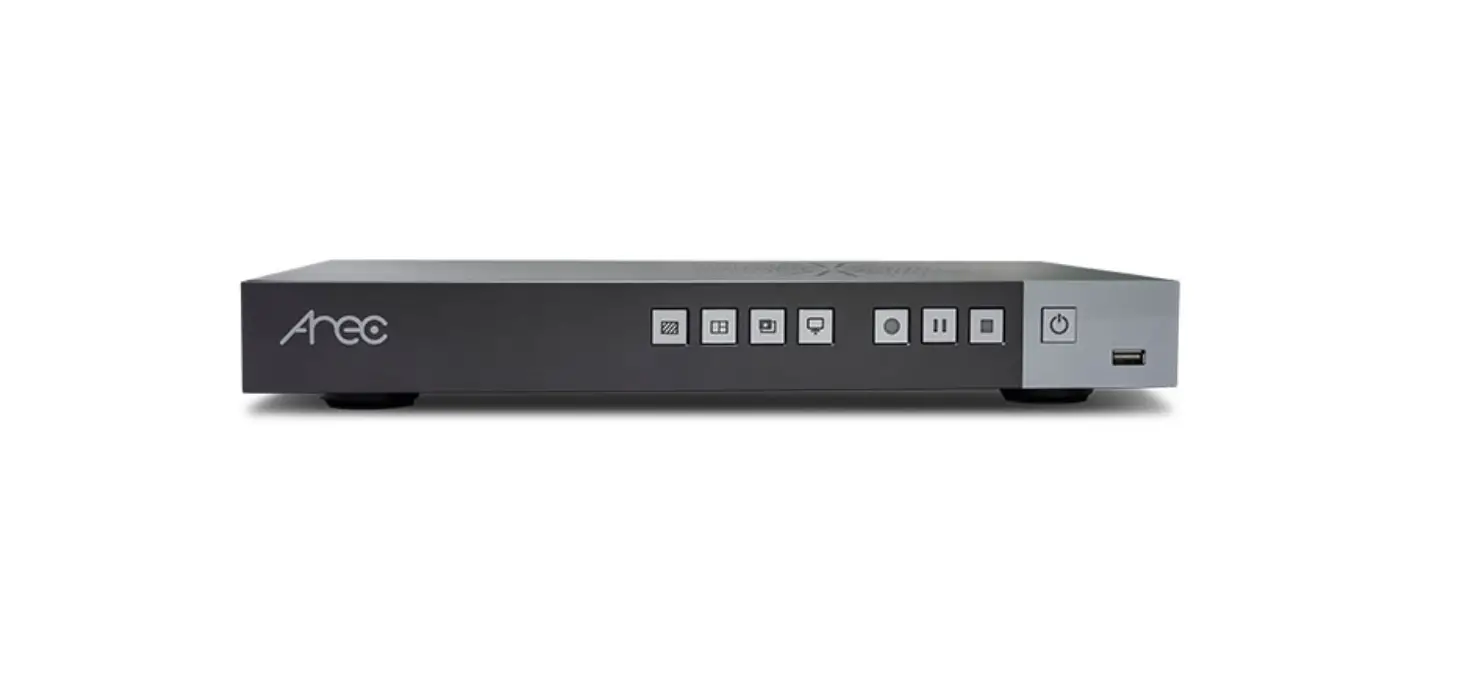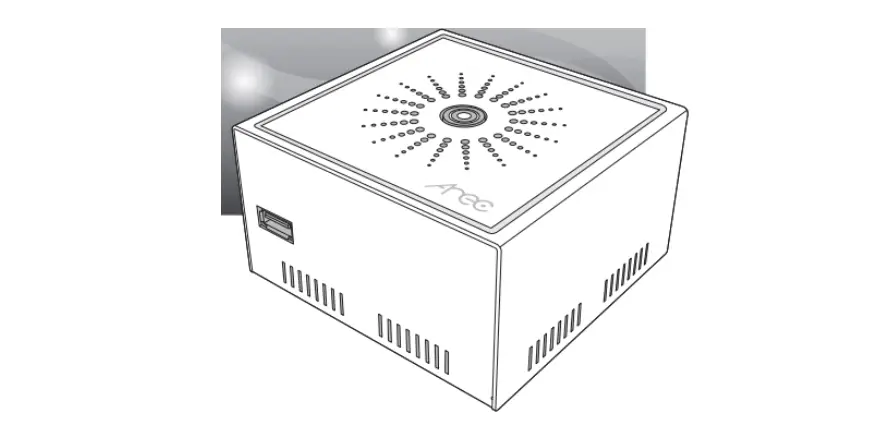

Arec LS-US2 Media Station
FCC
Federal Communication Commission interference statement
This equipment has been tested and found to comply with the limits for a Class A digital device, pursuant to part 15 of the FCC rules. These limits are designed to provide reasonable protection against harmful interference in a residential installation. This equipment generates, uses and can radiate radio frequency energy and, if not installed and used in accordance with the instructions, may cause harmful interference to radio communications. However, there is no guarantee that interference will not occur in a particular installation. If this equipment does cause harmful interference to radio or television reception, which can be determined by turning the equipment off and on, the user is encouraged to try to correct the interference by one or more of the following measures: -Reorient or relocate the receiving antenna. -Increase the separation between the equipment and receiver. -Connect the equipment into an outlet on a circuit different from that to which the receiver is connected. -Consult the dealer or an experienced radio/TV technician for help.
RF Exposure Warning
The equipment complies with RF exposure limits set forth for an uncontrolled environment. The antenna(s) used for this transmitter must not be co-located or operating in conjunction with any other antenna or transmitter.
You are cautioned that changes or modifications not expressly approved by the party responsible for compliance could void your authority to operate the equipment.
FCC Caution
This device complies with Part 15 of the FCC Rules. Operation is subject to the following two conditions:
- this device may not cause harmful interference and
- this device must accept any interference received, including interference that may cause undesired operation
This equipment should be installed and operated with a minimum distance of 20 centimeters between the radiator and your body.
Notice: Any changes or modifications not expressly approved by the party responsible for compliance could void your authority to operate the equipment.
CE
Hereby, AREC Inc., declares that this Media Station is in compliance with the essential requirements and other relevant provisions of Directive 2014/53/EU.
Introduction
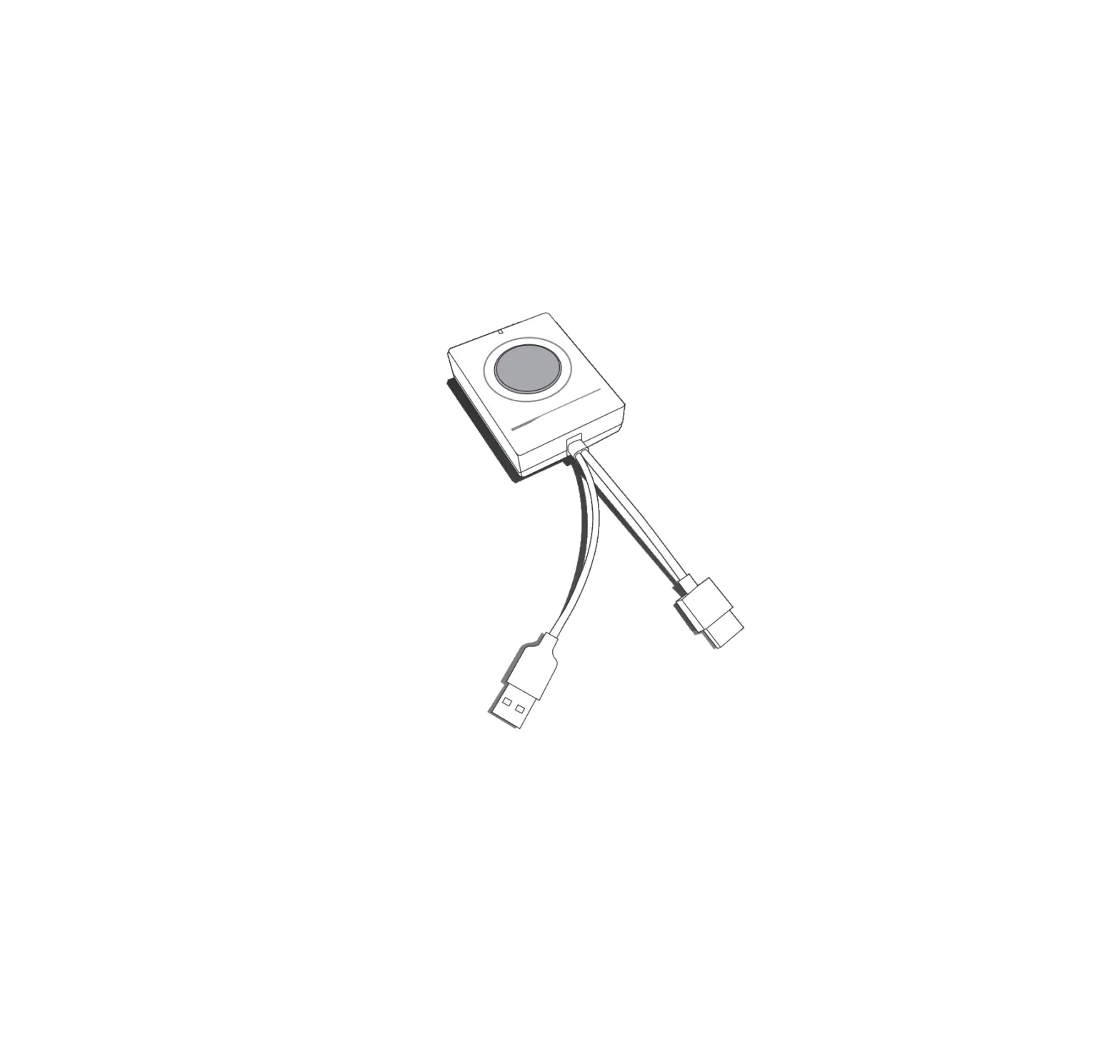
Featuring a compact and stand-alone design, AREC LS-US2 Media Station consists of diverse features and functionality, including multi-signals capturing, recording synchronously, codec, streaming online, live broadcasting, and web-based monitor page, providing complete presentation or lecture capture solution.
Specifications
| Product Name | Media Station |
| Model Name | LS-US2 |
| Dimension | 98mm(L) x 95mm(W) x 55mm(H) |
| Weight | 510g |
| Power Requirement | 5V |
| Power Consumption (Max.) | 30W (Max.) |
| Operating Temperature / Humidity | 0ºC ~ 40ºC / 90% |
| Maximum normal load description | Supports two video inputs, and up to two USB Cam/ IP Cam/stream signals. And output the transcoded video to the HDMI port and the DisplayPort. |
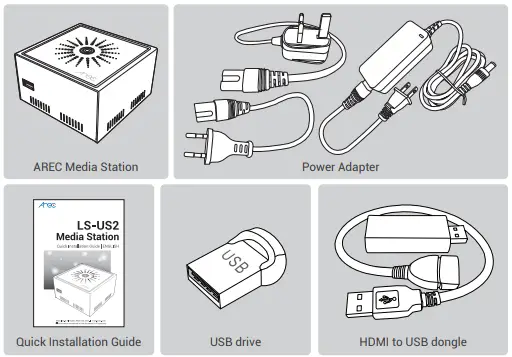
Package Contents
Product Appearance
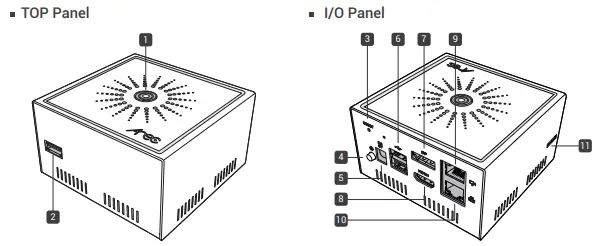
| NO. | Name | Brief Introduction |
| 1 | Record Button | Control the Record and Stop function |
| 2 | USB Storage | 1. For the external USB storage device* 2. Available for the USB mouse, keyboard and touch devices 3.Available for the USB audio/video input |
| 3 | Reset Port | Reset the device to default settings |
| 4 | Power Button | When the device is ON, push twice to turn OFF. Long press 3 seconds to restart. When the device is OFF, push to turn ON. |
| 5 | Power port | 5V |
| 6 | USB-In | 1. For the backup USB storage device, system format is needed in administrator webpage 2. Available for the USB mouse, keyboard and touch devices 3. Available for the USB audio/video inputs |
| 7 | DP-Out | Supports the recording preview, inputs monitoring and mixing display |
| 8 | HDMI Out | Supports the recording preview, inputs monitoring and mixing display (this output video always comes with graphic tool bar) |
| 9 | Ethernet Port (LAN) | For the network camera’s video input or the settings via PC |
| 10 | Ethernet Port (WAN) | For the internet access to do live broadcasting or remote device control |
| 11 | USB3.0 Micro B Port | 1. For the external USB storage device* 2. Available for the USB mouse, keyboard and touch devices 3.Available for the USB audio/video input |
NOTE: The LS-US2 can detect and record to USB storage devices using FAT32, NTFS, exFAT, Ext3, Ext4 file systems.
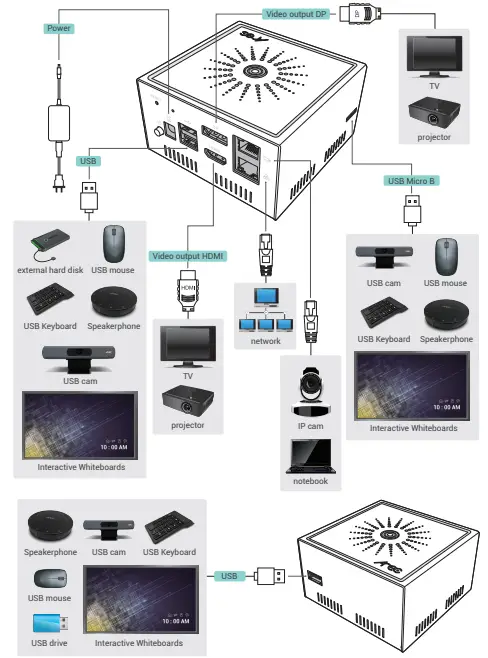
Connection
Accessing the Administrator pages
- Connect HDMI output with a display monitor and use the RJ-45 Ethernet cable to connect an IP-based network to the WAN port.
- Connect your PC/NB to be the same network area with the device. Enter the IP address displayed in the lower right side of the screen in your browser to access the System Administration webpage.

Log in Administrator with default username “admin” and password “admin”, then entering System Administration webpages.

 with default username “admin” and password “admin”, then entering System Administration webpages.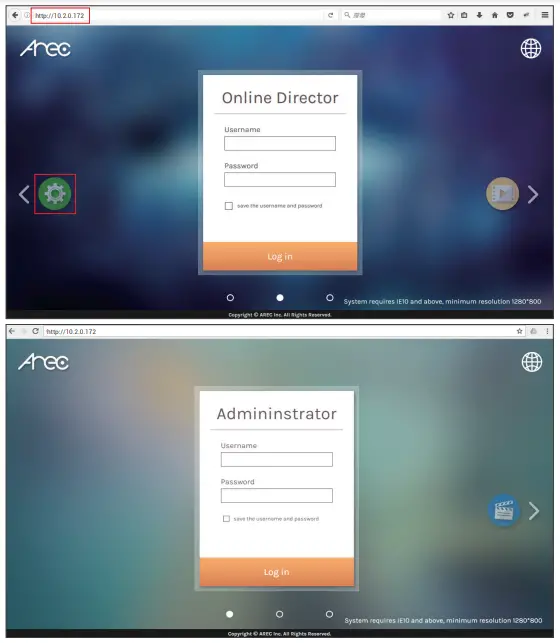
Setup
Step 1: Set up video input name, video source, PTZ control in [ Video inputs ] of [ Media I/O ]. The capture source can be from USB input, network camera, or encoder input.
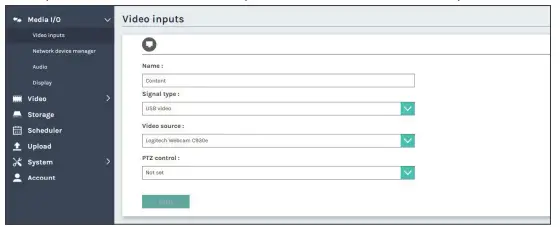
If the assigned video source is network camera, a login authentication with the camera is required firstly in the [ Network device manager ] setup tab of [ Media I/O ].
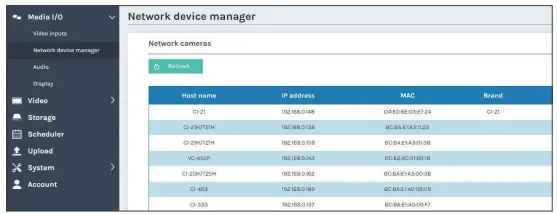
Make sure the network camera are connected under the same IP network (LAN)* and go to the [ Network device manager ] page. After the scanning is done, click the Login button and the authentication dialog will pop up. Enter the username and password of the camera to complete the authenticationand change the status to [ OK ]. Then the camera is ready for video input selection. Select the target camera by its IP address. For video source of encoder, enter RTSP or RTP connection URL.
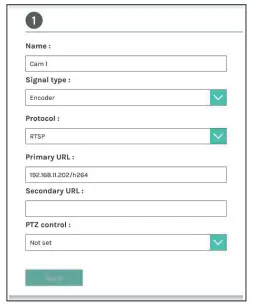
For instance, the camera and LS-US2 connected under the same router with the same LAN address.

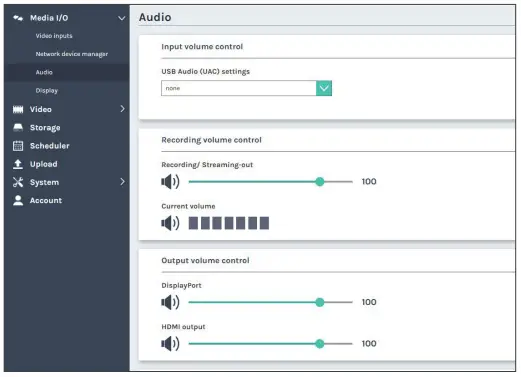
Step 2: Set up audio source in [ Audio ] of [ Media I/O ]. Choose the correct USB audio source.
If there are more than 2 USB audio inputs connected to the system, you only could assign one of them for the recording.
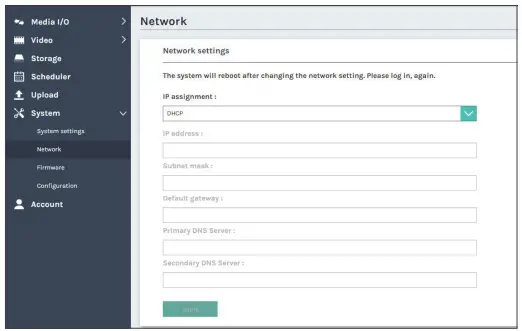
Step3: Set up network configurations in [ Network ] of [ System ], if necessary.
Getting start a recording
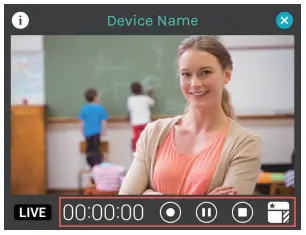
- Start a recording from the top panel
- Press [
 ] button and recording begins.
 - Press [ ] button to end a recording.
- Press [
- Start a recording from the APK of iFPD
Consult your iFPD supplier to install the AREClick APK.
Run AREClick input the IP address and click the “start service” button to see the AREClick icon.
 - Click the AREClick icon to get the recording preview window

- Choose a proper recording layouts.
Press recording control buttons to start and stop recording.
CAUTION
RISK OF EXPLOSION IF BATTERY IS REPLACED BY AN INCORRECT TYPE. DISPOSE OF USED BATTERIES ACCORDING TO THE INSTRUCTIONS
 ] button and recording begins.
 input the IP address and click the “start service” button to see the AREClick icon.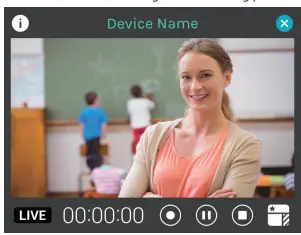
Important Security Policy
Precautions
- Please open the product package carefully; we recommend you keep this packaging for future transport, storage or maintenance use.
- There are no switches or adjustment buttons required for operation inside this product, so for your safety, please do not open the casing on your own, or vigorously rotate, shake or use any other inappropriate ways to operate this product in order to avoid electrical shocks and voiding the warranty. You can contact a local dealer directly if you have any questions.
- Heat will be generated during the use of this product; therefore there must be sufficient ventilation for the temperature of the unit to remain at a stable status. So please use the product under normal environments to prolong the usage life, and avoid installing it in the following environments.
- Locations that are unstable or have incomplete planes
- Locations with powerful magnetic fields
- Locations where it is damp or may have water leakage
- Locations that are too hot, close to heaters and air hoses, or be exposed to direct sun light for long periods of time
- Locations that are dusty
- Locations where there are possible shocks
- Locations close to power amplifiers
- If you notice smoke or odor coming from the product, please quickly remove the power cable and send it to a maintenance center for processing.
- To avoid electrical shock, the plug of the adapter should be stably and completely inserted into the power outlet and cannot be exposed; it must also have sufficient capacity to withstand the current transmission. Please do not plug the adapter into the power outlet before connecting the cable in order to avoid danger.
- If not used for long periods of time, please unplug the power plug, and to ensure electrical safety, when unplugging the adapter, please hold the plastic part of the adapter with dry hands and then unplug the adapter. Please properly connect the cables according to the printed instructions on the installation manual and the machine to ensure optimized usage effects.
- The USB ports of this product are designed for firmware updates, and people must equip with ESD protection devices when using them.
When the USB Ports are damaged by an ESD impact, the product will automatically enter the protection state. Once in the protection state, the product must be restarted.
AREC Inc.© All Rights Reserved 2021. l www.arec.com All information contained in this document is Proprietary
Made in Taiwan Date : 2021.12.01 Version : 2.20
 AREC l AV over IP Solutions l Media Capture, Live Streaming, and Video Recording