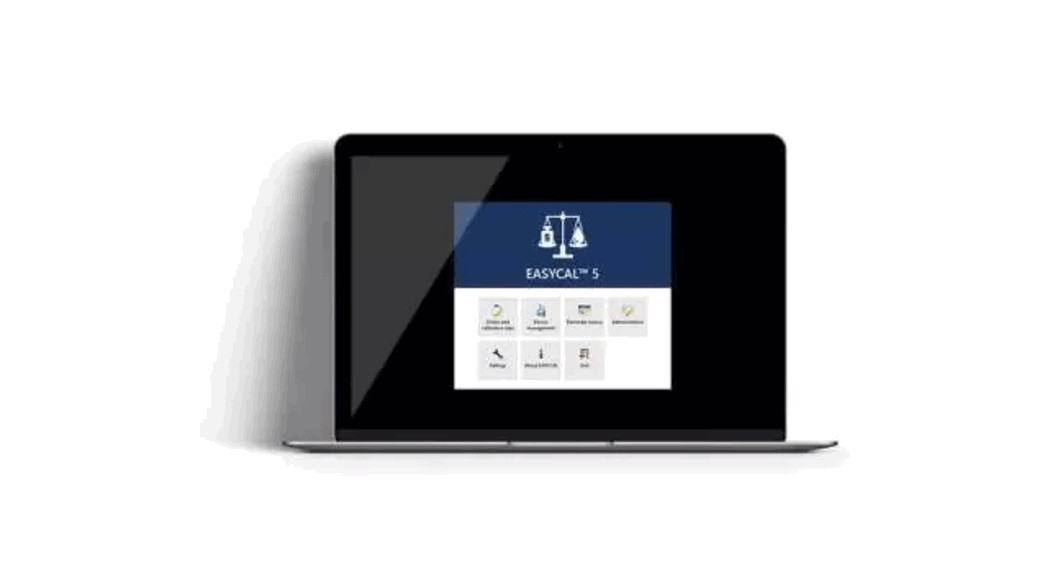
 EASYCAL 5.0 Calibration Software
User Guide
System requirements
System requirements EASYCAL™ 5 as Server
| System requirements | |
| CPU: | Processor with min. 1 GHz clock rate |
| Working mem- ory | min. 16 GB RAM |
| Network | Local network infrastructure |
| Operating Sys- tem | from version Windows 10, alternatively also Windows Server 2016 |
| Data base | Local storage. If a server operating system is used, the databases can also be stored locally on this operating system without having to use an SQL server. Alternative: SQL Server from version Microsoft SQL Server 2016 |
| Internet | A permanent broadband internet connection is highly recommended |
Installation
a. Download the installation file: https://update.brand.de/EASYCAL5Server/EASYCAL-Server-Setup-latest.exe
b. Start the installer using local admin rights and follow the dialog.
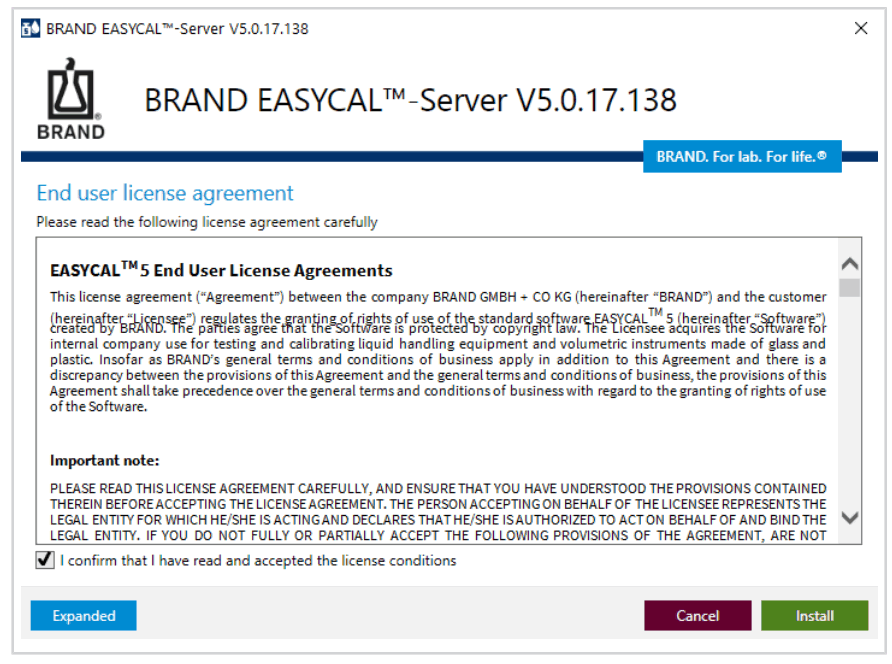
c. Choose installation language. You can change the software language later on.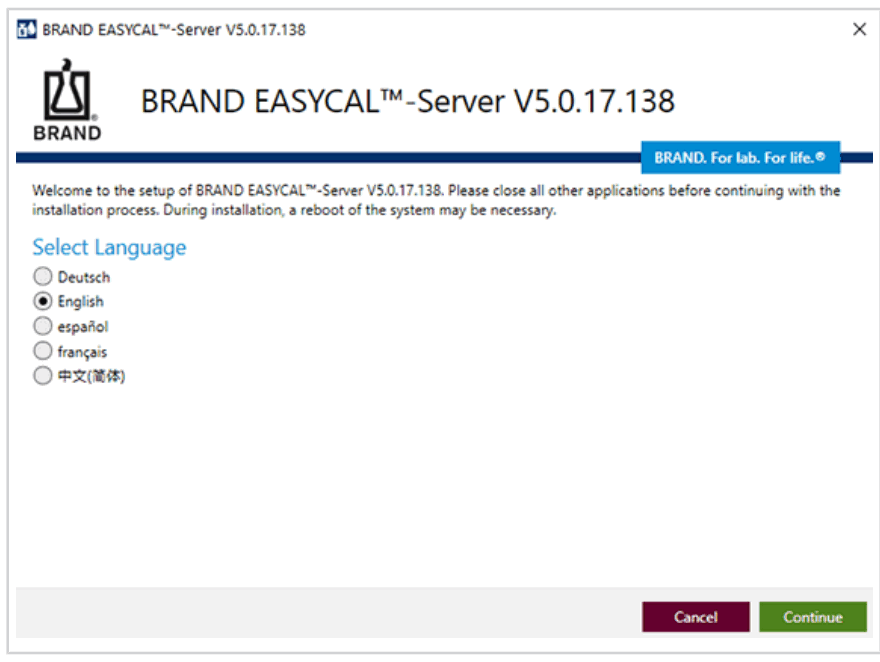 d. Confirm the license agreement.
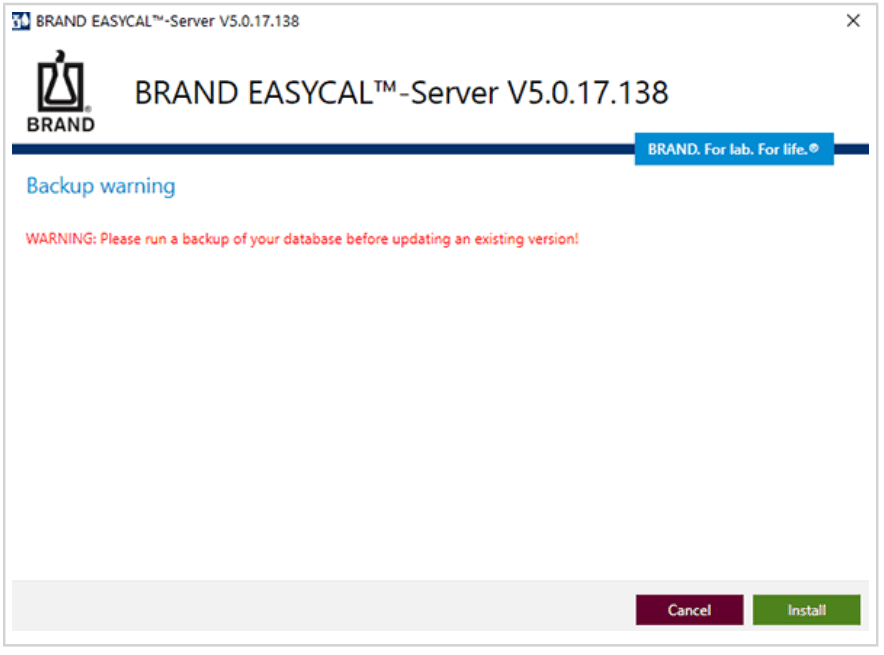
 e. If EASYCAL™ 5 has been installed before, we recommend backing up the database. Otherwise, you can proceed with the installation.
 f. Start the server after installation.
Activate License
When the EAYSCAL™ 5 server software is started for the first time, the context menu for product activation opens.
a. Click Activate now, your default web browser will open.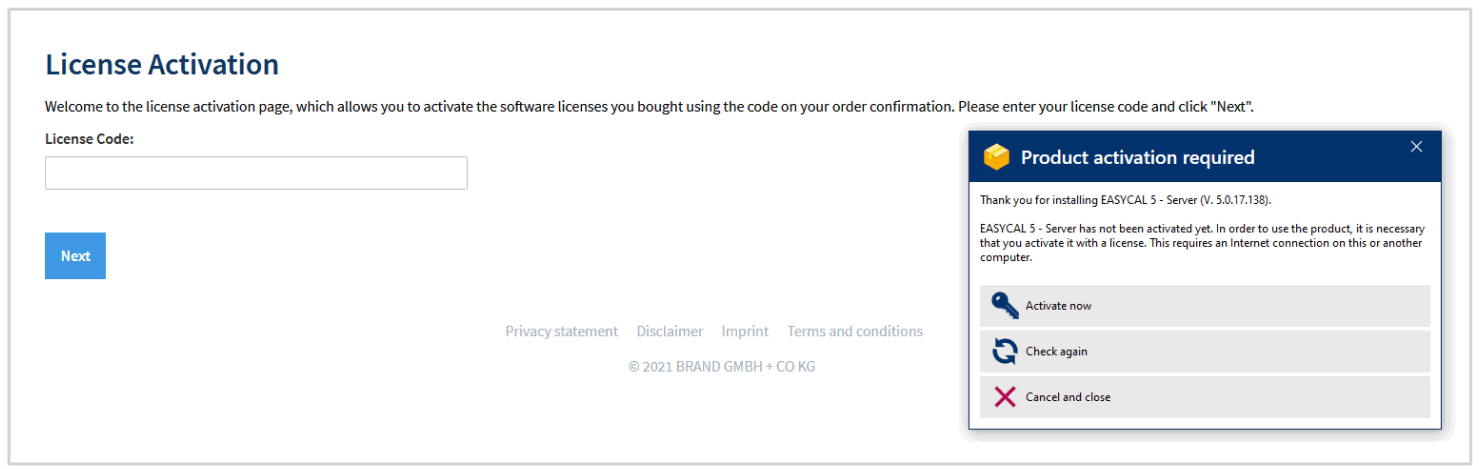 b. Enter the license code for the EAYSCAL™ 5 server software and click Next.
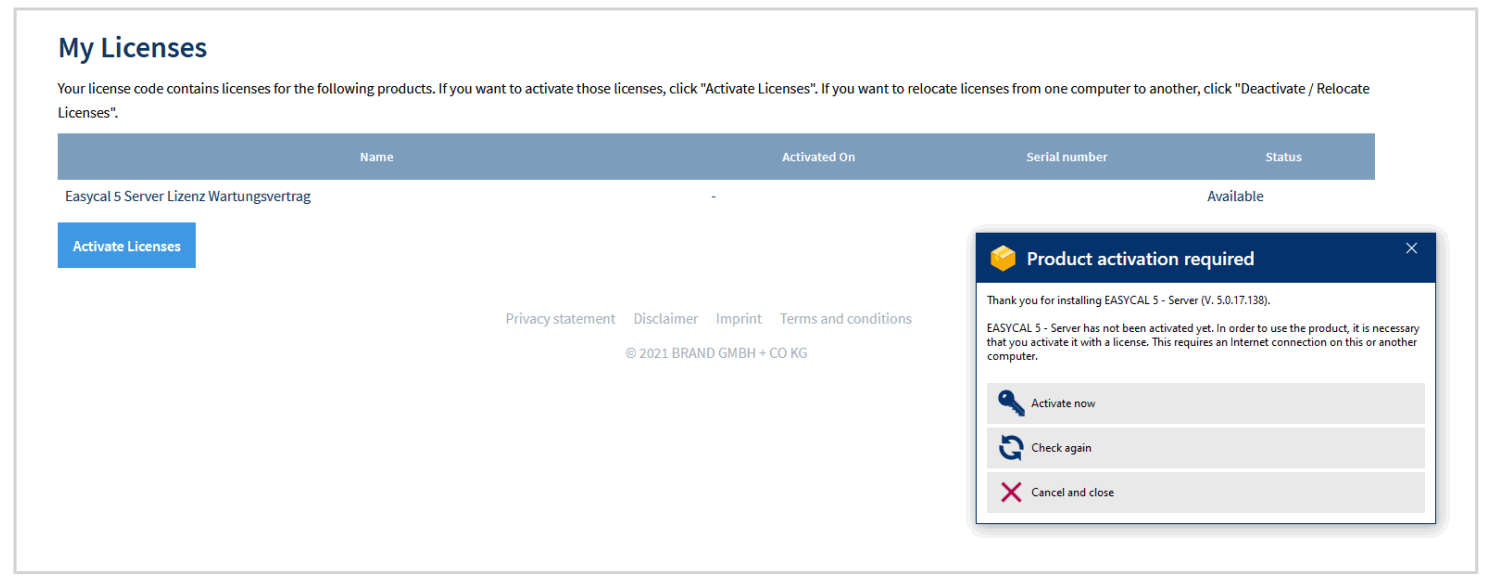 c. Click on Activate Licenses.
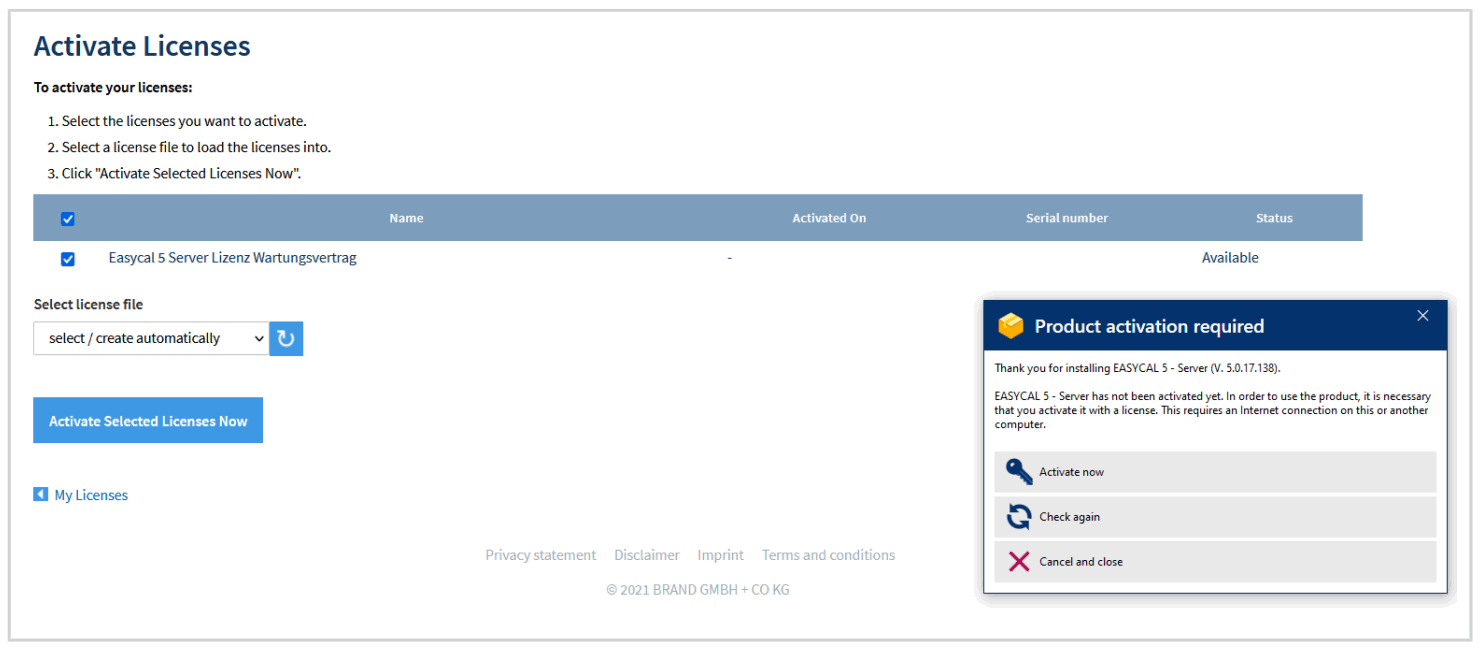 d. We recommend to keep the standard setting. Choose the EAYSCAL™ 5 Server License or the EAYSCAL™ 5 Server License Maintenance Contract – depending on which product you have purchased. Click on Activate Selected Licenses Now.
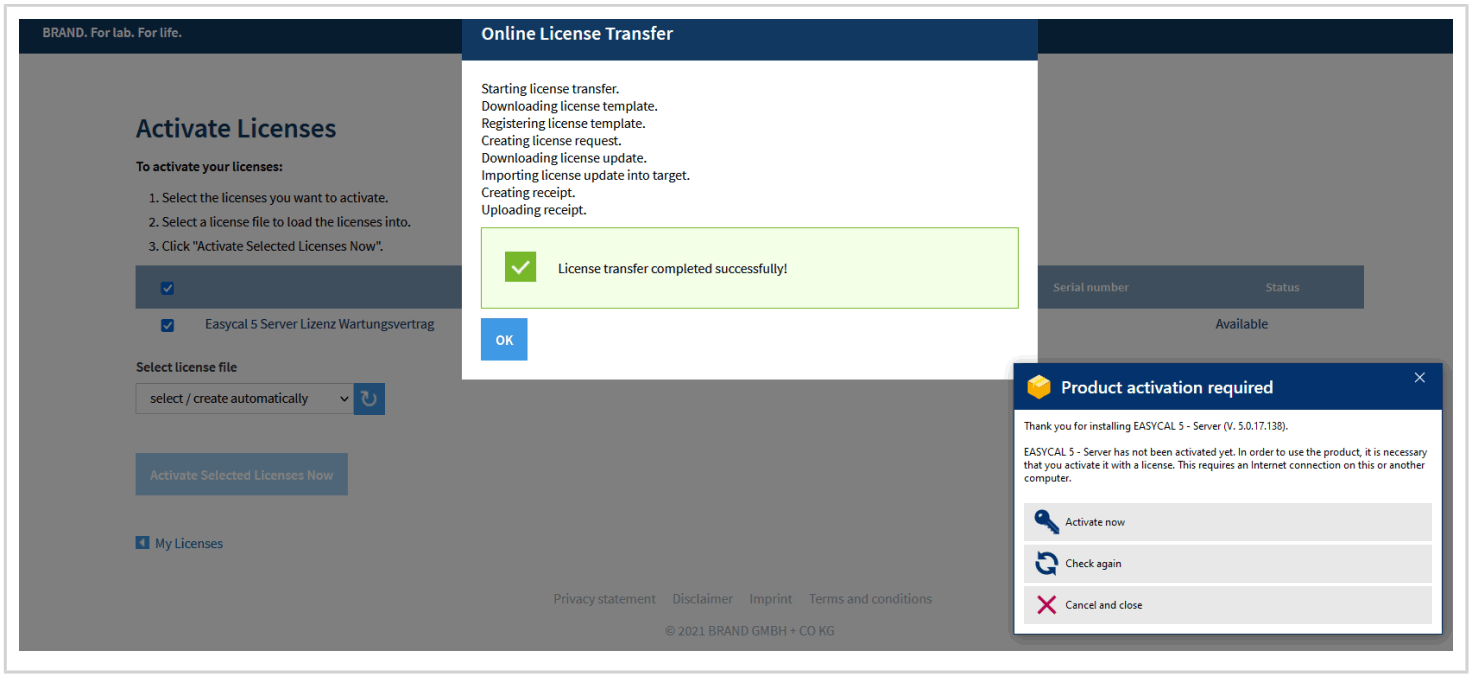 e. The licensing process is performed. Confirm with OK.
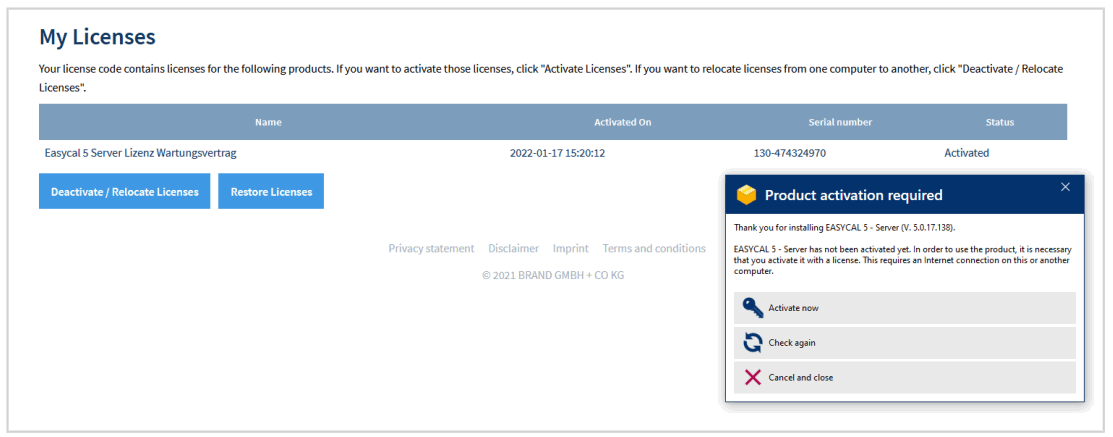 f. In the Product Activation Required window, click Check Again.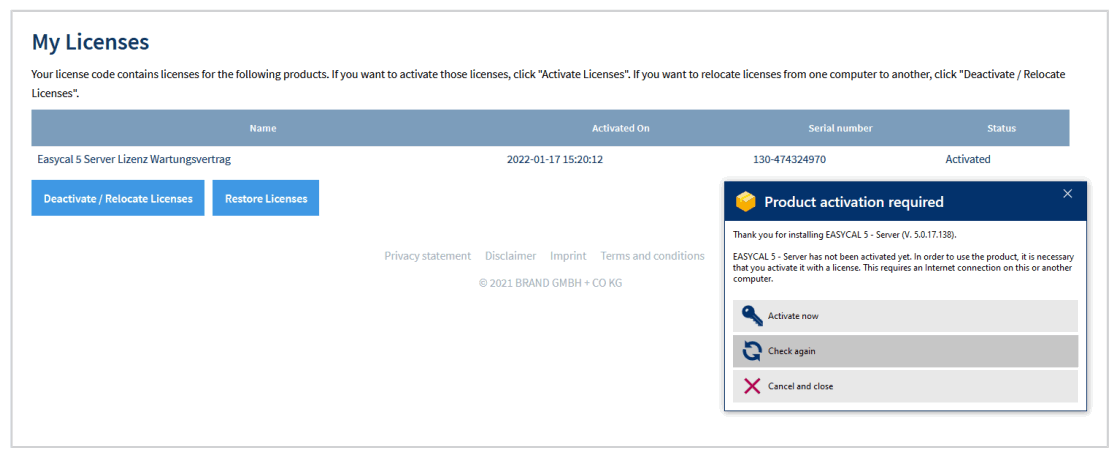
Server software settings
a. After clicking Check Again in the Product activation required window, the server software opens.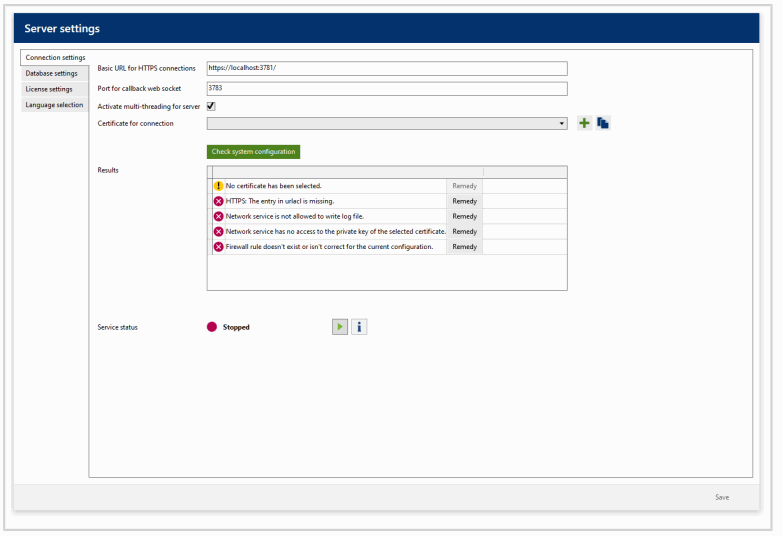 b. Click on the plus symbol at Certificate for connection and select EasyBall Self Signed Server.
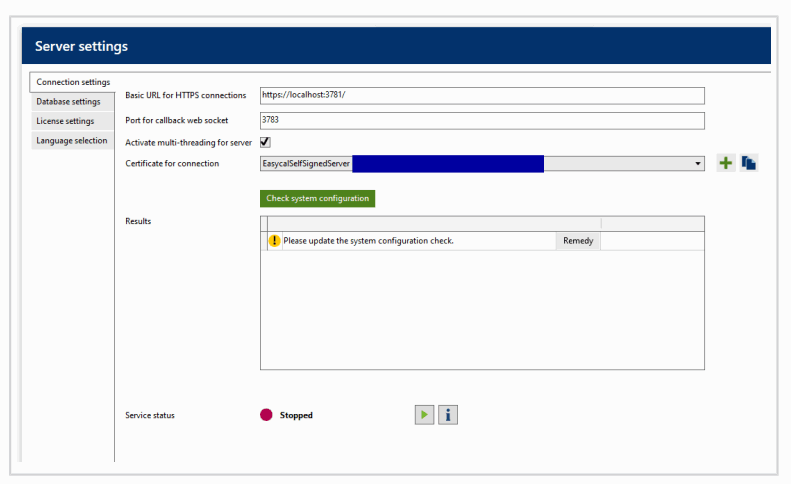 c. Then click on Check system configuration .
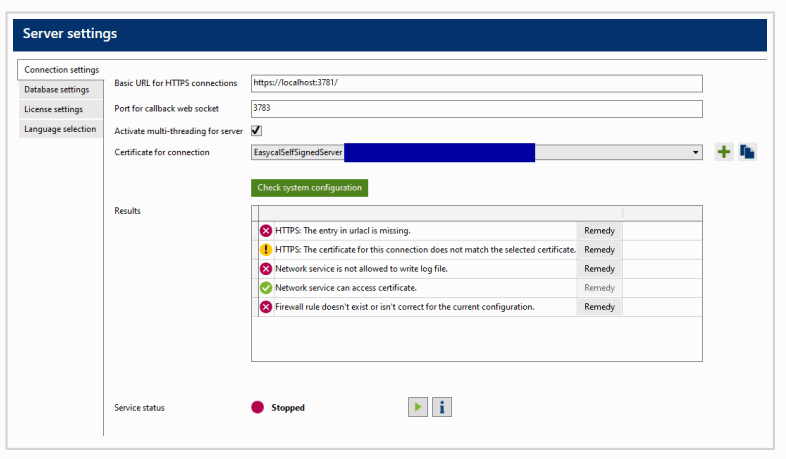 Click on Remedy for each of the Results so that the Cooling Block server software creates suitable entries in the system.
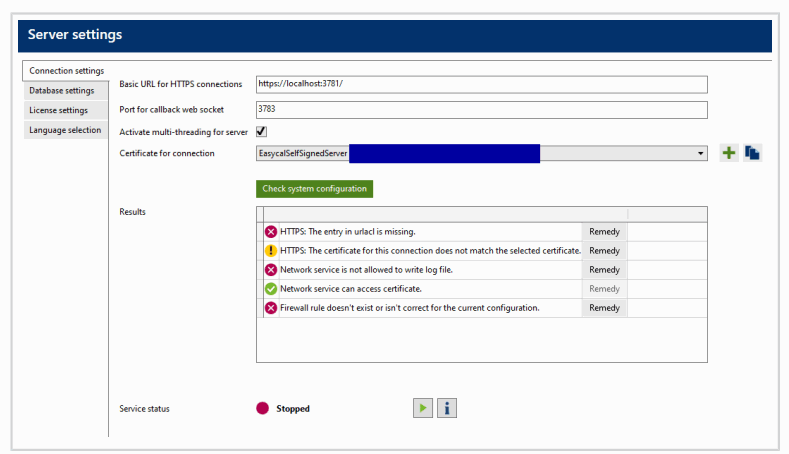 d. Click on Save.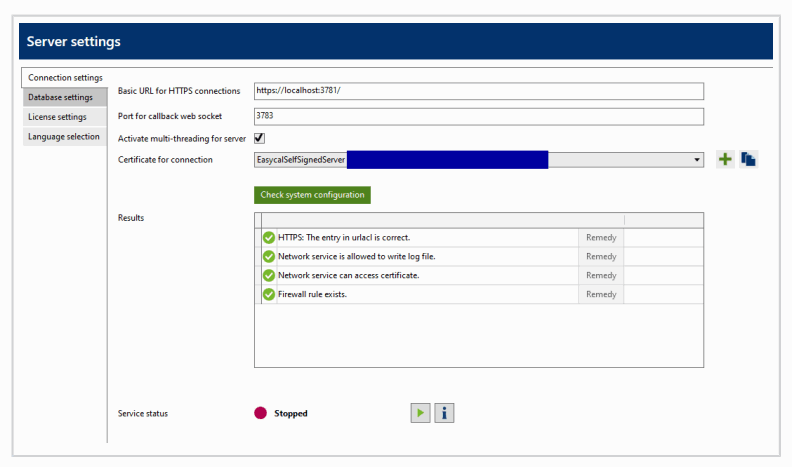
Database settings
Switch to the Database Settings tab. For simple networks (or if there is not already an MS SQL Server) leave the settings on SQLite. The path to the Easycal database should not be changed. Moving of the database to a “network drive” is not supported.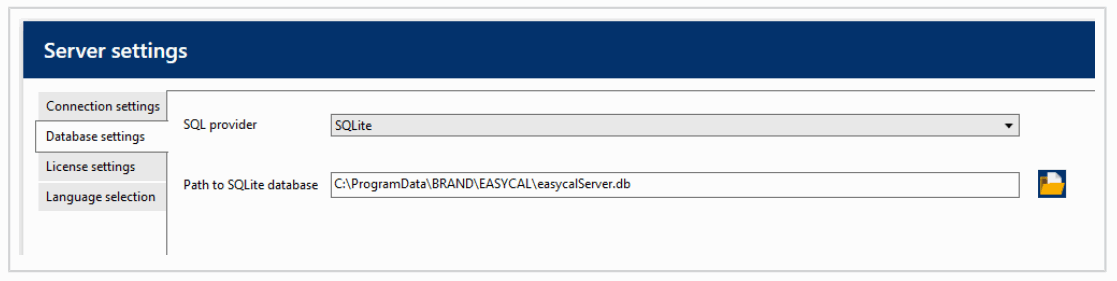
Add client licenses.
a. Go to tab License settings.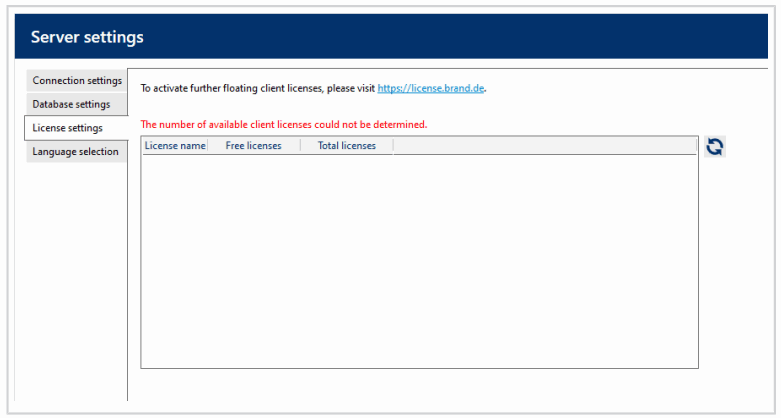 b. Click on the URL in the window, the default browser will open.
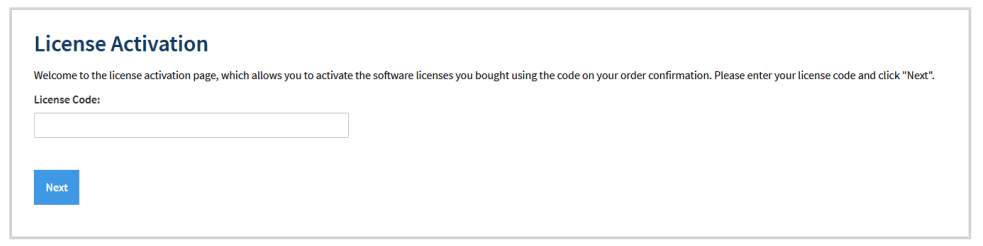 c. Follow the license activation dialog analogously to the license activation of the server described above. Client licenses can be purchased via the BRAND Webshop (https://shop.brand.de).
d. Select the license container of the server. Only one container should be available.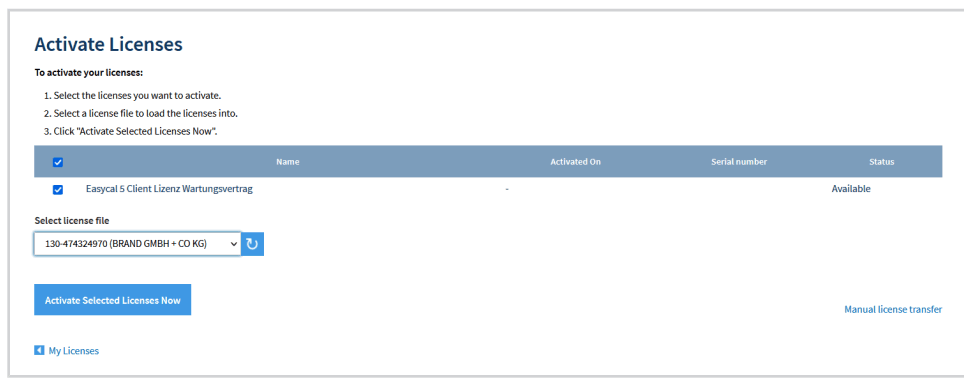 e. Click on Activate Selected Licenses Now .
➥ The license is now activated.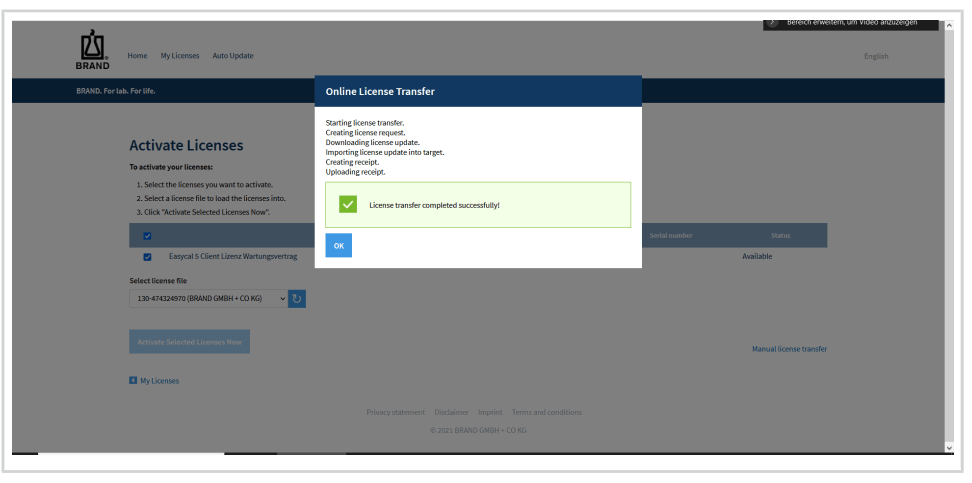 f. Confirm with OK.
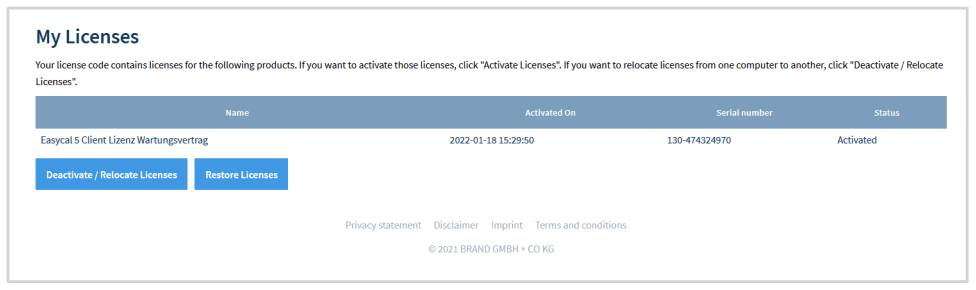 g. After completing the activation in the web browser, switch back to the EASYCAL™ 5 server software.
h. In the License settings tab click the button .
.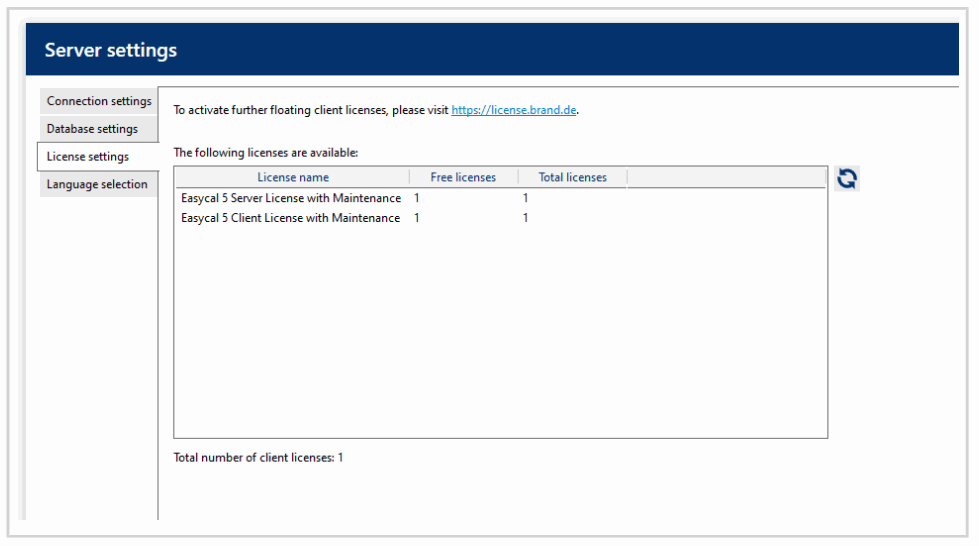 i. In this way, any number of clients can be linked to the server.
j. Finally, switch to the Connections settings tab and configure the server by clicking the button .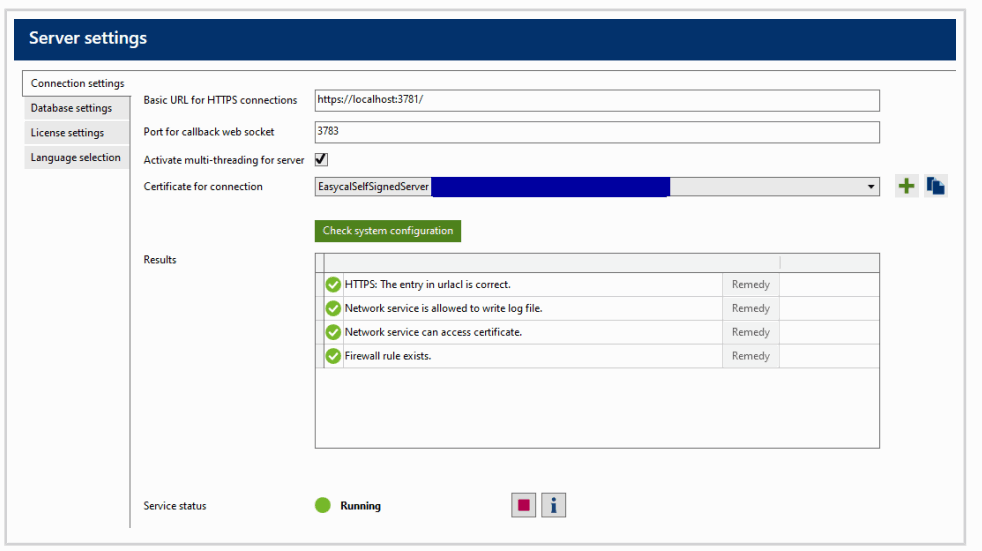 ➥ This completes the preparations on the server.
k. From now on, the EASYCAL™ 5 client software can be installed on the client PCs in the network. As many client PCs with EASYCAL™ 5 can be operated in parallel as there are unused client licenses available on the EASYCAL™ 5 server. A current overview can be seen in the License settings tab.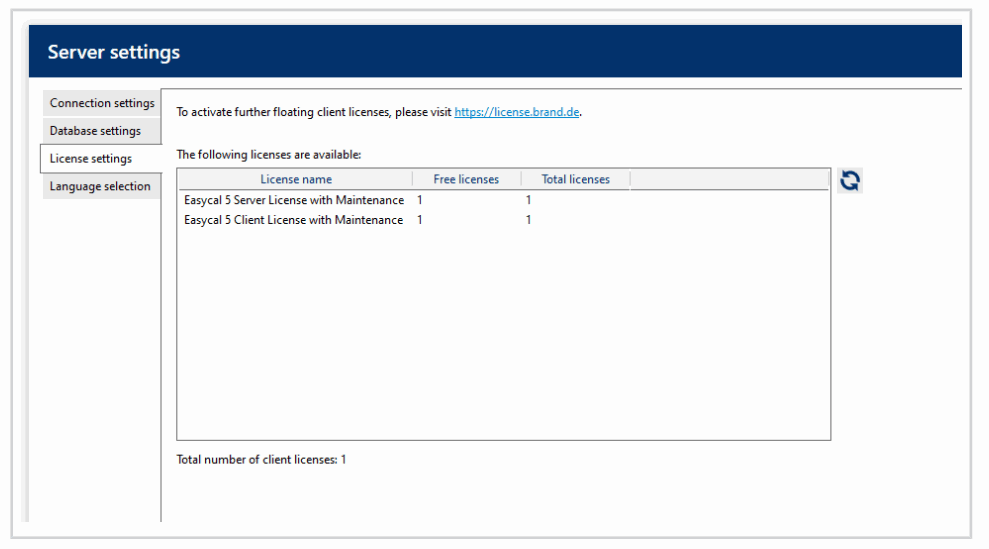
First Client Start
a. Start the client with local admin rights.
➥ After the start an error message appears, because the client does not know the address to the server yet.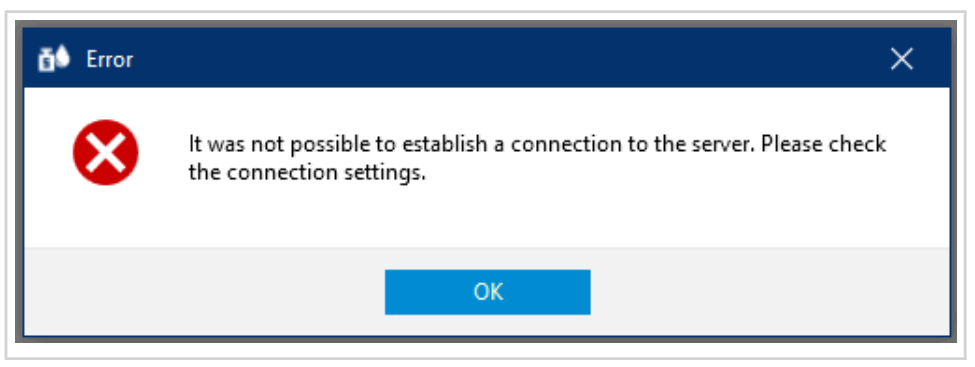 b. Confirm Error message by clicking OK.
➥ The window for entering the server address appears.
c. Copy the Basic URL and the Certificate for connection from the server into a text file. Then insert the entries as follows in the Client Software > Settings > Server settings.
| Basic URL for HTTPS connections | insert in | Serve r address |
| Certificate for connection | insert in | Fingerprint of certificate |
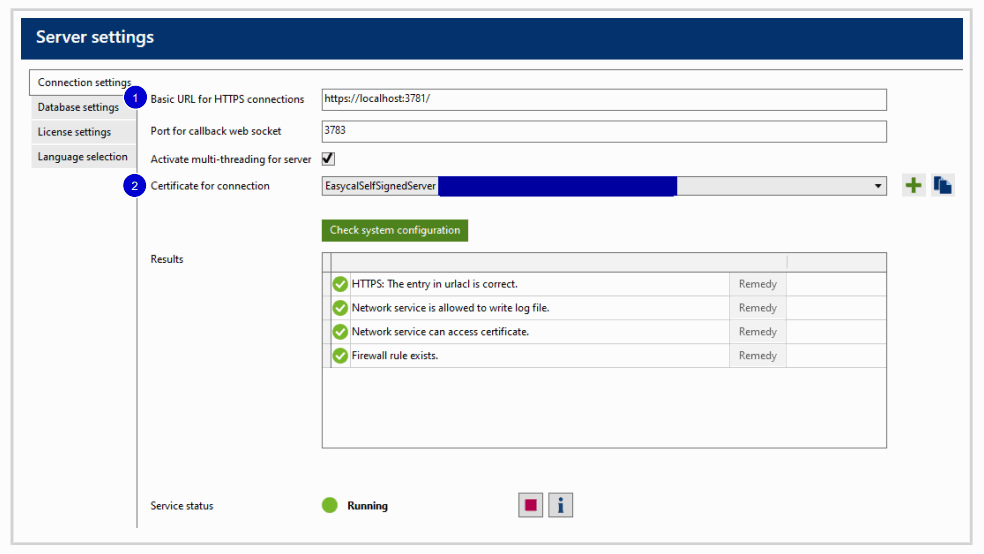
- Basic URL/Server address
- Certificate for connection/finger print
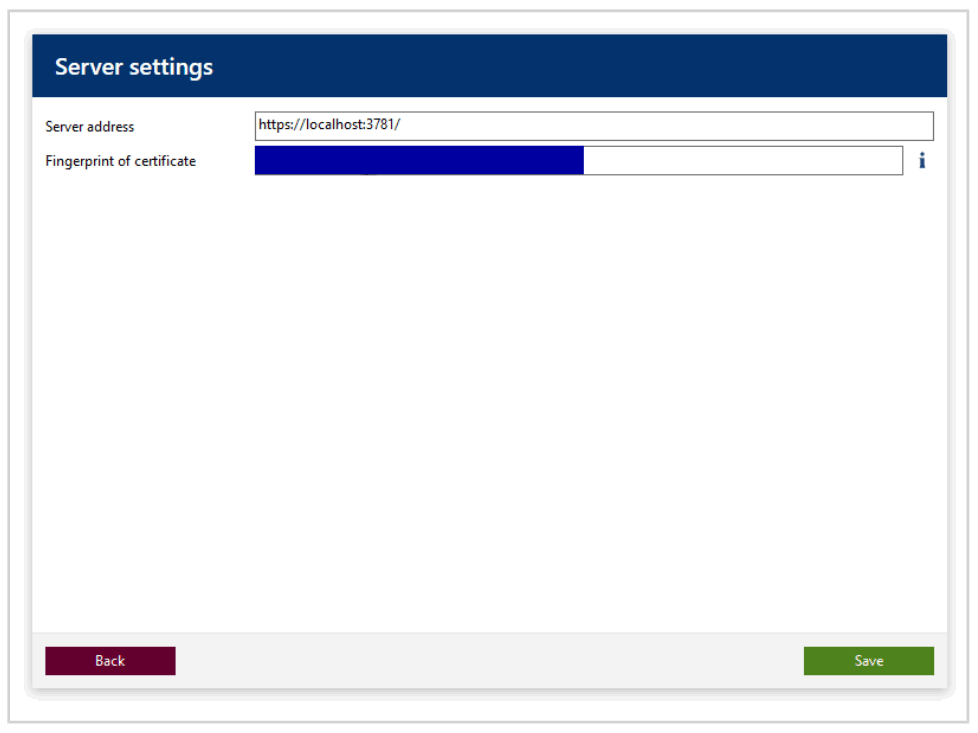 d. Click on Save in the client software.
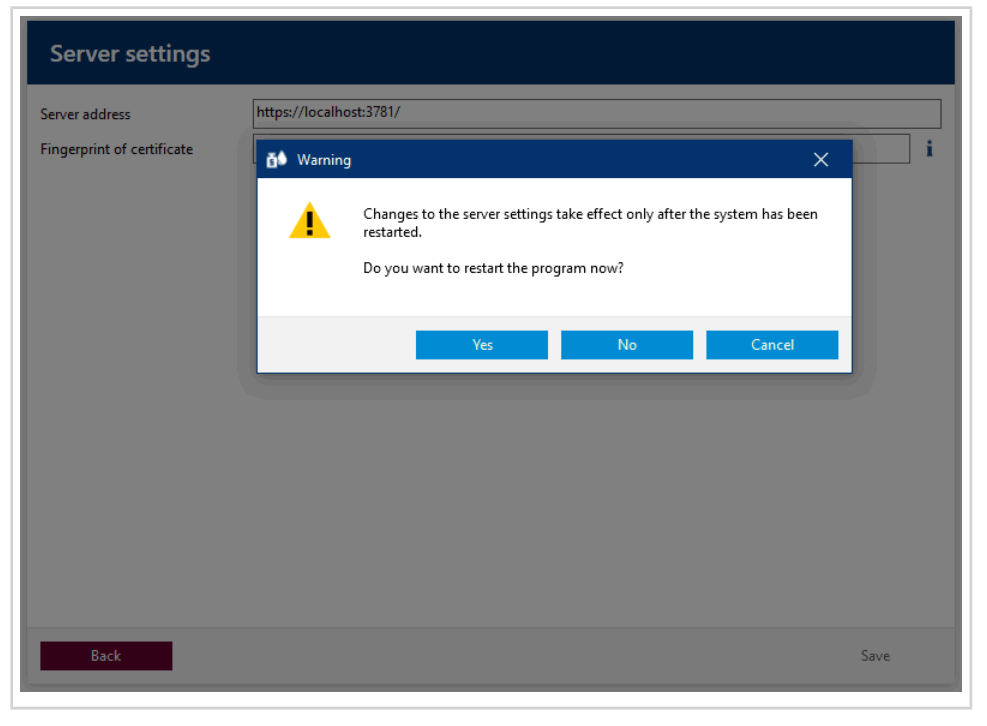 e. Restart client.
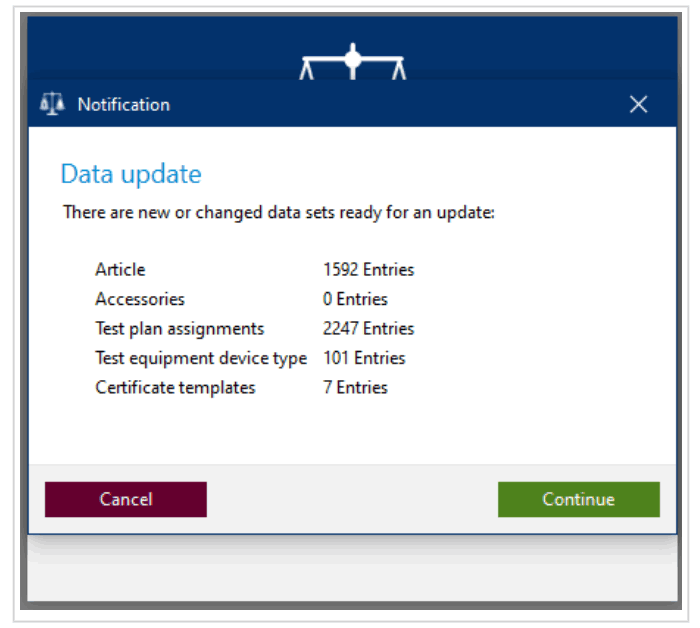
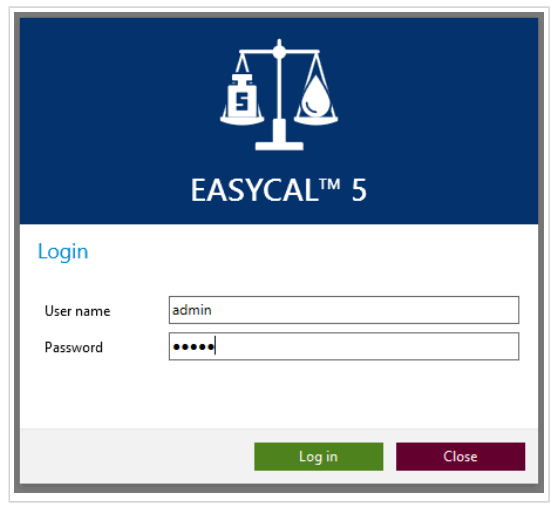 f. Login with standard user (user: admin | password: start) in the client. If necessary, an update is installed, e.g. during the initial installation.
 g. After this is finished, further clients can be started – if free licenses are available.
NOTICE
Change default user
After completing the configuration work, change the default user (user: admin | password: start) to avoid unauthorized access to the system!
Imprint
BRAND GMBH + CO KG
Otto-Schott-Str. 25
97877 Wertheim (Germany)
T +49 9342 808 0
F +49 9342 808 98000
[email protected]
www.brand.de
More operating manuals and translations?
Please refer to http://www.brand.de/com or use the following Quick Response Code:
www.brand.de/om
Subject to technical changes, errors, and misprints.
EASYCAL™ 5 Server installation | Printed in Germany | 0222-1
 Laborgeräte, Applikationsinformationen, Karriere | BRAND
 Life Science und Liquid Handling | Laborgeräte von BRAND