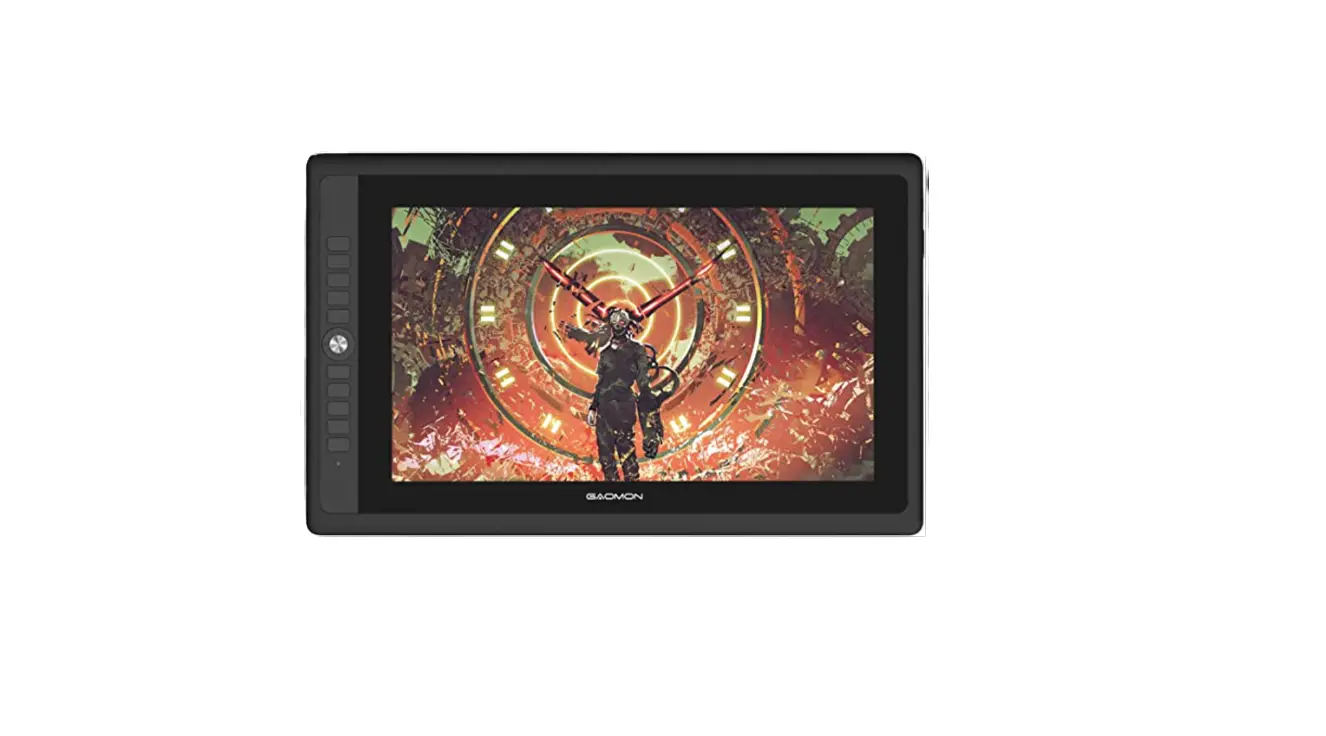
GAOMON PD156PRO Driver 15.6 Inch Full-Laminated Graphics Display Installation Guide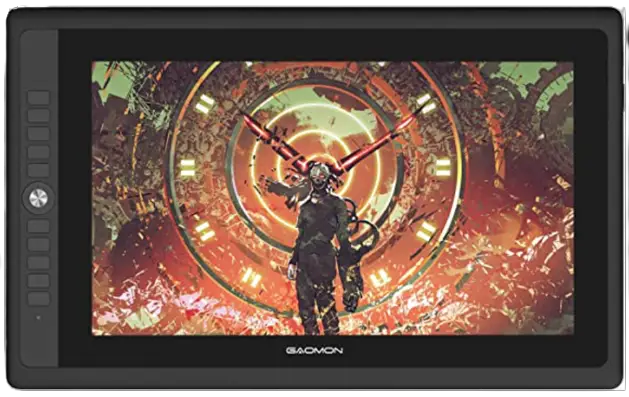
For Windows User
- Make sure all the cables are well connected.
- Close all art programs and anti-virus program first. Make sure there is no anti-virus program running here.(You can still run anti-virus program while the issue get confirmed and fixed)

- Please uninstall the previous GAOMON driver clearly first. Go to Control Panel — Programs and Features — uninstall current GAOMONDriver — also make sure no other brands tablet driver. (VERY IMPORTANT)
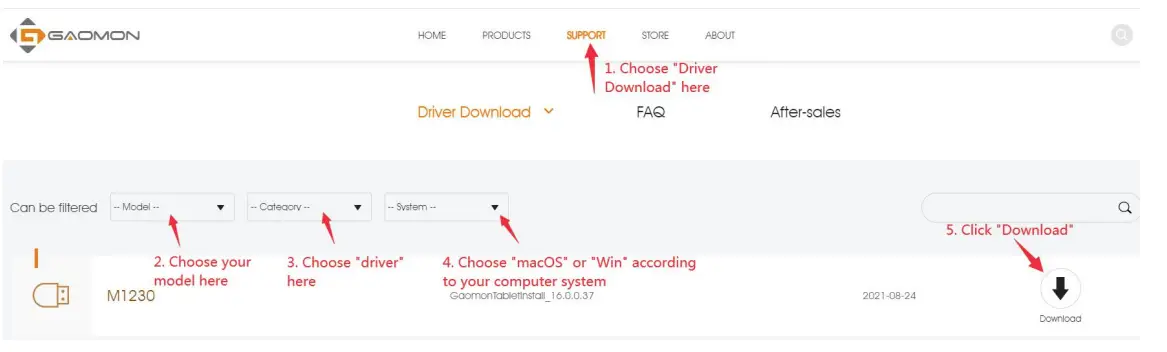
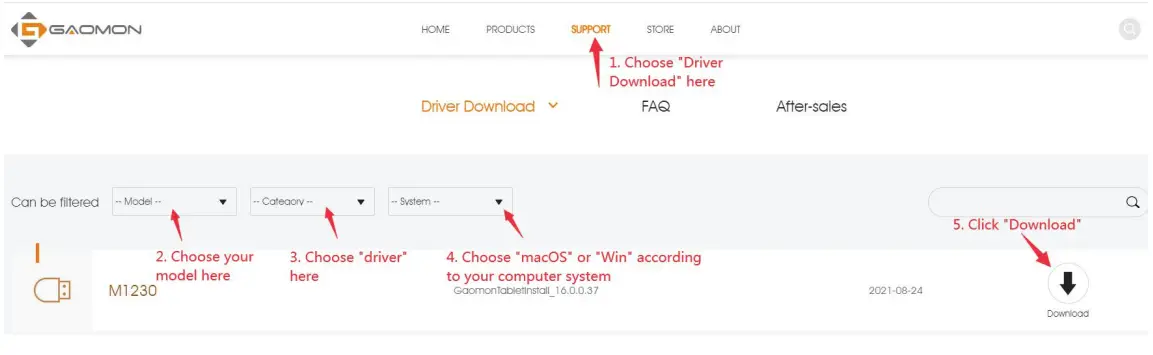
- Download and install GAOMON driver.
Download link here: https://www.gaomon.net/download/
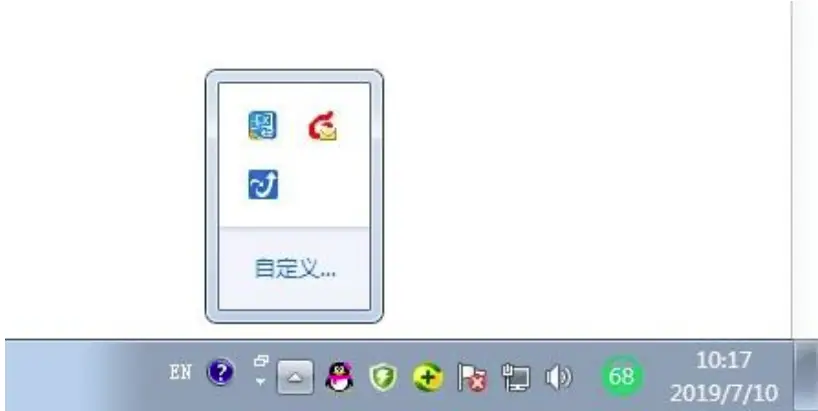
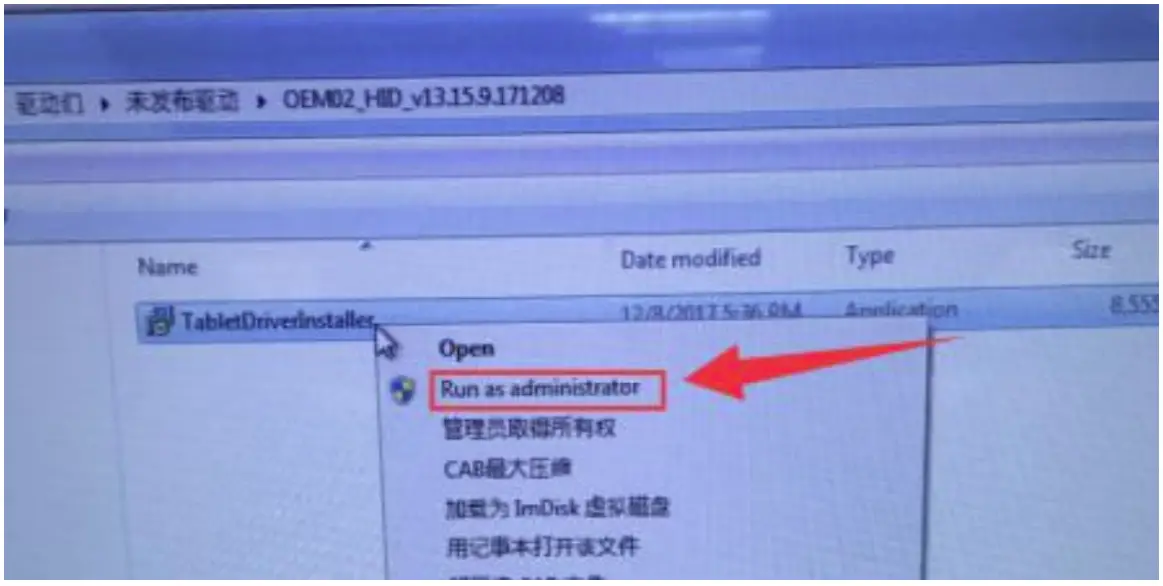
1) Please right-click the driver setup icon, whose file extension is ‘.exe’, in the installation file and select ‘Run as administrator’ from the dropdown list.
(Run as an administrator before installation , not after installation.)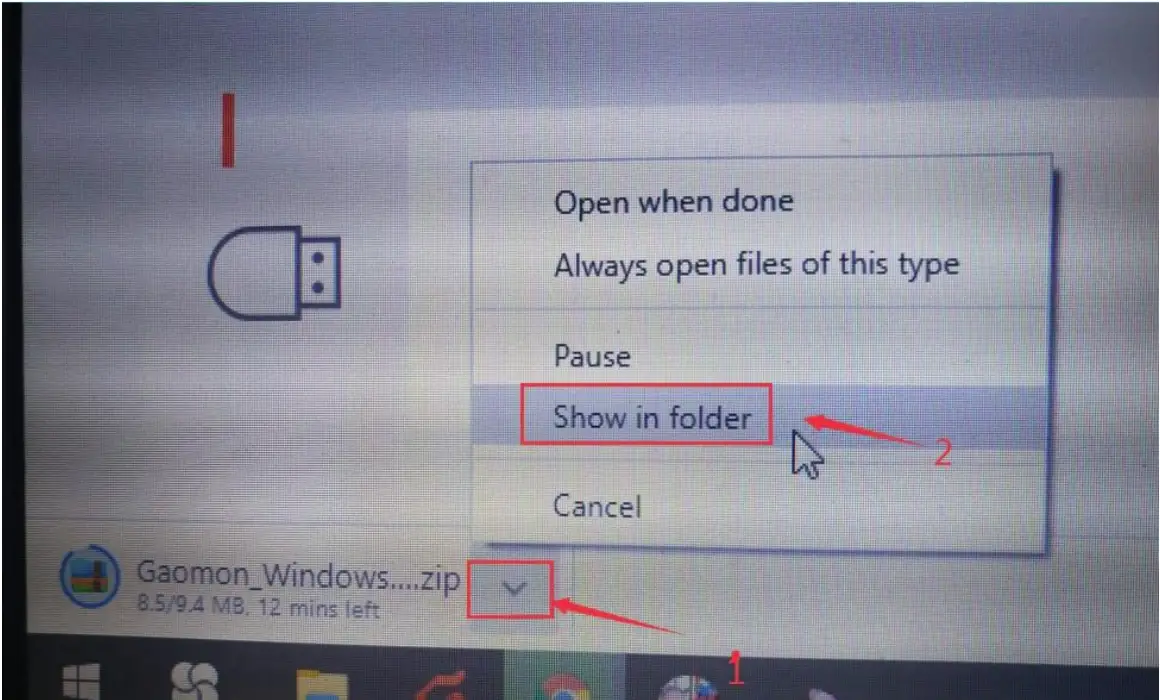
(2) Don’ change the installation path. The default path is Disk C: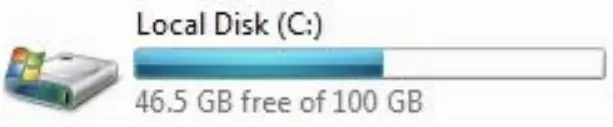
For Mac User
- Make sure all the cables are well connected.
- Download GAOMON driver here: https://www.gaomon.net/download/

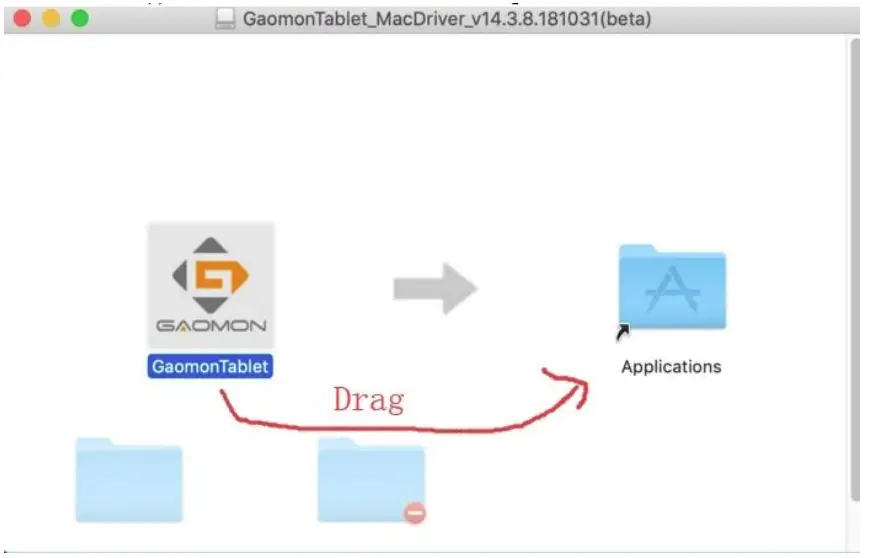
- Install the downloaded driver as below shows:
Click the installation package — Drag ‘GaomonTablet ‘ icon upon ‘Applications’ andhold on for a while until it enters in ‘Applications’ folder — Double click ‘GaomonTablet’ and select ‘Open’ to run the driver.
Here is the end of installing the driver completely.
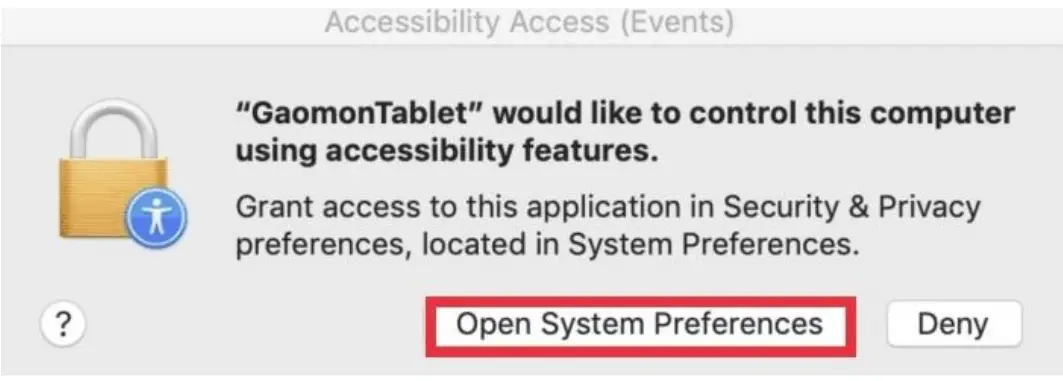
If OS version are mac 10.14 or later/mac Big Sur , please kindly remember to addtheGAOMON driver to the ‘whitelist’ to ensure that the tablet works normally. If it is below mac 10.14, please skip the following 2 step - After installation, press one of the express key on the tablet and it will pop out abox ‘Accessibility Access’ . Then click ‘Open System Preferences’ to bring out ‘Security& Privacy’ box. Don’t click “Deny”!

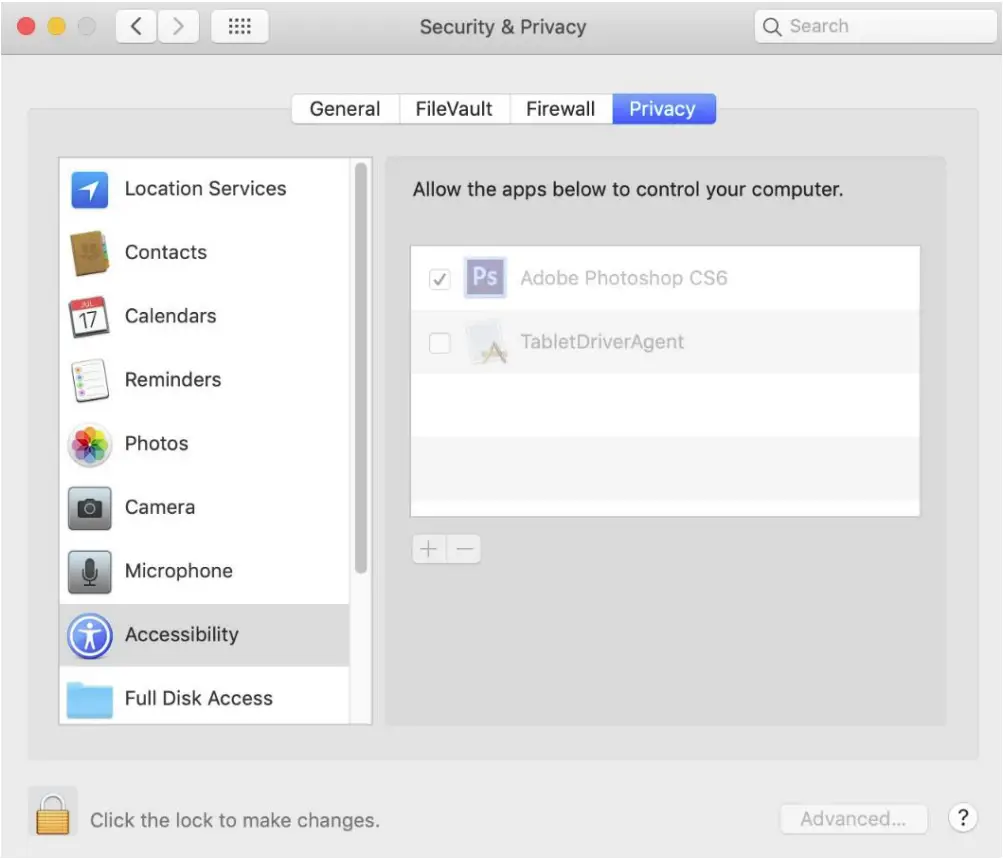
- Set Up ‘Security & Privacy’ to add ‘TabletDriverAgent’ in the whitelist as belowshows:
Bring out ‘Security & Privacy’ and put ‘TabletDriverAgent’ into the whitelist of mac OS
You can see ‘TabletDriverAgent’ is already in the whitelist, but it is not checked. Then you need to do:
- Click the lock icon
 to unlock and input your password
 - Then tick ‘TabletDriverAgent‘ – Click ‘+’ and it will bring out another box
- Click the lock icon
 to lock
 to unlock and input your password
 to lock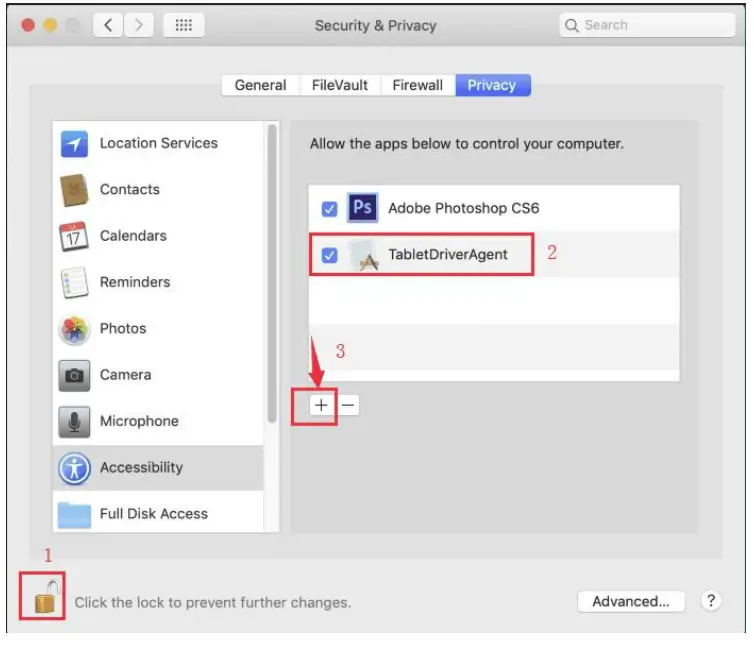
Any suggestions and questions, please feel free to tell us. You can find us from
【GAOMON SUPPORT TEAM: https://www.gaomon.net/after-sales/】
Thank you!
 GAOMON | Official Home - Global | Graphics Tablet, Pen Display