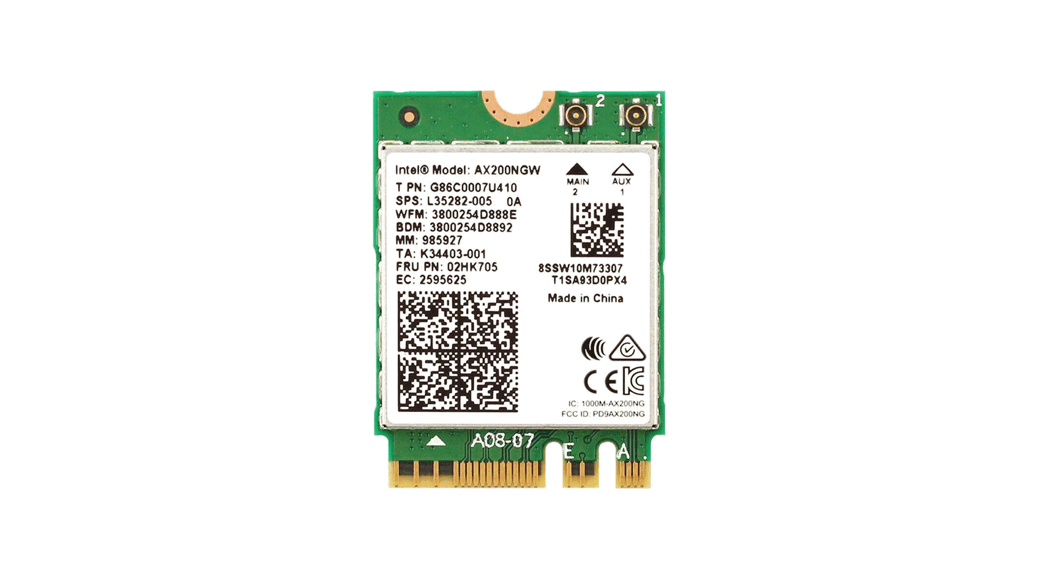
BDE-MP2652P7 Wireless Module
BDE-MP2652P7 USER GUIDE
Wireless Module
This user guide is for BDE-MP2652P7, a Wireless Module based on
TI CC2652P7. It provides instructions on how to connect the module
with the evaluation board BDE-EVB07 or with the TI launchpad, and
how to build the first application. It also demonstrates how
BDEMP2652P7 receives a data packet sent from a mobile terminal.
Hardware Diagram
- Block Diagram
- RF Switch True Table
- Antenna Selection Schematic
The module uses a switch to select 5 dBm or 20 dBm TX power and
the RX path for the 2.4-GHz band. The Sub-1GHz band has its own
standalone antenna.
Get Ready
The following tools are recommended to develop with
BDE-MP2652P7:
Hardware tools:
- BDE-MP2652P7
- Two BDE-ADP208 V1.0 (adaptor board)
- PC or Laptop
- BDE-EVB07
- USB cable for power supply and debugging
Software tools:
- Terminal software such as CCS, IAR
- CCS download
- Software Development Kit (SDK)
- nRF Connect
Build Your First Application
Once you have the Hardware and Software tools in place, please
follow the following steps:
A. Connect the Hardware
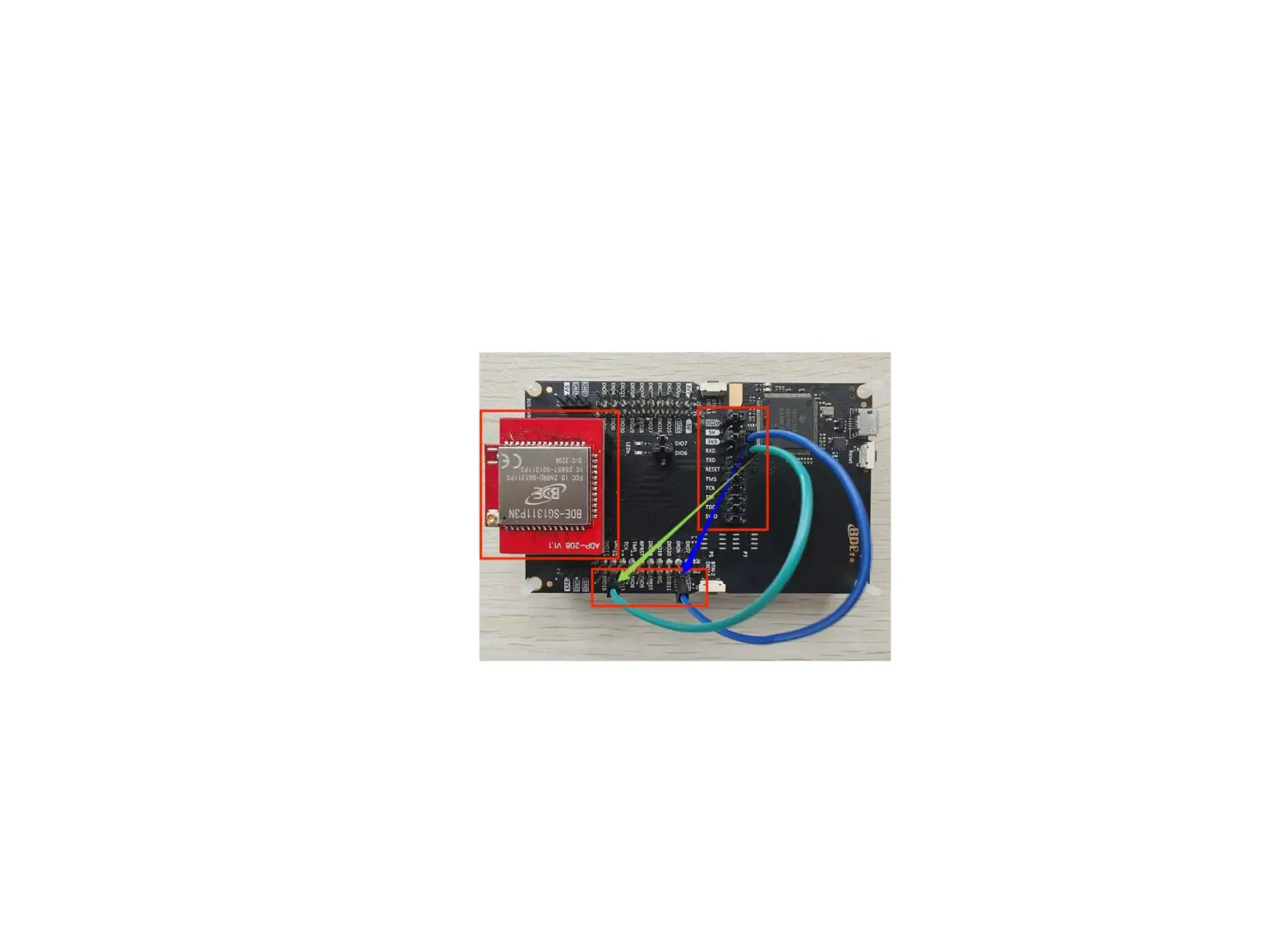
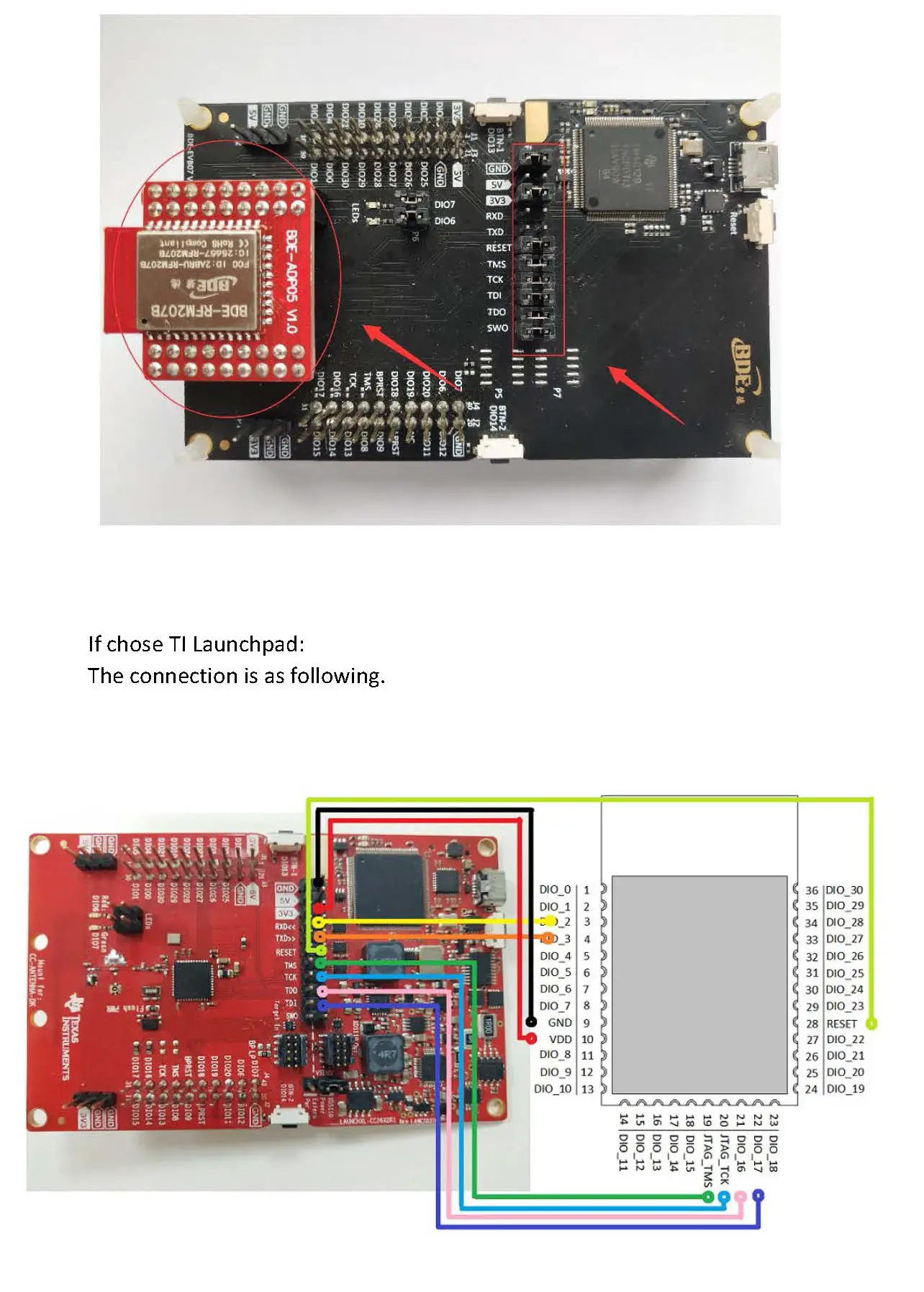
If you chose EVB07:
- Use a USB cable to connect EVB07 and PC or laptop.
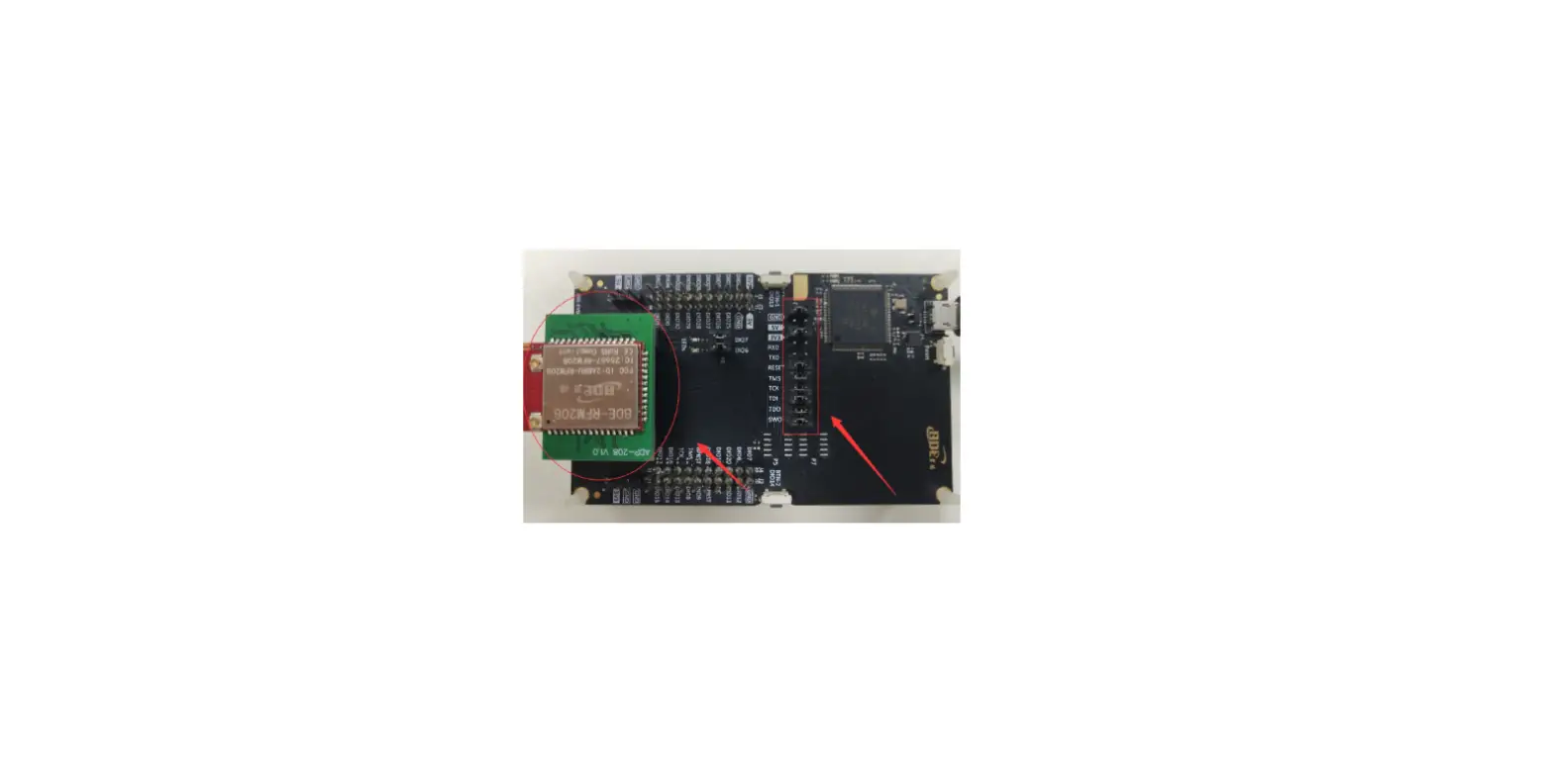
- Plug BDE-MP2652P7 with the adaptor board into the dev board and
connect all the pins with Jumpers as shown in the picture.
B. Build the Application
Download and install the CCS and SDK by following the
instructions below:
CCS Installation
- Click on the provided option.
- Select an option to download CCS.
- Unzip the package to a local disk.
- Click the setup of CCS.
- Click Next.
- Select the default option.
- Click Next.
- Select the Installation Directory.
- Select the default option.
- Select the component.
- Select the default option.
- Click Next.
- Click Next.
- Wait for installation to complete.
Software Development Kit (SDK) Installation
- Click on the provided option.
- Select an option to download the SDK.
- Log in to your TI account. If you are a new user, register a TI
account first.
BDE-MP2652P7 USER GUIDE
Wireless Module
BDE-MP2652P7 USER GUIDE
User Guide
Introduction
This user guide is for BDE-MP2652P7, a Wireless Module based on TI CC2652P7. It is a quick start guide for how to connect the module with the evaluation board BDE-EVB07 or with the TI launchpad, and how to build the first application. It also shows a demo for how BDEMP2652P7 receives a data packet that is sent from the mobile terminial.
Hardware Diagram
A. Block Diagram
B. RF Switch True Table
C. Antenna Selection Schematic
The module is using the switch to select 5 dBm or 20 dBm TX power and also the RX path for the 2.4-GHz band. Sub-1GHz band is standalone for having its own antenna.
BDE Technology Inc.
1 / 23
BDE-MP2652P7 USER GUIDE
Wireless Module
User Guide
Get Ready
The following tools are recommended to develop with BDE-MP2652P7. Hardware tools:
BDE-MP2652P7 BDE-MP2652P7-BDE Technology Inc. (bdecomm.com)) Two BDE-ADP208 V1.0 (adaptor board) PC or Laptop A BDE-EVB07 ( BDE-EVB07-BDE Technology Inc. (bdecomm.com)) USB cable for power supply and debugging
Software tools: Terminal software such as CCS, IAR.
BDE Technology Inc.
2 / 23
BDE-MP2652P7 USER GUIDE
Wireless Module CCS download Software Development Kit (SDK) nRF Connect
User Guide
Build Your First Application
Once have the Hardware and Software tools in place, please following the following steps:
A. Connect the Hardware
If chose EVB07: Use USB cable to connect EVB07 and PC or laptop. Plug BDE-MP2652P7 with the adaptor board into the dev board and connect all the pins with Jumpers as the following picture shows.
B. Build the Application
Download and install the CCS and SDK
From the above links, follow the instructions in the following steps to download and install the CCS and SDK.
CCS Installation
BDE Technology Inc.
3 / 23
BDE-MP2652P7 USER GUIDE
Wireless Module
1. Click on this option
User Guide
2. Select an option to download CCS
3. Unzip the package to a local disc
4. Click the setup of CCS BDE Technology Inc.
4 / 23
BDE-MP2652P7 USER GUIDE
Wireless Module
User Guide
5. Click “Next”
6. Select the default option
BDE Technology Inc.
5 / 23
BDE-MP2652P7 USER GUIDE
Wireless Module
User Guide
7. Click “Next”
BDE Technology Inc.
6 / 23
BDE-MP2652P7 USER GUIDE
Wireless Module
8. Select the Installation Directory
User Guide
9. Select the default option
BDE Technology Inc.
7 / 23
BDE-MP2652P7 USER GUIDE
Wireless Module
10. Select the component
User Guide
11. Select the default option
BDE Technology Inc.
8 / 23
BDE-MP2652P7 USER GUIDE
Wireless Module
12. Click “Next”
User Guide
13. Click “Next”
BDE Technology Inc.
9 / 23
BDE-MP2652P7 USER GUIDE
Wireless Module
14. Waiting for installation to complete
User Guide
Software Development Kit (SDK) installation
1. Click on this option
BDE Technology Inc.
10 / 23
BDE-MP2652P7 USER GUIDE
Wireless Module
2. Select an option you need to download SDK
User Guide
3. Log in to your TI account, if you are a new user, register a TI account first
BDE Technology Inc.
11 / 23
BDE-MP2652P7 USER GUIDE
Wireless Module
4. Select “civil” if your application is for civil use
User Guide
5. Select “Yes” and submit
6. Download SDK
BDE Technology Inc.
12 / 23
BDE-MP2652P7 USER GUIDE
Wireless Module
User Guide
7. Installation 8. Click “Next”
BDE Technology Inc.
13 / 23
BDE-MP2652P7 USER GUIDE
Wireless Module
9. Select the default option
User Guide
10. Select the Installation directory
11. Click “Next” BDE Technology Inc.
14 / 23
BDE-MP2652P7 USER GUIDE
Wireless Module
User Guide
12. Waiting for installation to complete
BDE Technology Inc.
15 / 23
BDE-MP2652P7 USER GUIDE
Wireless Module
Run an example/demo code
User Guide
1. For the first module, find the option named “Import CCS project…”
2. According to the following path to find the sending end project: tisimplelink_cc13xx_cc26xx_sdk_6_40_00_13examplesrtosLP_CC135 2P7_4ble5stacksimple_peripheral
(Since TI does not have a dedicated SDK for CC2652P7, we use LP_CC1352P7_4 instead, which can also run normally on CC2652P7 devices)
BDE Technology Inc.
16 / 23
BDE-MP2652P7 USER GUIDE
Wireless Module
3. Open the file: simple_peripheral.syscfg
User Guide
4. Chang the “0xC1” to “0x00”.
5. Right Click the project to build the receiving end project
BDE Technology Inc.
17 / 23
BDE-MP2652P7 USER GUIDE
Wireless Module
User Guide
6. Click this bug icon (means download and debugging)
BDE Technology Inc.
18 / 23
BDE-MP2652P7 USER GUIDE
Wireless Module
7. Click on this option to start debugging
User Guide
8. Download and start nRF Connect (an APP on your mobile device)
9. BDE-MP2652P7 is advertising, you can receive the signal on nRF Connect, then click “connect” to connect the mobile phone and the BDE-MP2652P7.
BDE Technology Inc.
19 / 23
BDE-MP2652P7 USER GUIDE
Wireless Module
User Guide
10. Find the file which is named “simple_gatt_profile.c” and the function which is named “simpleProfile_WriteAttrCB”
BDE Technology Inc.
20 / 23
BDE-MP2652P7 USER GUIDE
Wireless Module 11. Find “pValue” in the function and set a breakpoint at the same line
User Guide
12. Click the up arrow to send a message to the BDE-MP2652P7
13. Send 0x11 to the BDE-MP2652P7
BDE Technology Inc.
21 / 23
BDE-MP2652P7 USER GUIDE
Wireless Module
User Guide
14. The program stops at the breakpoint, the value received is 0x11
BDE Technology Inc.
22 / 23
BDE-MP2652P7 USER GUIDE
Wireless Module By far you should’ve built your first application successfully.
User Guide
For further development, please check out the CC2652P7 datasheet, product information and support | TI.com page and download the User guide
Other Resources
Windows Installer for SimpleLink CC13XX CC26XX SDK
Linux Installer for SimpleLink CC13XX CC26XX SDK
Mac OS Installer for Code Composer Studio IDE
Linux Installer for Code Composer Studio IDE
Windows Installer for SmartRF Flash Programmer 2
More Questions:
Please search existing answers on TI E2E support forums
Contact your local TI sales representative. Or Contact BDE Technology, Inc.
China: B2-403, 162 Science Ave, Huangpu District, Guangzhou, 510663 Tel: +86-020-28065335 Website: http://www.bdecomm.com/cn/ Email: [email protected]
USA: 67 E Madison St, #1603A, Chicago, IL 60603 Tel: +1-312-379-9589 Website: http://www.bdecomm.com/ Email: [email protected]
BDE Technology Inc.
23 / 23
References
 BDE Technology Inc.
-
Analog | Embedded processing | Semiconductor company | TI.com
-
BDE Technology Inc.
-
广州碧德科技股份有限公司
-
BDE-EVB07-BDE Technology Inc.
-
BDE-MP2652P7(Multi-Protocol with PA Based on CC2652P7) -BDE Technology Inc.
-
Log in | myTI | Texas Instruments
-
Log in | myTI | Texas Instruments
 TI E2E support forums
-
nRF Connect for Mobile - nordicsemi.com
-
CC2652P7 data sheet, product information and support | TI.com
-
CCSTUDIO IDE, configuration, compiler or debugger | TI.com
-
FLASH-PROGRAMMER Software programming tool | TI.com
-
SIMPLELINK-LOWPOWER-SDK Software development kit (SDK) | TI.com
 BDE Technology Inc.
 Analog | Embedded processing | Semiconductor company | TI.com
 BDE Technology Inc.
 Log in | myTI | Texas Instruments
 TI E2E support forums
 nRF Connect for Mobile - nordicsemi.com
 CC2652P7 data sheet, product information and support | TI.com