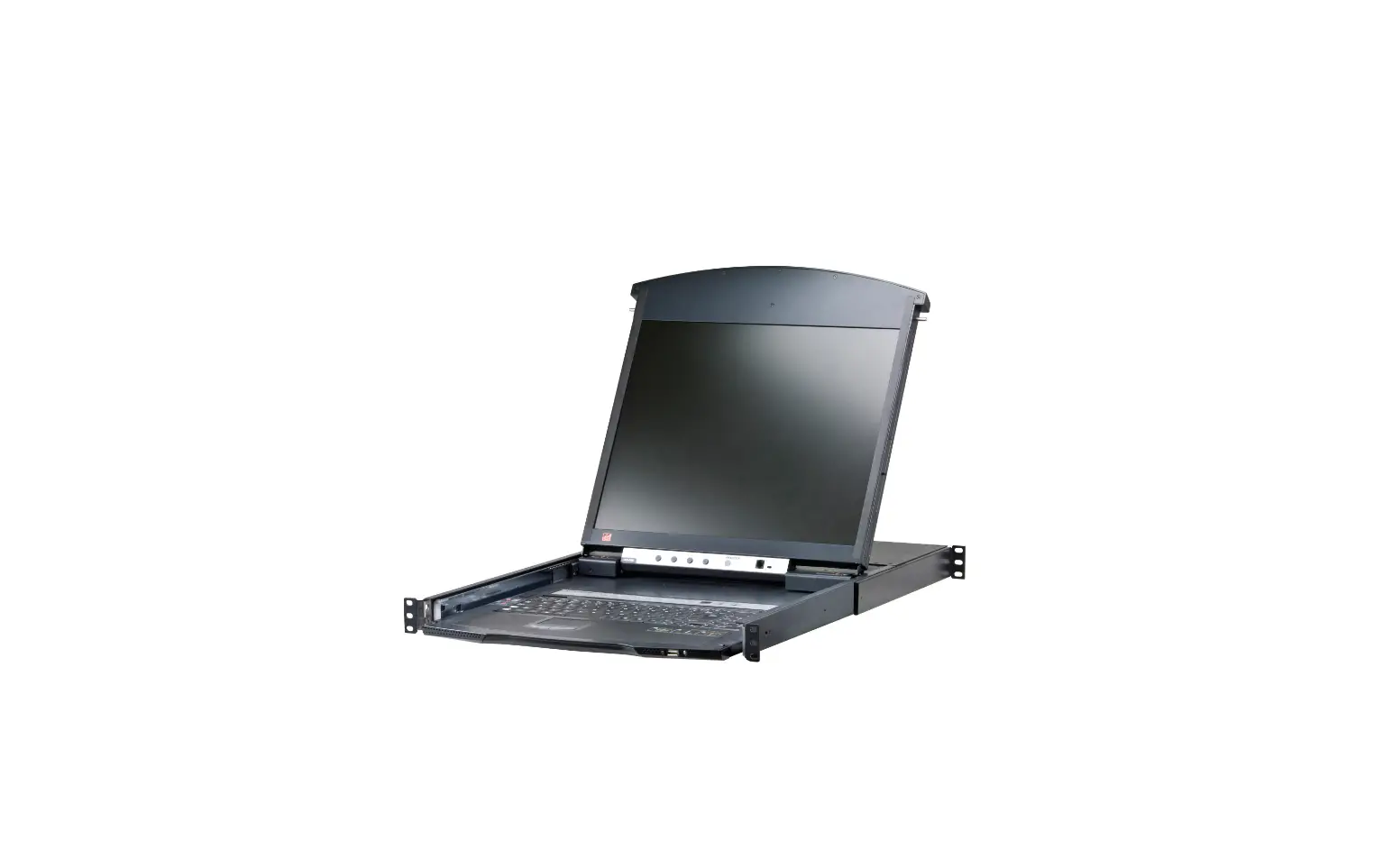
P Series LCD KVM Switch
LCD KVM Switch P SERIES Installation Manual
Product Information
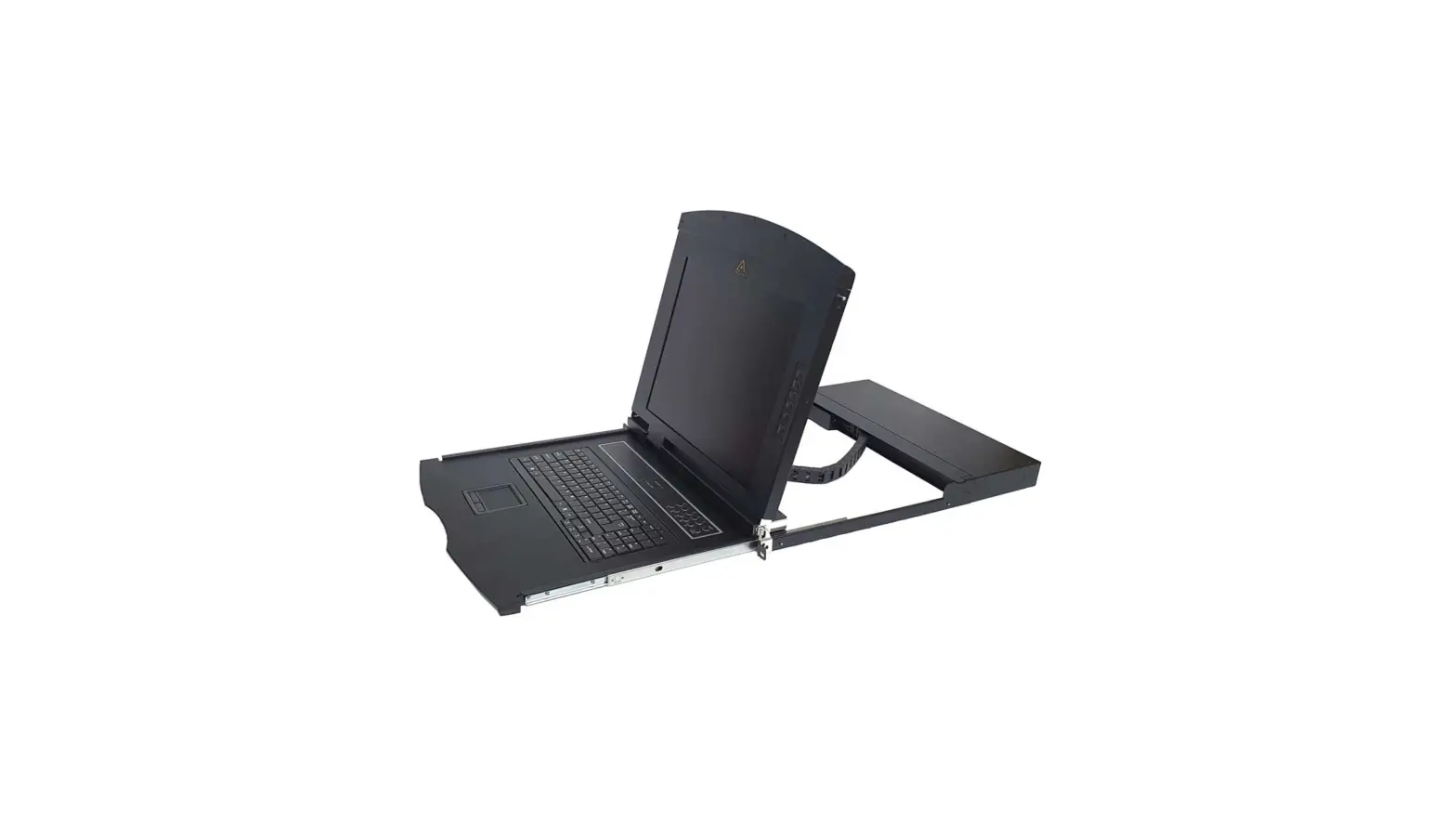
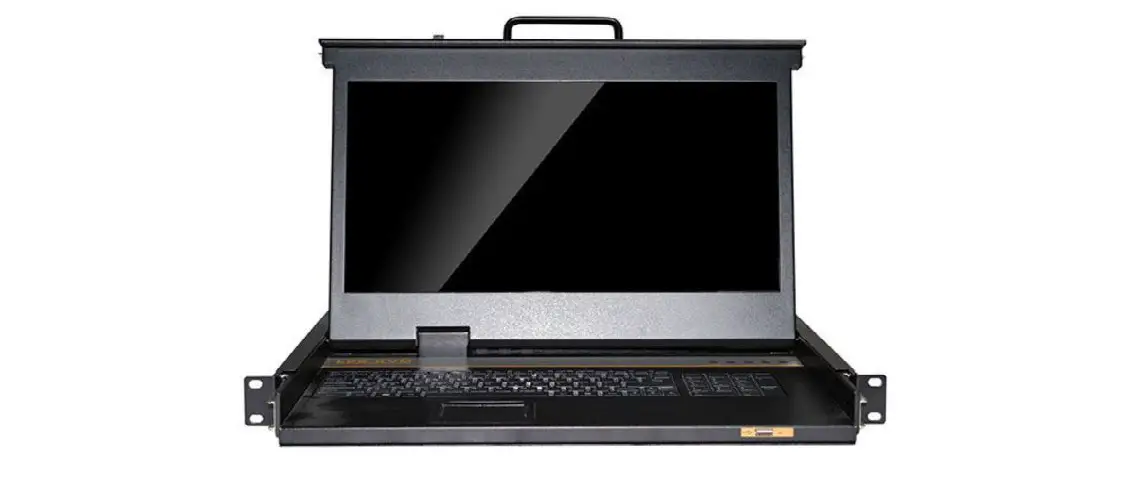
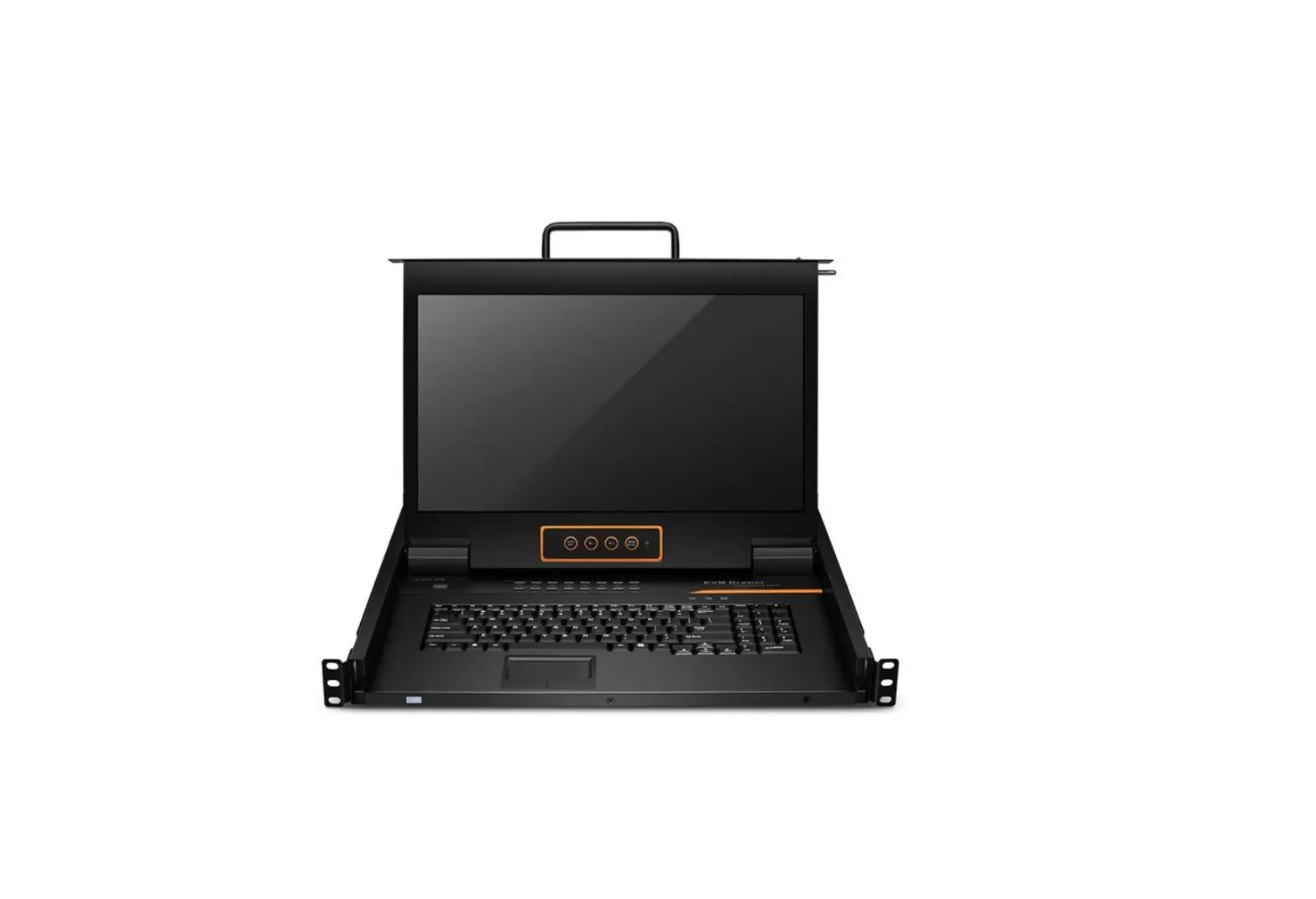
The LCD KVM Switch is a combination keyboard, video, and mouse
switcher that allows control of multiple computers from a single
console. It can be controlled by the connected server or computer
using the local controller. The KVM switch provides various control
options such as screen menu, password security, hot key control,
buttons, and automatic scanning control. It is compatible with
Microsoft Windows, Netware Unix, Linux, and Kirin systems. No
software is required for operation.
Product characteristics:
- 4/8/16 PORT LCD KVM Switcher – 17 INCH / 19 INCH SYSTEM
- Support for a local control terminal
- Support Microsoft Windows, Netware Unix, Linux, and Kirin
system - No software required: computer selection can be done through
on-screen menus, buttons, or hotkeys - Multiple hotkey combinations available
(Scroll-Lock/Caps-Lock/Num-Lock)
Product Usage Instructions
Packaging Content:
- 1 x LCD KVM Host
- 1 x AC TO DC Adapter (Built-in)
- 2 x Mounting bracket
- 1 x AC Power line – IEC C13/C14 Plug
If any of the above items are missing or damaged, please contact
your vendor.
KVM Hardware Summary:
The KVM hardware includes the following:
- Elevation drawing of the LCD KVM
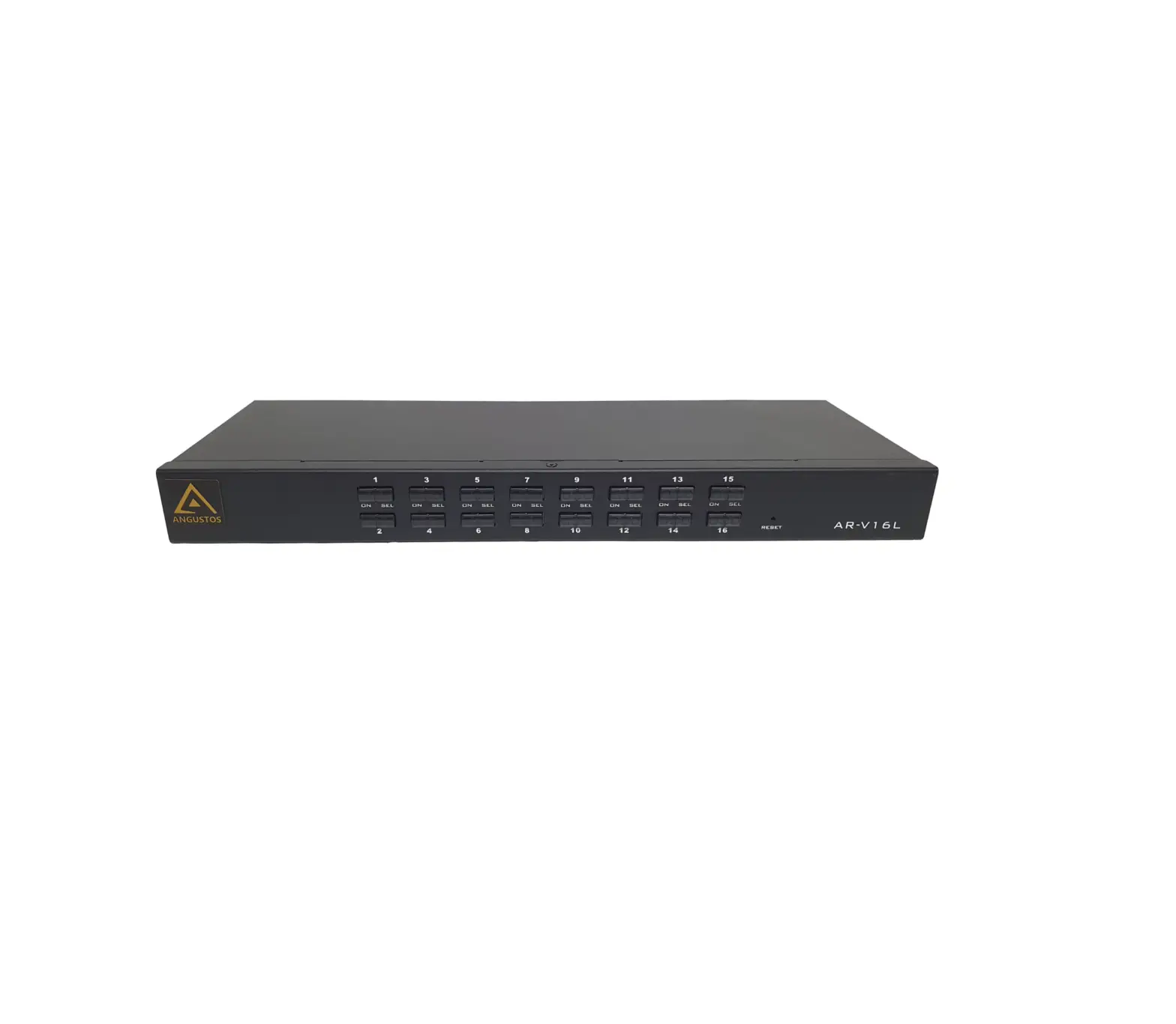
- KVM signal lights and buttons
- Port status display
- Port shortcut key debug selection
- Rear-panel port
KVM Hardware Installation:
Step 1: Connect Display, Keyboard, and Mouse
1. Connect the display screen to the local control terminal of
the KVM back panel using the HDDB15 female head port.
2. Connect the keyboard to one of the USB ports and the mouse to
the other USB port.
3. Use a 2-in-1 VGA cable, with one end being an HDDB15 male
connector and the other end having two connectors for the display
screen.
4. Ensure that the keyboard and mouse cables are connected to
the correct ports by checking their respective colors.
Step 2: Power Connection
1. Connect the power supply to the KVM switch.
2. Connect the other end of the power supply to a power
socket.
3. Verify that the lights on the KVM switch are illuminated and
you hear a beep sound. The power input can be either C13/C14 or 12V
(optional).
Step 3: Turn On Display and Computer
1. Turn on the display screen.
2. Turn on the computer.
3. The first computer’s display will appear on the screen. Check
if the mouse and keyboard are working properly.
4. If everything works, press the port selection button to
select the next port and confirm if it works as well.
5. If any errors occur, recheck all wire connections and refer
to the Troubleshooting section of the user manual for
assistance.
LCD KVM Switch P SERIES Installation Manual
LCD KVM SWITCH
17″ – 19″
USER MANUAL
Rev. 2.2
ANGUSTOS LLC.
LCD KVM Switch Installation Manual
CONTENTS
1 PRODUCT CHARACTERISTICS ……………………………………………………….. 3 1.1 KVM PACKAGING CONTENT………………………………………………………….. 3 2 HARDWARE SUMMARY ……………………………………………………………………. 3 2.1 FRONT …………………………………………………………………………………………………3 2.2 FRONT PANEL LIGHT NUMBER AND PUSH-BUTTONS ……………… 4 2.3 CRESSET ……………………………………………………………………………………….. 4 2.4 PORT DEBUGGING SELECTION …………………………………………………… 4 2.5 REAR-PANEL PORT ……………………………………………………………………… 5 3 KVM HARDWARE INSTALLATION ………………………………………………. 6 4 BUTTON AMD HOTKEY OPERATION ……………………………………………… 7 4.1 CONTROL THE KVM IN MULTIPLE WAYS …………………………………… 7 4.2 OSD PARAMETER SETUP ……………………………………………………………. 7 4.3 OSD LANGUAGES ………………………………………………………………………… 7 4.3.1 OSD HOMEPAGE …………………………………………………………………………… 7 4.3.2 OSD SUBPAGE ………………………………………………………………………………. 8 4.3.3 PORT PAGE ……………………………………………………………………………………. 8 4.3.4 THE PASSWORD LOGIN WINDOW ………………………………………………. 8 4.4 OSD STEP EDIT …………………………………………………………………………….. 9 4.4.1 PORT NAME EDIT …………………………………………………………………………… 9 4.4.2 PASSWORD EDITING …………………………………………………………………… 10 4.4.3 HOT-KEY OPTIONS ………………………………………………………………………. 11 4.4.4 SCAN SETUP ………………………………………………………………………………….. 11 4.4.5 LCD ENERGY-SAVING SETUP ………………………………………………………. 12 4.4.6 RESET …………………………………………………………………………………………….. 12 5 DDC FUNCTION …………………………………………………………………………………. 13 6 TROUBLESHOOT IT …………………………………………………………………………….. 13 7: LCD KVM SERIES OF PARAMETERS …………………………………………………… 14 8CERTIFICATION……………………………………………………………………………………. 15
2
ANGUSTOS LLC.
LCD KVM Switch Installation Manual
KVM ABSTRACT
LCD Combo KVM Switcher (hereinafter referred to as KVM Switcher) can be controlled by the connected server or computer by the local controller. The LCD KVM switch is controlled by the local control end, screen menu, password security, hot key control, buttons and automatic scanning control. This KVM switch can fully simulate the simultaneous computer keyboard and mouse signal.
1: Product characteristics:
4/8/16 PORT lCD KVM Switcher – 17 INCH / 19 INCH SYSTEM Support for a local control terminal Support Microsoft WindowsNetware Unix With Linux ,Kirin system No software required: you can easily select your computer through on-screen
menus, buttons, or hotkeys Multiple hotkey combinations are available (Scroll-Lock/ Caps-Lock/Num-
Lock/OSDKVM)Toswitchthecomputerportswithothercontrolfunctions, so the hotkey function can be used in various types of keyboards can also prevent the hot key from having duplicate problems Supports two levels of password security protection Provides an ACL (allow control list) security feature that can store up to eight separate control lists Hotplug: You can add or remove connected computers without shutting down the KVM switcher or the computer Support display plug and play. DDC2B. Keyboard state is restored when switching computers.
1.1: Packaging content:
1 x LCD KVM Host 1 x AC TO DC AdapterBuilt-in) 2 x Mounting bracket 1 x AC Power line – IEC C13/C14 Plug.
If any of the above items is missing or damaged, please contact your vendor
2: LCD KVM Hardware summary :
3
ANGUSTOS LLC.
LCD KVM Switch Installation Manual
2.1: LCD KVM Elevation drawing:
2.2: KVM Signal lights and buttons:
2.3 The Port status displays the light number
LIGHT SELECT
ON LINE
color BLUE
BLUE
state Digital display Long bright Flashing
The narrative The digital display indicates the online current port Indicates the computer to connect to this port
Indicates that this port is already selected
2.4 Port shortcut key debug selection
* KVM OSD Interface debugging and selection port: Hotkey to enter the OSD interface, using the keyboard number key
01 0 + 1 CombinationTO 16 (1+ 6 CombinationQuickly select ports for editing and current server operations.
4
ANGUSTOS LLC.
LCD KVM Switch Installation Manual
* The front panel button provides you with the desired port operation to select below
Model
Button
The narrative
AL-X04P AL-X08P AL-X16P
01-04 01-08 01-16 RESET
Port key010+1……….16(1+6) Digital combination, when the key combination, the effective combination time is 1 second Support for the system reset
* Note: Under the operation of OSD and password login interface, the port selection button on the front panel is invalid
2.5: Rear-panel port
3: KVM Hardware installation
3.1Connect the display screen to the local control terminal of KVM back panel HDDB15 female head port. Connect the keyboard to one of the USB ports and the mouse to the other
3.1.12-in-1 VGA cable, one end is HDDB15 male connecting head, the other end is two connecting heads
5
ANGUSTOS LLC.
LCD KVM Switch Installation Manual
3.1.2 If connecting to USB computer, please use 2-in-1 VGA cable to connect to KVM controlled port and computer side. 2 in-1 VGA cable is HDDB15 male connection head at one end and two connection heads at the other end. Please connect one of the connection headers to the controlled end port and connect the two connection headers to the VGA and USB ports of the computer. This single USB port communicates keyboard and mouse signals. This works with standard HID(human machine interface device) without the need for additional drivers
3.1.3: Please make sure you have connected the wires correctly. You can check the color of the keyboard and mouse connector to make sure that the keyboard and mouse cable are connected to the correct port
3.1.4: Connect the power supply to KVM and connect the other end to the power socket. Now you can see the lights come on and you can hear a beep. Power input C13/C14 or 12V optional.
3.1.5: Turn on display and computer. The first computer will be displayed on the screen. You can check whether the mouse and keyboard can work properly after the system is turned on. If it works, press the port selection button to select the next port and confirm whether it works as well. If any errors occur, recheck that all wires are properly connected before using the Troubleshooting section of this manual
3.1.6: When switching servers, there is about 1-2 seconds to rearrange the image signal and resynchronize the mouse and keyboard signals. This is part of the normal operating procedure to ensure that proper synchronization can be established between the control side and the server to which it is connected
3.1.7: When you turn on the KVM power, if the security mechanism function is enabled (the default is off), it will prompt a login window for you to enter your account and password. You need to be authenticated before you can begin to control this KVM Please note: when the computer is starting the process, do not switch the computer port (for example: do not press the KVM switch port selection button
6
ANGUSTOS LLC.
LCD KVM Switch Installation Manual
or hot button), and if the PS2 is connected to the computer, the computer needs to connect to the computer or reboot the system, each computer will communicate with the keyboard and the mouse. If you switch the computer port of this KVM at this time, you may cause an error between the computer or keyboard or mouse
4KVM key OSD hotkey setting operation
4.1: KVM Control in many ways:
4.1.1:Use the front panel button of this KVM Switch 4.1.2:Use the menu (on-screen display menu) 4.1.3:Use the hotkey instruction through the control end keyboard
4.2:The hotkey enters the OSD setup interface:
You can easily control the KVM switch through a simple hot key instruction. To send instructions to the KVM switch, you must press the hot key (by default, CAPS LOCK) twice in 2 seconds. You will hear a beep to confirm that you are in hotkey OSD mode Thedefaulthotkeyis CapsLockBut you can change the hotkey to makeiteasier for your application. Selectable keyboard hotkeys (KVM OSD; Num LOCK. Scroll LOCK)
4.3KVM OSD Function interface
4.3.1KVM OSD Main interface
Order key
Main menu
7
Function
ANGUSTOS LLC.
LCD KVM Switch Installation Manual
F1 F2 F3 F4 F5 F6 ESC ENTER
PARM SETUP
PORT EDIT
SCAN OFF
ENERGY OFF
PWD
OFF
RESET
EXIT
SAVE
Function parameter settings Edit the port name Scan the switch LCD Power switch Password setting switch KVM System Reset OSD Exit OSD Parameter Save To Exit
4.3.2KVM OSD Deputy interface
Option
1
PWD SETUP
2
HOTKEY SETUP
3
SCAN TIME
4
ENERGY TIME
4.3.3KVM Port display
Function 8 Bit password setting OSD Hotkey keyboard function key Settings Scan time Setup LCD KVM Power saving time setting
Display the information
8
Function
AANNGGUUSSTTOOSS LINLC.
LCD KVM Switch Installation Manual
1
KVM PORT:01
2
SERVER01
Displays port 1 online Client edit port name can be displayed
4.3.4KVM The Password Login window
Display the
information
1
KVM PWD:
2
********
Function
KVM Password: 8 digitsDefault Setup:00000000
4.4KVM OSD Setup instructions 4.4.1Port Server custom editing
In the KVM OSD home page interface, press the F2 keyboard function key Edit Port to enter the PORT bar that the user needs to change. The PORT supports upper and lower case letters and numbers. If displaying capital letters, hold down the Shift key first, then select the corresponding letters. Edit the port number in turn, and press the up and down cursor keys or the number shortcut keys to select the corresponding port for editing. After finishing editing,
9
ANGUSTOS LLC.
LCD KVM Switch Installation Manual
return to the main page OSD interface and press Enter to save and exit automatically. Entering the OSD menu again and selecting the corresponding port will show the user edit server number
4.4.2KVM User password settings
Press F1 on the OSD home page to enter the OSD parameter setting page, and select the first item: PWD ESTUP, Enter, the default is 8*0 in the red box below, first press the left cursor key of the keyboard to delete them one by one, the user will prepare the 8-digit password which is easy to remember frequently, then enter, return to the OSD interface of the home page, select and click the function key F5 Pwd OFF password switch function on the keyboard. Change to ON Press Enter to save and exit automatically. When KVM is power off and reset and restarted, the display screen will display the PWD window of KVM. In the password protected state of KVM, the manual button and port indicator light on the panel keys cannot be used and the information display can be displayed. Enter the correct 8-digit password edited by the user in the password dialog window and all functions of KVM can be operated normally. Change ON to OFF by repeating F5 ON the OSD home page. Enter to save and exit. Password function is OFF.
Password missing and misoperation, resulting in access to the KVM system, try the initial password 00000000. Unable to log in the system due to password error, please contact the dealer engineer
4.4.3KVM OSD Hot-key options
10
ANGUSTOS LLC.
LCD KVM Switch Installation Manual
Press F1 on the OSD home page to enter the OSD parameter setting page, and select Item 2: CAPS LOCK, NUM LOCK, SCROLL LOCK, KVM OSD, CAPS LOCK, NUM LOCK, SCROLL LOCK, KVM OSD Users can edit the required hotkey functions according to their actual use and preferences and select Enter. ESC will return to the OSD interface of the home page. Press Enter to save and then enter the OSD interface again. Note that the “KVM OSD” option should be very careful, and you need a dedicated keyboard to support this feature. The keyboard does not support this option, making KVM unusable. Processing results unplug the first port VGA signal, KVM power again, OSD main interface will automatically pop up. Go to the OSD Settings and select the OSD hotkey as another key
4.4.4KVM Port Server scan time settings
Press F1 on the OSD home page to enter the OSD parameter setting page, select the third item: Scan Time, enter, and the default is 20 seconds in the red box below. Press the left cursor key to delete the default TIME and change it to the SCAN touring TIME required by the user, which supports 255 seconds at most.
11
ANGUSTOS LLC.
LCD KVM Switch Installation Manual
After editing, enter, and return to the OSD interface F3 on the home page: “Select Scan On” press Enter to start the function. The KVM switcher will start the countdown. The countdown will be set according to this time and the port will be scanned automatically. Note: If the port is not connected to the computer or server, skip the scan. This time interval ranges from 10 to 255 seconds. Turn OFF the scanning function. Select Scan Off on the main interface of OSD (F3) and then the function will be turned OFF
.4.4.5KVM The display automatically closes the time setting
Press F1 on the OSD home page to enter the OSD parameter setting page, and select Item 4: Press the left cursor key to delete it and change it to the automatic closing TIME required by the customer, which can be up to 12 hours. Enter after editing the required TIME, and return to the home page of OSD interface F4 to open the ENERGY saving function. Select “ON”, press enter to save and exit automatically. This KVM switcher will be set according to this time. If the customer forgets to turn off the LCD screen after maintaining the machine room,KVMwillautomaticallyturnofftheLCDscreenpowersupplywithin the specified time. Achieve energy saving and long life of LCD use. Screen wake up, hit any key mouse can wake up the screen display. To disable this setting, repeat F4 ON the OSD home page and change ON to OFF
4.4.6KVM OSD System reset
When it run abnormally, which will affect the use of functions, you can enter the OSD home page, press the keyboard F6 RESET, KVM will restart the system and automatically restore all functions of KVM
5: DDC Function
12
AANNGGUUSSTTOOSS LINLC.
LCD KVM Switch Installation Manual
This KVM switch supports DDC (Display Data Channel). DDC is VESA (image electronic standards association), which sets the standard means of communication between display screens and graphics cards. With DDC, the display can tell the display card its properties, such as the highest resolution and color depth. The graphics card will then use this information to ensure that the computer can display through the correct item
FYAThe DDC function of KVM will dynamically detect and copy the DDC data to the local control terminal, and this information will be provided to each port so that the computer can correctly access this information
6.1
6.2
6.3
The front key of the KVM switcher has no light display and no function of the key In the KVM password login state, the front key panel does not have any display, until the keyboard enters the password login, the front key panel can display and operate normally When entering the main interface state of KVM OSD, it can only be displayed on the current port. The front manual key panel cannot select other ports to display Please make sure the power supply is connected to the KVM switcher. If there is still no light display, please do a soft boot (press the reset button on the front panel of KVM) to restart the KVM switcherWhen the computer is turned on, but the keyboard and mouse are not
working Please make sure that your keyboard and mouse directly connected to this computer can work properly Make sure the USB cable is connected and then restart the computer Do not press any key on the keyboard while the selected computer is starting up. Otherwise, it may result in keyboard error on the computer side or failure of keyboard detection Try using a different keyboard, but use the 101 / 102 / 104 key keyboard When switching ports, avoid moving the mouse or pressing any mouse key Press the Reset button on the KVM front panel (the 0+5 combination button) to restart the KVM switcher The display screen has no video signal
13
AANNGGUUSSTTOOSS LINLC.
LCD KVM Switch Installation Manual
6.4
Connect your display directly to the server to confirm whether it can be displayed normally Please check that all connectors are properly connected Please make sure the power supply is connected to the KVM switcher Use the hotkey and space bar to call out the on-screen menu and confirm that the ports are selected and connected to the server Look at the next item to make sure the computer’s VGA output resolution matches the display resolution The computer’s VGA resolution doesn’t match the resolution of the
display screen Make sure the VGA resolution is normal when the display is connected directly to the computer Please turn off the computer and wait a while before turning it on again. Note that when the computer is turned on, an attempt will be made to get the connected display resolution again. So when the computer is turned on, please make sure that the display screen and KVM are turned on The DDC function of KVM will dynamically test and copy the DDC to the local control end, and this information will be provided to each port so that the computer can correctly access this information
6.5
When you want to change the display, please turn off the KVM switcher first. Then connect to the new display to the KVM switcher and turn on the display again. You must turn on the display before the KVM switcher is turned on so that the KVM switcher can detect the display and transmit the Settings to the computer The recommended boot sequence is: display KVM switcher computer Forget the OSD menu log-in password Try the default password first (00000000) If you forget your changed password, please contact your local vendor
6.6
Note with 75Hz refresh rate : Windows native resolution does not support 75Hz refresh rate. In order to enable 75Hz refresh rate for 1280×1024 or lower resolution, user need to use custom* resolution setting from GPU driver control software.
Please check with computer / server manufacturer about GPU driver set up for custom refresh rate.
14
AANNGGUUSSTTOOSS LINLC.
LCD KVM Switch Installation Manual
Appendix AModel corresponding table
Model size: MM
AL-V7xxL SERIES AL-V7xxP SERIES AL-V9xxL SERIES AL-V9xxP SERIES
AL-UVxx series share same spec
AL-V18xxP SERIES AL-V21xx SERIES
Model Display Resolution:
Show1366*1024 60HZ Show1280*1024 75HZ Show1366*1024 60HZ Show1280*1024 75HZ
Show1920*1080 75HZ Show1920*1080 75HZ
Note: [xx] stand for port number. e.g : AL-V708L : 17 inch LCD KVM Switch 8 port L Series
AL-V708P : 17 inch LCD KVM Switch 8 port P Series AL-V916P : 19 inch LCD KVM Switch 16 port P series
8 Certification
FCC This device has been tested and complies with FCC specification Part 15. The
operation meets the following two conditions
(1) This device does not cause harmful interfere
(2) This device must accept any interference reception, including abnor
operation that may result from the interference
CE / FCC This device complies with the following specificationsEN 60950-12011+A2
Statement Industrial products are Class A products which may cause radio
interference inthelivingenvironment,inwhichcasepracticalactionagainst such interference may be required
15
ANGUSTOS LLC.