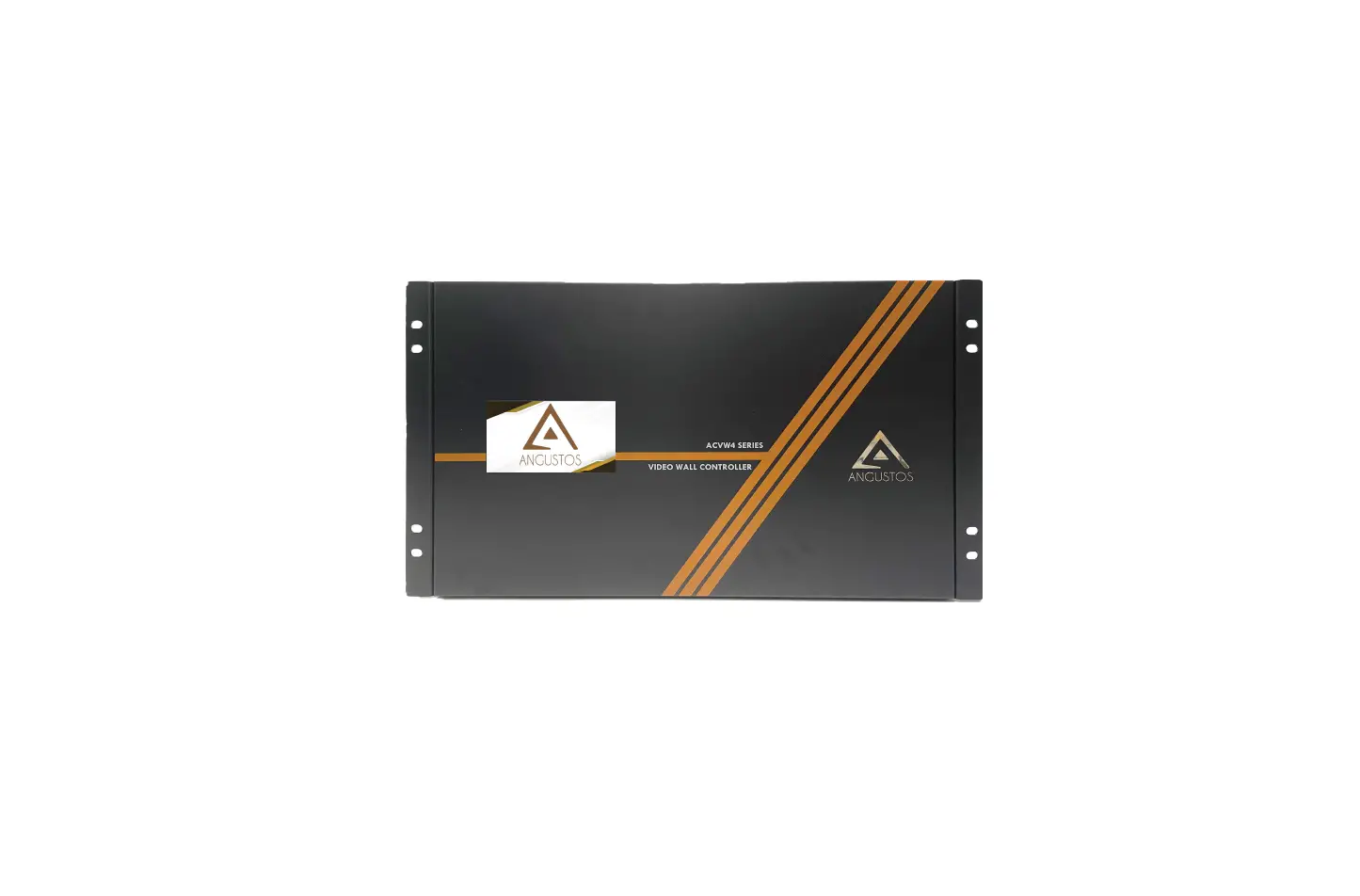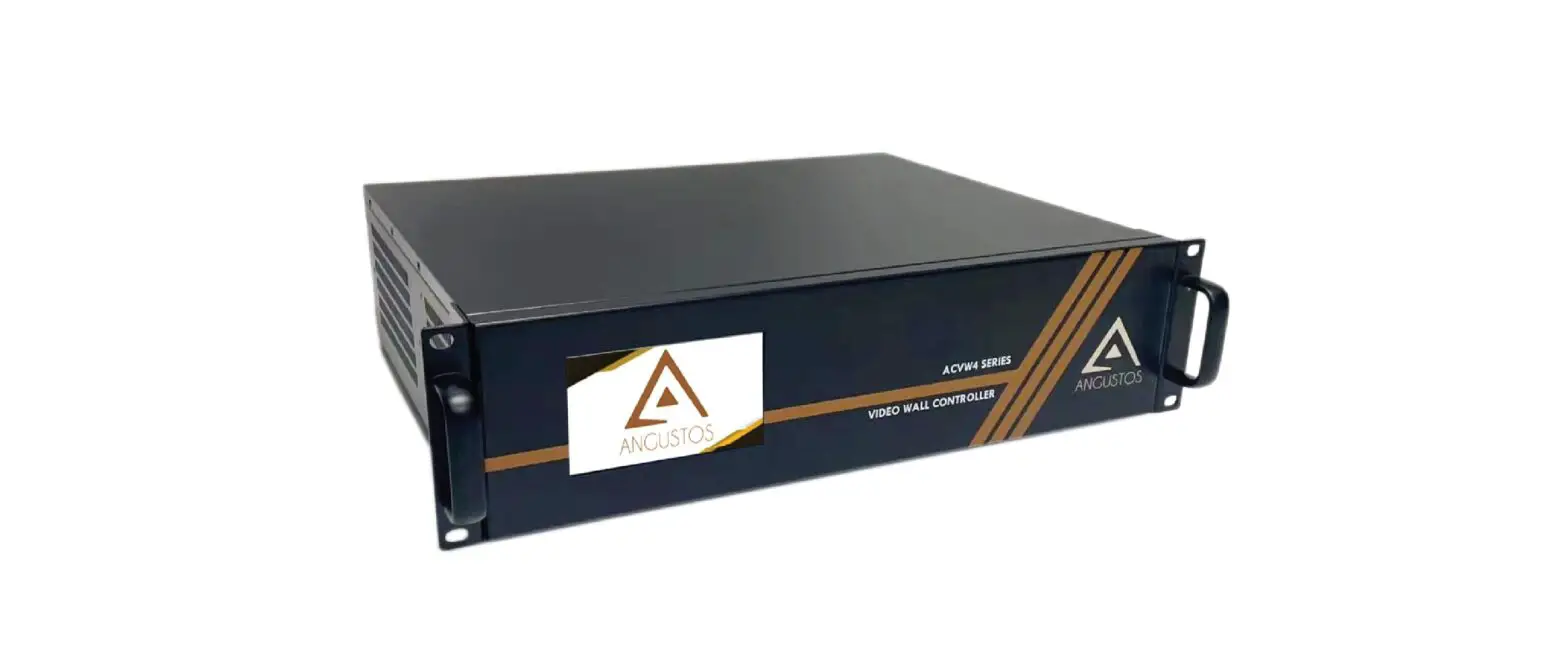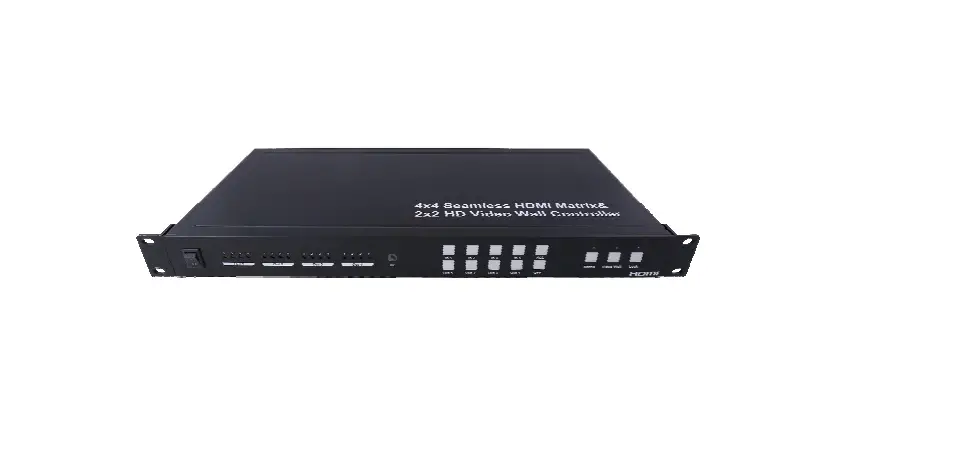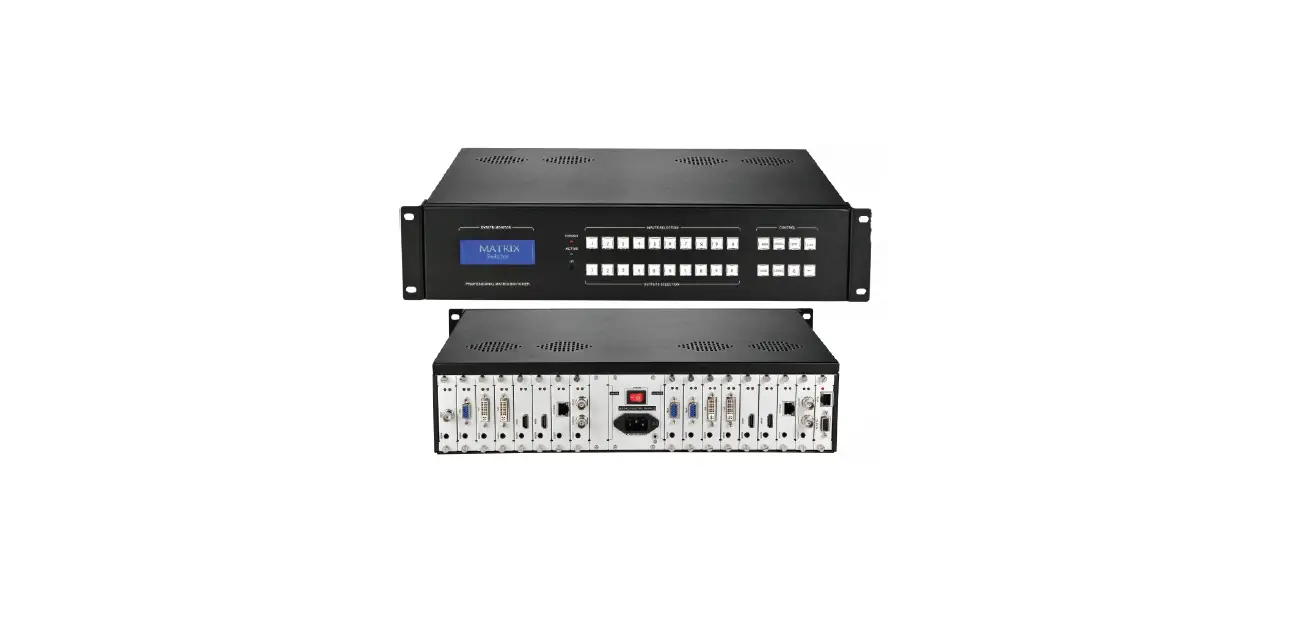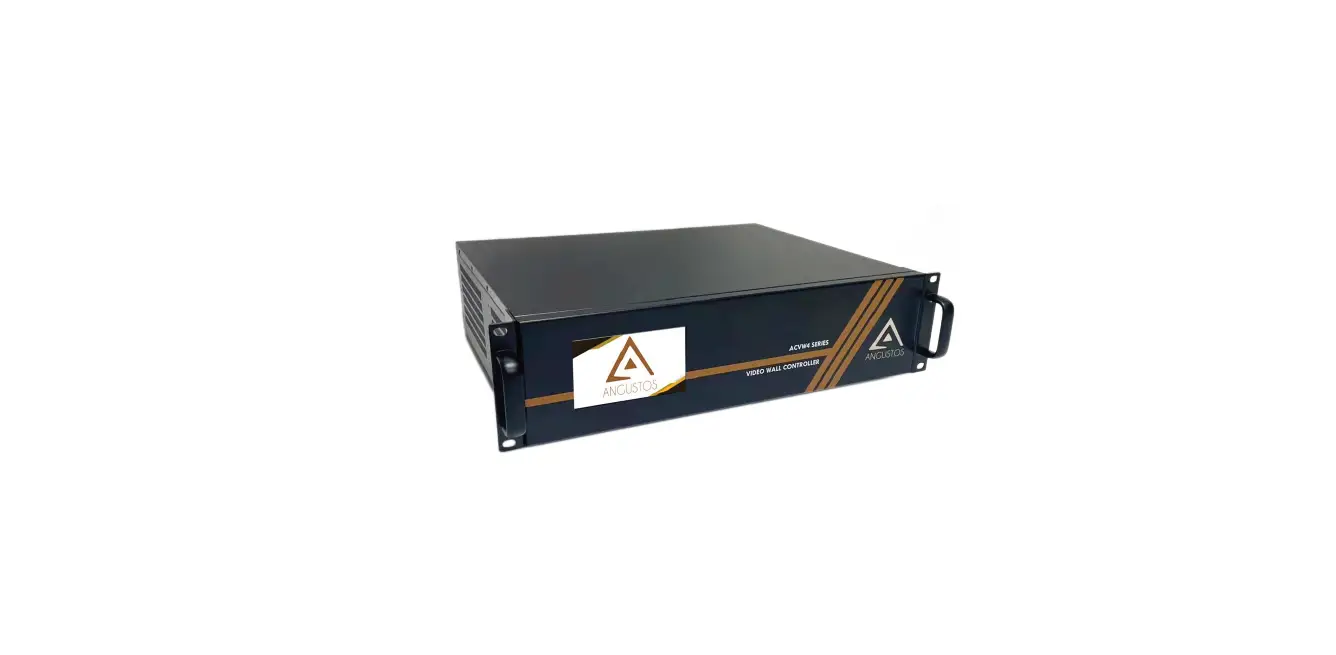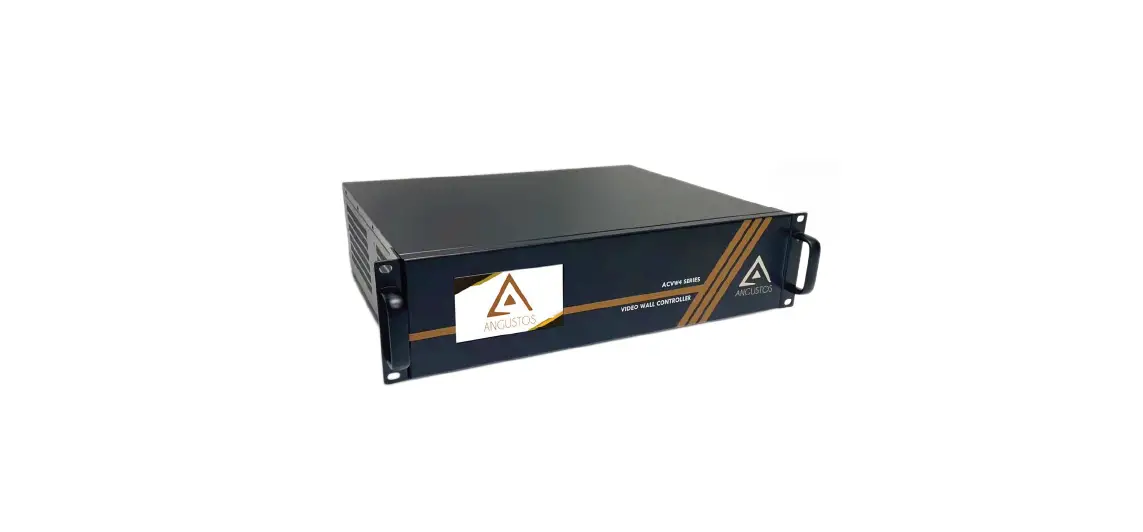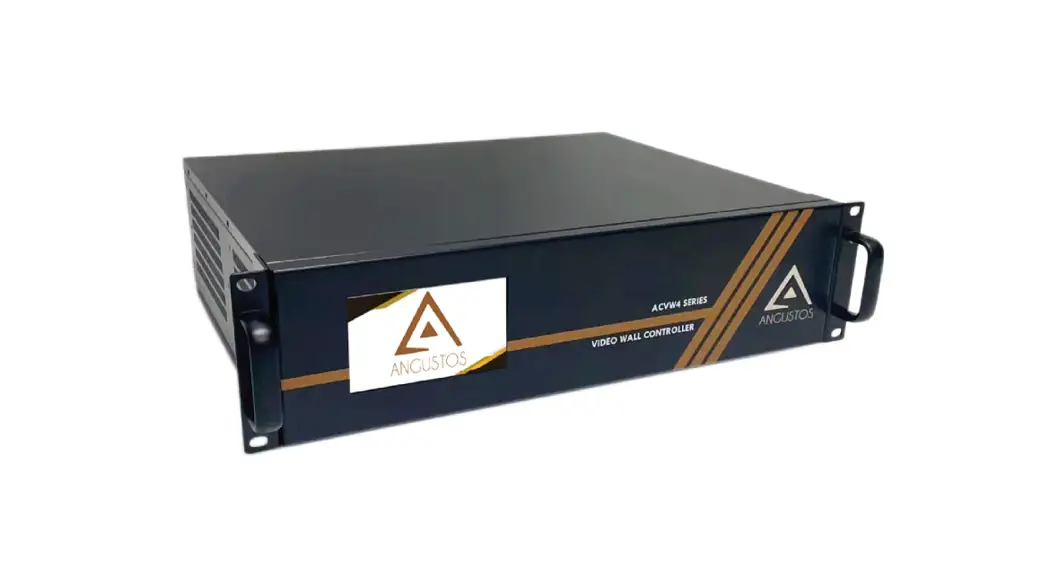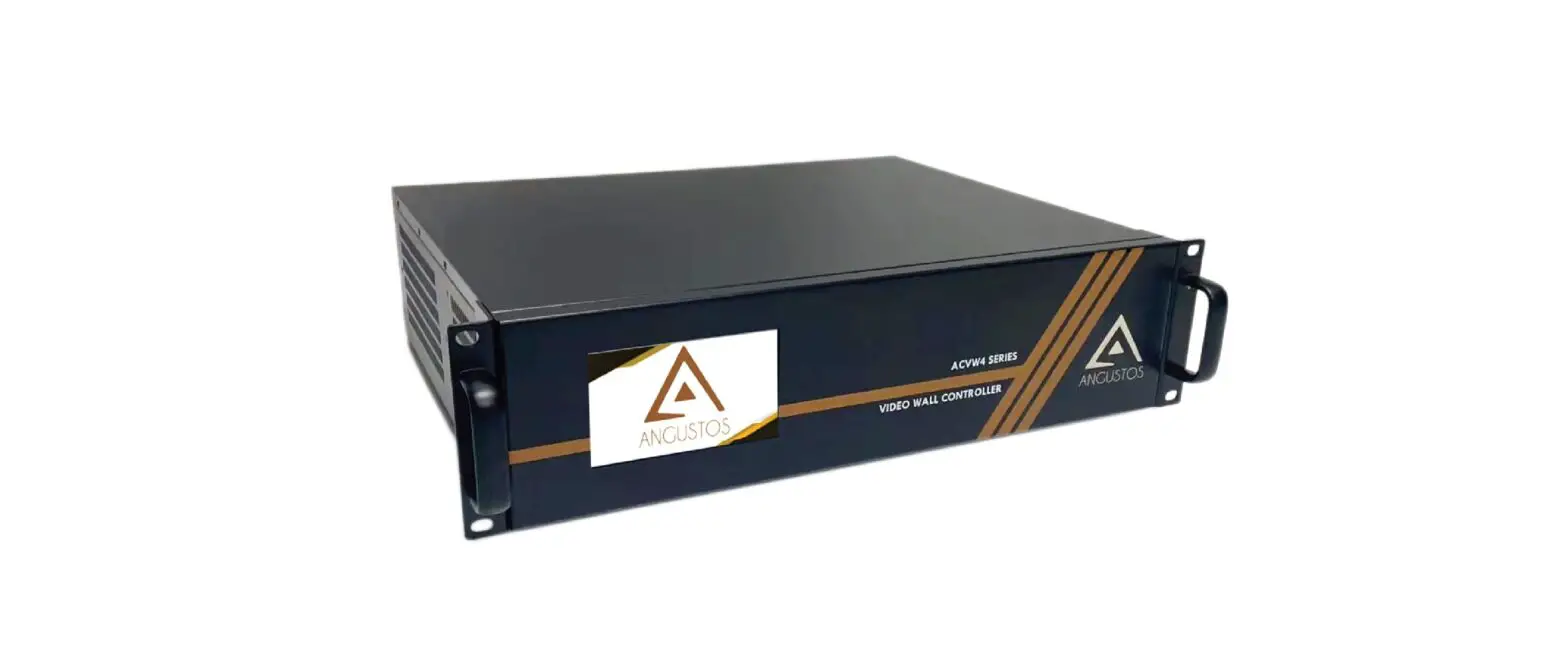
 4K60Hz 4×4 Seamless Matrix Video Wall Controller
  User Manual
4K60Hz 4×4 Seamless Matrix Video Wall Controller
Thank you for purchasing this product
For optimum performance and safety, please read these instructions carefully before connecting, operating or adjusting this product. Please keep this manual for future reference.
Surge protection device recommended
This product contains sensitive electrical components that may be damaged by electrical spikes, surges, electric shock, lighting strikes, etc. Use of surge protection systems is highly recommended in order to protect and extend the life of your equipment.
Introduction
The 4K60Hz 4:4:4 HDMI matrix is a multi-purpose high-speed video processing system. It can be configured for 2 different output modes. It can perform as a 4×4 seamless matrix switcher, as a 2×2, 4×1 or 1×4 etc video wall solution. It also features a web browser interface module for control and configuration of the matrix when used stand- alone or with a third party control system. Control options include front-panel push buttons, IR remote control, RS-232 interface and TCP/IP.
Features
☆ Compliant HDMI 2.0b
☆ Compliant HDCP 2.2 and HDCP 1.4
☆ Features 2 operational modes:
– 4×4 Matrix (seamless switch)
– Video wall (2×2, 4×1 or 1×4 etc configuration)
☆ Seamless video switching
☆ Video inputs support all industry standard video resolutions including VGA-WUXGA (up to 1920×1200 @60Hz) and 480i-4K (3840 x 2160 @60Hz 4:4:4, 4096 x 2160 @60Hz 4:4:4)
☆ HDMI outputs support upscale or downscale to any resolution, up to 4096 x 2160@60Hz 4:4:4
☆ Support LPCM, DD, DD+, DTS, Dolby Trued, DTS HD-master pass-through
☆ Advanced EDID management
☆ Web interface module for control and configuration of Matrix
☆ Control via front panel, IR, RS-232 and TCP/IP
☆ 3rd Party drivers available for all major home control brands
Package Contents
- 1 x 18Gbps 4×4 Seamless Matrix
- 1 x Matrix IR Remote
- 1 x 3pin-3.81mm Phoenix Connector (male)
- 1 x 20-60KHz IR Wideband Receiver Cable (1.5 meters)
- 2 x Mounting Ears
- 4 x Machine Screws (KM3*4)
- 1 x 12V/2.5A Locking Power Adapter
- 1x User Manual
Operation Controls and Functions
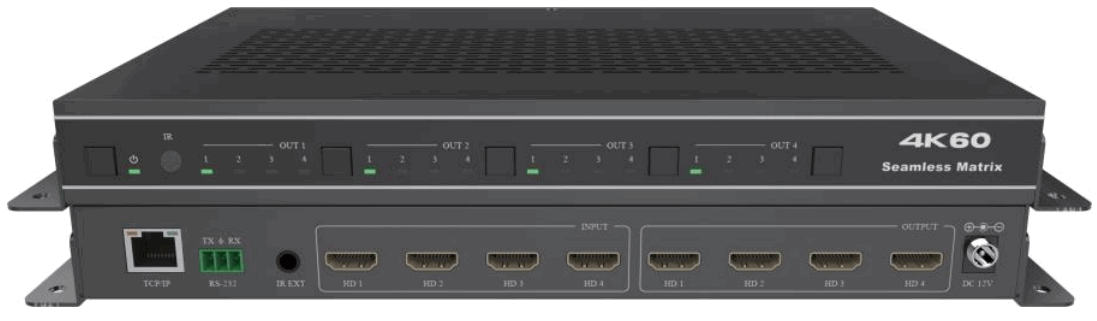
Front Panel

| No. | Name | Function Description |
| 1 | Power button | Short press this button to power on the device. Press this button for 1 seconds to enter the standby mode. |
| 2 | Power LED | The LED will illuminate in green when the product is working normally, and red when the product is on standby. |
| 3 | IR Window | IR receiver window, it only receives the IR remote signal from this product. |
| 4 | Signal source LED | Signal source indicator for the OUT 1 – OUT 4 port. |
| 5 | Input source switching button | Input source switching button for the OUT 1- OUT 4 port. |
Rear Panel

| No. | Name | Function Description |
| 1 | TCP/IP | The link port for TCP/IP control, connected to an active Ethernet link with an RJ45 cable to control the Matrix via Web. |
| 2 | RS-232 | RS-232 serial command control port, connected to a PC or control system to control the Matrix. |
| 3 | IR EXT | If the IR receiver window of the unit is blocked or the unit is installed in a closed area out of infrared line of sight, the IR receiver cable can be inserted to the “IR EXT” port to receive the IR remote signal. |
| 4 | HDMI INPUT | HDMI signal input port, connected to signal source device. |
| 5 | HDMI OUTPUT | HDMI signal output port, connected to HDMI display device. |
| 6 | DC 12V | DC 12V/2.5A power input port. |
IR Remote
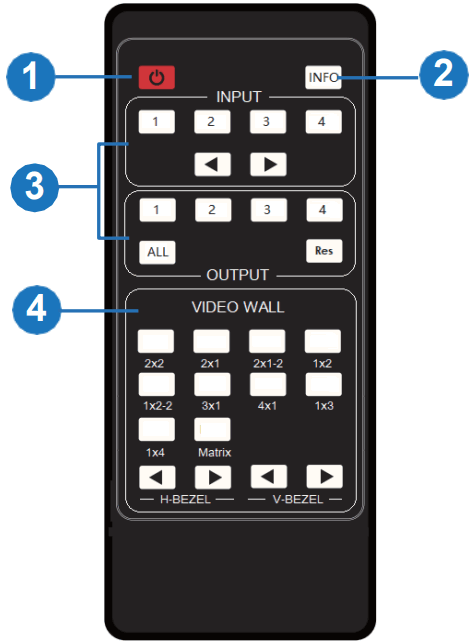
- Power on or Standby: Power on the Matrix or set it to standby mode.
- INFO: Press this button to display the serial port baud rate and IP address in the upper right corner of the screen. (The information will disappear after 5 seconds.)
- INPUT/OUTPUT INPUT 1/2/3/4: Select the signal input channel.
: Select the last or next signal input channel.
OUTPUT 1/2/3/4: Select the signal output channel.
ALL: Select all output channels simultaneously. For example, when you press the “ALL” button and then press INPUT “1” button, at this time the input “1” source will be output to all display devices.
Res: Press this button to switch output channel resolution.
Matrix mode: Press OUTPUT 1/2/3/4 or ALL, then press Res to switch the output resolution circularly.
Video wall mode: Press Res directly to switch the output resolution for four output channels simultaneously.
Operation Instruction: You need to press the OUTPUT button firstly and then press the INPUT button to select the corresponding input source. For example, Press OUTPUT-X (X means output button from 1 to 4, including “ALL” button), then press INPUT-Y (Y means input button from 1 to 4). - VIDEO WALL:
Video wall mode selection:
Press the video wall mode button directly to enter corresponding mode.
Source selection for the video wall group:
Press OUTPUT 1/2/3/4 or / to select the video wall group firstly, then press INPUT 1/2/3/4 or / to select the input source.
Bezel Adjustment: Press / of H-BEZEL / V-BEZEL to adjust the bezel.
IR Pin Definition
IR Receiver pin’s definition is as below:
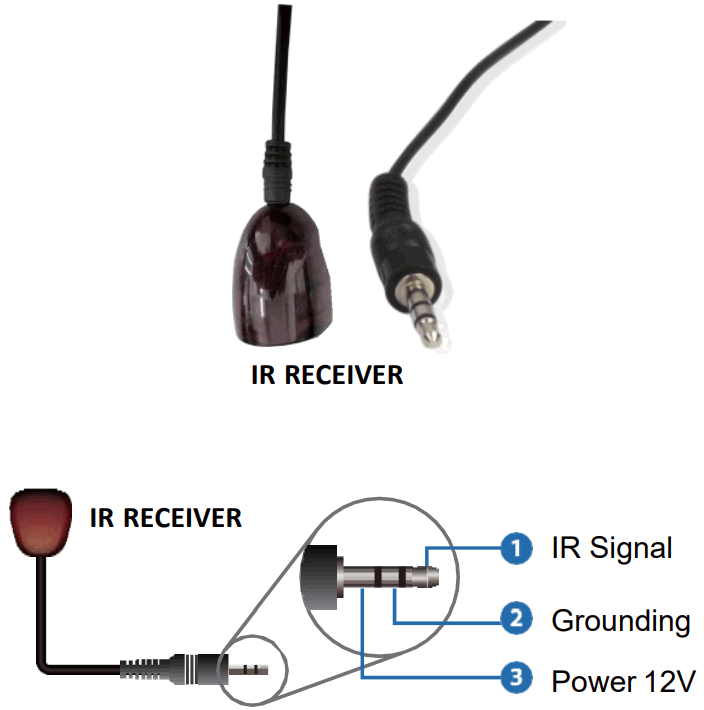
Note: When the angle between the IR receiver and the remote control is ± 45 °, the transmission distance is 0-5 meters; when the angle between the IR receiver and the remote control is ± 90 °, the transmission distance is 0-8 meters.
EDID Management
This Matrix has 12 factory defined EDID settings, 2 user-defined EDID modes and 4 copy EDID modes. You can select defined EDID mode or copy EDID mode to input port through RS-232 control or Web GUI.
RS-232 control operation: Connect the Matrix to PC with a serial cable, then open a Serial Command tool on PC to send ASCII command “s edid in x from z!” to set EDID. For details, please refer to “EDID Setting” in the ASCII command list of “11. RS-232 Control Command”.
Web GUI Operation: Please check the EDID management in the “Input page” of “10. Web GUI User Guide”. 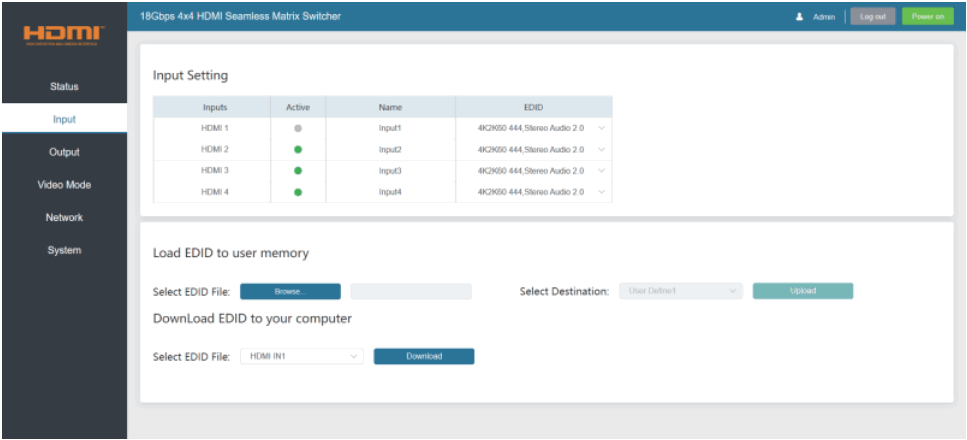
The defined EDID setting list of the product is shown as below:
| EDID Mode | EDID Description |
| 1 | 4k2k60_444,stereo audio 2.0 |
| 2 | 4k2k60_444,dolby/ds 5.1 |
| 3 | 4k2k60_444,hd audio 7.1 |
| 4 | 4k2k30_444,stereo audio 2.0 |
| 5 | 4k2k30_444,dolby/dots 5.1 |
| 6 | 4k2k30_444,hd audio 7.1 |
| 7 | 1080p,stereo audio 2.0 |
| 8 | 1080p,dolby/dots 5.1 |
| 9 | 1080p,hd audio 7.1 |
| 10 | 1920×1200,stereo audio 2.0 |
| 11 | 1360×768, stereo audio 2.0 |
| 12 | 1024×768, stereo audio 2.0 |
| 13 | user define1 |
| 14 | user define2 |
| 15 | copy from hdmi output 1 |
| 16 | copy from hdmi output 2 |
| 17 | copy from hdmi output 3 |
| 18 | copy from hdmi output 4 |
Video Wall
The matrix supports 10 categories of display modes as below:
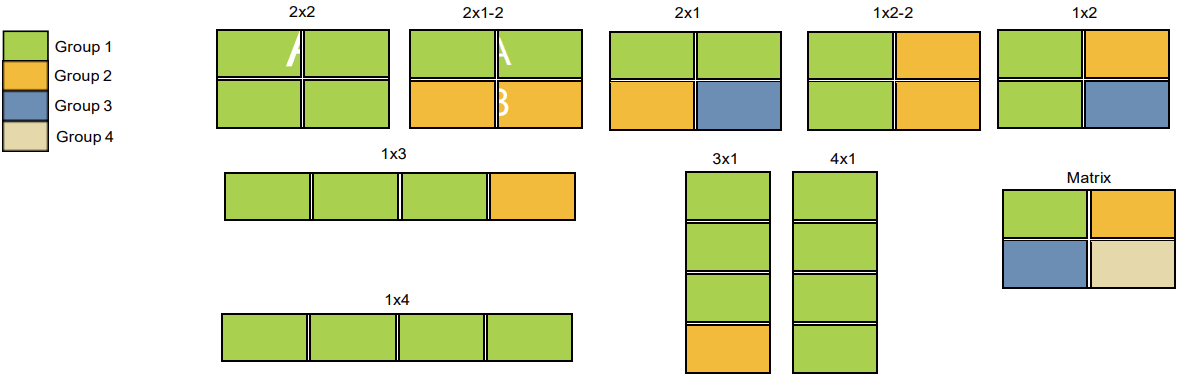
User can select display modes via IR remote, Web GUI or RS-232 commands.
Web GUI User Guide
The Matrix can be controlled by Web GUI. The operation method is shown as below: Step 1: Get the current IP Address.
The default IP address is 192.168.0.100. You can get the current Matrix IP address in two ways:
The first way: You can get the IP address via remote controller. Press “INFO” button on the remote control, the IP address will show the upper right corner of the screen.
The second way: You can get the IP address via RS-232 control. Send the ASCII command “ r ip addr!” through a Serial Command tool, then you’ll get the feedback information as shown below:
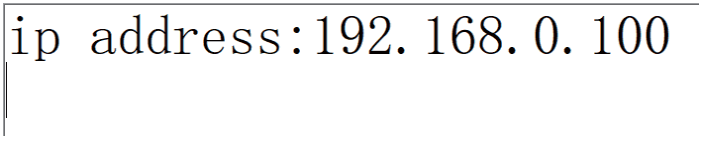
IP:192.168.0.100 in the above figure is the current Matrix IP address (this IP address is variable, depending on what the specific machine returns).
For the details of RS-232 control, please refer to “11. RS-232 Control Command”.
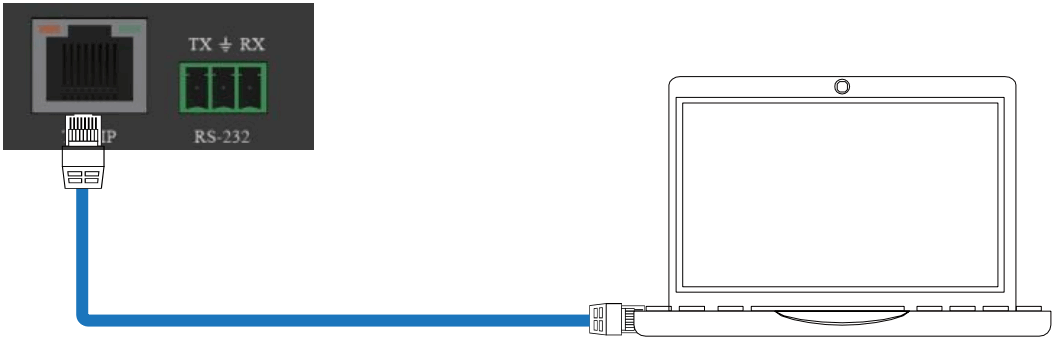
Step 2: Connect the TCP/IP port of the Matrix to a PC with an UTP cable (as shown in the following figure), and set the IP address of the PC to be in the same network segment with the Matrix.
Step 3: Input the current IP address of Matrix into your browser on the PC to enter Web GUI page. 
After entering the Web GUI page, there will be a Login page, as shown below: 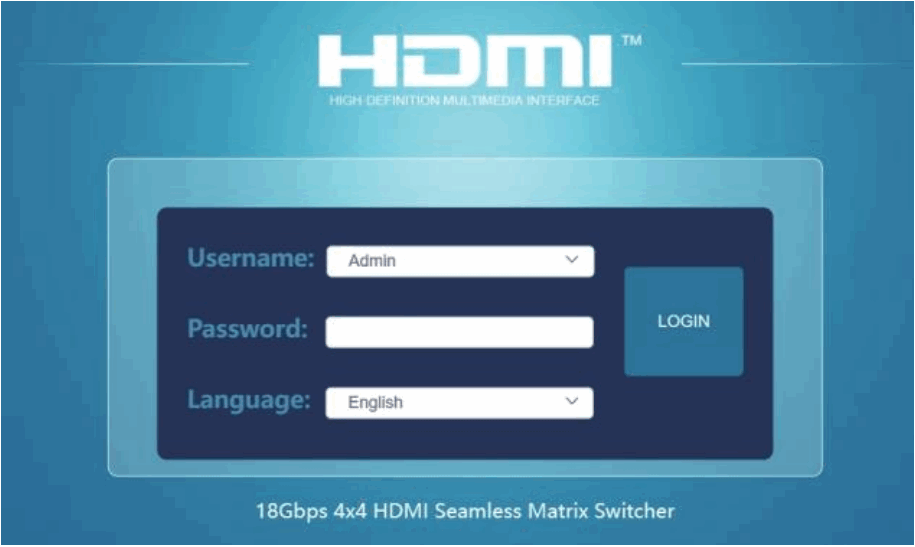
Select the Language from the drop-down list to choose English or Simple Chinese.
Select the Username from the drop-down list and enter the password. The default passwords are:
Username User Admin
Password user admin
After entering the password, click the “LOGIN” button and the following Status page will appear.
■ Status Page
The Status page provides basic information about the product model, installed firmware version and the network settings of the device. 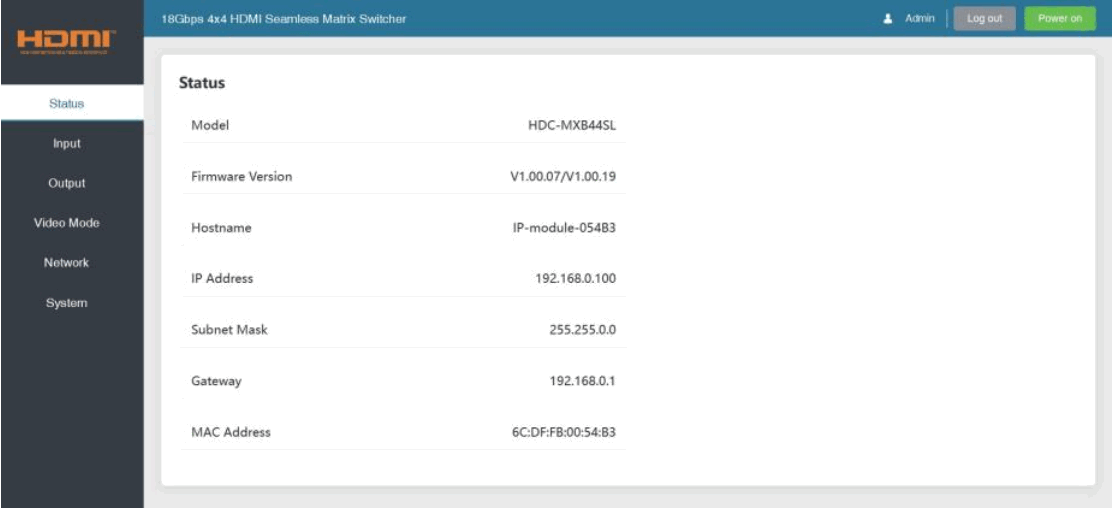
■ Input Page
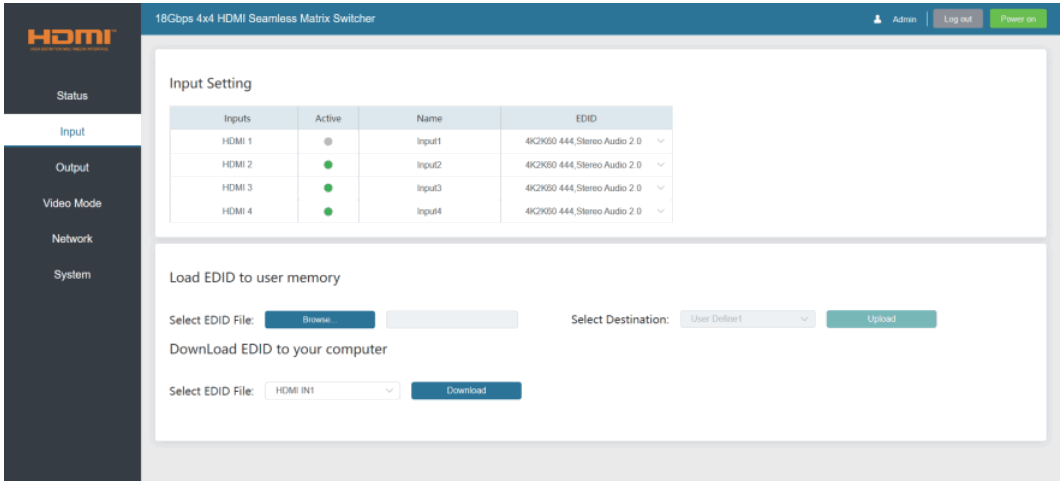
You can do the following operations on the Input page:
- Inputs: Input channel of the device.
- Active: It indicates whether the channel is connected to a signal source. When the input port is connected to the signal, it shows green, otherwise, it shows gray.
- Name: The input channel’s name. You can modify it by entering the corresponding name (max length: 31 characters for English and 15 characters for Chinese) in the input box.
Chinese name is unsupported when the language is English; and when the language is
Chinese, both English and Chinese name are available. - EDID: You can set the current channel’s EDID. Click drop-down list to select.
- Load EDID to user memory: Set EDID for the User.
Click the “Browse” button, then select the bin file. If you select the wrong EDID file, there will be a prompt, as shown in the following figure: 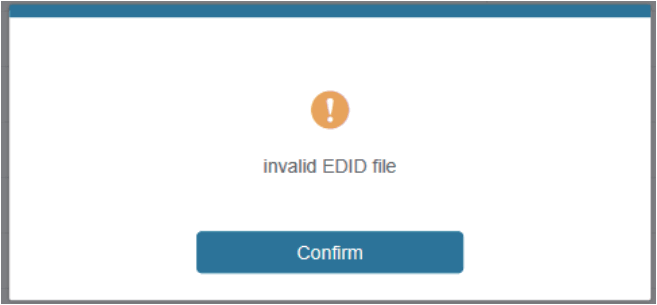
Make sure to select the correct file, then you can check the name of the selected file. Select “User 1” or “User 2”, then click “Upload”. After successful setting, it will prompt as follows: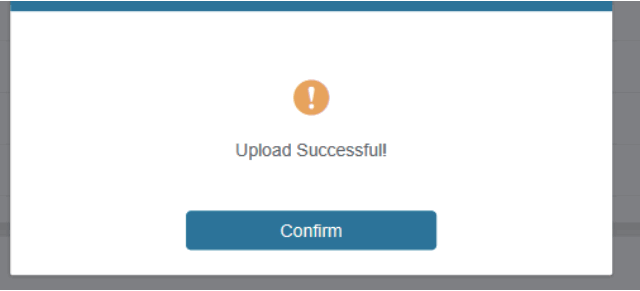
⑥ Download EDID to your computer:
Click the drop-down box of “Select EDID File” to select the corresponding input channel. Then click “Download” to download the corresponding EDID file.
Output Page 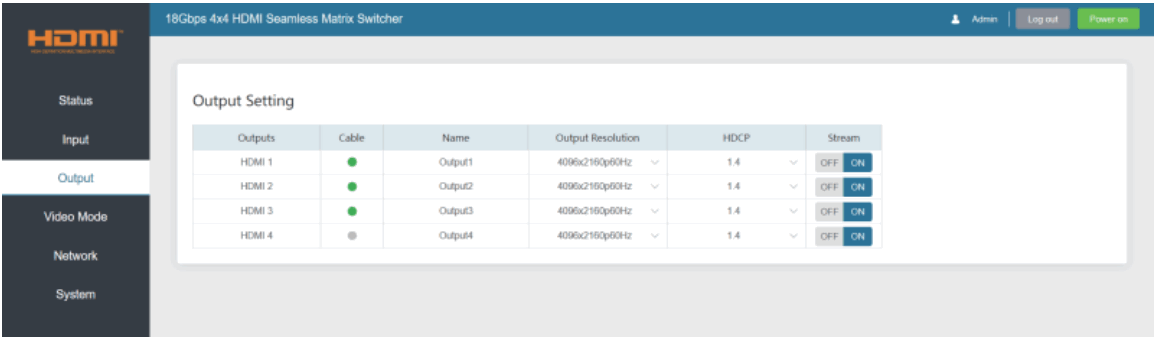
You can do the following operations on the Output page:
- Outputs: Output channel of the device.
- Cable: It indicates the connection status of output ports. When the output port is connected to the display, it shows green, otherwise, it shows gray.
- Name: The current output channel’s name. You can modify it by entering the corresponding name (max length: 31 characters for English and 15 characters for Chinese) in the input box.
Chinese name is unsupported when the language is English; and when the language is
Chinese, both English and Chinese name are available. - Output Resolution: Set the current output resolution mode. Click the drop-down list to select.
- HDCP: The HDCP version that the current output port supports. Click the drop-down list to select.
- Stream: Turn on/off the output stream.
Note: User cannot set each output resolution separately in video wall mode.
■ Video Mode Page 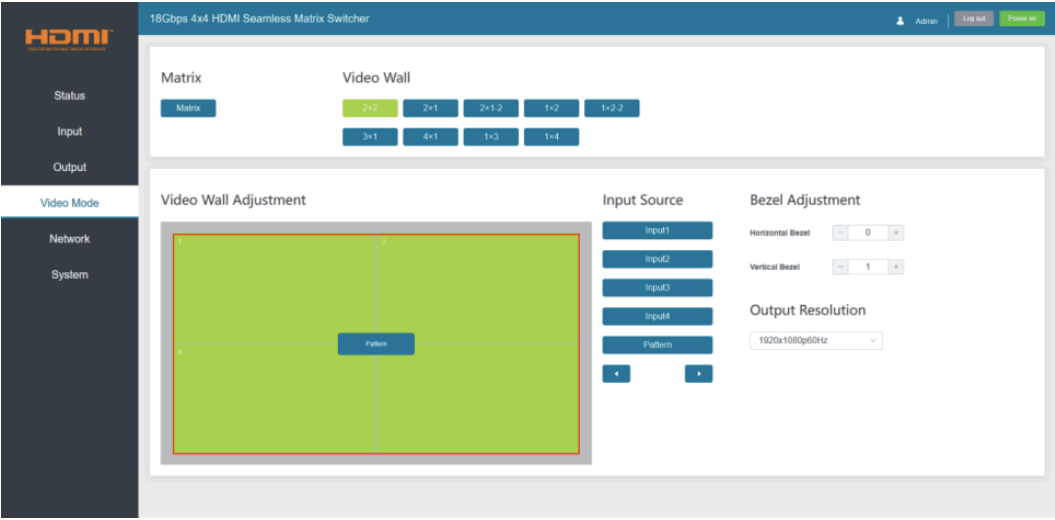
You can do the following operations on the Video page:
- Matrix: Click to select Matrix mode.
- Video Wall: Click to select any multiview display mode.
- Matrix/Video Wall Adjustment: Display the input and output information.
- Input Source: Three methods to select the input source:
Method 1: Drag Input1/2/3/4/Pattern to any box of Matrix/Video Wall Adjustment.
Method 2: Select any box in Matrix/Video Wall Adjustment, then click Input1/2/3/4/Pattern in Input Source.
Method 3: Click / to select the last or next signal source. - Bezel Adjustment: Click +/- to adjust the corresponding Horizontal/Vertical Bezel (Up to 10 levels).
- Output Resolution: Set the resolution of all current output ports. Click the drop-down list to select.
■ Network Page
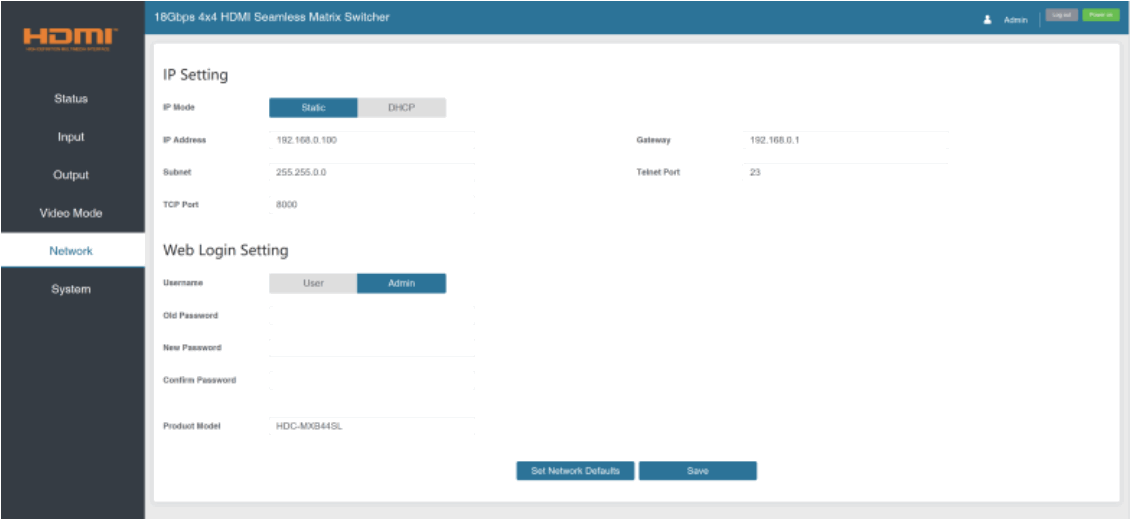
You can do the following operations on the Network page:
Modify Network Setting
Modify the IP Mode Address/Gateway/Subnet Mask/Telnet Port as required, click “Save” to save the settings, then it will come into effect.
After modification, if the Mode is “Static”, it will switch to the corresponding IP Address; if the Mode is “DHCP”, it will automatically search and switch to the IP Address assigned by the router.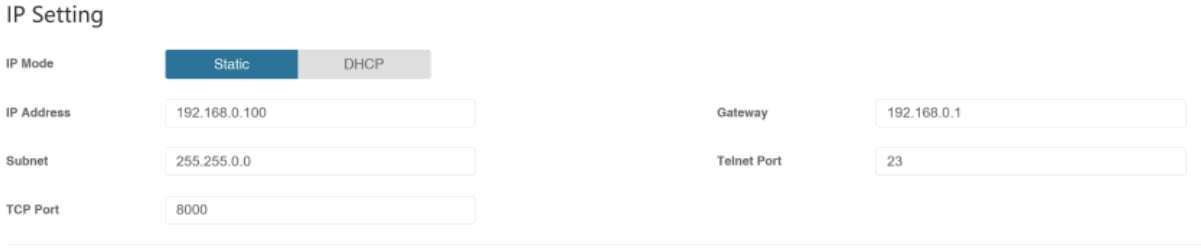
Modify User Password
Click the “User” button, enter the correct Old Password, New Password, and Confirm Password, then click “Save”. After successful modification, there will be a prompt, as shown in the following figure: 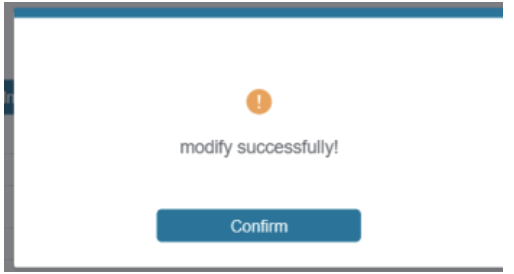
Note: Input rules for changing passwords:
- The password can’t be empty.
- New Password can’t be the same as Old Password.
- New Password and Confirm Password must be the same.
Set the Default Network
Click “Set Network Defaults” button, there will be a prompt, as shown in the following figure: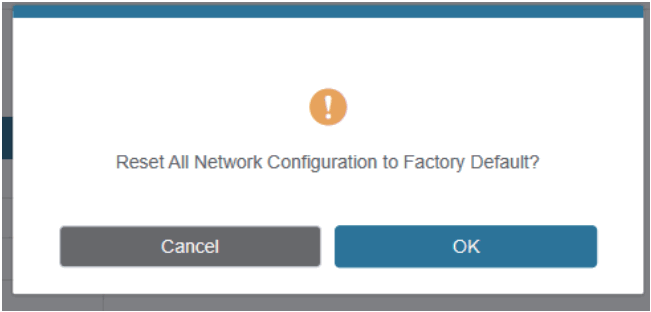
Click “OK” to search the IP Address again, as shown in the following figure: 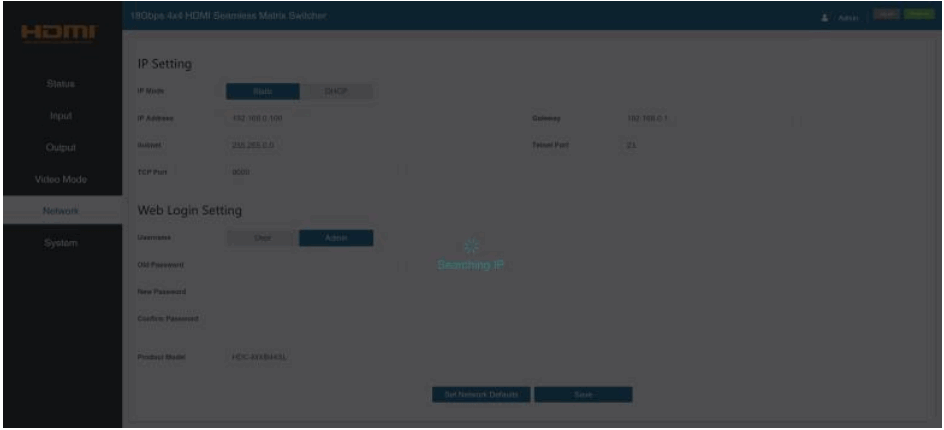
After searching is completed, it will switch to the login page, the default network setting is completed.
■ System Page 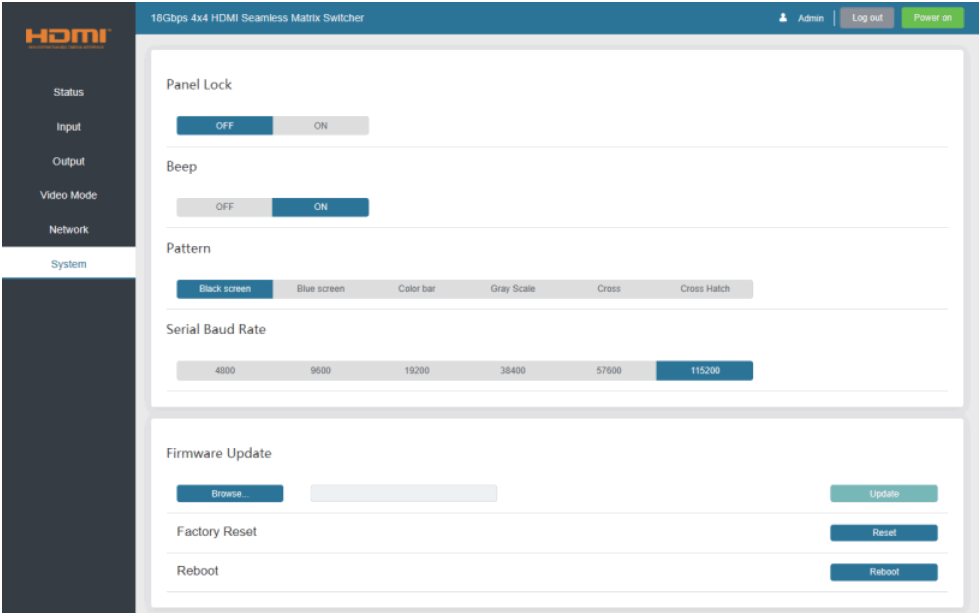
You can do the following operations on the System page:
- Panel Lock: Click to lock/unlock panel buttons. “ON” indicates that panel buttons are unavailable; “OFF” indicates panel buttons are available.
- Beep: Click to turn on/off the beep.
- Pattern: Click to select 6 patterns.
- Serial Baud Rate: Click the value to set the Serial Baud Rate.
- Firmware Update: Click “Browse” to select the update file, then click “Update” to complete firmware update.
- Factory Reset: You can reset the machine to factory defaults by clicking “Reset”.
- Reboot: You can reboot the machine by clicking “Reboot”.
Note: After reset/reboot, it will switch to the login page.
RS-232 Control Command
The product also supports RS-232 command control. Connect the RS-232 port of the product to a PC with a 3-pin phoenix connector cable. The connection method is as follows.
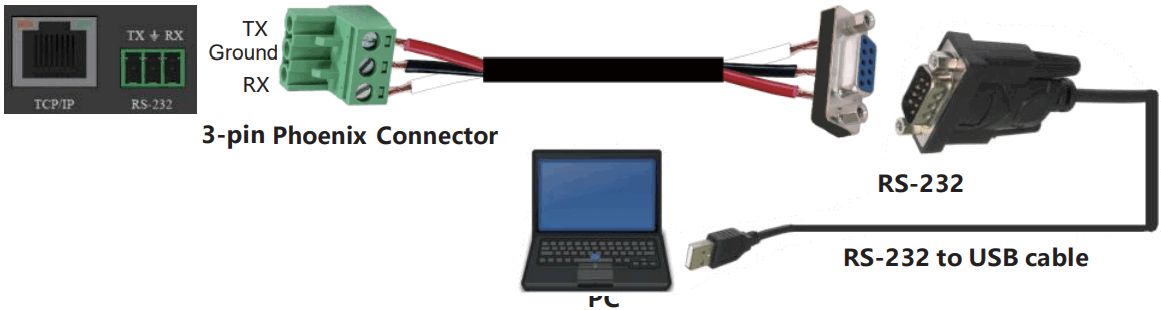
Then open a Serial Command tool on PC to send ASCII commands to control the product.
The ASCII command list about the product is shown as below.
| ASCII Command | ||||
| Serial port protocol: Baud rate: 115200(default) Data bits: 8 Stop bits: 1 Check bit: 0 | ||||
| x – Parameter 1 y – Parameter 2 ! – Delimiter | ||||
| Command Code | Function Description | Example | Feedback | Default Setting |
| System setting | ||||
| help! | Lists all commands | help! | ||
| r status! | Get device current status | r status! | get the unit all status: power, beep, lock, in / out connection, video/ audio Crosspoint, edit, scaler, network status | |
| r type! | Get device model | r type! | 4×4 hdmi seamless matrix | |
| Command Code | Function Description | Example | Feedback | Default Setting |
| r fw version! | Get firmware version | r few version! | cu fwd. version x.xx.xx | |
| s power z! | Power on/off the device=0~1 (z=0 power off, z=1 power on) | s power 1! | power on system initializing… initialization finished! much few version x.xx.xx | |
| r power! | Get current power state | r power! | power on /power off | 3840x2160p60 |
| s beep z! | Enable/disable buzzer function, z=0~1(z=0 beep off, z=1 beep on) | s beep 1! | beep on beep off | beep on |
| r beep! | Get buzzer state | r beep! | beep on / beep off | beep on |
| s lock z! | Lock/unlock front panel button, z=0~1(z=0 lock off,z=1 lock on) | s lock 1! | panel button lock on panel button lock off | panel button lock off |
| r lock! | Get panel button lock state | r lock! | panel button lock on/off | |
| s reboot! | Reboot the device | s reboot! | reboot…system initializing… initialization finished! mcu fw version x.xx.xx | |
| s reset! | Reset to factory defaults | s reset! | reset to factory defaults system initializing… initialization finished! much few version x.xx.xx | |
| Output setting | ||||
| s in x av out y! | Set input x to output lynx=1~4, y=0~4(0=all) | s in 1 ad out 2! | input 1 -> output 2 | pep |
| r av out y! | Get output y signal status y=0~4(0=all) | r ad out 0! | input 1 -> output 1 input 2 -> output 2 …… input 4 -> output 4 | |
| s output y res x! | Set output y resolution (y=0~4, x=1~16) y=0. output all y=1. output 1 y=2. output 2 y=3. output 3 y=4. output 4 1. 4096x2160p60, 2. 4096x2160p50, 3. 3840x2160p60, 4. 3840x2160p50, 5. 3840x2160p30, 6. 1920x1080p60, 7. 1920x1080p50, 8. 1920x1080i60, 9.1920x1080i50, 10. 1920x1200p60rb, 11.1360x768p60, 12.1280x800p60, 13.1280x720p60, 14.1280x720p50, 15.1024x768p60, 16. auto | s output 1 res 3! | output 1 resolution: 3840x2160p60 | 3840x2160p60 |
| Command Code | Function Description | Example | Feedback | Default Setting |
| r output y res! | Get output y resolution(y=0~4) y=0. output all y=1. output 1 y=2. output 2 y=3. output 3 y=4. output 4 | s output 1 cask 1! | output 1 resolution: 3840x2160p60 | |
| s output y csc x! | Set output y color space (y=0~4, x=1~4) y=0. output all y=1. output 1 y=2. output 2 y=3. output 3 y=4. output 4 x=1. rgb444 x=2. ycbcr444 x=3. ycbcr422 x=4. ycbcr420 | s output 1 cask 1! | output 1 cask: rgb444 | rgb444 |
| r output y csc! | Get output y color space status. (y=0~4) y=0. output all y=1. output 1 y=2. output 2 y=3. output 3 y=4. output 4 | r output 1 cask! | output 1 cask: rgb444 |
| s output y hdcp x! | Set output hdcp(y=0~4, x=1~5) y=0. output all y=1. output 1 y=2. output 2 y=3. output 3 y=4. output 4 x=1. hdcp 1.4 x=2. hdcp 2.2 x=3. follow sink x=4. follow source | s output 1 hdcp 1! | output 1 hdcp: hdcp 1.4 | hdcp1.4 |
| r output y hdcp! | Get output y hdcp status.(y=0~4) y=0. output all y=1. output 1 y=2. output 2 y=3. output 3 y=4. output 4 | r output 1 hock! | output 1 dpc: dpc 1.4 | |
| s output y stream x! | Set output y stream enable/disable (y=0~4, x=0~1) y=0. output all y=1. output 1 y=2. output 2 y=3. output 3 y=4. output 4 x=0. stream disable x=1. stream enable | s output 1 stream 1! | output 1 stream: enable | enable |
| Command Code | Function Description | Example | Feedback | Default Setting |
| r output y stream! | Get output y stream status. (y=0~4) y=0. output all y=1. output 1 y=2. output 2 y=3. output 3 y=4. output 4 | r output 1 stream! | output 1 stream: enable | |
| s output bg x! | Set output no signal background display mode (x=1~6) x=1. black screen x=2. blue screen x=3. color bar x=4. gray scale x=5. cross x=6. cross hatch | s output bag 1! | output background: black screen | black screen |
| r output bg! | Get output no signal background display mode | r output bg! | output background: black screen | |
| EDID setting | ||||
| s edid in x from z! | Set hdmi input x edid mode (x=0~4,z=1~18) x=0. all input x=1. input1 x=2. input2 x=3. input3 x=4. input4 z=1. 4k2k60_444,stereo audio 2.0 z=2. 4k2k60_444,dolby/dts 5.1 z=3. 4k2k60_444,hd audio 7.1 z=4. 4k2k30_444,stereo audio 2.0 z=5. 4k2k30_444,dolby/dts 5.1 z=6. 4k2k30_444,hd audio 7.1 z=7. 1080p,stereo audio 2.0 z=8. 1080p,dolby/dts 5.1 z=9. 1080p,hd audio 7.1 z=10.1920×1200,stereo audio 2.0 z=11.1360×768, stereo audio 2.0 z=12.1024×768, stereo audio 2.0 z=13.user define1 z=14.user define2 z=15.copy from hdmi output 1 z=16.copy from hdmi output 2 z=17.copy from hdmi output 3 z=18.copy from hdmi output 4 | r output bg! | output background: black screen | |
| r edid in x! | Get input x edid mode(x=0~4) x=0. all input x=1. input1 x=2. input2 x=3. input3 x=4. input4 | r edid in 0! | input 1 edid: 4k2k60_444, stereo audio 2.0 input 2 edid: 4k2k60_444, stereo audio 2.0 input 3 edid: 4k2k60_444, stereo audio 2.0 input 4 edid: 4k2k60_444, stereo audio 2.0 | |
| Command Code | Function Description | Example | Feedback | Default Setting |
| Video wall setting | ||||
| s tw mode x! | Set tv wall display mode(x=1~10) x=1. 2×2 mode x=2. 2×1 mode x=3. 2×1-2 mode x=4. 1×2 mode x=5. 1×2-2 mode x=6. 3×1 mode x=7. 4×1 mode x=8. 1×3 mode x=9. 1×4 mode x=10. matrix mode | s tw mode 1! | tv wall mode: 2×2 | tv wall mode: 2×2 |
| r tw mode! | Get tv wall display mode | r tw mode! | tv wall mode: 2×2 | hdmi all oumode |
| s tw h bezel x! | set tv wall horizontal bezel (x=0~10,+,-) | s tw h bezel 0! | tv wall horizontal bezel: 0 | tv wall horizontal bezel: 0 |
| r tw h bezel! | Get tv wall row bezel | r tw h bezel! | tv wall horizontal bezel: 0 | |
| s tw v bezel x! | Set tv wall vertical bezel (x=0~10,+,-) | s tw v bezel 0! | tv wall vertical bezel: 0 | |
| r tw v bezel! | Get tv wall vertical bezel | r tw v bezel! | tv wall vertical bezel: 0 | hdmi all outmode |
| s tw group y i nput x! | Set tv wall group y display which source input(y=0~4, x=1~4) y=0. tv wall group all y=1. tv wall group 1 y=2. tv wall group 2 y=3. tv wall group 3 y=4. tv wall group 4 x=1. hdmi input 1 x=2. hdmi input 2 x=3. hdmi input 3 x=4. hdmi input 4 | s tw group 1 input 1! | tv wall group 1 input: hdmi input 1 | tv wall group 1 input: hdmi input 1 |
| r tw group y source! | Get tv wall group y display which source input(y=0~4) y=0. tv wall group all y=1. tv wall group 1 y=2. tv wall group 2 y=3. tv wall group 3 y=4. tv wall group 4 | r tw group 0 source! | tv wall group 1 input: hdmi input 1 tv wall group 2 input: hdmi input 2 tv wall group 3 input: hdmi input 3 tv wall group 4 input: hdmi input 4 | |
| s tw res x! | Set tv wall resolution (x=1~15) 1. 4096x2160p60, 2. 4096x2160p50, 3. 3840x2160p60, 4. 3840x2160p50, 5. 3840x2160p30, 6. 1920x1080p60, 7. 1920x1080p50, 8. 1920x1080i60, 9.1920x1080i50, 10. 1920x1200p60rb, 11.1360x768p60, 12.1280x800p60, 13.1280x720p60, 14.1280x720p50, 15.1024x768p60, | s tw res 3! | tv wall resolution: 3840x2160p60 | 3840x2160p60 |
| r tw res! | Get tv wall resolution | r tw res! | tv wall resolution: 3840x2160p60 | 3840x2160p60 |
| Command Code | Function Description | Example | Feedback | Default Setting |
| Network setting | ||||
| r ipconfig! | Get the current ip configuration | r ipconfig ! | ip mode: static ip: 192.168.0.100 subnet mask: 255.255.255.0 gateway: 192.168.0.1 tcp/ip port=8000 telnet port=23 mac address: 00:1c:91:03:80:01 | |
| r mac addr! | Get network mac address | r mac add! | mac address: 00:1c:91:03:80:01 | |
| s ip mode z! | Set network ip mode to static ip or dhcp,z=0~1 (z=0 static, z=1 hdcp) | s ip mode 0! | set if mode: static. (please use “s net reboot!” command or repower device to apply new config!) | |
| r ip mode! | Get network ip mode | r ip mode! | ip mode: static | |
| s ip addr xxx.xxx.xxx.xxx! | Set network ip address | s ip addr 192.168.0.100! | set ip address: 192.168.0.100 (please use “s net reboot!” command or repower device to apply new config!) dhcp on, device can’t config static address, set dhcp off first. | |
| r ip addr! | Get network ip address | r ip addr! | ip address: 192.168.0.100 | |
| s subnet xxx.xxx.xxx.xxx! | Set network subnet mask | s subnet 255.255.255.0! | set subnet mask: 255.255.255.0 (please use “s net reboot!” command or repower device to apply new config!) dhcp on, device can’t config subnet mask, set dhcp off first. | |
| r subnet! | Get network subnet mask | r subnet! | subnet mask: 255.255.255.0 | |
| s gateway xxx.xxx.xxx.xxx! | Set network gateway | s gateway 192.168.0.1! | set gateway: 192.168.0.1 (please use “s net reboot!” command or repower device to apply new config!) dhcp on, device can’t config gateway, set dhcp off first. | |
| r gateway! | Get network gateway | r gateway! | gateway:192.168.0.1 | |
| s tcp/ip port x! | Set network tcp/ip port (x=1~65535) | s tcp/ip port 8000! | set tcp/ip port:8000 | |
| r tcp/ip port! | Get network tcp/ip port | r tcp/ip port! | tcp/ip port:8000 | |
| s telnet port x! | Set network telnet port(x=1~65535) | s telnet port 23! | set telnet port:23 | |
| r telnet port! | Get network telnet port | r telnet port! | telnet port:23 | |
| s net reboot! | Reboot network modules | s net reboot! | network reboot… ip mode: static ip: 192.168.0.100 subnet mask: 255.255.255.0 gateway: 192.168.0.1 tcp/ip port=8000 telnet port=10 mac address: 00:1c:91:03:80:01 | |
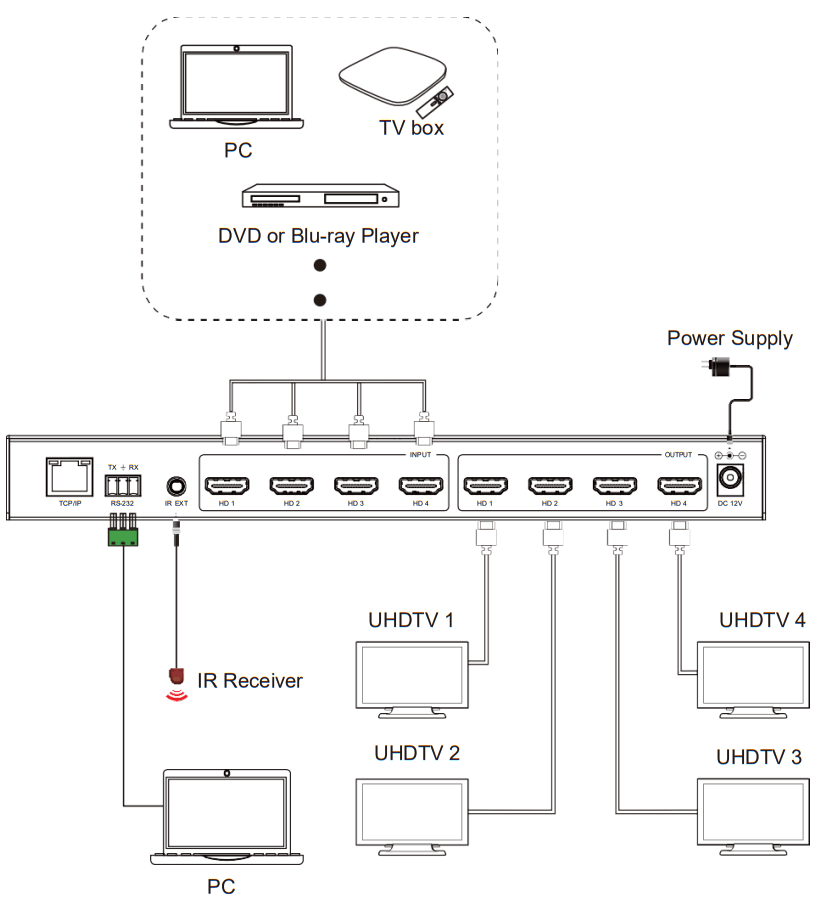
Application Example
The terms HDMI and HDMI High-Definition Multimedia interface, and the HDMI Logo are trademarks or registered trademarks of HDMI Licensing LLC in the United States and other countries.