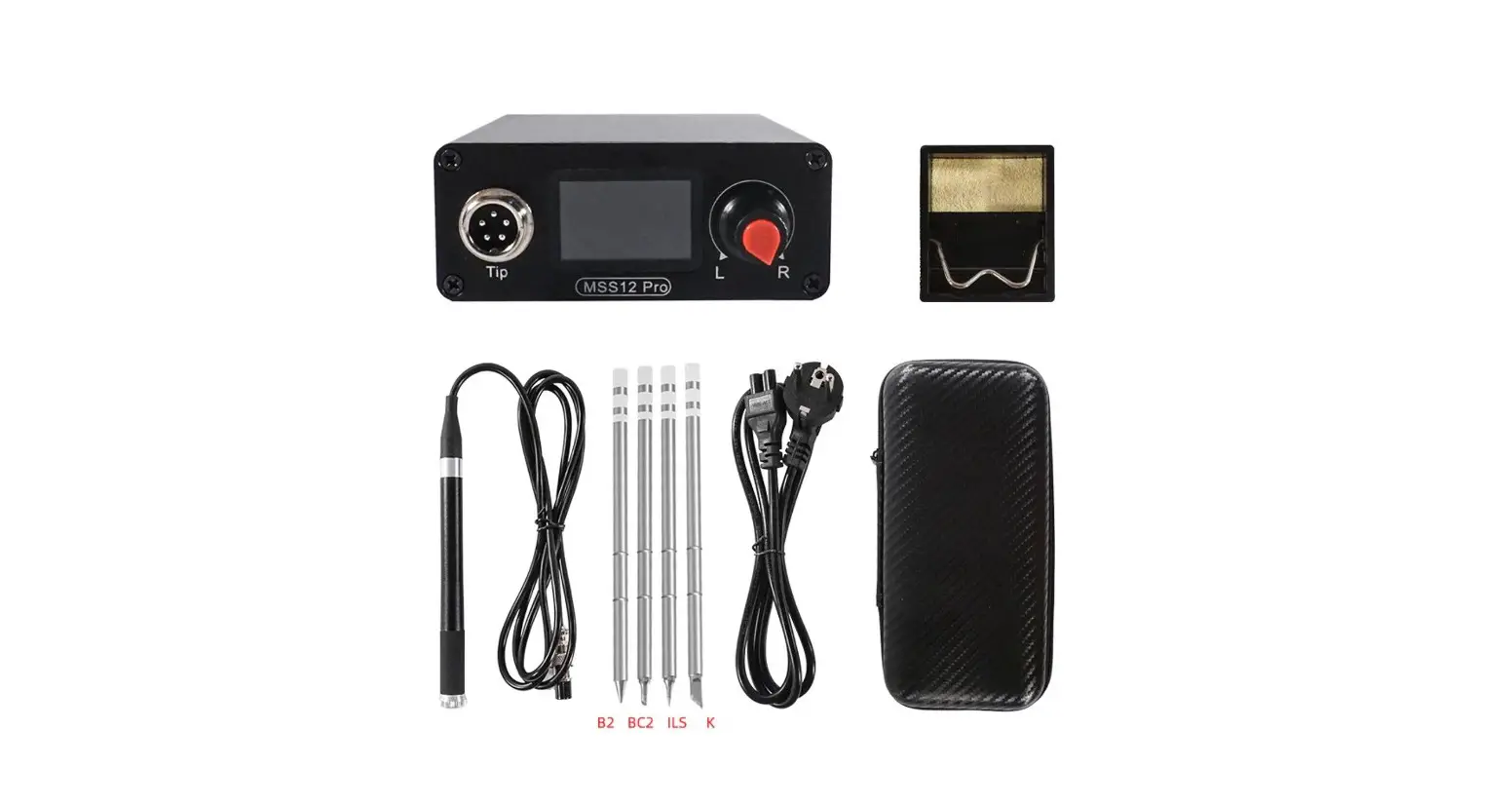
MSS12 Pro Soldering Station
Product Information: The MSS12P/MSS12 Pro intelligent soldering
station is a high-quality soldering station designed for
professional use. It features a 1.14-inch LCD color screen display,
which allows for easy monitoring and control of the soldering
process. The soldering station supports various power supply
methods, including PD2.0/3.0, QC2.0/3.0, DC12V-25V, and XT60 3S-6S.
This ensures compatibility with a wide range of power sources. The
firmware of the soldering station can be upgraded, and various
customization options are available, such as changing the boot logo
and the color of the main interface. The soldering station also
supports temperature calibration and compensation, allowing for
precise temperature control with an accuracy of up to plus or minus
1%. Product Usage Instructions: 1. Before using the MSS12P/MSS12
Pro intelligent soldering station, carefully read the instruction
manual to familiarize yourself with its features and operation. 2.
Connect the power supply to the soldering station using either a
DC12V-25V power source or an XT60 3S-6S battery pack. 3. Turn on
the soldering station by pressing the rotary switch. 4. The main
interface will be displayed on the LCD screen. Use the rotary
switch to navigate through the menu options. 5. To switch between
Stop mode and Work mode, short press the rotary switch. 6. If a
warning icon appears on the screen, follow the instructions
provided to resolve the issue. For example, if the “Soldering Iron
Tip Warning” icon appears, re-adjust the position of the soldering
iron tip or replace it if necessary. 7. To set the working
temperature, rotate the rotary switch in the “Level 2 Menu” until
you reach the “WorkTemp” option. Adjust the temperature value as
desired. 8. Monitor the progress of the soldering process using the
power progress bar displayed on the screen. 9. After use, turn off
the soldering station by pressing and holding the rotary switch.
10. Disconnect the power supply and allow the soldering station to
cool down before storing it. Note: It is important to follow all
safety precautions and guidelines provided in the instruction
manual while using the MSS12P/MSS12 Pro intelligent soldering
station.
MSS12P/MSS12 Pro Intelligent Soldering Station Instruction Manual
Thank you for using this product, please read the manual carefully before use to avoid mistakes in your operation.
1.Product Overview
MSS12P/MSS12 Pro intelligent soldering station comes with 1.14-inch LCD color screen display, which supports PD2.0/3.0, QC2.0/3.0, DC12V-25V, MSS12 Pro also support XT60 3S-6S, AC100-240V power supply methods.Firmware upgrade, custom boot LOGO, change the color of the main interface,switch between Celsius and Fahrenheit, can calibrate and compensate for temperature, and intelligent temperature control can reach up to plus or minus 1%.
2.Menu Introduction
Main Interface
Level 1 Menu
Level 2 Menu
1Main Interface
Main Interface
1
2 3 4 5
Icon Display
Icon Description
Operation method
Stop Work Sleep
C-T
Stop Mode Work Mode Sleep Mode
Soldering Iron Tip Warning
Short press the rotary switch to switch between “Stop” mode and “Work” mode
/
Please re-adjust the position of the soldering iron tip or replace the soldering iron tip. After the warning condition is cleared, the warning icon will automatically change to Stop.
Please use DC12-25V/3S-6S power supply. After the warning
H-V
High Voltage Warning
condition is eliminated, the warning icon will automatically
change to Stop.
Please disconnect the power supply, cool down the
H-T
High Temperature Warning
soldering iron tip to room temperature, and then reconnect. After the warning condition is removed, the warning icon
changes to Stop by pressing or turning the rotary switch.
Please increase the supply voltage or decrease the LowVolt
L-V
Low Voltage Warning
setting value. After the warning condition is removed,short press or turn the rotary switch and the warning icon
changes to Stop.
Please disconnect the power supply, cool down the
P-T
PCB High Temperature Warning
soldering station to room temperature, and then reconnect. After the warning condition is removed, the warning icon
changes to Stop by pressing or turning the rotary switch.
20.0V
Power Supply Voltage
/
300 Soldering Iron Tip Temperature
/
Check Tip Soldering Iron Tip Warning
Please re-adjust the position of the soldering iron tip or replace the soldering iron tip.
High-V
High Voltage Warning
Please use DC12-25V/3S-6S power supply
High-T
High Temperature Warning
Please disconnect the power supply, cool down the soldering iron tip to room temperature, and then reconnect.
Low-V
Low Voltage Warning
Please increase the supply voltage or decrease the LowVolt setting value.
Pcb-T
PCB High Temperature Warning
Please disconnect the power supply, cool down the soldering station to room temperature, and then reconnect.
300
Working Temperature Setpoint Power Progress Bar
Rotate the rotary switch to set the working temperature value.
/
2Level 1 Menu Level 2 Menu
Level 1 Menu
Level 2 Menu
1.Tcomp
2.Buzzer
3.TempUnit
4.WorkTemp
Iron 5.StartHeat
6.FactorySet
7.TempShield
8.TempStep
Idle
Lcd
Volt Calib About
9.Logo 1.SleepTime 2.SleepTemp 3.IdleTime 4.Sensitive 5.ScreenOpen 1.Brightess 2.Direction 3.KeyAction 4.ColorState 5.ColorSetT 6.ColorNowT 7.ColorVolt 8.ColorPower 1.LowVolt 2.PowerVolt
/ /
Description
Temperature compensation Buzzer
Temperature unit Working temperature Automatic heating when power on
Factory reset Temperature display is stable Working temperature setting step value of main interface
Customize the boot logo Sleep time
Sleep temperature Standby time
Wake Sensitivity Standby screen display
Display brightness Display direction Rotation direction Working status font color Working temperature set point font color Soldering iron tip temperature font color Supply voltage font color Power progress bar color Low voltage protection Supply voltage compensation Temperature calibration Information about Soldering Station
Default Value
0 ON
300 OFF OFF
ON
Setting Range
-20-20 OFF/ON /
100-450 OFF/ON OFF/ON OFF/ON
10
10-50
OFF 180s 200 360s
5 ON 50 0° L-R+
/ / / / / 10.0V 0V / /
OFF/ON 60-990s 100-450 60-990s
1-30 OFF/ON
5-100 0°/180° L-R+/L+R10 colors 10 colors 10 colors 10 colors 10 colors OFF/10.0-23.0V -5.00-5.00V T1-T4
/
(3) Menu Operation Guidelines
Main interface
Short press the rotary switch to switch between “Stop” mode and “Work” mode.
Turn the rotary switch to adjust the working temperature setting value.
Long press the rotary switch to enter the level 1 menu.
A warning icon appears. After the warning condition is eliminated, short press or turn the rotary switch to turn the warning icon to Stop.
Secondary menu
Turn the rotary switch to cycle through the level 2 menu function box.
Short press the rotary switch to confirm entering the level 2 menu setting item, and the parameter setting box will appear. Turn the rotary switch to set this parameter. After the parameter setting is completed, long press the rotary switch or no key operation for 8s, it will automatically exit the parameter setting box and return to the level 2 menu.
After long pressing the rotary switch or no key operation for 8s, it will return to the level 1 menu menu.
Level 1 menu
Turn the rotary switch to cycle through the level 1 menu function box. After long pressing the rotary switch or no key
Short press the rotary switch to enter the level 2 menu.
operation for 8s, return to the main interface.
(4) Temperature Calibration
Calib
Fix Fixed Value
Real Real Value
T1
Thermometer Temperature
Save
Save
Temperature calibration is divided into four parameters T1,T2,T3,T4, after
entering the calibration interface, T1 temperature parameter is selecting
box by default
,short press the rotary switch,T1 temperature parameter
changes to setting box
, waiting for value of”Real”to steadily
fluctuate within value range of “Fix”.Thermometer to measure real temperature of
soldering iron tip,turn rotary switch to write thermometer data to T1, after setting
T1 calibration temperature, long press rotary switch to exit the setting box, turn
rotary switch to select T2, continue to complete temperature calibration of T2,
T3, T4.Finally enter”Save”, short press rotary switch until”Save Succeed”
appear, calibration is complete.
During calibration process, long press rotary switch to exit calibration interface, parameters are not saved.
In process of temperature calibration, add tin to clean soldering
iron tip first, then use thermometer to measure temperature,during calibration,soldering iron tip is in a high temperature state,avoid scalding.
3.Eliminate Warning
When the soldering iron occurs a warning , a warning icon is displayed on the screen (if the buzzer is open, will accompany the warning beep), according to the prompt warning icon,troubleshot step by step after the warning condition is eliminated (if the buzzer is open, the warning beep will stop immediately), short press or turn rotary switch,warning icon (main interface 1) change to Stop.
4.Sleep Wake Up
Work mode, the soldering station will enter sleep mode automatically after waiting for SleepTime seconds when the handle is in a static state, the temperature will be automatically set to SleepTemp. Sleep mode, wake up the soldering station and automatically restore the original setting of WorkTemp when short press or turn rotary switch or shake the handle; If the soldering station is not woken up, after waiting for IdleTime the soldering station stop working,enter Stop mode. Stop mode, the handle is in a static state and rotary switch without operation,after waiting for 180s enter ScreenOpen,can exist by short press or turn rotary switch or vibrate the handle.
5.Technical Reference
6.Firmware Update
Input Voltage
12V
19V
24V AC100-
240V
Power
Fastest Time from 30 to 300
16W
37S
40W
14S
70W
9S
70W
9S
Visit www.sequremall.com to obtain firmware and upgrade teps.
Attention:MSS12 Pro before the firmware upgrade, ensure that the XT60 and AC port is disconnected,USB-C can be connected to a computer to avoid damage.
7.Custom Boot LOGO Connect USB-C with a computer, enter the level 1 menu “Iron” to select “9.Logo”, set it to “ON”,long press rotary switch or wait for automatic saving,enter to the LOGO interface,at this time the computer will appear a disk named “LOGO”.Copy the image named “LOGO.bmp” to the disk and disconnect.
Note:The picture is in unit color. bmp format,128 * 100 pixels,level is 128,vertical is 100, named “LOGO.bmp”
8.Warranty Terms
1 . Performance failure caused by non-human factors occurs within 3 months from the date of purchase,the manufacturer provides free repair service.After 3 months, no labor fee will be charged for the repair,if the parts are replaced, the cost shall be borne by the user.
2 . All artificial damage, self-disassembly,failure caused by improper use, and consumable soldering iron tip, is not covered by this warranty.
9.Safety Precautions
Use power supplies and accessories that meet safety standards,use original SEQURE accessories. Must make sure that the power is off, can replace the soldering iron tip, to avoid damaging the product,beware of high temperature burns. Soldering iron tip burn easily,power off after rest or completion,store in place not easily accessible to children. Under any circumstances, only choose XT60, AC or USB-C to supply power for the MSS12 Pro soldering station,can not be connected at the same time, to avoid damage.
www.sequremall.com
[email protected]
 Best DIY Soldering Hobby Tools & Accessories One Stop Shop – SEQURE