TAO 1pro Broadcasting Streaming Decoder
Product Information
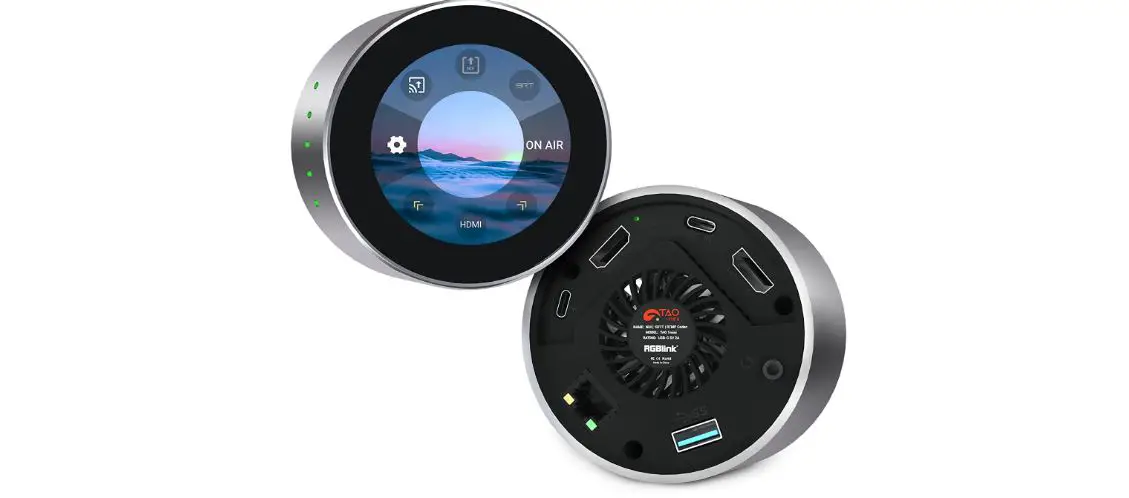
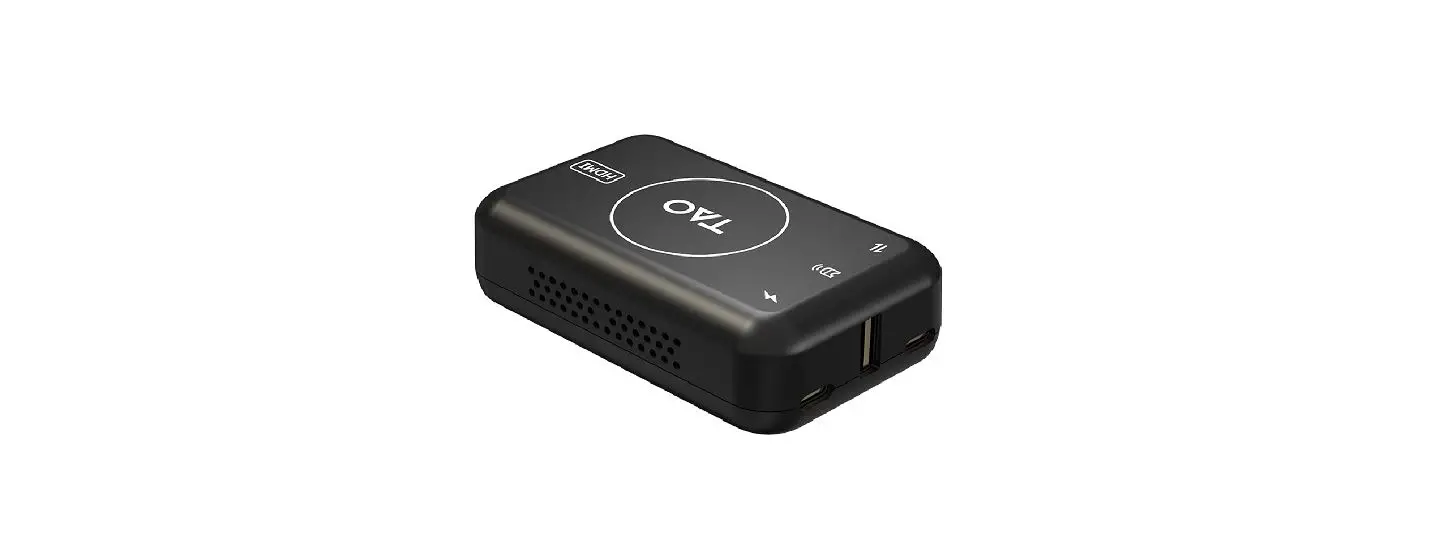
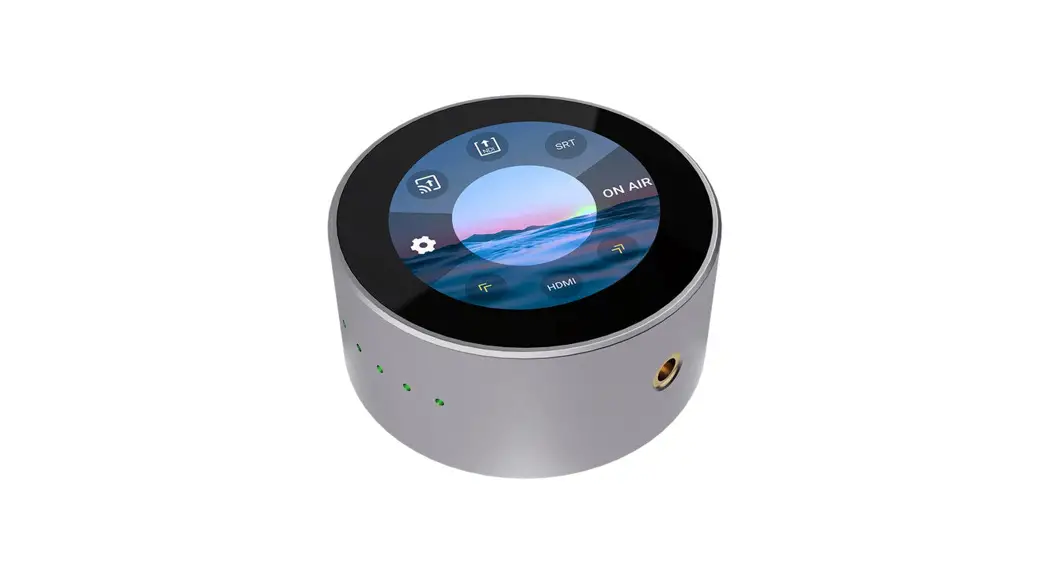
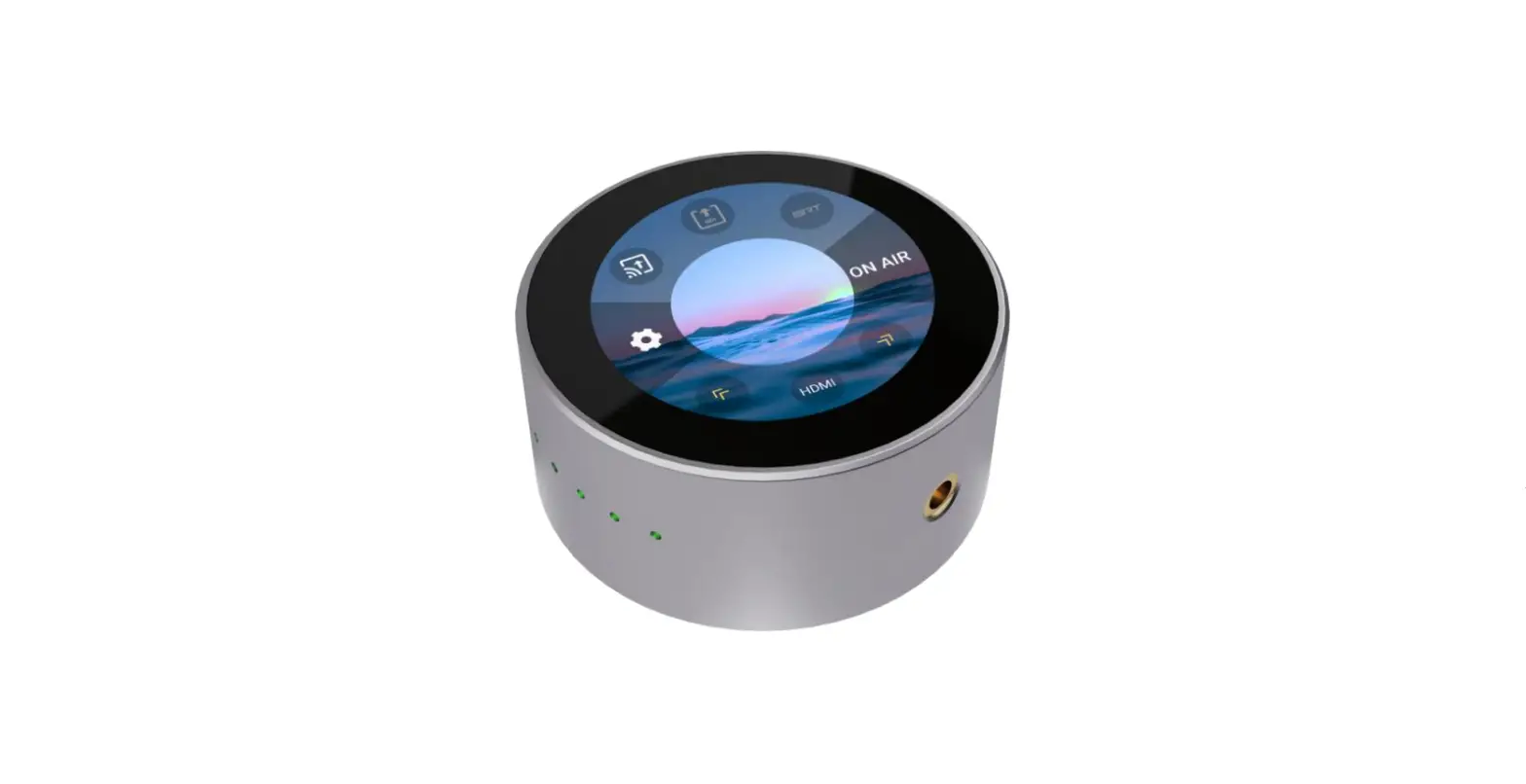
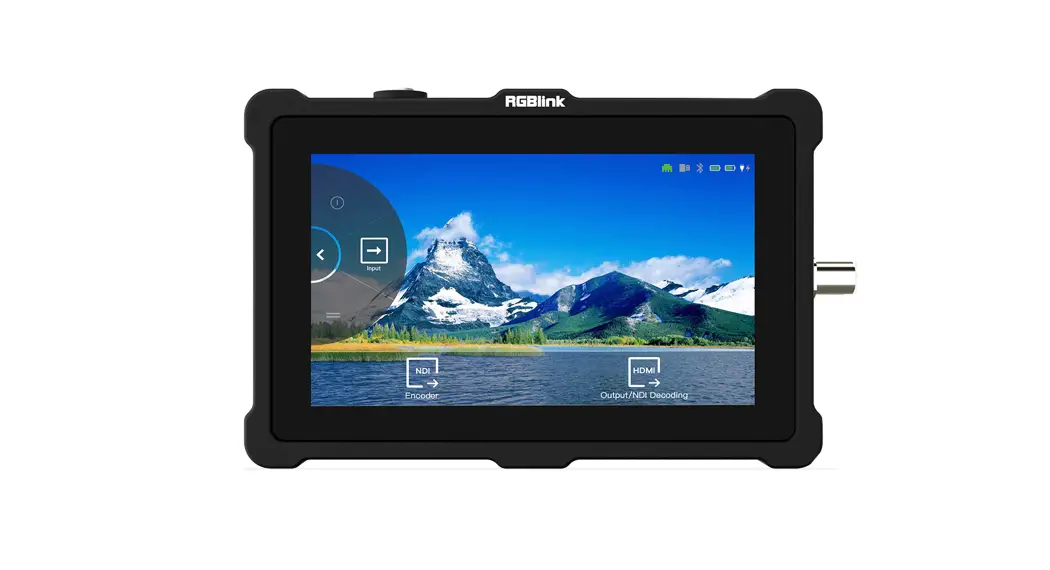
TAO 1pro is a broadcasting streaming decoder that also functions
as a four-channel seamless video switcher. It has a 5.5-inch FHD
preview display and supports streaming directly by Ethernet output.
It is compatible with standard USB 2.0 and USB 3.0 cameras by UVC
protocol, making it an affordable and user-friendly streaming tool
for anyone who wants to be an online anchor.
- 5.5 inch HD touch screen for operation
- Network HD streaming, H.264 encoding
- Asynchronous rotation of main screen and HDMI output
- 2*UVC inputs, 2*HDMI 1.3 input and 1* HDMI 2.0 output
- Bluetooth 5.0
- NDI 5.0 encoder
- Monitor with waveform, vector and histogram analysis
- Recorder to USB 2.0 SSD hard disk, range up to 2TB
- Multistream up to 4 live streaming platforms
simultaneously - Optional external battery up to two batteries
Product Usage Instructions
- Power on TAO 1pro via USB-C power cord.
- Connect the input source to TAO 1pro HDMI IN connector.
- Connect a monitor to HDMI OUT interface to preview the input
and output. - Connect a microphone to Audio IN interface, speaker or
earphones to Audio OUT interface. - Connect TAO 1pro to the router via CAT6 and stream to the live
platform. - After connection, press the power switch on the top panel to
turn on the device. - To switch signals, gently touch HDMI 1 in the bottom menu bar
and select the signal you want to choose/switch. - Only by switching to the UVC signal can the control be
achieved. Grey status of UVC signal indicates an unavailable
status. - To stream on YouTube, make sure TAO 1pro is connected to the
network. Open YouTube Studio on your computer, select Go
Live–Stream, Copy Stream URL and Stream Key. - Create a new TXT file first, paste the Streaming URL and Stream
Key (the format must be: rtmp//:YOUR STREAM URL/YOUR STREAM KEY),
and save the TXT file to USB as rtmp.ini. (Newline is required to
add multiple streaming addresses) and connect the USB disk to TAO
1pro’s RECORD USB port.
TAO 1pro
Quick Start
5.5 inch HD touch screen for operation Network HD streaming,H.264 encoding Asynchronous rotation of main screen and HDMI output 2*UVC inputs,2*HDMI 1.3 input and 1* HDMI 2.0 output Bluetooth 5.0 NDI 5.0 encoder Monitor with waveform, vector and histogram analyse Network HD streaming,H.264 encoding Recorder to USB 2.0 SSD hard disk, range up to 2TB Multistream up to 4 Live Streaming platform simultaneously Optional external battery up to two batteries
© Xiamen RGBlink Science & Technology Co., Ltd. Ph: +86 592 5771197 | [email protected] | www.rgblink.com
1 / 14
Content
Overview ………………………………………………………………………………………………… 3 Hardware Orientation ………………………………………………………………………………..4
Front Panel ……………………………………………………………………………………………….4 Interface Panel …………………………………………………………………………………………. 5 Product Installation ………………………………………………………………………………….. 6 Use Your Product ……………………………………………………………………………………… 7 Signal Switch ……………………………………………………………………………………………. 7 Streaming …………………………………………………………………………………………………7 Player ……………………………………………………………………………………………………… 9 NDI Decoder ……………………………………………………………………………………………..9 NDI Encoder …………………………………………………………………………………………….. 9 Recorder ……………………………………………………………………………………………….. 10 Settings …………………………………………………………………………………………………. 10 Brightness/RGB Waveform/Vector/Histogram …………………………………………….. 11 Audio Meter ……………………………………………………………………………………………11 Viewfinder ………………………………………………………………………………………………11 Specification ………………………………………………………………………………………….. 12 Contact Information …………………………………………………………………………………14
© Xiamen RGBlink Science & Technology Co., Ltd. Ph: +86 592 5771197 | [email protected] | www.rgblink.com
2 / 14
Overview
TAO 1pro is a Broadcasting streaming decoder with a 5.5 inch FHD preview display, but also a 4 channels seamless video switcher for 2 USB 3.0 and 2 HDMI 1.3 inputs, and supports streaming directly by Ethernet output which is ready to connect to external cloud based router and streaming from Anywhere to Everywhere.
TAO 1pro is compatible with standard USB 2.0 and USB 3.0 cameras by UVC protocol, and brings itself as a much affordable and user friendly streaming tools for anybody, the talents who is willing to be Anchor Online.
TAO 1pro is also with touch panel for finger configuration, and with optional 2 chargeable battery extending its capacity for outdoor application.
TAO 1pro can be divided into four parts: Input/Output Area, Scroll Area, Reminder Area and Status Display Area.
Scroll Area
Status Display Area Reminder Area
Input/Output Area
© Xiamen RGBlink Science & Technology Co., Ltd. Ph: +86 592 5771197 | [email protected] | www.rgblink.com
3 / 14
Hardware Orientation
Front Panel
No.
Item
Description
1
Power Button
Gently press to turn on,long press 3 seconds to turn off
2
Touch Screen
5.5 inch touch screen for menu control
© Xiamen RGBlink Science & Technology Co., Ltd. Ph: +86 592 5771197 | [email protected] | www.rgblink.com
4 / 14
Interface Panel
No.
Connectors
1
HDMI IN
2
HDMI OUT
3
Type C
4
Audio
5
LAN
6
USB 2.0
7
USB 3.0
Number 2×HDMI IN
Description Connect to camera and computer
1×HDMI OUT
Connect to external monitor
1×PD Type C
Connect to the power supply
1×MIC IN/LINE OUT Connect to microphone and earphone
1×RJ45
Gigabit network port
1×USB Type A 2×USB Type A
Connect to harddisk for recording,and storage up to 2T Connect to USB camera for UVC capture
© Xiamen RGBlink Science & Technology Co., Ltd. Ph: +86 592 5771197 | [email protected] | www.rgblink.com
5 / 14
Product Installation
1. Power on TAO 1pro via USB-C power cord.
2. Connect the input source to TAO 1pro HDMI IN connector.
3. Connect monitor to HDMI OUT interface to preview the input and output.
4. Connect microphone to Audio IN interface, speaker or earphones to Audio OUT interface.
5. Connect TAO 1pro to the router via CAT6 and stream to the live platform.
6.After connection,press the power switch on the top panel to open the device.
© Xiamen RGBlink Science & Technology Co., Ltd. Ph: +86 592 5771197 | [email protected] | www.rgblink.com
6 / 14
Use Your Product
Signal Switch
1. Gently touchHDMI 1in the bottom menu bar. 2. Select the signal you want to choose/switch.
. 1. Source Status:
–No Source;
–Ready;
–Selected.
2. Only by switching to the UVC signal can the control be achieved. Grey status of UVC signal indicates unavailable
status.
Streaming
Following steps take YouTube stream as example:
1. Make sure TAO 1pro connect to the network.
2.Open YouTube Studio on your computer,selectGo Live–Stream,Copy Stream URL and Stream Key.
© Xiamen RGBlink Science & Technology Co., Ltd. Ph: +86 592 5771197 | [email protected] | www.rgblink.com
7 / 14
3.Create a new TXT file first,and paste the Streaming URL and Stream Key (the format must be : rtmp//:YOUR STREAM URL/YOUR STREAM KEY), and save the TXT file to USB as rtmp.ini.(Newline is required to add multiple streaming addresses) and connect the USB disk to TAO 1pro’s RECORD USB port.
4.Click [Stream Output] icon to enter the following interface. 5.Click [Confirm] to enter the [Stream Output Config] interface.
6.Click [ON AIR] to stream ( support up to 4 live streaming platforms at the same time).
Source Status:
–Available but Failed in Streaming;
–Streaming.
© Xiamen RGBlink Science & Technology Co., Ltd. Ph: +86 592 5771197 | [email protected] | www.rgblink.com
8 / 14
Player
1. Insert a USB flash drive into the USB 2.0 port and then play the video in the USB. 2. Press the icon to enter the [Player] interface and select the video you want to play.
Note: If there is no USB flash drive inserted, the icon displays gray status.
NDI Decoder
1. Set the IP address (same as the network of camera ), subnet mask and gateway in [Network Settings] of [Scroll Area]. 2. Press the icon to turn on the switch to start NDI decoding function.
2
NDI Encoder
Press the NDI decoding icon to enter the interface to set relative parameters.
© Xiamen RGBlink Science & Technology Co., Ltd. Ph: +86 592 5771197 | [email protected] | www.rgblink.com
9 / 14
Recorder
1. Plug USB hard drive to TAO 1pro USB 2.0 port. 2. Click record icon to start recording.
Note: If there is no USB flash drive inserted, the recording icon displays gray status.
Settings
Click [Setting] in Scroll Area to enter following interface to set Input Settings, Network, Bluetooth, UVC Control, Fan Control, Stream Output, NDI Decoder, NDI Encoder, Display and About.
Input Settings: Input Signal, Input Format, Audio Sampling Rate, Signal Name, Brightness, Contrast, Saturation, Hue and Sharpness. Network: Set IP Address, Netmask and Gateway. Bluetooth: ON/OFF. Turn ON Bluetooth and choose the device to be connected to achieve control of PTZ
camera.
UVC Control: Adjust parameters of PTZ cameras connected to TAO 1pro. Fan Control: Set fan speed and fan mode. Stream Output: Set display mode, resolution ,frame rate, bitrate. NDI Decoder/Encoder: Same settings as previous parts shown. Display:Set the brightness of the output, HDMI output resolution and display rotation. About: Include device info, language setting, update setting and factory reset.
© Xiamen RGBlink Science & Technology Co., Ltd. Ph: +86 592 5771197 | [email protected] | www.rgblink.com
10 / 14
Brightness/RGB Waveform/Vector/Histogram
Click Brightness/RGB Waveform/Vector/Histogram to select position and transparency.
Audio Meter
Click Audio Meter to adjust settings of input and output audio.
Viewfinder
Click [Viewfinder] to select frame size(16:9 or 4:3). Users can cut out the screen outside the frame based on the actual size.
© Xiamen RGBlink Science & Technology Co., Ltd. Ph: +86 592 5771197 | [email protected] | www.rgblink.com
11 / 14
Specification
Connectors
Input
HDMI 1.3 2×HDMI-A
USB 3.0 2×USB-A
Output
HDMI 2.0 1×HDMI-A
Record
USB 2.0 1×USB-A
Audio
In
1×3.5mm Audio Jack
Out
1×3.5mm Audio Jack
Performance Screen Feature
Communication/ Stream Power Input Resolutions
Output Resolutions
Supported Standard
Screen Dimension Resolution
LAN
1×RJ45
1×USB-C
HDMI SMPTE 720p@50/60 | 1080p@23/24/60 VESA 1024×768@60 | 1280×720@60 | 1280×800@60 | 1280×1024@60 | 1360×768@60 | 1600×1200@60 | 1680×1050@60 |1920×1080@60 HDMI SMPTE 720p@50/60 | 1080p@24/25/50/60 | 2160p@60 VESA 1024×768@60 | 1280×720@50/60 | 1280×800@60 | 1280×1024@60 | 1360×768@60 | 1920×1080@50/60 | 3840×2160@60
HDMI
1.3(Input) | 2.0(Output)
USB
3.0
5.5 ”TFT
1080×1920 pixels
Dot Pitch
0.063(H)×0.021(W)(mm)
Aspect Ratio
16:9
Brightness
450cd/m²
Contrast
1000:1
Backlight
LED
View Angle
80°/80°(L/R)80°/80°(U/D)
© Xiamen RGBlink Science & Technology Co., Ltd. Ph: +86 592 5771197 | [email protected] | www.rgblink.com
12 / 14
Power Environment Physical
Input Voltage Max Power Temperature Humidity Weight
Dimension
9V/2A
18W
0~55
5%~85%
Net
350g(without battery);882g(with battery)
Package 770g
Net
161mm×106mm×36mm
Package 255mm×145mm×85mm
© Xiamen RGBlink Science & Technology Co., Ltd. Ph: +86 592 5771197 | [email protected] | www.rgblink.com
13 / 14
Contact Information
Warranty:
All video products are designed and tested to the highest quality standard and backed by full 1 year parts and labor warranty. Warranties are effective upon delivery date to customer and are non-transferable. RGBlink warranties are only valid to the original purchase/owner. Warranty related repairs include parts and labor, but do not include faults resulting from user negligence, special modification, lighting strikes, abuse(drop/crush), and/or other unusual damages. The customer shall pay shipping charges when unit is returned for repair.
Headquarter: Room 601A, No. 37-3 Banshang community, Building 3, Xinke Plaza, Torch Hi-Tech Industrial Development Zone, Xiamen, China
Tel: +86-592-5771197 Fax: +86-592-5788216 Customer Hotline: 4008-592-315 Web:
~ http://www.rgblink.com ~ http://www.rgblink.cn E-mail: [email protected]
© Xiamen RGBlink Science & Technology Co., Ltd. Ph: +86 592 5771197 | [email protected] | www.rgblink.com
14 / 14
 RGBlink