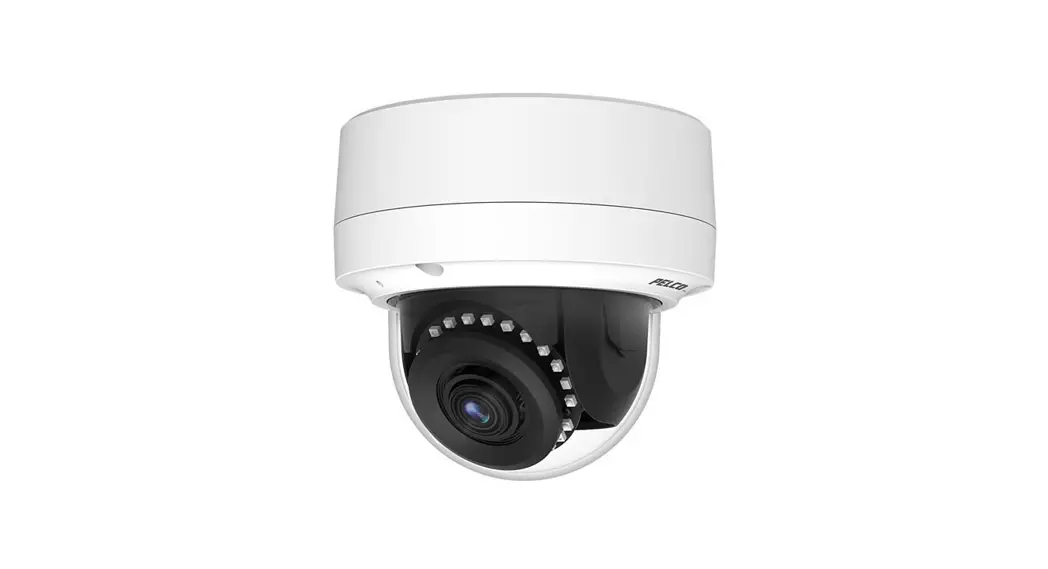
SXTE4-QF04-EBT Sarix Thermal Enhanced 4 Camera
Product Information: Sarix Thermal Enhanced 4 Camera
The Sarix Thermal Enhanced 4 Camera is a surveillance camera
system designed for installation and operation in various
environments. It provides thermal imaging capabilities and is
equipped with advanced features for enhanced security.
Important Safety Information
The manual provides installation and operation information, as
well as precautions to ensure safe usage of the device. It is
important to read and follow the instructions carefully to prevent
any unexpected faults or accidents.
The manual also includes warning symbols to indicate the
presence of dangerous voltage and caution symbols to highlight
potential hazards. Failure to follow the instructions may result in
severe injury or death.
Product Usage Instructions
1. Installation:
- Ensure that the installation is performed by qualified
personnel who adhere to local codes. - Use a UL Listed Power Unit marked Class 2 or LPS, or Limited
Power Source, with an output of 12 VDC or 24 VAC, minimum 9 W, or
Power over Ethernet (PoE) rated 48 VDC, minimum 9 W. - Do not connect the camera directly to mains power.
2. Placement and Environment:
- Avoid exposing the camera directly to high levels of x-ray,
laser, or UV radiation as it may cause permanent damage to the
image sensor. - Do not install the camera near heat sources such as radiators,
heat registers, stoves, or other heat-emitting devices. - Avoid subjecting the device cables to excessive stress, heavy
loads, or pinching.
3. Maintenance and Servicing:
- Do not open or disassemble the device as there are no
user-serviceable parts inside. - Refer all device servicing to qualified personnel, especially
if the device has been damaged, exposed to rain or moisture, does
not operate normally, or has been dropped. - Use only accessories recommended by Pelco for cleaning and
maintenance.
4. Device Compliance:
The Sarix Thermal Enhanced 4 Camera complies with EN 60529 IP66
and IP67 ratings, ensuring its resistance to dust and water
ingress.
For more detailed instructions and troubleshooting information,
please refer to the complete Sarix Thermal Enhanced 4 Camera
Installation Manual.
Sarix Thermal Enhanced 4 Camera Installation Manual
Document number: C6732M Publication date: 04/23
Sarix Thermal Enhanced 4 Camera Installation Manual
Legal Notices
© 2023, Pelco Corporation. All rights reserved. PELCO, the PELCO logo, PELCO are trademarks of Pelco Corporation. Other names or logos mentioned herein may be the trademarks of their respective owners. The absence of the symbols TM and ® in proximity to each trademark in this document or at all is not a disclaimer of ownership of the related trademark. Pelco Corporation protects its innovations with patents issued in the United States of America and other jurisdictions worldwide (see www.pelco.com). Unless stated explicitly and in writing, no license is granted with respect to any copyright, industrial design, trademark, patent or other intellectual property rights of Pelco Corporation or its licensors.
Disclaimer
This document has been compiled and published using product descriptions and specifications available at the time of publication. The contents of this document and the specifications of the products discussed herein are subject to change without notice. Pelco Corporation reserves the right to make any such changes without notice. Neither Pelco Corporation nor any of its affiliated companies: (1) guarantees the completeness or accuracy of the information contained in this document; or (2) is responsible for your use of, or reliance on, the information. Pelco Corporation shall not be responsible for any losses or damages (including consequential damages) caused by reliance on the information presented herein.
Pelco Corporation
www.pelco.com
C6732M
Revision: 1 – EN
20230412
C6732M | 04/23
2
Sarix Thermal Enhanced 4 Camera Installation Manual
Table of Contents
Legal Notices
2
Disclaimer
2
Important Safety Information
4
Regulatory Notices
5
For Korea
6
Disposal and Recycling Information
6
Overview
7
Junction Box View
7
Front View
7
Side View
8
Rear View
8
Configuration Panel View
9
Installation
10
Camera Package Contents
10
Installation Steps
10
Mounting the Bullet Camera
10
Removing the Configuration Panel Cover
13
Initializing a Camera Username and Password
14
(Optional) Using the USB Wi-Fi Adapter
14
Assigning an IP Address
15
Setting the IP Address Using the ARP/Ping Method
15
Accessing the Live Video Stream
15
Aiming the Camera
16
(Optional) Configuring microSD Card Storage
17
Configuring the Camera
17
Connecting to Power and External Devices
18
Connection Status LED Indicator
20
Troubleshooting Network Connections and LED Behavior
20
Resetting to Factory Default Settings
21
For More Information
21
Pelco Troubleshooting Contact Information
21
C6732M | 04/23
3
Sarix Thermal Enhanced 4 Camera Installation Manual
Important Safety Information
This manual provides installation and operation information and precautions for the use of this device. Incorrect installation could cause an unexpected fault. Before installing this equipment read this manual carefully. Please provide this manual to the owner of the equipment for future reference.
This Warning symbol indicates the presence of dangerous voltage within and outside the product enclosure that may result in a risk of electric shock, serious injury or death to persons if proper precautions are not followed.
This Caution symbol alerts the user to the presence of hazards that may cause minor or moderate injury to persons, damage to property or damage to the product itself if proper precautions are not followed.
Failure to observe the following instructions may result in severe injury or death.
l Installation must be performed by qualified personnel only, and must conform to all local codes. l This product is intended to be supplied by a UL Listed Power Unit marked “Class 2” or “LPS” or
“Limited Power Source” with output rated 12 VDC or 24 VAC, 9 W min. or Power over Ethernet (PoE) rated 48 VDC, 9 W min. l Do not connect directly to mains power for any reason.
Failure to observe the following instructions may result in injury to persons or damage to the device.
l Do not expose the camera directly to high levels of x-ray, laser, or UV radiation. Direct exposure may cause permanent damage to the image sensor.
l Do not install near any heat sources such as radiators, heat registers, stoves, or other sources of heat.
l Do not subject the device cables to excessive stress, heavy loads or pinching. l Do not open or disassemble the device. There are no user serviceable parts. l Refer all device servicing to qualified personnel. Servicing may be required when the device has
been damaged (such as from a liquid spill or fallen objects), has been exposed to rain or moisture, does not operate normally, or has been dropped. l Do not use strong or abrasive detergents when cleaning the device body. l Use only accessories recommended by Pelco. l This device complies with EN 60529 IP66 and IP67 ratings.
C6732M | 04/23
4
Sarix Thermal Enhanced 4 Camera Installation Manual
Regulatory Notices
The following Sarix Thermal Enhanced 4 camera models should be installed by a trained professional and should be installed in restricted access locations:
l SXRE4-VF09-EBT (DTMLD53)
l SXTE4-VF36-EBT (DTMLD53)
l SXRE4-VF09-EBT-1 (DTMLD53)
l SXTE4-VF36-EBT-1 (DTMLD53)
This device complies with part 15 of the FCC Rules. Operation is subject to the following two conditions: (1) this device may not cause harmful interference, and (2) this device must accept any interference received, including interference that may cause undesired operation.
This Class B digital apparatus complies with Canadian ICES-003 (B)/NMB-3 (B).
This equipment has been tested and found to comply with the limits for a Class B digital device, pursuant to Part 15 of the FCC rules. These limits are designed to provide reasonable protection against harmful interference in a residential installation. This equipment generates, uses and can radiate radio frequency energy and, if not installed and used in accordance with the instructions, may cause harmful interference to radio communications. However, there is no guarantee that interference will not occur in a particular installation. If this equipment does cause harmful interference to radio or television reception, which can be determined by turning the equipment off and on, the user is encouraged to try to correct the interference by one or more of the following measures:
l Reorient or relocate the receiving antenna. l Increase the separation between the equipment and the receiver. l Connect the equipment into an outlet on a circuit different from that to which the receiver is
connected. l Consult the dealer or an experienced radio/TV technician for help. Changes or modifications made to this equipment not expressly approved by Pelco Corporation or parties authorized by Pelco Corporation could void the user’s authority to operate this equipment.
To meet the requirements of the EN 50121-4 Railway Applications Standard, use an external power supply or POE injector that is also compliant with EN 50121-4. Please contact Pelco for assistance regarding supporting equipment.
To meet the requirements of the EN 50130-4 Alarm Systems Applications standard, use an external uninterruptible power (UPS) supply.
This equipment contains a coin cell battery. Risk of fire, explosion, and burns. Do not disassemble, crush, heat above 100°C (212°F), or incinerate.
The use of EMC compliant support and auxiliary equipment with this device is required in order to fully comply with the EMC regulatory standards.
C6732M | 04/23
5
Sarix Thermal Enhanced 4 Camera Installation Manual
For Korea
Disposal and Recycling Information
When this product has reached the end of its useful life, please dispose of it according to your local environmental laws and guidelines. European Union:
This symbol means that according to local laws and regulations your product should be disposed of separately from household waste. When this product reaches its end of life, take it to a collection point designated by local authorities. Some collection points accept products for free. The separate collection and recycling of your product at the time of disposal will help conserve natural resources and ensure that it is recycled in a manner that protects human health and the environment.
C6732M | 04/23
6
Sarix Thermal Enhanced 4 Camera Installation Manual
Overview
Junction Box View
1. Camera mounts Points for installing the camera to the junction box.
2. Mounting hook slots Points to hold the camera to the junction box while connecting the required cables.
3. Mounting holes Holes for securing the junction box to the mounting surface.
Front View
1. Configuration panel cover Covers the configuration panel.
C6732M | 04/23
7
Sarix Thermal Enhanced 4 Camera Installation Manual
Side View
1. Sun shroud An adjustable cover to help protect the lens against glare from the sun.
2. Mount arm Adjustable mount arm for positioning the camera.
3. Adjustment screws Provides a locking mechanism for the mount arm.
Rear View
1. Ethernet port Accepts power and Ethernet connection to the network. Server communication and image data transmission also occur over this connection. The camera can either be powered by Power over Ethernet (PoE) rated 48 VDC, or auxiliary power rated 12 VDC or 24 VAC.
2. Serial number tag Device information, product serial number and part number label.
3. Camera mounting screws Screws for mounting the camera to the junction box.
4. Mounting hooks
C6732M | 04/23
8
Sarix Thermal Enhanced 4 Camera Installation Manual Hooks to attach the camera to the junction box while connecting the required cables.
5. Power and I/O cables Cables for connecting the camera to auxiliary power and I/O devices. For more information, see Connecting to Power and External Devices.
Configuration Panel View
1. microSD card slot Accepts a microSD card for onboard storage. For more information, see (Optional) Configuring microSD Card Storage.
2. Micro USB port Accepts a micro USB to USB adapter. Only required when using the USB Wi-Fi Adapter.
3. Connection status LED indicator Green LED provides information about device operation. For more information, see Connection Status LED Indicator.
4. Link LED indicator Amber LED indicates if there is an active connection in the Ethernet port.
5. Firmware revert button Button can be pressed to revert the device to its factory default settings, see Resetting to Factory Default Settings.
C6732M | 04/23
9
Sarix Thermal Enhanced 4 Camera Installation Manual
Installation
Camera Package Contents
l Pelco Sarix Thermal Enhanced 4 Camera l Junction box l Mounting template sticker l 4 screws and anchors for solid walls l 4 screws for attachment to electrical box l Protective rubber boot for Ethernet port l Teflon tape
Installation Steps
Mounting the Bullet Camera If the cables for the camera will not be provided from inside the mounting surface, install the junction box first. After you install the junction box, you can skip directly to step 3 of this procedure.
1. Use the mounting template to drill four mounting holes into the mounting surface.
2. Drill the cable entry hole into the mounting surface then pull the required Ethernet cable through the cable entry hole.
3. Fasten the junction box to the mounting surface.
C6732M | 04/23
10
Sarix Thermal Enhanced 4 Camera Installation Manual
To prevent moisture from entering the junction box, it is recommended to apply teflon tape around the threaded conduit pipe at the cable entry point of the junction box. Ensure the other two conduit plugs are fully tightened. 4. Insert the mounting hooks on the rear of the camera into the mounting hook slots on the junction box, then let the camera hang.
Before connecting any cables, ensure that the cable connections are properly protected from moisture and corrosion. Make sure the protective cable boot is installed over the Ethernet port to protect the connection from dust and moisture.
If PoE is not available, the camera may be powered through the auxiliary power cable using either 12 VDC or 24 VAC. For more information, see Connecting to Power and External Devices.
5. If there are external input or output devices that need to be connected to the camera (for example: door contacts, relays, etc.), connect the devices to the camera’s digital I/O connector cables. For more information see Connecting to Power and External Devices.
It is recommended that seal tape be applied around the external audio and I/O connection, if necessary, to prevent moisture from entering.
6. Install the protective cable boot.
C6732M | 04/23
11
Sarix Thermal Enhanced 4 Camera Installation Manual a. Thread one end of the Ethernet cable through the provided protective cable boot. Ensure the orientation of the cable and boot matches the one shown in the image. b. Crimp the Ethernet cable onto the cord. c. Plug the Ethernet cable into the camera’s Ethernet port. d. After you connect the cable to the camera, slide the boot over the Ethernet port.
7. Connect the network cable to the camera’s Ethernet port.
8. Tuck the extra lengths of cables into the cable entry hole or within the junction box compartment. 9. Raise the camera until it covers the junction box.
C6732M | 04/23
12
Sarix Thermal Enhanced 4 Camera Installation Manual 10. Use the camera mounting screws to fasten the camera to the junction box.
Removing the Configuration Panel Cover 1. Use a T20 Pin-In star-shaped driver to unscrew the configuration panel cover.
2. Remove the cover from the configuration panel.
C6732M | 04/23
13
Sarix Thermal Enhanced 4 Camera Installation Manual
Initializing a Camera Username and Password You must create a user with administrator privileges before the camera is operational. The new user can be created using the following methods:
l Camera’s web interface. Enter the camera’s IP address in a web browser to access the web interface. For more information, see the Pelco Sarix Thermal Enhanced 4 Camera Operations Manual. If the camera is in the factory default state, you will be redirected to the New User page to create an administrator user: 1. Enter a new User Name or keep the default administrator name. 2. Enter a new Password for the user. It is recommended to use a secure and complex password. 3. Confirm the new password. 4. For the first user, Administrator must be selected in the Security Group drop-down menu. 5. Click Apply. After creating the user, you will be asked to login.
l Camera Configuration Tool: discovered cameras that are identified by will require a first user to be set. Select the Admin Users tab to create the first user. For more information, see the Camera Configuration Tool User Guide.
Note: Set up the first user through the camera’s Web Interface or Camera Configuration Tool before you connect the camera to a VMS.
(Optional) Using the USB Wi-Fi Adapter If you have a USB Wi-Fi Adapter (USB-AC56-**-MSI), attach it to the camera’s micro USB port to access the camera’s mobile web interface.
After you connect to the Wi-Fi signal broadcast by the adapter, you can access the mobile web interface from any mobile device using the following address:
http://camera.lan For more information about configuring the camera from the mobile web interface see Pelco USB Wi-Fi Adapter System User Guide.
C6732M | 04/23
14
Sarix Thermal Enhanced 4 Camera Installation Manual
The camera will reserve the 10.11.22.32/28 subnet for internal use while the USB Wi-Fi Adapter is plugged in.
Assigning an IP Address The device automatically obtains an IP address when it is connected to a network. If the device cannot obtain an IP address from a DHCP server, it will use Zero Configuration Networking (Zeroconf) to choose an IP address. When set using Zeroconf, the IP address is in the 169.254.0.0/16 subnet. The IP address settings can be changed using one of the following methods:
l The mobile web interface using the USB Wifi Adapter. For more information, see (Optional) Using the USB Wi-Fi Adapter.
l Device’s web browser interface: http://<camera IP address>/. l Network Video Management software application. l ARP/Ping method. For more information, see Setting the IP Address Using the ARP/Ping Method.
Setting the IP Address Using the ARP/Ping Method Complete the following steps to configure the camera to use a specific IP address:
Note: The ARP/Ping Method will not work if the Disable setting static IP address through ARP/Ping method checkbox is selected in the camera’s web browser interface. For more information, see the Pelco Sarix Thermal Enhanced 4 Camera Operations Manual.
1. Locate and make note of the MAC Address (MAC) listed on the Serial Number Tag for reference. 2. Open a Command Prompt window and enter the following commands:
a. arp -s <New Camera IP Address> <Camera MAC Address> For example: arp -s 192.168.1.10 00-18-85-12-45-78
b. ping -l 123 -t <New Camera IP Address> For example: ping -l 123 -t 192.168.1.10
3. Reboot the camera. 4. Close the Command Prompt window when you see the following message:
Reply from <New Camera IP Address>: …
Accessing the Live Video Stream Live video stream can be viewed using one of the following methods:
l The mobile web interface using the USB WiFi Adapter. For more information, see (Optional) Using the USB Wi-Fi Adapter.
l Web browser interface: http://< camera IP address>/. l Network Video Management software application.
C6732M | 04/23
15
Sarix Thermal Enhanced 4 Camera Installation Manual
Aiming the Camera Reference the camera’s live stream as you aim the camera.
1. Loosen the adjustment screw closest to the junction box to rotate the camera arm.
2. Loosen the center adjustment screw to tilt the camera.
3. Loosen the adjustment screw on the camera to turn the camera body.
4. If the camera is turned sideways to look vertically at a scene, you can remove the sun shroud then
C6732M | 04/23
16
Sarix Thermal Enhanced 4 Camera Installation Manual re-install it to cover the camera’s new angle of view.
(Optional) Configuring microSD Card Storage
To use the camera’s SD card storage feature, you must insert a microSD card into the card slot.
It is recommended that the microSD card have a write speed of class 10 or better. If the microSD card does not meet the recommended write speed, the recording performance may suffer and result in the loss of frames or footage.
1. Insert a microSD card into the camera. Do not force the microSD card into the camera or you may damage the card and the camera.
2. Access the camera’s web interface to enable the onboard storage feature. For more information, see the Pelco Sarix Thermal Enhanced 4 Camera Operations Manual.
Configuring the Camera
After the camera is installed, configure it using the instructions in the current version of the Pelco Sarix Thermal Enhanced 4 Camera Operations Manual.
C6732M | 04/23
17
Sarix Thermal Enhanced 4 Camera Installation Manual
Connecting to Power and External Devices
If PoE is not available, the camera may be powered through the auxiliary power cable using 12 VDC or 24 VAC. The power consumption information is listed in the product specifications. To power the camera, connect the two power wires to the auxiliary power wires. The auxiliary power wire is distinguished by its thicker wire gauge and AUX PWR label. The connection can be made with either polarity.
This product is intended to be supplied by a UL Listed Power Unit marked “Class 2” or “LPS” or “Limited Power Source” with output rated 12 VDC or 24 VAC, 9 W min. or Power over Ethernet (PoE) rated 48 VDC, 9 W min. Power supplies and external devices are connected to the camera through the power and I/O wires. For the locations of the power and I/O connector blocks, see Overview. The pinout for the I/O and power wires is shown in the diagram on the following page.
C6732M | 04/23
18
Sarix Thermal Enhanced 4 Camera Installation Manual
Example application. 1. Brown — Audio Input (line level) An external power amplifier should be used when connecting speakers and microphones, as shown in the diagram. 2. Yellow — Audio Ground 3. Green — Audio Output (line level) 4. Grey — Ground 5. Red — Digital Input 6. Pink — Digital Output 7. Purple — Reserved Wire, do not connect. 8. White — Reserved Wire, do not connect. l * — Relay l ** — Switch l M — Microphone l S — Speaker l AUX1 — Auxiliary Power Wire, labeled AUX PWR l AUX2 — Auxiliary Power Wire
C6732M | 04/23
19
Sarix Thermal Enhanced 4 Camera Installation Manual
Connection Status LED Indicator
Once connected to the network, the green Connection Status LED indicator will display the progress in connecting to the Network Video Management software.
The following table describes what the LED indicator shows:
Connection State Connection Status LED Indicator
Description
Obtaining IP Address Discoverable
Upgrading Firmware
Connected
One short flash every second
Attempting to obtain an IP address.
Two short flashes Obtained an IP address but not connected to the
every second
Network Video Management software.
Two short flashes Updating the firmware. and one long flash every second
On
Connected to the Network Video Management software.
The default connected setting can be changed to Off using
the camera’s web user interface. For more information, see
the Pelco Sarix Thermal Enhanced 4 Camera Operations
Manual.
Troubleshooting Network Connections and LED Behavior
For any of the below LED behaviors, ensure that the camera is getting power and is using a good network cable before trying another solution.
LED Behavior
Suggested Solution
Green LED is off and amber is on
Perform a factory reset of the camera using the physical firmware revert button. Resetting through the camera’s web interface will not produce the desired result.
Both LEDs are off and the camera is not Check the General setup page in the camera’s web interface
connected or streaming video
to ensure the LEDs are not disabled.
If the LEDs are not disabled, perform a factory reset of the camera using the physical firmware revert button. Resetting through the camera’s web interface will not produce the desired result.
Both LEDs are blinking several times at Perform a factory reset of the camera using the physical
the same time, then pause and repeat firmware revert button. Resetting through the camera’s web
the blinking
interface will not produce the desired result.
A different LED blinking pattern than those described above
Perform a factory reset of the camera using the physical firmware revert button. Resetting through the camera’s web interface will not produce the desired result.
C6732M | 04/23
20
Sarix Thermal Enhanced 4 Camera Installation Manual
Resetting to Factory Default Settings
If the device no longer functions as expected, you can choose to reset the device to its factory default settings. Use the firmware revert button to reset the device. The firmware revert button is shown in the following diagram:
The firmware revert button in the Configuration Panel. 1. Ensure the device is powered on. 2. Using a straightened paperclip or similar tool, gently press and hold the firmware revert button. 3. Release the button after three seconds.
Do not apply excessive force. Inserting the tool too far may damage the camera.
For More Information
Additional information about setting up and using the device is available in the following guides: l Pelco Sarix Thermal Enhanced 4 Camera Operations Manual available on the Pelco website: www.pelco.com. l Camera Configuration Tool User Guide
Pelco Troubleshooting Contact Information
For further assistance, contact Pelco Product Support at 1-800-289-9100 (USA and Canada) or +1-559292-1981 (international). Do not try to repair the unit yourself. Leave maintenance and repairs to qualified technical personnel only.
C6732M | 04/23
21
Sarix Thermal Enhanced 4 Camera Installation Manual
M Pelco, Inc.
625 W. Alluvial Ave., Fresno, California 93711 United States (800) 289-9100 Tel (800) 289-9150 Fax +1 (559) 292-1981 International Tel +1 (559) 348-1120 International Fax www.pelco.com Pelco, the Pelco logo, and other trademarks associated with Pelco products referred to in this publication are trademarks of Pelco, Inc. or its affiliates. ONVIF and the ONVIF logo are trademarks of ONVIF Inc. All other product names and services are the property of their respective companies. Product specifications and availability are subject to change without notice. © Copyright 2023, Pelco, Inc. All rights reserved.
 Video Security & Access control | Pelco by Motorola Solutions