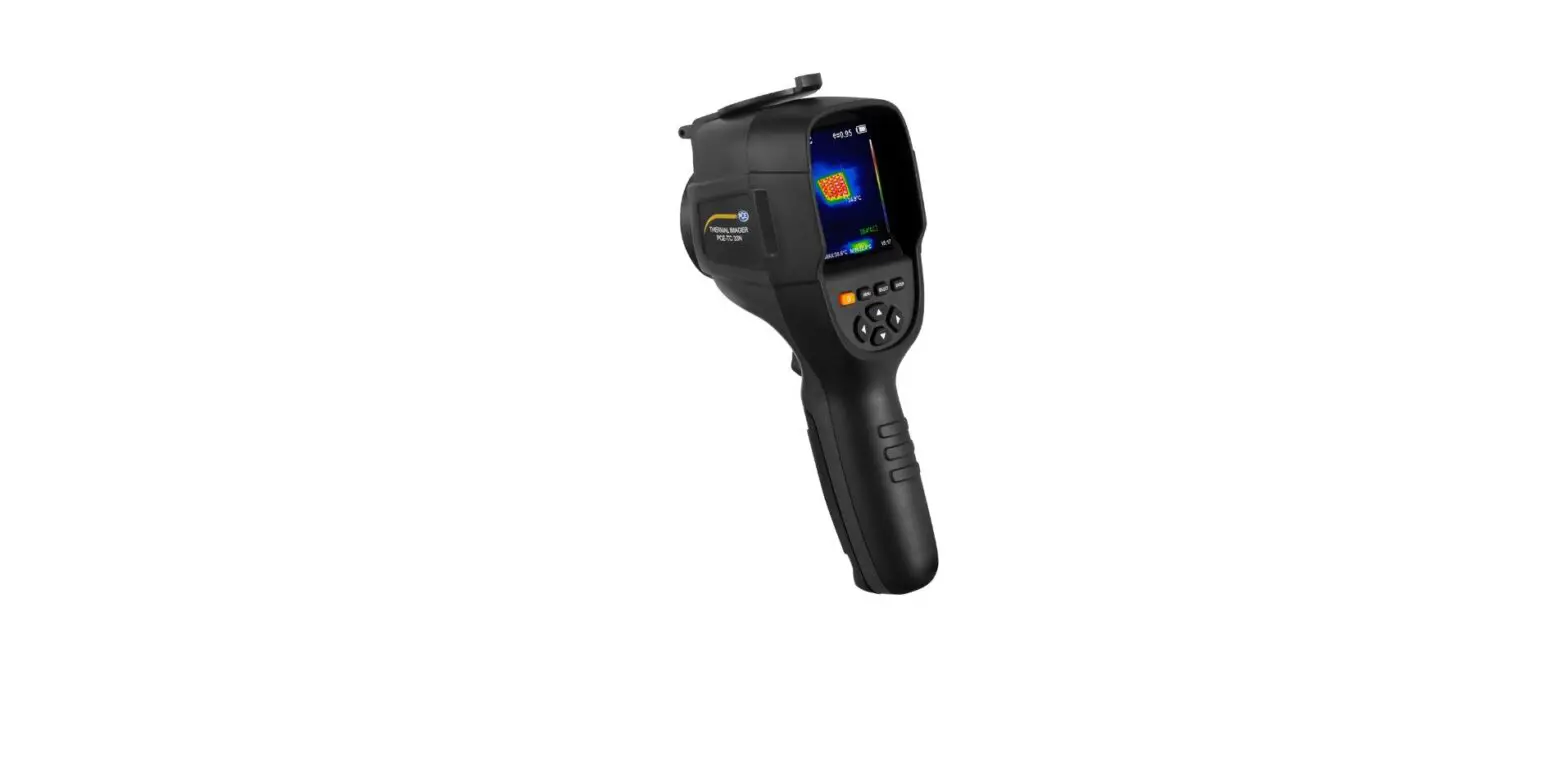
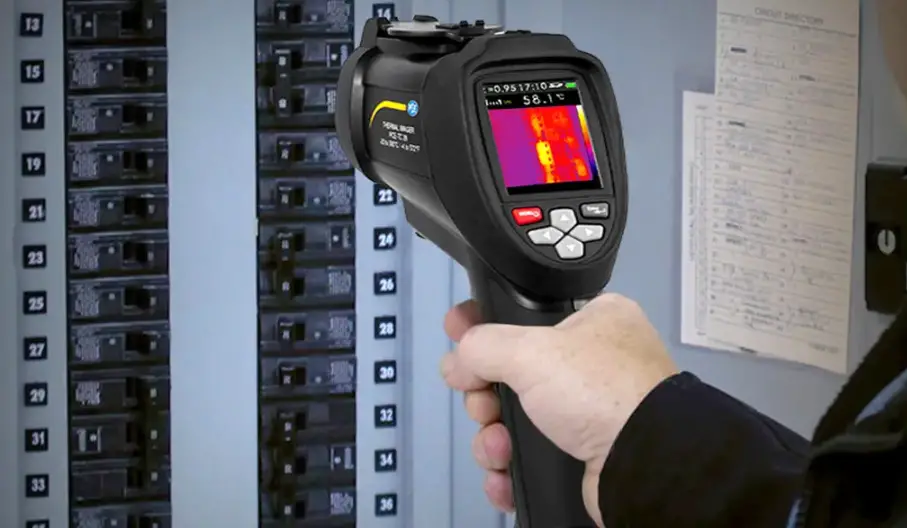
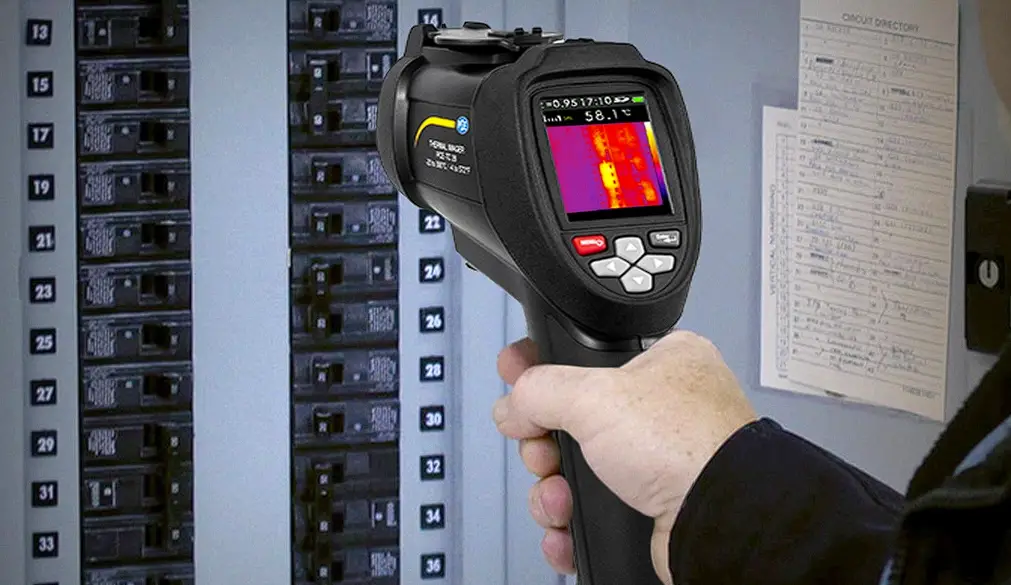
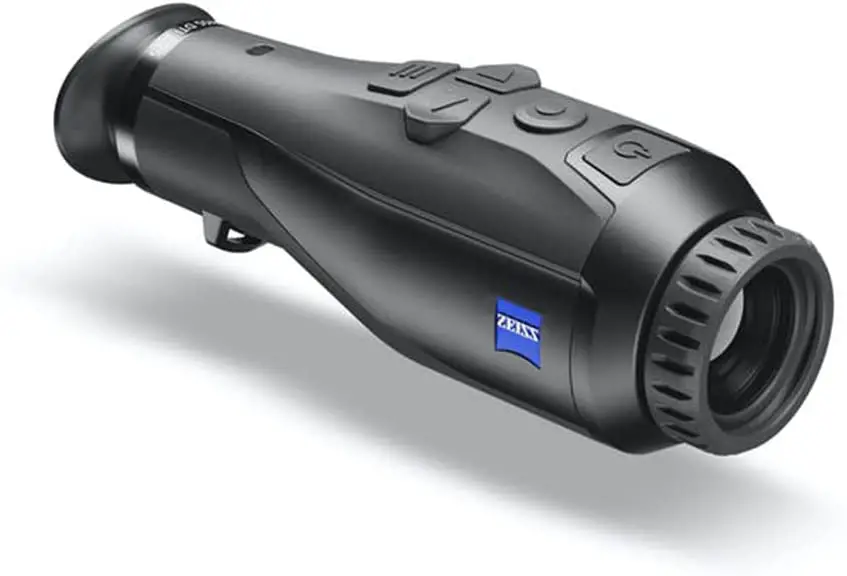
PCE-TC 30N Thermal Imaging Camera
Product Information
The PCE-TC 30N Thermal Imaging Camera is a device used for
capturing and analyzing thermal images. It is designed for use by
qualified personnel and is repaired by PCE Instruments personnel.
The camera has various technical specifications and features that
enhance its functionality.
Technical Specifications
- Optical specifications:
- Temperature range: [temperature range]
- Accuracy: [accuracy]
- Field of view (FOV): [FOV]
- Smallest focus distance: [smallest focus distance]
- Infrared resolution: [infrared resolution]
- Thermal sensitivity: [thermal sensitivity]
- Wavelength range: [wavelength range]
- Focus: [focus]
- Calibration of the measurement: [calibration of the
measurement] - Number of spots: [number of spots]
- Representation: [representation]
- Display:
- 2.8″ TFT; resolution: 240 x 320 pixels
- Adjustable picture-in-picture function
- Frame rate: 9 Hz
- Colour palettes: Spectrum / Iron / Cold / White / Black
- Memory:
- Emissivity: Variable 0.01 … 1.0
- Internal SD card: 3 GB for more than 20000 images
- Image format: JPG
- Settings:
- Automatic Shutdown
- Intensity (brightness)
- Language
- Temperature unit
- Time
- Spot
- Languages: English, German, Chinese, Italian
- Power supply:
- Battery: Internal rechargeable battery, approx. 2800 mAh
- Operating time: 2 … 3 h
- Voltage supply: 100…240 VAC 50/60 Hz
- Interface: Micro USB for charging and memory readout on a
PC
- Environmental conditions:
- Automatic Shutdown: Adjustable, after 5 or 20 minutes or
off - Temperature: [temperature range]
- Relative humidity: [relative humidity]
- Automatic Shutdown: Adjustable, after 5 or 20 minutes or
- Dimensions: [dimensions]
- Weight: [weight]
Product Usage Instructions
Before using the PCE-TC 30N Thermal Imaging Camera, please read
the safety notes in the user manual carefully. Only qualified
personnel should operate the device, and any repairs should be done
by PCE Instruments personnel. Failure to follow the manual may
result in damage or injuries that are not covered by the
warranty.
To use the camera:
- Ensure that the device is fully charged or connected to a power
supply. - Press the power button to turn on the camera.
- Adjust the settings according to your preferences, such as
language, temperature unit, and display intensity. - Point the camera towards the object or area you want to capture
thermal images of. - Observe the thermal images displayed on the 2.8″ TFT
screen. - Use the adjustable picture-in-picture function if desired.
- Press the capture button to save images to the internal SD
card. - If necessary, connect the camera to a PC using the Micro USB
interface for charging or transferring images.
After using the camera, it is important to properly maintain and
clean it. Refer to the maintenance section in the user manual for
instructions on cleaning and troubleshooting. If you have any
questions or need further assistance, please contact PCE
Instruments using the provided contact details.
Englis h
User Manual
PCE-TC 30N Thermal Imaging Camera
User manuals in various languages (français, italiano, español, português, nederlands, türk, polski,
, ) can be found by using our product search on: www.pce-instruments.com
Last change: 5 March 2021 v1.0
© PCE Instruments
Contents 1 Safety notes ………………………………………………………………………………. 1 2 Specifications ……………………………………………………………………………. 2
2.1 Technical specifications ……………………………………………………………………………………… 2 2.2 Delivery scope ……………………………………………………………………………………………………… 3
3 System description ……………………………………………………………………. 4
3.1 Device……………………………………………………………………………………………………………… 4 3.2 Getting started…………………………………………………………………………………………………… 5 3.3 Display description …………………………………………………………………………………………….. 6 3.4 Control panel…………………………………………………………………………………………………….. 7
4 Menu …………………………………………………………………………………………. 8
4.1 Image overlapping……………………………………………………………………………………………… 8 4.2 Show saved images …………………………………………………………………………………………… 8 4.3 Colour palettes ………………………………………………………………………………………………….. 9 4.4 Emissivity …………………………………………………………………………………………………………10 4.5 Settings……………………………………………………………………………………………………………11
5 Maintenance ……………………………………………………………………………. 15
5.1 Cleaning…………………………………………………………………………………………………………..15
6 Troubleshooting ………………………………………………………………………. 15 7 Contact………………………………………………………………………………….. 16 8 Disposal ………………………………………………………………………………….. 16
© PCE Instruments
1 Safety notes
Please read this manual carefully and completely before you use the device for the first time. The device may only be used by qualified personnel and repaired by PCE Instruments personnel. Damage or injuries caused by non-observance of the manual are excluded from our liability and not covered by our warranty.
· The device must only be used as described in this instruction manual. If used otherwise, this can cause dangerous situations for the user and damage to the meter.
· The instrument may only be used if the environmental conditions (temperature, relative humidity, …) are within the ranges stated in the technical specifications. Do not expose the device to extreme temperatures, direct sunlight, extreme humidity or moisture.
· Do not expose the device to shocks or strong vibrations. · The case should only be opened by qualified PCE Instruments personnel. · Never use the instrument when your hands are wet. · You must not make any technical changes to the device. · The appliance should only be cleaned with a damp cloth. Use only pH-neutral cleaner,
no abrasives or solvents. · The device must only be used with accessories from PCE Instruments or equivalent. · Before each use, inspect the case for visible damage. If any damage is visible, do not
use the device. · Do not use the instrument in explosive atmospheres. · The measurement range as stated in the specifications must not be exceeded under
any circumstances. · Non-observance of the safety notes can cause damage to the device and injuries to
the user. · Never aim the laser beam at people or animals. · Never look directly into the laser beam. · If the product is found to have smoke, sparks and a burning smell during use, stop
using it immediately. · In such a case, first disconnect the meter from the power supply. After the smoke and
the peculiar smell have completely disappeared, contact PCE Instruments.
We do not assume liability for printing errors or any other mistakes in this manual.
We expressly point to our general guarantee terms which can be found in our general terms of business.
If you have any questions please contact PCE Instruments. The contact details can be found at the end of this manual.
© PCE Instruments 1
2 Specifications
2.1 Technical specifications Optical specifications Temperature range
Accuracy
Field of view (FOV) Smallest focus distance Infrared resolution Thermal sensitivity Wavelength range Focus Calibration of the measurement Number of spots Representation Display Picture-in-picture function Frame rate Colour palettes Emissivity Memory
Image memory
Image format Settings
Setting options
Languages Power supply
Battery
Operating time Voltage supply
Interface
Automatic Shutdown Environmental conditions
Temperature
Relative humidity Dimensions Weight
-20 … +450 °C (-4 °F … +842 °F) ±2 °C or ±2 % of reading up to 300 °C ±5 % of reading at >300 °C 35 ° x 26 ° 0.15 m 160 x 120 pixels 0.07 °C 8 … µm fixed focus Auto 3
2.8″ TFT; resolution: 240 x 320 pixels Adjustable: 25%, 50%, 75%, 100% 9 Hz Spectrum / Iron / Cold / White / Black Variable 0.01 … 1.0
Internal SD card 3 GB for more than 20000 images JPG
Automatic Shutdown, intensity (brightness), language, temperature unit, time, spot English, German, Chinese, Italian
Internal rechargeable battery, approx. 2800 mAh 2 … 3 h 100…240 VAC 50/60 Hz Micro USB for charging and memory readout on a PC Adjustable, after 5 or 20 minutes or off
Operation: 0 … +45 °C Storage: -20 … +60 °C < 85 % r. RH (non-condensing) 96 x 72 x 226 mm / 3.8 x 4.1 x 8.9 in 389 g / / <1 lb
© PCE Instruments 2
2.2 Delivery scope 1 x thermal imaging camera PCE-TC 30N 1 x USB cable 1 x USB mains adaptor 1 x user manual 1 x carrying bag
© PCE Instruments 3
3 System description
3.1 Device
1. Display 2. control panel 3. Handle
6. Micro USB connector under protective cap 7. infrared bolometer 8. Digital camera 9. LED light 10. Save screen capture / switch LED on or off 11. Internal rechargeable battery
© PCE Instruments 4
3.2 Getting started Please note that the instrument should acclimatise to the current environmental conditions before connecting it to the charger. Do not charge the instrument in hot or cold places. Charging in extreme temperatures will reduce the capacity of the battery. The micro USB cable can be used for charging but also for transferring images. 3.2.1 Charging the battery The PCE-TC 30N thermal imaging camera has a built-in rechargeable Li-Ion battery. If the battery level is low, this is indicated by the symbol at the top right of the screen. Charge the thermal imaging camera via the micro USB interface. To do this, proceed as follows:
– Connect the supplied USB cable to the micro USB interface of the thermal imaging camera.
– Connect the other side of the USB cable to the supplied mains adaptor. – Now plug the mains adaptor into a protected contact socket designed for this
purpose. Note Before charging, make sure that the battery, charger and camera are acclimatised to the current environmental conditions. Charging under extreme temperatures can have a negative impact on the battery life. Do not charge the battery for more than 24 hours.
© PCE Instruments 5
3.3 Display description
Temperature in the centre of the image
Highest temperature marking
Set emissivity
Battery level Colour palette
Centre marking
Max and min temperature
Lowest temperature marking
Current time
3.3.1 Colour palette The colour palette is used to distinguish the temperature zones from high to low. Different colour palettes are available. The colour scale on the right edge of the screen automatically scales between the highest and lowest measured temperature in the screen section.
3.3.2 Temperature in the centre of the image The white crosshairs in the centre of the image indicate the temperature at the focus of the thermal imaging camera.
3.3.3 Maximum temperature in the current image section The red mark appears where the highest temperature is measured in the current image section. At the same time, this is shown in the lower left area of the display.
3.3.4 Minimum temperature in the current image section The green mark appears where the lowest temperature is measured in the current image section. At the same time, this is shown in the lower left area of the display.
© PCE Instruments 6
3.4 Control panel Menu and on/off
Selection and confirmation
Navigation keys up, down, left, right
3.4.1 Switching the instrument on and off Press and hold the menu key for more than 3 seconds to switch the thermal imaging camera on or off. After switching on, the display shows the last selected image mode.
3.4.2 Switching the LED on and off Press and hold the trigger key for at least 5 seconds to turn the LED on or off.
3.4.3 Picture-in-picture function This function enables the IR image to overlap the image from the integrated digital camera. In this way, measured objects can be clearly assigned. The overlapping can be adjusted in 25 % steps by pressing the left or right navigation key in normal measuring mode.
3.4.4 Saving images To do this, press the key on the handle of the thermal imaging camera in normal measuring mode. A dialogue window appears, which can be confirmed with the menu key or cancelled with the select/enter key.
Note If the thermal imaging camera is connected to a PC via USB, it is not possible to save screen captures.
3.4.5 Show/hide the minimum and maximum temperature To do this, press the upper navigation key in normal measuring mode. In addition to the minimum or maximum measured temperature, the current time is also shown or hidden in the lower right corner of the display.
© PCE Instruments 7
4 Menu
4.1 Image overlapping
To exactly overlap the real image of the integrated digital camera with the images from the infrared camera, carry out the following steps: First open the menu with the menu key. Select the menu item “Image registration” and confirm it with the select/enter key. A large crosshair appears in the centre of the screen. Now the infrared image can be adjusted exactly to the image of the digital camera using the navigation keys (up, down, left, right).
Note For very precise adjustment of the infrared image, it is recommended to set image overlapping to a maximum of 50 % as otherwise, no digital image may be recognisable. Furthermore, the exact positioning of the infrared image depends on the distance of the object to be examined.
4.2 Show saved images
Open the menu with the menu key and navigate with the navigation keys up or down to the menu
item “Image”. Pressing the navigation key on the right takes you to the submenu. All saved
pictures are now displayed here as a continuous list. The following functions are now available:
– Navigation key up or down: scroll through the list
– Select/enter key: view the highlighted image
·
Navigation key left or right: view previous or next image
·
Navigation key to: delete current image; confirm dialogue window with
menu key; cancel with select/enter key
·
Select/enter key: Exit view
– Navigation key left: Exit submenu
– Menu key: back to measuring mode
© PCE Instruments 8
4.3 Colour palettes
5 different colour palettes are available for displaying thermal gradients on targeted objects. The gloss or surface texture of objects may require a change of colour palette so that distinct thermal gradients become visible. The colour palettes rainbow, iron, cold, white and black are available. If the temperature differences of the targeted object are high, a coloured palette should be selected.
See several example images with the respective colour palettes below:
Rainbow
Iron
Cold
White
Black
4.3.1 Set colour palette
Open the menu using the menu key and use the navigation keys up or down to highlight the menu item “Color palette”. Pressing the navigation key on the right takes you to the submenu. Here, all available colour palettes are displayed in a list. The following functions are available:
– Navigation key up or down: scroll through the list – Select/enter key: apply currently selected colour palette – Navigation key left: exit submenu – Menu key: back to measuring mode
© PCE Instruments 9
4.4 Emissivity Every object with a temperature above absolute zero emits thermal radiation. The emissivity is the indicator of how much thermal radiation this object emits in contrast to an ideal thermal radiator, the black body. The emissivity is therefore always between 0 … 1 (0 … 100 %). 4.4.1 Set emissivity Open the menu using the menu key and use the navigation keys up or down to highlight the menu item “Emissivity”. Pressing the navigation key on the right takes you to the submenu. Here, all available emissivities are displayed in a list. The following functions are available:
– 4 standard emissivities are available: · matt (e=0.95) · semi-matt (e=0.85) · slightly glossy (e=0.60) · glossy (e=0.30) · individual (e=0 … 1)
– Navigation key up or down: scroll through the list – Select/enter key: accept currently selected emissivity – Navigation key left: exit submenu – Menu key: back to measuring mode Note When selecting individual emissivity, the emissivity can be set between 0 … 1 with the navigation keys up or down; the decimal place can be changed with the navigation keys left or right; to accept, press the select/enter key.
© PCE Instruments 10
4.4.2 Emissivities of common materials
Material Bitumen Concrete Cement Sand Earth Water Ice Snow Glass Ceramics Marble
Emissivity
0.90 … 0.98 0.94
0.96
0.90
0.92 … 0.96 0.92 … 0.96 0.96 … 0.98 0.83 0.90 … 0.95 0.90 … 0.94 0.94
Gypsum Mortar Brick
0.80 … 0.90 0.89 … 0.91 0.93 … 0.96
Material Black cloth Human skin Foam Charcoal dust Paint Matte paint Black rubber Plastic Timber Paper Chromium hemitrioxide Copper oxide Ferric oxide Textile
Emissivity 0.98 0.98 0.75 … 0.80 0.96 0.80 … 0.95 0.97 0.94 0.85 … 0.95 0.90 0.70 … 0.94 0.81
0.78 0.78 … 0.82 0.90
4.5 Settings
Open the menu using the menu key and use the navigation keys up or down to highlight the menu item “Setting”. Pressing the navigation key on the right takes you to the submenu. All available settings are displayed here in a list. The following functions are available:
Autom. off Intensity Language Unit Time format
Time setting
Spot
Setting the automatic shutdown Setting the display backlight
Setting the language Setting the temperature unit Setting the time format
Setting the date and time
Setting the autom. spots for the maximum or minimum temperature
No 5 min 20 min Low Medium High English Chinese Italian German Celsius Fahrenheit 24 hours AM/PM Year Month Day Hour Minute Second Off On
© PCE Instruments 11
4.5.1 Automatic shutdown Use the navigation keys up or down to highlight the menu item “Automatic Shutdown”. Pressing the navigation key on the right takes you to the submenu. All available settings are displayed here in a list.
– Navigation key up or down: scroll through the list – Select/enter key: accept current selection – Navigation key left: exit submenu – Menu key: back to measuring mode
4.5.2 Brightness Use the navigation keys up or down to highlight the menu item “Brightness”. Pressing the navigation key on the right takes you to the submenu. All available settings are displayed here in a list.
– Navigation key up or down: scroll through the list – Select/enter key: accept current selection – Navigation key left: exit submenu – Menu key: back to measuring mode
4.5.3 Language Use the navigation keys up or down to highlight the menu item “Language”. Pressing the navigation key on the right takes you to the submenu. All available settings are displayed here in a list.
– Navigation key up or down: scroll through the list – Select/enter key: accept current selection – Navigation key left: exit submenu – Menu key: back to measuring mode
4.5.4 Unit Use the navigation keys up or down to highlight the menu item “Unit”. Pressing the navigation key on the right takes you to the submenu. All available settings are shown here in a list.
– Navigation key up or down: scroll through the list – Select/enter key: accept current selection – Navigation key: exit submenu – Menu key: back to measuring mode
4.5.5 Time format Use the navigation keys up or down to highlight the menu item “Time format”. Pressing the navigation key on the right takes you to the submenu. All available settings are displayed here in a list.
– Navigation key up or down: scroll through the list – Select/enter key: accept current selection – Navigation key left: exit submenu – Menu key: back to measuring mode
© PCE Instruments 12
4.5.6 Time Use the navigation keys up or down to highlight the menu item “Set time”. Pressing the navigation key on the right takes you to the submenu. All available settings are displayed here in a list.
– Navigation key up or down: scroll through the list – Select/enter key: edit current selection
· Navigation key up or down: change number at marked decimal place · Navigation key left or right: change decimal place · Select/enter key: save edit – Navigation key left: exit submenu – Menu key: back to measuring mode
© PCE Instruments 13
4.5.7 Spot Use the navigation keys up or down to highlight the menu item “Cold/hotspot”. Pressing the navigation key on the right takes you to the submenu. All available settings are displayed here in a list.
– Navigation key up or down: scroll through the list – Select/enter key: accept current selection – Navigation key left: exit submenu – Menu key: back to measuring mode
© PCE Instruments 14
5 Maintenance
5.1 Cleaning
The meter should be stored at room temperature. The lens of the infrared sensor is the most sensitive part of the instrument. Make sure that it is always clean. If the lens ever becomes dirty, it should only be cleaned with a soft cotton cloth or stick. Use only water or medical alcohol for cleaning. The lens should be completely dry before the meter is used again. Do not immerse the instrument in water.
6 Troubleshooting
The following problems may occur during operation of the thermal imaging camera. If the suggested solutions are not helpful, please contact PCE Instruments.
Problem The thermal imaging camera cannot be switched on
The thermal imaging camera switches itself off during operation
Cause The battery is discharged
The battery is discharged
Automatic shutdown is activated
Solution
Fully charge the thermal imaging camera with the supplied USB cable (see 3.2.1) Fully charge the thermal imaging camera with the supplied USB cable (see 3.2.1)
Switch on the thermal imaging camera again and change the setting of the automatic shutdown, if necessary (see 4.5.1).
© PCE Instruments 15
7 Contact
If you have any questions, suggestions or technical problems, please do not hesitate to contact us. You will find the relevant contact information at the end of this user manual.
8 Disposal
For the disposal of batteries in the EU, the 2006/66/EC directive of the European Parliament applies. Due to the contained pollutants, batteries must not be disposed of as household waste. They must be given to collection points designed for that purpose. In order to comply with the EU directive 2012/19/EU we take our devices back. We either re-use them or give them to a recycling company which disposes of the devices in line with law. For countries outside the EU, batteries and devices should be disposed of in accordance with your local waste regulations. If you have any questions, please contact PCE Instruments.
© PCE Instruments 16
PCE Instruments contact information
Germany
PCE Deutschland GmbH Im Langel 4 D-59872 Meschede Deutschland Tel.: +49 (0) 2903 976 99 0 Fax: +49 (0) 2903 976 99 29 [email protected] www.pce-instruments.com/deutsch
United Kingdom
PCE Instruments UK Ltd Unit 11 Southpoint Business Park Ensign Way, Southampton Hampshire United Kingdom, SO31 4RF Tel: +44 (0) 2380 98703 0 Fax: +44 (0) 2380 98703 9 [email protected] www.pce-instruments.com/english
The Netherlands
PCE Brookhuis B.V. Institutenweg 15 7521 PH Enschede Nederland Telefoon: +31 (0)53 737 01 92 [email protected] www.pce-instruments.com/dutch
France
PCE Instruments France EURL 23, rue de Strasbourg 67250 Soultz-Sous-Forets France Téléphone: +33 (0) 972 3537 17 Numéro de fax: +33 (0) 972 3537 18 [email protected] www.pce-instruments.com/french
Italy
PCE Italia s.r.l. Via Pesciatina 878 / B-Interno 6 55010 Loc. Gragnano Capannori (Lucca) Italia Telefono: +39 0583 975 114 Fax: +39 0583 974 824 [email protected] www.pce-instruments.com/italiano
Hong Kong
PCE Instruments HK Ltd. Unit J, 21/F., COS Centre 56 Tsun Yip Street Kwun Tong Kowloon, Hong Kong Tel: +852-301-84912 [email protected] www.pce-instruments.cn
Spain
PCE Ibérica S.L. Calle Mayor, 53 02500 Tobarra (Albacete) España Tel. : +34 967 543 548 Fax: +34 967 543 542 [email protected] www.pce-instruments.com/espanol
Turkey
PCE Teknik Cihazlari Ltd.ti. Halkali Merkez Mah. Pehlivan Sok. No.6/C 34303 Küçükçekmece – stanbul Türkiye Tel: 0212 471 11 47 Faks: 0212 705 53 93 [email protected] www.pce-instruments.com/turkish
United States of America
PCE Americas Inc. 1201 Jupiter Park Drive, Suite 8 Jupiter / Palm Beach 33458 FL USA Tel: +1 (561) 320-9162 Fax: +1 (561) 320-9176 [email protected]
© PCE Instruments 17
References
 France.fr : Actualités, destinations et infos du tourisme en France
-
iberica.es
 Make an offer on the domain instruments.co.uk - Domains.co.uk
-
Computer Instruments | Home
 Discover Italy: Official Tourism Website - Italia.it
-
PCE(北京)科技有é™å…¬å¸
-
Industrial Measurement Products and Solutions | PCE Instruments
-
PCE Deutschland GmbH Prüfgeräte vom Hersteller | PCE Instruments
-
PCE Brookhuis B.V. | PCE Instruments
-
PCE Americas Inc. : Test Instruments | PCE Instruments
-
PCE Iberica S.L. Instrumentación | PCE Instruments
-
PCE Instruments France | PCE Instruments
-
PCE Italia s.r.l. / Strumenti di Misura | PCE Instruments
-
PCE Teknik Cihazlar Paz. Tic. Ltd.Şti. | PCE Instruments
-
PCE Americas Inc. : Test Instruments | PCE Instruments
 France.fr : Actualités, destinations et infos du tourisme en France
 iberica.es
 Make an offer on the domain instruments.co.uk - Domains.co.uk
 Computer Instruments | Home
 Discover Italy: Official Tourism Website - Italia.it
 PCE(北京)科技有é™å…¬å¸
 Industrial Measurement Products and Solutions | PCE Instruments