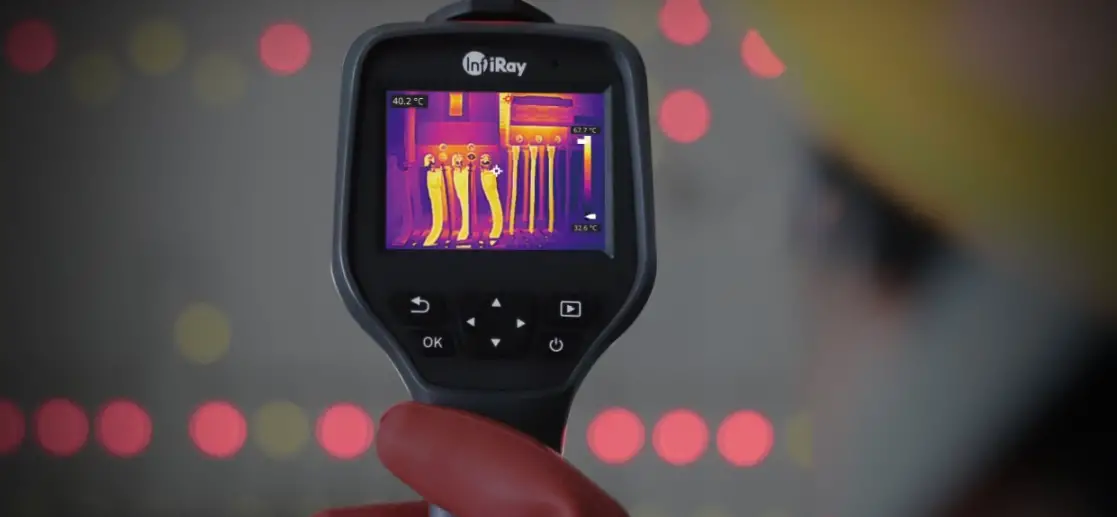
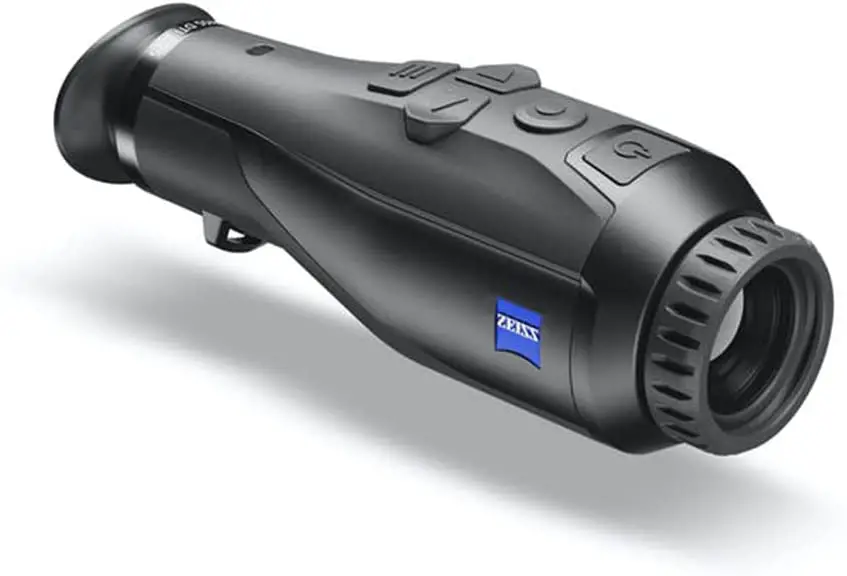
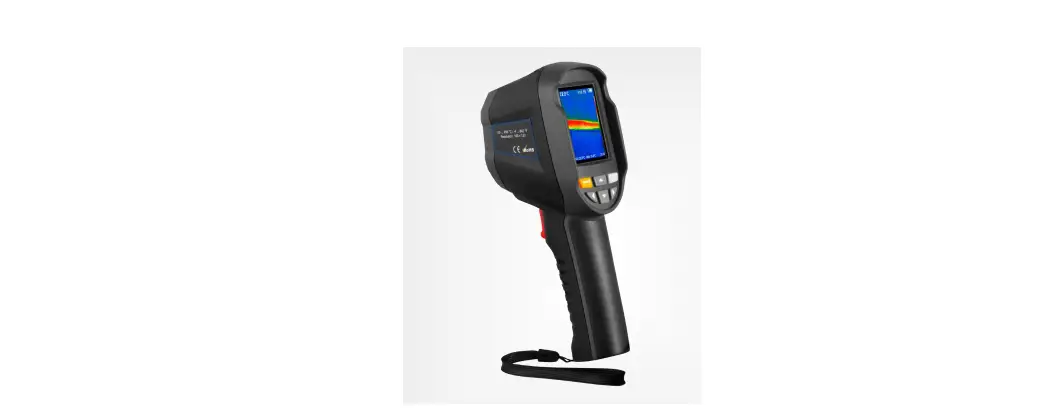
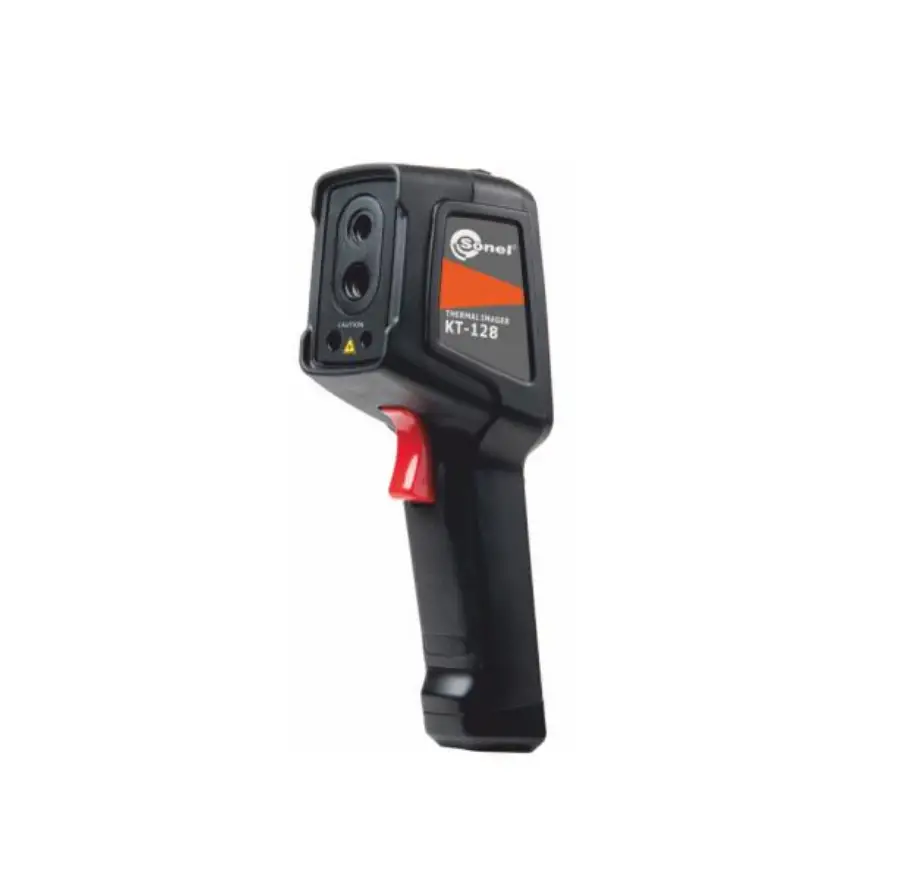
TC001 TCView Thermal Imaging Camera
TCView Thermal Imaging Camera User Manual
Contents
- Caution
- Section 1: What’s in the Box?
- Section 2: Product Overview
- Section 3: Using TC001 with Mobile
Device - Section 4: Using TC001 with PC
- Section 5: Specification
- Section 6: FAQ
Caution
Read all instructions before using. Do not point the infrared
camera at the sun or other strong energy sources for long periods
of time. This may cause damage to the detector in the camera.
Please keep the unit away from water to avoid leakage or short
circuit. Do not touch the lens with your hands. Do not knock, pry,
puncture, or scratch the lens. Do not disassemble the unit.
Section 1: What’s in the Box?
- TC001 Thermal Imaging Camera
- Carrying Bag
- Multifunctional Adapter Cable
- Quick User Guide
- Cleaning Cloth
Section 2: Product Overview
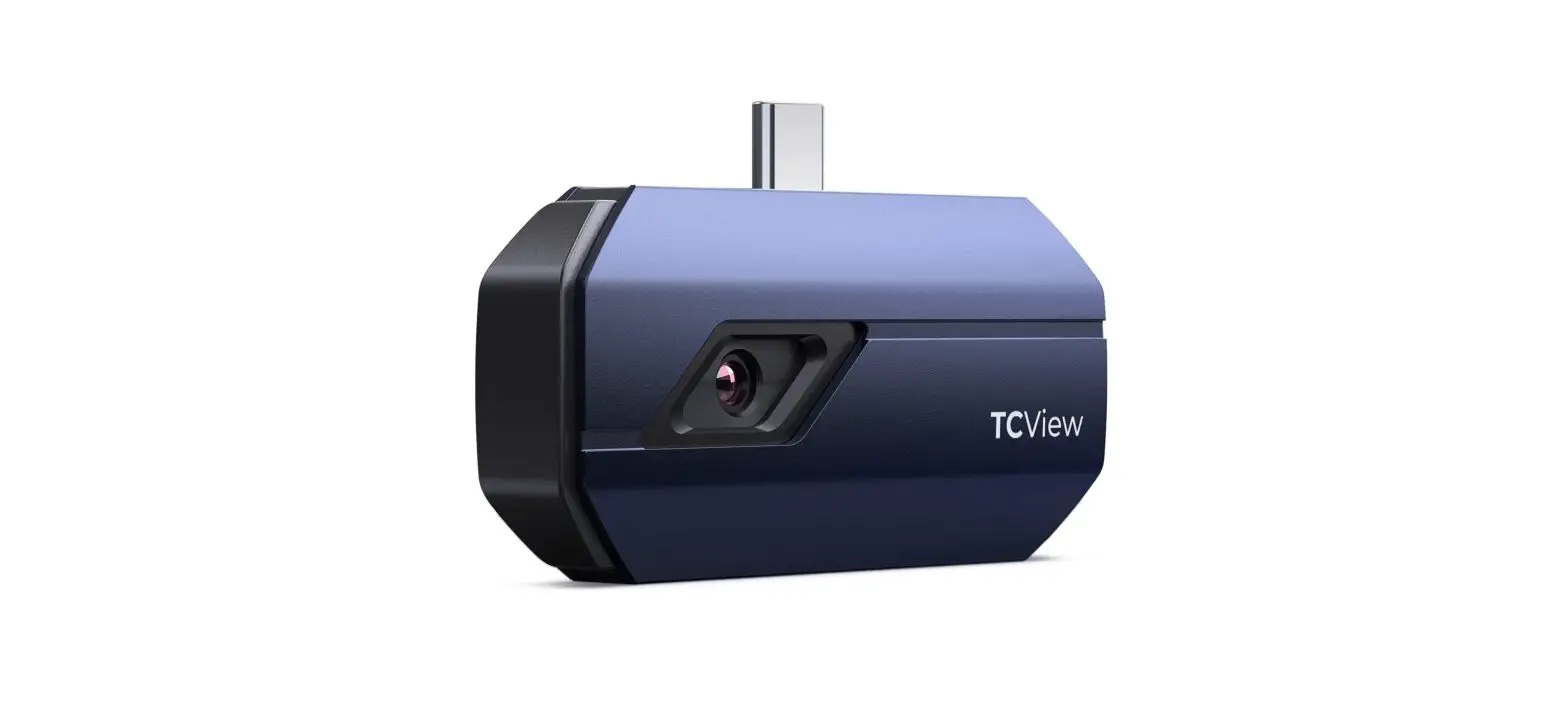
- Type-C Connector
- Thermal Camera
- Indicator – Once the TC001 camera is connected to an external
device, the LED indicator will light up and remain solid blue.
Section 3: Using TC001 with Mobile Device
Preparation
- Download and install the TC001 app Go to the Google Play and
search TC001. Alternatively, you can go to
www.topdon.com/products/tc001, and enter the download page to
install the TC001 app. - Connect the TC001 camera to an Android phone. Plug the TC001
into your phone directly(see figure 3.1.1). Or you can use the
supplied adapter cable as an extension cable to connect the TC001
to your phone (see figure 3.1.2). - Open the TC001 app. The icon at the top right of the home
screen displays Connected (see figure 3.1.3).
Thermal Imaging
Taking Photo/Video
- At the bottom of the bar, tap recording screen to enter the
photo/video mode. - Tap the camera button in the center of the bottom of the screen
to take and save a snapshot. - Tap the record button in the lower right of the screen to
switch to video mode. Tap again to start and stop recording. - To view the saved images/videos, tap on the thumbnail in the
lower left corner (see figure 3.2.1).
Adding/Removing Measurement Tools
- At the bottom bar, tap to display measurement tool
selections. - Select to add a point of reference.
- Select to add a line (for hot spot and cold spot
detection). - Select to add a plane (for hot spot and cold spot
detection). - Select to add a center spot, hot spot and cold spot detection
over the entire image area. - Select to remove all measurement tools.
Changing Color Palette
This function allows users to change the pseudo-color display of
the infrared image. Follow the steps below to change the color
palette:
- Tap at the bottom bar.
- Swipe right or left to select the desired palette.
Image Setting
- Tap to enter the image setting menu.
- Tap to rotate the image.
- Tap to adjust the image sharpness.
Section 4: Using TC001 with PC
[No information provided in the user manual]Section 5: Specification
[No information provided in the user manual]Section 6: FAQ
[No information provided in the user manual]TCView
Thermal Imaging Camera | User Manual
Contents
EN DE FR ES PT IT RU JP TC
Caution
5 29 51 73 95 117 140 161 183
Section 1 What’s in the Box?
Section 2 Product Overview
5 30 52 74 96 118 141 162 184 6 31 53 75 97 119 142 163 185
Section 3 Using TC001 with Mobile Device
7 32 54 76 98 120 143 164 186
Section 4 Using TC001 with PC
Section 5 Specification
18 43 65 87 109 131 153 175 197 22 47 69 91 113 135 157 179 201
Section 6 FAQ
23 48 70 92 114 136 158 180 202
English
Caution
Read all instructions before using.
Do not point the infrared camera at the sun or other strong energy sources for long periods of time. This may cause damage to the detector in the camera. Please keep the unit away from water to avoid leakage or short circuit. Do not touch the lens with your hands. Do not knock, pry, puncture, or scratch the lens. Do not disassemble the unit.
Section 1
What’s in the Box?
TC001 Thermal Imaging Camera
Carrying Bag
Multifunctional Adapter Cable
Quick User Guide
Cleaning Cloth
005 | EN
Section 2
Product Overview
Type-C Connector
Thermal Camera
Indicator
Once the TC001 camera is connected to an external device, the LED indicator will light up and remain solid blue.
006 | EN
Section 3
Using TC001 with Mobile Device
Preparation
1.
Download and install the TC001 app Go to the Google Play and search TC001.
Alternatively, you can go to www.topdon.com/products/tc001, and enter the download page to install the TC001 app.
2.
Connect the TC001 camera to an Android phone. Plug the TC001 into your phone directly(see figure 3.1.1).
Figure 3.1.1
Figure 3.1.2
Or you can use the supplied adapter cable as an extension cable to connect the TC001 to your phone (see figure 3.1.2).
007 | EN
3.
Open the TC001 app. The icon at the top right of the home screen displays “Connected” (see figure 3.1.3).
Figure 3.1.3
Make sure the camera and storage permissions are enabled for the TC001 app before using.
Thermal Imaging
Taking Photo/Video
1.
At the bottom of the bar, tap recording screen.
to enter the photo/video
2.
Tap the camera button in the center of the bottom of the screen to take and save a snapshot.
008 | EN
3.
Tap the record button in the lower right of the screen to switch to video mode. Tap again to start and stop recording.
4.
To view the saved images/videos, tap on the thumbnail in the lower left corner (see figure 3.2.1).
Figure 3.2.1
Adding/Removing Measurement Tools
At the bottom bar, tap
to display measurement tool selections.
Select Select
to add a point of reference.
to add a line (for hot spot and cold spot detection). 009 | EN
Select
to add a plane (for hot spot and cold spot detection).
Select
add a center spot, hot spot and cold spot detection over the
entire image area.
Select
to remove all measurement tools.
Figure 3.2.2
Changing Color Palette
This function allows users to change the pseudo-color display of the infrared image. Follow the steps below to change the color palette:
010 | EN
1. Tap
at the bottom bar.
2.
Swipe right or left to select the desired palette.
Image Setting
Figure 3.2.3
Tap
to enter the image setting menu.
Tap
to rotate the image.
011 | EN
Tap
to adjust the image sharpness.
Tap
to adjust the image contrast.
Tap
to open the camera of your phone and enable Image in
Image mode.
Figure 3.2.4 012 | EN
Tap
to enter DIY mode. Then, enter the lower and upper
temperature limits. You can also change the color display of areas where the temperature is out of the limits.
Figure 3.2.5
Temperature Range Setting
To better display the details of the object, please select an appropriate temperature range according to the expected temperature of the object you are inspecting.
013 | EN
1. Tap
to display temperature range options.
2.
Select Automatic Recognition/-20~150 (-4~302 )/150~550 (302~1022 ) according to your actual needs.
Figure 3.2.6 Temperature Monitoring In this module, real-time temperature data can be displayed in a graph, allowing users to intuitively observe data changes.
014 | EN
1.
Tap “Generate Image”, and select the desired monitoring type as prompted. Then, select the place to be monitored on the screen.
2.
Tap “Start Recording”. Real-time temperature of the measured object will be displayed in a graph.
Figure 3.3.1
Gallery To view the captured images and videos, tap “Gallery” on the home screen, or select the thumbnail image on the photo/video recoding screen to access the Gallery.
015 | EN
Figure 3.4.1
Temperature Correction To ensure accuracy of measurement in different scenarios, this module allows users to set Ambient Temperature, Distance to Spot and Emissivity in default mode, or add custom modes and set the corresponding parameters. 9 commonly used emissivity values are listed on the screen for reference. Please go to “Personal Information” and tap “Temperature Correction” to enter the setting screen.
016 | EN
Figure 3.5.1 017 | EN
Section 4
Using TC001 with PC
1.
Download and install the TCView software Go to www.topdon.com/products/tc001, click “Download” to enter the
download page. Then download and install the TCView.
2.
Connect the TC001 camera to a PC using the supplied adapter cable (see figure 4.1.1)
For PC with a Type-C port: Connect the Type-C female end of the adapter cable to the TC001, and connect the Type-C male end to your computer.
For PC with a USB-A port: Connect the Type-C female end of the adapter cable to the TC001. Then, plug the Type-C male end of the cable into the USB-A adapter and connect the USB-A end to your computer.
USB Type-C USB-A 3.0
USB-A Type-C Male
TCView
Type-C Female
Figure 4.1.1 018 | EN
Screen Description
1
2
3
5
4
8
67
9
Figure 4.2.1
1.
About Click to view the version information of the connected TC001 camera.
019 | EN
2.
Settings The Settings function allows you to change color palette, emissivity,
distance and temperature unit.
Figure 4.2.2
3.
Save Click to save the current temperature array.
4. Measurement Tool Setting
Select
to add a dot.
Select
to add a line.
Select
to add a plane.
Select
to remove all measurement tools. 020 | EN
5.
Temperature Range Setting Select the appropriate temperature range according to the expected
temperature of the object you are inspecting.
Normal Temperature: -20~150 (-4~302 )
High Temperature: 150~550 (302~1022 )
6.
Refresh The camera can perform an automatic calibration or image refreshment
automatically to provide an optimal image. Users can also calibrate the
TC001 manually by clicking “Refresh”.
7.
Rotate Click to rotate the image.
8. Image Area
9.
Real-time Temperature Graphing
021 | EN
Section 5
Specification
Spectral Range Resolution Pixel Size NETD Frame Rate Object Temperature Range
Accuracy
8~14m 256×192 pixels
12m 40mK at 25°C, F#1.0, 25Hz 25Hz
-20~150°C (-4~302°F), 150°C~550°C (302~1022°F)
±2ºC or ±2% of reading, the larger value shall prevail
022 | EN
Section 6
FAQ
Q: Why there is no response after connecting the TC001 to a phone? A: Follow the below steps to identify the problem:
a) Check if the blue LED indicator on the side of the TC001 is on. If not, the device may not be properly connected to your phone, or your phone does not support an OTG functionality. b) Check if OTG is available in your phone Settings and if it is ON. For most phones, OTG functions are enabled by default and can be used directly. If not, please search “OTG” in Settings and turn it on manually. Please note that the TC001 is not compatible with phones without OTG function. c) Check if the version of Android is 6.0 or above. d) Check if you have downloaded the TC001 app and give necessary authorization. e) Unplug the TC001 and reconnect it. If there is still no response, please contact after-sales personnel.
Q: Can the TC001 detect objects underwater, through glass, or a wall? A: No. Infrared detectors mainly detects the long-wave infrared region of
8~14m, and can only be used to measure surface temperature.
Q: Why does the temperature reading increase when the device gets closer to the object?
A: Infrared radiation attenuates when passing through the atmosphere. The longer the distance, the greater the attenuation. Thus, the accuracy of temperature measurement at a distance will decrease. To ensure accuracy of measurement, please go to Personal Information Settings – Temperature Correction – Distance to Spot, and input the actual distance (max: 5m) to get the corrected temperature.
Q: Is the TC001 compatible with iOS devices? A: No. The TC001 is ONLY compatible with Android devices and Windows
computers.
Q: Why is there a clicking sound? What does “shutter moving” mean? A: The temperature of the infrared imager will change slightly during use.
Therefore, a periodic internal temperature calibration is needed. The micromotor controlled activation or deactivation of such internal calibration makes such a sound, which is known in the industry as “shutter moving”.
023 | EN
Q: Why is the measured temperature not precise? A: The temperature resolution of the TC001 is ±2%. And the TC001 provides a
normal temperature range of -20~150°C (-4~302°F), and a high temperature range of 150-550°C (302~1022°F). Please select the corresponding range in the app before measuring. Q: What external factors will affect the infrared temperature measurement? A: The factors are as follows: a) Emissivity of the target object surface. b) Ambient temperature: the object will reflect the infrared rays emitted by surrounding objects, which affects the temperature measurement of the object itself. c) Atmospheric temperature: the atmosphere also emits infrared rays. d) Atmospheric transmittance: the infrared rays emitted by the object are attenuated in the atmosphere. e) Distance: the longer the distance, the greater the attenuation of the infrared rays emitted by the object in the atmosphere.
024 | EN
Section 7
Warranty TOPDON’s One Year Limited Warranty TOPDON warrants to its original purchaser that the company’s products will be free from defects in material and workmanship for 12 months from the date of purchase (Warranty Period). For the defects reported during the Warranty Period, TOPDON will either repair or replace the defective part or product according to its technical support analysis and confirmation. TOPDON shall not be liable for any incidental or consequential damages arising from the device’s use, misuse, or mounting. Some states do not allow limitation on how long an implied warranty lasts, so the above limitations may not apply to you. This limited warranty is void under the following conditions: · Misused, disassembled, altered or repaired by unauthorized stores or technicians. · Careless handling and operation’s violation. Notice: All information in this manual is based on the latest information available at the time of publication and no warranty can be made for its accuracy or completeness. TOPDON reserves the right to make changes at any time without notice.
025 | EN
Section 8
FCC This device complies with Part 15 of the FCC Rules. Its operation is subject to the following two conditions: (1) this device may not cause harmful interference, and (2) this device must accept any interference received, including interference that may cause undesired operation. Note: This equipment has been tested and found to comply with the limits for a Class B digital device, pursuant to Part 15 of the FCC Rules. These limits are designed to provide reasonable protection against harmful interference in a residential installation. This equipment generates, uses, and can radiate radio frequency energy. If not installed and used in accordance with the instructions, it may cause harmful interference to radio communications. However, there is no guarantee that the interference will not occur in a particular installation. If this equipment does cause harmful interference to radio or television reception, which can be determined by turning the equipment on and off, the user is encouraged to try to correct the interference by one or more of the following measures: · Reorient or relocate the antenna. · Increase the distance between the equipment and receiver. · Connect the equipment into an outlet on a circuit different from the one connected to the receiver. · Consult a dealer or an experienced radio/TV technician for help.
026 | EN
027 | EN
Deutsch
Achtung
LESEN SIE ALLE ANWEISUNGEN VOR DEM GEBRAUCH. Richten Sie die Infrarotkamera nicht für längere Zeit auf die Sonne oder andere starke Energiequellen. Dies kann der Detektor in der Kamera beschädigt werden. Bitte halten Sie das Gerät von Wasser fern, um Lecks oder Kurzschlüsse zu vermeiden. Berühren Sie die Linse nicht mit Ihren Händen.Klopfen, hebeln, durchstechen oder zerkratzen Sie das Objektiv nicht. Zerlegen Sie das Gerät nicht.
029 | DE
Abschnitt 1
Was ist in der Box?
TC001 Wärmebildkamera
Tragetasche
Multifunktionales Adapterkabel
Kurzanleitung für Benutzer
Putztuch
030 | DE
Abschnitt 2
Produktübersicht
Typ-CAnschluss
Wärmebildkamera
Anzeige
Sobald die TC001-Kamera mit einem externen Gerät verbunden ist, leuchtet die LED-Anzeige auf und bleibt durchgehend blau.
031 | DE
Abschnitt 3
Verwendung von TC001 mit Mobilgerät
Vorbereitung
1.
Laden Sie die TC001-App herunter und installieren Sie die APP. Gehen Sie zu Google Play und suchen Sie nach TC001.
Alternativ können Sie zu www.topdon.com/products/tc001 gehen und die Download-Seite aufrufen, um die TC001-App zu installieren.
2.
Verbinden Sie die TC001-Kamera mit einem Android-Telefon. Schließen Sie das TC001 direkt an Ihr Telefon an. (siehe Abbildung 3.1.1).
Abbildung 3.1.1
Abbildung 3.1.2
Oder Sie können das mitgelieferte Adapterkabel als Verlängerungskabel benutzen, um das TC001 mit Ihrem Telefon zu verbinden (siehe Abbildung 3.1.2).
032 | DE
3.
Öffnen Sie die TC001-App. Das Symbol oben rechts auf dem Startbildschirm zeigt ,,Verbunden” an (siehe Abbildung 3.1.3).
Abbildung 3.1.3
Stellen Sie vor dem Gebrauch sicher, dass die Kamera- und Speicherberechtigungen für die TC001-App aktiviert sind.
Thermische Bildgebung
Foto/Video aufnehmen
1. Tippen Sie
unten in der Leiste auf , um den Foto-/
Videoaufnahmebildschirm aufzurufen.
033 | DE
2.
Tippen Sie auf die Kamera-Schaltfläche in der Mitte unten auf dem Bildschirm, um einen Schnappschuss aufzunehmen und zu speichern.
3.
Tippen Sie auf die Aufnahmeschaltfläche unten rechts auf dem Bildschirm, um in den Videomodus zu wechseln. Tippen Sie erneut, um
die Aufnahme zu starten und zu stoppen.
4.
Tippen Sie auf das Miniaturbild in der unteren linken Ecke (siehe Abbildung 3.2.1), um die gespeicherten Bilder/Videos anzuzeigen.
Abbildung 3.2.1
Hinzufügen/Entfernen von Messwerkzeugen
Tippen Sie in der unteren Leiste auf anzuzeigen.
, um die Messwerkzeugauswahl
034 | DE
Wählen Sie
, um einen Bezugspunkt hinzuzufügen.
Wählen Sie Spot-Erkennung).
, um eine Linie hinzuzufügen (für Hot-Spot- und Cold-
Wählen Sie Spot-Erkennung).
, um eine Ebene hinzuzufügen (für Hot-Spot- und Cold-
Wählen Sie
, um eine Center-Spot-, Hot-Spot- und Cold-Spot-
Erkennung über den gesamten Bildbereich hinzuzufügen.
Wählen Sie
, um alle Messwerkzeuge zu entfernen.
Abbildung 3.2.2 035 | DE
Ändern der Farbpalette
Diese Funktion lässt die Benutzer die Pseudofarbenanzeige des Infrarotbildes ändern.
Führen Sie die folgenden Schritte aus, um die Farbpalette zu ändern:
1.
Tippen Sie in der unteren Leiste auf
.
2.
Wischen Sie nach rechts oder links, um die gewünschte Palette auszuwählen.
Bildeinstellung
Abbildung 3.2.3
Tippen Sie auf
um das Bildeinstellungsmenü aufzurufen. 036 | DE
Tippen Sie auf
um das Bild zu drehen.
Tippen Sie auf
um die Bildschärfe anzupassen.
Tippen Sie auf
um den Bildkontrast anzupassen.
Tippen Sie auf
um die Kamera Ihres Telefons zu öffnen und Bild im
Bildmodus zu aktivieren.
Abbildung 3.2.4 037 | DE
Tippen Sie auf
zum Aufrufen von DIY-Modus. Geben Sie dann
die unteren und oberen Temperaturgrenzen ein. Sie können auch die Farbanzeige von Bereichen ändern, in denen die Temperatur außerhalb der Grenzwerte liegt.
Abbildung 3.2.5
Einstellung des Temperaturbereichs
Um die Details des Objekts besser anzuzeigen, wählen Sie bitte einen geeigneten Temperaturbereich entsprechend der erwarteten Temperatur vom Objekt, das Sie inspizieren.
038 | DE
1. Tippen Sie auf anzuzeigen.
um die Optionen für den Temperaturbereich
2.
Wählen Sie Automatische Erkennung/-20~150 (-4~302 )/150~550 (302~1022 ) entsprechend Ihren tatsächlichen Bedürfnissen.
Abbildung 3.2.6
Temperaturüberwachung
In diesem Modul können Echtzeit-Temperaturdaten in einem Diagramm angezeigt werden, sodass Benutzer Datenänderungen intuitiv beobachten können.
039 | DE
1.
Tippen Sie auf ,,Bild erstellen” und wählen Sie nach Aufforderung den gewünschten Überwachungstyp aus. Wählen Sie dann den zu
überwachenden Ort auf dem Bildschirm aus.
2.
Tippen Sie auf ,,Aufnahme starten”. Die Echtzeittemperatur des gemessenen Objekts wird in einem Diagramm angezeigt.
Abbildung 3.3.1 Galerie Um die aufgenommenen Bilder und Videos anzuzeigen, tippen Sie auf dem Startbildschirm auf ,,Galerie” oder wählen Sie das Miniaturbild auf dem Foto-/ Videoaufnahmebildschirm aus, um auf die Galerie zuzugreifen.
040 | DE
Abbildung 3.4.1
Temperaturkorrektur
Um die Genauigkeit der Messung in verschiedenen Szenarien sicherzustellen, ermöglicht dieses Modul Benutzern, die Umgebungstemperatur, den Abstand zum Punkt und den Emissionsgrad im Standardmodus einzustellen oder benutzerdefinierte Modi hinzuzufügen und die entsprechenden Parameter einzustellen. 9 häufig verwendete Emissionswerte sind als Referenz auf dem Bildschirm aufgelistet. Bitte gehen Sie zu ,,Persönliche Informationen” und tippen Sie auf ,,Temperaturkorrektur”, um den Einstellungsbildschirm aufzurufen.
041 | DE
Abbildung 3.5.1 042 | DE
Abschnitt 4
Verwendung von TC001 mit einem PC
1.
1. Laden Sie die TCView-Software herunter und installieren Sie die Software.
Gehen Sie zu www.topdon.com/products/tc001, klicken Sie auf
,,Download”, um die Download-Seite aufzurufen. Laden Sie dann TCView
herunter und installieren Sie es.
2.
Schließen Sie die Kamera TC001 mit dem mitgelieferten Adapterkabel an einen PC an (siehe Abbildung 4.11)
Für PC mit Typ-C-Port: Verbinden Sie das Typ-C-Buchsenende des Adapterkabels mit dem TC001 und das Typ-C-Steckerende mit Ihrem Computer.
Für PCs mit einem USB-A-Anschluss: Verbinden Sie das Typ-C-Buchsenende des Adapterkabels mit dem TC001. Stecken Sie dann das Typ-C-Steckerende des Kabels in den USBA-Adapter und verbinden Sie das USB-A-Ende mit Ihrem Computer.
USB Type-C USB-A 3.0
USB-A Type-C Male
TCView
Type-C Female
Abbildung 4.1.1 043 | DE
3.
Öffnen Sie die TCView-Software, um die Temperaturüberwachung zu starten.
Bildschirmbeschreibung
1
2
3
5
4
67
8
9
Abbildung 4.2.1
1.
Über Klicken Sie es, um die Versionsinformationen der angeschlossenen
TC001-Kamera anzuzeigen.
044 | DE
2.
Einstellungen Diese Einstellungen-Funktion lässt Sie die Farbpalette, den
Emissionsgrad, die Entfernung und die Temperatureinheit ändern.
Abbildung 4.2.2
3.
Speichern Klicken Sie auf, um das aktuelle Temperaturarray zu speichern.
4. Einstellung des Messwerkzeugs
Wählen Sie
aus, um einen Punkt hinzuzufügen.
Wählen Sie
um eine Zeile hinzuzufügen.
Wählen Sie
aus, um eine Ebene hinzuzufügen.
Wählen Sie
um alle Messwerkzeuge zu entfernen.
045 | DE
5.
Einstellung des Temperaturbereichs Wählen Sie den geeigneten Temperaturbereich entsprechend der
erwarteten Temperatur des zu inspizierenden Objekts.
Normale Temperatur: -20~150 (-4~302 )
Hohe Temperatur: 150~550 (302~1022 )
6.
Aktualisieren Die Kamera kann automatisch eine automatische Kalibrierung oder
Bildauffrischung durchführen, um ein optimales Bild zu liefern.
Benutzer können den TC001 auch manuell kalibrieren, indem sie auf
,,Aktualisieren” klicken.
7.
Drehen Klicken Sie es, um das Bild zu drehen.
8. Bildbereich
9.
Grafische Darstellung der Temperatur in Echtzeit
046 | DE
Abschnitt 5
Spezifikation
Spektralbereich Auflösung Pixel Größe NETD Bildrate Objekt Temperature Range
Genauigkeit
8~14m 256×192 Pixel
12m 40mK at 25°C, F#1.0, 25Hz 25Hz
-20~150°C (-4~302°F), 150°C~550°C (302~1022°F)
±2 ºC oder ±2 % des Messwerts, der größere Wert hat Vorrang
047 | DE
Abschnitt 6
FAQ
F: Warum gibt es keine Antwort, nachdem das TC001 an ein Telefon angeschlossen wurde?
A: Führen Sie die folgenden Schritte aus, um das Problem zu identifizieren: a) Überprüfen Sie, ob die blaue LED-Anzeige an der Seite des TC001 leuchtet. Wenn nicht, ist das Gerät möglicherweise nicht richtig mit Ihrem Telefon verbunden oder Ihr Telefon unterstützt keine OTG-Funktionalität. b) Überprüfen Sie, ob OTG in Ihren Telefoneinstellungen verfügbar und aktiviert ist. Bei den meisten Telefonen sind OTG-Funktionen standardmäßig aktiviert und können direkt verwendet werden. Wenn nicht, suchen Sie bitte in den Einstellungen nach ,,OTG” und schalten Sie es manuell ein. Bitte beachten Sie, dass das TC001 nicht mit Telefonen ohne OTG-Funktion kompatibel ist. c) Überprüfen Sie, ob die Android-Version 6.0 oder höher ist. d) Überprüfen Sie, ob Sie die TC001-App heruntergeladen haben und erteilen Sie die erforderliche Autorisierung. e) Trennen Sie den TC001 und schließen Sie ihn wieder an. Wenn es immer noch keine Reaktion gibt, kontaktieren Sie bitte den Kundendienst.
F: Kann der TC001 Objekte unter Wasser, durch Glas oder eine Wand erkennen?
A: Nein. Infrarotdetektoren erfassen hauptsächlich den langwelligen Infrarotbereich von 8~14 m und können nur zur Messung der Oberflächentemperatur benutzt werden.
F: Warum erhöht sich der Temperaturmesswert, wenn sich das Gerät dem Objekt nähert?
A: Infrarotstrahlung wird beim Durchgang durch die Atmosphäre gedämpft. Je länger der Abstand, desto größer die Dämpfung. Dadurch nimmt die Genauigkeit der Temperaturmessung aus der Ferne ab. Um die Genauigkeit der Messung zu gewährleisten, gehen Sie bitte zu Persönliche Informationen Einstellungen Temperaturkorrektur Entfernung zum Punkt und geben Sie die tatsächliche Entfernung (max. 5 m) ein, um die korrigierte Temperatur zu erhalten.
F: Ist der TC001 mit iOS-Geräten kompatibel? A: Nein. Der TC001 ist NUR mit Android-Geräten und Windows-Computern
kompatibel.
048 | DE
F: Warum gibt es ein Klickgeräusch? Was bedeutet ,,Schiebebewegung”? A: Die Temperatur der Infrarotbildkamera ändert sich beim Gebrauch leicht.
Daher ist eine regelmäßige interne Temperaturkalibrierung erforderlich. Die mikromotorgesteuerte Aktivierung oder Deaktivierung einer solchen internen Kalibrierung erzeugt ein solches Geräusch, das in der Industrie als “Verschlussbewegung” bekannt ist. F: Warum ist die gemessene Temperatur nicht genau? A: Die Temperaturauflösung des TC001 beträgt ±2 %. Und der TC001 bietet einen normalen Temperaturbereich von -20 bis 150 °C (-4 bis 302 °F) und einen hohen Temperaturbereich von 150 bis 550 °C (302 bis 1022 °F). Bitte wählen Sie vor der Messung den entsprechenden Bereich in der App aus. F: Welche externen Faktoren beeinflussen die Infrarot-Temperaturmessung? A: Die Faktoren sind wie folgt: a) Emissionsgrad der Zielobjektoberfläche. b) Umgebungstemperatur: Das Objekt reflektiert die von umgebenden Objekten emittierten Infrarotstrahlen, was die Temperaturmessung des Objekts selbst beeinflusst. c) Atmosphärentemperatur: Die Atmosphäre sendet auch Infrarotstrahlen aus. d) Atmosphärische Transmission: Die vom Objekt ausgesandten Infrarotstrahlen werden in der Atmosphäre gedämpft. e) Entfernung: Je größer die Entfernung, desto größer ist die Dämpfung der vom Objekt in der Atmosphäre emittierten Infrarotstrahlen.
049 | DE
Français
Attention
LISEZ TOUTES LES INSTRUCTIONS AVANT UTILISATION. Ne dirigez pas la caméra infrarouge vers le soleil ou toute autre source d’énergie puissante pendant de longues périodes. Cela pourrait endommager le détecteur de la caméra. Veuillez garder l’appareil à l’écart de l’eau pour éviter les fuites ou les courtscircuits. Ne touchez pas la lentille avec vos mains. Veuillez ne pas frapper, forcer, percer ou rayer la lentille. Ne démontez pas l’appareil.
051 | FR
Section 1
Qu’y a-t-il dans la boîte ?
Caméra d’Imagerie Thermique TC001
Sac de transport
Câble adaptateur multifonctionnel
Guide d’utilisation rapide
Chiffon de nettoyage
052 | FR
Section 2
Aperçu du produit
Connecteur Type-C
Caméra thermique
Indicateur
Une fois que la caméra TC001 est connectée à un appareil externe, l’indicateur LED s’allume et reste bleu fixe.
053 | FR
Section 3
Utilisation du TC001 avec un appareil mobile
Préparation
1.
Télécharger et installer l’application TC001 Allez sur le Google Play et cherchez TC001.
Vous pouvez également aller sur www.topdon.com/products/tc001, et entrer dans la page de téléchargement pour installer l’application TC001.
2.
Connectez la caméra TC001 à un téléphone Android. Branchez directement le TC001 sur votre téléphone. (voir figure 3.1.1).
Figure 3.1.1
Figure 3.1.2
Ou vous pouvez utiliser le câble adaptateur fourni comme câble d’extension pour connecter le TC001 à votre téléphone (voir figure 3.1.2).
054 | FR
3.
Ouvrez l’application TC001. L’icône en haut à droite de l’écran d’accueil affiche « Connecté » (voir figure 3.1.3).
Figure 3.1.3
Assurez-vous que les autorisations relatives à la caméra et au stockage sont activées pour l’application TC001 avant de l’utiliser.
Imagerie thermique
Prise de photo/vidéo
1.
En bas de la barre, appuyez sur
d’enregistrement photo/vidéo.
pour accéder à l’écran
055 | FR
2.
Appuyez sur le bouton de l’appareil photo au centre du bas de l’écran pour prendre et enregistrer un instantané.
3.
Touchez le bouton d’enregistrement en bas à droite de l’écran pour passer en mode vidéo. Touchez à nouveau pour démarrer et arrêter
l’enregistrement.
4.
Pour visualiser les images/vidéos enregistrées, tapez sur la vignette dans le coin inférieur gauche (voir figure 3.2.1).
Figure 3.2.1
Ajout/suppression d’outils de mesure
Dans la barre inférieure, appuyez sur d’outils de mesure.
pour afficher les sélections
056 | FR
Sélectionnez Sélectionnez chauds et froids).
Sélectionnez chauds et froids).
pour ajouter un point de référence. pour ajouter une ligne (pour la détection des points
pour ajouter un plan (pour la détection des points
Sélectionnez
pour ajouter un point central, une détection de point
chaud et de point froid sur toute la zone de l’image.
Sélectionnez
pour supprimer tous les outils de mesure.
Figure 3.2.2 057 | FR
Changement de palette de couleurs
Cette fonction permet aux utilisateurs de modifier l’affichage en pseudocouleurs de l’image infrarouge.
Suivez les étapes ci-dessous pour modifier la palette de couleurs :
1. Tapez
sur la barre inférieure.
2.
Balayez vers la droite ou la gauche pour sélectionner la palette souhaitée.
Figure 3.2.3
Réglage de l’image
Tapez sur
pour entrer dans le menu de réglage de l’image. 058 | FR
Tapez sur
pour faire pivoter l’image.
Tapez sur
pour régler la netteté de l’image.
Tapez sur
pour régler le contraste de l’image.
Tapez sur
pour ouvrir l’appareil photo de votre téléphone et activer
le mode Image dans le mode Image.
Figure 3.2.4 059 | FR
Appuyez sur
pour entrer dans le mode Bricolage. Ensuite, saisissez
les limites inférieure et supérieure de la température. Vous pouvez également
modifier l’affichage de la couleur des zones où la température est en dehors des limites.
Figure 3.2.5
Réglage de la plage de température
Pour mieux afficher les détails de l’objet, veuillez sélectionner une plage de température appropriée en fonction de la température prévue de l’objet que vous inspectez.
060 | FR
1. Appuyez sur température.
pour afficher les options de plage de
2.
Sélectionnez Reconnaissance automatiq ue/-20~150 (-4~302 )/150~550 (302~1022 ) en fonction de vos
besoins réels.
Figure 3.2.6
Surveillance de la température Dans ce module, les données de température en temps réel peuvent être affichées dans un graphique, permettant aux utilisateurs d’observer intuitivement les changements de données.
061 | FR
1.
Appuyez sur « Générer une image », et sélectionnez le type de surveillance souhaité à l’invite. Ensuite, sélectionnez le lieu à surveiller sur
l’écran.
2.
Appuyez sur « Démarrer l’enregistrement ». La température en temps réel de l’objet mesuré s’affiche dans un graphique.
Figure 3.3.1 Galerie Pour visualiser les images et vidéos capturées, appuyez sur « Galerie » sur l’écran d’accueil, ou sélectionnez l’image miniature sur l’écran de recodage des photos/vidéos pour accéder à la Galerie.
062 | FR
Figure 3.4.1
Correction de la température
Pour garantir la précision des mesures dans différents scénarios, ce module permet aux utilisateurs de définir la température ambiante, la distance au point et l’émissivité en mode par défaut, ou d’ajouter des modes personnalisés et de définir les paramètres correspondants. 9 valeurs d’émissivité couramment utilisées sont listées à l’écran pour référence. Veuillez aller dans « Informations personnelles » et appuyer sur « Correction de la température » pour accéder à l’écran de réglage.
063 | FR
Figure 3.5.1 064 | FR
Section 4
Utilisation du TC001 avec un PC
1.
Téléchargez et installez le logiciel TCView Allez sur www.topdon.com/products/tc001, cliquez sur « Télécharger
» pour accéder à la page de téléchargement. Ensuite, téléchargez et
installez le TCView.
2.
Connectez la caméra TC001 à un PC à l’aide du câble adaptateur fourni (voir figure 4.11).
Pour les PC dotés d’un port Type-C : Connectez l’extrémité femelle Type-C du câble adaptateur au TC001, et connectez l’extrémité mâle Type-C à votre ordinateur.
Pour un PC avec un port USB-A : Connectez l’extrémité femelle Type-C du câble adaptateur au TC001. Ensuite, branchez l’extrémité mâle Type-C du câble dans l’adaptateur USB-A et connectez l’extrémité USB-A à votre ordinateur.
USB Type-C USB-A 3.0
USB-A Type-C Male
TCView
Type-C Female
Figure 4.1.1 065 | FR
3.
Ouvrez le logiciel TCView pour démarrer la surveillance de la température.
Description de l’écran
1
2
3
5
4
67
8
9
Figure 4.2.1
1.
À propos de Cliquez pour afficher les informations sur la version de la caméra TC001
connectée.
066 | FR
2.
Paramètres La fonction Paramètres vous permet de modifier la palette de couleurs,
l’émissivité, la distance et l’unité de température.
Figure 4.2.2
3.
Sauvegarder Cliquez pour sauvegarder le tableau de température actuel.
4. Réglage de l’outil de mesure
Sélectionnez
pour ajouter un point.
Sélectionnez
pour ajouter une ligne.
Sélectionnez
pour ajouter un plan.
Sélectionnez
pour supprimer tous les outils de mesure.
067 | FR
5.
Réglage de la plage de température Sélectionnez la plage de température appropriée en fonction de la
température attendue de l’objet que vous inspectez.
Température normale : -20~150 (-4~302 )
Température élevée : 150~550 (302~1022 )
6.
Rafraîchir La caméra peut effectuer un calibrage automatique ou un
rafraîchissement de l’image afin de fournir une image optimale. Les
utilisateurs peuvent également calibrer le TC001 manuellement en
cliquant sur « Rafraîchir ».
7.
Faire pivoter Cliquez pour faire pivoter l’image.
8. Zone d’image
9.
Graphique de température en temps réel
068 | FR
Section 5
Spécifications
Gamme spectrale Résolution Taille du pixel NETD Fréquenced’images
8~14m 256×192 pixels 12m 40mK à 25°C, F#1.0, 25Hz 25Hz
Plage de température de -20~150°C (-4~302°F), 150°C~550°C
l’objet
(302~1022°F)
Précision
±2ºC ou ±2% de la lecture, la plus grande valeur prévaudra
069 | FR
Section 6
FAQ
Q : Pourquoi n’y a-t-il pas de réponse après avoir connecté le TC001 à un téléphone ?
R : Suivez les étapes ci-dessous pour identifier le problème : a) Vérifiez si l’indicateur LED bleu sur le côté du TC001 est allumé. Si ce n’est pas le cas, il se peut que l’appareil ne soit pas correctement connecté à votre téléphone, ou que votre téléphone ne prenne pas en charge la fonctionnalité OTG. b) Vérifiez si la fonction OTG est disponible dans les paramètres de votre téléphone et si elle est activée. Pour la plupart des téléphones, les fonctions OTG sont activées par défaut et peuvent être utilisées directement. Si ce n’est pas le cas, recherchez « OTG » dans les paramètres et activez-la manuellement. Veuillez noter que le TC001 n’est pas compatible avec les téléphones sans fonction OTG. c) Vérifiez si la version d’Android est 6.0 ou supérieure. d) Vérifiez que vous avez téléchargé l’application TC001 et que vous avez donné l’autorisation nécessaire. e) Débranchez le TC001 et rebranchez-le. S’il n’y a toujours pas de réponse, veuillez contacter le personnel du service après-vente.
Q : Le TC001 peut-il détecter des objets sous l’eau, à travers une vitre ou un mur ?
R : Non. Les détecteurs infrarouges détectent principalement la région infrarouge à ondes longues de 8~14m, et ne peuvent être utilisés que pour mesurer la température de surface.
Q : Pourquoi le relevé de température augmente-t-il lorsque l’appareil se rapproche de l’objet ?
R : Le rayonnement infrarouge s’atténue lorsqu’il traverse l’atmosphère. Plus la distance est grande, plus l’atténuation est importante. Ainsi, la précision de la mesure de la température à distance diminue. Pour garantir la précision de la mesure, veuillez aller dans Informations personnelles – Paramètres – Correction de la température – Distance du point, et saisir la distance réelle (maximum : 5 m) pour obtenir la température corrigée.
Q : Le TC001 est-il compatible avec les appareils iOS ? R : Non. Le TC001 est UNIQUEMENT compatible avec les appareils Android et
070 | FR
les ordinateurs Windows.
Q : Pourquoi y a-t-il un cliquetis ? Que signifie « Déplacement de l’obturateur » ?
R : La température de l’imageur infrarouge varie légèrement pendant l’utilisation. Par conséquent, un étalonnage périodique de la température interne est nécessaire. L’activation ou la désactivation de ce calibrage interne, commandée par un micromoteur, produit un son, connu dans l’industrie sous le nom de « Déplacement de l’obturateur ».
Q : Pourquoi la température mesurée n’est-elle pas précise ? R : La résolution de la température du TC001 est de ±2%. Le TC001 offre une
plage de température normale de -20~150°C (-4~302°F) et une plage de température élevée de 150-550°C (302~1022°F). Veuillez sélectionner la plage correspondante dans l’application avant de procéder à la mesure.
Q : Quels sont les facteurs externes qui affectent la mesure de la température infrarouge ?
R : Les facteurs sont les suivants : a) Emissivité de la surface de l’objet cible. b) Température ambiante : l’objet reflète les rayons infrarouges émis par les objets environnants, ce qui affecte la mesure de la température de l’objet lui-même. c) Température atmosphérique : l’atmosphère émet également des rayons infrarouges. d) Transmittance atmosphérique : les rayons infrarouges émis par l’objet sont atténués dans l’atmosphère. e) Distance : plus la distance est grande, plus les rayons infrarouges émis par l’objet sont atténués dans l’atmosphère.
071 | FR
Español
Precaución
LEE LAS INSTRUCCIONES ANTES DE USAR. No apuntes la cámara infrarroja hacia el sol u otras fuentes de energía intensa durante largos períodos de tiempo. Esto puede dañar el detector de la cámara. Mantén la unidad alejada del agua para evitar fugas o cortocircuitos. No toques la lente con las manos. No golpees, haz palanca, perfores ni rayes la lente. No desmontes la unidad.
073 | ES
Section 1
¿Qué hay en la caja?
Cámara Termográfica TC001
Bolsa de Transporte
Cable Adaptador Multifuncional
Guía Rápida del Usuario
Paño de Limpieza
074 | ES
Section 2
Descripción General del Producto
Conector Tipo C
Cámara Térmica
Indicador
Una vez que la cámara TC001 esté conectada a un dispositivo externo, el indicador LED se iluminará y permanecerá en azul fijo.
075 | ES
Section 3
Uso de TC001 con Dispositivo Móvil
Preparación
1.
Descarga e instala la aplicación TC001 Consulta Google Play y busca TC001.
Alternativamente, puedes ir a www.topdon.com/products/tc001 e ingresar a la página de descarga para instalar la aplicación TC001.
2.
Conecta la cámara TC001 a un teléfono Android. Conecta el TC001 a tu teléfono directamente. (consulta la figura 3.1.1).
Figura 3.1.1
Figura 3.1.2
O puedes utilizar el cable adaptador suministrado como cable de extensión para conectar el TC001 a tu teléfono (consulta la figura 3.1.2).
076 | ES
3.
Abre la aplicación TC001. El icono en la parte superior derecha de la pantalla de inicio muestra “Conectado” (consulta la figura 3.1.3).
Figura 3.1.3
Asegúrate de que la cámara y los permisos de almacenamiento estén habilitados para la aplicación TC001 antes de usar.
Imágenes térmicas
Tomar Foto/Video
1.
En la parte inferior de la barra, toca
de grabación de fotos/videos.
para ingresar a la pantalla
077 | ES
2.
Toca el botón de la cámara en el centro de la parte inferior de la pantalla para tomar y guardar una instantánea.
3.
Toca el botón de grabación en la parte inferior derecha de la pantalla para cambiar al modo de video. Toca de nuevo para iniciar y detener la
grabación.
4.
Para ver las imágenes/videos guardados, toca la miniatura en la esquina inferior izquierda (consulta la figura 3.2.1).
Figura 3.2.1
Adición/Eliminación de Herramientas de Medición
En la barra inferior, toca herramientas de medición.
para mostrar las selecciones de
078 | ES
Selecciona
para agregar un punto de referencia.
Selecciona
para agregar una línea (para la detección de puntos
calientes y puntos fríos).
Selecciona
para agregar un plano (para la detección de puntos
calientes y puntos fríos).
Selecciona
para agregar una detección de punto central, punto
caliente y punto frío en toda el área de la imagen.
Selecciona Imagen.
para eliminar todas las herramientas de medición.
Figura 3.2.2 079 | ES
Cambio de Paleta de Colores
Esta función permite a los usuarios cambiar la visualización de pseudocolor de la imagen infrarroja.
Sigue los pasos a continuación para cambiar la paleta de colores:
1. Toca
en la barra inferior.
2.
Desliza el dedo hacia la derecha o hacia la izquierda para seleccionar la paleta deseada.
Figura 3.2.3
Configuración de Imagen
Toca
para ingresar al menú de configuración de imagen. 080 | ES
Toca
para rotar la imagen.
Toca
para ajustar la nitidez de la imagen.
Toca
para ajustar el contraste de la imagen.
Toca Imagen.
para abrir la cámara de tu teléfono y habilita Imagen en modo
Figura 3.2.4 081 | ES
Toca
para ingresar al modo de bricolaje. Luego, ingresa los límites
de temperatura inferior y superior. También puedes cambiar la visualización a color de las áreas donde la temperatura está fuera de los límites.
Figura 3.2.5
Configuración del Rango de Temperatura
Para mostrar mejor los detalles del objeto, selecciona un rango de temperatura apropiado de acuerdo con la temperatura esperada del objeto que está inspeccionando.
082 | ES
1. Toca
para mostrar las opciones de rango de temperatura.
2.
Selecciona Reconocimiento Automático/-20~150 (-4~302 )/150~550 (302~1022 ) según tus necesidades reales.
Figura 3.2.6
Monitoreo de Temperatura En este módulo, los datos de temperatura en tiempo real se pueden mostrar en un gráfico, lo que permite a los usuarios observar intuitivamente los cambios de datos.
083 | ES
1.
Toca “Generar imagen” y selecciona el tipo de monitoreo deseado cuando se te indique. Luego, selecciona el lugar a monitorear en la
pantalla.
2.
Toca “Iniciar grabación”. La temperatura en tiempo real del objeto medido se mostrará en un gráfico.
Figura 3.3.1 Galería Para ver las imágenes y videos capturados, toca “Galería” en la pantalla de inicio, o selecciona la imagen en miniatura en la pantalla de grabación de fotos/videos para acceder a la Galería.
084 | ES
Figura 3.4.1
Corrección de temperatura
Para garantizar la precisión de la medición en diferentes escenarios, este módulo permite a los usuarios configurar la temperatura ambiente, la distancia al punto y la emisividad en el modo predeterminado, o agregar modos personalizados y configurar los parámetros correspondientes. 9 valores de emisividad de uso común se enumeran en la pantalla como referencia. Consulta “Información personal” y toca “Corrección de temperatura” para ingresar a la pantalla de configuración.
085 | ES
Figura 3.5.1 086 | ES
Section 4
Uso de TC001 con PC
1.
Descarga e instala el software TCView Consulta www.topdon.com/products/tc001, haz clic en “Descargar”
para ingresar a la página de descarga. Luego descarga e instala TCView.
2.
Conecta la cámara TC001 a una PC usando el cable adaptador suministrado (ver figura 4.11)
Para PC con un puerto Tipo-C: Conecta el extremo hembra tipo C del cable adaptador al TC001 y conecta el extremo macho tipo C a tu computadora.
Para PC con un puerto USB-A:
Conecta el extremo hembra tipo C del cable adaptador al TC001. Luego, conecta el extremo macho tipo C del cable en el adaptador USB-A y conecta el extremo USB-A a tu computadora.
USB Type-C USB-A 3.0
USB-A Type-C Male
TCView
Type-C Female
Figura 4.1.1 087 | ES
3.
Abre el software TCView para iniciar el control de la temperatura.
Descripción de la pantalla
1
2
3
5
4
67
8
9
Figura 4.2.1
1.
Sobre Haz clic para ver la información de la versión de la cámara TC001
conectada.
088 | ES
2.
Configuración La función Configuración te permite cambiar la paleta de colores, la
emisividad, la distancia y la unidad de temperatura.
Figura 4.2.2
3.
Guardar Haz clic para guardar la matriz de temperatura actual.
4. Configuración de la Herramienta de Medición
Selecciona
para agregar un punto.
Selecciona
para agregar una línea.
Selecciona
para agregar un avión.
Selecciona medición.
para eliminar todas las herramientas de 089 | ES
5.
Configuración del Rango de Temperatura Selecciona el rango de temperatura apropiado de acuerdo con la
temperatura esperada del objeto que está inspeccionando.
Temperatura Normal: -20~150 (-4~302 )
Alta Temperatura: 150~550 (302~1022 )
6.
Actualizar La cámara puede realizar una calibración automática o una actualización
de imagen automáticamente para proporcionar una imagen óptima.
Los usuarios también pueden calibrar el TC001 manualmente haciendo
clic en “Actualizar”.
7.
Rotar Haz clic para rotar la imagen.
8. Área de Imagen
9.
Gráficos de Temperatura en Tiempo Real
090 | ES
Section 5
Especificación
Rango Espectral Resolución Tamaño de Píxel NETO Cuadros por Segundo
8~14m 256×192 pixels 12m 40mK à 25°C, F#1.0, 25Hz 25Hz
Rango de Temperatura del -20~150°C (-4~302°F), 150°C~550°C
Objeto
(302~1022°F)
Precisión
±2ºC o ±2% de la lectura, prevalecerá el valor mayor
091 | ES
Section 6
Preguntas Frecuentes
P: ¿Por qué no hay respuesta después de conectar el TC001 a un teléfono? R: Sigue los pasos a continuación para identificar el problema:
a) Comprueba si el indicador LED azul del lateral del TC001 está encendido. De lo contrario, es posible que el dispositivo no esté correctamente conectado a tu teléfono o que tu teléfono no admita la funcionalidad OTG. b) Comprueba si OTG está disponible en la configuración de su teléfono y si está activado. Para la mayoría de los teléfonos, las funciones OTG están habilitadas de forma predeterminada y se pueden usar directamente. De lo contrario, busca “OTG” en Configuración y actívelo manualmente. Ten en cuenta que el TC001 no es compatible con teléfonos sin función OTG. c) Comprueba si la versión de Android es 6.0 o superior. d) Comprueba si ha descargado la aplicación TC001 y da la autorización necesaria. e) Desconecta el TC001 y vuelve a conectarlo. Si aún no hay respuesta, comunícate con el personal de posventa.
P: ¿Puede el TC001 detectar objetos bajo el agua, a través de un vidrio o una pared?
R: No. Los detectores infrarrojos detectan principalmente la región infrarroja de onda larga de 8~14 m y solo se pueden usar para medir la temperatura de la superficie.
P: ¿Por qué aumenta la lectura de temperatura cuando el dispositivo se acerca al objeto?
R: La radiación infrarroja se atenúa al atravesar la atmósfera. Cuanto mayor sea la distancia, mayor será la atenuación. Por lo tanto, la precisión de la medición de temperatura a distancia disminuirá. Para garantizar la precisión de la medición, consulta a Información personal – Configuración – Corrección de temperatura – Distancia al punto e ingrese la distancia real (máx.: 5 m) para obtener la temperatura corregida.
P: ¿El TC001 es compatible con dispositivos iOS? R: No. El TC001 SOLO es compatible con dispositivos Android y computadoras
con Windows
P: ¿Por qué hay un sonido de clic? ¿Qué significa “obturador en movimiento”? R: La temperatura de la cámara infrarroja cambiará ligeramente durante el
092 | ES
uso. Por lo tanto, se necesita una calibración periódica de la temperatura interna. La activación o desactivación controlada por micromotor de dicha calibración interna produce un sonido de este tipo, que se conoce en la industria como “obturador en movimiento”. P: ¿Por qué la temperatura medida no es precisa? R: La resolución de temperatura del TC001 es de ±2%. Y el TC001 proporciona un rango de temperatura normal de -20~150°C (-4~302°F), y un rango de temperatura alta de 150-550°C (302~1022°F). Seleccione el rango correspondiente en la aplicación antes de medir. P: ¿Qué factores externos afectarán la medición de temperatura infrarroja? R: Los factores son los siguientes: a) Emisividad de la superficie del objeto objetivo. b) Temperatura ambiente: el objeto reflejará los rayos infrarrojos emitidos por los objetos circundantes, lo que afecta la medición de la temperatura del propio objeto. c) Temperatura atmosférica: la atmósfera también emite rayos infrarrojos. d) Transmitancia atmosférica: los rayos infrarrojos emitidos por el objeto son atenuados en la atmósfera. e) Distancia: a mayor distancia, mayor atenuación de los rayos infrarrojos emitidos por el objeto en la atmósfera.
093 | ES
Português
Atenção
LEIA TODAS AS INSTRUÇÕES ANTES DE USAR. Não aponte a câmera infravermelha para o sol ou outras fontes de energia forte por longos períodos de tempo. Isto pode causar danos ao detector na câmera. Por favor, mantenha a unidade longe da água para evitar vazamentos ou curto-circuito. Não toque a lente com suas mãos. Não bater, bisbilhotar, perfurar ou arranhar a lente. Não desmonte a unidade.
095 | PT
Seção 1
O que há na Caixa?
TC001 Câmera de Imagem Térmica
Bolsa de Transporte
Cabo Adaptador Multifuncional
Guia Rápido do Usuário
Pano de Limpeza
096 | PT
Seção 2
Visão Geral do Produto
Conector Tipo C
Câmera Térmica
Indicador
Assim que a câmera TC001 for conectada a um dispositivo externo, o indicador LED acenderá e permanecerá azul sólido.
097 | PT
Seção 3
Usando TC001 com dispositivo móvel
Preparação
1.
Download e instalação do aplicativo TC001 Ir para o Google Play e pesquisar TC001.
Alternativamente, você pode ir para www.topdon.com/products/tc001 e entrar na página de download para instalar o aplicativo TC001.
2.
2. Conecte a câmera do TC001 a um telefone Android. Conecte o TC001 diretamente em seu telefone. (ver figura 3.1.1).
Figura 3.1.1
Figura 3.1.2
Ou você pode usar o cabo adaptador fornecido como uma extensão para conectar o TC001 ao seu telefone (veja figura 3.1.2).
098 | PT
3.
Abra o aplicativo TC001. O ícone na parte superior direita da tela inicial exibe “Connected” (veja figura 3.1.3).
Figura 3.1.3
Certifique-se de que a câmera e as permissões de armazenamento estejam habilitadas para o aplicativo TC001 antes de usar.
Imagem Térmica
Tirar foto/vídeo
1.
Na parte inferior do bar, toque
de foto/vídeo.
para entrar na tela de gravação
099 | PT
2.
Toque no botão da câmera no centro da parte inferior da tela para tirar e salvar um instantâneo.
3.
Toque no botão de gravação no canto inferior direito da tela para mudar para o modo de vídeo. Toque novamente para iniciar e parar a gravação.
4.
Para visualizar as imagens/vídeos gravados, toque na miniatura no canto inferior esquerdo (ver figura 3.2.1).
Figura 3.2.1
Adicionar/remover ferramentas de medição
Na barra inferior, toque medição.
para exibir as seleções de ferramentas de 100 | PT
Selecione
para adicionar um ponto de referência.
Selecione
para adicionar uma linha (para detecção de ponto
quente e de ponto frio).
Selecione
para adicionar um plano (para detecção de ponto
quente e de ponto frio).
Selecione
para adicionar um ponto central, detecção de pontos
quentes e frios em toda a área da imagem.
Selecione
para remover todas as ferramentas de medição.
Figura 3.2.2 101 | PT
Mudar a Paleta de Cores
Esta função permite aos usuários mudar a exibição pseudo-cor da imagem infravermelha.
Siga os passos abaixo para mudar a paleta de cores:
1. Toque
na barra inferior.
2.
Passe à direita ou à esquerda para selecionar a paleta desejada.
Figura 3.2.3
Configuração da Imagem
Toque
para entrar no menu de configuração de imagem. 102 | PT
Toque
para girar a imagem.
Toque
para ajustar a nitidez da imagem.
Toque
para ajustar o contraste da imagem.
Toque em Imagem.
para abrir a câmera de seu telefone e ativar o modo Imagem
Figura 3.2.4 103 | PT
Toque
para entrar no modo DIY. Em seguida, entre nos limites
de temperatura inferior e superior. Você também pode mudar a exibição colorida das áreas onde a temperatura está fora dos limites.
Figura 3.2.5
Configuração da Faixa de Temperatura
Para melhor exibir os detalhes do objeto, favor selecionar uma faixa de temperatura apropriada de acordo com a temperatura esperada do objeto que você está inspecionando.
104 | PT
1. Toque
para exibir as opções de faixa de temperatura.
2.
Selecione Reconhecimento Automático/-20~150 (-4~302 )/150~550 (302~1022 ) de acordo com suas necessidades reais.
Figura 3.2.6
Monitoramento de Temperatura Neste módulo, os dados de temperatura em tempo real podem ser exibidos em um gráfico, permitindo que os usuários observem intuitivamente as mudanças de dados.
105 | PT
1.
Toque “Gerar imagem”, e selecione o tipo de monitoramento desejado, conforme solicitado. Em seguida, selecione o local a ser monitorado na
tela.
2.
Toque em “Iniciar Gravação”. A temperatura em tempo real do objeto medido será exibida em um gráfico.
Figura 3.3.1 Galeria Para visualizar as imagens e vídeos capturados, toque em “Galeria” na tela inicial, ou selecione a imagem em miniatura na tela de recodificação de foto/ vídeo para acessar a Galeria.
106 | PT
Figura 3.4.1
Correção de temperatura
Para garantir a precisão da medição em diferentes cenários, este módulo permite aos usuários definir a Temperatura Ambiente, Distância à Mancha e Emissividade no modo padrão, ou adicionar modos personalizados e definir os parâmetros correspondentes. 9 valores de emissividade comumente usados são listados na tela para referência. Por favor, vá para “Informações Pessoais” e toque em “Correção de Temperatura” para entrar na tela de configuração.
107 | PT
Figura 3.5.1 108 | PT
Seção 4
Usando TC001 com PC
1.
Download e instalação do software TCView Vá para www.topdon.com/products/tc001, clique em “Download” para
entrar na página de download. Em seguida, faça o download e instale o
TCView.
2.
Conecte a câmera TC001 a um PC usando o cabo adaptador fornecido (veja figura 4.11).
Para PC com uma porta Tipo C: Conecte a extremidade fêmea Type-C do cabo adaptador ao TC001, e conecte a extremidade macho Type-C ao seu computador.
Para PC com uma porta USB-A: Conecte a extremidade fêmea Type-C do cabo adaptador ao TC001. Em seguida, conecte a extremidade macho Type-C do cabo ao adaptador USB-A e conecte a extremidade USB-A ao seu computador.
USB Type-C USB-A 3.0
USB-A Type-C Male
TCView
Type-C Female
Figura 4.1.1 109 | PT
3.
Abra o software TCView para iniciar o monitoramento de temperatura.
Descrição da Tela
1
2
3
5
4
67
8
9
Figura 4.2.1
1.
Sobre Clique para ver as informações da versão da câmera TC001 conectada.
110 | PT
2.
Configurações A função Configurações permite mudar a paleta de cores, emissividade,
distância e unidade de temperatura.
Figura 4.2.2
3.
Salvar Clique para salvar a matriz de temperatura atual.
4. Ajuste da ferramenta de medição
Selecione
para adicionar um ponto.
Selecione
para adicionar uma linha.
Selecione
para adicionar um plano.
Selecione
para remover todas as ferramentas de medição.
111 | PT
5.
Configuração da Faixa de Temperatura Selecione a faixa de temperatura apropriada de acordo com a
temperatura esperada do objeto que você está inspecionando.
Temperatura normal: -20~150 (-4~302 )
Alta temperatura: 150~550 (302~1022 )
6.
Atualização A câmera pode realizar uma calibração automática ou atualização
automática da imagem para fornecer uma imagem ideal. Os usuários
também podem calibrar o TC001 manualmente clicando em “Atualizar”.
7.
Girar Clique para girar a imagem.
8. Área de Imagem
9.
Gráfico de Temperatura em Tempo Real
112 | PT
Seção 5
Especificación
Faixa Espectral Resolução Tamanho do Pixel NETD Taxa de Quadros
8~14m 256×192 pixels 12m 40mK à 25°C, F#1.0, 25Hz 25Hz
Faixa de Temperatura do -20~150°C (-4~302°F), 150°C~550°C
Objeto
(302~1022°F)
Precisão
±2ºC ou ±2% da leitura, deve prevalecer o valor maior
113 | PT
Seção 6
Preguntas Frecuentes
P: Por que não há resposta após a conexão do TC001 a um telefone? R: Siga os passos abaixo para identificar o problema:
a) Verifique se o indicador LED azul na lateral do TC001 está ligado. Caso contrário, o dispositivo pode não estar devidamente conectado ao seu telefone, ou seu telefone não suporta uma funcionalidade OTG. b) Verifique se o OTG está disponível nas configurações do seu telefone e se ele está ligado. Para a maioria dos telefones, as funções OTG são ativadas por padrão e podem ser usadas diretamente. Caso contrário, por favor, procure “OTG” em Configurações e ative-a manualmente. Favor observar que o TC001 não é compatível com telefones sem a função OTG. c) Verifique se a versão do Android é 6.0 ou superior. d) Verifique se você fez o download do aplicativo TC001 e dê a autorização necessária. e) Desconecte o TC001 e reconecte-o. Se ainda não houver resposta, favor entrar em contato com o pessoal de pós-venda.
P: O TC001 pode detectar objetos debaixo d’água, através de vidro, ou através de uma parede?
R: Não. Os detectores infravermelhos detectam principalmente a região infravermelha de onda longa de 8~14m, e só podem ser usados para medir a temperatura da superfície.
P: Por que a leitura da temperatura aumenta quando o dispositivo se aproxima do objeto?
R: A radiação infravermelha atenua quando passa através da atmosfera. Quanto maior a distância, maior é a atenuação. Assim, a precisão da medição da temperatura a uma distância diminuirá. Para garantir a precisão da medição, vá para Informações Pessoais · Configurações · Correção de Temperatura · Distância à Mancha, e insira a distância real (máx: 5m) para obter a temperatura corrigida.
P: O TC001 é compatível com os dispositivos iOS? R: Não. O TC001 é SOMENTE compatível com dispositivos Android e
computadores Windows.
P: Por que existe um som de clique? O que significa “obturador em movimento”?
114 | PT
R: A temperatura do gerador de imagens infravermelho irá mudar ligeiramente durante o uso. Portanto, é necessária uma calibração periódica da temperatura interna. A ativação ou desativação controlada pelo micro-motor de tal calibração interna faz tal som, que é conhecido na indústria como “obturador em movimento”.
P: Por que a temperatura medida não é precisa? R: A resolução da temperatura do TC001 é de ±2%. E o TC001 fornece uma
faixa de temperatura normal de -20~150°C (-4~302°F), e uma faixa de temperatura alta de 150-550°C (302~1022°F). Favor selecionar a faixa correspondente no aplicativo antes de medir. P: Que fatores externos afetarão a medição da temperatura infravermelha? R: Os fatores são os seguintes: a) Emissividade da superfície do objeto alvo. b) Temperatura ambiente: o objeto refletirá os raios infravermelhos emitidos pelos objetos vizinhos, o que afetará a medição da temperatura do próprio objeto. c) Temperatura atmosférica: a atmosfera também emite raios infravermelhos. d) Transmitância atmosférica: os raios infravermelhos emitidos pelo objeto são atenuados na atmosfera. e) Distância: quanto maior a distância, maior é a atenuação dos raios infravermelhos emitidos pelo objeto na atmosfera.
115 | PT
Italiano
Attenzione
LEGGERE TUTTE LE ISTRUZIONI PRIMA DELL’USO. Non puntare la telecamera a infrarossi verso il sole o altre forti fonti di energia per lunghi periodi di tempo. Ciò potrebbe causare danni al rilevatore nella telecamera. Tenere l’unità lontana dall’acqua per evitare perdite o cortocircuiti. Non toccare l’obiettivo con le mani. Non battere, fare leva, forare o graffiare l’obiettivo. Non smontare l’unità.
117 | IT
Sezione 1
Cosa c’è nella scatola?
Termocamera TC001
Borsa da trasporto
Cavo adattatore multifunzionale
Guida rapida per l’utente
Pezza per pulire
118 | IT
Sezione 2
Panoramica del prodotto
Connettore di tipo C
Termocamera
Indicatore
Una volta che la telecamera TC001 è collegata a un dispositivo esterno, l’indicatore LED si accende e rimane blu fisso.
119 | IT
Sezione 3
Utilizzo del TC001 con un dispositivo mobile
Preparazione
1.
1. Scarica e installa l’app TC001 Vai su Google Play e cerca TC001.
In alternativa, puoi andare su www.topdon.com/products/tc001 e accedere alla pagina di download per installare l’app TC001.
2.
Collegare la fotocamera TC001 a un telefono Android. Collega direttamente il TC001 al telefono. (vedi figura 3.1.1).
Figura 3.1.1
Figura 3.1.2
Oppure è possibile utilizzare il cavo adattatore in dotazione come prolunga per collegare il TC001 al telefono (vedere la figura 3.1.2).
120 | IT
3.
Aprire l’app TC001. L’icona in alto a destra della schermata iniziale mostra “Connesso” (vedi figura 3.1.3).
Figura 3.1.3
Assicurati che la fotocamera e le autorizzazioni di archiviazione siano abilitate per l’app TC001 prima dell’uso.
Termografia
Scattare foto/video
1.
Nella parte inferiore della barra, toccare
schermata di registrazione di foto/video.
per accedere alla
121 | IT
2.
Toccare il pulsante della fotocamera al centro della parte inferiore dello schermo per scattare e salvare un’istantanea.
3.
Toccare il pulsante di registrazione in basso a destra dello schermo per passare alla modalità video. Tocca di nuovo per avviare e interrompere la
registrazione.
4.
Per visualizzare le immagini/i video salvati, toccare la miniatura nell’angolo inferiore sinistro (vedere la figura 3.2.1).
Figura 3.2.1
Aggiunta/rimozione di strumenti di misurazione
Nella barra in basso, tocca strumenti di misurazione.
per visualizzare le selezioni degli 122 | IT
Selezionare
per aggiungere un punto di riferimento.
Selezionare
per aggiungere una linea (per il rilevamento di punti
caldi e punti freddi).
Selezionare
per aggiungere un piano (per il rilevamento di punti
caldi e punti freddi).
Selezionare
per aggiungere un rilevamento punto centrale, punto
caldo e punto freddo sull’intera area dell’immagine.
Selezionare
per rimuovere tutti gli strumenti di misurazione.
Figura 3.2.2 123 | IT
Modifica della tavolozza dei colori
Questa funzione consente agli utenti di modificare la visualizzazione pseudo-colore dell’immagine a infrarossi.
Segui i passaggi seguenti per cambiare la tavolozza dei colori:
1. Toccare
nella barra in basso.
2.
Scorri verso destra o verso sinistra per selezionare la tavolozza desiderata.
Figura 3.2.3
Impostazione dell’immagine
Toccare
per accedere al menu di impostazione dell’immagine. 124 | IT
Toccare
per ruotare l’immagine.
Toccare
per regolare la nitidezza dell’immagine.
Toccare
per regolare il contrasto dell’immagine.
Toccare
per aprire la fotocamera del telefono e abilitare Immagine
in modalità Immagine.
Figura 3.2.4 125 | IT
Toccare
per accedere alla modalità fai-da-te. Quindi, immettere i
limiti di temperatura inferiore e superiore. È inoltre possibile modificare la visualizzazione del colore delle aree in cui la temperatura non rientra nei limiti.
Figura 3.2.5
Impostazione dell’intervallo di temperatura
Per visualizzare meglio i dettagli dell’oggetto, selezionare un intervallo di temperatura appropriato in base alla temperatura prevista dell’oggetto che si sta ispezionando.
126 | IT
1. Toccare
per visualizzare le opzioni dell’intervallo di
temperatura.
2.
Selezionare Riconoscimento automatico/-20~150 (-4~302 )/150~550 (302~1022 ) in base alle proprie reali esigenze.
Figura 3.2.6
Monitoraggio della temperatura In questo modulo, i dati di temperatura in tempo reale possono essere visualizzati in un grafico, consentendo agli utenti di osservare intuitivamente le modifiche dei dati.
127 | IT
1.
Toccare “Genera immagine” e selezionare il tipo di monitoraggio desiderato come richiesto. Quindi, seleziona il luogo da monitorare sullo
schermo.
2.
Toccare “Avvia registrazione”. La temperatura in tempo reale dell’oggetto misurato verrà visualizzata in un grafico.
Figura 3.3.1 Galleria Per visualizzare le immagini e i video acquisiti, tocca “Galleria” nella schermata iniziale o seleziona l’immagine in miniatura nella schermata di registrazione di foto/video per accedere alla Galleria.
128 | IT
Figura 3.4.1
Correzione della temperatura
Per garantire l’accuratezza della misurazione in diversi scenari, questo modulo consente agli utenti di impostare la temperatura ambiente, la distanza dal punto e l’emissività in modalità predefinita, oppure aggiungere modalità personalizzate e impostare i parametri corrispondenti. 9 valori di emissività comunemente usati sono elencati sullo schermo come riferimento. Vai su “Informazioni personali” e tocca “Correzione temperatura” per accedere alla schermata delle impostazioni.
129 | IT
Figure 3.5.1 130 | IT
Sezione 4
Utilizzo del TC001 con il PC
1.
Scaricare e installare il software TCView Andare su www.topdon.com/products/tc001, fare clic su “Download”
per accedere alla pagina di download. Quindi scarica e installa TCView.
2.
Collegare la telecamera TC001 a un PC utilizzando il cavo adattatore in dotazione (vedere figura 4.11)
Per PC con una porta di tipo C: Collegare l’estremità femmina di tipo C del cavo adattatore al TC001 e collegare l’estremità maschio di tipo C al computer.
Per PC con una porta USB-A: Collegare l’estremità femmina di tipo C del cavo adattatore al TC001. Quindi, collega l’estremità maschio di tipo C del cavo all’adattatore USB-A e collega l’estremità USB-A al computer.
USB Type-C USB-A 3.0
USB-A Type-C Male
TCView
Type-C Female
Figura 4.1.1 131 | IT
3.
Aprire il software TCView per avviare il monitoraggio della temperatura.
Descrizione dello schermo
1
2
3
5
4
67
8
9
Figura 4.2.1
1.
Riguardo a Fare clic per visualizzare le informazioni sulla versione della telecamera
TC001 collegata.
132 | IT
2.
Impostazioni La funzione Impostazioni consente di modificare la tavolozza dei colori,
l’emissività, la distanza e l’unità di temperatura.
Figura 4.2.2
3.
Salva Fare clic per salvare l’array di temperatura corrente.
4.
Impostazione dello strumento di misurazione
Seleziona
per aggiungere un punto.
Selezionare
per aggiungere una riga.
Seleziona
per aggiungere un aereo.
Selezionare
per rimuovere tutti gli strumenti di misurazione.
133 | IT
5.
Impostazione dell’intervallo di temperatura Selezionare l’intervallo di temperatura appropriato in base alla
temperatura prevista dell’oggetto che si sta ispezionando.
Temperatura normale: -20~150 (-4~302 )
Alta temperatura: 150 ~ 550 (302 ~ 1022 )
6.
Aggiorna La fotocamera può eseguire una calibrazione automatica o un
aggiornamento automatico dell’immagine per fornire un’immagine
ottimale. Gli utenti possono anche calibrare manualmente il TC001
facendo clic su “Aggiorna”.
7.
Ruota Fare clic per ruotare l’immagine.
8. Area dell’immagine
9.
Grafico della temperatura in tempo reale
134 | IT
Sezione 5
Specifiche
Gamma spettrale
8~14m
Risoluzione
256×192 pixels
Dimensione pixel
12m
NETD
40mK à 25°C, F#1.0, 25Hz
Frequenza dei fotogrammi 25Hz
Intervallo di temperatura -20~150°C (-4~302°F), 150°C~550°C
dell’oggetto
(302~1022°F)
Precisione
±2ºC o ±2% della lettura, prevale il valore maggiore
135 | IT
Sezione 6
Domande frequenti
D: Perché non c’è risposta dopo aver collegato il TC001 a un telefono? R: Seguire i passaggi seguenti per identificare il problema:
a) Verificare se l’indicatore LED blu sul lato del TC001 è acceso In caso contrario, il dispositivo potrebbe non essere collegato correttamente al telefono o il telefono non supporta una funzionalità OTG. b) Controlla se OTG è disponibile nelle Impostazioni del tuo telefono e se è ON. Per la maggior parte dei telefoni, le funzioni OTG sono abilitate per impostazione predefinita e possono essere utilizzate direttamente. In caso contrario, cerca “OTG” nelle Impostazioni e accendilo manualmente. Per favore si noti che il TC001 non è compatibile con telefoni senza funzione OTG. c) Verificare se la versione di Android è 6.0 o superiore. d) Verificare di aver scaricato l’app TC001 e fornire l’autorizzazione necessaria. e) Scollegare il TC001 e ricollegarlo Se non si riceve ancora risposta contattare il personale post-vendita.
D: Il TC001 può rilevare oggetti sott’acqua, attraverso il vetro o un muro? R: No. I rilevatori a infrarossi rilevano principalmente la regione dell’infrarosso
a onde lunghe di 8~14m e possono essere utilizzati solo per misurare la temperatura superficiale.
D: Perché la lettura della temperatura aumenta quando il dispositivo si avvicina all’oggetto?
R: La radiazione infrarossa si attenua quando attraversa l’atmosfera. Maggiore è la distanza, maggiore è l’attenuazione. Pertanto, l’accuratezza della misurazione della temperatura a distanza diminuisce. Per garantire la precisione della misurazione, vai su Informazioni personali Impostazioni – Correzione della temperatura – Distanza dal punto e inserisci la distanza effettiva (max: 5 m) per ottenere la temperatura corretta.
D: Il TC001 è compatibile con i dispositivi iOS? R: No. Il TC001 è compatibile SOLO con dispositivi Android e computer
Windows.
D: Perché viene emesso un clic? Cosa significa “otturatore in movimento”? R: La temperatura dell’imager a infrarossi cambierà leggermente durante
136 | IT
l’uso. Pertanto, è necessaria una calibrazione periodica della temperatura interna. L’attivazione o la disattivazione controllata dal micromotore di tale calibrazione interna emette un tale suono, noto nel settore come ” otturatore in movimento”. D: Perché la temperatura misurata non è precisa? R: La risoluzione della temperatura del TC001 è ±2% e il TC001 fornisce un intervallo di temperatura normale di -20~150°C (-4~302°F) e un intervallo di temperatura elevata di 150-550°C (302 ~1022°F). Selezionare l’intervallo corrispondente nell’app prima di misurare. D: Quali fattori esterni influenzeranno la misurazione della temperatura a infrarossi? R: I fattori sono i seguenti: a) Emissività della superficie dell’oggetto bersaglio. b) Temperatura ambiente: l’oggetto rifletterà i raggi infrarossi emessi dagli oggetti circostanti, che influiscono sulla misurazione della temperatura dell’oggetto stesso. c) Temperatura atmosferica: l’atmosfera emette anche raggi infrarossi. d) Trasmittanza atmosferica: i raggi infrarossi emessi dall’oggetto sono attenuati nell’atmosfera. e) Distanza: maggiore è la distanza, maggiore è l’attenuazione dei raggi infrarossi emessi dall’oggetto nell’atmosfera.
137 | IT
.
. . . . , , . .
139 | RU
1
?
TC001
140 | RU
2
Type-C
TC001 , .
141 | RU
3
3 TC001
1.
TC001
Google Play TC001.
www.topdon.com/products/tc001 , TC001.
2.
TC001 Android. TC001 . (. 3.1.1).
3.1.1
3.1.2
– TC001 (. 3.1.2).
142 | RU
3.
TC001. “” (. 3.1.3).
3.1.3
TC001 , .
/
1.
.
/
143 | RU
2.
, .
3.
, . ,
.
4.
/, (. 3.2.1).
3.2.1
/
.
144 | RU
.
(
).
(
).
,
.
.
3.2.2 145 | RU
.
:
1.
.
2.
, .
3.2.3
. 146 | RU
.
.
.
.
3.2.4 147 | RU
DIY.
. , .
3.2.5
, , , .
148 | RU
1. .
2.
/-20~150 (-4~302 )/150~550 (302~1022 )
.
3.2.6
, .
149 | RU
1.
” ” .
.
2.
” “. .
3.3.1 “” /, .
150 | RU
3.4.1
, . 9 . , ” ” ” “, .
151 | RU
3.5.1 152 | RU
4
TC001
1.
TCView www.topdon.com/products/tc001,
“”, .
TCView.
2.
TC001 (. 4.11).
Type-C: Type-C TC001, Type-C – .
USB-A: Type-C Type-C TC001. Type-C USB-A USB-A .
USB Type-C USB-A 3.0
USB-A Type-C Male
TCView
Type-C Female
4.1.1 153 | RU
3.
TCView, .
1
2
3
5
4
67
8
9
4.2.1
1.
TC001.
154 | RU
2.
,
,
.
4.2.2
3.
, .
4.
.
.
.
.
155 | RU
5.
,
.
: -20~150 (-4~302 )
: 150~550 (302~1022 )
6.
.
TC001 , “”.
7.
, .
8.
9.
156 | RU
5
8~14
256×192
NETD
12 40 25°C, F#1.0, 25
25
-20~150°C (-4~302°F), 150°C~550°C
(302~1022°F)
±2ºC ±2% ,
157 | RU
6
: TC001 ? : , :
a) , TC001. , , , OTG. b) , OTG . OTG . , , “OTG” . , TC001 OTG. c) , Android 6.0 . d) , TC001 . ) TC001. – , .
: TC001 , ?
: . 8~14 , .
: , ?
: . , . , . , , – – – , (: 5 ), .
: TC001 iOS? : . TC001 Android
Windows.
158 | RU
: ? ” “? :
. . , , , ” “. : ? : TC001 ±2%. TC001 -20~150°C (-4~302°F), – 150-550°C (302~1022°F). , . : ? : : a) . b) : , , . c) : . d) : , , . ) : , , .
159 | RU
161 | JP
1
TC001
162 | JP
2
Type-C
TC001 LED
163 | JP
3
TC001
1. TC001 Google Play TC001 www.topdon.com/products/tc001 TC001
2. TC001 Android TC001 3.1.1
3.1.1
3.1.2
TC001 3.1.2
164 | JP
3. TC001 3.1.3
3.1.3 TC001
/
1. /
165 | JP
2.
3.
4. / 3.2.1
3.2.1
/
166 | JP
3.2.2 167 | JP
1. 2.
3.2.3
168 | JP
3.2.4 169 | JP
DIY
3.2.5
170 | JP
1.
2. /-20 150-4 302 / 150 550302 1022
3.2.6
171 | JP
1.
2.
3.3.1 [ ] /
172 | JP
3.4.1
9
173 | JP
3.5.1 174 | JP
4
PC TC001
1.
TCView www.topdon.com/products/tc001 TCView
2.
TC001 PC 4.11
Type-C PC Type-C TC001 Type-C
USB-A PC Type-C TC001 Type-C USB-A USB-A
USB Type-C USB-A 3.0
USB-A Type-C Male
TCView
Type-C Female
4.1.1 175 | JP
3. TCView
1
2
3
5
4
67
8
9
4.2.1
1.
TC001
176 | JP
2.
4.2.2
3.
4.
177 | JP
5.
-20 150-4 302 150 550302 1022
6.
[ ] TC001
7.
8.
9.
178 | JP
5
NETD
8 14m 256×192 pixels
12m 40mK at 25°C, F#1.0, 25Hz 25Hz
-20~150°C (-4~302°F), 150°C~550°C (302~1022°F)
±2ºC ±2%
179 | JP
6
FAQ
QTC001 A
aTC001 LED OTG b OTG OTG [ ] [OTG] TC001 OTG cAndroid 6.0 dTC001 eTC001
QTC001 A 8 14m
Q A
– – – 5m
QTC001 iOS ATC001 Android Windows
Q
A
Q ATC001 ±2TC001 -20 150° C-4 302° F
180 | JP
150-550° C302 1022° F Q A a b c d e
181 | JP
183 | TC
TC001
184 | TC
Type-C
TC001 LED
185 | TC
TC001
1. TC001 Google Play “TC001” www.topdon.com/products/tc001 TC001
2. TC001 TC001 3.1.1
3.1.1
3.1.2
TC001 3.1.2
186 | TC
3. TC001 “” 3.1.3
3.1.3 TC001
/
1.
/
187 | TC
2. 3.
4. 3.2.1 /
3.2.1
/
188 | TC
3.2.2 189 | TC
1.
2.
3.2.3
190 | TC
3.2.4 191 | TC
DIY
3.2.5
192 | TC
1.
2. /-20~150 (-4~302 )/150~550 (302~1022 )
3.2.6
193 | TC
1. “”
2. “”
3.3.1 “” /
194 | TC
3.4.1 9 ” “” ”
195 | TC
3.5.1 196 | TC
TC001
1.
TCView www.topdon.com/products/tc001″” TCView
2.
TC001 4.1.1
Type-C Type-C TC001
USB-A Type-C TC001 USB-A USB-A
USB Type-C USB-A 3.0
USB-A Type-C Male
TCView
Type-C Female
4.1.1 197 | TC
3. TCView
1
2
3
5
4
8
67
9
4.2.1
1. TC001 198 | TC
2.
3.
4.2.2
4.
199 | TC
5.
-20 150-4 302 ) 150 550302 1022 )
6.
” ” TC001
7.
8. 9.
200 | TC
NETD
8 14m 256×192 12m 40mK at 25°C, F#1.0, 25Hz 25Hz
-20~150°C (-4~302°F), 150°C~550°C (302~1022°F)
±2ºC ±2%
201 | TC
Q TC001 A
1) TC001 LED OTG 2) OTG OTG “OTG” TC001 OTG 3) 6.0 4) TC001 5) TC001
QTC001 A: 8 14m
Q A
” – – – ” 5m
QTC001 ATC001 Windows
Q”” A
“”
Q ATC001 ±2% TC001 -20~150° C-4~302° F
150~550° C302~1022° F
Q A
1)
202 | TC
2) 3) 4) 5)
203 | TC
 TOPDON Thermal Infrared Camera TC001 – TOPDON ELECTRONIC CO., LIMITED