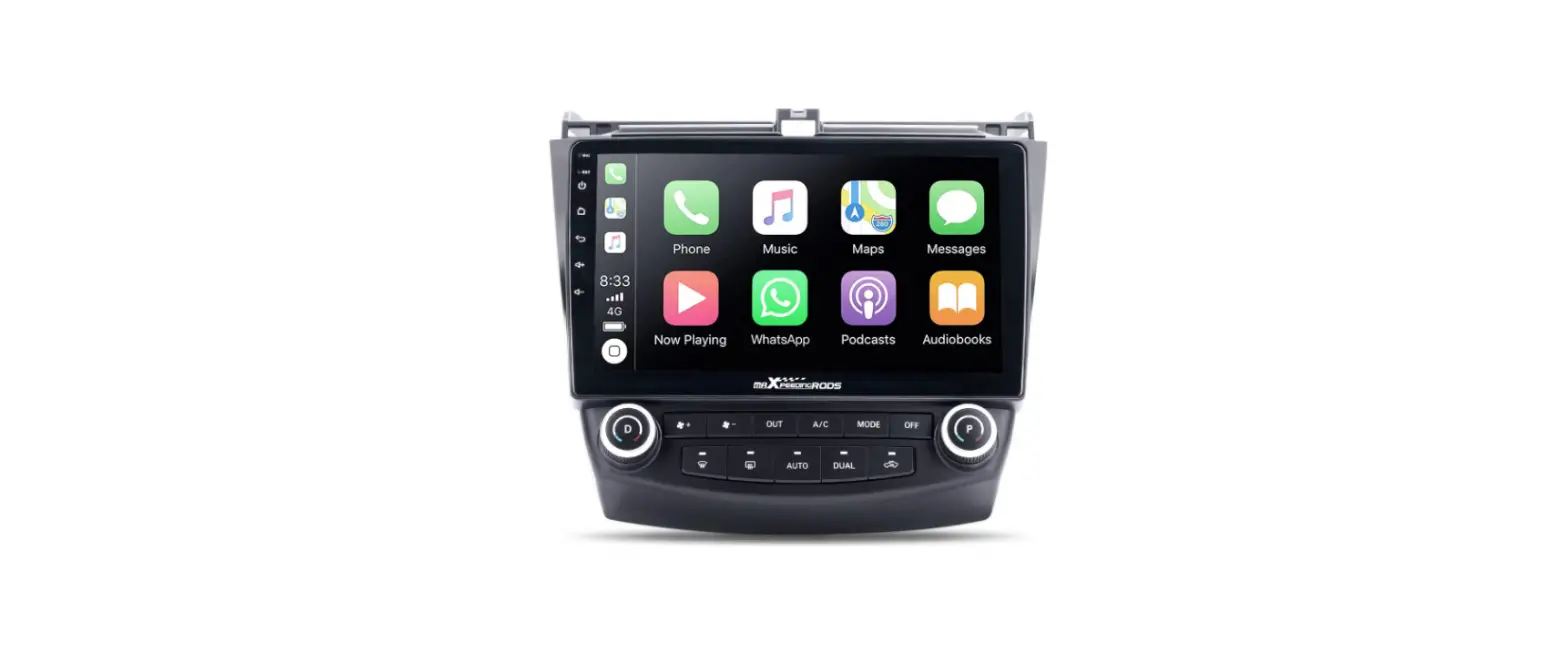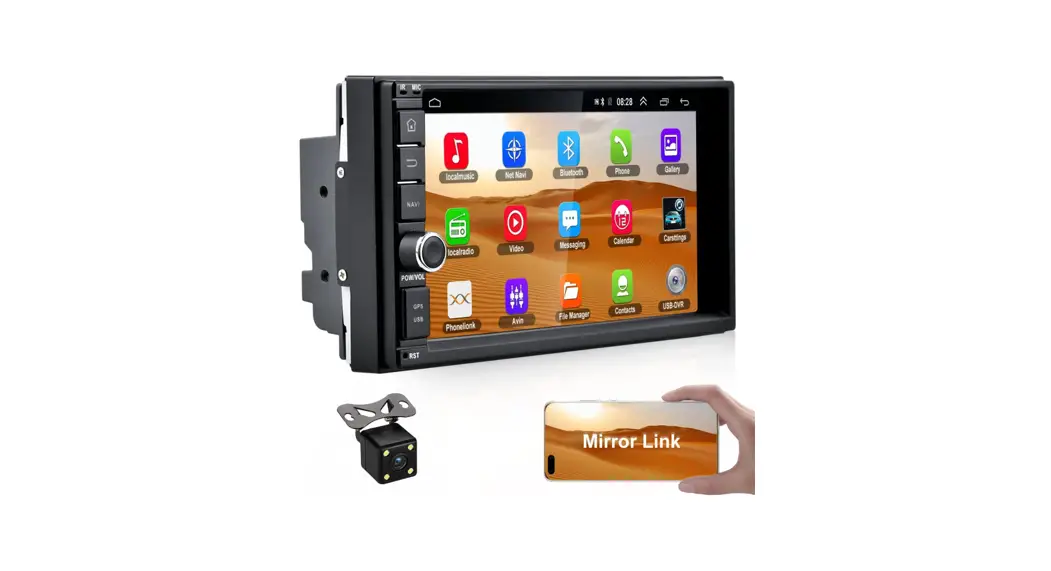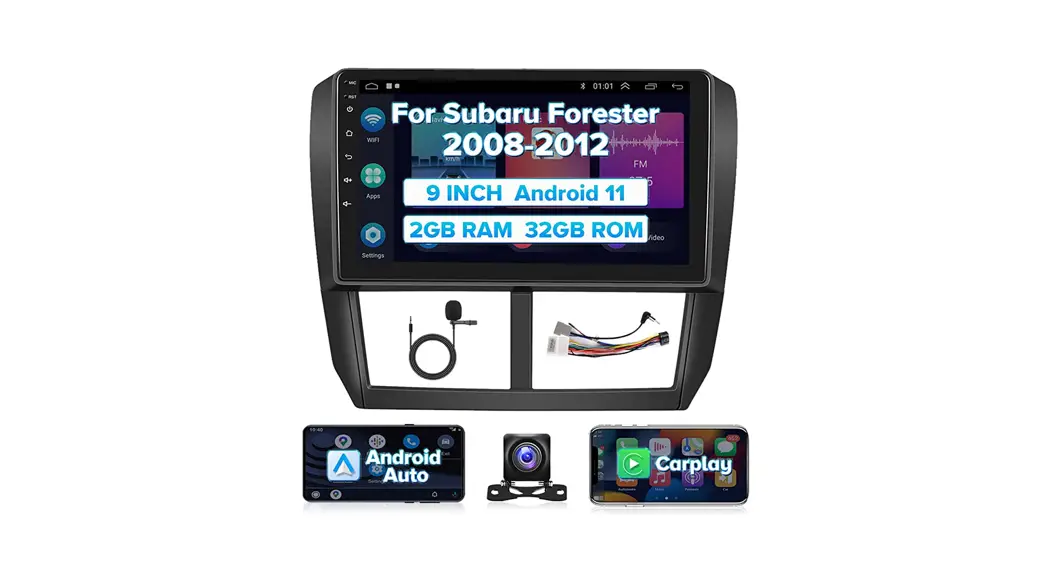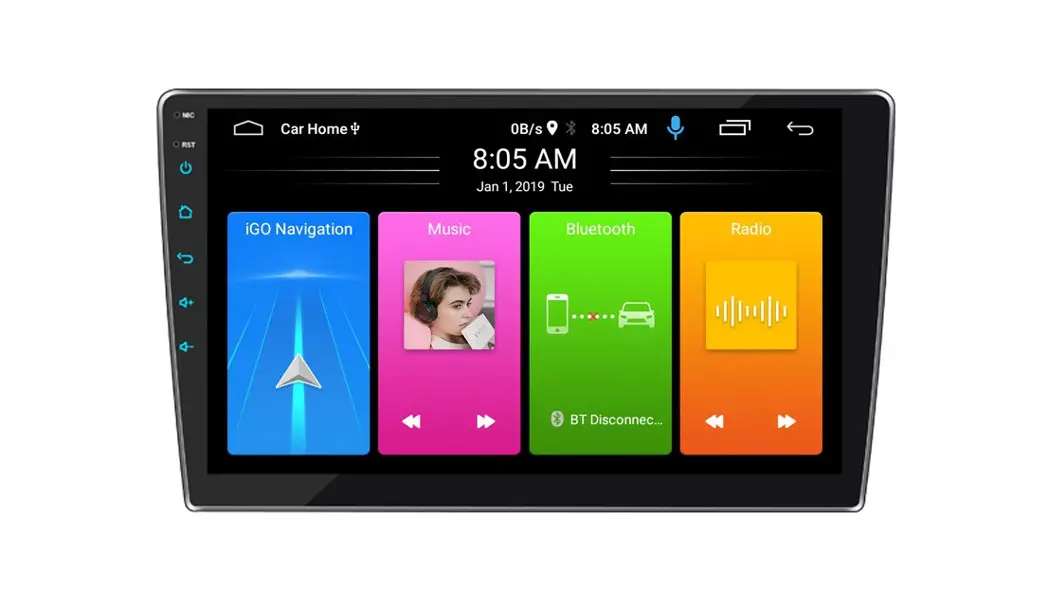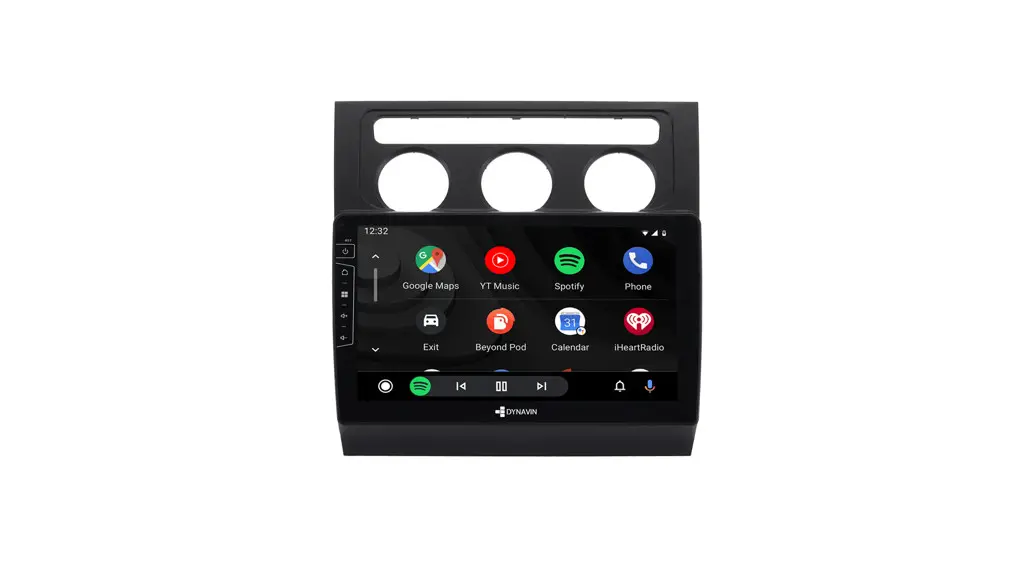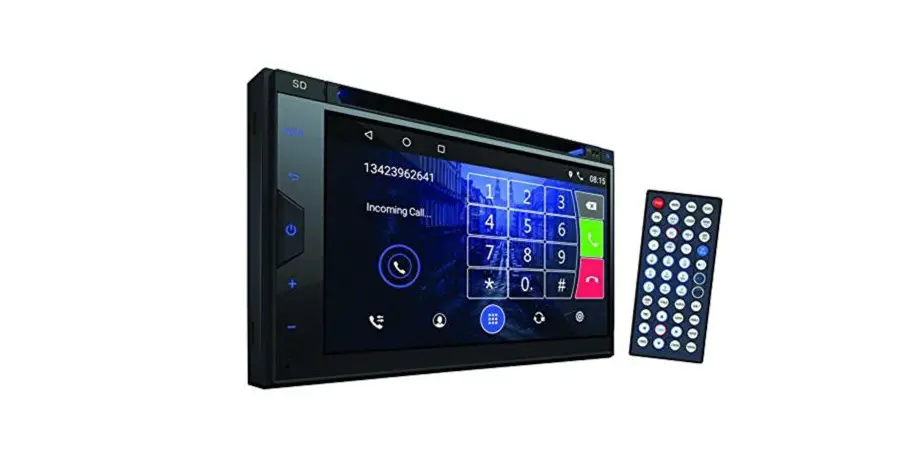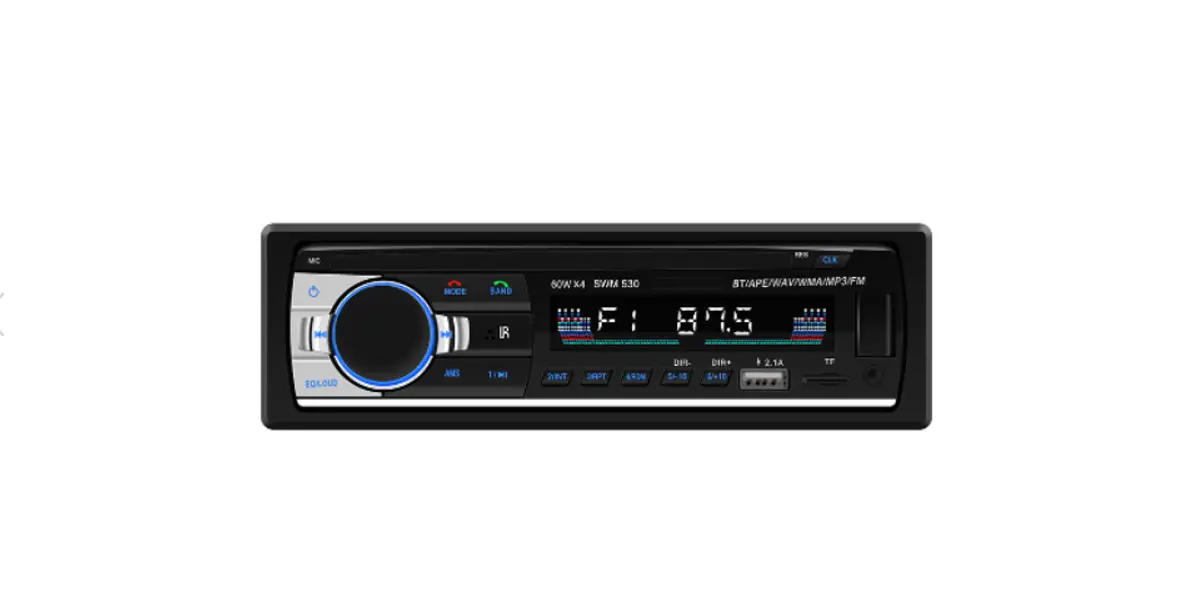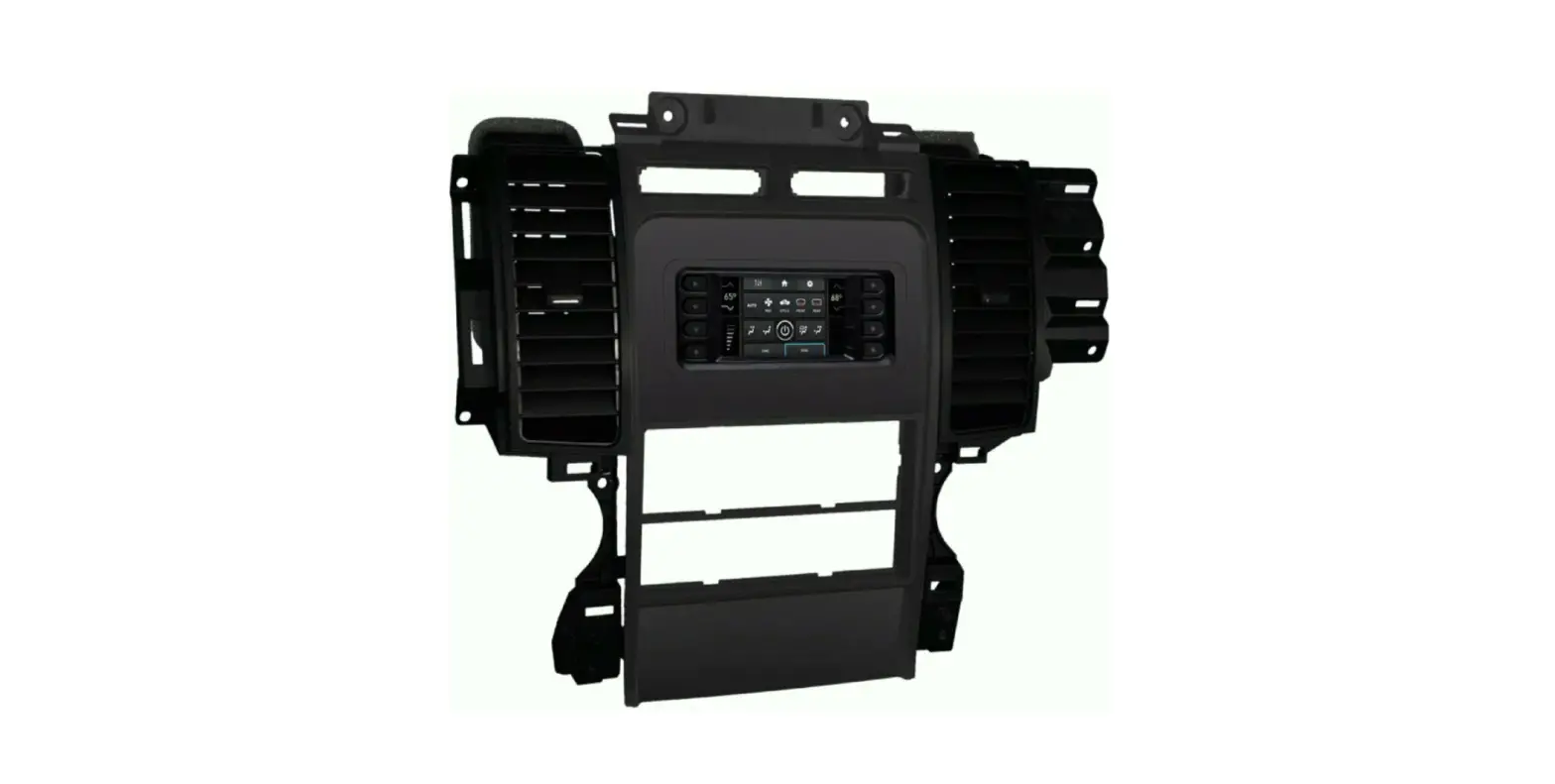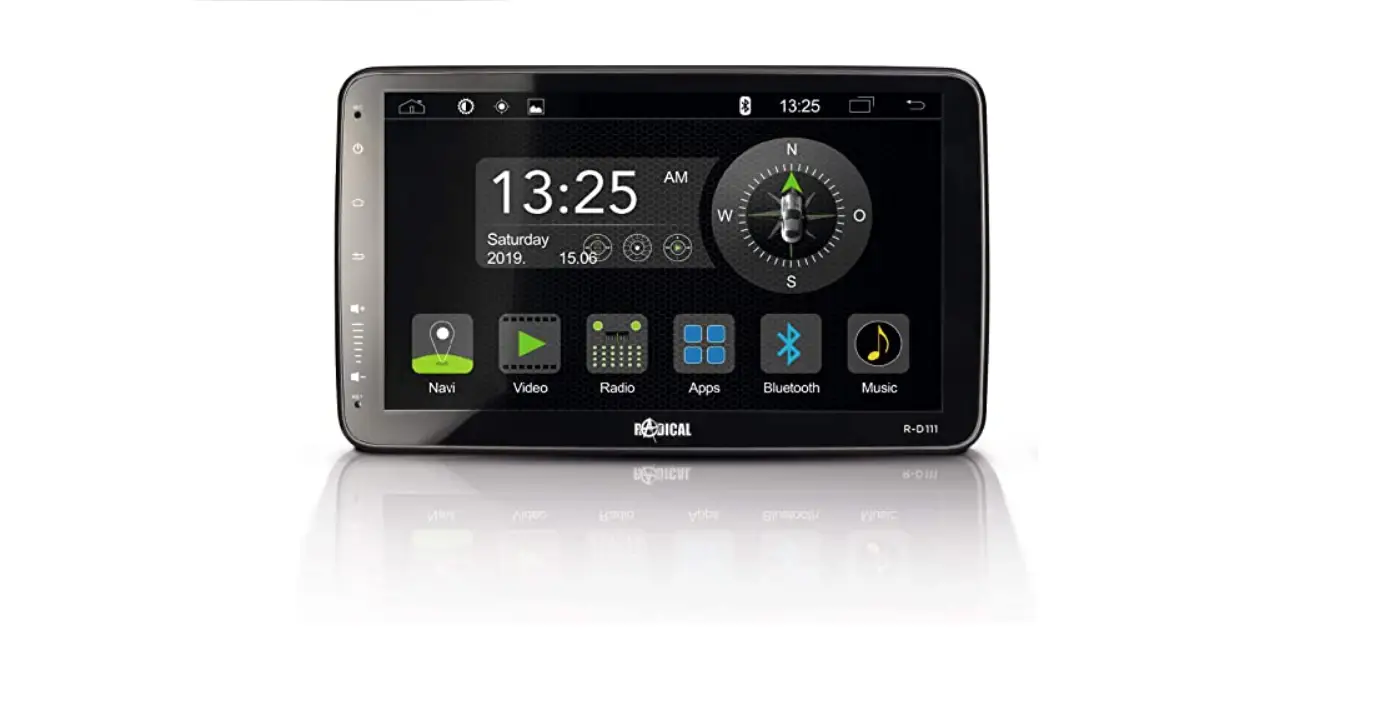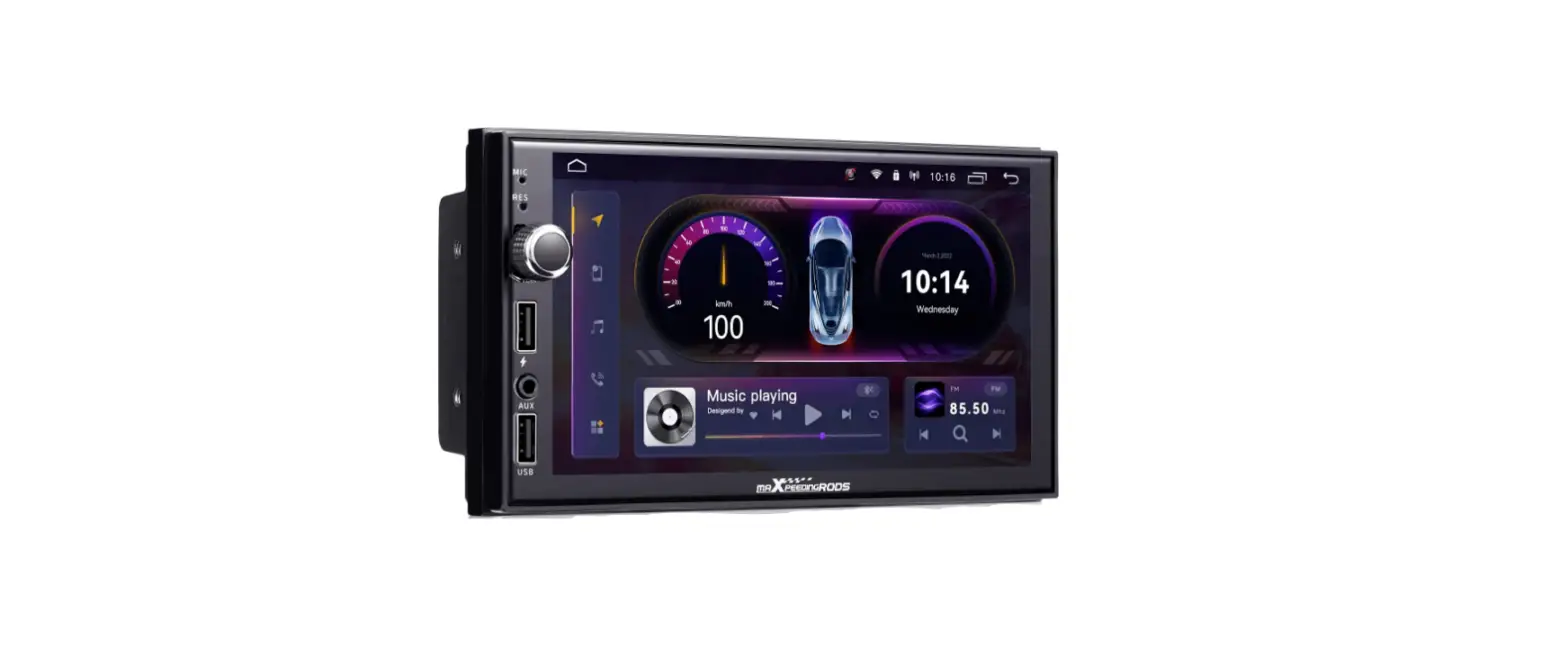

maXpeedingrods Q96 Android Double Din Car Stereo Radio
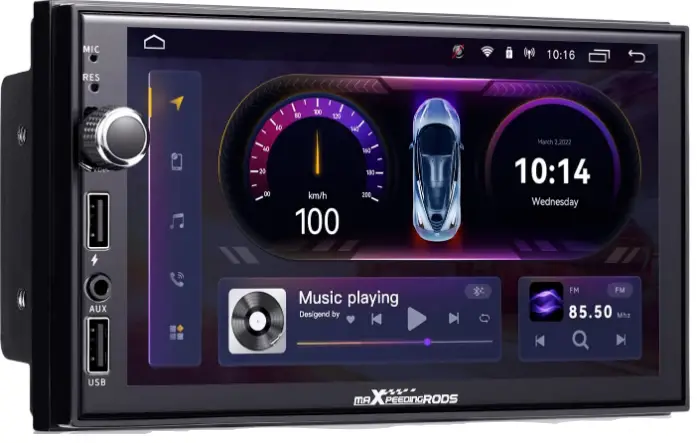
Product Information
The product is a multi-functional car stereo system that includes a DVR camera input, power amplifier, USB charging ports, GPS system, FM/AM antenna jack, video input, rear camera input, and wire harness connector. The system comes with the necessary cables for connection and a common troubleshooting guide for any issues that may arise during usage.
Product Usage Instructions
- To connect a DVR camera, use the DVR camera input and connect it to the camera using an RCA cable.
- To charge devices, use USB1 or USB2 charging ports and connect them to the device using a USB cable.
- To use the power amplifier, connect it to the product using an RCA cable.
- To use the GPS system, connect it to the product using the GPS cable and place it under the windshield for better reception.
- To connect a rear camera, use the rear camera input and connect it to the camera using the power cable.
- For troubleshooting, refer to the common troubleshooting guide provided. For example, if there is no sound, go to Settings > Audio > Internal Amp ON and check external amplifiers are on. If media is not supported, change the media format on the USB device or change the USB device. For poor radio reception, change the station or connect the antenna output wire to the product.
- If phone link does not start, check if the device is locked or charged. If there is bad signal or GPS is not connecting to the device, make sure the device is within range and Bluetooth connection is turned ON.
- If a backup camera is desired but not supported by the product, find an aftermarket camera to connect.
CABLE CONNECTION
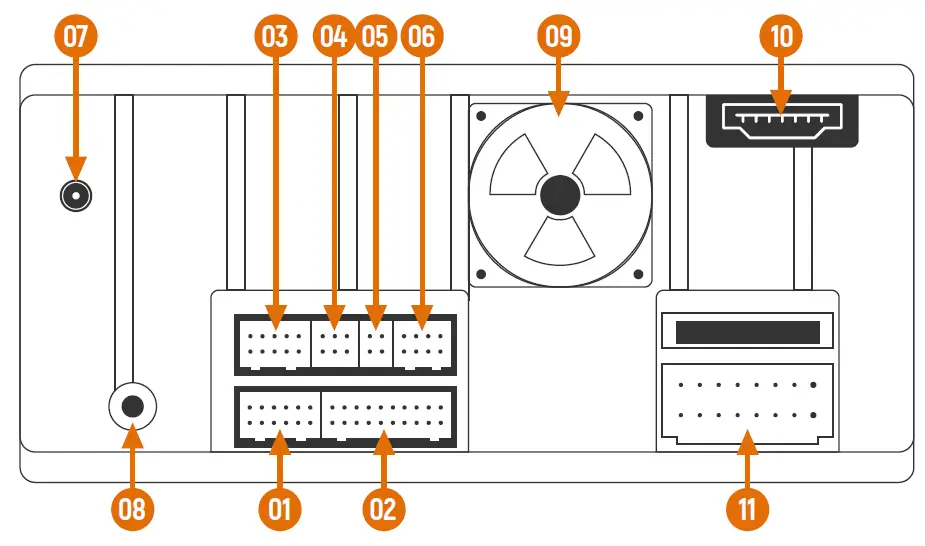
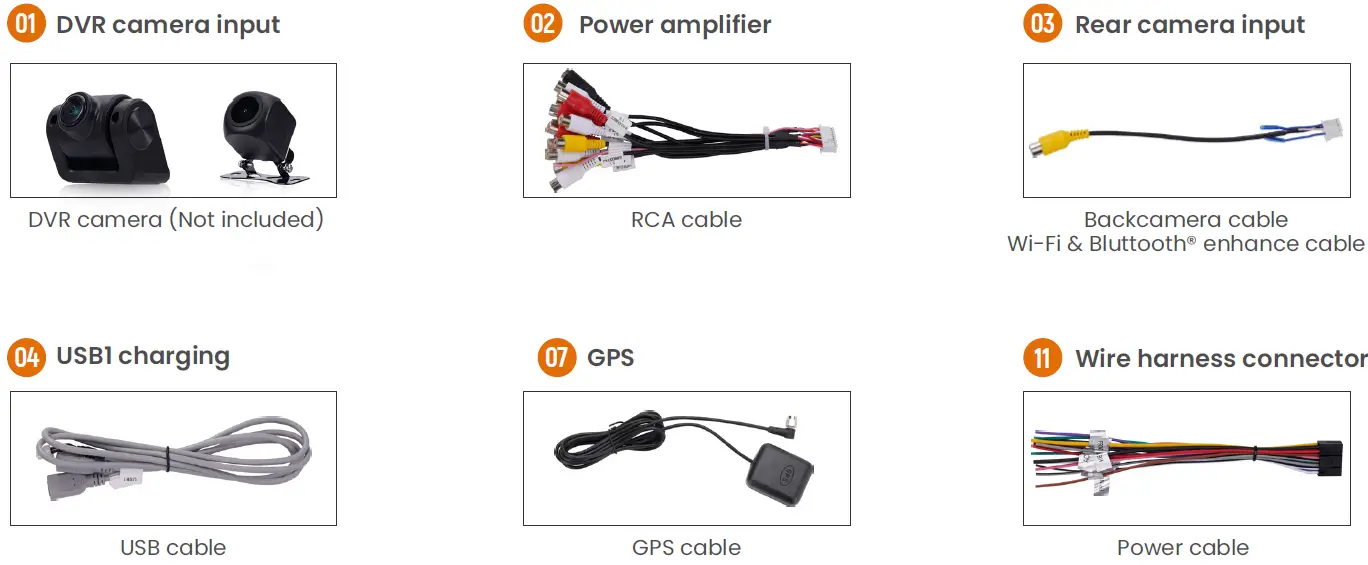
- DVR camera input
- Power amplifier
- Rear camera input
- USB1 charging
- USB2 charging
- Protocol interface
- GPS
- FM/AM Antenna jack
- Cooling Fan
- Video input (Not included in the package)
- Wire harness connector
COMMON TROUBLESHOOTING GUIDE
| Issues | Cause | Solution |
| No sound | lnternal amplifier is off | Go to Settings > Audio > Internal Amp ON |
| Product is muted | Touch the volume. | |
| External amplifiers | Check the external amplifiers are on. | |
| Check the remote output wire has voltage. | ||
| Audio source | Change the audio source. | |
| External amplifiers | Connect 12V ACC wire to the power amplifier wire. |
| Media not supported | Media on USB flash drive | Change the media format on the USB device. Change the USB device. |
| Poor radio reception | Radio area | Change the station. |
| Antenna | Antenna output wire is not connected. Connect Antenna to product. |
| Phone Link will Not Start | Bad Lightning R/USB cable | Replace the cable. |
| Locked device | Device needs to be unlocked. | |
| Not charged | Device needs to be powered ON for CarPlay/Android Auto to function. Allow it to charge and power on. | |
| Phone Link Frozen | Unplug the device, close all Apps and plug it inagain. | |
| Bad signal | Connect back camera cable to enhance the signal, We made two signal receive line with back camera. |
| Bluetooth® | Not connecting to device | Make sure the device is within range. |
| Device’s Bluetooth connection needs to be turned ON. | ||
| Go to Setting > Connection > Power ON Pair and Connect the device like new. |
| GPS | GPS Area | Place GPS under the windshield. |
| Backup camera | Do not support original camera | Find a after market camera to connect. |