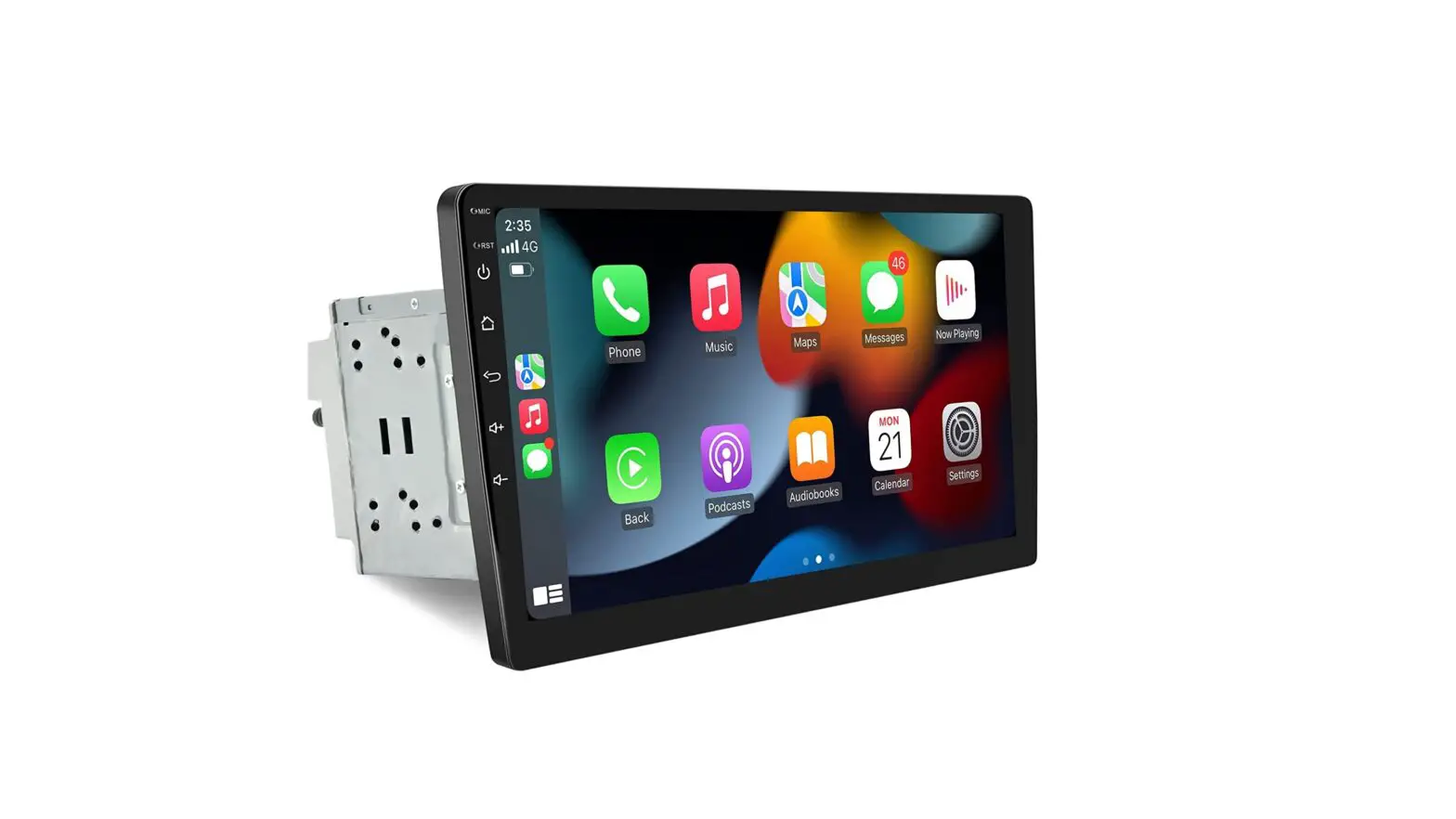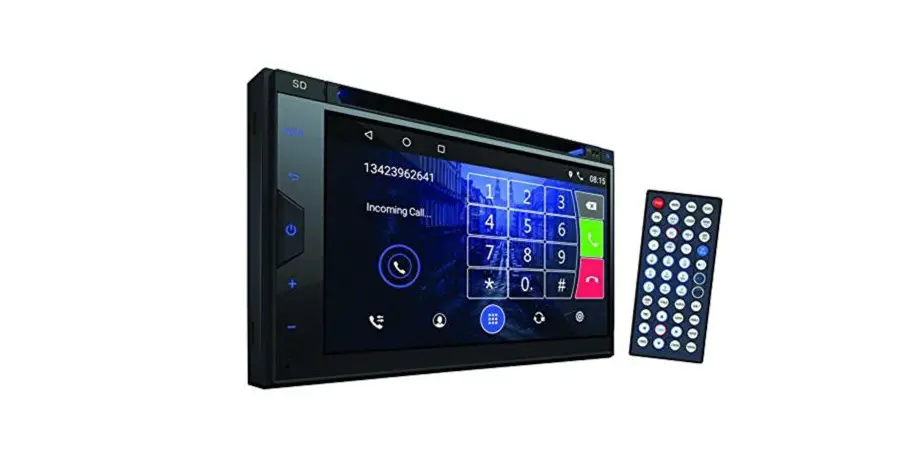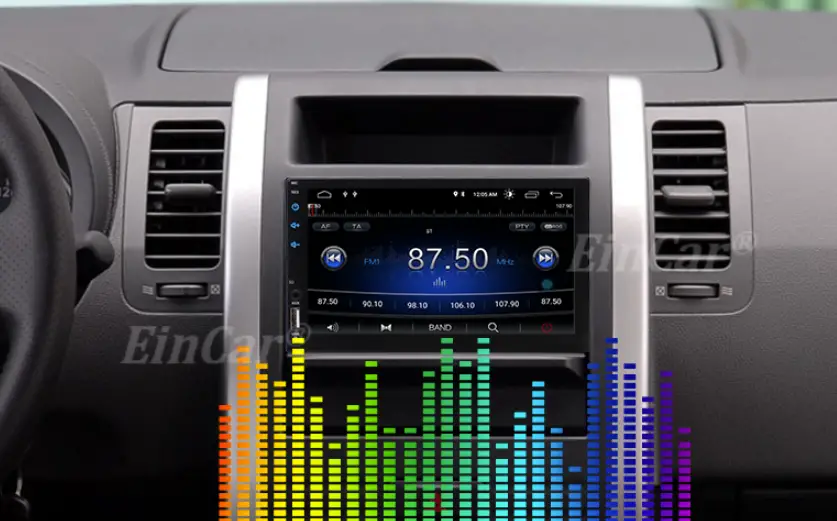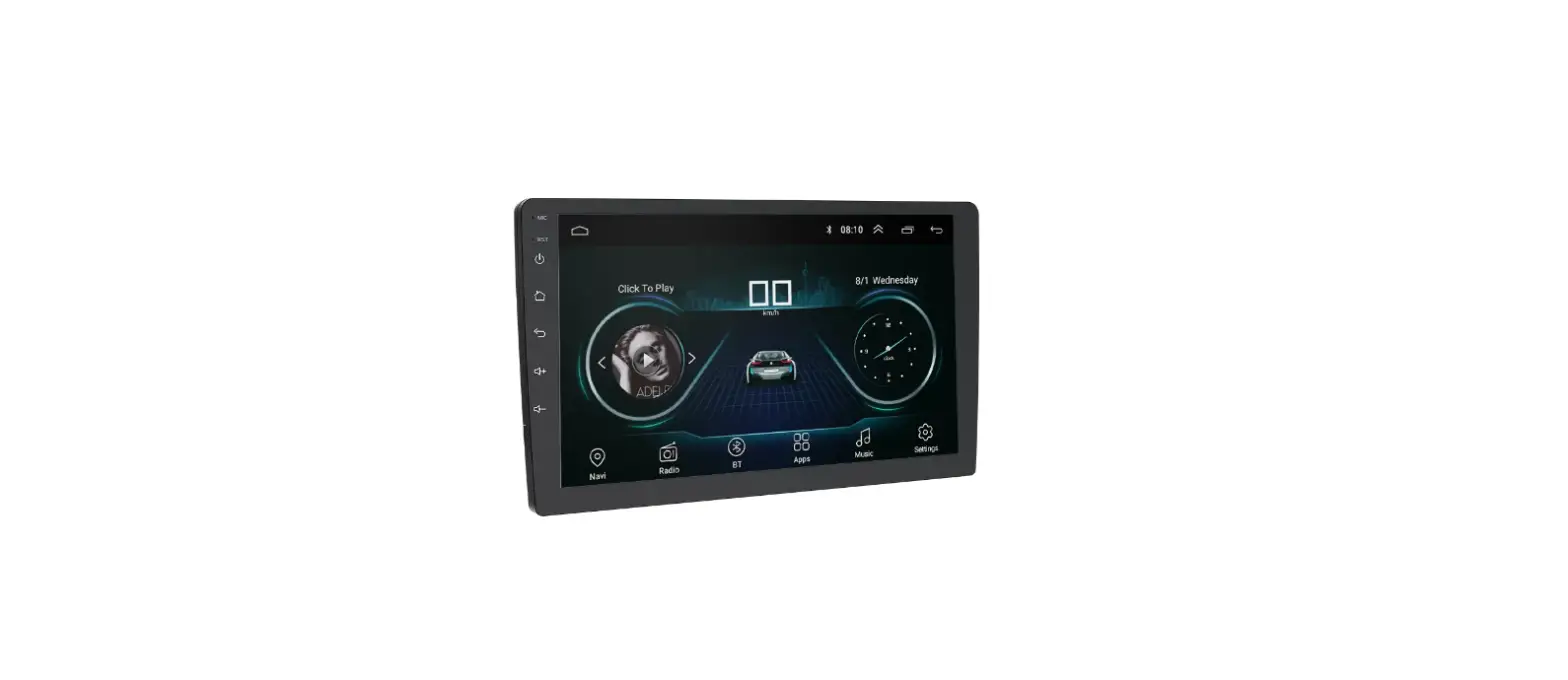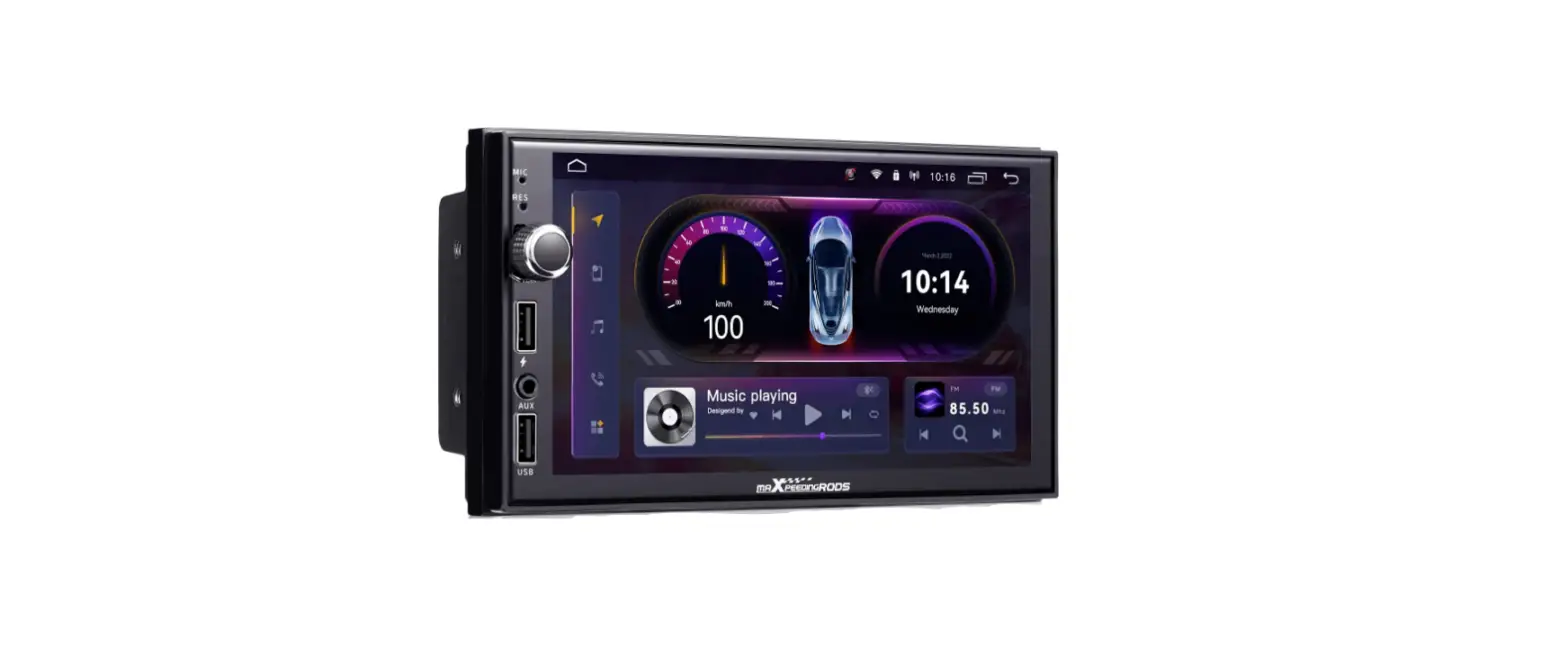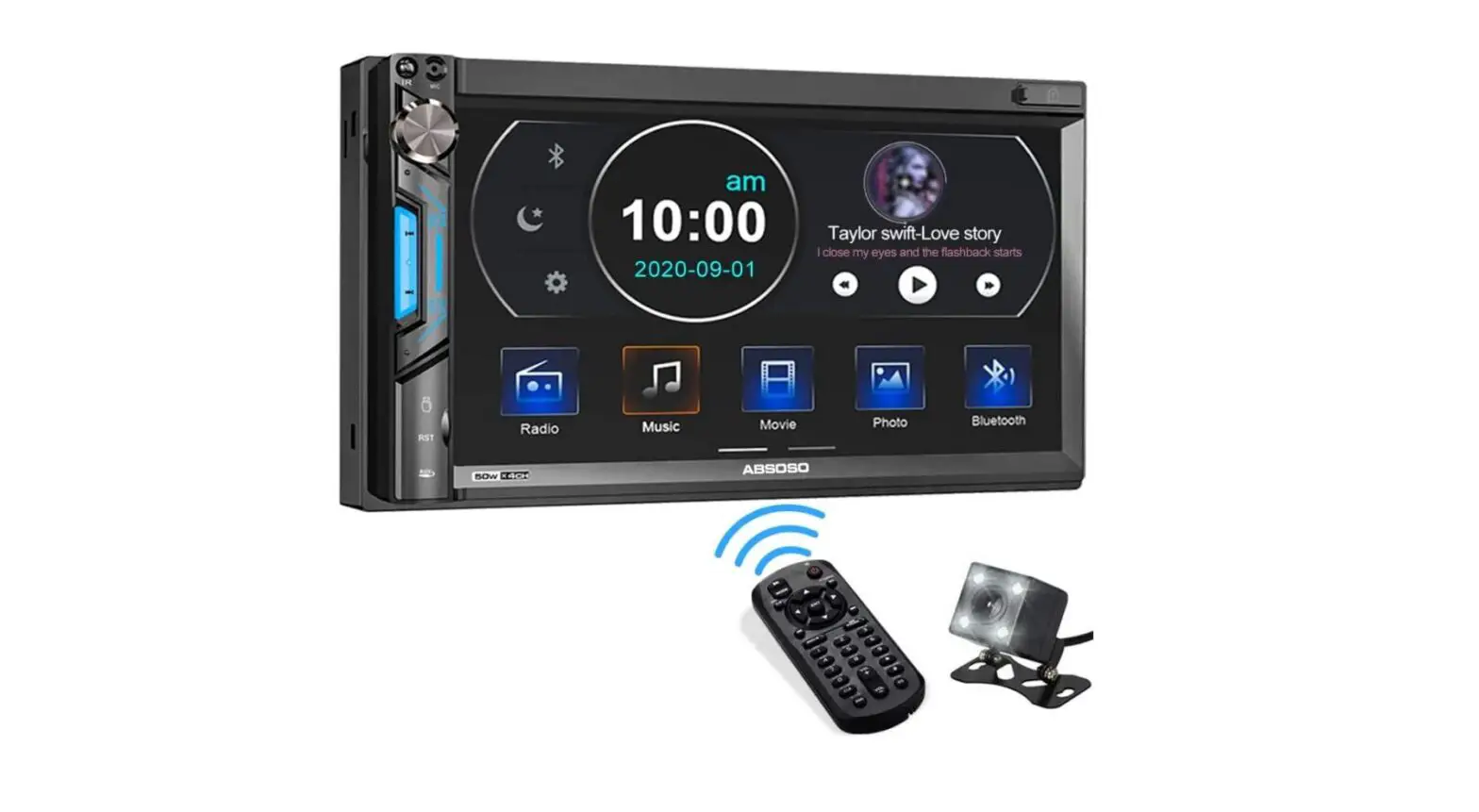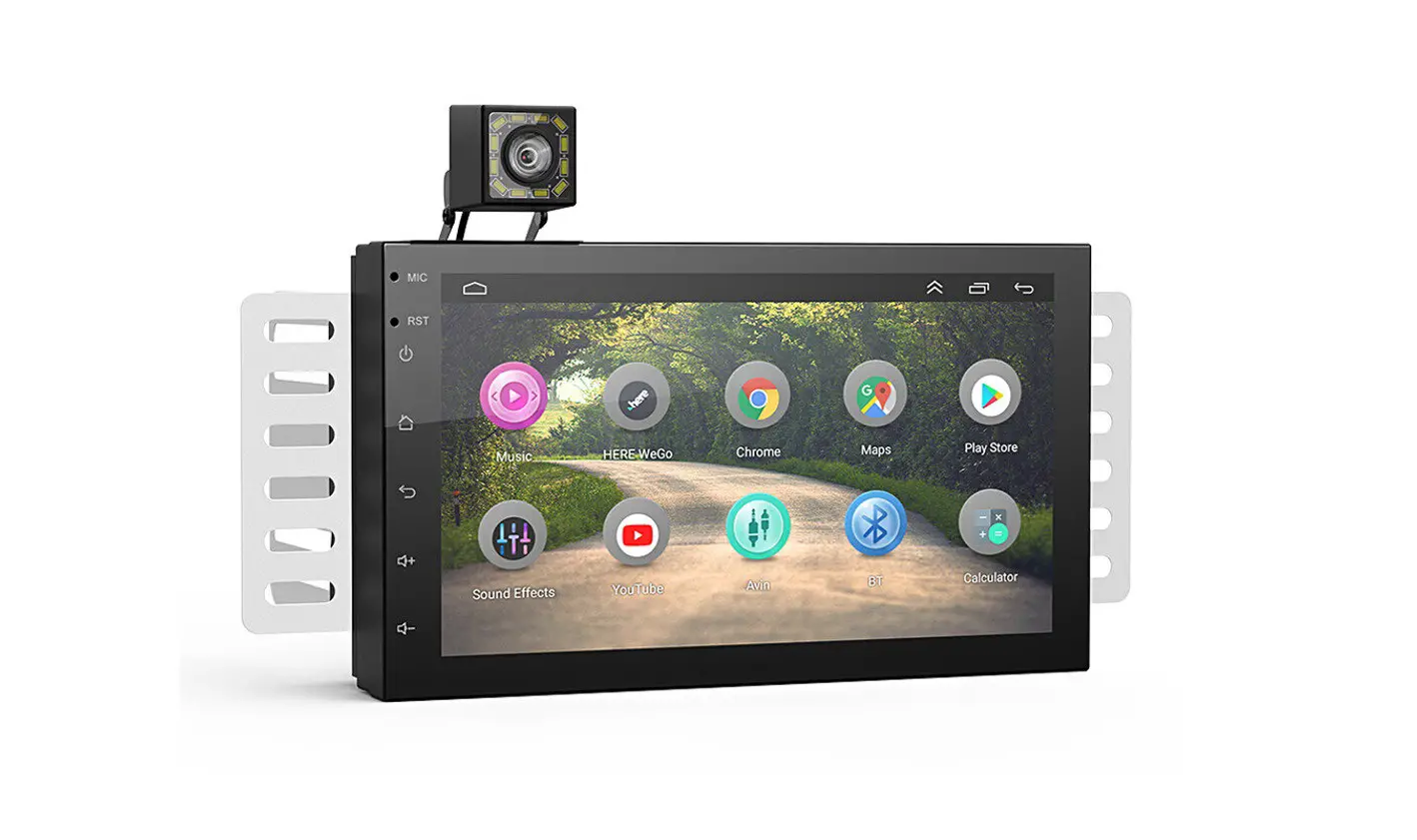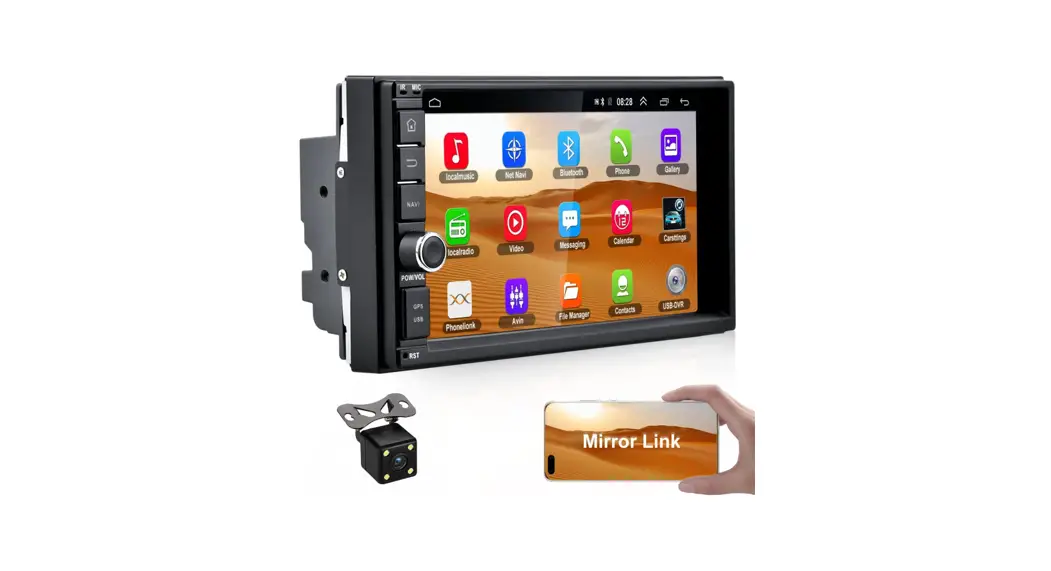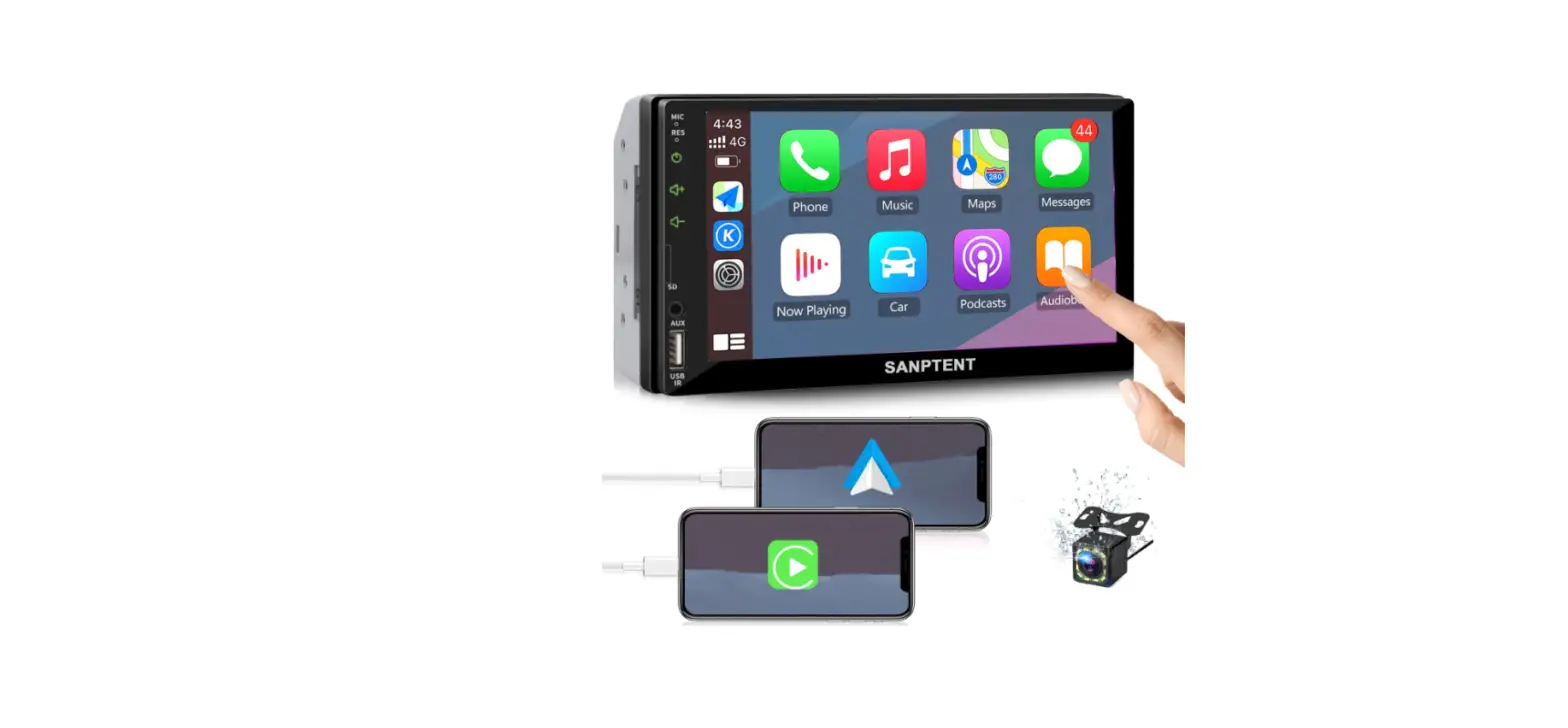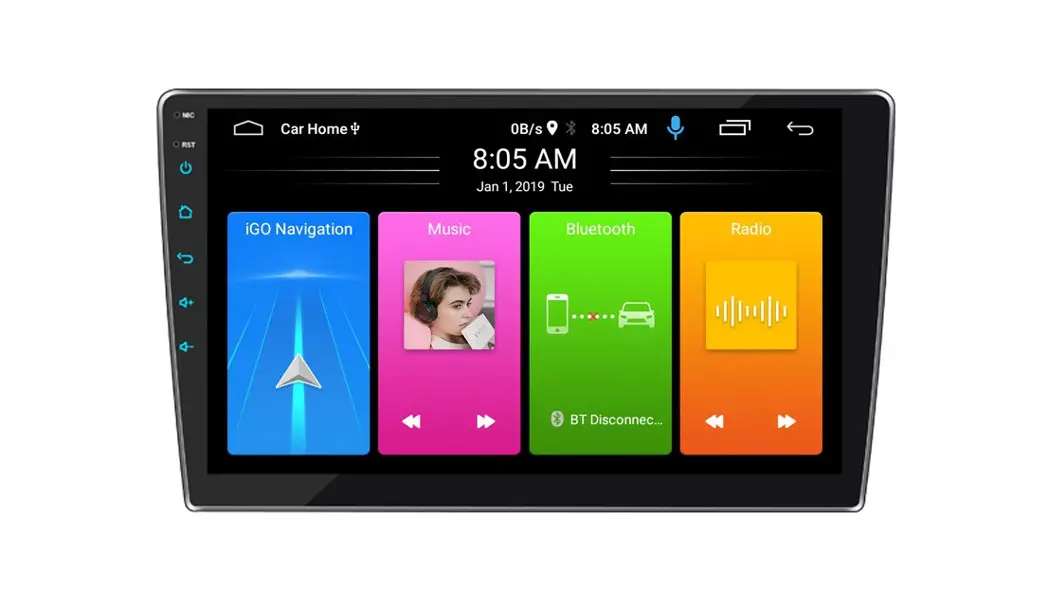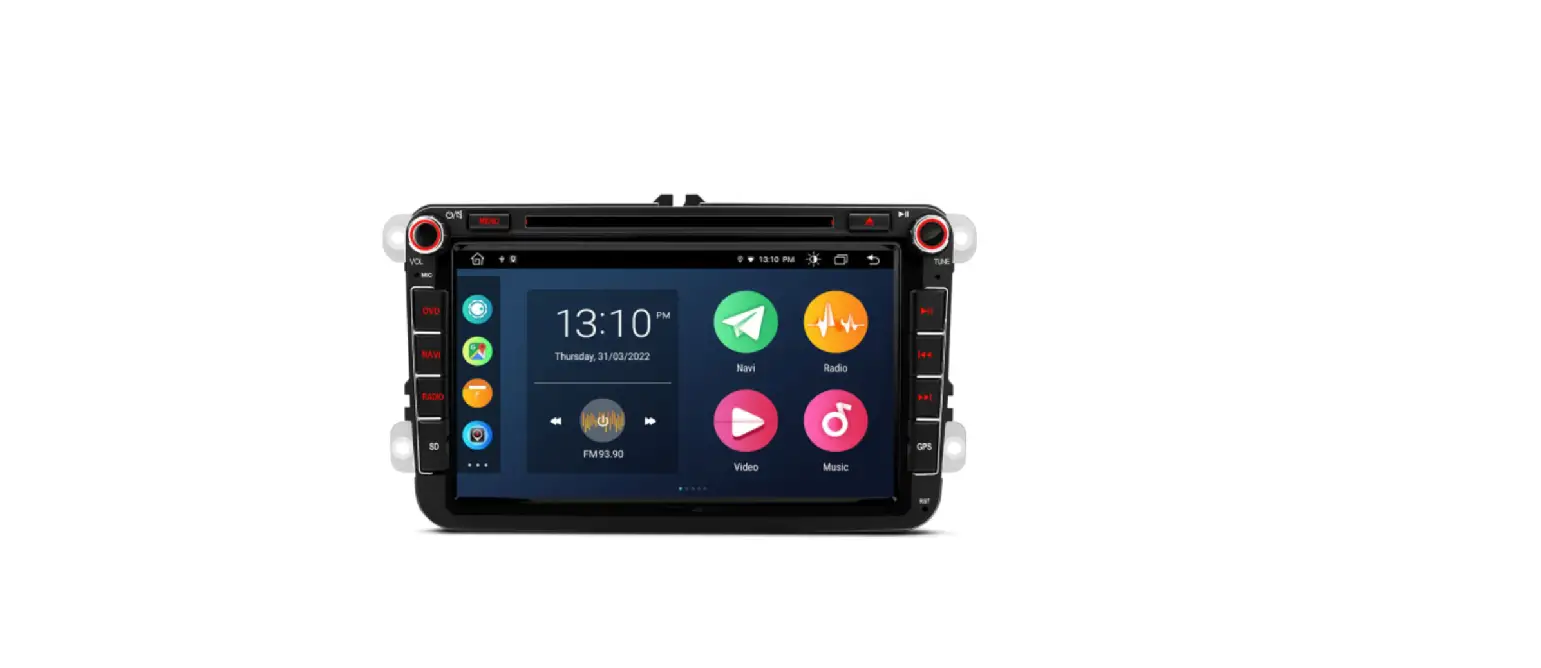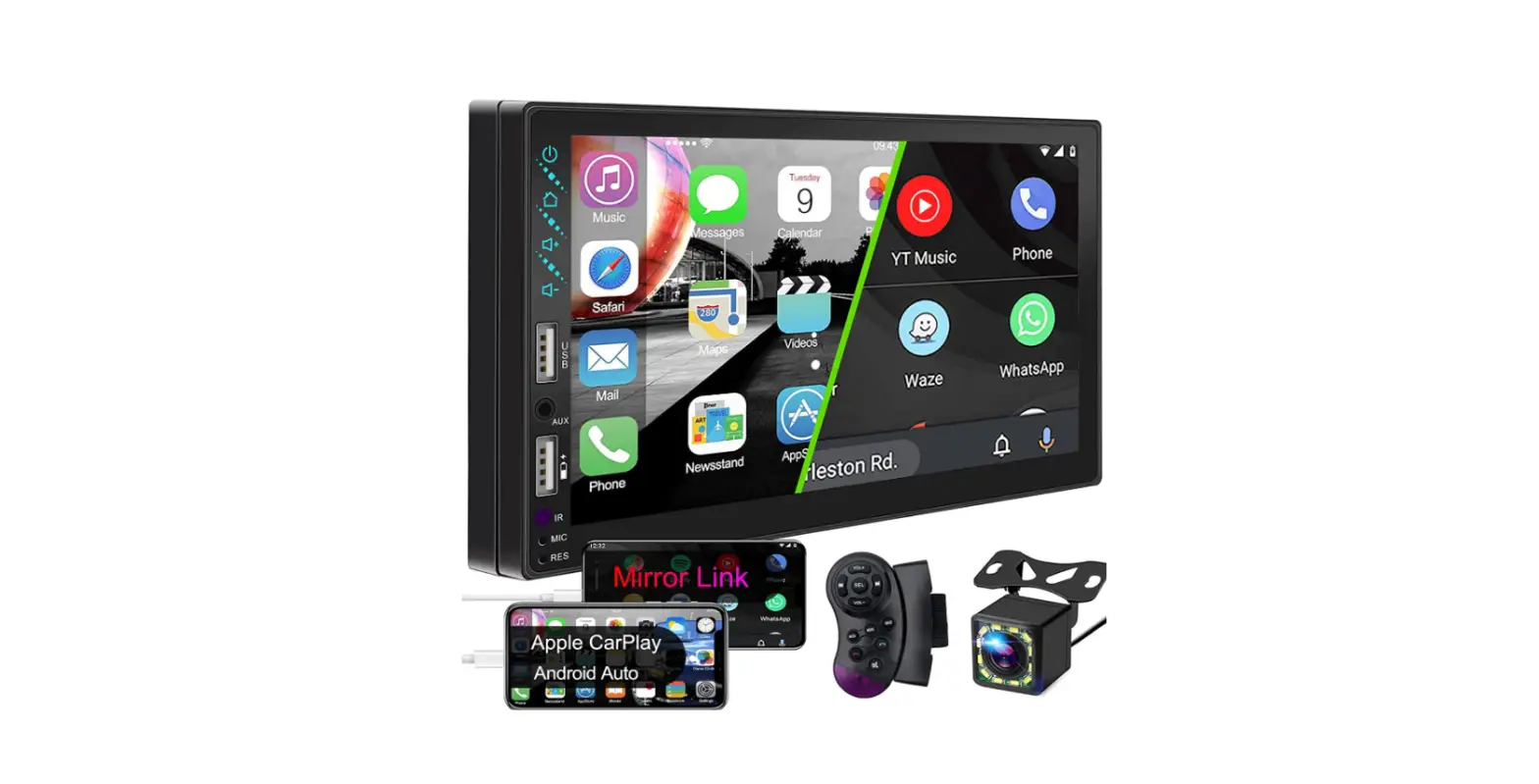
 2+32G Android Double Din Car Stereo
Instructions
【Tips and Warnings】
In order to emphasize the important information of the user manual, special attention should be paid when seeing the label ,which indicates some important warnings and reminders.
【Important Tips】
Please read all instructions before installation, it is recommended that the machine be installed by a car audio professional. This machine is suitable for vehicle 12V power supply system (grounding wire is required), please do not install this machine in 24V vehicle, otherwise it will damage the machine.
 Do not repair the power fuse without professional guidance. Improper use of the fuse can cause damage to the machine or cause a fire. To avoid violating traffic rules, drivers cannot watch videos while driving and operating machines to avoid unnecessary accidents. For the sake of safety and to ensure the normal use of the product, please invite professionals to install, disassemble or repair the machine to avoid machine damage and accidents. Please avoid placing this product in a humid environment and water to avoid fire due to electric shock or other unnecessary damage.
Note: To prevent burning out the machine, please do not energize until you have connected the power cord correctly!
【Test】
A quick simple test before the installation is to confirm that the device is working normally and as expected. In case there is a wrong step in the subsequent installation, which causes it to fail to work. If you perform a successful test but the unit did not work after installing it please recheck the installation steps.
Test car stereo: ①The red and yellow wires of the car stereo combine together firstly and then connected to the positive pole of the 12V battery, ② The black wire is connected to the negative pole of the battery. ③ 2 seconds later, check the car stereo, if the screen is lighting up, it means the car stereo is proper functioning.
【Installation】
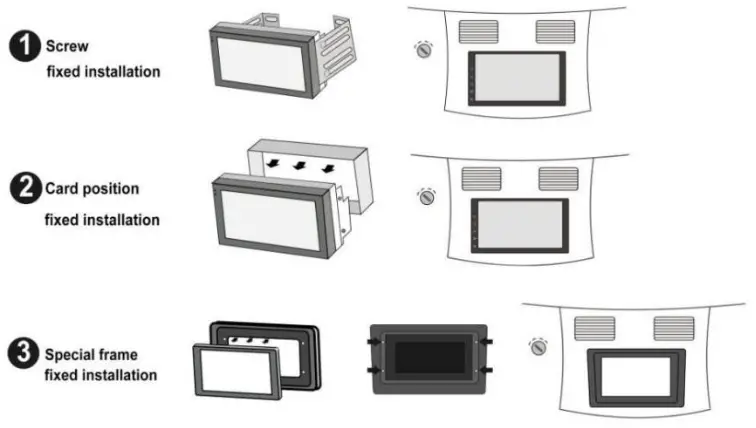
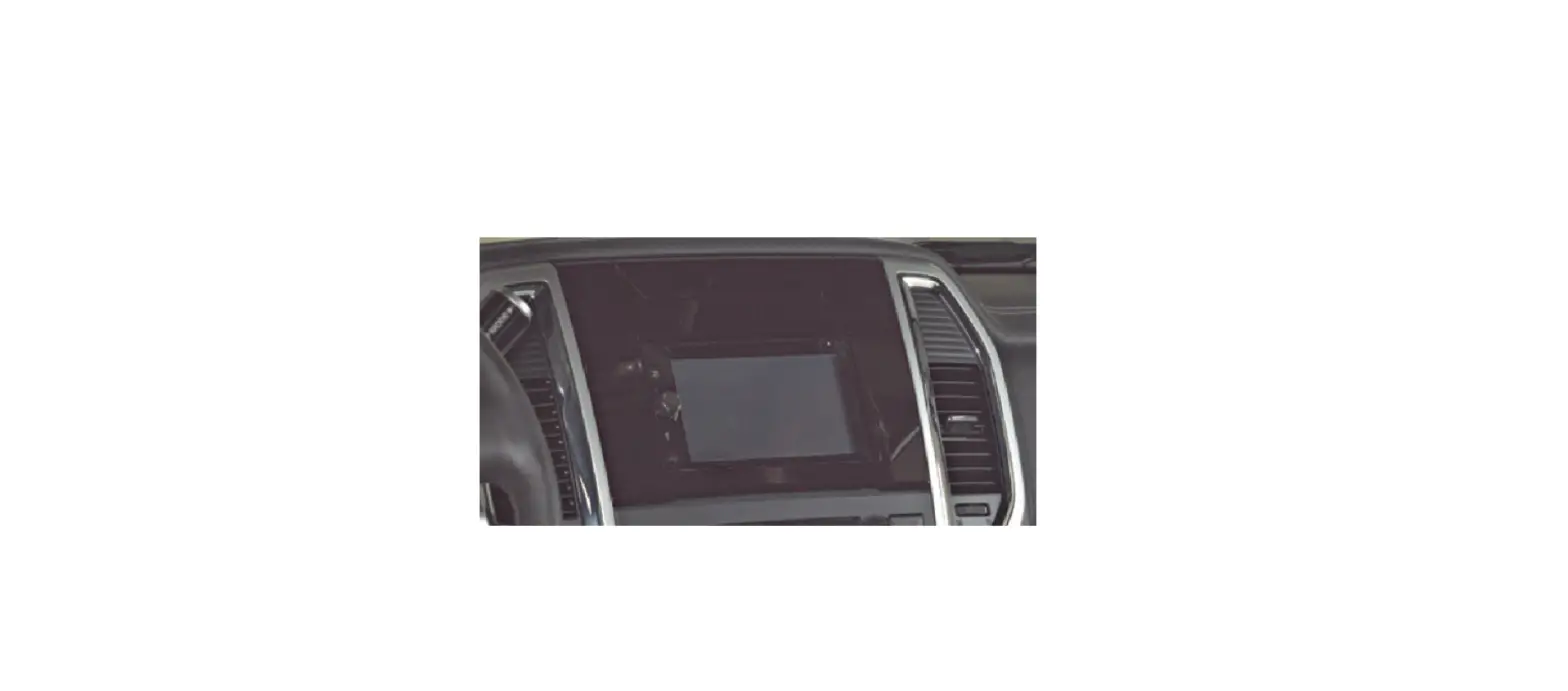
As shown in the figure above, there are three ways to install the machine, please choose one of them according to the actual situation.Of course, you can also re-install the new radio according to the installation method of the original car radio.
【Wiring】
(Note: The picture is for reference only, please refer to the actual product!)
1.Harness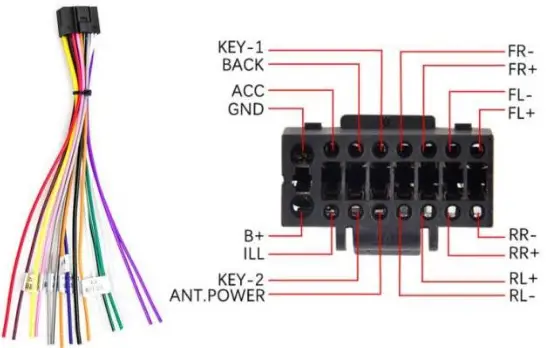 2.Back interface diagram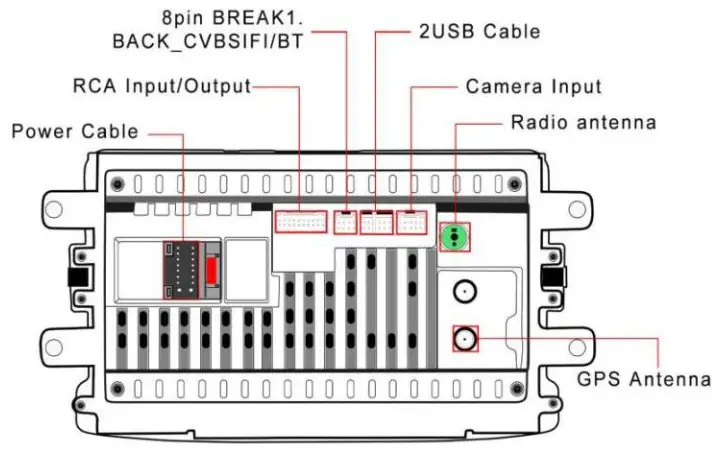
3.Rear view camera wiring (Optional)
- Monitor (Not Induded in the Package)
- Camera Power Source
- Camera (Optional)
NOTE: Whether you are using a rear view camera or not, please connect the rear view wire.Otherwise, your WiFi and Bluetooth signals will suffer!
【Icon Introduction】
1.Machine-Host
| Symbol | Operations & Controls |
| MIC | Built-in microphone hole |
| RST | Reset (press with a sharp object) |
 | Power on the device Press and hold for 3 seconds to power off the device Short press repeatedly to mute or unmute |
 | To main menu |
 | Return to the previous interface |
 | Press or hold repeatedly to increase volume |
 | Press or hold repeatedly to decrease volume |
2.On Screen – Main Interface
(Note: The main interface is different for different products, please refer to the specific product)
| Icon | Name | Operations |
| Main menu | Touch to switch screen to main menu |
 | Hide shortcut menu | Touch to hide the shortcut menu button area |
 | Backstage | Touch to show all programs running in the background |
 | Return | Touch to switch screens to return to previous screen |
 | WiFi | Turn on/off WiFi |
 | Apps | Touching will take you to the icon desktop of the installed application |
 | Settings | Touch to enter the Android settings interface |
 | Navi | Touch to enter the set navigation interface |
 | Music | Touch to go to local music |
 | Radio | Touch to enter the radio interface |
 | BT | Touch to enter the bluetooth interface |
 | File manager | Touch to enter file management |
 | Video | Touch to enter video playback |
3.On screen – Drop-down list
| Icon | Name | Operations |
 | Wi-Fi | Turn on/off Wi-Fi |
 | Bluetooth | Turn on/off Bluetooth |
 | Screen off | Open/Close Screen |
 | Car Amplifier | Turn on/off Car Amplifier |
 | Screenshot | Touch to take a screenshot |
 | Car setting | Touch to enterCar setting |
 | Clean-up | Touch to clean |
 | Video out | Touch to set Video out |
4.On screen – APP Icon
(★It only means that there is this APP in the product, if you need to use it, you need to purchase additional accessories!)
| Icon | Name | Operations |
 | HERE WeGo | Touch to enter offline map |
 | PODOFO Voice | Touch to enter Smart Voice to set up |
 | PODOFO+ | Touch to enter Smart Voice software |
 | Touch to go to Google | |
 | ★DAB+ | Touch to enter DAB+ |
 | Car Settings | Touch to enter settings, enter password 8888 for factory settings |
 | Maps | Touch to enter google map online |
 | ZLINK | Touch to enter ZLINK, can connect wired & wireless Carplay/Android Auto |
 | Sound Effects | Touch Adjustable Settings Sound Effects |
【Main functions and usage】
1. Hi-Fi function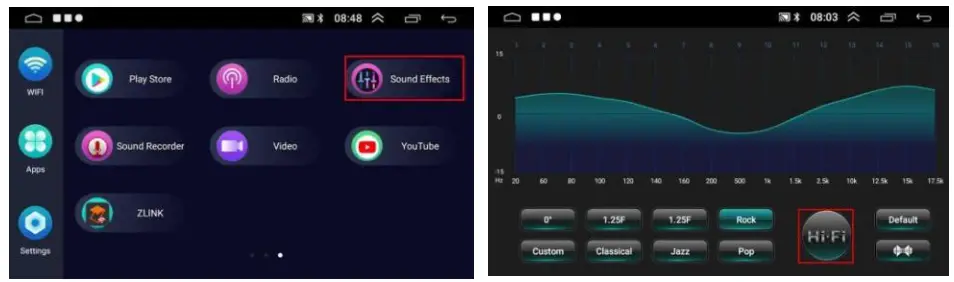 Hi-Fi function, high-fidelity sound quality, perfect playback of the original sound field, can perfectly reproduce the sound of music or video, without distortion, bringing you the most authentic sound. Hi-Fi function brings you an immersive experience.
Click to enter Sound Effects, you can adjust and set the sound effects, click HiFi, the font turns red, indicating that the HiFi function is being used;
click HiFi again, the font turns gray, indicating that the HiFi function is turned off
2. Wireless & Wired Carplay/Android Auto—Zlink
Carplay Connection Considerations
- Carplay function only supports Apple mobile phone connection
- The data cable used for Carplay connection must be the original iPhone data cable
Android Auto Connection Considerations
- The Android Auto function can only support the connection of Android phones, and the Huawei version of the phone does not support the connection
- Your Android phone needs to support Google services and install Andriod Auto software
2.1 Carplay Wireless Connection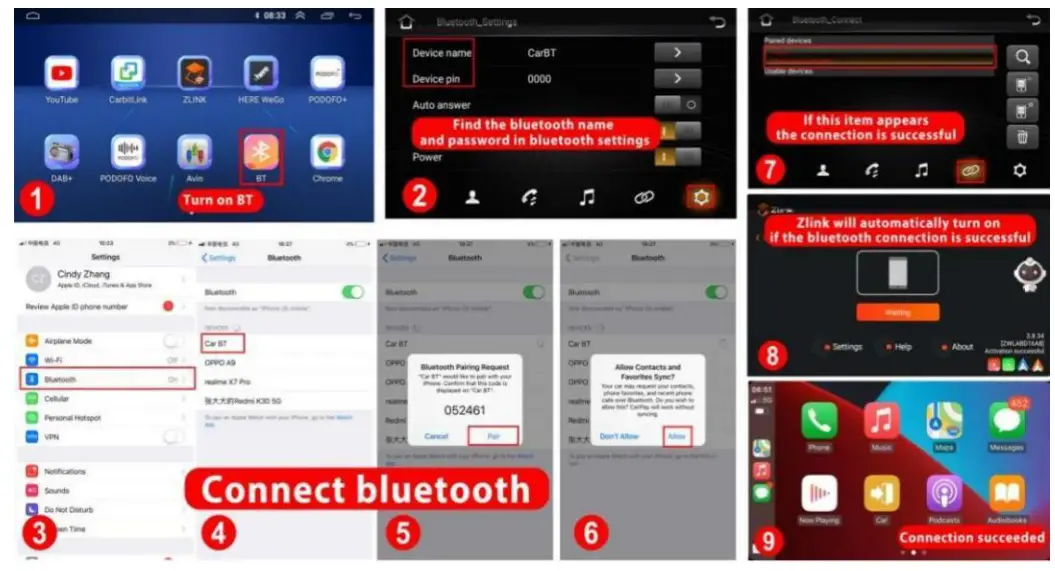
2.2 Android auto wireless connection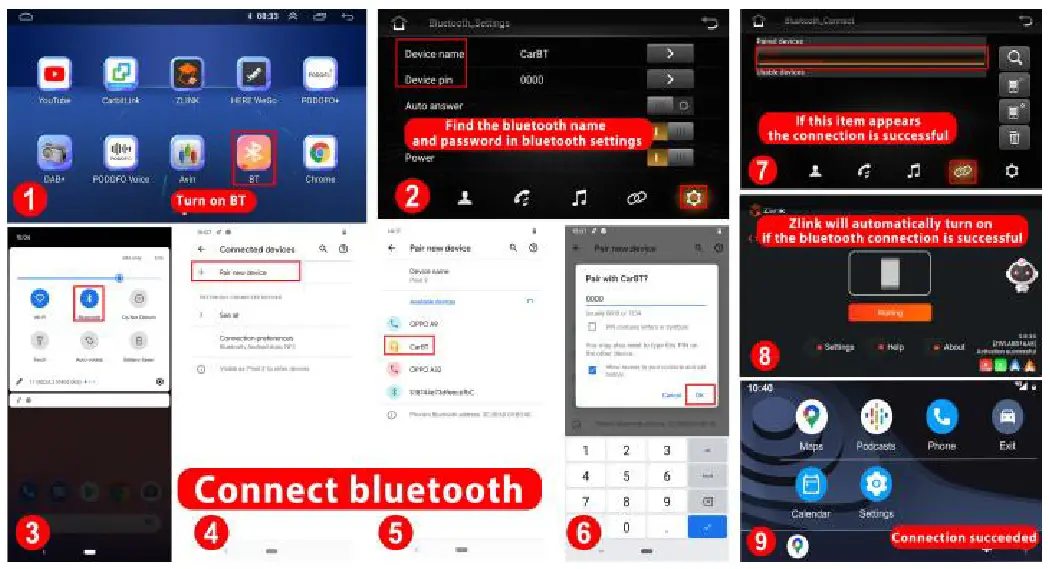
2.3 Carplay wired connection method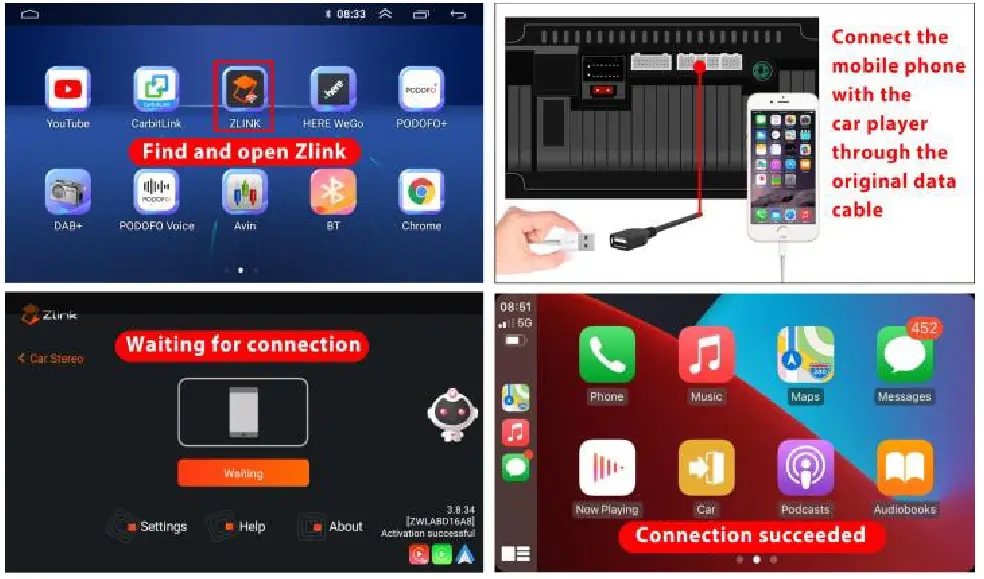 2.4 Android auto wired connection method
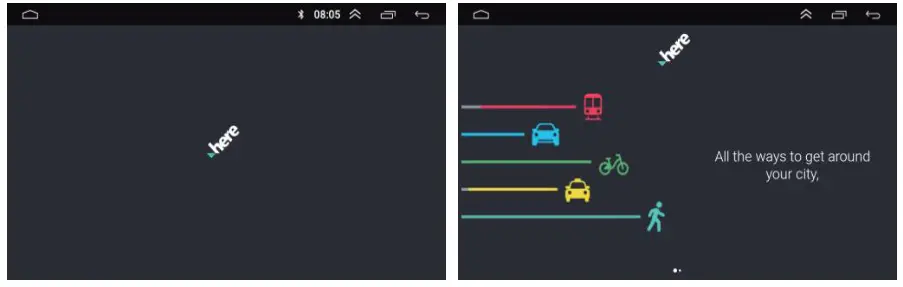
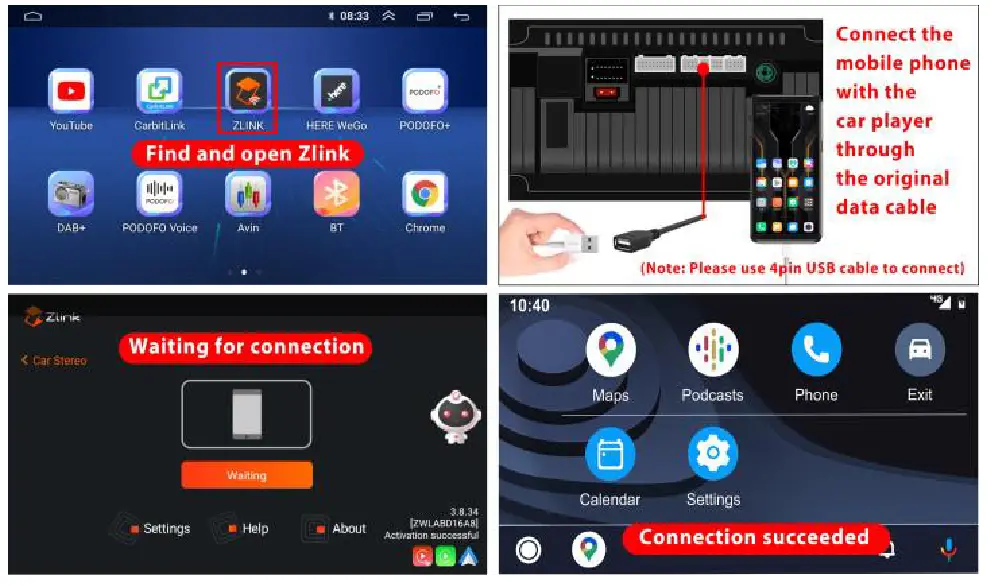 3.Offline Map—HERE WeGo
(Note: You can also use Google Maps online)
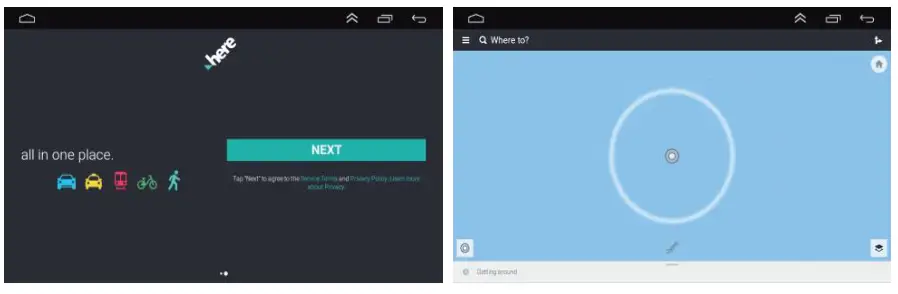
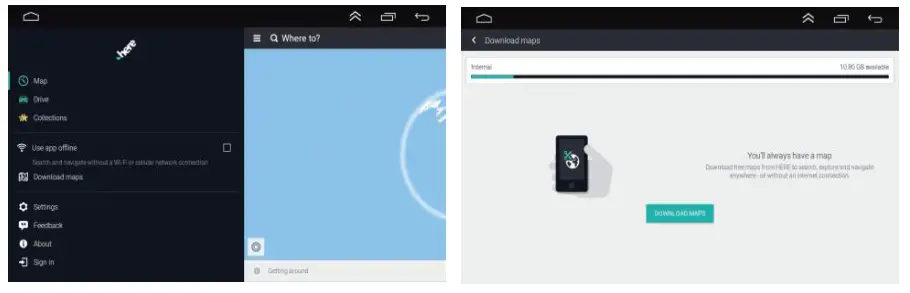
In order to use the offline feature of your device, follow the steps below to set it up.
- Power on the device and connect the device to the internet via Wifi.
- Find the APP named HERE WeGo in the main menu.

- Follow the APP prompts to enter the main map page and find the options menu.

- Click “Use the app offline” and download your favorite map data in the country list.

4. Supported Additional Devices
(Note: Additional devices are not included in the product and accessories, you need to purchase additionally!)
| Icon | Name | Connection Way |
 | External Microphone | RCA MIC Interface |
 | DAB+ | USB |
 | DVR | USB |
 | OBD | Bluetooth |
 | Subwoofer | RCA audio output or subwoofer interface |
 | Amplifier | RCA audio output interface |
 | Video Output | USB |
 | U disk | USB |
【Parameters】
| Category | Parameter |
| Motherboard | SHA16 / 23 |
| Memory Configuration | 1G & 2G |
| Storage Configuration | 16G & 32G |
| CPU | 8227L |
| Core | 4.2 |
| Main Frequency | 1.3GHz |
| Android Version | 11 |
| Radio | FM/RDS |
| Communication | WIFI |
| Rear Camera Standard | AHD720 & CVBS |
| Satellite Positioning | GPS |
| Amplifier | 7388 |
| Sound Decoder | ST7729-HiFi |
| Carplay | Wireless carplay & Wired carplay |
| Android Auto | Wireless Android auto & Wired Android auto |
| Bluetooth Version | 4.2 |
| Colorful Lights | White light |
| USB | Dual USB |
| External Microphone | Support |
| Video Output | Support |
| DVR | Support |
| OBD2 | Support |
| DAB+ | Support |
| Split Screen | Support |
| Navigation | Offline Maps & Online Maps |
| Resolution | 1024*600/1024*480/1280*720/768*1024/ 800*1280 |
| Factory Password | 8888 |
Thank you again for using our product. If you have further questions, please contact our customer service staff. Product UI interface or functions may be modified and upgraded from time to time without notice. It is normal if the manual has some discrepancies!