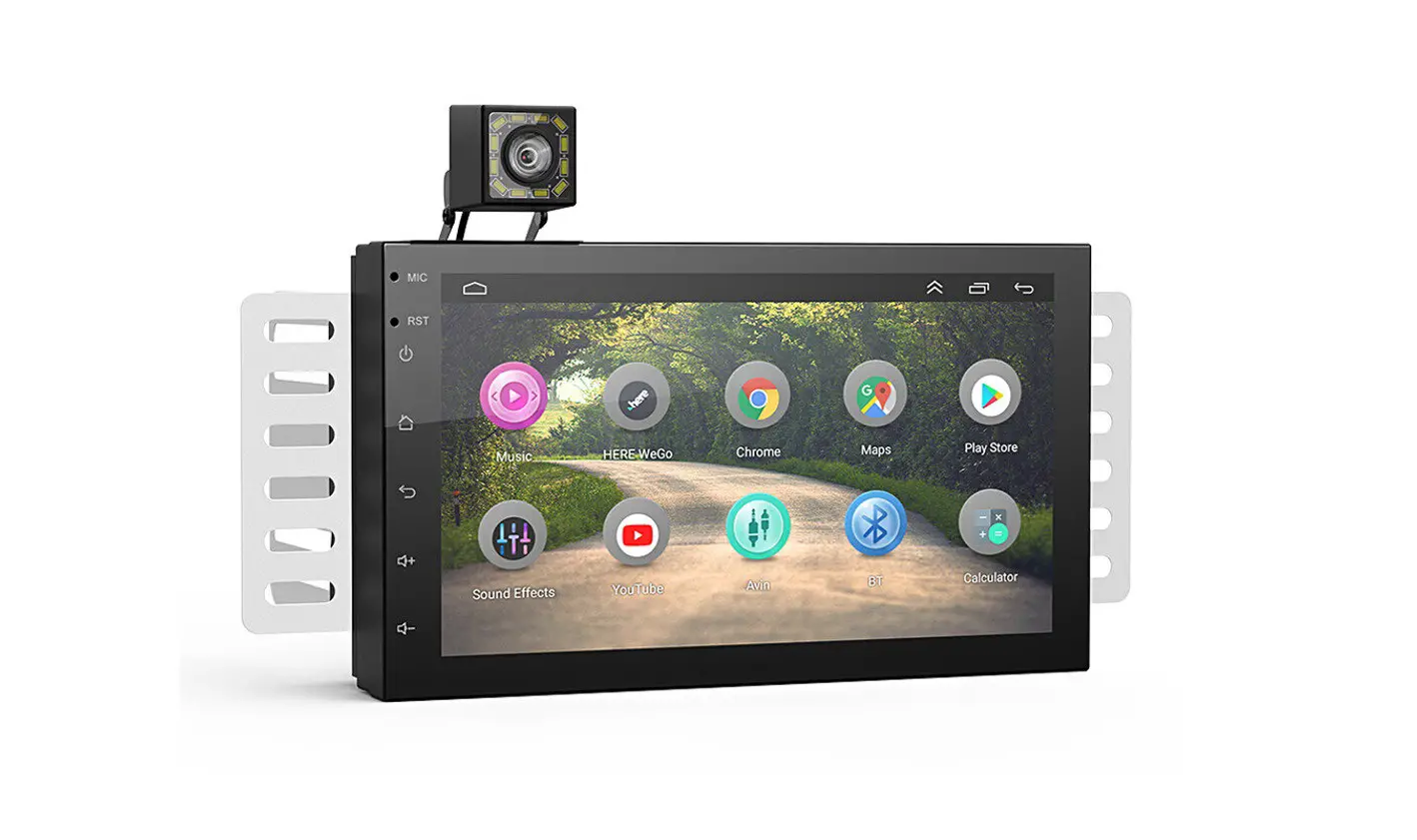
 |  /SKU /SKU | | | |  : 2022-03-07 : 2022-03-07 |
| kcs01 | 105*148mm | 157g |
 PANTONE 339C
  PANTONE Black 6C
  PANTONE 431C

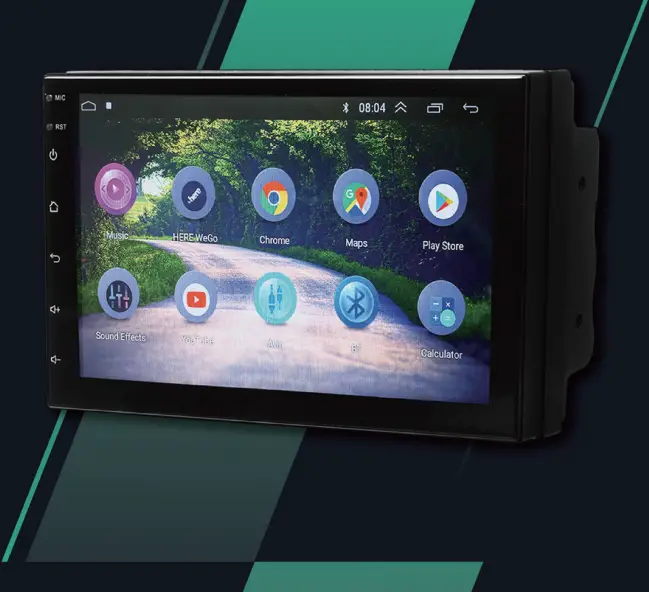
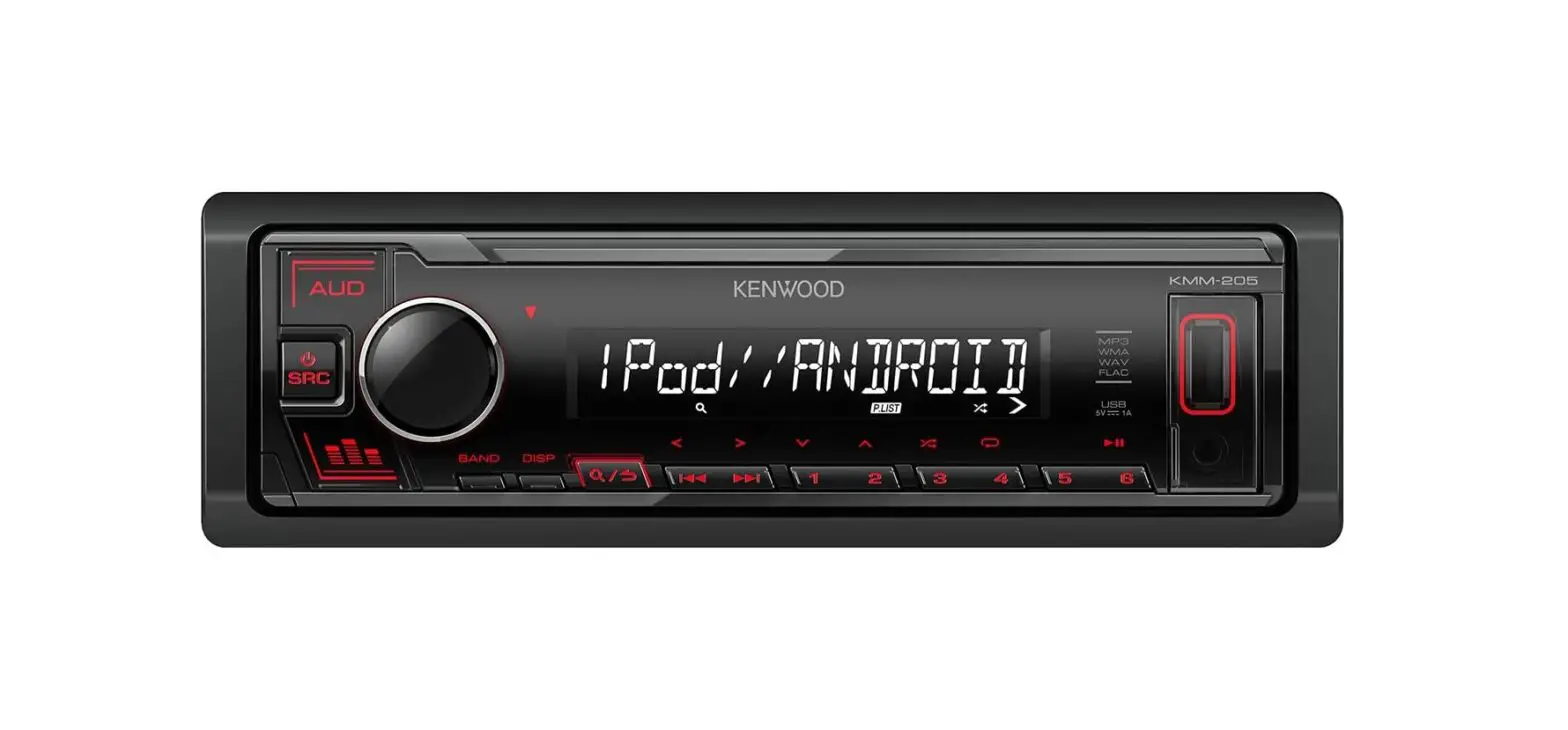
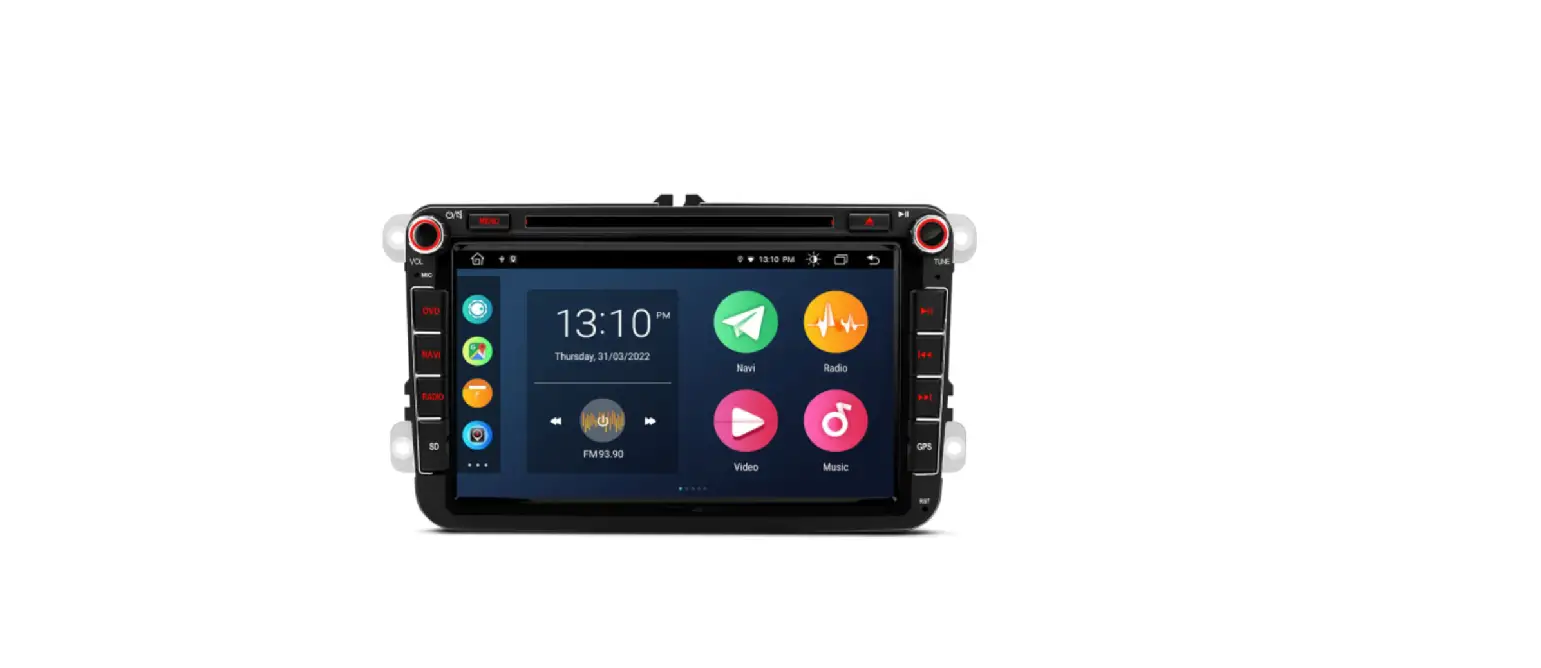
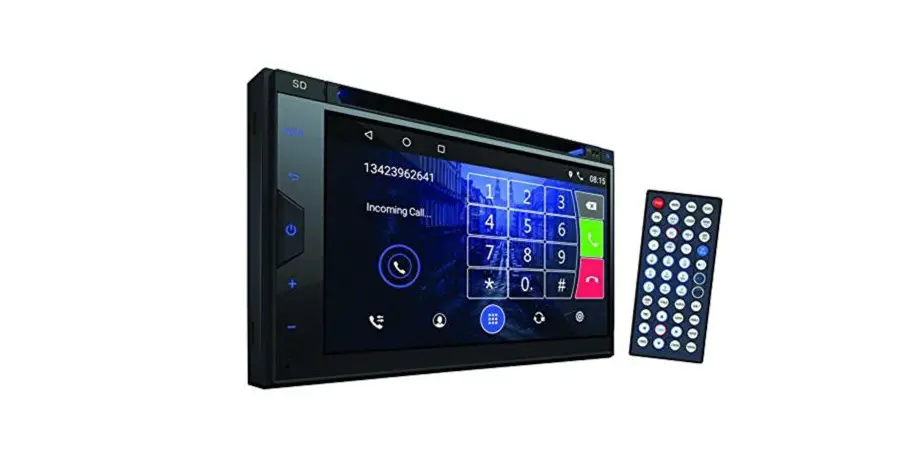
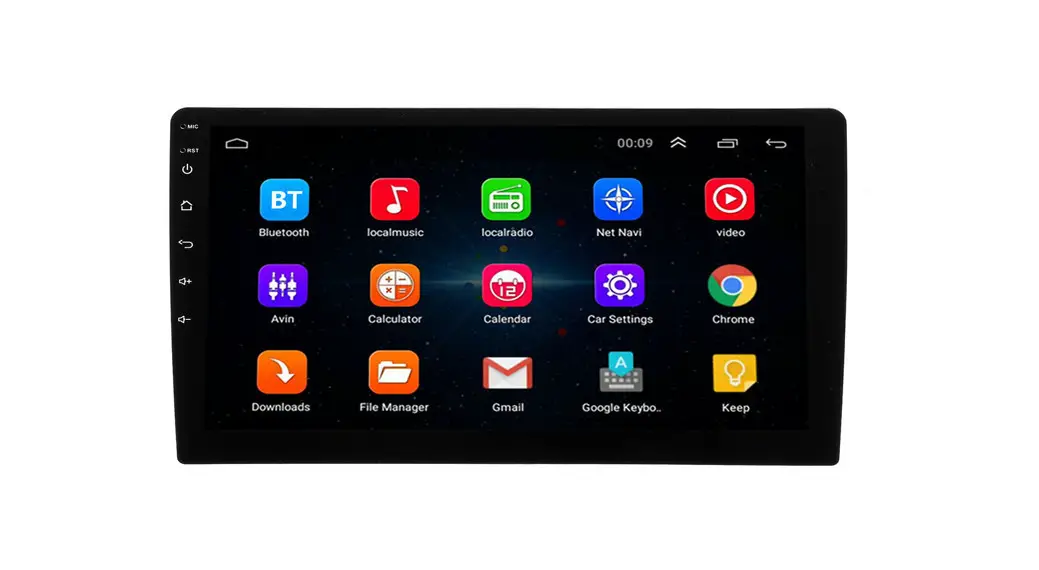
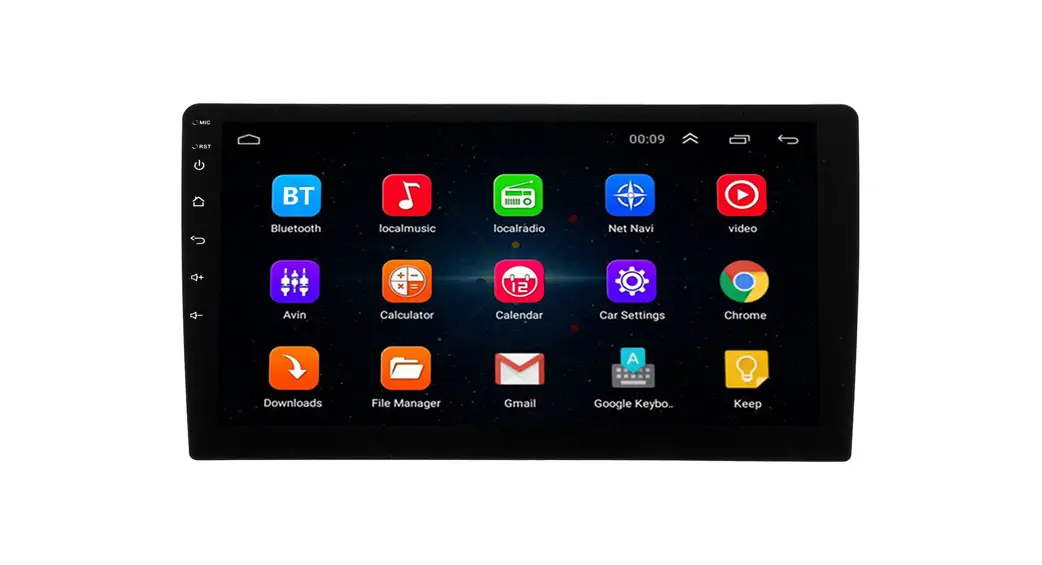
ANDROID CAR STEREO
Android Product User Manual
Model K-CS01
| 1. Music player
- Intelligent navigation
- Click on the “Intelligent Navigation” icon to enter the navigation state
(1) In the navigation state, only GPS navigation-related functions can be performed on the screen. To use any other function, exit the navigation first.
Navigation music function
(2) In the network music / super CD / local music / world broadcast / local radio / Bluetooth music state, switch to GPS navigation to enjoy the original styles of music; when there is a navigation prompt, the system will automatically switch to navigation voice prompt state. - Function operation
- This device has the function of touching handwritten input destination query, please refer to the operational help of navigation interface for the navigation functions.
- Local music
- Click the “Local Music” icon to enter the local music playback interface (this device must have a SD card or USB port and corresponding media files)
- Touch icon description:
 : On the music list, you can play songs of different styles
  : Loop play mode switch : Back to the main interface
 : Previous/Next
  : Pause/Play : Sound effect setting : Return to the previous menu
 : On the music list, you can play songs of different styles
  : Loop play mode switch
  : Back to the main interface
 : Previous/Next
 : Pause/Play
  : Sound effect setting
  : Return to the previous menu
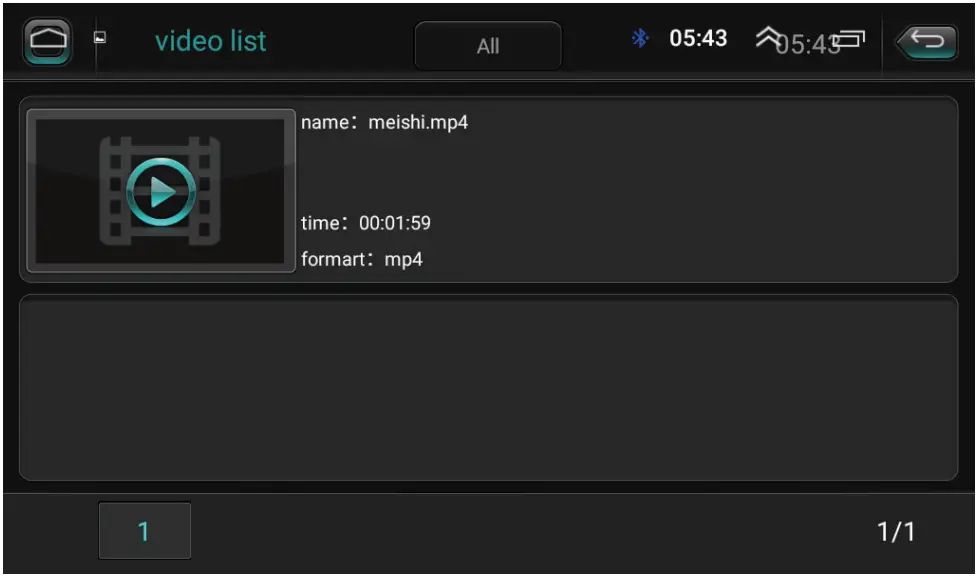
| 2. Video player
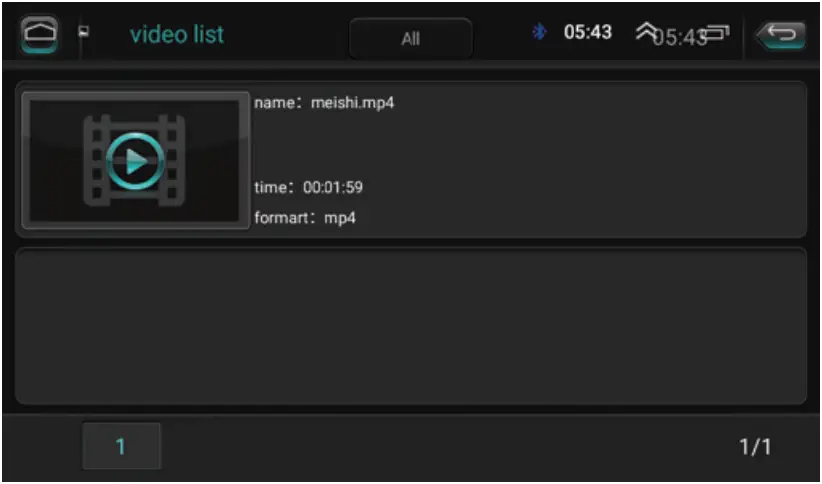
- Click the “Video” icon to enter the video list interface (this device must have a SD card or USB port and corresponding media files)
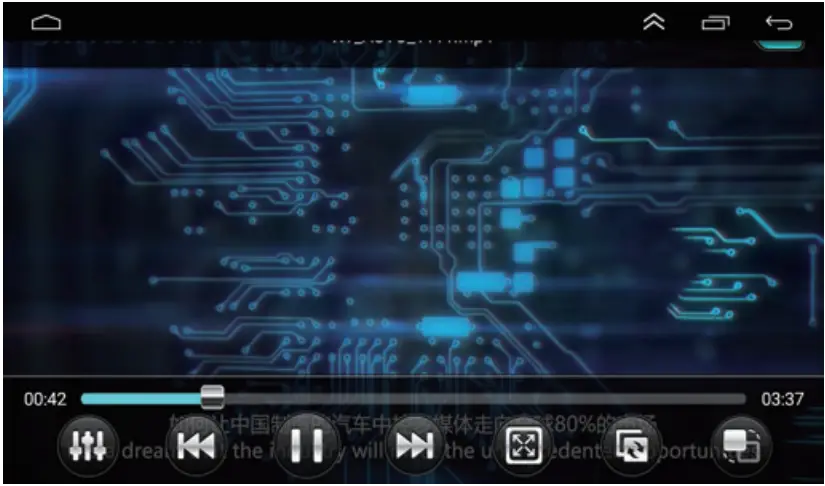
- Click on the video and enter the video play interface
- Touch icon description
- : Back to the main interface
- : Return to the previous menu
- : Pause/Play : Previous/Next
- : Sound effect setting : Video scale
 : Video scale
| 3. Radio
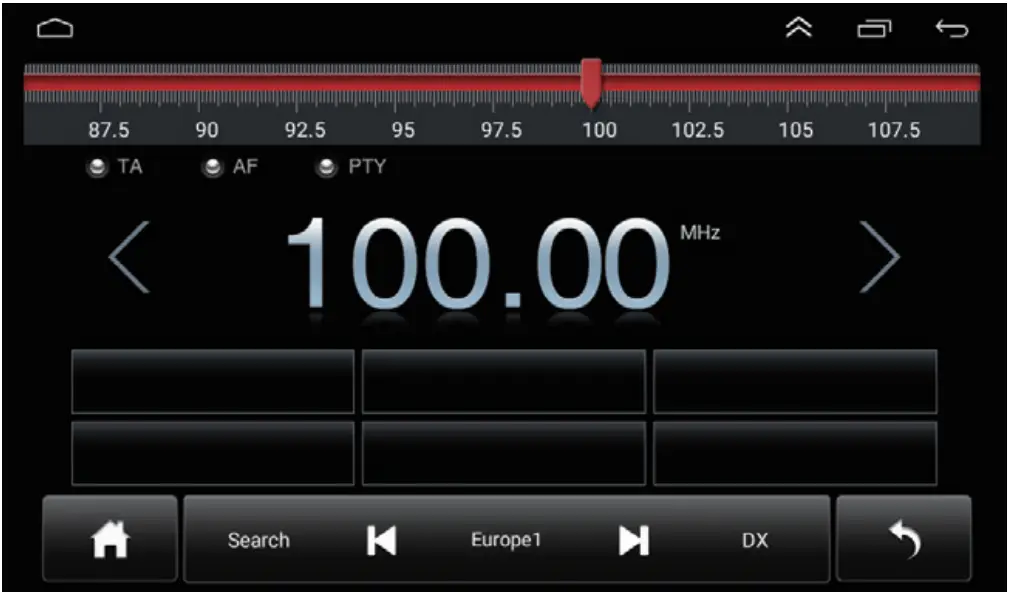
- Local radio
- Click the ‘local radio” icon to enter the local radio interface
- Touch icon description
- : Back to the main interface : Return to the previous menu
- : Up/down to search radio stations
- : To the left/to the right : FM switch : Save station
 : Back to the main interface
  : Return to the previous menu
 : Up/down to search radio stations
 : To the left/to the right
  : FM switch
  : Save station
| 4 Bluetooth
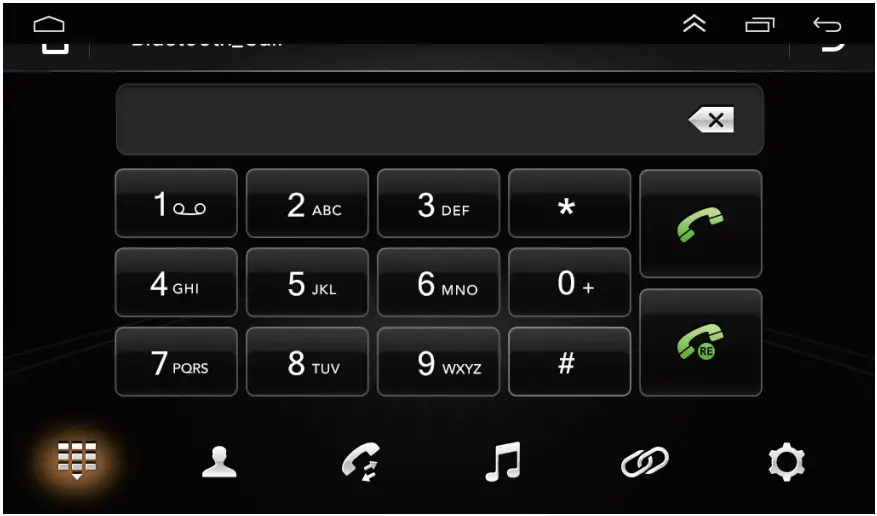
- Bluetooth
- Click on the “Bluetooth” icon to enter the Bluetooth interface
- Touch icon description
- : Bluetooth settings : Bluetooth connect : Bluetooth Music : Bluetooth call record
- : Bluetooth phonebook : Bluetooth dial keyboard
 : Bluetooth settings
  : Bluetooth connect
  : Bluetooth Music
  : Bluetooth call record
 : Bluetooth phonebook
  : Bluetooth dial keyboard
| 5. Bluetooth Music
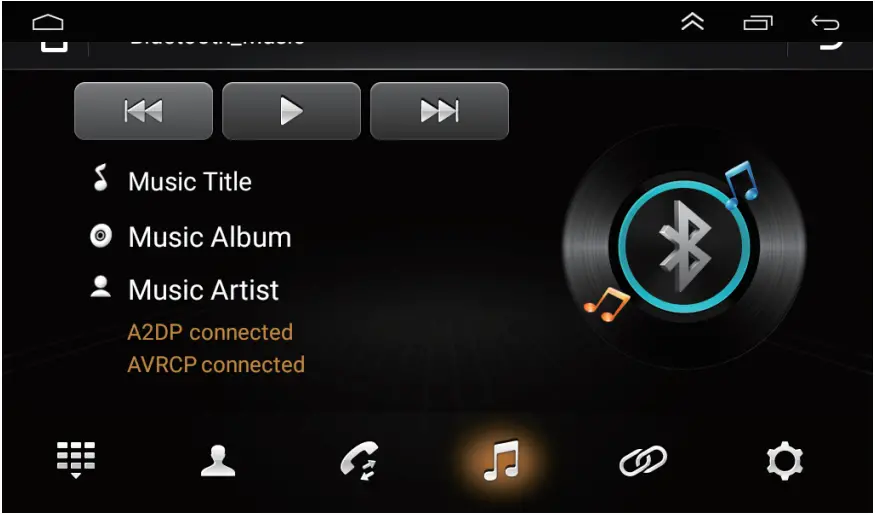
- Bluetooth Music
- Touch icon description
- : Previous song : Next song : Bluetooth music play
| 6. Car audio settings
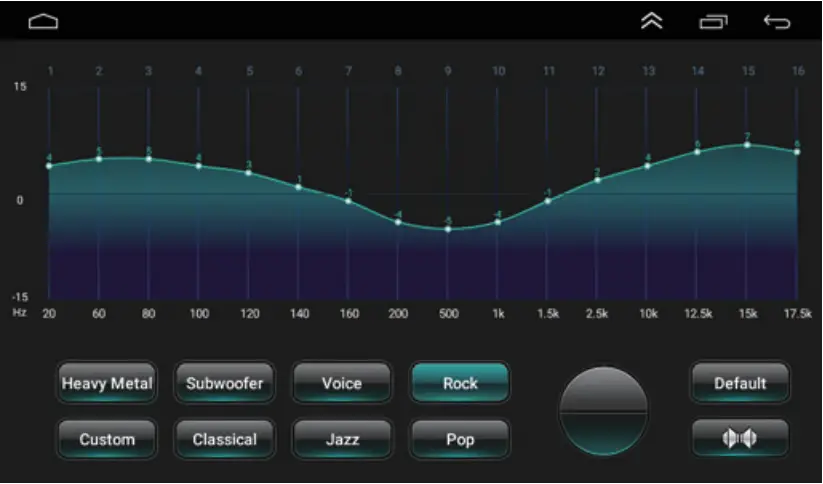

- Audio setting
- EQ setting.
 : Adjusting up/down
- : Sound field setting
- : Drag to adjust the sound field
- : EQ settings
- : Default settings
- : Up : Down
 : Left : Right
 : Adjusting up/down
 : Sound field setting
 : Drag to adjust the sound field
 : EQ settings
 : Default settings
 : Up
: Up  : Down
 : Left
  : Right
| 7. Steering wheel control studying
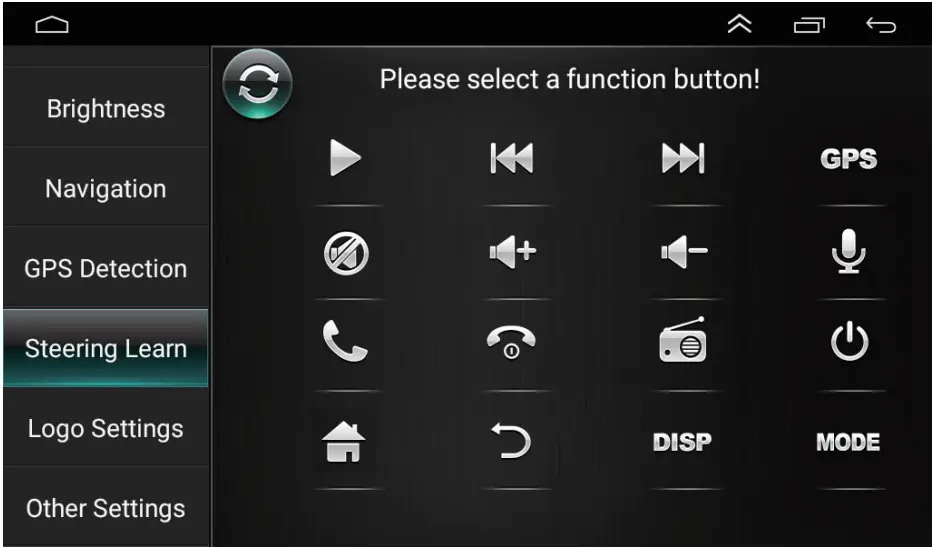
Please press and hold one of the steering wheel buttons and click the corresponding icon
| 8. Logo settings and Sound settings
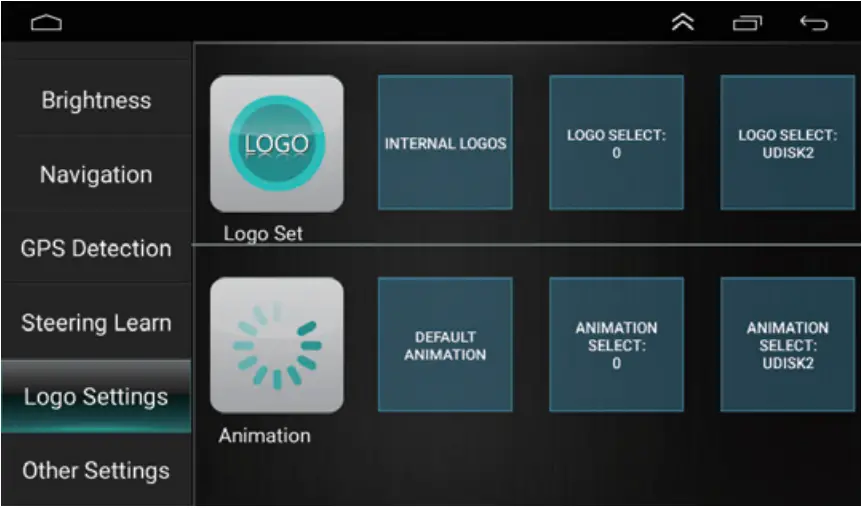
 : Setting of startup LOGO
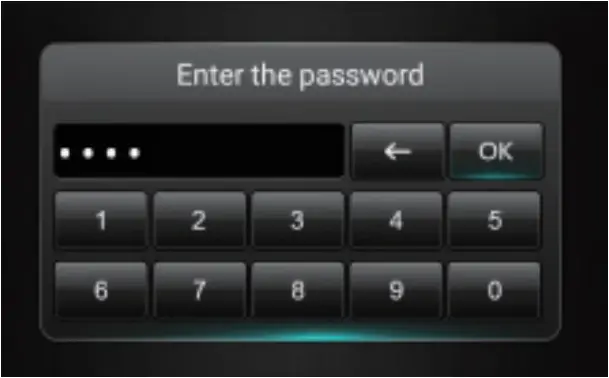
 : Enter password 8888 for factory settings
 : Setting of startup LOGO
| 9. Android Settings
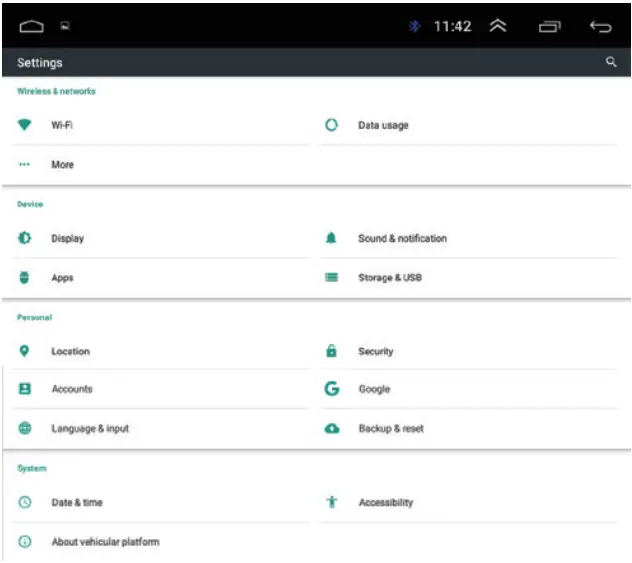
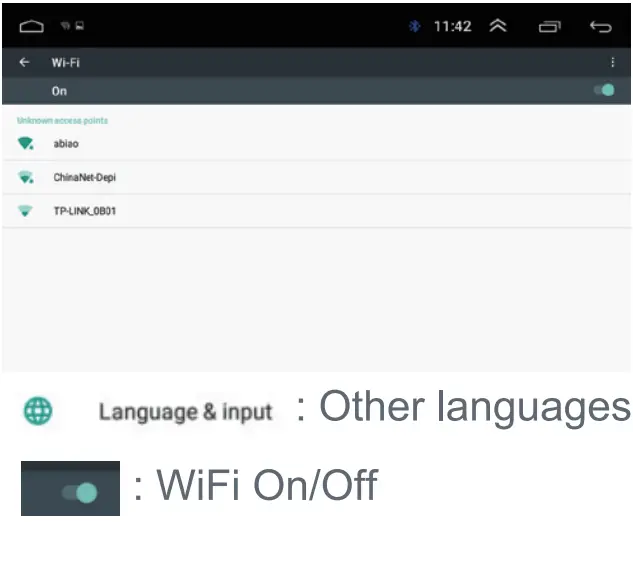
| 10. Wiring Diagram and Define
Caution: The B and C sockets are useless for user, please don’t plug any cables into them.
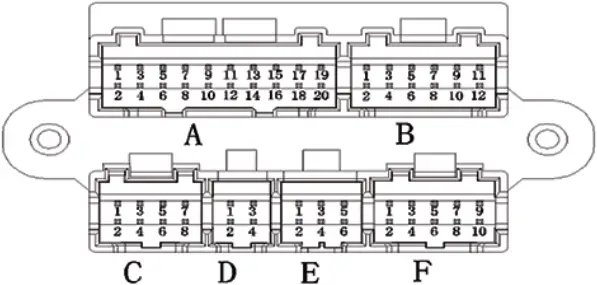
| A1 A2 A3 A4 A5 A6 A7 A8 A9 A10 A11 A12 A13 A14 A15 A16 A17 A18 A19 A20 | AMP_POW GND AUXIN _R RCA_FL AUXIN_L RCA_FR NC GND NC GND NC GND NC CVBS_OUT NC SUB CVBS_IN2 CVBS_IN1 MIC- MIC+ |
| B1 B2 B3 B4 B5 B6 B7 B8 B9 B10 B11 B12 | USELESS |
| C1 C2 C3 C4 C5 C6 C7 C8 | USELESS |
| D1 D2 D3 D4 | USB_5V USB_DP0 GND USB_DN0 |
| E1 E2 E3 E4 E5 E6 | USB_5V USB_DP1 GND USB DN1 USB_DN2 USB_DP2 |
| F1 F2 F3 F4 F5 F6 F7 F8 F9 F10 | TXD_TPMS NC RXD_TPMS GND POW_5V CAM_CVBS CAM_12V CVBS_GND PARK_IN GND |
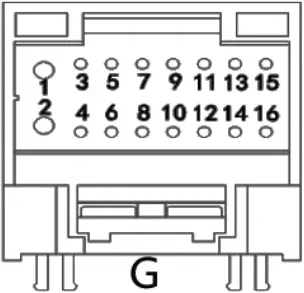
| G1 G2 G3 G4 G5 G6 G7 G8 G9 G10 G11 G12 G13 G14 G15 G16 | GND B+ ACC ILL_DET REVERSE WC2+ WC1+ AUTOANT FROUT- RLOUT- FROUT+ RLOUT+ FLOUT- RROUT+ FLOUT+ RROUT- |
DC +12V | |
For the sake of your safety, please don’t watch the video or operate the device while driving.
Before operation, please read this manual to gain knowledge of related safety tips and warning signs. After reading, place the manual in a readily accessible place for future reference.
- Pay attention to traffic safety in the first place.
- If you have difficulty in operating the system, please make inquiries after parking the car in a safe place.
- Don’t allow children to operate the device to avoid causing personal injury or damage to the device.
- Please follow the traffic rules when using satellite navigation functions in driving.
- Please keep the device away from open flame, gas stations, brewery, strong electromagnetic interference; otherwise it may cause danger.
- Don’t repair or install the device by yourself, but by trained professionals; the lack of experience in installation and maintenance of this device can be dangerous.
- Please do not use sharp objects to press the screen, otherwise, will cause damage to the display or touch screen.
- To guarantee the normal operation of the device, and prevent the occurrence of fire or electric shock, please don’t expose the device to damp environment.
 Tips and warnings:
Pay attention to the warning sign for key warnings and prompt information.
Safety notes
Please read the entire instruction before installation.The device is suitable for car 12V power supply system (must have grounding line), please do not install the device in 24V car, otherwise, it will damage the device.Without professional guidance, do not replace the power fuse; the use of an improper fuse can cause the damage of the device and fire hazard. To avoid the violation of traffic rules, the driver shall not watch the video while driving or operate the device. For safety and ensuring the product normal use, please do not install, disassembly or repair the device by yourself, to avoid device damage and accidents; please contact the local professional car audio store. Please do not use in a humid environment or stain with water, in order to avoid short circuit, electric shock, other unnecessary damage or fire hazard.
Device reset
- In the first-time use of the system before or after the battery replacement, the device must be reset.
- When the device functions abnormally, it must be reset.
- Click Factory Reset in the System Settings interface.
- Press the Reset button on the panel,or click the system Reset in the System Settings, the device will be reset and turned off, back to the factory status.
Note: Press the Reset button, the system initializes and removes the time and value set before.

MANUFACTURER NAME
Shenzhen Cheluzhe technology co.,LTD
MANUFACTURER ADDRESS
10th Floor, Building A3, New Era Gongrong Industrial Park, No.2 Shihuan Road, Shilong community, Shiyan Street, Baoan District, Shenzhen, China
 SCHEUFER Technologies GmbH
Address: Hertleinstrasse 37, 91052, Erlangen, Germany
E-mail: [email protected]
 VISHTEC UK Co.,Ltd
Address: Unit G25 Waterfront Studios, 1 DockRoad, London, E16 1AH
E-mail:[email protected]

MADE IN CHINA