AUKEY Dashboard Camera User Manual
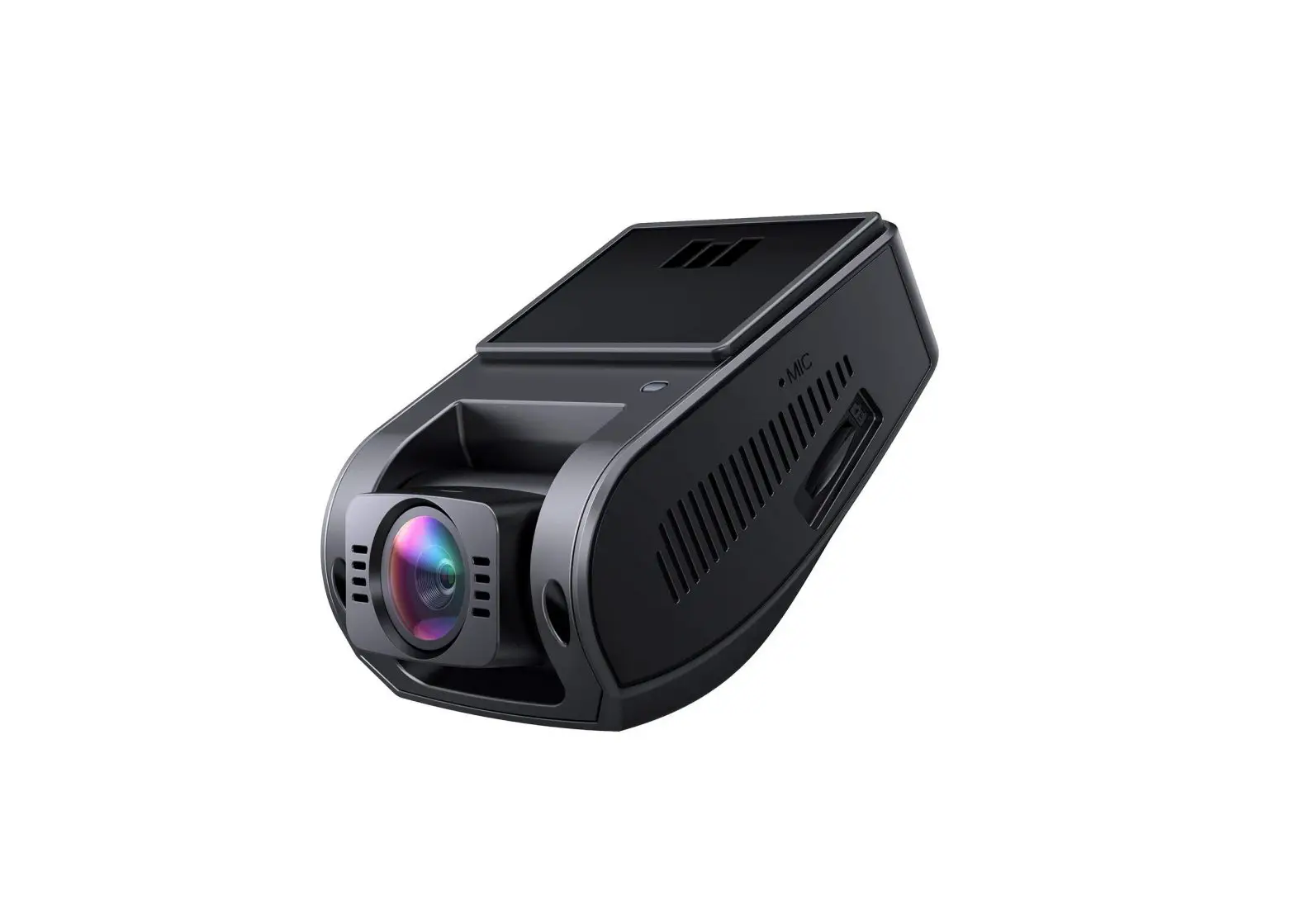
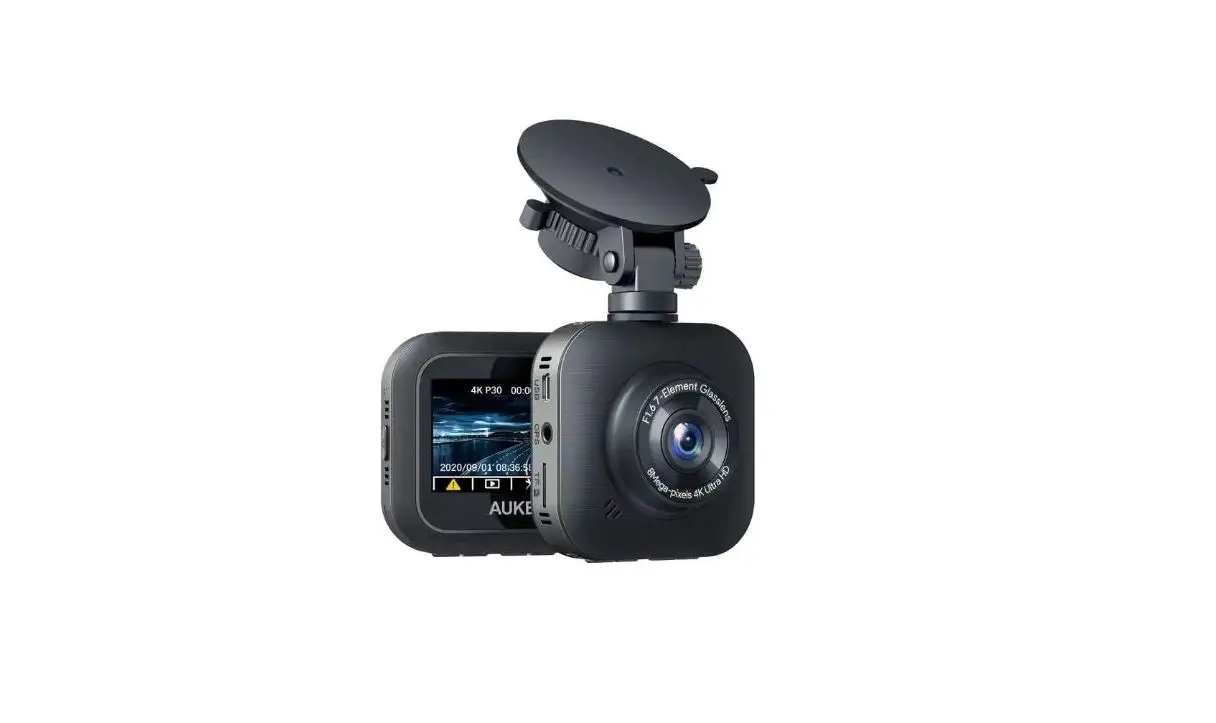
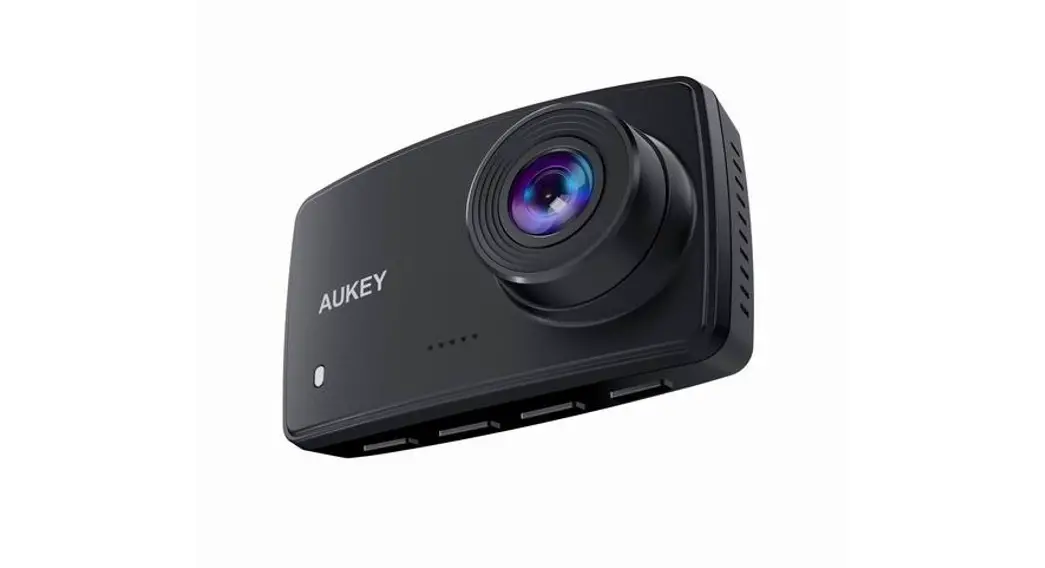
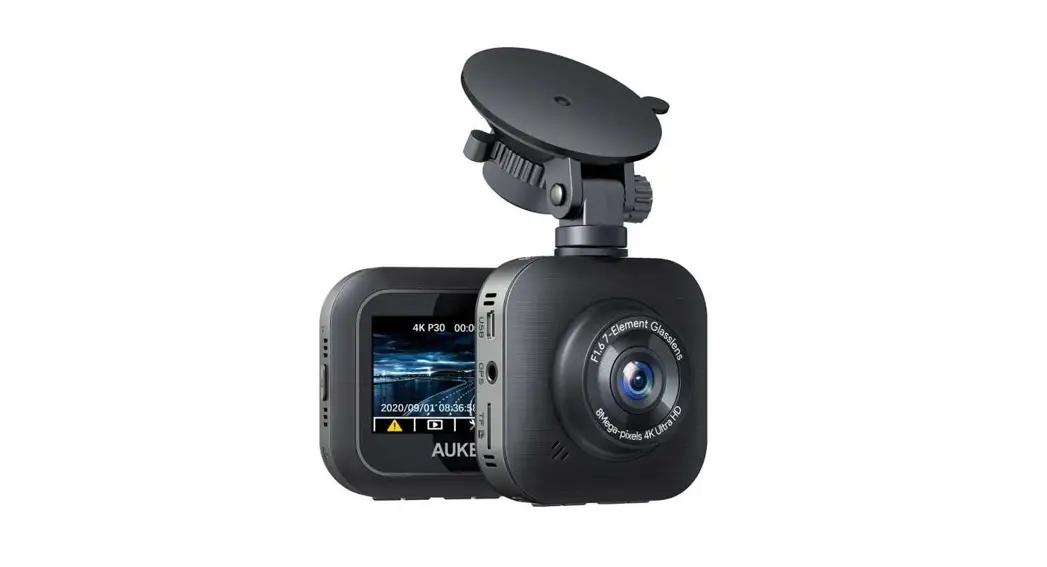
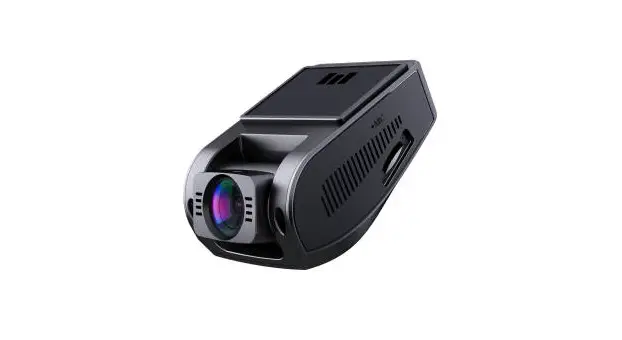
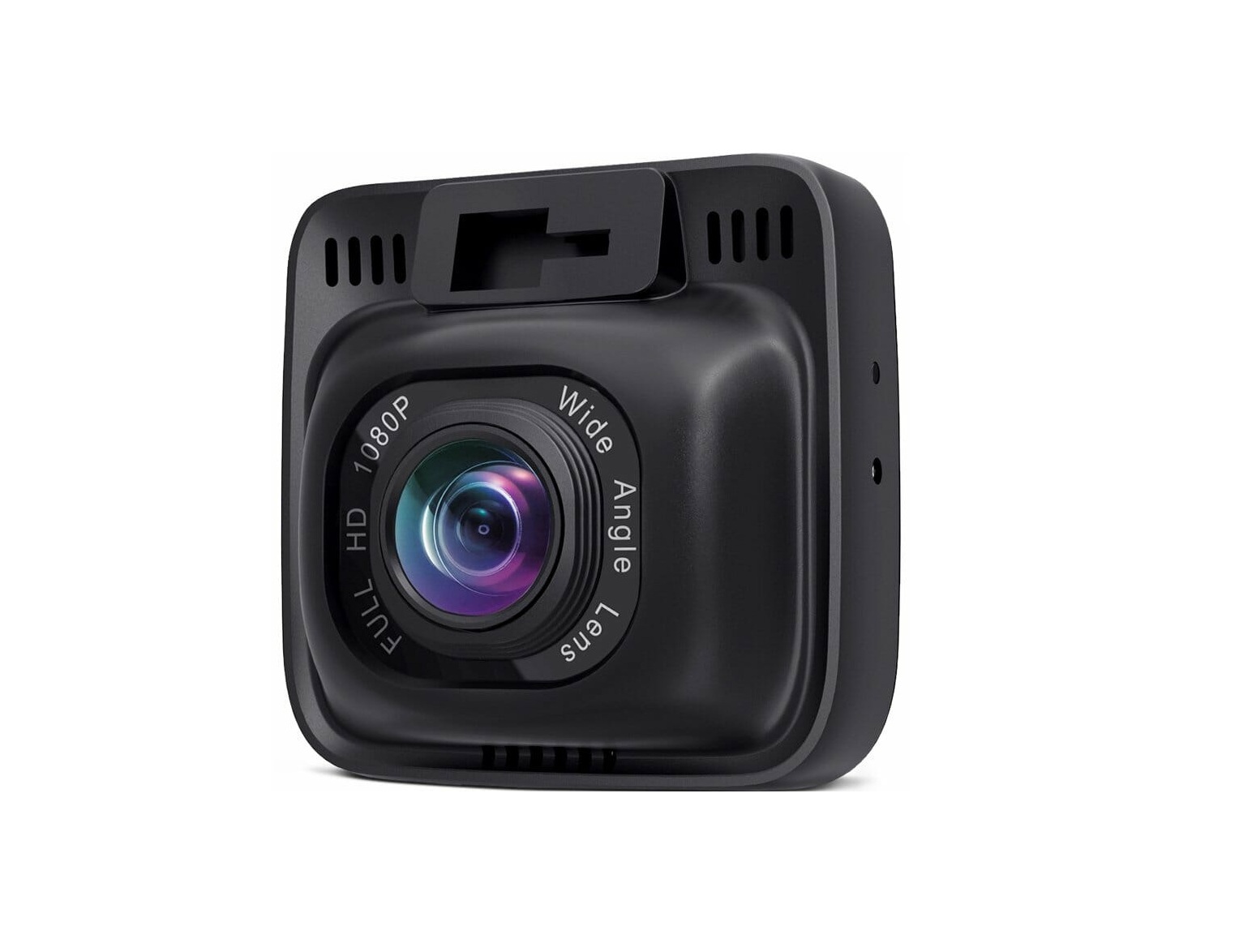
Thank you for purchasing the AUKEY DR01 Dash Camera. Please read this user manual carefully and keep it for future reference. If you need any assistance, please contact our support team with your product model number and Amazon order number.
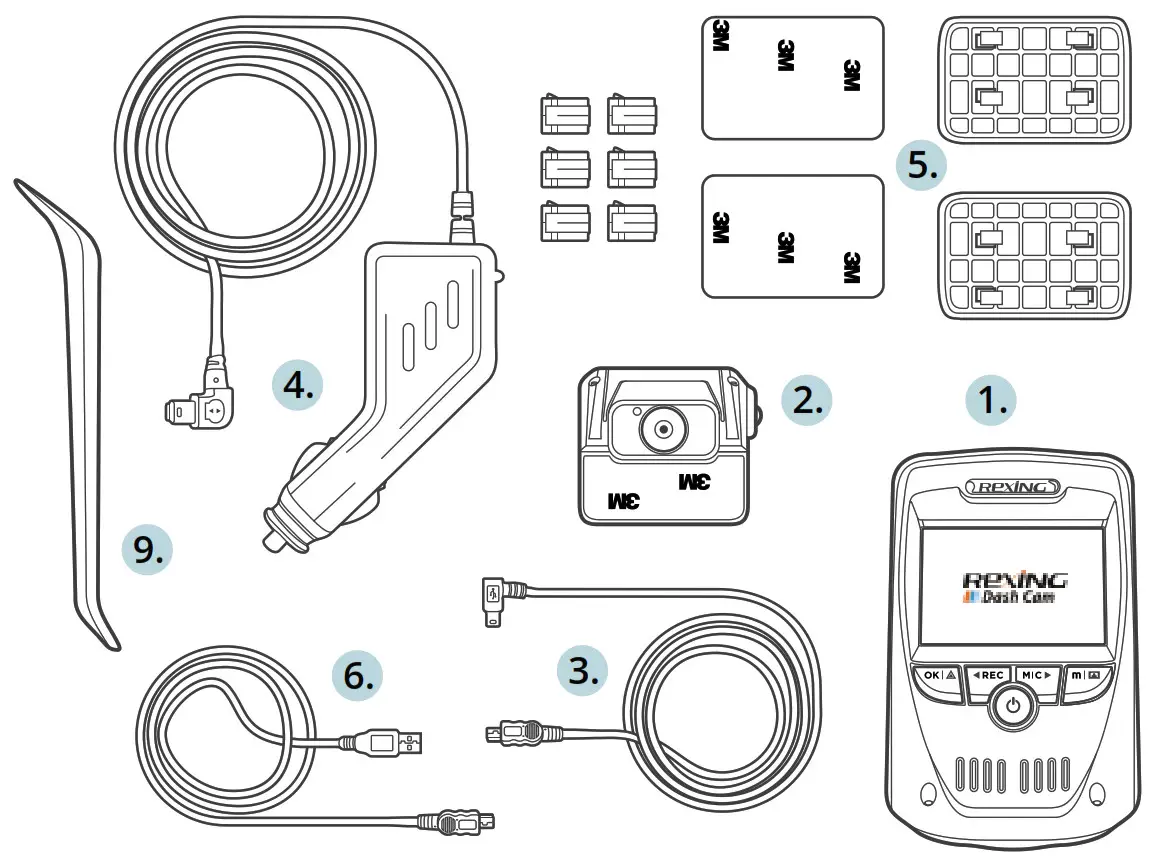
Package Contents
- Dash Camera
- Dual-Port USB Car Charger
- Mini USB Cable
- Suction Mount
- Sticker Mount
- Two 3M Stickers
- Six Cable Clips
- User Manual
- Warranty Card
Optional Accessory: The AUKEY External GPS Antenna provides accurate position and speed data to the DR01 that is saved and displayed on recorded videos. This extended information may support your case in any driving disputes or incidents.
Note: Please use a Class 10 micro SD memory card (Max 128GB) for reliable recording and performance. Format the micro SD card before first use.
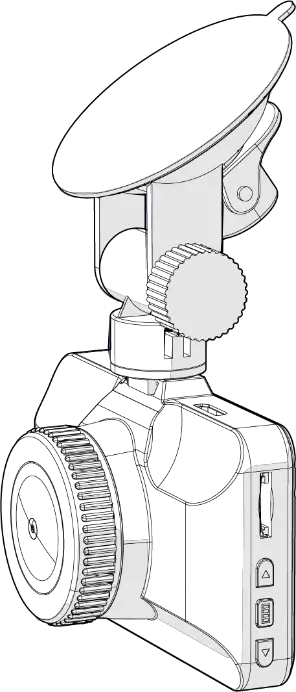
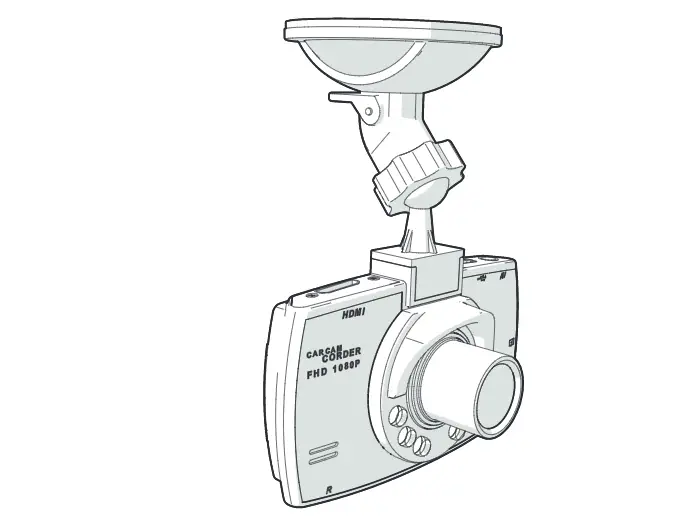
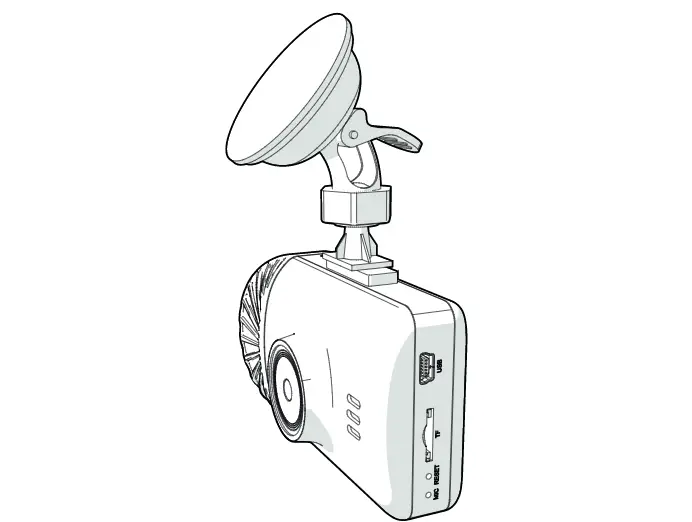
Product Diagram
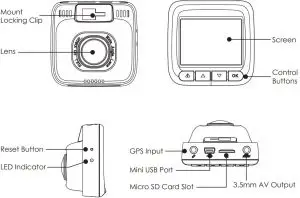
Specifications
| Model | DR01 |
| Image Sensor | Sony Exmor IMX323 2.19 Megapixel CMOS Sensor |
| CPU | NT96655 |
| Screen | 2.0” LCD |
| Wide-Angle Lens | 170° |
| Material | PC + ABS, 6 Layer-Glass |
| Recording Resolutions | 1080p (30fps), 720p (60fps), 720p (30fps), WVGA, VGA |
| Image Format | JPEG |
| Sound Recording | On / Off |
| Gravity Sensor Sensitivity | Low / Medium / High |
| Recording Modes | Loop, Motion Detection, Time-Lapse, Emergency Recording |
| Exposure Value | -1.0, -2/3, -1/3, +0.0, +1/3, +2/3, +1.0 |
| Micro SD Card | 128GB support (Max), Class 10 |
| Operating Temperature | -30°C – 75°C (-22°F – 167°F) |
| Input | DC 5V/1A-2A via Mini USB |
| Size | 58 x 57 x 32mm / 2.28” x 2.24” x 1.25” |
System LED Indicator
Status | Meaning |
| Solid Green | On; not recording |
Flashing Green | On; recording |
| Off | Off |
Button | Recording Mode | Playlist & Setup Menu | Playback Mode |
| Enter Emergency Recording mode | Return to previous menu | Return to playlist / Stop |
| View playlist (short press) Turn on/off Audio Recording (long press) | Move up | Delete/Rewind |
| Open Setup menu | Move down | Lock & Unlock / Fast-Forward |
(short press) Take a snapshot | |||
(long press) | |||
| Turn on/off the screen | Enter/Confirm | Play/Pause |
Reset Button | Short press to restart the device | ||


- In Playback Mode: Play, Pause, Stop, Rewind, and Fast-Forward are video playback controls.
Installation & Powering On/Off
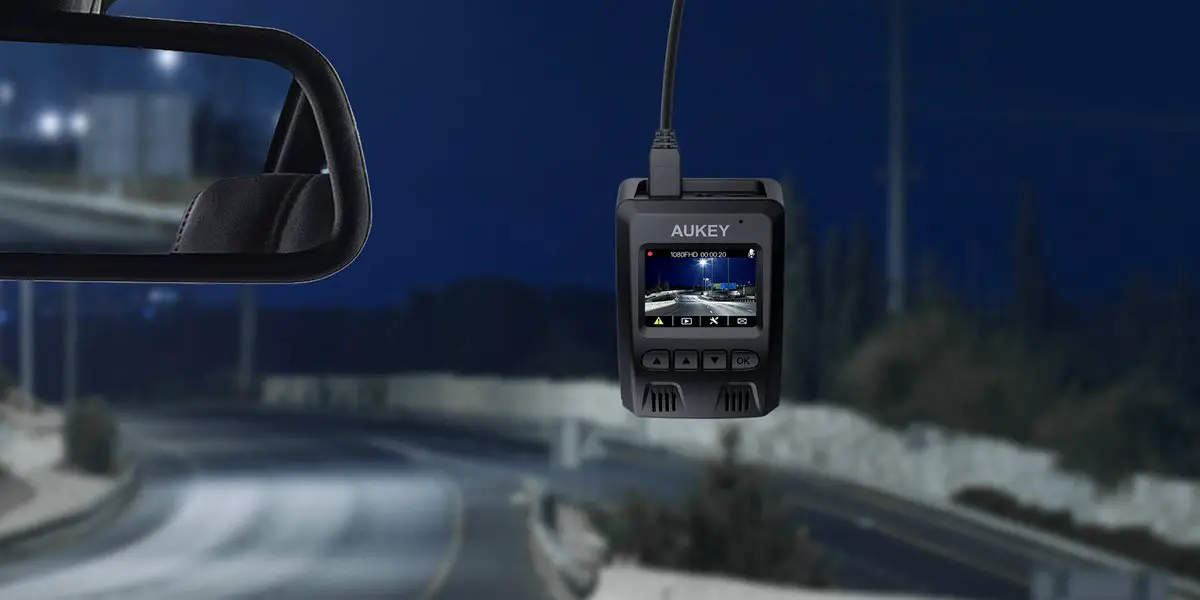
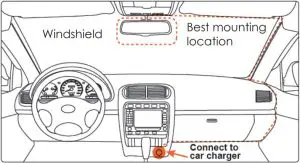
For optimal performance, install the AUKEY DR01 in the top-center of your windshield, facing directly ahead. Use the cable clips to help fix the power cable conveniently and safely like in the picture below.
Caution:
We are not responsible for any damage caused to or by the air bag due to incorrect placement of the device or its cable.
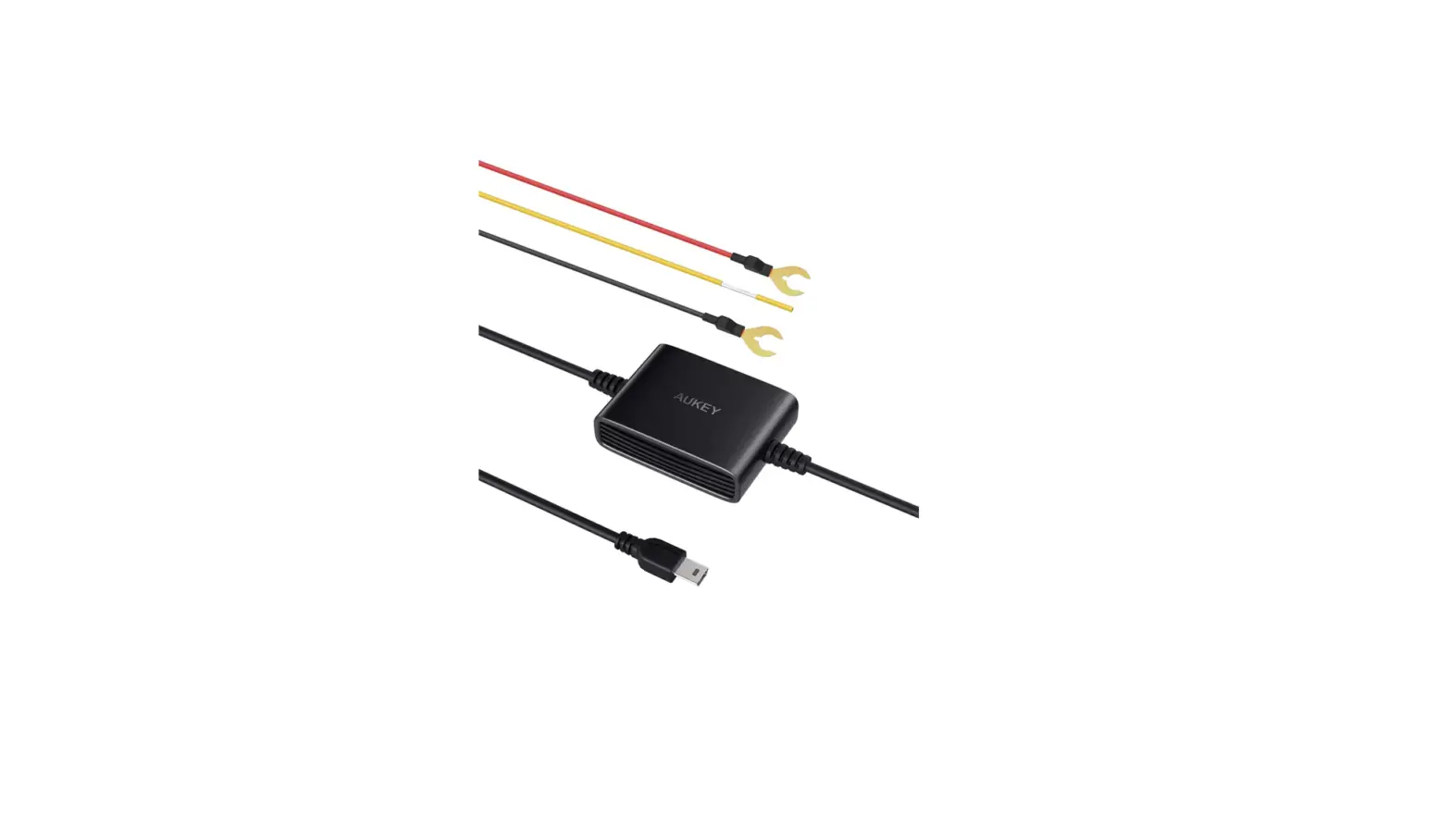
To power on, insert the car charger into your car’s 12V socket, then connect the included cable to the car charger and to the Mini USB port of the DR01. Insert a Micro SD Card into the Micro SD card slot and format it using the ‘Format’ option in Dash Camera ‘Setup.’ After powering on each time, the system will start recording automatically. To power off, disconnect the Mini USB cable.
Video Recording
- Loop Recording: Recording will begin automatically after powering on with a Micro SD Card in the device. Each recorded file is up to ten minutes long, with old footage being replaced when Micro SD Card storage is full.
- Motion Detection Recording: Switch on motion detection in ‘Setup.’ This function will start recording video when the dash camera detects motion in front and stop recording when motion is no longer detected.
- Time-Lapse Recording: Switch on time-lapse recording in ‘Setup.’ This function will capture a picture per second to make a video played at 30fps.
Emergency Recording
- Manual File Backup
Press to back up the current file so that it will not be overwritten. A
  icon will appear in the top left of the LCD screen to indicate a protected emergency recording is in progress.
Auto File Backup
Once the G-sensor is activated by a sudden impact, the device will automatically make a recording and protect it from being overwritten. Adjust G-sensor sensitivity in the ‘Setup’ menu.
 icon will appear in the top left of the LCD screen to indicate a protected emergency recording is in progress.
Snapshot
- Hold down
 for 3 seconds to take a snapshot while in recording mode
 - The snapshot files are located in the \AUKEY\PHOTO folder on the Micro SD Card
- The
 icon will be shown after you take a snapshot. This will not interrupt the video recording
 icon will be shown after you take a snapshot. This will not interrupt the video recording
Audio Recording
Turn on/off audio recording by long-pressing  when in recording mode (or by adjusting in ‘Setup’ menu). When audio recording is on, in-car audio will be recorded during video recording. Voicing details of possible hazards that may develop, especially when off camera, may provide useful information. You can even use it to record car license plate numbers that may not be captured on the video.
USB File Transfer
- Connect the Dash Cam (with card inside) to your computer using your own USB mini-B data cable (the included cable is for power only). It should be recognized as a removable device (with a USB connector image displayed on-screen).
- Find the video recording files located in the \AUKEY\MOVIE folder (or \AUKEY\PHOTO for snapshots).
- Copy the files to your computer.
Micro SD Card File Transfer
- Shut down the device (by disconnecting the power cable) and eject the Micro SD Card.
- Insert the Micro SD Card into a computer Micro SD card slot or reader and your computer will automatically detect the Micro SD Card.
- Find the video recording files located in the \AUKEY\MOVIE folder (or \AUKEY\PHOTO for snapshots).
- Copy the files to your computer.
Viewing Photos and Videos
- Press to enter the playlist.
- View photos or videos by choosing either ‘Photo File’ or ‘Video File’.
- Select the file you want to view and press .
- For videos, press again to begin playback.
Deleting and Locking/Unlocking Photos and Videos
- Press to delete or to lock/unlock a photo or video file after selecting it from the playlist. If a video is being played, press to stop it and then press to delete or to lock/unlock
- Once deleted, photos and videos cannot be recovered
- If you lock a photo or video, it will be protected and not overwritten
Product Care
- Ensure camera and mount are firmly fixed in-place before use to avoid falls
- Keep away from liquids, extreme heat, and strong magnetic fields
- Ensure the operating temperature is within the range: -30°C – 75°C (-22°F – 167°F)
- Avoid touching the lens surface. It may be cleaned with a cotton swab or lens cleaning paper. If any dirt is difficult to remove, a non-abrasive glasses lens cleaner may be used. Do not use corrosive solutions
Warranty & Customer Support
For questions, support, or warranty claims, please contact us at the address below that corresponds with your region. Please include your Amazon order number and product model number.
- Amazon US orders: [email protected]
- Amazon EU orders: [email protected]
- Amazon CA orders: [email protected]
- Amazon JP orders: [email protected]
Please note, AUKEY can only provide after sales service for products purchased directly from AUKEY. If you have purchased from a different seller, please contact them directly for service or warranty issues.
Support
AUKEY International Ltd.
www.aukey.com | [email protected]
No.102, Building P09, Electronics Trade Center
Huanan City, Pinghu Town, Longgang District
Shenzhen, Guangdong, 518111, CN

 AUKEY Official - No.1 Power & Charging Solutions | AUKEY Online...