Contents hide
DCAM11BK Dashboard Camera
User Manual
Preface
Thank you for purchasing the Nedis DCAM11BK.
This document is the user manual and contains all the information for correct, efficient and safe use of the product.
This user manual is addressed to the end user. Read this information carefully before installing or using the product.
Always store this information with the product for use in the future.
Product description
Intended use
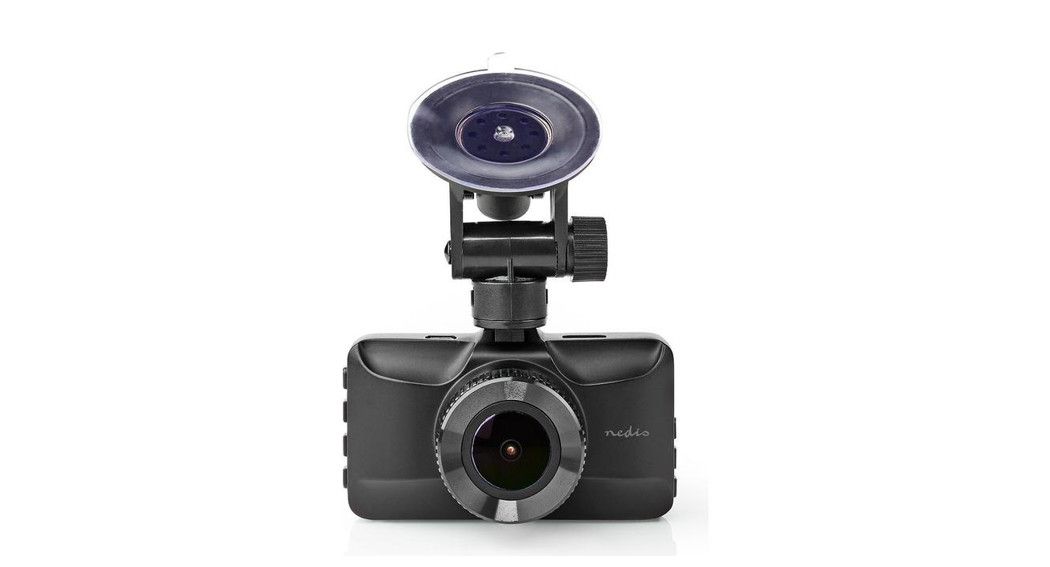
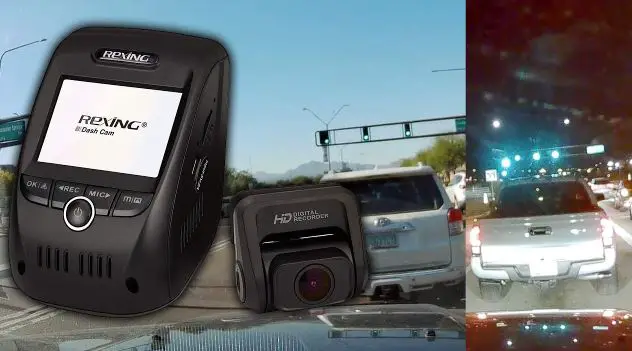
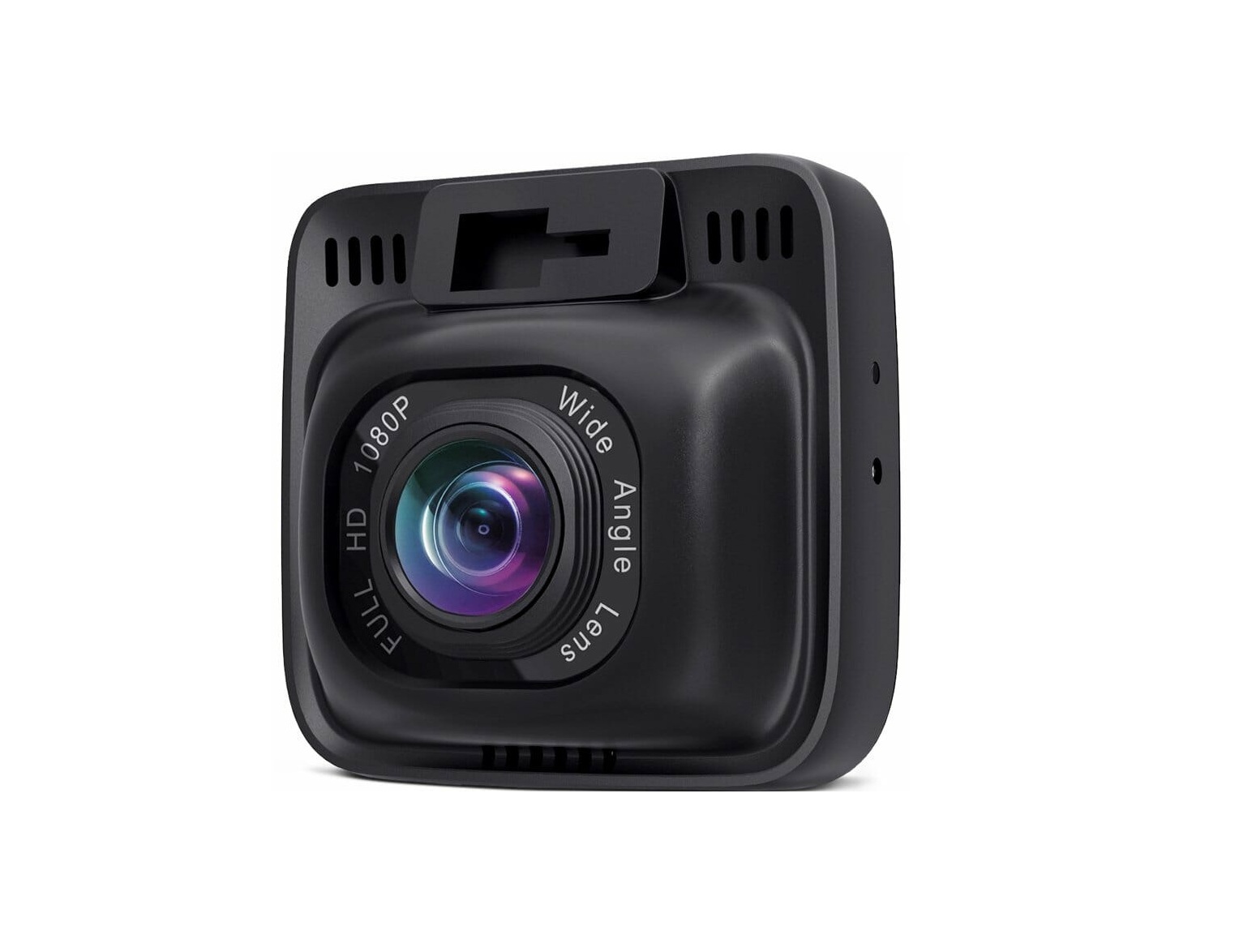
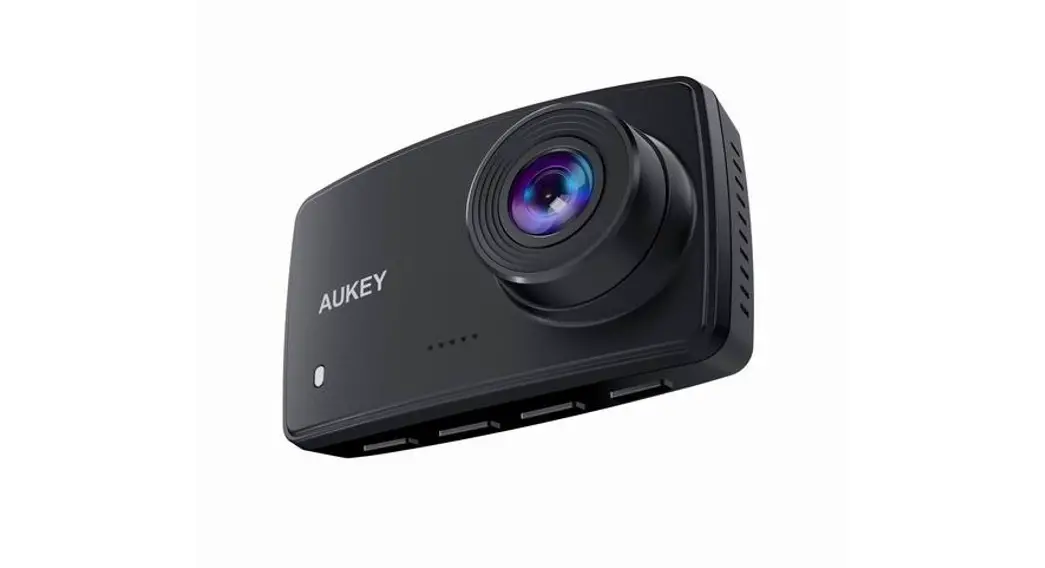
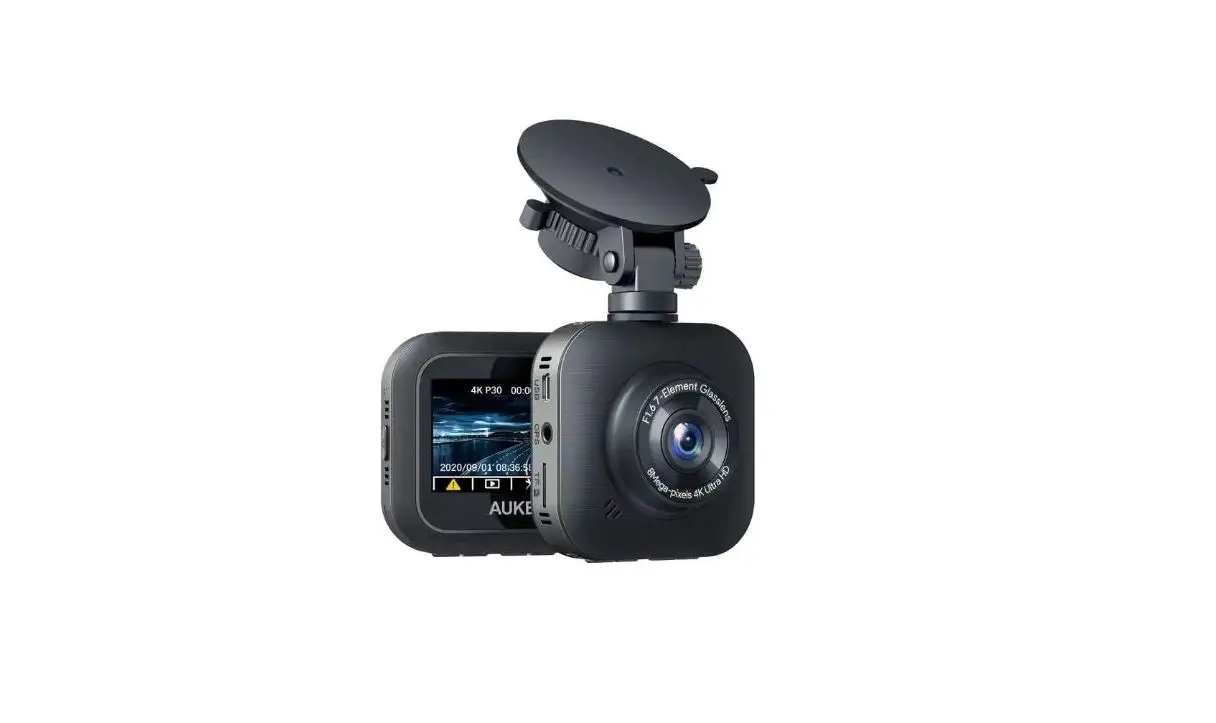
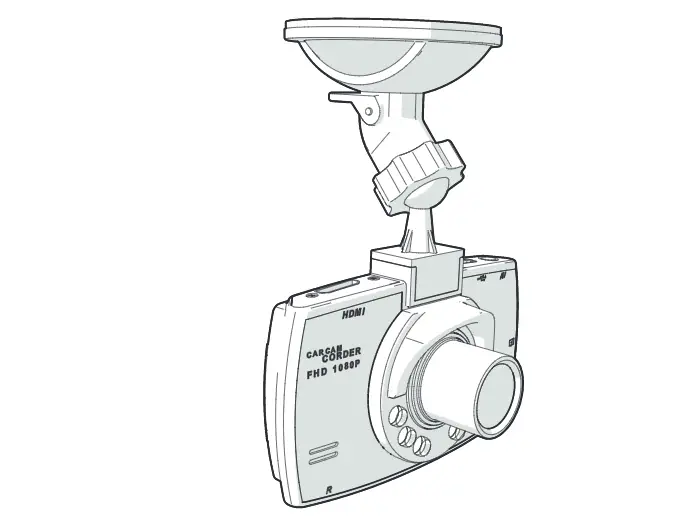
The DCAM11BK is a dashboard camera that can be mounted to the windshield of your vehicle.
This product is intended to take photos, record videos and playback recordings.
The product is not intended for professional use.
Any modification of the product may have consequences for safety, warranty and proper functioning.
Specifications
Product | Dashboard Camera |
Article number | DCAM11BK |
Dimensions (l x w x h) | 100 x 95 x 155 mm |
Input voltage | 5 VAC |
Input current | 1 A |
Battery | 5V 200 mAh Li-ion battery |
Battery capacity | 200 mAh |
Operating temperature | -20 – 60 °C |
Display | 2.8 inch LCD display |
Viewing angle | 120 degrees |
Video | Loop video |
Video format | .avi |
Video resolution | 1280 x 1080 / 1440 x 1080 / 1280 x 720 / 848 x 480 / 640 x 480 @ 60 Hz |
Image resolution | 12MP (4032 x 3024) / 10MP / 8MP / 5MP / 3MP / 2MP (1920 x 1080) / 1.3MP / VGA (640 x 480) |
Image format | .jpg |
Language | English, French, German, Spanish, Italian, Dutch, Hungarian, Swedish, Finnish, Danish, Czech, Romanian |
Video recording time | 1 / 2 / 3 / 5 / 10 min |
Recording audio | Built-in microphone and speaker. The microphone can be switched on/off |
Memory card | MicroSD card |
Memory card capacity | 1 – 32 GB |
USB interface | USB 2.0 |
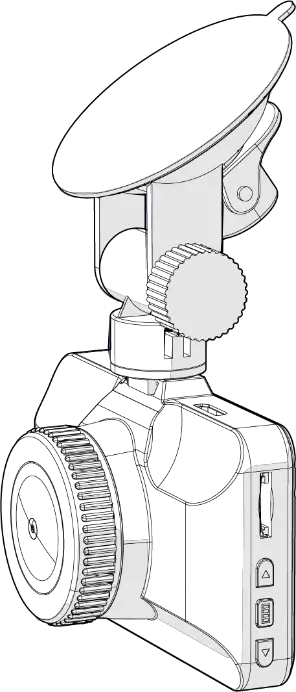
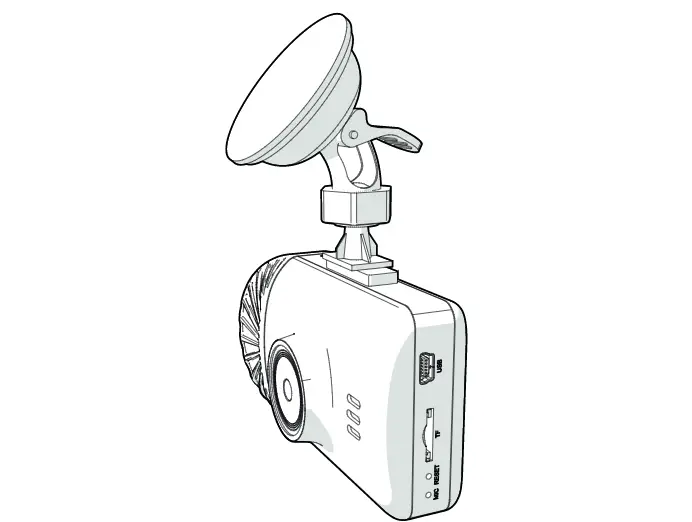
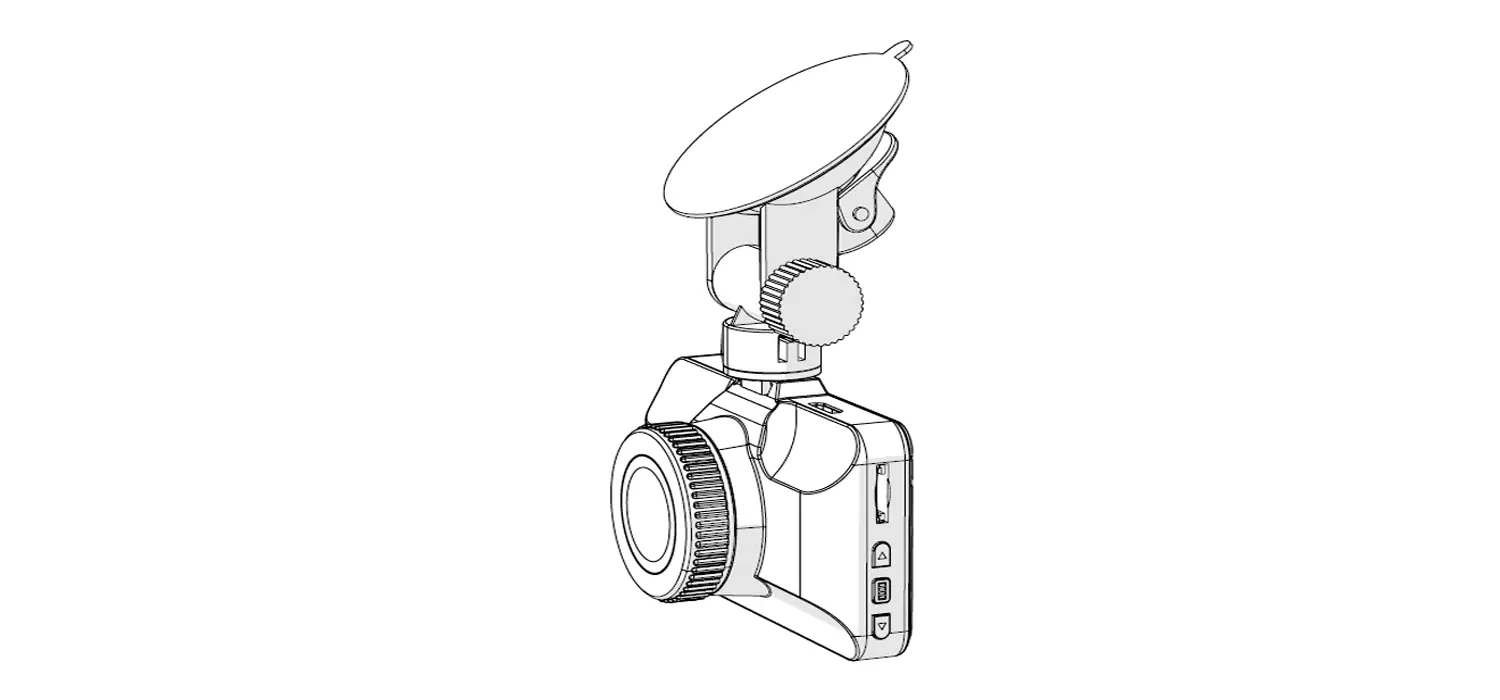
Main parts (image A)
 |
A |
1. Mini HDMI output |
2. Mini USB port |
3. Speaker |
4. Camera |
5. Infrared light |
6. MicroSD card slot |
7. Microphone |
8. Power button |
9. LEFT button |
10. Menu button |
11. OK button |
12. Mode button |
13. RIGHT button |
14. Reset button |
15. Auxiliary power plug |
16. Suction fix |
17. Suction fix clip |
18. Display |
19. Lock button |
20. Mini USB cable |
Safety instructions
WARNING
- Ensure you have fully read and understood the instructions in this document before you install or use the product. Keep this document for future reference.
- Only use the product as described in this manual.
- Do not use the product if a part is damaged or defective. Replace a damaged or defective product immediately.
- Do not drop the product and avoid bumping.
- This product may only be serviced by a qualified technician for maintenance to reduce the risk of electric shock.
- Disconnect the product from the power source and other equipment if problems occur.
- Do not expose the product to water or moisture.
- Non-rechargeable batteries are not to be recharged.
- Do not short-circuit a cell or a battery.
- In the event of a cell leaking, do not allow the liquid to come in contact with the skin or eyes. If contact has been made, wash the affected area with copious amounts of water and seek medical advice.
- Do not use any charger other than that specifically provided for use with the equipment.
- Do not cover ventilation openings.
- Be careful when using the product while driving. Always focus your attention on the road.
- Do not place the product near heat sources, this can damage the product.
- Do not expose the product to very hot or very cold temperatures or drastic changes in temperature or humidity.
- Do not install the product within the operation range of the airbag.
- Ensure the product and the power cable are installed and do not interfere with the sight of the driver or impede with the operation of any driving controls.
Safety symbols on the product
Icon | Description |
 | Electronic equipment needs to bear the CE mark in order to be marketed in the EU. CE marking shows that a product is assessed before being placed on the market and that it meets EU safety, health and environmental protection requirements. CE marking is also sometimes accepted as a means of compliance with type-approval requirements; for example, electronic components that require type-approval and also CE marking for electromagnetic compatibility (EMC) or low-voltage equipment. |
 | Indication to explain that the product needs to be collected separately when disposed. Do not throw in the trash bin. |
Installation
- Check the contents of the package
- Check that all parts are present and that no damage is visible on the parts. If parts are missing or damaged, contact the Nedis B.V. service desk via the website: www.nedis.com.
Installing the product (image B)
 |
B |
|
Switch off the car engine.
1. Clean and degrease the spot where you want to fix the product.
- Place the product just behind or below the rearview mirror.
2. Place suction fix A16 on the windshield.
3. Use the suction fix clip A17 to fix the product to the windshield.
4. Insert a microSD card (not included) into the microSD card slot A6.
5. Adjust the position of the camera A4 for optimal view of the road.
- Ensure the product and the power cable are installed and do not interfere with the sight of the driver or impede with the operation of any driving controls.
- Always focus your attention on the road.
Connecting the product to a power source
Option 1:
1. Plug the auxiliary power plug A15 into an auxiliary power outlet.
2. Plug the other end of A15 into the mini USB port A2.
Option 2:
- Charge the product using the USB port A2.
- The product automatically switches on and starts recording when you switch on your car engine.
Use
Using the product
1. Press power button A8 for 3 seconds to switch the product on or off.
- When switching off the product automatically saves the recordings.
2. Press A10 twice to enter the setup menu.
3. Press left A9 or right A13 to navigate through the menu.
4. Press OK A11 to confirm a selection.
5. Press menu A10 to go back one step.
6. Press A12 to exit the menu.
1. Press Menu A10 to enter the menu.
2. Press left A9 or right A10 to navigate through the menu.
3. Press OK A11 to confirm a selection.
4. Press menu A10 to go back one step.
5. Press A12 to exit the menu.
- Press the mode button A12 to toggle between video mode, photo mode and playback mode.
Video mode
1. Press A12 to select video mode.
2. Press A11 to confirm your selection.
3. Press A11 to start or stop recording.
- Press A9 to switch the microphone on or off.
- Press A8 to switch the infrared light on or off.
Photo mode
1. Press A12 to select photo mode.
2. Press A11 to confirm your selection.
3. Press A11 to take a picture.
Playback mode
1. Press A12 to select playback mode.
2. Press A11 to confirm your selection.
3. Press A9 or Ar to select a recording.
4. Press A11 to play or pause recordings.
5. Press A9 or A13 to increase or decrease the volume.
6. Press A10 to delete or protect recordings.
G-sensor
- In case of a collision detected by the g-sensor, the current video recording will be saved as a read-only file.
- This recording cannot be overwritten or deleted when not connected to a computer.
Parking mode
Parking mode will start recording when a vibration is captured while the car is parked.
Activating parking mode
1. Press A11 to stop recording.
2. Press A10 twice to enter the setup menu.
3. Press A9 or A13 to select the parking monitor settings.
4. Press A11 to confirm and go back to video mode.
- When the car is parked and the engine is off the display shows a ‘key’ or ‘P’ icon. If the product feels a vibration, the camera starts recording for 30 seconds.
- The recording will be saved as a read-only file and cannot be overwritten by the camera. After recording the camera goes back into parking mode.
Deactivating parking mode
1. Press A10 to enter setup menu interface.
2. Close parking mode.
Emergency lock
- In video mode, press the lock button A19 to save the recording as a read-only file.
- This recording cannot be overwritten or deleted when not connected to a computer.
Press and hold the reset button A14 for 3 seconds with a needle or paper clip to reset the microSD card.
Connecting to a computer
1. Connect the product to a computer using the USB cable A20.
- USB-disk gives access to recorded videos and taken pictures.
Maintenance
- Disconnect the product before cleaning.
- Clean the product regularly with a soft, clean, dry cloth. Avoid abrasives that can damage the surface.
- Do not use aggressive chemical cleaning agents such as ammonia, acid or acetone when cleaning the product.
- Do not open the product.
Warranty
Any changes and/or modifications to the product will void the warranty. We accept no liability for damage caused by improper use of the product.
Disclaimer
Designs and specifications are subject to change without notice. All logos, brands and product names are trademarks or registered trademarks of their respective owners and are hereby recognized as such.
Disposal
| This symbol indicates that this product should not be thrown away with other household waste throughout the EU. To prevent possible harm to the environment or human health by uncontrolled waste disposal, you are responsible for recycling it so that it can promote the sustainable reuse of raw materials. To return your used product, you can use the regular return and collection systems or contact the store where the product was purchased. They can recycle this product for the environment. |