
EIZO EV2795 Color LCD Monitor
 Important
Please read this “User’s Manual”, and “PRECAUTIONS” (separate volume) carefully to familiarize yourself with safe and effective usage.
- Refer to the “Setup Guide” for information on the installation /connection of the monitor.
- For the latest product information including the “User’s Manual”, refer to our web site :
www.eizoglobal.com
Location of Caution Statement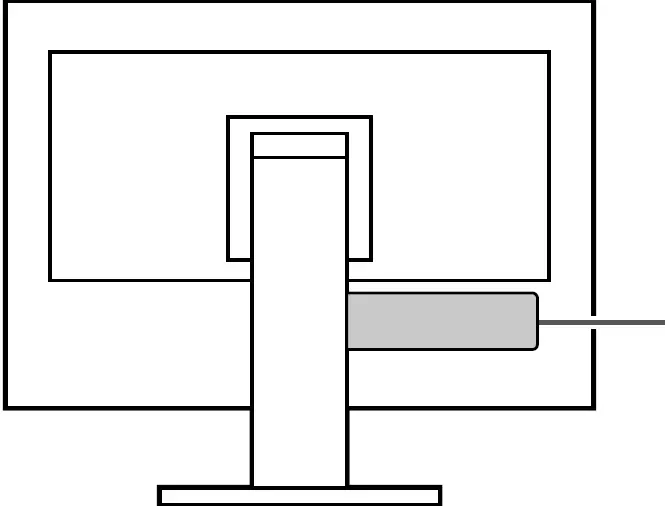
WARNING
- Risk of electric shock Do not open
This product has been adjusted specifically for use in the region to which it was originally shipped. If operated outside this region, the product may not perform as stated in the specifications. No part of this manual may be reproduced, stored in a retrieval system, or transmitted, in any form or by any means, electronic, mechanical, or otherwise, without the prior written permission of EIZO Corporation. EIZO Corporation is under no obligation to hold any submitted material or information confidential unless prior arrangements are made pursuant to EIZO Corporation’s receipt of said information. Although every effort has been made to ensure that this manual provides up-to-date information, please note that EIZO monitor specifications are subject to change without notice.
Notice for this monitor
About the Usage of This Product
This product is suited to general purposes like creating documents, viewing multimedia content (Assuming usage of approximately 12 hours per day).
If using this product for the following kinds of applications, where an extremely high degree of reliability and safety is required, then measures should be in place to maintain safety while using this product.
- Transportation equipment (ships, aircraft, trains, and automobiles)
- Safety devices (Disaster prevention systems, security control systems, etc.)
- Life-critical devices (medical devices, such as life-support devices and operating room devices)
- Nuclear energy control devices (Nuclear energy control systems, security control systems of nuclear facilities, etc.)
- Major system communication devices (operation control systems of transportation systems, air traffic control systems, etc.)
This product has been adjusted specifically for use in the region to which it was originally shipped. If the product is used outside the region, it may not operate as specified in the specifications.
This product may not be covered by warranty for uses other than those described in this manual.
The specifications noted in this manual are only applicable when the following are used: - Power cords provided with the product
- Signal cables specified by us
Only use optional products manufactured or specified by us with this product.
About the LCD Panel
It takes about 30 minutes (under our measurement conditions) for the monitor display to stabilize. Please wait 30 minutes or more after the monitor power has been turned on, and then adjust the monitor. Monitors should be set to a lower brightness to prevent a loss in the screen quality caused by long-term use and to maintain stable use. When the screen image is changed after displaying the same image for extended periods of time, an afterimage may appear. Use the screen saver or power save function to avoid displaying the same image for extended periods of time. Depending on the image, an afterimage may appear even if it was displayed for a short period of time. To remove such a phenomenon, change the image or keep the power turned off for several hours. If the monitor displays continuously over a long period of time, dark smudges or burn-in may appear. To maximize the life of the monitor, we recommend the monitor be turned off periodically. The LCD panel is manufactured using high-precision technology. Although, missing pixels or lit pixels may appear on the LCD panel, this is not a malfunction. Percentage of effective dots: 99.9994 % or higher. The backlight of the LCD panel has a fixed lifetime. Depending on the usage pattern, such as usage for long continuous periods, the lifespan of the backlight may run out sooner, requiring replacement. When the screen becomes dark or begins to flicker, please contact your local EIZO representative. Do not press on the LCD panel or edge of the frame strongly, as this may result in display malfunctions, such as interference patterns, etc. If pressure is continuously applied to the LCD panel surface, the liquid crystal may deteriorate or the LCD panel may be damaged. (If the pressure marks remain on the panel, leave the monitor with a black or white screen. The symptom may disappear.) Do not scratch or press on the LCD panel with any sharp objects, at this may result in damage to the LCD panel. Do not attempt to brush with tissues as this may scratch the panel.
About the Installation
If you place this product on a lacquer-coated desk, the color may adhere to the bottom of the stand due to the composition of the rubber. Check the desk surface before use.
When the monitor is cold and brought into a room or the room temperature goes up quickly, dew condensation may occur on the interior and exterior surfaces of the monitor. In that case, do not turn the monitor on. Instead wait until the dew condensation disappears, otherwise it may cause some damage to the monitor.
About the Maintenance
Periodic cleaning is recommended to keep the monitor looking new and to prolong its operation lifetime (refer to “Cleaning” (page 4)).
Cleaning
The stains on the cabinet and LCD panel surface can be removed by moistening part of a soft cloth with water or by using Screen Cleaner (available as an option).
Attention
- Chemicals such as alcohol and antiseptic solution may cause gloss variation, tarnishing, and fading of the cabinet or LCD panel, and also quality deterioration of the image.
- Never use thinner, benzine, wax, or abrasive cleaner as they may damage the cabinet or LCD panel surface.
To use the monitor comfortably - An excessively dark or bright screen may affect your eyes. Adjust the brightness of the monitor according to the environmental conditions.
- Staring at the monitor for a long time tires your eyes. Take a 10-minute rest every hour.
Introduction
Thank you very much for choosing an EIZO color LCD monitor.
Features
Docking Station Function
This product is equipped with a LAN port and USB hub so that it can be used as a docking station. By connecting with USB, you can create a stable network environment even on notebook PCs or tablet devices that are not equipped with LAN ports. You can also use USB-compatible peripheral devices and charge smartphones. (page 36)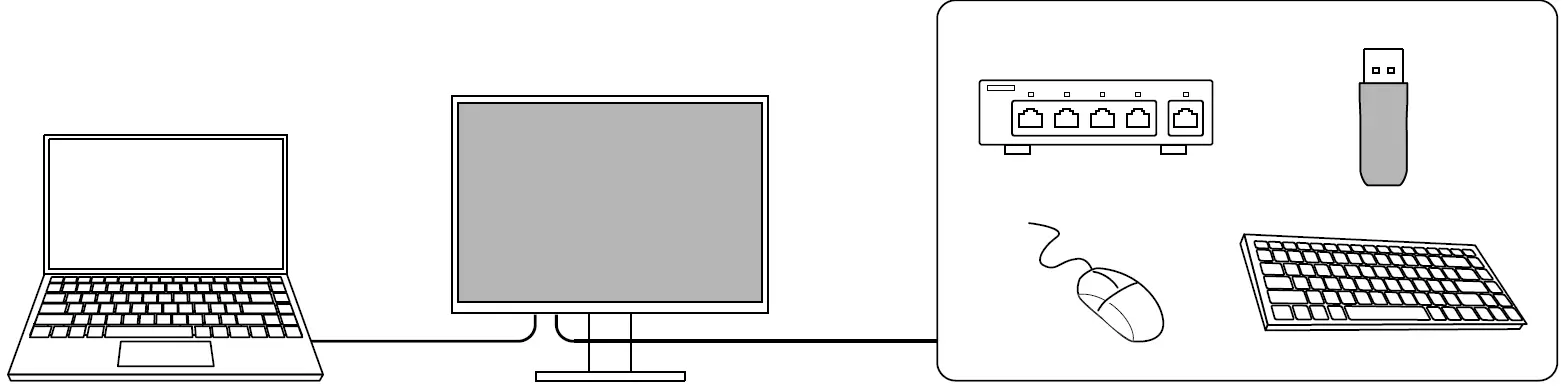
Support for DisplayPort Alt Mode / USB Power Delivery
This product is equipped with a USB Type-C® connector and supports video signal transfer (DisplayPort Alt Mode) and USB device charging (USB Power Delivery). It supplies a maximum of 70 W of power to a connected notebook PC when used as an external monitor.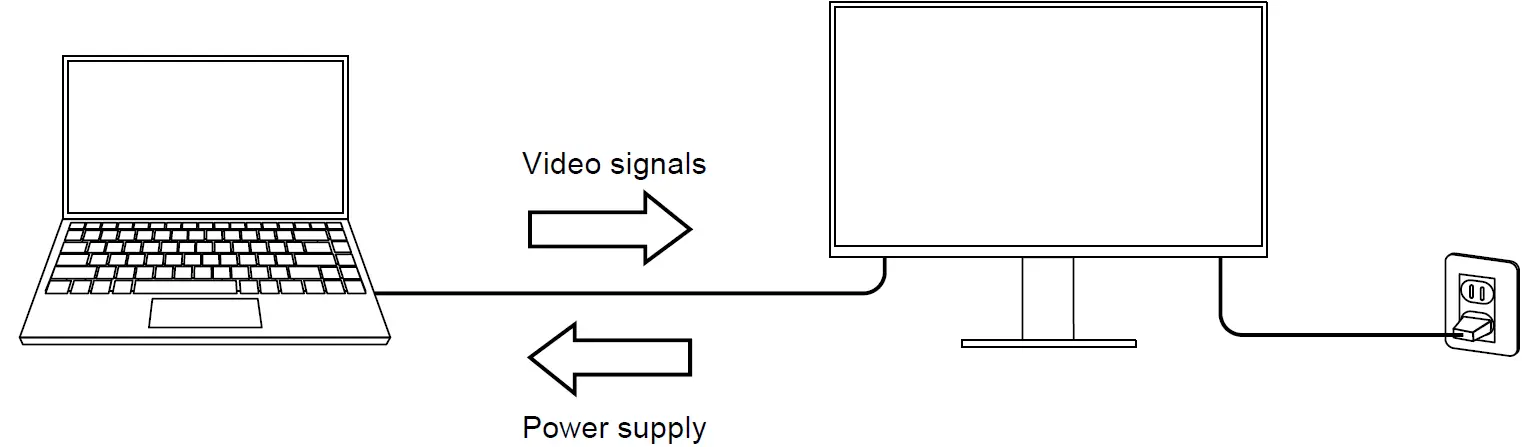 Note
Note
- To use the charging function, the connected device must support device charging by using USB Power Delivery. Charging may not be possible depending on the connected external device.
- Only when the following USB cables are used, a maximum of 70 W of power can be supplied.
- CC200SS-5A or CC200SSW-5A (Included)
- CC100 (Separately sold accessory)
- A USB Type-C connector (downstream) supplies a maximum of 15 W of power.
- To display video signals, the connected device must support DisplayPort over USB Type-C (DisplayPort Alt Mode).
- Connected devices can be charged even when the monitor is in power saving mode.
- When “Compatibility Mode” is set to “On” in the “Administrator Settings” menu, connected devices can be charged even when the power of the monitor is turned off.
Daisy Chain Connection
The monitor comes equipped with a USB Type-C output terminal ( ). When the PC and the monitor are connected by USB Type-C or DisplayPort, the USB Type-C output terminal of the monitor can be used to connect a maximum of 4 monitors in a daisy chain.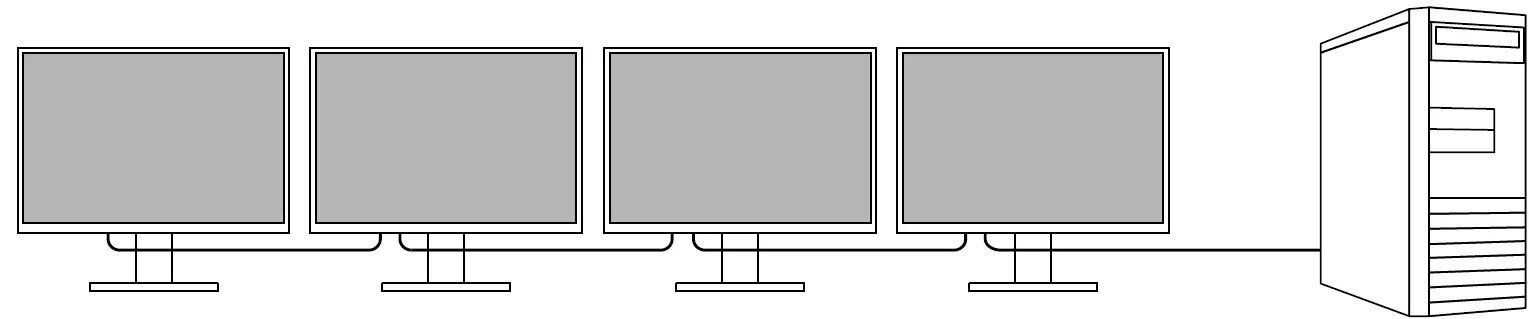 Note
Note
- In order to use daisy chain connection, the graphics board of the computer must support Multi-Stream Transport (MST). For details, contact the manufacturer of the computer or the store where you bought the product.
- The number of monitors it is possible to connect varies depending on the monitors you are using and the graphics board of the computer. For details, refer to the compatibility information on our company website.
- When connecting a USB Type-C connector to a DisplayPort connector, use a USB Type-C – DisplayPort converter cable.
- High Degree of Flexibility for Installation
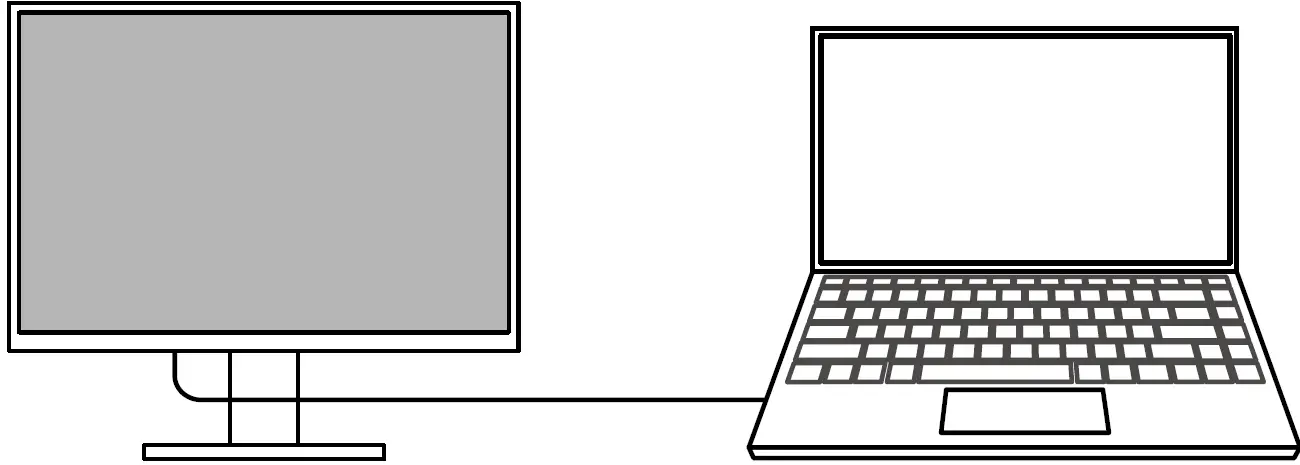
- This product can be used as an external monitor of a notebook computer.

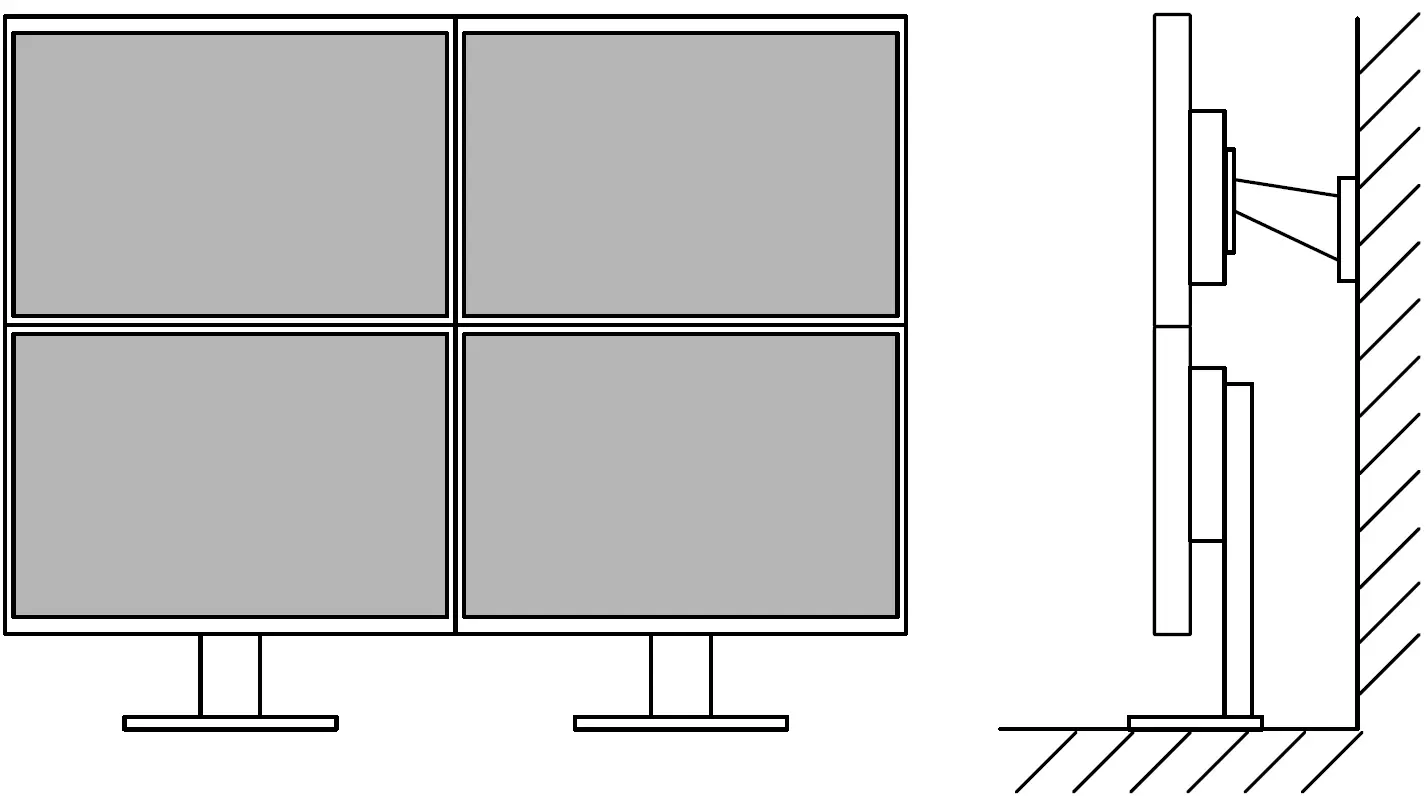
- By attaching the monitor to an arm, the screen can be used in a multi-monitor configuration benefiting from the feature of framelessness on all 4 sides.
 Reduction of Power Consumption
This product provides a function that automatically adjusts the screen brightness to reduce power consumption *1. Power Reduction, CO2 Reduction, and Eco Performance Level can be checked on the “Eco View Settings” menu. (page 15)
- Auto Eco View
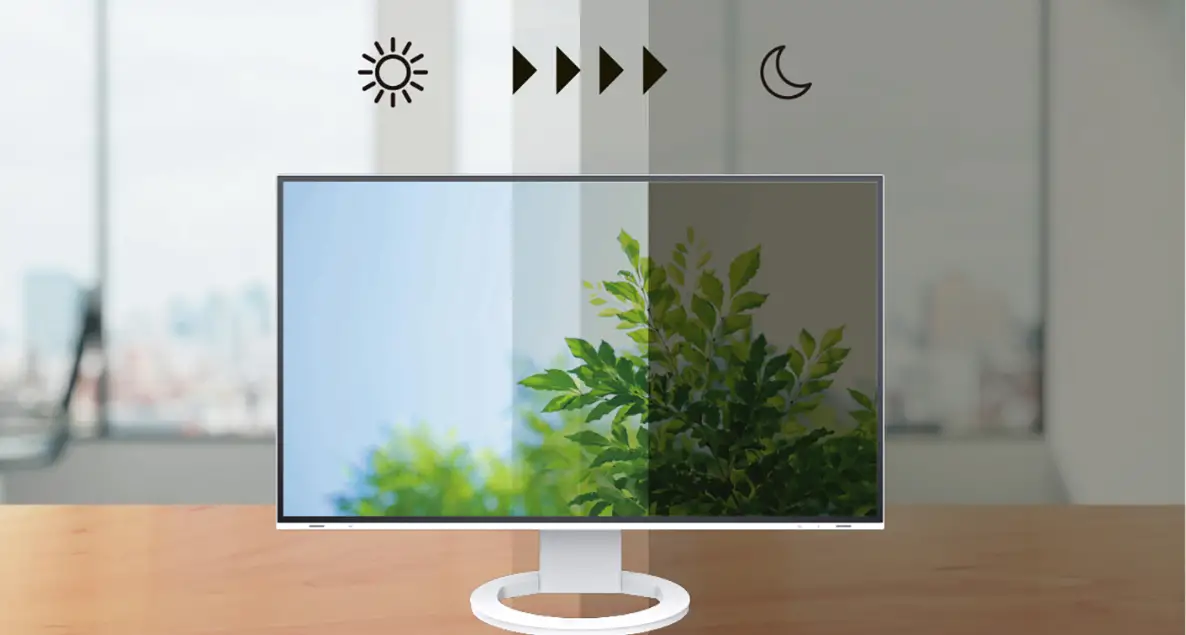
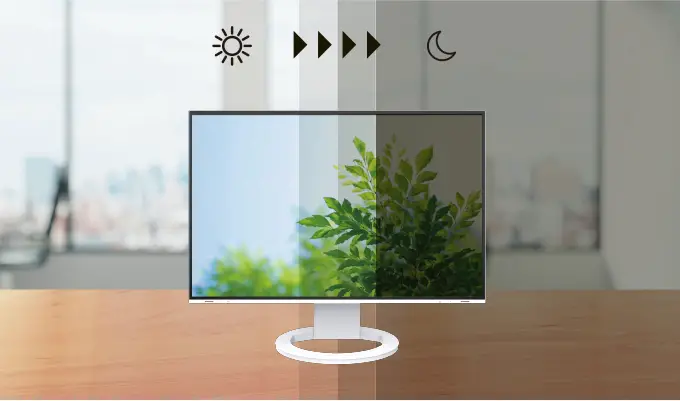
The ambient light sensor on the front of the monitor detects the ambient brightness to automatically adjust the screen brightness to a comfortable level. - Eco View Optimizer 2
The monitor automatically adjusts the screen brightness according to the white level of the input signal. This function can reduce power consumption while maintaining the brightness specified by the input signal. - 1 Reference values
Maximum power consumption: 164 W (when a USB device is connected and the speakers are working), standard power consumption: 16 W (brightness 120 cd/m2, when no USB device is connected and the speakers are not working, at default settings) - Realizing More Convenient Operations Using Screen In Style
The “Screen In Style” monitor control utility enables you to use the monitor more conveniently. - The monitor color mode can be switched automatically to suit the software to be used.
- You can switch input signals using the shortcut keys on the keyboard.
- When multiple monitors are installed, you can turn the power on and off or change the color mode of all monitors at the same time.
 Reduction of Power Consumption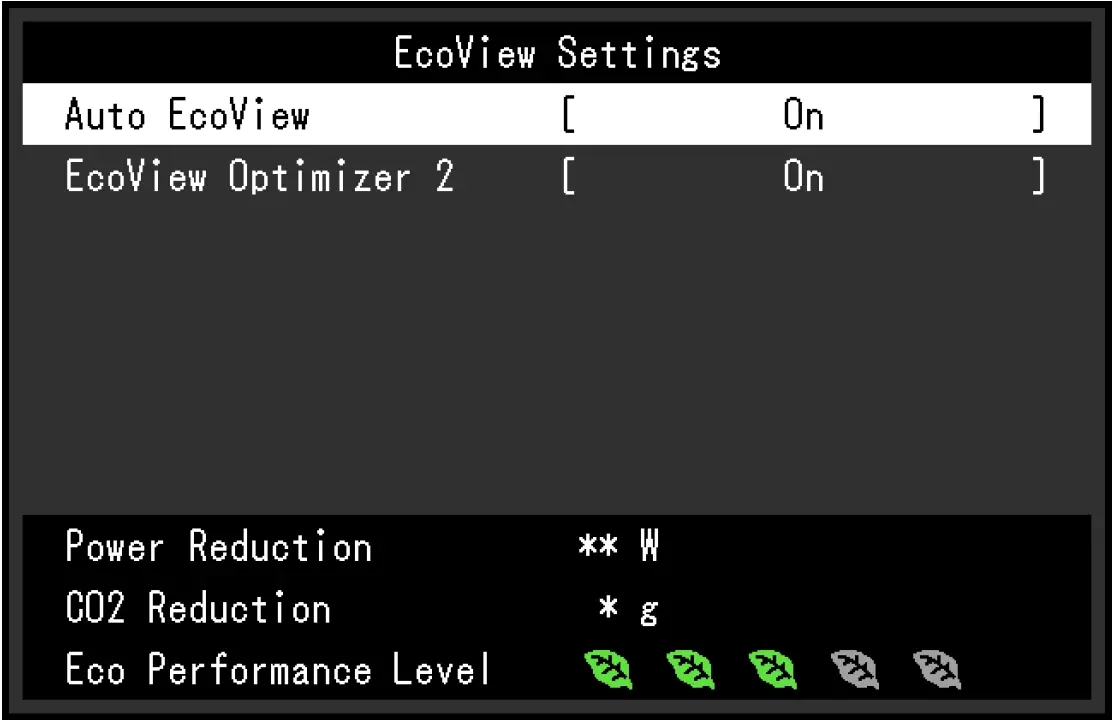
Note
- Screen In Style can be downloaded from our web site (www.eizoglobal.com).
- The Windows operating systems are only supported.
Controls and Functions
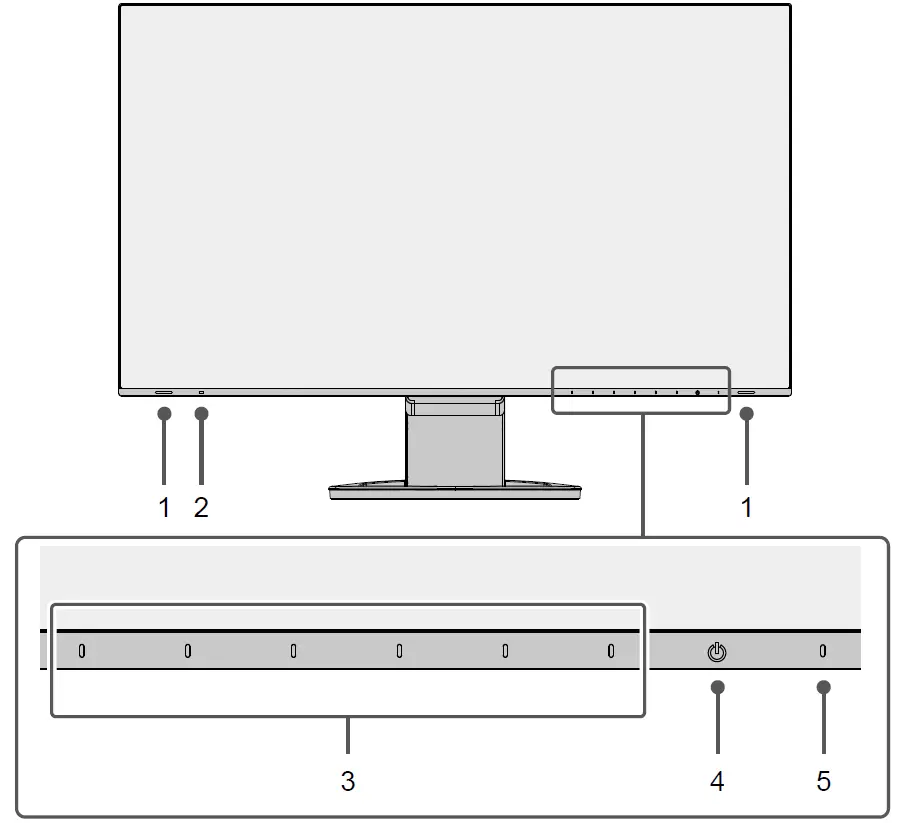
- Front

1. Speakers Outputs audio. 2. Ambient light sensor Detects ambient brightness. If you use Auto EcoView, the screen brightness is automatically adjusted according to the ambient brightness (page 15).
3. Operation switches Displays menus. Operate the switches according to the operation guide (page 17). 4. Power switch Turns the power on or off. 5. Power indicator Indicates the monitor’s operation status. White: Normal operation mode Orange: Power saving mode OFF: Main power / power off
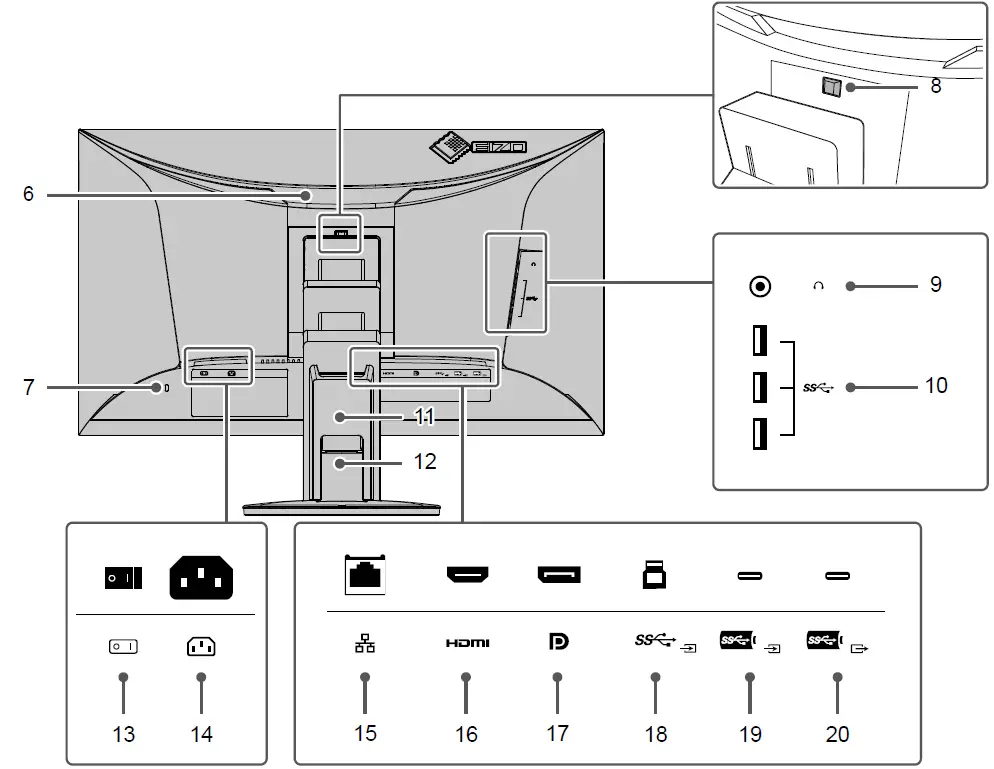
Rear

6. Handle This handle is used for transportation. 7. Security lock slot Complies with Kensington’s Micro Saver security system. 8. Lock button Use this button to remove the monitor from the stand. 9. Headphone jack Connects to headphones. 10. USB Type-A connector (downstream)
Connects to a peripheral USB device (page 36). 11. Cable cover Holds the monitor cables. 12. Stand*1 Adjusts the height and angle (tilt and swivel) of the monitor. 13. Main power switch Turns the main power on or off. : On, : Off 14. Power connector Connects the power cord. 15. LAN port (RJ-45) When using a network connection with the docking station function (page 36), this connects to a modem or router with a LAN cable.
16. HDMI connector Connects to a PC with HDMI output. 17. DisplayPort connector Connects to a PC with DisplayPort output. 18. USB Type-B connector (upstream)
Connect the USB cable when using software that requires USB connection or when using the docking station function (page 36).
19. USB Type-C connector (upstream)
Connects to a PC with USB Type-C output. This also transmits the USB signal that is necessary for using software that requires USB connection or when using the docking station function (page 36).
20. USB Type-C connector (downstream)
When connecting in a daisy chain connection, this connects to the USB Type-C upstream connectors of the other monitors in the configuration. - 1 An optional arm (or optional stand) can be attached by removing the stand section.
Supported Resolutions
The monitor supports the following resolutions.
| Resolution | Vertical scan frequency (Hz) | DisplayPort | HDMI | USB Type-C |
| 640 × 480 | 59.940 | √ | √ | √ |
| 640 × 480 | 60.000 | √ | √ | √ |
| 720 × 400 | 70.087 | √ | √ | √ |
| 720 × 480 | 59.940 | √ | √ | √ |
| 720 × 480 | 59.941 | √ | √ | √ |
| 720 × 480 | 60.000 | √ | √ | √ |
| 720 × 576 | 50.000 | – | √ | – |
| 800 × 600 | 60.317 | √ | √ | √ |
| 1024 × 768 | 60.004 | √ | √ | √ |
| 1280 × 720 | 50.000 | – | √ | – |
| 1280 × 720 | 59.855 | √ | √ | √ |
| 1280 × 720 | 59.940 | √ | √ | √ |
| 1280 × 720 | 60.000 | √ | √ | √ |
| 1280 × 800 | 59.810 | √ | √ | √ |
| 1280 × 1024 | 60.020 | √ | √ | √ |
| 1600 × 900 | 60.000 | √ | √ | √ |
| 1600 × 1200 | 60.000 | √ | √ | √ |
| 1680 × 1050 | 59.954 | √ | √ | √ |
| 1920 × 1080 | 50.000 | – | √ | – |
| 1920 × 1080 | 59.940 | √ | √ | √ |
| 1920 × 1080 | 60.000 | √ | √ | √ |
| 1920 × 1200 | 59.885 | √ | √ | √ |
| 1920 × 1200 | 59.950 | √ | √ | √ |
| 2560 × 1440*1 | 59.951 | √ | √ | √ |
- 1 Recommended resolution
Note
Only progressive is supported for the Scan Format.
Changing the Computer Display Settings
If the image is not displayed properly after connecting the monitor to a PC, follow the procedure below to change the display settings on the computer.
- Windows 10
- Right-click the mouse anywhere on the desktop except on icons. A menu is displayed.
- From the displayed menu, click “Display Settings”. The “Settings” screen is displayed.
- If multiple monitors, including notebook PC screens, are connected to the computer, select “Extend these displays” in the “Multiple displays” menu, and then click “Keep changes” on the confirmation screen. After changing the settings, select a monitor in the “Select and rearrange displays” menu.
- Select the “Make this my main display” option in the “Multiple displays” menu. This enables the monitor to display images properly.
- Confirm that the recommended resolution for the monitor is set in the “Resolution” menu. (“(Recommended)” is displayed after the resolution.)
- To change the size of text and icons, select a magnification in the menu of zoom percentages according to personal preference.
- If a message prompting you to sign out is displayed after changing the settings, sign out and then sign in again.
Windows 8.1
- Click the “Desktop” tile on the Start Screen to display the desktop.
- Right-click the mouse anywhere on the desktop except on icons. A menu is displayed.
- From the displayed menu, click “Screen resolution”. The settings screen is displayed.
- If multiple monitors, including notebook PC screens, are connected to the computer, select “Extend these displays” in the “Multiple displays” menu, and then click “Apply”. Click “Keep changes” on the confirmation screen.
- Select a monitor in the “Display” menu, and then select the “Make this my main display” option and click “Apply”. This enables the monitor to display images properly.
- Confirm that the recommended resolution for the monitor is set in the “Resolution” menu. (“(recommended)” is displayed after the resolution.)
- To change the size of text and icons, click “Make text and other items larger or smaller”, select a size according to personal preference on the settings screen, and then click “Apply”.
- If a message prompting you to sign out/log off is displayed after changing the settings, sign out/log off and then sign in/log in again.
macOS
- Select “System Preferences” from the Apple menu.
- When the “System Preferences” panel is displayed, click “Displays”.
- If multiple monitors, including notebook PC screens, are connected to the computer, make sure that “Mirror Displays” is not selected on the “Arrangement” tab. If it is selected, remove the check mark.
- Select the “Display” tab, and make sure that “Default for display” is selected for “Resolution”. If it is not selected, add a check mark. The correct resolution has now been set for your display. Close the “System Preferences” panel. If multiple monitors, including notebook PC screens, are connected to the computer, configure these settings in “Display” on each monitor.
- To select a resolution according to personal preference, select “Scaled” and then select a resolution (either from a list or icons), and then close the panel.
Basic Adjustment / Setting
This product enables users to change the brightness according to personal preference or to suit the usage environment, and to reduce power consumption to conserve energy.
This chapter describes the basic functions that can be adjusted and set using the switches on the front of the monitor. For advanced adjustment and setting procedures using the Setting menu, see “Chapter 3 Advanced Adjustment / Setting” (page 17).
Switch Operation Method
Displaying the operation guide
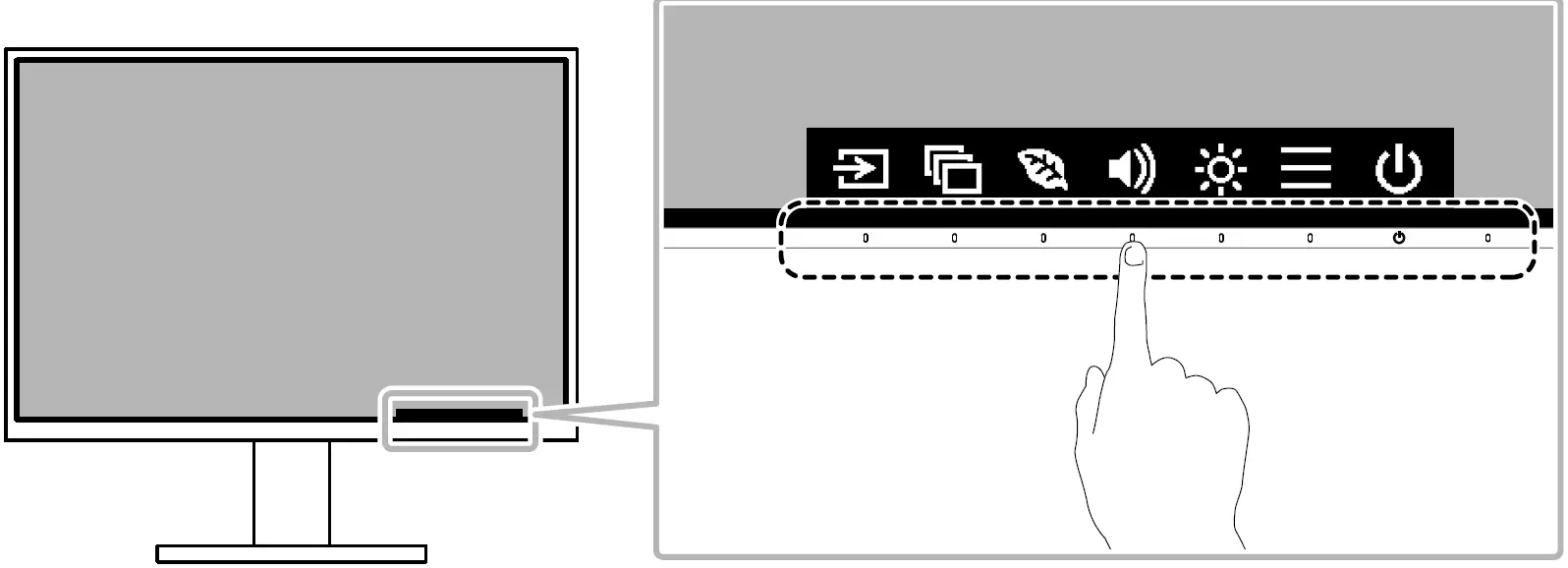
- Touch any switch (except ).
The operation guide appears on the screen.
Note
- Do not directly touch the operation guide that appears on the screen. There are switches below the operation guide that can be touched to perform adjustment / setting.2. Adjusting / setting
The Adjustment / Setting menu appears.
- Touch a switch for adjustment / setting. (A submenu may also be displayed. In this case, select the item for adjustment / setting using and select .)
- Perform adjustment / setting with the switches and select to accept the changes.
Exiting
- Select to exit the menu.
Switching Input Signals
When a monitor has multiple signal inputs, the signal to display on-screen can be changed. Note
Note
- “Screen In Style” allows you to switch input signals using the shortcut keys on the keyboard.
Switching Display Modes (Color Modes)
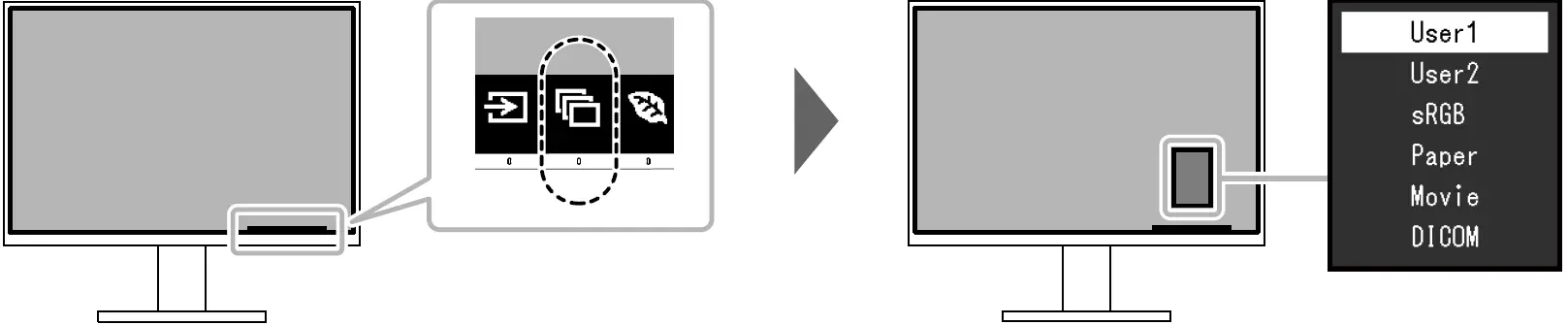
This product is preinstalled with color modes for various display purposes. By switching the mode according to the purpose and contents of the display, you can display images in an appropriate manner.
Display Modes
| Color Mode | Purpose |
| User1 User2 | Select either of these modes to set a user-defined display mode. |
| sRGB | This mode is suitable for matching color reproduction with peripheral devices that support sRGB, such as when printing photos taken using a digital camera. |
| Paper | This mode uses color tones and contrast similar to that of paper to produce a printed paper effect. It is suitable for displaying images from media such as books and documents. |
| Movie | This mode displays moving images brightly and with a clear-cut three-dimensional appearance. It is suitable for playing back video content. |
| DICOM | Select this mode to simply display medical purpose digital images based on DICOM® Part 14. Attention
|
Note
• “Screen In Style” allows you to select the color mode automatically according to the software in use.
• In Paper mode, the amount of blue light emitted from the screen is reduced by changing the color tone and controlling the brightness.
Conserving Energy
This monitor is equipped with Eco View functions to enable users to conserve energy. If you use Auto Eco View, which is one of the Eco View functions, the screen brightness is automatically adjusted according to the ambient brightness.
| Function | Setting Value | Description |
| Auto Eco View | On Off | The ambient light sensor on the front of the monitor detects the ambient brightness to automatically adjust the screen brightness to a comfortable level using Auto Eco View. The power consumption of the backlight can be curtailed by adjusting the brightness to an appropriate level. This function can also mitigate eye strain and tiredness caused by a screen that is too bright or too dark. Note
|
| Eco View Optimizer 2 | On Off | The monitor automatically adjusts the screen brightness according to the white level of the input signal. This function can reduce power consumption while maintaining the brightness specified by the input signal. Note
|
Note
The power saving level (Power Reduction, CO2 Reduction, and Eco Performance Level) can be checked on the “Eco View Settings” menu. The more indicators that light up representing the Eco Performance Level, the higher the power saving level attained.
- Power Reduction: the reduction in the backlight’s power consumption as a result of the adjusted brightness value.
- CO2 Reduction: converted from the “Power Reduction” value, this is an estimate of the quantity of CO2 emissions reduced when using the monitor for 1 hour.
- The numeric value is a result of calculation based on a default setting (0.000555t-CO2 / kWh) determined by a Japanese ministerial ordinance (2006, Ministry of Economy, Trade and Industry, Ministry of Environment, civil code article 3) and may differ depending on country and year.
Adjusting Brightness
The brightness of the screen can be adjusted to suit the installation environment or personal preference. The screen brightness is adjusted by changing the brightness of the backlight (light source from the LCD back panel).
Setting Value
0 to 100
Adjusting Volume
The volume of the speakers and headphones can be set individually.
Setting Value
0 to 30
Chapter 3 Advanced Adjustment / Setting
Menu display
- Touch any switch (except ). The operation guide appears.
- Select . The Setting menu appears.
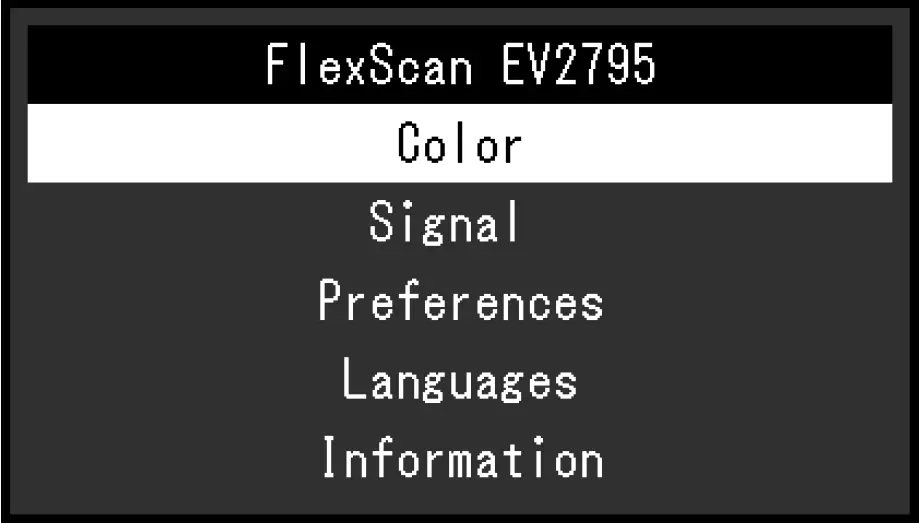 Adjusting / setting
- Select a menu to adjust / set with and select .The Sub menu appears.

- Select an item to adjust / set with and select .The Adjustment / Setting menu appears.

- Perform adjustment / setting with or and select to accept the changes.
The Sub menu appears. Selecting during adjustment / setting will cancel the adjustment / setting and restore the state prior to making changes.
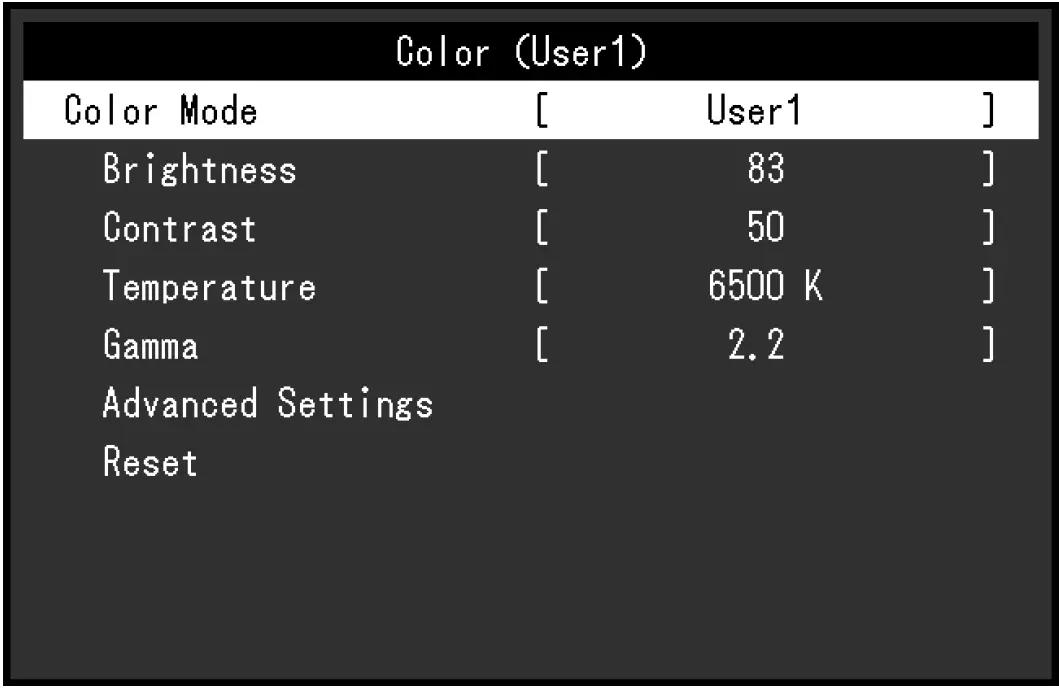
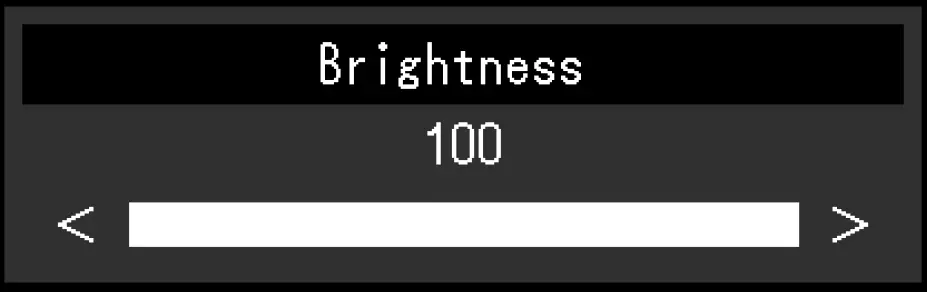
Exiting
- Selecting several times will terminate the Setting menu.
Color Adjustment
The color mode settings can be adjusted accord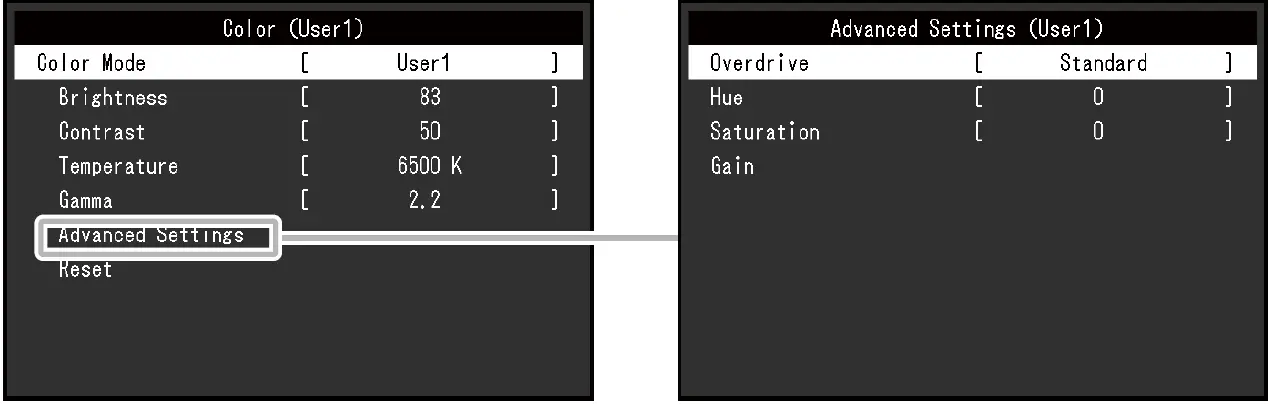 Functions that can be adjusted differ depending on the color mode.ing to personal preference.
√: Adjustable -: Not adjustable
Function | Color Mode | |||||
| User1 User2 | sRGB | Paper | Movie | DICOM | ||
| Brightness | √ | √ | √ | √ | – | |
| Contrast | √ | – | – | √ | – | |
| Temperature | √ | – | √ | √ | – | |
| Gamma | √ | – | – | – | – | |
| Advanced Settings | Overdrive | √ | – | – | – | – |
| Hue | √ | – | – | √ | – | |
| Saturation | √ | – | – | √ | – | |
| Gain | √ | – | – | – | – | |
| Reset | √ | √ | √ | √ | – | |
Attention
- It takes about 30 minutes for the monitor display to stabilize. Please wait 30 minutes or more after power to the monitor has been turned on before adjusting the monitor.
- The same image may be observed in different colors on multiple monitors due to monitor-specific characteristics. Make fine color adjustments visually when matching colors across multiple monitors. Follow the procedure below to adjust and match colors across multiple monitors.
- Display a white screen on each monitor.
- Use one of the monitors as a visual reference point to make adjustments to the “Brightness”, “Temperature”, and “Gain” of the other monitors.
- When Auto Eco View is set to “On”, the same brightness setting is shared by all of the color modes and cannot be set individually for each color mode.
Function Setting Value Description Color Mode User1 User2 sRGB Paper Movie DICOM
Select the desired mode according to the monitor application. The color mode settings can also be adjusted according to personal preference. Select the mode for adjustment and perform adjustment using the relevant functions.
Note
- For details on the adjustment status of each mode, see “2-3. Switching Display Modes (Color Modes)” (page 14).
Brightness 0 to 100 The screen brightness is adjusted by changing the brightness of the backlight (light source from the LCD back panel). Note
- If the image is too dark even when the brightness is set to 100, adjust the contrast.
Contrast 0 to 100 The brightness of the screen is adjusted by varying the video signal level. Note
- A contrast of 50 displays every color gradation.
- When adjusting the monitor, it is recommended to perform brightness adjustment, which does not lose gradation characteristics, prior to contrast adjustment.
- Perform contrast adjustment in the following cases.
- If the image is too dark even when the brightness is set to 100 (Set the contrast to higher than 50.)
Temperature Off 4000 K to 10000 K (in increments of 500 K. 9300 K is included.) Adjust the color temperature. The color temperature is normally used to express the hue of “White” and/or “Black” with a numerical value. The value is expressed in degrees “K” (Kelvin). The screen becomes reddish at low color temperatures and bluish at high color temperatures, similar to the temperatures of a flame. A gain preset value is set for each color temperature setting value. Note
- The value shown in “K” is available only as a reference.
- “Gain” allows you to perform more advanced adjustment
- If set to “Off”, the image is displayed in the preset color of the LCD panel (Gain: 100 for each RGB channel).
- When the gain is changed, the color temperature setting changes to “Off”.
Gamma 1.8 2.0
2.2
2.4
Adjust the gamma. While the brightness of the monitor varies depending on the input signal, the variation rate is not proportional to the input signal. Maintaining the balance between the input signal and brightness of the monitor is referred to as “Gamma correction”. Note
- If “sRGB” is selected for the color mode, “sRGB” is displayed for the gamma value.
- If “Paper” is selected for the color mode, “Paper” is displayed for the gamma value.
- If “DICOM” is selected for the color mode, “DICOM” is displayed for the gamma value.
Function Setting Value Description Advanced Settings Overdrive Enhanced Standard Off This function allows you to set the overdrive intensity based on the use of the monitor. Image lag can be reduced by using the “Enhanced” setting when displaying moving images. Note
- Depending on the display resolution and the setting of “Picture Expansion” (page 21), overdrive may be set to “Off”.
Hue -50 to 50 Adjust the hue. Note
- Using this function may prevent some color gradations from being able to be displayed.
Saturation -50 to 50 Adjust the color saturation. Note
- Using this function may prevent some color gradations from being able to be displayed.
- The minimum value (-50) changes the screen to monochrome.
Gain 0 to 100 The brightness of each red, green, and blue color component is referred to as “Gain”. The hue of “white” can be changed by adjusting the gain. Note
- Using this function may prevent some color gradations from being able to be displayed.
- The gain value changes according to the color temperature.
- When the gain is changed, the color temperature setting changes to “Off”.
Reset – Reset any color adjustments for the currently selected color mode back to the default settings. Signal Settings
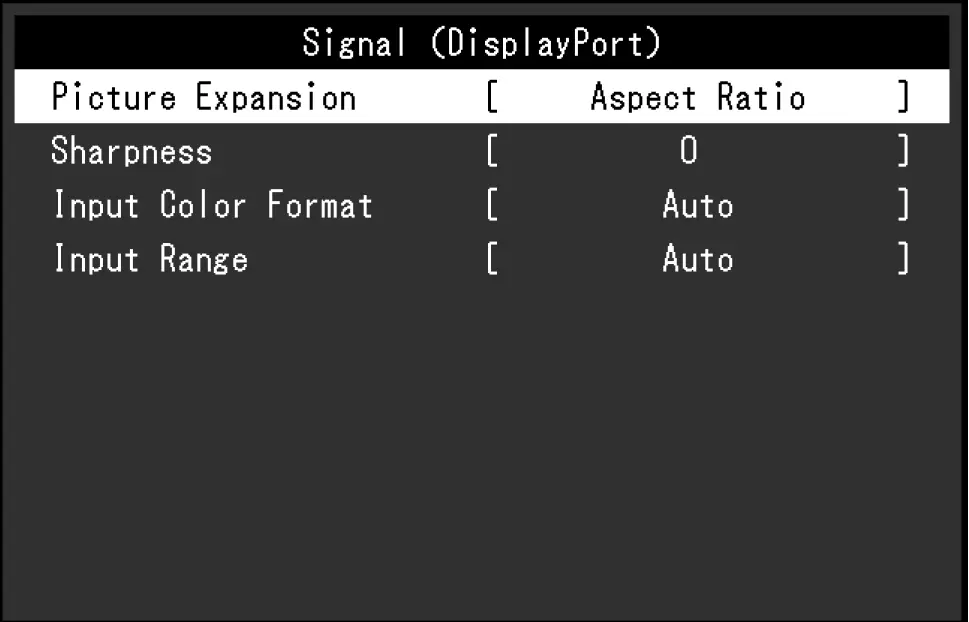
Set the details regarding input signal, such as the screen display size and color format.
Function Setting Value Description Picture Expansion Auto *1 Full Screen Aspect Ratio Dot by Dot
The screen size of the monitor display can be changed. - “Auto”
The monitor automatically changes the screen size according to the aspect ratio and resolution information from the PC.
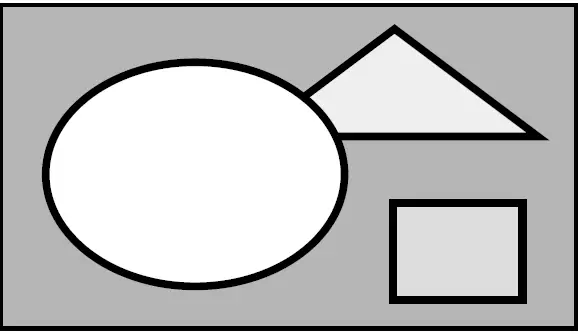
- “Full Screen”
Images are stretched to full screen. Since aspect ratios are not maintained, images may be distorted in some cases.
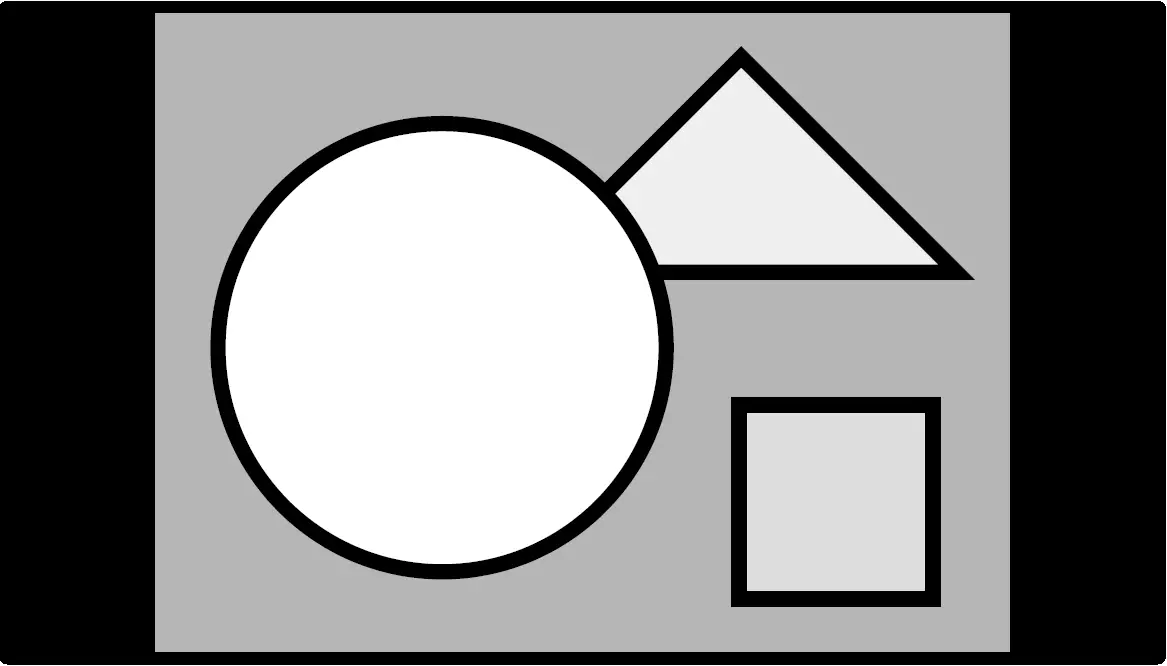
- “Aspect Ratio”
Images are enlarged to full screen without changing the aspect ratio. Since aspect ratios are maintained, blank horizontal or vertical borders may appear.
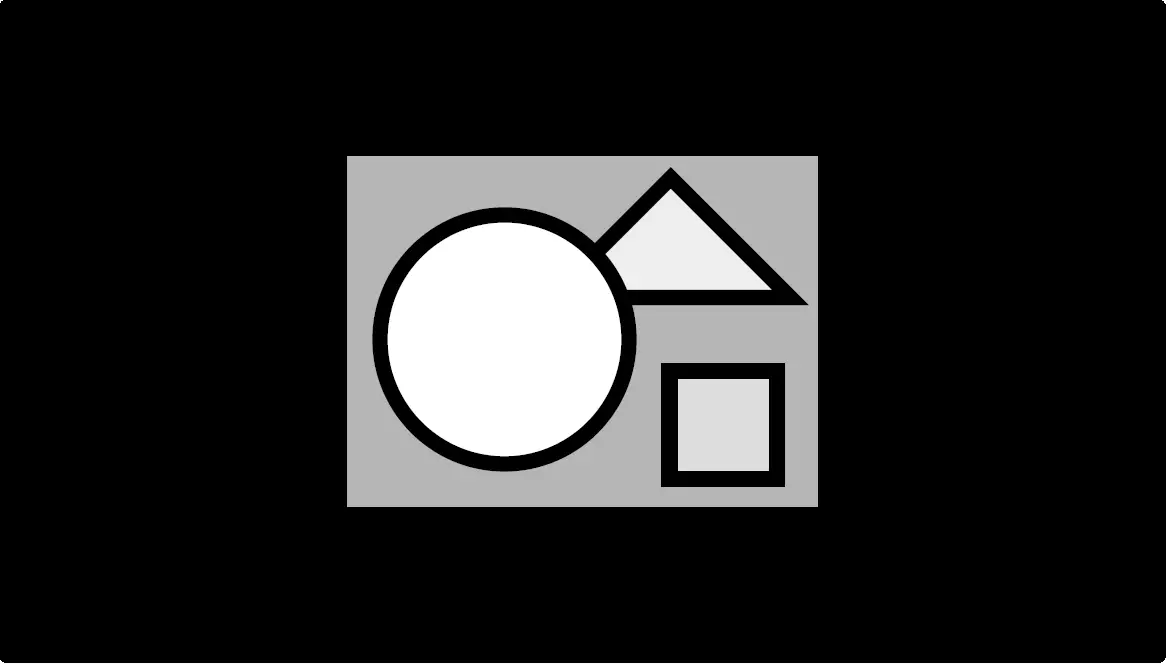
- “Dot by Dot”
Displays the image at the set resolution or size specified by the input signal.
Note - Example settings
- Full Screen

- Aspect Ratio

- Dot by Dot (input signal)

Sharpness -2 to 2 When a low resolution image is displayed using picture expansion mode (“Full Screen” or “Aspect Ratio”), the text and lines of the image may appear blurry. This blurriness can be reduced by configuring the settings for sharpness. Note
- For some resolutions, it is not necessary to configure the settings for sharpness. (“Sharpness” is not a value that can be selected.)
Function Setting Value Description Input Color Format Auto YUV 4:2:2 *1 YUV 4:4:4 *1 YUV *2 RGB The color format of the input signal can be specified. Try changing this setting if colors are not displayed correctly. Input Range Auto Full Limited Depending on the video reproduction device, there may be a restriction on black and white video signal levels output to the monitor. This kind of signal is called “Limited range”. On the other hand, unlimited signals are called “Full range”. - “Auto”
Input signal brightness range is automatically judged and is displayed appropriately (recommended setting). Depending on the video reproduction device, Limited range and Full range may not be able to be judged by the monitor. In such a case, selecting “Full” or “Limited” will allow it to be displayed appropriately.
- “Full”
To be selected in case of Full range signals. Appropriate display can be obtained when this is selected, in case both blacks and whites are corrupted.
- “Limited”
To be selected in case of Limited range signals. In case this is selected, the output signal range is expanded from 0 to 255 to obtain an appropriate display when black is pale and white is dull.
Note
- When “YUV” is selected in “Input Color Format”, the setting is automatically set to “Limited”. Additionally, when “Auto” is selected and the monitor determines the input color format to be YUV, the setting is automatically set to “Limited”.
- 1 Only enabled during HDMI input
- 2 Only valid for DisplayPort or USB Type-C input
Preference Settings
The monitor’s settings can be configured to suit the usage environment or personal preference.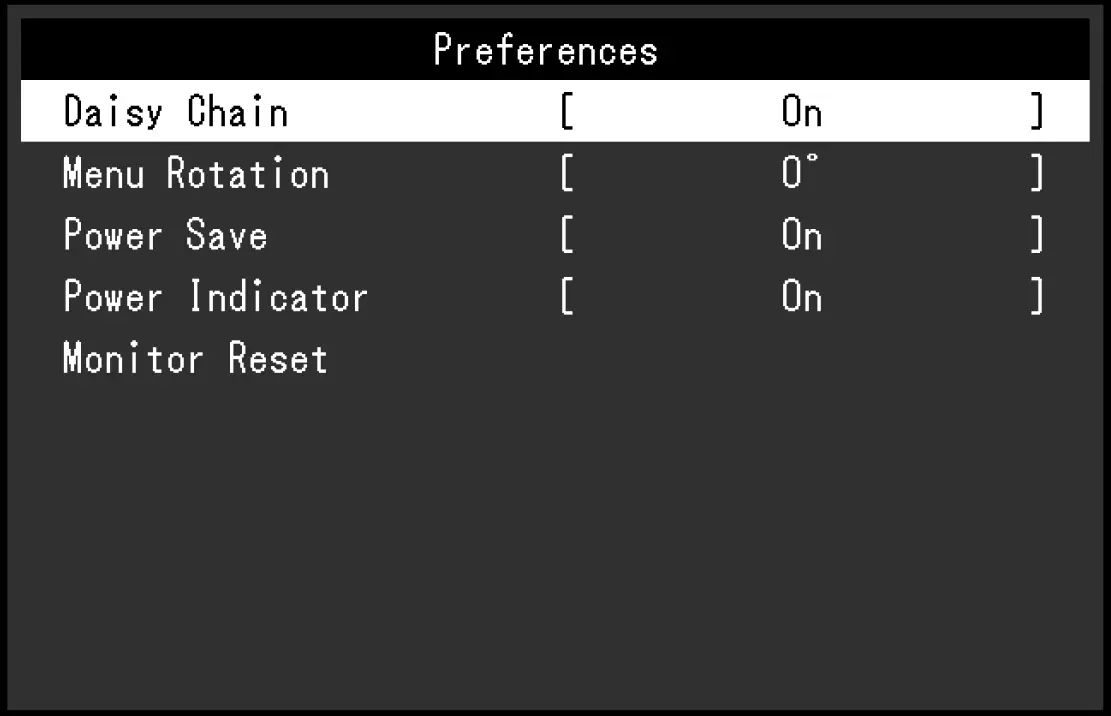
| Function | Setting Value | Description |
| Daisy Chain | On Off | When connecting a daisy chain, set to “On”. Note
|
| Menu Rotation | 0° 90° 270° | When the monitor is used in a vertical position, the direction of the Setting menu can also be changed. Note
|
| Power Save | On Off | The monitor can be set to enter power saving mode according to the state of the PC. The monitor changes to power saving mode about 15 seconds after signal input ceases to be detected. When the monitor has shifted to power saving mode, images are not displayed on the screen and audio is not output.
Note
|
| Power Indicator | On Off | The power indicator (white) can be turned off in normal operation mode. |
| Monitor Reset | – | Restore all settings to their default values except for the following settings.
|
Language
The display language for menus and messages can be selected.
Setting Value
English, German, French, Spanish, Italian, Swedish, Japanese, Simplified Chinese, Traditional Chinese
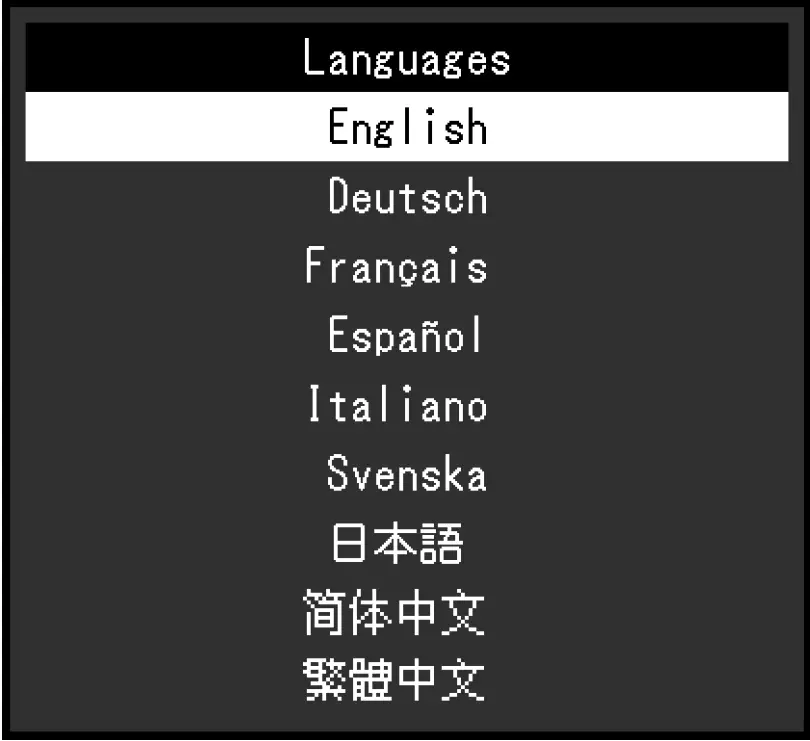 Attention
The display language of the “Administrator Settings” menu cannot be changed.
Information
You can check the monitor information (model name, serial number (S/N), firmware version, usage time) and the input signal information.
Example: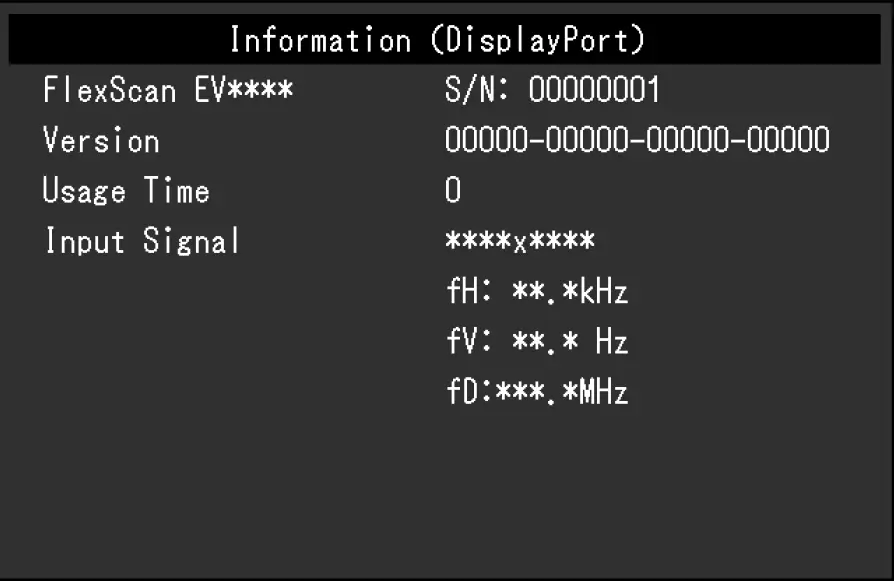
Administrator Settings
This chapter describes how to configure monitor operation using the “Administrator Settings” menu.
Menu display
- Touch to turn off the monitor.
- While touching the leftmost switch, touch for more than 2 seconds to turn on the monitor.
 The “Administrator Settings” menu appears.
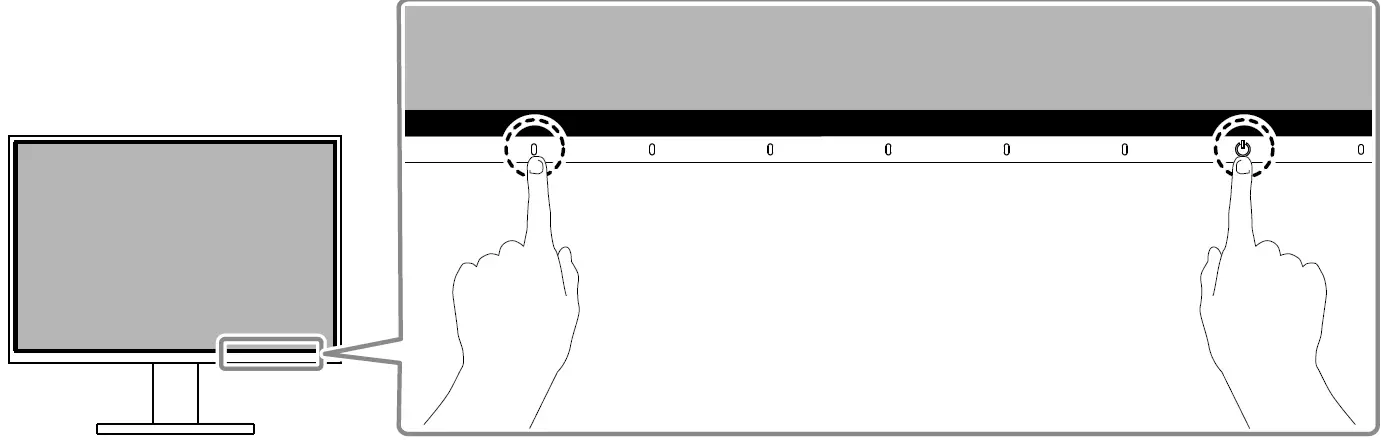 The “Administrator Settings” menu appears.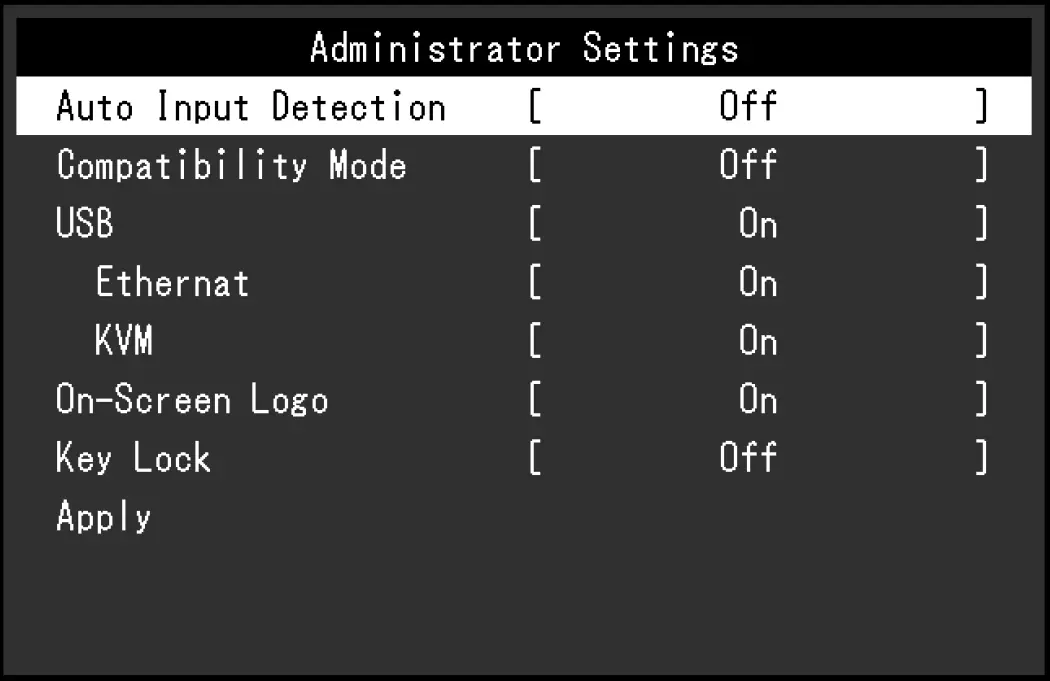
Setting
- Select an item to set with and select . The Adjustment / Setting menu appears.

- Set with and select . The “Administrator Settings” menu appears.
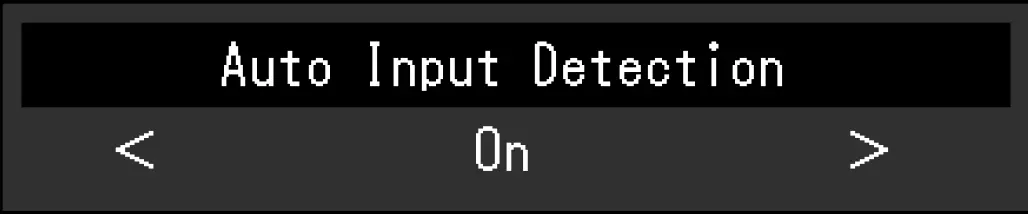
Applying and exiting
- Select “Apply” and then . The settings are applied and the “Administrator Settings” menu exits.
Attention
The language (English) of the “Administrator Settings” menu cannot be changed.
4-2. Functions of the “Administrator Settings” Menu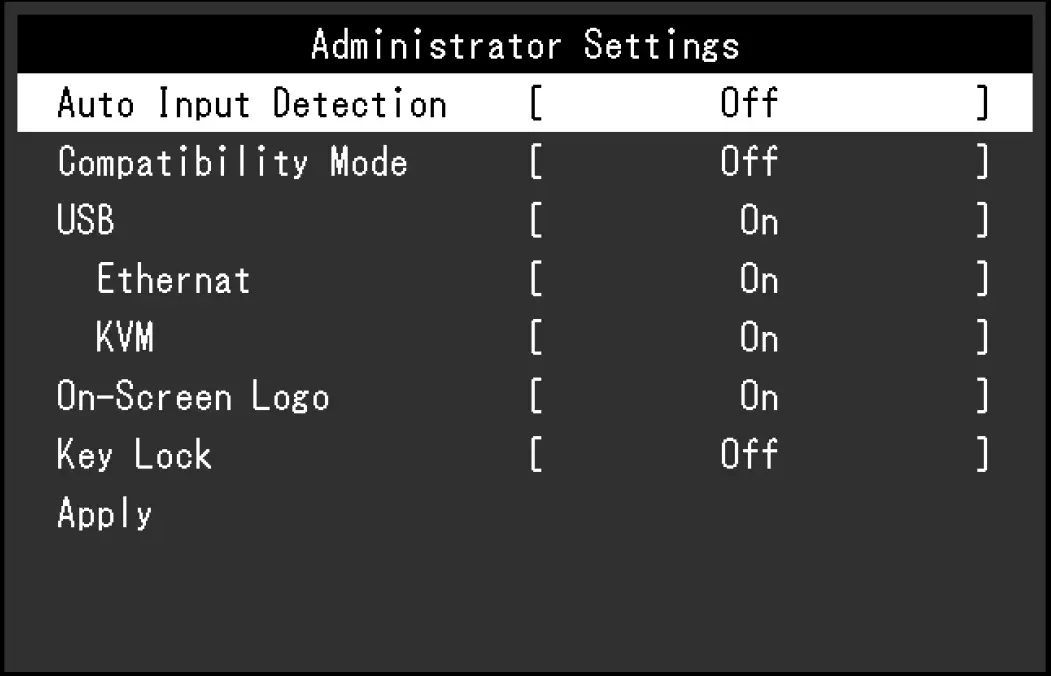
| Function | Setting Value | Description |
| Auto Input Detection | On Off | This function automatically recognizes the connector through which PC signals are input, and displays images on the screen accordingly.
When the monitor is connected to multiple PCs, if a specific PC enters power saving mode or no signals are input to the monitor, the connector is automatically changed to another one to which signals are input.
To be set to this when manually selecting input signals. In this case, you can select the input signal to display using the operation switch on the front of the monitor. For details, see “2-2. Switching Input Signals” (page 14). Note
|
| Compatibility Mode | On Off | If you want to avoid the following phenomena, set this function to “On”.
Note
|
| Function | Setting Value | Description | |
| USB | On Off | You can switch between enabling and disabling of the USB port of the monitor.
Enables the USB port. If you are using the following functions, set this function to “On”.
Disables the USB port so that USB peripheral devices cannot be used. Note
| |
| Ethernet | On Off | You can switch between enabling and disabling of the LAN port of the monitor.
Enables the LAN port and allows network connections.
Disables the LAN port. Note
| |
| KVM | On Off | When two PCs are connected to one monitor, you can link the input signals with the USB ports to use a USB device connected to the monitor from both PCs by switching between them.
The USB ports are switched automatically when the input signals switch. It is also possible to connect USB devices such as a mouse or keyboard to the monitor and use them from two PCs. The compatibility of input signals and USB ports is as follows. HDMI, DisplayPort : USB Type-B (upstream) USB Type-C : USB Type-C (upstream)
Enables USB Type-C (upstream) regardless of the input signal. Note
| |
| On-Screen Logo | On Off | When the monitor is turned on, the EIZO logo appears on the screen. When this function is set to “Off”, the EIZO logo does not appear. | |
| Function | Setting Value | Description |
| Key Lock | Off Menu All | In order to prevent changes to settings, the operation switches on the front of the monitor can be locked.
Locks the switch.
Locks all switches except the power switch. |
Troubleshooting
No Picture
| Problem | Possible cause and remedy |
| 1. No picture • Power indicator does not light up. |
|
| • Power indicator is lighting white. |
|
| • Power indicator is lighting orange. |
|
| • Power indicator is flashing orange and white. |
|
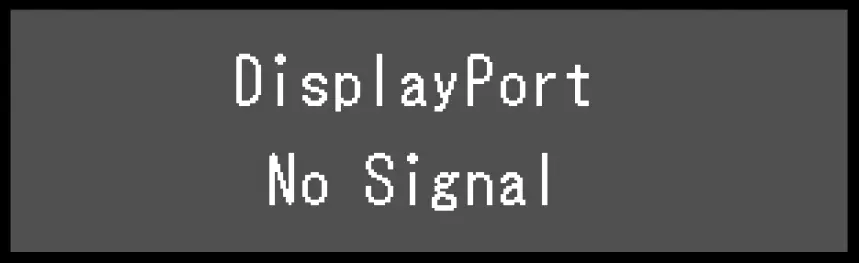
| 2. The message below appears. | This message appears when the signal is not input correctly even though the monitor is functioning properly. |
| • This message appears when no signal is input. Example: |
|
• The message shows that the input signal is out of the specified frequency range. Example: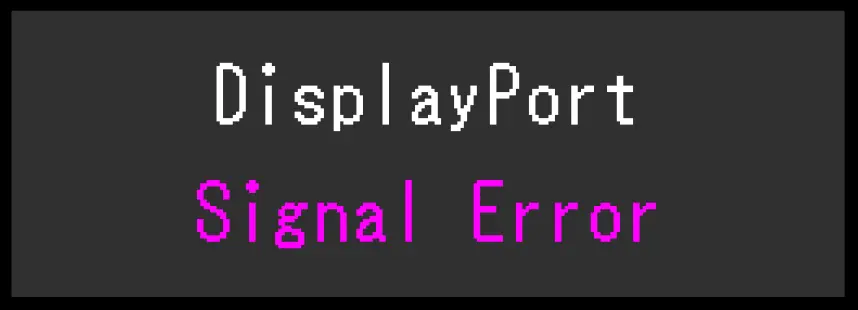 |
|
• This message appears when the PC connected to the USB Type-C connector does not support video signal output. Example: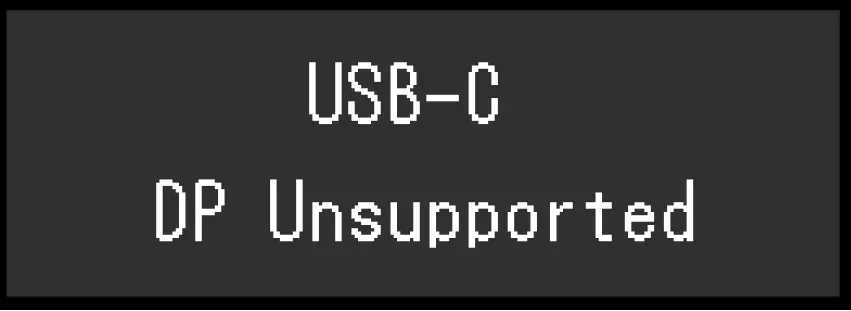 |
|
Imaging Problems
| Problem | Possible cause and remedy |
| 1. The screen is too bright or too dark. |
|
| 2. The brightness changes on its own. |
|
| 3. Text is blurred. |
|
| 4. Afterimages appear. |
|
| 5. Green / red / blue / white / dark dots remain on the screen. |
|
| 6. Interference patterns or pressure marks remain on the LCD panel. |
|
| 7. Noise appears on the screen. |
|
| 8. The positions of windows and icons are shifted when the monitor is turned off / on or when restored from power saving mode. |
|
| 9. The color shown on the screen is not correct. |
|
| 10. Images are not displayed over the entire area of the screen. |
|
| Problem | Possible cause and remedy |
| 1. The screen is not displayed. |
information on our company website. |
Other Problems
| Problem | Possible cause and remedy |
|
|
| 2. Cannot select items in the Setting menu. |
|
| 3. No audio output. |
|
| 4. USB devices connected to the monitor do not work / the docking station function cannot be used. |
|
| 5. Power indicator is flashing orange and white. |
|
| 6. Even when the mouse or keyboard are used, the computer does not return from sleep. |
|
| 7. The PC does not operate with the power supply (USB Power Delivery) from the monitor. |
|
Attaching/Removing the Stand
Removing the Stand
The stand section of this product can be removed.
Attention
- Do not move the stand up and down after removing it. If you move the stand up and down while it is not attached to the monitor, this may cause damage or injury.
- If you drop the monitor or stand, this may cause damage or injury due to the weight of the monitor and stand.
Raise the height of the monitor to the maximum height.
Attention
If the monitor is not raised to the maximum height, there may be cases when the height of the monitor accidentally changes while removing the stand. This may be the cause of injury or damage.
Lay the LCD monitor on a soft cloth spread over a stable and flat surface with the LCD panel surface facing down.
Remove the stand.
As shown in the diagram, press the lock button (1) while holding firmly onto the support section of the stand, and slide the stand in the direction of the pedestal on the bottom (2). Next, pull the stand upwards to remove it (3).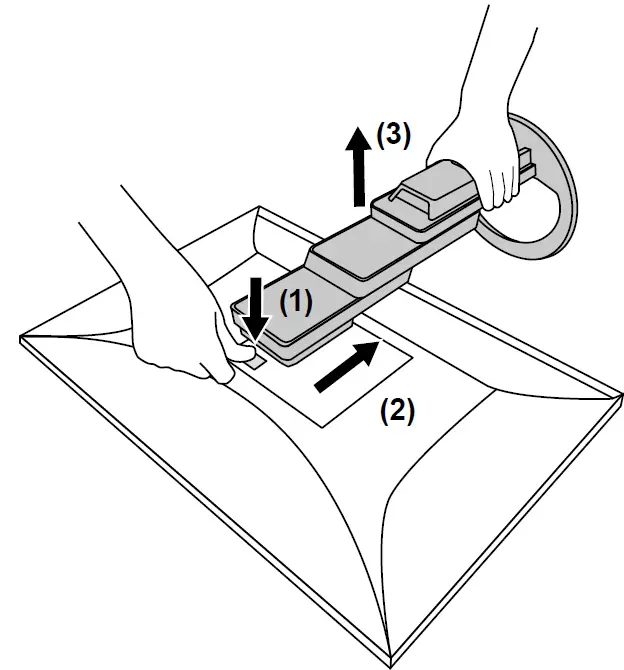
Attaching the Optional Arm
An optional arm (or an optional stand) can be attached by removing the stand section. Please refer to our web site for the supported optional arm (or optional stand). www.eizoglobal.com
Attention
- When attaching an arm or stand, follow the instructions of the respective User’s Manual.
- When using another manufacturer’s arm or stand, confirm the following in advance and select one conforming to the VESA standard. Use the VESA mounting screws supplied with this product when attaching the arm or stand. – Clearance between screw holes: 100 mm × 100 mm
- VESA mount of the arm or stand, external dimensions: 122 mm x 122 mm or less
- Plate thickness: 2.6 mm
- Strong enough to support weight of the monitor unit (excluding the stand) and attachments such as cables.
- When attaching an arm or stand, the installable orientations and movement range (tilt angle) are as follows:
| Orientation | 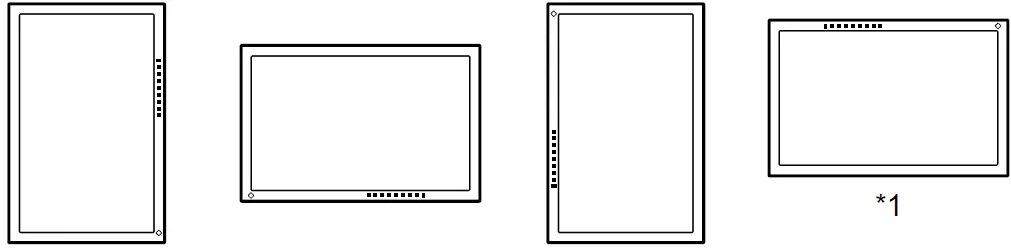 |
| Movement range (tilt angle) | 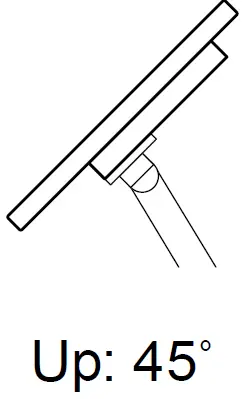 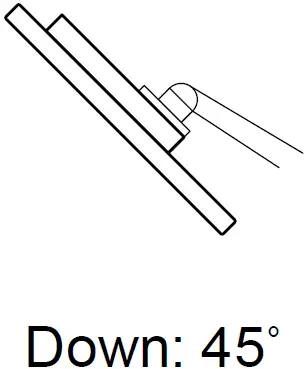 |
- If you position the monitor facing in this direction, clean the power connector and the surrounding area regularly. If dust, water, oil, or other materials adhere to the device, it can cause a fire.
- Connect the cables after attaching an arm or stand.
- Do not move the removed stand up and down. Doing so may result in injury or device damage.
- The monitor, arm, and stand are heavy. Dropping them may result in injury or equipment damage.
- Check periodically that the screws are tight enough. If the screws are not tight enough, the monitor may come unattached. This may be the cause of injury or damage.
Attach the arm or stand to the monitor.
Use the VESA mounting screws supplied with this product when attaching the arm or stand.
Attaching the original stand
- Lay the LCD monitor on a soft cloth spread over a stable and flat surface with the LCD panel surface facing down.
- Remove the fixing screws on the optional arm (or optional stand), and detach the optional arm (or optional stand).
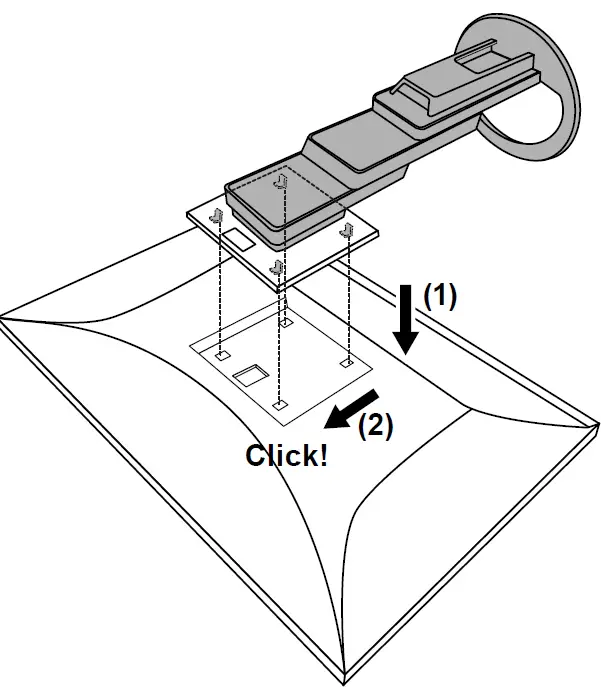
- Attach the original stand.
Insert the four tabs on the stand into the four holes on the back panel (1), and slide the stand towards the upper portion of the monitor (2). The stand clicks when it is attached correctly.
Reference
Using the Docking Station Function
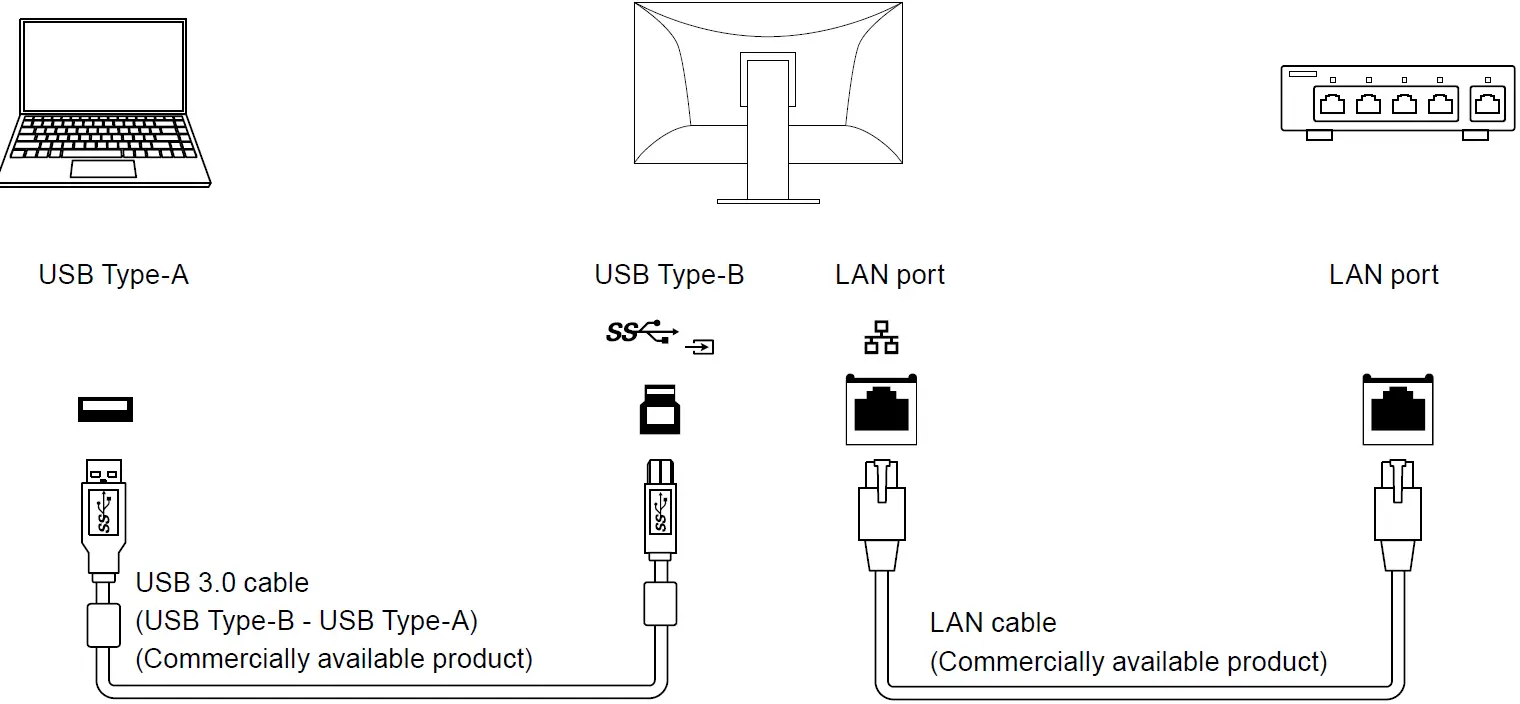
This product is equipped with a LAN port and USB hub so that it can be used as a docking station. By connecting with USB, you can create a stable network environment even on notebook PCs or tablet devices that are not equipped with LAN ports. You can also use USB-compatible peripheral devices and charge smartphones.
Connection Procedure
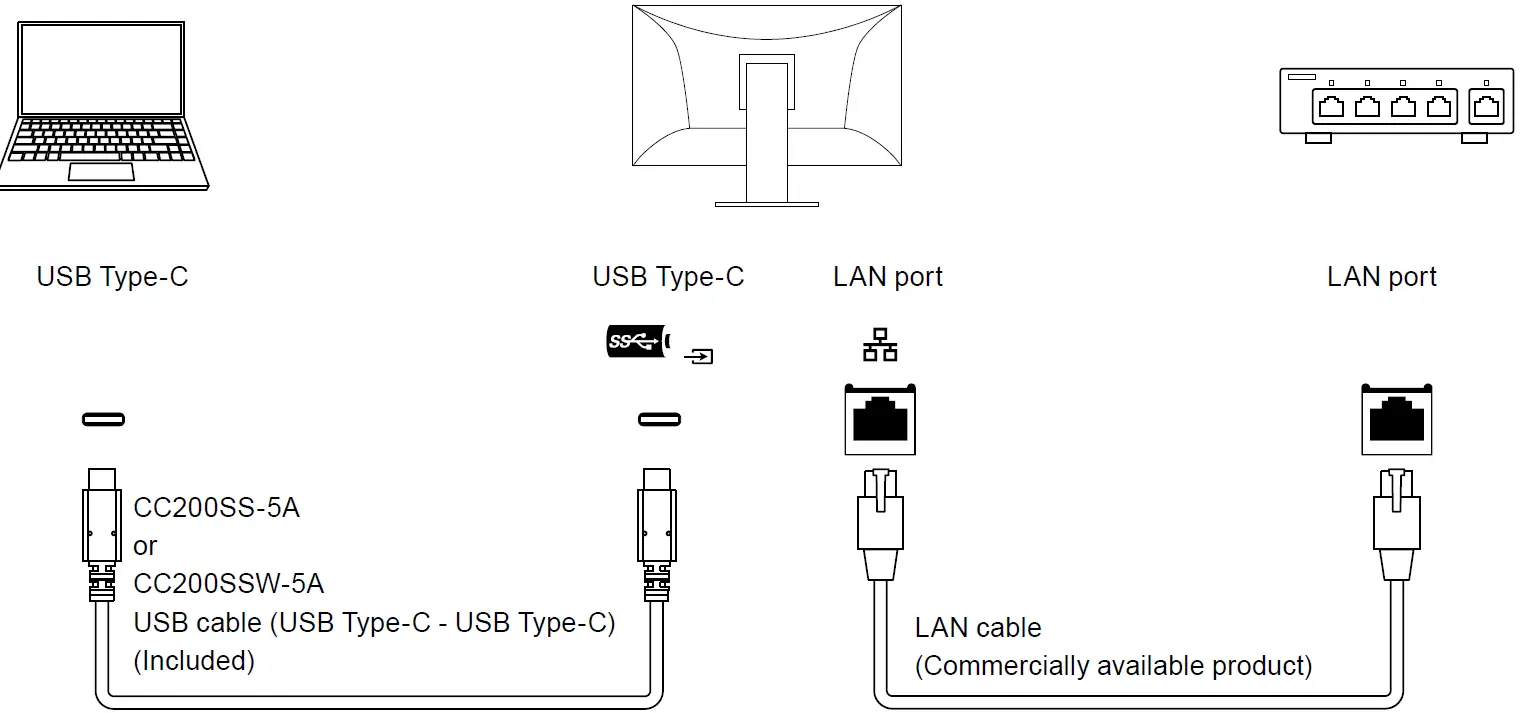
When the PC you are using has a USB Type-C connector
- Connect a USB cable (CC200SS-5A or CC200SSW-5A).
- Connect a LAN cable to the LAN port of the monitor.

When the PC you are using does not have a USB Type-C connector
- Connect a USB cable.
- Connect a LAN cable to the LAN port of the monitor.

Attention
- When the OS of the PC you are using is Windows 8.1, it is necessary to install the driver to use the LAN port. The driver is stored in the monitor. If you connect the PC and the monitor with a USB cable, the installation screen appears. Install the driver following the instructions on the screen.
- This function may not work depending on the computer you are using, your OS and your peripheral devices. Contact the manufacturer of each device for information about USB compatibility.
- Even when the monitor is in power saving mode, devices connected to the USB downstream port are operational. Due to this, the power consumption of the monitor varies depending on the connected devices, even in power saving mode.
- When the main power of the monitor is off, a device connected to the USB downstream port will not operate.
- When “Compatibility Mode” (page 26) is set to “Off” and the power of the monitor is turned off, devices connected to the USB downstream port and the LAN port are not operational.
Note - This product supports USB 3.1 Gen 1. When connecting to peripheral devices that support USB 3.1 Gen 1, high-speed data communication is possible (only if the USB cable connecting the PC or peripheral device supports USB 3.1 Gen 1).
Connecting Multiple PCs
This product can be connected to multiple PCs and allows you to switch between the connections for display.
Connection examples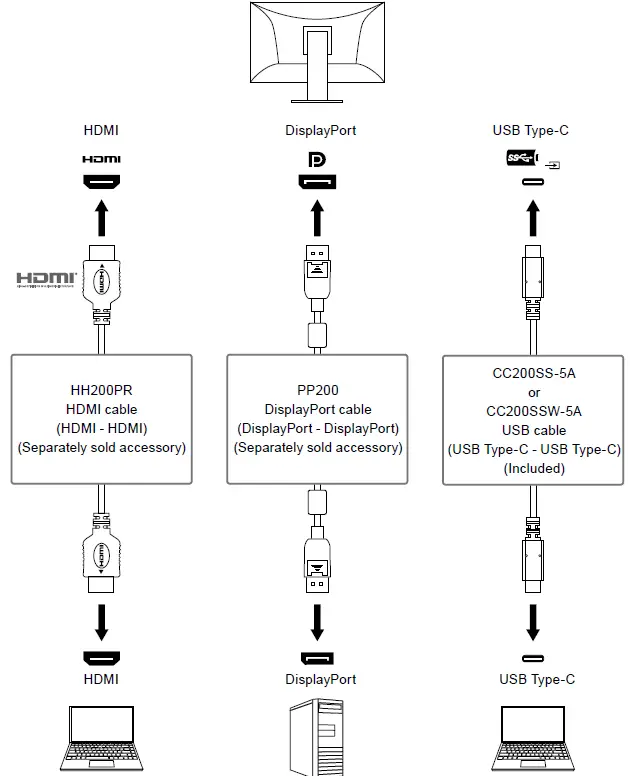
When two PCs are connected to one monitor, you can link the input signals with the USB ports to use a USB device connected to the monitor from both PCs by switching between them. For details, refer to “KVM” (page 27).
Connection Procedure (Using a USB Device from Two PCs by Switching between Them)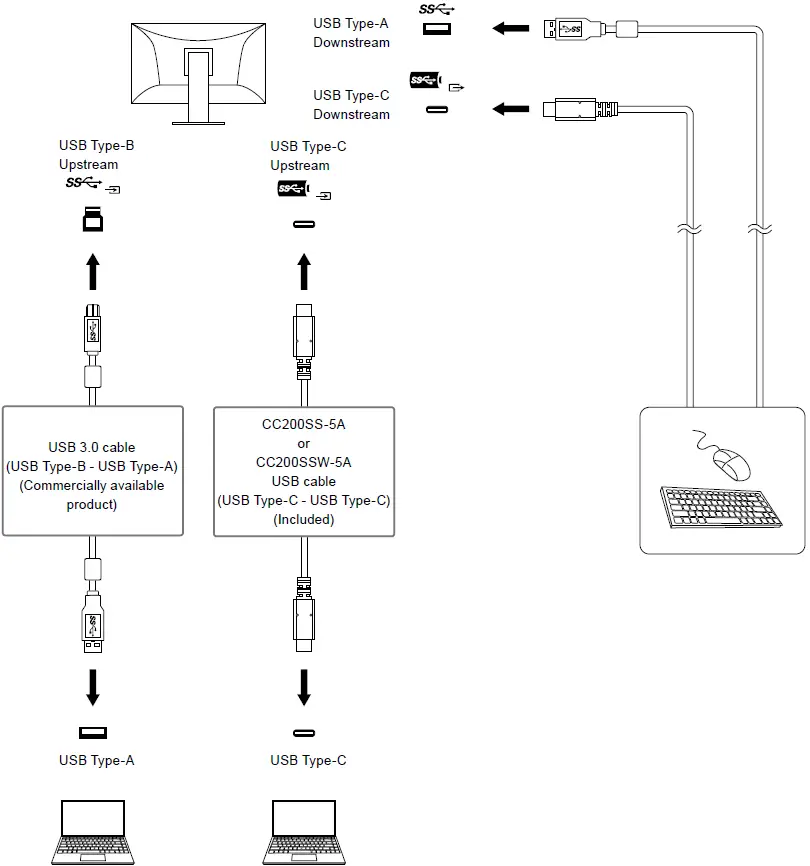 Note
Note
- You can select the input signal to display using the operation switch on the front of the monitor. For details, see “2-2. Switching Input Signals” (page 14).
- This product provides a function that automatically recognizes the connector through which PC signals are input, and displays images on the screen accordingly. For details, see “Auto Input Detection” (page 26).
Specifications
| LCD Panel | Type | IPS (Anti-Glare) | ||
| Backlight | LED | |||
| Size | 68.5 cm (27.0 inch) | |||
| Resolution | 2560 dots × 1440 lines | |||
| Display Size (H × V) | 596.7 mm × 335.7 mm | |||
| Pixel Pitch | 0.233 mm | |||
| Display Colors | 8-bit colors: | 16.77 million colors | ||
| Viewing Angle (H / V, typical) | 178˚ / 178˚ | |||
| Response Time (typical) | Gray-to-gray: | 14 ms (overdrive setting: Off) 5 ms (overdrive setting: Enhanced) | ||
| Video Signals | Input Terminals | DisplayPort (HDCP 1.3 compatible) × 1, HDMI (HDCP 1.4 compatible)*1 × 1, USB Type-C (DisplayPort Alt Mode, HDCP 1.3 compatible) × 1 | ||
| Output Terminal | USB Type-C (DisplayPort Alt Mode, HDCP 1.3 compatible) × 1 | |||
| Digital Scanning Frequency (H / V) | DisplayPort: | 31 kHz to 89 kHz / 59 Hz to 61 Hz, 69 Hz to 71 Hz (at 720 × 400) | ||
| HDMI: | 31 kHz to 89 kHz / 59 Hz to 61 Hz, 69 Hz to 71 Hz (at 720 × 400) | |||
| USB Type-C (DisplayPort Alt Mode): 31 kHz to 89 kHz / 59 Hz to 61 Hz, 69 Hz to 71 Hz (at 720 × 400) | ||||
| Frame Synchronization Mode | 49.5 Hz to 61 Hz | |||
| Max. Dot Clock | 241.5 MHz | |||
| USB | Port | Upstream | USB Type-C (USB 3.1 Gen 1)*2 × 1 USB Type-B (USB 3.1 Gen 1) × 1 | |
| Downstream | USB Type-C (USB 3.1 Gen 1)*3 × 1 USB Type- A (USB 3.1 Gen 1) × 3 | |||
| Standard | USB Specification Revision 3.1 Gen 1 | |||
| Communication Speed | 5 Gbps (super), 480 Mbps (high), 12 Mbps (full), 1.5 Mbps (low) | |||
| Power Supply | Upstream | USB Type-C (USB 3.1 Gen 1): | Maximum 70 W | |
| Downstream | USB Type-C (USB 3.1 Gen 1): USB Type-A (USB 3.1 Gen 1): | Max. 3000 mA / 1 port Max. 900 mA / 1 port*4 | ||
| Audio | Audio Input Format | DisplayPort: | 2ch linear PCM (32 kHz / 44.1 kHz / 48 kHz / 88.2 kHz / 96 kHz / 176.4 kHz / 192 kHz) | |
| HDMI: | 2ch linear PCM (32 kHz / 44.1 kHz / 48 kHz / 88.2 kHz / 96 kHz / 176.4 kHz / 192 kHz) | |||
| USB Type-C (DisplayPort Alt Mode): 2ch linear PCM (32 kHz / 44.1 kHz / 48 kHz / 88.2 kHz / 96 kHz / 176.4 kHz / 192 kHz) | ||||
| Speakers | 1 W + 1 W | |||
| Headphones | 2 mW + 2 mW (32 Ω) | |||
| Input Terminals | DisplayPort × 1, HDMI × 1, USB Type-C (DisplayPort Alt Mode) × 1 (each shared with video signal) | |||
| Output Terminals | Headphone jack × 1 | |||
| Network | Port | RJ-45 (USB LAN Adapter) |
| Supported OS | Microsoft Windows 10 (32-bit/64-bit) Microsoft Windows 8.1 (32-bit/64-bit) macOS Sierra (10.12) or later | |
| Wired LAN | IEEE802.3ab (1000BASE-T), IEEE802.3u (100BASE-TX), IEEE802.3 (10BASE-T) | |
| Power | Input | 100 – 240 VAC ±10 %, 50 / 60 Hz 1.65 A – 0.75 A |
| Maximum Power Consumption | 164 W or less | |
| Power Save Mode | 0.5 W or less (no USB device connected, “USB” in the “Administrator Settings” menu: Off) | |
| Standby Mode | 0.5 W or less (no USB device connected, default settings) | |
| Physical Specifications | Dimensions | 611.4 mm × 363.4 mm to 558.4 mm × 234.0 mm to 268.4 mm (W × H × D) (Tilt: 35˚) |
| 611.4 mm × 368.6 mm to 545.2 mm × 230.0 mm (W × H × D) (Tilt: 0˚) | ||
| Dimensions (Without Stand) | 611.4 mm × 356.6 mm × 56.0 mm (W × H × D) | |
| Net Weight | Approx. 8.5 kg | |
| Net Weight (Without Stand) | Approx. 5.7 kg | |
| Height Adjustment Range | 195 mm (Tilt: 35˚) / 176.6 mm (Tilt: 0˚) | |
| Tilt | Up 35˚, down 5˚ | |
| Swivel | 344˚ | |
| Vertical Rotation | Left 90˚, right 90˚ | |
| Operating Environmental Requirements | Temperature | 5 ˚C to 35 ˚C |
| Humidity | 20 % to 80 % R.H. (no condensation) | |
| Air Pressure | 540 hPa to 1060 hPa | |
| Transportation / Storage Environmental Requirements | Temperature | -20 ˚C to 60 ˚C |
| Humidity | 10 % to 90 % R.H. (no condensation) | |
| Air Pressure | 200 hPa to 1060 hPa |
- HDMI CEC (or mutual control) is not supported.
- Supports Pin Assignment E. Commercially available converter cables (USB Type-C – DisplayPort) can be connected to the DisplayPort connector of the PC.
- Supports daisy chains with DisplayPort Alt Mode.
- It is possible to supply power even if the PC and the monitor are not connected by USB.
Accessories
For the latest information about accessories, refer to our web site www.eizoglobal.com.
Appendix
Trademark
The terms HDMI and HDMI High-Definition Multimedia Interface, and the HDMI Logo are trademarks or registered trademarks of HDMI Licensing, LLC in the United States and other countries. The DisplayPort Compliance Logo and VESA are registered trademarks of the Video Electronics Standards Association. The SuperSpeed USB Trident Logo is a registered trademark of USB Implementers Forum, Inc. The USB Power Delivery Trident Logos are trademarks of USB Implementers Forum, Inc. USB Type-C is a registered trademark of USB Implementers Forum, Inc. DICOM is the registered trademark of the National Electrical Manufacturers Association for its standards publications relating to digital communications of medical information. Kensington and Micro saver are registered trademarks of ACCO Brands Corporation. Thunderbolt is a trademark of Intel Corporation in the United States and/or other countries. Microsoft and Windows are registered trademarks of Microsoft Corporation in the United States and other countries. Adobe is a registered trademark of Adobe Systems Incorporated in the United States and other countries. Apple, macOS, Mac OS, OS X, Macintosh and ColorSync are registered trademarks of Apple Inc. ENERGY STAR is a registered trademark of the United States Environmental Protection Agency in the United States and other countries. EIZO, the EIZO Logo, ColorEdge, CuratOR, DuraVision, FlexScan, FORIS, RadiCS, RadiForce, RadiNET, Raptor and Screen Manager are registered trademarks of EIZO Corporation in Japan and other countries. ColorEdge Tablet Controller, ColorNavigator, EcoView NET, EIZO Easy PIX, EIZO Monitor Configurator, EIZO ScreenSlicer, G-Ignition, i•Sound, Quick Color Match, RadiLight, Re/Vue, Safe Guard, Screen Administrator, Screen InStyle, Screen Cleaner and Uni Color Pro are trademarks of EIZO Corporation. All other company names, product names, and logos are trademarks or registered trademarks of their respective companies.
License
The bitmap font used for this product is designed by Ricoh Industrial Solutions Inc.