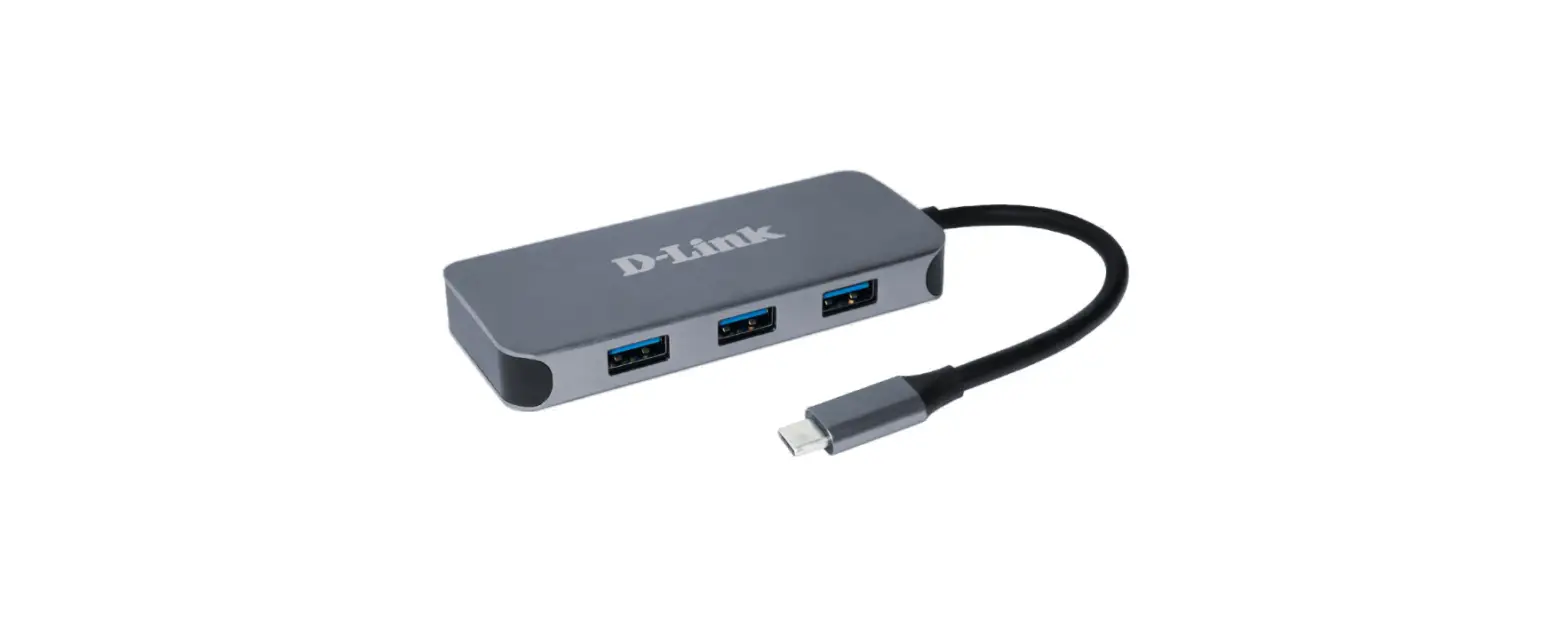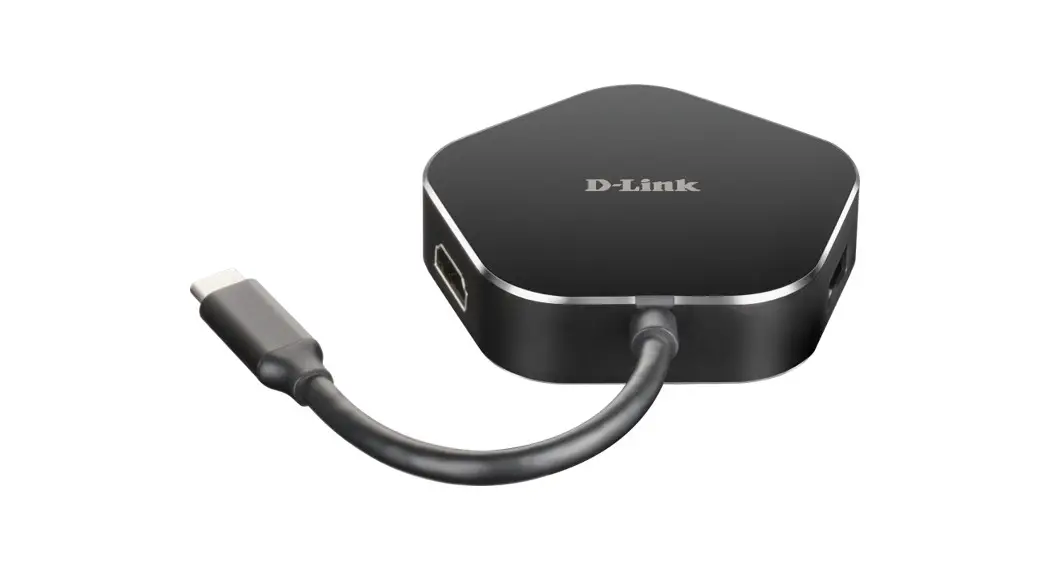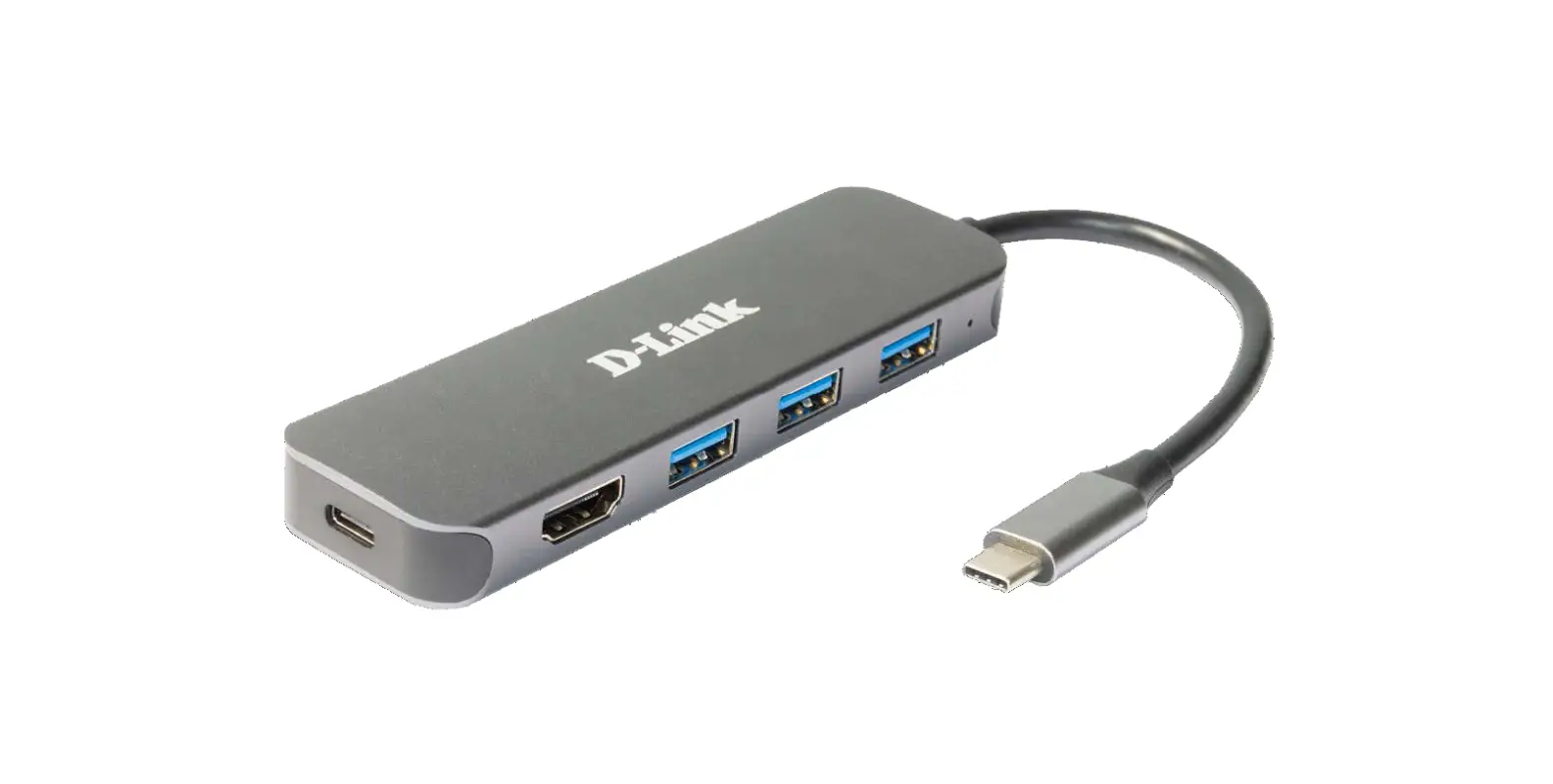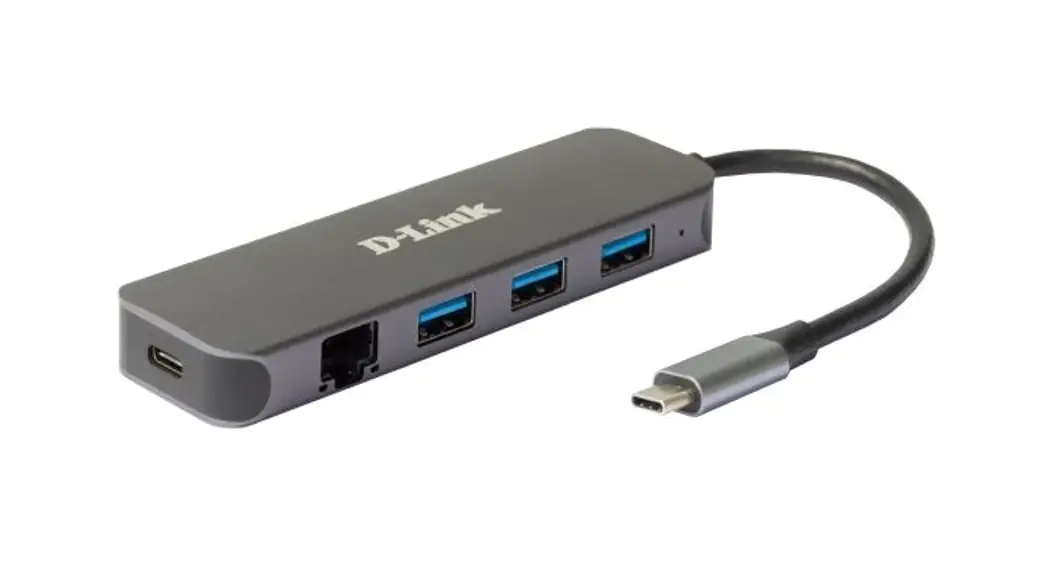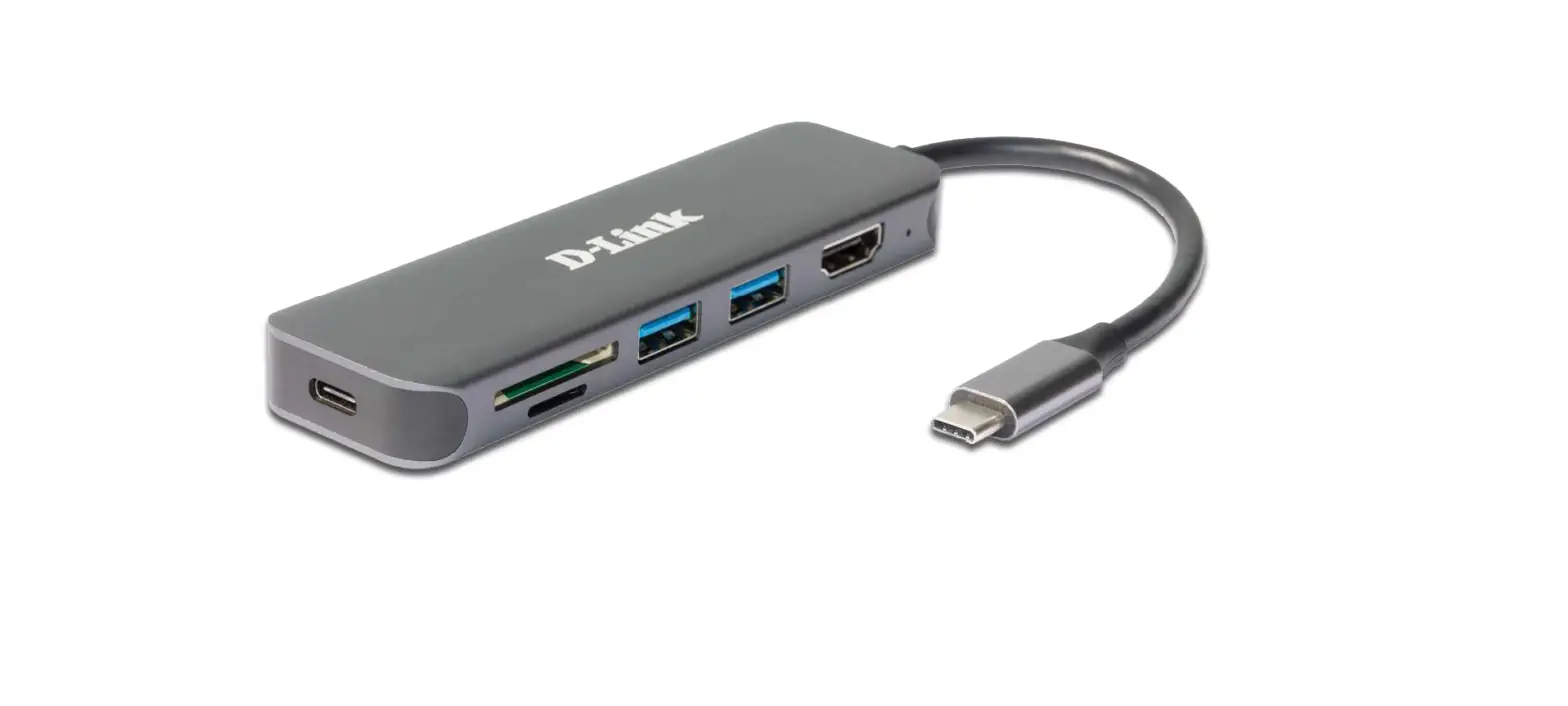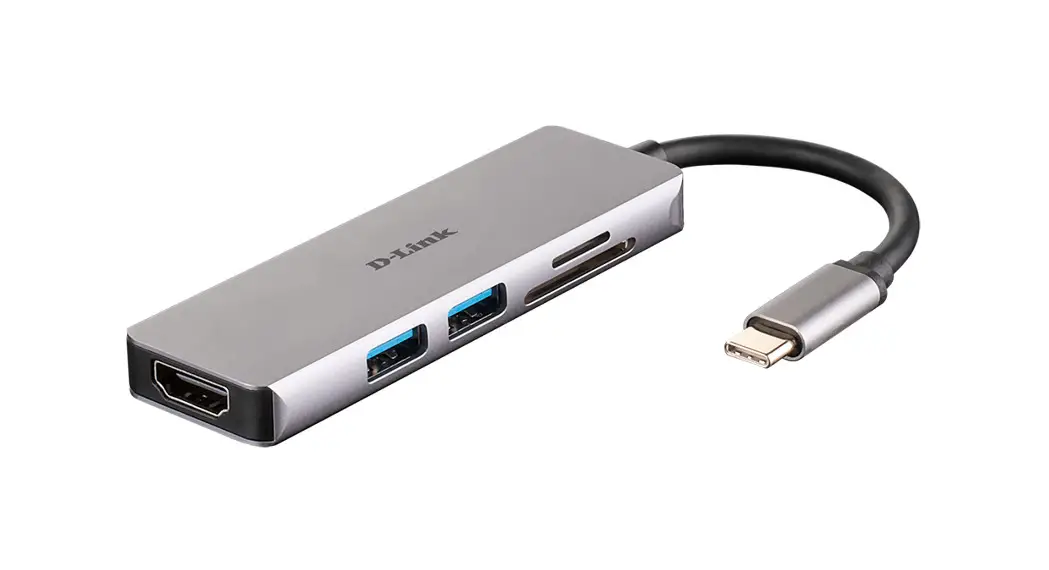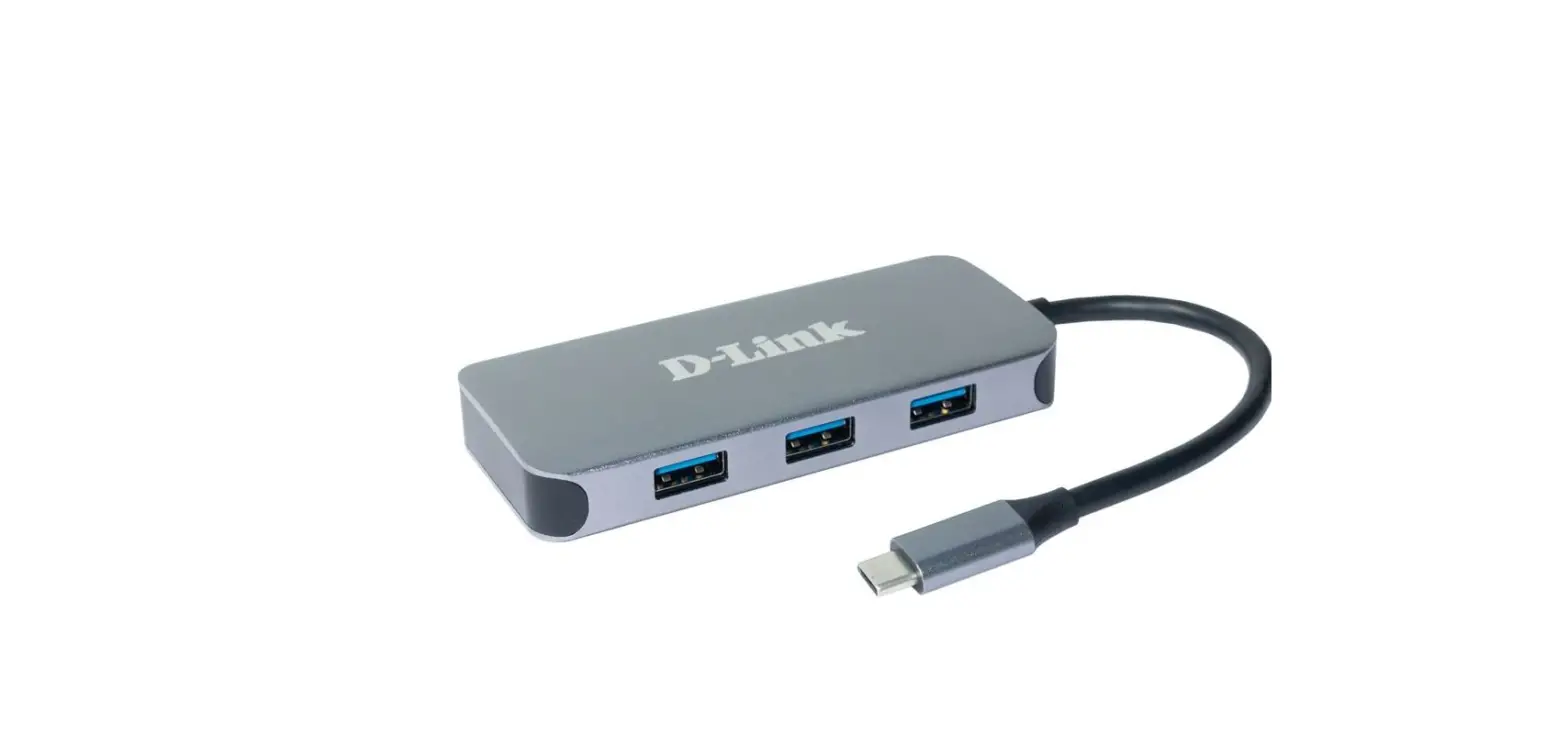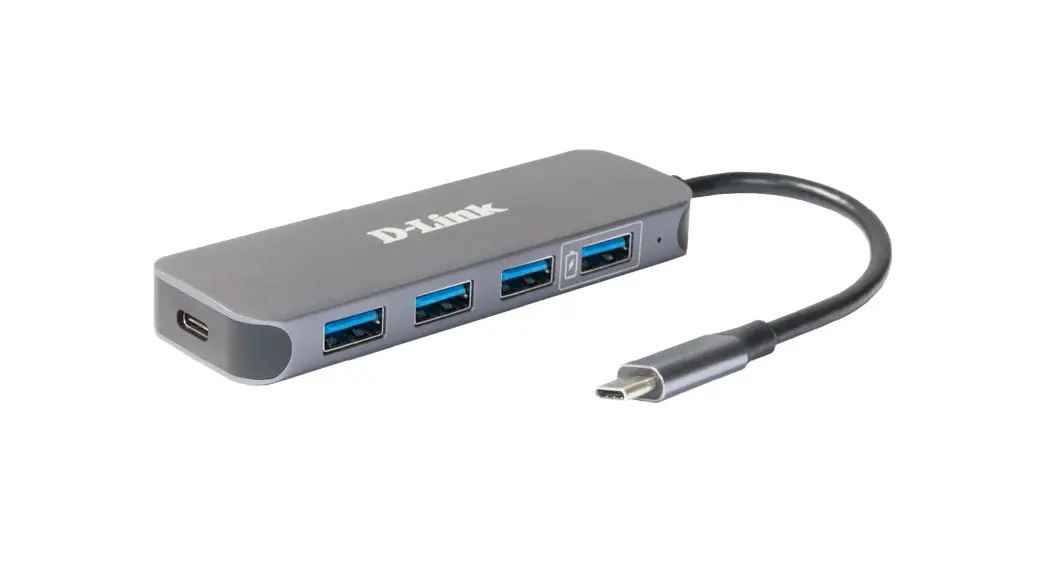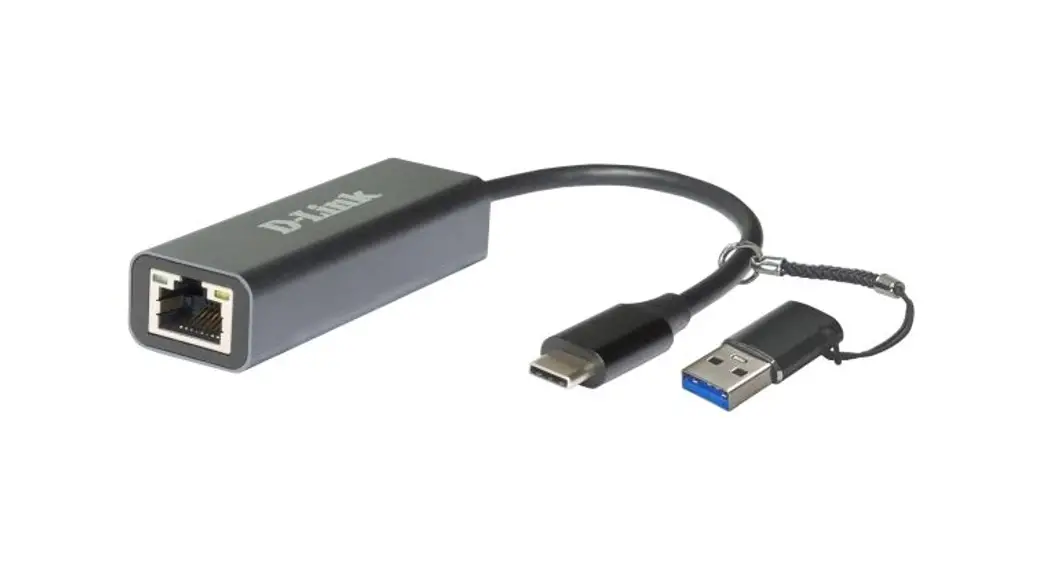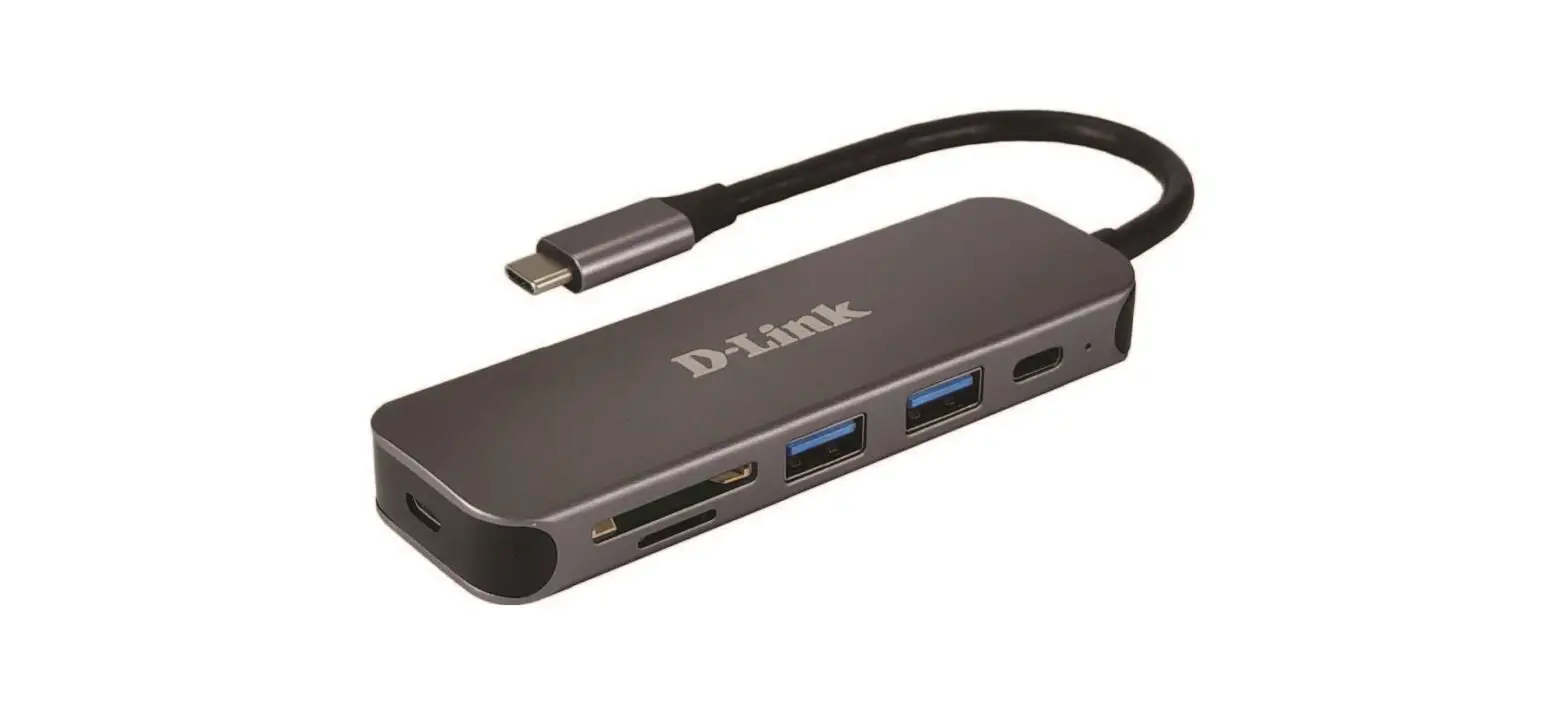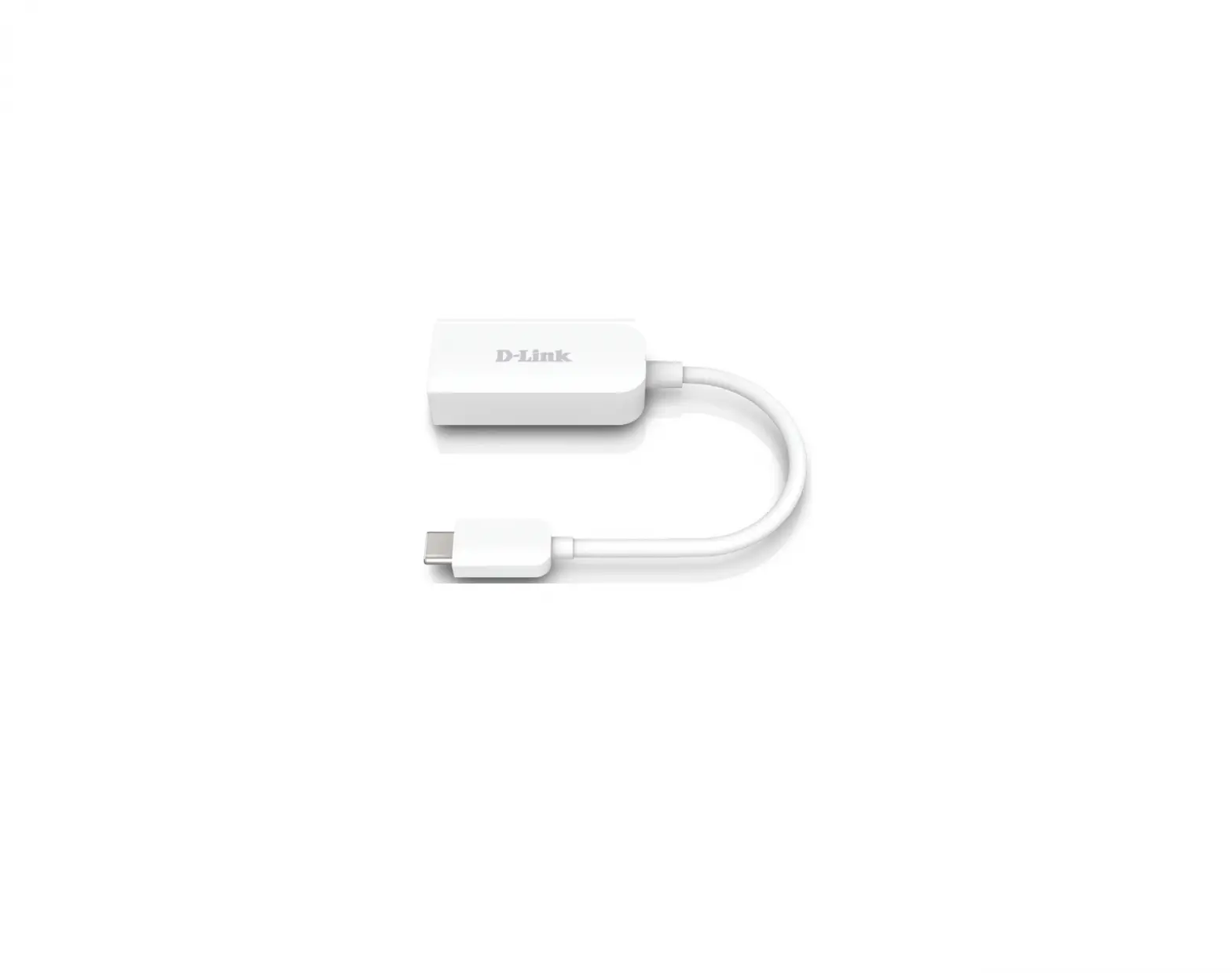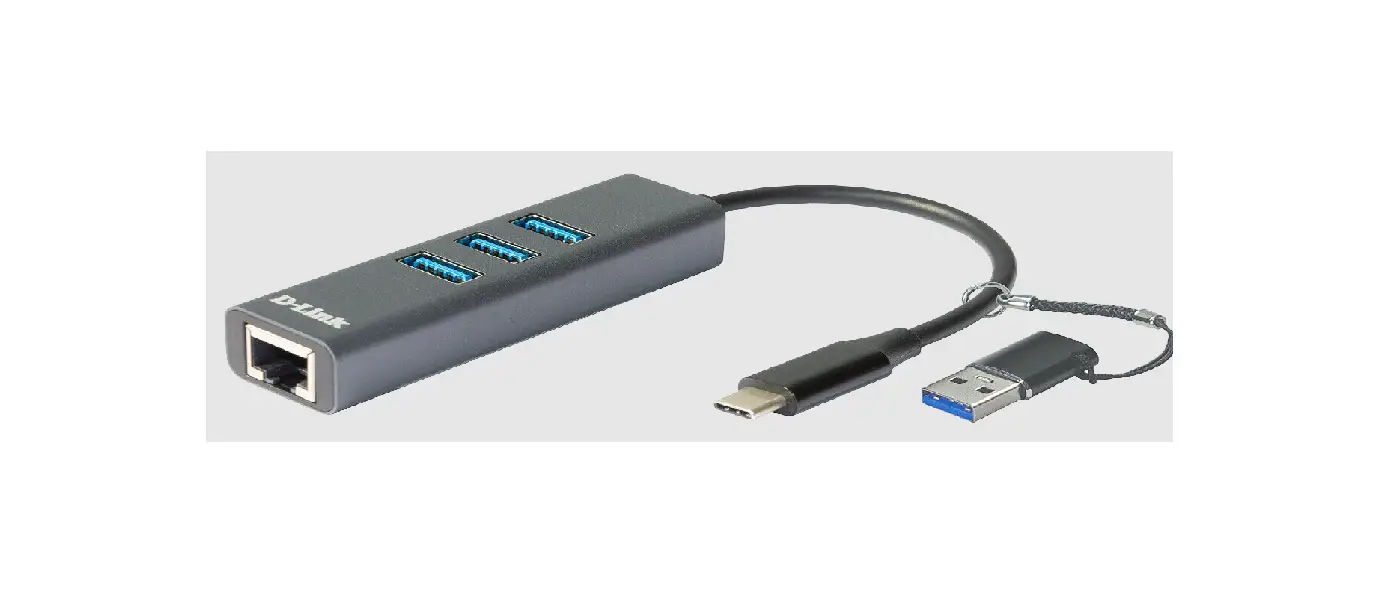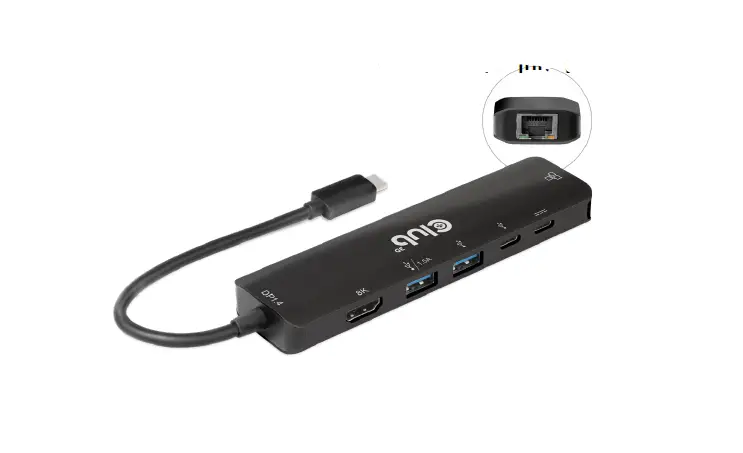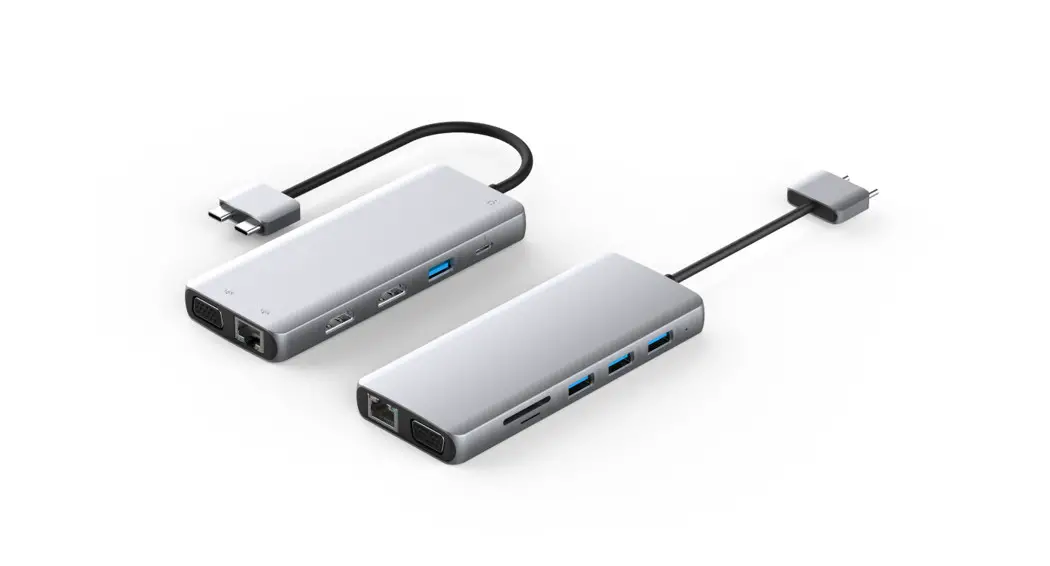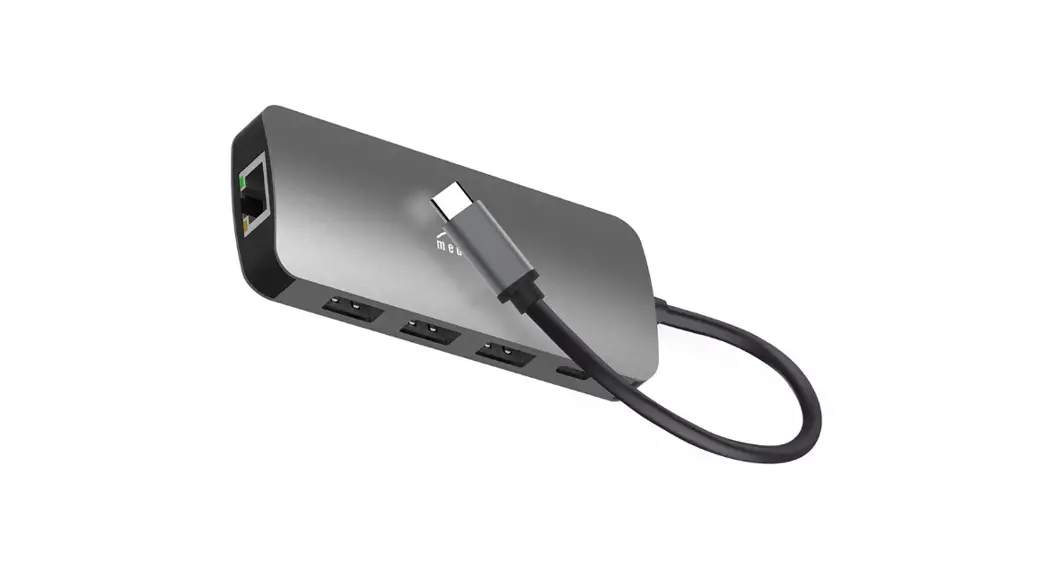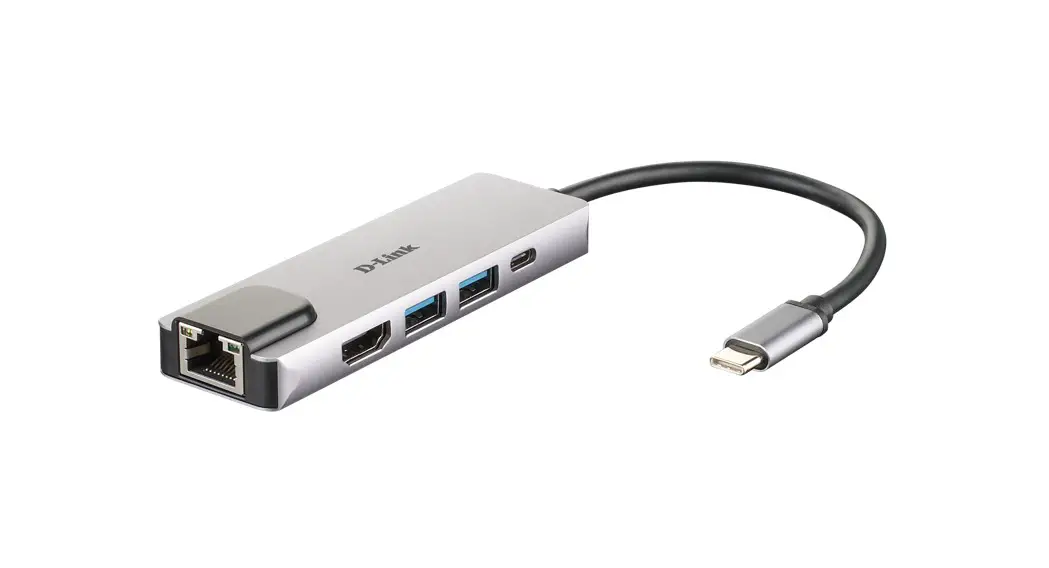

5-IN-1 USB-C HUB WITH HDMI/ETHERNET AND POWER DELIVERY DUB-M520
QUICK INSTALLATION GUIDE
PACKAGE CONTENTS
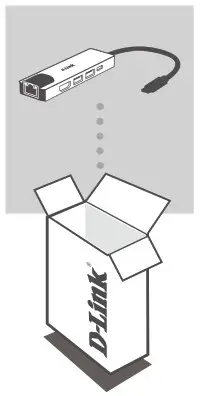
5-IN-1 USB-C HUB WITH HDMI/ETHERNET AND POWER DELIVERY
DUB-M520
If any of these items are missing for damaged, please contact your reseller.
SYSTEM REQUIREMENTS
- Computer running Microsoft Windows® OS, Mac OS®, or Chrome OS™
- USB Type-C Port with DisplayPort Alternate Mode supported
- At least 32 MB of available disk space
- A HDMI Cable (HDMI 1.4 is required for 4K resolution)
- A RJ-45 Ethernet Cable
PRODUCT SETUP
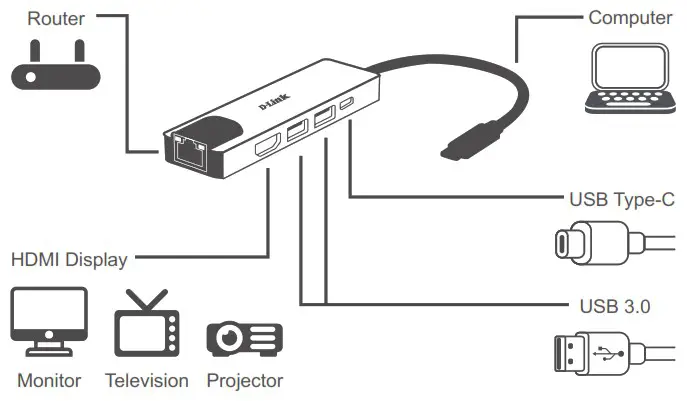
Step 1: Plug the DUB-M520’s USB Type-C connector into an available USB Type-C port on your computer.
Step 2: Connect a HDMI cable to the DUB-M520’s HDMI port.
Step 3: Attach the other end of the HDMI cable to your HDMI display.
Step 4 (Optional): Connect up to two USB devices to the USB 3.0 ports. You can also use the USB Type-C port to charge your USB Type-C device or to deliver power to your laptop.
Regarding Windows 10, 8; Mac OS 10.11.6 and above:
No configuration or driver installation is necessary to use the Ethernet port.
Regarding other operating systems:
Visit the link below to download the RTL8153 software to use the Ethernet port. https://www.realtek.com/en/component/zoo/advanced-search/72?Itemid=276
Note: The device may become warm to touch while in use. This is within normal operating temperature.
TECHNICAL SUPPORT
eu.dlink.com/support
DUB-M520
 Consumer | D-Link
 REALTEK