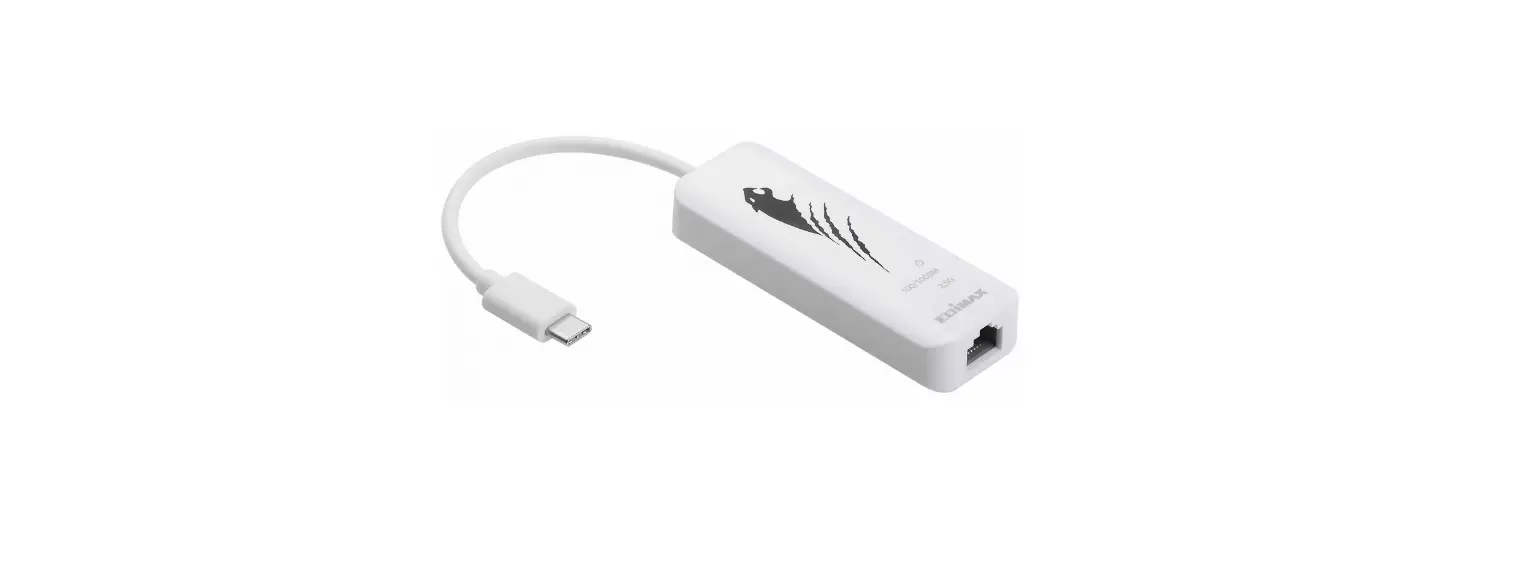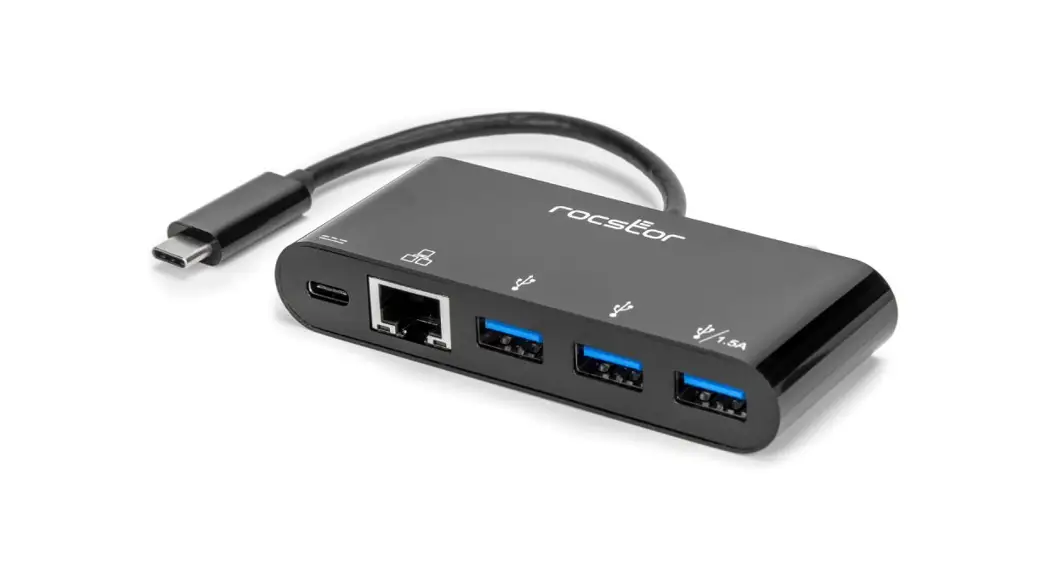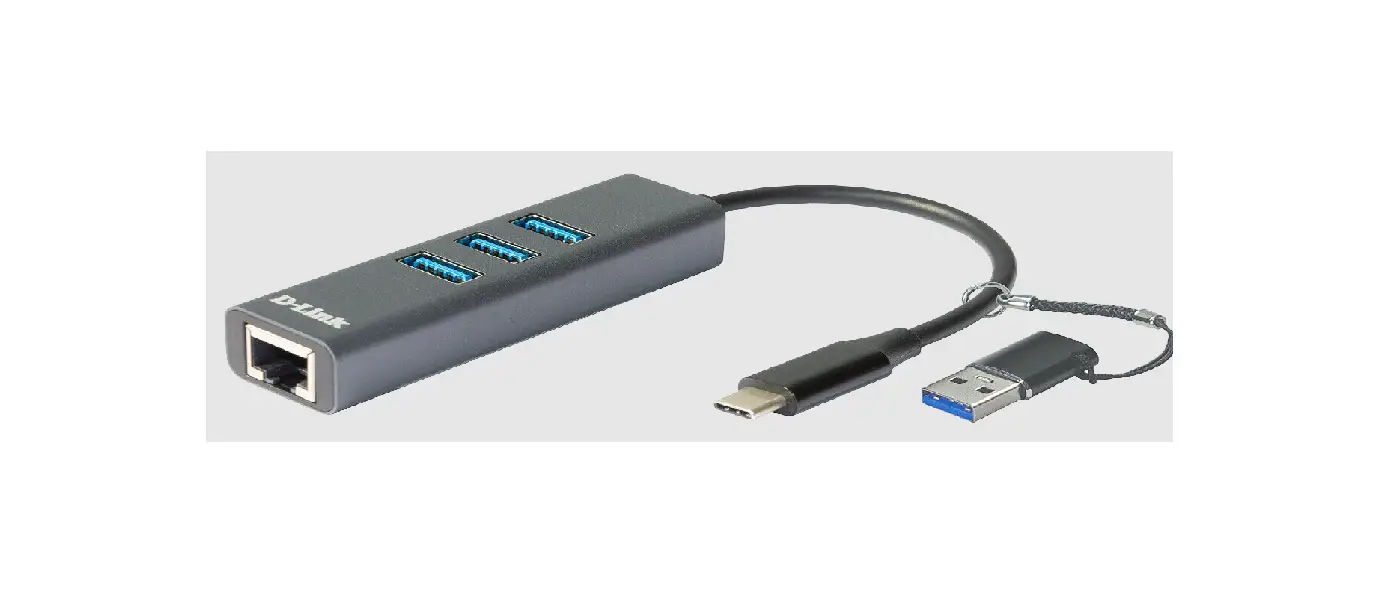

DUB-2332 USB-C to Gigabit Ethernet Network Adapter
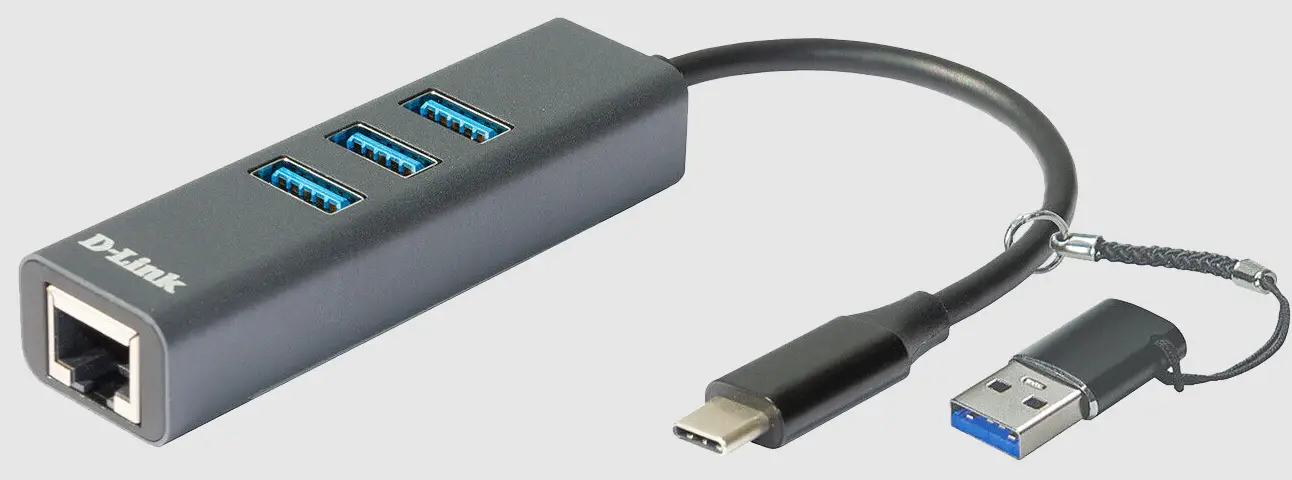
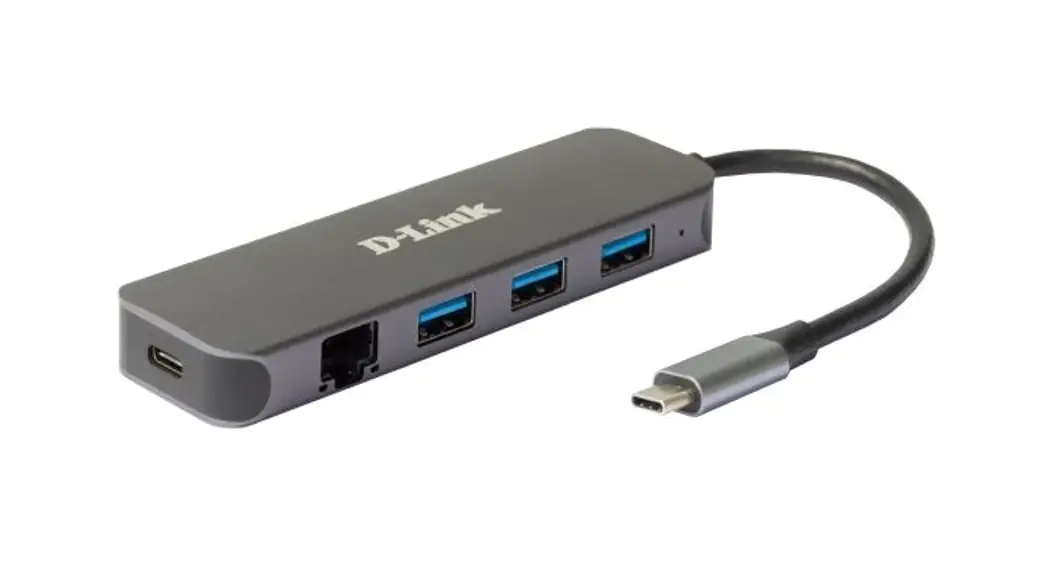
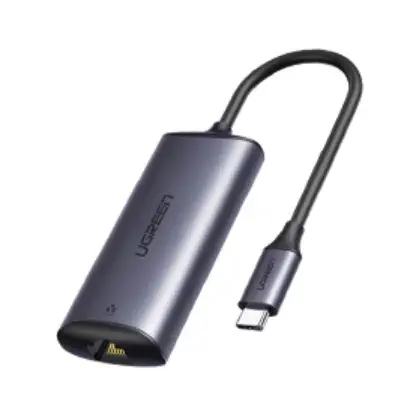
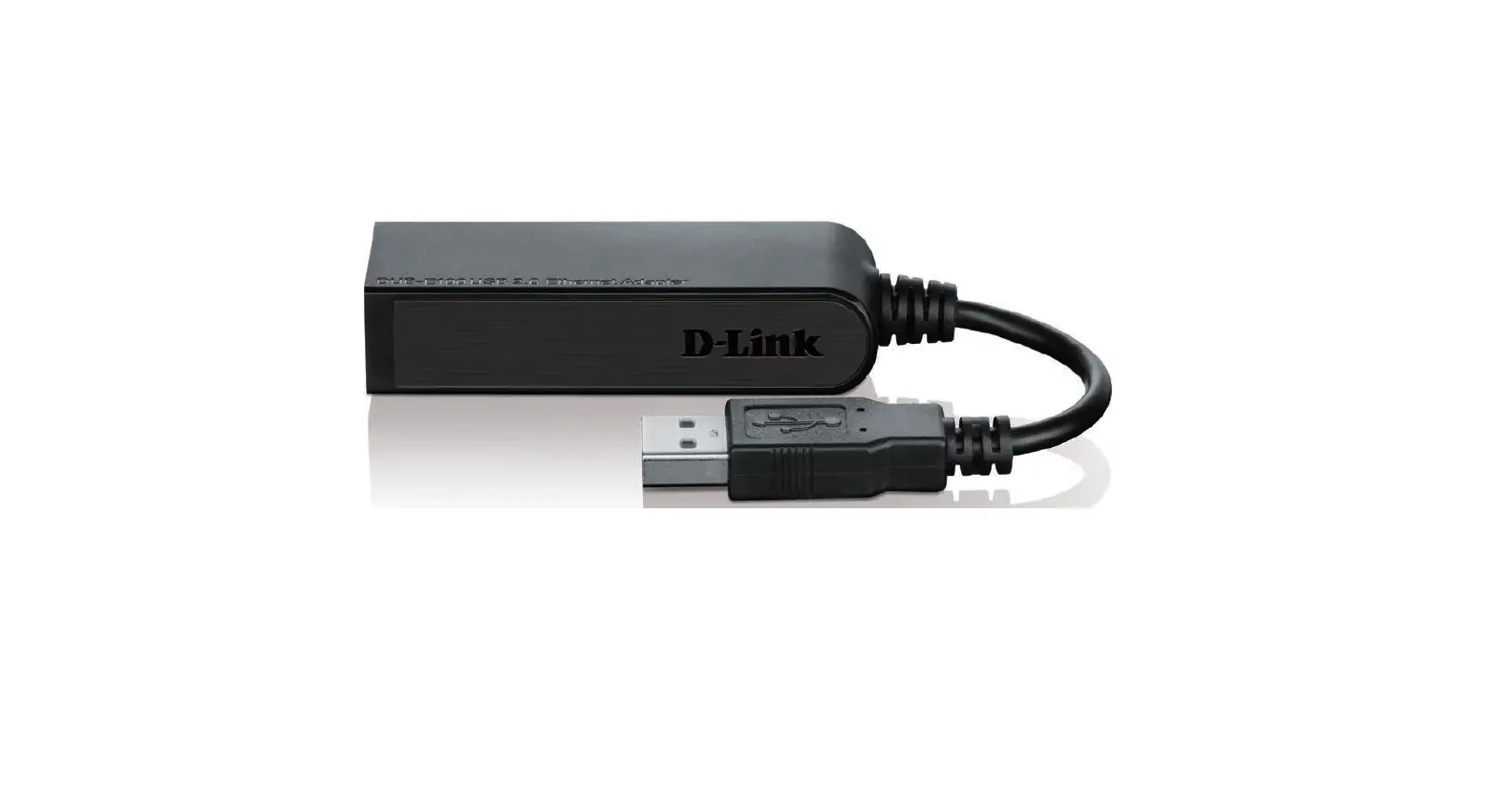
D-Link DUB-2332 USB-C to Gigabit Ethernet Network Adapter with 3xUSB 3.0 and USB-A to USB-C Adapter
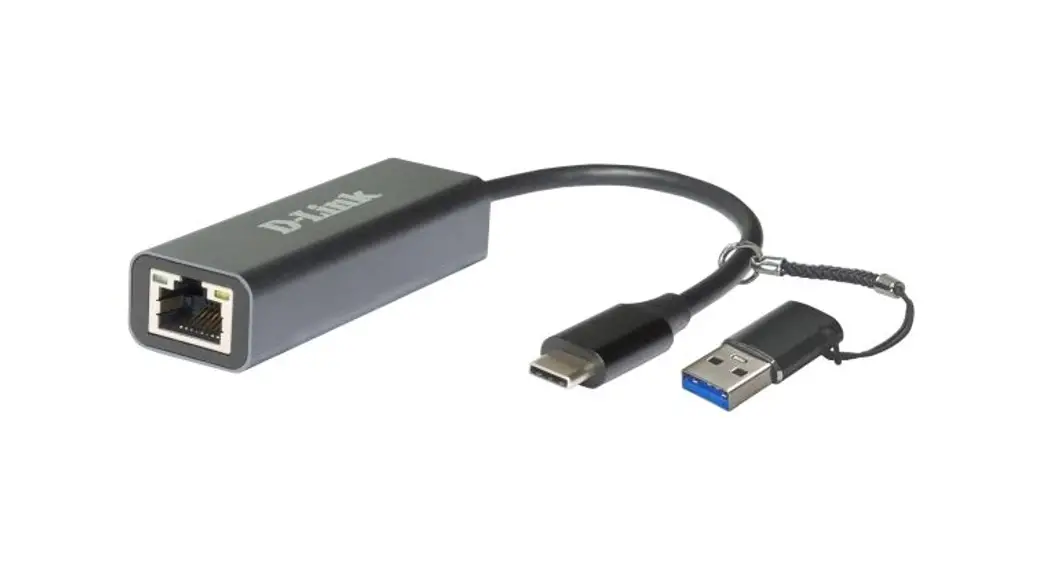
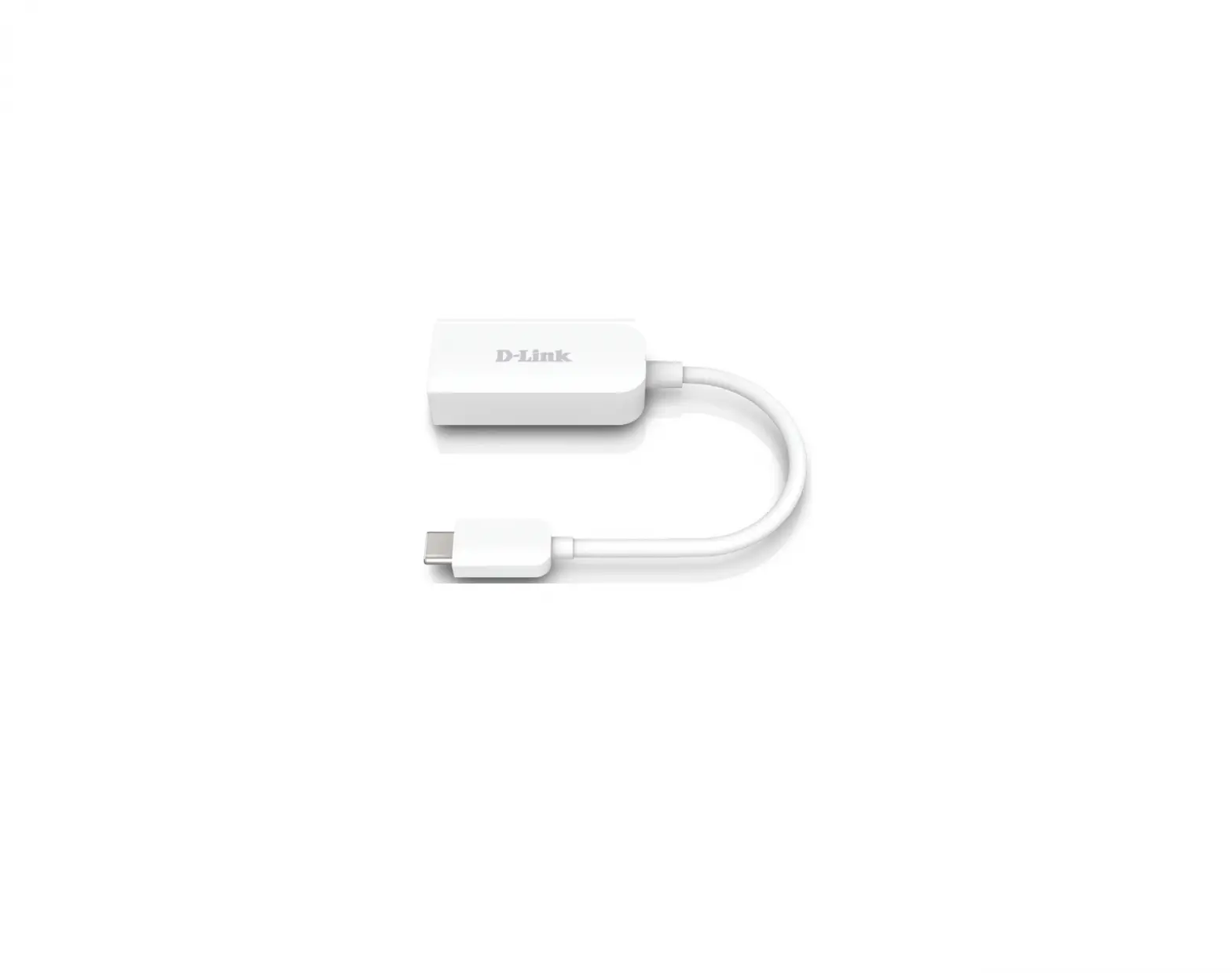
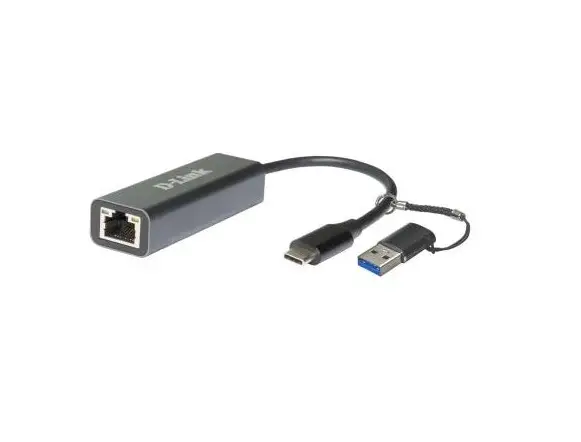
The D-Link DUB-2332 is a USB-C to Gigabit Ethernet Network Adapter that also has 3 USB 3.0 ports. The package includes a USB-A to USB-C adapter for compatibility with computers that don’t have a USB-C port. The DUB-2332 is designed for use with PCs or laptops running Windows 7/8/8.1/10 or macOS (OS X 10.8 and above) with a USB Type-C port or USB 3.0 Type-A port.
Hardware Overview
The DUB-2332 has the following interfaces:
- USB Type-C connector
- Gigabit Ethernet port
- 3 USB 3.0 ports
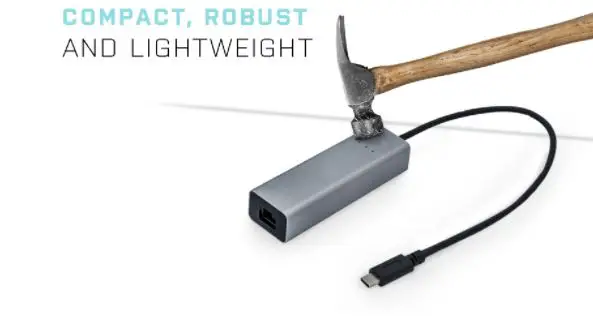
- Aluminum enclosure
The product also has LED indicators for Speed 1 (flashing red) and Speed 2 (flashing green).
Product Setup
Follow the steps below to set up your DUB-2332:
- Plug the USB Type-C cable of the DUB-2332 into an available USB Type-C port on your computer. If your computer doesn’t have a USB Type-C port, plug the additional adapter into an available USB 3.0 Type-A port on your computer first. Then, plug the USB Type-C cable of the DUB-2332 into the USB Type-C port on the additional adapter.
- Run the setup file in the opened folder to begin the DUB-2332 driver installation. If the folder containing the setup file isn’t opened automatically, please open it through a file manager and run the setup file.
- Attach an Ethernet cable to the Ethernet port on the DUB-2332 and to your network switch, hub, or router. You can also connect USB devices to the USB 3.0 ports on the DUB-2332.
Note: Using a USB 1.1 or USB 2.0 port will affect device performance. A USB 3.0 port is recommended.
Information in this document is subject to change without notice. © 2021 D-Link Corporation. All rights reserved.
Package Contents
- DUB-2332 network adapter
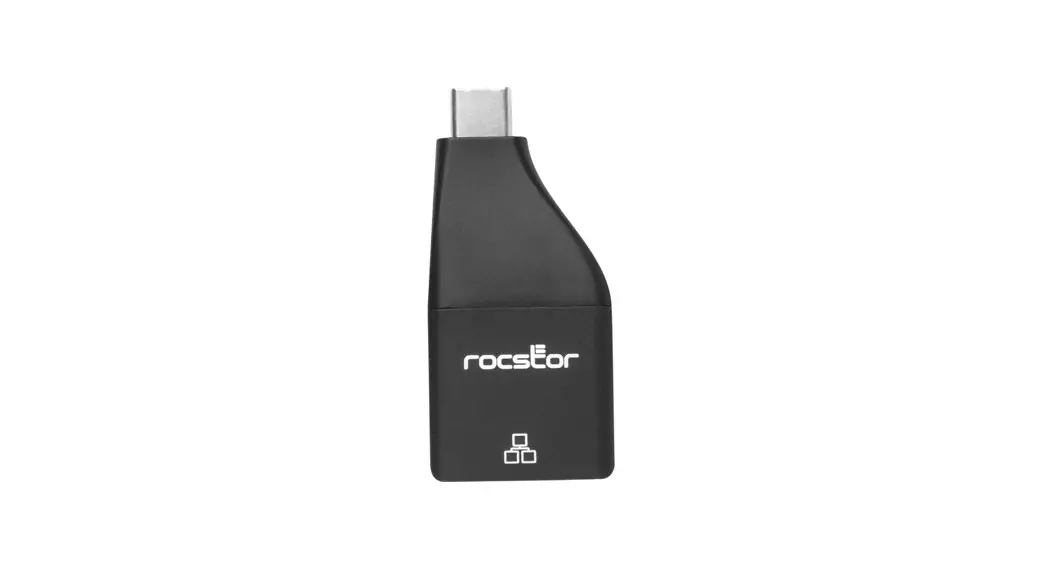
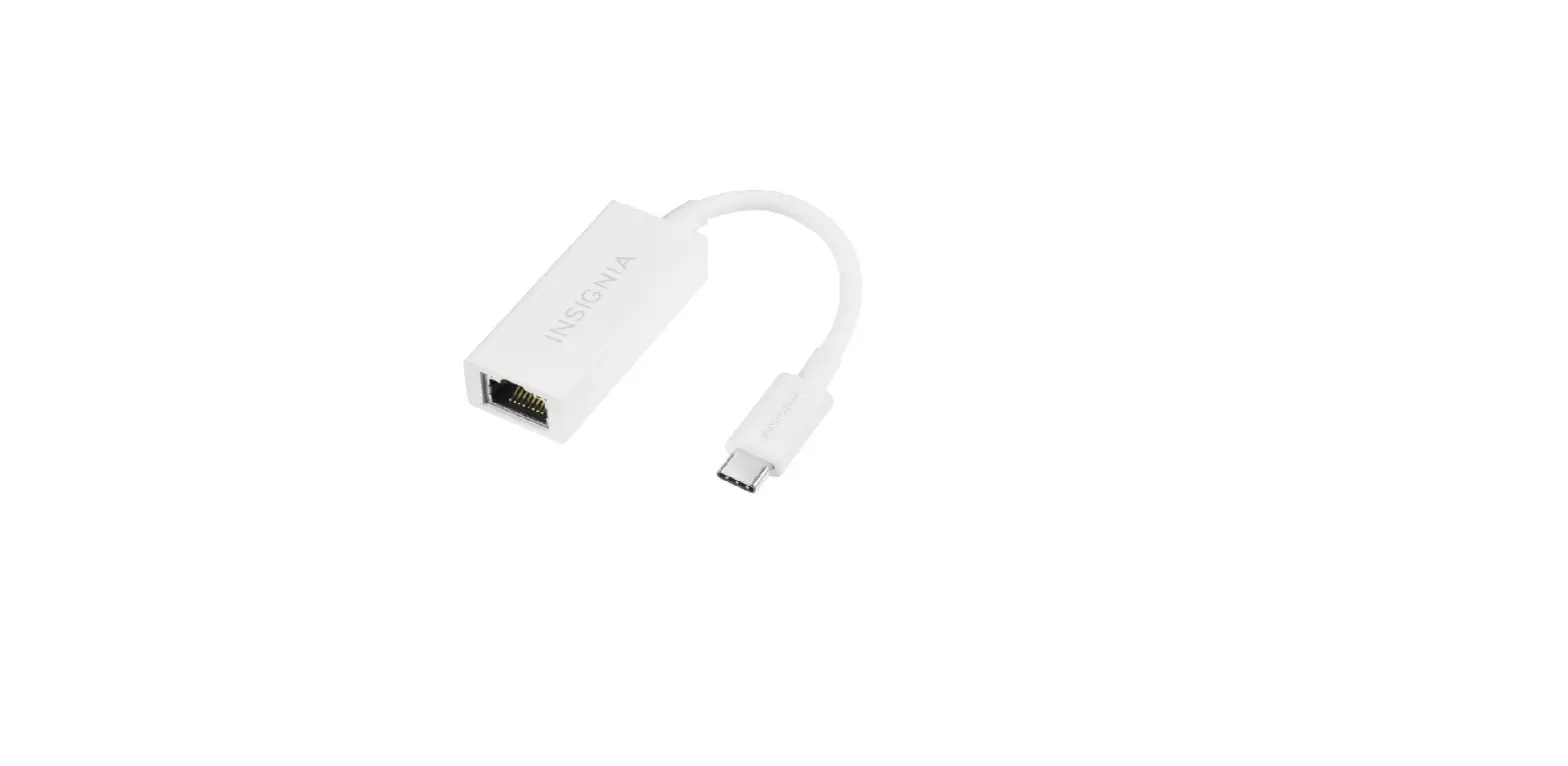
- USB-A to USB-C adapter
- Quick Installation Guide
- Warranty documents
Minimum Requirements
PC or laptop with:
- Windows 7/8/8.1/10, macOS (OS X 10.8 and above)
- USB Type-C port or USB 3.0 Type-A port*
* Using a USB 1.1 or USB 2.0 port will affect device performance. USB 3.0 port is recommended.
Hardware Overview
Interfaces

| Number | Item | Description |
| 1 | USB Type-C connector | Connect to laptop or desktop computer |
| 2 | Gigabit Ethernet port | Connect to switch/router |
| 3 | USB 3.0 ports | Connect to USB devices |
| 4 | Enclosure | Aluminum enclosure |
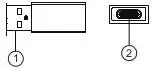
| Number | Interface | Description |
| 1 | USB 3.0 Type-A connector | Connect to laptop or desktop computer |
| 2 | USB Type-C port | Connect to the DUB-2332 network adapter |
LED Indicators
| LED | Status | Description |
| Speed 1 | Flashing red | Data transmission at 10 Mbps or 100 Mbps |
| Speed 2 | Flashing green | Data transmission at 1000 Mbps |
Product Setup
- Plug the USB Type-C cable of the DUB-2332 into available USB Type-C port on your computer. If your computer does not have USB Type-C port, plug the additional adapter into available USB 3.0 Type-A port on your computer. Then plug the USB Type-C cable of the DUB-2332 into the USB Type-C port on the additional adapter.
- Run the setup file in the opened folder to begin the DUB-2332 driver installation.
Note: if the folder containing the setup file is not opened automatically, please open it through a file manager and run the setup file. - Attach an Ethernet cable to the Ethernet port on the DUB-2332 and to your network switch, hub or router. You can also connect USB devices to the USB 3.0 ports on DUB-2332.
 D-Link Главная