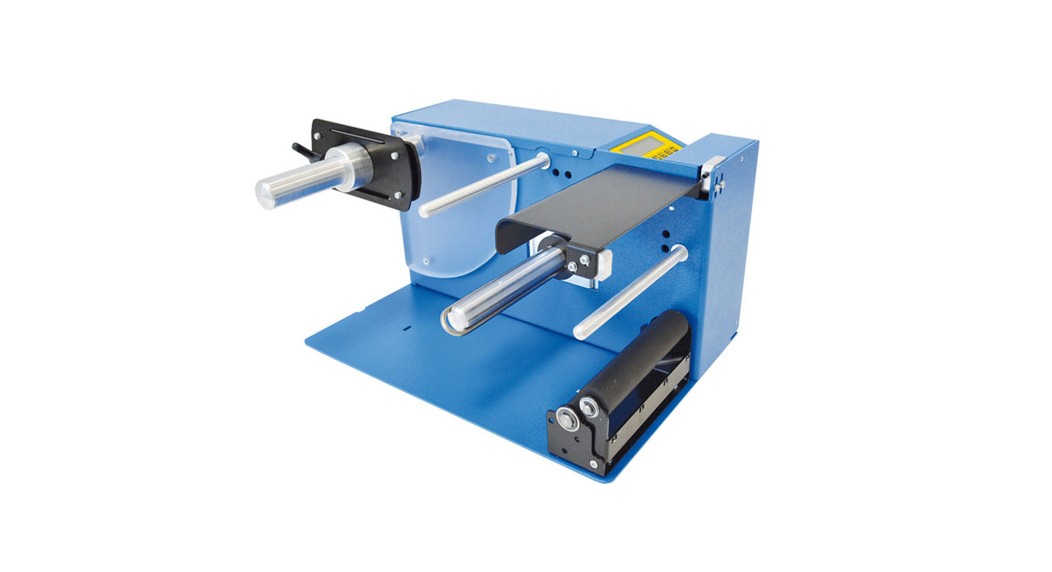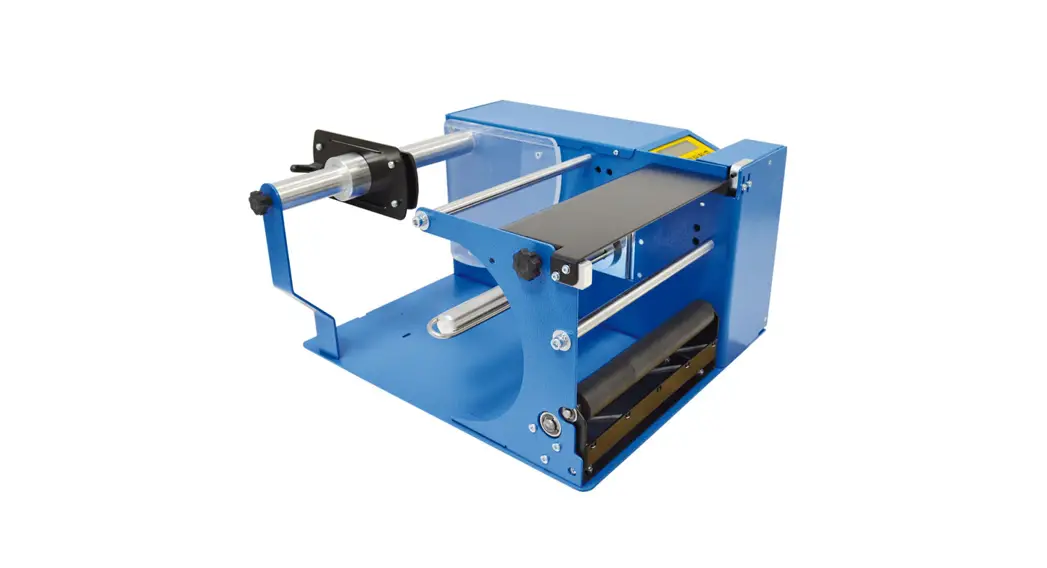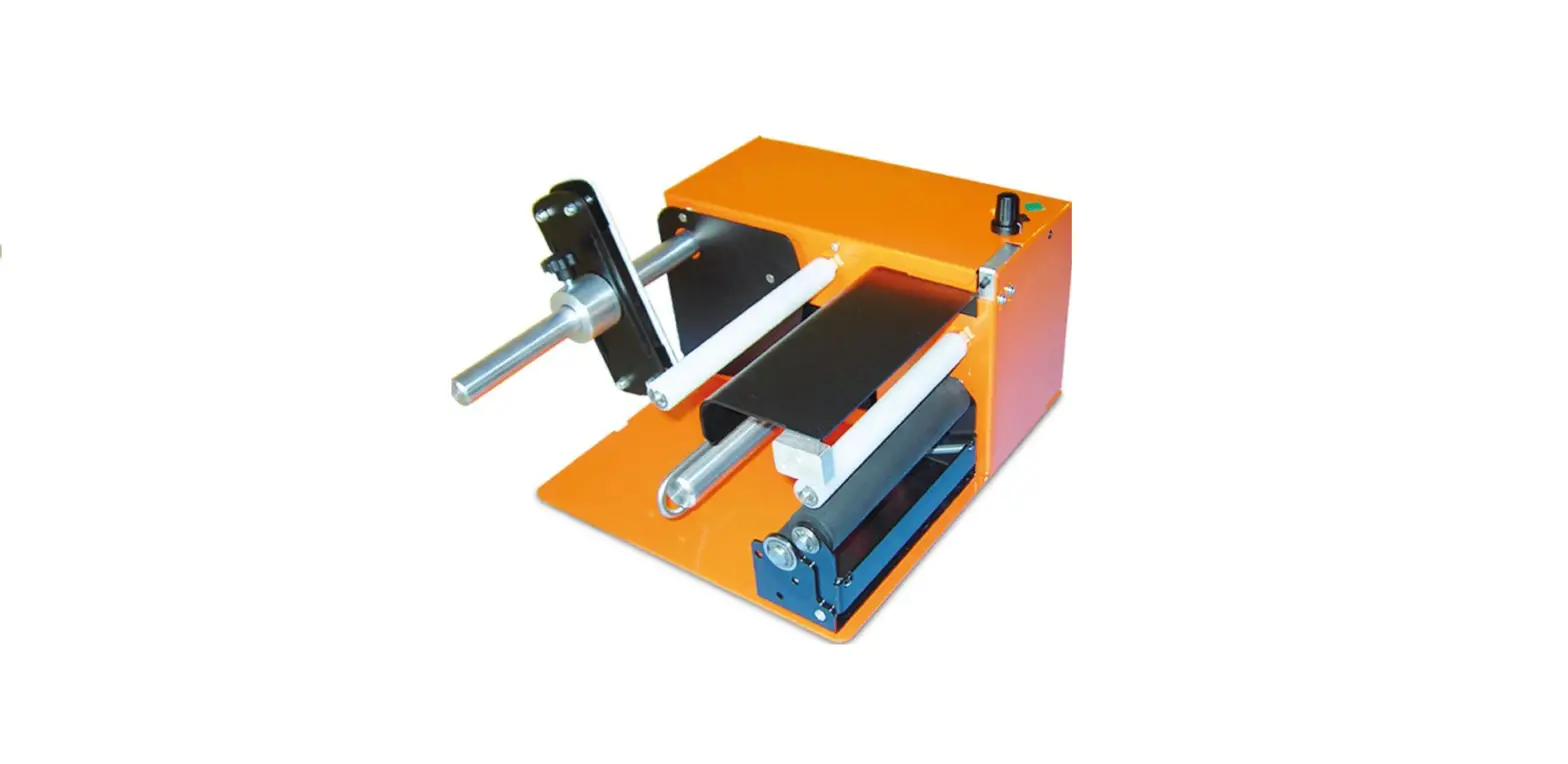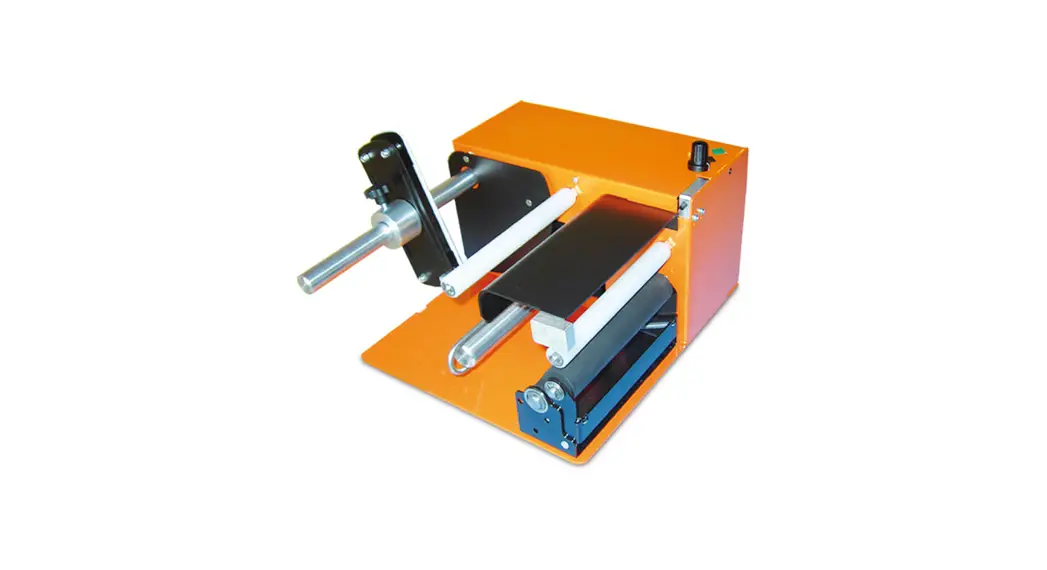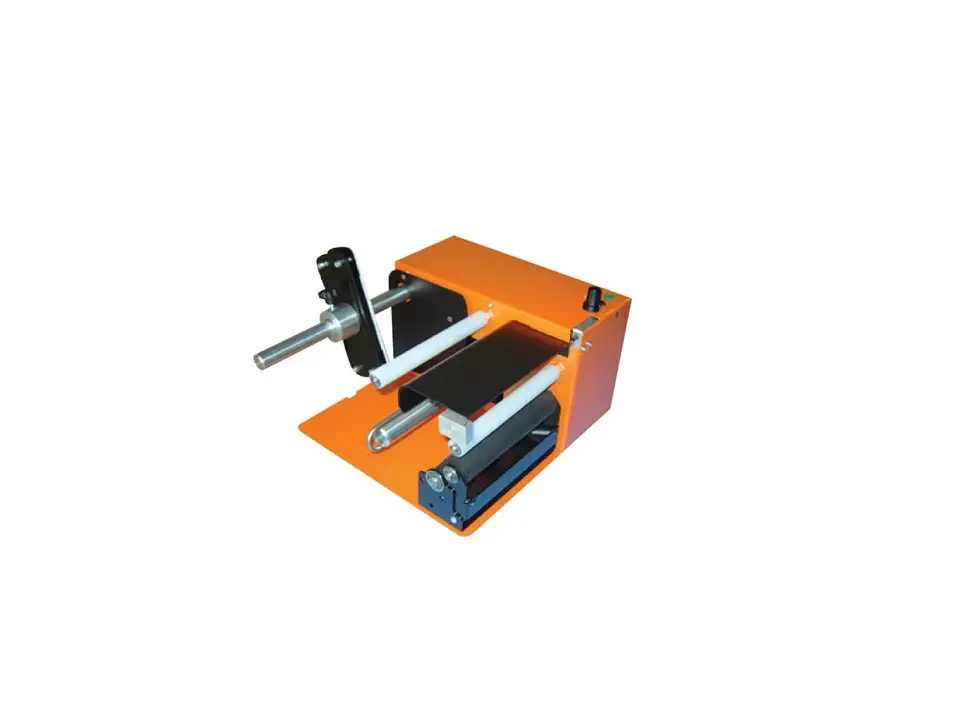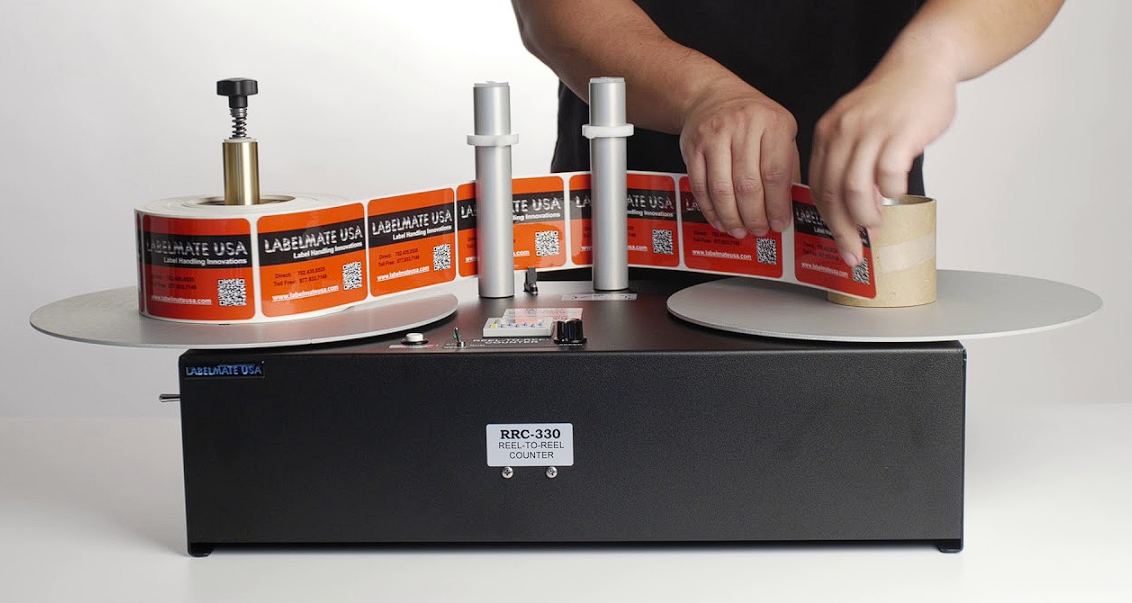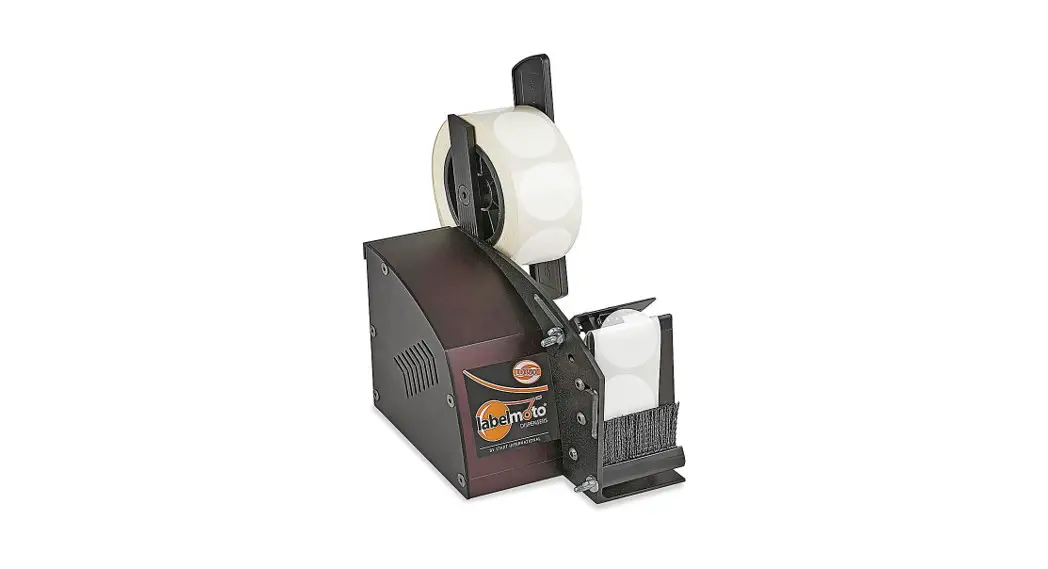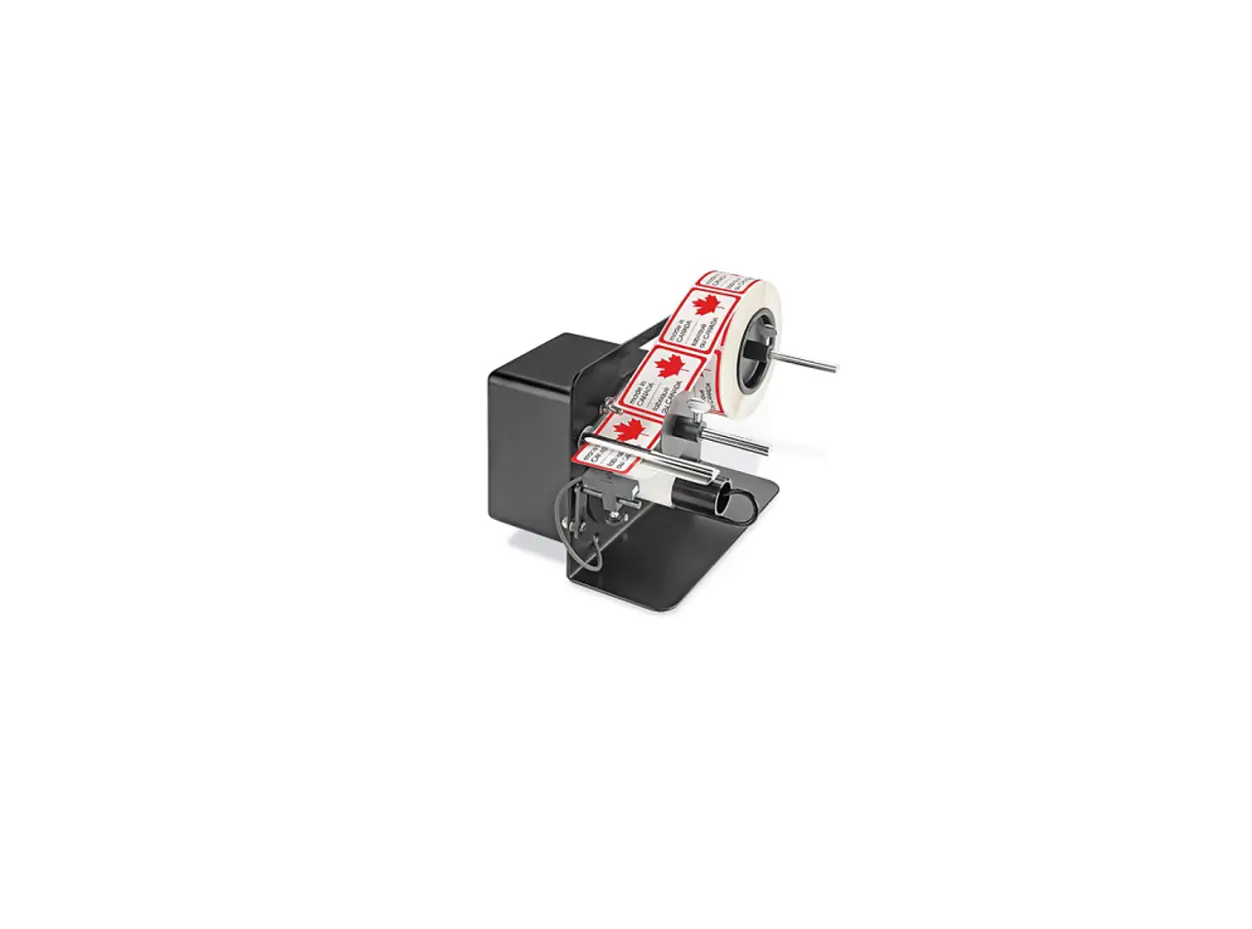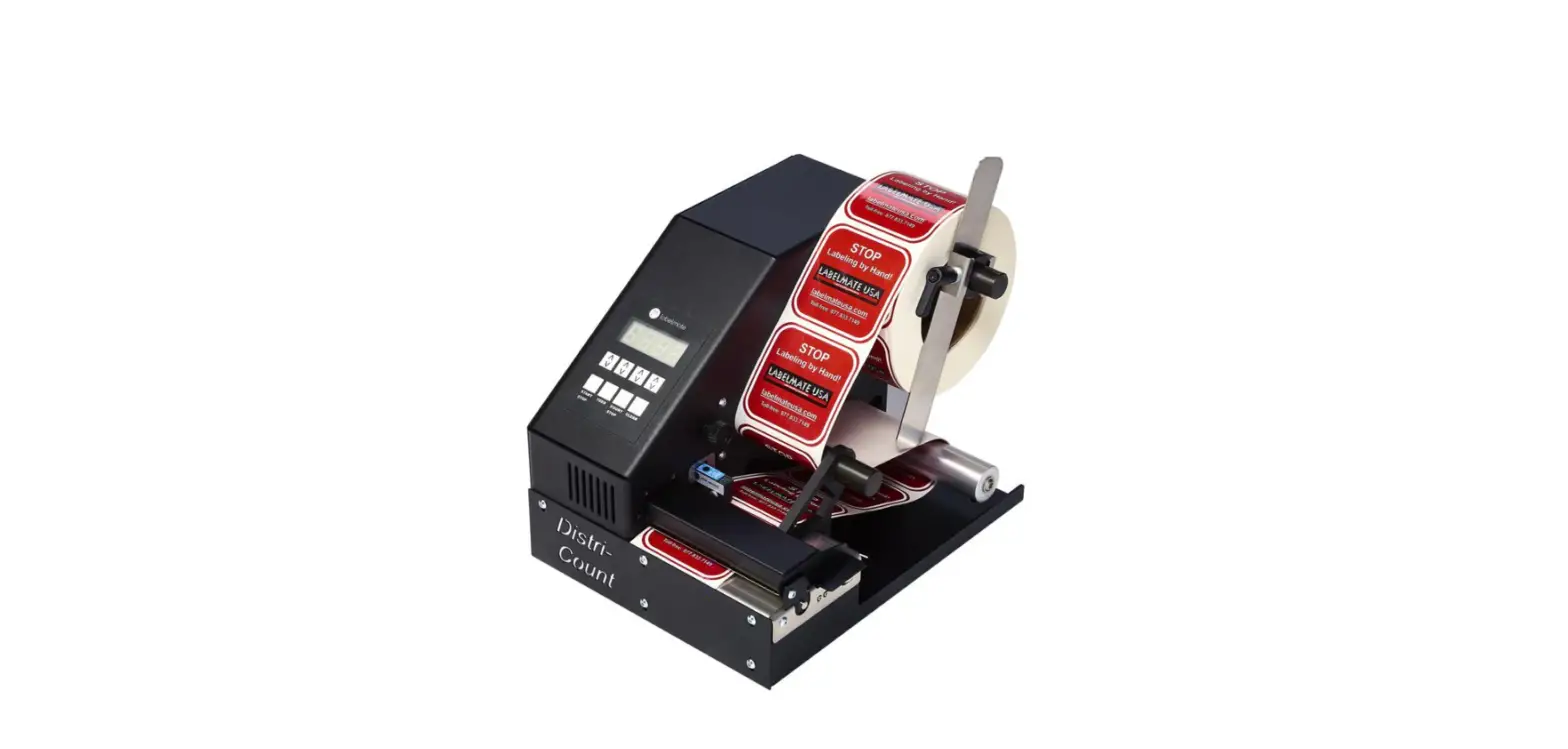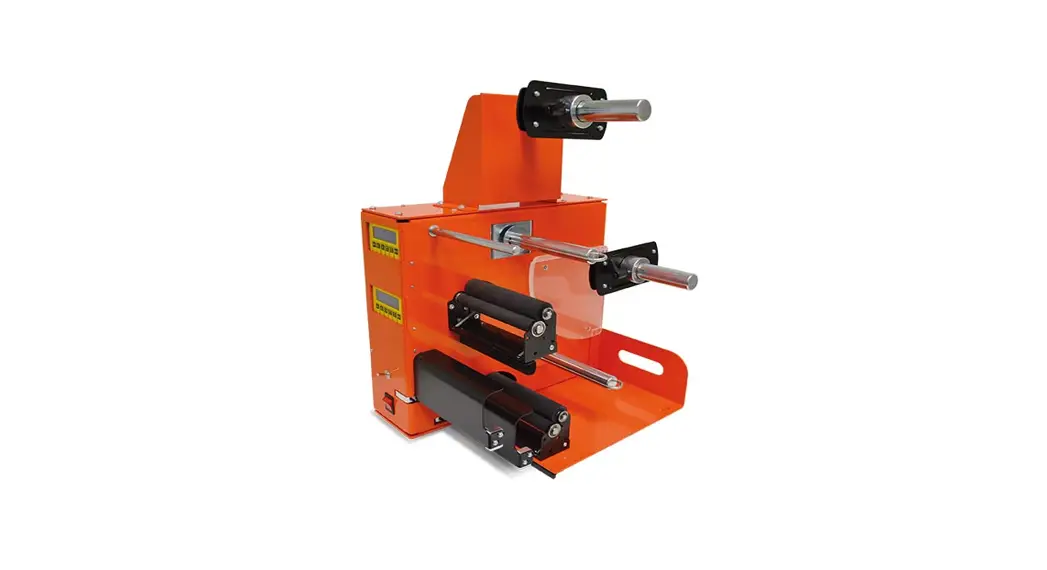
 DD01 Double Label Dispenser
User Manual
DD01 Double Label Dispenser
Please keep the original packaging in case you need to return the unit.
If we receive the system in non-original packaging, the warranty may be void.
CHARACTERISTICS
Electrical Characteristics
- External power supply with 220/18VAC transformer
- Fuse protection 2A
Electronic Characteristics
- Photocell to detect label presence
- Tachometer to control the label length
- Display with 2 lines of 16 characters
Electrical Characteristics
- Personalization of company name
- Photocell function control
- Programmable quantity of labels to detach from 0 to 999
- Continual display of the detached label quantity
- Continual display of the number of detached label series
- Programmable length of the detached part of the label
- Three different feed types
- An acoustic alarm sounds when the number of label series reaches the programmed quantity
- Programmable series from 2 to 3 labels of different lengths
Mechanical Characteristics
- Maximum dimensions W=570mm (22.44”); H=240mm (9.45”); D=410mm (16.14”)
- Speed 120 rpm • Roll diameter up to 300mm (11.81”)
- Core holder from 32mm (1.26”)
- Label width up to 150mm (5.90”)
PROGRAMMING
Exiting Menu
IMPORTANT To exit at any moment from the programming mode and implement an alarm reset, push this button.
When first switched on the panel will display the following:
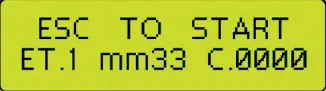
Enable First Menu Push this button to enter into the program mode and the panel will indicate that you wish to detach one series label at a time.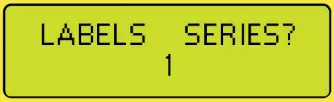
Push this button again if you don’t want to select the series type and set the detached label length. By successively pushing these buttons you can change the series from 1 to 3 labels. Even if they are of different sizes but are part of a single series the panel will display it: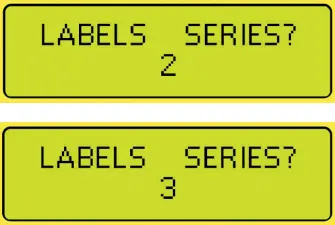
Having established the type of series to use, when pushing these buttons for each type of label, it is possible to modify the length of the label section that needs to be detached for every single label. The panel will then display the following three types of messages. 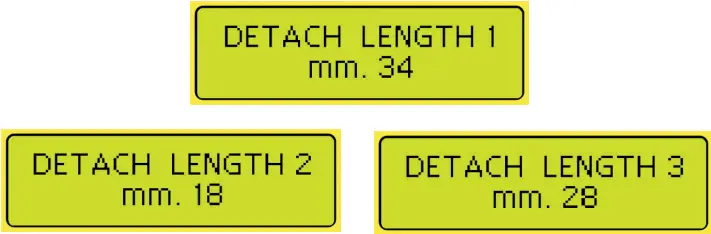
Enable Second Menu By successfully pushing these buttons you can choose three different feed types. 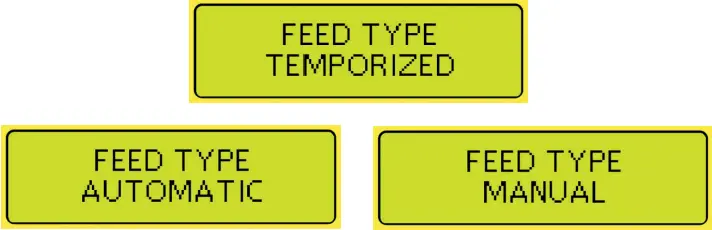
> Temporized feed
This option allows the user to define the detach delay time from 1 to 60 seconds between labels.
To run this option please follow the next operation. 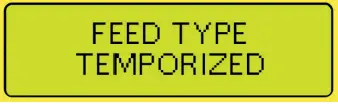
By successively pushing this button you enter the setting seconds menu. 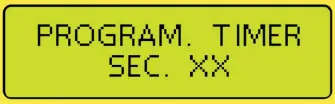
By successfully pushing these buttons you can select the detach delay time from 1 to 60 seconds between labels.
Example: In this case, you can detach a label every 15 seconds. 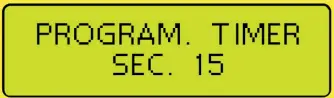
Automatic feed
This function dispenses the labels automatically.
> Manual feed This function dispenses the label only if you push the ESC button.
IMPORTANT In both cases, the dispenser will be stopped if the counter function is active and you reach the set number of labels.
Enable Third Menu By successfully pushing this button you can select the counter function that presets the number of labels to detach. The panel will then display the following two types of messages. 
 Push this button to choose between having the counter function on or off.
When selecting “ACTIVE COUNTER YES” you can define the number of labels to detach and the panel will display the sequential counter with the option to select from 1 to 9999 labels or a series of labels to detach. 
 By pushing these buttons you can select the 4 digits of the counter one at a time.
 Once selected, the digit to be modified can be changed between a value from 0 to 9.
IMPORTANT To ensure that the detached labels correspond to the number selected under the active counter menu YOU MUST push this button for a few seconds to reset the counter.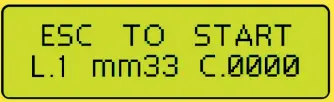 IMPORTANT With the manual function, Automatic feed ON, the counter reset will display “0001” because the first label available for detachment will be displayed.
 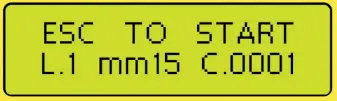 NOTE: During operation, once the last label that was programmed detaches the dispenser will stop and emit an acoustic warning signal. To turn off the alarm and reset the counter push this button.
When selecting “ACTIVE COUNTER NO” the counter is disabled and the labels can be detached with undefined quantities. 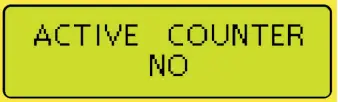
Enable Fourth Menu By successfully pushing this button you can enable the function that allows the customer’s name to appear on the display. 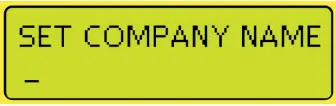
By pushing these buttons you can select the 16 digits of the counter one after another in order to insert the required text. Having selected the digit to program with these buttons, you can change the value with letters, numbers, and symbols.
Enable Fifth Menu By successfully pushing this button you enable the control of the sensor functions for label presence. All of the digits will be on, as shown below with the functioning sensors, not in use. 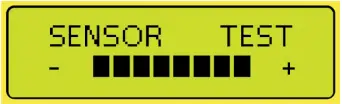
By covering the sensor next to the panel with a finger, the digits turn off. As shown in the following demonstrates the use of the sensors by the label. 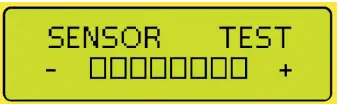
MOTOR MANUAL ADVANCE
 Press this key for manual advance of the motor.
COUNTER ZERO SETTING
Press this key for 4 seconds to reset the counter to 0. When reset the dispenser will emit a sound.
ROLL LOAD ON THE DISPENSER
Load the roll of labels on the hub. Tighten the roll by attaching the plate. The tighter the plate the more tension is applied to the roll.
Note: If during standard operation more than one label is detached pls increase the pressure on the plate springs. 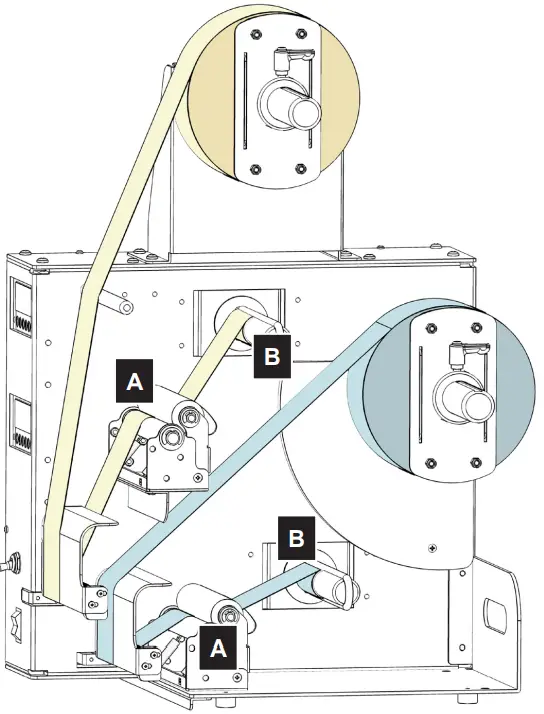
Follow the loading procedure as seen below:
A. Open the drag roller and pass the backing through the rollers.
B. Block the backing with the fork on the recovery roller. Push the displayed button to roll up the backing on the recovery roll.
Smart solutions for the labeling in industry
Label rewinder, label unwinder, electronic label dispenser, and more…
 | |||
| LABEL UNWINDER/REWINDER | SMALL LABEL UNWINDER/REWINDER | LABEL COUNTER | |
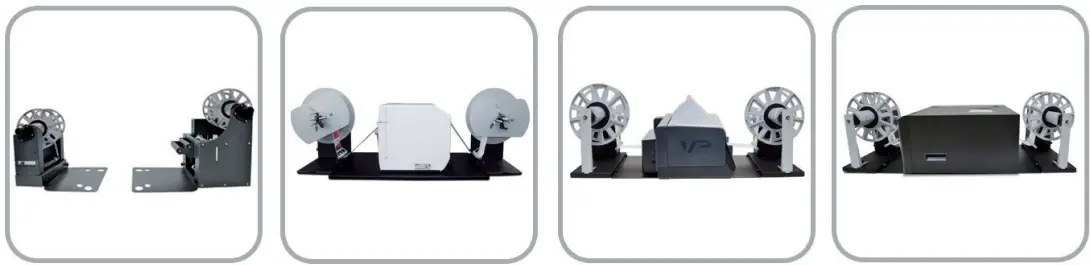 | |||
| ROLL TO ROLL SYSTEM FOR LABEL PRINTERS | ROLL TO ROLL SYSTEM FOR EPSON PRINTERS | ROLL TO ROLL SYSTEM FOR VIPCOLOR VP SERIES | ROLL TO ROLL SYSTEM FOR PRIMERA LX SERIES |
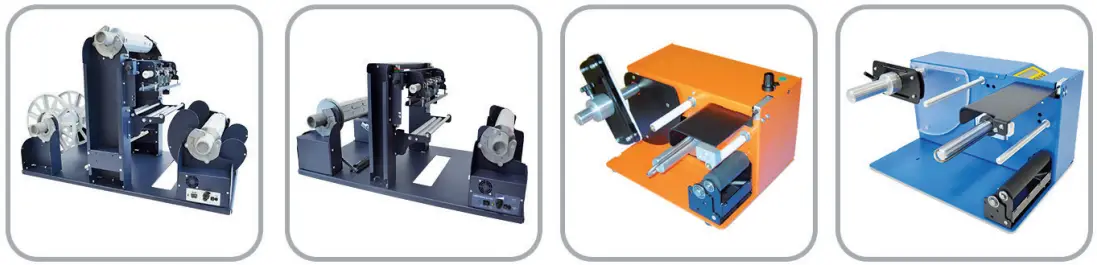 | |||
| MATRIX REMOVER AND SLITTER | LONGITUDINAL LABEL SLITTER | EASY LABEL DISPENSER | ELECTRONIC LABEL DISPENSER |
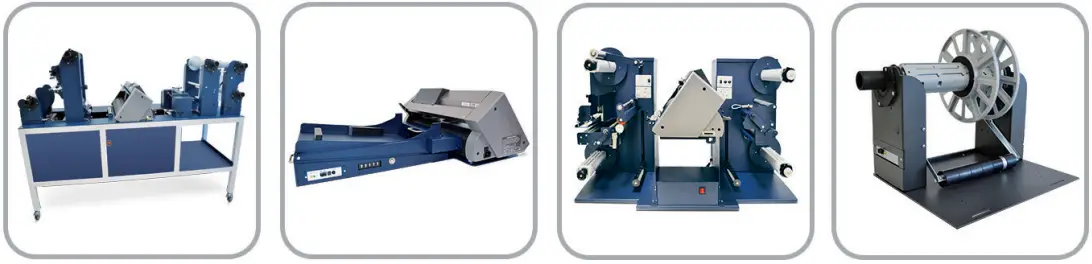 | |||
| SCORPIO SERIES: DIGITAL LABEL FINISHING SYSTEMS | GEMINI: DIGITAL DIE CUTTER FOR SHEETS | VIRGO: DESKTOP DIGITAL FINISHING SYSTEM | MOTORIZED CORE HOLDER UNWINDER/REWINDER |
– FOR MORE INFO CONTACT YOUR RESELLER –