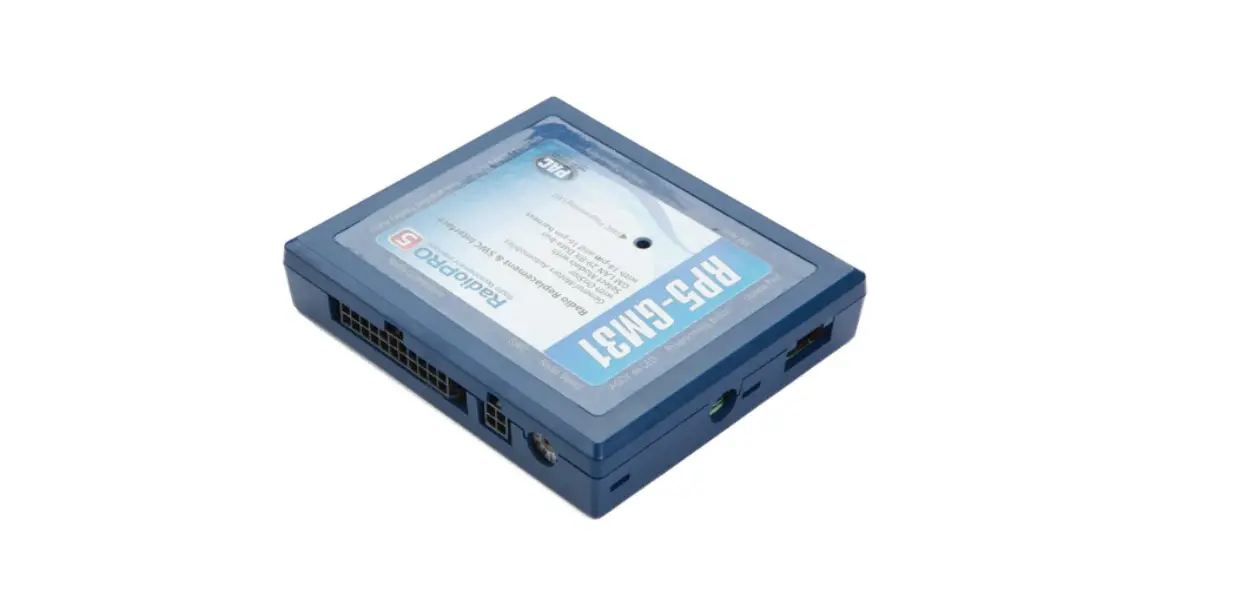
 PAC RP5-GM31 Radio PRO5 User Manual
 PAC RP5-GM31 Radio PRO5 User Manual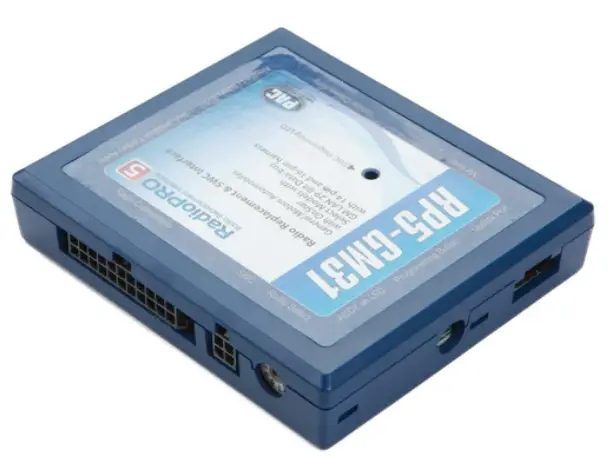
Radio Replacement & Steering Wheel Control Interface with OnStar Retention for General Motors Vehicles
Introduction & Features
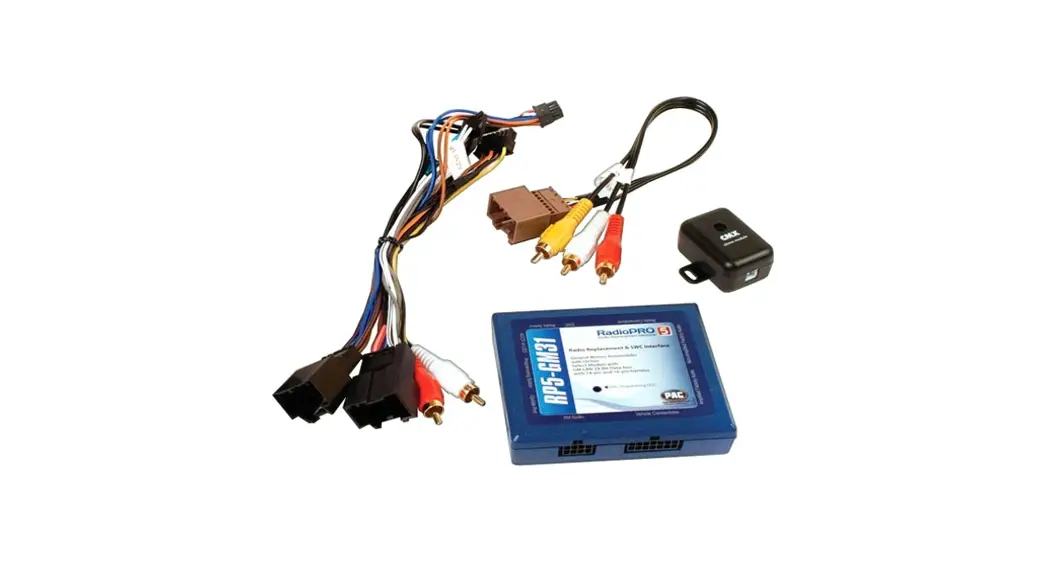
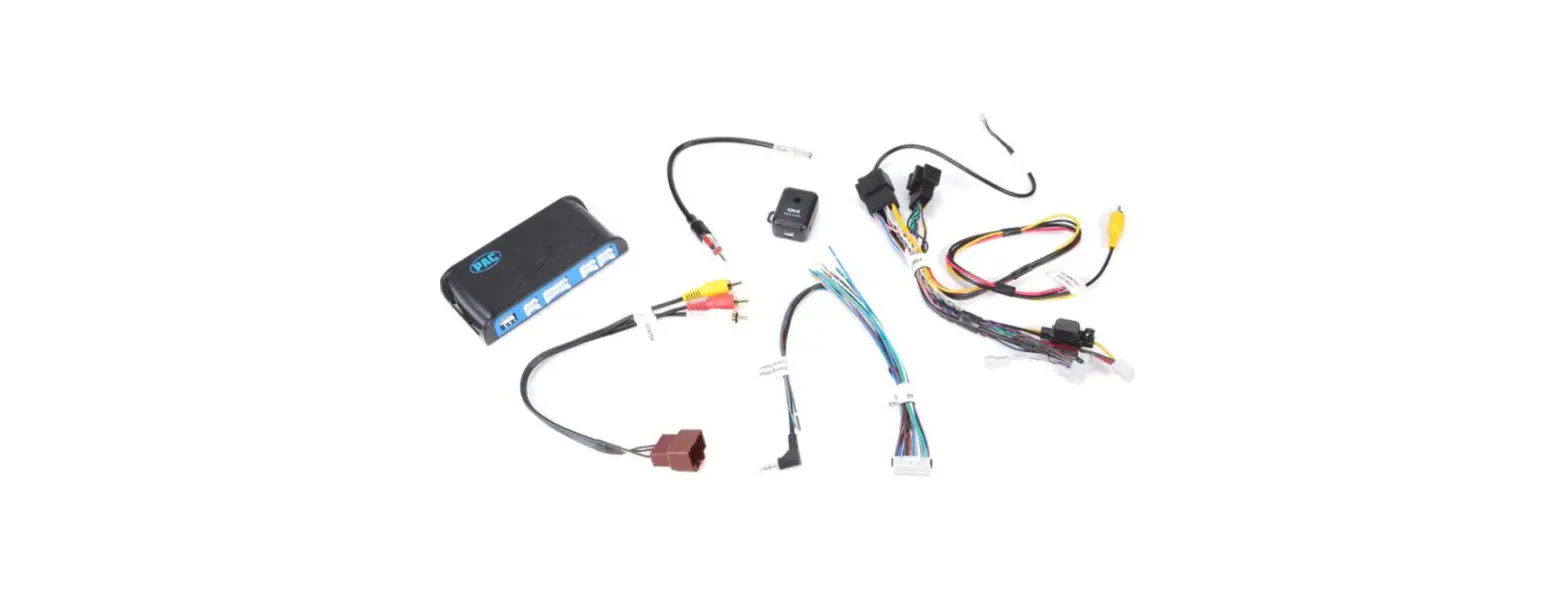
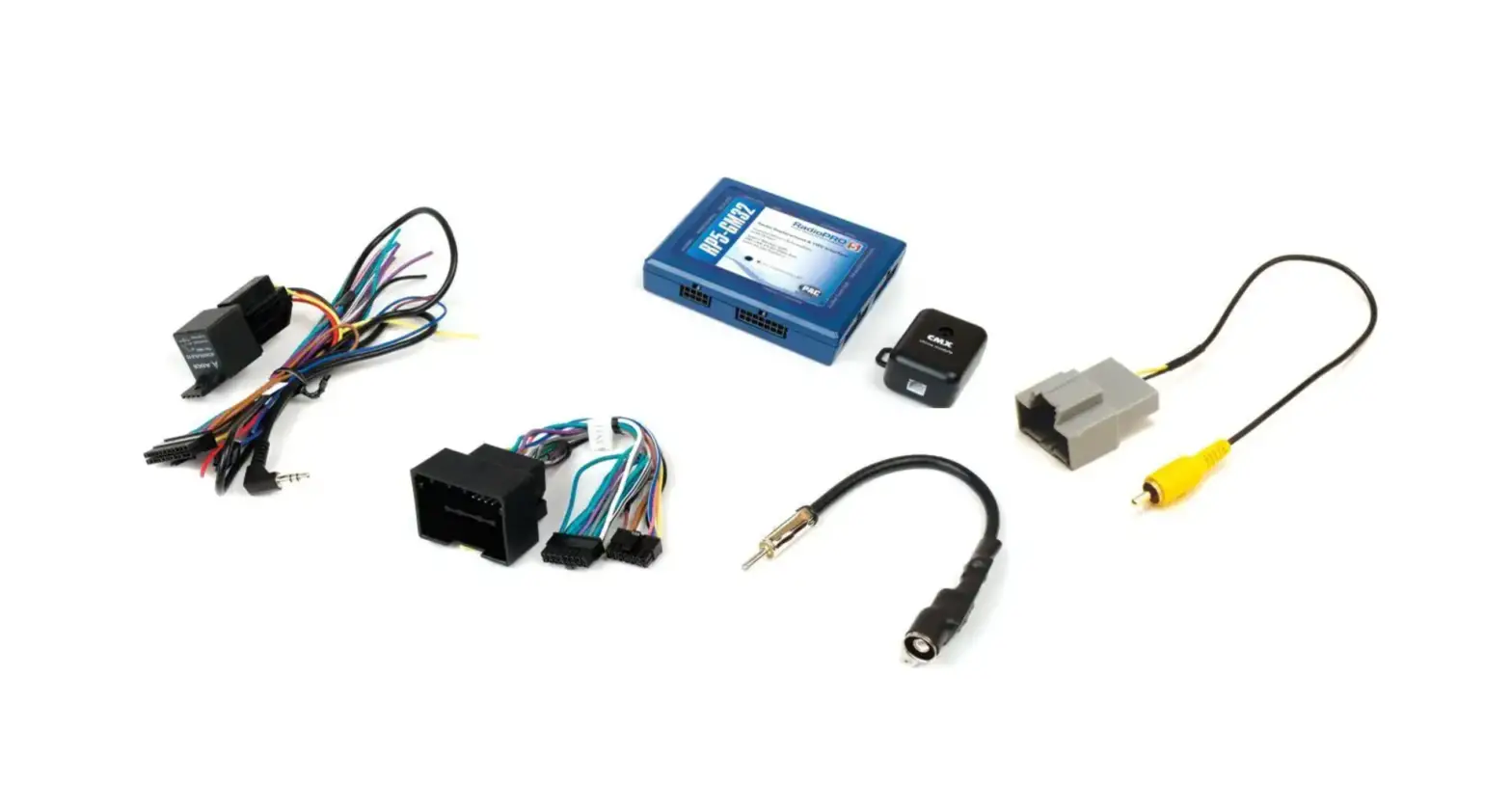
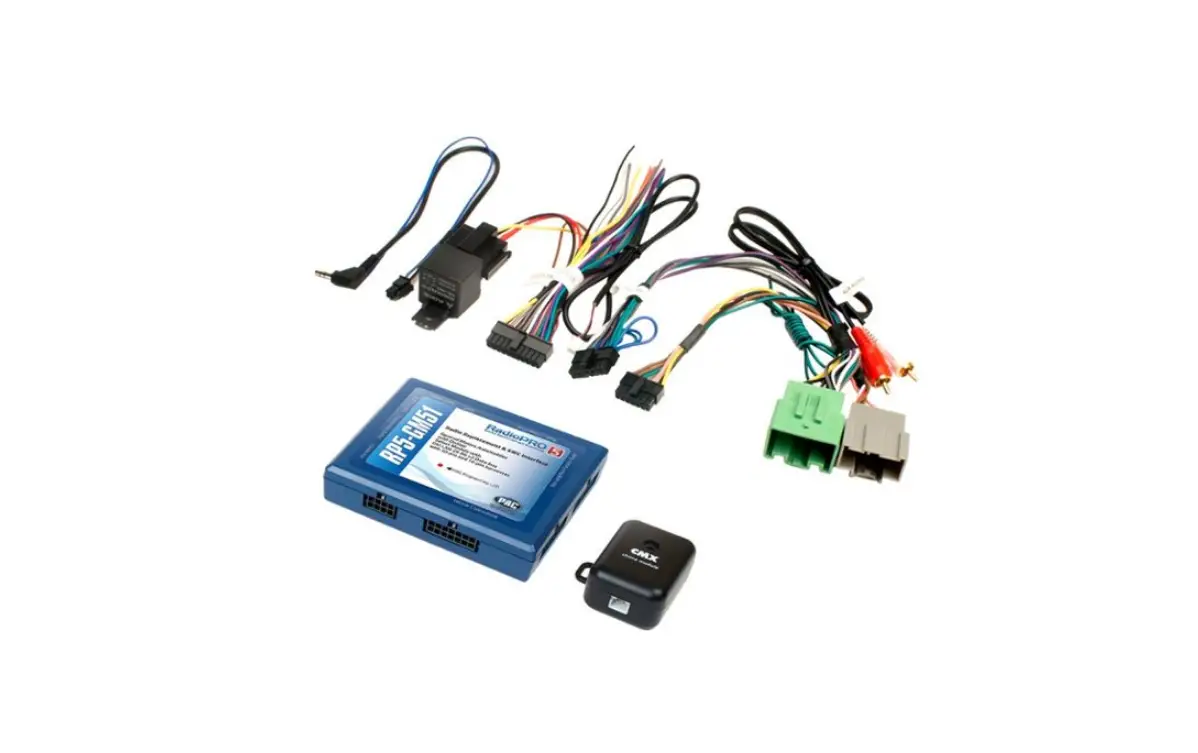
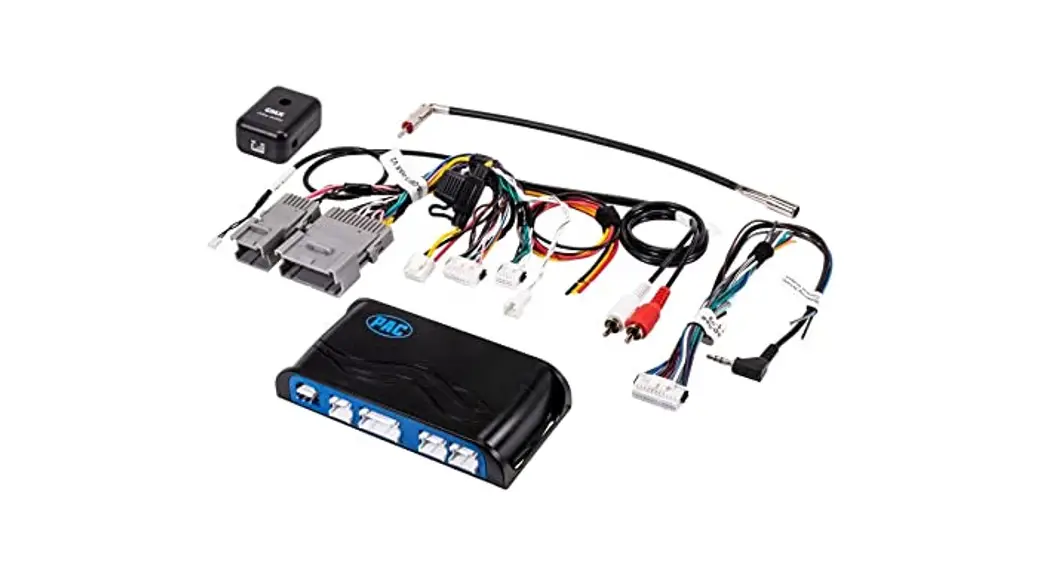
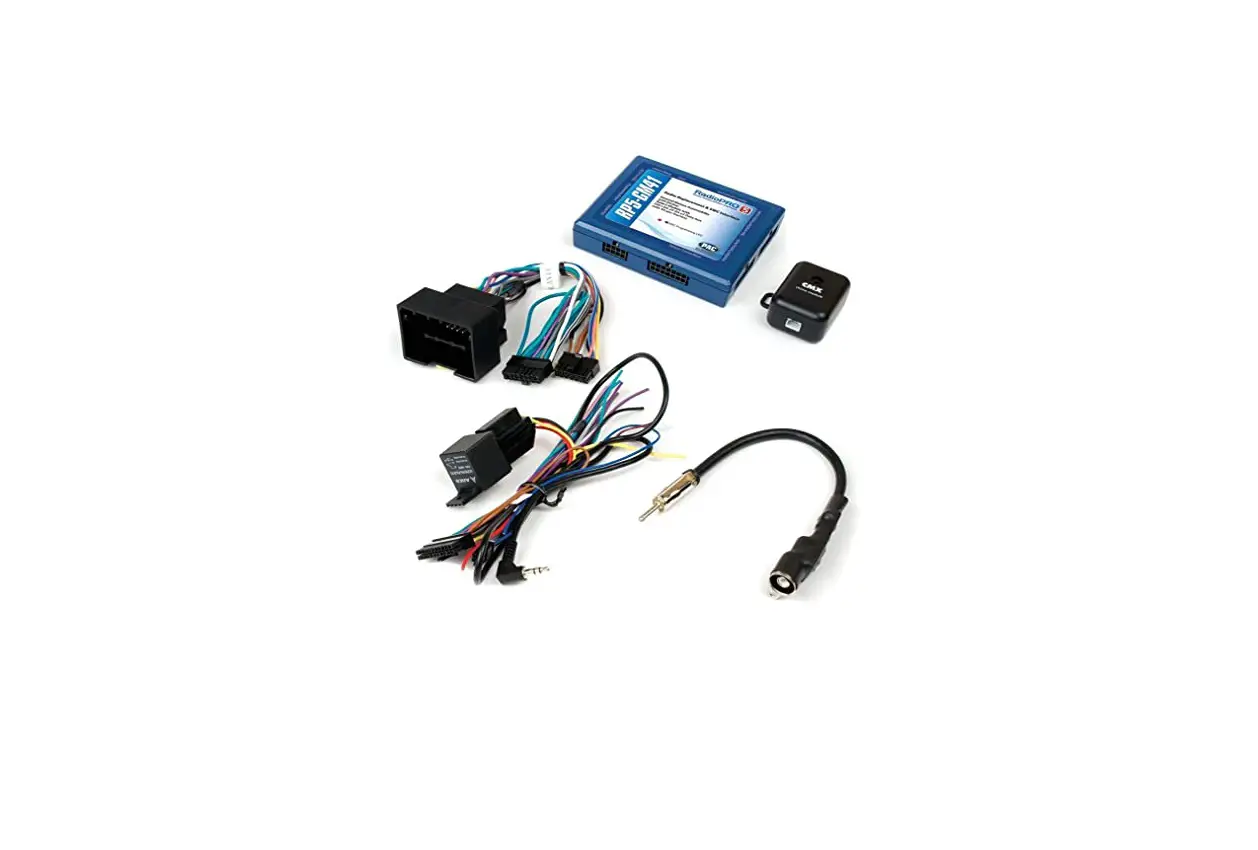
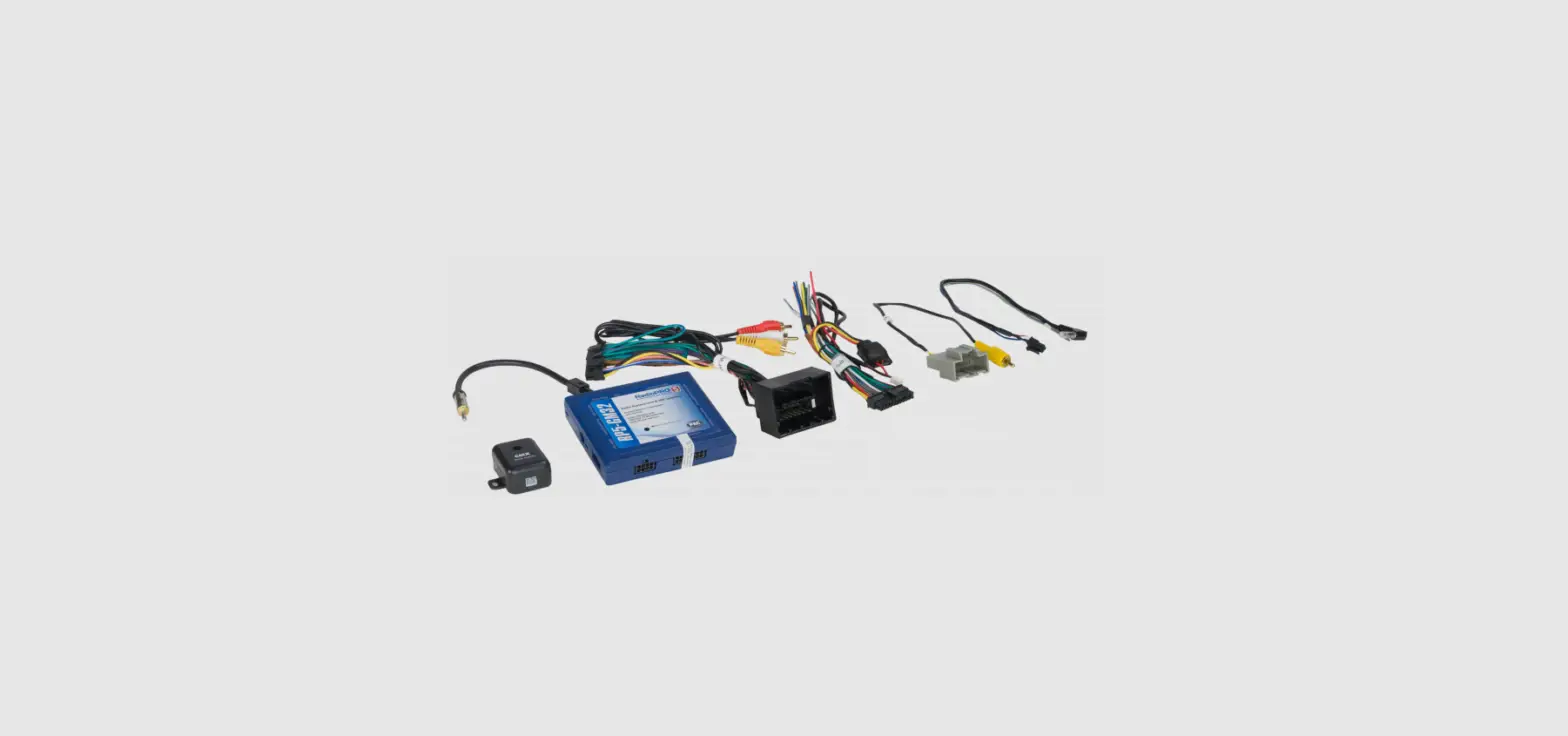
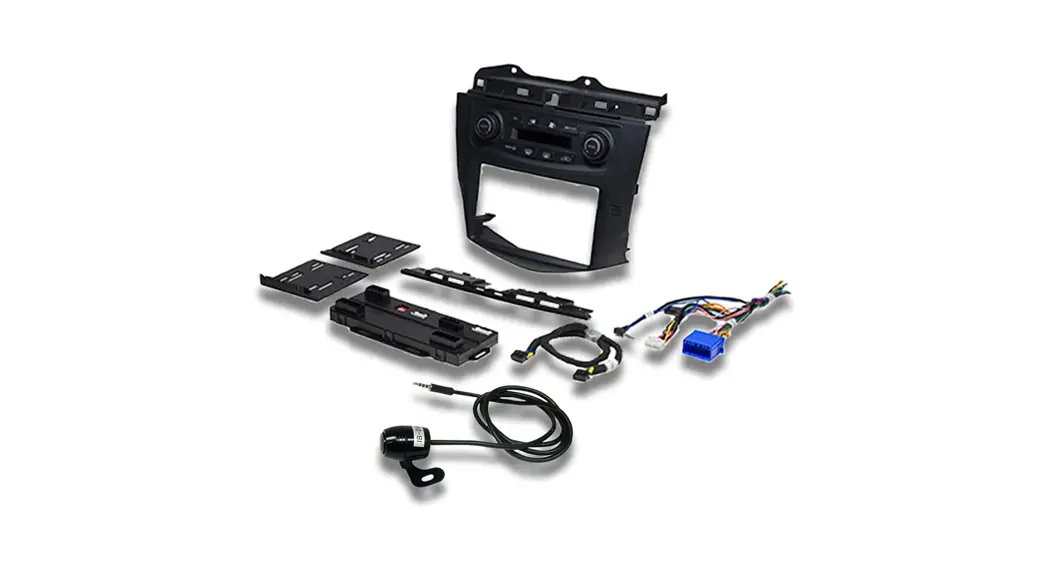
The RP5-GM31 interface allows the replacement of a factory radio in select General Motors vehicles with 29-bit LAN radios. Using this interface will retain factory features such as OnStar, steering wheel controls (SWC), warning chimes, Rear Seat Controls (RSC), factory XM Radio and the BOSE amplifier when the original radio is removed. Use of this interface also allows you to program two radio functions to each SWC button by using short press long press dual command functionality. The RP5-GM31 also provides data bus-driven outputs such as retained accessory power (RAP), vehicle speed sensor (VSS), illumination, reverse trigger and parking brake.
Important Notes
- The radio select rotary switch on the side of the interface must be adjusted to the proper radio setting before plugging the interface into the vehicle (see next page for setting chart).
- The interface comes pre-programmed for all of the vehicle’s factory SWC functions and does not require programming unless you wish to re-assign the SWC functions or utilize short press long press dual command functionality. The SWC can always be restored to default settings by following the procedure outlined on page 3.
- RSC buttons that are identical to the SWC will mimic the SWC one-for-one.
- The LED will flash whenever an SWC button is pressed.
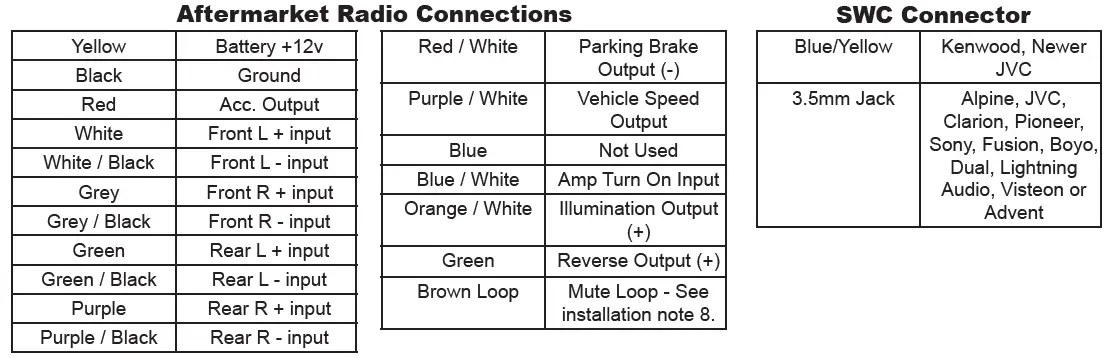
Wiring Connection Chart
Installation Steps

- The radio select rotary switch on the side of the interface must be adjusted to the proper radio setting before plugging the interface into the vehicle.
- Make all connections as described in the chart on page1.
- Factory-installed amplifiers will determine the audio output connection. If the vehicle has a factory-installed amplifier use the factory amplifier audio location. If a factory-installed amplifier is not present use the non-amplified factory audio location.
- If the vehicle is equipped with a Premium BOSE system, connect the subwoofer and center channel RCA inputs to the aftermarket radios. If the aftermarket radio to be installed does not have a dedicated center channel or sub-output do not use this cable. To ensure best sound performance channel summing is not recommended. Use this cable according to the outputs that are available.
- If the vehicle is equipped with a reverse camera and the aftermarket radio has a reverse camera input, connect the yellow RCA plug on the brown connector to the aftermarket radio’s reverse camera input.
- If the aftermarket radio is equipped with an auxiliary input and you wish to retain the factory XM tuner, plug the RCA connectors from the interface into the radio auxiliary input.
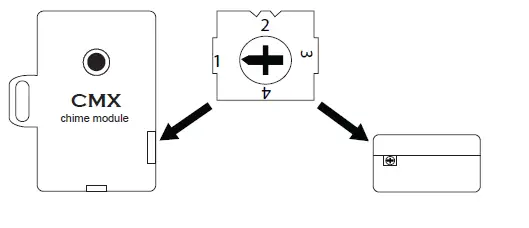
- Plug the CMX chime module in if necessary (If the vehicle chimes when the radio is removed the CMX is not necessary). PLEASE NOTE: In order to get the best possible sound out of the CMX please mount it in a place free and clear of any obstructions, preferably as close as possible to the bottom of the dash pointing down toward the floor of the vehicle.
- The Mute loop (if not cut) will turn the accessory output off when an OnStar or Bluetooth call is made or received. If the aftermarket radio has a mute input cut this loop and connects the inner brown wire (next to the blue/white wire) to the mute input.
- Connect the SWC wire according to the chart on page 1 (aftermarket radio MUST support a wired remote input).
- If you wish to reassign functions to the SWC follow the programming instructions in the next section.
Default Steering Wheel Control Programming
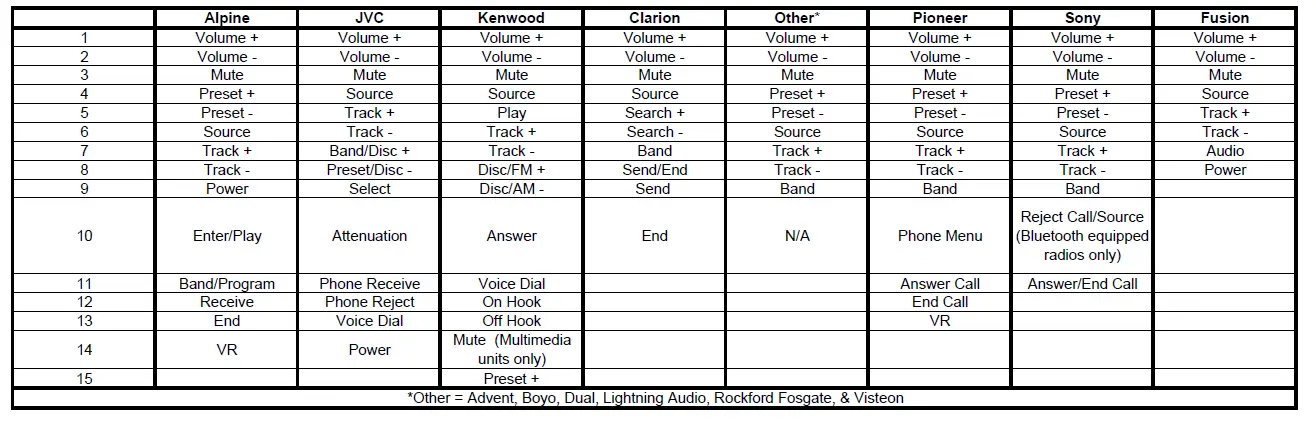
IMPORTANT! The interface comes pre-programmed for the functions listed in the chart below and does not require programming unless you wish to re-assign the SWC functions to different buttons. The SWC can always be restored to default settings by following the procedure outlined on page 3.
Default SWC Button Assignments
Optional Steering Wheel Control Programming
If you wish to re-assign the SWC functions, utilize short press long press dual command functionality or select between Factory/Aftermarket mode, the interface must be programmed in the specific order shown in the chart on page 4. If you come across a function in the chart that your steering wheel does not have, or you do not want to program, press and release the program button on the side of the interface to skip that function. The LED will flash off and on confirming that you have successfully skipped that function and are ready to proceed to the next one.
Optional Steering Wheel Control Programming (cont.)

The Mute & Source button’s long press commands can be set to control the factory OnStar/XM functions or given the ability to control the aftermarket radio. This option can be set using the program button on the side of the interface. The default setting for these buttons is factory mode which controls the factory OnStar & XM tuner. If these buttons are set to aftermarket mode, OnStar must be accessed by using the factory controls located on the rearview mirror & the factory XM tuner can no longer be accessed.
Factory Mode
- The SWC Mute and Source buttons are programmed to control OnStar and Factory XM. They cannot be programmed for short press/long press dual command functionality and are blocked from doing so.
- The preset right button can be programmed for dual commands. However, when XM Control is on, radio commands are disabled temporarily. The Preset right button will control XM preset up.
- When XM control is off the Preset right button will send radio commands as normal.
- OnStar control through the SWC Mute button is disabled. This will free up the Mute button to send mute radio command and another 2nd function.
- In order to program the Source button for short press/long press in vehicles with an external XM turner, you must unplug the XM tuner.
Use the function chart on the next page as a guide to program the functions in the proper order for your new radio
- Turn the key to the ignition position.
- Press and release the programming button on the side of the interface the number of times that corresponds with either factory or aftermarket mode. One press will set factory mode and two presses will set aftermarket mode. The LED will blink each time the button is pressed.
- Once you have chosen either factory or aftermarket mode, after 2.5 seconds the LED will come on solid. At this point you have two options: To restore the SWC to factory default settings: Simply wait 7 seconds and the LED will blink 3 times indicating the interface has timed out. The default settings are now restored and no further action is required. To program custom SWC assignments: Proceed to step 4
- With the LED on, press the first button to be learned on the steering wheel, the LED will turn off. At this point you have two options: For short press functionality: Release the button within 1.5 seconds. The LED will turn back on. For long press functionality: Hold the button until the LED starts blinking. Release the button and the LED will go back to solid.
- If you need to program more buttons, repeat step 3 for each additional audio function on the steering wheel.
- If you come across a function in the chart that your steering wheel does not have, or you do not want to program, press and release the program button on the side of the interface to skip that function.
- Once programming is completed, wait seven seconds. The LED will flash three times indicating end of programming.
- Test the interface for proper functionality. Whenever an SWC has pressed the LED on the interface should blink. If any function does not work, repeat the programming steps
Optional Steering Wheel Control Programming (cont.)
Testing & Verification
- Turn the ignition on. The LED on the interface will turn on & the +12v accessory wire will turn on.
Turn on the radio & check the balance & fade. Note: Premium factory amplified systems will not fade as either the aftermarket radio or the RP interface have the ability to control the amplifier’s fader. - Verify that the factory subwoofer (if present) is playing
- Verify that all SWC are functioning properly for both the aftermarket radio and OnStar. To adjust OnStar volume, press the OnStar button on the mirror then use the volume buttons on the SWC to adjust the level. The volume will raise a total of
- times before returning to the original level.
- Verify that the factory XM tuner is functioning properly.
- Pressing the OnStar® button on the rearview mirror will turn off the rear speakers and allow the OnStar® audio to be heard in the two front speakers. The OnStar® active LED will also turn on. When OnStar® disconnects, the radio will un-mute or turn back on and the OnStar® LED will turn off. Pressing the Mute/OnStar® button on the steering wheel for 1.5 seconds will also activate Onstar®.
- Turn off vehicle & remove key. RAP will be active & keep the radio on for 10 minutes or until the drivers door is opened.
- The LED & radio will turn off when RAP turns off or the driver’s door is opened.
- Use the 4-position selector switch located on the side of the CMX module to select the best chime output volume for your specific installation. Setting 1 being loudest and 4 softest. 2

Using Rear Seat Audio Controls
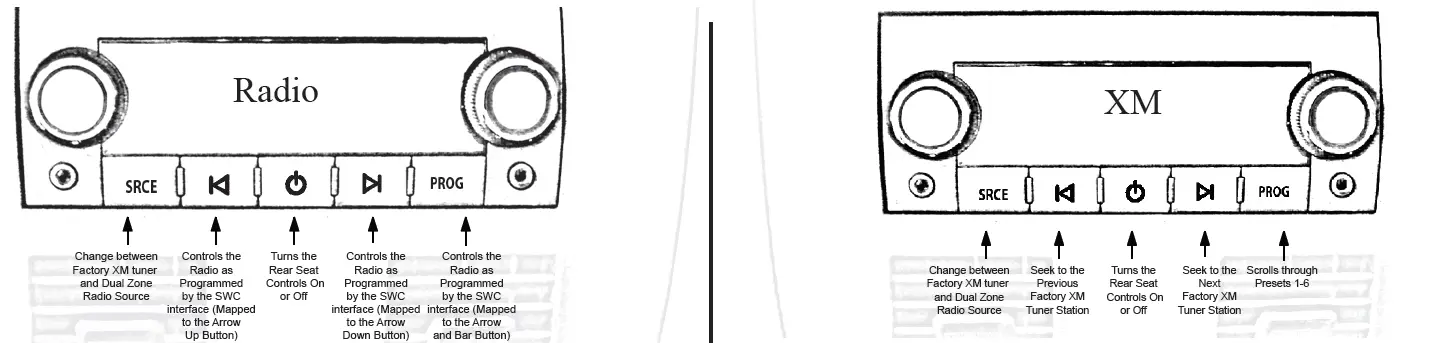
- Press the power button to turn the RSE Controls on. When Radio is displayed on the RSE Controls, the aftermarket radio’s rear speaker output will be heard through the headphone jacks. Putting the aftermarket radio into dual zone mode should change the output level of the rear speakers to a fixed level. This allows precise user adjustment from the level knobs on the RSE Controls (refer to the aftermarket radio owner manual for model-specific dual zone operation).
- The seek arrows and the PROG button will control the radio as programmed by the SWC interface. These buttons are mapped to the SWC buttons as stated above.
- Pressing the SRCE button will toggle between the Factory XM tuner and the Radio as the RSE source. Pressing the power button will turn the RSE Controls off as well as turn the key off. The seek arrows and the PROG button will continue to operate as stated (with the exception of SRCE which has no function) when the Rear Seat Controls are turned off.
- Press the power button to turn the RSE Controls on. If the Radio is displayed press the SRCE button to select factory XM tuner mode. When XM followed by the channel number is displayed factory XM tuner audio will be heard through the headphone jacks.
- The Seek arrows will control the factory XM radio tuner and select the desired station.
- The PROG button will scroll through Presets 1-6
- Pressing the SRCE button will toggle between the Factory XM tuner and Radio as the RSE source. Pressing the power button or turning the key off will turn off the RSE Controls.
- The factory XM tuner must remain serviced to take advantage of this feature. Visit www.xmradio.com for a completely up-to-date channel listing and service options.
- In order for the RSE controls to properly work the XM tuner, the front XM controls must be set to off.
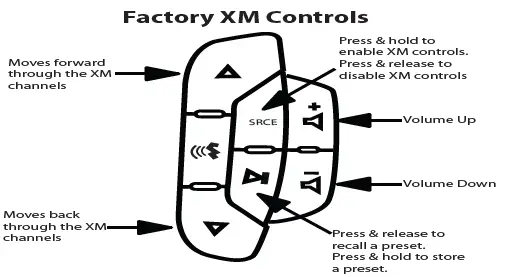
Using the Factory XM Tuner With the SWC
- To activate the XM controls press and hold the “Source” button until a chime is heard. The Driver Information Center (DIC) in the instrument cluster will dis

play “XM Control On” or display XM text.
- Arrow up moves forward through the channels. The channel name and song name will be displayed on the DIC.
- Arrow down moves backward through the channels. The channel name will be displayed on the DIC.
- To store a preset, first choose the preset location by pressing the “Play” button repeatedly. The DIC will display the XM preset locations. When the desired preset location is displayed, tune to the desired station, then press
and hold the “Play” button until a chime is heard. “Preset Saved” will then be displayed on the DIC. - To recall a preset simply press the “Play” button repeatedly until the desired preset is displayed.
- To deactivate the XM controls press and release the “Source” button. Do not hold the Source button to exit XM control.
Rear Seat Entertainment (RSE); If Equipped
- Vehicles equipped with an overhead screen only: In this application, the GMRVD must be used in order to feed A/V into the factory screen from an aftermarket head unit (head unit must support A/V out). With the GMRVD, A/V will be passed from the can be heard through the headphones. The GMRVD will also pass the Auxiliary aftermarket head unit.
- Vehicles equipped with an overhead screen AND headrest monitors: In this application, the headrest monitors will function independently from the overhead monitor. Neither video or audio can be passed to or from the headrest monitors. The overhead monitor will function exactly as described in #1.
OnStar Volume Adjustment for Vehicles w/o SWC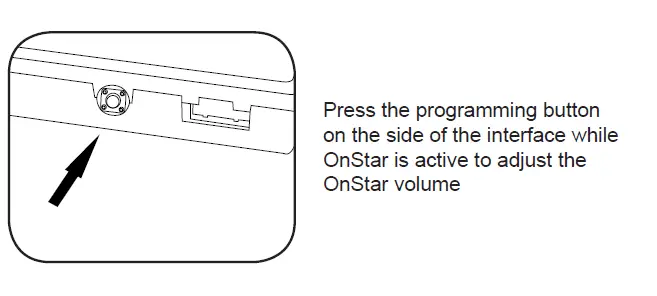
- If SWC buttons are not present you must use the programming button on the interface to control the OnStar audio level during an OnStar connection.
- When OnStar is active pressing the programming button will raise the audio level 4 times before returning to the original level.
Product Updates (Firmware)
- The RP5-GM31 can be updated with new firmware as it becomes available using the PAC-UP interface updater (sold separately). Please visit www.pac-audio.com/firmware for available updates.