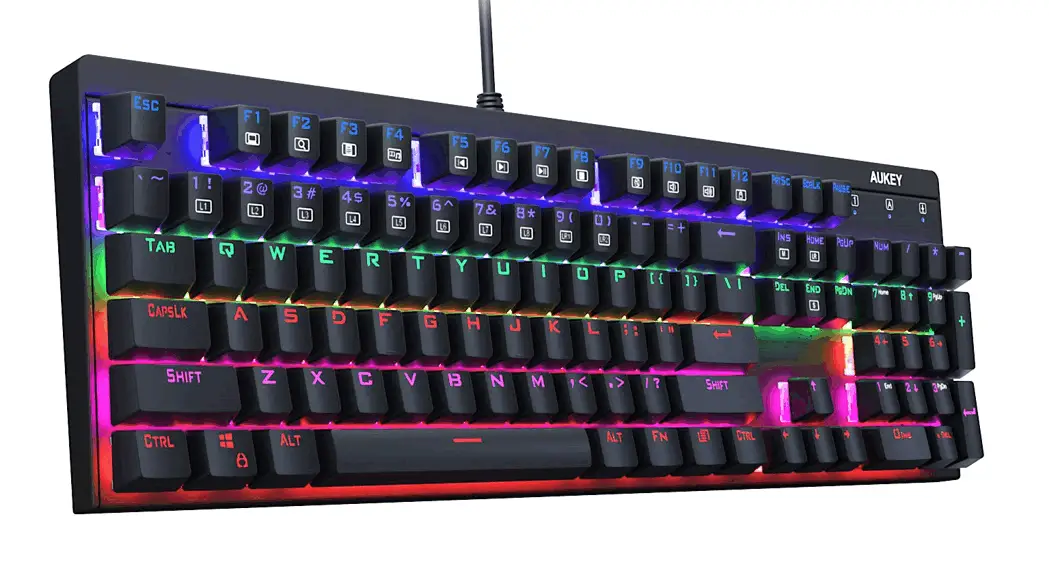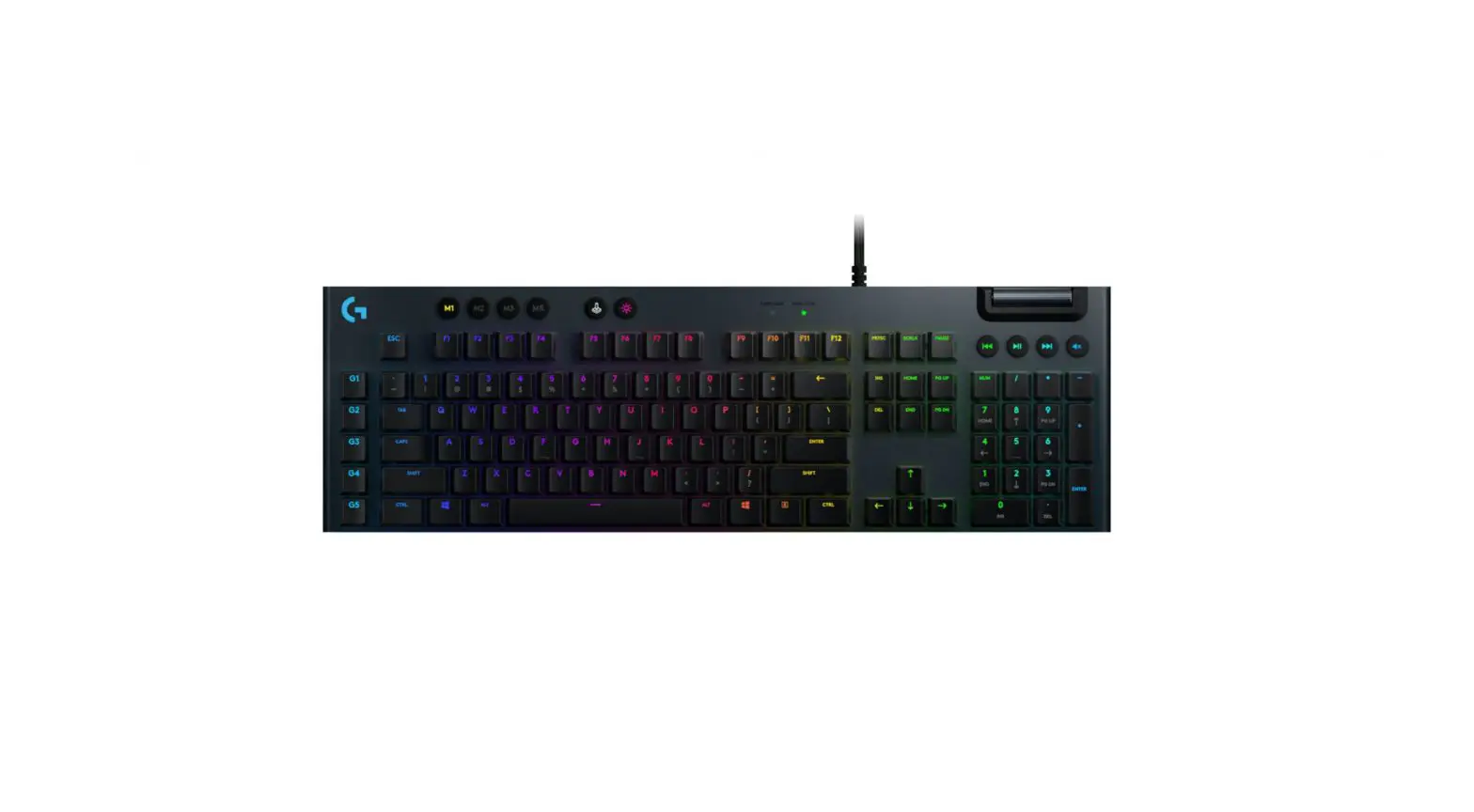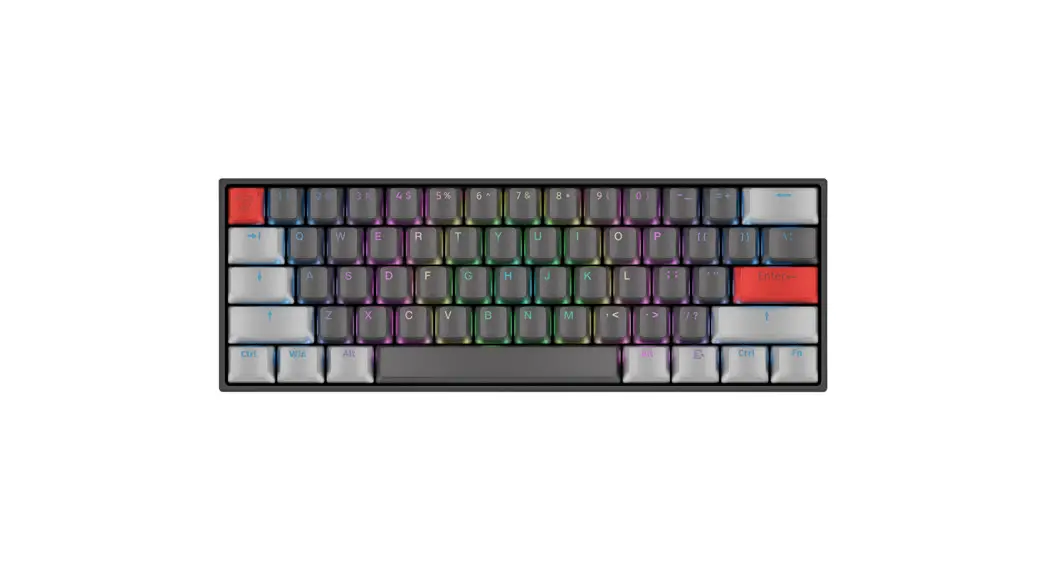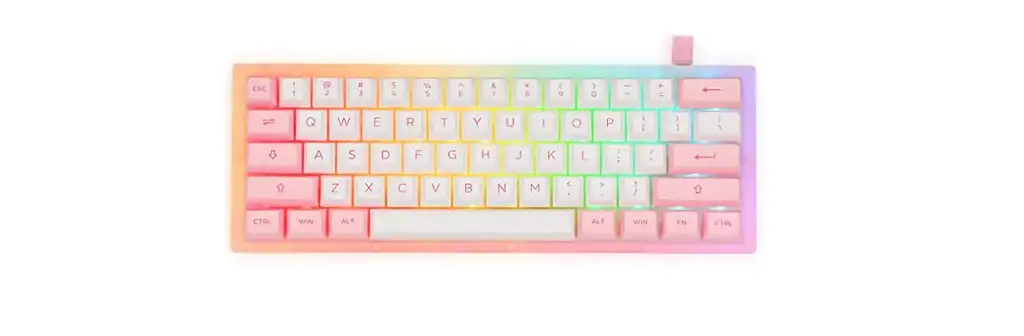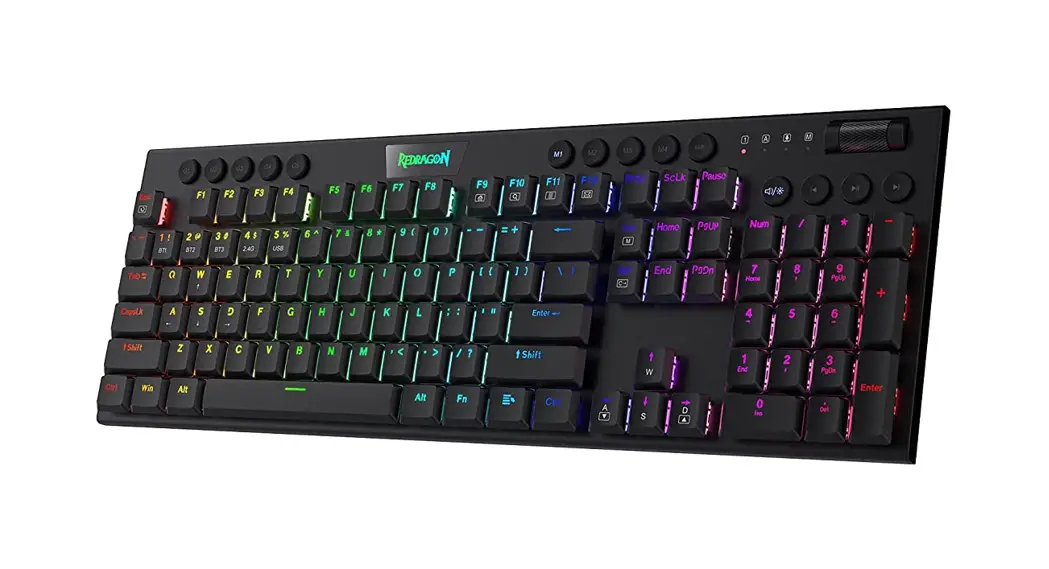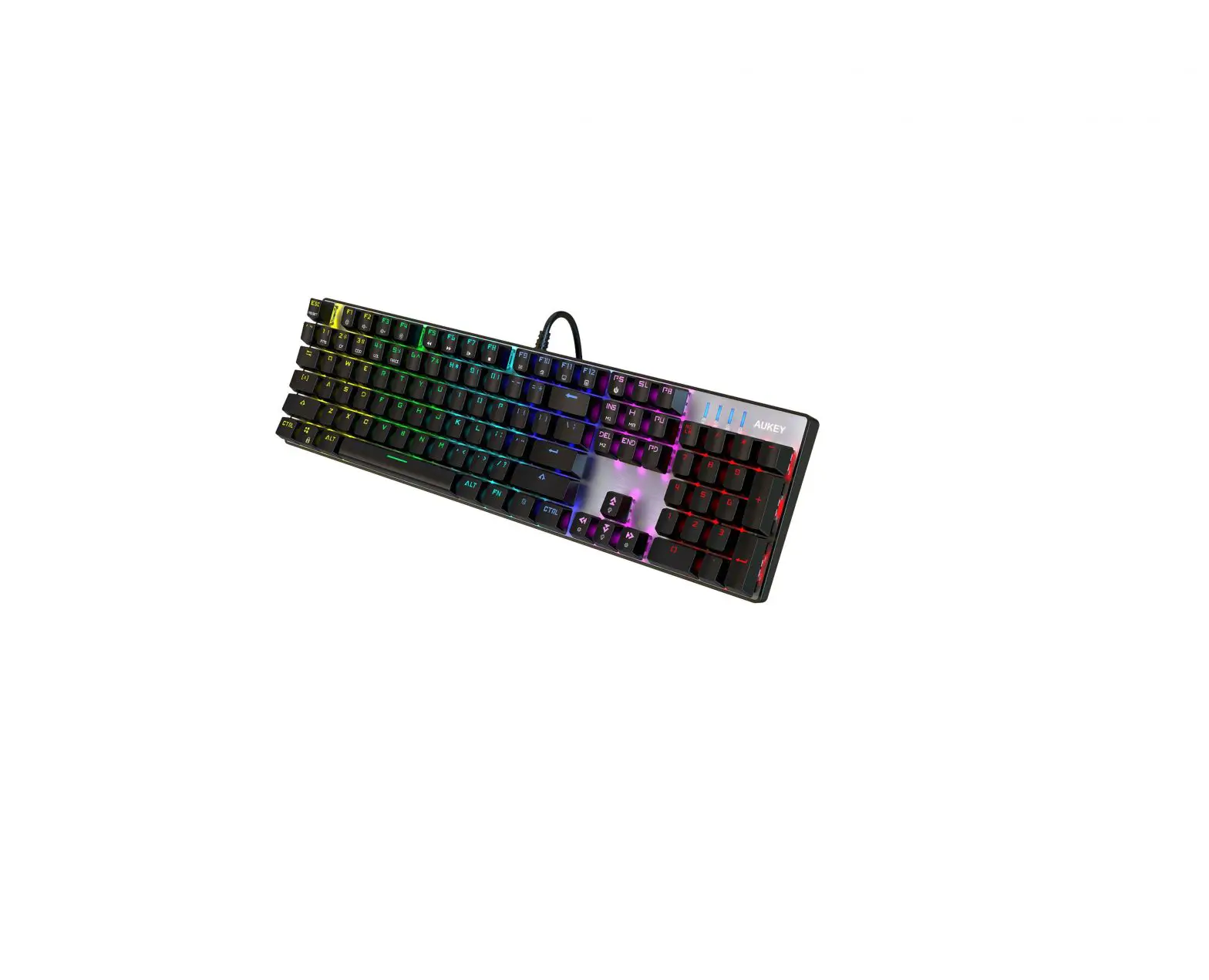
AUKEY RGB Mechanical Keyboard
Thank you for purchasing the AUKEY KM-G3 RGB Mechanical Keyboard.
Please read this user manual carefully and keep it for future reference. If you need any assistance, please contact our support team with your product model number and Amazon order number.
Package Contents
- RGB Mechanical Keyboard
- Keycap Puller
- User Manual
- Warranty Card
Specifications
| Model | KM-G3 |
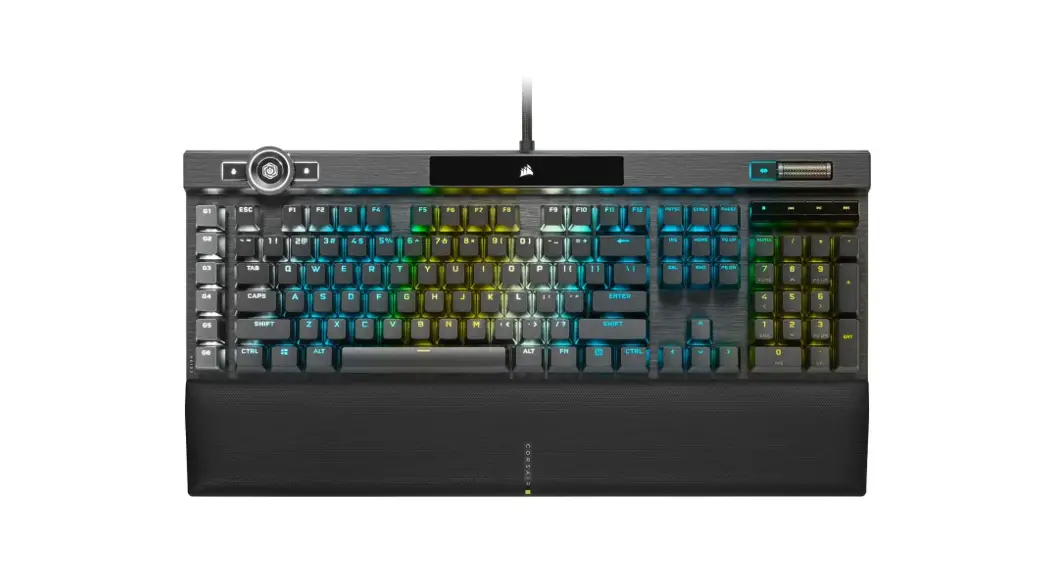
| Number of Keys | 104 |
| Input | DC 5V 500mA |
| Interface | USB |
| Operating System Compatibility | Windows, Mac OS |
| Cable Length | 1.6m / 5.2’ |
| Dimensions | 437 x 119 x 36mm / 17.2” x 4.69” x 1.42” |
| Weight | 850g / 30oz |
Overview
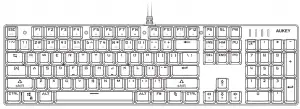
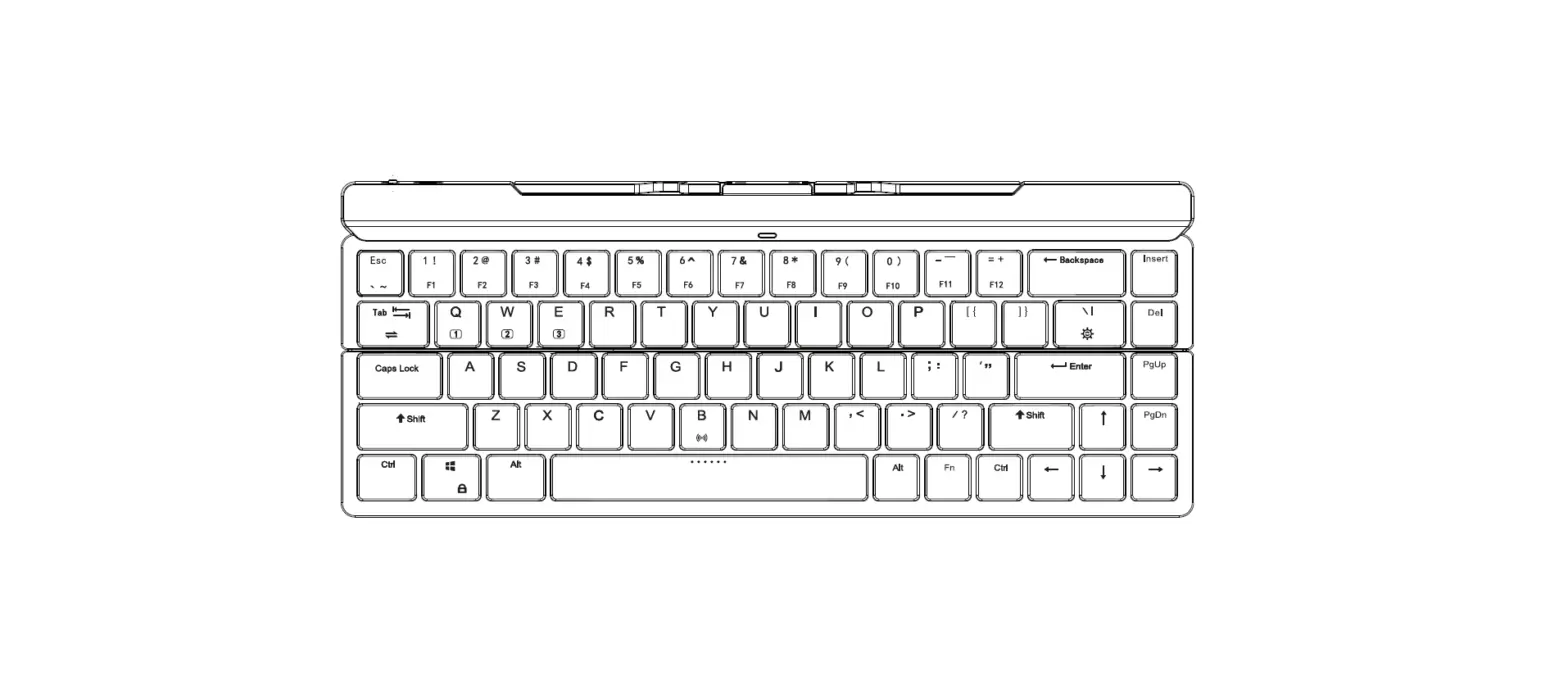
Function Keys
ction Keys
| Command | Function |
| FN + F1 | Open the media player |
| FN + F2 | Volume – |
| FN + F3 | Volume + |
| FN + F4 | Mute |
| FN + F5 | Previous track |
| FN + F6 | Play / Pause |
| FN + F7 | Next track |
| FN + F8 | Stop |
| FN + F9 | Open e-mail |
| FN + F10 | Open internet browser |
| FN + F11 | Open My Computer folder |
| FN + F12 | Calculator |
| FN + W | Exchange W, S, A, D and ↑, ↓, ←, → |
| FN + Windows | Windows key lock / unlock |
| FN + ↑ | Backlight brightness + |
| FN + ↓ | Backlight brightness – |
| FN + ← | Change lighting effect direction |
| FN + → | Change lighting effect direction |
| FN + – | Lighting effect speed – |
| FN + = | Lighting effect speed + |
| FN + PrtSc | Backlight on / off |
| FN + Insert | Cycle through the 14 lighting effects |
| FN + Del | Cycle through the 8 color settings |
| FN + Home | Edit / save custom lighting effects |
| FN + 1 | FPS games lighting effect |
| FN + 2 | CF game lighting effect |
| FN + 3 | COD game lighting effect |
| FN + 4 | LOL game lighting effect |
| FN + 5 | Racing games lighting effect |
| FN + 6 | Custom lighting effect G1 |
| FN + 7 | Custom lighting effect G2 |
| FN + 8 | Custom lighting effect G3 |
| FN + 9 | Custom lighting effect G4 |
| FN + 0 | Custom lighting effect G5 |
| FN + Esc | Reset all keyboard settings |
Getting Started
- Plug the USB connector of this keyboard into a USB port on your computer or laptop
- Press “FN + PrtSc” to turn on RGB backlighting and “FN + Insert” to switch between the 14 lighting effects. Press “FN + Del” to choose from the 8 color settings. For example, press “FN + Insert” once; then press “FN + Del” repeatedly until you arrive at your desired color
Note
- Some lighting effects are not available in other colors
Editing Custom Lighting Effects
Editing lighting effect G1 example:
- Press “FN + 6” to display the current custom effect (if any) for G1
- Press “FN + Home” to enter customization mode
- Press any key you’d like to light up in effect G1
- Press “FN + Home” to save effect G1
Notes
- Press a key repeatedly to change the color when editing custom lighting effects
- Function key can’t be lit up or customized when editing custom lighting effects
- Press “FN + Esc” to reset the keyboard back to factory settings
Clearing Custom Lighting Effects
Clearing lighting effect G1 example:
- Press “FN + 6” to display the current custom effect for G1
- Press “FN + Home” to enter customization mode
- Press “FN + Home” again to clear the lighting effect for G1
FAQ
Why doesn’t the keyboard respond after I connect it to my computer?
We recommend a direct connection to your laptop/desktop to avoid any latency issues. However, if this keyboard is connected via a USB hub, allow 10–15 seconds for proper detection, and avoid using any unpowered or underpowered hubs to ensure sufficient power supply to the keyboard.
What if some keys aren’t responding?
Try unplugging it and plugging it in again. If this doesn’t fix the issue, please contact us through the appropriate e-mail address below.
Product Care & Use
- Although this keyboard is spill-resistant, keep it away from water and never submerge
- If you accidentally spill water on this keyboard, immediately unplug it from your computer and turn upside down to drain (for other liquids, rinse with
tap or distilled water after draining; then drain again). Wipe the keyboard with a paper towel and leave to air dry. Only use the keyboard when it’s completely dry (which may take a few days), otherwise some keys may not work properly. Use a hair dryer on the cooler setting or a fan to dry it out faster. Use airflow rather than heat to dry - This keyboard is compatible with most Cherry MX keycaps and other keycaps with the same stems
- Keep away from extreme heat
Warranty & Customer Support
For questions, support, or warranty claims, contact us at the address below that corresponds with your region. Please include your Amazon order number and product model number.
Amazon US orders: [email protected]
Amazon EU orders: [email protected]
Amazon CA orders: [email protected]
Amazon JP orders: [email protected]
*Please note, AUKEY can only provide after sales service for products purchased directly from AUKEY. If you have purchased from a different seller, please contact them directly for service or warranty issues.

AUKEY International Ltd.
www.aukey.com | [email protected]
No.102, Building P09, Electronics Trade Center
Huanan City, Pinghu Town, Longgang

 AUKEY Official - No.1 Power & Charging Solutions | AUKEY Online...