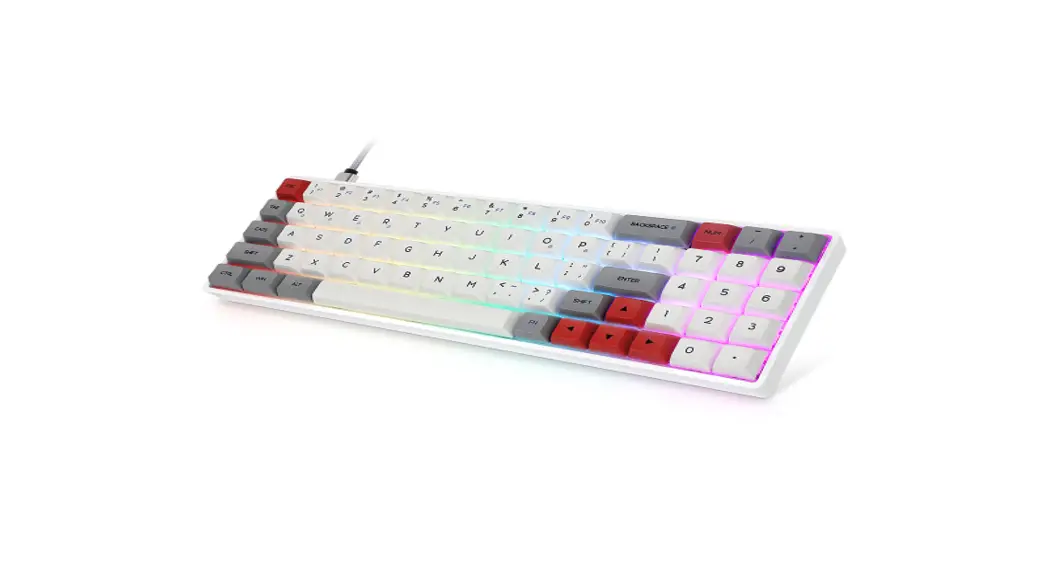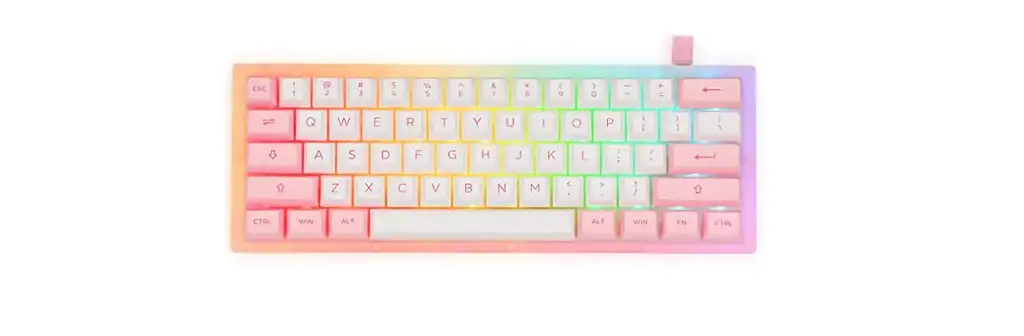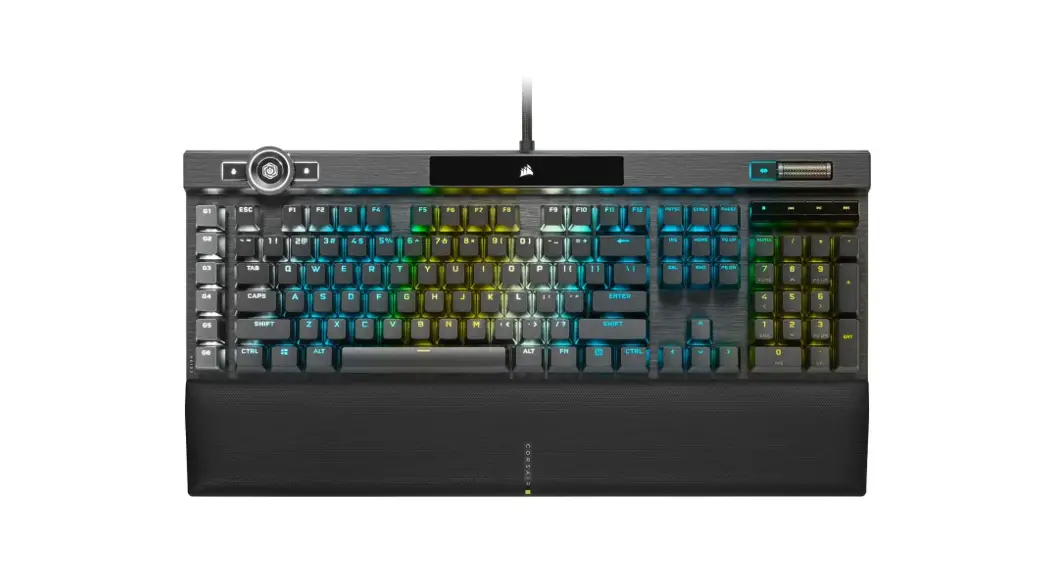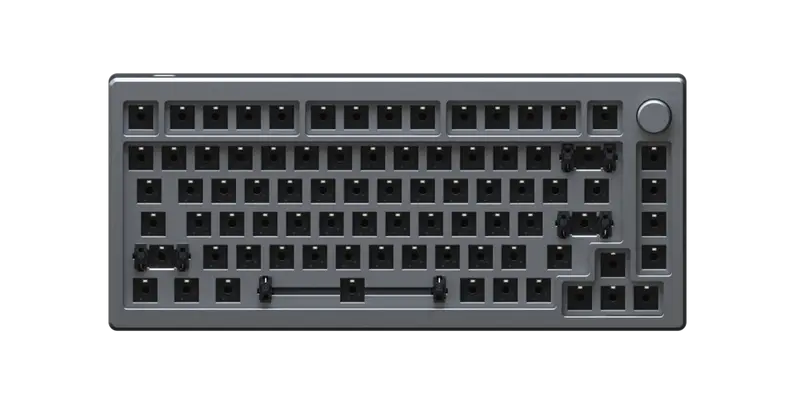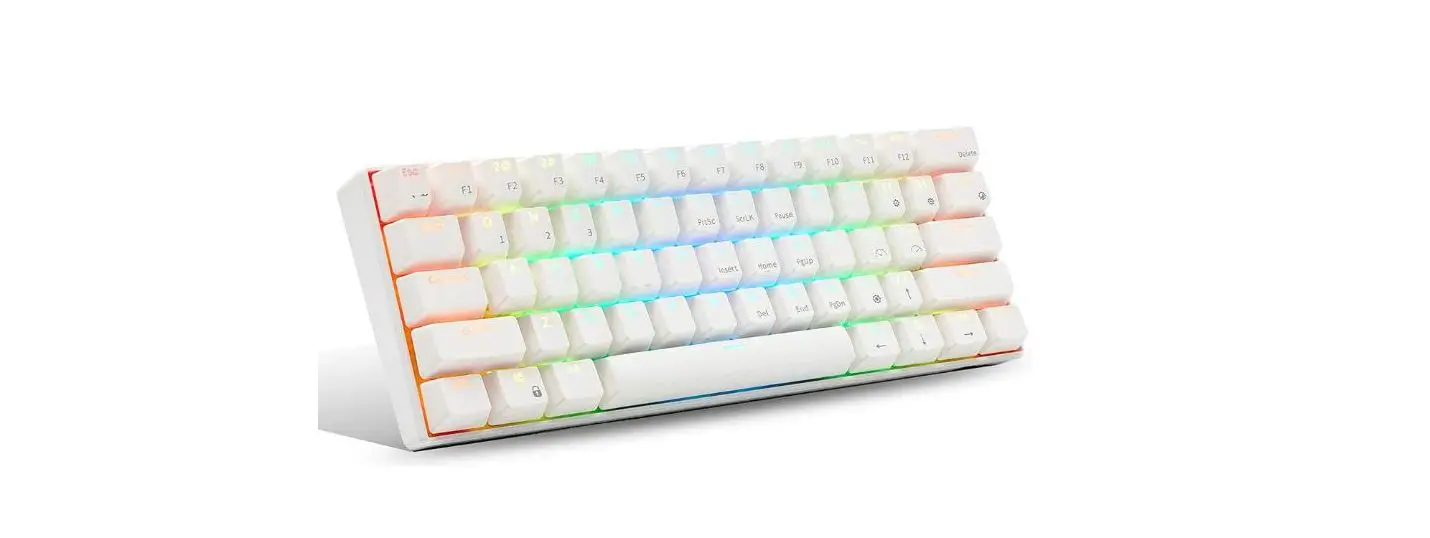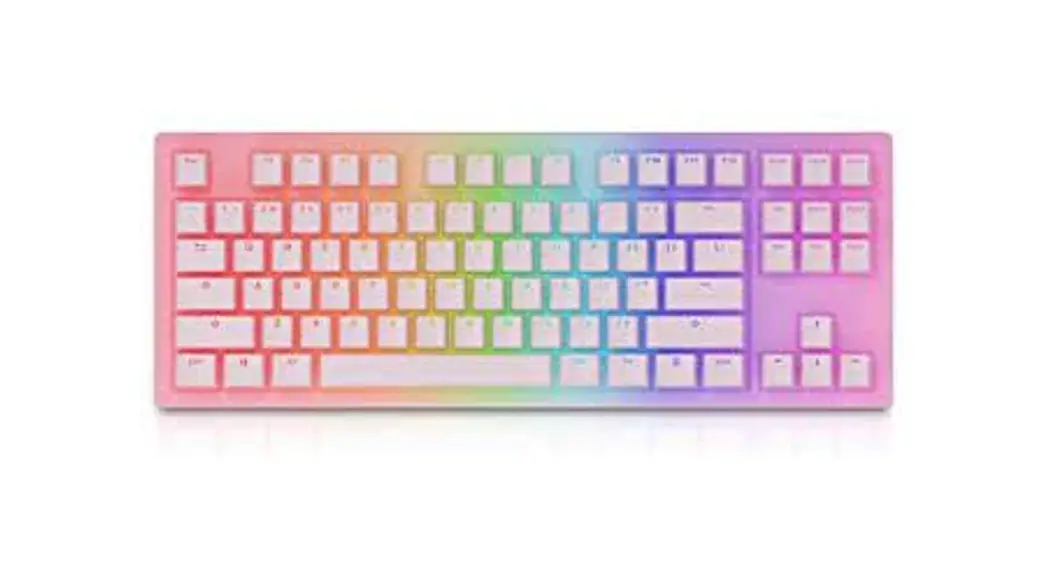
 MEKAURA RGB Mechanical Keyboard
User Manual
MEKAURA RGB MECHANICAL KEYBOARD
Thank you for choosing MEKAURA by Millennial Engineers. Please refer to this user manual to get started with this keyboard.
For information not covered in this user manual, please visit www.millennialengineers.com 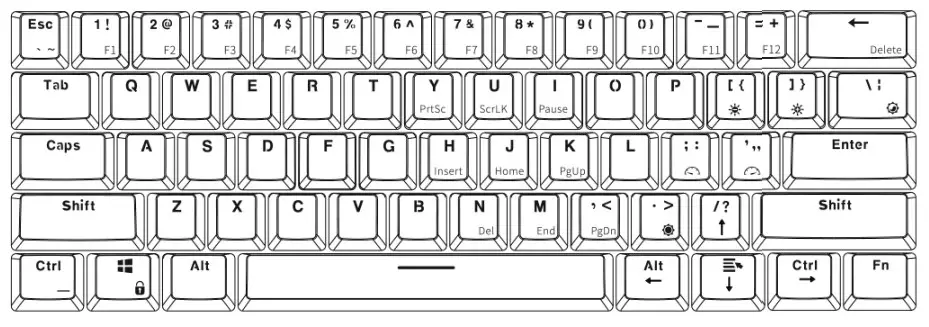
SPECIFICATION
| Model | NAKAMURA | Interfaces | USB Type-C + Bluetooth |
| Dimension | 290 x 100 x 40 (mm) | Cable Length | 1.6 Meters |
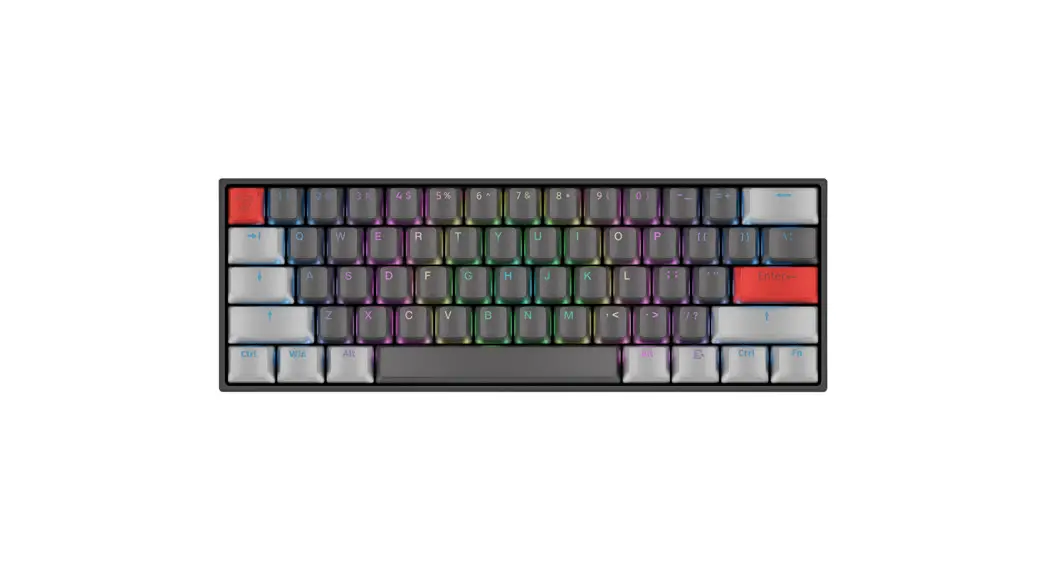
| Layout | 61 Keys | Battery | 1450 mAh |
| Backlight | Per-Key Full-Color RGB | Anti Ghosting | Full NKRO (USB) |
| Macro Support | Yes | Response Rate | 1ms (USB) |
| Systems | Windows / macOS / iOS / Android / Linux | ||
FUNCTIONAL INPUTS
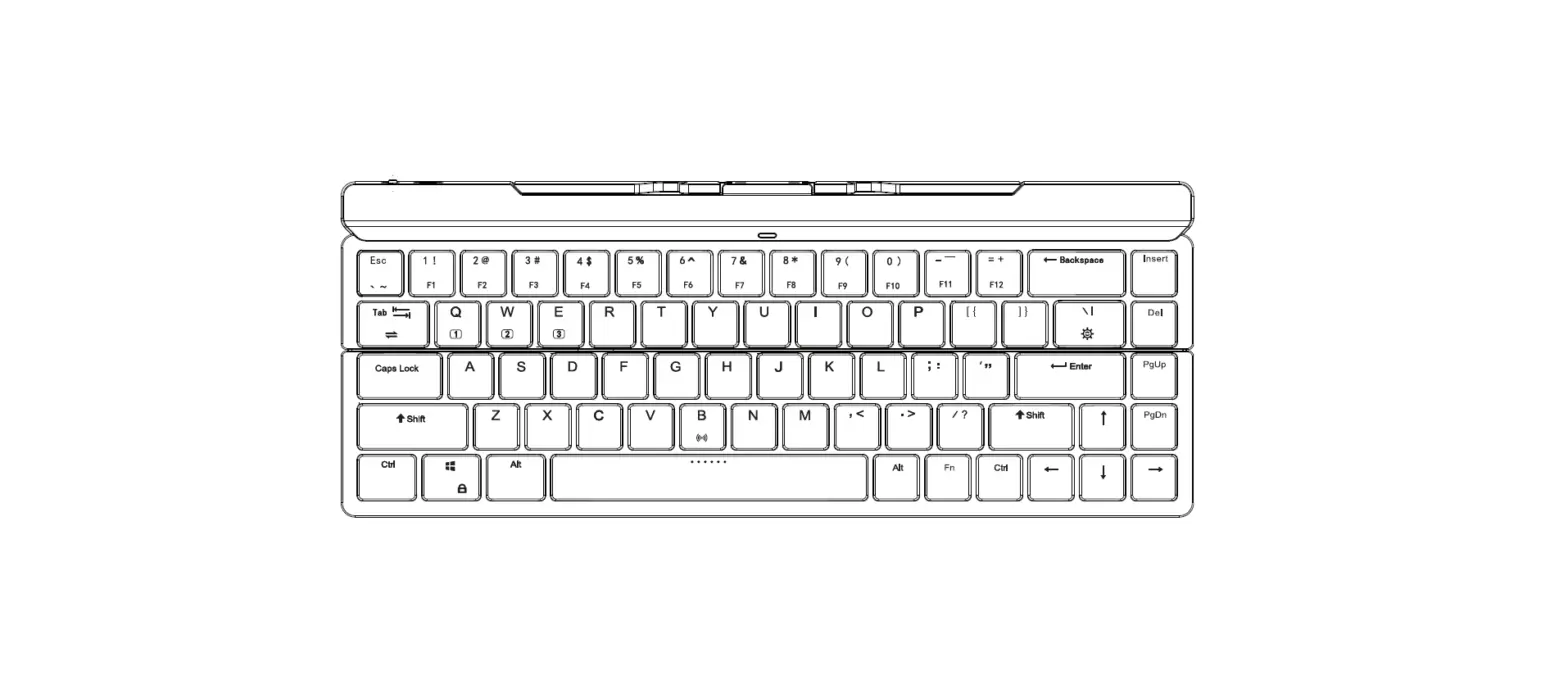
The functional Input of each key Is labeled on the bottom of the keycap. You can access these functional Inputs by pressing  with the corresponding keys.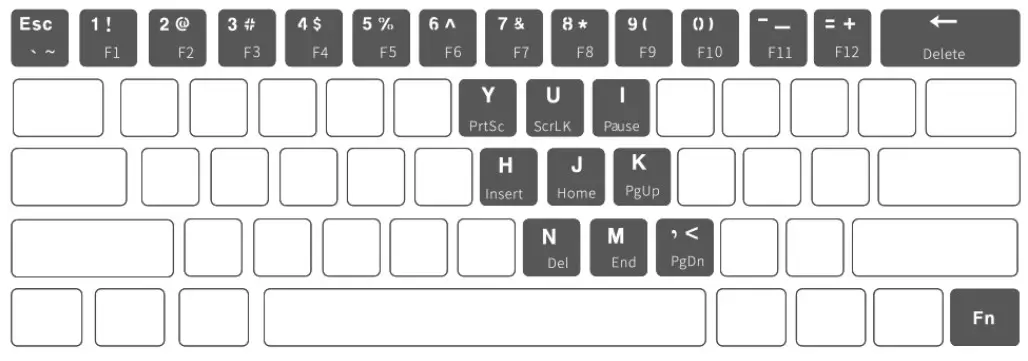
HOT-KEY SETTINGS
OS COMPATIBILITY MODES
 | Switch the keyboard to widows or compatible mode. |
 | Switch the keyboard to macOS compatible mode (Life-At – command) |

RGB BACKLIGHT CONTROLS
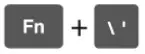 | Change RGB backlight effect. |
 | Decrease the brightness of the backlight. |
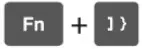 | Increase the brightness of the backlight. |
 | Decrease speed of backlight effect. |
 | Increase speed of backlight effect. |
 | Change the color of the RGB backlight. |
 | Lock & unlock Win-key. |
 | Activate & deactivate arrow keys. |
 | Press Fn + Left-Ctrl to access multi-layers of input defaults: |
1st press: Default the following keys to its functional inputs.
2nd press: Default the following keys to Its functional Inputs.

3rd press: Revert all the keys back to the original input default.
WIRED & WIRELESS MODES
MEKAURA mechanical keyboard can be connected via use and Bluetooth.
The connectivity mode Is accessible via the ON/OFF switch on the back of the keyboard:
Switch OFF: MEKAURA keyboard enters wired mode.
Switch ON: MEKAURA keyboard enters wireless (Bluetooth) mode.
BLUETOOTH PAIRING
MEKAURA keyboard can pair with five Bluetooth devices using its onboard memory.
The paired devices are individually stored and accessed via the keys .
.
To pair your first Bluetooth device on (Repeat the same steps tor  )
)
- Turn the back switch ON
 .
. - Press
 or more than 2 seconds until the key starts flashing.
 - On your pairing device, search for “MEKAURA” and confirm the Bluetooth connection.
- Upon successful pairing, the key stops flashing.
 .
. or more than 2 seconds until the key starts flashing.
To access paired Bluetooth devices:
short press  to switch between paired devices.
POWER SAVING FEATURE
MEKAURA mechanical keyboard has a built-in rechargeable lithium battery with a capacity to allow 30 days of standby time. 1 week of normal usage and 10 hours of extreme usage.
A full recharge time Is 3 hours.
The battery status Is Indicated by the spacebar backlight after being connected to a power source via a USB cable:
- The spacebar backlight flashes 3 times: the battery Is not full.
- The spacebar backlight flashes 5 times: the battery Is full.
SLEEP MODE
MEKAURA mechanical keyboard has power-saving features.
If the keyboard Is In wireless mode and Inactive for 3 minutes, It automatically enters Sleep
Mode and turns off all RGB backlights. It wakes up upon any key presses on the keyboard.
WARRANTY
MEKAURA mechanical keyboard is covered by the 12-month standard warranty from the purchasing date plus any delivery time from an online purchase. Any defect due to hardware rassemblement is not covered by the standard warranty.
For more information. please visit www.millennialengineers.com