R2170 Thermal Imaging Camera
Product Information
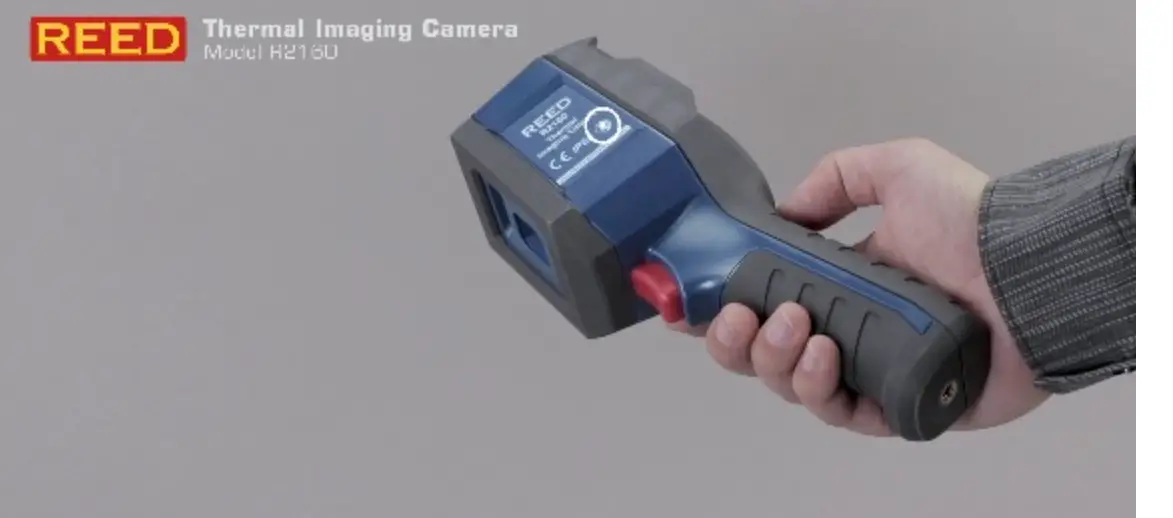
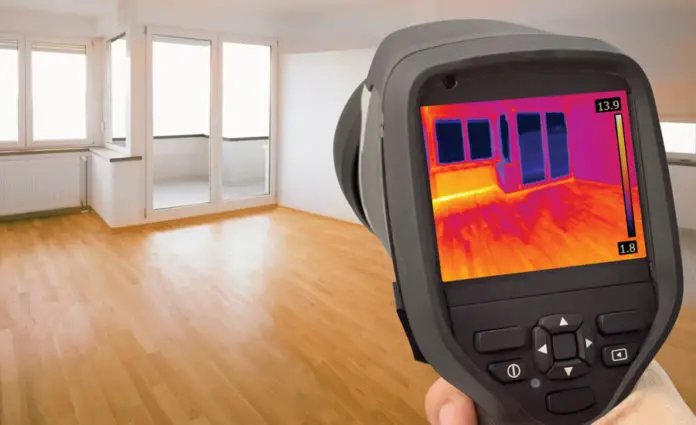
The REED R2170 Thermal Imaging Camera is a high-quality product
designed to provide reliable service. It has been manufactured in
an ISO9001 facility and calibrated during the manufacturing process
to meet the stated product specifications. This camera features a
Field of View (FOV) with a focal length of 4.0mm and a spatial
resolution (IFOV) of 3mrad. It also has a thermal sensitivity
(NETD) that ensures accurate thermal imaging.
Product Usage Instructions
1. Power ON/OFF: To turn on the camera, press and hold the power
button until the device powers up. To turn off the camera, press
and hold the power button again until the device powers down.
2. Emissivity: Adjusting the emissivity setting allows for
accurate temperature measurements. Refer to the instruction manual
for guidance on how to set the emissivity value.
3. Software Installation: Follow the instructions provided in
the manual to install the necessary software for the camera, if
required.
4. Operating Instructions: Refer to pages 11-17 of the
instruction manual for detailed operating instructions on how to
use the camera effectively.
5. Turning the LED Flashlight ON/OFF: To turn on the LED
flashlight, locate the flashlight button and press it. Press the
button again to turn off the flashlight.
6. Enabling/Disabling Digital Zoom: The camera may have a
digital zoom feature. Refer to the instruction manual for
instructions on how to enable or disable this feature.
7. Advanced Settings Menu: The camera may have an advanced
settings menu for additional customization. Refer to pages 15-17 of
the instruction manual for detailed instructions on accessing and
using the advanced settings menu.
8. Safety: Ensure to follow all safety precautions mentioned in
the instruction manual while using the thermal imaging camera.
For any further assistance or calibration certificate
requirements, please contact the nearest authorized REED
distributor or authorized Service Center.
Thermal Imaging Camera
R2170
W Y
Y
ARRANT
W ARRANT
Instruction Manual
www.REEDInstruments.com
1.888.610.7664
15
10
20
5
25
0
30
www.calcert.com
Table of Contents
Introduction …………………………………………………………………………………… 3 Product Quality………………………………………………………………………………. 3 Safety …………………………………………………………………………………………… 4 Features………………………………………………………………………………………… 5 Included………………………………………………………………………………………… 5 Specifications ……………………………………………………………………………… 6-7 Instrument Description ……………………………………………………………………. 8 Display Description ………………………………………………………………………… 9
Power ON/OFF ………………………………………………………………………….. 9 Emissivity…………………………………………………………………………………….. 10 Software Installation ……………………………………………………………………… 11 Operating Instructions……………………………………………………………….11-17
Main Menu …………………………………………………………………………..11-14 Enabling/Disabling Center Point & High/Low Temperature Spot …………………………………………………………………. 11 Image Mode Selection …………………………………………………………… 12 Color Palette Selection ………………………………………………………….. 12 Image Measurement Tools……………………………………………………… 13 Isotherm and Temperature Span Settings……………………………..13-14
Turning the LED Flashlight ON/OFF…………………………………………….. 14 Enabling/Disabling Digital Zoom…………………………………………………. 14 Advanced Settings Menu……………………………………………………….15-17
Changing Camera Mode ………………………………………………………… 15 Setting the Unit of Measure…………………………………………………….. 15 Setting Image Parameters (Emissivity and Object Distance)………… 15 Setting High/Low Alarms………………………………………………………… 15 Setting the Language …………………………………………………………….. 16 Setting the Date and Time Format …………………………………………… 16
continued…
1.888.610.7664
15
10
20
5
25
0
30
www.calcert.com
Changing USB Mode …………………………………………………………….. 16 Adjusting Display Brightness…………………………………………………… 16 Auto Power Off……………………………………………………………………… 16 Factory Reset ……………………………………………………………………….. 16 Format SD Card ……………………………………………………………………. 17 Saving, Viewing & Deleting Images ………………………………………….. 17 Charging the Battery …………………………………………………………………….. 17 Applications…………………………………………………………………………………. 18 Accessories and Replacement Parts ………………………………………………. 18 Product Care ……………………………………………………………………………….. 18 Product Warranty …………………………………………………………………………. 19 Product Disposal and Recycling …………………………………………………….. 19 Product Support…………………………………………………………………………… 19
Introduction
Thank you for purchasing your REED R2170 Thermal Imaging Camera. Please read the following instructions carefully before using your instrument. By following the steps outlined in this manual your meter will provide years of reliable service.
Product Quality
This product has been manufactured in an ISO9001 facility and has been calibrated during the manufacturing process to meet the stated product specifications. If a certificate of calibration is required please contact the nearest authorized REED distributor or authorized Service Center. Please note an additional fee for this service will apply.
1.888.610.7664
15
10
20
5
25
0
30
www.calcert.com
Safety
· Never attempt to repair or modify your instrument. Dismantling your product may cause damage that will not be covered under the manufacturer’s warranty. Servicing should only be provided by an authorized service center.
· Do not point the thermal imager (with or without the lens cover) at intensive energy sources as this can damage the thermal imager.
· Do not use the thermal imager in a temperature higher than 122°F (50°C).
· Always charge the battery between 32 to 122°F (0 to 50°C).
· Clean the case with a damp cloth and a diluted soap solution.
· Do not use abrasives, isopropyl alcohol, or solvents to clean the instrument, lens or screen.
· Do not clean the infrared lens too vigorously, this can damage the anti-reflective coating.
· Store the thermal imager in cool and dry environment.
· Please use the correct emissivity to obtain accurate temperature measurements.
· To ensure accuracy, please let the instrument warm up for 10 minutes before taking a measurement if it has not been used for a long time.
· When being charged, the internal temperature of the product will rise, which will lead to inaccurate temperature measurement, it is not recommended to take measurements during or right after charging the instrument.
1.888.610.7664
15
10
20
5
25
0
30
www.calcert.com
Features
· 320 x 240 infrared resolution (76,800 pixels) · 3.5″ color IPS Display · Built-in dual LED flashlight · Choice of 7 color palettes · Intuitive on-screen measurement tools · 4 image modes (Thermal, Visual Image, Picture-in-Picture,
Fusion (Thermal Blending)) · High and Low temperature spot and alarm indicators · IP54 and 6.5′ (2m) drop tested · 4x digital zoom · Rechargeable Li-ion battery · Tripod mountable for continuous long-term monitoring · View, analyze stored data and generate reports or project in real-time · Low battery indication and auto shut off
Included
· USB (Type-C) Cable · Power Adapter · 2 Rechargeable Batteries · 32GB Micro SD Card · Hard Carrying Case
1.888.610.7664
15
10
20
5
25
0
30
www.calcert.com
Specifications
Imaging and Optical Specifications
Field of View (FOV):
56 x 42°
Focal Length:
4.0mm
Spatial Resolution:
(IFOV) 3mrad
Thermal Sensitivity (NETD):
<65mK
Image Capture Frequency:
9Hz
Focus:
Fixed
Measurement
Temperature Range:
-40 to 752°F (-40 to 400°C)
Accuracy:
±3.6°F (2°C) or ±2% of reading, for ambient temperature at 77°F (25°C)
Resolution:
0.1°F/°C/K
Detector Specifications
Detector Type:
Uncooled Vanadium Oxide, Focal plane array (UFPA)
Spectral Range:
8 to 14m
IR Resolution:
320 x 240 (76,800 pixels)
Image Presentation and Measurement Analysis
Display:
3.5″ color IPS
Color Palettes:
7 (Ironbow/Rainbow/Rainbow(HC)/ Lava/Red-Hot/White-Hot/Black-Hot)
Image Modes:
Thermal, Visual Image, Picture-in-Picture, Fusion
(Thermal Blending)
On-Screen Temperature Markers: 3 (Center/High Temp/Low Temp)
Image Measurement Tools:
5 Points/3 Rectangles/3 Circles/ 1 Line (add up to 6)
Emissivity:
Adjustable (0.01 – 1.00)
Isotherm:
Yes (Below, Above, Interval)
Temperature Span:
Automatic/Manual
Temperature Alarm Indicators:
High/Low (user adjustable)
continued…
1.888.610.7664
15
10
20
5
25
0
30
www.calcert.com
General Specifications
Image Capture Modes:
2 (Single/Time-Lapse)
Display Resolution:
640 x 480 pixels
Digital Zoom:
Yes (2x/4x)
Image Format:
JPG
LED Flashlight:
Yes (Dual)
External Memory:
Micro SD card
Auto Shut-off :
Yes (user adjustable 5/10/20/30/45/60/90 mins)
Tripod Mountable:
Yes
Low Battery Indicator:
Yes
Power Supply:
3.7V/5200mAh rechargeable Li-ion battery
Battery Life:
Approx. 3.5 hours
Charge System:
In Camera or Battery (USB-C)
Charge Time:
Approx. 4 hours
PC Connectivity:
USB Cable (USB-C)
Software:
Yes (download from website)
Software Functionality:
Image Analysis/Live Camera Feed/ Report Generation
Software OS Compatability:
Windows Vista/7/8/10/11
Supported Languages:
English, French, German and Spanish
Product Certifications:
CE, UKCA, IP54, 6.6′ (2m) drop test
Operating Temperature:
32 to 122°F (0 to 50°C)
Storage Temperature:
14 to 140°F (-10 to 60°C)
Operating/Storage Humidity Range: 10 to 95%
Maximum Operating Altitude:
6561′ (2000m)
Dimensions:
10.2 x 3.9 x 3.8″ (260 x 99 x 97mm)
Weight:
1.4lbs (630g)
1.888.610.7664
15
10
20
5
25
0
30
www.calcert.com
Instrument Description
14
1
2
15 3
4
8
16
9
17
5
10
6
11
18
7 12
13
1. USB Port (USB-C) 2. SD Card Slot (Micro SD) 3. Lens Cover 4. LCD Display 5. POWER Button 6. LED Light Button 7. LEFT Button 8. UP Button 9. PLAYBACK Button
10. BACK Button 11. RIGHT Button 12. SET Button 13. DOWN Button 14. Tripod Mounting Hole 15. Infrared Camera Lens 16. LED Lights 17. Digital Camera 18. Trigger
1.888.610.7664
15
10
20
5
25
0
30
www.calcert.com
Display Description
1
2 3
13
29.1
12
11
15.8
10
4
5
6
7
8
9
1. Center Spot Temperature 2. Maximum Spot Temperature 3. Center Spot 4. Spot Settings (Markup) 5. Image Mode 6. Color Palette Settings 7. Image Measurement Tools 8. Isotherm and Temperature
Span Settings
9. Advanced Menu Settings 10. Minimum Spot on
Temp Scale 11. Minimum Spot Temperature 12. Maximum Spot on
Temp Scale 13 Battery Indicator
Power ON/OFF
Press and hold the POWER button for 5 seconds to power ON. To turn OFF, press and hold the POWER button for 3 seconds and select “Yes” from the Shutdown prompt.
If the camera has not been used for a long time or the instrument is not acclimatized to the environment, the camera may take up to 30 minutes
from start-up to measure temperatures within stated specifications.
1.888.610.7664
15
10
20
5
25
0
30
www.calcert.com
Emissivity
This thermal imager measures infrared energy from the surface of the object and uses this data to calculate an estimated temperature value. Surfaces that are good at radiating energy (high emissivity), the emissivity factor is 0.90. Shiny surfaces or unpainted metals are not good at radiating energy (low emissivity) have an emissivity of <0.6. To more accurately measure materials with a low emissivity, an emissivity correction is necessary. Emissivity is set directly as a value or from a list of emissivity values for some common materials.
The following table gives typical emissivity of some materials:
Material Asphalt Concrete Hard plaster Wood (natural) Lime Stone Ballast chipping Paper (every color) Plastics non film Tissue (fabric) Sand Glass wool Melted asphalt Screed/pavement Foamed polystyrene
Emissivity 0.95 0.95 0.90 0.93 0.98 0.95 0.95 0.95 0.95 0.90 0.90 0.93 0.93 0.94
Material Drywall Render Smoothing cement Lacquer Latex paint Wallpaper Tilling Parquet floor Laminate PVC-Floor Brick Cliff Roofing cardboard Stucco
Emissivity 0.95 0.94 0.90 0.92 0.97 0.93 0.93 0.90 0.90 0.92 0.93 0.97 0.93 0.91
1.888.610.7664
15
10
20
5
25
0
30
www.calcert.com
Software Installation
Visit www.REEDInstruments.com/software to download the R2170 software.
Full specifications and Operating System compatibility can be found on the product page at www.REEDInstruments.com. If you have specific questions related to your application and/or questions related to software setup and functionality please contact the nearest authorized distributor or Customer Service at [email protected] or 1-877-849-2127.
Operating Instructions
Main Menu 1. Press the SET button to enter the main menu. Use the LEFT and
RIGHT buttons to scroll through the menu and press SET again to enter sub-menu.
2. Follow the instructions below to adjust each parameter.
Enabling/Disabling Center Point & High/Low Temperature Spots Press the SET button once to access the main menu, then press SET again when is highlighted to access the sub-menu. Use the LEFT and RIGHT arrows to toggle between the options and press SET again to enable/disable the following features:
Display Center Spot Temperature (when enabled the Center Spot temperature will appear in the top left corner of the screen)
Display Maximum Spot Temperature
Display Minimum Spot Temperature
12 Display Numerical Values on Maximum/Minimum 34 Spot Temperatures
1.888.610.7664
15
10
20
5
25
0
30
www.calcert.com
continued…
[email protected]
Image Mode Selection Press the SET button once to access the main menu, then press SET again when is highlighted to access the sub-menu. Use the LEFT and RIGHT arrows to toggle between the image modes and press SET to confirm selection.
Thermal Image
Digital Camera
Fusion (Thermal and Digital Camera Mix) When in this mode the Mix Proportion can be adjusted by pressing the LEFT and RIGHT arrows. Distance to the measured object can also be adjusted by pressing the UP and DOWN arrows.
Picture-in-Picture (PIP) When in this mode the PIP box can be moved and adjusted to the desired size.
Color Palette Selection Press the SET button once to access the main menu, then press SET again when is highlighted to access the sub-menu. Use the LEFT and RIGHT arrows to toggle the palette options and press SET to confirm selection.
White-Hot
Red-Hot
Ironbow
Black-Hot
Rainbow (High Contrast)
Lava
Rainbow
1.888.610.7664
15
10
20
5
25
0
30
www.calcert.com
continued…
[email protected]
Image Measurement Tools Press the SET button once to access the main menu, then press SET again when is highlighted to access the sub-menu. Use the LEFT and RIGHT arrows to toggle between the measurement tools. Press SET to confirm selection.
Please note a maximum of 6 measurement tools can be used at once. This can be a combination of 5 Points, 1 Line, 3 Rectangles, or 3 Circles.
Point
Line
Rectangle
Circle Choose (Select between enabled measurement tools) Clear (Clear on-screen measurement tools) Preset (save or load a measurement tool profile)
Isotherm and Temperature Span Settings Press the SET button once to access the main menu, then press SET again when is highlighted to access the sub-menu. Use the LEFT and RIGHT arrows to toggle between features and press SET to confirm selection.
Auto (This is the default setting. In this mode the camera will automatically detect the highest and lowest temperature in the field of view and automatically adjust the temperature span to be with this range.) Below (In this Isotherm mode a temperature can be set and the camera will display temperatures below that threshold. While in this mode, press the UP or DOWN arrows to increase or decrease the desired temperature value.)
continued…
1.888.610.7664
15
10
20
5
25
0
30
www.calcert.com
Above (In this Isotherm mode a temperature can be set and the camera will display temperatures above that threshold. While in this mode, press the UP or DOWN arrows to increase or decrease the desired temperature value.)
Section (In this Isotherm mode a high and low temperature can be set and the camera will display detected temperatures within that threshold. While in this mode, the LEFT and RIGHT arrows will select the upper or lower temperature as indicated by a green marker. Once selected the UP or DOWN arrows can be pressed to increase or decrease the temperature value.)
Manual (In this mode the user has the ability to manually adjust the high and low temperatures to set the temperature scale. While in this mode, the LEFT and RIGHT arrows will select the upper or lower temperature as indicated by a green marker. Once selected, the UP or DOWN arrows can be pressed to increase or decrease the temperature value.)
Turning the LED Flashlight ON/OFF The camera is equipped with Dual LED flashlights. Press the LED Light button once to turn the flashlight ON. Press the LED Light button again to turn the flashlight OFF.
Enabling/Disabling Digital Zoom This thermal imager has a 4x digital zoom built into the camera. From the live screen press the UP button once to enable 2x digital zoom, twice to enable 4x digital zoom and press the same button once more to resume normal operation.
1.888.610.7664
15
10
20
5
25
0
30
www.calcert.com
continued…
[email protected]
Advanced Settings Menu Press the SET button once to access the main menu, then press SET again when is highlighted to access the sub-menu. Use the UP and DOWN arrows to toggle between the features listed below. Press SET to modify settings for each option.
Changing Camera Mode · Single shot Camera takes a single image when
the trigger is pulled.
· Time-Lapse Camera automatically take images at pre-set intervals (between 10 and 1000 secs).
Setting the Unit of Measure
· Temperature Temperature unit of measure can be selected (between Celsius, Fahrenheit or Kelvin).
· Distance Select between Meters and Feet.
Setting Image Parameters (Emissivity and Object Distance)
· Emissivity Adjust the emissivity value (between 0.01 and 1.00).
· Object Distance – Adjust the Distance to the Object.
Setting High/Low Alarms
· HI Enable the High Alarm and enter a value that will trigger the alarm. When triggered an alarm icon in Red will appear on the display.
· LO – Enable the Low Alarm and enter a value that will trigger the alarm. When triggered an alarm icon in Green will appear on the display.
· LED Alert – Feature will turn the Dual LED flashlight on and off repeatedly when an alarm is triggered.
1.888.610.7664
15
10
20
5
25
0
30
www.calcert.com
continued…
15
[email protected]
Setting the Language · Language – Toggle between pre-loaded
languages (select between English, French, German and Spanish).
Setting the Date and Time Format · Date & Time Modify the time format
(12 or 24hr), current time and date (YEAR/MONTH/DAY).
Changing USB Mode · File Transfer This USB mode should be
selected when transferring files between the camera and PC. · Live Projection- This USB mode should be selected when the camera is being used to project real-time measurements on a PC. Note: The desired USB Mode should be selected prior to connecting the camera to a PC.
Adjusting Display Brightness · Brightness Adjust the screen brightness
level (select a value between 0 and 100).
Auto Power Off · Auto Power Off Adjust the time before
the camera automatically turns off (select between OFF/5/10/20/30/45/60/90mins).
Factory Reset · Factory Reset – When the SET button is
pressed a prompt will appear asking for confirmation. If Yes is selected, the camera will automatically restart with all of the default firmware settings.
continued…
1.888.610.7664
15
10
20
5
25
0
30
www.calcert.com
Format SD Card
· Format – When the SET button is pressed a prompt will appear asking for confirmation to format the SD card that is inserted in the camera. If Yes is selected, the CD card will be formatted.
Saving, Viewing & Deleting Images While in normal operation, multiple images can be saved to the Micro SD card.
1. To save an image, pull the trigger.
2. To display saved images, press the Playback button to enter the picture gallery. Press SET again to see All Photos.
3. Use the LEFT and RIGHT buttons to scroll through the list of saved images.
4. To select an image press the SET button. Once an image is selected, notes can be added and the measurement tools can be selected to modify and save the images.
Charging the Battery
The included power adapter has been provided to charge the battery faster. Please note the power adapter should only be used when connected directly to the battery with the included USB cable. Charge the camera until the battery LED changes from red to green, indicating the battery is full. The camera can also be charged by connecting to a USB port on your PC. Please note this method will take longer to charge.
Note: The power adapter should only be used when connected directly to the battery via the included USB cable. The Power Adapter will not charge the camera if connected directly to camera.
1.888.610.7664
15
10
20
5
25
0
30
www.calcert.com
Applications
· Home and Building Inspection · Plant and General Maintenance · Electrical and Mechanical Inspection · Predictive Maintenance · HVAC/R & Plumbing · Automotive maintenance · Solar panel inspection · Equine and veterinary · PCBA inspection · Road construction
Accessories and Replacement Parts
R8890 Hard Carrying Case
R2170-3.7V Replacement/Add-On Battery
RSD-16GB 16GB Micro SD Memory Card w/Adapter
R1500 Tripod
Don’t see your part listed here? For a complete list of all accessories and replacement parts visit your product page on www.REEDinstruments.com.
Product Care
To keep your instrument in good working order we recommend the following: · Store your product in a clean, dry place. · Clean your product and accessories with biodegradable cleaner. Do not
spray the cleaner directly on the instrument. Use on external parts only.
1.888.610.7664
15
10
20
5
25
0
30
www.calcert.com
Product Warranty
REED Instruments guarantees this instrument to be free of defects in material or workmanship for a period of two (2) years from date of shipment. During the warranty period, REED Instruments will repair or replace, at no charge, products or parts of a product that proves to be defective because of improper material or workmanship, under normal use and maintenance. REED Instruments total liability is limited to repair or replacement of the product. REED Instruments shall not be liable for damages to goods, property, or persons due to improper use or through attempts to utilize the instrument under conditions which exceed the designed capabilities. In order to begin the warranty service process, please contact us by phone at 1-877-849-2127 or by email at [email protected] to discuss the claim and determine the appropriate steps to process the warranty.
Product Disposal and Recycling
Please follow local laws and regulations when disposing or recycling your instrument. Your product contains electronic components and must be disposed of separately from standard waste products.
Product Support
If you have any questions on your product, please contact your authorized REED distributor or REED Instruments Customer Service by phone at 1-877-849-2127 or by email at [email protected].
Please visit www.REEDInstruments.com for the most up-to-date manuals, datasheets, product guides and software.
Product specifications subject to change without notice. All rights reserved. Any unauthorized copying or reproduction of this manual is strictly prohibited without prior written permission from REED Instruments.
1.888.610.7664
15
10
20
5
25
0
30
www.calcert.com
TEST & MEASURE
WITH CONFIDENCE
Over 200 portable test and measurement instruments
Access our Product Catalog
www.REEDInstruments.com
1.888.610.7664
15
10
20
5
25
0
30
www.calcert.com
 Calcert
 REEDInstruments.com - Test and Measure with Confidence