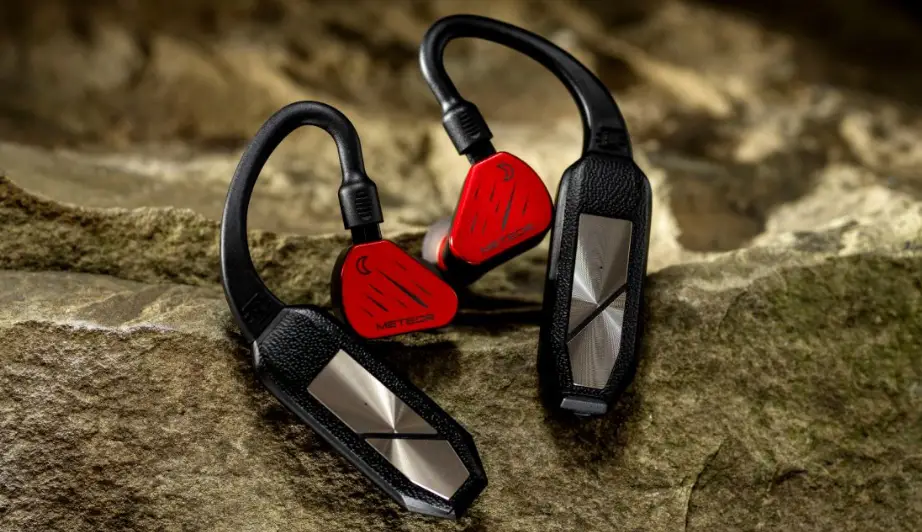
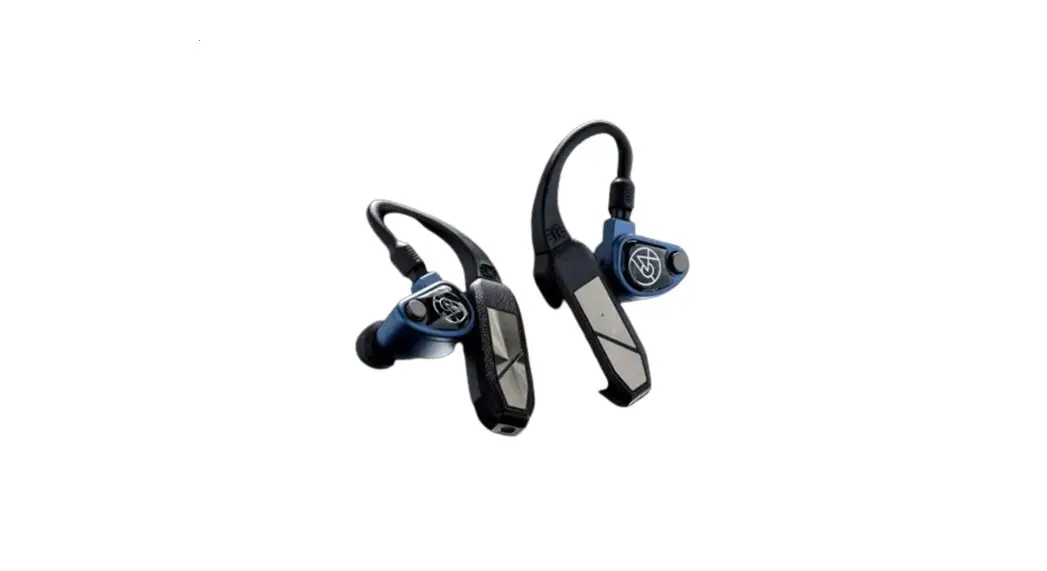
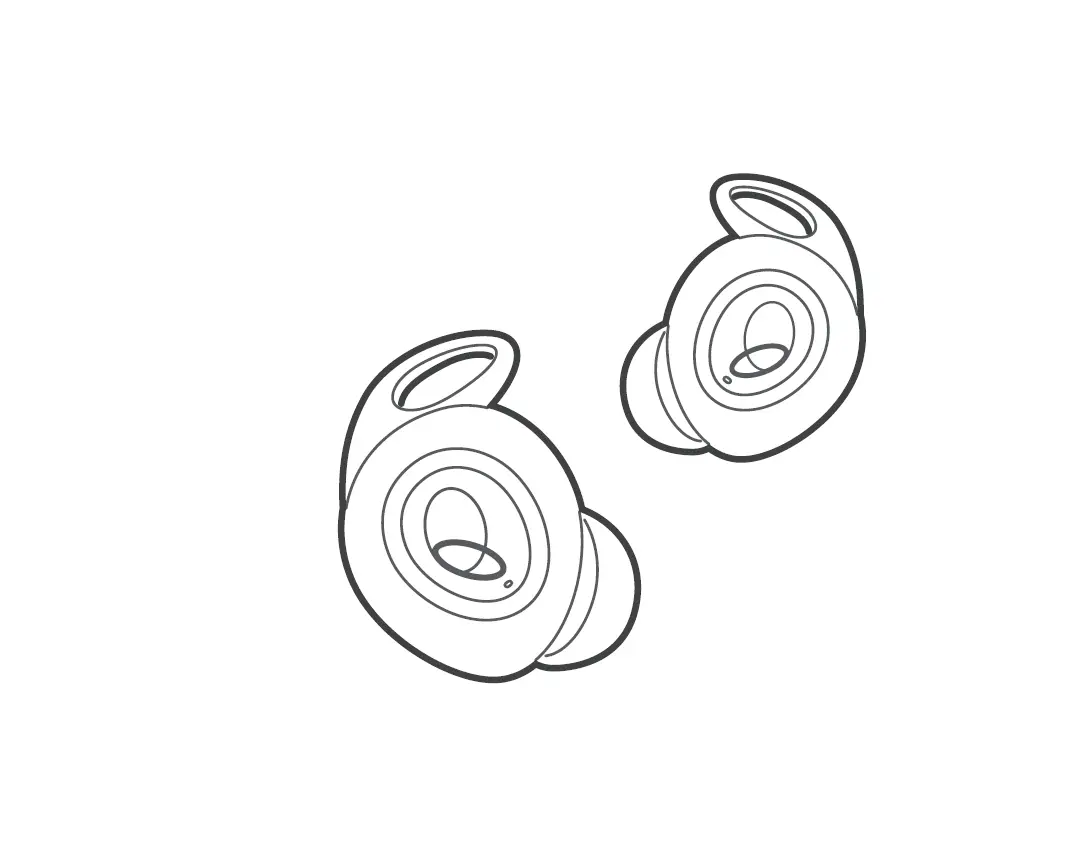
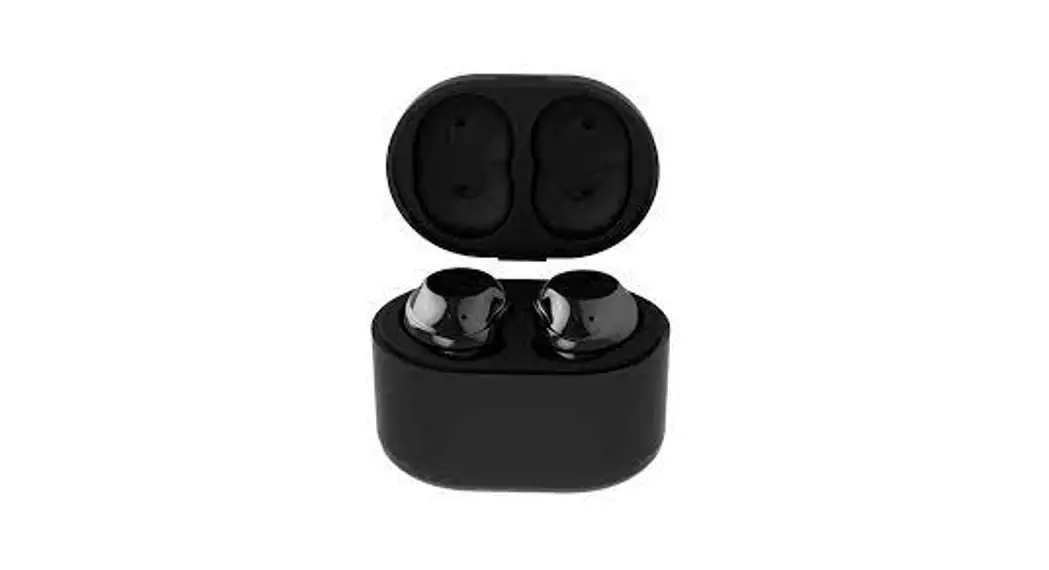
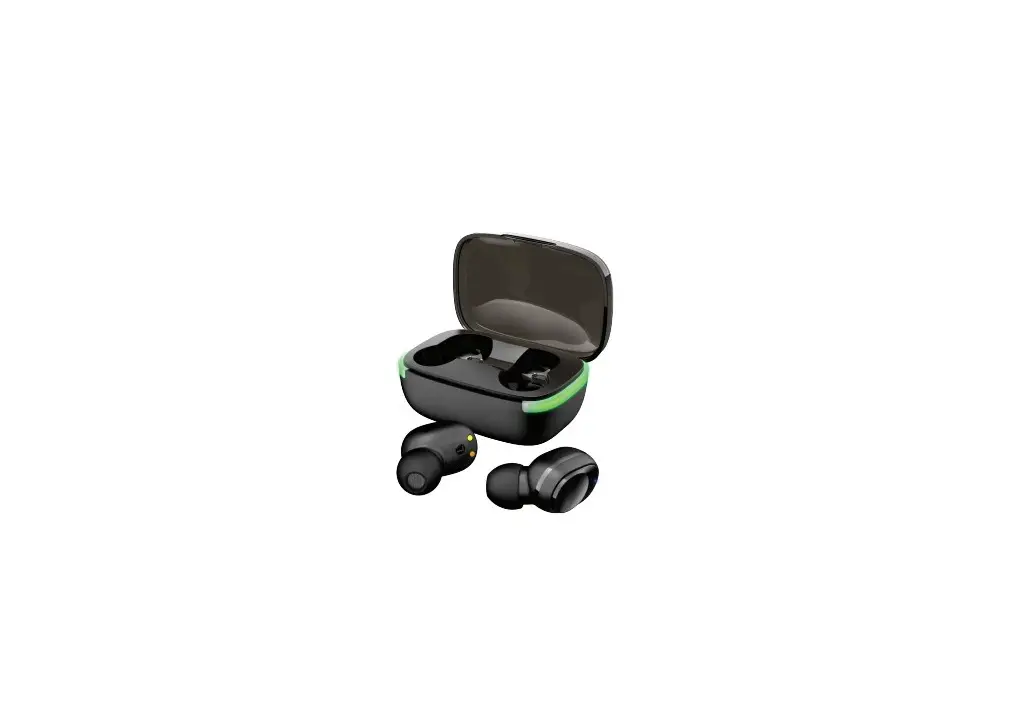
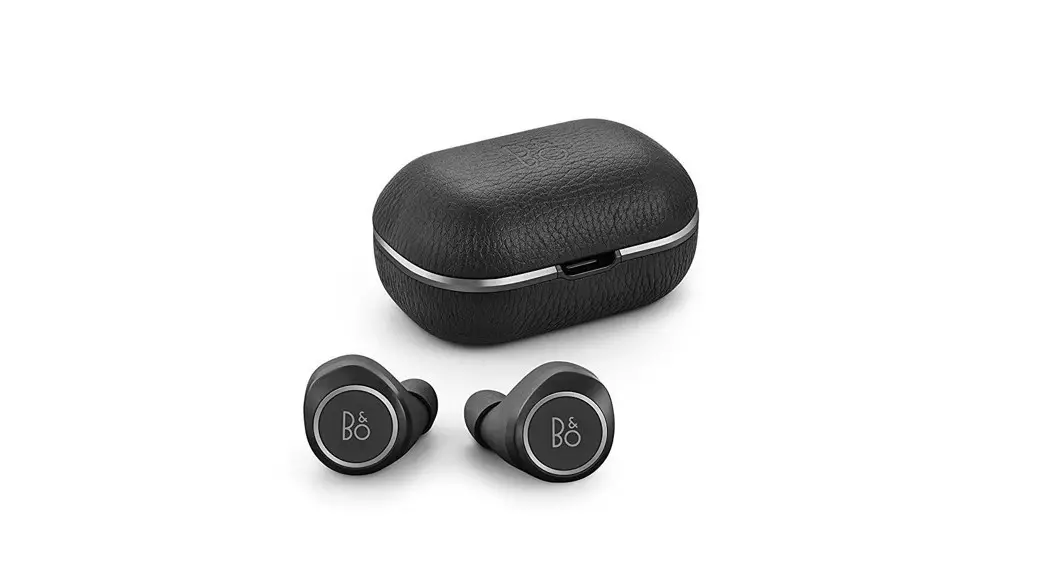
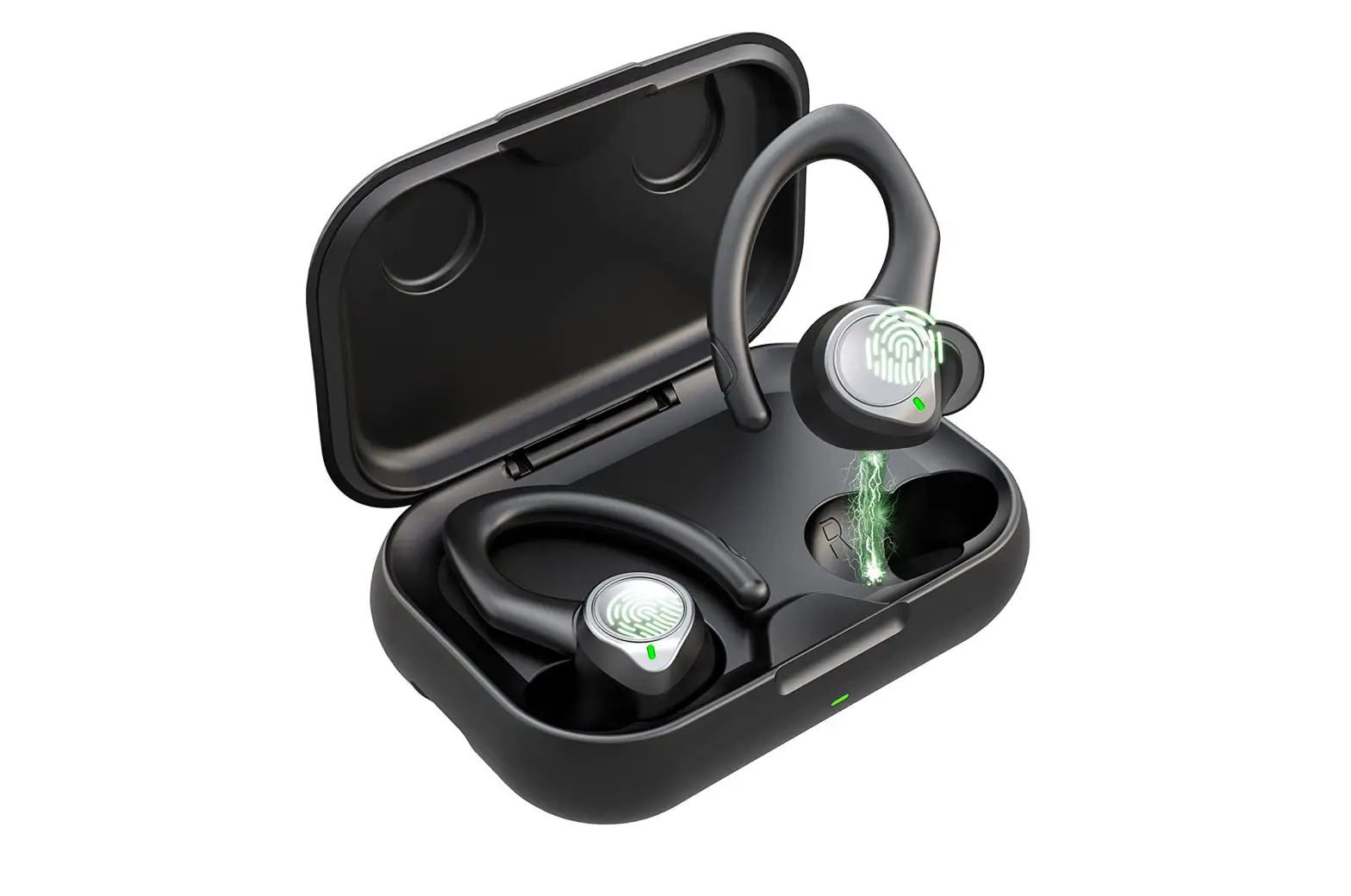
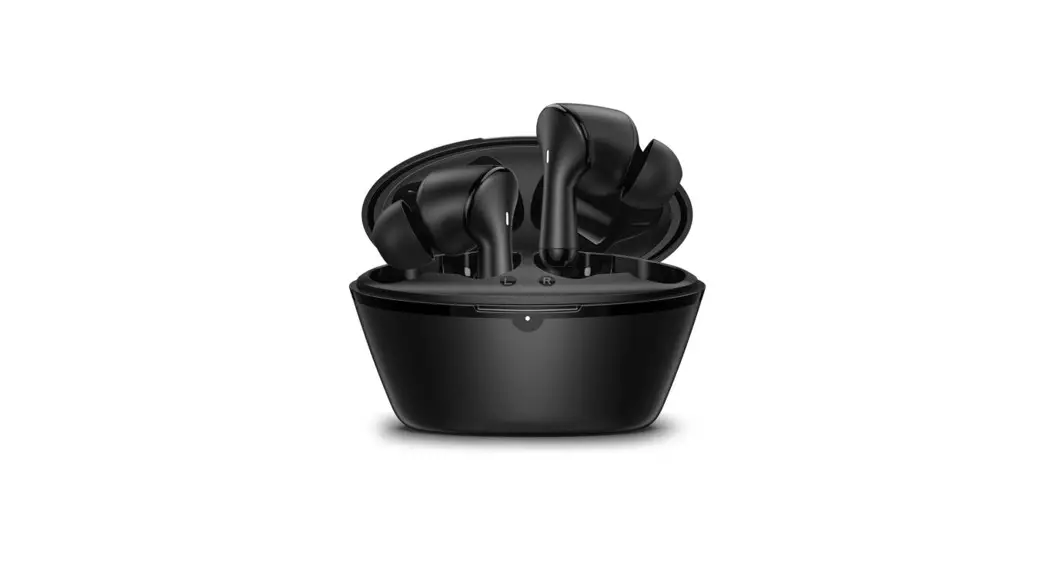
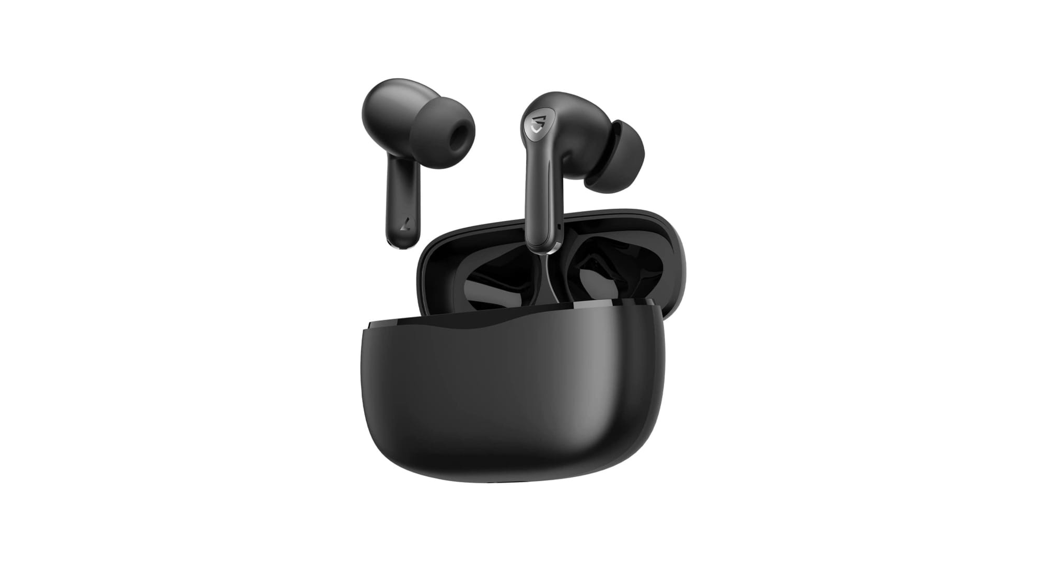
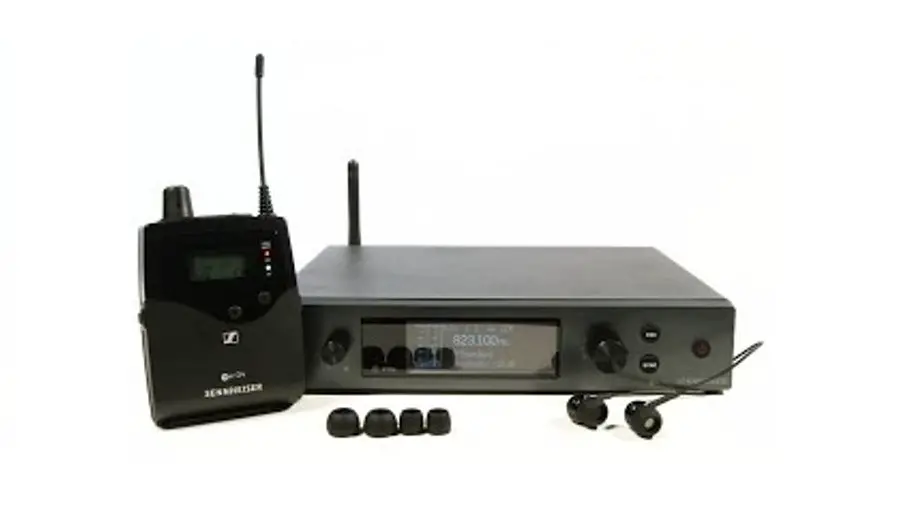
QSC-06 GO Pod Converts Wired IEMs Into Wireless Earbuds
Product Information
- MMCX and 0.78 mm 2 pin for secure fit and easy replacement of
cables - Charging case with LED battery status indicator (76-100%,
51-75%, 26-50%, 0-25%) and wireless charging capability - LED touch control area for easy navigation and control of music
playback, calls, and voice assistant - Microphone for hands-free calls and voice commands
- USB-C 5V/1.0A for charging the case
- Pairing mode for easy connection with devices
- GAIA client for connecting to the GAIA app for personalized
sound settings and firmware updates - Ver1.4 firmware version
Product Usage Instructions
Set-Up
- Scan the QR code on the user manual for a set-up video.
- Charge the earbuds and the charging case using the USB-C
cable.
Pairing
- Make sure the earbuds are turned off.
- Press and hold the left and right touch control areas together
for 2 seconds to enter pairing mode (LED status will show
“pairing”). - In your device’s Bluetooth settings, connect to “Go pod” to
pair with the earbuds.
Touch Control
- Single tap on either earbud to play/pause music or answer/end
calls. - Double tap on the right earbud to skip forward to the next
track. - Triple tap on the right earbud to skip back to the previous
track. - Long press (2 seconds) on either earbud to wake up your
device’s voice assistant.
GAIA App Connection
- Download and install the GAIA app on your device.
- Make sure the earbuds are turned off.
- Press and hold the left and right touch control areas together
for 15 seconds to connect to the GAIA app (LED status will show
“GAIA”). - Open the GAIA app and follow the instructions to connect to the
earbuds.
Quick Start
Scan QR code for Set-Up video
MMCX
0.78 mm 2 pin
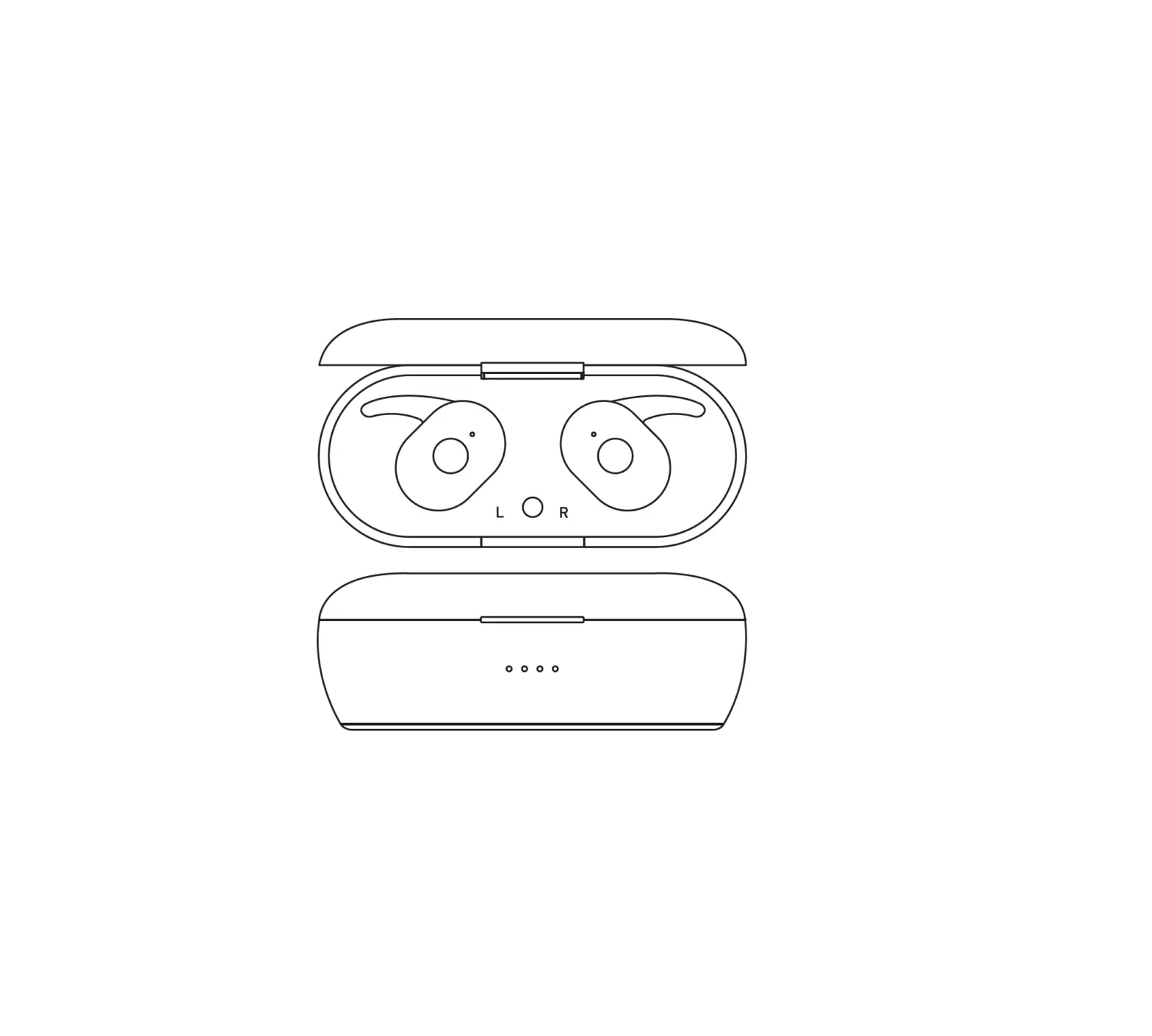
Charging Case
Charging Case battery status 76-100% 51-75% 26-50% 0-25%
Go pod charging point
LED Touch control area
Microphone
Wireless charger
USB-C 5V/1.0A
Pairing
Hold left and right touch area together for 2 sec. to enter into Pairing Mode
LED Status
Connected Charging Awaiting connection Pairing Factory Reset
Connect to `Go pod’ In your device’s Bluetooth setting
Touch control
Play/Pause/Answer call Single tap
Skip Forward
Double tap
Skip Back
Triple tap
Wake Up Voice Assistant Long hold 2 sec.
Bluetooth Pairing
Press left and right together for 2 sec.
GAIA
Client
Connect to Gaia app
Hold left and right together for 15 sec.
Ver1.4