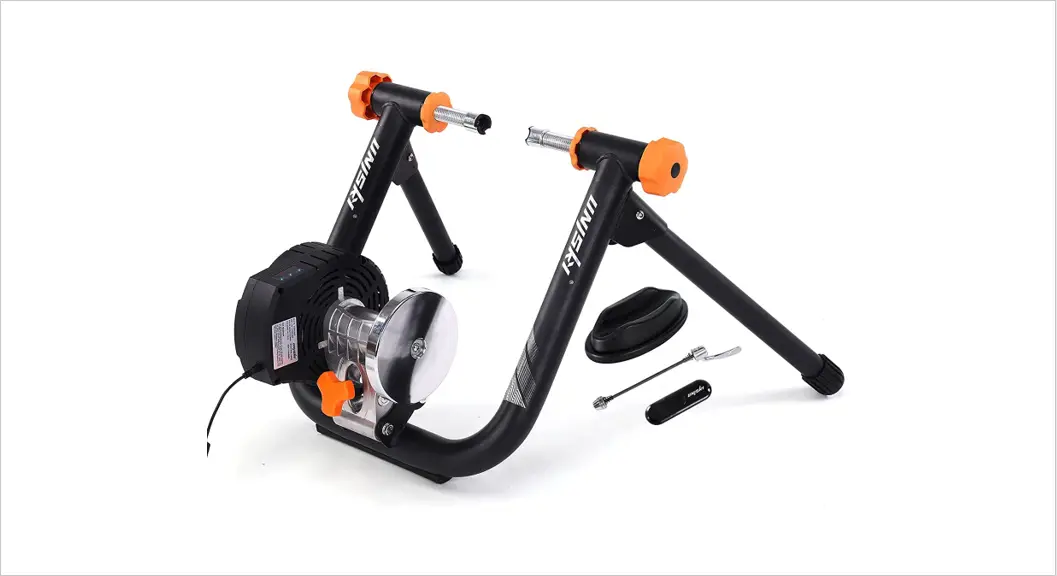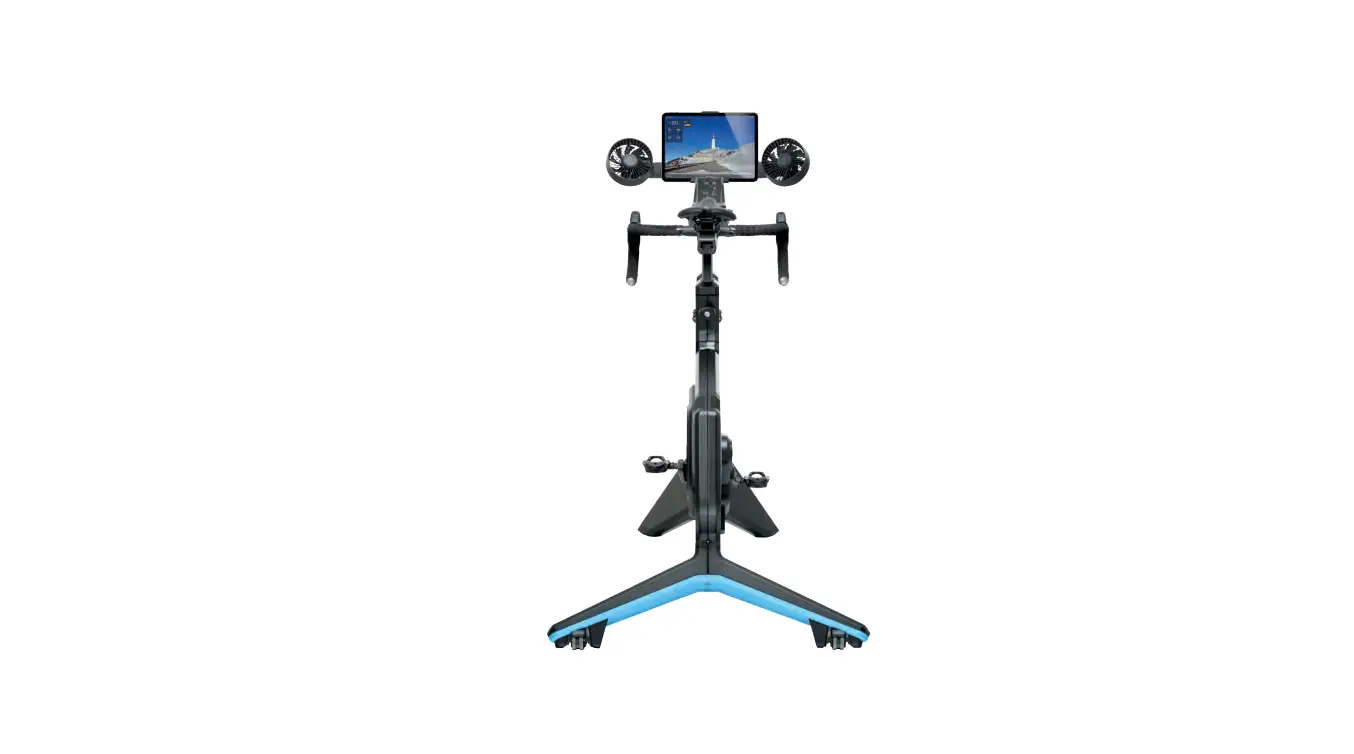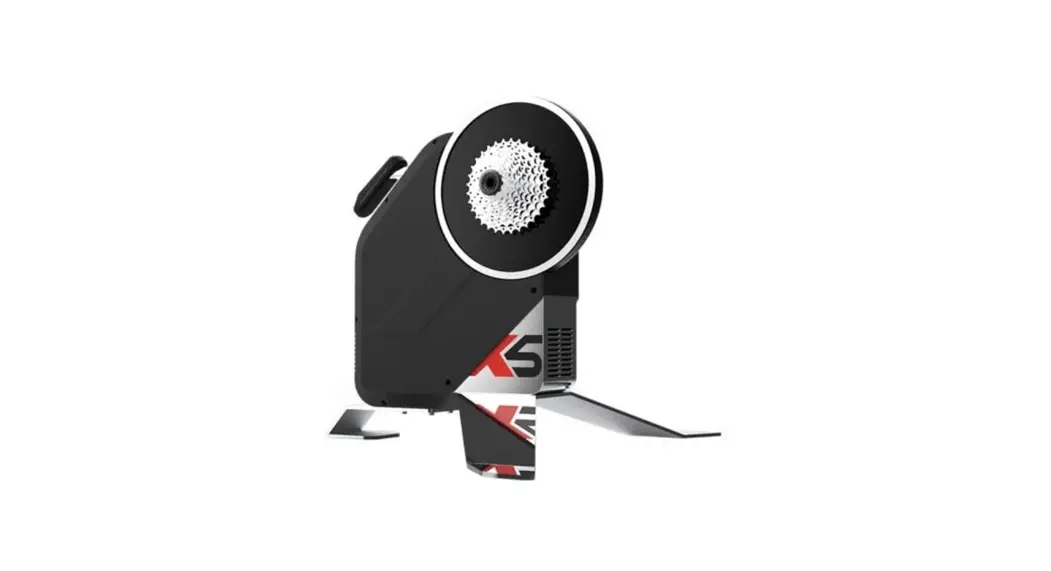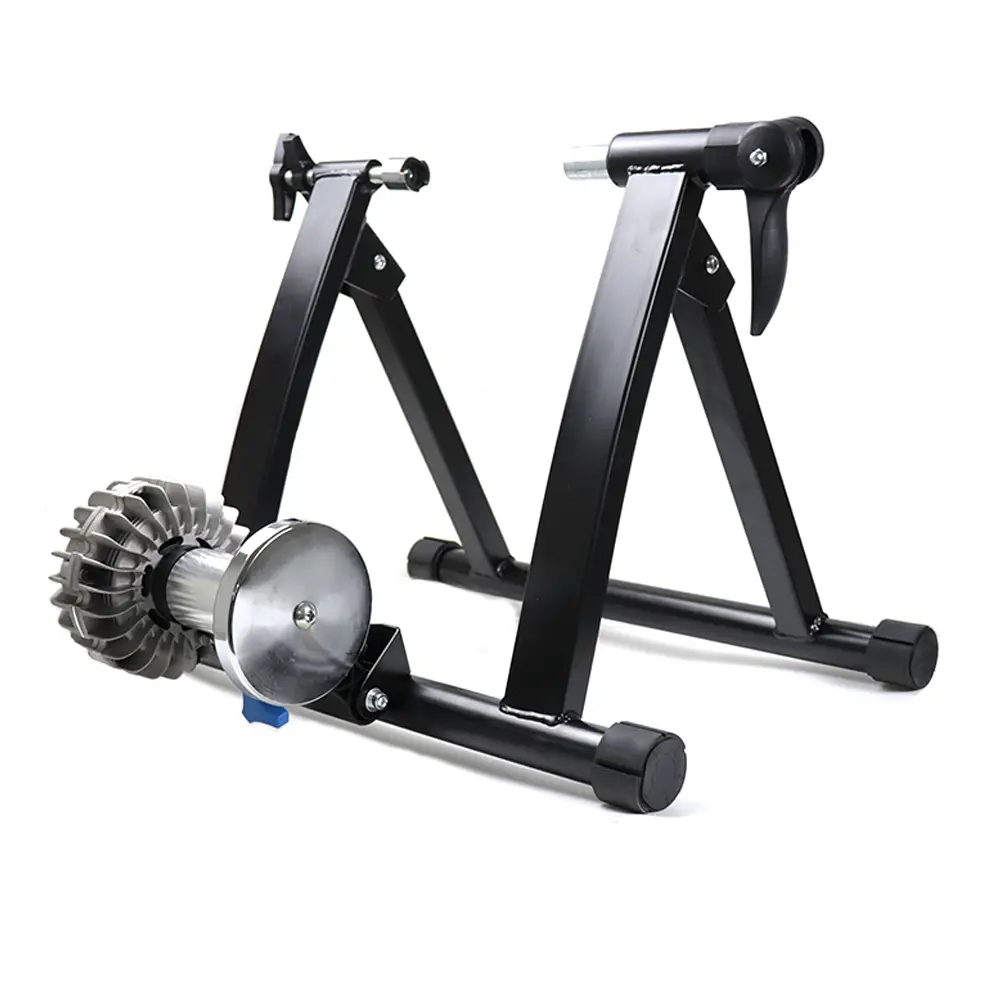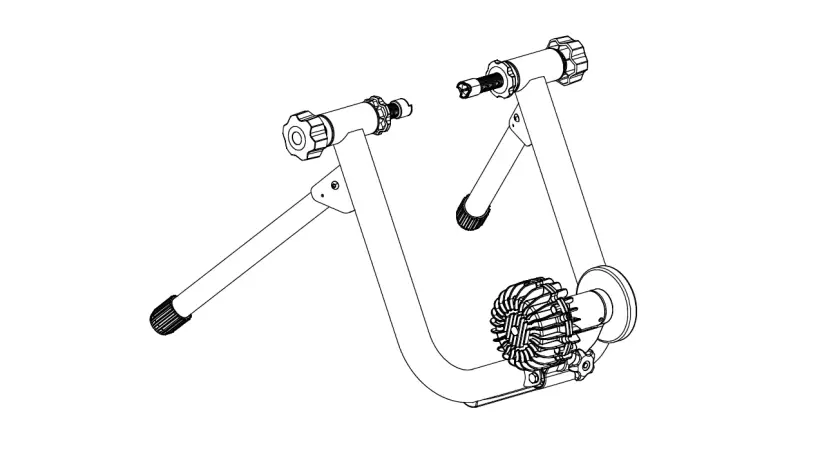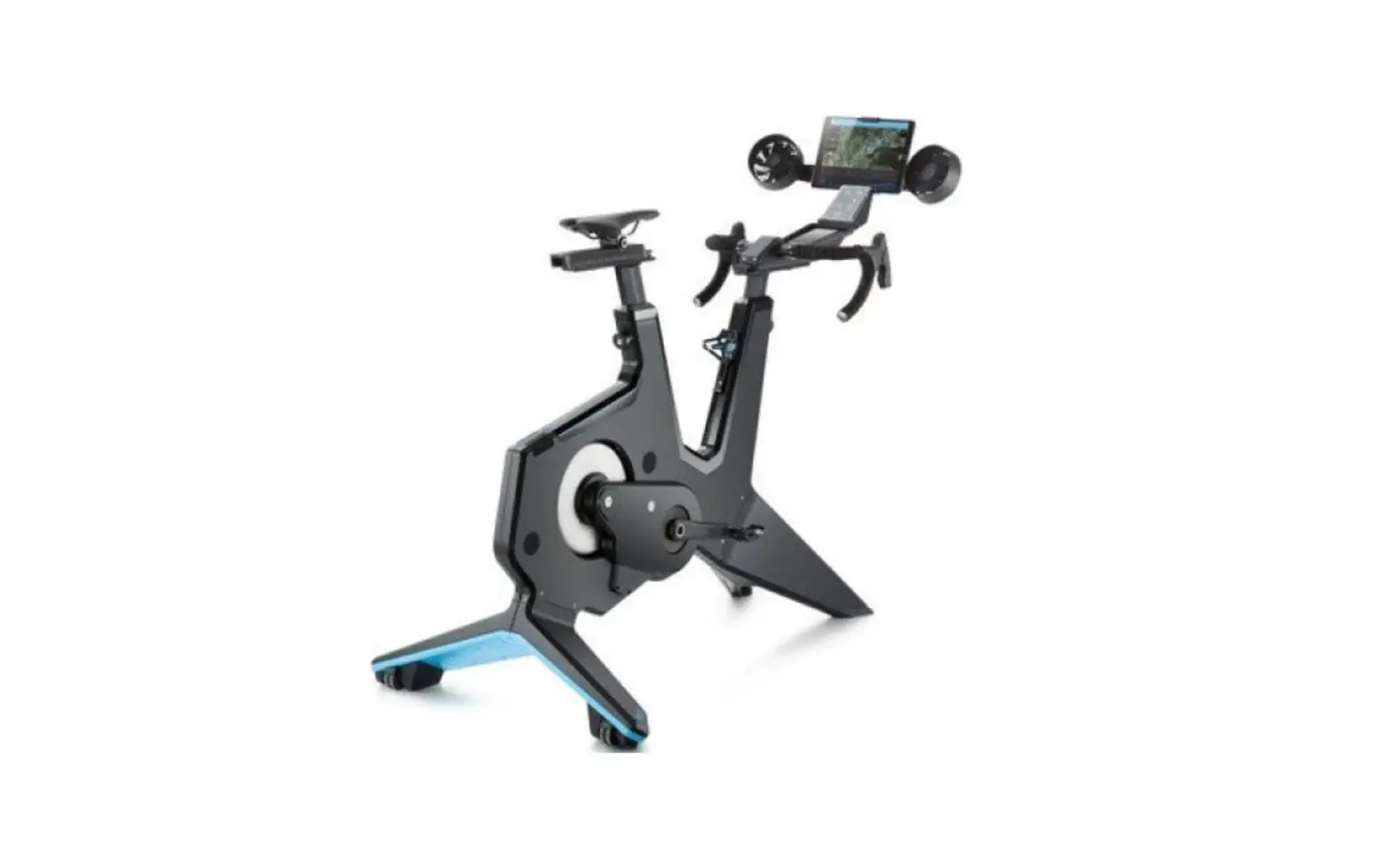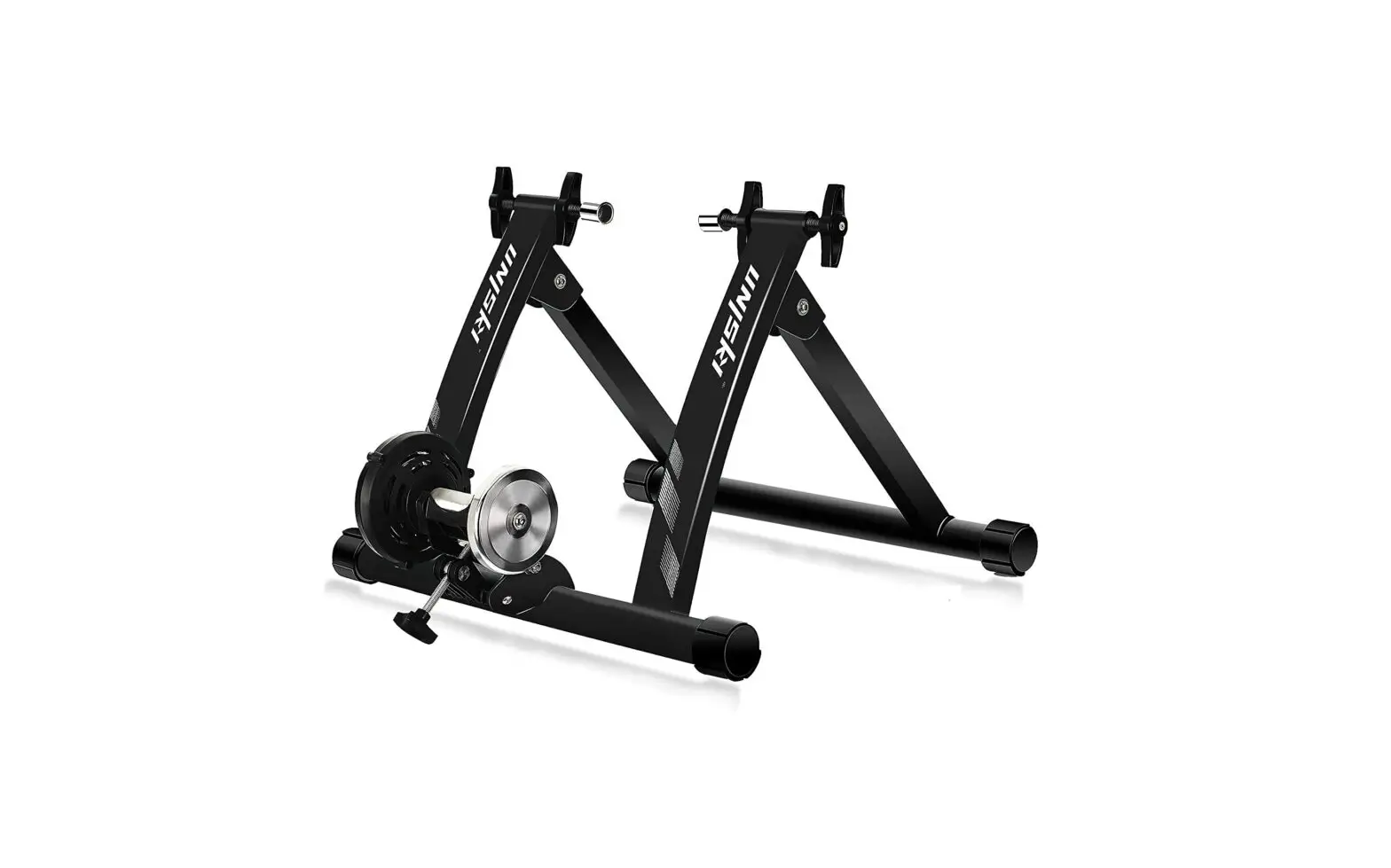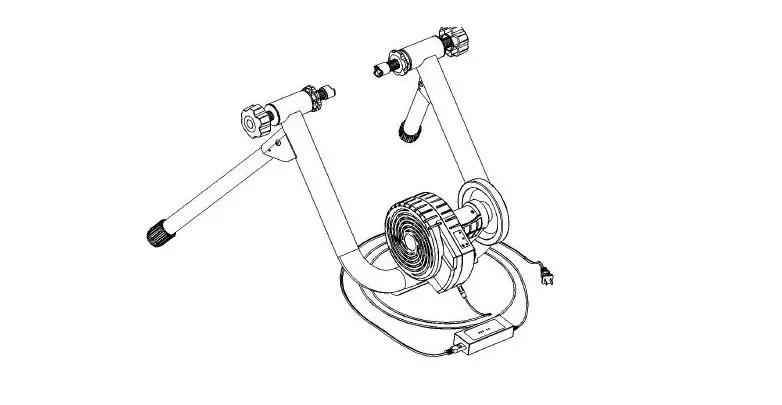

Z004 Stationary Smart Cycling Trainer
User Manual
TIGHTENING THE SKEWER
Turn the lever on your quick-release skewer clockwise to tighten. When it’s nearly tight, rotate the quick-release lever 180 degrees to lock it into place.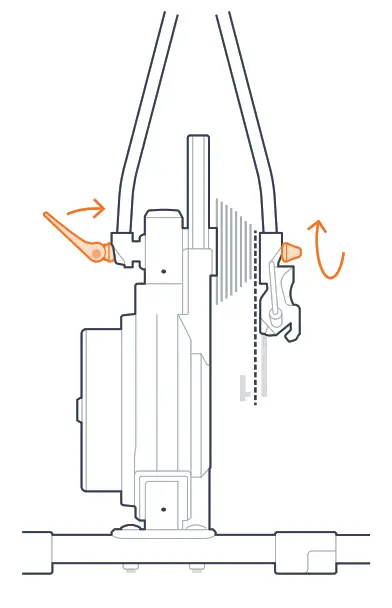
ALIGNING YOUR CHAIN
The chain should run smoothly when you pedal. If it doesn’t, try shifting your gears until it does. Ensure your chain is lubricated. If you are having issues turning the pedals on your bike you’ve probably overtightened the drive side adapter. Loosen this adapter and try again. After that, go to page SO. 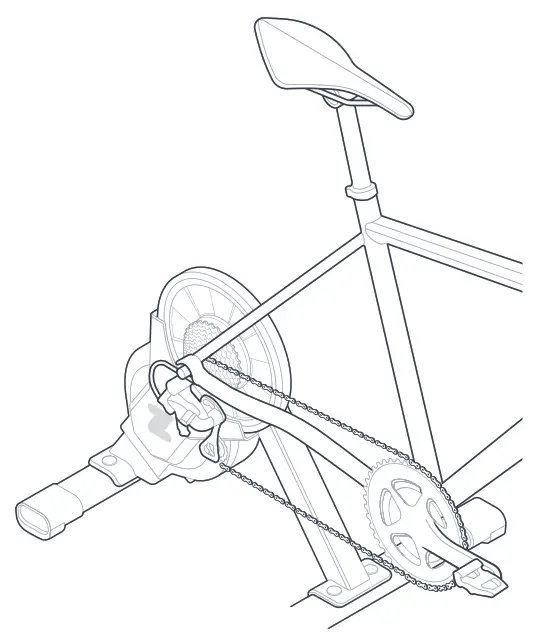
STEP COMPLETE
MEASURING YOUR DROPOUTS
With your thru axle instruction card, measure the distance between your rear dropouts. The card will show you how to position your adapter for your bike’s dropouts. Next up: select the adapter based on the measurements between your rear dropouts. Just like you see in the diagram. Use the card to figure out the correct way to use the adapter for your bike’s dropout width.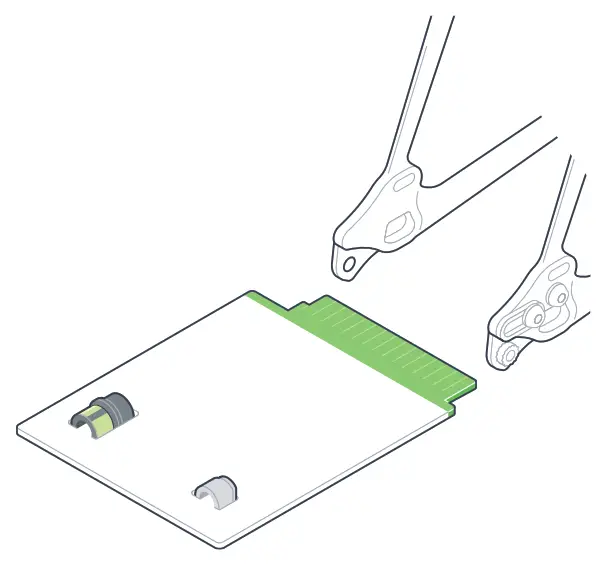
REMOVE DRIVE SIDE ADAPTER
Using the wrench provided, remove the quick-release adapter on the drive side of the trainer.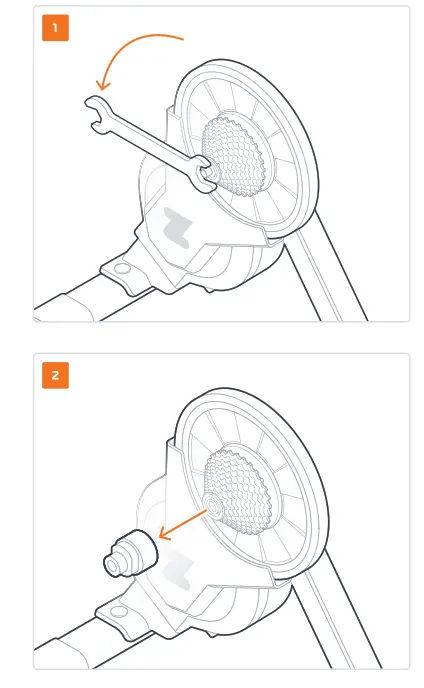
INSERTING AND TIGHTENING THE DRIVE SIDE ADAPTER
Select the thru-axle adapter for the drive side of the trainer from the adapter instruction card and screw this into place with your hand. Using the wrench provided, tighten the drive side thru-axle adapter further by a half turn. Alternatively, if you have a torque wrench, tighten the drive side adapter to 6Nm.
 Over-tightening adapters may cause damage.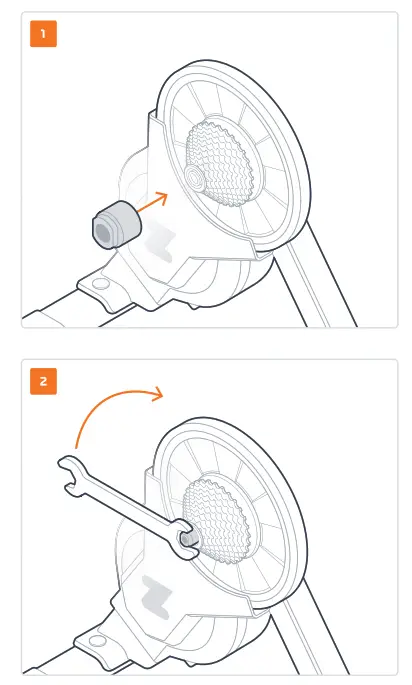
INSERTING THE NON-DRIVE SIDE ADAPTER
Assemble your non-drive side thru-axle adapter (reversible adapter), making sure you have the correct color showing for your dropout width. Insert the adapter into the non-drive side of the trainer. “Drive” is short for drivetrain: the cassette, chainrings, and chain. It’s typically the right side of the bike.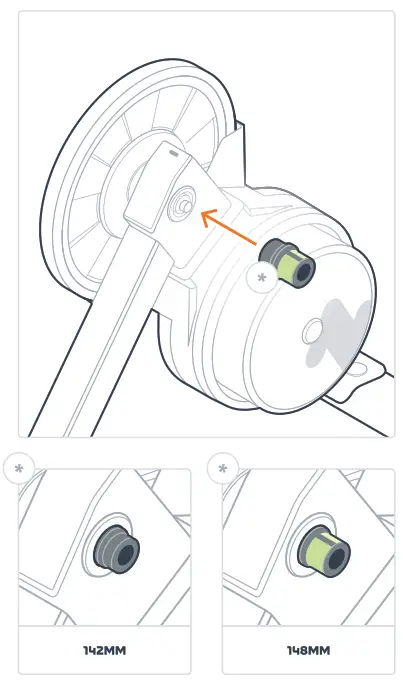
MOUNTING YOUR BIKE TO YOUR ZWIFT HUB
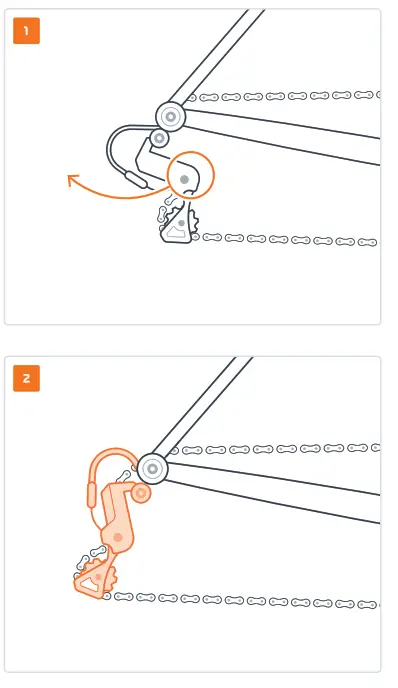
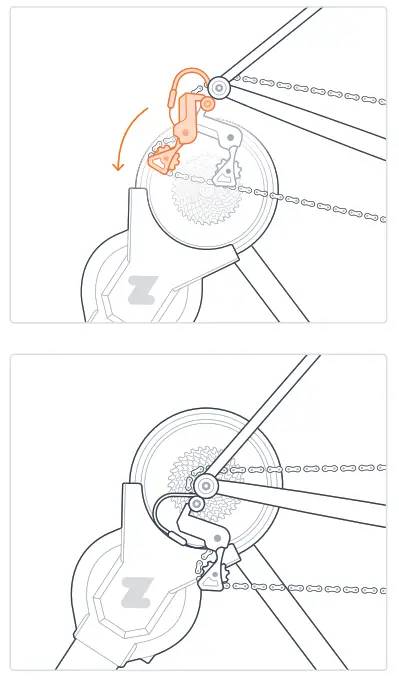
Lower your bike frame onto the Zwift Hub while pushing the derailleur backward and out of the way. Align the chain with the smallest cog on the cassette and lower your bike onto the adapters.
 Zwift.com/hub/setup
http://zwift.com/hub/setup
Scan to watch instructional videos
 |  |
INSERTING THE AXLE
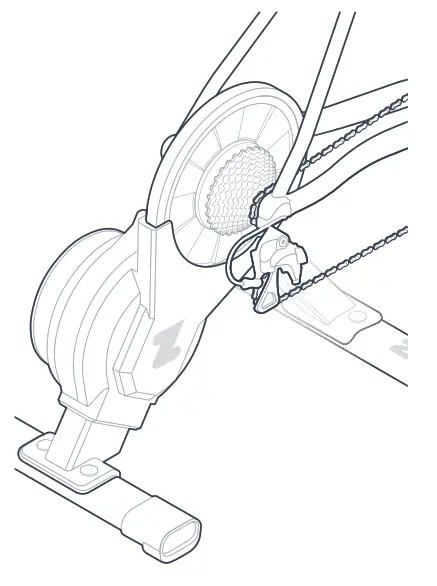
Insert your thru axle through the Zwift Hub from the non-drive side. That’s the side without a cassette. Use an Allen key or the lever on your skewer to tighten it according to the frame manufacturer’s specifications.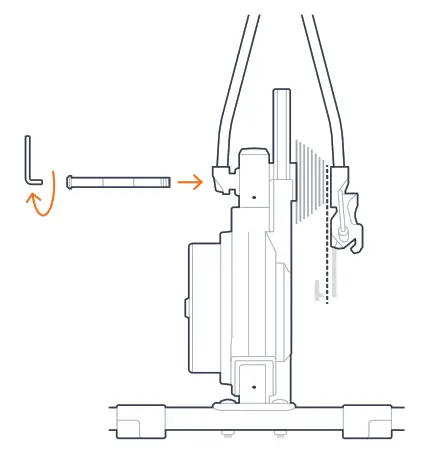
ALIGNING YOUR CHAIN
The chain should run smoothly when you pedal. If it doesn’t, try shifting your gears until it does. Ensure your chain is lubricated. If you are having issues turning the pedals on your bike it is likely that you’ve overtightened the drive side adapter. Loosen this adapter and try again.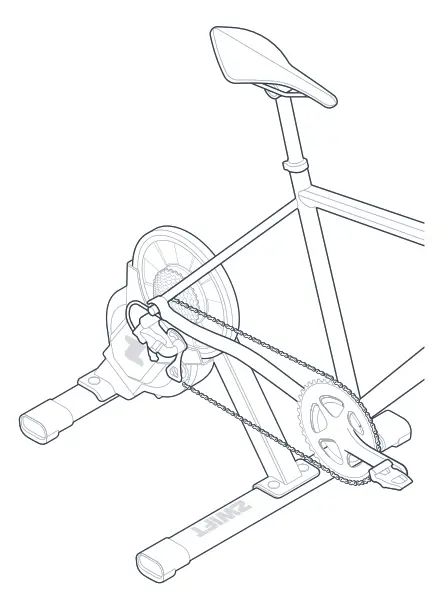
POWERING UP
Plug your power supply into the electrical port on your Zwift Hub. You’ll need power for your Zwift Hub, so plug it into a wall outlet.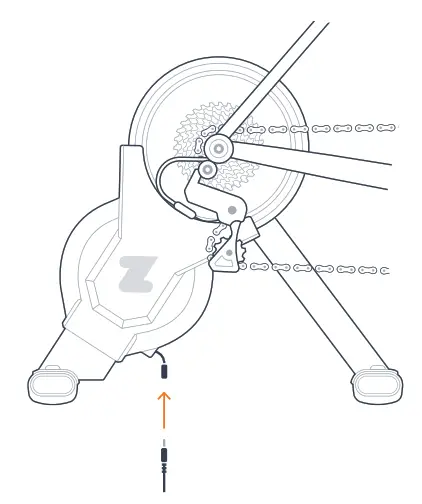
STATUS LEDS
The status LED on your Zwift Hub will cycle through red/blue/green colors before entering a pairing state. The LED will flash blue when it’s ready to pair to Zwift and will be solid blue once connected.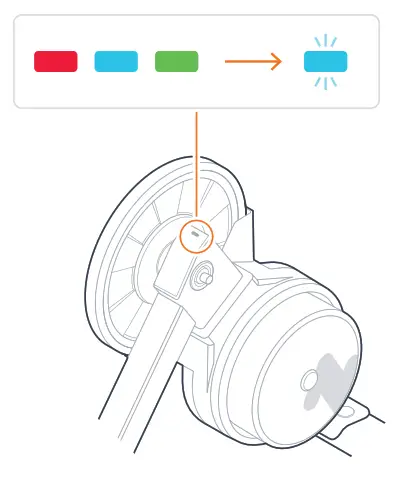
DOWNLOADING ZWIFT APPS
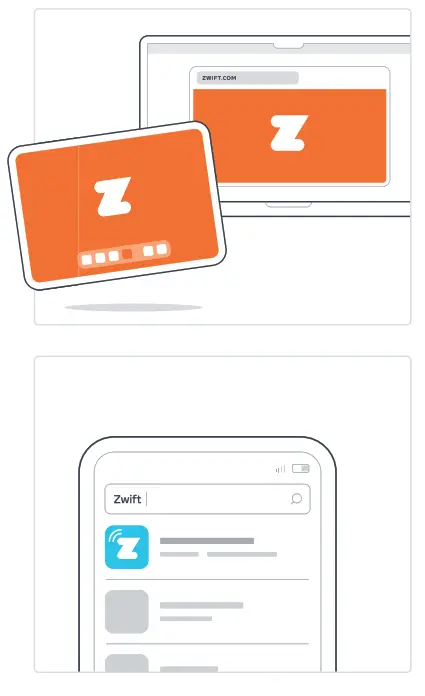
To start using your Zwift Hub, download and install Zwift on a supported device: Go to zwift.com to download the Zwift game onto your device.
* Mac/PC/iOS/Android users: download Zwift at zwift.com
* Apple TV users: download Zwift from the Apple TV App Store
To update your Zwift Hub firmware, download the Zwift Companion app on your mobile device, available on the App Store and Play Store.