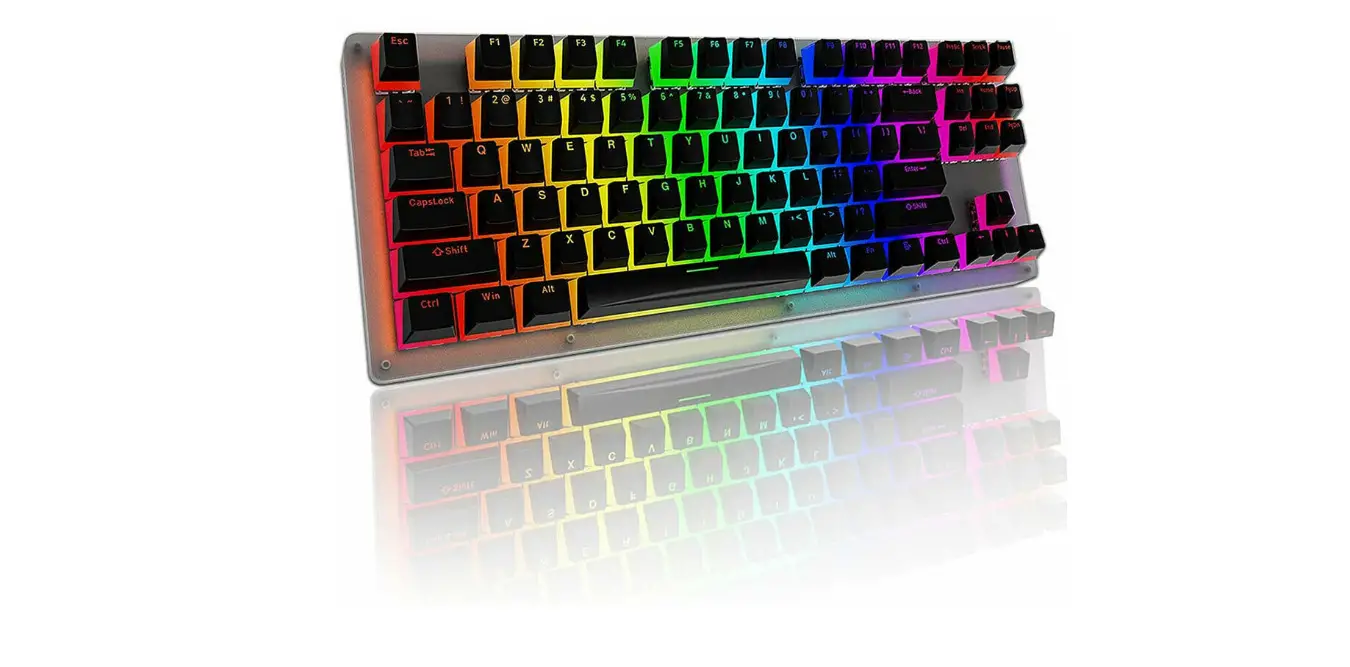

SHURIKEY GEAR SKB65 65% EC V2 Mechanical Keyboard User Guide
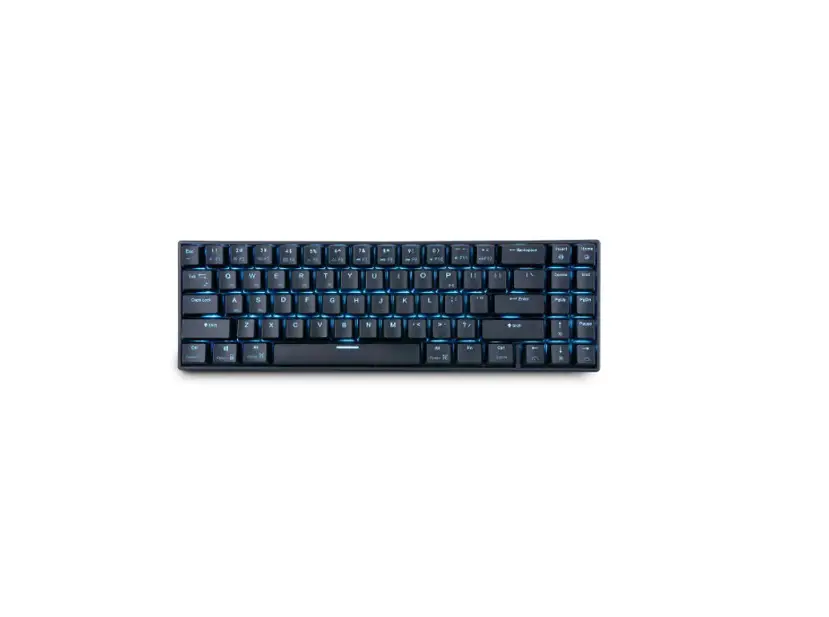
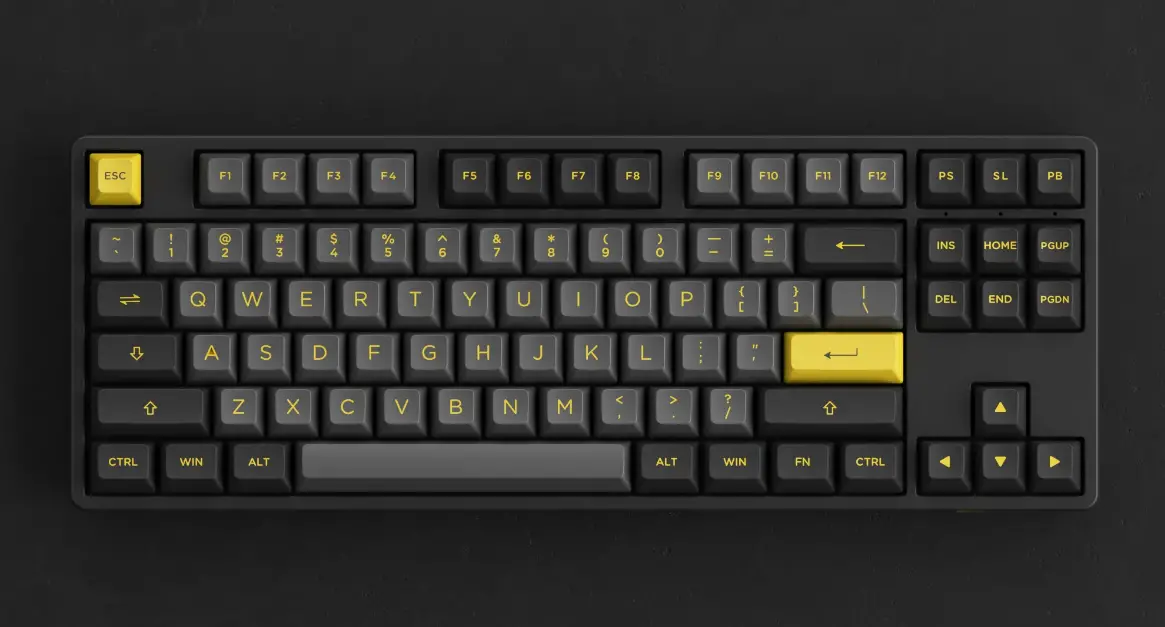
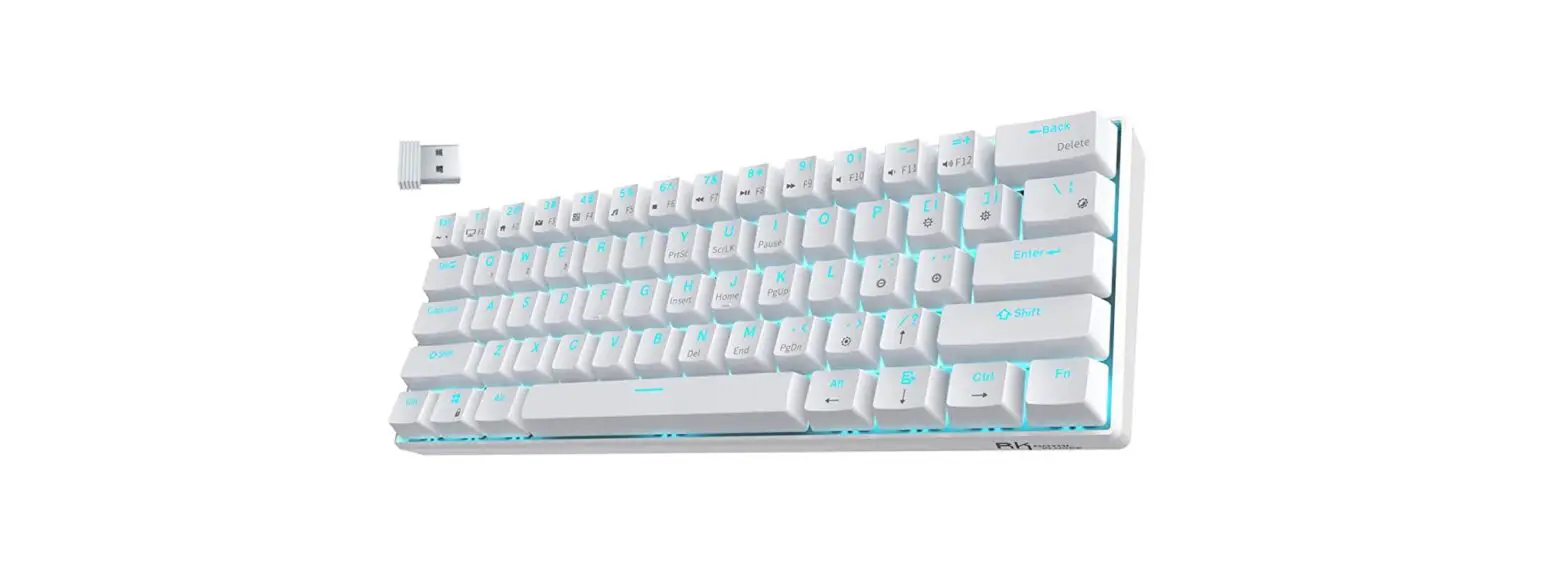
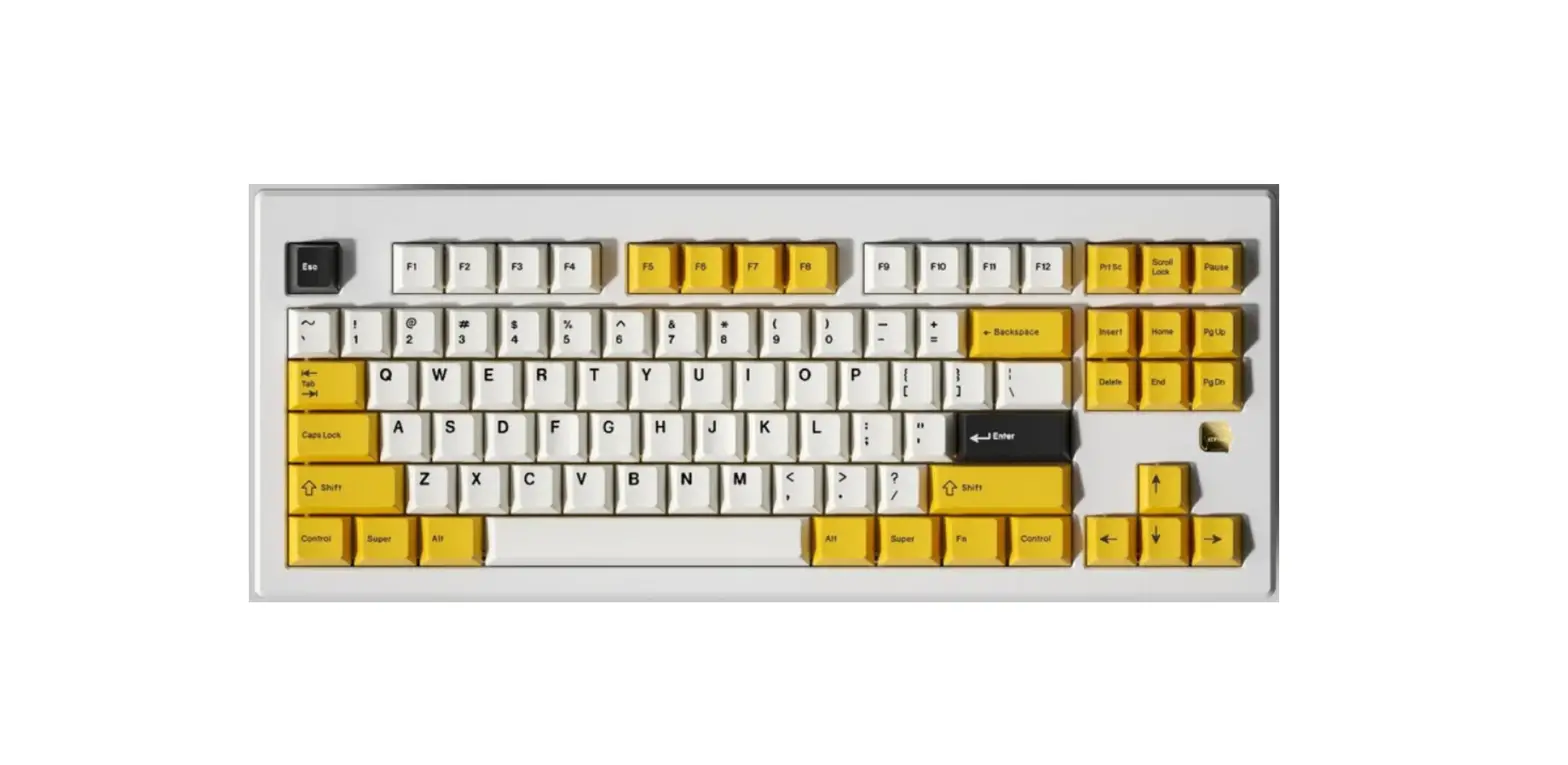
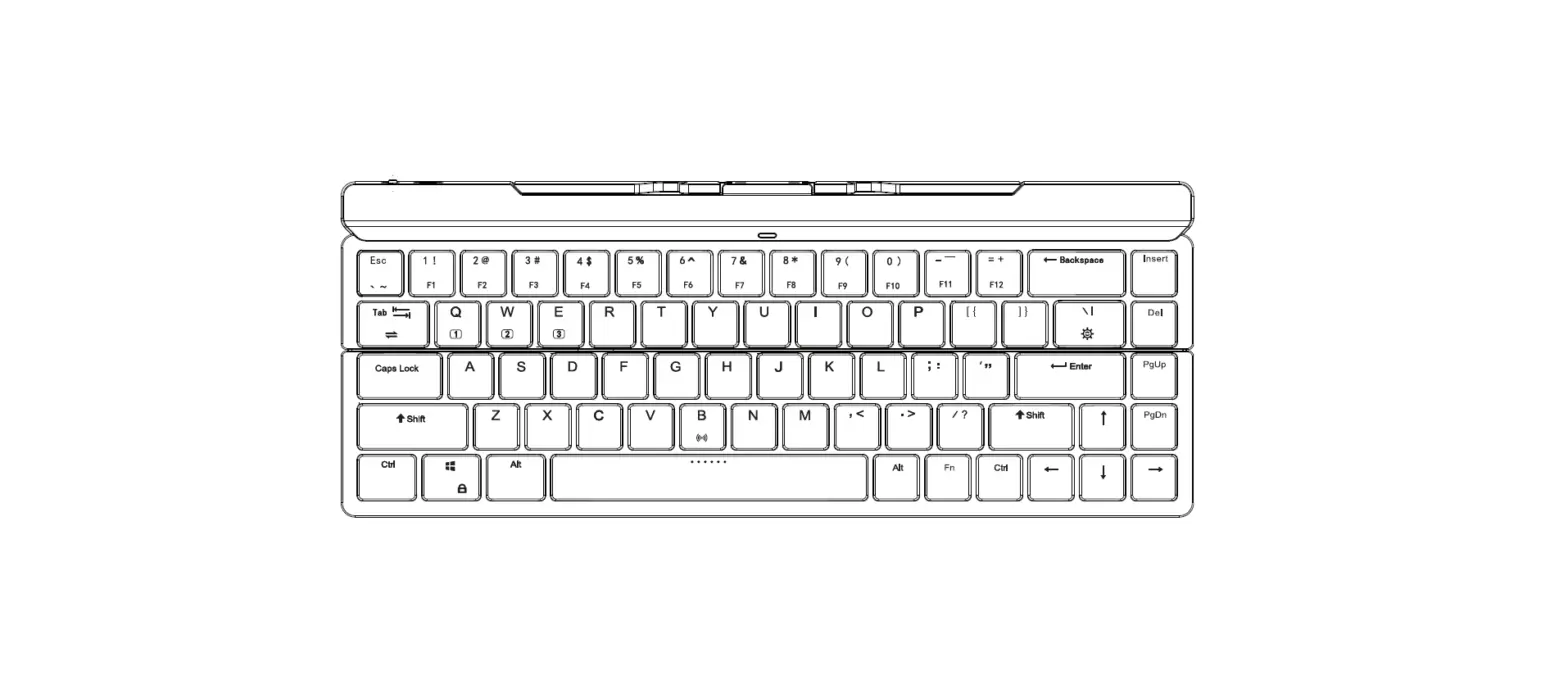
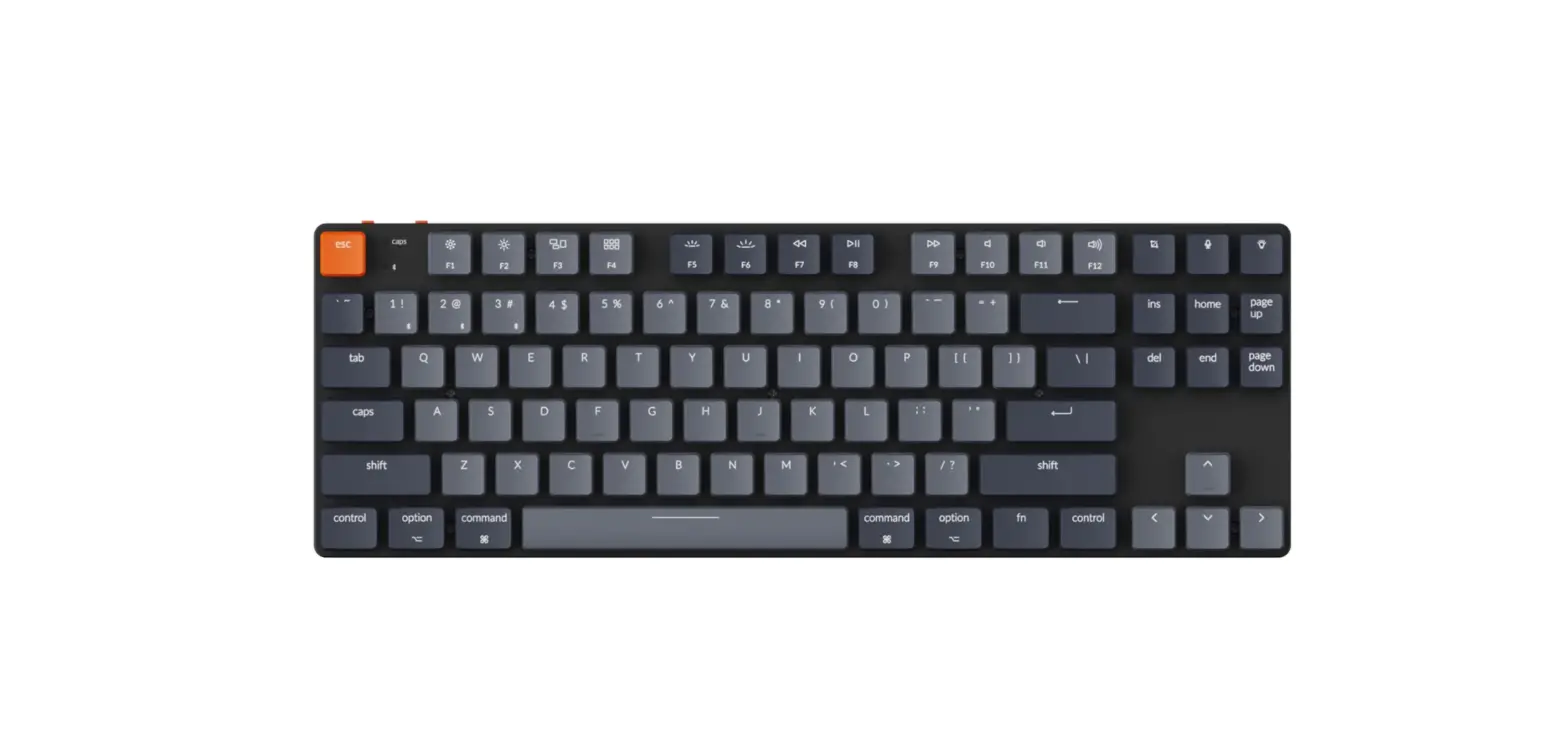
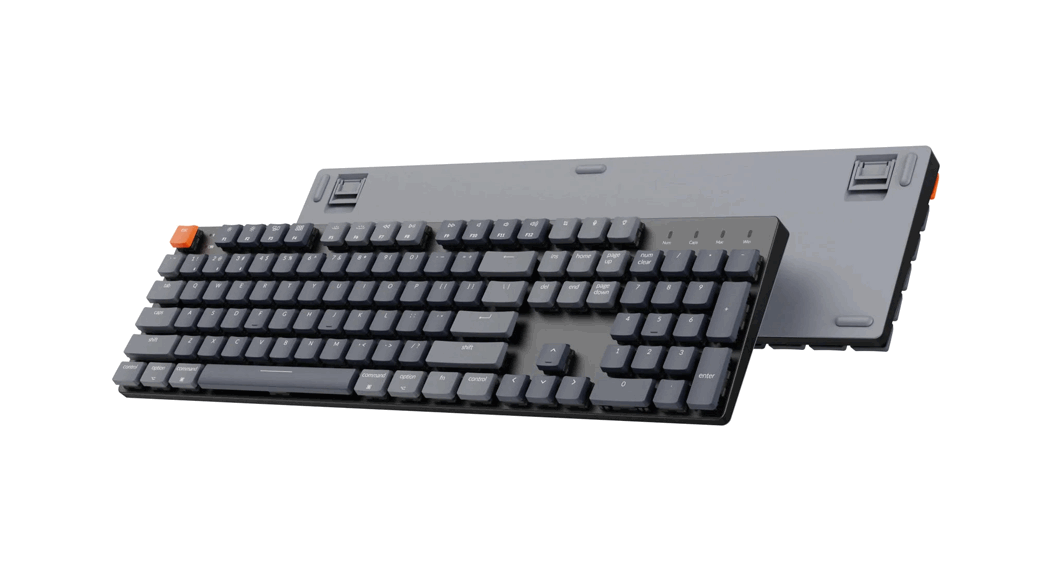
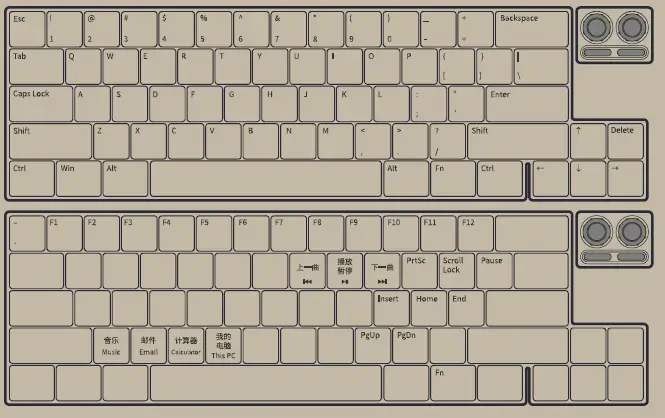
Layout
Knobs
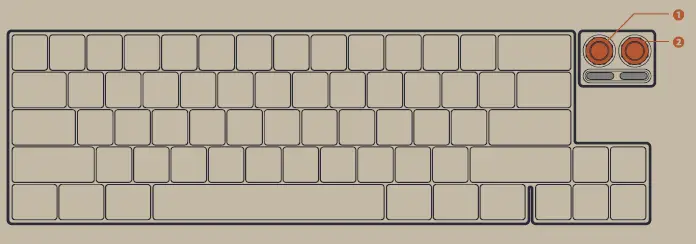
- The left knob is to adjust the backlight. Press the knob to switch on/off the backlight. Turn clockwise to increase the brightness and counterclockwise to decrease.
- The right knob is the volume control. Press the knob to switch on/off media sound. Turn clockwise for volume up and counterclockwise for volume down.
Indicator Lights
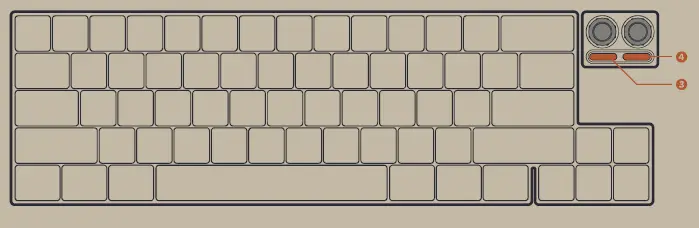
- The left one is the Caps Lock indicator. It lights up in white for uppercase input mode; lights off for lowercase input mode
- The right one is the F row indicator. When it lights up in white, the F keys are enabled. When it is off, the keys toggle back to numbers
Turn on the Bluetooth
Press the Space Bar for three times within two seconds to turn on the keyboard
Bluetooth Connection State
- All LED will be lit as default after the keyboard powers on. To check the connection indicator, please press Fn + the right Alt
- The keyboard can connect to three Bluetooth devices at the same time. The indicators on number 1 to 3 represent the three devices respectively — lights up for connected state while flashes mean no connection detected
- Alt at any time to toggle between indicator lights and backlights
Device Connection
- After the keyboard is powered on, search for Bluetooth Keyboard on your device. The name of the keyboard is shown as “WK-VD01”, “WK-VD02” or “WK-VD03”.
- Password is required for the first matching. Then press Enter to confirm the connection. The corresponding indicator light will be lit. The device will be set as default connection
- Bluetooth memory: The Bluetooth will automatically connect to the latest gadget. The Bluetooth launcher lasts for five minutes, during which the keyboard will automatically enter sleep mode if no connection is detected.
Turn off the Bluetooth
In Bluetooth mode, press and hold Fn + Delete for three seconds to turn off the keyboard.
Switch from Bluetooth Mode to wired mode
- with the key combination of Fn + Delete, users can switch the keyboard between wired mode and Bluetooth mode. From wired to Bluetooth mode, the CapsLock indicator will flash for three times, the keyboard will then automatically connect to the latest gadget. If no connection is detected, the Bluetooth indicator light on numbers 1, 2 or 3 will flash, the corresponding channel will enter matching mode. From Bluetooth to wired mode, the Caps Lock indicator will flash for once, and then the indicator on number 1 to 3 will light off
- In both wired mode and Bluetooth mode, press Fn + Q/W/E to swiftly switch among the Bluetooth devices connected under Channel 1 to 3. If the channel doesn’t detect a connection, the Bluetooth indicator will flash and enter matching mode
- In wired mode, with the USB cable unplugged the keyboard will switch to Bluetooth mode and automatically connect to the latest gadget. If no connection is detected, the Bluetooth indicator light will flash and enter matching mode
- When the keyboard is powered off, plug in the USB cable and the keyboard will enter wired mode
- In Bluetooth mode, with the USB cable plugged in the keyboard will switch to wired mode and the Bluetooth indicator will light off
Power Saving Mode
- Power saving mode can only be set in Bluetooth mode. As the default setting, the keyboard will automatically enter power saving mode in 30 minutes if no keypress is detected. To disable, please press Space
- Press and hold Fn + Ctrl + 1 for three seconds, Caps Lock will flash for three times. Then the keyboard will enter power saving mode in 5 minutes if no keypress is detected
- Press and hold Fn + Ctrl + 2 for three seconds, Caps Lock will flash for three times. Then the keyboard will enter power saving mode in 30 minutes if no keypress is detected
- Press and hold Fn + Ctrl + 3 for three seconds, Caps Lock will flash for three times. Then the keyboard will not enter power-saving mode
Sleep Mode
- In wired mode, the keyboard will enter sleep mode with the computer. Press Space to wake up the keyboard
- In Bluetooth mode, the keyboard will enter sleep mode with the computer or in five minutes after the computer is powered off. When the computer is powered on, press Space to wake up the keyboard
Game Mode
- In wired mode, the keyboard is set as PC mode when powered on with 10ms of general latency
- Press and hold Fn + Backspace for three seconds till the Caps Lock indicator quickly flashes for five times, the keyboard will switch to game mode with 5ms latency
- Press and hold Fn + Backspace for three seconds till the Caps Lock indicator slowly flashes for five times, the keyboard will switch back to PC mode
Pair New Devices
Press and hold Fn + Q/W/E for five seconds to disconnect corresponding Bluetooth connection. The indicator light will flash and then the keyboard will enter pairing mode again
Low Battery Warning
When the right indicator light flashes in red and blue, it means the battery is running out. If no charging detected in 10 minutes after the low battery warning, the keyboard will be automatically turned off
Charging Notification
All 5V power supplies including computer, charger or power bank can charge the keyboard. During charging, press Fn + the right Alt to check the ESC indicator light. If it lights up, the battery is full; it flashes, the battery is still charging. In wired mode, the keyboard will be charged automatically
Light Effects
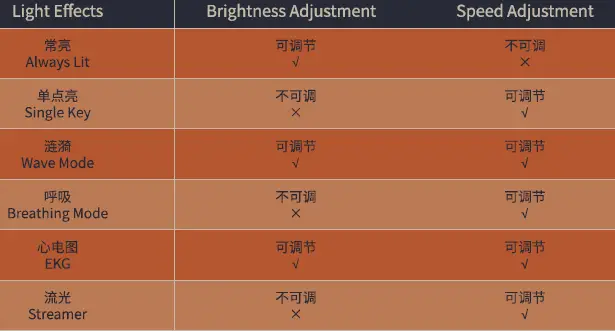
The default light effect is set as “Always Lit”. Please refer to Light Controls on the next page to change light effects through key combinations
Light Controls
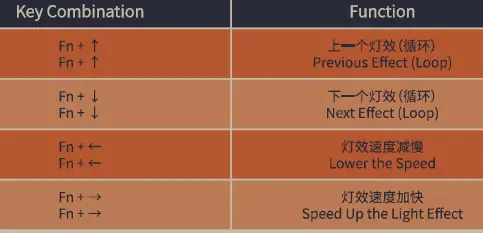
Multimedia
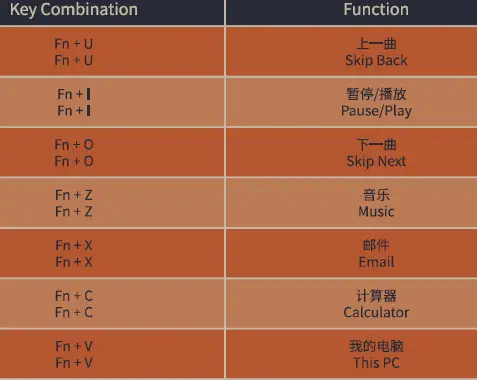
Other Key Combination
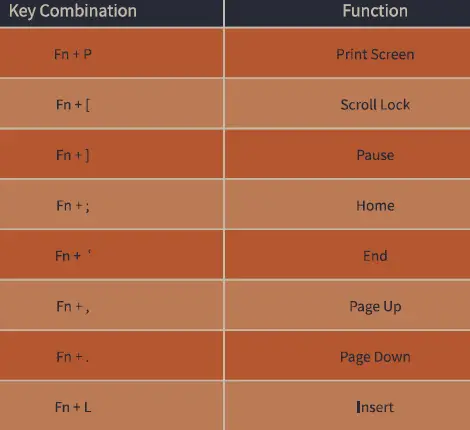
Switch between the numbers and the F row

- Press Fn + Enter, the right indicator lights up, F keys are enabled. Press Fn + Enter again, the right indicator lights off, the keys toggle back to numbers
- When numbers are enabled, press Fn and the corresponding number for F key functions, like Fn + 1= Fl
- When F keys are enabled, press Fn and the corresponding number for numbers, like Fn +1= Fl
Other Functions
- Press Fn + Alt + Win, lock/unlock Win
- Press and hold Fn + the left Ctrl for three seconds, Caps Lock indicator light flashes for three times, Caps Lock and the left Ctrl toggle. Press the same key combination for three seconds to toggle back
- -key anti-ghosting for Bluetooth mode. All-key anti-ghosting for wired mode as default. Press and hold Fn + S for three seconds to switch between six-key and all-key anti-ghosting
Reset
- Reset the key settings: Press Fn + D + Backspace, Caps Lock indicator light flashes for three times, all key settings will be reset to original manufacturer settings
- Factory Reset: Press and hold Fn + D for three seconds, Caps Lock indicator light flashes for three times, all key codes, light effects and Bluetooth connection history will all be factory reset
System Compatibility
This keyboard is compatible to Win8, Win10, Winll, MAC OS (special key codes not fully compatible). Other types of Bluetooth should be updated to no less than 4.0 for compatibility
Top Case Removal Instructions
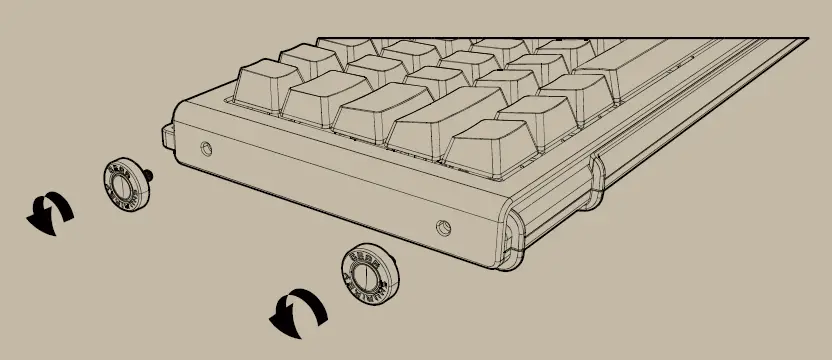
- Turn anticlockwise to remove the rivets

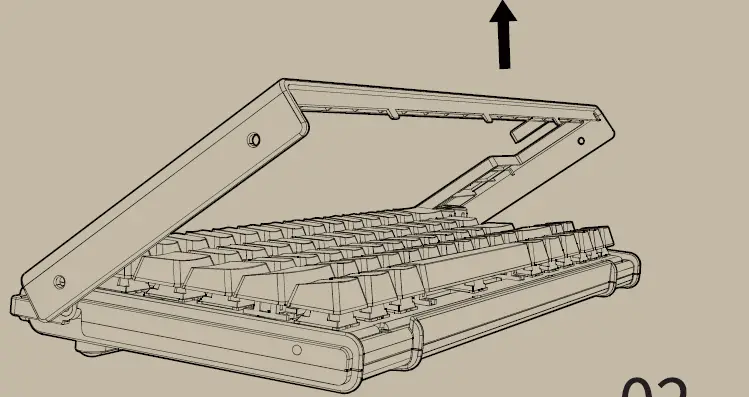
- Lift the front of the top case as shown

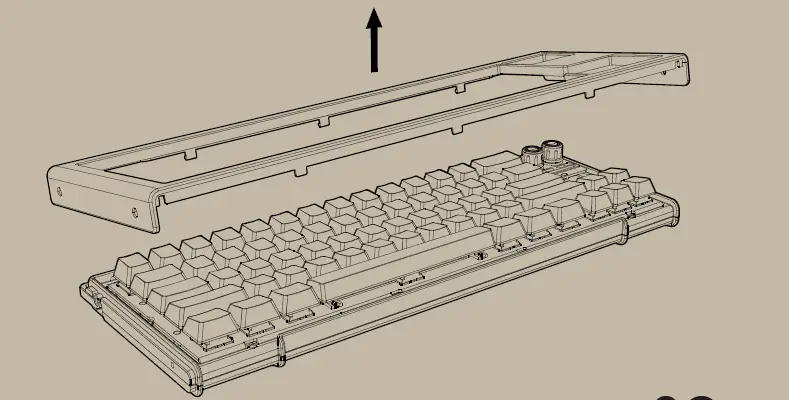
- Gently Pull out the top case as shown, if you want to install the top case for case back, just do it in a reverse way