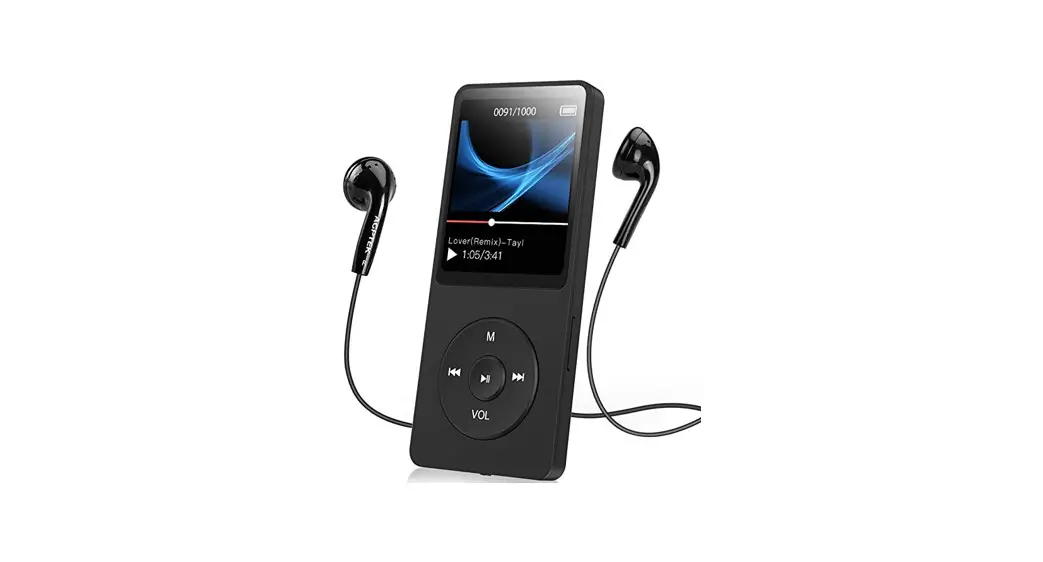
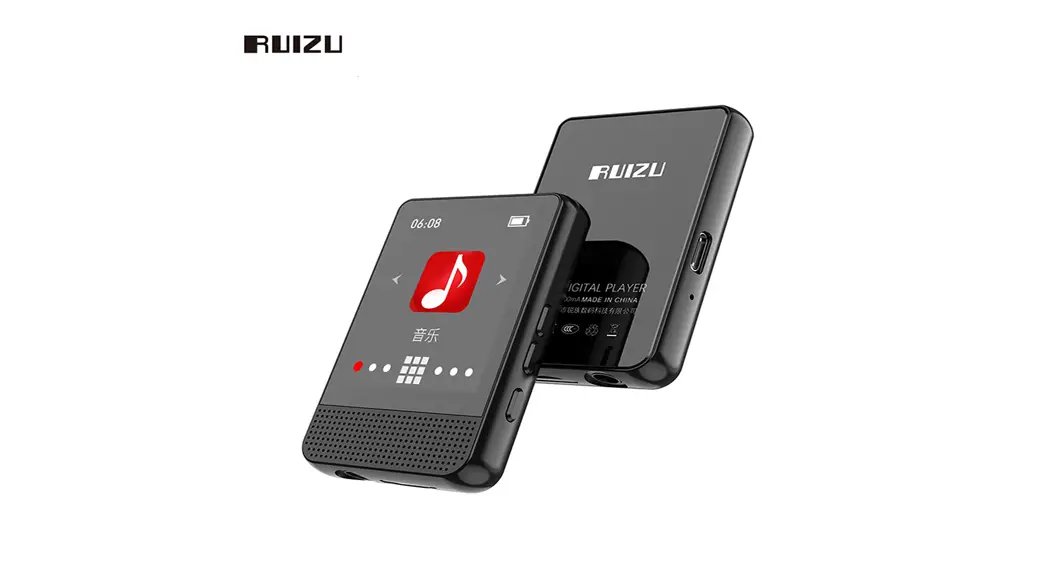
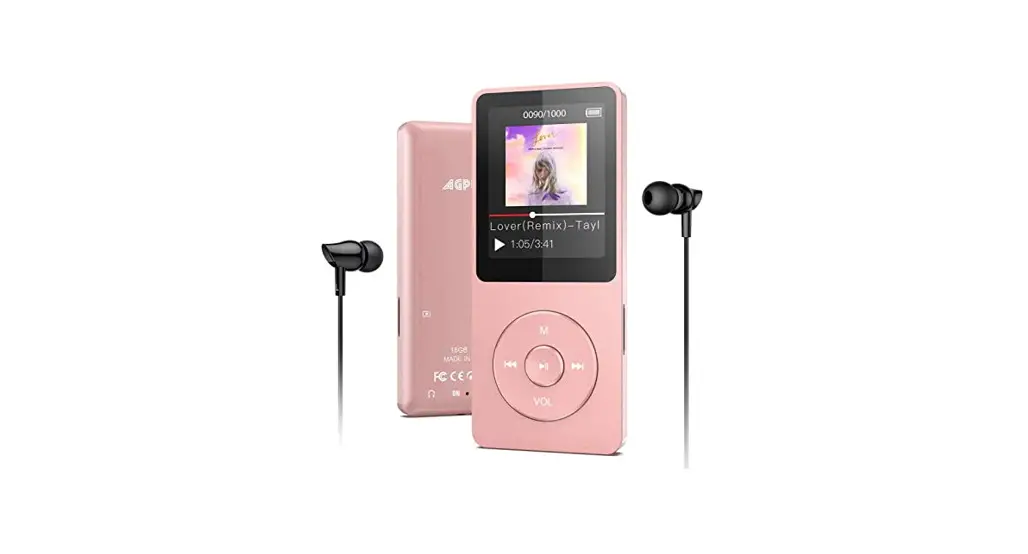
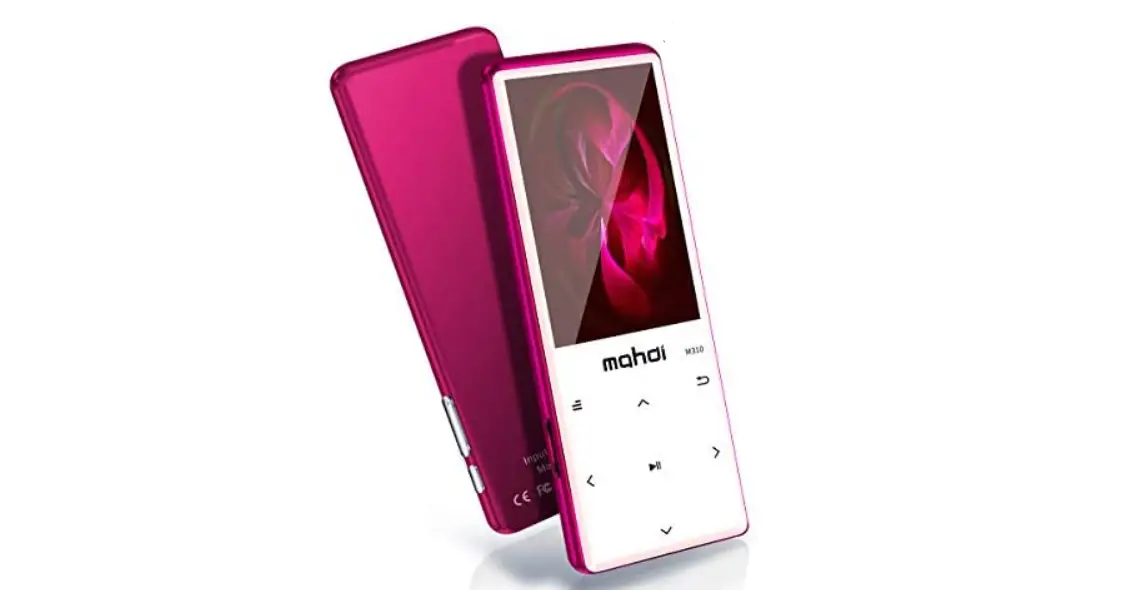
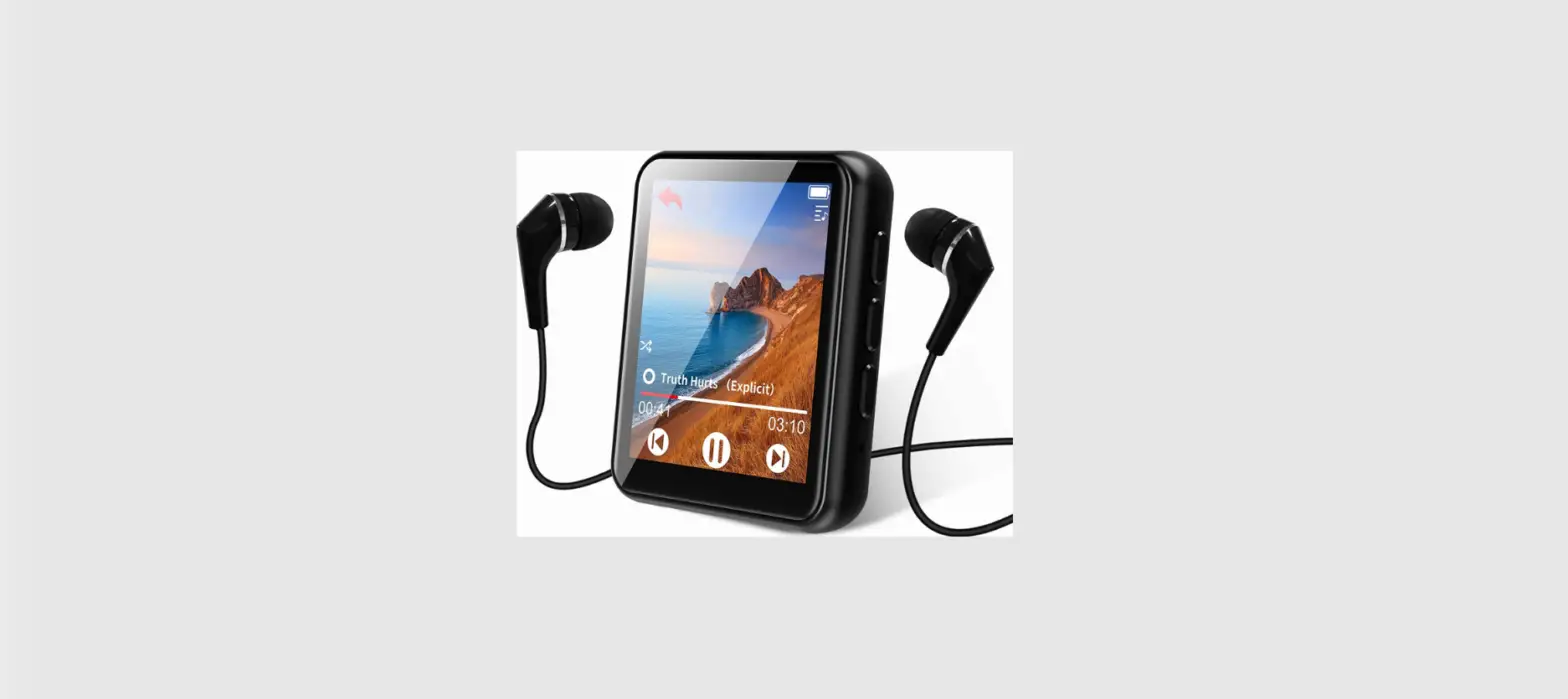
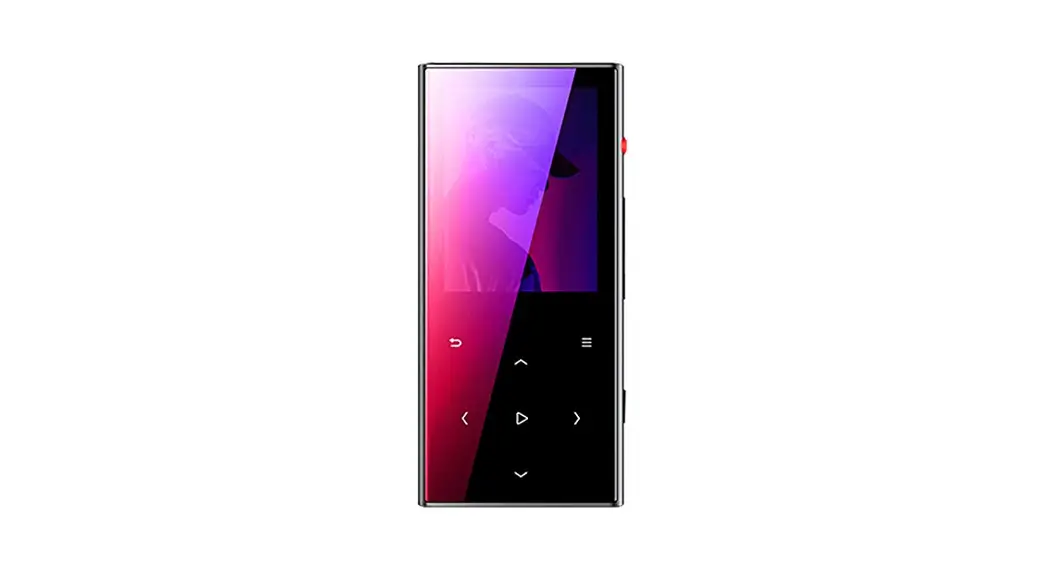
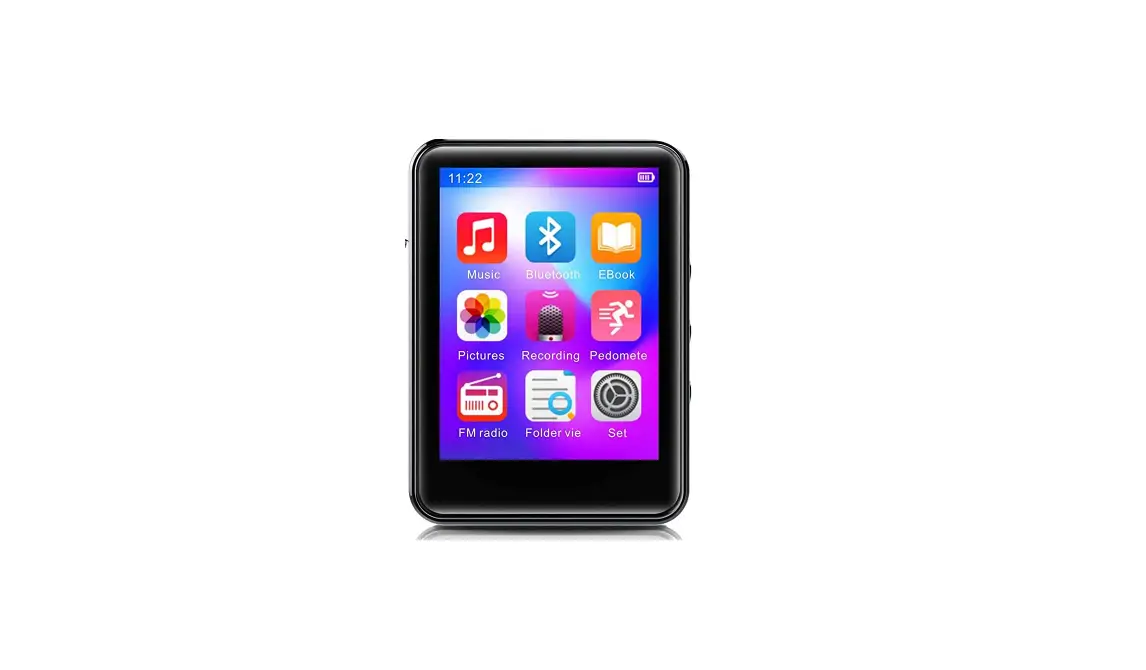
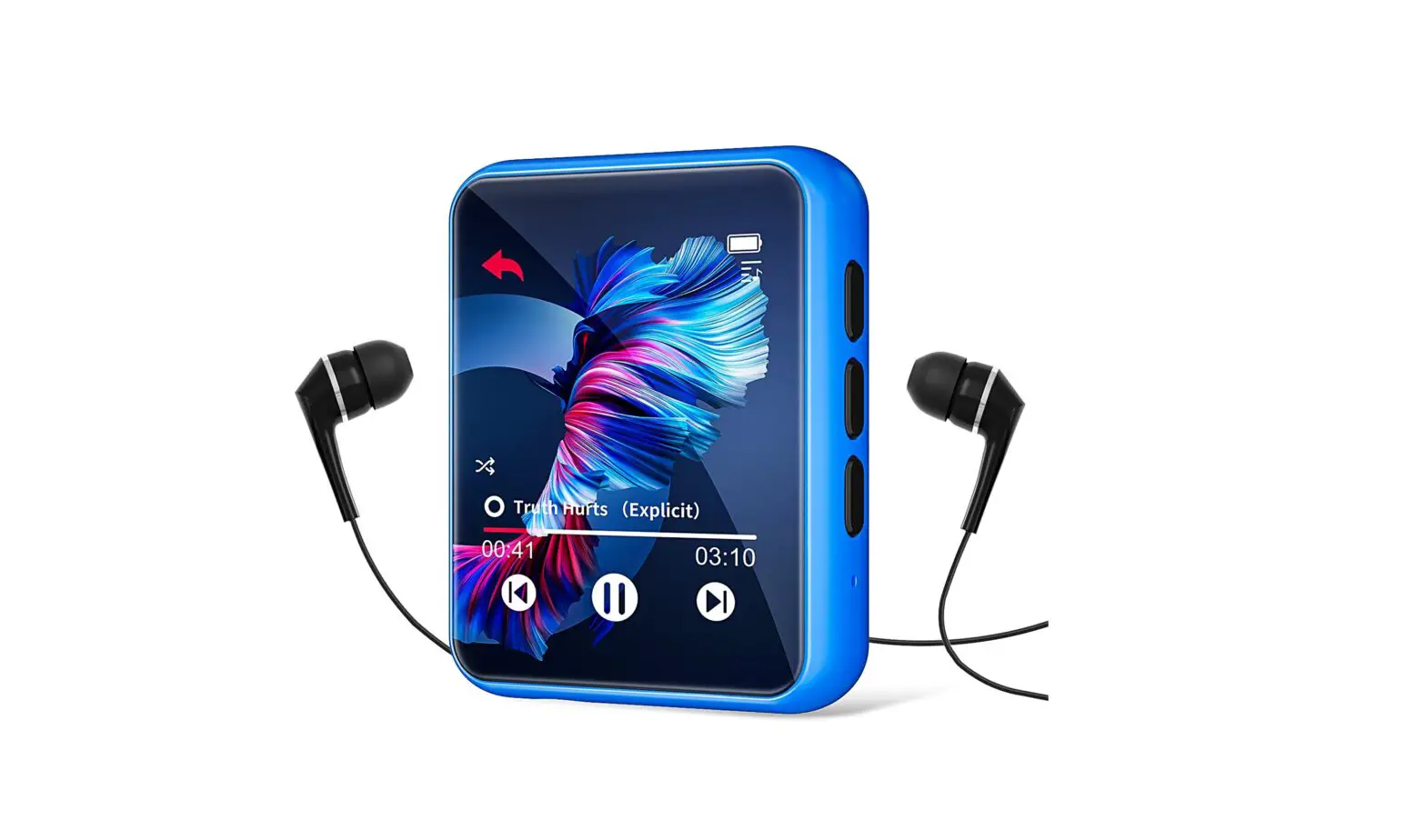
MamBate W1S MP3 Player User Manual
Basic Function
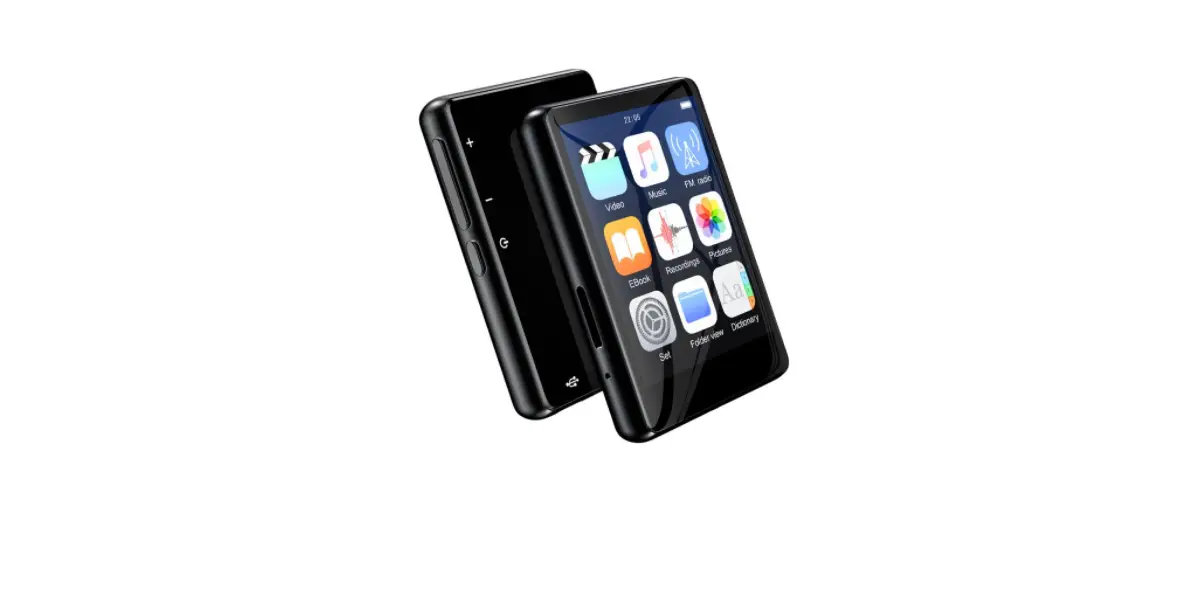
- Full Touch Screen: 3.6 /4.0 inch color IPS screen,(480*800 Pix)
- Music format: support MP3、FLAC、AAC、WAV、WMA、APE etc,
- Video format: support 1080P, RM、AVI、RMVB、FLV、MP4、DAT、MKV、 MPG etc,
- Photo format: JPEG, BMP, GIF, PNG
- Ebook format: TXT
- Recording format: WAV, MP3
- FM Receiving Frequency: 87.5MHz-108MHz.
- Micro SD/TF card: support up to 128GB.
Key Diagram
(Take 3.6 inch for example)
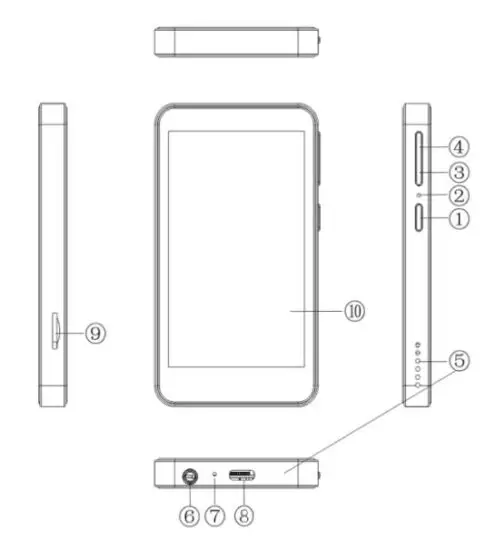
- Power button
- Reset
- Volume-
- Volume+
- Speaker
- Earphone
- Microphone
- Type-C port
- TF card 10.Display screen
Power on/off: In shutdown state, press and hold for 3 seconds to turn on.
In the boot state, long press for 3 seconds to activate the shutdown options:
Power off, Reboot, Screenshot. Short press to turn off/on the screen.
Volume +/-: Press +/- to turn up/down the volume.
USB-C Port: Used for Charging and File transfer.
Reset: Long press it for 3 seconds, the device will be restored to factory settings.
SD Slot: Expand storage of the device, maximum support 128GB TF/Micro-SD card.
3.5mm Output: Connect your headphones or external speakers.
How to Upload Music or Video
Upload from your computer:
- Use the included USB-C cable to connect the player to your computer.The computer will automatically recognize the device and install the driver. After the installation is successful, Click “My Computer”, you will find an MTP device named “X15” in the list of devices and drives, click on it to access the player’s internal/external SD card and its folders.
- Copy the downloaded music or videos, e-books and other files from your computer and paste them into the folder here, just like using a normal USB flash drive.
How to connect a bluetooth headset:
Turn on your Bluetooth headset or Bluetooth speaker: from Settings-> bluetooth, when bluetooth is on, it will automatically search for available devices. You can also manually click Refresh to search again. After finding available devices, click to connect.
Basic Operation
Adjust screen brightness
operating steps: Settings-> Display-> Brightness level
Drag the brightness bar to adjust the brightness level.
Set screen sleep time
operating steps: Settings-> Display-> Sleep
You can select 15 seconds, 30 seconds, 1 minute, 2 minutes, 5 minutes, 10 minutes, or 30 minutes.
If no operation is performed within the specified time range, the screen automatically closes and goes to sleep.
For example, if you often listen to music, you can set the backlight time to 1 minute. After 1 minute, the screen will turn off automatically, but you can still listen to the music, which can save the power of the player.
View the remaining disk space
operating steps: Settings-> Storage
The operating system occupies some storage space, so the total storage space is lower than the actual amount. In addition, video and audio files with the same playback time can take up very different storage space due to different compression ratios (bit rates).
Factory data reset
operating steps: Settings-> Backup & reset-> Factory data reset.
This operation restores factory default Settings.
FAQ
Player can't charge
Normally, when charging, the screen lights up and the battery icon appears on the screen.Troubleshooting methods:
First rule out whether there is a problem with the player.
a. First use the charger to charge the mobile phone, if the mobile phone can charge normally, but the player can not charge, it is the player charging problem, otherwise, please check your own charger.
b.Most of the time, the charging problem is caused by poor contact, you can repeatedly plug and remove, test whether it can charge normally. If the charging is intermittent, it is recommended to change a charging cable for charging.
Player does not respond when connected to computer
First of all, please rule out whether the USB interface of the computer is good. If you plug in a high-quality U disk and it can work normally, there is something wrong with the player. Otherwise, please change a computer or USB interface. Most of the time, the problem is caused by poor data line contact.
The player cannot be turned on
In most cases, the player is out of battery, please charge for half an hour, and then long press the power button to try. If the machine still cannot be turned on, please contact our customer service, we will deal with it for you in the first time.
FM Radio function not working
A. There is no wired earphone, because the player must be wired to use the radio function;
B. The earphone is in poor contact with the jack.
It is recommended to try another earphone.