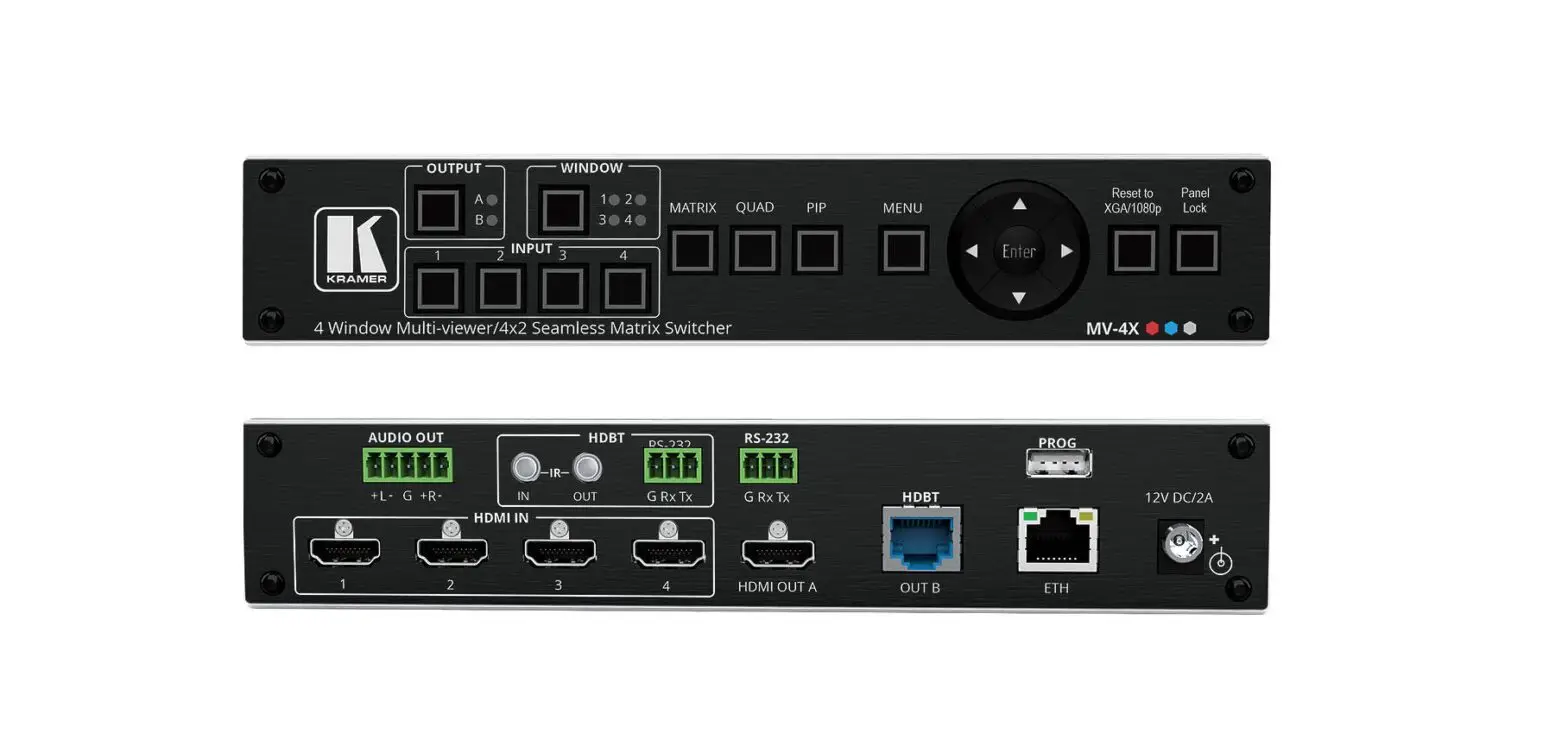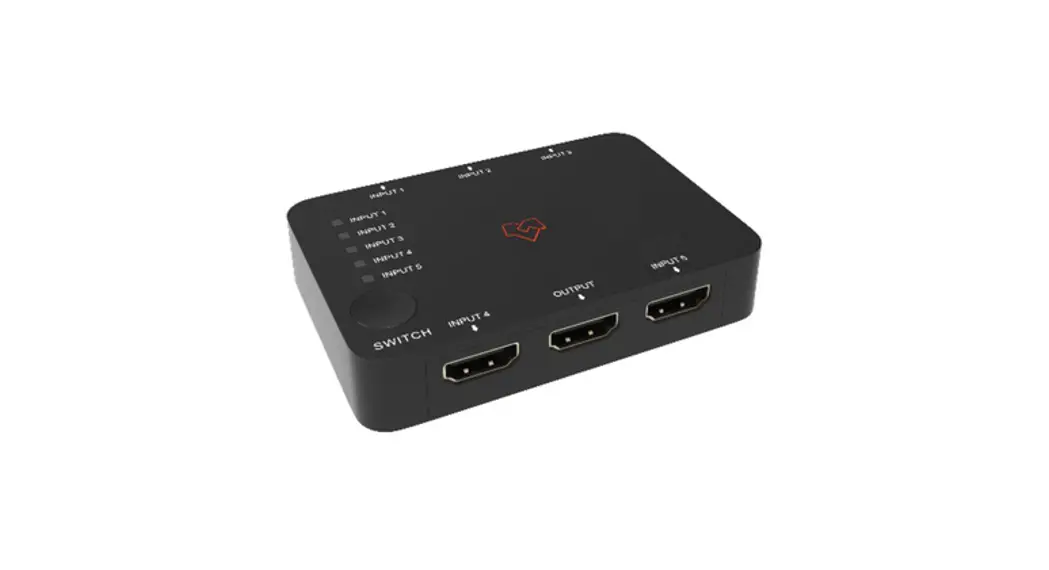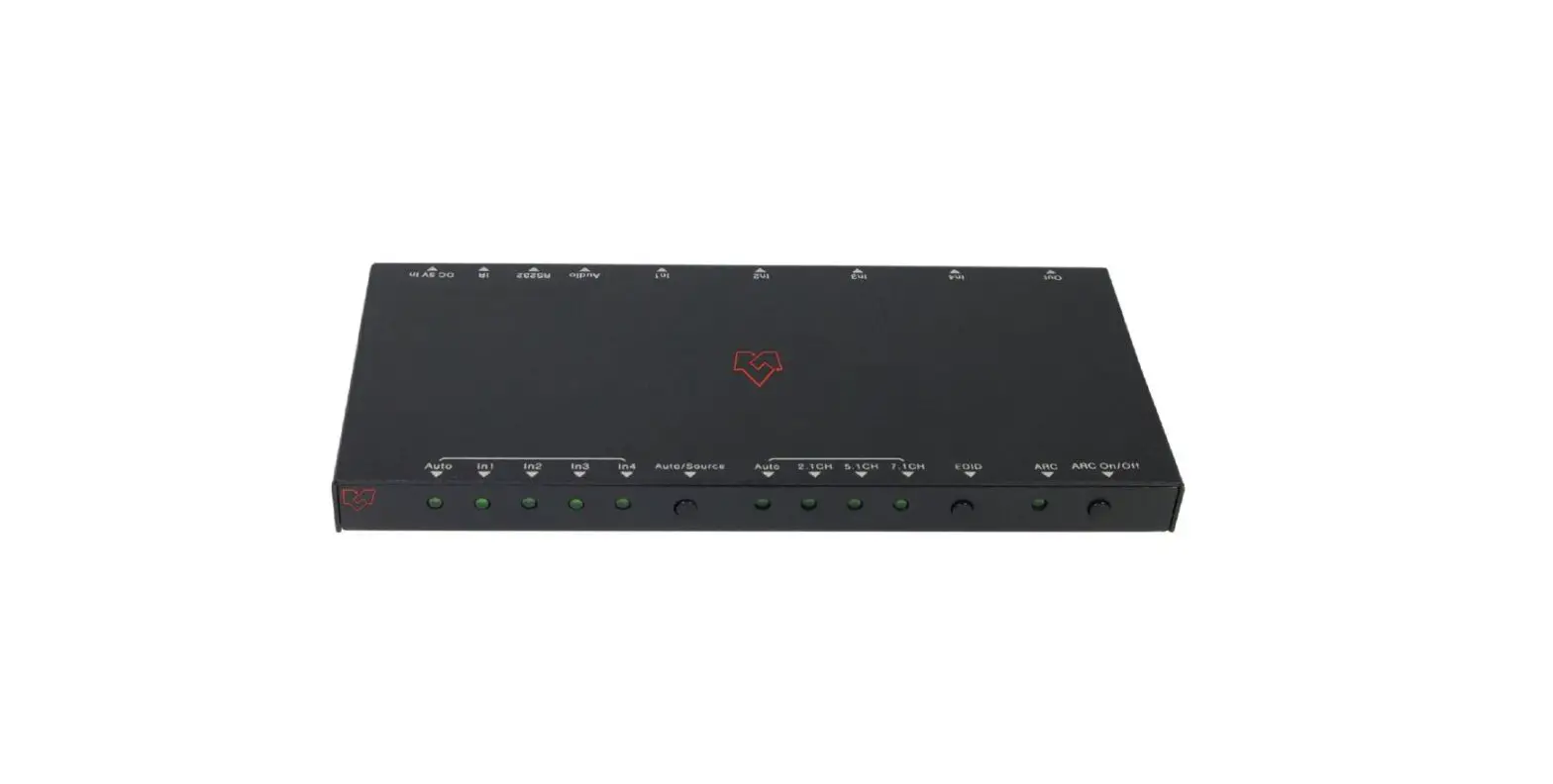
 VER 1.0
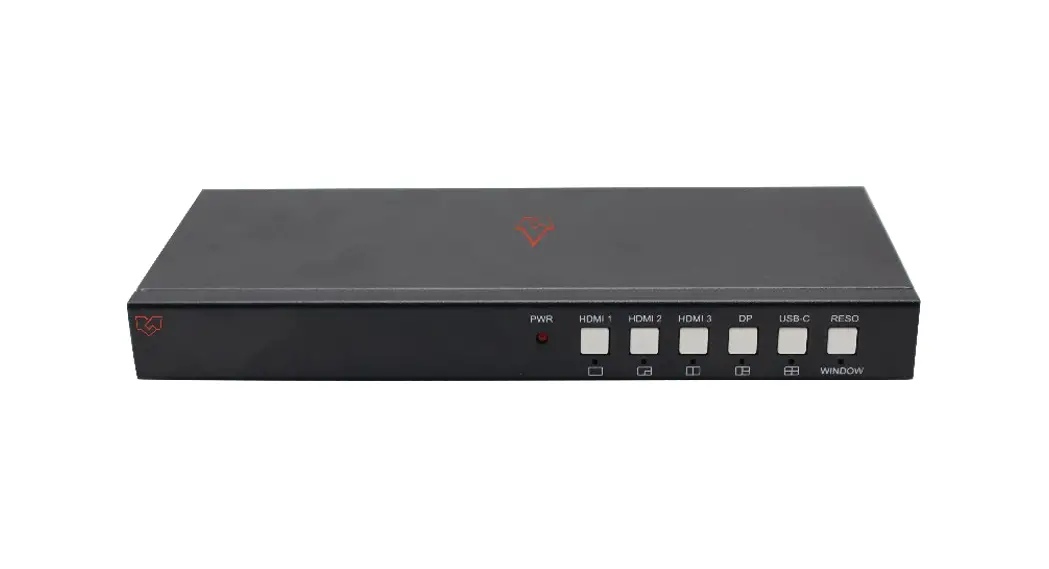
VLPT-52HT70U
5×2 Seamless Presentation Switcher
User Manual 
VLPT-52HT70U 5×2 Seamless Presentation Switcher
Thank you for purchasing this product
Please read these instructions carefully for optimum performance and safety before connecting, operating, or adjusting this product. Please keep this manual for future reference.
Surge protection device recommended.
This product contains sensitive electrical components that electrical spikes may damage, surges, electric shocks, lightning strikes, etc. The use of surge protection systems is highly recommended to protect and extend the life of your equipment.
Introduction
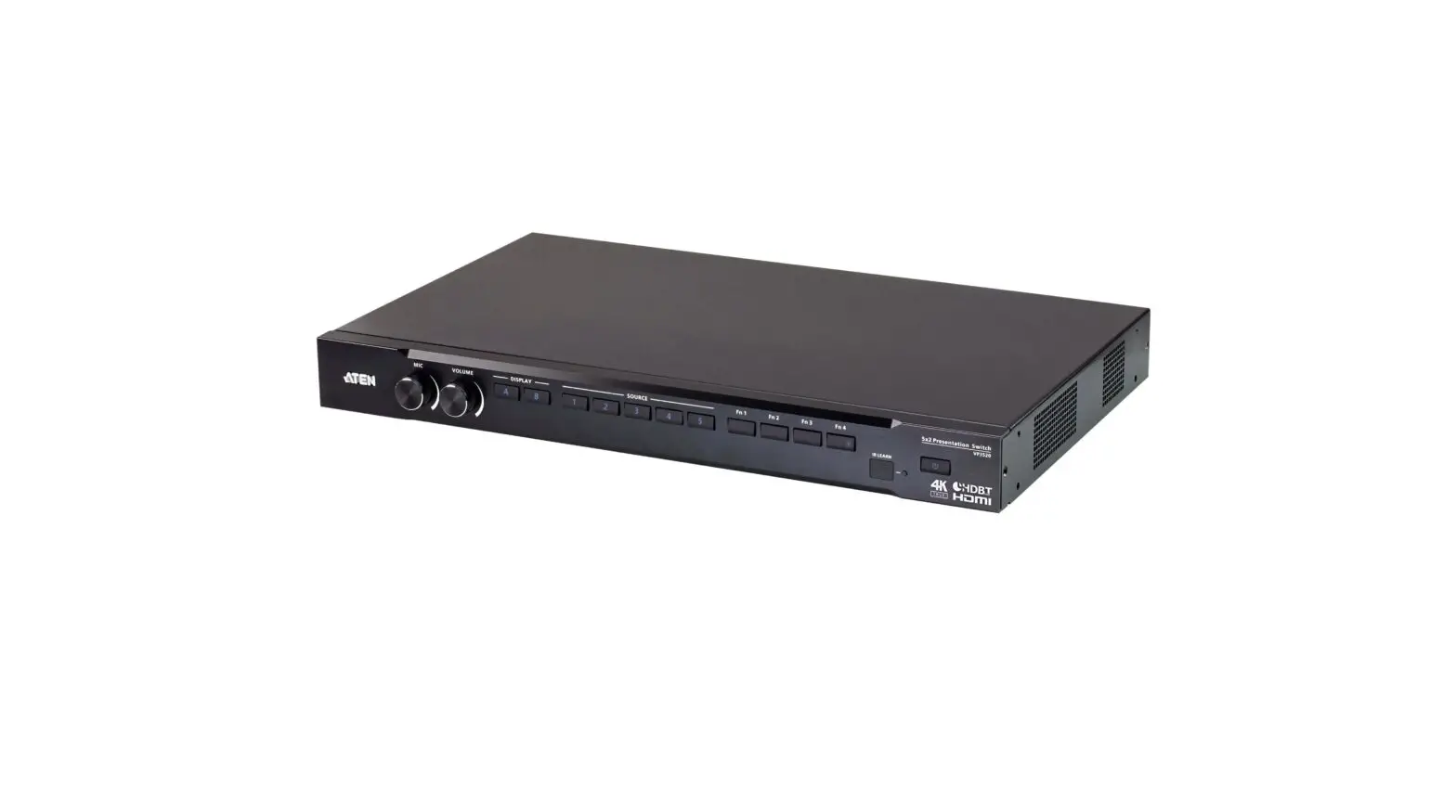
The 5×2 Seamless Presentation Switcher provides 3×HDMI, 1×DP, and 1×USB-C (video only) inputs, 1×HDMI and 1×HDBaseT mirrored outputs with PIP/PAP/Tri/Quad-view Multiview functionality. It supports single-screen seamless switching with no freezing, black, or snow screen. One 3.5mm audio de-embedding jacket can output analog stereo audio. Use Front Buttons or RS232 commands to control the switcher.
Features
☆ 5×2 presentation switcher with PIP/PAP/Tri/Quad-view
☆ True seamless switching, no freezing, black, or snow screen
☆ HDMI 2.0b, HDCP 2. 2, DP1.4 up to 4K60@4:4:4
☆ 3×HDMI, 1×DisplayPort and 1×USB-C inputs
☆ 1×HDMI, 1×Mirrored HDBaseT 70M/POC outputs
☆ Full screen/PIP/PAP/Tri/Quad-view 5 configurable display modes
☆ Up to 14 output resolutions selectable
☆ 3.5mm analog audio de-embedding
☆ EDID management
☆ Buttons and RS-232 control
Package Contents
- 1 × 5×2 Seamless Presentation Switcher
- 1 × HDBaseT 70m Receiver
- 1 × 24V/1A Power Adapter
- 2 × 3-way Female Captive Screw Connector
- 1 × User Manual
Specifications
| Technical | |
| HDMI Compliance | HDMI 2.0b |
| HDCP Compliance | HDCP 2.2 |
| DP Compliance | DP 1.4 |
| Video Resolution | Up to 3840×2160@60Hz |
| ESD Protection | Human-body Model: ±8kV (Air-gap discharge), ±4kV (Contact discharge) |
| Connection | |
| Switcher | INPUTS: 3xHDMI IN [Type A, 19-pin, Female] 1x DP IN 1 xUSB-C OUTPUTS: 1 xHDBaseT OUT [RJ45] 1xHDMI OUT [Type A, 19-pin, Female] 1xL/R OUT [3.5mm , mini-Jack] |
| Receiver | INPUT: 1 xHDBaseT In [RJ45] OUTPUT: 1xHDMI OUT [Type A, 19-pin Female] |
| Mechanical | |
| Housing | Metal Enclosure |
| Color | Black |
| Dimensions | Switcher: 225mm(W) x 100mm(D) x 25mm(H) Receiver: 157mm(W) x 90mm(D) x 20mm(H) |
| Weight | Switcher: 750g; Receiver: 333g |
| Power Supply | Input: AC100-240V 50/60Hz Output: DC 24V/1A |
| Power Consumption | 14W (Max) |
| Operating Temperature | 0°C ∼ 40°C / 32°F ∼ 104°F |
| Relative Humidity | 10-50% RH (non-condensing) |
Operation Controls and Functions
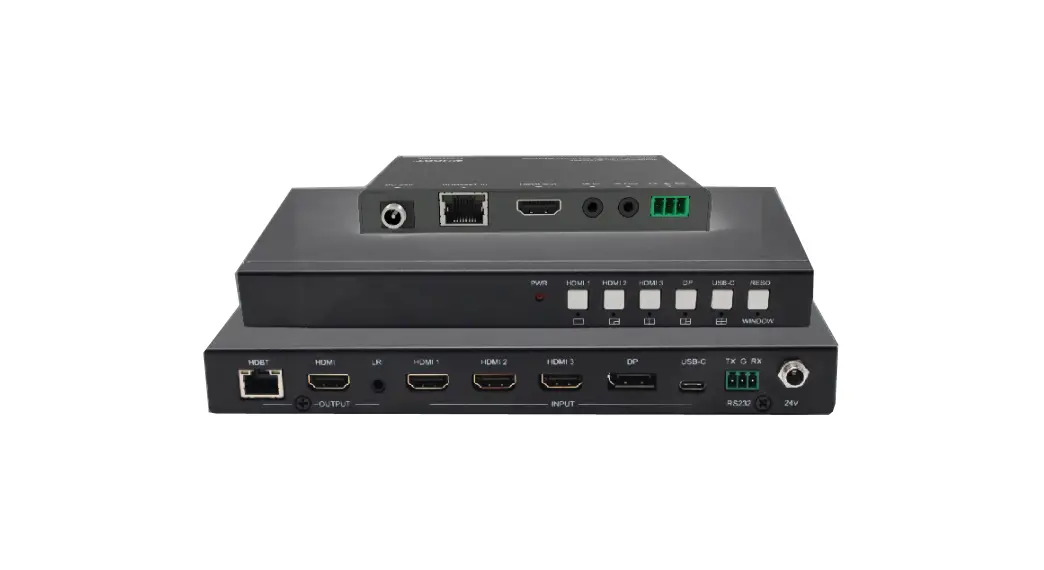
5.1 Switcher Panels 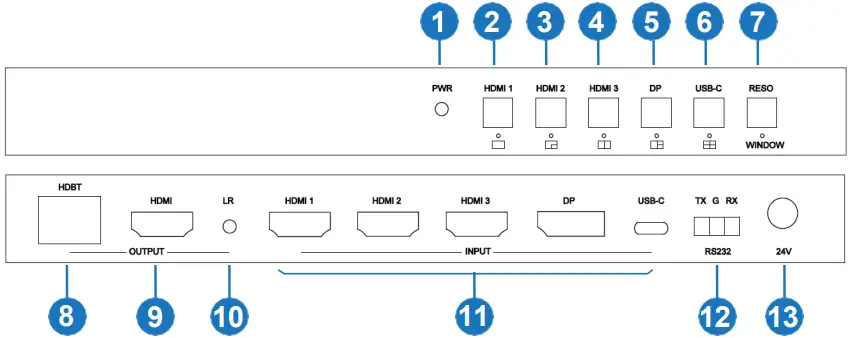
| No. | Name | Function Description |
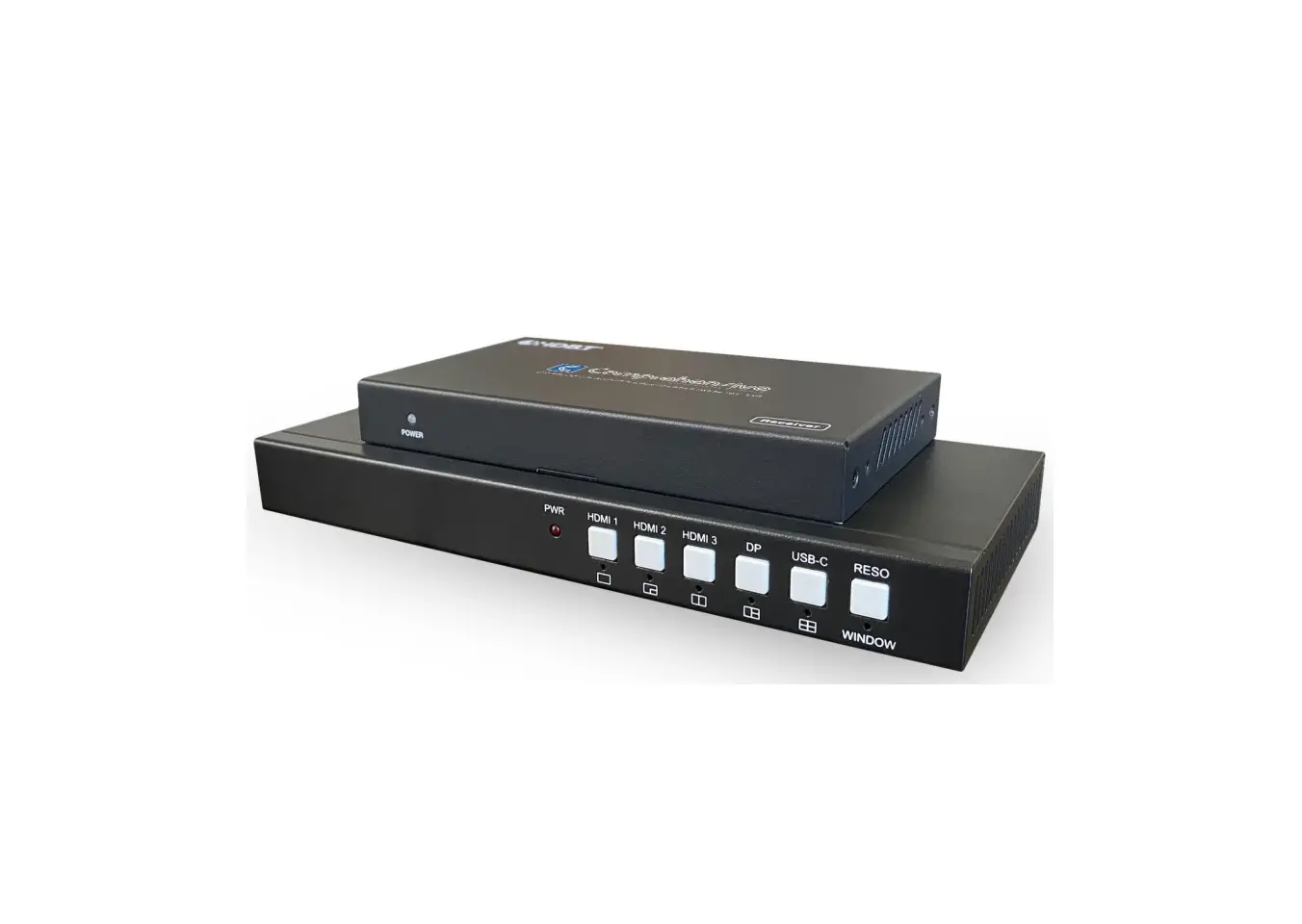
| 1 | PWR | When the device is powered on, the red LED lights on. |
| 2 | HDMI 1 | Press HDMI 1 button to select HDMI 1 as the input source. Long press it for 3 seconds to enter SINGLE mode, SIGLE mode means only one display window on the screen. Note: When working on non- SINGLE mode, direct shortpresses input buttons will be invalid. |
| 3 | HDMI 2 | Press HDMI 2 button to select HDMI 2 as the input source. Long press it for 3 seconds to enter PIP Multiview mode,  . . |
| 4 | HDMI 3 | Press HDMI 3 button to select HDMI 3 as the input source. Long press it for 3 seconds to enter PBP Multiview mode, |
| 5 | DP | Press the DP button to select DP as the input source. Long press it for 3 seconds to enter 3xWIN,3xWIN mode is the Three Windows Multiview mode. |
| 6 | USB-C | Press the USB-C button to select USB-C (video only) as the input source. Long press it for 3 seconds to enter 4xWIN;, xWIN mode is Four Windows Multiview mode. |
| 7 | RESO | Press RESO (short for Resolution) button to select a different output resolution. The resolution info will be shown on the screen. Long press this button for 3 seconds the screen will show up with one yellow border on window 1. Continue to press this button. The border will be shown on windows 2 or 3…then press one input button, such as HDMI 1, and then HDMI 1 will be displayed on the currently selected window. |
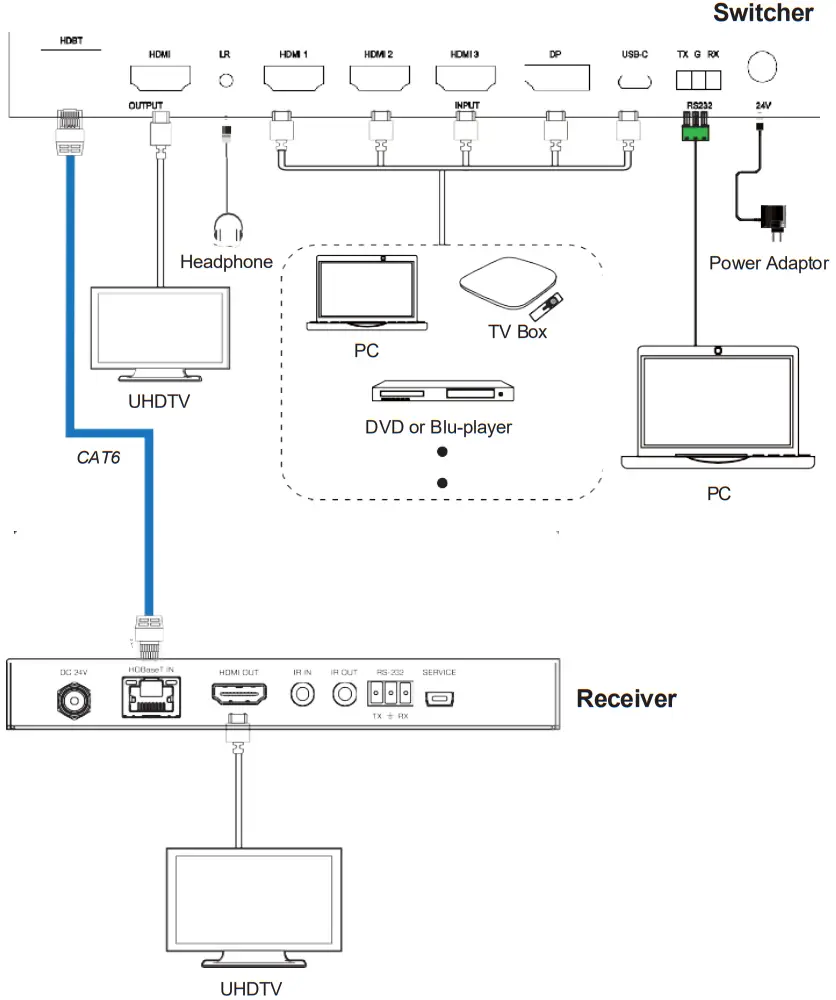
| 8 | HDBT out | HDBaseT Scaling output up to 3840×2160@60-4:2:0. Act as 24V POC-PSE. |
| 9 | HDMI out | HDMI scaling output up to 3840×2160@60. |
| 10 | LR out | 3.5mm LR stereo audio output, 20Hz ~ 20kHz, 1.5Vrms max. |
| 11 | INPUTs | HDMI 1, HDMI 2, HDMI 3, DP, USB-C |
| 12 | RS232 | External RS232 control Baud Rate: 9600, Data Bits:8, Parity: None Stop Bits:1 3 way 3.5mm phoenix connector TX means Switcher, → PC RX means Switcher,  PC PCG means Ground |
| 13 | 24V | 24V power adapter to plug in |
5.2 Receiver Panels 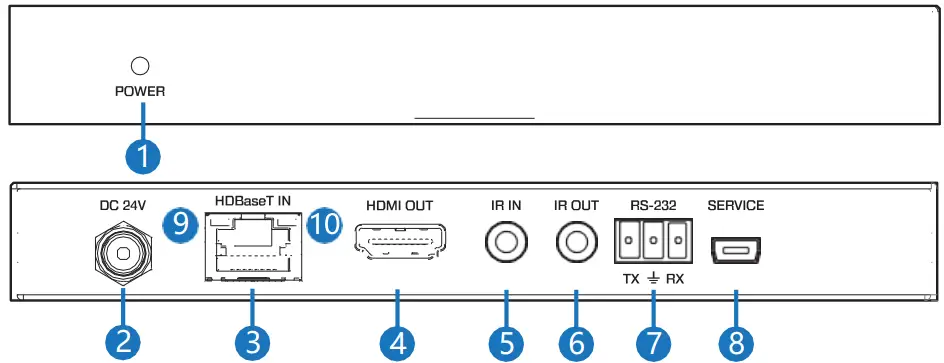
| No. | Name | Function Description |
| 1 | Power LED | System power indicator. |
| 2 | DC 24V | Connect 24V/1A adaptor to AC wall outlet for power supply. |
| 3 | HDBaseT IN | Standard HDBaseT signal input port. Connect the HDBaseT port of the switcher with a UTP cable following the traditional direct interconnection method. |
| 4 | HDMI Out | HDMI output port. This slot connects the HDTV or monitors with an HDMI cable. |
| 5 | IR IN | IR signal receiving port (function reserved). |
| 6 | IR OUT | IR signal emitting port (function reserved). |
| 7 | RS-232 | Phoenix jack provides serial control signal from the switcher to the receiver. |
| 8 | SERVICE | Manufacturer use only. |
| 9 | ConnectionSignal Indicator Lamp |  Illuminating: The switcher and receiver are in good connection. Flashing: The switcher and receiver are in a poor connection. Dark: The switcher and receiver are not connected. Illuminating: The switcher and receiver are in good connection. Flashing: The switcher and receiver are in a poor connection. Dark: The switcher and receiver are not connected. |
| 10 | Data Signal Indicator Lamp | Illuminating: The HDMI signal with HDCP. Flashing: The HDMI signal without HDCP. Dark: No HDMI signal. |
EDID Modes
The switcher supports the following EDID modes for the source to detect Users. Users can select it by RS232 commands.
| No. | EDID mode | No. | EDID mode |
| 1 | 4K60-2.0CH | 9 | 1680×1050 |
| 2 | 4K60-5.1CH | 10 | 1600×1200 |
| 3 | 4K30-2.0CH | 11 | 1440×900 |
| 4 | 4K30-5.1CH | 12 | 1360×768 |
| 5 | 1080P-2.0CH | 13 | 1280×1024 |
| 6 | 1080P-5.1CH | 14 | 1024×768 |
| 7 | 720P | 15 | AUTO |
| 8 | 1920×1200 |
Video and Audio Output
The switcher supports the following video output resolution.
| No. | Output Resolution | No. | Output Resolution |
| 1 | 4096×2160p 60Hz | 8 | 1920×1080p 60Hz |
| 2 | 4096×2160p 50Hz | 9 | 1920×1080p 50Hz |
| 3 | 3840×2160p 60Hz | 10 | 1360×768p 60Hz |
| 4 | 3840×2160p 50Hz | 11 | 1280×800p 60Hz |
| 5 | 3840×2160p 30Hz | 12 | 1280×720p 60Hz |
| 6 | 3840×2160p 25Hz | 13 | 1280×720p 50Hz |
| 7 | 1920×1200P 60Hz RB | 14 | 1024×768 60Hz |
Audio output is continuously extracted from the source displayed in Windows 1.
Multi-view
The Switcher supports 5 Multi-view display modes:
SINGLE, PIP, PBP, 3xWIN, 4xWIN
Users can select different operations for different Multi-view modes as follows:
SINGLE and 4xWIN: Inputs selection.
PBP and 3xWIN: Inputs selection, Display Ratio selection.
PIP: Inputs selection, Display Ratio selection, Sub window size, and position selection.
Multi-view window distribution is following: Users can use RS232 commands to do detailed window layouts.
RS232 commands
Note: All the commands begin with SET or GET and end with a new line character (LF). Represents new line character (LF).
All return messages always end with LF.
HELP command
This command returns the complete list of supported control commands.
| Command | Details |
GET HELP  | Get the Commands list. |
| Example: Send: GET HELP Receive: Command list |
Firmware version command
| Command | Details |
| GET VERSION | Get the firmware version. |
| Example: Send: GET VERSION Receive: 20210824 |
Switching and Input commands
The following commands are used for input selection or querying input information.
These commands only are valid in SINGLE mode.
| Command | Details |
| SET IN SOURCE w | w is one of the following: HDMI1, HDMI2, HDMI3, DP, USB-C |
| Example: Send: SET IN SOURCE HDMI1 Receive: IN SOURCE HDMI1 | |
| GET IN SOURCE | Get current source selection. |
| Example: Send: GET IN SOURCE Receive: IN SOURCE HDMI1 |
| Command | Details |
| GET IN RESOLUTION | Get current source resolution. |
| Example: Send: GET IN RESOLUTION Receive: IN RESOLUTION 1920x1080p60 |
Set output resolution commands
The following commands are used to select the output resolution:
| Command | Details |
| SET OUT RESOLUTION w | w is one of the following: 4096x2160p60, 4096x2160p50, 3840x2160p60, 3840x2160p50, 3840x2160p30, 3840x2160p25, 1920x1200p60RB, 1920x1080p60, 1920x1080p50, 1360x768p60, 1280x800p60, 1280x720p60, 1280x720p50, 1024x768p60 Default: 3840x2160p60 |
| Example: Send: SET OUT RESOLUTION 3840x2160p60 Receive: OUT RESOLUTION 3840x2160p60 | |
| GET OUT RESOLUTION | Get the current output resolution setting. |
| Example: Send: GET OUT RESOLUTION Receive: OUT RESOLUTION 3840x2160p60 |
Multi-view commands
The following commands are used to select Multi-view modes, windows layout, etc.
| Command | Details |
| SET MULTIVIEW w | Select one Multi-view mode for the current display. w is one of the following default SINGLE. SINGLE,  PIP, PBP,  3xWIN,  4xWIN,  |
| Example: Send: SET MULTIVIEW PIP Receive: MULTIVIEW PIP | |
| GET MULTIVIEW | Get the current Multi-view mode. |
| Example: Send: GET MULTIVIEW Receive: MULTIVIEW 3xWIN | |
| SET WINDOWx IN y | Select one input for one display window for the current Multi-view mode. x is one of 1, 2, 3, or 4, and y is one of the following: HDMI1, HDMI2, HDMI3, DP, USB-C |
| Example: Send: SET WINDOW1 IN HDMI1 Receive: WINDOW1 IN HDMI1 | |
| GET WINDOWx IN | This command to get which is the input source for one display window for the current Multi-view mode. |
| Example: Send: GET WINDOW1 IN Receive: WINDOW1 IN HDMI1 | |
| SET PIP POS w | This command is to select the PIP sub-window position. w is one of the following, default right bottom LeftTop, LeftBottom, RightTop, RightBottom |
| Example: Send: SET PIP POS LeftTop Receive: PIP POS LeftTop | |
| GET PIP POS | This command is to get the PIP sub-window position. |
| Example: Send: GET PIP POS Receive: PIP POS LeftTop | |
| SET PIP SIZE w | This command is to select the PIP sub-window size. w is one of the following, default LARGE SMALL, MIDDLE, AND LARGE |
| Example: Send: SET PIP SIZE SMALL Receive: PIP SIZE SMALL | |
| GET PIP SIZE | Get the PIP window size. |
| Example: Send: GET PIP SIZE Receive: PIP SIZE SMALL | |
| SET PBP RATIO w | Set the PBP window display ratio. w is one of the following, 2:1, 1:1, default 2:1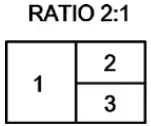 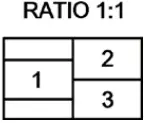 |
| Example: Send: SET PBP RATIO 1:1 Receive: PBP RATIO 1:1 | |
| GET PBP RATIO | Get the PBP window display ratio. |
| Example: Send: GET PBP RATIO Receive: PBP RATIO 1:1 | |
| SET 3xWIN RATIO w | Set the 3xWIN window display ratio. w is one of 2:1 or 1:1, default 2:1. 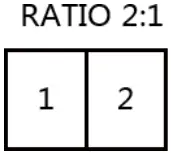 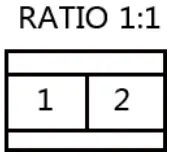 |
| Example: Send: SET 3xWIN RATIO 1:1 Receive: 3xWIN RATIO 1:1 | |
| GET 3xWIN RATIO | Get the 3xWIN window display ratio. |
| Example: Send: GET 3xWIN RATIO Receive: 3xWIN RATIO 1:1 |
Output HDCP Commands
The following commands are used to select the HDMI Output HDCP modes:
| Command | Details |
| SET OUT HDCP w | w is one of the following, default FORCE-1.4 FORCE-1.4, FORCE-2.2, FORCE-SINK |
| Example: Send: SET OUT HDCP FORCE-1.4 Receive: OUT HDCP FORCE-1.4 |
| Command | Details |
| GET OUT HDCP | Get the output current HDCP mode. |
| Example: Send: GET OUT HDCP Receive: OUT HDCP FORCE-1.4 |
EDID commands
The following commands are used to set EDID mode for the inputs.
| Command | Details |
| SET IN EDIDMODE w | w is one of the following: 4K60-2.0, 4K60-5.1, 4K30-2.0, 4K30-5.1, 1080p60-2.0 1080p60-5.1, 1920×1200, 1680×1050, 1600×1200, 1440×900, 1360×768, 1280×1024, 1024×768, 720p, AUTO Default: 4K60-2.0 |
| Example: Send: SET IN EDIDMODE 4K60-2.0 Receive: IN EDIDMODE 4K60-2.0 | |
| GET IN EDIDMODE | Get the current EDID mode. |
| Example: Send: GET IN EDIDMODE Receive: IN EDIDMODE 4K60-2.0 |
Video Keep Alive (VKA) commands
When there is no signal present, 3 options are available for selection: Output blue screen, Output black screen, No timing output (VKA off)
| Command | Details |
| SET OUT VKA w | w is one of the following, default BLACK SCREEN BLUESCREEN, BLACK SCREEN, NO TIMING |
| Example: Send: SET OUT VKA BLUESCREEN Receive: OUT VKA BLUESCREEN | |
| GET OUT VKA | Get current VKA mode. |
| Example: Send: GET OUT VKA Receive: OUT VKA BLUESCREEN |
4K-AUTO commands
If we set 4K output to a displayer that can’t support 4K, 4K-AUTO command can be enabled; the switcher will change the output resolution according to displayer’s capability.
| Command | Details |
| SET OUT 4K-AUTO w | w is one of ON or OFF, default ON. |
| Example: Send: SET OUT 4K-AUTO ON Receive: OUT 4K-AUTO ON | |
| GET OUT 4K-AUTO | Get current OUT 4K-AUTO mode. Example: Send: GET OUT 4K-AUTO Receive: OUT 4K-AUTO ON |
Application Example