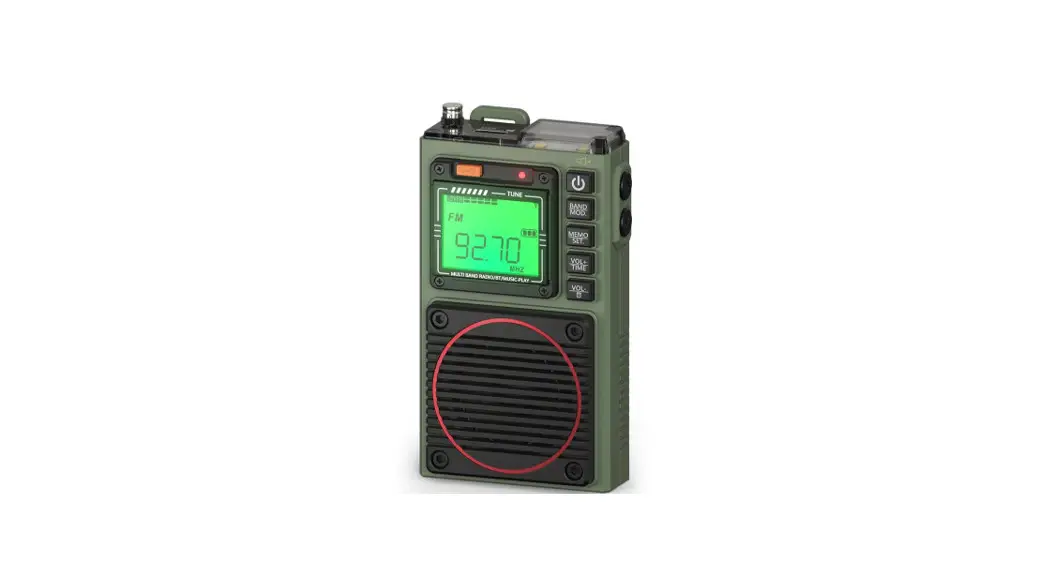
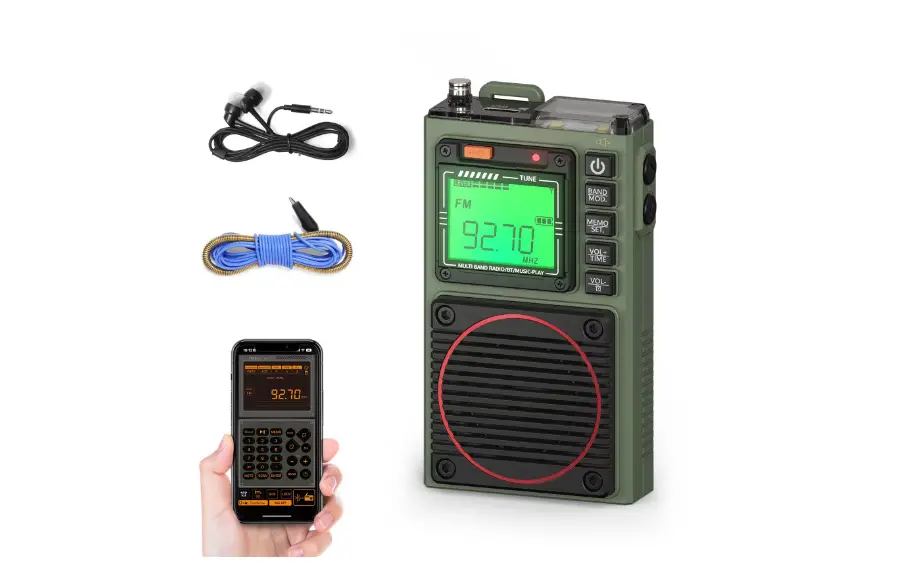
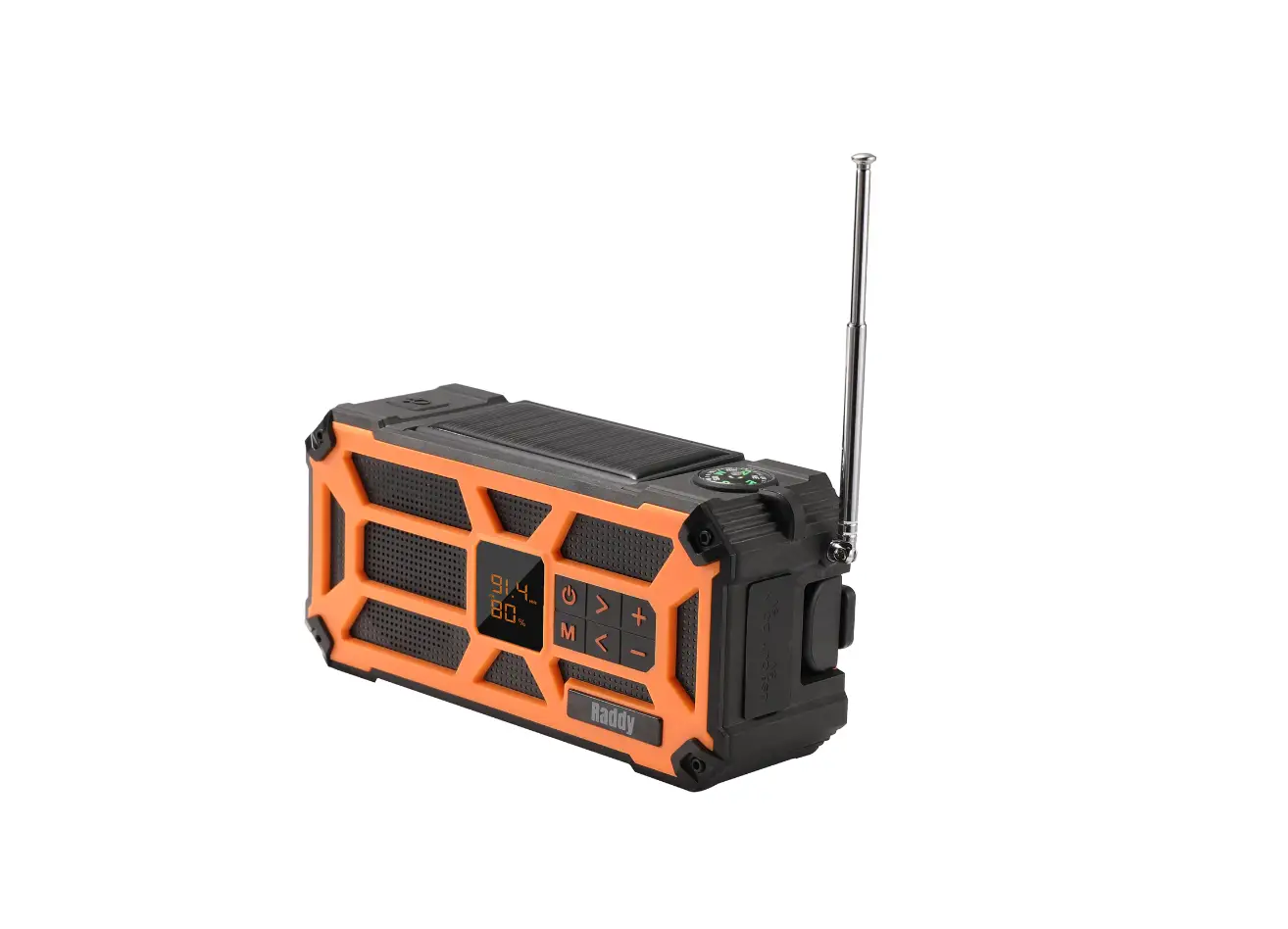
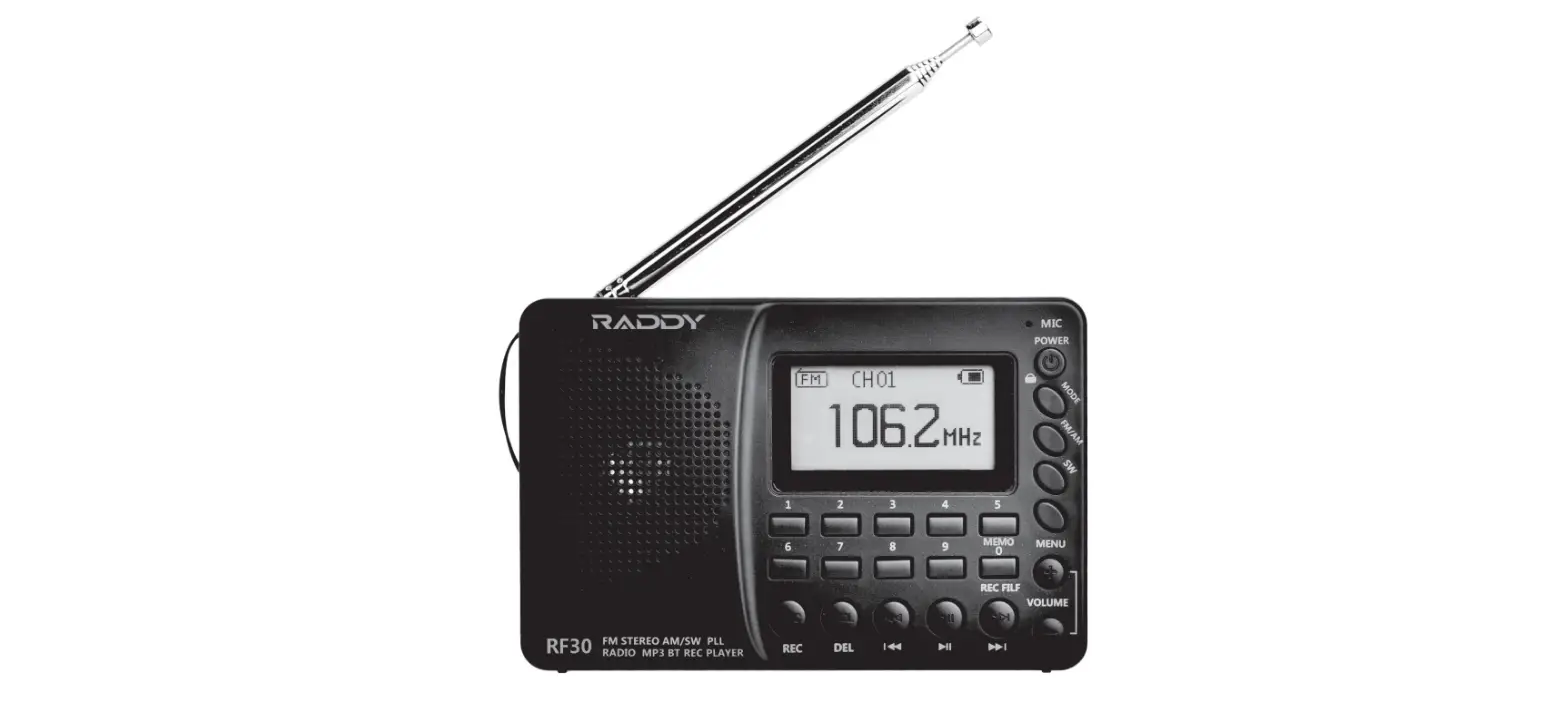
RF320 Shortwave Radio
Product Information: APP Instruction Manual
Attachment 1: Instructions for APP Installation
- Step 1: Turn on the radio RF320
- Step 2: Download the APP
- Android System: Use your mobile browser to scan the following
QR code to download the APP - iOS System: Go to App Store and search Radio-CT to download the
App
- Android System: Use your mobile browser to scan the following
Attachment 2: Description of Symbols on APP Interface
The following symbols are displayed on the APP interface:
- Demodulation
- Bandwidth
- Signal-to-noise ratio
- Signal intensity
- Volume symbol
- Band
- Preset
- KHZ
- MHZ
- MEMO
- Battery symbol
- Radio Frequency display
- Unit display
- Play&pause
- Switch between TF card play mode and Bluetooth play mode
- METE
- SCAN
- SUB BAND
- SQ/EQ
- VOL +
- BAND
- SOS
- LOCK
Product Usage Instructions:
Functions
- Demodulation mode symbol: Click to select the FM, AM, SW,
VHF - Preset display: meaning recall station: Press digital buttons
to select the memory station of number and then press Enter to
confirm - Preset flashing: means manual station storage: find the target
frequency points, long press [MEMO], Preset symbol is flashing,
then press the [ ] or press digital buttons to select preset
channel number. Press [MEMO] key to confirm. - Preset– symbol: There are no stored stations
- View the device version
- Battery symbol
- Radio Frequency display
- Unit display
- Edit the name of the frequency station: Long press this
location and enter the current frequency according to the language
prompt - Press: enter recall station mode: press[ ]button select
station - Long press: manual station storage: find the target frequency
points, long press [MEMO] key, Preset symbol is flashing, press the
[ ] to select preset channel number. Press [MEMO] key to
confirm. - Switch between TF card play mode and Bluetooth play mode Note:
If you need to play music in Bluetooth mode, please open the mobile
phone Bluetooth connection, select RF320 in the search list, you
can play after successful connection. - Digital key dot frequency: press [ENTER] key, press digital
buttons which your target frequency point, press [ENTER] key for
confirm. - Recall station: press digital buttons you need, press [ENTER] key for confirm.
- Select track selection: press digital buttons which your need,
press [ENTER] key for confirm. - In SW mode, select meter wave
- In reception mode, long press to search the channels stored
automatically - In WB band, long press to enter alarm mode, long press again to
exit - Set/close the clock
- In SW mode, press to switch between 11 meter waves. In FM mode,
press to switch between 4 meter waves. - +/- (adjust the frequency/choose a song/take a channel/choose
an address of storing channels) - EQ: for play mode: E1: NORMAL E2: POP E3: ROCK E4: JAZZ E5:
CLASSIC E6: COUNTRY SQ: In the AIR band mode, press SQ to toggle
the squelch switch. - Volume +/-
- Band switching
- Power on/Power off
- Disconnect APP connection: after pressing off on APP interface,
the radio displays time state, long press [MOD] on the button of
radio) The radio displays bLE OFF, it means APP is disconnected
forcibly
APP Instruction Manual
Attachment 1: Instructions for APP Installation 1: Step 1: turn on the radio RF320 2: Step 2: download the APP Android System: Use your mobile browser to scan the following QR code to download the APP iOS System: Go to “App Store” and search “Radio-CT” to download the App
2.1: Click “download”¹Click “continue”¹Installation finished, click “open the app”¹APP icon is displayed
01
APP Instruction Manual
2.2: Click the APP icon to enter and use¹Click the Bluetooth symbol at at the bottom right on the APP¹Click “permit”¹Click the symbol again¹ Choose “RF320-BLE “¹”Successful connection”
02
APP Instruction Manual
Attachment 2: Description of Symbols on APP Interface 1 2 345
8 9
6
10
11
7
12
13
14
20
15
21
22 16
23 24
17
25
18
26
27 19
28
29
30 31
03
No.
Symbols
1 Demodulation
2 Bandwidth
3 SNR
4 RSSI
5 VOL
6 Band
7 Preset
8 9 10 11 KHZ MHZ 12 13 MEMO
14 15
APP Instruction Manual
Functions Demodulation mode symbol Bandwidth Signal-to-noise ratio Signal intensity Volume symbol Click to select the FM, AM, SW, VHF
7-1: “Preset” display: meaning recall station: Press digital buttons to select the memory station of number and then press “Enter” to confirm
7-2: “Preset” flashing: means manual station storage: find the target frequency points, long press [MEMO], “Preset” symbol is flashing, then press the [ ] or press digital buttons to select preset channel number. Press [MEMO] key to confirm.
7-3: “Preset–” symbol: There are no stored stations
View the device version
Battery symbol
Radio Frequency display
Unit display
Edit the name of the frequency station: Long press this location and enter the current frequency according to the language prompt
13-1: press: enter recall station mode: press[ ]button select station
13-2: long press: manual station storage: find the target frequency points ,long press [MEMO] key,”Preset” symbol is flashing, press the [ ] to select preset channel number. press [MEMO] key to confirm.
Play&pause
Switch between TF card play mode and Bluetooth play mode Note: If you need to play music in Bluetooth mode, please open the mobile phone Bluetooth connection, select “RF320” in the search list, you can play after successful connection.
04
APP Instruction Manual
No.
Symbols
16
17 METE 18 SCAN
19 20 SUB BAND 21 22 SQ/EQ
23 VOL + 24 BAND 25
26 SOS 27 LOCK 28
Functions
16-1: Digital key dot frequency:press [ENTER] key,press digital buttons which your target frequency point,press [ENTER] key for confirm.
16-2: Recall station: press digital buttons you need, press [ENTER] key for confirm.
16-3: Select track selection: press digital buttons which your need, press [ENTER] key for confirm.
In SW mode, select meter wave
18-1: In reception mode, long press to search the channels stored automatically
18-2: In WB band, long press to enter alarm mode, long press again to exit
Set/close the clock
20-1: In SW mode, press to switch between 11 meter waves. 20-2: In FM mode, press to switch between 4 meter waves.
+/- (adjust the frequency/choose a song/take a channel/choose an address of storing channels)
22-1: EQ: for play mode: E1: NORMAL E2: POP E3: ROCK E4: JAZZ E5: CLASSIC E6: COUNTRY 22-2: SQ: In the AIR band mode, press SQ to toggle the squelch switch.
Volume +/-
Band switching
25-1: Power on/Power off 25-2: Disconnect APP connection: after pressing “off” on APP interface, the radio displays time state, long press [MOD] on the button of radio) The radio displays “bLE OFF”, it means APP is disconnected forcibly
26-1: Long press to turn on /turn off SOS alarm 26-2: Press to turn on /turn off the light
Long press to lock, long press again to unlock
Connect the mobile APP to the radio
05
No.
Symbols
29
30
31 REC
APP Instruction Manual
Functions Equipment calibration time Set your Sleep Time Record in Radio reception mode Note: insert TF card into the radio before recording Press to enter the recording mode Press again to exit
Attachment 3: Working Modes on APP Interface
Instruction 1: In play music mode, directly click the symbol on interface to choose an EQ sound effect: NORMAL, POP, ROCKJAZZ, CLASSIC, COUNTRY
Instruction 2: In TF play mode, click TF card play order to choose: (Repeat all, the radio displays: rA) (Repeat one, the radio displays: rO) (Repeat the songs in current folder, the radio displays: rF) (Random play, the radio displays: rr)
06
suppor [email protected] www.iraddy.com
Made in China
 Raddy Outdoor | Be prepared, get Raddy