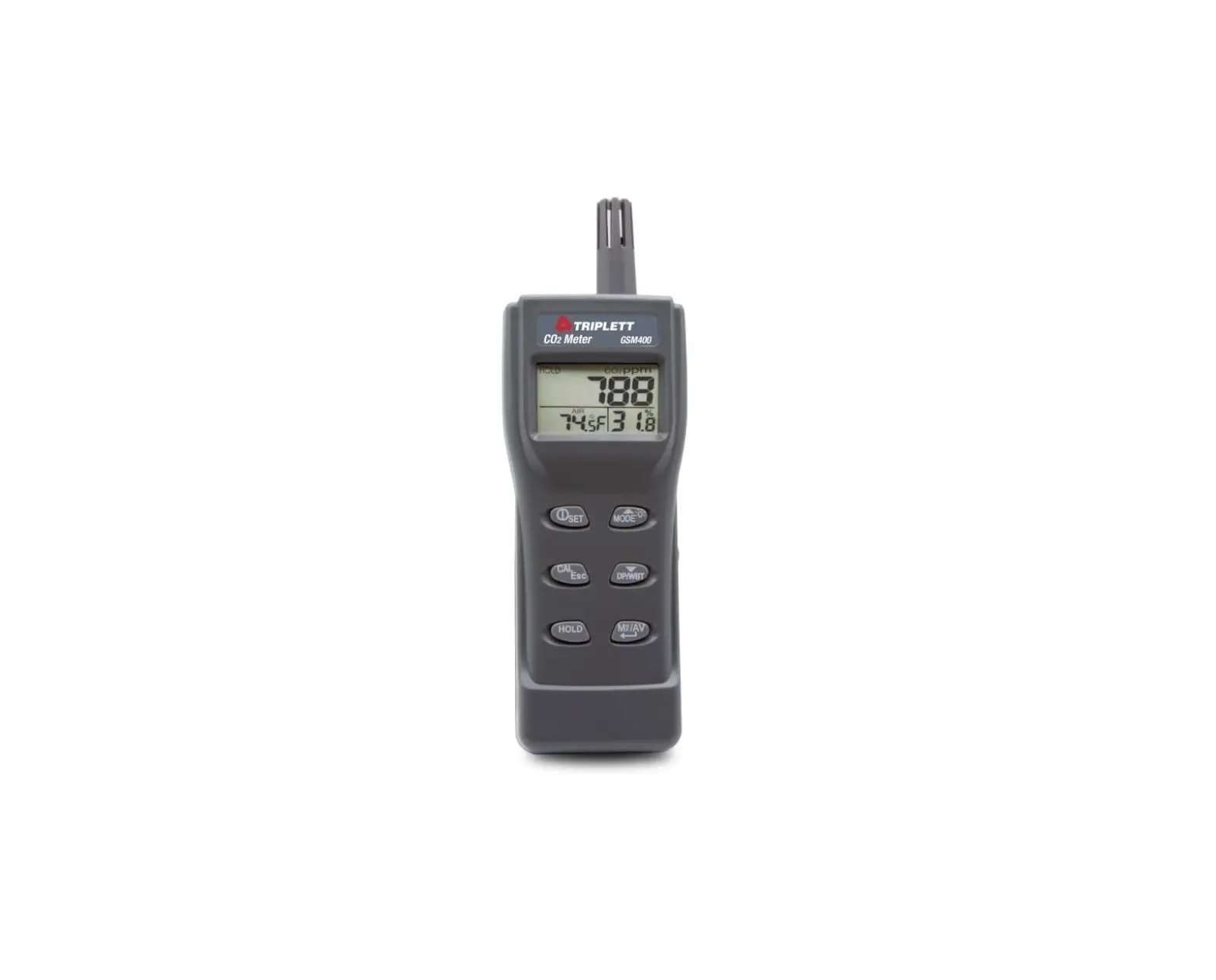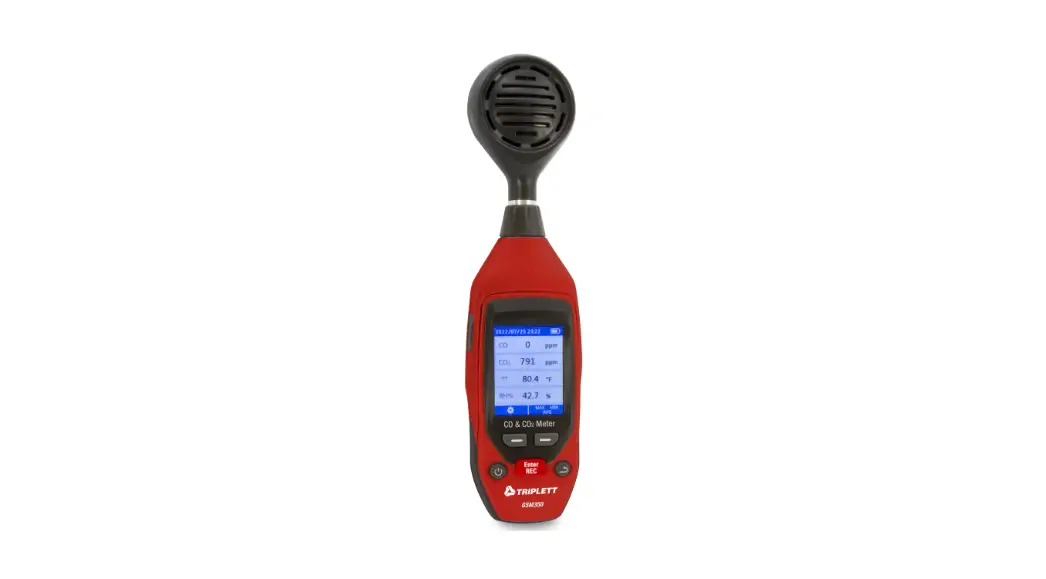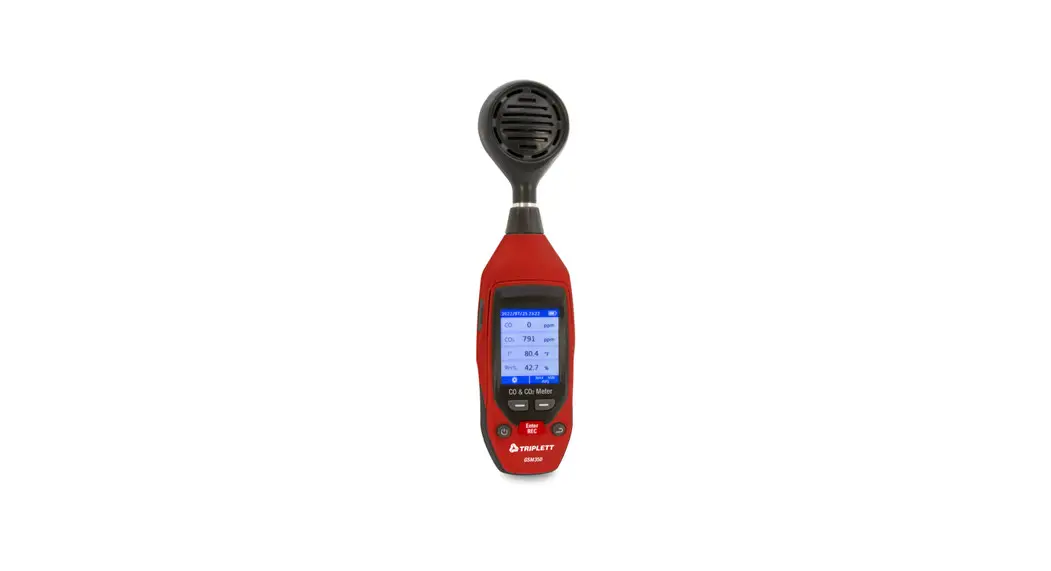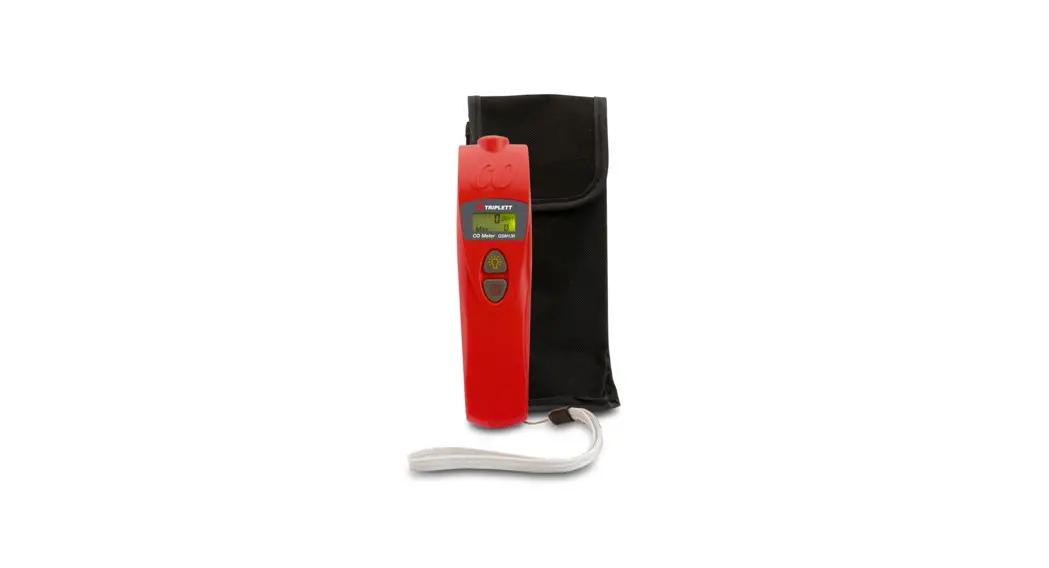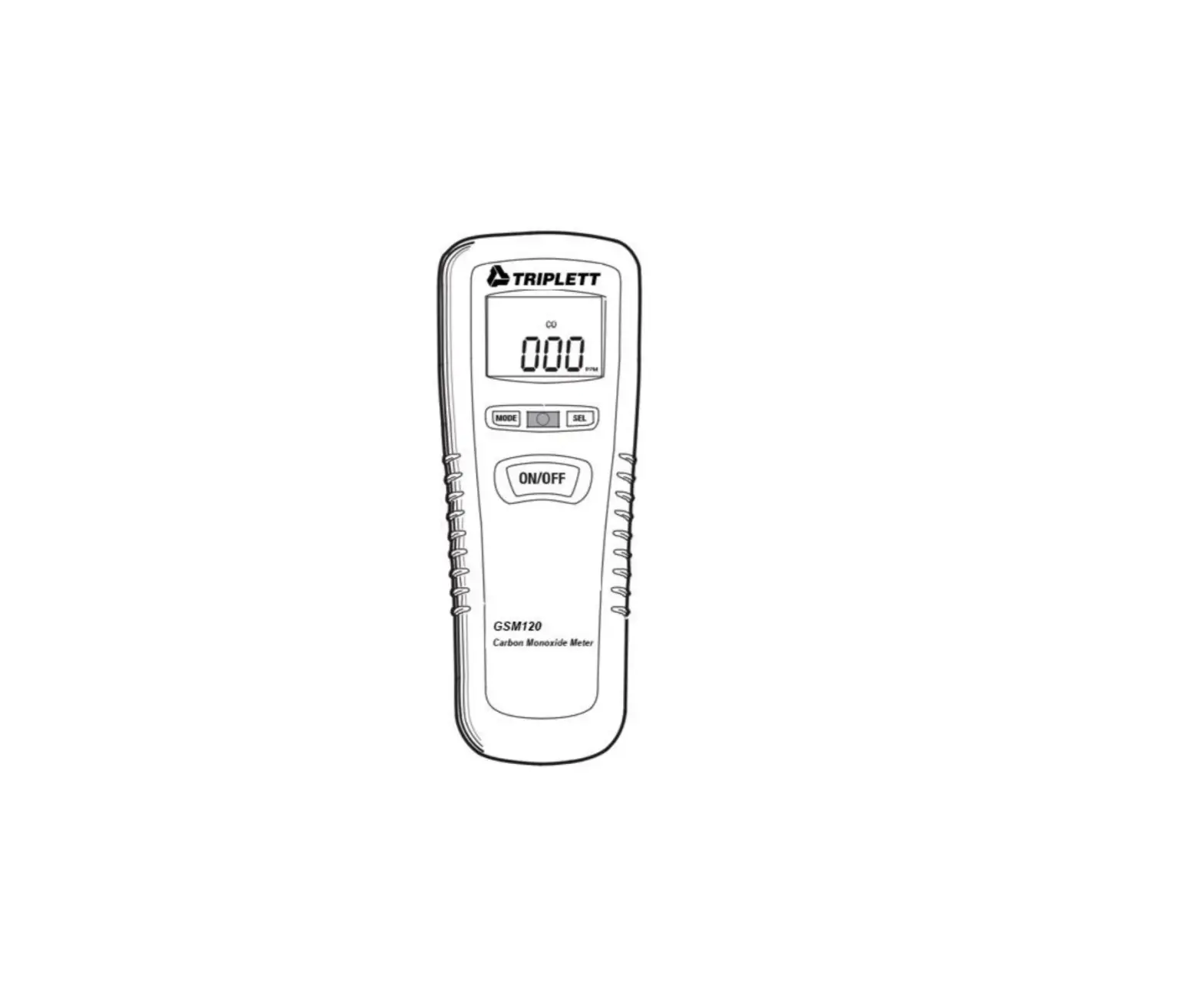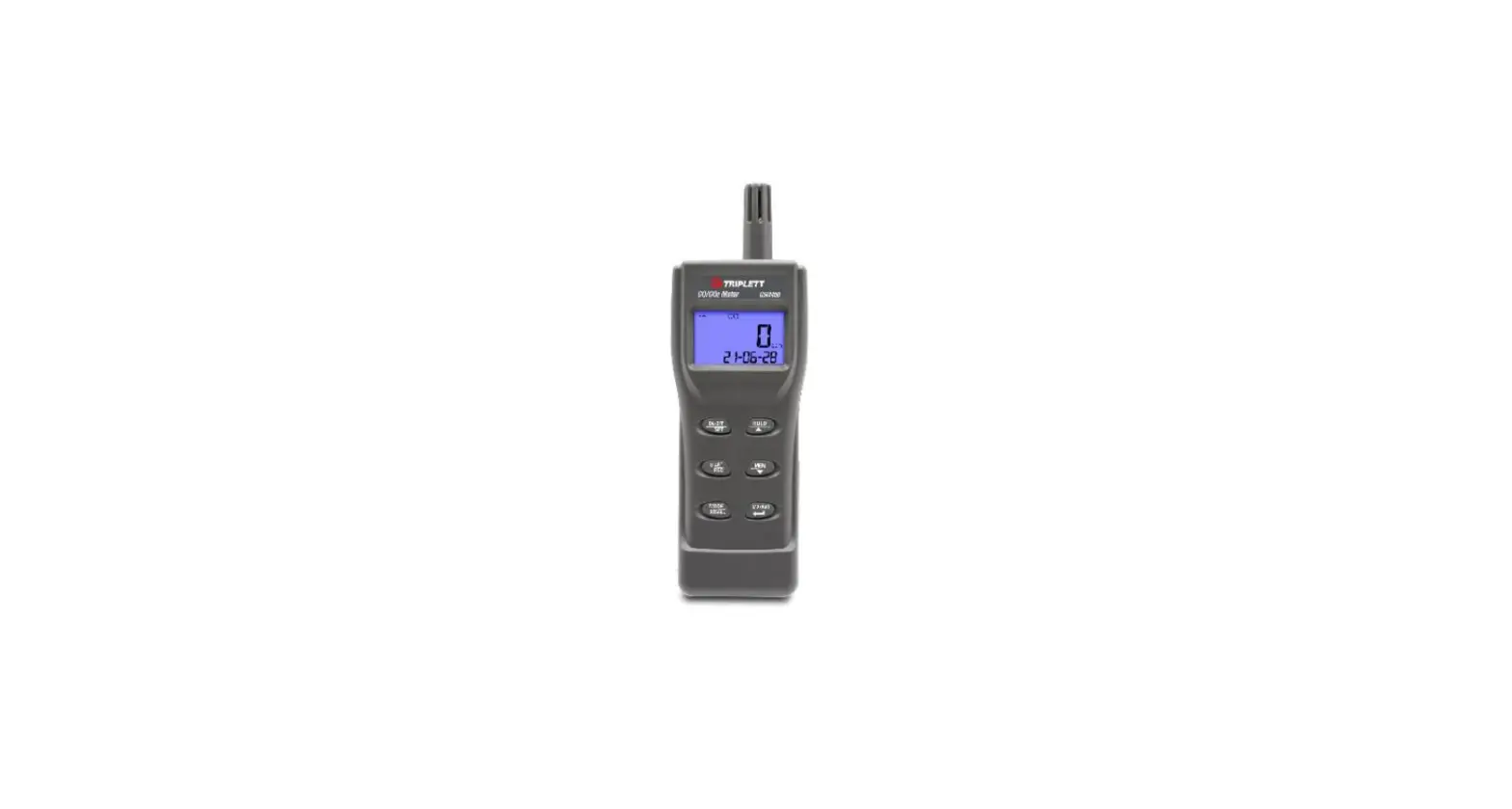

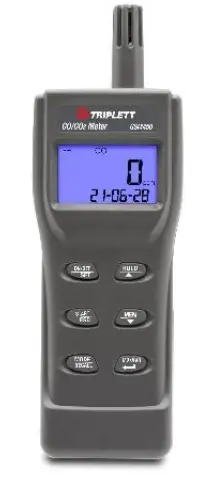
TRIPLETT GSM450 CO-CO2 Meter with RH% and Temperature
Features
- Adjustable carbon monoxide warning level
- Designed with NDIR (non-dispersive infrared)
- Long-life electrochemical sensor
- Audible and visual alarm
- Backlit LCD for easy viewing in dimly lit areas
- Low battery indicator
- Auto power off
- Mini USB connector
- Manual and automatic recording
Safety Information
- The GSM450 Carbon Monoxide Monitor is intended for general purpose Air Quality monitoring only, and has not been certified for use pursuant to any state or city safety Carbon Monoxide arm or Monitoring requirements.
- The GSM450 Carbon Monoxide Monitor has not been tested by an independent lab to comply with the UL 2034 or IAS 6-96 standard.
- It is the responsibility of the customer to obtain and apply current local, state, and national regulations with regard to CO alarms, monitoring and testing.
- Electromagnetic (EMI) interference my cause erratic meter readings; do not place meter near areas of high EMI when taking CO measurements.
- . Recovery time is required after the meter has been exposed to high levels of CO; the longer the exposure, the longer the recovery time
| 0-1 PPM | Normal background levels |
| 9 PPM | Maximum allowable short term exposure |
| 50 PPM | Maximum allowable continuous exposure level in any 8-hour |
| period, according to OSHA | |
| 200 PPM | Mild headache, fatigue, nausea and dizziness after 2- 3 hours |
| 400 PPM | Frontal headache with 1-2 hours, life threatening after 3 hours |
| 800 PPM | Dizziness, nausea, convulsions within 45 minutes. Unconsciousness |
| within 2 hours. DEATH WITHIN 2 TO 3 HOURS | |
| 1600 PPM | Headache, dizziness, nausea within 20 minutes, DEATH WITHIN 1 |
| HOUR | |
| 3200 PPM | Headache, dizziness, nausea within 5-10 minutes. DEATH WITHIN |
| 25-30 MINUTES | |
| 6400 PPM | Headache, dizziness, nausea within 1-2 minutes. DEATH WITHIN |
| 10-15 MINUTES | |
| 12800 PPM | DEATH WITHIN 1 TO 3 MINUTES |
Regulatory exposure limits for Carbon Dioxide (CO2)
ASHRAE Standard 62-1989: 1000ppm: CO2 concentration in occupied building should not exceed 1000ppm. OSHA: 5000ppm: Time weighted average over five 8-hour workday should not exceed 5000ppm. Building bulletin 101 (BB101): 1500ppm. UK standards for schools state that CO2 averaged over the whole day (i.e. 9:00am to 3:30 pm) should not exceed 1500ppm. Germany, Japan, Australia, UK: 5000ppm, 8 hours weighted average in occupational exposure limit is 5000ppm. EPA Taiwan (Type 1): Indoor areas such as department stores, theaters, restaurants, libraries have acceptable CO2 concentrations of 1000ppm over an 8-hour average period. EPA Taiwan (Type 2): Indoor areas with special requirements for good air quality such as schools, hospitals, and day care centers have suggested CO2 level of 600ppm
Description
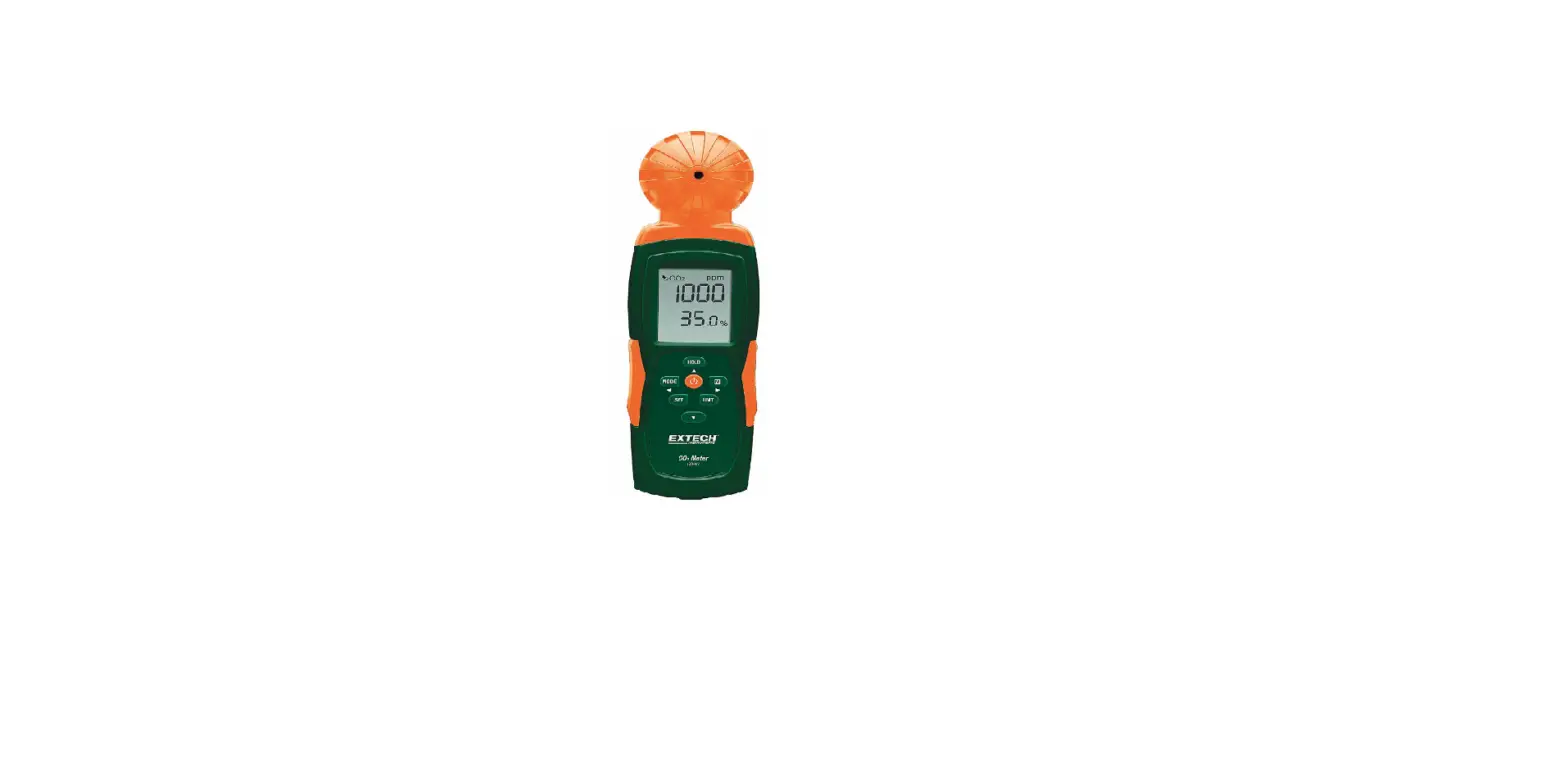
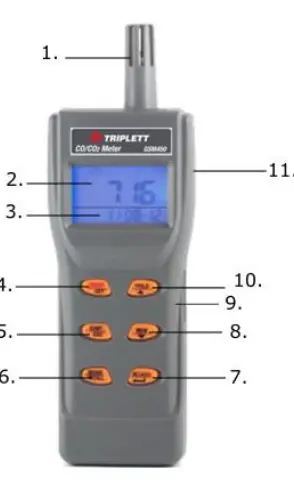
- Temperature and Humidity sensor
- Primary display
- Secondary display
- Power and Set button
- Start and Escape button
- Mode and Recall button
- Min-Max-Avg and Enter button
- Memory and Down button
- CO and CO2 sensors (on rear of meter)
- Hold and Up button
- AC Adaptor and Micro USB ports

LCD DISPLAY
- CO2 Carbon dioxide
- CO Carbon monoxide
- TWA Time-weighted average (8 hours)
- STEL Short-term exposure limit (15 minutes weighted average)
- HOLD Freezes current reading on display
- MIN/MAX Minimum/Maximum readings
- Low battery indicator
- DP Dew point temperature
- TA Air temperature
- WBT Wet bulb temperature
- %RH Relative humidity
- C or F Celsius/Fahrenheit
- CAL Calibration Mode
- REC Manual/automatic data logging
- RECALL View manually logged data
Battery Installation
- Four (4) ‘AA’ batteries or an AC/DC adaptor powers the meter.
- Install the batteries into the rear battery compartment observing correct polarity.
- When the adaptor is used, the batteries are disconnected from the meter circuitry. The adaptor cannot be used to charge rechargeable batteries.
- When battery voltage is low, the battery symbol ( ) appears. Replace the batteries promptly.
Powering the Meter
Short press the /SET button to turn the meter ON or OFF. At power up, the meter emits a short beep and performs a 30-second warmup before entering normal operating mode. After the countdown, the primary LCD will display the current readings. The secondary display will alternate between the current date and time.
Taking Measurements
The meter begins measuring in the selected mode, when powered on, and the sensor responds every 1 second. If the operating environment changes (example: from high to low temperature), it requires 30 seconds for the CO2 sensor to respond and up to 30 minutes for the relative humidity sensor to respond. Measuring Carbon Dioxide (CO2)
- Short press the M/REL button to change the mode to CO2 if necessary.
- To take a measurement, trace the GSM450 around the area of the suspected leak.
- The meter indicates the presence of carbon dioxide (CO2) in ppm in the primary display. The secondary display indicates the current date and time alternately. NOTE: Do not hold the meter close to your mouth or any other source of CO2.
Measuring Carbon Monoxide (CO)
- Short press the M/REL button to change the mode to CO, if necessary.
- To take a measurement, trace the GSM450 around the area of the suspected leak.
- The meter indicates the presence of carbon monoxide (CO) in ppm in the primary display. The secondary display indicates the current date and time alternately.
- The display will flash and an audible beeper sounds at 25 ppm alerting the user to dangerous CO levels. The higher the concentration of CO, the faster the beeper will sound. The display will stop flashing once the measured CO is below the alarm limit value. Measuring Air Temperature and Calculating Dew point and Wet bulb
- Short press the M/REL button to change the mode to air, dew point, or wet-bulb temperature.
- To take a measurement, trace the GSM450 in the testing area.
- The primary display indicates the air temperature, dew point, or wet bulb temperature depending on the selected mode. The secondary display indicates the current date and time alternately.
- Note that Dew Point and Wet Bulb Temperature displays are calculations made from Air Temperature and Relative Humidity measurements.
- Measuring Relative Humidity %
- Short press the M/REL button, if necessary, to change the mode to Relative Humidity.
- To take a measurement, place the GSM450 in the testing area.
- The primary display indicates the relative humidity measurement and the secondary display indicates the current date and time alternately.
Advanced Functions
- Data Hold
Short press the H button to freeze the readings on the display. The “HOLD” icon flashes in the top left of the display. Short press the H/ button again to unfreeze the readings on the display. Note: the HOLD function is not operational in Min/Max/Avg mode. - Display Backlight
The meter is equipped with a backlight for easy viewing in dimlylit areas. The backlight will activate for 10 seconds by pressing any button. - MIN, MAX, STEL, TWA
Recording In normal operating mode, short press the MXMN/AV button toview the minimum, maximum, weighted average, and current readings. With each short press of the MXMN/AV/ button, the meter displays the MIN, MAX, STEL, TWA, or current value along with elapsedtimer, in sequence. Short press the ESC button to return to normal operating mode. In MIN and MAX modes, the meter shows the lowest (minimum) or highest (maximum) reading in the primary display. In STEL and TWA modes, the main display shows the weighted average of readings for the past 15 minutes (STEL) or 8 hours (TWA). TWA and STEL mode are only operational in CO2 mode. In CURRENT mode, the primary display shows the current readings. The secondary display shows the elapsed timer. Press the ESC button to exit and return to normal operating mode.
- If the meter is ON for < 15 minutes, the STEL value will be the weighted average of readings taken since power on. Similarly, for the TWA mode when the meter has been ON for < 8 hours, the display only shows a weighted average of the readings up to the moment.
- The GSM450 requires at least 5 minutes calculating STEL and TWA. The display shows “—-” during the first 5 minutes from power ON.
- While in HOLD mode, the STEL and TWA values will continue to update every 5 minutes.
- Hold, Record, and Recall functions are not operational while in Min/Max/Avg mode.
- TWA and STEL will function only in CO2 mode
- The unit of measure can be changed while in Min/Max mode
Manual Data Recording
The GSM450 has 99 memory locations for which to store readings one at a time.
- While in normal operating mode or hold mode, short press the MEM button to store a reading. The REC icon flashes on the display for approximately 3 seconds. The primary display briefly shows the memory location.
- Each measurement parameter is saved, not just the currently displayed parameter. (For example, when recording CO readings, the CO2, %RH, and air temperature will also be recorded).
- Short press the H button to freeze the readings on thedisplay before recording the data if the readings change too quickly. Note: The manual recording mode is not operational in Min/Max mode.
Recalling Manually Stored Readings
The meter can recall up to 99 previously saved readings.
- While in normal operating mode, long press the M/RCL button until ‘Recall’ flashes on the display.
- Short press the H or MEM buttons to scroll through the memory locations. The selected memory location will flash for approximately 3 seconds and then the stored reading will display on the screen.
- Short press the M/RCL button to change the displayed measurement parameter.
- The secondary display shows the time and date the data was recorded into memory.
- To exit memory recall mode, short press the ESC button.
Automatic Datalogging
The GSM450 automatically records CO2, CO, Temperature, or RH readings and can store up to 32,000 records. The sample rate can be set from 1 second to 4 hours 59 minutes and 59 seconds. See ‘Setup Mode’ for information on setting the sample rate. - After the sample rate is selected, long press the ESC button to begin logging. The ‘rec’ icon flashes and the primary display shows the real time value. The secondary display shows the current time and date alternately.
- Short press the M/RCL button to select a different measurement mode to record.
- To exit the data logger mode, long-press the ESC button. The ‘rec’ icon stops flashing. Notes: Previous records are overwritten any time logging is started. The M/RCL button is the only button that is operational while in datalogging mode.
CO Alarm
The meter features an audible alarm (80db beep) that warns when CO concentration exceeds the set limit. The beeper stops when the readings fall below the limit. The meter beeps again if the value exceeds the limit. See the section ‘Setup Mode’ for more information.
Auto Power OFF
The meter turns off automatically after 20 minutes of inactivity. To override the function, long press both the /SET and H buttons while powering ON the meter until “n” appears in the display. NOTE: Auto power off is not operational while in calibration mode.
Setup Mode
While the meter is OFF, long press the /SET button to enter the setup mode. To exit the setup mode, short press the ESC button at any time during setup.
P10 Clearing the Manual Recording Memory
Clearing the memory will erase ALL the manually stored records.
- Upon entering setup mode, P10 and “CLr” display on the LCD.
- Short press the MXMN/AV button to advance to P11 and make a selection.
- Short press the H or MEM button to select YES or NO. ‘YES’ will erase all the manually stored records.
- Short press the MXMN/AV button to save the selection and return to P10.
- Short press the ESC button to exit without saving.
- . Short press the H button to advance to the next step.
P20 Setting the CO Alarm
- When in alarm setup mode, P20 and “ALAr” are displayed. Short press the H button to advance to P20 if necessary.
- Short press the MXMN/AV button to advance to P21 and set the CO alarm threshold. The current set value will blink on the display.
- Short press the H button to increase or the MEM button to decrease the value. The alarm range is from 15 to 200ppm and each press of the buttons will advance 5ppm.
- Short press the MXMN/AV button to save the selection and return to P20.
- Short press the ESC button to exit without saving.
- Short press the H button to advance to the next step.
P30 Changing the Temperature Units
- When in temperature setup mode, P30 and “unit” display on the LCD. Short press the H button to advance to P30 if necessary.
- Short press the MXMN/AV button to advance to P31 and change the temperature units. The current temperature unit displays on the LCD.
- Short press the H or MEM button to toggle between °C and °F.
- Short press the MXMN/AV button to save the setting and return to P30.
- Short press the ESC button to exit without saving.
- Short press the H button to advance to the next step.
P40 Setting the Datalogging Sampling Rate
- When in datalogging setup mode, P40 and “rAtE” display on the LCD. Short press the H button to advance to P40 if necessary.
- Short press the MXMN/AV button to advance to set the sampling rate for datalogging. The hour digit will blink in the secondary display.
- Short press the H button to increase the time or short press the MEM button to decrease the time.
- Short press the MXMN/AV button to save the setting and advance to the minute setup.
- Short press the H button to increase the time or short press the MEM button to decrease the time.
- Short press the button to save the setting and advance to the second setup.
- Short press the button to save the settings and return to P40.
- Short press the button to exit without saving.
- Short press the button to advance to the next step.
Note: The data logging sampling range is from 1 second to 4 hours 59 minutes 59 seconds.
P50 Changing the Barometric Pressure Compensation
- When in pressure setup mode, P50 and “PrES” display on the LCD. Short press the H button to advance to P50 if necessary.
- Short press the MXMN/AV button to set the pressure compensation value for the CO2 measurement. The current pressure compensation value in hPa will flash on the LCD.
- Short press the Hor MEMbutton to adjust the barometric pressure value. The pressure compensation range is from 70 to 199 hPA.
- Short press the MXMN/AVbutton to save the setting and return to P50.
- Short press the ESC button to exit without saving.
- Short press the H button to advance to the next step.
P60 Setting the Real-Time Clock
- When in Real-Time Clock mode, P60 and “rtC” display on the LCD. Short press the H button to advance to P60 if necessary.
- . Short press the MXMN/AV button to advance to P61 and set the time as 12-hour or 24-hour format. The current time format will flash on the LCD.
- Short press the H or MEM button to change the format between 12-hour and 24-hour.
- Short press the MXMN/AV button to save the setting and advance.
- The year will flash in the secondary display. Short press the H or MEM button to change the value.
- Short press the MXMN/AV button to save the setting and advance to the month setup.
- Short press the H or MEM button to change the value.
- Short press the MXMN/AV button to save the setting and advance to the next step.
- Repeat the above steps to complete the setup for the month/day/hour/minute/second settings.
- Short press the MXMN/AV button to save the selection and return to P60.
- hot press the ESC button to exit setup mode.
Calibration
RH CALIBRATION
The meter is calibrated to a standard 33% and 75% salt solution bottle. Calibration must be performed in a controlled temperature environment of 25°C. CAUTION: Do not calibrate the humidity without the default calibration salts. The meter will lose its current calibration data and will become inoperable.
33% Calibration
- Plug the sensor probe into the 33% salt bottle.
- Long press the ESC, MEM , and /SET buttons simultaneously to enter calibration mode.
- In calibration mode, “CAL” and the current value (32.8% if at 25°C) will blink on the LCD.
- The meter is now calibrating and will finish in about 60 minutes when the current value stops blinking. “CAL” will continue to blink on the display.
- To abort the calibration, power the meter OFF at any time.
75% calibration
- After the 33% calibration, plug the sensor probe into a 75% salt bottle.
- Long press the MXMN/AV button to enter 75% calibration.
- “CAL” and current value (75.3% if at 25°C) will blink on the LCD.
- The meter is now calibrating. The calibration is complete in about 60 minutes. The values will stop flashing and the meter powers OFF automatically when calibration is complete.
- To abort the calibration, power OFF the meter at any time.
Troubleshooting
| Error | Problem | Solution |
|
Display |
No display when pressing power button | Ensure that batteries are properly |
| installed with correct polarity | ||
| Press and hold power button to retry | ||
| Replace batteries | ||
| Open the battery compartment and | ||
| using a small metal tip, press the | ||
| reset button | ||
| Display | Readings frozen on display | Check to see if data hold function is |
| activated. Press hold to deactivate. | ||
| Display | Slow Response | Check for air flow blockage to |
| sensors | ||
| E01/E33 | CO2 sensor is not working | Replace the battery |
| E02 | Measurement is below the range of the meter | Check readings in a different area |
| E03 | Measurement is above the range of the meter | Check readings in a different area |
| E04 | Data error | Contact Triplett for service |
| E11 | Humidity calibration Error | Retry humidity calibration |
| E16 | CO calibration error | Contact Triplett for service |
| E31 | A/D or temperature sensor failure | Contact Triplett for service |
| E32 | Memory failure | Contact Triplett for service |
| E33 | A/D or humidity sensor failure | Contact Triplett for service |
| E33 | Measurement circuit failure | Contact Triplett for service |
Maintenance
- Clean the meter with a damp cloth and mild detergent when necessary. Do not use solvents or abrasives.
- Store the meter in an area with moderate temperature and humidity (refer to the operating and storage temperature ranges in the specifications section).
Specifications
| Function | Range | Resolution | Accuracy |
|
CO2 | 0 to 5000ppm | 1 ppm | ±(5%rdg + 30ppm) |
| 5001 to 9999ppm | 1 ppm | Not specified | |
| Pressure dependence: +1.6% of reading per kPa deviation from | |||
| normal pressure (100kPa) | |||
| CO | <100 ppm | 1 ppm | ±(10ppm) |
| 101 to 500 ppm | 1 ppm | ±(10%rdg) | |
| 501 to 1000 ppm | 1 ppm | ±(20%rdg) | |
| Temperature | -20 to 60°C | 0.1° | ±0.6°C |
| -5 to 140°F | 0.1° | ±0.9°F | |
| Humidity | 0.1 to 99.9% | 0.1%RH | ±3%(10 to 90%) @25°C |
| ±5%(all other ranges)@25°C | |||
| Wet Bulb | -5 to 59.9°C | 0.1° | |
| 23 to 140°F | Calculated from RH and | ||
| Dew Point | -20 to 59.9°C | 0.1° | Temperature |
| -4 to 140°F | |||
Warranty
Triplett / Jewell Instruments extends the following warranty to the original purchaser of these goods for use. Triplett warrants to the original purchaser for use that the products sold by it will be free from defects in workmanship and material for a period of (1) one year from the date of purchase. This warranty does not apply to any of our products which have been repaired or altered by unauthorized persons in any way or purchased from unauthorized distributors so as, in our sole judgment, to injure their stability or reliability, or which have been subject to misuse, abuse, misapplication, negligence, accident or which have had the serial numbers altered, defaced, or removed. Accessories, including batteries are not covered by this warranty Copyright © 2020 Triplett www.triplett.com
 Calcert
 Triplett Test Equipment & Tools for Industrial & Electronics Solutions