
SmplTrek Firmware Update Guide
SmplTrek Firmware Update
- Download the firmware (.zip) from the following URL.
https://sonicware.jp/pages/downloads - Connect the SD card to the PC/Mac by inserting it into the PC/Mac’s card slot or using the SmplTrek’s card reader mode.
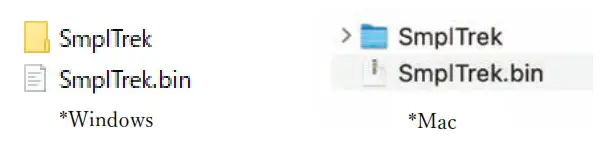
- Unzip the downloaded firmware (.zip) and copy the binary file (SmplTrek.bin) to the root folder on the SD card.

- Remove the card from the PC/Mac and insert it into SmplTrek or deactivate the SmplTrek’s card reader mode
- While pressing , press and hold the power button.
* Please use AC adapter or new batteries. - When the update Screen opens
 , select SYSTEM UPDATE, and press OK.
- Press OK to start the update.
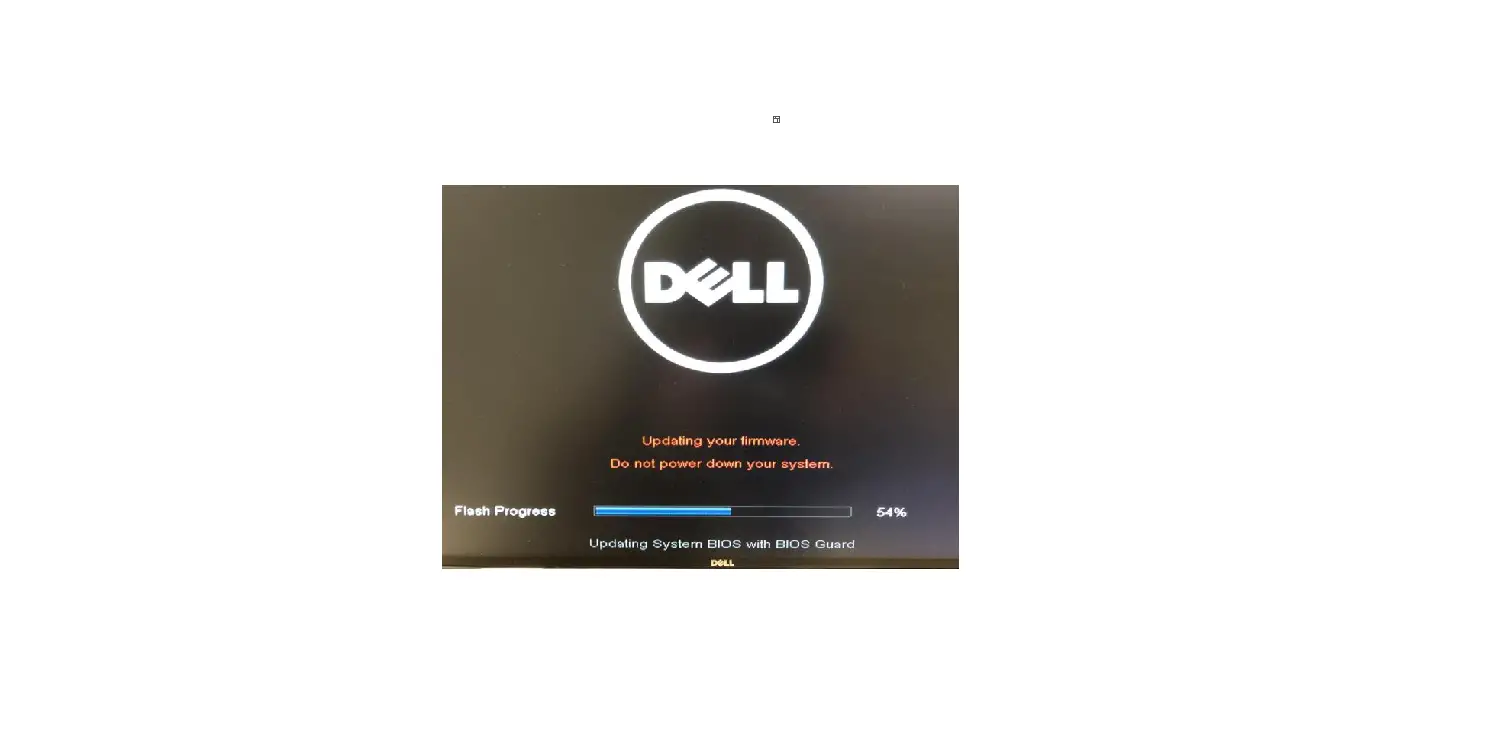
*Never turn off the power while updating. The screen display varies by the version.
 - After it completes, press the power button to shut the unit down. Then, restart it.

 , select SYSTEM UPDATE, and press OK.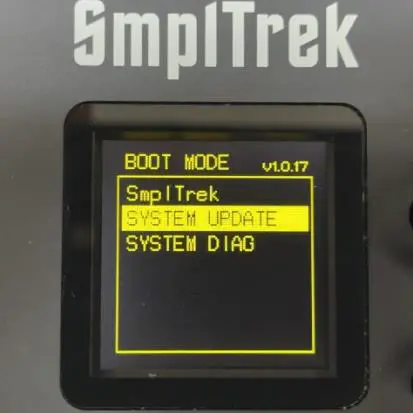
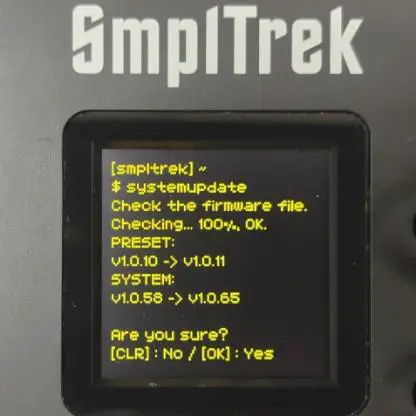 The screen display varies by the version.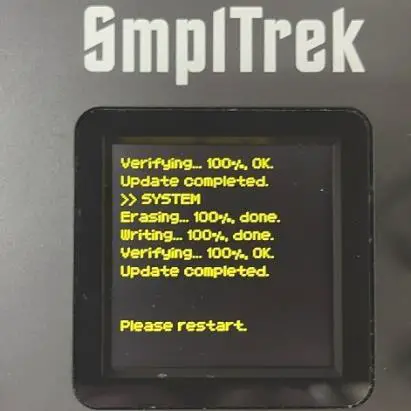
 Downloads – SONICWARE