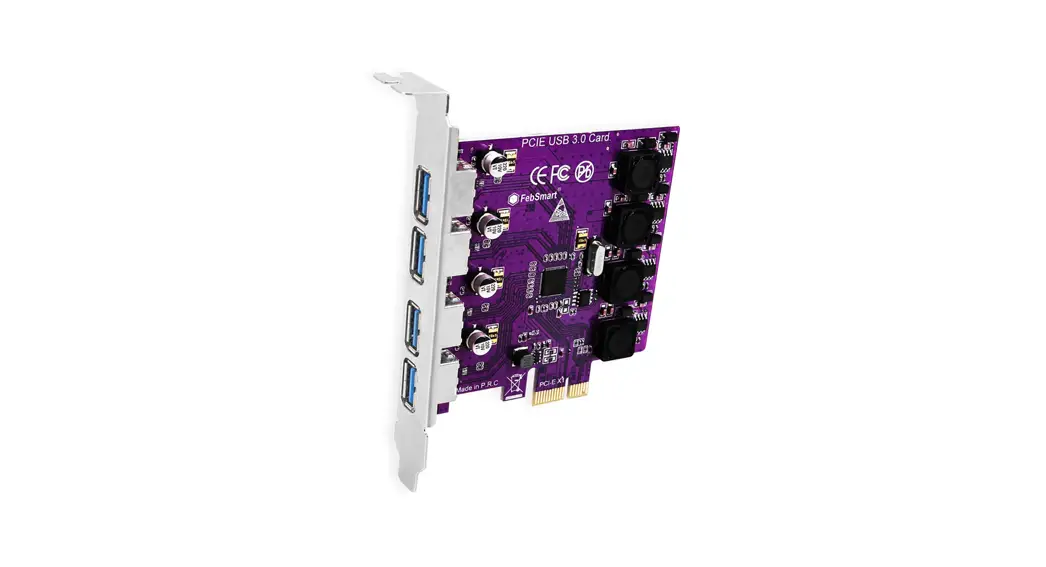
 KC015 PCIe Expansion Card
User Manual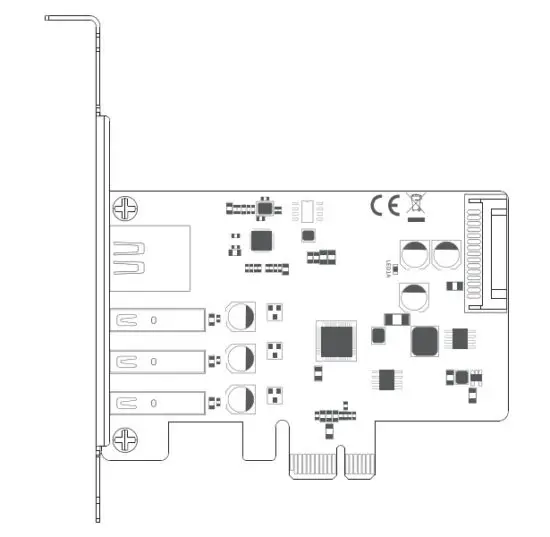 KC015 PCIe Card
Introduction
Product name :
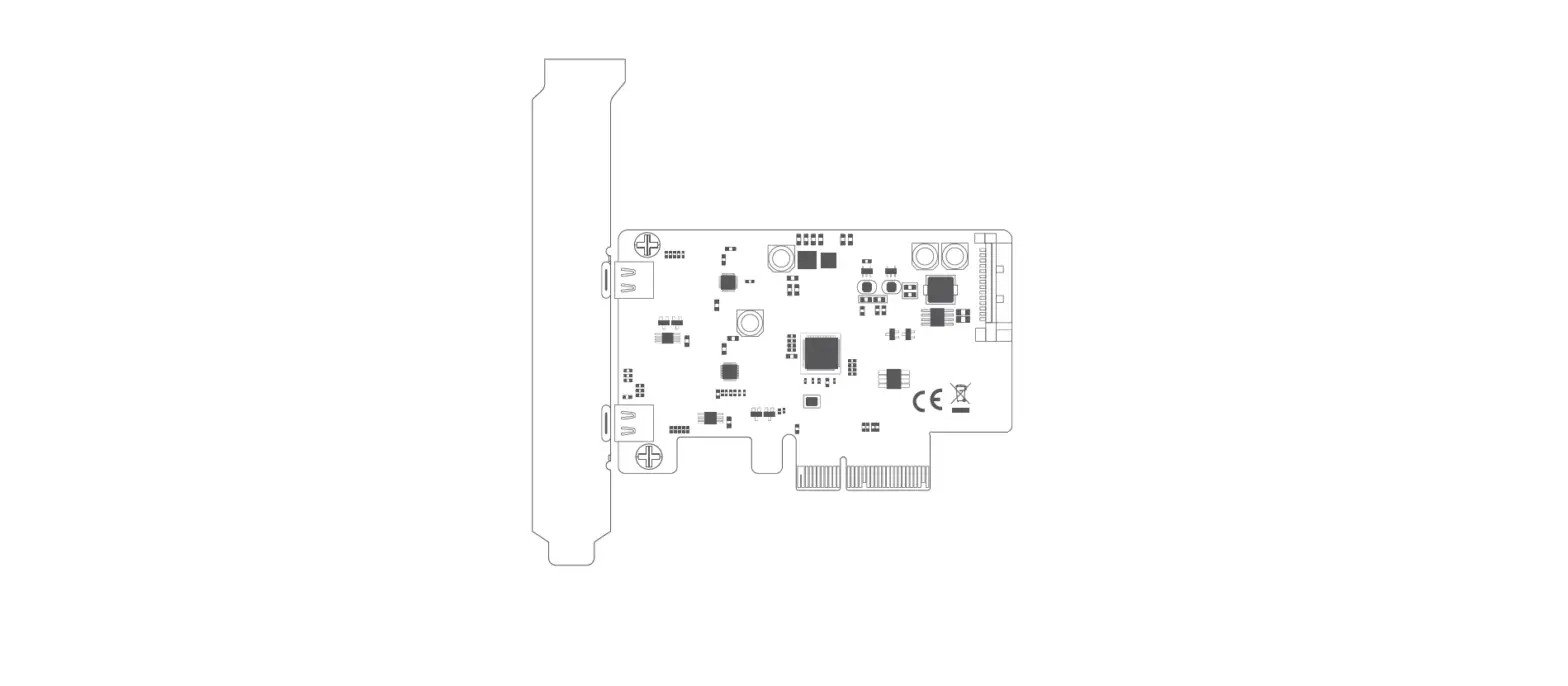
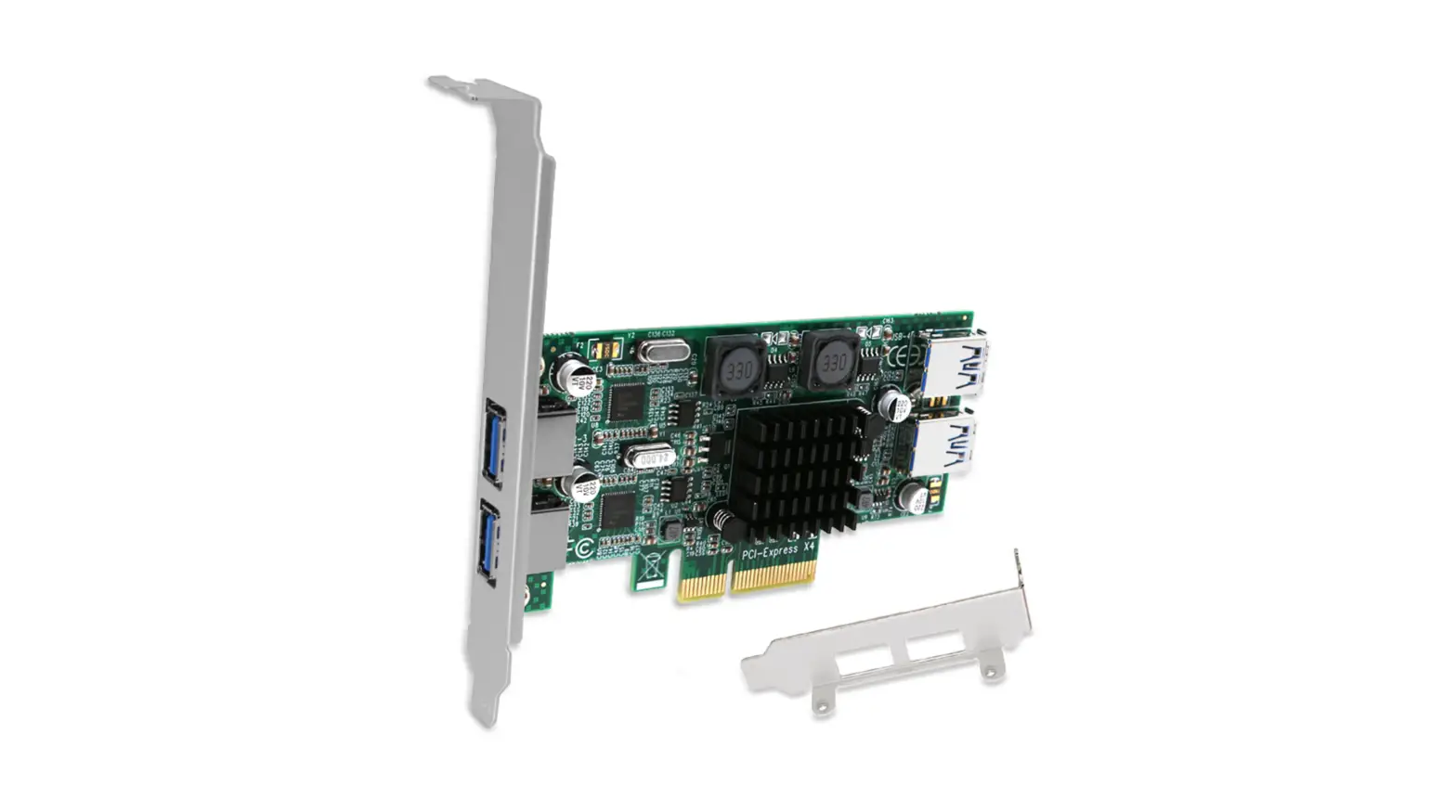
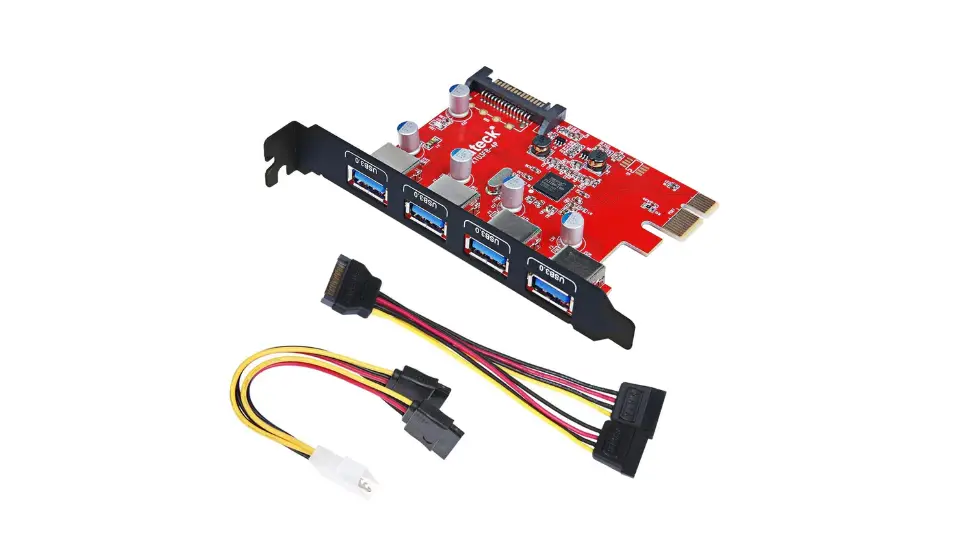
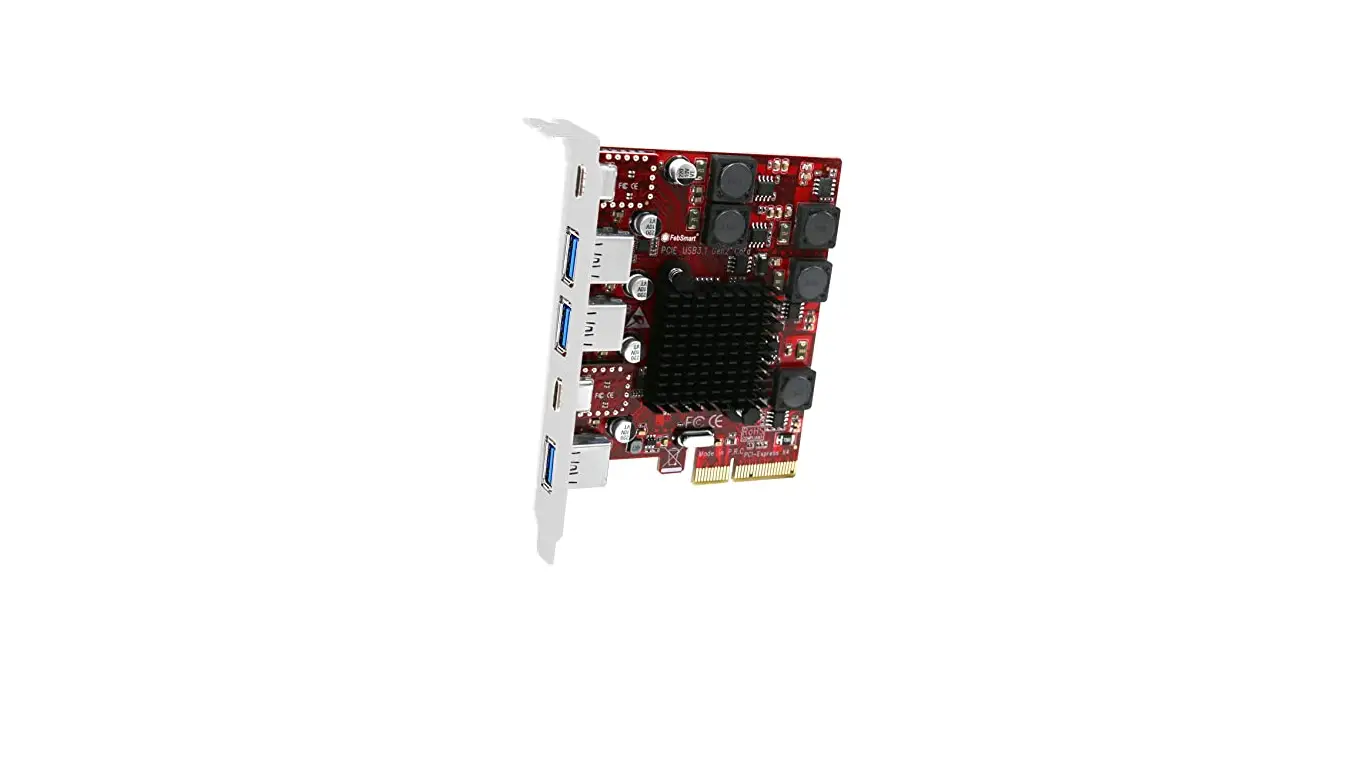
MAIWO KC015 PCIe X1 to 3-port USB HUB+1000M network port expansion card
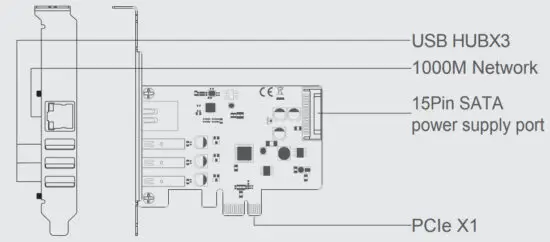
| Item name: | Pole X1 to 3-port USB HUB+1000M network port expansion card |
| Support: | 3xUSB HUB 1000M network |
| Interface: | PCIe X1 is compatible with x4/x8/ X16 card slots |
| Connector: | Usb3.0-5gbps transmission bandwidth |
| Materials: | Metal base + glass fiber plate |
| power supply: | PCIe interface +15Pin SATA dual power supply interface |
| Size: | 112(L)120(Wy18.6(H) MM |
| System: | Windows?/8/10/Linux |
Quick Installation Guide
Installation
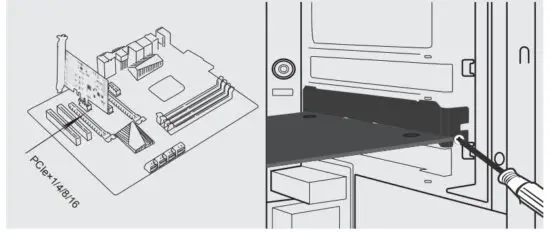
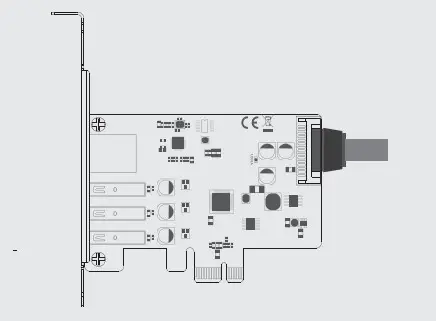
- Insert express card to PCIe×1/ 4/8/16 slot on the motherboard;
- Fix full profile bracket with tower panel of PC.

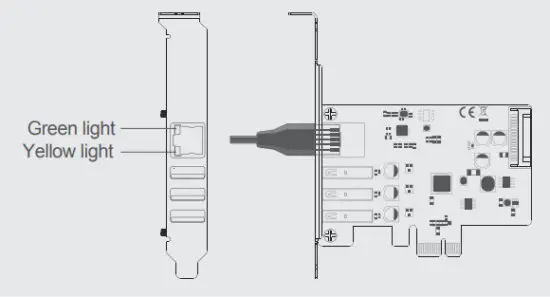
- The network indicator light: green illuminate when power is connected and flash yellow when transferring data.
- 15pin SATA power cable, ready for PCIe power is weak.


Note: Initialize the partitioned hard disk step when the USB interface is connected to the new removable hard disk
Ⅰ. New hard disk format:
View “computer-Manage-disk management” to Find the New disk. 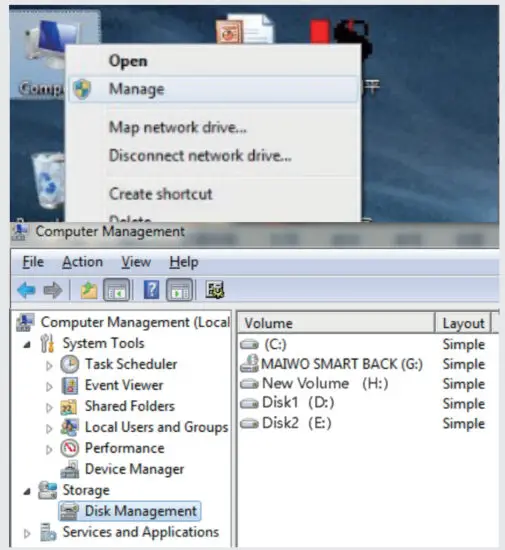
II. New hard disk format:
Right click the “External disk”, then click “New Simple Volume”.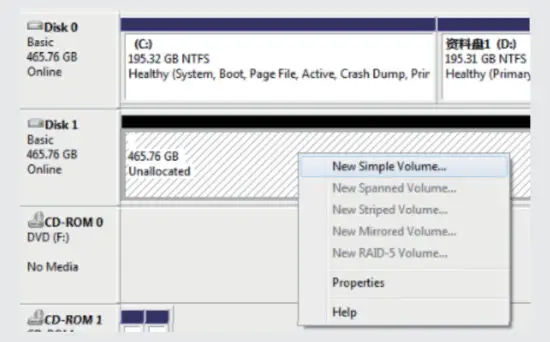
Hard disk partition:
According to the instruction, choose the size of the partition, then dick “Next” to finish.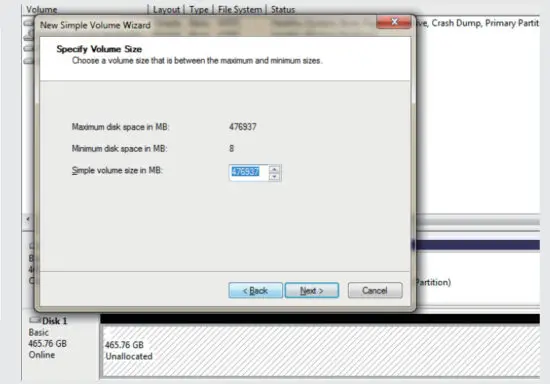
Ⅳ. Hard disk partition:
Then you can find the new hard disk in the “Computer”, it’s ready to be used.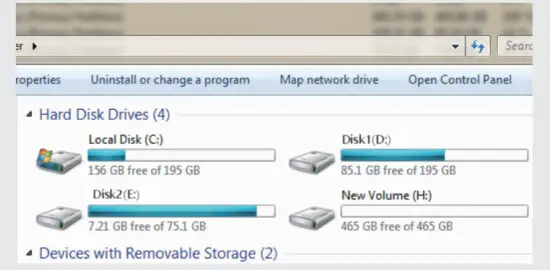
initialization, partition, and format
- View“computer – Manage – disk management” to Find the new disk.
Remark: There are two types MBR and GPT. SSD capacity <=2T, please choose MBR, if more than 2T, choose GPT. - Right-click the “Disk 1”, then click “New Simple Volume”.